Home
Certification Prep // 220-1202

4.0 Operational Procedures

4.9 ~ Given a scenario, use remote access technologies.

core2-lab.exe
> load objective 4.9
> map scenario clues
> verify and document
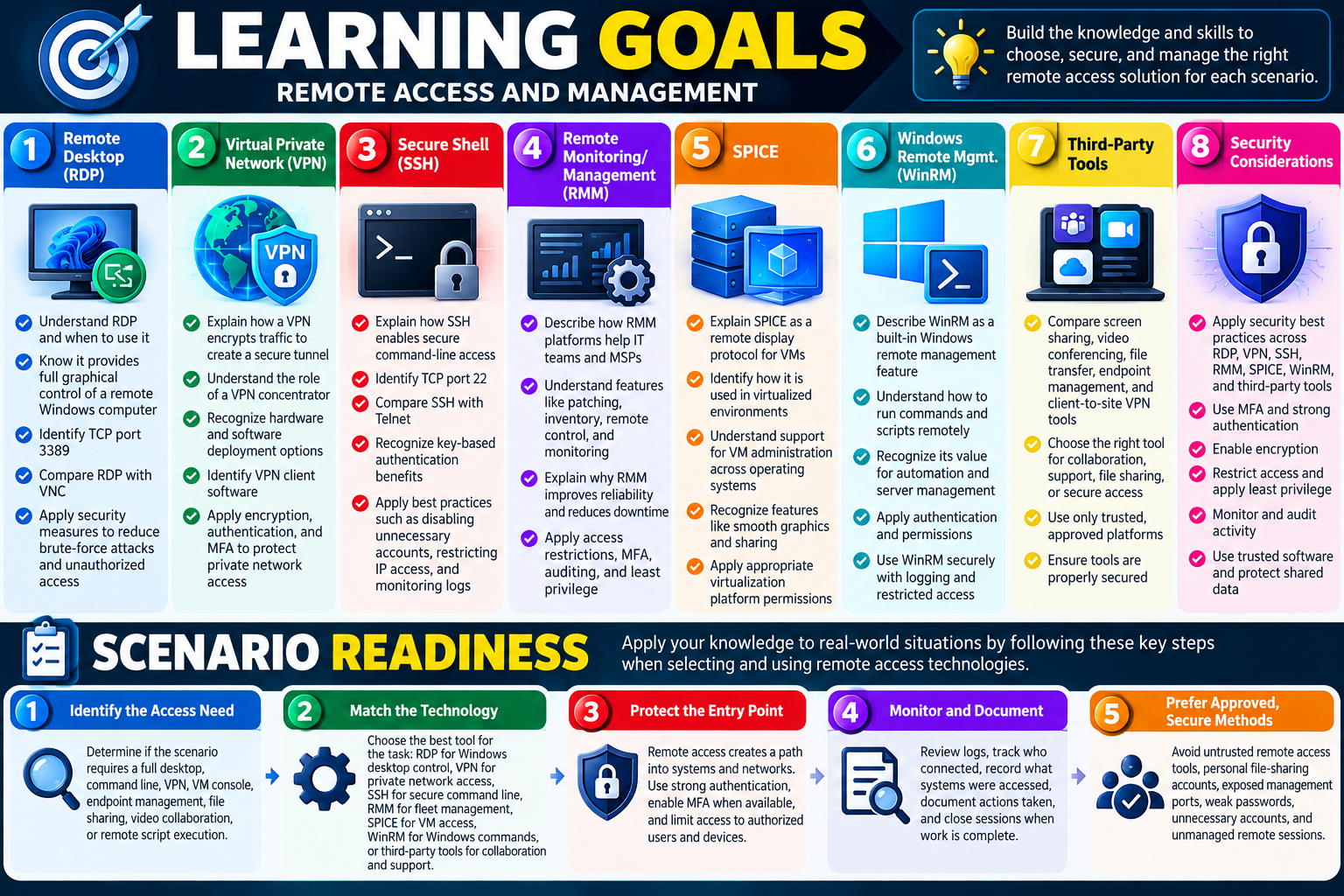
Learning Goals infographic for Objective 4.9 covering remote desktop, VPN, SSH, RMM, SPICE, WinRM, third-party tools, security considerations, and scenario readiness for remote access and management.
Objective 4.9 learning goals focus on selecting, securing, and managing the right remote access solution for each scenario.

Learning Goals

By the end of Objective 4.9, you should be able to choose the right remote access technology for a scenario, explain how each method works, and apply security controls that protect remote sessions, devices, users, and organizational networks.

Module 1 - Remote Desktop (RDP) Explain how remote desktop provides full graphical control of another computer, identify Microsoft RDP as a common Windows remote access protocol, recognize TCP port 3389, compare RDP with VNC, and apply controls that reduce exposure to brute-force attacks and unauthorized desktop access.
Module 2 - Virtual Private Network (VPN) Describe how a VPN creates an encrypted tunnel to private resources, explain the role of a VPN concentrator, distinguish hardware and software deployment options, recognize VPN client software, and apply encryption, strong authentication, and MFA to protect remote network access.
Module 3 - Secure Shell (SSH) Explain how SSH provides encrypted command-line access to remote systems, recognize TCP port 22, compare SSH with Telnet, identify key-based authentication benefits, and secure SSH by disabling unnecessary accounts, restricting IP access, and monitoring logs.
Module 4 - Remote Monitoring/Mgmt. (RMM) Describe how RMM platforms let IT teams and MSPs monitor, patch, inventory, remotely control, and manage many devices from one dashboard; explain why RMM improves reliability and uptime; and apply access restrictions, MFA, auditing, and least privilege because RMM is a high-value target.
Module 5 - SPICE Explain SPICE as a remote display protocol for virtual machines, identify its use in virtualized environments, describe how it supports VM administration across operating systems, recognize smooth graphics and sharing features, and protect VM console access with appropriate virtualization platform permissions.
Module 6 - Windows Remote Mgmt. (WinRM) Describe WinRM as a built-in Windows remote management feature for executing commands and scripts on remote Windows systems, explain how commands run remotely and return output, identify its value for automation and server management, and secure it with authentication, permissions, logging, and restricted access.
Module 7 - Third-Party Tools Compare third-party screen sharing, video conferencing, file transfer, desktop management, and client-to-site VPN tools; choose the correct tool for collaboration, support, file sharing, endpoint control, or secure network access; and use only trusted, approved, and properly secured platforms.
Module 8 - Security Considerations Apply remote access security best practices across RDP, VPN, SSH, RMM, SPICE, and third-party tools by using MFA, strong authentication, encryption, patching, least privilege, IP restrictions, monitoring, auditing, trusted software, and careful control of shared data.

Scenario Readiness

  1. Identify the access need. Determine whether the scenario requires a full desktop, command line, private network tunnel, VM console, endpoint management dashboard, file sharing, video collaboration, or remote script execution.
  2. Match the technology. Choose RDP for Windows desktop control, VPN for private network access, SSH for secure command-line access, RMM for fleet management, SPICE for VM display access, WinRM for Windows remote commands, and third-party tools for approved collaboration or endpoint workflows.
  3. Protect the entry point. Remote access creates a path into systems or networks, so restrict exposure, require strong authentication, enable MFA where available, and limit access to authorized users and devices.
  4. Monitor and document activity. Review logs, track who connected, record what systems were accessed, document actions taken, and close sessions or remove access when work is complete.
  5. Prefer approved, secure methods. Avoid untrusted remote access tools, personal file-sharing accounts, exposed management ports, weak passwords, unnecessary accounts, and unmanaged remote sessions.
Lesson ModuleModule 1 / 11
RDP
Module 01

Module 1 - Remote Desktop (RDP)

Remote desktop technology lets a technician access and control another computer over a network as if they were sitting in front of it. It is powerful for IT support, administration, and remote work, but it must be secured carefully because remote access is a common attacker target.

For Objective 4.9, remote access is about matching the right remote tool to the support task and applying the correct security controls. A technician may need a full graphical desktop, command-line access, file transfer, remote monitoring, remote management, or a secure connection into a private network. Remote Desktop Protocol (RDP) is one of the most important examples because it provides a full desktop experience, is built into Windows environments, and is frequently used by legitimate administrators and support staff.

Remote desktop tools can also be abused. Scammers and attackers often try to convince users to install remote access tools, expose RDP to the internet, reuse weak credentials, or approve remote sessions they do not understand. Once an attacker gains remote desktop access, they may have the same practical control as a person sitting at the keyboard. That means they can open files, access browsers, move laterally, steal data, install malware, or damage systems. The technical skill is useful; the security discipline is mandatory.

What Remote Desktop Does

Remote desktop allows a technician to see the remote screen, use the mouse and keyboard, open applications, change settings, troubleshoot user problems, and perform administrative work from another location. To the person providing support, the remote system appears inside a window or full-screen session. To the remote computer, commands are executed as if someone were interacting directly with that machine.

This is especially helpful when physical access is slow, expensive, or impossible. A help desk technician can support a user in another office, an administrator can manage a server in a data center, and a remote worker can connect to an assigned workstation. Remote desktop can reduce travel time, speed up troubleshooting, and make support more efficient.

  1. See the remote screen. The technician can observe errors, settings, prompts, and user workflow directly.
  2. Control input remotely. Keyboard and mouse input can be sent to the remote system during the session.
  3. Run applications and tools. The technician can open administrative consoles, troubleshooters, browsers, logs, or business applications.
  4. Support remote work and IT support. Remote desktop is useful for help desk support, administration, training, and troubleshooting when physical access is not practical.

RDP: Microsoft Remote Desktop Protocol

RDP is Microsoft’s built-in remote desktop protocol and is used mainly for Windows systems. In many business environments, RDP is familiar because Windows clients and servers commonly support it, and administrators often use it to connect to remote desktops or servers. A typical RDP session provides a full desktop experience to the remote system, including the ability to interact with applications, settings, and administrative tools.

RDP uses TCP port 3389 by default. That port number is important for troubleshooting and for security questions. If RDP is not working, a technician may need to check whether Remote Desktop is enabled, whether the remote system allows the connection, whether a firewall is blocking TCP 3389, whether the account is authorized, whether network connectivity exists, and whether policy allows the session. If TCP 3389 is exposed directly to the internet, the organization has a major security risk.

Native to Windows RDP is Microsoft’s remote desktop solution and is widely used in Windows business environments.
Cross-platform clients Remote Desktop clients are available for macOS, Linux, mobile platforms, and other systems, even though the protocol is most closely associated with Windows.
Default port RDP commonly uses TCP port 3389, which should not be left openly exposed to untrusted networks.
Full desktop experience RDP can provide a full interactive desktop session for administration, support, and remote work.

VNC: Virtual Network Computing

VNC is another remote desktop option. It uses the Remote Frame Buffer (RFB) protocol and is known for being available across many operating systems, including Windows, macOS, Linux, and others. Many VNC clients and servers are open source, and the variety of client options can make VNC useful in mixed environments.

VNC and RDP both provide remote access to a graphical system, but they are not the same technology. RDP is Microsoft’s protocol and is deeply integrated with Windows remote desktop workflows. VNC is more cross-platform and commonly appears when a technician needs a remote GUI option outside a strictly Windows environment. The right choice depends on the operating system, security controls, user consent requirements, management tools, and organizational policy.

  • Cross-platform support: VNC can work across Windows, macOS, Linux, and other operating systems.
  • Open-source options: Many VNC clients and servers are open source or have community-supported versions.
  • Remote GUI access: VNC provides screen sharing and control similar in purpose to RDP, but through a different protocol.
  • Support and administration: VNC is commonly used for remote support, administration, lab environments, and mixed-platform access.

Security Considerations

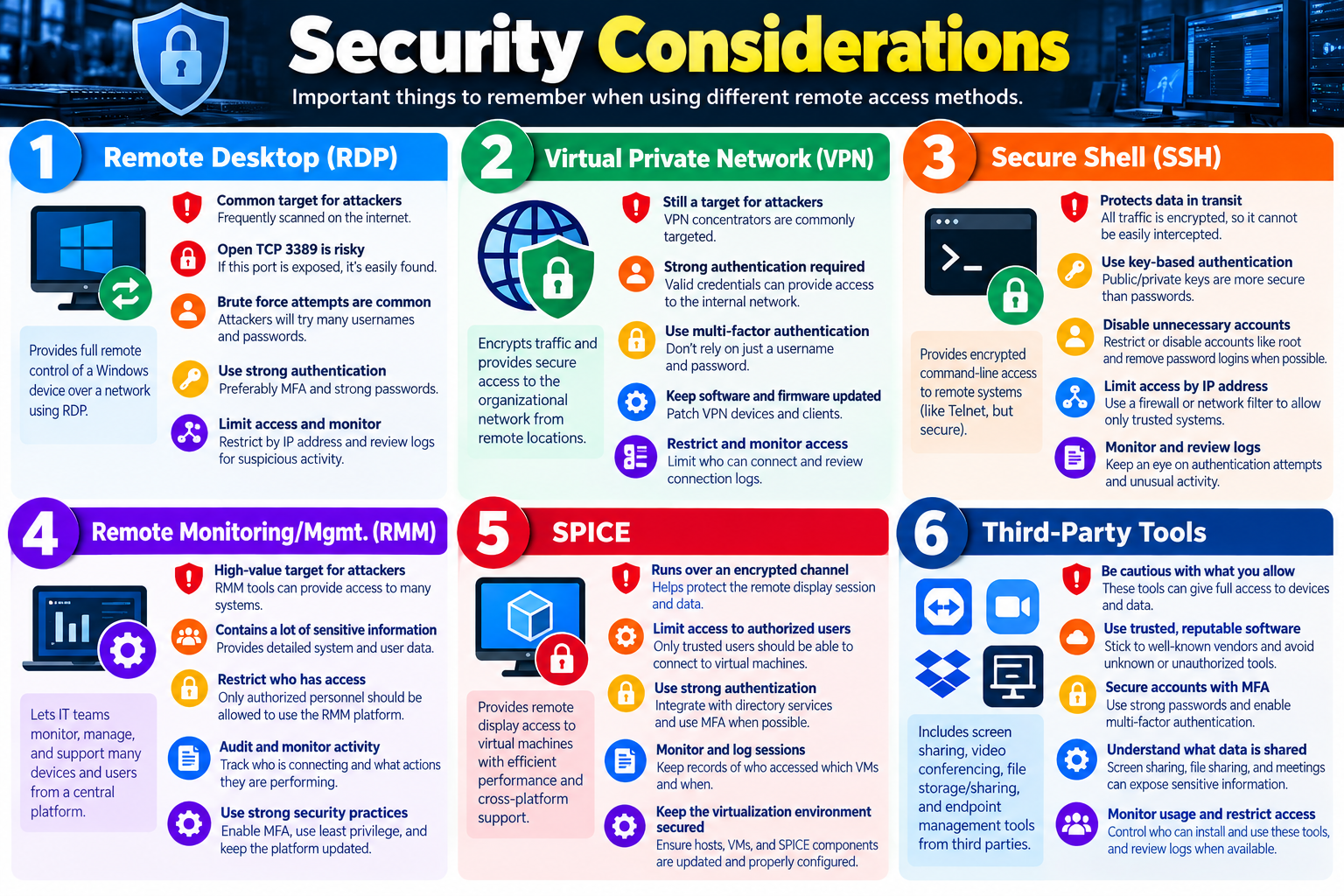
Remote desktop is powerful because it gives direct control of a computer. That same power makes it attractive to attackers. RDP attacks are common because exposed RDP services can be scanned from the internet, targeted with brute-force password guessing, attacked with stolen credentials, or abused when passwords are reused across accounts. Many third-party remote access tools also rely heavily on usernames and passwords, which means weak authentication can become the easiest path into the system.

A remote desktop connection should never be treated as harmless just because it is convenient. Strong passwords, multifactor authentication where available, account lockout policies, VPN or secure gateway access, least privilege, logging, monitoring, patching, and session termination all matter. Users should approve or understand support sessions when policy requires consent. Technicians should disconnect when work is complete and avoid leaving unattended sessions open.

Protect TCP 3389 Leaving RDP open to the internet creates a major security risk and invites scanning and brute-force attacks.
Use strong authentication Strong credentials, multifactor authentication, account lockout, and least privilege reduce the chance of compromise.
Watch password reuse Reused usernames and passwords make it easier for attackers to compromise remote access accounts.
Monitor access Logging and monitoring help detect suspicious remote access attempts and unauthorized sessions.

What an Attacker Can Do After Remote Access

Once an attacker has remote desktop access, the situation can become serious quickly. The attacker may have full desktop access and may be able to move to other systems, copy or delete data, open browser sessions, steal personal information, access saved credentials, make purchases, install remote tools, disable security controls, or stage a larger attack. This is why remote access should be limited to authorized users, approved tools, secure networks, and documented support workflows.

Support staff should also be alert for social engineering. If a user reports that someone called claiming to be support and requested remote access, that should be treated as suspicious unless it can be verified through approved channels. Legitimate technicians should identify themselves, use approved remote support tools, follow consent procedures, and document the session.

Technician Decision Points

When selecting a remote access method, start with the support need. If the technician needs a full Windows GUI, RDP or an approved remote support tool may fit. If the technician needs command-line access to a Linux server, SSH may be more appropriate. If the technician needs access into a private network first, a VPN may be required. If the organization uses an RMM platform, the technician should follow that managed workflow instead of improvising with an unapproved tool.

  1. Match the tool to the task. Choose full desktop, command line, secure tunnel, file transfer, remote management, or screen sharing based on the scenario.
  2. Follow policy. Use approved tools and avoid personal or unapproved remote access software.
  3. Verify authorization. Confirm the user, device, account, and session are allowed.
  4. Secure the session. Use encryption, strong authentication, least privilege, logging, and session termination.
  5. Document the work. Record the tool used, user consent when required, actions taken, result, and any security concerns.

Exam Mindset

If a scenario mentions Windows full desktop access, think RDP and TCP port 3389. If it mentions cross-platform graphical remote access, VNC may fit. If it mentions exposed remote desktop, brute force, password reuse, or third-party tools protected only by username and password, choose the answer that strengthens authentication, limits exposure, uses approved secure access, monitors logs, and closes the session when finished.

Bottom line: Remote desktop lets technicians control another computer as if they were sitting in front of it. RDP is Microsoft’s common Windows remote desktop protocol and uses TCP port 3389 by default. VNC provides cross-platform remote GUI access through the RFB protocol. Both can be useful, but remote desktop access must be protected with strong credentials, approved tools, secure exposure, monitoring, and careful session handling.
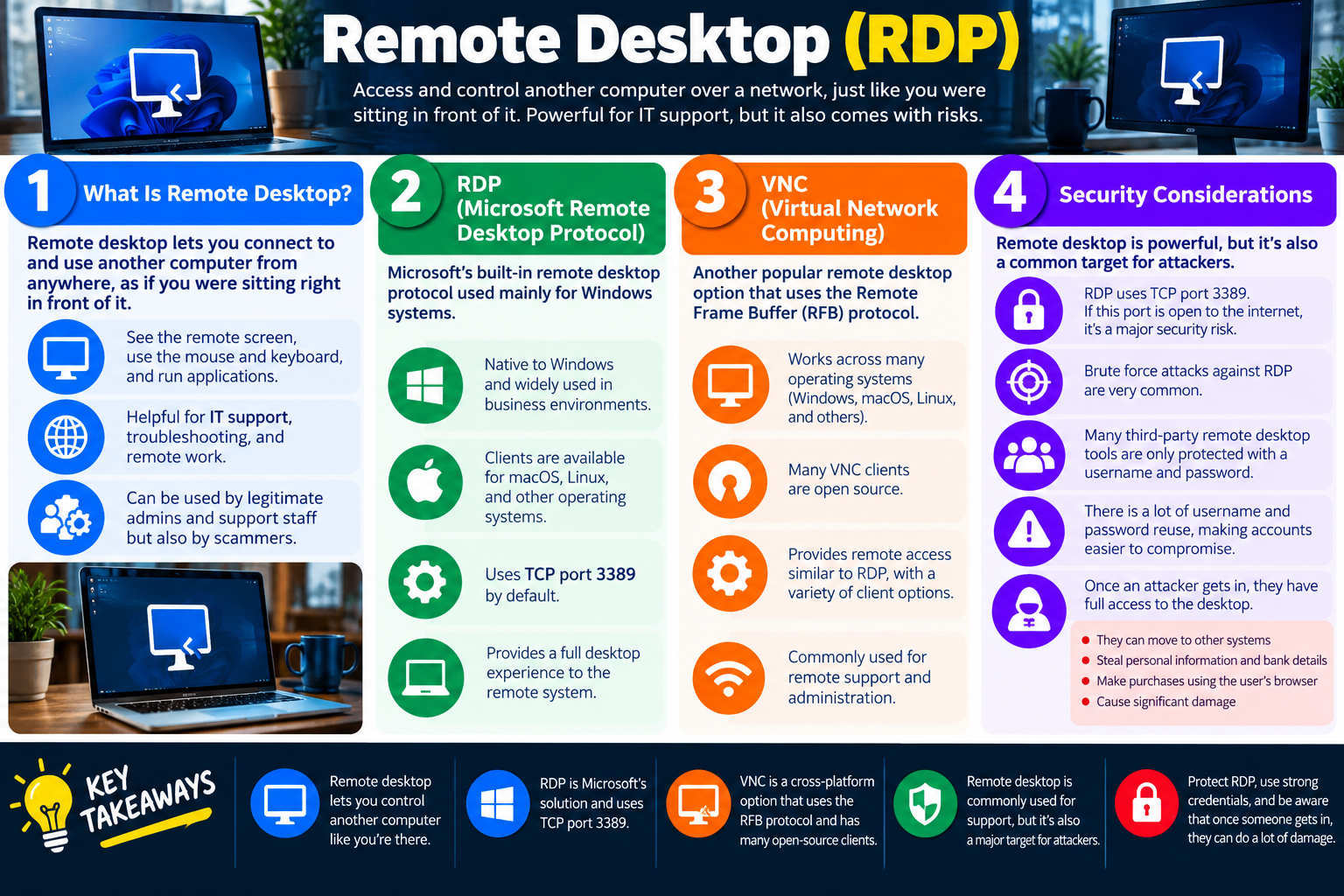
Remote Desktop RDP infographic explaining remote desktop access, Microsoft Remote Desktop Protocol, VNC, and remote desktop security considerations.
Remote desktop tools are powerful for support and administration, but exposed services, weak credentials, and password reuse can turn remote access into a major security risk.
VPN
Module 02

Module 2 - Virtual Private Network (VPN)

A Virtual Private Network (VPN) creates a secure, encrypted tunnel across the public internet so a remote device can safely access a private network as if it were on-site.

For Objective 4.9, a VPN is one of the most important remote access technologies because it solves a different problem than a simple screen-sharing session. A VPN does not just let a technician view another computer. It creates protected network connectivity between a remote device and internal resources. Once connected, the user may be able to reach file shares, intranet sites, management systems, internal applications, printers, servers, or other private services that are not normally exposed directly to the internet.

The key idea is the secure tunnel. The user may be at home, in a hotel, at a customer site, or on public Wi-Fi, but the VPN encrypts traffic between the client device and the organization’s VPN endpoint. This helps protect the data while it crosses untrusted networks and makes the remote device appear logically connected to the organization’s private network. That power requires strong authentication and careful configuration because a VPN connection can become a doorway into the internal environment.

What Is a VPN?

A VPN, or Virtual Private Network, creates a private communication path over a public network. Instead of sending sensitive traffic openly across the internet, the VPN wraps that traffic in encryption. This protects confidentiality and helps prevent outsiders from reading or intercepting the data in transit.

A VPN is commonly used by remote employees, administrators, contractors, and support staff who need secure access to internal resources. The remote device runs VPN client software, authenticates to the VPN service, and establishes an encrypted tunnel. After the tunnel is active, the user can access approved internal systems according to policy and permissions.

  1. Protects data in transit. VPN encryption helps keep traffic private while it crosses public or untrusted networks.
  2. Provides internal access. A VPN can allow access to private resources that are normally available only from inside the organization.
  3. Creates an on-site effect. The remote device may appear as though it is connected to the organization’s network.
  4. Requires trust and control. Because VPN access can reach private resources, authentication, authorization, monitoring, and endpoint health matter.

VPN Concentrator

A VPN concentrator is the device or service that manages VPN connections. It handles the work of accepting remote VPN sessions, authenticating users, encrypting outgoing data, decrypting incoming data, and connecting remote users to the appropriate internal network resources. In many environments, the VPN concentrator may be a dedicated appliance, a firewall feature, a router feature, a cloud service, or a software-based VPN server.

The concentrator is an important security boundary. It should be configured to allow only approved users, approved authentication methods, approved encryption settings, and appropriate network access. A poorly configured concentrator can give users more access than they need or allow attackers to attempt credential attacks against a public-facing remote access service.

Encrypts and decrypts traffic The concentrator protects data flowing between remote clients and the private network.
Often integrated with firewalls Many organizations use firewall-based VPN services to combine access control and secure tunneling.
Supports many users A concentrator can allow multiple remote users to connect securely at the same time.
Enforces policy Authentication, authorization, encryption options, and access rules are commonly controlled at the VPN endpoint.

Deployment Options

VPNs can be deployed in several ways depending on the organization’s size, budget, security requirements, and support model. Some organizations use dedicated hardware appliances designed specifically for VPN encryption and traffic handling. Others use software-based VPN solutions installed on servers, integrated into firewalls, or provided through cloud security platforms.

There is no single best deployment for every environment. A small business may use a firewall’s built-in VPN feature. A large enterprise may use redundant VPN appliances, identity integration, certificate-based authentication, device compliance checks, and centralized logging. A cloud-first organization may use a cloud access broker or zero trust network access model. For A+ scenarios, focus on the role: the VPN solution creates a secure connection into private resources and must be deployed according to organizational needs.

  • Dedicated hardware: Appliances can be designed for VPN throughput, encryption, reliability, and centralized access control.
  • Software-based solutions: VPN software can run on servers, firewalls, endpoints, or cloud-based platforms.
  • Integrated firewall VPN: Many firewall products include VPN services so secure remote access and traffic filtering can be managed together.
  • Environment-based choice: Budget, number of users, security policy, compliance, bandwidth, and support requirements influence the deployment.

Client Software

Users usually connect through VPN client software. VPN clients exist for Windows, macOS, Linux, mobile operating systems, and other platforms. Many operating systems include built-in VPN client capability, while organizations may also deploy vendor-specific VPN clients with additional features such as MFA prompts, device checks, connection profiles, traffic routing rules, or endpoint posture validation.

After the client is configured, it creates a secure connection to the VPN concentrator. The configuration may include the VPN server address, authentication method, certificates, username requirements, split-tunnel or full-tunnel settings, DNS behavior, and allowed internal resources. A technician troubleshooting VPN connectivity should consider client configuration, credentials, MFA prompts, network access, local firewall settings, time synchronization, certificates, DNS, and whether the VPN service itself is available.

Multiple platforms VPN clients are available for Windows, macOS, Linux, mobile devices, and other operating systems.
Built-in options Many operating systems include VPN client features, though organizations may require a specific approved client.
Secure connection Once configured, the client establishes an encrypted connection to the VPN concentrator.
Support variables Client settings, credentials, certificates, MFA, DNS, routing, and firewall rules can all affect VPN access.

VPN Security

VPNs provide strong protection, but security depends on more than encryption. Encryption protects the data in transit, but authentication controls who can create the tunnel. If an attacker obtains valid VPN credentials, the attacker may be able to connect to the private network just like a legitimate user. This is why strong, unique passwords and multifactor authentication are so important.

Authentication should verify the user and, in many environments, the device. A secure VPN deployment may require MFA, certificates, device compliance, managed endpoints, account lockout, conditional access, logging, and alerting. The technician should understand that a VPN is not automatically safe simply because it is encrypted. It must be properly configured, patched, monitored, and limited to authorized users.

Data Is Encrypted

When traffic travels through a VPN tunnel, it is protected using encryption. This helps keep data confidential while crossing the internet or public networks. For example, a remote user on hotel Wi-Fi may need to access internal files or applications. Without protection, traffic could be exposed to eavesdropping or interception. With a properly configured VPN, the traffic is encrypted between the user’s device and the VPN endpoint.

Encryption is especially important when users work from networks the organization does not control. Public Wi-Fi, shared networks, guest networks, and home routers may not provide the same protections as an internal corporate network. VPN encryption helps reduce that exposure, but it does not replace safe browsing, endpoint security, patching, or good credential hygiene.

Authentication Matters

Access to the VPN is controlled through authentication. The user must prove they are allowed to connect. This is often done with a username and password, but stronger deployments add additional checks. If an attacker has valid credentials, encryption will not stop them from logging in. The VPN will protect the attacker’s connection just as it protects a legitimate user’s connection.

  • Use strong, unique credentials. Weak or reused passwords increase the chance of compromise.
  • Protect accounts. Compromised VPN accounts can give attackers direct access to private resources.
  • Limit access. Users should receive only the VPN access they need for their role.
  • Monitor logins. Unusual locations, repeated failures, impossible travel, or unexpected device types should be investigated.

Multi-Factor Authentication (MFA)

VPNs almost always benefit from MFA. Multifactor authentication requires more than a username and password, such as a mobile app approval, hardware token, text or phone verification, certificate, biometric factor, or other second factor. MFA significantly reduces the risk of unauthorized access because a stolen password alone is not enough.

MFA is not a magic shield, but it is one of the most important controls for remote access. A technician should recognize MFA prompts, enrollment issues, time-based token problems, push fatigue risks, and the need to follow policy when a user cannot complete MFA. Bypassing MFA for convenience can create a major security gap.

Exam Mindset

If a scenario describes secure access to internal resources over the internet, think VPN. If it mentions a device managing many VPN connections, think VPN concentrator. If it mentions privacy over public Wi-Fi, encryption is important. If it mentions stolen passwords or unauthorized remote access, choose strong authentication and MFA. A VPN protects the tunnel, but identity and configuration determine who can use it.

Bottom line: A VPN creates an encrypted tunnel between a remote device and a private network. VPN concentrators manage connections and encryption, clients establish the connection, and deployment may be hardware-based, software-based, or firewall-integrated. VPN security depends on encryption, strong authentication, MFA, proper configuration, logging, and limiting access to authorized users.

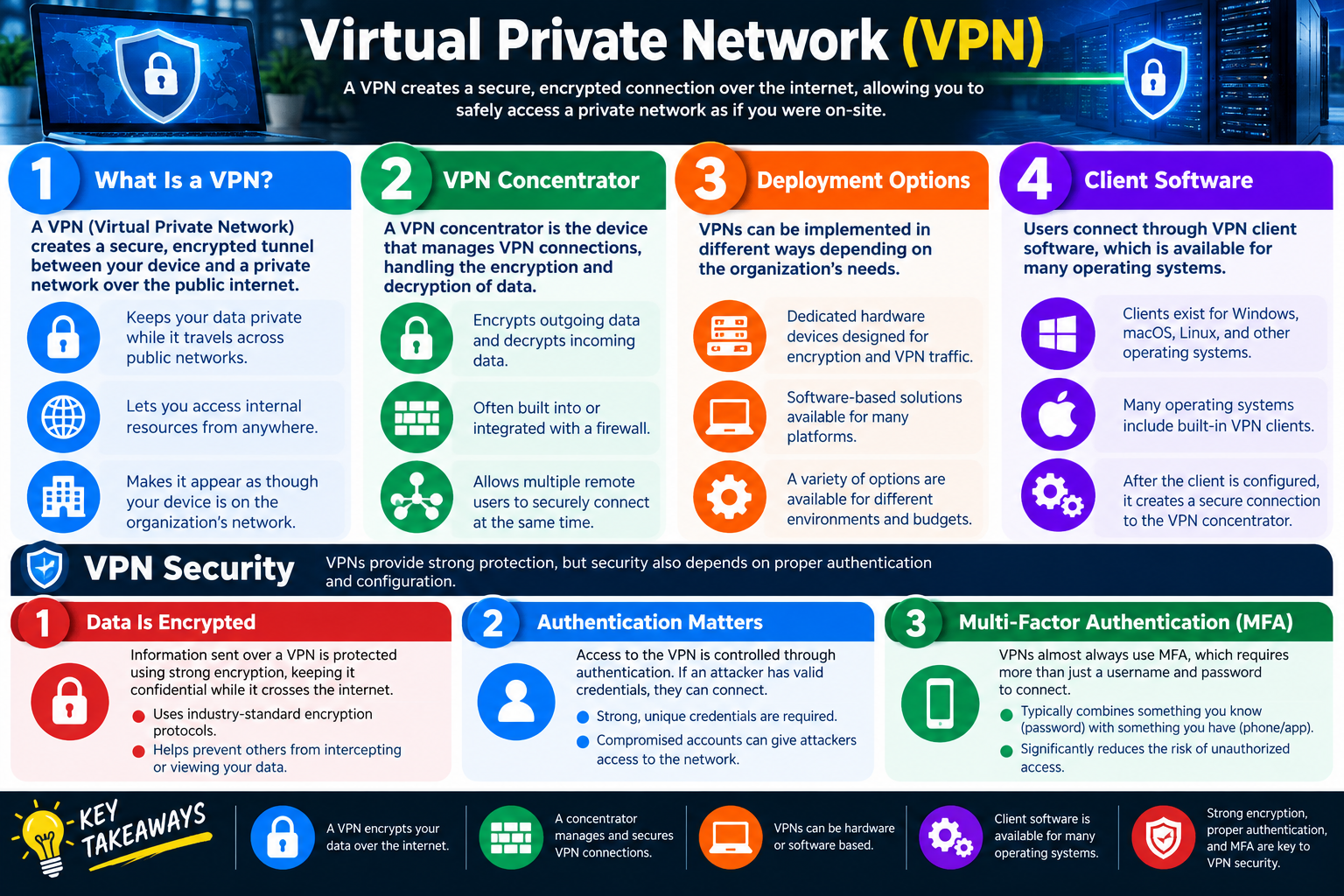
Virtual Private Network VPN infographic explaining VPN tunnels, VPN concentrators, deployment options, client software, encryption, authentication, and multifactor authentication.
A VPN protects remote access by creating an encrypted tunnel, but strong authentication, MFA, and proper configuration are what keep the tunnel from becoming an attacker’s path into the network.
SSH
Module 03

Module 3 - Secure Shell (SSH)

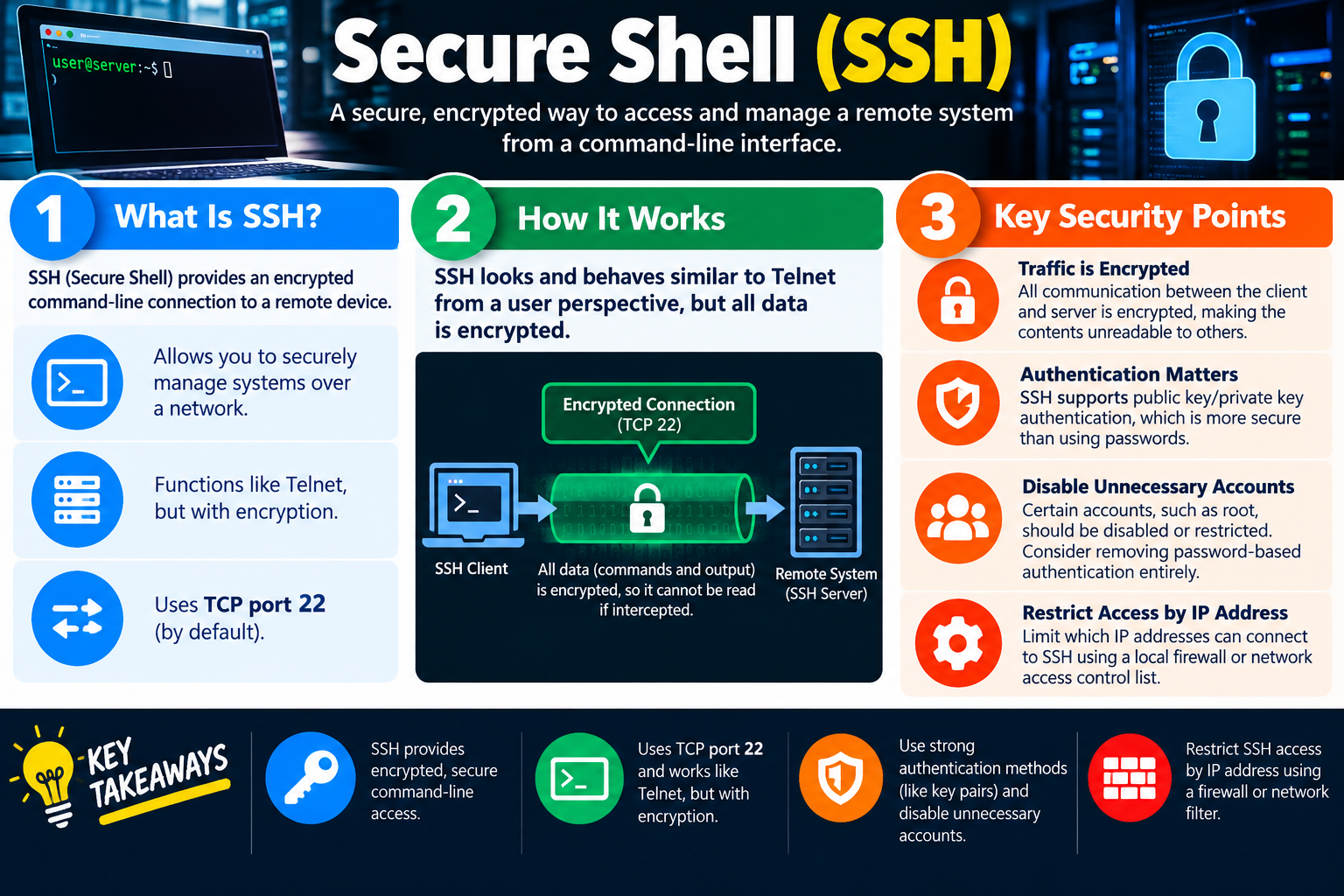
Secure Shell (SSH) provides a secure, encrypted command-line connection to a remote device. It is commonly used to manage servers, network devices, Linux systems, cloud instances, and other systems where command-line administration is the right tool.

For Objective 4.9, SSH is an important remote access technology because it provides secure command-line access rather than a full graphical desktop. If RDP is often the answer for a Windows full-desktop session, SSH is often the answer when the scenario describes remote command-line administration, Linux server management, network device configuration, or secure terminal access. SSH gives administrators a powerful way to manage systems across a network while protecting commands and output with encryption.

SSH is frequently compared to Telnet because both provide command-line remote access. The key difference is security. Telnet sends traffic in clear text, which means usernames, passwords, commands, and output can be intercepted and read. SSH behaves similarly from a user perspective, but the session is encrypted. That encryption is why SSH replaced Telnet in modern secure administration.

What Is SSH?

SSH stands for Secure Shell. It allows a user or administrator to securely connect to a remote system and interact with it through a command-line interface. Instead of sitting at the server console, the technician opens an SSH client, connects to the remote SSH server, authenticates, and then runs commands from another location.

SSH is commonly used in Linux and Unix-like environments, but it is not limited to Linux. Many network devices, security appliances, virtualization hosts, cloud systems, storage systems, and Windows environments can support SSH. The common exam clue is not just the operating system; it is the need for secure command-line management.

  1. Securely manage systems over a network. SSH lets technicians administer systems without being physically present.
  2. Use command-line access. SSH is designed for terminal-based work rather than full desktop screen control.
  3. Replace insecure Telnet workflows. SSH provides similar remote terminal behavior but encrypts the communication.
  4. Use TCP port 22. SSH uses TCP port 22 by default, which is a key troubleshooting and security detail.

How SSH Works

From the user’s perspective, SSH looks and behaves like a remote terminal session. The technician connects from an SSH client to an SSH server. After authentication succeeds, the technician can run commands, view output, edit configuration files, restart services, review logs, copy files with related tools, or perform administrative tasks allowed by the account’s permissions.

Behind the scenes, SSH creates an encrypted connection between the client and server. The infographic highlights TCP port 22 because that is the default port used by SSH. All data in the session, including commands and command output, is encrypted. If someone intercepts the network traffic, the contents should not be readable when SSH is properly configured.

SSH client The system or tool used by the technician to start the secure terminal session.
SSH server The remote system accepting secure command-line connections.
Encrypted connection Commands, output, and authentication traffic are protected inside the SSH session.
TCP port 22 The default SSH port and an important clue for firewall, access, and troubleshooting questions.

SSH vs. Telnet

Telnet is an older remote terminal protocol. It can provide command-line access, but it does not encrypt traffic. That makes Telnet unsafe for modern administration over untrusted networks because credentials and commands may be visible to anyone who can capture the traffic. SSH was designed to solve that problem by providing encrypted remote shell access.

If a question asks which tool should be used for secure remote command-line administration, SSH is the better answer than Telnet. Telnet may appear in legacy environments, lab scenarios, or older equipment, but it should be avoided when secure administration is required. A technician should choose SSH whenever supported and should disable or restrict Telnet unless there is a documented, approved reason to keep it.

  • Telnet: Remote command-line access without encryption; generally considered insecure.
  • SSH: Remote command-line access with encryption; preferred for secure administration.
  • Scenario clue: If the question says secure terminal, encrypted command line, Linux server, or TCP 22, think SSH.
  • Security decision: Replace Telnet with SSH when possible and document any legacy exception.

Traffic Is Encrypted

One of SSH’s most important security benefits is encryption. Communication between the client and server is encrypted so commands, output, and authentication activity are not readable to others on the network. This matters because administrators often run sensitive commands, view configuration files, manage users, check logs, and access systems that may contain private or business-critical data.

Encryption does not mean every SSH deployment is automatically safe. The SSH service still needs to be patched, configured properly, restricted to authorized users, monitored, and protected from credential attacks. Encryption protects the traffic, but it does not guarantee the person connecting is authorized.

Authentication Matters

SSH supports multiple authentication methods. Password authentication is common, but public key/private key authentication is often more secure when implemented properly. With key-based authentication, the server trusts a public key associated with the account, while the user keeps the private key protected. The private key should be secured with proper file permissions and, when appropriate, a passphrase.

Key-based authentication can reduce the risk of password guessing and credential reuse. Many secure environments restrict or disable password-based SSH logins and require key pairs instead. A technician should understand that key-based authentication is not simply “no password.” It depends on protecting the private key and controlling which public keys are authorized on the server.

Password authentication Easy to understand, but vulnerable to weak passwords, reuse, and brute-force attempts.
Key-based authentication Uses a public/private key pair and is commonly preferred for stronger SSH security.
Protect private keys Private keys should be stored securely, permissioned correctly, and protected with a passphrase when required.
Control authorized keys Remove keys that are no longer needed and review who has SSH access.

Disable Unnecessary Accounts

Unneeded SSH access should be disabled or restricted. Certain accounts, especially powerful accounts such as root, should not be left open for direct remote login unless there is a specific approved reason. A safer model is often to log in with a named user account and elevate privileges only when needed using approved methods.

Disabling unnecessary accounts reduces the attack surface. Attackers commonly try predictable usernames such as root, admin, test, user, or service account names. If those accounts cannot log in over SSH, the attacker has fewer targets. Removing password-based authentication entirely can further reduce the risk when key-based authentication is properly deployed.

  1. Disable or restrict unused accounts. Accounts that do not need SSH should not be allowed to connect.
  2. Avoid direct root login. Use named accounts and controlled privilege elevation where policy requires it.
  3. Remove old access. Former employees, expired contractors, retired service accounts, and unused keys should be removed.
  4. Use least privilege. Give users only the access needed for their role and task.

Restrict Access by IP Address

SSH access can often be limited by IP address using a local firewall, network firewall, security group, access control list, jump host, VPN, or management network. This is an important security point because even strong authentication benefits from reduced exposure. If only approved administrative networks can reach TCP port 22, attackers on the broader internet have fewer opportunities to attempt access.

IP restrictions are not a replacement for strong authentication, but they are a useful additional layer. A well-secured SSH service may require access through a VPN, bastion host, jump server, or management subnet. The goal is to make SSH available to the people and systems that need it while keeping it unreachable from everywhere else.

Exam Mindset

If a scenario mentions secure command-line access, Linux server administration, encrypted terminal access, or TCP port 22, SSH is usually the best match. If the scenario compares SSH to Telnet, remember that SSH encrypts traffic and Telnet does not. If the scenario asks how to secure SSH, look for key-based authentication, disabling unnecessary accounts, restricting direct root login, limiting access by IP address, and monitoring login attempts.

Bottom line: SSH provides encrypted remote command-line access, usually over TCP port 22. It works like a secure replacement for Telnet and is commonly used for Linux, server, cloud, network device, and command-line administration. Secure SSH with strong authentication, key pairs when appropriate, disabled unnecessary accounts, restricted IP access, least privilege, logging, and monitoring.

Secure Shell SSH infographic explaining encrypted command-line access, TCP port 22, how SSH works, and key security points such as authentication, disabling unnecessary accounts, and restricting access by IP address.
SSH provides encrypted command-line remote access. Use strong authentication, restrict unnecessary accounts, and limit which IP addresses can connect.
RMM
Module 04

Module 4 - Remote Monitoring/Mgmt. (RMM)

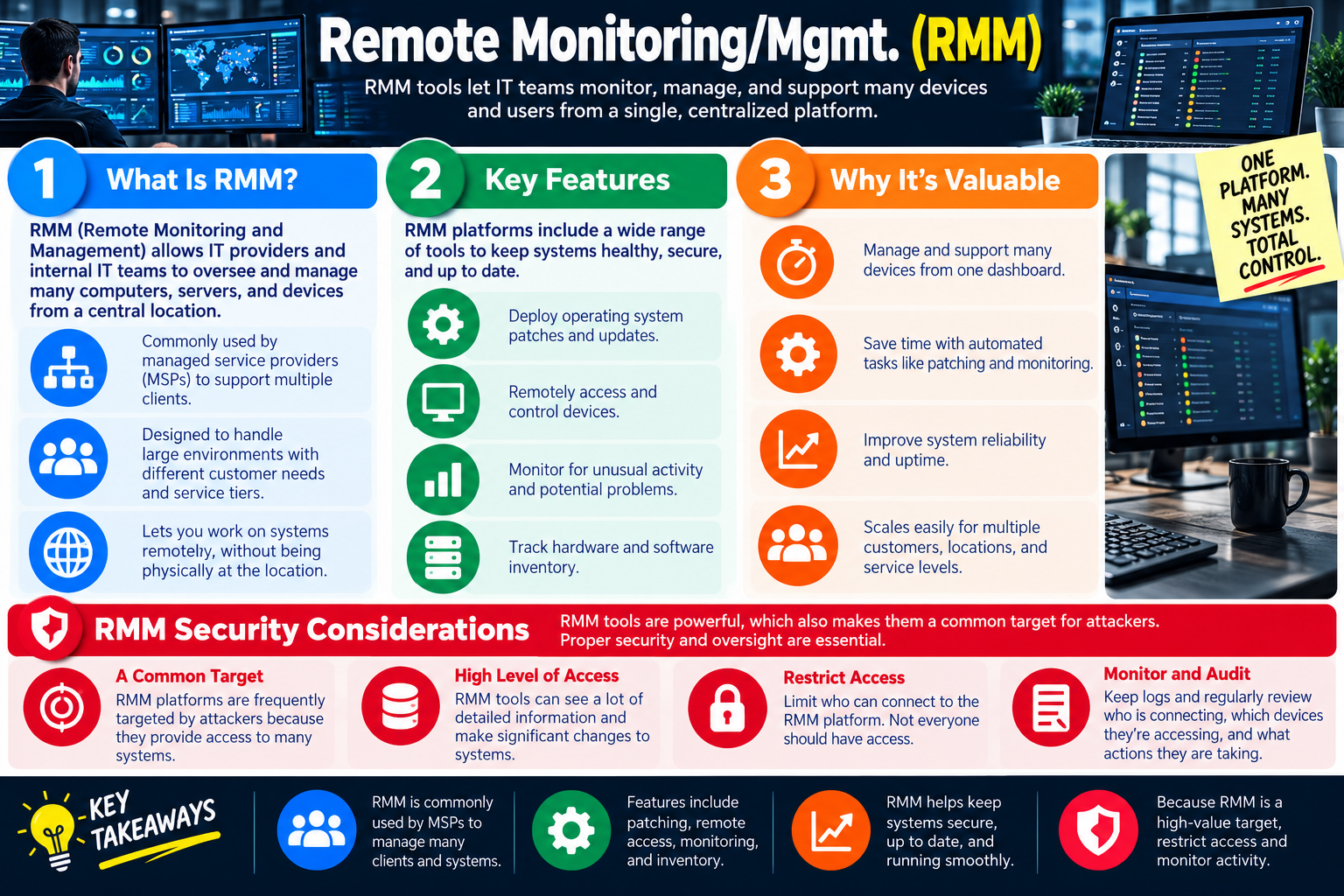
Remote Monitoring and Management (RMM) tools let IT teams monitor, manage, and support many computers, servers, and devices from a centralized platform. RMM is powerful because it combines visibility, automation, remote support, patching, inventory, and alerting in one management console.

For Objective 4.9, RMM is a remote access technology category that goes beyond a single remote session. RDP gives a full desktop connection. SSH gives secure command-line access. A VPN provides a secure tunnel into private resources. RMM platforms help IT teams manage entire fleets of endpoints from one dashboard. This makes RMM especially common for managed service providers (MSPs), internal IT departments, school districts, healthcare IT teams, distributed companies, and organizations with many devices in many locations.

The biggest advantage of RMM is scale. A technician can see device status, deploy updates, start remote support sessions, check inventory, monitor alerts, and perform routine maintenance without physically visiting every workstation or server. The same centralized power also creates risk. If an attacker compromises an RMM platform, they may gain a trusted pathway to many systems at once. That makes RMM security and oversight essential.

What Is RMM?

RMM stands for Remote Monitoring and Management. It allows IT providers and internal IT teams to oversee and manage many computers, servers, and devices from a central location. In practice, an RMM platform usually includes a management console and software agents installed on managed devices. The agent reports information back to the platform and can receive approved tasks, scripts, patches, remote control requests, or configuration instructions.

RMM is commonly used by MSPs because an MSP may support many different clients. Each client may have different devices, service levels, business hours, patch windows, and support expectations. RMM helps organize that complexity so technicians can manage multiple customers, locations, and device groups without manually connecting to each system one at a time.

  1. Centralized management. RMM lets technicians oversee many devices from one platform or dashboard.
  2. Remote work on systems. Technicians can support systems without being physically present at the location.
  3. Multi-client support. MSPs use RMM to manage different customers, sites, policies, and service tiers.
  4. Scalable operations. RMM is designed for larger environments where manual device-by-device support would be inefficient.

Key Features

RMM platforms typically include a wide range of tools that help keep systems healthy, secure, and up to date. These tools may include patch management, remote access, device monitoring, alerting, hardware inventory, software inventory, script deployment, automated maintenance, reporting, ticket integration, antivirus or endpoint security integration, and policy-based management.

Patch deployment is one of the most valuable features. An RMM tool can help technicians deploy operating system patches and updates across many devices. Remote access and control allow technicians to troubleshoot user issues without being on-site. Monitoring watches for unusual activity and potential problems, such as low disk space, offline devices, failed services, high CPU usage, backup failures, or security alerts. Inventory tracking helps IT know what hardware and software exist in the environment.

Patch and update deployment RMM tools can help deploy operating system patches, software updates, and maintenance tasks across many endpoints.
Remote access and control Technicians can connect to supported devices to troubleshoot, configure, or assist users remotely.
Monitoring and alerts RMM platforms can watch for unusual activity, system health issues, offline devices, failed services, and potential problems.
Hardware and software inventory Inventory reporting helps track devices, installed software, versions, warranty details, and configuration information.

Why RMM Is Valuable

RMM is valuable because it helps technicians move from reactive support to proactive management. Instead of waiting for every user to report a problem, IT can monitor systems and respond to early warning signs. A device with low disk space, missing patches, a stopped service, outdated software, or repeated errors can be identified before it becomes a larger outage.

RMM also saves time. Automated tasks such as patching, inventory collection, monitoring, and scheduled maintenance reduce repetitive manual work. A technician can manage and support many devices from one dashboard. This improves reliability and uptime because systems are more likely to be patched, monitored, and maintained consistently.

  • One dashboard: Manage and support many devices from a centralized console.
  • Automated tasks: Save time with patching, monitoring, maintenance, reporting, and repeatable workflows.
  • Better reliability: Identify issues early and keep systems updated to improve uptime.
  • Scales easily: Support multiple customers, locations, device groups, and service levels.

RMM and Managed Service Providers

MSPs often rely on RMM because they are responsible for supporting multiple customer environments. An RMM platform can separate customer tenants, apply different policies, track service levels, and help technicians know which devices belong to which organization. It can also support recurring maintenance tasks such as patching, health checks, reports, and endpoint monitoring.

For an MSP, RMM becomes the operational command center. It allows the provider to see which systems are online, which devices need updates, which alerts require action, and which clients may be at risk. Without an RMM tool, supporting many clients would require far more manual tracking and individual remote sessions.

RMM Security Considerations

RMM tools are high-value targets because they provide access to many systems. If attackers compromise an RMM console, technician account, API key, agent deployment method, or remote support workflow, they may be able to push malicious scripts, disable protections, deploy ransomware, steal information, or remotely control customer systems. This is why RMM security must be treated as a priority.

RMM platforms often contain detailed information about managed systems, including device names, installed software, hardware details, users, locations, alerts, patch status, and remote access capability. That level of visibility is useful for support, but it also means the platform must be protected from unauthorized access. Access should be limited to approved technicians and roles. Not everyone should have full administrative control.

A common target Attackers frequently target RMM platforms because they can provide access to many devices from one place.
High level of access RMM tools can view detailed system information and make significant changes across many endpoints.
Restrict access Only authorized users should connect to the RMM platform, and permissions should match job responsibilities.
Monitor and audit Review logs to see who connected, which devices were accessed, and what actions were taken.

Access Control and Auditing

Because RMM tools can control so much, access control must be strict. Use strong unique credentials, multifactor authentication, role-based access control, least privilege, technician account separation, conditional access, session logging, and approval workflows where appropriate. Accounts for former employees, inactive technicians, vendors, and contractors should be removed or disabled promptly.

Auditing is equally important. RMM logs should show who accessed the console, which device they connected to, what commands or scripts were run, what patches were deployed, what settings were changed, and whether remote control sessions occurred. Logs help detect abuse, investigate incidents, confirm authorized work, and support accountability.

  1. Require MFA. RMM console access should use multifactor authentication whenever available.
  2. Use least privilege. Give technicians only the permissions needed for their role.
  3. Separate customers and roles. MSP environments should prevent one client’s devices or data from being exposed to another.
  4. Review activity logs. Regularly check who accessed the platform and what actions they performed.
  5. Protect automation. Scripts, patch jobs, and remote commands should be approved, tested, and monitored.

Technician Decision Points

Use RMM when the scenario describes centralized management, monitoring many devices, deploying patches at scale, managing customer environments, tracking inventory, or supporting endpoints from a dashboard. Use a single remote access tool like RDP, SSH, or VNC when the need is one direct session to one system. Use a VPN when the need is secure network access to internal resources. The best answer depends on the support goal.

Technicians should also remember that RMM is not only a convenience tool. It is part of operational security. A healthy RMM process includes strong authentication, careful role design, tested automation, change records, monitoring, patch reporting, alert triage, and clear documentation.

Exam Mindset

If a scenario mentions managing many devices from one dashboard, MSP support, centralized patching, monitoring alerts, hardware/software inventory, or remote control across many customer systems, think RMM. If the scenario asks about risk, remember that RMM is a high-value target. Choose answers that restrict access, require MFA, audit activity, review logs, and limit permissions.

Bottom line: RMM platforms let IT teams monitor, manage, patch, inventory, and remotely support many devices from one central platform. They save time, improve reliability, and scale across customers and locations, but they are high-value targets. Protect RMM with strong authentication, restricted access, least privilege, monitoring, auditing, and careful oversight of remote actions.

Remote Monitoring and Management RMM infographic explaining centralized monitoring, patching, remote access, inventory, value, and RMM security considerations.
RMM gives IT teams one platform for many systems. That central control is valuable for support, but it must be protected because it can affect many devices at once.
SPICE
Module 05

Module 5 - SPICE

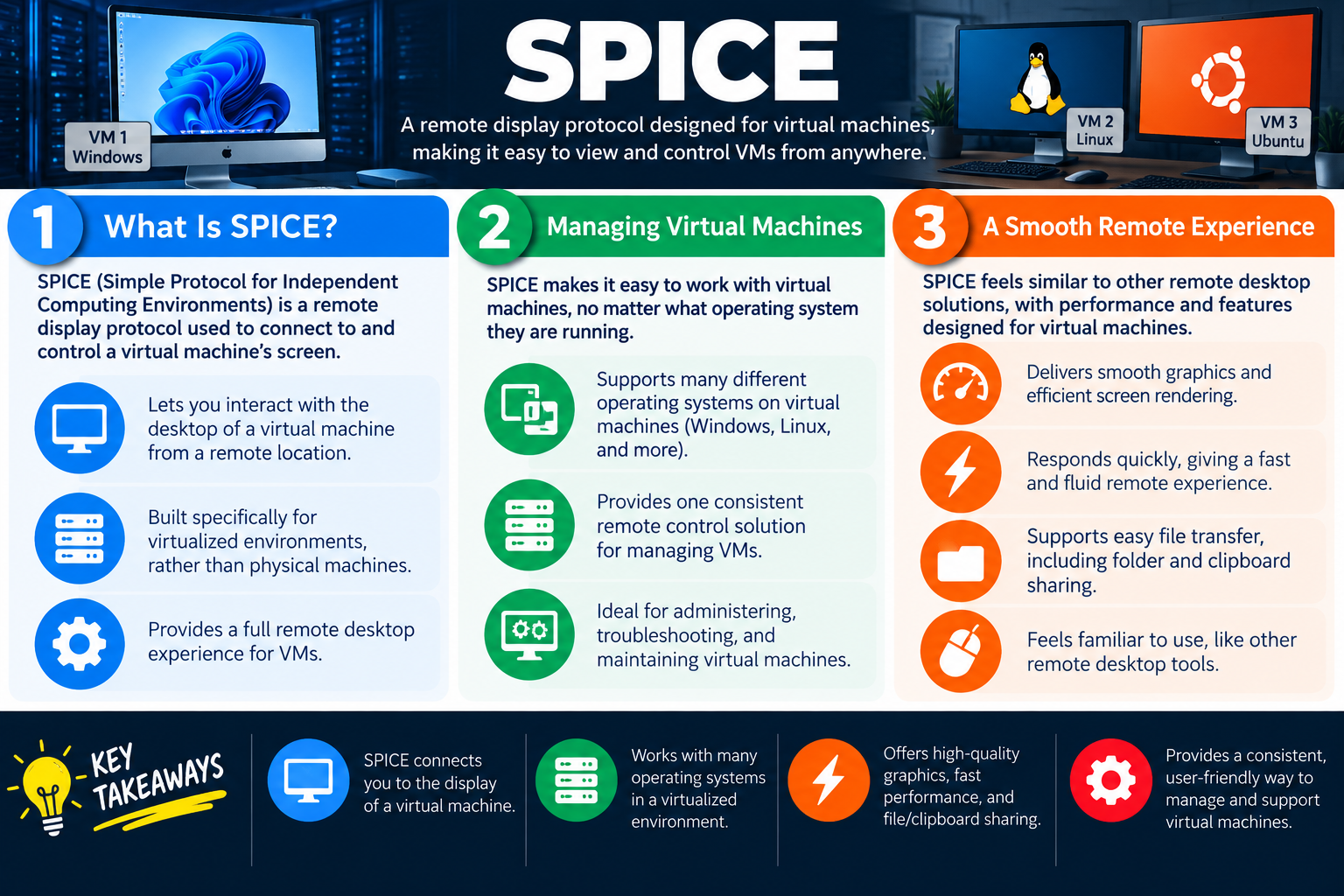
SPICE is a remote display protocol designed for virtual machines. It lets a technician or administrator view and control a virtual machine’s desktop from another location while providing a smooth, responsive experience built for virtualized environments.

For Objective 4.9, SPICE belongs in the remote access conversation because it solves a specific kind of remote-control problem: interacting with virtual machines. RDP focuses heavily on Windows remote desktop sessions. SSH focuses on secure command-line administration. VPNs create secure network tunnels. RMM platforms manage many endpoints from a central dashboard. SPICE is different because it is designed for remote display and control of virtual machines, making it useful in virtualization platforms, lab environments, hosted desktops, and administrative workflows where the target is a VM rather than a physical computer.

The name SPICE stands for Simple Protocol for Independent Computing Environments. In practical support terms, SPICE lets you connect to the graphical display of a VM and interact with it much like you would with a local monitor, keyboard, and mouse. This is helpful when the technician needs to install an operating system, troubleshoot a virtual desktop, check a VM console, manage a guest OS, or support different operating systems inside a virtualized environment.

What Is SPICE?

SPICE is a remote display protocol used to connect to and control the screen of a virtual machine. It is built specifically for virtualized environments rather than traditional physical desktop remote access. A SPICE client connects to the virtual machine display through the virtualization platform, allowing the user to view the VM desktop and send keyboard and mouse input.

This makes SPICE valuable when working with virtual machines that may not yet have normal network access, remote desktop services, or guest tools fully configured. For example, during a new VM installation, a technician may need console-style access before RDP, SSH, or a remote management agent is available. SPICE can provide that interactive desktop view through the virtualization layer.

  1. Connects to a VM display. SPICE lets you interact with the desktop of a virtual machine from a remote location.
  2. Designed for virtualization. It is intended for virtual machines rather than physical desktop computers.
  3. Provides full desktop interaction. Users can view the screen, use the keyboard and mouse, and manage the guest operating system.
  4. Supports VM administration. SPICE is useful for installing, troubleshooting, maintaining, and supporting virtual machines.

Managing Virtual Machines

SPICE helps administrators manage virtual machines regardless of the operating system running inside the VM. A virtual environment may include Windows VMs, Linux VMs, Ubuntu desktops, test systems, training machines, development systems, or specialized lab images. SPICE provides a consistent way to view and control those systems from the virtualization console.

This consistency matters because virtual environments often contain a mix of operating systems. Instead of needing a different remote access method for every guest OS, a SPICE-enabled environment can provide one remote display approach for VM console access. The technician still needs appropriate permissions in the virtualization platform, but the display method remains consistent across many guest systems.

Works with many guest operating systems SPICE can support virtual machines running Windows, Linux, Ubuntu, and other operating systems depending on the platform.
Consistent VM control Technicians can use one remote display method for managing different virtual machines.
Helpful for administration SPICE is useful for installing operating systems, troubleshooting startup issues, and maintaining VM desktops.
Virtualization-aware The protocol is designed with virtual machine display performance and management in mind.

A Smooth Remote Experience

SPICE is designed to feel familiar to people who have used other remote desktop tools. The user sees the remote VM display, moves the mouse, types on the keyboard, and interacts with the operating system through a graphical session. The goal is to make the VM feel responsive and usable even though the user is not physically sitting at the host system.

Performance matters in virtual machine administration. A sluggish remote display can make installation, troubleshooting, and configuration frustrating. SPICE is designed to deliver smooth graphics, efficient screen rendering, and quick response. This is especially helpful when working with graphical operating systems, desktop applications, or VM consoles that require regular interaction.

  • Smooth graphics: SPICE is built to provide efficient screen rendering for virtual machine desktops.
  • Fast response: A responsive session makes remote VM work feel more natural and reduces support friction.
  • Remote desktop familiarity: Users interact with the VM through a familiar screen, keyboard, and mouse experience.
  • VM-focused features: SPICE is designed around the needs of virtual desktops and virtual machine consoles.

File Transfer and Clipboard Sharing

Many SPICE environments support convenience features such as clipboard sharing, folder sharing, or file transfer, depending on the virtualization platform, client, guest tools, and security configuration. These features can make VM work easier because technicians may need to move installers, logs, configuration files, screenshots, or test data between the local system and the VM.

Those features should still be controlled. Clipboard and file sharing can accidentally expose sensitive data or move unapproved files into a virtual machine. In a lab, that may be convenient. In a production or secure environment, administrators may restrict sharing features to reduce data leakage, malware transfer, or policy violations. As with other remote access tools, convenience should be balanced with security and policy.

SPICE Compared with Other Remote Tools

SPICE should not be confused with every remote desktop or remote management tool. It is not primarily a secure network tunnel like a VPN. It is not a command-line administration protocol like SSH. It is not usually the first choice for connecting to a physical Windows workstation from across the internet. Its sweet spot is remote display access to virtual machines.

That distinction helps with exam scenarios. If the question describes a virtual machine console, a virtualization host, a remote display protocol for VMs, or managing guest operating systems through a consistent VM interface, SPICE is a strong match. If the question describes Windows desktop access to a physical PC, RDP may be more likely. If it describes secure command-line access to a Linux server, SSH may be more appropriate. If it describes centralized management of many endpoints, RMM may be the better answer.

SPICE Best associated with remote display and control of virtual machines.
RDP Common for Windows full desktop remote access, especially in business environments.
SSH Best associated with secure command-line access over TCP port 22.
RMM Best associated with centralized monitoring and management of many devices.

Security and Access Control

Although the infographic focuses on usability, SPICE still needs access control. A VM console can be powerful because it may allow access even when normal network controls inside the guest OS are not active. A technician with console access may be able to install software, change system settings, mount media, interact with login screens, view sensitive information, or troubleshoot outside the guest operating system’s normal remote access configuration.

For that reason, access to SPICE sessions should be controlled through the virtualization platform. Administrators should use strong authentication, role-based access, least privilege, logging, and documented procedures. In shared environments, not every technician should be able to open every VM console. Console access should match job duties and organizational policy.

  1. Use authorized access. Only approved users should connect to VM consoles.
  2. Apply least privilege. Grant console access only to the VMs and actions needed for the role.
  3. Watch sharing features. Clipboard, folder, and file transfer features should follow security policy.
  4. Log administrative activity. Virtualization console access should be monitored and reviewed when appropriate.
  5. Protect sensitive VMs. Production, regulated, or high-value systems may need stricter controls than lab machines.

Technician Decision Points

Use SPICE when the scenario points to virtual machine display access. A technician might need to install an operating system on a VM, view the console of a VM that has no network connectivity, troubleshoot a graphical Linux VM, or manage multiple guest operating systems through a virtualization platform. SPICE is especially useful when the remote access need is tied to the VM console rather than a service running inside the guest OS.

A good technician chooses the remote access tool based on the layer where support is needed. If the guest OS is running and accepting RDP, SSH, or an RMM agent, those may be appropriate. If the technician needs pre-login, pre-network, or console-level access to the VM display, SPICE may be the better fit.

Exam Mindset

If a scenario mentions a remote display protocol for virtual machines, managing VMs, VM console access, consistent remote control for multiple guest operating systems, or features such as smooth graphics, clipboard sharing, and folder/file sharing in a virtualized environment, think SPICE. Avoid confusing it with VPN, SSH, RDP, or RMM unless the scenario points to those specific use cases.

Bottom line: SPICE is a remote display protocol for virtual machines. It connects users to a VM’s display, supports many guest operating systems, provides a consistent way to manage and troubleshoot VMs, and can offer a smooth graphical experience with useful sharing features. Use it when the support task centers on virtual machine console access, and protect it with proper virtualization platform permissions and monitoring.

SPICE infographic explaining remote display access for virtual machines, managing VMs across operating systems, smooth graphics, performance, and file or clipboard sharing.
SPICE provides a consistent remote display experience for virtual machines, making it easier to view, control, troubleshoot, and maintain guest systems.
WinRM
Module 06

Module 6 - Windows Remote Mgmt. (WinRM)

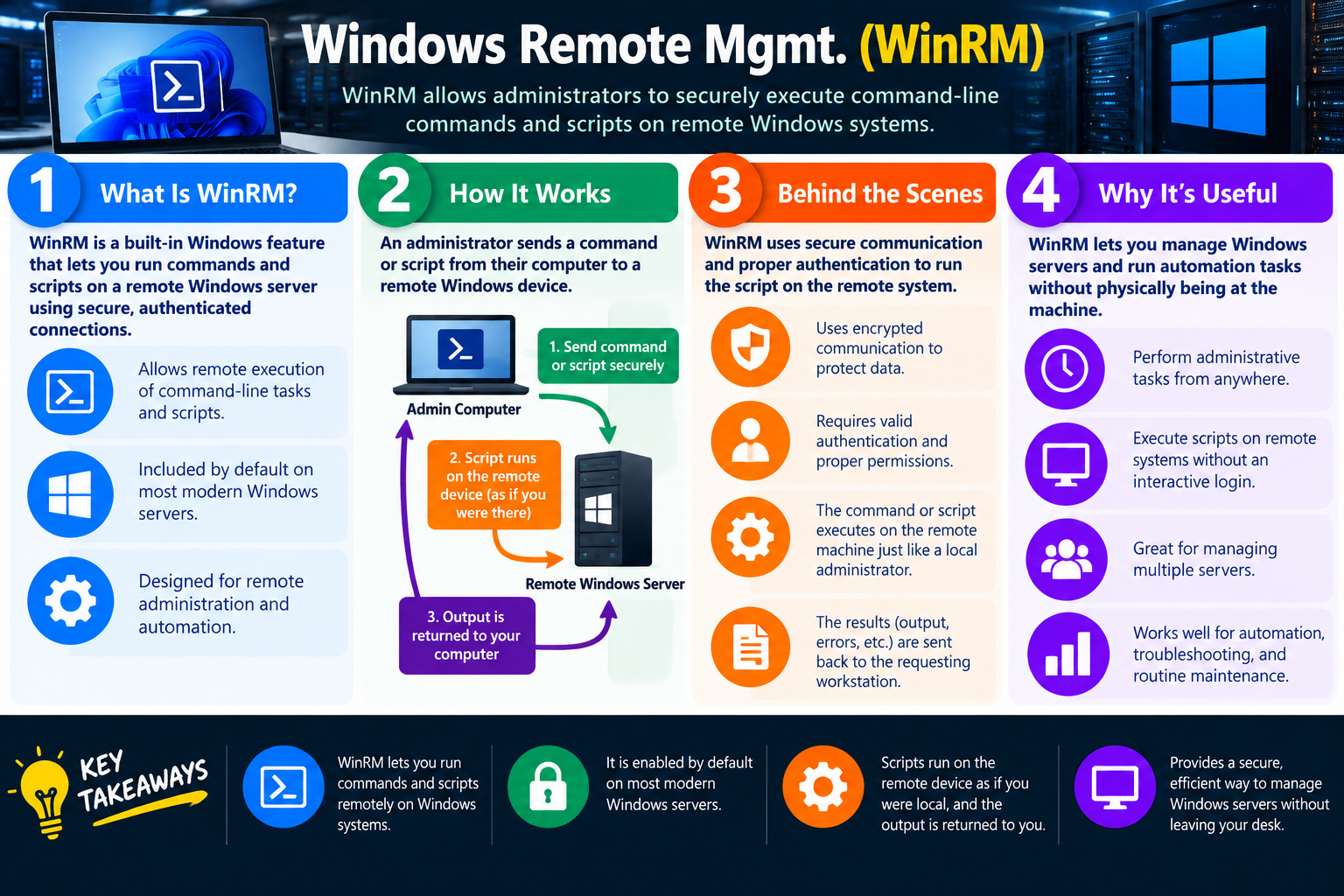
Windows Remote Management (WinRM) allows administrators to securely execute command-line commands and scripts on remote Windows systems. It is designed for remote administration, automation, troubleshooting, and routine maintenance without requiring the administrator to physically sit at the machine.

For Objective 4.9, WinRM is another remote access technology, but it is not the same as RDP. RDP gives a graphical desktop session. WinRM is about sending administrative commands or scripts to a remote Windows system and receiving the results back. That makes WinRM especially useful when the task does not require a full desktop, such as checking service status, gathering system information, running a PowerShell command, applying a configuration, or automating maintenance across multiple Windows servers.

WinRM is built into modern Windows environments and is often used behind the scenes by management tools, PowerShell remoting, automation systems, and administrative workflows. A technician should recognize WinRM when a scenario describes remote Windows command execution, scripting, server administration, automation, or managing multiple Windows systems without an interactive login.

What Is WinRM?

WinRM is a built-in Windows feature that lets administrators run commands and scripts on remote Windows computers using secure, authenticated connections. Instead of opening a graphical remote desktop session, the administrator sends a command from their workstation to the remote Windows device. The remote system executes the command as if it were run locally, then returns the output, errors, or results back to the administrator.

This makes WinRM a strong fit for administrative tasks that can be handled from the command line. If a technician needs to restart a service, collect event log entries, check installed software, verify system configuration, run a PowerShell script, or perform maintenance on many servers, WinRM may be more efficient than manually opening a desktop session to each machine.

  1. Runs remote commands and scripts. WinRM allows command-line tasks to execute on remote Windows systems.
  2. Built into modern Windows servers. WinRM is included by default on many modern Windows Server installations.
  3. Designed for administration. It is built for remote management, automation, troubleshooting, and maintenance.
  4. Avoids full desktop sessions. Administrators can complete many tasks without launching an interactive GUI session.

How It Works

The basic workflow is straightforward. An administrator uses their computer to send a command or script securely to a remote Windows server. The remote server receives the request, checks authentication and permissions, runs the command or script, and sends the output back to the administrator’s computer. From the administrator’s perspective, they can manage the remote system from their own workstation.

The infographic shows this as a loop: send the command securely, run the script on the remote device, and return the output. This workflow is powerful because the administrator does not have to manually log into the remote desktop to perform each task. The command runs remotely while the administrator remains at their own machine.

Admin computer The technician or administrator starts the remote command or script from their workstation.
Remote Windows server The target system receives the request and executes the command if authentication and permissions are valid.
Returned output Results, errors, and command output are sent back to the requesting workstation.
Automation ready Because commands can be scripted, WinRM works well for repeatable administration across many systems.

Behind the Scenes

WinRM uses secure communication and proper authentication to run commands on the remote system. The remote system should verify that the requester is who they claim to be and that the account has permission to perform the requested action. This matters because remote command execution is powerful. A valid administrator can make significant changes, but an attacker with stolen credentials could also cause serious damage.

When a WinRM command runs, it executes on the remote machine much like a local administrator command would. That means the command has access according to the user’s permissions and the system’s security configuration. The output is then returned to the administrator’s workstation so they can review what happened. This remote execution model is what makes WinRM valuable for automation and also why it must be protected carefully.

  • Encrypted communication: WinRM can use secure communication to protect data exchanged between the administrator and the remote system.
  • Valid authentication required: The remote system should require valid credentials and appropriate permissions.
  • Remote execution: The command or script runs on the remote machine, not on the administrator’s local workstation.
  • Result return: Output, errors, and results are sent back so the administrator can confirm success or troubleshoot failure.

Why WinRM Is Useful

WinRM is useful because it allows Windows administrators to manage systems efficiently from anywhere they have authorized network access. Instead of opening RDP to each server, waiting for a desktop session, clicking through tools, and repeating the same steps, the administrator can execute commands or scripts remotely. This is faster, easier to automate, and often less disruptive.

WinRM is especially valuable for managing multiple servers. A technician can query many systems for configuration details, restart services, check updates, gather logs, or run maintenance scripts. This fits well with automation because a script can loop through a list of servers and perform the same checked task on each one. The administrator can then review the output centrally.

Administrative tasks from anywhere Authorized administrators can manage Windows systems without being physically present.
Remote script execution Scripts can run on remote systems without requiring an interactive desktop login.
Multiple server management WinRM is useful when the same command or check must run across many Windows servers.
Automation and troubleshooting WinRM supports routine maintenance, troubleshooting, configuration checks, and scripted administration.

WinRM Compared with Other Remote Tools

WinRM is easy to confuse with other remote technologies if the scenario is read too quickly. RDP provides full desktop access to a remote Windows system. SSH provides encrypted command-line access and is strongly associated with Linux, Unix-like systems, network devices, and TCP port 22. VPN provides a secure tunnel into a private network. RMM provides centralized management across many devices. SPICE provides remote display for virtual machines. WinRM focuses on remote command and script execution for Windows systems.

That distinction is important for exam questions. If the question says a Windows administrator needs to run PowerShell commands remotely, execute scripts on Windows servers, automate management tasks, or collect command output without logging into the desktop, WinRM is a strong match. If the question says the user needs to interact with a graphical desktop, RDP may be better. If the question says Linux command-line access, SSH is usually the better clue.

WinRM Remote command and script execution on Windows systems.
RDP Full graphical desktop access, usually associated with Windows remote sessions.
SSH Secure command-line access, commonly associated with Linux, servers, and network devices.
RMM Centralized monitoring, patching, inventory, and remote management for many endpoints.

Security Considerations

Because WinRM can execute commands remotely, it must be secured carefully. Administrators should use strong authentication, least privilege, secure configuration, firewall rules, logging, and monitoring. Only authorized systems and accounts should be able to use WinRM. If remote management is not needed, it should be disabled or restricted according to policy.

WinRM can be very useful in enterprise environments, but remote command execution is also attractive to attackers. If an attacker compromises administrator credentials or gains access to a management workstation, WinRM could be abused to run commands across many systems. This is why credential protection, privileged access management, MFA where available, auditing, and network segmentation are important.

  1. Require proper authentication. Only valid, authorized administrators should be allowed to run remote commands.
  2. Use least privilege. Do not give broad administrative rights when a narrower role can perform the task.
  3. Restrict network access. Limit which systems can connect to WinRM using firewall rules, management networks, or policy.
  4. Log and monitor activity. Review remote command activity for unusual systems, accounts, times, or commands.
  5. Protect admin workstations. A compromised admin workstation can become a launching point for remote commands.

Troubleshooting WinRM

If WinRM does not work, troubleshoot in layers. Confirm the target system is online, the remote management service is enabled, the account has permission, the network path is allowed, firewall rules permit the connection, the authentication method is supported, and policy does not block remote management. Also confirm the command itself is valid and that the remote system has the required modules or tools.

When a script fails through WinRM, the problem may not be WinRM itself. The account may lack permission on the remote system. The script may reference local paths that exist on the administrator’s computer but not on the remote server. The command may require elevation, a module, or an execution policy setting. The output and errors returned to the workstation are important clues.

Exam Mindset

If a scenario mentions running commands or scripts on remote Windows systems, managing Windows servers without an interactive login, PowerShell remoting, returned command output, or automation across multiple Windows devices, think WinRM. If the scenario requires a full graphical desktop, think RDP. If it is Linux command-line access, think SSH. If it is fleet management from one dashboard, think RMM.

Bottom line: WinRM is built into Windows and lets administrators securely run commands and scripts on remote Windows systems. The command executes on the remote device, and output returns to the administrator’s computer. It is useful for automation, troubleshooting, routine maintenance, and managing multiple Windows servers, but it must be protected with strong authentication, proper permissions, restricted access, logging, and monitoring.

Windows Remote Management WinRM infographic explaining remote command execution, secure authenticated communication, output return, and why WinRM is useful for Windows server automation and management.
WinRM lets administrators run remote commands and scripts on Windows systems, making it efficient for automation, troubleshooting, and server management without a full desktop session.
3P
Module 07

Module 7 - Third-Party Tools

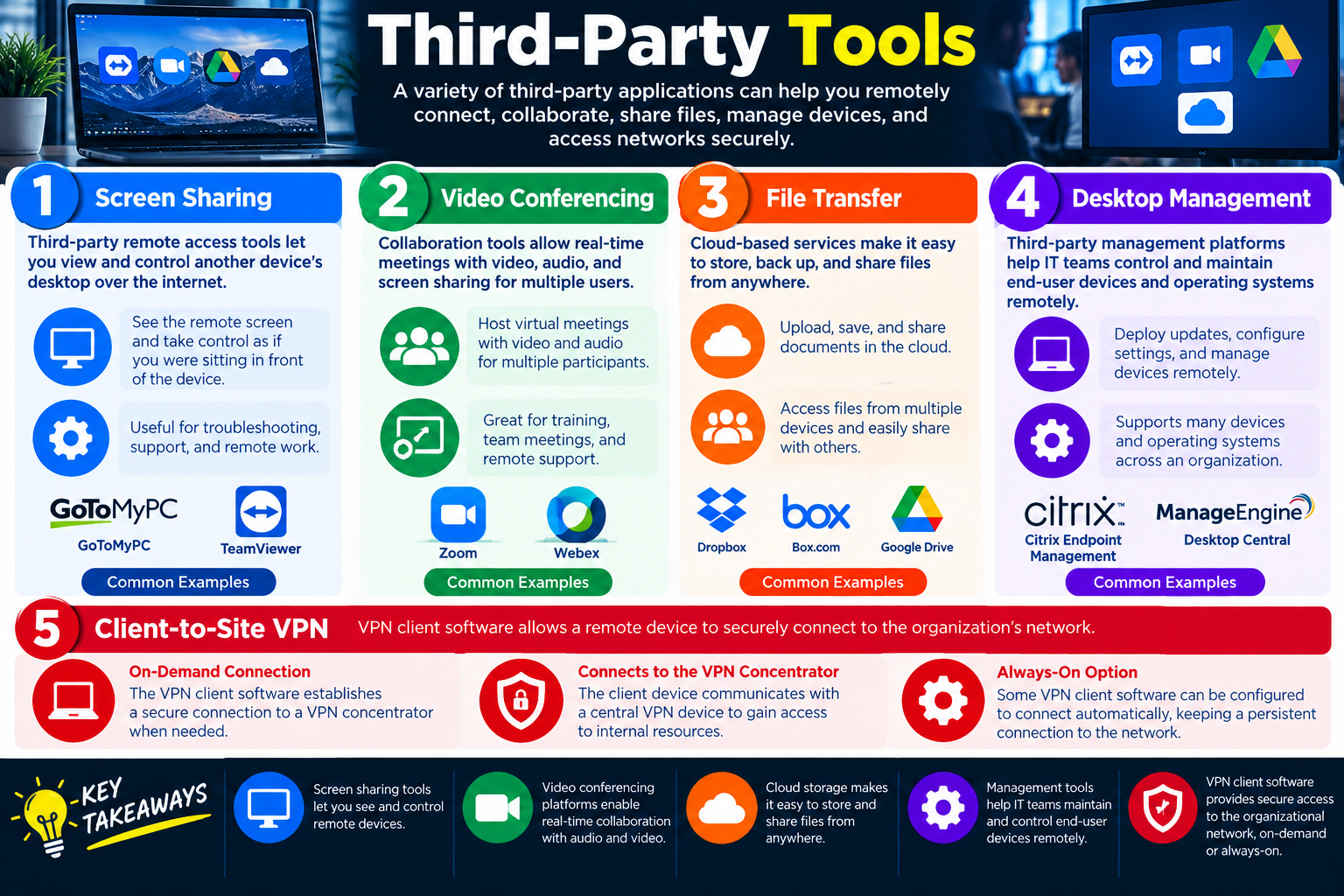
Third-party remote access tools can help technicians connect to devices, collaborate with users, share files, manage desktops, and securely access organizational resources. The key is choosing the approved tool that matches the task and applying the right security controls.

For Objective 4.9, third-party tools are important because not every remote access need is solved by a built-in operating system feature. RDP, SSH, WinRM, SPICE, VPNs, and RMM platforms each have specific use cases, but organizations also commonly use third-party screen-sharing tools, video conferencing platforms, file transfer services, desktop management systems, and VPN clients. These tools may be easier for end users, better for collaboration, or better suited to mixed operating system environments.

Third-party does not mean informal or unapproved. In professional IT support, technicians should use tools approved by the organization. Remote access tools can expose desktops, files, credentials, business data, and internal networks if used carelessly. A technician should understand what the tool does, what access it provides, whether the user must give consent, how authentication works, what data is transferred, and how the session is documented and ended.

Screen Sharing

Screen sharing tools allow a technician to view and sometimes control another device’s desktop over the internet. This is useful for troubleshooting, support, training, walkthroughs, and remote work. The technician can see the same error message or application behavior the user sees, which often makes troubleshooting faster than relying only on a verbal description.

Some screen-sharing tools are designed for attended support, where the user is present and grants permission for the session. Others may support unattended access, where a technician can connect to a device without the user actively approving each connection. Unattended access can be useful for managed systems, but it must be controlled carefully with strong authentication, authorization, logging, and policy.

  1. View the remote screen. The technician can see errors, prompts, settings, and user workflow directly.
  2. Control the device when authorized. Some tools allow mouse and keyboard control as if the technician were sitting at the device.
  3. Support remote troubleshooting. Screen sharing is useful when the problem is visual, user-facing, or application-specific.
  4. Use approved tools. Examples in the infographic include GoToMyPC and TeamViewer, but the correct tool is the one approved by policy.

Video Conferencing

Video conferencing platforms support real-time collaboration using audio, video, chat, and screen sharing. These tools are often used for meetings, training, team support, remote troubleshooting, and guided assistance. A technician may ask a user to share their screen during a meeting so the technician can observe the issue, explain steps, or guide the user through a process.

Video conferencing is different from a dedicated remote-control tool. In many cases, the user remains in control and shares only what they choose to share. Some platforms also allow remote control during a screen-sharing session, but that feature should be used only when appropriate and approved. Common examples shown in the infographic include Zoom and Webex.

Real-time meetings Video conferencing supports live meetings with audio and video for multiple participants.
Screen sharing Users can share their screen so others can observe, train, or troubleshoot collaboratively.
Training and support These tools are useful for walkthroughs, demonstrations, team meetings, and remote user assistance.
Consent matters Users should understand what they are sharing, who can see it, and whether remote control is enabled.

File Transfer

File transfer tools and cloud storage services make it easy to store, back up, access, and share documents from anywhere. A technician or user may use an approved cloud storage platform to move logs, screenshots, installers, documentation, exported reports, configuration files, or business documents between devices or teams. Common examples shown in the infographic include Dropbox, Box, and Google Drive.

File transfer is useful, but it also creates risk. Sensitive information should not be uploaded to unapproved personal accounts or public sharing links. Technicians must follow organizational policy for data classification, approved storage services, retention, access permissions, sharing links, encryption, and removal of files that are no longer needed. Convenience should not override privacy, licensing, or compliance requirements.

  • Upload and share documents: Cloud services can make files available from many locations and devices.
  • Access from multiple devices: Users can retrieve files from workstations, laptops, mobile devices, and browsers.
  • Support collaboration: Shared folders and links can help teams work together when configured correctly.
  • Control permissions: Shared files should be limited to authorized users and reviewed when access is no longer needed.

Desktop Management

Third-party desktop management platforms help IT teams control, configure, patch, inventory, and support end-user devices and operating systems remotely. These tools may overlap with RMM features, but desktop management often focuses on endpoint configuration, updates, software deployment, device settings, policy enforcement, and support across many devices in an organization.

The infographic lists examples such as Citrix Endpoint Management and ManageEngine Desktop Central. In practice, organizations may use many different endpoint management or unified endpoint management platforms. The important concept is that desktop management tools help IT maintain devices remotely and consistently. They are useful when the support task involves many devices, many operating systems, configuration baselines, updates, and ongoing control rather than a one-time screen-sharing session.

Deploy updates Management platforms can push patches, application updates, configuration changes, and security settings.
Configure devices Administrators can apply policies, settings, and baselines remotely.
Support many platforms Third-party tools may support different operating systems, device types, and management models.
Maintain endpoints Desktop management helps keep devices consistent, secure, and supportable across the organization.

Client-to-Site VPN

A client-to-site VPN allows a remote device to securely connect to the organization’s network. This is different from simple screen sharing or cloud file transfer. The VPN client creates a secure connection to a VPN concentrator so the remote device can access approved internal resources. The user may start the VPN only when needed, or the VPN may be configured as always-on.

Client-to-site VPNs are common for remote workers, traveling employees, administrators, and support staff who need secure network access from outside the office. Once connected, the device may be able to reach internal applications, file shares, management systems, or other private resources depending on policy. Because VPN access can expose internal resources, strong authentication and MFA are especially important.

  1. On-demand connection. The user starts the VPN when access to internal resources is needed.
  2. Connects to a VPN concentrator. The client communicates with a central VPN device or service to gain access.
  3. Always-on option. Some VPN clients maintain a persistent secure connection automatically.
  4. Policy controls access. The VPN should enforce authentication, authorization, encryption, logging, and approved resource access.

Choosing the Right Third-Party Tool

The best tool depends on the task. If the technician needs to see exactly what a user sees, a screen-sharing tool may fit. If the goal is a meeting, training session, or guided walkthrough, video conferencing may be best. If the requirement is moving approved files between users or devices, an approved file-sharing platform may be appropriate. If the goal is controlling endpoint configurations across many systems, a desktop management tool may be the correct choice. If the user needs secure access into the private network, a client-to-site VPN may be required.

Technicians should avoid choosing a tool only because it is familiar or convenient. Remote access and sharing tools should be approved, licensed, supported, secure, and documented. In many organizations, using a personal cloud account, unapproved remote-control tool, or consumer screen-sharing application for company data can violate policy and create security risk.

Exam Mindset

If a scenario mentions viewing or controlling a user’s desktop over the internet, think screen sharing. If it mentions live collaboration with audio, video, and shared screens, think video conferencing. If it mentions storing and sharing documents from anywhere, think file transfer or cloud storage. If it mentions controlling and maintaining many end-user devices remotely, think desktop management. If it mentions securely connecting a remote device to the organization’s network, think client-to-site VPN.

Bottom line: Third-party tools can provide screen sharing, video conferencing, file transfer, desktop management, and client-to-site VPN access. Use the tool that matches the support goal, verify it is approved by the organization, protect authentication, control data sharing, document the session, and disconnect or remove access when the work is complete.

Third-party tools infographic explaining screen sharing, video conferencing, file transfer, desktop management, and client-to-site VPN use cases for remote access.
Third-party tools expand remote support options, but the technician must choose approved tools, protect access, and control what data is shared.
SEC
Module 08

Module 8 - Security Considerations

Every remote access method creates a path into a system, service, or network. The technology may differ, but the security pattern is consistent: use trusted tools, strong authentication, limited access, encryption, monitoring, updates, and documented oversight.

For Objective 4.9, knowing the remote access tools is only half the job. A technician also needs to understand the risks that come with each method. RDP, VPN, SSH, RMM, SPICE, and third-party tools can all help technicians work faster and support users remotely, but each one can become dangerous if it is exposed too broadly, protected only by weak credentials, left unpatched, or used without monitoring.

The infographic summarizes the security mindset across the major remote access methods. Remote Desktop gives full control of a Windows system. VPNs provide access to private network resources. SSH provides encrypted command-line access. RMM platforms can manage many devices. SPICE gives VM console access. Third-party tools can share screens, move files, host meetings, manage endpoints, or connect through client VPN software. Different tools, same responsibility: protect the access.

Remote Desktop (RDP) Security

RDP is a common target for attackers because it is widely used and easy to scan for when exposed to the internet. RDP uses TCP port 3389 by default, and if that port is open to untrusted networks, attackers can find it quickly. Brute-force attempts against RDP are common because attackers can try many username and password combinations until they find weak or reused credentials.

RDP should be protected with strong authentication, multifactor authentication where possible, account lockout, VPN or secure gateway access, limited IP exposure, patching, and log review. Because RDP provides full remote desktop control, a successful attacker may be able to interact with the system almost like a local user.

  • Common target: RDP is frequently scanned and attacked when exposed.
  • Open TCP 3389 is risky: Internet-facing RDP greatly increases attack exposure.
  • Brute force is common: Weak usernames and passwords are a major risk.
  • Limit and monitor: Restrict access by IP or gateway and review logs for suspicious activity.

VPN Security

A VPN encrypts traffic and gives remote users secure access to organizational resources. That makes it valuable, but it also makes the VPN concentrator a target. Attackers know that a successful VPN login can provide a path into the internal network. Encryption protects data in transit, but it does not stop an attacker who has valid credentials.

VPN security depends on strong authentication, multifactor authentication, updated software and firmware, restricted access, and connection monitoring. VPN devices and clients should be patched because VPN vulnerabilities are frequently targeted. Access should be limited to the resources users actually need.

Still a target VPN concentrators are commonly attacked because they provide a path into private networks.
Strong authentication required Valid credentials can provide internal access, so passwords alone are not enough.
Use MFA Multifactor authentication reduces the risk of stolen or reused passwords.
Patch and monitor Keep VPN software and firmware updated, restrict access, and review connection logs.

SSH Security

SSH protects data in transit by encrypting command-line communication between the client and server. It is much safer than Telnet because commands, output, and authentication traffic are not sent in clear text. However, SSH still needs strong authentication and access control. If attackers can guess or steal credentials, they may gain remote command-line access to important systems.

Public/private key authentication is generally stronger than password-only access when private keys are protected correctly. Unnecessary accounts should be disabled or restricted, especially powerful accounts such as root. Access should be limited by IP address, firewall rule, network filter, VPN, jump host, or management network when possible. Logs should be reviewed for repeated failures, unusual login times, unexpected source addresses, or suspicious commands.

  1. Protects data in transit. SSH encrypts traffic so it cannot be easily intercepted and read.
  2. Use key-based authentication. Public/private keys are often stronger than passwords when managed securely.
  3. Disable unnecessary accounts. Restrict or disable direct access for accounts that do not need SSH.
  4. Limit access by IP. Use firewalls, ACLs, or network filters to allow only trusted systems.
  5. Monitor logs. Watch authentication attempts and unusual activity.

RMM Security

RMM platforms are high-value targets because they can access and manage many systems from one place. If an attacker compromises an RMM platform or technician account, the attacker may be able to run commands, deploy tools, disable protections, push scripts, or access detailed information across many devices. This makes RMM one of the most sensitive remote access technologies in an IT environment.

RMM platforms should require MFA, least privilege, role-based access, strong technician account controls, logging, alerting, and regular review. Not every technician should have access to every client, every device, or every action. MSPs must be especially careful because one compromised RMM platform could affect multiple customer environments.

  • High-value target: RMM can provide access to many systems and users.
  • Contains sensitive information: Inventory, user data, configuration, alerts, and system status may be visible.
  • Restrict access: Only authorized personnel should use the platform.
  • Audit activity: Track who connected, what devices were accessed, and what actions were performed.
  • Use strong practices: Enable MFA, least privilege, timely patching, and regular review.

SPICE Security

SPICE provides remote display access to virtual machines. It can be very useful for VM administration, but VM console access is still powerful. A user with console access may interact with login screens, installation media, operating system settings, and VM desktops. In some cases, console-level access may bypass normal network remote access restrictions inside the guest operating system.

SPICE sessions should run over an encrypted channel where supported and should be limited to authorized users. Access should be controlled through the virtualization platform, directory services, MFA where possible, and role-based permissions. Logs should show who accessed which VMs and when. Virtualization hosts, VMs, and SPICE components should be updated and configured securely.

Encrypted channel Use secure remote display channels to protect session data when available.
Authorized users only Only trusted users should connect to virtual machines.
Strong authentication Integrate with directory services and MFA when possible.
Virtualization security Keep hosts, VMs, clients, and SPICE components updated and properly configured.

Third-Party Tool Security

Third-party tools include screen sharing, video conferencing, file storage and sharing, desktop management, endpoint management, and client VPN tools. These tools can be extremely useful, but they can also expose devices and data if used without care. A screen-sharing tool may reveal sensitive information. A file-sharing service may expose confidential documents. A desktop management platform may control many endpoints. A meeting tool may allow unauthorized participants if invitations or settings are mishandled.

Technicians should use trusted, reputable, approved tools. Accounts should be secured with strong passwords and MFA. Access should be limited to the people who need it. File sharing should use appropriate permissions and expiration where available. Meetings and remote sessions should be controlled, monitored, and ended when no longer needed. Logs should be reviewed when available.

  1. Be cautious with what you allow. Third-party tools may provide full access to devices or sensitive data.
  2. Use reputable software. Avoid unknown remote access tools and use organization-approved vendors.
  3. Secure accounts with MFA. Protect remote access, meeting, file-sharing, and management accounts.
  4. Understand shared data. Know what screens, files, folders, chats, recordings, or meeting content may be exposed.
  5. Monitor usage. Review logs and restrict access when available.

Universal Remote Access Security Habits

Although each remote access method is different, the safest habits repeat across all of them. Use the approved tool for the job. Require strong authentication. Add MFA when possible. Limit access by role, IP address, device, location, or policy. Keep software updated. Encrypt traffic. Monitor logs. Disable unused accounts. End sessions when work is done. Document what access was used and what changed.

Remote access should never be treated as casual. A remote session can be as powerful as sitting at the keyboard, opening the server console, joining the internal network, or managing an entire fleet. The more powerful the access, the more carefully it must be controlled.

Exam Mindset

If a scenario asks how to secure a remote access method, look for the answer that reduces exposure, strengthens authentication, limits access, updates the tool, encrypts traffic, monitors logs, and follows policy. If the tool provides broad access such as RDP, VPN, RMM, or third-party remote control, assume attackers value it and choose the most controlled, auditable option.

Bottom line: Remote access is useful only when it is controlled. Protect RDP, VPN, SSH, RMM, SPICE, and third-party tools with strong authentication, MFA, encryption, patching, access restrictions, logging, monitoring, and least privilege. The goal is to give the right people the right access for the right task, and no more.

Security Considerations infographic summarizing remote access security for RDP, VPN, SSH, RMM, SPICE, and third-party tools.
Security considerations apply to every remote access method: protect credentials, restrict access, update tools, monitor activity, and understand what data or systems the session exposes.
KEY
Module 09

Module 9 - Key Takeaways

Key Takeaways infographic for Objective 4.9 covering remote access tool selection, security controls, common exam traps, technician mindset, and the bottom line for securing remote access technologies.
Objective 4.9 key takeaways summarize how to choose the right remote access technology and secure it with authentication, least privilege, monitoring, auditing, and documentation.

Objective 4.9 is about choosing the correct remote access technology for the scenario and securing that access so only authorized users can reach the right systems, networks, consoles, and data.

Remote access tools help technicians support users, manage servers, reach internal resources, administer virtual machines, automate Windows tasks, and collaborate from anywhere. The exam focus is not just knowing tool names. The key is reading the scenario carefully and matching the technology to the access need: full desktop, encrypted command line, private network tunnel, centralized endpoint management, VM console access, remote Windows commands, or third-party collaboration.

Every remote access method creates a doorway. That doorway may lead to one desktop, one command shell, one virtual machine, a private network, or an entire fleet of managed endpoints. A professional technician chooses the correct doorway, limits who can use it, protects it with strong authentication, monitors activity, and documents what happened.

Match the Tool to the Task

Remote access questions usually include clues that point to the best tool. A Windows user who needs full graphical support points toward RDP or an approved screen-sharing tool. A Linux server requiring secure command-line access points toward SSH. A remote worker who needs internal network resources points toward a VPN. A managed service provider supporting many endpoints points toward RMM. A virtual machine console points toward SPICE. A Windows administrator running remote scripts points toward WinRM.

RDP Use for full graphical remote desktop access to Windows systems; remember TCP port 3389 and the risk of exposed RDP.
VPN Use when a remote device needs a secure encrypted tunnel to private organizational resources.
SSH Use for secure command-line administration, especially Linux, servers, network devices, and TCP port 22 scenarios.
RMM Use for centralized monitoring, patching, remote support, inventory, and management across many devices or customers.

Know the Specialized Tools

Some tools fit narrower scenarios. SPICE is designed for remote display access to virtual machines, especially when console-level VM interaction is needed. WinRM is built into Windows and is used for secure remote command and script execution on Windows systems. Third-party tools can support screen sharing, video conferencing, file transfer, desktop management, and client-to-site VPN workflows when they are approved and properly secured.

SPICE Best associated with VM display and console access in virtualized environments.
WinRM Best associated with remote Windows command execution, PowerShell remoting, automation, and server management.
Screen sharing Best when the technician needs to view or control a user-facing desktop with consent and approved tooling.
File transfer and cloud tools Useful for sharing approved files, but permissions, data sensitivity, and policy matter.

Security Comes with Every Method

Remote access is useful because it gives people access from somewhere else. That is also why attackers target it. Exposed RDP, weak VPN credentials, poorly secured SSH, compromised RMM platforms, broad VM console access, unsecured WinRM, and unapproved third-party tools can all create serious incidents. The safest answer usually limits exposure, strengthens authentication, restricts permissions, monitors logs, and follows organizational policy.

  1. Use strong authentication. Prefer MFA where available, strong unique passwords, key-based SSH, and approved identity controls.
  2. Limit exposure. Avoid exposing management ports directly to the internet; use VPNs, gateways, firewalls, ACLs, trusted IP ranges, or management networks.
  3. Use least privilege. Give users and technicians only the access required for the task.
  4. Patch and update. Keep VPN concentrators, RMM platforms, remote access agents, virtualization hosts, clients, and servers current.
  5. Monitor and audit. Review who connected, from where, what they accessed, and what actions they performed.

Common Exam Traps

  • Choosing RDP for every remote access scenario even when the question asks for command-line access, VPN access, or fleet management.
  • Ignoring default ports such as RDP on TCP 3389 and SSH on TCP 22.
  • Treating a VPN as fully secure while ignoring stolen credentials, missing MFA, unpatched concentrators, or excessive internal access.
  • Using Telnet when the scenario requires secure encrypted command-line access.
  • Forgetting that RMM platforms are high-value targets because they can access many systems at once.
  • Confusing SPICE VM console access with RDP desktop access or SSH command-line access.
  • Running WinRM commands without confirming authentication, permissions, firewall rules, logging, and target scope.
  • Using personal or unapproved third-party remote access, meeting, or file-sharing tools for company systems or data.

Technician Mindset

Be precise Identify the access type before choosing the technology: desktop, shell, tunnel, console, management dashboard, or file-sharing workflow.
Be secure Remote access should be authenticated, authorized, encrypted, patched, monitored, and restricted.
Be policy-aware Use only approved tools and follow user consent, data handling, session logging, and documentation requirements.
Be accountable Document the remote method used, systems accessed, actions taken, results verified, and any security concerns found.

Bottom line: Objective 4.9 is about using the right remote access technology for the scenario. Choose RDP for Windows desktop control, VPN for secure private network access, SSH for encrypted command-line access, RMM for centralized fleet management, SPICE for VM display access, WinRM for remote Windows commands, and approved third-party tools for collaboration, file transfer, endpoint management, or client VPN needs. Secure every method with strong authentication, MFA when available, encryption, least privilege, restricted exposure, monitoring, auditing, and documentation.

SN
Module 10

Module 10 - Section Notes

BROtocol Joe Core 2 220-1202Objective 4.9

4.9 Remote Access Technologies

Objective 4.9 is about selecting the remote access method that fits the scenario and securing it so only authorized users can reach the right system, network, console, or data.

RDP

  • Provides full graphical remote desktop access, commonly for Windows.
  • Default port is TCP 3389.
  • Useful for supporting a Windows desktop or server GUI.
  • Avoid exposing RDP directly to the internet; use strong authentication and monitor logs.

VPN

  • Creates an encrypted tunnel to private network resources.
  • VPN concentrators manage connections and encryption.
  • VPN clients may be on-demand or always-on.
  • Use MFA, patch VPN software and firmware, and restrict internal access.

SSH

  • Provides encrypted command-line access.
  • Uses TCP port 22 by default.
  • Safer replacement for Telnet because traffic is encrypted.
  • Use key-based authentication, disable unnecessary accounts, and restrict access by IP.

WinRM

  • Built-in Windows remote management feature.
  • Runs commands and scripts on remote Windows systems and returns output.
  • Useful for automation, troubleshooting, and managing multiple Windows servers.
  • Protect with authentication, permissions, firewall rules, logging, and monitoring.
Memory hook: Match the access type first: desktop, tunnel, shell, Windows command, VM console, dashboard, or third-party workflow.
Management, Virtualization, and Third-Party ToolsObjective 4.9

Use the Right Tool for the Environment

RMM

  • Central platform for monitoring, patching, remote access, inventory, and alerts.
  • Commonly used by MSPs and internal IT teams managing many devices.
  • Helps improve uptime and reliability through automation and monitoring.
  • High-value target: require MFA, least privilege, restricted access, and audit logs.

SPICE

  • Remote display protocol for virtual machines.
  • Useful for VM console access, OS installation, troubleshooting, and maintenance.
  • Supports many guest operating systems in virtualized environments.
  • Control access through virtualization platform permissions and monitor sessions.

Third-Party Tools

  • Include screen sharing, video conferencing, file transfer, desktop management, and client-to-site VPN software.
  • Use only approved, trusted, supported tools.
  • Understand what data is shared or exposed during sessions.
  • Secure accounts with MFA and review logs when available.

Client-to-Site VPN

  • VPN client connects a remote device to the organization's network.
  • Can be on-demand or always-on.
  • Connects to a VPN concentrator for access to internal resources.
  • Requires strong authentication, encryption, and policy-based access.
Memory hook: RMM manages many systems; SPICE views VMs; third-party tools support collaboration and file/device workflows.
Security, Exam Traps, and Technician MindsetObjective 4.9

Secure the Remote Path

Security Controls

  • Use MFA where available.
  • Keep remote access tools, agents, clients, servers, VPN concentrators, and firmware updated.
  • Restrict access by role, IP, VPN, management network, gateway, or policy.
  • Monitor logs and review unusual connections, failed logins, and remote actions.

Common Exam Traps

  • Choosing RDP when the scenario needs SSH, VPN, WinRM, SPICE, or RMM.
  • Forgetting TCP 3389 for RDP and TCP 22 for SSH.
  • Treating encryption as enough without authentication and authorization.
  • Using unapproved personal remote access or file-sharing tools.
  • Ignoring logs, consent, session termination, and documentation.

Troubleshooting Clues

  • RDP: check Remote Desktop settings, firewall, TCP 3389, account permission, and network path.
  • VPN: check client config, credentials, MFA, certificates, DNS, routing, and concentrator availability.
  • SSH: check TCP 22, account access, keys, firewall or ACLs, and service status.
  • WinRM: check service, permissions, firewall, authentication, policy, and command scope.

Technician Mindset

  • Choose the least broad tool that solves the task.
  • Protect the entry point before using it.
  • Document the method, system accessed, user/session details, actions taken, and result.
  • Close sessions and remove temporary access after work is complete.
Memory hook: Remote access is a doorway. Open the right one, lock it properly, watch who uses it, and document why it was opened.
TEST
Module 11

Module 11 - Final Test

Complete 20 difficult scenario-based multiple-choice questions for Objective 4.9. The test covers RDP, VPN, SSH, RMM, SPICE, WinRM, third-party tools, security considerations, tool selection, default ports, authentication, least privilege, monitoring, auditing, documentation, and technician decision-making. Each correct answer is worth 1 point.

Score pending0 / 20
WB
Workbook

Student Workbook

BrotocolJoeStudent Workbook

BrotocolJoe

CompTIA A+ Core 2 (220-1202)

Student Workbook

4.0 Operational Procedures

Objective 4.9 - Given a scenario, use remote access technologies.

How to use this workbook: Print this packet once, complete it by hand as you finish each online module, and keep it as evidence that you read, processed, and practiced the Objective 4.9 remote access technologies material.
Student Name:
Remote Desktop (RDP)Objective 4.9

Module 1 - Remote Desktop (RDP)

Key Information: Remote desktop provides graphical access to another computer. Microsoft RDP commonly uses TCP port 3389; access still depends on host support, configuration, authentication, and authorization. A graphical session is not automatically a shared view of the user’s current desktop.

Check Your Understanding

What type of task benefits from a graphical remote session?

Why should host capabilities and session behavior be checked before choosing RDP?

Why should a management port not be exposed broadly just to make access convenient?

Comparison Record: RDP vs. Shared-Screen Support

  • Write one or two sentences per prompt.
  • RDP: Describe a suitable administrative task and a host or session requirement to verify.
  • Shared-screen support: Describe when viewing the user’s existing session would be more appropriate, including an approved VNC or support-tool option.
  • Decision: Explain how user participation, authorization, and the permitted connection path affect selection.
Explain why knowing a service’s default port does not establish that access is permitted or secure.
Technician Scenario: A technician must inspect a Windows application remotely while the employee continues working. Compare session needs and approved options before selecting a tool; include authentication and a test of the required workflow.
Virtual Private Network (VPN)Objective 4.9

Module 2 - Virtual Private Network (VPN)

Key Information: A VPN creates a protected tunnel for traffic within its configured scope. It can provide access to private resources, but it does not by itself grant application permissions or provide a remote desktop.

Check Your Understanding

How does a VPN differ from a desktop-control tool?

What role does a VPN gateway or concentrator serve?

Why can a connected VPN still fail to provide access to a particular resource?

Comparison Record: Network Access vs. Application Access

  • Write one or two sentences per prompt.
  • Tunnel: Describe what the approved VPN connection provides.
  • Resource: Identify routing, name resolution, and permissions that may still need verification.
  • Security: Describe identity, device, and MFA requirements to confirm before connecting.
Explain why VPN access should be limited to the resources and users required for the business task.
Technician Scenario: An employee connects successfully to the company VPN but cannot open a shared folder. Plan checks that separate tunnel connectivity, resource reachability, and user authorization without assuming the VPN is broken.
Secure Shell (SSH)Objective 4.9

Module 3 - Secure Shell (SSH)

Key Information: SSH provides encrypted remote command-line access and commonly uses TCP port 22. Server identity, user authentication, permissions, and key management all matter when establishing a trusted session.

Check Your Understanding

How does SSH differ from unencrypted Telnet for remote administration?

Why should an unexpected host-key warning be investigated?

Why must private authentication keys be protected?

SSH Access Record

  • Use an authorized maintenance session on a Linux host. Write one or two sentences per field.
  • Identity: Explain how the intended host and its identity will be verified.
  • Authentication: Describe the approved account or key method and required access scope.
  • Activity: State which task and session details should be documented without logging secrets.
  • Closure: Describe session termination and any temporary-access review.
Explain why accepting a changed host key without verification can undermine a trusted connection.
Technician Scenario: A technician encounters a host-key change after a server rebuild. Describe how to verify the change through a trusted channel before proceeding, rather than automatically ignoring the warning.
Remote Monitoring/Mgmt. (RMM)Objective 4.9

Module 4 - Remote Monitoring/Mgmt. (RMM)

Key Information: RMM platforms centralize monitoring and management across many endpoints. Their broad reach makes role-based access, strong authentication, auditing, and controlled targeting especially important.

Check Your Understanding

How does fleet monitoring differ from a single remote desktop session?

Why should bulk actions be limited to verified target groups?

What should an audit record reveal about an administrative action?

Fleet Management Record

  • Use a patch deployment to one department. Write one or two sentences per field.
  • Scope: Define how the intended device group is confirmed.
  • Access: Describe the operator role and authentication controls to verify.
  • Rollout: Explain the staged test and stop conditions.
  • Evidence: Specify per-device outcomes, failures, and follow-up records.
Explain how a compromised central management account could affect more than one workstation.
Technician Scenario: An operator selects all devices instead of a small pilot group in an RMM console. Describe the review and confirmation controls that should prevent an unintended broad action and how to respond if it has already started.
SPICEObjective 4.9

Module 5 - SPICE

Key Information: SPICE is a remote display technology used with supported virtualization environments. Access to a virtual machine console depends on the platform, client, configuration, and assigned permissions.

Check Your Understanding

How does VM console access differ from connecting to a service inside the guest OS?

Why should virtualization-platform permissions be reviewed?

Why should clipboard or device-sharing features be limited to the task?

Comparison Record: VM Console vs. Guest Remote Access

  • Write one or two sentences per prompt.
  • Console: Describe a situation where viewing the VM’s display through the virtualization platform is useful.
  • Guest access: Describe a task suited to an approved service such as RDP or SSH inside the guest.
  • Decision: Identify client support, permissions, and sharing controls to verify before choosing the connection.
Explain why access to a VM console can expose sensitive information even when no guest files are explicitly transferred.
Technician Scenario: A VM is running, but its guest network configuration prevents normal remote connections. Evaluate an authorized SPICE console session, including platform support, permissions, and verification after the network issue is corrected.
Windows Remote Mgmt. (WinRM)Objective 4.9

Module 6 - Windows Remote Mgmt. (WinRM)

Key Information: WinRM supports remote management of Windows systems, including command and script workflows in supported configurations. It requires deliberate setup, appropriate authentication, permissions, and restricted connectivity.

Check Your Understanding

How does remote command execution differ from graphical desktop control?

Why should the remote execution identity be checked?

What information should distinguish an unreachable host from a failed command?

Comparison Record: WinRM vs. RDP

  • Write one or two sentences per prompt.
  • WinRM: Describe a repeated Windows administration task suited to remote commands.
  • RDP: Describe a task requiring a graphical interface.
  • Controls: Identify authentication, authorization, logging, and connectivity checks appropriate to either approach.
Explain why enabling remote management broadly without understanding trust and access requirements creates unnecessary exposure.
Technician Scenario: An administrator needs a service-status report from several Windows systems. Plan an approved WinRM approach with limited permissions, representative testing, and reporting that distinguishes successful results from connection failures.
Third-Party ToolsObjective 4.9

Module 7 - Third-Party Tools

Key Information: Approved tools may provide screen sharing, remote control, conferencing, file transfer, or network access. Select the minimum capability required and verify identity, session permissions, data handling, and session closure.

Check Your Understanding

How does screen viewing differ from permission to control a device?

Why should a remote-support invitation be verified before accepting it?

What checks are needed before transferring a diagnostic file?

Tool Selection Record

  • For each need, identify the capability required and one important authorization or data-handling check.
  • Demonstration: A user wants to show an error without granting control.
  • Repair: A technician needs temporary control of the user’s session.
  • Transfer: A vendor needs a sanitized diagnostic file.
  • Collaboration: Several staff members need to discuss a problem by video.
Explain why installing an unknown remote tool at an unsolicited caller’s request is not a normal identity-verification process.
Technician Scenario: A user requests help through the service desk, then receives an unexpected connection link from another sender. Describe how to verify the session through the approved channel, choose appropriate permissions, and confirm the session ends afterward.
Security ConsiderationsObjective 4.9

Module 8 - Security Considerations

Key Information: Remote access should be authorized, encrypted, limited to necessary privileges and destinations, and monitored. Protect shared data, maintain approved tools, and remove temporary access when the task ends.

Check Your Understanding

Why does MFA complement rather than replace least privilege?

How can clipboard, file transfer, or unattended access change a session’s risk?

Which records help establish who accessed a system and what work was performed?

Remote Session Security Record

  • Use a vendor maintenance session. Write one or two sentences per field.
  • Authorization: Identify the approved person, purpose, systems, and time window.
  • Entry: Describe the permitted connection path and authentication controls.
  • Permissions: State the minimum capabilities and data-sharing restrictions needed.
  • Closure: Describe disconnecting, reviewing logs, and removing temporary access.
Explain why an encrypted connection does not make an unauthorized operator or overprivileged account acceptable.
Technician Scenario: A vendor requests permanent unattended access after a one-time repair. Evaluate the request against the approved purpose, access policy, monitoring needs, and revocation process before any ongoing access is granted.
Objective 4.9 Final CheckCumulative Review

Objective 4.9 - Final Check

Purpose: Match remote access capabilities to business tasks, verify authorization, and apply appropriate session controls.

Scenario Sorting

For each case, choose a suitable technology or capability, justify it, and identify a required security control.

  • An employee needs private network access from an approved remote device.
  • A technician needs an encrypted Linux command-line session.
  • A Windows team needs service-status reports from many systems.
  • A VM needs console access while its guest networking is unavailable.
  • A user wants to demonstrate an error without granting remote control.

Explain What You Know

  • How do a VPN tunnel, remote desktop, and remote shell differ?
  • When is a VM console more suitable than guest remote access?
  • Why do fleet-management platforms require carefully scoped operator access?
  • What evidence confirms successful support and closure of temporary access?
For each case above, record the selected technology or capability, reason, and security control in order.
Plan a remote vendor support session for a business workstation. Include the access need, selected tool, verified identities, approved connection path, authentication, minimum permissions, user coordination, data-sharing restrictions, logging, workflow verification, and removal of temporary access.

4.9 Completion

Student signature:
Date completed:
Instructor signature:
Module 01 of 11