Home
Certification Prep // 220-1202

4.0 Operational Procedures

4.8 ~ Explain the basic of scripting.

core2-lab.exe
> load objective 4.8
> map scenario clues
> verify and document
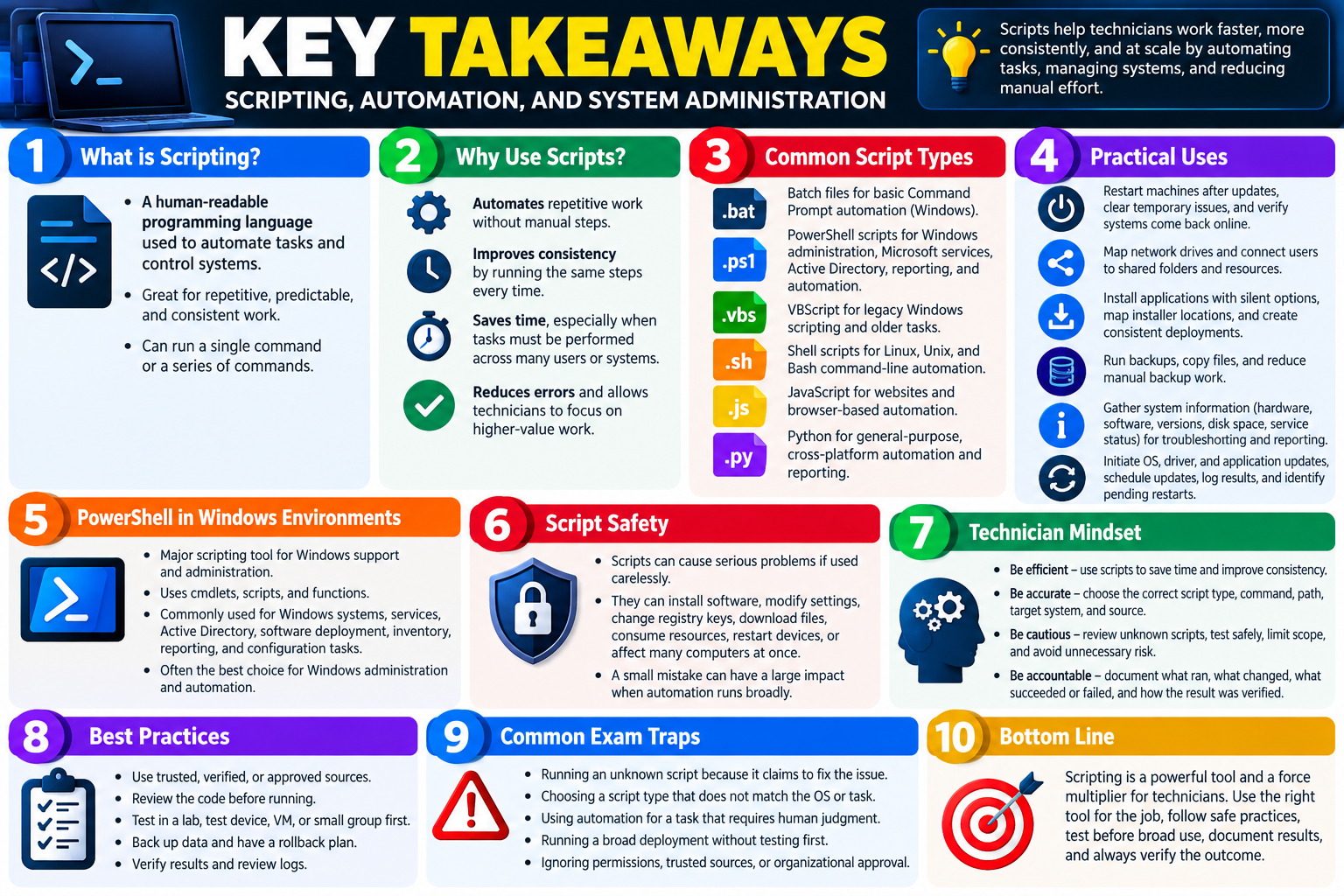
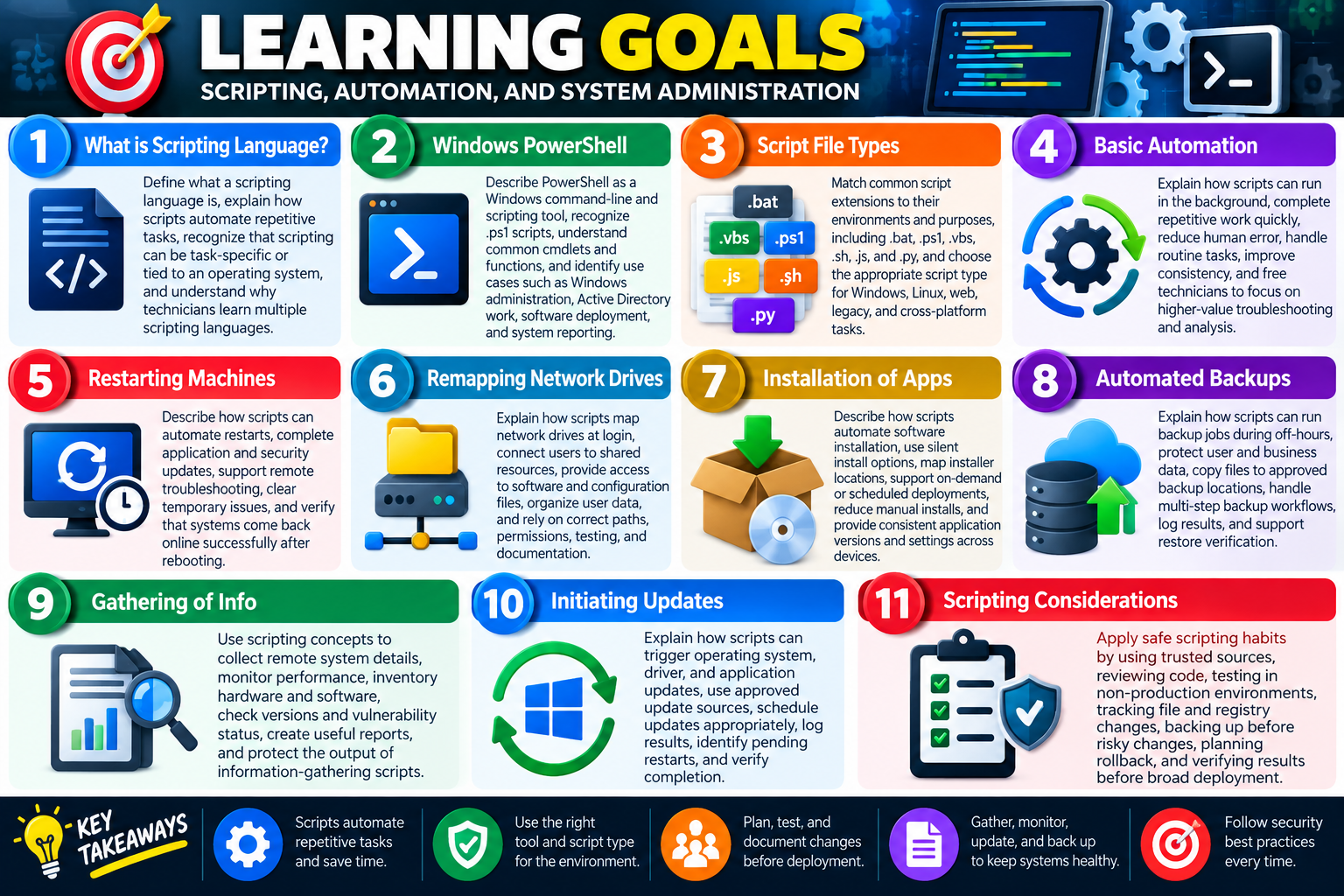
Learning Goals infographic for Objective 4.8 covering scripting language basics, PowerShell, script file types, automation, restarts, mapped drives, application installation, backups, information gathering, updates, and scripting considerations.
Objective 4.8 learning goals focus on scripting, automation, system administration, safe deployment, and choosing the right scripting tool for each scenario.

Learning Goals

By the end of Objective 4.8, you should be able to explain the basics of scripting, recognize common script types, identify practical automation use cases, and apply safe scripting habits when scripts are used to manage systems.

Module 1 - What is Scripting Language? Explain what a scripting language is, describe how scripts automate repeatable tasks, recognize that scripting may be task-specific or operating-system-specific, and understand why technicians often learn multiple scripting languages.
Module 2 - Windows PowerShell Describe PowerShell as a Windows command-line and scripting tool, recognize .ps1 scripts, understand cmdlets and functions, and identify PowerShell use cases such as Windows administration, Active Directory work, software deployment, and system reporting.
Module 3 - Script File Types Match common script extensions to their environments and purposes, including .bat, .ps1, .vbs, .sh, .js, and .py, and choose the appropriate script type for Windows, Linux, web, legacy, and cross-platform tasks.
Module 4 - Basic Automation Explain how scripts can run in the background, complete repetitive work quickly, reduce human error, handle routine tasks, improve consistency, and free technicians to focus on higher-value troubleshooting and analysis.
Module 5 - Restarting Machines Describe how scripts can automate restarts, complete application and security updates, support remote troubleshooting, clear temporary issues, and verify that systems come back online successfully after rebooting.
Module 6 - Remapping Network Drives Explain how scripts map network drives at login, connect users to shared resources, provide access to software and configuration files, organize user data, and rely on correct paths, permissions, testing, and documentation.
Module 7 - Installation of Apps Describe how scripts automate software installation, use silent install options, map installer locations, support on-demand or scheduled deployments, reduce manual installs, and provide consistent application versions and settings across devices.
Module 8 - Automated Backups Explain how scripts can run backup jobs during off-hours, protect user and business data, copy files to approved backup locations, handle multi-step backup workflows, log results, and support restore verification.
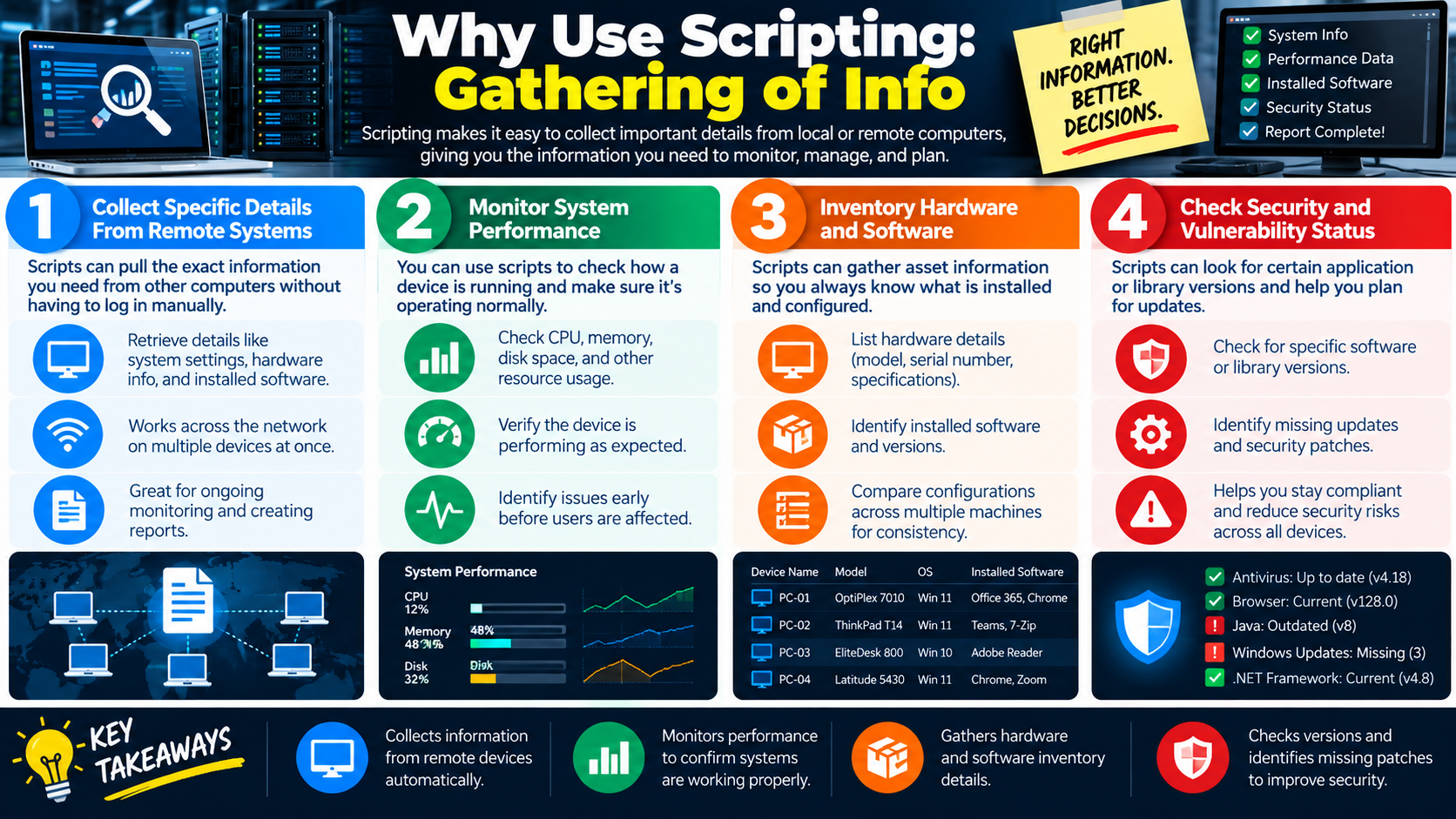
Module 9 - Gathering of Info Use scripting concepts to collect remote system details, monitor performance, inventory hardware and software, check versions and vulnerability status, create useful reports, and protect the output of information-gathering scripts.
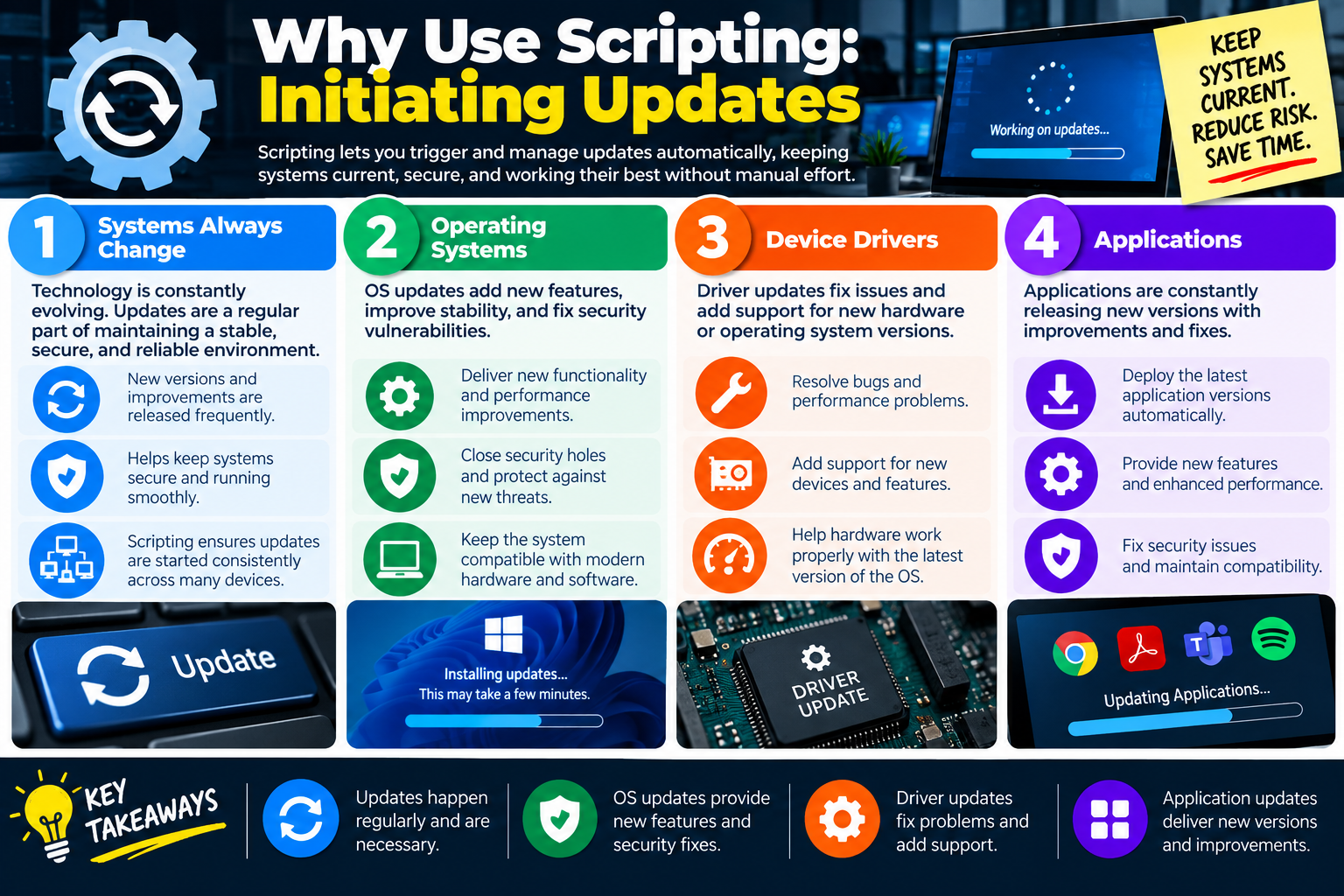
Module 10 - Initiating Updates Explain how scripts can trigger operating system, driver, and application updates; use approved update sources; schedule updates appropriately; log results; identify pending restarts; and verify completion.
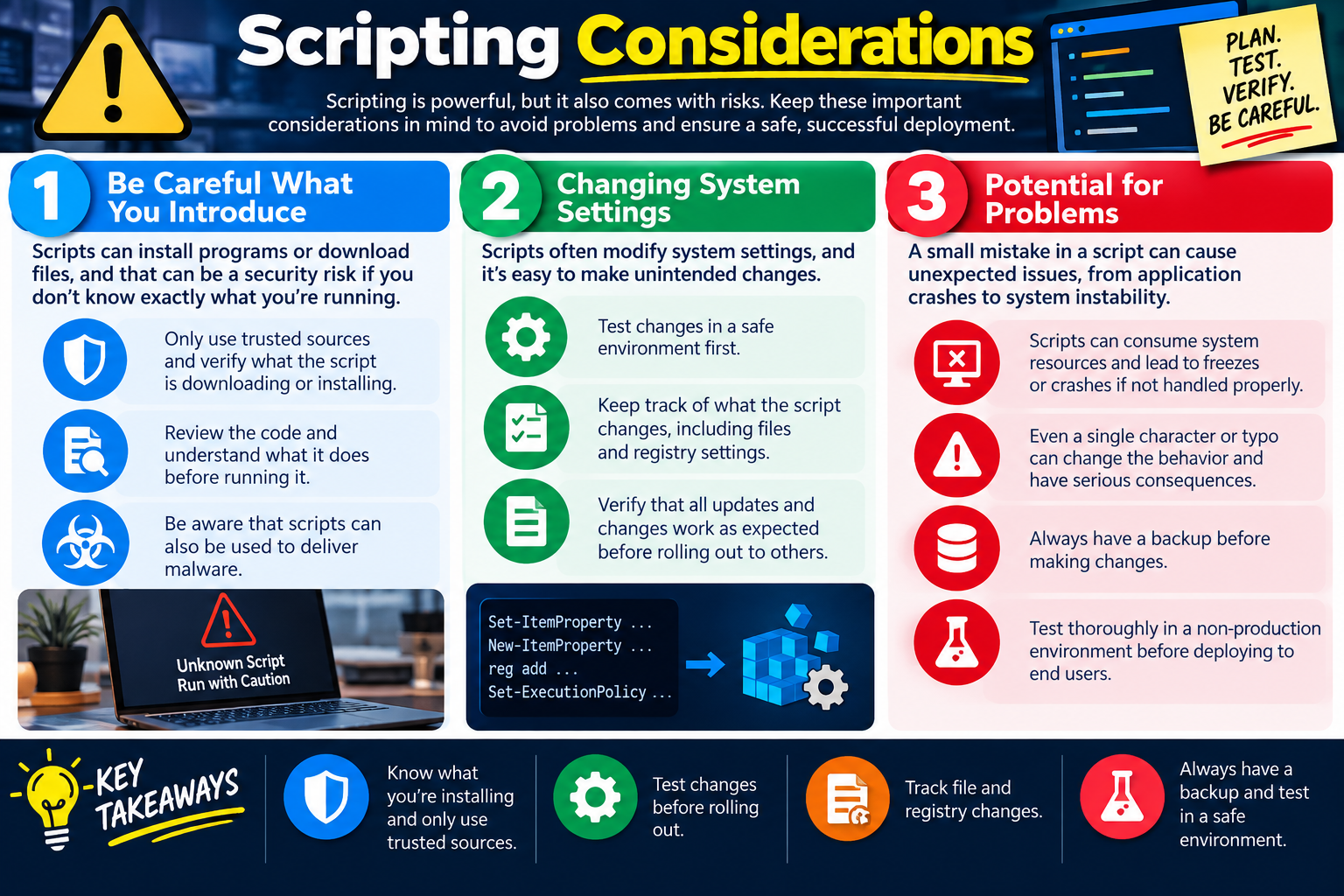
Module 11 - Scripting Considerations Apply safe scripting habits by using trusted sources, reviewing code, testing in non-production environments, tracking file and registry changes, backing up before risky changes, planning rollback, and verifying results before broad deployment.

Scenario Readiness

  1. Identify the task. Determine whether the scenario involves repeatable commands, Windows administration, Linux shell work, software installation, backups, drive mapping, updates, restarts, or information gathering.
  2. Choose the right script type. Match the scripting language or extension to the operating system, application, environment, and task requirements.
  3. Automate responsibly. Use scripts for repetitive and well-understood tasks, especially when consistency, scheduling, reporting, or multi-system deployment matters.
  4. Protect systems and data. Avoid unknown scripts, verify trusted sources, limit permissions, protect sensitive output, and back up before making risky changes.
  5. Test, verify, and document. Test scripts safely, confirm the result, log what happened, document what changed, and keep a rollback plan for high-impact scripts.
Lesson ModuleModule 1 / 14
SCRIPT
Module 01

Module 1 - What is Scripting Language?

A scripting language is a simple, human-readable programming language used to automate tasks, run commands in a repeatable order, and control systems through scripts.

For Objective 4.8, scripting basics are important because technicians often need to perform the same task more than once. A script lets the technician write a set of instructions one time and run those instructions whenever the same job needs to be repeated. Instead of manually typing the same commands on every computer, a technician can use a script to save time, reduce mistakes, and make the process more consistent.

Scripting is not only for software developers. In IT support, scripts are commonly used for routine administration, troubleshooting, setup, reporting, cleanup, and maintenance. A technician may use a script to map network drives, collect system information, install software, restart services, copy files, check disk space, create folders, update settings, or perform a series of commands in a controlled sequence. Simple scripts can produce big results when they are written carefully and tested before use.

Scripts Automate Tasks

The main purpose of a scripting language is automation. Automation means telling the computer to perform repetitive or complex work for you. A script can run one command, but it can also run many commands in order. This makes scripting useful when the same task must be completed for many users, many computers, or many files.

For example, a technician might need to check a folder, loop through a group of files, rename files, gather information from each file, and save the result. Doing that manually can take time and invite human error. A script can perform the same steps consistently. The infographic summarizes this idea with the phrase, write once, run many times.

  1. Automate administrative tasks. Scripts can help with account checks, drive mappings, service restarts, software installs, cleanup jobs, and reporting.
  2. Run a series of commands. A script can combine multiple commands so the technician does not have to type each step manually.
  3. Save time and reduce human error. Repeating the same tested steps helps avoid missed commands, typos, and inconsistent results.
  4. Match the requirement. The script should fit the specific task, system, and risk level instead of being used just because automation is available.

Scripts Can Be Task or OS Specific

Different scripting languages are designed for different jobs and operating systems. A technician may not always choose any language they want because the environment, operating system, available tools, or existing company process may already point to a specific language.

PowerShell is commonly used in Windows environments. It is especially useful for managing Windows systems, Microsoft services, files, registry settings, users, groups, services, event logs, and administrative tasks. Bash is commonly used in Linux environments. It is often used for shell commands, file operations, service management, package management, and system administration. Python is used across many platforms and can support a wide range of tasks, including automation, data processing, reporting, testing, and working with APIs.

PowerShell Commonly used in Windows environments for administration, automation, configuration, and support tasks.
Bash Commonly used in Linux and Unix-like environments for shell automation and system management.
Python Useful across many platforms for general automation, data handling, scripting, testing, and tool building.
Existing tools matter The best scripting language is often the one supported by the operating system, task, policy, and available tools.

Technicians Often Learn Multiple Languages

Most IT professionals use more than one scripting language over time. This does not mean a beginner must master every language immediately. It means technicians should understand that each language has strengths and that the right tool depends on the situation.

A Windows support technician may spend a lot of time with PowerShell. A Linux technician may rely heavily on Bash. A technician working across platforms may use Python. Web and browser-related tasks may involve JavaScript. Older Windows environments may still include batch files or VBScript. As a technician grows, learning multiple scripting tools creates a more versatile skill set.

  • Build a versatile skill set. Knowing more than one language helps technicians work across different systems and environments.
  • Use the right tool for the job. The best script type depends on the task, operating system, access level, and business requirement.
  • Improve efficiency. Scripts can help technicians solve problems faster when the task is repeatable and well understood.
  • Support professional growth. Scripting is a common and valuable skill for help desk, desktop support, system administration, cybersecurity, and network roles.

Common Scripting Language Examples

The infographic lists several scripting examples: PowerShell, Bash, Python, VBScript, JavaScript, and others. Each one appears in different environments and solves different problems. A technician should recognize the common file types and the general purpose of each language, even before writing advanced scripts.

PowerShell scripts Often use the .ps1 extension and are common for Windows and Microsoft administration.
Bash scripts Often use the .sh extension and are common in Linux environments.
Python scripts Often use the .py extension and can run on many operating systems when Python is installed.
Other script types Batch files, VBScript, JavaScript, and other scripting tools may appear depending on the environment.

Use Scripts Carefully

Scripting is powerful because it can make changes quickly. That power also creates risk. A script can change settings, delete files, install software, restart services, affect many computers, or expose data if it is poorly written or run in the wrong place. A technician should understand what a script does before running it, especially if it came from the internet, another user, or an unknown source.

Good scripting habits include testing in a safe environment, using the least privileges needed, documenting what the script changes, backing up important data, and verifying the result. A script should solve a specific need, not create a larger support problem.

Exam Mindset

If a scenario describes a repetitive task, multiple commands, many systems, or a need for consistent results, scripting may be the best tool. If the scenario mentions an unknown script, system-wide changes, elevated permissions, or possible data loss, choose the answer that reviews, tests, limits permissions, documents, and verifies before running it.

Bottom line: A scripting language helps technicians automate work by running repeatable instructions. Scripts can save time, reduce human error, and improve consistency, but the right scripting language depends on the task, operating system, and available tools. Most technicians learn multiple scripting languages so they can choose the right tool for the job.
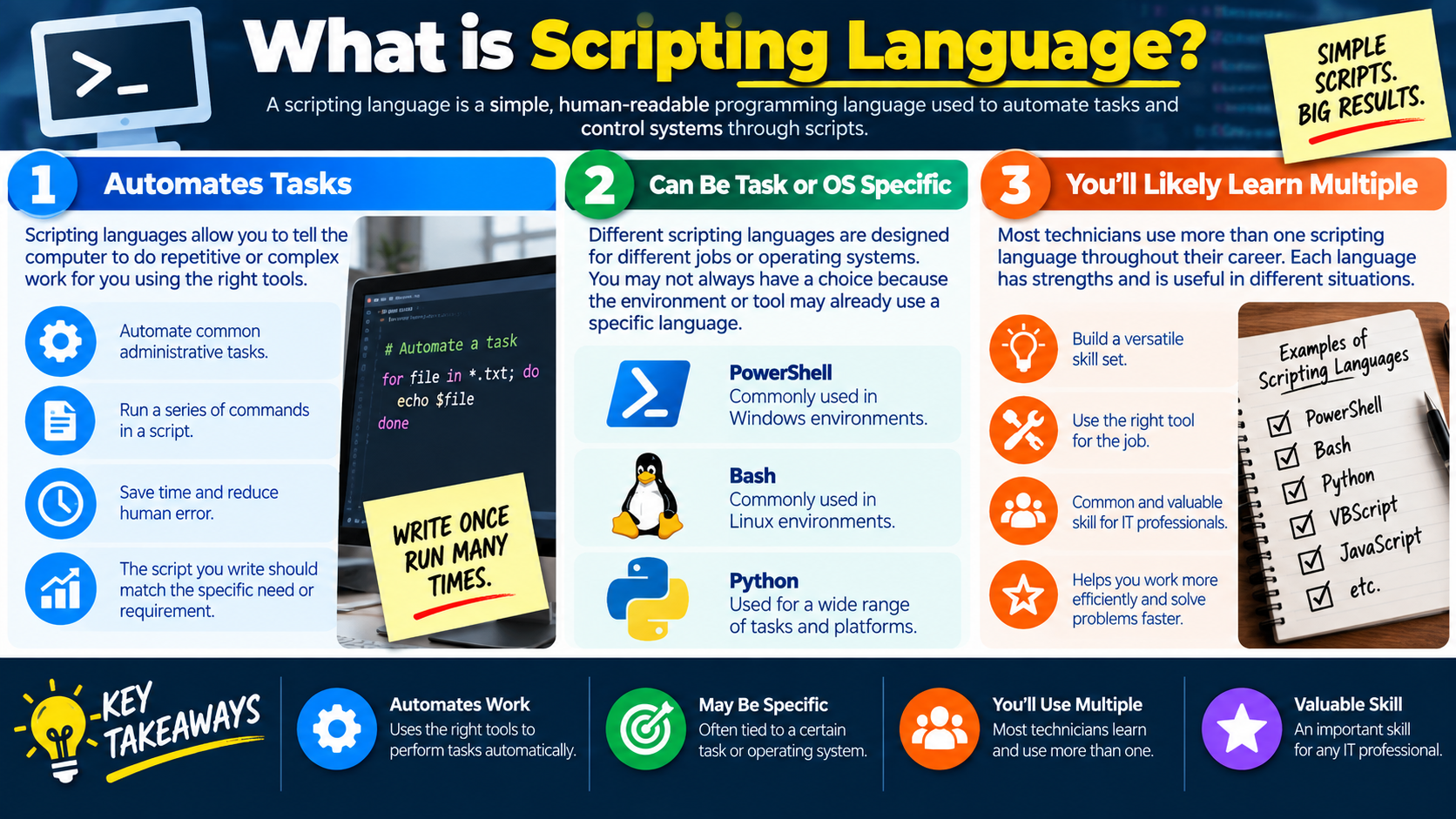
What is Scripting Language infographic explaining task automation, operating system specific scripting languages, and why technicians learn multiple scripting languages.
Scripting languages help technicians automate repeatable tasks, choose the right tool for the operating system, and build a valuable skill set for IT support.
PS
Module 02

Module 2 - Windows PowerShell

Windows PowerShell is a powerful command-line shell and scripting environment built into Windows that helps IT professionals automate tasks, manage systems, and work more efficiently.

For Objective 4.8, PowerShell is one of the most important scripting tools to recognize because it is widely used in Windows administration. It can be used interactively at a prompt, but it can also run full scripts that perform repeatable tasks. A technician may use PowerShell to gather system information, manage services, configure Windows features, work with Active Directory, deploy software, or make configuration changes across multiple systems.

PowerShell matters because it gives technicians more control than many traditional graphical tools. A task that would take many clicks in a GUI can often be completed with one command. A task that must be repeated for many users or devices can be scripted, tested, documented, and reused. More automation means less manual work, but it also means the technician must understand what the command or script will change before running it.

What PowerShell Is

PowerShell is a built-in command-line shell and scripting environment designed for system administration and automation. It is intended for IT administrators, support technicians, power users, and anyone who needs to manage Windows systems efficiently. On modern Windows systems, especially Windows 10 and Windows 11, PowerShell is commonly available without needing a separate install.

PowerShell scripts commonly use the .ps1 file extension. A .ps1 file can contain a single command, a sequence of commands, variables, functions, conditional logic, loops, and other scripting elements. This lets a technician move from typing individual commands to building repeatable tools for common support tasks.

  1. Designed for administration. PowerShell is built for managing systems, users, services, files, settings, and Windows features.
  2. Built into Windows. It is commonly available on Windows 10 and Windows 11, making it a practical tool in many support environments.
  3. Uses .ps1 scripts. PowerShell scripts can save commands and logic so they can be reused consistently.
  4. Supports interactive and scripted work. Technicians can type commands directly or run a saved script.

More Than a Command Prompt

PowerShell extends traditional command-line capabilities. The older Command Prompt is useful for many basic commands, but PowerShell adds tools and features specifically designed for deeper system management. One of the biggest differences is that PowerShell uses cmdlets, pronounced command-lets. Cmdlets are specialized commands that perform specific tasks.

PowerShell cmdlets often use a verb-noun naming pattern, such as Get-Service, Get-Process, Set-ExecutionPolicy, Install-WindowsFeature, or Get-ADUser. This structure helps technicians understand what the command is intended to do. The verb describes the action, and the noun describes the thing being acted on.

Cmdlets PowerShell uses command-lets to perform specific system, file, user, service, and configuration tasks.
Built-in functions PowerShell includes tools for advanced control, filtering, formatting, automation, and administration.
Reusable functions PowerShell can run standalone scripts or define functions that are reused inside larger scripts.
Flexible management PowerShell provides more powerful and flexible management options than many traditional command-line tasks.

Automate and Integrate

PowerShell is valuable because it can automate routine work and integrate with Microsoft technologies. In a Windows environment, many administrative tasks involve repeating the same steps across multiple systems or users. PowerShell can help standardize those steps.

A technician might use PowerShell to create users, check group membership, restart services, install features, gather hardware information, list installed software, map drives, check event logs, configure network settings, or run setup scripts. In business environments, PowerShell is also commonly used with Active Directory, Microsoft 365, Exchange, Intune, Windows Server, and other Microsoft tools and services.

  • Automate common administrative tasks. PowerShell can help with user management, software installation, configuration changes, service checks, and reporting.
  • Integrate with Microsoft tools. PowerShell is often used to manage Windows, Active Directory, Microsoft cloud services, and server roles.
  • Support local administration. A technician can use PowerShell on one system to troubleshoot or configure that device.
  • Manage at scale. PowerShell can help apply consistent actions across many systems when authorized and properly tested.

Real-World PowerShell Examples

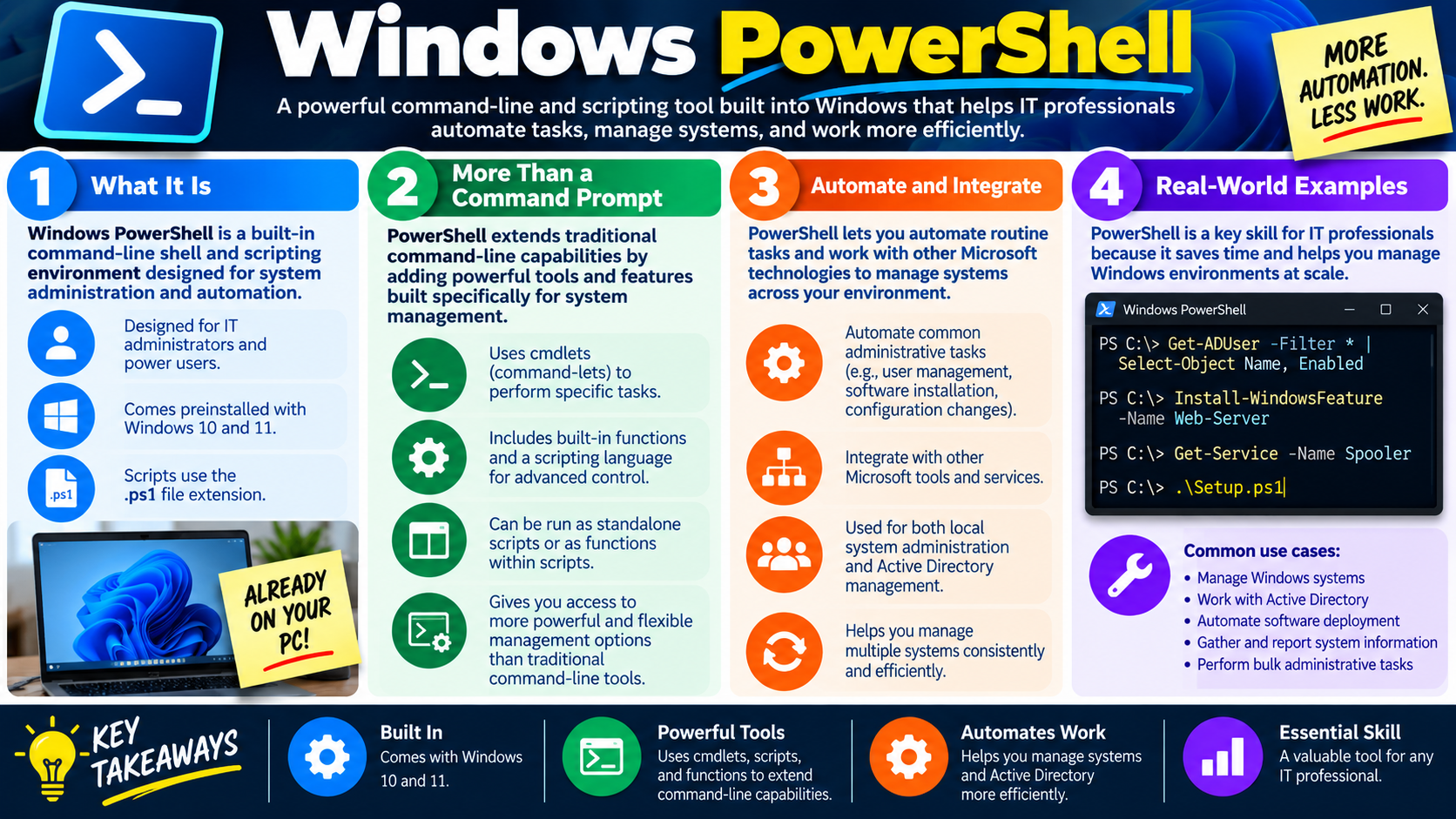
The infographic shows examples of commands and scripts that a technician might encounter. Get-ADUser -Filter * can be used in an Active Directory environment to retrieve user account information. Install-WindowsFeature -Name Web-Server installs a Windows Server role or feature when supported by the system. Get-Service -Name Spooler checks the Print Spooler service. .\Setup.ps1 runs a PowerShell script located in the current folder.

These examples show why PowerShell is useful for support work. It can query information, change configuration, install components, and run scripted tasks. A technician should recognize that the same tool can be used for simple checks and more advanced administration.

Manage Windows systems Check services, processes, settings, installed software, event logs, and system configuration.
Work with Active Directory View or manage users, groups, computers, and directory information when authorized.
Automate software deployment Run setup scripts, install packages, configure applications, or standardize deployment steps.
Gather and report information Collect system details, export results, and create repeatable reports for troubleshooting or inventory.

PowerShell Safety and Professional Use

Because PowerShell is powerful, it must be used carefully. A poorly written command or script can stop services, remove files, change system settings, install unwanted software, or affect many users at once. Before running a PowerShell script, especially one downloaded from another source, a technician should inspect it, understand what it does, test it safely, and confirm that it is approved for the environment.

PowerShell may also be restricted by execution policies, administrative privileges, endpoint security tools, or organizational policy. These controls are not annoyances to bypass casually. They help prevent unauthorized scripts from running and protect systems from accidental or malicious changes. A professional technician uses PowerShell through approved procedures and documents meaningful changes.

Exam Mindset

If a scenario mentions Windows administration, Active Directory, service checks, bulk changes, software deployment, configuration automation, or a .ps1 script, think PowerShell. If the scenario mentions an unknown script or elevated commands, choose the answer that reviews, tests, verifies permission, and documents the result before running it broadly.

Bottom line: PowerShell is a built-in Windows command-line and scripting tool for administration and automation. It uses cmdlets, scripts, and functions to manage systems, integrate with Microsoft services, automate routine work, and perform tasks consistently at scale.

Windows PowerShell infographic explaining what PowerShell is, how it extends the command prompt, automation and integration, real-world examples, and key takeaways.
PowerShell helps technicians automate Windows administration, integrate with Microsoft tools, and manage systems more consistently and efficiently.
EXT
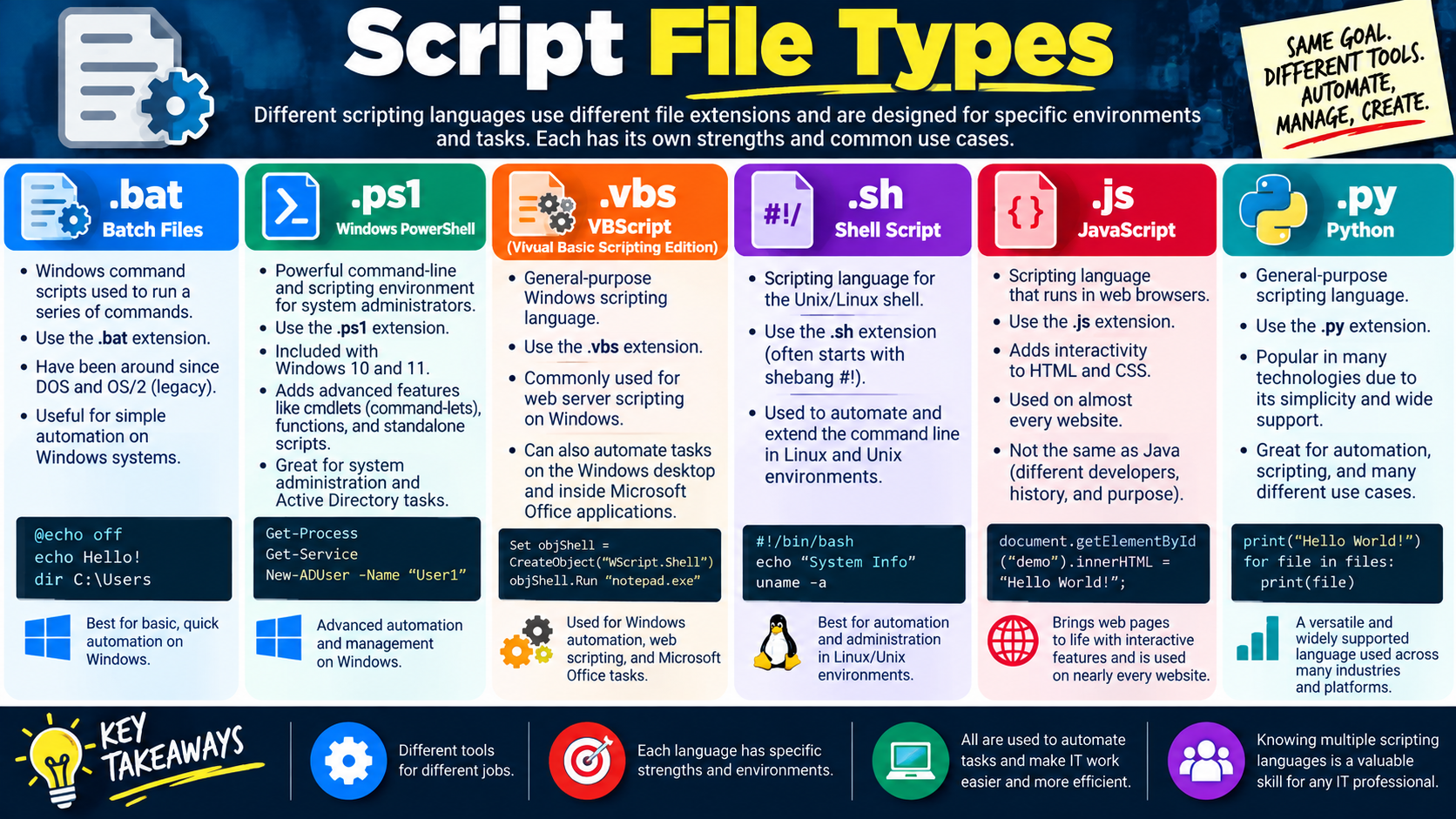
Module 03

Module 3 - Script File Types

Different scripting languages use different file extensions and are designed for specific environments and tasks. The goal is often the same: automate work, manage systems, and create repeatable results with the right tool.

For Objective 4.8, technicians should recognize common script file types and understand where each one is commonly used. File extensions help identify the scripting language or environment a script is intended for. A .ps1 file points to PowerShell, a .sh file points to a shell script, and a .py file points to Python. Recognizing the file type helps the technician understand the likely operating system, tool, permissions, and risk involved.

Script file types matter because scripts can perform real system actions. They can install software, change settings, create users, query information, start services, delete files, or automate browser and application behavior. A technician should not run a script simply because it looks familiar. They should identify the file type, inspect what it does, confirm the correct environment, and run it only when it is approved and appropriate.

.bat - Batch Files

Batch files are Windows command scripts used to run a series of Command Prompt commands. They commonly use the .bat extension. Batch files have been around since DOS and OS/2-era systems, so they are considered a legacy but still useful scripting format in Windows environments.

A batch file is often used for simple Windows automation. It can run commands such as creating folders, copying files, mapping drives, launching programs, displaying messages, or calling other command-line utilities. Because batch files are simple and widely supported, they may still appear in older environments, login scripts, maintenance tasks, or quick technician tools.

Common environment Windows Command Prompt and legacy Windows administration.
Common extension .bat
Common use Basic, quick automation such as running commands, copying files, or launching tools.
Exam clue If the task is simple Windows command automation, a batch file may be enough.

.ps1 - Windows PowerShell

PowerShell scripts use the .ps1 extension. PowerShell is a powerful command-line and scripting environment for Windows administration. It uses cmdlets, functions, variables, pipelines, and scripting logic to manage systems more flexibly than traditional Command Prompt commands.

PowerShell is commonly used for system administration, Active Directory tasks, Windows configuration, service management, software deployment, inventory, and reporting. A technician may use PowerShell to run commands like Get-Process, Get-Service, or New-ADUser when authorized. PowerShell is especially important because it is included with modern Windows systems and integrates deeply with Microsoft tools.

  1. Use .ps1 for PowerShell scripts. These scripts are common in Windows 10, Windows 11, and Windows Server environments.
  2. Use cmdlets for administration. Cmdlets perform specific actions such as getting services, managing users, or installing features.
  3. Use caution with privileges. PowerShell scripts can make significant system changes, especially when run as administrator.
  4. Know the common use case. PowerShell is best associated with advanced Windows automation and management.

.vbs - VBScript

VBScript, or Visual Basic Scripting Edition, uses the .vbs extension. It is a general-purpose Windows scripting language that was commonly used in older Windows automation, web server scripting on Windows, desktop automation, and Microsoft Office-related scripting tasks.

VBScript is less common in modern environments than PowerShell, but technicians may still encounter it in legacy systems, older administrative scripts, logon scripts, or business applications that have not been rewritten. A .vbs script can automate Windows desktop tasks, launch programs, interact with Windows Script Host, or work with Office applications.

For the exam, VBScript is usually a recognition item. If the scenario points to older Windows scripting or legacy automation, .vbs is the likely file type.

.sh - Shell Script

Shell scripts commonly use the .sh extension and are associated with Unix, Linux, and similar operating systems. A shell script automates command-line tasks in a shell environment such as Bash. Many shell scripts begin with a shebang line, such as #!/bin/bash, which tells the system which interpreter should run the script.

Shell scripts are used to automate and extend command-line work in Linux and Unix environments. They can manage files, run commands, check system information, install packages, start services, configure systems, and perform scheduled administrative work. For technicians who support Linux systems, recognizing .sh files is essential.

Common environment Linux, Unix, macOS terminal environments, and Bash shells.
Common extension .sh
Common feature Often starts with a shebang such as #!/bin/bash.
Common use Linux/Unix administration, command automation, file tasks, and system maintenance.

.js - JavaScript

JavaScript scripts use the .js extension. JavaScript is best known as a scripting language that runs in web browsers and adds interactivity to HTML and CSS. It is used on almost every modern website, but it is not the same as Java. Java and JavaScript have different histories, developers, syntax patterns, runtimes, and purposes.

In an IT support context, JavaScript may appear when troubleshooting websites, browser behavior, web applications, extensions, scripts embedded in pages, or web-based tools. A technician does not need to be a professional web developer to recognize that .js files are connected to browser and web application behavior.

  • Used heavily on websites. JavaScript brings web pages to life with buttons, forms, menus, validation, and dynamic content.
  • Works with HTML and CSS. HTML structures the page, CSS styles it, and JavaScript adds behavior.
  • Not Java. JavaScript and Java are different technologies and should not be treated as interchangeable.
  • Common support clue. If a web app is interactive, a .js file may be part of how it behaves.

.py - Python

Python scripts use the .py extension. Python is a general-purpose scripting and programming language known for readability, broad support, and flexibility. It is popular in many technologies because it can be used for automation, data processing, reporting, testing, web work, cybersecurity tasks, system administration, and many other use cases.

Python is often useful across platforms. A Python script can run on Windows, Linux, or macOS if Python and the required libraries are installed. This makes it a versatile tool for technicians and IT professionals who need to automate tasks that are not tied to only one operating system.

Common environment Cross-platform use on Windows, Linux, macOS, servers, and development systems.
Common extension .py
Common use Automation, scripting, reporting, data handling, APIs, testing, and many technical workflows.
Technician value Python is versatile, widely supported, and valuable across many IT career paths.

Choosing the Right Script Type

The infographic’s message is simple: same goal, different tools. Many scripting languages can automate tasks, but each one has strengths and common environments. A Windows-only administrative task may fit PowerShell. A simple Windows command sequence may fit a batch file. A Linux command-line task may fit a shell script. A browser or web application task may involve JavaScript. A cross-platform automation or reporting task may fit Python.

Technicians should choose based on the task, operating system, available tools, supportability, security requirements, and organizational standards. The best script is not always the most advanced one. It is the one that solves the problem safely, clearly, and consistently.

Exam Mindset

If a question asks which script type matches a scenario, look for the environment first. Windows administration points to .ps1 or sometimes .bat. Linux or Unix shell automation points to .sh. Web browser interactivity points to .js. Cross-platform or general-purpose automation often points to .py. Legacy Windows automation may point to .vbs.

Bottom line: Script file extensions help identify the language, environment, and likely use case. Batch files, PowerShell, VBScript, shell scripts, JavaScript, and Python all support automation, but each tool is strongest in different situations. Knowing multiple script types helps technicians choose the right tool for the job.
Script File Types infographic comparing batch files, PowerShell, VBScript, shell scripts, JavaScript, and Python file extensions and use cases.
Script file types help technicians identify the right automation tool for Windows, Linux, web, legacy, and cross-platform tasks.
AUTO
Module 04

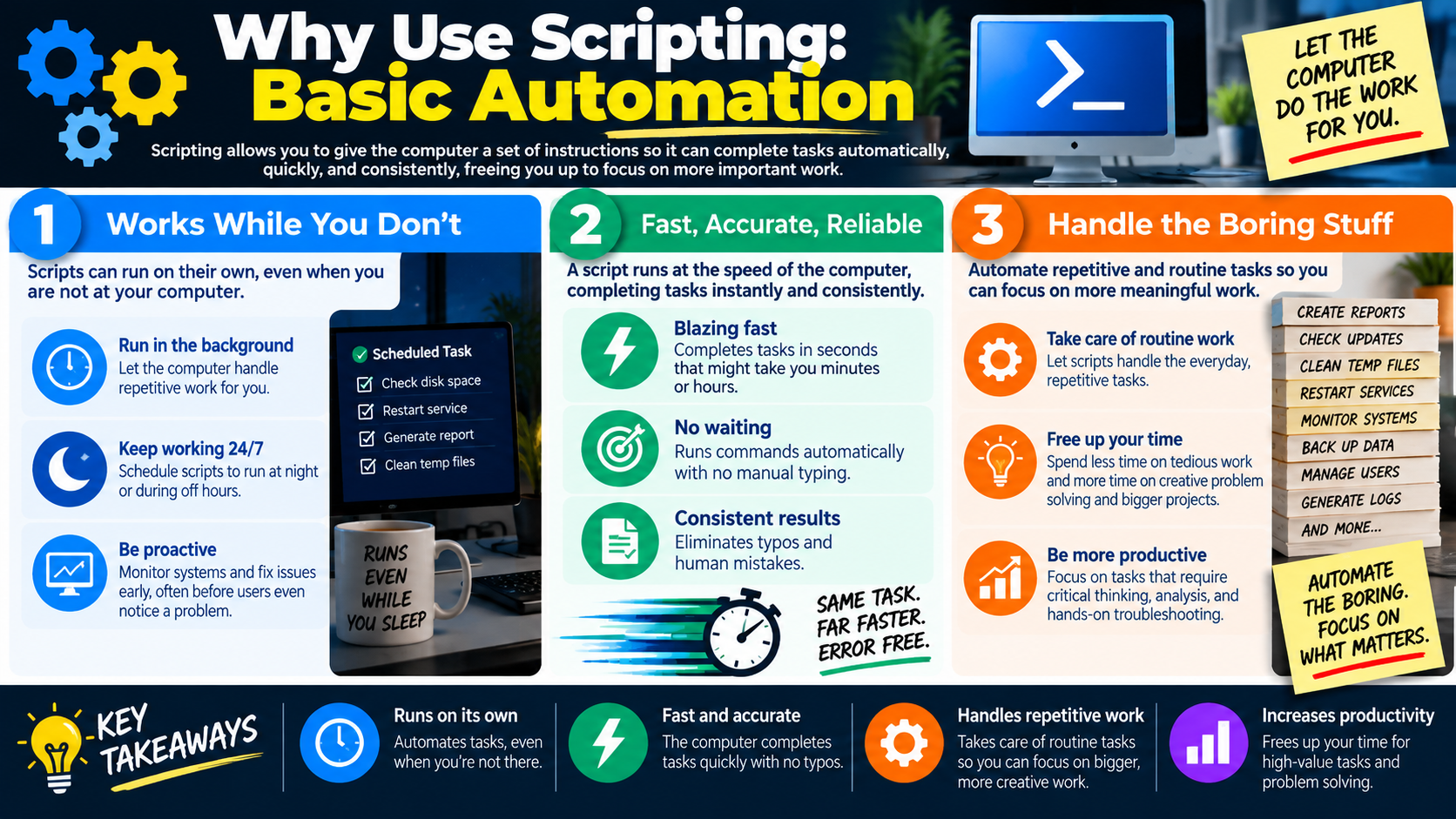
Module 4 - Why Use Scripting: Basic Automation

Scripting allows a technician to give the computer a set of instructions so it can complete tasks automatically, quickly, and consistently while freeing the technician to focus on higher-value work.

For Objective 4.8, the reason scripting matters is automation. A script can perform a task without requiring the technician to manually repeat every step. That might mean running a command at a specific time, checking a system on a schedule, cleaning up temporary files, restarting a service, generating a report, or applying the same configuration to multiple computers.

Basic automation is not about making the technician less important. It is about letting the computer handle predictable, repetitive work so the technician can spend more time troubleshooting, analyzing, planning, documenting, and supporting users. A good script takes a known process and makes it repeatable.

Works While You Do Not

One major benefit of scripting is that scripts can run in the background or on a schedule. A technician does not always need to be sitting at the keyboard while the work happens. If the task is predictable and approved, it can often be scheduled to run at night, during off-hours, or at regular intervals.

Scheduled tasks are useful for work that should happen repeatedly, such as checking disk space, restarting a service, generating a report, cleaning temporary files, backing up data, or monitoring systems. This makes support more proactive. Instead of waiting for a user to report a problem, a script may help detect or correct issues earlier.

  1. Run in the background. Scripts can let the computer handle repetitive work while the technician performs other tasks.
  2. Keep working 24/7. Scheduled scripts can run at night, during off-hours, or at specific intervals.
  3. Be proactive. Scripts can monitor systems, collect information, or fix known issues before users notice a problem.
  4. Reduce manual follow-up. A scheduled script can perform a recurring task without requiring someone to remember every step.

Fast, Accurate, and Reliable

A computer can run a script much faster than a person can manually type commands or click through menus. A task that might take a technician several minutes or hours can sometimes be completed in seconds once it is scripted. This is especially useful when the same command must run across many files, users, or systems.

Scripts also improve consistency. If a technician types commands manually, small differences can occur: a typo, a skipped step, a forgotten option, or an inconsistent folder path. A tested script runs the same instructions each time. That consistency can reduce human error and make troubleshooting easier because the process is documented in the script itself.

Blazing fast Scripts can complete repeatable tasks in seconds that might take much longer by hand.
No waiting on manual input A script can run commands automatically once the instructions are written and approved.
Consistent results The same tested script performs the same steps each time, reducing typos and missed actions.
Easier verification Repeatable automation makes it easier to test, document, and confirm results.

Handle the Boring Stuff

Many IT tasks are important but repetitive. Creating reports, checking for updates, cleaning temporary files, restarting services, monitoring systems, backing up data, managing users, and generating logs are all examples of work that may be automated when the process is clear and the risk is controlled.

Automation lets technicians spend less time on tedious routine work and more time on tasks that require human judgment. A script can check the disk space on many computers, but the technician still decides what the results mean. A script can restart a known failed service, but the technician still investigates repeated failures. A script can generate logs, but the technician still analyzes the pattern.

  • Take care of routine work. Scripts are ideal for tasks that follow predictable steps.
  • Free up your time. Automation reduces time spent on tedious tasks and gives technicians more time for problem solving.
  • Be more productive. Technicians can focus on analysis, user support, documentation, and hands-on troubleshooting.
  • Scale repeated tasks. Automation becomes especially valuable when the same action must be performed many times.

Common Automation Examples

The infographic lists common examples such as creating reports, checking updates, cleaning temporary files, restarting services, monitoring systems, backing up data, managing users, and generating logs. These examples show that scripting is not limited to one kind of task. It can support maintenance, administration, security, troubleshooting, and documentation.

Create reports Collect system details, software inventory, event information, or performance data into a readable output.
Restart services Restart a known service after verifying that doing so is approved and safe for users.
Clean temporary files Remove routine clutter using tested paths and safeguards to avoid deleting important data.
Generate logs Capture repeatable evidence or status information for troubleshooting and documentation.

Automate Carefully

Automation can make work faster, but it can also make mistakes faster. A bad manual step affects one action at a time. A bad script can repeat the same mistake across many files, users, or computers. That is why a technician should test scripts, understand the scope, use the least privileges needed, include safeguards when possible, and document what the script does.

Before automating, ask whether the task is repeatable, understood, approved, and safe to run without constant supervision. If a task requires judgment at every step, full automation may not be appropriate. If a task is predictable and low risk after testing, scripting can be a strong choice.

Exam Mindset

If a scenario describes repetitive work, off-hours maintenance, scheduled checks, report generation, service restarts, or routine cleanup, scripting may be the best tool. If the scenario involves unknown effects, broad system changes, or sensitive data, choose the answer that tests, limits scope, documents, and verifies before running automation widely.

Bottom line: Basic automation lets scripts run repeatable work in the background, on a schedule, or at computer speed. Scripts can save time, reduce typos, improve consistency, and let technicians focus on higher-value troubleshooting and problem solving.

Why Use Scripting Basic Automation infographic explaining background execution, scheduled tasks, speed, accuracy, reliability, repetitive work, and productivity.
Basic automation lets the computer handle routine work so technicians can focus on analysis, troubleshooting, and higher-value support tasks.
RST
Module 05

Module 5 - Why Use Scripting: Restarting Machines

Scripting can make it easy to restart computers automatically, ensuring systems are updated, secure, and working properly without requiring a technician to be physically present.

For Objective 4.8, restarting machines is a practical example of basic automation. A restart is simple, but it is also one of the most common support and maintenance actions in IT. Scripts can help schedule restarts, restart remote computers, complete software updates, apply security patches, clear temporary issues, and bring systems back to a known working state.

Restart automation must be used carefully because restarting a computer interrupts users, closes active sessions, and can affect business operations. A professional technician does not reboot systems randomly. The restart should be approved, scheduled when possible, communicated clearly, and verified afterward. Restarts today can mean fewer problems tomorrow when they are planned and used correctly.

Keeps Systems Running Smoothly

A reboot can clear temporary issues, free up locked resources, reload services, finish pending changes, and return a system to a healthier state. Many everyday computer problems are caused by processes that are stuck, memory that has not been released, services that need to reload, or updates waiting for a reboot. Restarting does not fix every problem, but it is often a useful first maintenance step.

Scripts can automate the shutdown and startup process when the restart is needed. For a single computer, this may be a quick support action. For many computers, scripted restarts can make maintenance more consistent. Instead of manually touching every device, a technician can use an approved script or management tool to restart systems during a maintenance window.

  1. Automatically restart the computer. Scripts can shut down and start systems again when a reboot is required.
  2. Clear common temporary issues. A restart can resolve hung processes, temporary resource problems, and some service issues.
  3. Support routine maintenance. Restarting is a basic but important task in many IT environments.
  4. Verify after the restart. The technician should confirm the system came back online and the original issue or update status is resolved.

Helps With Application Updates

Many software updates do not fully install until the computer restarts. During an update, files may be staged for replacement, services may need to reload, and components that were in use may not be updated until the next reboot. If users avoid restarting, applications may remain partially updated, unstable, or vulnerable.

Automating restarts helps ensure updates are finished without requiring manual intervention from every user. This is especially useful in classrooms, offices, labs, shared workstations, or managed fleets where many computers need to stay current. The technician can schedule the restart at a time that minimizes disruption and helps keep applications functioning correctly.

Complete the update process Some applications require a reboot before updated files and services are fully active.
Reduce manual intervention Automated restarts help updates finish without waiting for every user to reboot manually.
Keep software current Restarting after updates helps applications stay up to date and function correctly.
Minimize disruption Scheduled restarts should happen during approved maintenance windows whenever possible.

Supports Security Patch Deployment

Operating system updates and security patches often require a restart before they are fully applied. Until the restart happens, the system may still be using older files or vulnerable components. In security work, a pending reboot can mean the patch is downloaded but not fully protecting the device yet.

Scripted restarts can help deploy patches after hours. This lets organizations apply security updates without requiring technicians to visit each machine or interrupt users during peak work time. When done correctly, restart automation helps reduce vulnerability windows and supports a stronger security posture.

  • Deploy patches after hours. Scripts can restart computers during approved maintenance times so updates finish outside normal work periods.
  • Apply security updates completely. Some patches do not fully take effect until the operating system restarts.
  • Reduce risk. Restarting after patch deployment helps reduce exposure to known vulnerabilities.
  • Confirm compliance. Technicians should verify that systems restarted successfully and patches are fully installed.

Useful for Troubleshooting and Remote Systems

Restarting is often one of the first troubleshooting steps when a system has temporary errors, pending updates, stuck services, or unexplained performance problems. This is especially helpful when the technician cannot physically access the computer. A scripted restart can save time by allowing remote support teams to bring a machine back online without traveling to the location.

Remote restart automation is useful for clearing errors, applying changes, reconnecting systems, or recovering from conditions that require a reboot. However, remote restarts require extra care. The technician should confirm the correct device, warn users when possible, ensure the restart is authorized, and verify that the system returns online.

Remote troubleshooting Restart systems that are not physically nearby when policy and access allow it.
Apply changes Some configuration changes do not take effect until after a reboot.
Bring systems back online A restart can recover from some temporary failures, hung processes, or stuck services.
Use caution Confirm the target system, notify users, and avoid restarting during active work unless it is urgent and approved.

When Not to Restart Automatically

Restart automation is helpful, but it is not always appropriate. Do not restart a system automatically if it may interrupt critical work, disrupt a production service, cause data loss, interfere with an investigation, or violate a maintenance schedule. If a user has unsaved work or a server is providing an important service, a restart may need coordination and approval.

Good restart scripts should be controlled and predictable. They may include warnings, delays, logging, device targeting, maintenance windows, and post-restart checks. The point is not just to reboot quickly. The point is to reboot responsibly so the system becomes more stable, more secure, and more supportable.

Exam Mindset

If a scenario mentions pending updates, security patches, application updates, remote troubleshooting, stuck services, or systems that need to restart after hours, scripting may be useful. If the scenario mentions active users, unsaved work, production systems, or critical operations, choose the answer that schedules, notifies, verifies, and follows policy before restarting.

Bottom line: Restart scripts can keep systems running smoothly, complete application and security updates, support remote troubleshooting, and save technician time. Use them carefully: schedule restarts, communicate with users, confirm the correct target, and verify that systems come back online successfully.

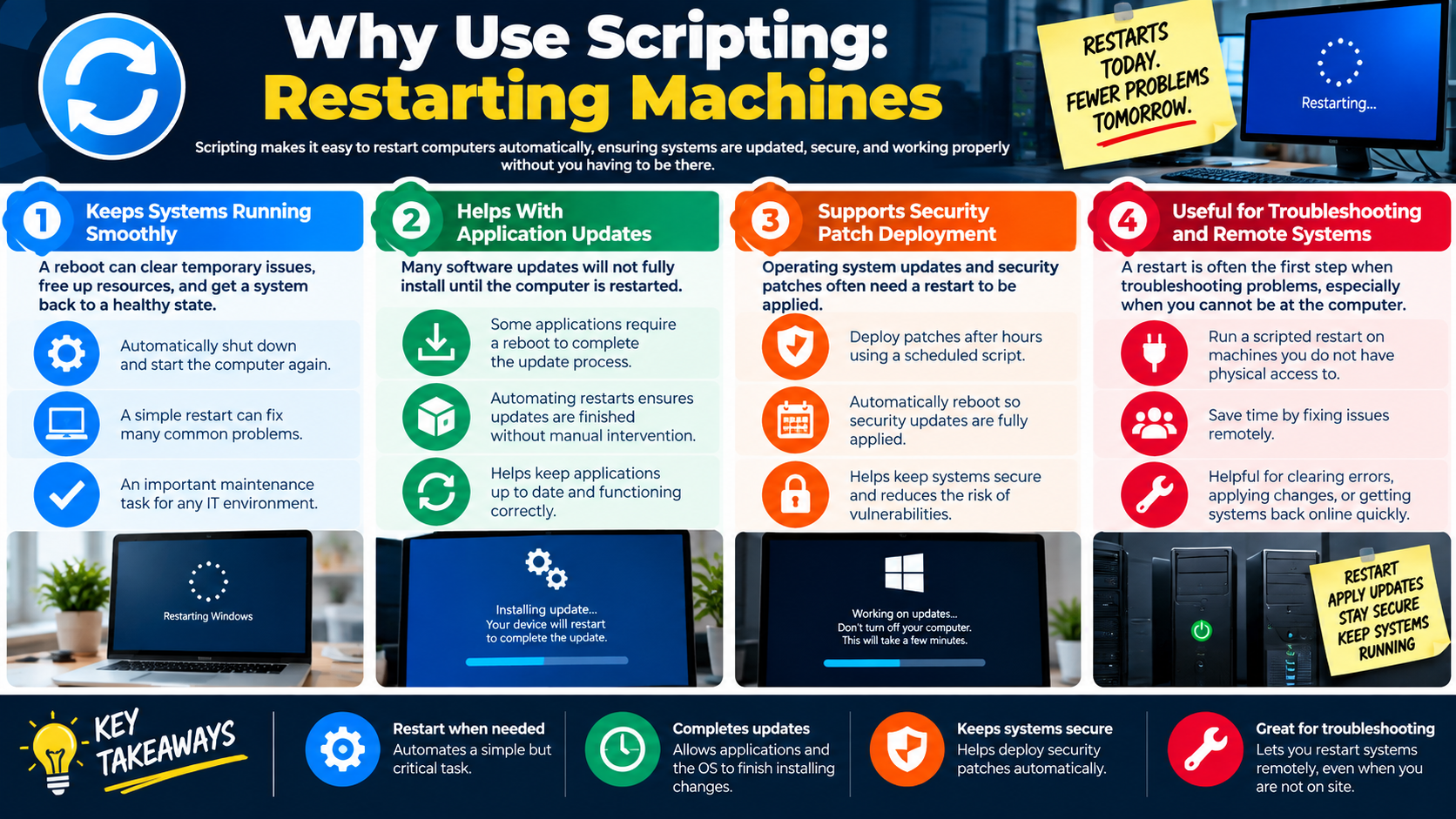
Why Use Scripting Restarting Machines infographic explaining automated restarts, application updates, security patch deployment, troubleshooting, and remote systems.
Scripted restarts help technicians apply updates, improve security, clear temporary issues, and manage remote systems more efficiently.
MAP
Module 06

Module 6 - Why Use Scripting: Remapping Network Drives

Scripting can automatically connect network drives so users have quick, reliable access to the files and resources they need every time they sign in.

For Objective 4.8, remapping network drives is one of the clearest examples of useful automation. In many organizations, users need access to shared folders stored on a file server. Those shared folders may contain department files, project folders, software installers, updates, configuration files, user data, templates, or other business resources. A mapped network drive gives users a familiar drive letter, such as H: or P:, that points to a shared network location.

Without automation, users or technicians may need to manually reconnect drives. That wastes time and increases the chance that someone connects to the wrong location, forgets a drive, or cannot find required files. A script can map the correct drives automatically at login so users get the right files, from the right location, every time.

Connect Users to Shared Resources

Network drives give users a simple way to access files stored on a server. To the user, the drive may feel similar to a local drive, but the files are actually stored on a network share. This allows a department, team, classroom, or organization to keep shared data in a central location instead of scattering copies across individual computers.

Central shared storage helps keep users connected to the same up-to-date information. If everyone saves and opens files from the same approved share, the organization has better control over access, backups, version consistency, and file organization. A mapped drive acts as a bridge between the user and the data they need.

  1. Provide easy access. Mapped drives help users reach department files, projects, shared data, and other resources quickly.
  2. Work like a local drive. Users can browse the mapped drive through File Explorer even though the data is stored on a server.
  3. Keep information centralized. Shared drives help teams work from the same files instead of maintaining many separate copies.
  4. Support backups and permissions. Central file shares are easier to back up, monitor, and protect with access controls.

Automatically Map at Startup or Login

A script can map network drives automatically when the user logs in. This saves time every day because the user does not need to remember server paths or manually reconnect the drive. It also helps ensure the right drives are available whenever the user starts work.

In Windows environments, a simple drive mapping command may use net use. For example, net use H: \\SERVER\Department /persistent:yes maps the H: drive to a department share, while net use P: \\SERVER\Projects /persistent:yes maps the P: drive to a projects share. A login script can run these commands automatically so the correct mappings appear without manual setup.

Save user time Users do not need to manually browse to or reconnect common file shares.
Ensure availability The correct drives can appear automatically when the user signs in.
Reduce forgotten steps Scripts remove the need for users to remember drive letters, server names, or share paths.
Standardize access Everyone in the same group can receive the same drive mappings through an approved script or policy.

Roll Out Software and Changes

Network drives are not only for documents. A mapped drive can point to a central location that stores software installers, update packages, scripts, configuration files, templates, or support tools. This makes it easier to distribute resources consistently across an organization.

For example, a technician might map a drive where approved installers are stored so users or support staff can access the correct version. The organization might also store configuration files, update packages, or deployment resources on a shared location. This helps keep everyone on the same version of software and reduces confusion caused by outdated or unofficial copies.

  • Give access to approved resources. A mapped drive can connect users or technicians to software installers, updates, and configuration files.
  • Support consistent deployments. Central shares help ensure everyone uses the same approved files.
  • Reduce version confusion. Users are less likely to install outdated software if the approved installer is in one controlled location.
  • Make updates easier to manage. Centralized resources simplify rollout planning and support documentation.

Manage User Data Automatically

Scripting can also help manage user data. A script can create folders, move files, copy data to the appropriate network location, or organize content without requiring manual effort from the technician or user. This can be helpful during onboarding, profile setup, migrations, backups, or data cleanup projects.

For example, a script might create a personal network folder for a new user, copy standard files into the correct location, move user documents from a local path to a server share, or ensure that department folders exist before a drive is mapped. These actions reduce the chance of missing, misplaced, or inconsistently organized files.

Create folders Scripts can create required user, department, or project folders in standard locations.
Move or copy files Automation can place data into approved network locations for access, backup, or migration.
Keep data organized Standard folder paths make files easier to locate and support.
Reduce missing files Automated placement lowers the chance that important files are stored in the wrong location.

Permissions Still Matter

Mapping a drive does not replace file permissions. A mapped drive is only a convenient path to a network share. Users still need appropriate access rights to open, edit, create, or delete files. If the permissions are wrong, a drive may appear but the user may not be able to access the files inside. If permissions are too broad, sensitive files may be exposed to people who should not see them.

A professional technician should make sure drive mappings match business needs and access controls. Scripts should map users only to the resources they are authorized to use. If a user cannot access a mapped drive, the technician should check network connectivity, authentication, group membership, share permissions, NTFS permissions, path spelling, and whether the server is available.

Use Drive Mapping Scripts Carefully

Drive mapping scripts can be simple, but they still need testing. A wrong server path, reused drive letter, missing permission, or typo can create confusion for many users at once. Before rolling out a drive mapping script broadly, test it with a small group or test account, verify the drive letters, confirm access rights, and document what the script maps.

Good drive mapping automation gives users reliable access without requiring them to remember technical details. The goal is right people, right files, every time.

Exam Mindset

If a scenario mentions users needing the same shared folders at login, department drives, project drives, file server paths, software installers on a central share, or moving user files to a network location, think drive mapping or scripting. Choose the answer that maps the correct share, uses approved permissions, tests the script, and verifies access.

Bottom line: Scripts can automatically map network drives, connect users to shared resources, provide access to software and configuration files, and organize user data. Drive mapping saves time and improves consistency, but it must be paired with correct paths, permissions, testing, and documentation.

Why Use Scripting Remapping Network Drives infographic explaining mapped drives, login scripts, software rollout, and automated user data management.
Network drive scripts help users reach the right shared files and resources automatically, consistently, and with less manual setup.
APP
Module 07

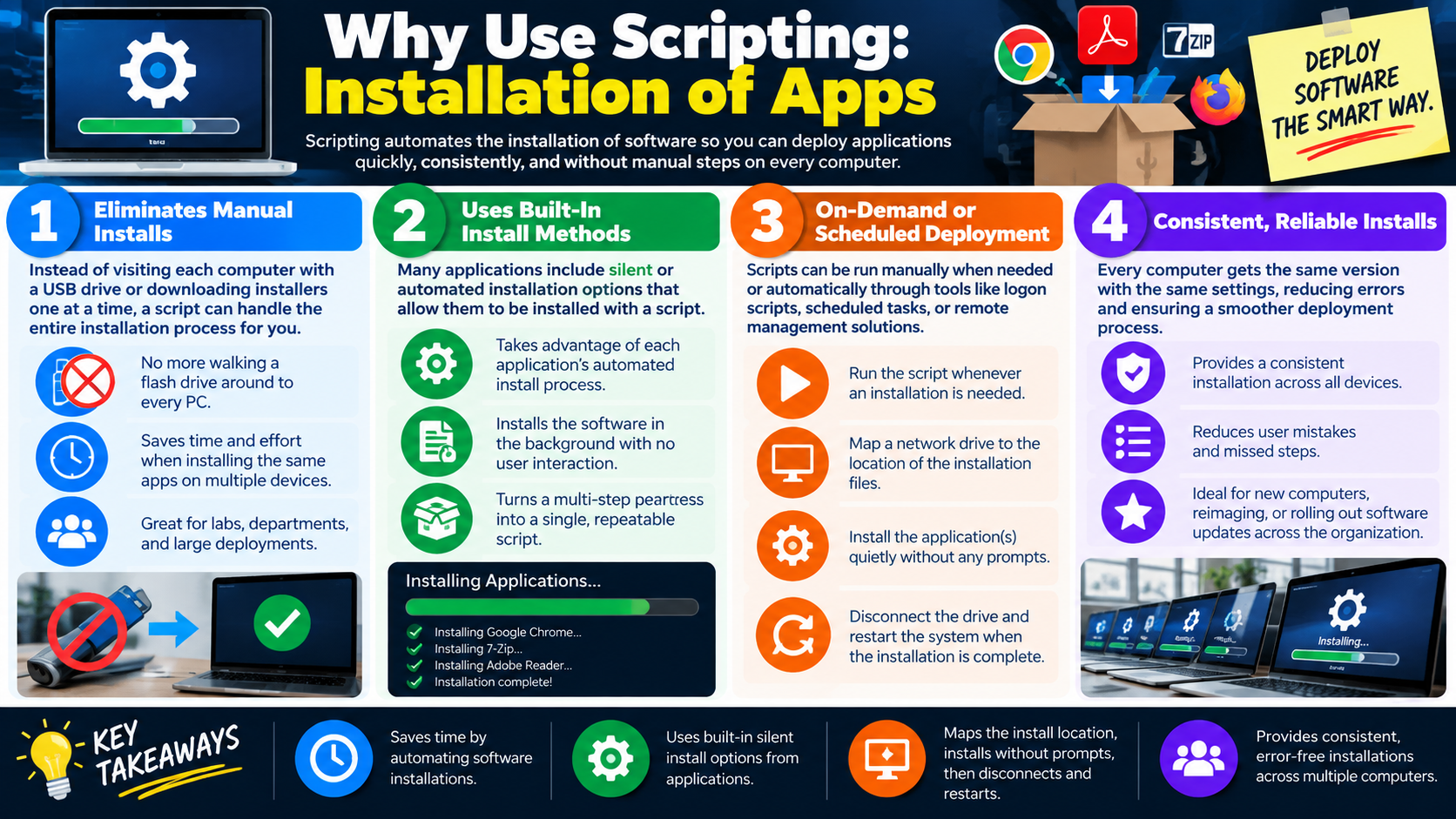
Module 7 - Why Use Scripting: Installation of Apps

Scripting can automate software installation so applications can be deployed quickly, consistently, and without repeating manual setup steps on every computer.

For Objective 4.8, application installation is one of the most practical reasons technicians use scripts. Installing software one computer at a time is slow, repetitive, and easy to do inconsistently. A technician may forget a setting, select the wrong option, skip a required restart, or install from an outdated file. A script can turn that process into a repeatable workflow.

Scripted installation is useful when deploying the same apps to many computers, preparing new systems, reimaging devices, updating software, or supporting labs and departments. Instead of walking a USB flash drive around to every PC or manually downloading installers one at a time, a script can point to an approved installer location, run the install commands, apply the correct options, and handle cleanup or restart steps.

Eliminates Manual Installs

Manual installs take time because the technician must visit each computer, launch each installer, click through prompts, choose options, wait for installation to finish, and verify the result. That is manageable for one machine, but it becomes inefficient when the same application must be installed on many devices.

A scripted install can handle the installation process from beginning to end. This is especially valuable in classrooms, labs, offices, departments, and large deployments where every device needs the same baseline software. The technician writes and tests the process once, then uses it repeatedly.

  1. Avoid walking from PC to PC. Scripts reduce the need to carry installers or manually visit every workstation.
  2. Save time and effort. Repeating the same install process across multiple devices is exactly the kind of task scripting is meant to simplify.
  3. Support larger deployments. Labs, departments, classrooms, and new computer rollouts benefit from repeatable app installation.
  4. Reduce missed steps. A tested script follows the same install sequence each time.

Uses Built-In Install Methods

Many applications include silent or automated installation options. A silent install runs without requiring the user or technician to click through prompts. These options may use command-line switches such as quiet mode, no restart, accept license terms, install for all users, set default options, or log the result. The exact switches depend on the installer and vendor documentation.

A script can take advantage of each application’s built-in install process. For example, it may run an installer in the background, wait for completion, check the exit code, write a log, and continue to the next application. This turns a multi-step process into a single repeatable script.

Silent install options Many installers can run quietly without user interaction when the correct switches are used.
Background installation Scripts can install software while showing little or no prompt to the user.
Repeatable process A script can install the same software the same way every time.
Installer documentation matters The correct command-line options should come from the vendor, package documentation, or approved deployment standard.

On-Demand or Scheduled Deployment

Application installation scripts can run on demand or on a schedule. A technician might manually run a script when preparing a single computer. An organization might use logon scripts, scheduled tasks, remote management tools, endpoint management platforms, or software deployment systems to run the same script across many computers.

Scripts can also use mapped drives or network shares to reach the installation files. A script may map a network drive to the central installer repository, install the required applications silently, disconnect the mapped drive, and restart the system when the installation is complete. This keeps installers centralized and avoids storing multiple copies on every machine.

  • Run when needed. A technician can start the script manually for one system or a small group of systems.
  • Run automatically. Scripts can be triggered by logon scripts, scheduled tasks, remote management tools, or deployment platforms.
  • Map the install location. A script can connect to a central network share that contains approved install files.
  • Complete the workflow. The script may install quietly, remove temporary mappings, log results, and restart if required.

Consistent, Reliable Installs

The biggest advantage of scripted software installation is consistency. Every computer can receive the same version with the same options, reducing user mistakes and missed steps. This makes the environment easier to support because technicians know which application version and configuration should be present.

Consistent installs are especially important for new computers, reimaged devices, software updates, and organization-wide deployments. If every device is configured differently, troubleshooting becomes harder. If installations are standardized, support teams can compare systems more easily and reduce variation.

Same version Scripts can install the approved application version across all target devices.
Same settings Installation options can be standardized so systems are configured consistently.
Fewer user mistakes Silent or scripted installs reduce the chance of incorrect choices during setup.
Smoother deployment Repeatable installs are easier to test, document, troubleshoot, and support.

Common Installation Workflow

A basic scripted installation workflow often starts by confirming the target system is ready. The script may check for administrator rights, confirm network connectivity, map a drive to the installer location, run one or more installers with silent switches, log the result, disconnect the mapped drive, and restart the system if required.

The exact workflow depends on the environment, but the goal is the same: deploy software the smart way. The script should use approved installers, follow company standards, avoid unnecessary prompts, and leave enough documentation for technicians to verify what happened.

  1. Locate the installer. Use an approved local path, network share, mapped drive, or deployment repository.
  2. Run the installer silently. Use vendor-supported install switches when available.
  3. Apply required options. Include settings such as install path, license mode, shortcuts, or restart behavior when supported.
  4. Log and verify. Record success or failure and confirm the application is installed correctly.
  5. Restart if needed. Some apps require a reboot before the installation is fully complete.

Use Installation Scripts Carefully

Software installation scripts can affect security, licensing, user productivity, and system stability. A technician should not deploy unapproved software, install from unknown sources, ignore license requirements, or run installers without testing. Bad deployment scripts can install the wrong application, restart computers unexpectedly, overwrite settings, or fail silently across many devices.

Good deployment habits include testing on a small group first, confirming licenses, using trusted installers, checking hashes or vendor sources when required, documenting switches, logging results, and creating a rollback plan when possible. Installation scripts should make deployments cleaner, not harder to support.

Exam Mindset

If a scenario describes installing the same software on many computers, preparing new devices, reimaging systems, reducing user prompts, mapping an installer location, or running installs after hours, think scripted software installation. Choose the answer that uses approved installers, silent options, testing, logging, and verification.

Bottom line: Scripted app installation saves time, reduces manual work, uses built-in silent install methods, supports on-demand or scheduled deployments, and provides consistent software installs across multiple computers.

Why Use Scripting Installation of Apps infographic explaining automated software installation, silent installs, scheduled deployment, network install locations, and consistent reliable installs.
Installation scripts help technicians deploy software quickly, quietly, and consistently across many computers.
BKP
Module 08

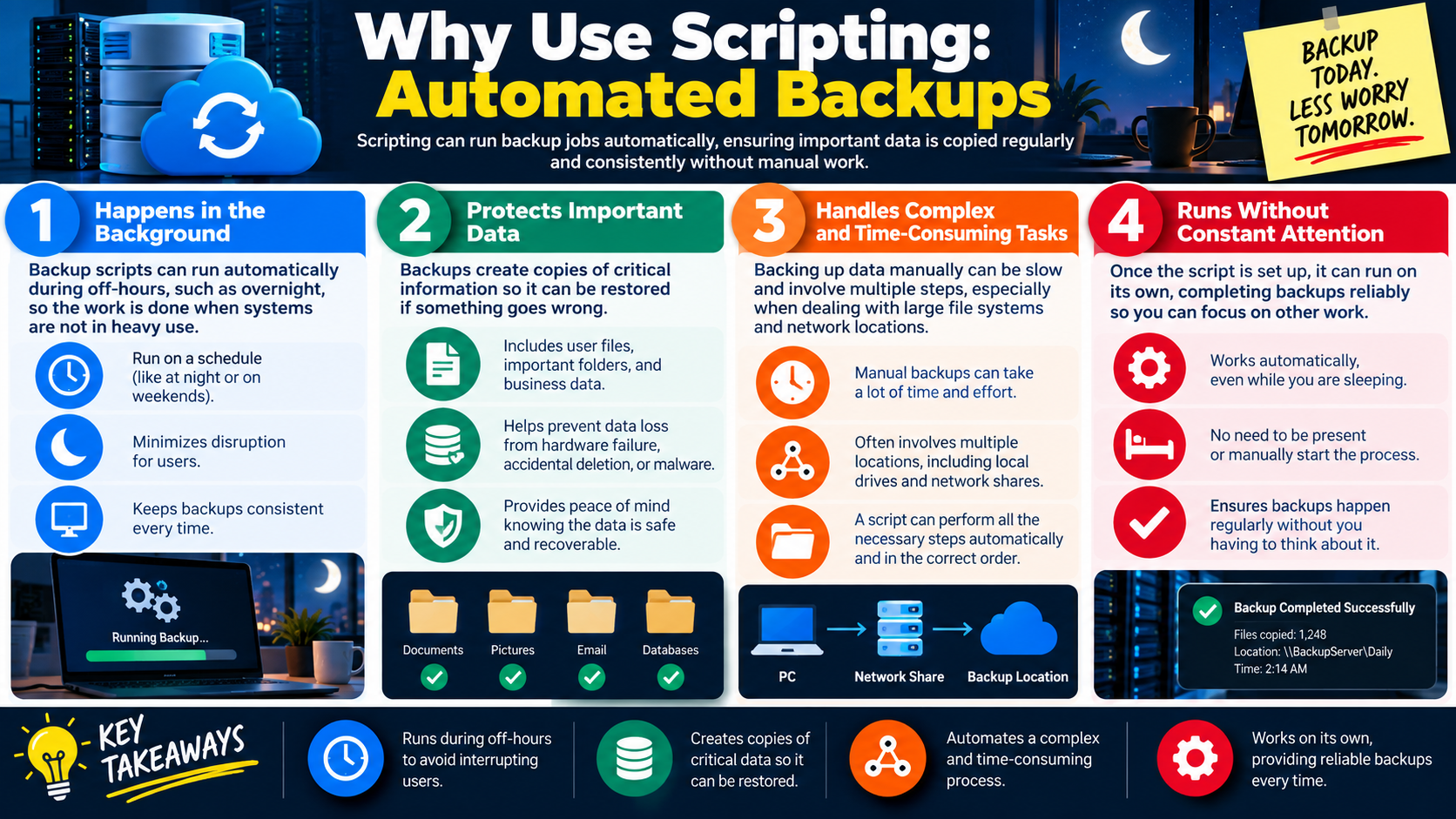
Module 8 - Why Use Scripting: Automated Backups

Scripting can run backup jobs automatically, ensuring important data is copied regularly and consistently without manual work.

For Objective 4.8, automated backups are a strong example of why scripting is valuable in IT support. Backups protect users and organizations by creating copies of important data before something goes wrong. A backup script can copy files, folders, databases, configuration files, or business data from one location to another on a schedule, often during off-hours when systems are not in heavy use.

Manual backups are easy to forget and easy to perform inconsistently. One technician might copy the wrong folder. Another might skip a network location. A user might save important work locally instead of to a protected location. A script helps make the backup process predictable: same source, same destination, same order, same schedule, and a clearer record of what happened.

Happens in the Background

Backup scripts can run automatically during off-hours, such as overnight or on weekends. This minimizes disruption for users because large file copies can consume network bandwidth, disk activity, and system resources. Running backups when fewer people are working helps reduce slowdowns and interruptions.

Scheduled backups also improve consistency. Instead of relying on someone to remember to start a backup, the system can run the task at the configured time. This is especially useful for daily, weekly, or recurring backup jobs that must happen reliably.

  1. Run on a schedule. Backup scripts can run at night, on weekends, or during approved maintenance windows.
  2. Minimize disruption. Off-hours backups reduce the chance of slowing down users during busy work periods.
  3. Keep backups consistent. A scheduled script helps ensure the backup happens the same way every time.
  4. Reduce forgotten tasks. Automation removes the need for a technician or user to manually start the process.

Protects Important Data

The purpose of a backup is to create a recoverable copy of important information. This may include user files, business folders, emails, databases, configuration files, reports, project data, or other critical resources. If something goes wrong, the backup gives the organization a way to restore data.

Backups help protect against hardware failure, accidental deletion, file corruption, ransomware, malware, failed updates, and other incidents. A backup does not prevent the problem from happening, but it can reduce the damage by giving the technician a clean recovery point.

User files Documents, pictures, desktop folders, profile data, and other files users rely on.
Business data Shared folders, project files, databases, reports, and operational records.
Configuration data Settings, scripts, templates, application data, or system information needed for recovery.
Recovery value Backups provide peace of mind because data can be restored if the original copy is lost or damaged.

Handles Complex and Time-Consuming Tasks

Backing up data manually can be slow because it may involve multiple steps and multiple locations. A technician may need to identify source folders, connect to a network share, create a destination folder, copy files, skip temporary data, preserve folder structure, verify the copy, and record the result. When the data is large or spread across multiple locations, manual backup work becomes even more time-consuming.

A script can perform the required steps automatically and in the correct order. It can copy data from local drives to network shares, from one server location to another, or from a computer to an approved backup destination. Scripts can also create folders, timestamp backup sets, write logs, and report success or failure.

  • Copy from multiple locations. Scripts can include local folders, network shares, and approved backup destinations.
  • Perform steps in order. Automation can connect, copy, verify, log, and clean up using a repeatable workflow.
  • Save time and effort. Large or repeated backup jobs are better suited for scripts than manual file copying.
  • Improve reliability. A tested script reduces the chance of missing an important folder or performing steps out of order.

Runs Without Constant Attention

Once a backup script is set up and tested, it can run on its own. The technician does not need to be present for every backup job. The system can start the backup, perform the copy, write a log, and complete the job while the technician works on other tasks or while users are offline.

This does not mean backups should be ignored. Automated backup jobs still need monitoring. A failed backup that no one reviews is almost as dangerous as no backup at all. The technician should check logs, alerts, backup status, storage capacity, and restore testing results to make sure the process is actually protecting data.

Works automatically After setup, a scheduled backup script can run without someone manually starting it.
No constant presence required The technician does not need to watch every copy operation from beginning to end.
Reliable repetition Automated jobs help ensure backups happen regularly.
Monitor results Logs, alerts, and test restores confirm that backups are actually usable.

Good Backup Script Habits

A backup script should be safe, predictable, and documented. It should copy the correct data to the correct destination, avoid overwriting good backups unexpectedly, protect sensitive data, and leave a log that shows what happened. If backups contain private, regulated, or business-critical data, access to the backup location should be protected.

Good backup planning also includes restore testing. A backup is only useful if it can be restored when needed. Technicians should not assume that a backup succeeded just because a script ran. They should verify the output, review errors, and periodically confirm that files can be recovered.

Exam Mindset

If a scenario mentions regularly copying important data, off-hours jobs, network backup locations, reducing manual effort, or protecting against data loss, think automated backup scripting. The best answer usually schedules the job, protects the data, logs the result, verifies completion, and confirms that restore is possible.

Bottom line: Automated backup scripts run in the background, protect important data, handle complex copy tasks, and work without constant attention. They save time and improve consistency, but they still require monitoring, secure storage, logs, and restore verification.

Why Use Scripting Automated Backups infographic explaining scheduled backup scripts, data protection, complex backup tasks, and unattended backup jobs.
Automated backup scripts copy important data regularly and consistently so it can be restored when something goes wrong.
INFO
Module 09

Module 9 - Why Use Scripting: Gathering of Info

Scripting makes it easy to collect important details from local or remote computers, giving technicians the information they need to monitor, manage, secure, and plan.

For Objective 4.8, gathering information is one of the most useful reasons to script. Before a technician can make a good decision, they need accurate information. Scripts can collect details about hardware, software, settings, performance, versions, updates, and security status without requiring the technician to log in manually to every device.

Information-gathering scripts are valuable because they turn scattered technical details into usable reports. Instead of asking users what is installed or manually checking each computer, a script can query devices, collect the results, and present the data in a consistent format. Right information leads to better decisions.

Collect Specific Details From Remote Systems

Scripts can pull exact information from other computers across the network. This is helpful when a technician needs to check many systems quickly or when the computer is not physically nearby. A script may retrieve system settings, hardware details, operating system information, installed software, network configuration, service status, or update state.

Remote information collection can save a large amount of time. Instead of logging in to each machine, opening settings pages, and writing notes manually, the technician can run a script that gathers the same categories of information from multiple devices at once.

  1. Retrieve system details. Scripts can collect hardware information, settings, operating system details, and installed software lists.
  2. Work across the network. Authorized scripts can query multiple local or remote systems instead of checking one device at a time.
  3. Create reports. Results can be saved to a file, spreadsheet, ticket, dashboard, or inventory system.
  4. Support monitoring. Repeated information gathering helps identify changes and patterns over time.

Monitor System Performance

Scripts can check how a device is running and confirm whether it is operating normally. Common performance details include CPU usage, memory usage, disk space, disk activity, network status, running processes, service state, and event log entries. This information helps technicians identify problems before users are heavily affected.

Performance scripts are useful for ongoing monitoring and troubleshooting. For example, a script might check whether disk space is below a threshold, whether memory usage is unusually high, whether a service is stopped, or whether a system is reporting errors. A single reading can help with immediate troubleshooting, while repeated checks can show trends.

CPU and memory Scripts can collect processor and RAM usage to identify overloaded systems.
Disk space Low disk space can cause updates, applications, logs, and normal operation to fail.
Services and processes Scripts can check whether important services are running and whether processes are consuming resources.
Early warning Monitoring data helps technicians find issues before they become larger outages.

Inventory Hardware and Software

Scripts can gather asset information so an organization knows what is installed, configured, and in use. Hardware inventory may include device name, model, serial number, processor, memory, storage, BIOS version, network adapters, and operating system. Software inventory may include installed applications, versions, licenses, browser versions, security tools, and update status.

Inventory data supports planning and support. If a department needs an upgrade, the technician can identify which computers meet requirements and which do not. If a vulnerable software version is found, the organization can identify affected devices. If a user reports an issue, inventory data helps compare that device against known-good systems.

  • List hardware details. Scripts can collect model, serial number, specifications, OS version, and device identifiers.
  • Identify installed software. Scripts can report application names, versions, and sometimes install dates or publishers.
  • Compare configurations. Inventory reports help find machines that differ from the approved standard.
  • Support lifecycle planning. Accurate inventory helps with upgrades, replacements, licensing, and budgeting.

Check Security and Vulnerability Status

Scripts can also help check security status. They may look for specific application versions, missing updates, outdated libraries, antivirus status, firewall settings, encryption state, local administrator membership, or required security patches. This helps technicians and administrators reduce risk across many devices.

Security checks are especially useful when a known vulnerability affects a specific product or version. Instead of manually checking every computer, a script can identify which systems have the vulnerable version and which ones are already current. That information helps teams prioritize patching and stay compliant.

Check versions Scripts can identify specific software or library versions that may need updates.
Find missing patches Automated checks can show which devices are missing operating system or application updates.
Reduce security risk Accurate reports help teams patch the right systems quickly.
Support compliance Inventory and status reports help prove whether systems meet required standards.

Make the Information Useful

Collecting data is only helpful if the results are clear and actionable. A good information-gathering script should collect the right details, label the results clearly, and save the output in a format that can be reviewed. Depending on the task, output might be written to the screen, saved as a text file, exported as CSV, uploaded to a management tool, or attached to a ticket.

The technician should also avoid collecting more information than needed. Some reports may expose usernames, device details, installed software, network paths, or security status. That information should be stored and shared carefully. Scripts should collect the details needed for the task and follow organizational privacy and security rules.

Use Information-Gathering Scripts Carefully

Information-gathering scripts are usually less disruptive than scripts that change settings, but they still require care. Querying many systems at once can create network load, require credentials, or expose sensitive details. The technician should run scripts with approved access, limit the scope, protect the output, and verify that the results are accurate.

Good scripts help technicians answer questions quickly: What version is installed? Which machines are missing updates? Which systems are low on disk space? Which computers have the required software? Which devices are different from the standard configuration? Better information means better planning, better troubleshooting, and better security decisions.

Exam Mindset

If a scenario mentions collecting system details, checking remote computers, monitoring performance, building an inventory, comparing configurations, finding missing patches, or identifying software versions, think information-gathering scripts. Choose the answer that collects targeted data, reports it clearly, protects the output, and uses the results to make better decisions.

Bottom line: Scripts can collect system information from local and remote devices, monitor performance, inventory hardware and software, and identify security or vulnerability status. The goal is to gather the right information so technicians can troubleshoot, manage, plan, and secure systems more effectively.

Why Use Scripting Gathering of Info infographic explaining remote information collection, performance monitoring, hardware and software inventory, and security or vulnerability checks.
Information-gathering scripts help technicians collect the right data from many systems so they can make better support and security decisions.
UPD
Module 10

Module 10 - Why Use Scripting: Initiating Updates

Scripting lets technicians trigger and manage updates automatically, keeping systems current, secure, compatible, and working their best without relying on manual effort for every device.

For Objective 4.8, initiating updates is another practical reason to use scripts. Technology changes constantly. Operating systems, device drivers, and applications all receive updates that add features, improve performance, fix bugs, close security vulnerabilities, and maintain compatibility with modern hardware and software. A script can help start those updates consistently across many devices.

Manual updates are easy to miss. One user may postpone a restart, another computer may be offline during a patch window, and another device may have an outdated application version. Scripting helps standardize the process by checking update status, starting approved updates, running installers or update commands, and helping technicians verify that systems are current.

Systems Always Change

Updates are a regular part of maintaining a stable, secure, and reliable environment. New versions and improvements are released frequently because software and hardware ecosystems keep changing. Bugs are discovered, security weaknesses are patched, application features are improved, and compatibility requirements evolve.

Scripting helps ensure updates are started consistently across many devices. Instead of depending on users to manually click update prompts, a technician can use approved automation to trigger updates during a maintenance window, after hours, or as part of a managed deployment process.

  1. Keep systems current. Updates help devices stay compatible with modern software, services, and hardware.
  2. Improve reliability. Updates can fix bugs, reduce crashes, and improve system stability.
  3. Support security. Updates often close vulnerabilities that attackers could exploit.
  4. Standardize the process. Scripts help updates begin consistently across many devices.

Operating System Updates

Operating system updates add new functionality, improve stability, and fix security vulnerabilities. In Windows environments, OS updates may include quality updates, cumulative updates, feature updates, security patches, driver updates, and servicing stack updates. In other environments, operating system updates may come through package managers, vendor tools, or centralized management platforms.

A script can help start update checks, install approved updates, confirm pending restart status, or report which systems still need patching. This helps technicians manage updates across many systems without manually opening update settings on each computer.

New functionality OS updates may add features, improve tools, or support newer platform capabilities.
Performance and stability Updates can improve reliability, fix errors, and reduce unexpected behavior.
Security fixes Operating system patches close known security holes and protect against new threats.
Compatibility Keeping the OS current helps systems work with modern hardware, software, and services.

Device Drivers

Device drivers allow the operating system to communicate with hardware such as printers, graphics adapters, storage controllers, network cards, chipsets, cameras, audio devices, and other components. Driver updates can fix bugs, improve performance, add support for new hardware, or maintain compatibility with a newer operating system version.

A technician may use scripts or management tools to identify driver versions, compare them with approved versions, and initiate updates where needed. Driver updates should be handled carefully because the wrong driver can cause instability or device failure. Approved sources and testing matter.

  • Resolve bugs and performance problems. Updated drivers can fix hardware-related issues and improve device behavior.
  • Add support for new devices. Drivers may be required for new hardware or features to work correctly.
  • Maintain OS compatibility. A newer operating system may require updated drivers for proper hardware support.
  • Use approved drivers. Drivers should come from trusted vendor, OEM, or organizational deployment sources.

Applications

Applications are constantly releasing new versions with improvements, fixes, new features, security patches, and compatibility updates. Browsers, PDF readers, collaboration tools, media applications, productivity suites, endpoint tools, and other software all need updates over time.

Scripts can help deploy the latest approved application versions automatically. They may start application updaters, run silent installers, call package managers, or trigger software deployment tools. This helps reduce the number of outdated applications across the environment and lowers the chance that users are running insecure or unsupported software.

Deploy latest versions Scripts can install approved application updates without visiting each device manually.
Add features Application updates may provide new tools, user interface improvements, or enhanced performance.
Fix security issues Application patches close vulnerabilities in commonly targeted software.
Maintain compatibility Updated applications are more likely to work with current operating systems, services, and file formats.

Update Automation Workflow

A basic update script should follow a predictable workflow. It may identify the system, check current versions, confirm the device is eligible for updates, start approved update commands, log the result, and report whether a restart is required. For larger environments, update scripting may be part of a broader management tool rather than a standalone file.

The script should not blindly install anything it finds. Updates should follow company policy, maintenance windows, compatibility requirements, licensing rules, and testing practices. In some environments, technicians deploy updates first to a test group, then expand to more devices after confirming there are no major issues.

  1. Check current status. Identify OS version, driver versions, application versions, missing patches, and pending restarts.
  2. Use approved update sources. Pull updates from trusted vendor, OEM, package manager, or organizational repositories.
  3. Run during the right window. Schedule updates to reduce disruption when possible.
  4. Log and report results. Record successes, failures, pending restarts, and systems that still require attention.
  5. Verify after updating. Confirm the device remains stable and the expected update was applied.

Use Update Scripts Carefully

Update scripts can improve security and reliability, but they can also cause problems if they are poorly planned. Updates may restart computers, break compatibility with older applications, change settings, consume bandwidth, or fail on some devices. That is why update automation should be tested, controlled, and documented.

Good update scripting habits include testing with a small group, protecting user work, scheduling during maintenance windows, checking power and network status, avoiding untrusted sources, logging the outcome, and confirming whether a restart is needed. Keep systems current, reduce risk, save time, but do it carefully.

Exam Mindset

If a scenario mentions operating system updates, driver updates, application updates, missing security patches, outdated versions, compatibility issues, or many systems needing the same update, think update automation. Choose the answer that uses approved sources, initiates updates consistently, schedules appropriately, logs results, and verifies completion.

Bottom line: Update scripts help keep systems current by initiating operating system, driver, and application updates. They reduce manual effort, improve consistency, close security gaps, maintain compatibility, and help technicians manage updates across many devices.

Why Use Scripting Initiating Updates infographic explaining operating system updates, device driver updates, application updates, and scripting for update automation.
Scripts can trigger approved updates consistently across devices, helping keep systems secure, stable, and compatible.
SAFE
Module 11

Module 11 - Scripting Considerations

Scripting is powerful, but it also comes with risk. Technicians must plan, test, verify, and understand scripts before using them in a real environment.

For Objective 4.8, scripting is not only about knowing what scripts can do. It is also about understanding what can go wrong. Scripts can install programs, download files, change system settings, modify the registry, consume resources, affect many devices at once, or introduce malware if they are unsafe. A script that saves time when written correctly can create a major outage when written carelessly.

A professional technician treats scripts with respect. Before running a script, especially one from another person, a website, a vendor, or an unknown source, the technician should understand what the script does, where it came from, what it changes, what permissions it needs, and how to recover if something goes wrong. Plan. Test. Verify. Be careful.

Be Careful What You Introduce

Scripts can install programs, download files, create folders, copy data, change configuration, or connect to remote resources. That makes them useful, but it also creates security risk. If a technician runs a script without understanding it, the script could download malware, install unwanted software, expose data, weaken security settings, or create persistence for an attacker.

Only trusted scripts should be used in a production environment. Trusted does not mean the script simply came from a familiar-looking website or was shared in a forum. It means the source is approved, the code has been reviewed, the purpose is understood, and the script matches the organization’s policies and needs.

  1. Use trusted sources. Download scripts only from approved vendors, internal repositories, official documentation, or verified organizational sources.
  2. Review the code. Read the script and understand what it downloads, installs, deletes, changes, or connects to before running it.
  3. Watch for malware risk. Scripts can be used to deliver malicious files, disable protections, or run unauthorized commands.
  4. Verify the purpose. Make sure the script solves the correct problem and does not perform unrelated or unnecessary actions.

Changing System Settings

Many scripts modify system settings. They may change files, services, permissions, startup behavior, firewall rules, registry keys, scheduled tasks, application settings, update settings, or execution policies. These changes may be necessary, but they must be controlled.

Some scripting commands can have broad effects. For example, a script may use commands such as Set-ItemProperty, New-ItemProperty, reg add, or Set-ExecutionPolicy. Those commands can alter registry values or security behavior. A small configuration change may affect how the system starts, how applications behave, whether scripts can run, or whether a security control remains enforced.

Test safely first Try changes in a lab, sandbox, virtual machine, or pilot group before using them broadly.
Track what changes Document files, folders, services, registry keys, permissions, and settings the script modifies.
Verify the result Confirm that updates and changes work as expected before rolling them out to more users.
Keep a rollback path Know how to undo the change if the script causes problems.

Potential for Problems

A small mistake in a script can cause unexpected issues. A typo, missing quote, wrong path, incorrect variable, or misplaced character can change the behavior of the script. If the script runs with elevated permissions or targets many machines, the damage can spread quickly.

Scripts can also consume system resources. A loop that never ends, a command that creates too many processes, or a backup job that copies far more data than expected can slow systems, fill disks, freeze applications, or crash services. This is why testing and scope control are so important.

  • Scripts can freeze or crash systems. Poorly handled commands can consume CPU, memory, disk, or network resources.
  • Typos can have serious consequences. A single character can change a path, delete the wrong files, or apply a setting to the wrong target.
  • Backups matter. Always have a backup before making changes that could affect files, settings, or system behavior.
  • Use non-production testing. Test thoroughly before deploying to end users or production systems.

Backups and Rollback Planning

Before running a script that makes meaningful changes, a technician should know how to recover. That may mean backing up data, exporting registry keys, creating a restore point, taking a snapshot, documenting original settings, or confirming that a recent system backup exists. The right rollback method depends on the system and the risk of the change.

Rollback planning is not pessimism. It is professional preparation. If the script works, the rollback plan may never be used. If the script fails, the rollback plan can prevent a small issue from becoming a long outage.

Back up important data Protect files, user data, configuration files, and business-critical information before risky changes.
Record original settings Document current values so they can be restored if needed.
Use snapshots when available Virtual machines and managed environments may support snapshots before major changes.
Confirm restore options A backup is only useful if it can be restored successfully.

Testing and Deployment Discipline

A script should be tested in a safe environment before it is deployed to production. The testing environment should resemble the real environment closely enough to reveal problems, but it should not put real users or critical systems at risk. After testing, the script can be deployed to a small pilot group before being rolled out more broadly.

During deployment, technicians should monitor results. They should check logs, user impact, application behavior, system performance, and any error messages. If the script changes multiple systems, the rollout should be controlled so problems can be stopped before they affect everyone.

  1. Start small. Test on one safe device or a lab environment before expanding.
  2. Use a pilot group. Run the script for a limited set of users or computers before organization-wide deployment.
  3. Monitor results. Review logs, errors, performance, and user impact after deployment.
  4. Document the script. Keep notes about what the script does, where it came from, when it ran, and what changed.
  5. Escalate when risk is high. Get approval for scripts that affect security, production systems, sensitive data, or many devices.

Safe Scripting Mindset

A safe scripting mindset balances efficiency with caution. Scripting can automate updates, installs, backups, drive mappings, information gathering, and restarts, but automation should never be treated as magic. The technician is still responsible for understanding the command, protecting users, and verifying the result.

The best technicians do not avoid scripting because it is powerful. They use scripting carefully because it is powerful. They understand the risk, test before deployment, document what changes, and keep a recovery path ready.

Exam Mindset

If a scenario mentions an unknown script, downloaded code, system-setting changes, registry edits, execution policy changes, broad deployment, crashes, freezes, or potential data loss, choose the safest answer. Review the script, verify the source, test in a non-production environment, back up first, document changes, and roll out carefully.

Bottom line: Scripts can save time, but they can also introduce security risks, unwanted system changes, and outages. Use trusted sources, review code, test changes safely, track what the script modifies, back up before risky changes, and verify everything before broad deployment.

Scripting Considerations infographic explaining trusted sources, code review, system setting changes, backups, testing, and potential scripting problems.
Scripting considerations help technicians automate safely by planning, testing, verifying, backing up, and understanding what a script changes.
KEY
Module 12

Module 12 - Key Takeaways

Key Takeaways infographic for Objective 4.8 summarizing scripting, automation, common script types, practical uses, PowerShell, script safety, technician mindset, best practices, common exam traps, and bottom line.
Objective 4.8 key takeaways summarize how scripts automate repeatable work, support system administration, and require safe planning, testing, documentation, and verification.

Objective 4.8 is about understanding scripting basics: what scripts are, which file types and scripting tools are common, how scripts automate IT work, and how to use scripts safely.

Scripting helps technicians work faster and more consistently, especially when a task must be repeated across multiple users, computers, files, or systems. A script can restart machines, map network drives, install applications, run backups, gather system information, initiate updates, and perform routine administrative work without forcing the technician to complete every step manually.

The key idea is not simply that scripts are powerful. The key idea is that scripts should be matched to the task, operating system, environment, and risk level. The best technician knows when scripting is appropriate, which script type fits the scenario, and what safety checks are required before running automation.

Know What Scripting Does

A scripting language is a human-readable programming language used to automate tasks and control systems through scripts. Scripts are useful when the work is repetitive, predictable, and needs to be performed consistently. They can run a single command or a sequence of commands.

Automates work Scripts perform repeatable tasks without requiring the technician to manually complete every step.
Improves consistency A tested script runs the same steps the same way each time, reducing typos and missed actions.
Saves time Automation is especially useful when the same task must be performed across many devices or users.
Requires judgment Scripts should fit the task and be reviewed, tested, and verified before broad use.

Recognize Common Script Types

Different script file extensions point to different tools and environments. A technician should recognize common extensions and choose the right tool for the job. Windows administration often points to PowerShell or batch files. Linux and Unix shell work points to shell scripts. Browser and web application behavior points to JavaScript. Cross-platform automation often points to Python.
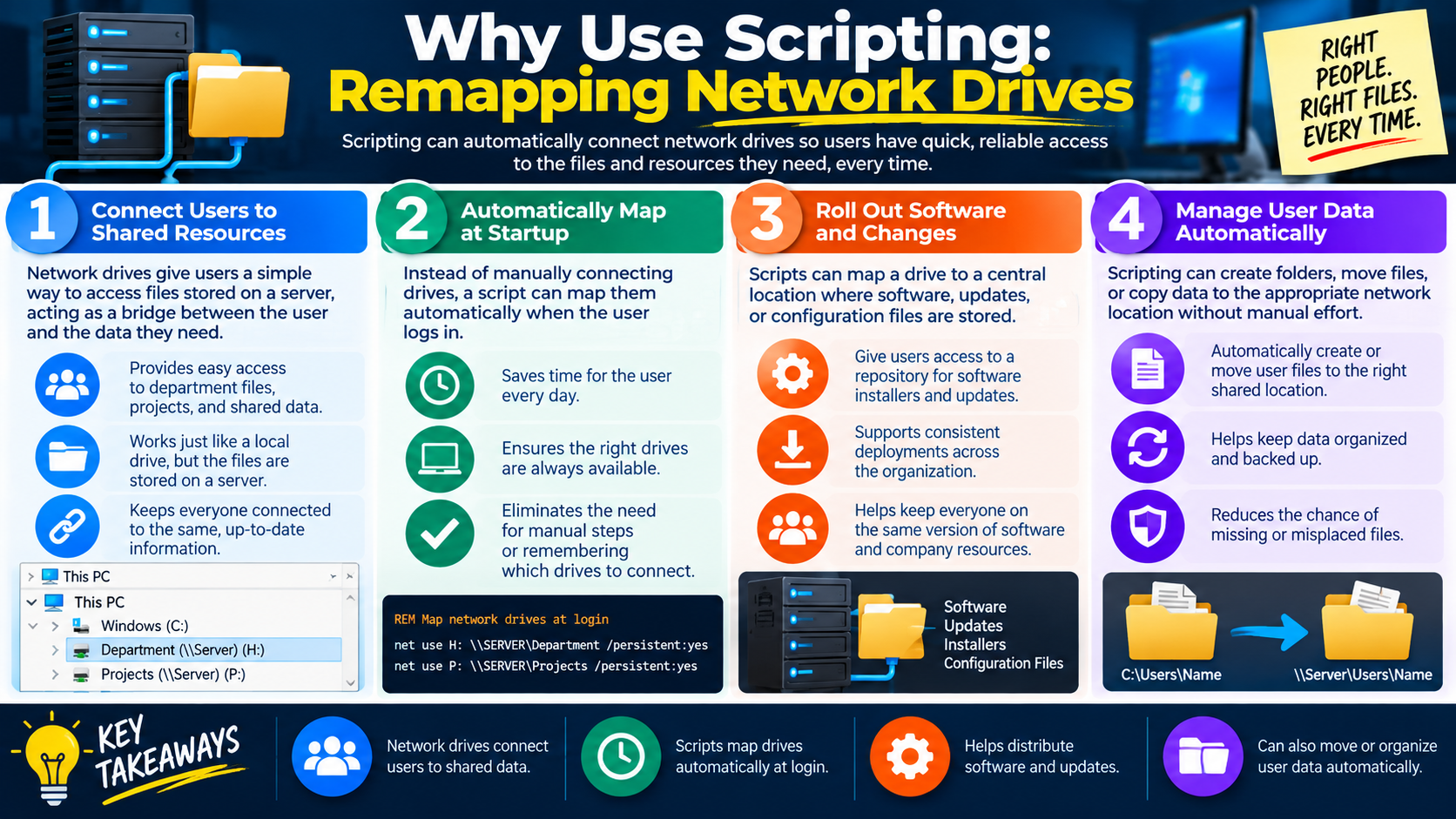
  1. .bat: Windows batch files for basic Command Prompt automation.
  2. .ps1: PowerShell scripts for Windows administration, Microsoft services, Active Directory, reporting, and automation.
  3. .vbs: VBScript for legacy Windows scripting and older automation tasks.
  4. .sh: Shell scripts for Linux, Unix, and Bash-style command-line automation.
  5. .js: JavaScript used heavily in websites and browser-based behavior.
  6. .py: Python scripts for general-purpose, cross-platform automation and reporting.

Use Scripts for Practical IT Automation

Scripts are valuable because they solve real support and administration problems. They can run in the background, perform scheduled work, reduce repetitive manual effort, and help technicians manage systems at scale. Many scripting tasks support everyday operational work.

Restarting machines Scripts can restart systems after updates, clear temporary issues, support remote troubleshooting, and verify devices come back online.
Mapping network drives Scripts can connect users to shared folders, department drives, project resources, software repositories, and user data locations at login.
Installing applications Scripts can run approved installers, use silent install options, map installer locations, log results, and create consistent deployments.
Running backups Scripts can copy important data on a schedule, reduce manual backup work, write logs, and support restore readiness.

Gather Information and Initiate Updates

Information-gathering scripts help technicians make better decisions. They can collect hardware inventory, software versions, system settings, performance data, disk space, service status, and security information from local or remote systems. This information supports troubleshooting, planning, auditing, and vulnerability management.

Update scripts can help initiate operating system, driver, and application updates. They can check versions, start approved update processes, log results, identify pending restarts, and help keep systems current. Updates improve stability, add features, fix bugs, close security gaps, and maintain compatibility.

Use PowerShell in Windows Environments

PowerShell is a major scripting tool for Windows support and administration. It uses cmdlets, scripts, and functions to manage systems more efficiently than many manual GUI or traditional command-line workflows. PowerShell is commonly used for Windows systems, services, Active Directory, software deployment, inventory, reporting, and configuration tasks.

For exam scenarios, remember that .ps1 means PowerShell. If the scenario mentions Windows administration, Microsoft services, Active Directory, service checks, software deployment, or gathering system information, PowerShell is often the best scripting match.

Script Safely

Scripting can create serious problems when used carelessly. Scripts can install software, download files, modify system settings, change registry keys, consume system resources, restart devices, delete data, or affect many computers at once. A small mistake can have a large impact when automation runs broadly.

Use trusted sources Run scripts only from approved, verified, or trusted locations.
Review before running Understand what the script downloads, installs, deletes, changes, or connects to.
Test first Use a lab, test device, virtual machine, or pilot group before deploying broadly.
Back up and verify Protect data, keep a rollback path, log results, and confirm the script worked as expected.

Common Exam Traps

  • Running an unknown script because it claims to fix the issue quickly.
  • Choosing a script type that does not match the operating system or task.
  • Using automation for a task that requires human judgment at every step.
  • Running a broad deployment without testing on a small group first.
  • Ignoring permissions, trusted sources, execution policy, or organizational approval.
  • Installing software with a script without confirming the installer source, silent options, and licensing.
  • Restarting systems automatically without considering users, unsaved work, production impact, or maintenance windows.
  • Creating backups without checking logs or testing whether data can be restored.
  • Collecting system information without protecting reports that may contain sensitive configuration or security details.
  • Changing registry keys, system settings, or security controls without documentation or rollback planning.

Technician Mindset

Be efficient Use scripts when automation can save time, reduce repetition, and improve consistency.
Be accurate Choose the correct script type, command, path, target system, and update or install source.
Be cautious Review unknown scripts, test safely, limit scope, and avoid unnecessary risk.
Be accountable Document what ran, what changed, what succeeded, what failed, and how the result was verified.

Bottom line: Scripting is a technician force multiplier. Use scripts to automate repeatable work, manage Windows and Linux systems, map drives, install apps, run backups, gather information, initiate updates, and improve consistency. Use them carefully: trust the source, review the code, test safely, back up before risky changes, document results, and verify the outcome.

SN
Module 13

Module 13 - Section Notes

BROtocol Joe Core 2 220-1202Objective 4.8

4.8 Scripting Basics

Core idea: Objective 4.8 is about understanding what scripts are, how scripting tools automate IT work, which script file types fit common environments, and how technicians use scripts safely.

What Scripts Do

  • A script is a human-readable set of instructions used to automate tasks and control systems.
  • Scripts are best for repetitive, predictable, and consistent work.
  • A script can run one command or a sequence of commands in order.
  • Automation saves time, reduces missed steps, and helps technicians support many systems efficiently.

Common Script Types

  • .bat files are Windows batch files for basic Command Prompt automation.
  • .ps1 files are PowerShell scripts used heavily in Windows administration.
  • .vbs files are VBScript files often associated with legacy Windows scripting.
  • .sh, .js, and .py files commonly point to shell scripting, JavaScript, and Python.

PowerShell

  • PowerShell is built into Windows 10 and Windows 11.
  • PowerShell uses cmdlets, scripts, and functions for system management.
  • It is commonly used for Windows systems, services, Active Directory, software deployment, inventory, and reporting.
  • PowerShell can perform local administration and manage multiple systems consistently.

Choosing the Tool

  • Match the script type to the operating system, task, and environment.
  • Use PowerShell for many Windows and Microsoft administration tasks.
  • Use shell scripts for Linux or Unix command-line automation.
  • Use Python or JavaScript when the task, platform, or application environment calls for it.
Memory hook: Scripts are not one-size-fits-all. Match the scripting tool to the system, task, permissions, and support goal.
Notes:
Automation Use CasesObjective 4.8

Use Scripts for Practical IT Work

Basic Automation

  • Scripts can run in the background, on a schedule, or when triggered by a technician.
  • Automation can handle routine work such as reports, cleanup, service restarts, and configuration steps.
  • Scripts run quickly and consistently when written and tested correctly.
  • Automation frees technicians to focus on troubleshooting, analysis, and higher-value work.

Restarting Machines

  • Scripted restarts can clear temporary issues, complete updates, and return systems to a healthy state.
  • Restarts may be scheduled after hours to reduce disruption.
  • Remote restart scripts help when the technician cannot physically access the device.
  • Always consider user impact, unsaved work, maintenance windows, and verification after reboot.

Mapped Drives and Apps

  • Drive-mapping scripts connect users to shared folders, department resources, and software repositories.
  • Scripts can map drives automatically at login so users have consistent access.
  • Application installation scripts can use approved installers and silent install options.
  • Consistent deployment reduces missed steps and helps keep software versions aligned.

Backups and Information

  • Backup scripts can copy important data on a schedule and reduce manual backup effort.
  • Information-gathering scripts can collect hardware, software, performance, disk, and security details.
  • Inventory and reporting scripts support troubleshooting, planning, auditing, and vulnerability management.
  • Backup and reporting results should be logged, reviewed, and protected when they contain sensitive details.
Memory hook: Good automation is repeatable work plus verification: run the task, log the result, and confirm it worked.
Notes:
Updates, Safety, and Exam TrapsObjective 4.8

Automate Carefully

Initiating Updates

  • Scripts can trigger operating system, driver, and application updates.
  • Updates add features, fix bugs, close security gaps, and maintain compatibility.
  • Use approved update sources and schedule updates to reduce disruption.
  • Log update results, identify pending restarts, and verify completion.

Script Safety

  • Use trusted, verified, or organizationally approved script sources.
  • Review the code before running it and understand what it changes.
  • Test in a lab, virtual machine, test device, or small pilot group before broad deployment.
  • Back up important data and keep a rollback plan before risky changes.

Change Control

  • Scripts can install software, download files, modify settings, change registry keys, and restart systems.
  • Track files, folders, services, permissions, registry values, and settings changed by the script.
  • Use least privilege and limit the scope to the systems that actually need the change.
  • Document what ran, when it ran, what changed, and how the result was verified.

Common Exam Traps

  • Running an unknown script because it promises a quick fix.
  • Choosing a script type that does not match the operating system or task.
  • Deploying automation broadly without testing on a small group first.
  • Ignoring permissions, licensing, trusted sources, user impact, backups, logs, or rollback planning.
  • Assuming a backup succeeded without checking logs or testing restore readiness.
Memory hook: Before running a script, ask: Do I trust it, understand it, have approval, have a backup, and know how to verify it?
Notes:
TEST
Module 14

Module 14 - Final Test

Complete 20 difficult scenario-based multiple-choice questions for Objective 4.8. The test covers scripting language basics, PowerShell, script file types, basic automation, restarting machines, remapping network drives, application installation, automated backups, information gathering, initiating updates, scripting considerations, safe deployment, documentation, verification, and technician decision-making. Each correct answer is worth 1 point.

Score pending0 / 20
WB
Workbook

Student Workbook

BrotocolJoeStudent Workbook

BrotocolJoe

CompTIA A+ Core 2 (220-1202)

Student Workbook

4.0 Operational Procedures

Objective 4.8 - Explain the basics of scripting.

How to use this workbook: Print this packet once, complete it by hand as you finish each online module, and keep it as evidence that you read, processed, and practiced the Objective 4.8 scripting material.
Student Name:
What is Scripting Language?Objective 4.8

Module 1 - What is Scripting Language?

Key Information: A script expresses a repeatable sequence of operations for a suitable interpreter or runtime. Its usefulness depends on a well-defined task, clear inputs, expected outputs, and handling of failures.

Check Your Understanding

How does a script differ from manually repeating commands?

Why must the required runtime be available on the target system?

What makes a task a good candidate for automation?

Scripting Task Record

  • Use a weekly disk-space report. Write one or two sentences per field.
  • Input: Identify the systems and information the script needs.
  • Process: Describe the operations in plain language without writing executable commands.
  • Output: State the report fields and success criteria.
  • Failure: Explain how unavailable systems should be reported.
Explain why automating an unclear manual process can repeat mistakes faster.
Technician Scenario: A technician collects the same workstation details every Friday. Define a script’s scope, inputs, output, and exception handling before selecting a language.
Windows PowerShellObjective 4.8

Module 2 - Windows PowerShell

Key Information: PowerShell supports command-line administration and scripting with cmdlets, functions, and object-based output. A .ps1 file contains PowerShell script text; available commands depend on the environment, modules, and permissions.

Check Your Understanding

What is the purpose of a cmdlet?

How can a function help organize repeated script logic?

Why should required modules and access be checked before running an administrative script?

PowerShell Planning Record

  • Use a read-only service-status report. Write one or two sentences per field.
  • Environment: Identify the runtime, modules, and permissions to verify.
  • Data: Describe the service properties that should appear in the report.
  • Structure: Explain which repeated work could be placed in a function.
  • Validation: Describe how to compare the report with a known system state.
Explain why a script that works in one administrator’s session may fail under a scheduled account.
Technician Scenario: A PowerShell report succeeds interactively but fails when scheduled. Plan checks of execution identity, runtime, modules, paths, and access without automatically granting administrator rights.
Script File TypesObjective 4.8

Module 3 - Script File Types

Key Information: Extensions commonly indicate the intended language or host, but they do not establish trust or guarantee compatibility. Confirm the file contents, required runtime, platform, and organizational support.

Check Your Understanding

Which environments commonly use .bat, .ps1, and .sh files?

How do .js and .py files depend on an appropriate runtime?

Why should a legacy .vbs script’s host and support status be verified?

Script Type Comparison Record

  • For each pair, name the usual language or host for both extensions and explain one runtime or compatibility check.
  • Windows pair: Compare .bat and .ps1.
  • Shell and Python: Compare .sh and .py.
  • JavaScript and VBScript: Compare .js and .vbs; explain why the extension alone does not identify a safe execution context.
Explain why renaming a file extension does not translate its code into another language.
Technician Scenario: A team receives scripts with several extensions for a mixed Windows and Linux environment. Describe how to review language, runtime availability, dependencies, and approved use before choosing a deployment approach.
Why Use Scripting: Basic AutomationObjective 4.8

Module 4 - Why Use Scripting: Basic Automation

Key Information: Automation can improve consistency and reduce repetitive work when inputs and outcomes are understood. Scheduling, logging, safe reruns, and failure handling are part of a reliable automated task.

Check Your Understanding

How can automation reduce inconsistent manual results?

Why should a script be safe to run again after partial failure?

What should happen if a scheduled job overlaps an earlier run?

Automation Design Record

  • Use a daily inventory report. Write one or two sentences per field.
  • Trigger: Choose a schedule or event and justify it.
  • Repeatability: Describe how duplicate or overlapping runs should be handled.
  • Logging: State which successes, failures, and timestamps to record.
  • Ownership: Identify who reviews failures and maintains the job.
Explain why running silently in the background does not remove the need for monitoring.
Technician Scenario: A daily script sometimes misses offline laptops and reports the job as complete. Propose clearer success criteria, exception reporting, and a controlled retry process.
Why Use Scripting: Restarting MachinesObjective 4.8

Module 5 - Why Use Scripting: Restarting Machines

Key Information: Automated restarts can complete maintenance but interrupt active work. Define authorization, targets, timing, user notification, failure handling, and checks that required services return afterward.

Check Your Understanding

Why should active users and unsaved work be considered?

How can a staged restart reduce business disruption?

Why is responding to a network check insufficient proof of full recovery?

Restart Planning Record

  • Use a scheduled workstation update requiring reboot. Write one or two sentences per field.
  • Scope: Specify how authorized target devices will be identified.
  • Timing: Describe the maintenance window and user communication.
  • Verification: Identify sign-in or application checks after restart.
  • Exception: State how offline devices or failed restarts will be handled.
Explain why a broad restart script needs safeguards against an incorrect target list.
Technician Scenario: An update requires restarting shared workstations used on different shifts. Plan targeted scheduling, notice, a small trial, and verification without assuming all devices can restart simultaneously.
Why Use Scripting: Remapping Network DrivesObjective 4.8

Module 6 - Why Use Scripting: Remapping Network Drives

Key Information: Drive-mapping scripts connect users to approved shared resources. Correct paths, user context, permissions, network availability, and conflicts with existing mappings all affect success.

Check Your Understanding

Why might a drive mapping work for one user but fail for another?

How can an existing drive-letter assignment cause a conflict?

Why should credentials not be embedded in a mapping script?

Drive Mapping Record

  • Use a departmental shared folder. Write one or two sentences per field.
  • Target: Identify the approved share path and intended users.
  • Context: Describe the identity, permissions, and connectivity needed.
  • Conflict: Explain how to handle an occupied drive letter without disrupting another resource.
  • Validation: State how to verify access using a representative authorized user.
Explain why a successful mapping does not prove that the user has the needed access to every folder.
Technician Scenario: A login script maps a share in the office but fails for remote users before their approved connection is ready. Plan a connectivity-aware approach and clear error reporting.
Why Use Scripting: Installation of AppsObjective 4.8

Module 7 - Why Use Scripting: Installation of Apps

Key Information: Scripted installations require approved packages, supported options, licensing, prerequisites, and result checks. Silent operation changes the interface, not the need for authorization or verification.

Check Your Understanding

Why must unattended installation options be confirmed for the specific installer?

What does an exit status contribute to deployment reporting?

Why should installed version and application behavior be verified separately?

Application Deployment Record

  • Use a business application rollout. Write one or two sentences per field.
  • Readiness: Identify package source, license, prerequisite, and target checks.
  • Execution: Describe the approved timing, identity, and installer options to verify.
  • Result: State how logs, exit status, version, and a user task will be checked.
  • Recovery: Describe the supported response to a failed or partial installation.
Explain why testing on a small representative group is useful before broad deployment.
Technician Scenario: A silent deployment finishes on most PCs, but some report an older version. Plan evidence collection, prerequisite checks, and a controlled retry or escalation rather than assuming every device succeeded.
Why Use Scripting: Automated BackupsObjective 4.8

Module 8 - Why Use Scripting: Automated Backups

Key Information: Scripts can coordinate backup tasks and reporting, but a completed copy command does not prove recoverability. Define scope, destination protection, retention, failure handling, and restore checks.

Check Your Understanding

Why should backup scope include required application data?

How could an unavailable destination affect a scheduled job?

Why does restore verification matter even when a job reports success?

Backup Automation Record

  • Use an overnight workstation backup. Write one or two sentences per field.
  • Scope: Identify required data and any application-consistency needs.
  • Destination: Describe approved storage, access, and capacity checks.
  • Failure: State how missed files or unavailable storage will be reported.
  • Recovery: Specify a representative restore test and expected result.
Explain why a simple synchronized folder may propagate unwanted deletion rather than preserve a recoverable version.
Technician Scenario: A backup script creates a nightly log but the destination has run out of space. Describe the checks, notification, and recovery validation needed to detect and correct the failure.
Why Use Scripting: Gathering of InfoObjective 4.8

Module 9 - Why Use Scripting: Gathering of Info

Key Information: Information-gathering scripts can collect inventory, versions, and performance evidence. Limit collection to the task, record coverage, and protect the resulting reports.

Check Your Understanding

Why should a report distinguish unreachable devices from compliant ones?

How can collection timestamps affect interpretation?

What sensitive information could appear in an inventory report?

Information Collection Record

  • Use an application-version inventory. Write one or two sentences per field.
  • Fields: Specify the minimum device and version details needed.
  • Coverage: Describe how errors and unreachable targets should appear.
  • Protection: Identify authorized storage and recipients for the report.
  • Validation: Explain how to check a sample against the actual devices.
Explain why finding a version number alone may not establish complete vulnerability or compliance status.
Technician Scenario: A script reports that all contacted devices have the approved version, but several laptops were offline. Draft a report summary that communicates both the findings and the coverage limitation.
Why Use Scripting: Initiating UpdatesObjective 4.8

Module 10 - Why Use Scripting: Initiating Updates

Key Information: Update scripts should use approved sources and processes, respect maintenance requirements, and distinguish initiation from successful completion. Capture failures and pending restarts for follow-up.

Check Your Understanding

Why is starting an update not proof that it installed?

How can a pending restart affect the final status?

Why should automated updates align with organizational testing and approval?

Update Workflow Record

  • Use an approved application update. Write one or two sentences per field.
  • Source: Describe how the package or update service will be verified.
  • Schedule: Identify target, timing, and restart coordination requirements.
  • Status: State how installed, failed, and pending-restart states will be recorded.
  • Validation: Specify version and business-workflow checks after completion.
Explain why a script should not repeatedly retry a failing update without limits or useful diagnostics.
Technician Scenario: An update script launches successfully, but users still see the old version. Plan checks of completion status, logs, prerequisites, and restart requirements before selecting the next action.
Scripting ConsiderationsObjective 4.8

Module 11 - Scripting Considerations

Key Information: Review code and its source, understand its effects, limit permissions, and test before deployment. Protect data and secrets, track changes, and prepare recovery for scripts that modify systems.

Check Your Understanding

Why should a trusted download still be reviewed for suitability?

What risks arise from broad file or registry changes?

How do logs and version tracking support troubleshooting and rollback?

Script Readiness Record

  • Use a proposed configuration-change script. Write one or two sentences per field.
  • Review: Identify source, code behavior, targets, and permission checks.
  • Test: Describe a representative non-production trial and expected results.
  • Protection: Identify data or configuration to preserve and how secrets will be kept out of code and logs.
  • Recovery: Define a stop condition, recovery approach, and post-change verification.
Explain why a successful test on one device does not justify unrestricted execution across the organization.
Technician Scenario: A technician finds an online script that promises to fix slow PCs by deleting files and changing registry entries. Describe a review and approval process, the reasons to pause deployment, and evidence needed for a controlled test.
Objective 4.8 Final CheckCumulative Review

Objective 4.8 - Final Check

Purpose: Connect script types, automation triggers, execution context, logging, and safe deployment to administrative tasks.

Scenario Sorting

For each case, identify the automation risk, evidence needed, and a justified next action.

  • A PowerShell report works interactively but fails when scheduled.
  • A drive mapping runs before remote connectivity is available.
  • An unattended installer leaves some devices on the old version.
  • A backup job reports completion without a tested restore.
  • An unknown script proposes broad registry and file changes.

Explain What You Know

  • How do runtime, modules, and execution identity affect a script?
  • Why must script triggers and target lists be controlled?
  • How do testing and recovery planning protect production systems?
  • What logs and outcome checks distinguish initiation from success?
For each case above, record the risk, required evidence, and next action in order.
Plan a scripted business application update for a small workstation group. Include language and runtime choice, targets, trigger, execution identity, approved source, prerequisites, user communication, staged testing, logging, restart handling, failure recovery, and version plus workflow verification. Use plain-language steps; executable code is not required.

4.8 Completion

Student signature:
Date completed:
Instructor signature:
Module 01 of 14