Home
Certification Prep // 220-1202

4.0 Operational Procedures

4.5 ~ Summarize environmental impacts and local environment controls.

core2-lab.exe
> load objective 4.5
> map scenario clues
> verify and document
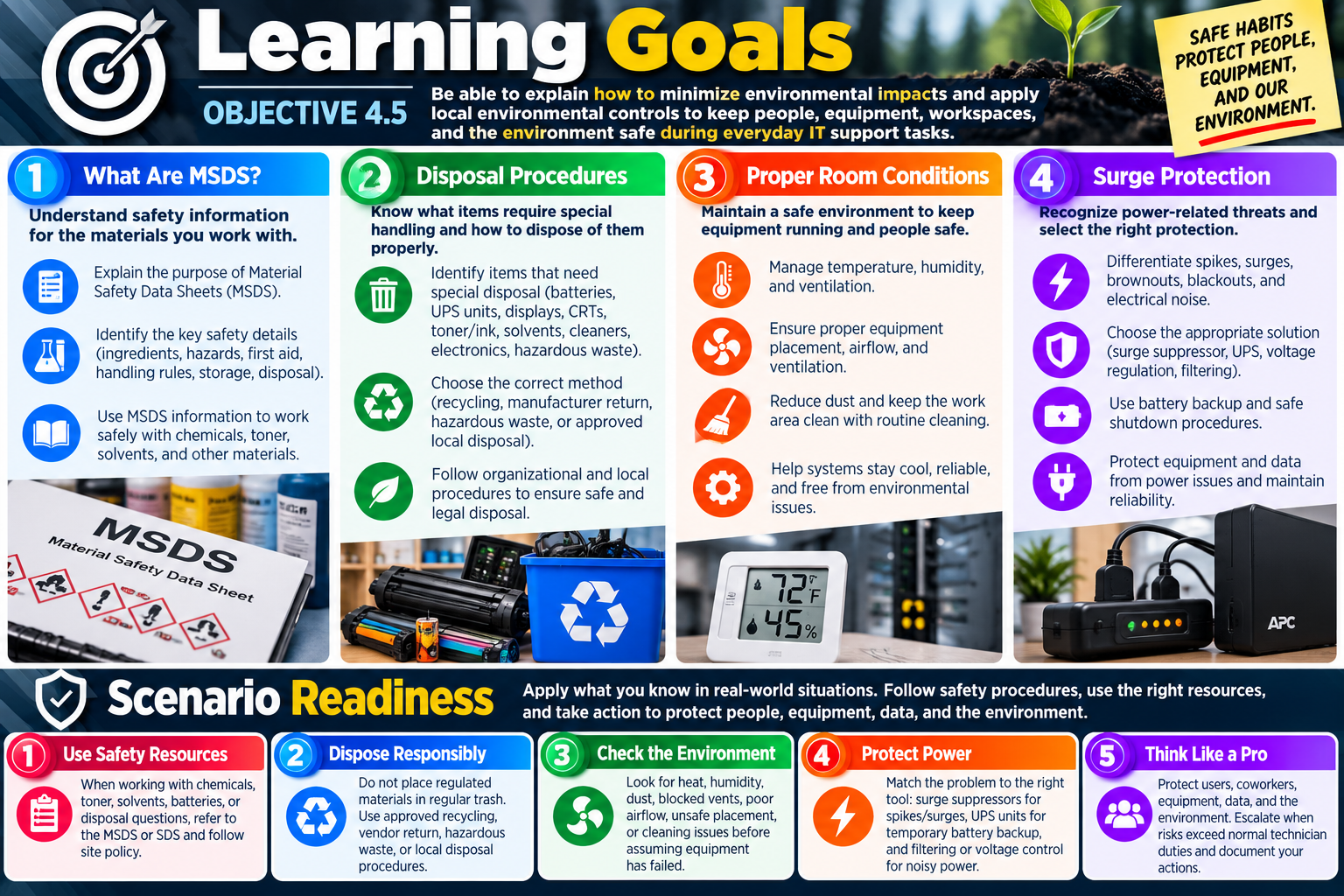
Learning Goals infographic for Objective 4.5 covering MSDS, disposal procedures, proper room conditions, surge protection, scenario readiness, and environmental support habits.
Objective 4.5 learning goals summarize the environmental controls, safety resources, disposal procedures, room conditions, and power protection habits needed for everyday IT support.

Learning Goals

By the end of Objective 4.5, you should be able to summarize environmental impacts and local environment controls so you can protect people, equipment, workspaces, and the environment during everyday IT support tasks.

Module 1 - What Are MSDS? Explain the purpose of Material Safety Data Sheets, identify the safety information they provide, and use them to understand product details, hazards, ingredients, first aid steps, spill response, fire guidance, handling rules, storage requirements, and disposal information.
Module 2 - Disposal Procedures Identify items that require special disposal, including batteries, UPS units, display devices, CRTs, toner cartridges, ink cartridges, solvents, cleaning products, electronic devices, and hazardous materials, then choose approved recycling, return, or hazardous waste procedures.
Module 3 - Proper Room Conditions Maintain a safe local environment by managing temperature, humidity, ventilation, equipment placement, compressed air use, vacuum use, and routine dust cleanup so systems stay cool, clean, stable, and reliable.
Module 4 - Surge Protection Differentiate spikes, surges, brownouts, blackouts, and electrical noise, then choose the correct protection method, such as a surge suppressor or UPS, based on the need for voltage protection, filtering, battery backup, safe shutdown, and equipment reliability.

Scenario Readiness

  1. Start with the safety reference. When chemicals, toner, solvents, batteries, spills, or disposal questions appear, use the MSDS or SDS and follow site policy.
  2. Dispose responsibly. Do not place regulated materials in regular trash when approved recycling, vendor return, hazardous waste, or local disposal procedures are required.
  3. Control the room environment. Look for heat, humidity, dust, blocked vents, poor airflow, unsafe placement, and cleaning issues before assuming equipment has failed.
  4. Protect against power problems. Match the symptom to the tool: surge suppressors for spikes and surges, UPS units for temporary battery backup, and filtering or power conditioning for noisy power.
  5. Think like a professional technician. Protect users, coworkers, equipment, data, and the environment; escalate when risks exceed normal technician work; and document important actions.
Lesson ModuleModule 1 / 7
MSDS
Module 01

Module 1 - What Are MSDS?

Material Safety Data Sheets, or MSDS documents, explain how to use, store, handle, clean up, and dispose of chemical products safely. In IT support, they matter whenever technicians work around cleaners, solvents, adhesives, toner, batteries, compressed products, and other materials that may create health, fire, spill, or environmental risks.

An MSDS is a safety reference, not a marketing sheet. It tells a technician what the product is, what hazards it presents, what ingredients or hazardous components may be involved, what protective equipment may be needed, what to do after exposure, how to respond to a spill, and how the product should be stored or disposed of. The goal is simple: before using a chemical product, know the risks and know the safe procedure.

For CompTIA A+ Core 2 Objective 4.5, MSDS questions usually appear as practical workplace scenarios. A technician may need to clean a device, replace toner, handle a leaking container, store chemicals in a supply room, respond to accidental exposure, or dispose of a product. The safest answer is usually the one that checks the MSDS, follows site policy, uses appropriate PPE, protects coworkers, and prevents environmental harm.

Why MSDS Documents Matter

Many IT environments contain chemical products even when the workplace does not look like a lab. Printer toner, isopropyl alcohol, electronics cleaner, adhesives, solvents, screen cleaners, disinfectants, batteries, and maintenance products may all require safe handling. A technician should not assume a product is safe just because it is common or sold for office use.

The MSDS gives the technician a known source of safety information. It reduces guesswork by identifying the product, the manufacturer, the hazards, the first aid steps, the cleanup method, the fire response, the storage requirements, and the disposal rules. In an emergency, that information helps technicians respond quickly and communicate clearly with supervisors, facilities staff, emergency responders, or medical personnel.

Use chemicals safely Know the product, hazards, PPE, handling rules, and safe work practices before use.
Respond to exposure Use first aid information for skin contact, eye contact, inhalation, or ingestion incidents.
Control spills Follow cleanup, containment, ventilation, and environmental precautions instead of improvising.
Store and dispose correctly Use proper containers, temperature conditions, ventilation, labeling, and approved disposal methods.

Product Details

The first major purpose of an MSDS is to identify the product. This section tells you the product name, manufacturer, intended use, and contact information. That matters because similar-looking containers may contain very different materials. A blue spray bottle, a toner bottle, or a small adhesive tube may not tell the full safety story by appearance alone.

Product details also help during reporting and escalation. If a technician spills a chemical or a user is exposed to a product, the exact product name and manufacturer information help the organization find the right response quickly. Emergency responders and medical staff may need that information to determine exposure risk and treatment steps.

  • Product name: Confirms exactly what material is being used.
  • Manufacturer information: Provides the company name and support or emergency contact details.
  • Recommended use: Explains what the product is intended for and helps prevent misuse.
  • Identification details: Helps distinguish one cleaner, solvent, adhesive, or chemical product from another.

Chemical Composition and Ingredients

An MSDS identifies what is in the product. This may include chemical composition, ingredients, mixtures, and hazardous components. A technician does not need to be a chemist, but they do need to recognize when a product contains something that requires caution.

This section is useful when comparing products or responding to exposure. For example, two cleaners may both be used on equipment, but one may contain a flammable solvent while another may be water based. One adhesive may create strong fumes, while another may be safer in a normal office space. Ingredient information helps explain why the product has certain PPE, ventilation, storage, or disposal requirements.

Exam tip: If a question asks where to find chemical hazards, ingredients, PPE, first aid, spill cleanup, or disposal information, think MSDS.

Hazards and Risks

The hazards section explains what could go wrong if the product is used incorrectly or if someone is exposed. Hazards may involve health, physical, fire, reactivity, or environmental risks. A chemical may irritate skin, harm eyes, release vapors, create respiratory concerns, burn easily, react with other materials, or pollute water and soil if released improperly.

Hazard information helps the technician choose the right precautions before work begins. If the MSDS indicates fumes or inhalation concerns, ventilation and respiratory protection may be needed. If the product can irritate eyes or skin, goggles and gloves may be appropriate. If the product is flammable, it should be kept away from ignition sources and stored according to the instructions.

  1. Read hazard warnings first. Do not use unfamiliar chemicals until you know the risks.
  2. Match PPE to the hazard. Use gloves, goggles, masks, or other protection when the MSDS or policy requires it.
  3. Protect the work area. Control ventilation, ignition sources, spills, and bystander exposure.
  4. Escalate unusual risks. If the hazard is beyond normal technician work, involve facilities, safety, or emergency contacts.

First Aid Information

MSDS documents include first aid instructions for exposure. Exposure can happen through skin contact, eye contact, inhalation, or ingestion. The first aid section explains immediate steps to minimize harm, such as flushing eyes, washing skin, moving to fresh air, removing contaminated clothing, or seeking medical attention.

Technicians should not guess during chemical exposure. The correct response depends on the material. Some products may require water flushing for a specific amount of time. Some exposures may require immediate medical care. Some fumes may require moving the person away from the area and improving ventilation. The MSDS gives the response path so the technician can act quickly and responsibly.

Fire-Fighting Guidance

Some chemical products introduce fire risks. The MSDS identifies suitable extinguishing methods and explains specific fire hazards related to the product. Depending on the chemical, the appropriate extinguisher may be CO2, dry chemical, foam, or another method. The wrong extinguisher can make a fire more dangerous or spread contamination.

This section also helps emergency responders. If a product gives off hazardous vapors when burning or reacts dangerously with water, responders need to know. A technician should not try to be a firefighter beyond training and site policy, but they should know where the MSDS is, how to report the product involved, and when to evacuate or escalate.

Accidental Release and Spills

Spills require controlled action. The accidental release section explains how to contain and clean up spills, who should be involved, what PPE may be needed, how to prevent further release, and what environmental precautions apply. Even small spills can create slip hazards, fumes, contamination, or disposal concerns.

The safest response depends on the product and the size of the spill. A small, low-risk spill may be cleaned by trained staff using the recommended method. A larger spill, unknown chemical, strong odor, flammable liquid, or exposure event should be escalated according to policy. The technician should protect people first, isolate the area if appropriate, avoid spreading the material, and follow the MSDS cleanup instructions.

  • Stop and assess. Identify the product and check the MSDS before cleanup when safe to do so.
  • Protect people. Keep coworkers, users, and untrained staff away from the spill area.
  • Use proper PPE. Do not touch or inhale spilled material without the correct protection.
  • Prevent spread. Follow containment and environmental precautions, especially near drains or shared work areas.

Safe Handling and Storage

The safe handling and storage section explains how the product should be used and where it should be kept. This may include temperature limits, ventilation needs, container requirements, separation from incompatible materials, labeling, and whether the product must be stored away from heat, sunlight, moisture, or ignition sources.

In IT support areas, safe storage prevents accidents. Chemicals should not be left unlabeled on desks, stored next to food, placed near hot equipment, or mixed with incompatible supplies. Containers should remain closed when not in use, and products should be stored where unauthorized users cannot accidentally access them.

Handling procedures Use the product only as intended and follow the recommended handling steps.
Storage temperature Follow temperature and environment requirements to maintain safety and product stability.
Ventilation Use products with fumes only in areas with proper airflow or approved controls.
Container safety Keep products labeled, closed, upright, and stored in compatible containers.

Other MSDS Information

An MSDS may include exposure limits, PPE requirements, disposal instructions, transportation details, regulatory information, and other safety data. These sections matter because safe chemical use does not end when the task is complete. The product may still need to be stored, transported, recycled, or disposed of correctly.

Exposure limits help organizations control how much of a substance workers may safely be exposed to. PPE sections list protective equipment. Disposal instructions help prevent unsafe trash disposal or environmental contamination. Transportation information may matter when moving chemicals between sites. Regulatory details help the organization comply with local, state, federal, or country-specific requirements.

Technician Workflow

  1. Identify the product. Read the label and confirm the exact chemical, cleaner, solvent, adhesive, toner, or other material.
  2. Find the MSDS. Use the workplace MSDS binder, online safety database, manufacturer documentation, or approved internal system.
  3. Review hazards and PPE. Check health risks, fire risks, exposure risks, ventilation requirements, and protective equipment.
  4. Use and store safely. Follow handling instructions, keep containers labeled and closed, and store materials in the recommended environment.
  5. Respond correctly. Use first aid, spill cleanup, fire guidance, and escalation steps when exposure or release occurs.
  6. Dispose responsibly. Follow disposal, recycling, environmental, and site policy requirements.

Exam Mindset

If the scenario mentions chemicals, cleaners, solvents, toner, adhesives, spills, fumes, exposure, fire risk, PPE, storage, or disposal, the MSDS is the authoritative safety reference. Do not guess, do not mix chemicals, do not throw regulated materials away casually, and do not ignore exposure symptoms. Read the MSDS, protect people, follow policy, and escalate when the risk is outside normal technician work.

Bottom line: MSDS documents help technicians work with chemicals safely, respond to emergencies, protect coworkers, and prevent environmental damage. Read the MSDS before using unfamiliar materials and use it as the guide when something goes wrong.
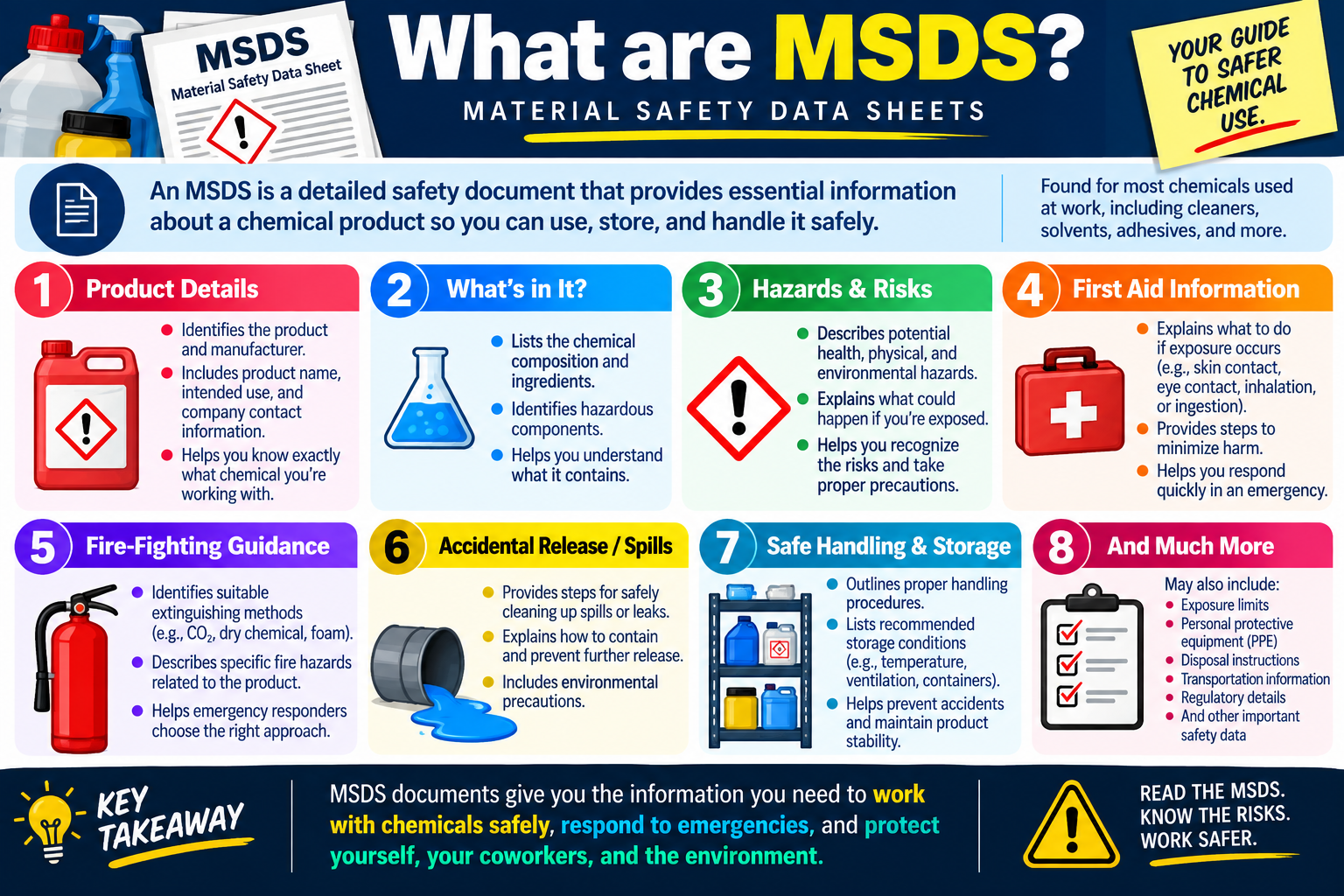
What are MSDS infographic explaining product details, ingredients, hazards, first aid, fire-fighting guidance, spill cleanup, safe handling, storage, and other safety information.
MSDS documents provide the safety information needed to use, store, clean up, and dispose of chemical products responsibly.
RECYCLE
Module 02

Module 2 - Disposal Procedures

Disposal procedures explain how to get rid of hazardous or regulated IT materials safely. Some items cannot go in regular trash because they may contain chemicals, heavy metals, pressurized materials, rechargeable cells, toner, ink, or electronic waste that can harm people or the environment.

In IT support, disposal is part of professional operations. A technician may replace a UPS battery, remove toner cartridges, clean up leaking printer supplies, retire a monitor, collect old drives, or handle a container of solvent. Each of those situations requires more than simply throwing the item away. The technician must identify the material, consult the correct safety information, follow local rules, use approved recycling or hazardous waste channels, and document or escalate when required by policy.

For Objective 4.5, the exam usually looks for the safest and most responsible answer. If the item may be hazardous, regulated, chemical, electronic, or environmentally sensitive, the best answer is to consult the MSDS or SDS, follow manufacturer and local disposal instructions, and use an approved facility, recycling program, or company process.

Start With the Safety Information

The first step is to check the safety information for the product or material. Material Safety Data Sheets, also called MSDS documents, explain handling hazards, storage requirements, exposure risks, spill cleanup steps, and disposal instructions. In the United States, MSDS and SDS resources are associated with OSHA guidance, and many organizations keep safety sheets in an internal database, a printed binder, or a manufacturer documentation portal.

Disposal information matters because different products have different risks. A battery may contain corrosive or reactive materials. Toner can be a fine particulate irritant. Solvents may be flammable. Display devices may contain glass, lead, mercury, or other regulated materials depending on type and age. The MSDS or SDS helps the technician avoid guessing.

  1. Identify the exact item. Confirm whether it is a battery, toner cartridge, cleaning product, display, electronic board, drive, solvent, or other material.
  2. Find the MSDS or SDS. Use the current safety sheet for that product, manufacturer, and region.
  3. Read disposal instructions. Look for recycling, hazardous waste, transportation, spill, PPE, and storage requirements.
  4. Follow site policy. Use the organization’s approved collection area, vendor return process, or hazardous waste procedure.

Items That Require Special Disposal

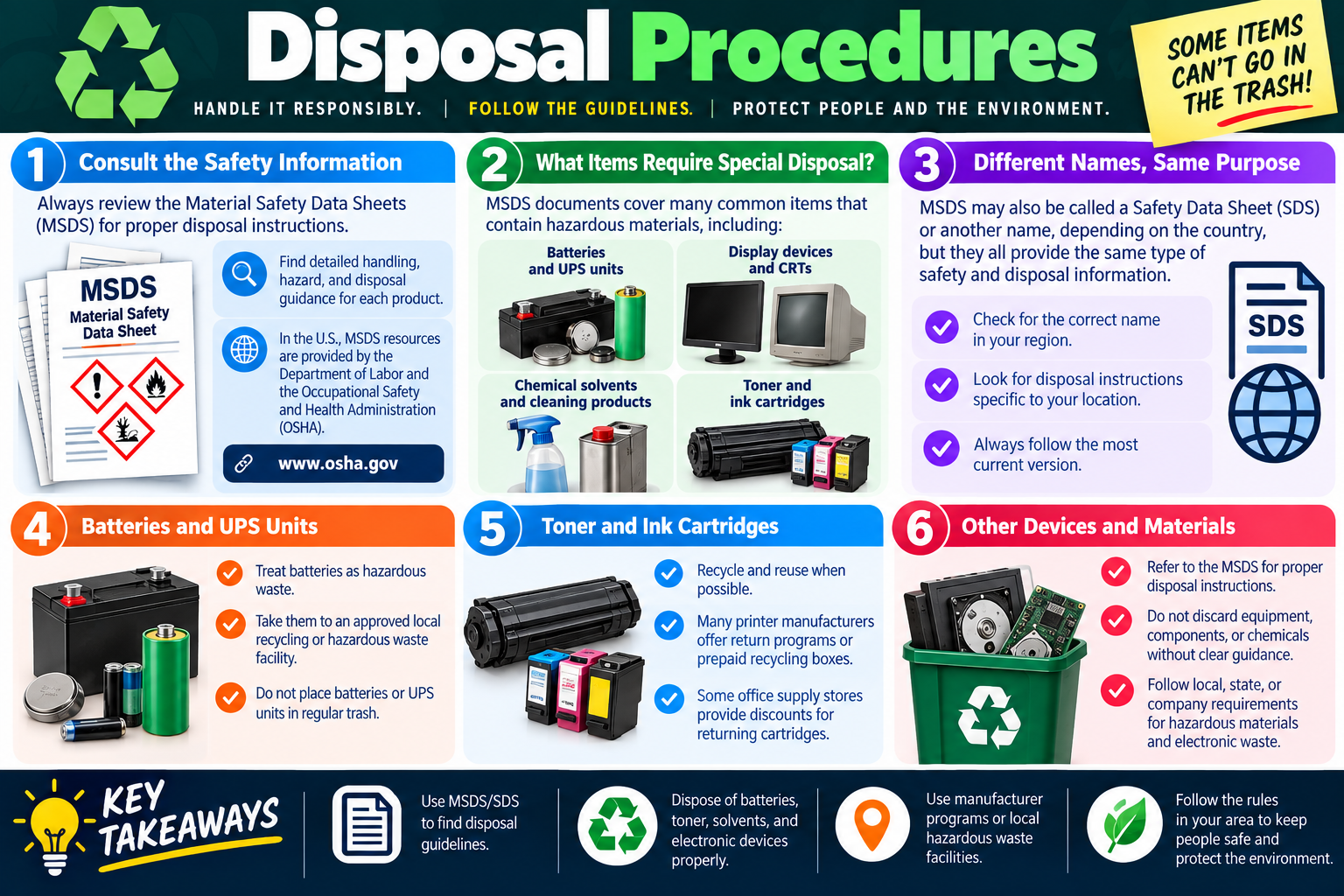
Several common IT items may require special disposal. Batteries and UPS units are a major example because they can contain hazardous chemicals, heavy metals, and stored energy. Display devices, especially older CRT monitors, may contain materials that should not enter normal waste streams. Chemical solvents and cleaning products may create fire, inhalation, skin, or environmental risks. Toner and ink cartridges may leak, stain, create airborne particles, or be eligible for manufacturer recycling.

Special disposal does not always mean the item is extremely dangerous. It means the item has a defined disposal path. That path might be a manufacturer mail-back program, an office supply store return box, a municipal e-waste collection site, a hazardous waste facility, a recycling vendor, or an internal company process.

Batteries and UPS units Use approved battery recycling or hazardous waste procedures. Do not place them in regular trash.
Displays and CRTs Follow e-waste rules for monitors, older CRTs, and display devices that contain regulated materials.
Chemical cleaners and solvents Check MSDS/SDS guidance for storage, spill response, PPE, and disposal requirements.
Toner and ink cartridges Use manufacturer returns, prepaid recycling boxes, office supply programs, or approved local recycling.

MSDS, SDS, and Regional Naming

The infographic notes that MSDS may also be called a Safety Data Sheet, or SDS. The terminology can vary by country, region, regulation, vendor, or document age, but the purpose is the same: provide safety and disposal information. A technician should not ignore the document just because the name is slightly different.

When handling a product, look for the correct and current safety sheet for your location. Disposal instructions may vary by country, state, city, or organization. A product that can be recycled through one vendor in one region may need a different disposal method somewhere else. The safest habit is to use the current document and local procedure rather than relying on memory.

Exam tip: MSDS and SDS point to the same idea for A+ scenarios: read the safety sheet before handling, cleaning up, storing, transporting, or disposing of chemical or hazardous materials.

Batteries and UPS Units

Batteries and UPS units require careful disposal because they can contain hazardous materials and stored electrical energy. This includes coin-cell batteries, laptop batteries, rechargeable batteries, AA or AAA cells used in equipment, and large sealed batteries inside UPS systems. The correct answer is not to throw them in regular trash.

Battery disposal should follow approved local recycling or hazardous waste procedures. Many organizations collect used batteries in marked containers, schedule pickup through a recycling vendor, or take them to a municipal hazardous waste facility. UPS batteries may be heavy, may require careful handling, and may have vendor replacement or return procedures.

  • Treat batteries as hazardous waste. Even small cells can have specific disposal requirements.
  • Use approved collection points. Follow company, vendor, municipal, or hazardous waste facility processes.
  • Prevent short circuits. Follow policy for taping terminals, packaging, or separating certain battery types if required.
  • Do not place in regular trash. Battery chemistry and local law may prohibit ordinary disposal.

Toner and Ink Cartridges

Toner and ink cartridges should be recycled or returned whenever possible. Printer manufacturers often provide return programs, prepaid boxes, labels, or collection options. Some office supply stores also accept used cartridges and may offer recycling incentives or discounts.

Toner requires care because it is a fine powder. Avoid shaking cartridges, opening them unnecessarily, or throwing leaking toner into regular trash without guidance. Ink cartridges can leak and stain, and both toner and ink cartridges may contain plastics and materials that are better handled through recycling channels.

  1. Recycle and reuse when possible. Use manufacturer, vendor, or office supply store recycling programs.
  2. Keep cartridges contained. Place used cartridges in the provided bag, box, or protective packaging.
  3. Avoid exposure. Do not open cartridges or inhale toner dust.
  4. Follow local policy. Some workplaces centralize cartridge collection for tracking and vendor pickup.

Other Devices and Materials

Other devices and materials may also require special disposal. Hard drives, SSDs, circuit boards, adapters, cables, monitors, printers, phones, tablets, and other electronics can become e-waste. Some items may contain recoverable metals, batteries, glass, plastics, or regulated materials. Others may contain data and must go through data sanitization or destruction before disposal.

Technicians should not discard equipment, components, or chemicals without clear guidance. A broken monitor, leaking chemical container, old system board, or retired storage drive may involve safety, environmental, data security, or asset-tracking requirements. Follow company requirements, local laws, state rules, and approved recycling or hazardous waste processes.

Disposal Workflow for Technicians

  1. Classify the item. Determine whether it is chemical waste, battery waste, toner or ink, e-waste, display equipment, storage media, or ordinary trash.
  2. Check documentation. Use MSDS/SDS, manufacturer instructions, company policy, and local disposal guidance.
  3. Protect people. Use PPE, avoid leaks or dust, isolate damaged items, and prevent users from handling unsafe material.
  4. Use the approved path. Send the item to the correct recycling bin, vendor return box, hazardous waste facility, or e-waste process.
  5. Document when required. Record asset disposal, hazardous waste handling, chain of custody, storage drive destruction, or pickup details if policy requires it.

Exam Mindset

If a scenario says batteries, UPS, toner, ink, solvent, cleaner, display, CRT, chemical, e-waste, or hazardous material, do not choose regular trash. Choose the answer that consults MSDS/SDS guidance, follows local and company procedures, uses recycling or hazardous waste facilities, and protects people and the environment.

Bottom line: Disposal procedures are about responsibility. Use MSDS/SDS guidance, recycle batteries and cartridges properly, send e-waste through approved channels, and follow local rules so people and the environment stay protected.

Disposal Procedures infographic explaining MSDS and SDS disposal guidance, special disposal for batteries, UPS units, displays, CRTs, solvents, cleaning products, toner, ink cartridges, and e-waste.
Disposal procedures help technicians identify materials that require special handling and route them through approved recycling, hazardous waste, manufacturer return, or local disposal programs.
ENV
Module 03

Module 3 - Proper Room Conditions

Proper room conditions help equipment run reliably and help people work comfortably. A clean, controlled environment manages temperature, humidity, airflow, dust, equipment placement, and routine cleaning so computers, printers, network devices, and peripherals last longer and fail less often.

Environmental controls are easy to overlook because they do not always feel like technical troubleshooting. A workstation that overheats, a printer full of dust, a desktop shoved inside a closed cabinet, a server closet with poor airflow, or a room with extreme humidity can create real support problems. The technician’s job is to recognize when the environment is part of the issue.

For Objective 4.5, room condition questions often describe symptoms such as overheating, random shutdowns, noisy fans, dusty vents, blocked airflow, condensation, static electricity, or equipment placed near sunlight or water. The best answer usually improves the environment before replacing hardware.

Temperature

Computers and electronics work best in a consistent, moderate temperature. Heat is one of the biggest enemies of electronics. Excessive heat can cause systems to throttle performance, shut down unexpectedly, shorten component life, dry out materials, stress batteries, and cause fans to run loudly. Rapid temperature changes can also be harmful because they may create condensation or stress components.

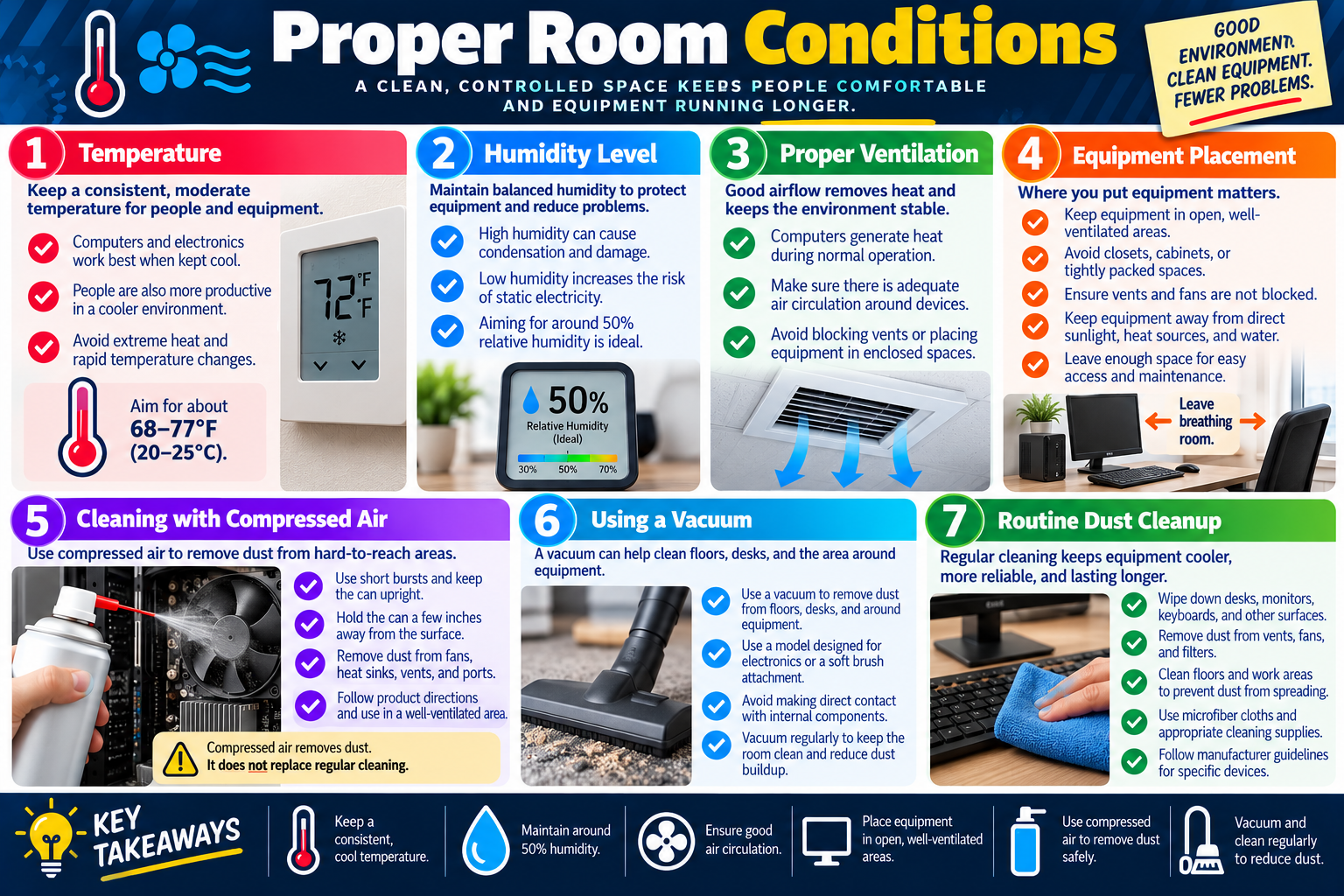
The infographic recommends aiming for about 68 to 77 degrees Fahrenheit, or 20 to 25 degrees Celsius, as a comfortable general target. The exact acceptable range can vary by manufacturer, device type, and room purpose, but the principle is consistent: keep equipment cool, avoid extremes, and maintain stable conditions.

  • Keep the room moderate. Avoid hot closets, direct sunlight, unconditioned storage areas, and cramped equipment spaces.
  • Watch for heat symptoms. Random shutdowns, loud fans, performance throttling, and overheating warnings may point to poor cooling.
  • Avoid rapid changes. Moving equipment from cold storage into a warm room may create condensation if used too quickly.
  • Balance people and equipment. A cooler, stable room supports productivity and device reliability.

Humidity Level

Humidity affects both people and electronics. High humidity can cause condensation, corrosion, paper handling issues, and moisture damage. Low humidity increases the risk of static electricity, which can damage sensitive components. A balanced environment helps reduce both moisture-related problems and ESD risk.

The infographic identifies around 50 percent relative humidity as an ideal target. In real environments, organizations may use an acceptable range rather than one exact number, but technicians should recognize the pattern: too humid creates moisture problems, and too dry increases static problems.

High humidity Can contribute to condensation, corrosion, paper jams, moisture damage, and mold concerns.
Low humidity Can increase static buildup and ESD risk when working around sensitive parts.
Balanced humidity Supports comfort, equipment reliability, and safer component handling.
Environmental clue Condensation, static shocks, paper curl, and repeated ESD issues may point to humidity problems.

Proper Ventilation

Good airflow removes heat and keeps the environment stable. Computers generate heat during normal operation. Printers, monitors, network switches, external drives, docking stations, and power equipment also add heat to a room. If warm air cannot escape, equipment may run hotter even when the room temperature seems acceptable.

Ventilation problems often happen when devices are placed in enclosed spaces, stacked tightly, pushed against walls, or surrounded by clutter. Vents and fans need open space. Equipment should be placed so cool air can enter, warm air can leave, and airflow is not blocked by papers, walls, bags, furniture, dust, or other devices.

  1. Check air paths. Make sure intake and exhaust vents are clear.
  2. Avoid enclosed spaces. Do not place desktops, printers, or network devices in closed cabinets unless designed for ventilation.
  3. Leave breathing room. Provide space around devices so heat can move away.
  4. Watch fan behavior. Fans that run constantly at high speed may indicate heat or airflow problems.

Equipment Placement

Where equipment is placed matters. A technically good device can fail early if it is placed in a poor environment. Desktops should not be packed tightly under desks with blocked vents. Printers should not sit where paper absorbs humidity or direct sunlight heats the device. Network gear should not be placed under leaking pipes, near water, or in unventilated closets. Laptops should not be used on soft surfaces that block airflow.

Good placement keeps equipment in open, well-ventilated areas. It avoids direct sunlight, heat sources, water, dust-heavy areas, and tight spaces. It also leaves enough space for maintenance. Technicians should be able to reach cables, vents, power connections, and service panels without creating new safety or cable-management problems.

Exam tip: If the scenario says equipment is in a closet, cabinet, enclosed space, direct sunlight, near water, or has blocked vents, fix placement and airflow first.

Cleaning With Compressed Air

Compressed air is useful for removing dust from hard-to-reach areas such as fans, heat sinks, vents, ports, and keyboard gaps. Dust acts like insulation. It traps heat, restricts airflow, clogs fans, and can make equipment run hotter and louder. Removing dust can improve cooling and reliability.

Compressed air must be used correctly. Use short bursts, keep the can upright, and hold it a few inches away from the surface. Use it in a well-ventilated area because dust may become airborne. Follow the product directions. Do not tilt the can in a way that sprays liquid propellant onto components. Compressed air helps remove dust, but it does not replace regular cleaning and good room maintenance.

  • Use short bursts. Long sprays can chill surfaces or release propellant.
  • Keep the can upright. This reduces the chance of spraying liquid onto electronics.
  • Hold it back. Keep the nozzle a few inches away from components.
  • Control dust movement. Clean in an appropriate, ventilated area so dust does not simply spread elsewhere.

Using a Vacuum

A vacuum can help clean floors, desks, and the area around equipment. Keeping the surrounding area clean reduces the dust that eventually gets pulled into fans, vents, filters, and power supplies. Routine vacuuming is especially helpful in carpeted rooms, classrooms, labs, and offices where dust and debris collect quickly.

When cleaning electronics directly, use caution. A regular household vacuum may create static or make direct contact with sensitive internal components. If vacuuming near equipment, use a model designed for electronics or use a soft brush attachment according to policy. Avoid direct contact with internal components unless the tool and procedure are approved.

Good use Remove dust from floors, desks, shelves, and the workspace around equipment.
Electronics-safe models Use equipment designed for electronics when cleaning close to components.
Soft brush attachment Helps clean surfaces without scraping or damaging equipment.
Avoid internal contact Do not vacuum sensitive components directly with ordinary tools.

Routine Dust Cleanup

Routine cleaning keeps equipment cooler, more reliable, and longer lasting. Dust buildup blocks airflow and makes fans work harder. Dust on desks, keyboards, monitors, and vents can eventually move into devices. A clean room reduces the load on filters, fans, heat sinks, and cooling systems.

Routine dust cleanup includes wiping down desks, monitors, keyboards, and other surfaces; removing dust from vents, fans, and filters; cleaning floors and work areas; using microfiber cloths and appropriate cleaning supplies; and following manufacturer guidance for specific devices. Printers, desktops, laptops, and network devices may each have different cleaning recommendations.

  1. Clean surfaces regularly. Wipe desks, monitors, keyboards, and shared work areas.
  2. Clear vents and filters. Dust around fans, vents, and intake areas can cause heat problems.
  3. Use proper supplies. Microfiber cloths and approved cleaning products reduce damage risk.
  4. Follow manufacturer guidance. Specific devices may have cleaning limits or recommended methods.

Technician Workflow

  1. Observe the environment. Look for heat, dust, moisture, blocked vents, poor airflow, and cramped placement.
  2. Check room conditions. Consider temperature, humidity, ventilation, and equipment location before replacing hardware.
  3. Correct placement. Move equipment away from sunlight, water, heat sources, cabinets, and blocked airflow.
  4. Clean safely. Use compressed air, microfiber cloths, and approved vacuums or cleaning supplies correctly.
  5. Verify improvement. Confirm fans quiet down, temperatures stabilize, airflow improves, and symptoms do not return.

Exam Mindset

If the question mentions overheating, dust, loud fans, blocked vents, enclosed cabinets, poor airflow, humidity, static shocks, or condensation, think local environment controls. The best answer often improves room conditions, placement, ventilation, cleaning, temperature, or humidity before assuming a component has failed.

Bottom line: A clean, controlled room protects both people and equipment. Keep temperature moderate, humidity balanced, airflow open, equipment well placed, and dust under control.

Proper Room Conditions infographic explaining temperature, humidity level, ventilation, equipment placement, compressed air cleaning, vacuum use, and routine dust cleanup.
Proper room conditions reduce heat, dust, static, moisture, and airflow problems so equipment runs cooler and lasts longer.
UPS
Module 04

Module 4 - Surge Protection

Surge protection is about understanding that not all power from the wall is clean, steady, or safe for electronics. Power problems such as spikes, surges, brownouts, blackouts, and electrical noise can damage equipment, interrupt work, corrupt data, and shorten the life of computers and peripherals.

For Objective 4.5, surge protection fits under local environment controls because the electrical environment is part of the workspace. A technician must know when to use a surge suppressor, when a battery backup or UPS is needed, what common power symptoms mean, and what ratings matter when choosing protective equipment.

The best answer in a scenario depends on the problem. If equipment needs short-term power during an outage, use a UPS. If the concern is voltage spikes or surges only, use a surge suppressor. If the issue is dirty or noisy power, look for filtering or a higher-quality UPS. If the issue is frequent brownouts, a UPS can help bridge low-voltage events long enough to keep systems stable or shut them down safely.

Common Power Problems

Utility power can be unstable. A normal wall outlet may provide usable power most of the time, but electrical events can still occur because of storms, utility switching, large motors, overloaded circuits, failing equipment, or problems on the power grid. Sensitive electronics can react badly to sudden voltage changes.

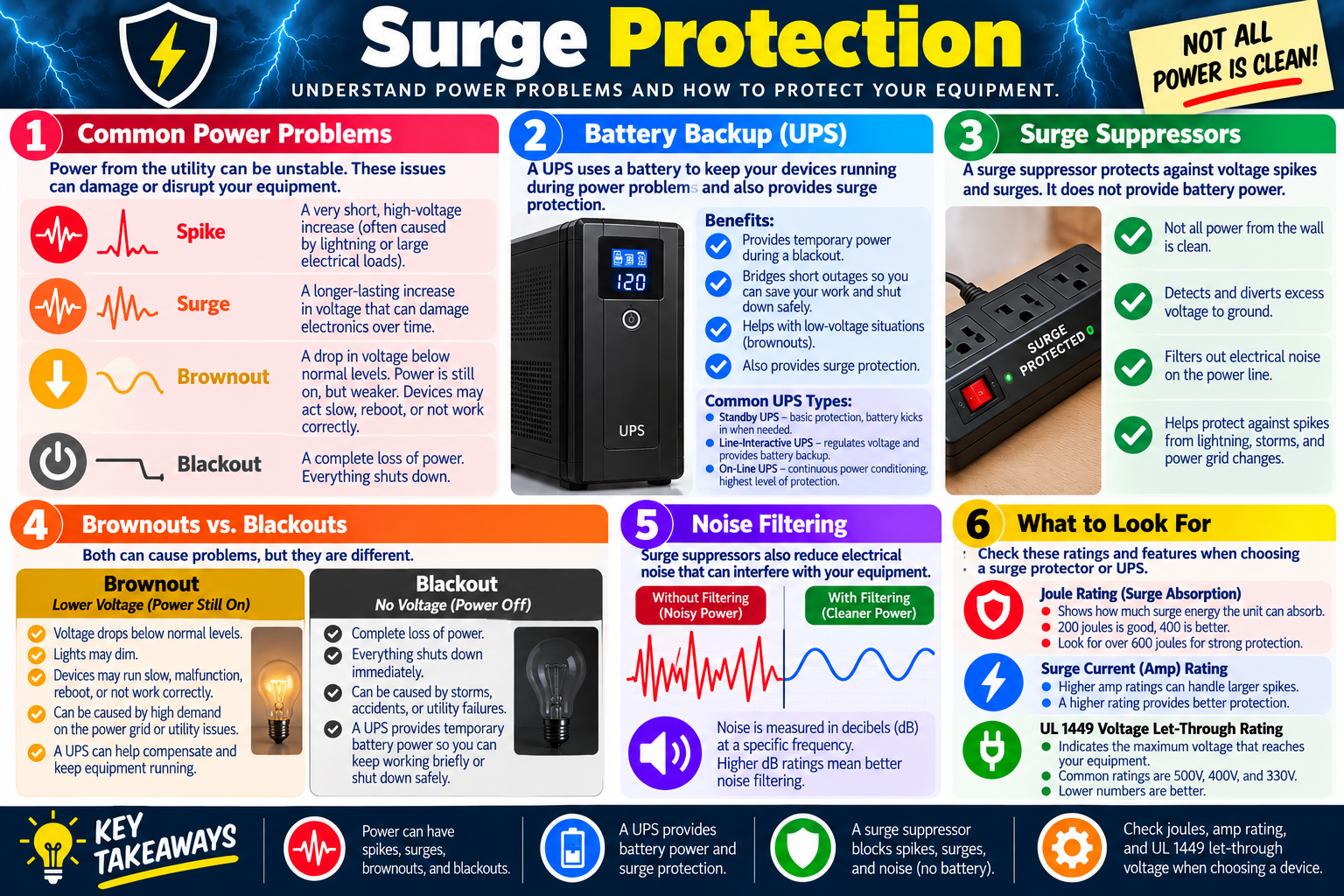
A spike is a very short, high-voltage increase. It may be caused by lightning or by large electrical loads switching on or off. A surge is a longer-lasting increase in voltage that can damage electronics over time or immediately if it is severe. A brownout is a drop in voltage below normal levels. Power may still be present, but devices may run slowly, restart, behave unpredictably, or fail to operate correctly. A blackout is a complete loss of power, and everything without battery support shuts down.

Spike A brief high-voltage event. It can happen quickly and still damage sensitive electronics.
Surge A longer voltage increase. It can overheat or degrade power supplies, adapters, and internal components.
Brownout Low voltage while power is still on. Devices may reboot, malfunction, or fail to start.
Blackout Total power loss. Systems shut down unless a battery backup provides temporary power.

Battery Backup - UPS

A UPS, or uninterruptible power supply, uses a battery to keep connected devices running temporarily during power problems. It is not meant to power a workstation all day. Its purpose is to give users and systems enough time to ride through a short outage, save work, shut down safely, or keep critical equipment online until another power source takes over.

A UPS also provides surge protection and can help with low-voltage events such as brownouts. That makes it useful for workstations, network devices, point-of-sale systems, small servers, security systems, and other equipment where sudden shutdowns could interrupt business or damage data.

  1. Temporary power: Keeps devices running briefly during a blackout or power interruption.
  2. Safe shutdown: Gives users time to save work and shut down instead of losing data.
  3. Brownout support: Helps handle low-voltage events that can make systems unstable.
  4. Surge protection: Adds protection against spikes and surges in addition to battery power.

Common UPS Types

Different UPS designs provide different levels of protection. A standby UPS is the basic option. It normally passes utility power through and switches to battery when needed. A line-interactive UPS can regulate voltage and provide battery backup, making it a common choice where brownouts or mild voltage changes happen. An online UPS provides continuous power conditioning and the highest level of protection because connected equipment is isolated from many utility power problems.

The exam usually does not require deep electrical engineering detail, but it does expect you to choose the appropriate protection level. A regular workstation may only need a basic UPS. A network rack, small server, or critical device may need a better UPS with voltage regulation, management features, or stronger capacity.

Standby UPS Basic battery backup. The battery kicks in when utility power fails or drops too far.
Line-interactive UPS Regulates voltage and provides battery backup. Useful for areas with brownouts or voltage fluctuation.
Online UPS Provides continuous power conditioning and the strongest protection for sensitive or critical equipment.
Capacity planning Choose a UPS that supports the connected load and provides enough runtime for the business need.

Surge Suppressors

A surge suppressor protects against voltage spikes and surges. It does not provide battery power. If the power goes out, equipment connected only to a surge suppressor will still shut down. The suppressor helps by detecting excess voltage and diverting it away from the connected equipment, usually toward ground.

Surge suppressors can also include noise filtering. Electrical noise is unwanted interference on the power line. It may come from motors, appliances, lighting systems, poor wiring, or other electrical loads. Noise can interfere with equipment performance, and filtering helps provide cleaner power to sensitive devices.

  • Use surge suppressors for: Workstations, monitors, printers, chargers, and peripherals that need protection from spikes or surges.
  • Do not confuse them with UPS units: A surge suppressor protects against voltage events, but it cannot keep devices running during an outage.
  • Replace when worn or damaged: Surge suppressors can lose effectiveness after absorbing surges.
  • Check indicator lights: Many models show whether protection is still active.

Brownouts vs. Blackouts

Brownouts and blackouts are related but not the same. In a brownout, voltage drops below normal but the power does not completely stop. Lights may dim, devices may behave strangely, and computers may reboot or fail to operate reliably. Brownouts can be caused by high demand on the grid, utility problems, or local electrical issues.

In a blackout, power is completely lost. Systems shut down immediately unless they are connected to a UPS or another power source. A UPS can help with both conditions, but the result is different. During a brownout, the UPS may regulate voltage or switch to battery. During a blackout, the UPS provides temporary battery power so users can keep working briefly or shut down safely.

Exam tip: Brownout means low voltage with power still on. Blackout means no power. A UPS helps with both, but a surge suppressor alone does not provide backup power.

Noise Filtering

Noise filtering reduces electrical interference on the power line. Some surge suppressors and UPS units include filtering features that smooth out unwanted electrical noise before it reaches connected devices. This is especially useful when equipment is affected by motors, copiers, industrial devices, lighting systems, or other sources of interference.

Noise may be measured in decibels at a specific frequency. Higher filtering ratings generally indicate better noise reduction, but technicians should match the product to the environment. In a normal office, basic filtering may be enough. In a noisy electrical environment or around sensitive electronics, stronger filtering or a higher-quality UPS may be appropriate.

What To Look For

When choosing a surge suppressor or UPS, ratings matter. A joule rating describes how much surge energy the device can absorb. A higher joule rating generally means stronger surge absorption. A surge current, or amp rating, indicates how large a spike the device can handle. A UL 1449 voltage let-through rating indicates the maximum voltage that reaches your equipment during a surge; lower numbers are better.

For UPS units, also consider watt or VA capacity, runtime, battery health, outlet count, replaceable batteries, management software, and whether the device supports automatic shutdown. A UPS must be sized for the load. Plugging too much equipment into a UPS can overload it or reduce runtime to the point that it no longer meets the need.

  1. Joule rating: Higher ratings can absorb more surge energy.
  2. Surge current rating: Higher amp ratings can handle larger spikes.
  3. UL 1449 let-through rating: Lower voltage numbers are better because less voltage reaches the equipment.
  4. UPS capacity and runtime: Make sure the UPS can support the connected load long enough to save work or shut down.

Technician Workflow

  1. Identify the symptom. Determine whether the issue is a spike, surge, brownout, blackout, electrical noise, or overloaded equipment.
  2. Choose the right protection. Use a surge suppressor for voltage spikes and surges. Use a UPS when battery backup is needed.
  3. Check ratings. Review joules, amp rating, UL 1449 let-through voltage, UPS capacity, and runtime.
  4. Connect equipment correctly. Do not overload the UPS or daisy-chain power strips. Follow manufacturer and site policy.
  5. Maintain the protection. Replace worn surge suppressors, test UPS batteries, and document power-related incidents.

Exam Mindset

If a scenario says devices shut down during outages, choose a UPS. If it says equipment must be protected from spikes or surges, choose a surge suppressor. If it mentions brownouts, low voltage, or brief power loss, a UPS is usually the stronger answer. If it mentions dirty power or interference, look for noise filtering or power conditioning.

Bottom line: Clean, stable power protects equipment and data. Surge suppressors block spikes, surges, and noise, while UPS units add battery backup so users can save work and systems can shut down safely.

Surge Protection infographic explaining spikes, surges, brownouts, blackouts, UPS battery backups, surge suppressors, noise filtering, and protection ratings.
Surge protection starts with matching the power problem to the right tool: surge suppressor for voltage events and UPS for temporary battery backup.
KEY
Module 05

Module 5 - Key Takeaways

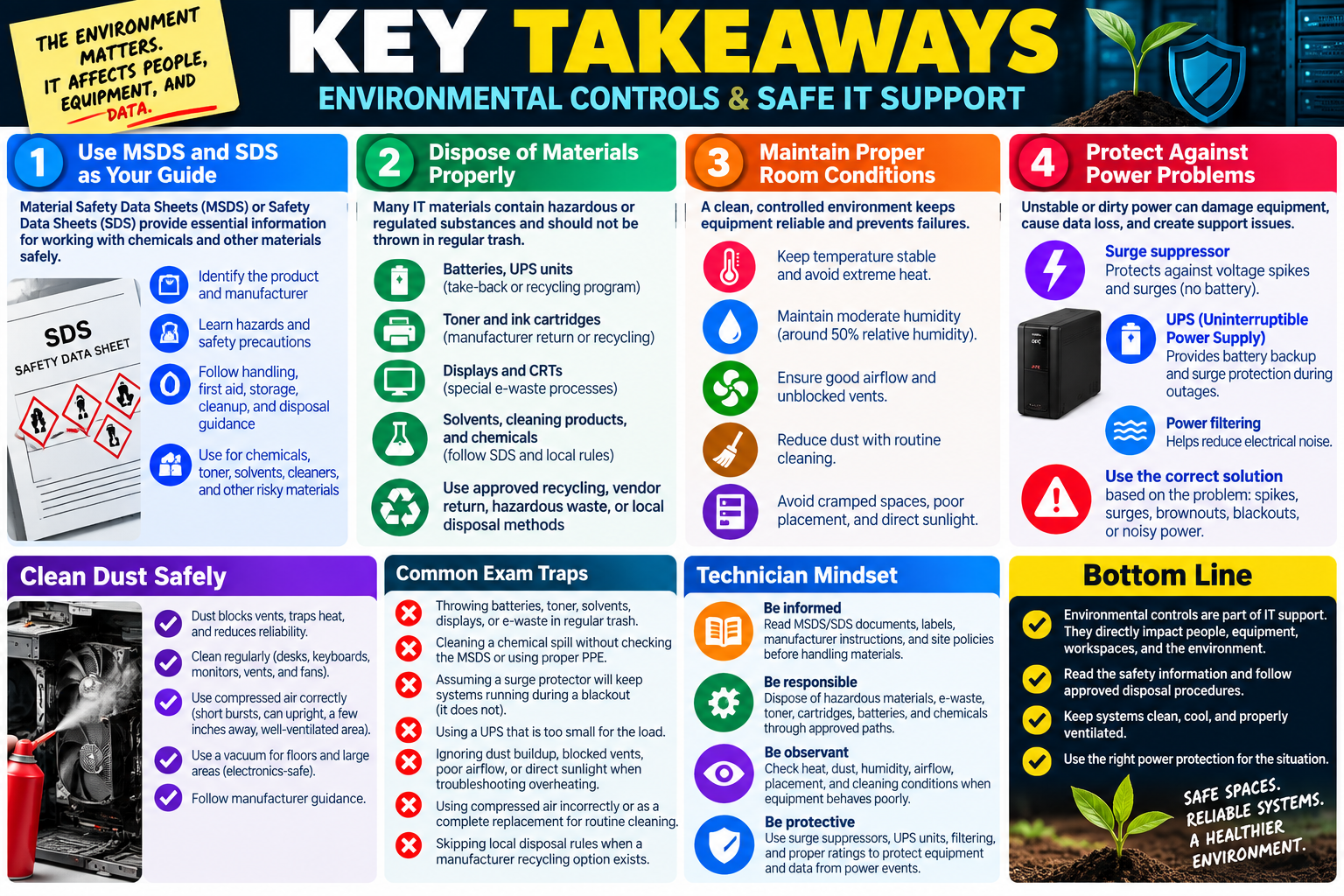
Key Takeaways infographic for Objective 4.5 summarizing MSDS and SDS, disposal procedures, proper room conditions, surge protection, dust cleanup, exam traps, technician mindset, and bottom line.
Objective 4.5 key takeaways summarize how environmental controls protect people, equipment, workspaces, data, and the environment.

Objective 4.5 is about managing the local IT environment responsibly. A technician must know how to use safety documents, dispose of regulated materials, maintain proper room conditions, and protect equipment from power problems.

Environmental controls are not separate from technical support. Heat, dust, moisture, poor airflow, dirty power, unsafe disposal, and chemical exposure can all create support issues. A workstation may fail because it is in a cramped cabinet, a printer area may become unsafe because toner is handled incorrectly, and a system may lose data because it was connected to a basic power strip instead of a UPS.

The best technician response protects people, equipment, data, and the environment. That means reading the MSDS or SDS before handling chemical products, following approved disposal procedures, keeping equipment clean and ventilated, controlling temperature and humidity, and choosing the right power protection for the situation.

Use MSDS and SDS as the Safety Reference

Material Safety Data Sheets, also called Safety Data Sheets in many environments, explain how to use, store, handle, clean up, and dispose of chemical products safely. In IT work, these documents matter for cleaners, solvents, adhesives, toner, batteries, compressed products, and other materials that may create health, fire, spill, or environmental risks.

Know the product Use product details to identify the chemical, manufacturer, intended use, and emergency contact information.
Recognize hazards Review health risks, physical hazards, fire risks, environmental hazards, and exposure concerns.
Respond correctly Use first aid, spill cleanup, fire-fighting, PPE, handling, and storage guidance instead of guessing.
Dispose safely Follow disposal instructions and local requirements for chemical or hazardous materials.

Dispose of Materials Responsibly

Some IT materials should not go into regular trash. Batteries, UPS units, toner cartridges, ink cartridges, CRT displays, electronic devices, chemical solvents, and cleaning products may require special disposal because they contain hazardous or regulated materials. Disposal rules can vary by location, so a technician should follow the current safety sheet, manufacturer instructions, company process, and local regulations.

Proper disposal may involve a battery recycling program, an office supply return program, a manufacturer mail-back box, a municipal e-waste site, a hazardous waste facility, or an internal collection process. The key is to choose an approved path and avoid casual disposal.

  1. Check the MSDS or SDS. Use the safety document for handling and disposal guidance.
  2. Identify regulated items. Batteries, toner, solvents, displays, and e-waste often need special handling.
  3. Use approved programs. Follow vendor return, recycling, hazardous waste, or company disposal procedures.
  4. Protect people and the environment. Prevent leaks, exposure, contamination, and unsafe trash disposal.

Control the Room Environment

Room conditions directly affect reliability. Computers and electronics work best in a consistent, moderate environment with good airflow and low dust. Heat causes fans to run harder and components to age faster. High humidity can create condensation and corrosion. Low humidity increases static risk. Blocked vents and crowded equipment placement can cause overheating even when the room temperature seems acceptable.

A strong technician does not only replace parts; they also look for the environmental cause. If a device repeatedly overheats, check airflow, vents, dust buildup, direct sunlight, nearby heat sources, cabinet placement, and ventilation before assuming the hardware itself is defective.

Temperature Keep the room cool and consistent. Avoid extreme heat and rapid temperature changes.
Humidity Around 50 percent relative humidity is a useful target because it helps balance moisture and static risk.
Ventilation Make sure vents, fans, filters, and airflow paths are not blocked.
Placement Keep equipment out of closets, cabinets, direct sunlight, water, and cramped spaces unless properly designed for it.

Clean Dust Safely

Dust cleanup is part of environmental control. Dust blocks vents, coats fans, clogs filters, traps heat, and can make equipment louder or less reliable. Cleaning should be routine, not only reactive after a failure. Wipe work surfaces, clean keyboards and monitors appropriately, remove dust from vents and fans, and follow manufacturer guidance for specific devices.

Compressed air is useful for hard-to-reach areas, but it must be used correctly. Use short bursts, keep the can upright, hold it a few inches away from the surface, and work in a well-ventilated area. Compressed air removes dust, but it does not replace regular cleaning. Vacuums can help clean floors, desks, and the area around equipment, but use electronics-safe models or approved attachments when working close to components.

Protect Against Power Problems

Not all wall power is clean or reliable. Spikes, surges, brownouts, blackouts, and electrical noise can damage devices, interrupt users, corrupt data, or cause unpredictable symptoms. A technician should match the protection method to the power problem.

A surge suppressor protects against voltage spikes and surges, and some models filter electrical noise. It does not provide battery power. A UPS provides temporary battery backup during outages and can help during brownouts. Many UPS units also provide surge protection. For critical devices, the UPS must be sized correctly so it can support the connected load long enough to save work or shut down safely.

Exam tip: Surge suppressor = spike and surge protection, no battery. UPS = battery backup plus surge protection. Brownout = low voltage with power still on. Blackout = no power.

Common Exam Traps

  • Throwing batteries, toner, solvents, displays, or electronic waste into regular trash.
  • Cleaning up an unknown chemical spill without checking the MSDS or using the correct PPE.
  • Assuming a surge suppressor will keep systems running during a blackout.
  • Using a UPS that is too small for the connected equipment load.
  • Ignoring dust buildup, blocked vents, direct sunlight, or poor airflow when diagnosing overheating.
  • Using compressed air incorrectly or treating it as a complete replacement for routine cleaning.
  • Putting equipment in a closet, cabinet, or cramped space without ventilation.
  • Skipping local disposal rules because a manufacturer recycling option exists somewhere else.

Technician Mindset

Be informed Use MSDS/SDS documents, labels, manufacturer guidance, and site procedures before handling risky materials.
Be responsible Dispose of hazardous materials, e-waste, toner, cartridges, batteries, and chemicals through approved paths.
Be observant Check heat, dust, humidity, airflow, placement, and cleaning conditions when equipment behaves poorly.
Be protective Use surge suppressors, UPS units, filtering, and correct ratings to protect equipment and data from power events.

Bottom line: 4.5 is about responsible environmental support. Read the safety information, dispose of regulated materials properly, maintain clean and controlled room conditions, and protect systems from unstable power.

SN
Module 06

Module 6 - Section Notes

BROtocol Joe Core 2 220-1202Objective 4.5

4.5 Environmental Impacts and Local Environment Controls

Core idea: Objective 4.5 is about reducing environmental risk and maintaining local conditions so IT work protects people, equipment, data, workspaces, and the environment.

MSDS / SDS Purpose

  • Material Safety Data Sheets and Safety Data Sheets provide safety details for chemical products.
  • Use them for cleaners, solvents, adhesives, toner, batteries, compressed products, and other risky materials.
  • They identify product details, ingredients, hazards, first aid, spill cleanup, fire guidance, storage, and disposal rules.
  • When a scenario mentions chemicals or exposure, check the MSDS or SDS before guessing.

Hazards and First Aid

  • Hazards may include skin irritation, eye injury, fumes, flammability, reactivity, or environmental contamination.
  • First aid sections explain what to do after skin contact, eye contact, inhalation, or ingestion.
  • Use the correct PPE when the safety sheet or site policy requires it.
  • Escalate spills, exposure events, strong odors, unknown chemicals, or risks outside normal technician duties.

Safe Handling and Storage

  • Keep chemical products labeled, closed, upright, and in compatible containers.
  • Follow storage requirements for temperature, ventilation, sunlight, moisture, and ignition sources.
  • Do not mix chemicals or use products outside their intended purpose.
  • Store materials where unauthorized users cannot accidentally access or misuse them.

Disposal Basics

  • Disposal procedures explain how to remove regulated or hazardous materials safely.
  • Follow the current MSDS or SDS, manufacturer guidance, site policy, and local requirements.
  • Do not place hazardous or regulated materials in regular trash.
  • Use approved recycling, vendor return, hazardous waste, or local disposal methods.
Memory hook: If the item can spill, leak, burn, irritate, contaminate, or expose someone, find the safety information before acting.
Notes:
Disposal and Room ConditionsObjective 4.5

Control Materials and the Workspace

Items Requiring Special Disposal

  • Batteries and UPS units may contain hazardous materials and stored energy.
  • Displays and CRTs may require e-waste or special recycling procedures.
  • Toner and ink cartridges should use manufacturer returns, prepaid boxes, office supply programs, or approved recycling.
  • Chemical solvents, cleaners, electronics, boards, drives, and other materials may require local hazardous waste guidance.

Temperature and Humidity

  • Keep equipment in a consistent, moderate temperature range and avoid extreme heat.
  • Rapid temperature changes can create reliability issues and condensation risk.
  • Around 50 percent relative humidity is a useful target for balancing moisture and static risk.
  • High humidity can cause condensation or corrosion; low humidity can increase static electricity.

Ventilation and Placement

  • Good airflow removes heat and keeps the environment stable.
  • Do not block vents, fans, filters, or air intake areas.
  • Avoid closets, cabinets, cramped spaces, heat sources, direct sunlight, and water.
  • Leave enough space for airflow, access, and maintenance.

Dust and Cleaning

  • Dust blocks vents, traps heat, strains fans, and reduces reliability.
  • Use compressed air in short bursts, keep the can upright, and work in a ventilated area.
  • Use vacuums for floors, desks, and large areas; use electronics-safe tools near components.
  • Clean routinely with microfiber cloths and manufacturer-approved supplies.
Memory hook: Before replacing hardware, check the environment: heat, humidity, dust, airflow, blocked vents, and poor placement can all look like device failure.
Notes:
Power Protection and Exam TrapsObjective 4.5

Protect Equipment from Unstable Power

Power Problems

  • A spike is a very brief high-voltage event that can damage sensitive electronics.
  • A surge is a longer voltage increase that can damage or degrade equipment.
  • A brownout is low voltage while power is still on; devices may slow down, malfunction, or reboot.
  • A blackout is a complete loss of power; equipment shuts down unless battery backup is available.

Surge Suppressors

  • Surge suppressors protect against voltage spikes and surges.
  • They do not provide battery power during an outage.
  • Some models include noise filtering to reduce electrical interference.
  • Check joule rating, surge current rating, and UL 1449 let-through voltage when choosing a device.

UPS Units

  • A UPS provides temporary battery backup during outages and can help during brownouts.
  • UPS units also provide surge protection and may include voltage regulation or filtering.
  • Size the UPS for the connected load and required runtime.
  • Use the runtime to save work, keep critical equipment online briefly, or shut down safely.

Common Exam Traps

  • Assuming a surge suppressor will keep equipment running during a blackout.
  • Throwing batteries, toner, solvents, displays, or e-waste into regular trash.
  • Cleaning an unknown spill without checking the MSDS or SDS.
  • Ignoring blocked vents, dust, heat, humidity, or poor equipment placement.
Memory hook: Surge suppressor means protection from voltage events; UPS means battery backup plus protection.
Notes:
TEST
Module 07

Module 7 - Final Test

Complete 20 difficult scenario-based multiple-choice questions for Objective 4.5. The test covers MSDS and SDS usage, chemical safety, disposal procedures, batteries, toner, displays and e-waste, temperature, humidity, ventilation, equipment placement, dust cleanup, compressed air, vacuums, surge suppressors, UPS units, brownouts, blackouts, ratings, and technician decision-making. Each correct answer is worth 1 point.

Score pending0 / 20
WB
Workbook

Student Workbook

BrotocolJoeStudent Workbook

BrotocolJoe

CompTIA A+ Core 2 (220-1202)

Student Workbook

4.0 Operational Procedures

Objective 4.5 - Summarize environmental impacts and local environment controls.

How to use this workbook: Print this packet once, complete it by hand as you finish each online module, and keep it as evidence that you read, processed, and practiced the Objective 4.5 environmental impacts and local environment controls material.
Student Name:
What Are MSDS?Objective 4.5

Module 1 - What Are MSDS?

Key Information: Safety Data Sheets (SDS), formerly called Material Safety Data Sheets (MSDS), describe product hazards and safe handling information. Match the sheet to the actual product and follow site procedures rather than improvising a response.

Check Your Understanding

Why must a safety sheet match the product and manufacturer?

Which information would you consult before handling or storing a cleaning product?

Why should spill-response instructions be reviewed before attempting cleanup?

Safety Reference Record

  • Use a labeled cleaning product with an available SDS. Write one or two sentences per field; do not invent chemical properties.
  • Identification: Record the product identity and how you would confirm the matching sheet.
  • Hazards: Identify the sections you would consult for hazards, handling, storage, and required protection.
  • Response: Explain where to find spill and exposure guidance and when to involve the site safety contact.
  • Disposal: Describe how SDS information and approved local procedures guide disposal.
Explain why a familiar product name or a coworker’s past experience does not replace the correct safety reference.
Technician Scenario: A bottle of cleaning fluid leaks near a workstation and its contents are uncertain. Describe how to keep people away from the hazard, obtain product information, and contact the appropriate responder without attempting an unverified cleanup.
Disposal ProceduresObjective 4.5

Module 2 - Disposal Procedures

Key Information: Different materials need different disposal paths. Identify the item, its condition, and approved collection requirements before arranging recycling, vendor return, or specialized handling. Data-bearing equipment also needs authorized data sanitization.

Check Your Understanding

Why should batteries, toner, displays, and solvents not be treated as one waste category?

How does a damaged item affect handling and collection planning?

Why must data protection be addressed separately from environmental disposal?

Disposal Routing Record

  • For each item, identify the information to verify, an appropriate approved route, and who can confirm it.
  • Battery or UPS: Describe how chemistry, condition, and collection requirements affect the route.
  • Toner or ink: Describe how to verify a manufacturer return or approved collection program.
  • Display or PC: Describe the recycling and data-sanitization checks needed.
  • Cleaning product: Describe how to consult the matching SDS and site disposal procedure.
Explain why a recycling symbol does not establish that an item belongs in an ordinary mixed-recycling bin.
Technician Scenario: An office has old laptops, UPS batteries, used toner cartridges, and leftover cleaning fluid. Draft a sorting and documentation plan that uses approved handlers and preserves accountability for devices containing business data.
Proper Room ConditionsObjective 4.5

Module 3 - Proper Room Conditions

Key Information: Temperature, humidity, dust, airflow, and equipment placement influence reliability. Compare observations with equipment specifications and site requirements before selecting an environmental correction.

Check Your Understanding

How can blocked ventilation contribute to intermittent shutdowns?

Why should environmental limits come from the equipment documentation rather than one assumed universal value?

Why must cleaning equipment and methods be suitable for sensitive electronics?

Environment Assessment Record

  • Use a workstation in a dusty, poorly ventilated enclosure. Write one or two sentences per field.
  • Evidence: Identify temperature, humidity, dust, and airflow observations to collect.
  • Placement: Describe changes to investigate for unobstructed ventilation and service access.
  • Cleaning: State which manufacturer instructions, power precautions, and electronics-safe tools must be checked.
  • Verification: Define the workload and monitoring needed to evaluate improvement.
Explain why ordinary household vacuums or unapproved compressed-air methods should not be assumed suitable for internal electronics.
Technician Scenario: Several PCs become unstable late in the day in a crowded equipment room. Plan environmental measurements, ventilation and dust checks, facilities coordination, and verification before recommending replacement hardware.
Surge ProtectionObjective 4.5

Module 4 - Surge Protection

Key Information: Surge suppressors limit certain transient overvoltages; UPS systems provide temporary backup power, with additional capabilities depending on design. Match protection to the disturbance, load, required runtime, and supported shutdown process.

Check Your Understanding

How does a brief overvoltage differ from a brownout or blackout?

Why does a surge suppressor not provide battery runtime?

Which load and runtime details matter when selecting a UPS?

Comparison Record: Surge Suppressor vs. UPS

  • Write one or two sentences per prompt.
  • Surge suppressor: Explain the type of disturbance it addresses and a limitation.
  • UPS: Explain how temporary backup power supports continuity or orderly shutdown.
  • Selection: Identify the equipment load, runtime, supported features, and manufacturer requirements to verify.
  • Maintenance: Describe how readiness, battery condition, and shutdown operation should be checked.
Explain why recurring electrical problems should be referred to qualified facilities personnel rather than masked with additional power accessories.
Technician Scenario: Short outages interrupt a workstation and its local storage device, causing lost work. Propose requirements for power protection and orderly shutdown, including which equipment must remain powered, expected runtime, and a safe verification plan.
Objective 4.5 Final CheckCumulative Review

Objective 4.5 - Final Check

Purpose: Connect safety references, responsible disposal, room conditions, and appropriate power protection to everyday support decisions.

Scenario Sorting

For each case, identify the concern, reference or responsible role, and a justified next action.

  • A cleaning product leaks and the label is partly unreadable.
  • Retired laptops and UPS batteries await collection.
  • A PC overheats inside a poorly ventilated cabinet.
  • A technician proposes using a household vacuum inside a computer.
  • Brief power outages repeatedly interrupt a business workstation.

Explain What You Know

  • How does a matching SDS guide safe handling decisions?
  • Why do disposal routes depend on item type and condition?
  • How do airflow and environmental measurements inform troubleshooting?
  • How do surge suppression and battery backup serve different needs?
For each case above, record the concern, reference or responsible role, and next action in order.
Plan improvements for an office with dusty workstations, blocked vents, unused electronics, and brief power outages. Include environmental evidence, approved cleaning and disposal references, data protection, facilities coordination, power-protection requirements, documentation, and verification.

4.5 Completion

Student signature:
Date completed:
Instructor signature:
Module 01 of 07