Home
Certification Prep // 220-1202

4.0 Operational Procedures

4.4 ~ Given a scenario, use common safety procedures.

core2-lab.exe
> load objective 4.4
> map scenario clues
> verify and document
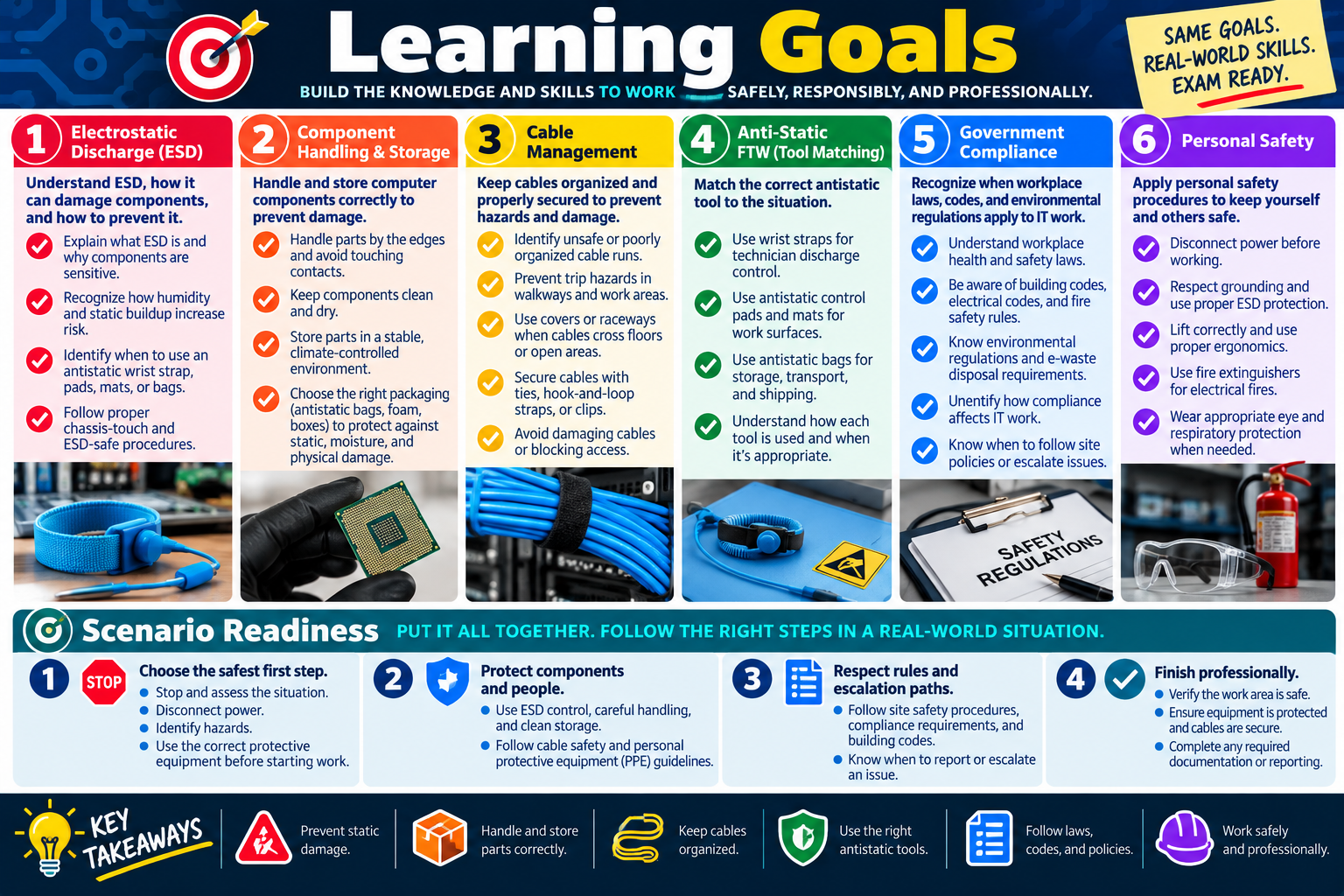
Learning Goals infographic for Objective 4.4 covering ESD, component handling and storage, cable management, antistatic tools, government compliance, personal safety, scenario readiness, and key takeaways.
Objective 4.4 learning goals summarize the safety skills needed to work responsibly, protect components, follow regulations, and stay exam ready.

Learning Goals

By the end of Objective 4.4, you should be able to choose safe, scenario-appropriate procedures that protect technicians, users, equipment, facilities, and the environment while performing common IT support tasks.

Module 1 - Electrostatic Discharge (ESD) Explain what ESD is, why sensitive components can be damaged even when no spark is felt, how humidity and static buildup affect risk, and when to use antistatic straps, pads, mats, bags, and proper chassis-touch procedures.
Module 2 - Component Handling & Storage Handle parts by the edges, avoid chips and contacts, keep components clean and dry, store them in a stable climate-controlled environment, and choose packaging that protects against static, moisture, and physical damage.
Module 3 - Cable Management Identify unsafe or poorly organized cable runs, prevent trip hazards, use covers or raceways when cables cross walkways, and secure cables with ties or hook-and-loop straps without damaging the cable or blocking access.
Module 4 - Anti-Static FTW Match each antistatic tool to the correct situation: wrist straps for technician discharge control, pads for static-safe work surfaces, mats for workstation areas, and antistatic bags for storage, transport, and shipping.
Module 5 - Government Compliance Recognize when workplace health and safety laws, building codes, electrical codes, fire safety rules, environmental regulations, and e-waste disposal requirements affect IT work, and know when to follow site policy or escalate.
Module 6 - Personal Safety Apply personal safety procedures by disconnecting power, respecting grounding, avoiding internal power supply repair, lifting correctly, using proper fire extinguishers for electrical fires, and wearing eye or respiratory protection when needed.

Scenario Readiness

  1. Choose the safest first step. Stop, disconnect power, identify hazards, and use the correct protective equipment before beginning work.
  2. Protect components and people. Combine ESD control, careful handling, clean storage, cable safety, and personal protective equipment.
  3. Respect rules and escalation paths. Follow site safety procedures, compliance requirements, building codes, environmental rules, and approved disposal processes.
  4. Finish professionally. Verify that the work area is safe, equipment is protected, cables are secure, and any required documentation or reporting is complete.
Lesson ModuleModule 1 / 9
ESD
Module 01

Module 1 - Electrostatic Discharge (ESD)

Electrostatic discharge, or ESD, is the sudden release of built-up static electricity. It may be invisible to you, but it can silently damage sensitive computer components such as microchips, memory modules, storage devices, expansion cards, and system boards.

ESD is one of those safety topics that can feel small until it causes a very expensive problem. A technician may walk across carpet, touch a component, and never see a spark or feel a shock. Even so, a tiny discharge can weaken or destroy electronic parts. The danger is not usually to the technician; the danger is to the equipment. Many computer components operate at very low voltages, and a discharge that is too small for a person to notice can still damage silicon circuits.

Good ESD practice protects components before they are handled. That means controlling static buildup, safely equalizing your charge with the computer chassis, using antistatic tools and surfaces, storing parts correctly, and never taking unsafe shortcuts around electrical ground. The goal is to protect both the technician and the equipment.

What Is ESD?

Static electricity is electrical charge that builds up and stays in one place instead of flowing continuously through a circuit. It can build up on a person, clothing, packaging, carpet, plastic, or work surfaces. Electrostatic discharge occurs when that stored charge suddenly moves from one object to another.

In everyday life, you may notice static when you touch a doorknob after walking across carpet. In a computer repair setting, the same type of discharge may occur between your hand and a circuit board, memory module, processor socket, graphics card, or storage device. You may not feel anything, but the component can still be affected.

Static buildup Charge can accumulate on your body, tools, packaging, or the work area while you move around.
Sudden discharge ESD happens when built-up charge quickly transfers to another object or component.
Usually invisible You often cannot see, hear, or feel the discharge that damages computer parts.
Real hardware risk Sensitive electronics can be weakened or destroyed even when the technician notices no spark.

Why ESD Is Dangerous

The discharge itself usually is not harmful to the technician in normal computer handling scenarios, but it can be harmful to computer components. Microchips and other silicon-based components are very sensitive to voltage. A person may only feel a static shock at around 3,500 volts, but computer components can be damaged by 100 volts or less.

This is why ESD damage can be hard to diagnose. A component may fail immediately, or it may be weakened and become unreliable later. The system might boot sometimes, crash randomly, lose data, report memory errors, or fail under load. Because the symptom may appear after the handling event, prevention is much better than trying to prove ESD caused the failure afterward.

  • Human threshold is high: You may not feel a discharge unless it is thousands of volts.
  • Component threshold is low: Sensitive parts may be damaged by a much smaller voltage.
  • Damage may be immediate or delayed: A part can fail right away or become unstable later.
  • Prevention is easier than diagnosis: Use ESD controls before touching components instead of troubleshooting avoidable damage later.

How to Control ESD

One way to reduce static electricity is to control the environment. Higher humidity, especially above 60 percent, helps reduce static buildup. This does not eliminate ESD completely, and maintaining that humidity may not be practical in every workplace, but very dry air increases static risk. In dry environments, ESD procedures become even more important.

Before handling parts, discharge static safely by touching the bare metal chassis of the computer after the power cord is unplugged. This helps equalize your charge with the system chassis. Always disconnect power before working inside the computer. The point is to control static without creating an electrical shock hazard.

  1. Unplug the power cord. Disconnect the system from electrical power before handling internal components.
  2. Touch bare metal chassis. Touch an unpainted metal part of the case to equalize your charge before touching components.
  3. Avoid high-static conditions. Be extra careful in dry rooms, carpeted areas, or when wearing static-prone clothing.
  4. Handle parts by the edges. Avoid touching contacts, chips, traces, pins, and connector surfaces.
Exam tip: Discharge static by touching the metal chassis of the unplugged computer. Do not connect yourself directly to the ground of an electrical system.

Do Not Ground Yourself to Electrical Ground

Never connect yourself to the ground of an electrical system, such as an outlet ground. That can be dangerous and should not be done. ESD control is about safely equalizing charge with the equipment being serviced, not making your body part of an electrical grounding path.

This distinction matters on certification questions. You may see answer choices that mention grounding, but the safe answer is not to attach yourself directly to building electrical ground. Instead, follow proper ESD procedures: disconnect power, use appropriate antistatic equipment, and connect ESD protection to the correct metal part of the computer or approved ESD workstation point according to procedure.

  • Do not connect yourself to an outlet ground. This is unsafe and not an acceptable ESD control method.
  • Do not work inside a powered system. Disconnect power before touching internal components.
  • Use approved ESD equipment. Follow the organization's workstation and component handling procedures.
  • Separate ESD control from electrical safety shortcuts. Static protection should never introduce a shock hazard.

ESD Protection Equipment

ESD protection equipment creates a safer path for static discharge and reduces static buildup around sensitive components. The most common tools include antistatic wrist straps, pads, mats, and bags. Each tool has a different purpose, and using them together creates a safer work area.

An antistatic wrist strap is worn on the wrist and connected to a metal part of the computer or an approved ESD point so static can safely discharge. An antistatic pad or work mat provides a surface that reduces static buildup while parts are handled. An antistatic floor mat helps dissipate static while a technician is standing or sitting. Antistatic bags protect components when they are stored, moved, or shipped.

Antistatic wrist strap Worn on the wrist and connected to a metal part of the computer or approved ESD point to help discharge static safely.
Antistatic pad Provides a work surface designed to reduce the buildup of static electricity while handling parts.
Antistatic mat Used on the floor or work area to help dissipate static while standing, sitting, or servicing equipment.
Antistatic bag Used to safely store, move, or ship components such as memory, drives, expansion cards, and boards.

Safe Component Handling

ESD protection also depends on how the technician handles the part. Keep components in antistatic bags until you are ready to install them. Handle circuit boards by the edges. Avoid touching gold contacts, chips, solder points, pins, or traces. Place parts on an antistatic surface, not directly on carpet, plastic, paper, or ordinary tabletops.

When removing a component, put it into an antistatic bag or on an antistatic mat immediately. Do not stack components or leave them loose on a desk. If a part must be transported, use proper antistatic packaging. Good handling habits reduce both static damage and physical damage.

  1. Store parts correctly. Keep components in antistatic bags until use.
  2. Touch edges, not contacts. Avoid connectors, pins, chips, and circuitry.
  3. Use ESD-safe surfaces. Place parts on antistatic pads or mats during service.
  4. Control the work area. Keep static-prone materials away from exposed components.

Key Takeaways

ESD is a sudden release of built-up static electricity. It can silently damage computer components even when the technician does not see or feel anything. You may feel a spark only around 3,500 volts, but components can be harmed by 100 volts or less. Use proper ESD equipment, keep components in antistatic packaging, touch the metal chassis of an unplugged computer before handling parts, and never connect yourself to the ground of an electrical system.

Bottom line: Treat ESD as a real hardware safety issue. The spark you do not notice can still damage the part you are trying to repair.
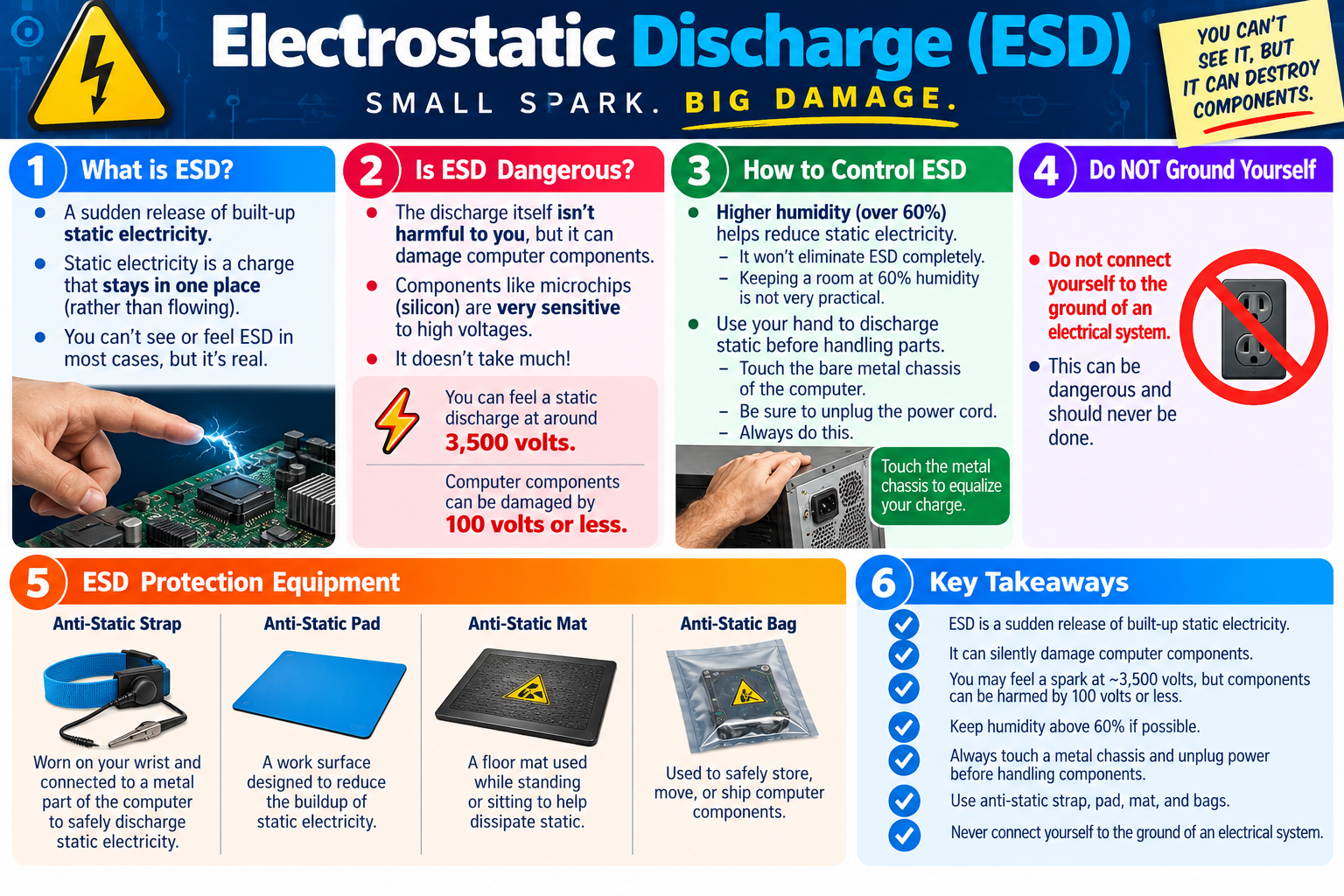
Electrostatic Discharge ESD infographic explaining static electricity, component damage risk, ESD control methods, unsafe electrical grounding, antistatic equipment, and key takeaways.
ESD safety protects sensitive components by controlling static buildup, safely equalizing charge, using antistatic equipment, and avoiding unsafe electrical grounding shortcuts.
PART
Module 02

Module 2 - Proper Component Handling & Storage

Computer components should be handled by the edges, kept away from oils, moisture, and static-prone surfaces, stored in a stable climate-controlled environment, and protected with proper antistatic and padded packaging.

Many computer parts are both electrically sensitive and physically delicate. A memory module, expansion card, processor, storage device, adapter card, or system board may look sturdy, but the chips, pins, traces, solder joints, connectors, and exposed circuitry can be damaged by careless handling. Good technicians do not treat components like ordinary objects on a desk. They control how parts are touched, where parts are placed, and how parts are stored until they are installed.

Proper handling and storage supports reliability. Finger oils can contaminate contacts, moisture can corrode or damage electronics, excessive heat can stress materials, and poor packaging can bend pins or crack boards. The goal is to protect the component from static, physical damage, contamination, humidity, and temperature extremes.

Handle Components the Right Way

The safest habit is simple: keep your hands off the sensitive parts. Do not touch chips, pins, contacts, traces, or circuitry. Hold cards, memory modules, and boards by their edges or by approved mounting brackets. This reduces the chance of ESD damage, bent contacts, contamination from skin oils, and pressure on delicate components.

When handling a part, move deliberately. Avoid flexing the board. Do not stack components on top of each other. Do not place exposed electronics on carpet, clothing, plastic, paper, or an ordinary work surface. If you need to set a part down, use an antistatic mat, antistatic bag, or proper protective surface.

  1. Do not touch chips, pins, or circuitry. These areas are sensitive to contamination, static, bending, and physical damage.
  2. Hold components by the edges. Use the edge of a card or the metal bracket instead of touching connector contacts.
  3. Keep parts clean. Avoid oils, dirt, moisture, and debris from your fingers or work area.
  4. Avoid unnecessary handling. Leave parts in protective packaging until you are ready to install or inspect them.

Store Components in the Right Environment

Components should be stored in a stable, climate-controlled area similar to an office, storage room, or data room. The infographic identifies a general storage range of 50 to 80 degrees Fahrenheit, or 10 to 27 degrees Celsius. The exact requirement may vary by manufacturer, but the important principle is consistency. Avoid extreme heat, extreme cold, and rapid temperature swings.

Temperature changes can create condensation, stress materials, or affect long-term reliability. A component stored in a hot vehicle, damp garage, freezing room, or dusty closet may be damaged before it is ever installed. If a component has been moved from a very cold or hot environment, allow it to adjust to room temperature before installation, especially if condensation may be present.

Stable temperature Store components in a consistent environment, generally around 50-80 degrees Fahrenheit when appropriate.
Avoid extremes Keep parts away from heat, direct sunlight, freezing conditions, and rapid temperature changes.
Clean storage Use a dust-controlled location that keeps particles and debris away from exposed electronics.
Controlled access Store parts where they will not be crushed, dropped, mixed up, or handled unnecessarily.

Control Humidity

Moisture is a major storage concern. High humidity can contribute to corrosion, contamination, and electrical problems. Components should be stored in a dry, HVAC-regulated environment. Storage containers may also include silica gel packets or other approved desiccants to absorb excess moisture.

Humidity control is slightly different from ESD control. For ESD reduction, very dry air increases static buildup, and higher humidity can help reduce static. For storage, excess moisture is harmful. The practical takeaway is to use a controlled environment rather than extremes: avoid very dry static-prone handling conditions, but also avoid damp storage conditions that expose components to moisture.

  • Avoid high humidity. Damp storage can damage contacts, boards, and components over time.
  • Use silica gel packets. Desiccants help absorb excess moisture inside storage containers or packaging.
  • Use HVAC-regulated spaces. A controlled room is safer than a garage, vehicle, basement, or unregulated storage area.
  • Watch for condensation. Let parts acclimate before installation if they were stored or shipped in cold conditions.

Use Proper Packaging

Packaging protects components from both static and physical damage. Original packaging is often designed to fit the part, cushion it, and protect it from movement during shipping or storage. If the original padded box and inserts are available, use them. If not, choose appropriate antistatic packaging and protective padding.

Do not place exposed components directly into ordinary plastic bags, loose boxes, backpacks, drawers, or envelopes. Use antistatic bags for ESD-sensitive parts, then use padding such as bubble wrap or foam around the protected component to reduce impact and movement. The protective material should prevent the part from sliding, bending, or being crushed.

Original box Use the manufacturer packaging when possible because it is shaped and padded for the part.
Antistatic bag Protect ESD-sensitive components before placing them into broader packaging.
Bubble wrap or padding Use cushioning to reduce shock, vibration, and physical damage during storage or transport.
Secure container Choose a box or storage bin that prevents bending, crushing, and loose movement.

Quick Handling Tips

Most component damage can be avoided with a few consistent habits. Avoid touching components directly. Store parts between appropriate temperature limits. Keep humidity low during storage and use silica gel when helpful. Use the original box or proper protective packaging to prevent physical damage.

These quick tips often appear in scenario form. If a question describes a technician touching gold contacts, leaving parts on a desk, storing boards in a humid area, or shipping a card without antistatic protection, the safest answer is the one that protects the part from contamination, static, moisture, and impact.

  1. Avoid direct contact. Handle cards and modules by their edges.
  2. Store in a controlled environment. Keep components around 50-80 degrees Fahrenheit when appropriate and avoid extreme conditions.
  3. Keep storage dry. Use silica gel packets and avoid high humidity.
  4. Package for protection. Use antistatic bags, original boxes, and padding such as bubble wrap when needed.

Key Takeaways

Handle components carefully, store them in a cool, dry, climate-controlled environment, and use proper packaging to keep them safe. Avoid touching chips, pins, contacts, and circuitry. Keep parts clean and free of oils from your fingers. Use antistatic packaging for sensitive components and padded packaging to prevent physical damage.

Bottom line: Component safety is not only about ESD. Good handling and storage also protect against contamination, moisture, temperature extremes, and physical damage.

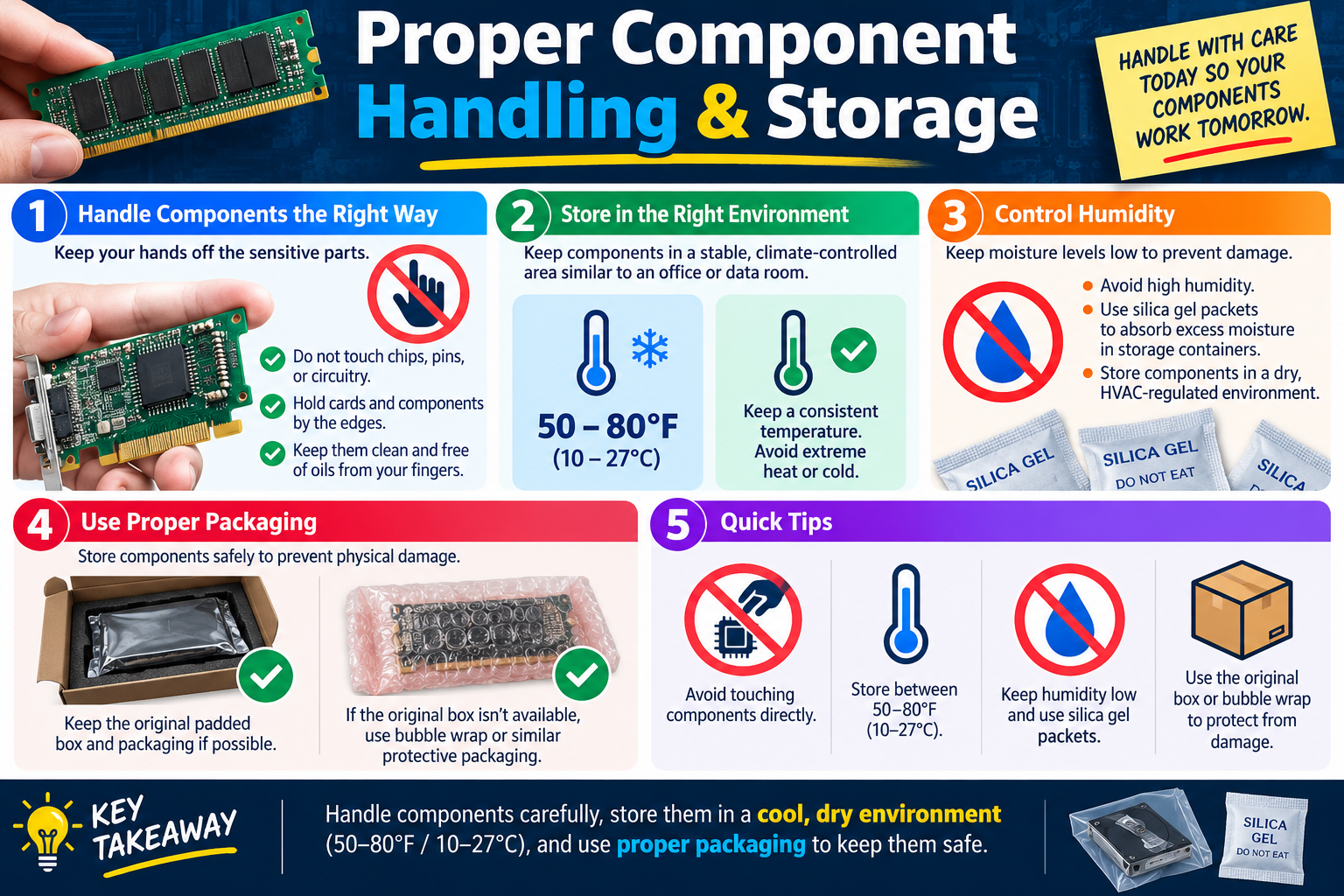
Proper Component Handling and Storage infographic explaining how to handle components by the edges, store parts in a controlled environment, control humidity, use packaging, and protect components from damage.
Proper component handling and storage protects computer parts from static, contamination, moisture, temperature extremes, and physical damage.
CBL
Module 03

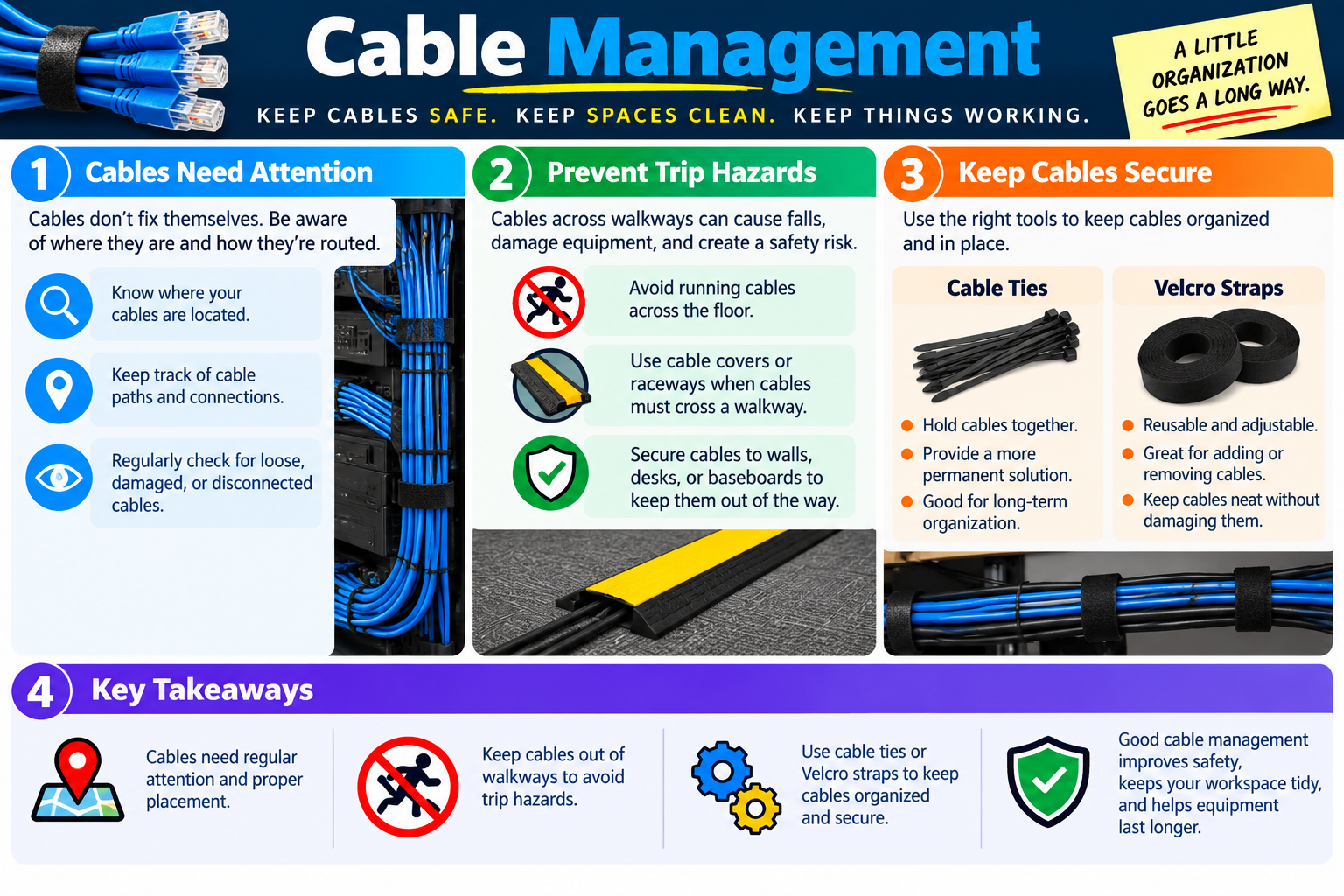
Module 3 - Cable Management

Cable management keeps cables safe, spaces clean, and systems working by routing, securing, inspecting, and organizing cables so they do not create trip hazards, disconnect unexpectedly, block airflow, or make troubleshooting harder.

Cables are easy to ignore because they often sit in the background: behind desks, under floors, in racks, along walls, inside cabinets, or behind workstations. But poor cable management can cause real safety and support problems. A loose cable across a walkway can trip someone. A strained cable can damage a port. A disconnected cable can look like a network, power, printer, monitor, or peripheral failure. A tangled bundle can slow troubleshooting and make it difficult to trace connections.

Good cable management is a safety procedure as much as an organization habit. It protects people from falls, protects equipment from damage, keeps workspaces tidy, and helps technicians identify cable paths quickly. The goal is not to make cables look pretty for their own sake; the goal is to keep the environment safe, reliable, and serviceable.

Cables Need Attention

Cables do not fix themselves. They move, loosen, get pulled, wear down, collect dust, and become disorganized as equipment is added, removed, or relocated. A workstation may gain extra peripherals. A rack may get new patch cables. A conference room may be rearranged. If cable paths are not maintained, the workspace can become unsafe and difficult to support.

Technicians should know where cables are located and how they are routed. That includes power cords, Ethernet cables, display cables, USB cables, printer cables, docking station cables, patch cables, fiber cables, and any temporary cables used for testing. Regular checks help find loose, damaged, stretched, pinched, or disconnected cables before they cause failures or injuries.

Know cable locations Identify where cables run behind desks, through racks, across rooms, or along walls.
Track paths and connections Understand what each cable connects so troubleshooting is faster and less disruptive.
Inspect regularly Look for loose, damaged, disconnected, pinched, tangled, or strained cables.
Correct problems early Re-route, secure, replace, or label cables before they become safety or support issues.

Prevent Trip Hazards

Cables across walkways create one of the most obvious safety risks. People can trip, fall, pull equipment from desks, damage ports, or create electrical hazards. Even a temporary cable can become a problem if it runs through a traffic area. If a cable must cross a walkway, it should be protected and routed using the proper cover, raceway, or approved path.

The safer approach is to keep cables out of walkways entirely whenever possible. Route them along walls, desks, baseboards, cable trays, under raised floors, through raceways, or behind equipment. When cables must cross an open area, use cable covers designed to reduce tripping and protect the cable from foot traffic or equipment wheels.

  1. Avoid floor runs. Do not run cables across walkways unless there is no safer option.
  2. Use cable covers or raceways. Protect cables and reduce trip risk when crossing a traffic area is unavoidable.
  3. Secure cables to fixed surfaces. Keep cables attached to walls, desks, racks, or baseboards so they stay out of the way.
  4. Remove temporary cables. After testing or setup, clean up temporary runs instead of leaving them in place.
Exam tip: If a cable crosses a walkway, the safest answer usually involves rerouting it or using a cable cover/raceway to prevent a trip hazard.

Keep Cables Secure

Cables should be organized and held in place with the right tools. Cable ties can hold cables together and provide a more permanent solution for long-term organization. Velcro straps are reusable and adjustable, making them useful where cables may be added, removed, or rearranged. The best choice depends on the environment and the type of cable.

Do not overtighten cable ties. Excessive pressure can damage cable jackets, affect performance, or crush delicate cables. Velcro is often preferred for network and data cables because it can keep bundles neat without squeezing them as aggressively. Cable management should secure cables without creating new problems.

Cable ties Useful for holding cables together and creating a more permanent long-term organization method.
Velcro straps Reusable, adjustable, and helpful when cables need to be added or removed later.
Cable raceways Route and protect cables along walls, desks, floors, or other approved paths.
Cable covers Protect cables and reduce trip hazards when cables must cross traffic areas.

Safety and Reliability Benefits

Good cable management improves safety first. Clear walkways reduce trip hazards. Secured cables reduce the chance that someone pulls equipment off a desk or damages a connector. Organized cable paths also reduce frustration and confusion during support work.

It also improves reliability. Strained or bent cables can fail. Loose connections can create intermittent network or display issues. Tangled cables can block airflow around equipment, making systems run hotter than needed. Clean cable routing helps equipment last longer and makes maintenance easier.

  • Reduces trip hazards: Clear paths protect users, visitors, and technicians from falls.
  • Protects equipment: Secured cables reduce port damage, pulled devices, and broken connectors.
  • Improves troubleshooting: Organized cables are easier to trace, label, test, and replace.
  • Supports airflow and cleanliness: Neat routing can reduce clutter around vents, racks, and work areas.

Document and Label Cable Paths

Cable management is stronger when cables are documented and labeled. In a small setup, that may mean simple labels on both ends of a cable. In a rack or network closet, it may include patch panel labeling, port maps, cable numbers, rack diagrams, and documentation that shows where connections terminate.

Labels prevent guesswork. When a technician knows what a cable supports, they are less likely to unplug the wrong connection. Documentation is especially useful when troubleshooting intermittent issues, replacing hardware, moving users, or cleaning up old cables.

  1. Label both ends when practical. Make it clear what each cable connects.
  2. Keep documentation current. Update cable maps when equipment is moved, added, or removed.
  3. Remove abandoned cables carefully. Confirm a cable is unused before disconnecting or disposing of it.
  4. Use consistent routing standards. Make future work easier by following the same cable paths and labeling style.

Key Takeaways

Cables need regular attention and proper placement. Keep cables out of walkways to avoid trip hazards. Use cable covers or raceways when cables must cross traffic areas. Use cable ties or Velcro straps to keep cables organized and secure. Good cable management improves safety, keeps the workspace tidy, reduces support confusion, and helps equipment last longer.

Bottom line: A little cable organization goes a long way. Safe, secure, well-routed cables protect people, protect equipment, and make troubleshooting much easier.

Cable Management infographic explaining cable attention, trip hazard prevention, secure cable organization with ties and Velcro straps, and key takeaways.
Cable management keeps cables routed, secure, and out of walkways so workspaces stay safe, clean, and easier to support.
ESD
Module 04

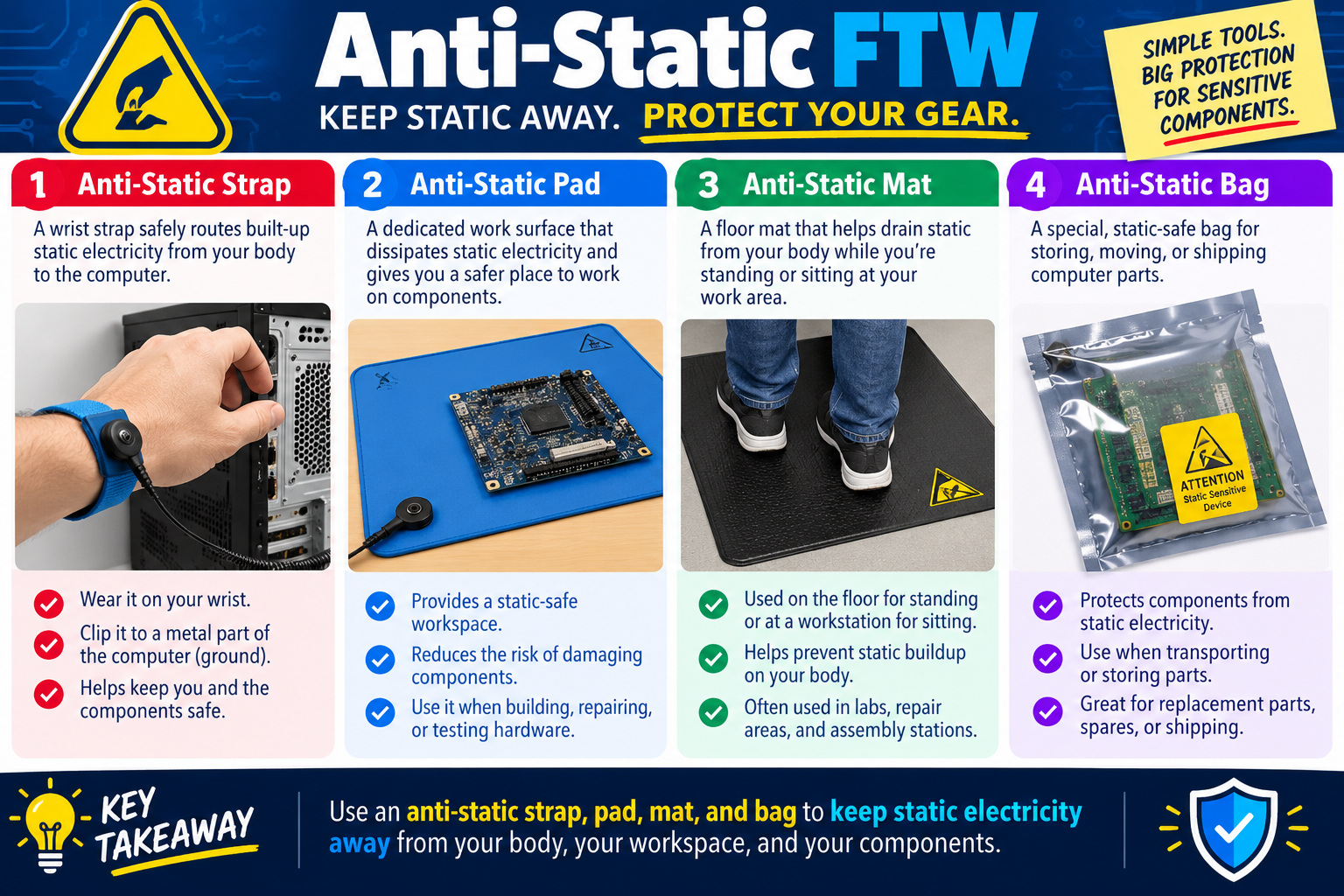
Module 4 - Anti-Static FTW

Anti-static tools protect sensitive computer components by keeping static electricity away from your body, your workspace, and the parts you are handling, storing, moving, or shipping.

ESD prevention works best when the technician uses the right tool for the situation. Touching the chassis before handling a part is helpful, but a repair bench, lab, assembly area, or repeated hardware workflow needs more consistent controls. Anti-static straps, pads, mats, and bags each manage static in a different part of the work process.

The main idea is simple: static electricity should have a controlled, safe path away from sensitive components. These tools do not make careless handling safe, and they do not replace disconnecting power before working inside equipment. They work as part of a larger safety process that includes proper shutdown, unplugging power, careful handling, and correct storage.

Anti-Static Strap

An anti-static wrist strap safely routes built-up static electricity away from your body and toward the equipment or approved ESD point. It is worn on the wrist and clipped to a metal part of the computer chassis or another approved ground point in the ESD workstation. The strap helps keep you and the components at the same electrical potential, reducing the chance of a discharge through a sensitive part.

Use a wrist strap when building, repairing, upgrading, or testing hardware. It is especially useful when handling memory, processors, expansion cards, system boards, storage devices, or other exposed electronics. The strap should make good contact with your skin and should be connected correctly before you begin handling internal components.

  1. Wear it on your wrist. The strap must contact your body to help route static safely.
  2. Clip it correctly. Attach it to a metal part of the computer chassis or an approved ESD point.
  3. Use it before handling parts. Put the strap in place before touching circuit boards, chips, or contacts.
  4. Keep electrical safety in mind. Disconnect power before internal work and follow the approved ESD procedure.

Anti-Static Pad

An anti-static pad provides a dedicated work surface that dissipates static electricity and gives the technician a safer place to work on components. Instead of placing a motherboard, adapter card, storage device, or memory module on an ordinary desk, the technician can use a pad designed for electronics handling.

A pad helps protect parts from the surface beneath them. Ordinary work surfaces may hold static, collect debris, scratch components, or allow a board to slide around. A proper anti-static pad reduces those risks while creating a more controlled workspace for inspection, assembly, testing, or repair.

Static-safe workspace Provides a better surface for exposed boards and components than an ordinary table.
Component protection Reduces the risk of static-related damage while parts are being handled.
Repair and testing use Useful when building, repairing, inspecting, or testing hardware.
Organized work area Keeps parts in a defined service space instead of scattered across unsafe surfaces.

Anti-Static Mat

An anti-static mat is typically used on the floor or at a workstation to help drain static from your body while you are standing or sitting. It is common in labs, repair areas, workbenches, and assembly stations where people regularly handle sensitive hardware.

Floor mats are helpful because static can build up as technicians move, shift, or stand near a work area. A mat helps reduce buildup and provides a controlled area around the workstation. Like other ESD tools, it should be used according to the manufacturer's instructions and the organization's safety procedures.

  • Used at workstations: Often placed where technicians stand or sit while servicing equipment.
  • Helps prevent buildup: Reduces static accumulation from body movement and contact with flooring.
  • Supports lab workflows: Useful in repair benches, assembly stations, and hardware testing areas.
  • Works with other controls: Often paired with wrist straps, pads, and proper component packaging.

Anti-Static Bag

An anti-static bag is a special static-safe bag used for storing, moving, or shipping computer parts. It helps protect components from static electricity when they are outside the system. This is important for replacement parts, spare parts, returned parts, inventory storage, and shipping.

Components should not be transported loose in a backpack, envelope, plastic bag, or ordinary box. An anti-static bag provides a safer layer of protection for circuit boards, memory modules, storage devices, and adapter cards. For shipping, the antistatic bag should be combined with protective padding or the original box so the part is protected from both static and physical damage.

Storage Keeps spare or removed parts safer until they are installed or inspected.
Transport Protects components while they are moved between work areas, offices, or service locations.
Shipping Provides ESD protection when replacement or returned parts are sent through shipping channels.
Inventory control Helps keep parts protected while stored as spares or replacement stock.

Choosing the Right Tool

The correct anti-static tool depends on the task. If you are actively working inside a computer, a wrist strap and static-safe work surface are useful. If you are setting up a repair bench, a pad or mat may be part of the workstation. If you are storing or transporting a part, an anti-static bag is the correct choice.

Many scenarios use more than one tool. For example, a technician may remove a graphics card while wearing a wrist strap, place it on an anti-static pad for inspection, then store it in an anti-static bag for transport. The tools work together to protect the component throughout handling, not just during installation.

  1. Use a strap when your body may discharge static while handling internal parts.
  2. Use a pad when you need a static-safe work surface for components.
  3. Use a mat when the work area needs static control for standing or seated technicians.
  4. Use a bag when storing, moving, or shipping ESD-sensitive parts.
Exam tip: Anti-static strap, pad, mat, and bag are not interchangeable in every scenario. Match the tool to whether the part is being worn, worked on, stood near, stored, moved, or shipped.

Key Takeaways

Use an anti-static strap, pad, mat, and bag to keep static electricity away from your body, workspace, and components. A strap helps route static from your body while you handle parts. A pad creates a static-safe work surface. A mat helps reduce buildup at a workstation. A bag protects components during storage, transport, or shipping.

Bottom line: Simple ESD tools provide big protection for sensitive components. Use the right anti-static tool at the right point in the handling process.

Anti-Static FTW infographic explaining anti-static wrist straps, pads, mats, and bags for protecting sensitive computer components from static electricity.
Anti-static straps, pads, mats, and bags protect components by controlling static electricity during repair, testing, storage, transport, and shipping.
LAW
Module 05

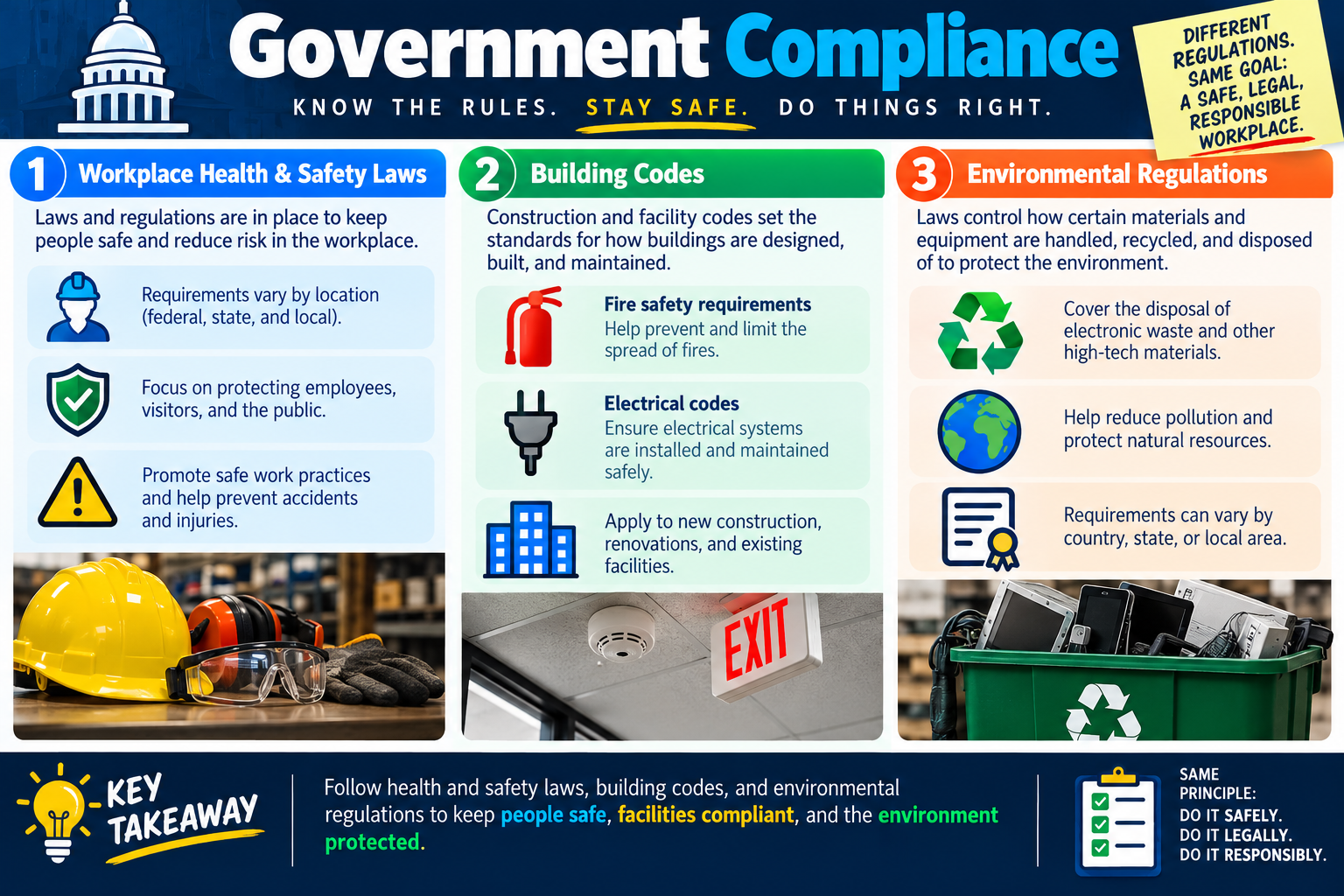
Module 5 - Government Compliance

Government compliance means following the health, safety, building, and environmental rules that apply to the workplace so people stay safe, facilities remain legal, and equipment or materials are handled responsibly.

Safety procedures are not only personal best practices. Many of them are backed by laws, regulations, codes, and organizational policies. A technician may be focused on fixing a workstation, replacing equipment, moving hardware, or disposing of old devices, but the work still happens inside a regulated environment. The technician must know when site rules, local laws, building codes, environmental requirements, and workplace safety standards apply.

The exact rules vary by location. Federal, state, local, country, province, city, industry, and facility requirements may all affect what is allowed. The details may differ, but the principle is consistent: do the work safely, legally, and responsibly. When a procedure is regulated, a technician should follow the approved process instead of improvising.

Workplace Health and Safety Laws

Workplace health and safety laws are designed to protect employees, visitors, contractors, and the public. They reduce the risk of injuries, accidents, and unsafe work practices. In IT, these rules can affect how technicians lift equipment, access restricted areas, use protective gear, manage cables, work near electrical systems, handle batteries, and respond to hazards.

These requirements can vary by location and employer. A repair area, school, warehouse, hospital, government office, data center, or construction site may have different expectations. The technician should know the site policy, follow posted instructions, use required personal protective equipment, and report unsafe conditions through the proper channel.

Protect people Health and safety rules focus on employees, visitors, contractors, customers, and the public.
Reduce workplace risk Rules promote safe work practices that help prevent accidents, injuries, and property damage.
Follow site requirements Different workplaces may require different protective gear, access rules, and reporting procedures.
Report hazards Unsafe conditions should be documented and escalated according to organizational policy.

Building Codes

Building codes set standards for how facilities are designed, built, used, and maintained. These codes can affect IT work because technology is installed inside real buildings with fire exits, electrical systems, ceilings, walls, cable pathways, equipment rooms, and occupied work areas. A technician should not make changes that violate building safety rules.

For example, fire safety requirements may govern emergency exits, fire doors, cable pathways, smoke detectors, sprinkler areas, and fire-rated spaces. Electrical codes help ensure that wiring, outlets, panels, grounding, and power systems are installed and maintained safely. Codes may apply to new construction, renovations, and existing facilities.

  1. Respect fire safety requirements. Do not block exits, cover safety signs, interfere with alarms, or route cables in unsafe paths.
  2. Follow electrical codes. Do not overload circuits, use unsafe wiring, or bypass approved electrical installation practices.
  3. Use approved cable pathways. Cable routing may need to follow facility rules, fire-rating requirements, and plenum/risers standards.
  4. Escalate facility work. If work involves building structure, electrical systems, or code-controlled spaces, involve the proper facilities or licensed professionals.
Exam tip: If a scenario involves building wiring, fire safety, construction areas, exits, electrical installations, or facility modifications, look for compliance with building codes and approved procedures.

Environmental Regulations

Environmental regulations control how certain materials and equipment are handled, recycled, transported, and disposed of. IT equipment can contain batteries, circuit boards, displays, plastics, metals, toner, ink, and other materials that should not simply be thrown into regular trash. Electronic waste disposal rules exist to reduce pollution and protect natural resources.

Technicians may need to follow an approved e-waste process, use certified recyclers, separate batteries, protect data before disposal, and document equipment retirement. Requirements can vary by country, state, city, or organization. When in doubt, follow the organization's disposal policy and escalate rather than guessing.

  • Dispose of e-waste properly. Computers, monitors, phones, drives, batteries, and circuit boards may require approved recycling.
  • Protect the environment. Proper disposal helps reduce pollution and prevents harmful materials from entering landfills or water systems.
  • Follow local rules. Disposal requirements can vary by region and by material type.
  • Use approved vendors. Organizations may require certified recyclers or documented chain-of-custody for retired equipment.

Compliance in Daily IT Work

Government compliance shows up in ordinary support tasks. Replacing a battery may involve battery recycling rules. Moving a workstation may involve cable safety and trip hazards. Installing a rack or running cable may involve building code or facilities approval. Disposing of old computers may require data sanitization plus e-waste handling. Working in a restricted area may require site-specific safety training.

A good technician recognizes when a task stops being just technical and becomes procedural or regulated. If the task involves physical safety, building infrastructure, hazardous materials, disposal, public spaces, or legal requirements, the technician should slow down and follow the approved process.

Hardware disposal Follow e-waste, recycling, data sanitization, and asset retirement procedures.
Facility changes Use approved pathways and involve facilities teams when work affects the building.
Safety gear Use required protective equipment such as eye protection, gloves, hard hats, or hearing protection when the site requires it.
Documentation Keep records when laws, audits, warranties, asset management, or disposal rules require them.

Different Rules, Same Goal

The infographic's key idea is that different regulations share the same goal: a safe, legal, responsible workplace. Workplace safety laws protect people. Building codes keep facilities safe and compliant. Environmental regulations protect the environment and define how materials should be handled, recycled, and disposed of.

Compliance is not about memorizing every regulation in every location. For a support technician, the practical skill is recognizing when a rule may apply and knowing not to bypass it. Follow the organization policy, check local procedures, involve the correct team, and document the action when required.

  1. Do it safely. Protect people first, including yourself, coworkers, users, visitors, and the public.
  2. Do it legally. Follow laws, codes, standards, and organizational procedures.
  3. Do it responsibly. Protect facilities, equipment, data, and the environment.
  4. Ask when unsure. Escalate to facilities, safety, compliance, security, or management when rules are unclear.

Key Takeaways

Follow health and safety laws, building codes, and environmental regulations to keep people safe, facilities compliant, and the environment protected. Requirements vary by location, but the technician's responsibility is to use approved procedures and avoid shortcuts that create safety, legal, or environmental risk.

Bottom line: Compliance is part of professional IT work. A safe repair is not only technically correct; it is also legal, responsible, and aligned with site policy.

Government Compliance infographic explaining workplace health and safety laws, building codes, environmental regulations, and key takeaways about safe and responsible work practices.
Government compliance connects IT safety work to health and safety laws, building codes, environmental rules, and responsible workplace practices.
SAFE
Module 06

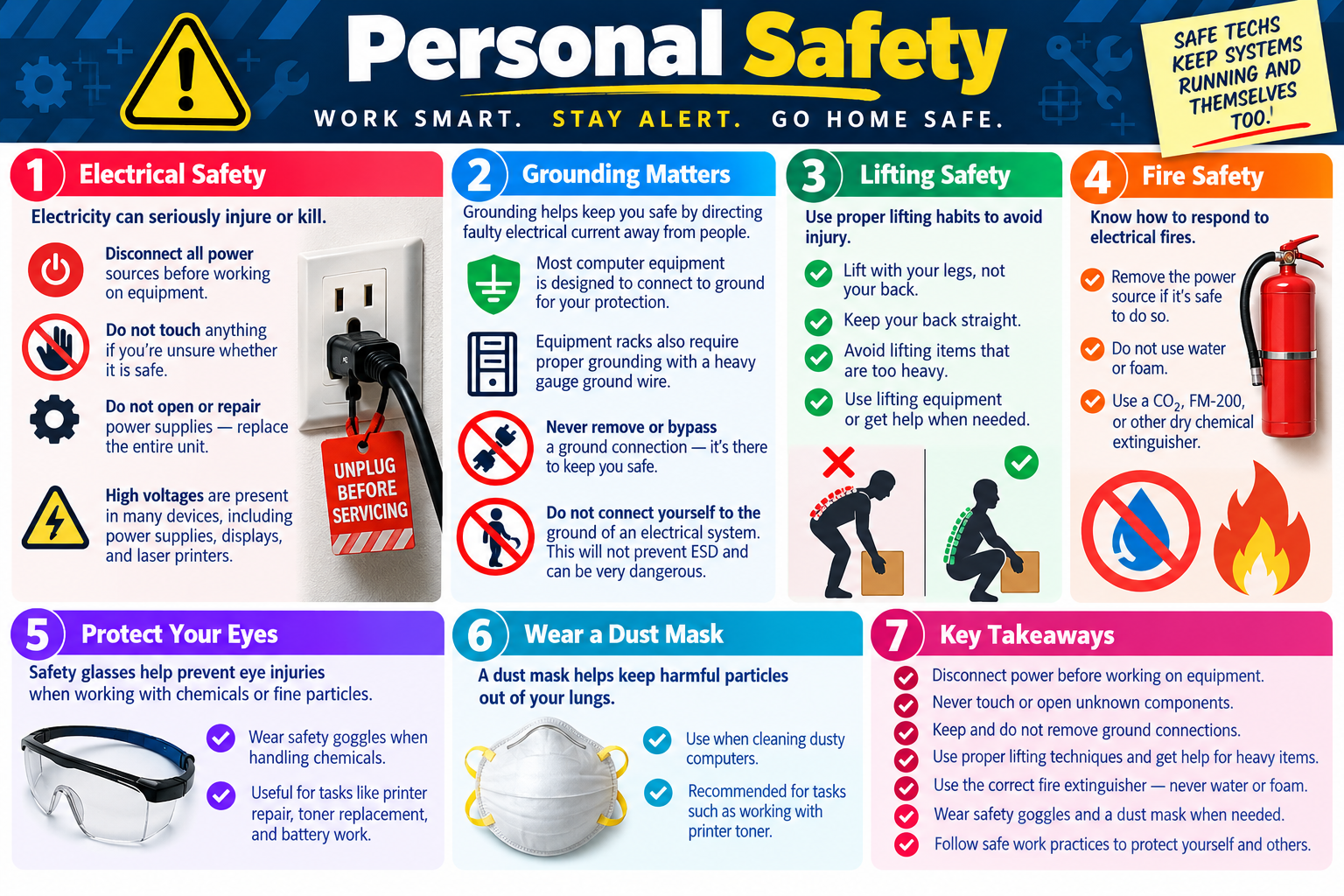
Module 6 - Personal Safety

Personal safety means protecting yourself and others while working around electricity, heavy equipment, fire risks, dust, chemicals, and other workplace hazards. A safe technician disconnects power, respects grounding, lifts correctly, uses the right protective equipment, and knows when to stop and escalate.

Technical skill is only valuable when the work is done safely. A technician may be troubleshooting a workstation, replacing a power supply, moving a printer, cleaning dust from a computer, or responding to smoke near equipment. In each case, the first priority is not speed. The first priority is preventing injury and avoiding a bigger incident.

Personal safety procedures are practical habits. Disconnect power before servicing equipment. Do not touch unknown or unsafe components. Keep grounding connections in place. Use proper lifting technique. Choose the correct fire extinguisher for electrical fires. Wear safety goggles when chemicals or particles are involved. Use a dust mask when cleaning dusty systems or working with toner. These habits protect the technician, users, equipment, and the workplace.

Electrical Safety

Electricity can seriously injure or kill. Before working on equipment, disconnect all power sources whenever it is safe and appropriate to do so. Unplug the device, remove external power adapters, and be aware of additional power sources such as batteries, docking stations, UPS units, or connected peripherals. If you are unsure whether something is safe, do not touch it until the risk has been assessed.

Technicians should not open or repair power supplies as a normal field repair. Power supplies can contain dangerous voltages even after a system is unplugged. The safer and expected approach is to replace the entire unit rather than attempting internal repair. High voltages may also be present in displays, laser printers, large capacitors, UPS systems, and other equipment.

  1. Disconnect power first. Remove power before servicing equipment whenever the procedure allows it.
  2. Do not touch unknown components. If you are unsure whether a device, cable, or internal part is safe, stop and verify before proceeding.
  3. Do not repair power supplies internally. Replace the unit instead of opening it or attempting component-level repair.
  4. Recognize high-voltage devices. Displays, power supplies, laser printers, and UPS units may contain dangerous voltages.
Exam tip: For power supply problems, the safe answer is usually to replace the power supply, not open it and repair internal components.

Grounding Matters

Grounding helps direct faulty electrical current away from people and toward a safer path. Most computer equipment is designed to connect to ground for protection. Equipment racks may also require proper grounding with a heavy-gauge ground wire, especially in server rooms, network closets, and data center environments.

Never remove, bypass, cut, or defeat a ground connection. A ground prong, grounded outlet, rack grounding conductor, or equipment bonding point exists for safety. Removing it may make the device seem easier to connect, but it can create a shock hazard and violate safety rules. Also remember that grounding equipment is different from connecting your body directly to the ground of an electrical system. Do not connect yourself to electrical ground; that is dangerous and will not prevent ESD safely.

Equipment grounding Computer equipment is designed to use grounding as part of electrical safety.
Rack grounding Racks and infrastructure may require a proper heavy-gauge ground wire or approved bonding method.
No bypassing Do not remove ground pins, defeat grounded plugs, or work around required ground connections.
No body-to-ground shortcuts Do not connect yourself to electrical system ground. Use approved ESD procedures instead.

Lifting Safety

IT work often involves moving equipment: desktops, monitors, laser printers, UPS units, servers, racks, displays, and boxed hardware. Lifting injuries are common because technicians may underestimate the weight or awkward shape of equipment. Use proper lifting habits to protect your back, knees, shoulders, and hands.

Lift with your legs, not your back. Keep your back straight, bend at the knees, keep the load close to your body, and avoid twisting while carrying. If an item is too heavy, too high, unstable, or awkward, get help or use lifting equipment. A technician should not risk injury just to move equipment quickly.

  • Lift with your legs. Bend at the knees and use leg strength instead of bending from the waist.
  • Keep your back straight. Avoid rounded-back lifting that places stress on the spine.
  • Do not lift items that are too heavy. Ask for help when the weight, height, or shape makes the lift unsafe.
  • Use equipment when needed. Use carts, dollies, lift tables, or team lifting for large or heavy items.

Fire Safety

Electrical fires require the correct response. If there is smoke, sparks, burning smell, or visible flame near equipment, remove the power source only if it is safe to do so. Do not put yourself in danger to unplug equipment. Notify others, follow the site's emergency procedure, and evacuate if required.

Never use water or foam on an electrical fire. Water and some foam agents can conduct electricity or worsen the hazard. For energized electrical equipment, use an extinguisher rated for electrical fires, such as CO2, FM-200, or another approved dry chemical extinguisher. The exact extinguisher type depends on the site and equipment, so technicians should know where approved extinguishers are located and when to call emergency services.

  1. Remove power if safe. Disconnect power only when you can do so without putting yourself at risk.
  2. Do not use water or foam. These are not appropriate for energized electrical equipment.
  3. Use the correct extinguisher. CO2, FM-200, or approved dry chemical extinguishers may be used for electrical fire scenarios.
  4. Follow emergency procedures. Alert others, evacuate when needed, and contact emergency response according to site policy.

Protect Your Eyes

Safety glasses or goggles help prevent eye injuries when working with chemicals, fine particles, dust, toner, compressed air, batteries, or physical debris. Eye protection may seem unnecessary during routine support work, but small particles can cause serious irritation or injury.

Wear safety goggles when handling chemicals or cleaning agents. They are also useful for printer repair, toner replacement, battery work, equipment cleaning, and any task where particles or liquid could reach your eyes. If the workplace requires eye protection for a task or area, follow the site rule even if the task seems simple.

Chemicals Use goggles when handling cleaners, solvents, battery materials, or other chemicals.
Printer work Toner and printer debris can irritate or injure eyes during service.
Battery work Eye protection helps reduce risk when handling damaged, leaking, or swollen batteries.
Dust and particles Cleaning dusty systems or using compressed air can send particles into the air.

Wear a Dust Mask

A dust mask helps keep harmful particles out of your lungs. Use one when cleaning dusty computers, working around heavy dust buildup, replacing or handling printer toner, or performing tasks that may release fine particles into the air. Dust masks are especially important when equipment has been stored in dirty environments or when dust is disturbed inside cases, vents, fans, and printers.

A dust mask is not a substitute for full respiratory protection in hazardous environments, but it is a practical safety tool for common IT support tasks. If the workplace requires a specific type of mask or respirator, use the required equipment and follow the approved procedure.

  • Use when cleaning dusty systems. Dust inside computers, fans, and vents can become airborne during cleaning.
  • Use around toner. Printer toner is a fine powder that should not be inhaled.
  • Match the task. Use the protective equipment required by the site and hazard level.
  • Ventilate when appropriate. Work in a suitable area and avoid blowing dust toward yourself or other people.

Personal Safety in Real Scenarios

Scenario questions often combine several hazards. For example, a laser printer repair may involve power, heat, toner, moving parts, and eye or respiratory protection. A workstation cleanup may involve unplugging power, ESD controls, compressed air, dust, and cable hazards. Moving a rack-mounted UPS may require team lifting, grounding awareness, and a planned path.

The safest response is usually the one that controls the hazard before continuing. Disconnect power before internal work. Stop if a component is unknown or energized. Keep grounding protections intact. Use the correct fire extinguisher. Wear goggles or a dust mask when particles, chemicals, or toner are involved. Get help for heavy equipment. Safety is part of the repair, not an extra step after the repair.

  1. Pause before acting. Identify electrical, fire, lifting, particle, chemical, and environmental hazards first.
  2. Use the right protective equipment. Match goggles, masks, gloves, carts, or extinguishers to the task.
  3. Do not take shortcuts. Bypassing ground, opening power supplies, or lifting too much alone creates unnecessary risk.
  4. Escalate unsafe work. If the job requires facilities, safety, electrical, or emergency support, involve the right people.

Key Takeaways

Disconnect power before working on equipment. Never touch or open unknown components. Keep ground connections in place and do not bypass them. Use proper lifting techniques and get help with heavy items. Use the correct fire extinguisher for electrical fires, never water or foam. Wear safety goggles and a dust mask when the task creates eye or respiratory risk.

Bottom line: Safe technicians keep systems running and protect themselves too. A successful repair is not successful if someone gets hurt while doing it.

Personal Safety infographic explaining electrical safety, grounding, lifting safety, fire safety, eye protection, dust masks, and key takeaways for safe technician work.
Personal safety protects technicians and users by controlling electrical hazards, grounding risks, lifting injuries, fire response, eye hazards, and airborne particles.
KEY
Module 07

Module 7 - Key Takeaways

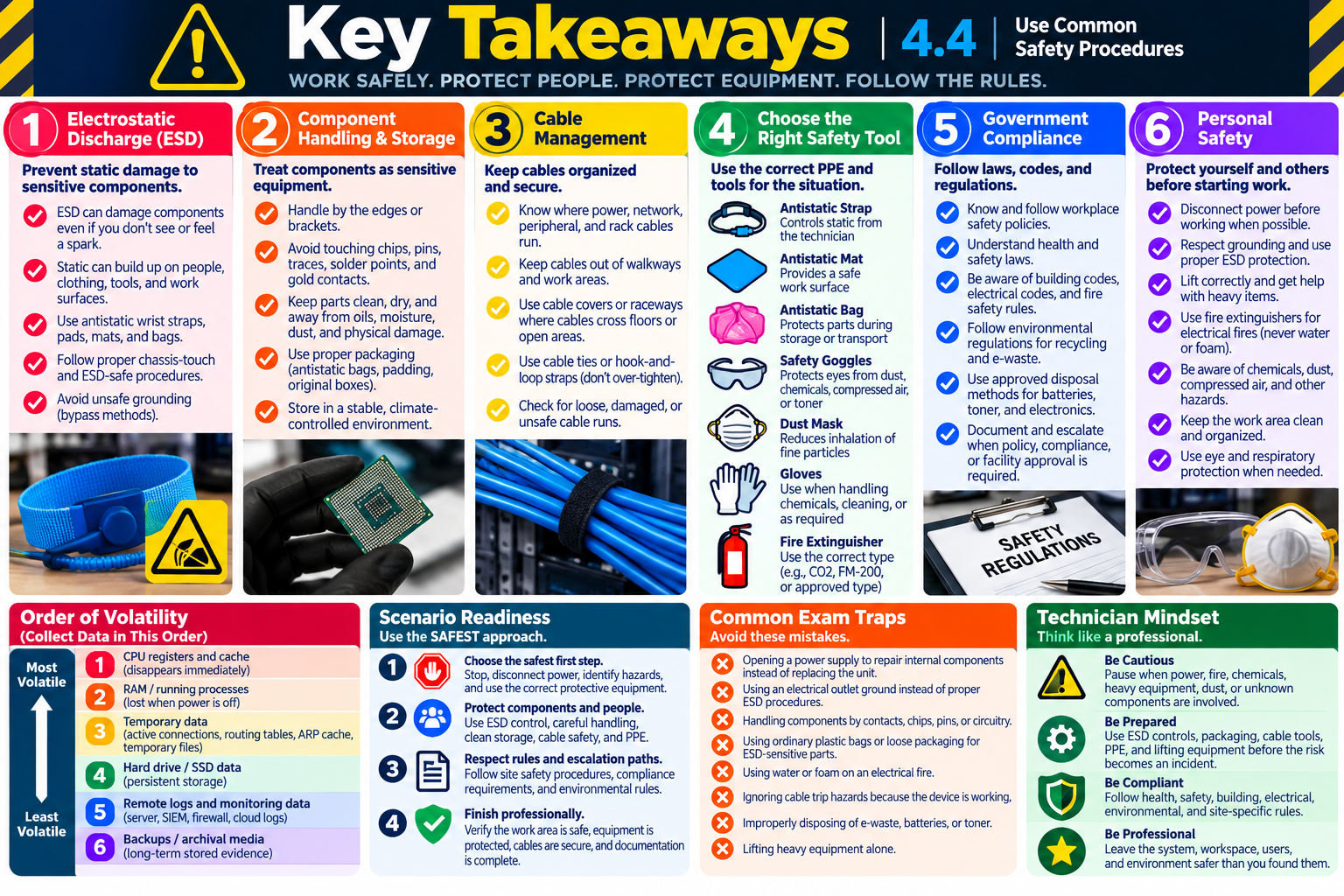
Key Takeaways infographic for Objective 4.4 summarizing common safety procedures, ESD, component handling, cable management, safety tools, compliance, personal safety, order of volatility, scenario readiness, exam traps, and technician mindset.
Objective 4.4 key takeaways summarize the safety habits, compliance rules, and technician mindset needed to protect people, equipment, and the workplace.

Objective 4.4 is about using common safety procedures so IT work protects people first, prevents equipment damage, follows workplace rules, and leaves the environment safer than it was before the technician started.

Safety questions are scenario questions. The correct answer usually depends on the hazard in front of the technician: static-sensitive components, exposed circuitry, poor cable routing, heavy equipment, electrical fire risk, environmental disposal rules, dusty equipment, toner, chemicals, or uncertain power conditions. The best technician response is the one that reduces risk before continuing the technical work.

A strong safety mindset combines preparation, protective equipment, correct handling, compliance awareness, and professional judgment. Disconnect power when appropriate. Control ESD. Handle parts by the edges. Store components correctly. Keep cables organized. Use the right antistatic tool for the task. Follow health, building, electrical, fire, and environmental rules. Wear eye or respiratory protection when the scenario calls for it.

Protect Components from ESD

Electrostatic discharge can damage sensitive components even when the technician does not see or feel a spark. A discharge that is too small for a person to notice may still harm memory, processors, system boards, expansion cards, and storage devices. Prevention matters because ESD damage can be immediate, intermittent, or difficult to prove after the fact.

Understand the risk Static electricity can build up on people, clothing, tools, packaging, or work surfaces and discharge into components.
Use approved tools Antistatic straps, pads, mats, and bags each protect components at a different point in the handling process.
Discharge safely Touch the metal chassis of an unplugged computer or use an approved ESD point before handling internal parts.
Avoid unsafe grounding Do not connect yourself directly to the ground of an electrical system or outlet.

Handle and Store Parts Correctly

Components should be treated as sensitive equipment, not loose objects on a desk. Hold boards, memory, cards, and drives by their edges or brackets. Avoid touching chips, pins, traces, solder points, and gold contacts. Keep components away from oils, moisture, dust, static-prone surfaces, and physical damage.

Storage matters too. Use a stable, climate-controlled environment. Avoid high humidity, extreme temperatures, and rapid temperature changes. Use antistatic bags for sensitive parts and padded packaging, original boxes, or protective containers to prevent crushing, bending, or impact damage.

  1. Handle by the edges. Keep fingers off contacts, pins, chips, and circuitry.
  2. Use proper packaging. Combine antistatic protection with padding when storing, moving, or shipping parts.
  3. Control the environment. Store parts in a clean, dry, temperature-stable area.
  4. Avoid unnecessary handling. Leave components packaged until they are ready to be installed or inspected.

Keep the Work Area Safe

Cable management is a safety procedure, not just a neatness preference. Loose, damaged, or poorly routed cables can create trip hazards, disconnect equipment, block access, strain ports, or make troubleshooting harder. Know where cables are routed, check for loose or damaged cables, and secure them without pinching or over-tightening.

When cables must cross walkways, use cable covers, raceways, or an approved alternate route. Use cable ties for more permanent organization and hook-and-loop straps when cables may need to be changed later. Good cable management protects both people and equipment.

Locate cable paths Know where power, network, peripheral, and rack cables run before moving equipment or troubleshooting.
Prevent trips Keep cables out of walkways or use approved covers when crossing traffic areas.
Secure cables Use cable ties or hook-and-loop straps to keep cables organized and supported.
Inspect regularly Look for loose, damaged, disconnected, or unsafe cable runs before they cause problems.

Choose the Right Safety Tool

Safety tools are not interchangeable. Match the tool to the hazard and the task. An antistatic strap helps control static from the technician. An antistatic pad provides a safe work surface. An antistatic mat helps reduce static at the workstation. An antistatic bag protects parts during storage, movement, or shipping.

Personal protective equipment also depends on the scenario. Safety goggles help protect eyes when chemicals, toner, dust, compressed air, batteries, or fine particles are involved. A dust mask helps reduce inhalation risk when cleaning dusty computers or working around printer toner. Lifting equipment or team lifting should be used when hardware is too heavy or awkward to move safely.

Follow Compliance and Site Rules

Common safety procedures often connect to formal rules. Workplace health and safety laws protect employees, visitors, contractors, users, and the public. Building codes affect electrical installations, fire safety, exits, cable routing, and facility modifications. Environmental regulations affect recycling, e-waste, batteries, toner, displays, drives, and other high-tech materials.

The exact requirement may vary by location, but the technician's responsibility is consistent: follow the approved process and escalate when the work touches regulated areas. Do not improvise around fire safety, electrical codes, building modifications, disposal rules, or hazardous materials.

  • Follow workplace safety policies and posted site rules.
  • Respect building codes, electrical codes, fire safety requirements, and approved cable pathways.
  • Use approved recycling or disposal methods for e-waste, batteries, toner, and related materials.
  • Document and escalate when policy, compliance, or facilities approval is required.

Put Personal Safety First

Electricity can seriously injure or kill, so power safety comes before repair speed. Disconnect power before working on equipment when the procedure allows it. Do not touch unknown or unsafe components. Do not open or repair power supplies internally; replace the unit. Keep ground connections in place and do not bypass them.

Personal safety also includes lifting and fire response. Lift with your legs, keep your back straight, and get help or use equipment for heavy items. For electrical fires, remove power only if safe, never use water or foam, and use the correct extinguisher type such as CO2, FM-200, or approved dry chemical equipment according to site policy.

Exam tip: When the scenario includes danger to people, the safest first action usually comes before the technical repair.

Common Exam Traps

  • Opening a power supply to repair internal components instead of replacing the unit.
  • Connecting yourself to an electrical outlet ground instead of using approved ESD procedures.
  • Handling memory, cards, or boards by contacts, chips, pins, or circuitry.
  • Putting ESD-sensitive parts in ordinary plastic bags or loose packaging.
  • Using water or foam on an electrical fire.
  • Ignoring cable trip hazards because the connected device is working.
  • Throwing electronic waste, batteries, or toner into regular trash instead of following approved disposal procedures.
  • Lifting heavy printers, UPS units, or rack equipment alone when help or lifting equipment is needed.

Technician Mindset

Be cautious Pause when power, fire, chemicals, heavy equipment, dust, or unknown components are involved.
Be prepared Use ESD controls, packaging, cable tools, PPE, approved extinguishers, and lifting equipment before the risk becomes an incident.
Be compliant Follow health, safety, building, electrical, environmental, and site-specific rules.
Be professional Leave the system, workspace, users, and environment safer than you found them.

Bottom line: 4.4 is about safe IT work. Protect yourself, protect users, protect components, follow the rules, and choose the safest procedure before continuing the repair.

SN
Module 08

Module 8 - Section Notes

BROtocol Joe Core 2 220-1202Objective 4.4

4.4 Common Safety Procedures

Core idea: Objective 4.4 is about choosing safe procedures for the scenario so technicians protect people, components, facilities, data, and the environment before, during, and after IT support work.

ESD Basics

  • Electrostatic discharge is the sudden release of built-up static electricity.
  • Technicians may not see or feel ESD, but sensitive components can still be damaged.
  • Components can be harmed by much lower voltages than a person can feel.
  • Prevent ESD before touching memory, system boards, processors, expansion cards, and storage devices.

ESD Controls

  • Disconnect power before working inside a computer.
  • Touch the bare metal chassis of the unplugged computer or use an approved ESD point.
  • Use antistatic straps, pads, mats, and bags when handling sensitive parts.
  • Never connect yourself directly to the ground of an electrical system or outlet.

Component Handling

  • Handle cards, memory, boards, and drives by the edges or brackets.
  • Avoid touching chips, pins, contacts, traces, and circuitry.
  • Keep parts clean and free from finger oils, dust, moisture, and debris.
  • Leave components in protective packaging until they are ready to be installed or inspected.

Storage and Packaging

  • Store components in a stable, clean, climate-controlled environment.
  • Avoid high humidity, extreme temperatures, and rapid temperature changes.
  • Use antistatic bags for ESD-sensitive components.
  • Use original boxes, padding, bubble wrap, or secure containers to prevent physical damage.
Memory hook: ESD safety is invisible protection: unplug, discharge safely, use antistatic tools, and handle parts by the edges.
Notes:
Work Area, Tools, and ComplianceObjective 4.4

Keep the Workspace Safe

Cable Management

  • Know where cables are located and how they are routed.
  • Keep cables out of walkways to prevent trip hazards.
  • Use cable covers or raceways when cables must cross traffic areas.
  • Secure cables to walls, desks, racks, or baseboards when appropriate.

Cable Tools

  • Cable ties are useful for long-term or more permanent organization.
  • Hook-and-loop straps are reusable and better when cables may be changed later.
  • Do not over-tighten cable bundles or damage cable jackets.
  • Check regularly for loose, damaged, disconnected, or unsafe cable runs.

Anti-Static Tools

  • Use an antistatic wrist strap to control static from your body.
  • Use an antistatic pad as a static-safe work surface.
  • Use an antistatic mat at workstations or standing repair areas.
  • Use antistatic bags when storing, moving, or shipping components.

Government Compliance

  • Follow workplace health and safety laws to protect employees, visitors, and the public.
  • Respect building codes, electrical codes, fire safety rules, exits, and approved cable pathways.
  • Follow environmental regulations for e-waste, batteries, toner, displays, and other regulated materials.
  • Escalate to facilities, safety, compliance, security, or management when site rules are unclear.
Memory hook: Safety is not only personal gear; it also includes cable routing, compliant facilities, and responsible disposal.
Notes:
Personal Safety and Exam TrapsObjective 4.4

Protect the Technician First

Electrical Safety

  • Disconnect all power sources before working on equipment when safe and appropriate.
  • Do not touch unknown components if you are unsure whether they are safe.
  • Do not open or repair power supplies internally; replace the entire unit.
  • Remember that displays, laser printers, power supplies, and UPS units may contain high voltage.

Grounding Safety

  • Grounding helps direct faulty electrical current away from people.
  • Do not remove or bypass ground connections.
  • Equipment racks may require proper grounding with a heavy-gauge ground wire.
  • Do not connect yourself to the ground of an electrical system.

Lifting and Fire Safety

  • Lift with your legs, keep your back straight, and avoid twisting while carrying equipment.
  • Get help or use lifting equipment for heavy, unstable, or awkward items.
  • For electrical fires, remove power only if it is safe.
  • Never use water or foam on an electrical fire; use the approved extinguisher type.

Eyes and Lungs

  • Wear safety goggles when working with chemicals, toner, batteries, compressed air, dust, or fine particles.
  • Use a dust mask when cleaning dusty computers or working around printer toner.
  • Match protective equipment to the task and the site policy.
  • Stop and escalate if the hazard requires specialized safety equipment or emergency response.
Memory hook: If people can get hurt, the safest first step comes before the technical fix.
Notes:
TEST
Module 09

Module 9 - Final Test

Complete 20 difficult scenario-based multiple-choice questions for Objective 4.4. The test covers electrostatic discharge, safe component handling and storage, cable management, antistatic tools, government compliance, environmental disposal, electrical safety, grounding, lifting safety, fire safety, PPE, and technician decision-making. Each correct answer is worth 1 point.

Score pending0 / 20
WB
Workbook

Student Workbook

BrotocolJoeStudent Workbook

BrotocolJoe

CompTIA A+ Core 2 (220-1202)

Student Workbook

4.0 Operational Procedures

Objective 4.4 - Given a scenario, use common safety procedures.

How to use this workbook: Print this packet once, complete it by hand as you finish each online module, and keep it as evidence that you read, processed, and practiced the Objective 4.4 safety procedures material.
Student Name:
Electrostatic Discharge (ESD)Objective 4.4

Module 1 - Electrostatic Discharge (ESD)

Key Information: Static discharge can harm sensitive components without a noticeable spark. Follow the device service manual and approved ESD procedures before exposing parts; ESD controls do not replace electrical safety precautions.

Check Your Understanding

Why can a component suffer damage even when no shock is felt?

How can the work area affect static buildup?

Why should power isolation and ESD preparation be considered separately?

ESD Preparation Record

  • Use a desktop memory replacement. Write one or two sentences per field.
  • Environment: Identify static-related risks in the work area.
  • Preparation: State which device-specific service instructions and power precautions must be checked.
  • Controls: Describe the approved ESD equipment and work surface you would prepare.
  • Verification: Explain what must be ready before opening the component packaging.
Explain why briefly touching a chassis should not be treated as a substitute for a properly prepared ESD workstation.
Technician Scenario: A technician plans to install memory at a carpeted desk with the PC connected to power. Identify the conditions to correct before work begins and the instructions needed to prepare the system safely.
Proper Component Handling & StorageObjective 4.4

Module 2 - Proper Component Handling & Storage

Key Information: Protect components from static, impact, contamination, and moisture. Handle boards by their edges and use packaging designed for the component and transport conditions.

Check Your Understanding

Why should contacts and circuitry be avoided when handling a board?

How can a component be damaged even if its packaging provides static protection?

Why should storage conditions be checked before installing a stored part?

Comparison Record: Static Protection vs. Physical Protection

  • Write one or two sentences per prompt.
  • Static protection: Describe appropriate packaging for an exposed expansion card.
  • Physical protection: Describe how to prevent movement, bending, or impact during transport.
  • Storage: Identify environmental conditions and inspection checks relevant to a stored component.
Explain why ordinary plastic packaging or an unpadded box should not be assumed suitable for an exposed circuit board.
Technician Scenario: A spare expansion card is loose in a drawer with screws and ordinary plastic wrapping. Describe how to assess its condition and arrange approved storage and transport without touching its contacts.
Cable ManagementObjective 4.4

Module 3 - Cable Management

Key Information: Cable routing should preserve clear walkways, access, ventilation, and cable integrity. Choose approved routing and securing methods suited to the location and cable requirements.

Check Your Understanding

How can a cable run create a hazard for people as well as equipment?

Why should fasteners avoid crushing or sharply bending cables?

Why must exits and service access remain clear?

Cable Hazard Record

  • Use a temporary workstation near a busy walkway. Write one or two sentences per field.
  • Hazard: Describe who or what could be affected by the cable route.
  • Correction: Propose an approved route or protective solution and explain its purpose.
  • Integrity: State how to avoid strain, crushing, or blocked ventilation.
  • Verification: Describe the final work-area inspection.
Explain why a neat-looking cable bundle is not necessarily safe or easy to maintain.
Technician Scenario: A projector cable crosses an aisle and is pulled tight between devices. Plan a safer arrangement, including appropriate facilities coordination and a check that the revised installation remains usable.
Anti-Static FTWObjective 4.4

Module 4 - Anti-Static FTW

Key Information: Wrist straps, ESD work surfaces, and protective packaging serve different purposes. Select compatible equipment, inspect it, and use it according to approved procedures for the task.

Check Your Understanding

What role does a wrist strap serve during appropriate component-handling work?

How does a static-safe work surface differ from storage packaging?

Why should damaged ESD equipment be reported rather than relied upon?

ESD Tool Comparison Record

  • For each prompt, describe the tool’s purpose and one setup or condition check.
  • Wrist strap: Explain its role and the approved connection or inspection requirement.
  • Pad or mat: Explain its role at the work area and how suitability is confirmed.
  • Bag or packaging: Explain its role during storage or transport and how condition is checked.
Explain why ESD equipment is not personal protection for working on energized electrical equipment.
Technician Scenario: A technician has a worn wrist strap, a bare desk, and a replacement board in protective packaging. Decide what equipment and instructions are needed before the board is unpacked.
Government ComplianceObjective 4.4

Module 5 - Government Compliance

Key Information: IT work must follow applicable requirements and site procedures. Identify the responsible safety, facilities, or disposal personnel when a task exceeds your authority or requires specialized review.

Check Your Understanding

Why should local requirements be checked instead of assuming every site uses identical rules?

Which types of IT work may require facilities or safety coordination?

How can documentation show that an approved disposal process was followed?

Compliance Decision Record

  • Use a proposed equipment move and cable installation. Write one or two sentences per field.
  • Requirements: Identify the types of site guidance or requirements to consult.
  • Authority: State which qualified role should resolve an installation or safety question.
  • Evidence: Describe the approval, inspection, or disposal record that may be needed.
Explain why a deadline does not justify improvising electrical work or bypassing site safety procedures.
Technician Scenario: A team proposes routing cables through a wall and discarding old electronic equipment in general waste. Identify the questions to refer to facilities and the approved disposal process before the work proceeds.
Personal SafetyObjective 4.4

Module 6 - Personal Safety

Key Information: Assess hazards before starting and stay within your training and authorization. Use manufacturer instructions, appropriate assistance and protective equipment, and the site emergency plan when conditions are unsafe.

Check Your Understanding

Why can internal power-supply work be hazardous even after equipment is unplugged?

What should be considered before moving a heavy or awkward device?

Why should protective equipment be selected for the actual task and exposure?

Personal Safety Decision Record

  • For each situation, state the hazard and the safe next action or qualified role to involve.
  • Electrical: A workstation power supply shows damage and a user requests an internal repair.
  • Lifting: A large printer must be moved from a low shelf to a cart.
  • Emergency: Smoke is coming from powered equipment near an occupied work area.
Explain why an emergency response must follow the site plan and prioritize people rather than continued troubleshooting.
Technician Scenario: A technician finds a damaged power cord while preparing to move a heavy printer. Describe how to stop unsafe use, report the defect, arrange an approved repair, and plan the move with suitable help or equipment.
Objective 4.4 Final CheckCumulative Review

Objective 4.4 - Final Check

Purpose: Assess hazards, select appropriate protections, identify required guidance, and verify that work can proceed safely.

Scenario Sorting

For each case, identify the hazard, a justified safe response, and any required escalation.

  • A memory upgrade is planned at a carpeted desk without ESD preparation.
  • An expansion card is stored loose with metal tools.
  • A cable crosses a busy aisle and strains its connectors.
  • A cable installation requires an unreviewed wall penetration.
  • A heavy printer has a damaged power cord.

Explain What You Know

  • How do ESD controls differ from electrical safety precautions?
  • How do static protection and physical protection complement each other?
  • When must a task be referred to a qualified person?
  • What final checks establish that the work area is safe?
For each case above, record the hazard, safe response, and responsible role in order.
Plan a workstation memory upgrade and desk relocation. Include manufacturer instructions, power precautions, ESD preparation, component handling and packaging, lifting needs, cable routing, site requirements, escalation triggers, and final work-area checks.

4.4 Completion

Student signature:
Date completed:
Instructor signature:
Module 01 of 09