Home
Certification Prep // 220-1202

4.0 Operational Procedures

4.3 ~Given a scenario, implement workstation backup and recovery methods.

core2-lab.exe
> load objective 4.3
> map scenario clues
> verify and document

Learning Goals

  • Module 1: Explain why backups matter by identifying how backup planning protects valuable data, reduces downtime, supports disaster recovery, preserves business operations, and prepares the organization for hardware failure, accidental deletion, malware, power loss, and site-level disasters.
  • Module 2: Describe full backups by explaining how they create a complete copy of operating system files, applications, settings, and user data, why they provide a reliable restore point, and why they require more time and storage than other backup types.
  • Module 3: Explain incremental backups by identifying the need for an initial full backup, describing how each later backup saves only new or changed data, recognizing the storage and speed advantages, and understanding that the full backup plus every required incremental backup are needed for a complete restore.
  • Module 4: Explain differential backups by describing how each backup captures all changes since the last full backup, why backup size grows over time, how restoration uses the full backup plus the latest differential backup, and when this method provides a useful balance between backup efficiency and restore speed.
  • Module 5: Describe synthetic backups by explaining how backup software combines an existing full backup with incremental or differential backups to create a new full backup, why this reduces workload on the source system, and why previous backup integrity and supported backup software are required.
  • Module 6: Perform recovery planning by choosing the correct restore point, deciding whether to restore in place or to an alternate location, understanding overwrite risk, validating restored files and applications, testing restore procedures, and documenting the recovery outcome.
  • Module 7: Establish backup testing frequency by verifying that backups can be restored, simulating real-world disaster recovery scenarios, validating restored data and applications, following weekly, monthly, or quarterly testing schedules, and recording test results for future reference.
  • Module 8: Apply backup rotation schemes by comparing on-site and off-site backups, explaining why organizations often use both, describing Grandfather-Father-Son rotation, interpreting daily, weekly, and monthly backup sets, and applying the 3-2-1 rule to improve recovery options.
Lesson ModuleModule 1 / 11
BKUP
Module 01

Module 1 - Backups 101

Backups protect important data, support recovery after failures or disasters, and help an organization keep working when files, systems, or devices are damaged, lost, deleted, encrypted, or otherwise unavailable.

A backup is a copy of data that can be used to restore information after something goes wrong. In a workstation support scenario, backups may protect user files, application data, device settings, system images, databases, or entire machines. The goal is not simply to make a copy; the goal is to have a usable recovery option when the original data is no longer safe, accessible, or trustworthy.

Good backups turn a major incident into a manageable recovery task. Without backups, a failed hard drive, accidental deletion, ransomware infection, corrupted profile, damaged laptop, or natural disaster can permanently destroy data. With reliable backups, the technician can focus on restoring the right information from the right point in time and getting the user or business process running again.

Why Backups Matter

Backups matter because data is often more valuable than the workstation itself. A laptop can be replaced. A spreadsheet, customer file, project folder, configuration, database, or set of legal records may be much harder to recreate. Users may not realize which data is critical until it disappears, so organizations need backup plans before failure happens.

Backups also reduce downtime. If a system fails, the support team can recover files, restore a system image, rebuild a workstation, or move work to another device more quickly when backup copies already exist. This keeps business moving and reduces the pressure to attempt risky recovery actions on damaged media.

Prevent permanent data loss Backups preserve copies of critical and irreplaceable data when originals are deleted, corrupted, encrypted, or destroyed.
Recover quickly A known restore point helps technicians return files, settings, applications, or systems to a usable state.
Prepare for disasters Backups protect against hardware failure, malware, ransomware, power events, theft, fire, flooding, and other unexpected events.
Keep business running Reliable backup and recovery planning helps users and departments resume work with less interruption.

What Gets Backed Up?

The content of a backup depends on what the organization needs to protect. A simple workstation backup may focus on user documents, desktop files, browser favorites, and profile data. A more complete backup may include application data, local databases, configuration files, system state, encryption keys, device drivers, or a full system image that can restore an entire machine.

Technicians should think in terms of business value and recoverability. Backing up everything may consume too much storage and take too long. Backing up too little may leave the organization unable to recover after a real incident. The right plan identifies what data matters, how often it changes, where it lives, how long it must be retained, and how quickly it must be restored.

  1. Amount of data: Backups may include a few small files, a user profile, application folders, a full workstation, or entire servers.
  2. Type of data: Files, databases, configuration settings, system images, application data, and user-created content may all need protection.
  3. Backup media: Copies may be stored on local drives, external drives, tape, network storage, or cloud platforms.
  4. Storage location: Backup copies may be kept on-site, off-site, in the cloud, or across multiple locations.
  5. Backup software: Tools create, schedule, manage, encrypt, monitor, and restore backup jobs.
  6. Schedule: Backups should run at a frequency that matches how often the data changes and how much loss the organization can tolerate.

Different Backup Implementations

There is no single backup design that fits every environment. A small office might use cloud backup for user folders and an external drive for local recovery. A larger organization may combine endpoint backup software, network storage, cloud replication, tape archives, and off-site retention. The implementation should match the size of the environment, the value of the data, available bandwidth, recovery requirements, security rules, and budget.

Cloud backup is useful because copies can be stored away from the local site and accessed after a local hardware failure or disaster. External drives are simple and fast for small-scale local backup, but they can be lost, stolen, damaged, or infected if left connected. Tape backup is still used in some organizations for long-term retention and offline storage. A secondary location protects against the risk that one building, server room, or storage device is destroyed.

Cloud backup Stores backup copies with a cloud provider, often helping with off-site protection and remote recovery.
External drive Provides a local backup target that can be simple and fast, but it must be secured and rotated properly.
Tape backup Supports offline storage and long-term retention in environments that still use tape libraries or rotation systems.
Secondary location Keeps copies away from the primary site so a local disaster does not destroy every backup.

Plan for the Worst

Backups are a key part of disaster recovery. A backup plan should assume that bad events can happen at inconvenient times. Hardware fails. Users delete files accidentally. Malware can encrypt local and network data. Power events can corrupt systems. Fires, hurricanes, floods, theft, and other disasters can damage entire locations. A good plan protects data before those events occur.

Planning for the worst means keeping backups consistent, separated, and tested. If every backup copy is stored beside the workstation, a theft or fire may take the original data and the backup at the same time. If backups run only occasionally, the restore point may be too old to be useful. If restores are never tested, the organization may discover during an emergency that the backup job failed, the password is missing, or the data cannot be restored.

Exam tip: A backup is only useful if it protects the right data, runs on a reliable schedule, is stored in a safe location, and can actually be restored.

Backup Habits That Matter

Effective backup planning is consistent and intentional. Back up what matters, including critical and irreplaceable data. Set a schedule and follow it. Keep copies in different places so one event does not destroy every version. Test restores regularly so the team knows the backup is usable before a real incident occurs.

  • Back up what matters. Identify critical business files, user data, application data, configurations, and other irreplaceable information.
  • Be consistent. Use a defined backup schedule such as daily, weekly, or another frequency based on recovery needs.
  • Keep copies in different places. Combine on-site, off-site, cloud, or offline copies when appropriate.
  • Test your backups. Perform restore tests to confirm data can actually be recovered when needed.

Key Takeaways

Backups are essential for data protection and recovery. Different environments require different backup methods. The technician should consider how much data exists, what type of data it is, where backups should be stored, what media or service will hold them, what software will manage them, and how often the backup should run.

Bottom line: Good backups protect valuable data, reduce downtime, support disaster recovery, and give the organization confidence that it can recover when something goes wrong.
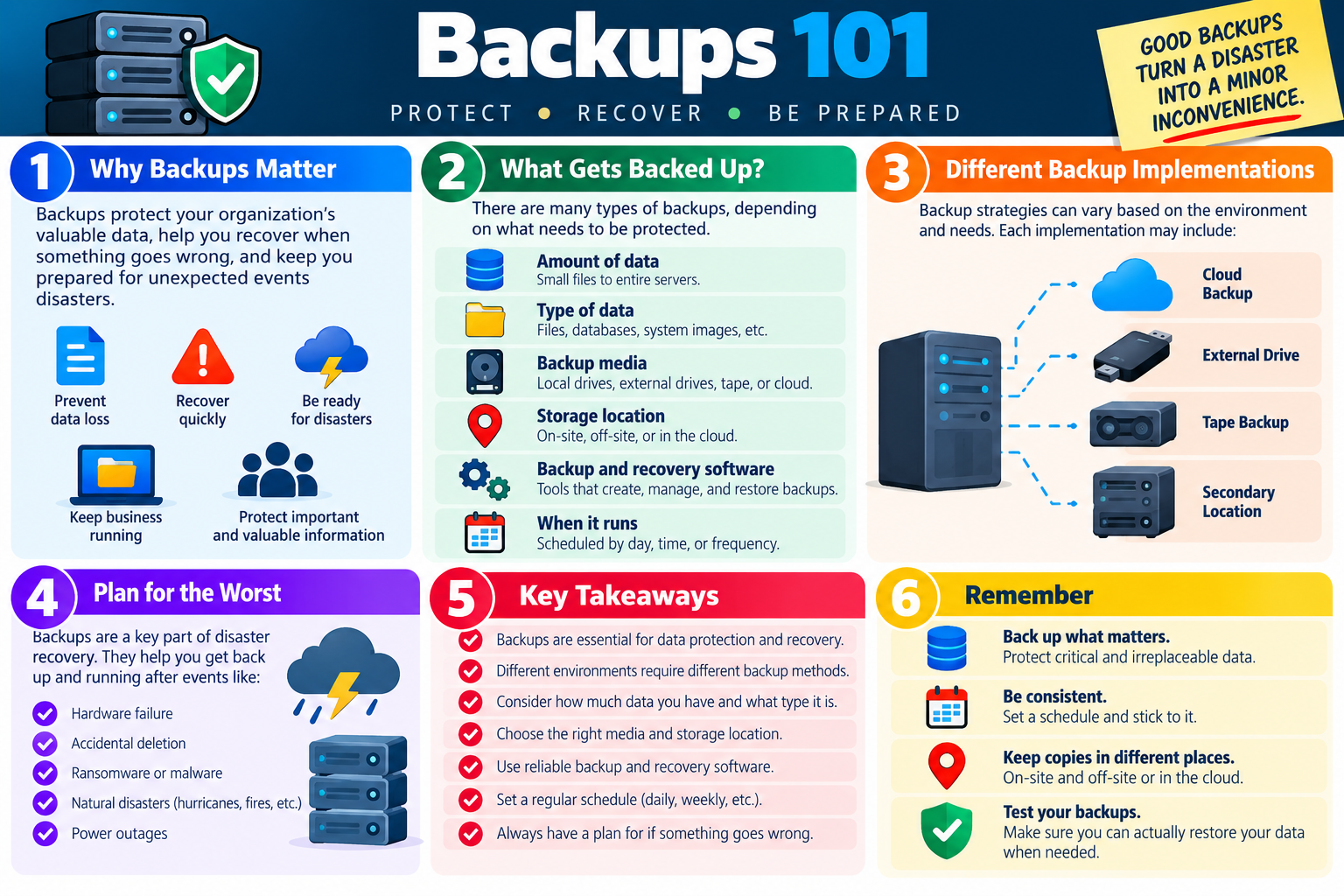
Backups 101 infographic explaining why backups matter, what gets backed up, backup implementations, disaster planning, key takeaways, and reminders to back up important data consistently, keep copies in different places, and test restores.
Backups 101 introduces the purpose of backups, the types of data and storage locations involved, and the habits that make recovery possible when something goes wrong.
FULL
Module 02

Module 2 - Full Backup

A full backup creates a complete copy of the selected data set, giving the organization one reliable restore point that includes the operating system, applications, settings, system files, and user data when those items are included in the backup scope.

A full backup is the most complete backup type. Instead of copying only files that changed since a previous backup, a full backup copies everything included in the job. Depending on the backup plan, that may mean an entire workstation image, all user files, system state, installed applications, configuration settings, databases, or a full server volume.

Because a full backup captures a complete copy at one point in time, it is often the simplest backup to understand and the simplest restore source to use. If something fails, the technician can restore from one complete backup set rather than piecing together a chain of backups. That simplicity is one reason full backups remain an important part of recovery planning even when they are not run every day.

What Is a Full Backup?

A full backup copies all data that is selected for protection. If the backup scope includes the operating system, applications, settings, and user files, then the full backup captures all of those items in one complete backup operation. If the scope includes only a user folder, then the full backup captures the entire selected folder. The key idea is that the backup does not depend on a previous incremental or differential backup to represent the selected data at that time.

In workstation recovery, a full backup can be especially useful when a device must be restored after a major failure. For example, if a hard drive fails or a system becomes badly corrupted, a full system image may allow the technician to restore the machine to a known working state. For file recovery, a full backup can provide a complete copy of user data from the date the backup was created.

Operating system A full image backup may include OS files needed to recover a bootable workstation.
Applications Installed programs and related application files may be included when the backup scope supports system recovery.
Settings Configuration data, system preferences, and application settings can be preserved for faster recovery.
User data Documents, folders, profile data, and other user-created files can be restored from the backup point.

Why It Is Important

A full backup provides a complete restore point. If something goes wrong, the support team can recover the entire selected data set from one backup. This is valuable after major failures, ransomware incidents, severe corruption, failed upgrades, or disasters where the original system cannot be trusted.

Full backups protect both system files and user data when they are included in the backup plan. That can shorten recovery time because the technician does not need to rebuild the operating system, reinstall every application, reconfigure every setting, and then restore user files separately. In some situations, restoring a full image is faster and more reliable than reconstructing a workstation manually.

  1. Major failure recovery: A full backup can support recovery after drive failure, severe corruption, or a damaged system.
  2. Complete restore point: Everything included in the selected scope is captured together at one point in time.
  3. System and user protection: Full backups can protect both the working environment and the data users need.
  4. Simpler recovery: Restoring from one complete backup is usually easier than managing a long dependency chain.

How Full Backups Work

When a full backup runs, the backup software reads the selected data and writes a complete copy to the backup destination. The destination might be local storage, network storage, an external drive, tape, or cloud storage. Each full backup is a standalone copy of the selected data at the time it was created.

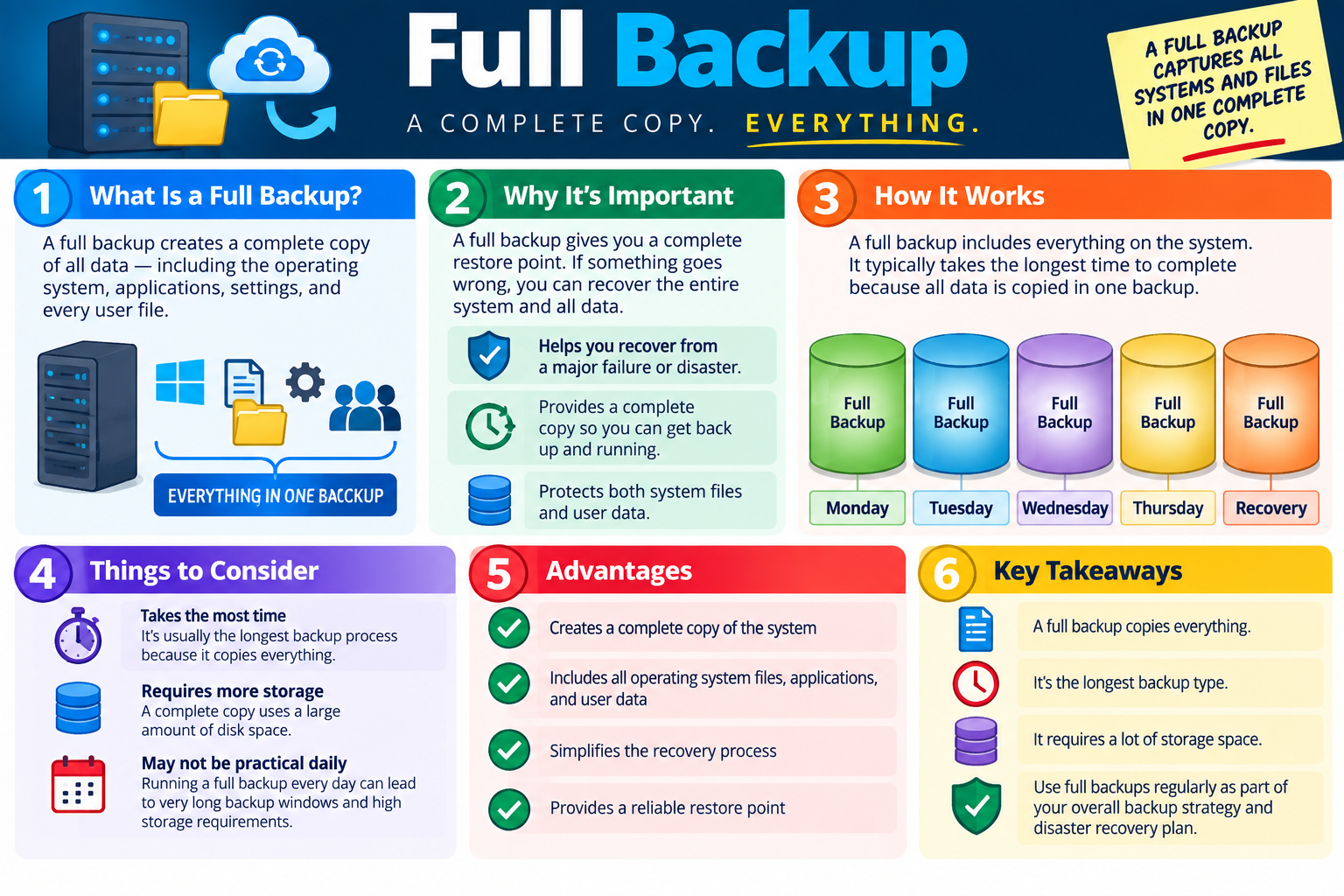
The infographic shows multiple full backups across several days. That illustrates an important point: if a full backup runs every day, each day creates another complete copy. Monday's backup is complete. Tuesday's backup is complete. Wednesday's backup is complete. This can make recovery straightforward because each restore point is self-contained, but it also requires more time and storage than backup methods that copy only changed data.

Exam tip: A full backup is the easiest restore source because it contains a complete copy, but it usually takes the longest time and uses the most storage.

Things to Consider

Full backups are powerful, but they are not always practical as the only backup method. Copying everything takes time. It can consume network bandwidth, storage capacity, and system resources. If a workstation or server contains a large amount of data, a full backup may run for a long time and may need to be scheduled carefully so it does not interfere with users.

Full backups also require a lot of storage because each run creates a complete copy. Running a full backup every day may be unnecessary for some environments and too expensive for others. Many organizations use full backups regularly, but combine them with incremental, differential, synthetic full, cloud, or image-based strategies to balance recovery speed, storage usage, and backup windows.

Takes the most time A full backup usually takes longer because all selected data is copied during the job.
Requires more storage Each full backup may use a large amount of disk, cloud, tape, or external-drive capacity.
May not be practical daily Daily full backups can create long backup windows and high storage requirements.
Still important Full backups are often used regularly as part of a larger backup and disaster recovery plan.

Advantages

The biggest advantage of a full backup is completeness. It creates a full copy of the selected system or data set, includes all selected files and settings, and provides a reliable restore point. During recovery, the technician does not need to locate every incremental backup in a chain before restoring. That can reduce confusion and lower the chance that a missing or corrupted backup segment prevents recovery.

Full backups are also useful for baselines. An organization may create a full backup before a major change, before replacing hardware, before a high-risk update, or before starting a new backup cycle. That complete copy gives the team a known recovery point if later backups, updates, or user actions cause problems.

  • Creates a complete copy of the system or selected data.
  • Can include operating system files, applications, settings, and user data.
  • Simplifies recovery because the restore point is self-contained.
  • Provides a reliable baseline for disaster recovery planning.

Key Takeaways

A full backup copies everything included in the backup scope. It is typically the longest backup type and requires a large amount of storage, but it also offers a simple and reliable restore point. Full backups should be used regularly as part of an overall backup strategy and disaster recovery plan.

Bottom line: A full backup is complete and easy to restore from, but it costs time and storage. Use it intentionally as part of a balanced backup plan.

Full Backup infographic explaining complete backup copies, why full backups matter, how full backups work, considerations, advantages, and key takeaways.
A full backup captures all selected systems and files in one complete copy, making recovery simpler while requiring more time and storage.
INCR
Module 03

Module 3 - Incremental Backup

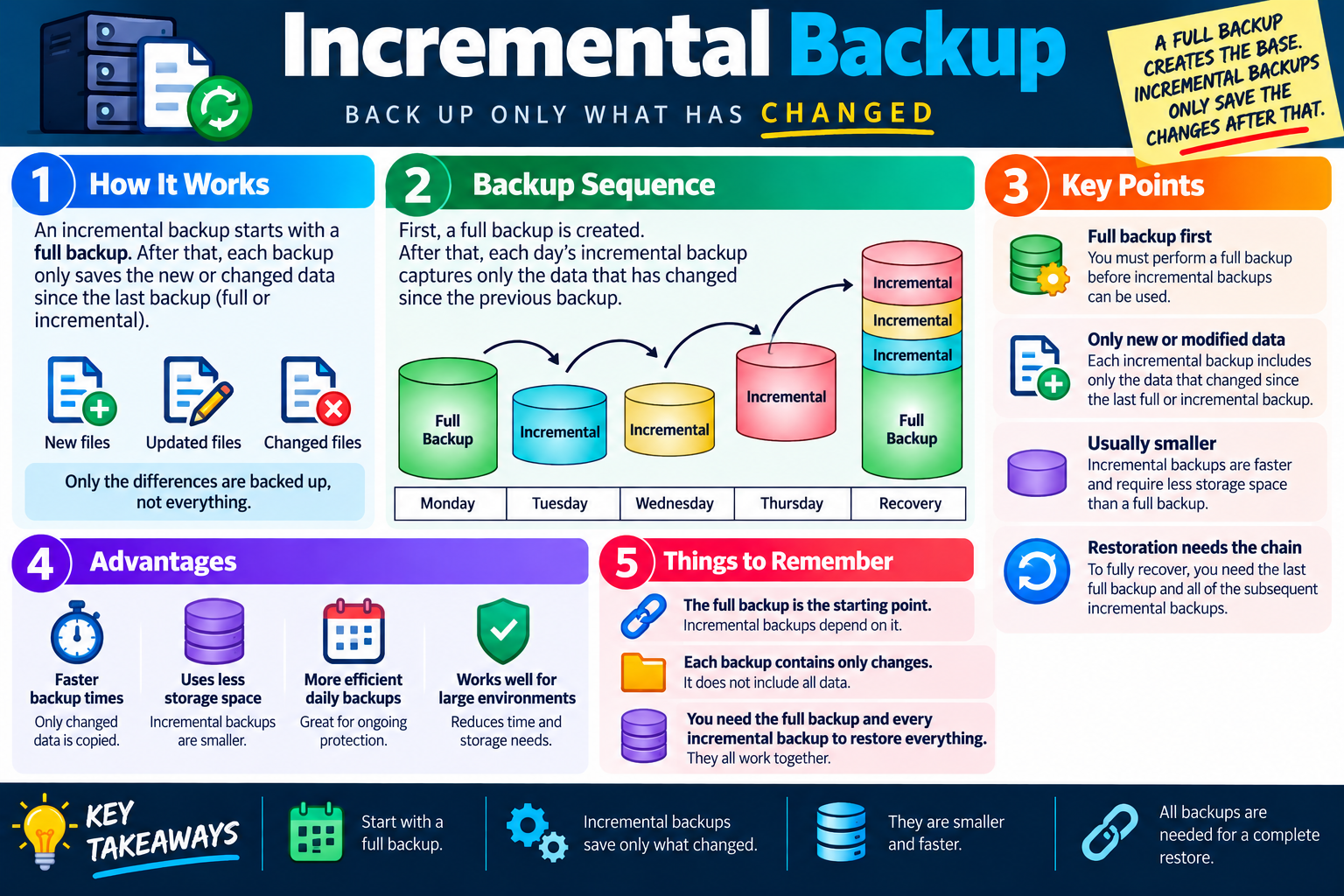
An incremental backup starts with a full backup, then saves only the data that has changed since the most recent backup, whether that previous backup was full or incremental.

Incremental backups are designed to make ongoing protection faster and more storage-efficient. After the first full backup creates the starting point, each incremental backup captures only new files, updated files, and changed data blocks. It does not copy everything again. That makes incremental backups much smaller than full backups in most environments.

This backup method is common when data changes frequently but running a full backup every day would take too long or consume too much storage. For example, a workstation backup plan might run a full backup on Monday and then incremental backups on Tuesday, Wednesday, and Thursday. Each incremental backup captures what changed since the last backup, so the backup window stays shorter.

How It Works

An incremental backup depends on a starting full backup. The full backup creates the baseline. After that, the backup software tracks what changed and copies only those changes during the next incremental job. If a user creates a new file, edits a document, changes a database, or modifies application data, the next incremental backup captures those changes.

The important detail is the phrase since the last backup. Tuesday's incremental backup captures what changed after Monday's full backup. Wednesday's incremental backup captures what changed after Tuesday's incremental backup. Thursday's incremental backup captures what changed after Wednesday's incremental backup. Each backup is smaller because it contains only a slice of the full data set.

New files Files created since the last backup are included in the next incremental backup.
Updated files Files modified since the previous backup are captured so the newer version can be restored.
Changed data Depending on the backup tool, changed blocks, changed folders, or changed files may be copied.
Differences only Incremental backups save the differences rather than copying the whole data set every time.

Backup Sequence

The sequence begins with a full backup. That first backup is essential because it contains the base copy of the protected data. After the full backup, each incremental backup builds on the backups that came before it. The chain might look like this: Monday full backup, Tuesday incremental, Wednesday incremental, Thursday incremental, and then a recovery operation that uses all required pieces.

During recovery, the backup software typically needs the last full backup and every incremental backup after it up to the restore point. If the restore target is Thursday, the restore may need Monday's full backup plus Tuesday's, Wednesday's, and Thursday's incremental backups. These pieces work together to rebuild the selected data as it existed at that point in time.

  1. Full backup first: Incremental backups require a complete baseline before the first incremental job can be useful.
  2. Daily changes: Each later backup captures only what changed since the previous backup.
  3. Backup chain: The restore depends on the full backup and the required incremental backups in sequence.
  4. Recovery point: The selected restore date determines which incremental backups are needed.

Key Points

Incremental backups are efficient, but the efficiency comes with a tradeoff. Backup jobs are faster and smaller, but restores may be more complex because multiple backup sets may be required. If one incremental backup in the chain is missing or corrupted, the restore may fail or may not be able to reach the desired point in time.

This is why backup software, monitoring, and verification are important. A technician should confirm that incremental jobs are completing successfully and that restore tests work. It is not enough to know that backup files exist. The organization must know that the full backup and the incremental chain can actually be used to recover data.

Exam tip: Incremental backups are usually faster and smaller than full backups, but restoring everything requires the full backup plus each needed incremental backup in the chain.

Advantages

The main advantage of incremental backups is efficiency. Since only changed data is copied, backup jobs usually finish faster and require less storage space. This makes incremental backups useful for daily protection, especially in large environments where full backups would be too slow or expensive to run every day.

Incremental backups also reduce the amount of duplicate data stored across backup sets. Instead of copying the same unchanged files repeatedly, the backup system stores the baseline once and then saves only later changes. This can reduce storage needs and make routine backup operations less disruptive to users and networks.

  • Faster backup times: Only changed data is copied, so backup jobs are usually shorter.
  • Less storage space: Incremental backups are generally smaller than full backups.
  • Efficient daily backups: They are well suited for ongoing protection between full backups.
  • Large-environment friendly: Incremental strategies can reduce backup time and storage needs across many systems.

Things to Remember

Incremental backups do not stand alone in the same way full backups do. The full backup is the starting point, and the later incremental backups depend on it. Each incremental backup contains only the changes captured during that period. To restore everything, the recovery process needs the full backup and every required incremental backup after it.

Technicians should protect the entire backup chain. That means monitoring job success, keeping backup media safe, avoiding accidental deletion of required restore points, and testing restores. A chain is only as strong as the pieces needed for recovery.

Full backup is the base Incremental backups depend on the full backup that started the chain.
Only changes are saved Each incremental backup contains changes, not a full copy of all data.
Restore needs the chain Recovery may require the full backup and every incremental backup through the selected restore point.
Verification matters Test restores to confirm the chain is complete and usable.

Key Takeaways

Start with a full backup. Use incremental backups to save only what changed after that. Incremental backups are smaller and faster than full backups, which makes them helpful for frequent backup schedules. However, all required backups must be available for a complete restore.

Bottom line: Incremental backups are efficient for daily protection, but they rely on a complete backup chain. Protect the full backup, protect every incremental backup, and test recovery before you need it.

Incremental Backup infographic explaining how incremental backups work, the backup sequence, key points, advantages, reminders, and key takeaways.
Incremental backups save only data that changed after the previous backup, reducing backup time and storage needs while requiring the full backup chain for complete recovery.
DIFF
Module 04

Module 4 - Differential Backup

A differential backup starts with a full backup, then each later differential backup copies all data that has changed since that last full backup.

Differential backups sit between full backups and incremental backups in the backup strategy conversation. Like incremental backups, they avoid copying the entire data set every time. Unlike incremental backups, they do not copy only the changes since the immediately previous backup. Instead, each differential backup includes all changes made since the last full backup.

This means differential backups grow over time. The first differential backup after a full backup may be small. The next one is larger because it includes the earlier changes plus any new changes. The longer the time since the last full backup, the larger each differential backup becomes. That growth is the tradeoff for a simpler restore process.

What Is a Differential Backup?

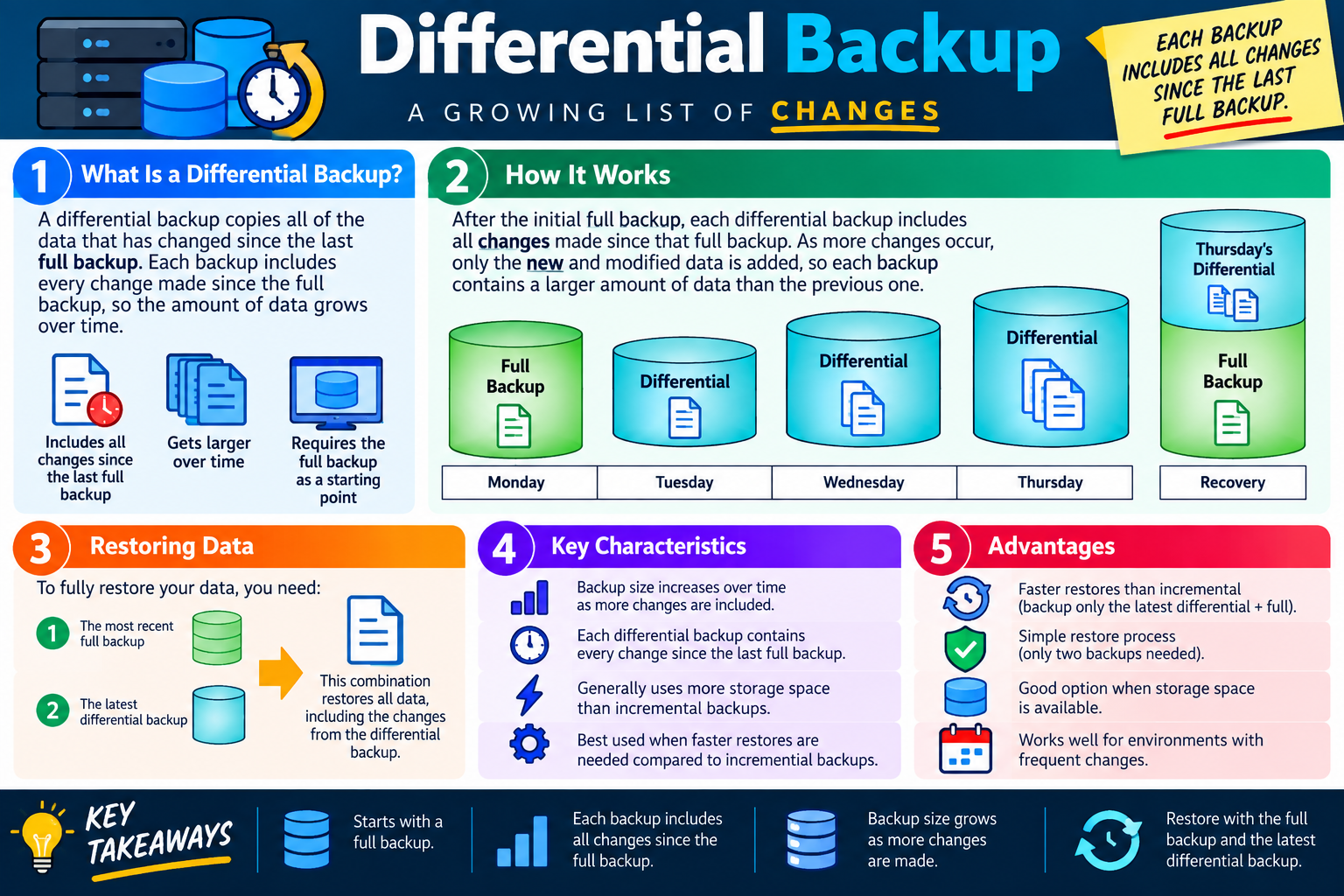
A differential backup captures every change made since the most recent full backup. If Monday is the full backup, Tuesday's differential contains changes from Monday to Tuesday. Wednesday's differential contains changes from Monday to Wednesday. Thursday's differential contains changes from Monday to Thursday. Each differential backup is a growing collection of changes since the full backup.

The full backup remains the starting point. The differential backup does not stand alone because it contains changed data, not a complete copy of everything. To recover the selected data set, the restore process uses the most recent full backup plus the latest differential backup needed for the restore point.

Includes changes since full Each differential backup captures all changes made after the last full backup.
Gets larger over time Because the change set accumulates, later differential backups usually require more storage than earlier ones.
Needs a full backup The full backup provides the baseline that the differential backup builds from.
Uses fewer restore pieces Recovery generally needs only the full backup and the latest differential backup.

How It Works

After the initial full backup, differential backups track every change from that full backup forward. As more files are created or modified, the next differential backup includes those changed items. The backup size grows because the backup software is not resetting the change list after each differential backup. It keeps comparing current data to the last full backup.

For example, suppose a full backup runs on Monday. On Tuesday, a user creates two new documents, so Tuesday's differential includes those two documents. On Wednesday, the user edits one of those documents and creates another file, so Wednesday's differential includes all changes since Monday. On Thursday, the differential grows again because it includes every change made since Monday's full backup.

This growing pattern is why the infographic describes differential backup as a growing list of changes. Each backup adds the new and modified data needed to represent the current state since the full backup point.

Exam tip: Differential backup restore usually needs two pieces: the most recent full backup and the latest differential backup.

Restoring Data

Restoring from differential backup is simpler than restoring from a long incremental chain. To fully restore the selected data, the technician needs the most recent full backup and the latest differential backup for the target restore point. The full backup restores the baseline. The differential backup restores all changes made since that full backup.

This can make recovery faster than incremental recovery, especially when there are many daily backups between full backup cycles. Instead of applying Tuesday, Wednesday, Thursday, and Friday incremental backups one at a time, a differential restore may use only the full backup and Friday's differential. That simpler restore path is one of the main advantages of differential backup.

  1. Start with the most recent full backup. Restore the baseline copy of the selected data.
  2. Apply the latest differential backup. Restore all changes captured since that full backup.
  3. Verify the result. Confirm files, applications, settings, or user data match the expected restore point.
  4. Document recovery. Record which full and differential backups were used and whether recovery succeeded.

Key Characteristics

Differential backups have predictable characteristics. Backup size increases over time as more changes are included. Each differential backup contains every change since the last full backup. Differential backups generally use more storage than incremental backups, but they often restore faster because fewer backup sets are required.

The best fit depends on the environment. If storage space is extremely limited, incremental backups may be more efficient. If faster recovery is more important and storage space is available, differential backups may be a better choice. A technician should match the backup type to the recovery objective, backup window, storage capacity, and operational risk.

Growing backup size Each differential backup usually grows as more changes occur after the full backup.
All changes since full The latest differential backup contains every change needed after the full baseline.
More storage than incremental Differentials often use more space than incrementals because they repeatedly include earlier changes.
Faster restore path Recovery is usually simpler than incremental recovery because fewer backup sets are needed.

Advantages

The main advantage of differential backup is a simpler restore process. A technician typically needs only two backup sets: the full backup and the latest differential backup. That can reduce restore complexity, reduce the risk of a missing incremental backup breaking the chain, and make recovery easier to explain and perform under pressure.

Differential backups are a good option when storage space is available and the organization wants a balance between backup efficiency and restore speed. They also work well in environments with frequent changes because each day's differential captures all changes since the last full backup.

  • Faster restores than incremental: Recovery usually requires the full backup plus only the latest differential backup.
  • Simple restore process: Fewer backup pieces are needed compared with a long incremental chain.
  • Useful when storage is available: Differential backups trade extra storage use for simpler recovery.
  • Good for frequent changes: Each differential backup captures all changes since the last full backup.

Key Takeaways

Differential backup starts with a full backup. Each differential backup includes all changes since that full backup. Backup size grows as more changes are made. To restore, use the full backup and the latest differential backup needed for the restore point.

Bottom line: Differential backups grow larger over time, but they make recovery simpler than incremental chains because the restore usually needs only the full backup and the latest differential backup.

Differential Backup infographic explaining changes since the last full backup, how differential backups grow over time, restoring data, key characteristics, advantages, and key takeaways.
Differential backups include all changes since the last full backup, creating a growing change set that simplifies recovery to the full backup plus the latest differential backup.
BKUP
Module 05

Module 5 - Synthetic Backup

A synthetic backup creates a new full backup by combining an existing full backup with later incremental or differential backups, without running a new full backup from the original source system.

A synthetic backup gives the organization the end result of a full backup while reducing the workload placed on the production workstation, server, or network. Instead of reading every file from the source system again, the backup software uses backup data that already exists in the backup repository. It takes the original full backup, adds the changes captured in later incremental or differential backups, and produces a new complete backup set that can be restored like a traditional full backup.

This matters because full backups are useful, but they can be expensive in time, storage input/output, and network bandwidth. In a busy environment, repeatedly pulling a complete backup from source systems can slow down users, overload backup windows, or create unnecessary traffic. Synthetic backups shift much of that work to the backup server or storage platform, allowing the production system to keep running with less interruption.

What Is a Synthetic Backup?

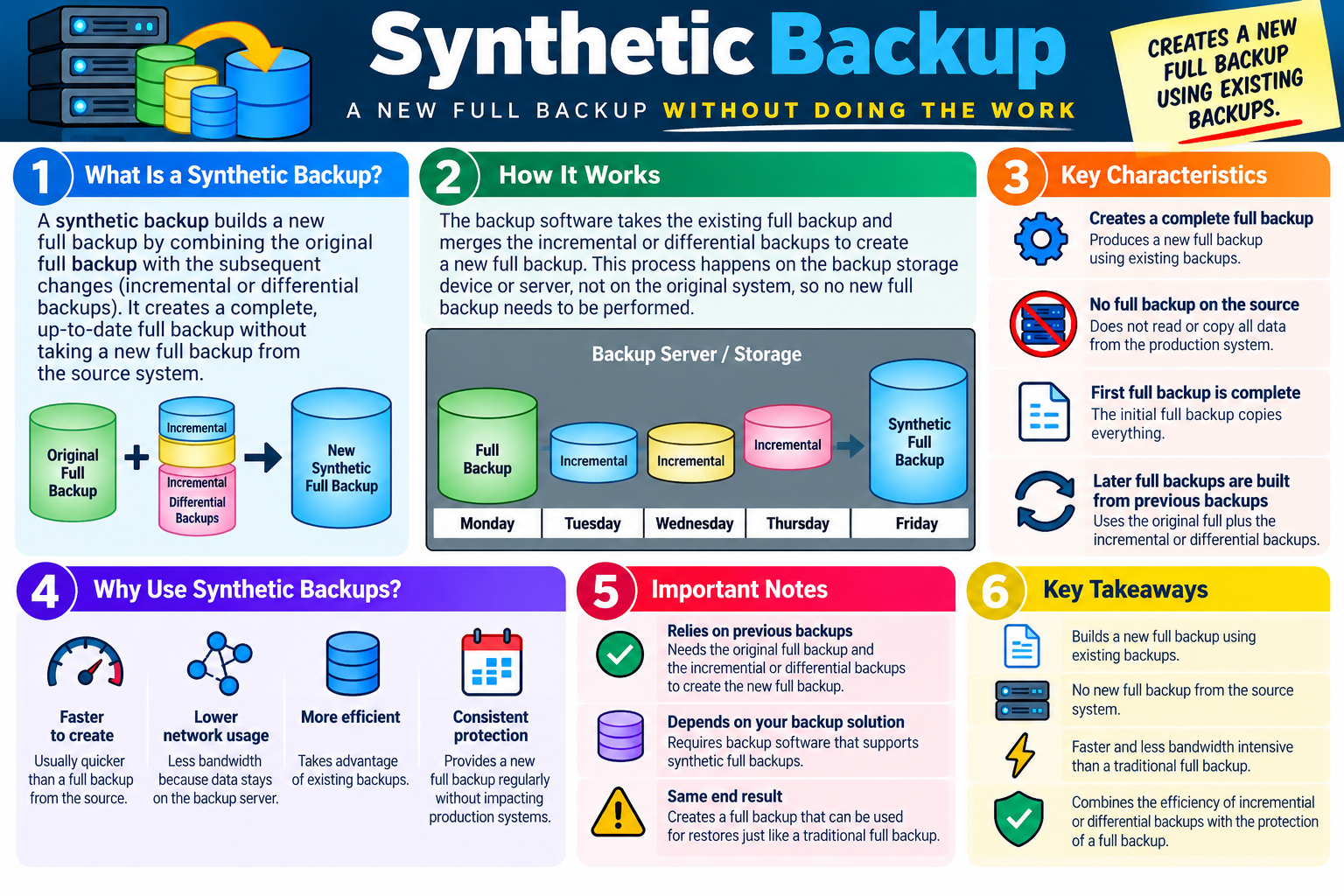
A synthetic backup is best understood as a rebuilt full backup. The backup system already has a baseline full backup and one or more change-based backups. The synthetic process merges those pieces together into a new, current full backup. From a recovery standpoint, the resulting synthetic full backup behaves like a regular full backup because it contains the complete data set for the selected restore point.

The word synthetic does not mean fake or incomplete. It means the full backup was assembled from existing backup data rather than captured again from the original device. The original full backup provides the starting point. The incremental or differential backups provide the changes. The backup server combines them to create a new full backup image or backup set.

Original full backup The first complete copy provides the baseline for the synthetic backup process.
Change backups Incremental or differential backups supply the new and modified data captured after the original full backup.
New synthetic full backup The backup software combines the baseline and changes into a complete, up-to-date restore point.
Full backup result The restore experience is similar to using a traditional full backup because the final backup is complete.

How It Works

In a traditional full backup, the backup software reads all selected data from the source system. In a synthetic backup, the source system is not asked to send every file again. The backup server or storage appliance performs the merge using data it already has. This reduces the load on the production system and may allow the organization to create fresh full restore points more frequently.

For example, the organization might create a full backup on Monday. On Tuesday, Wednesday, and Thursday, it runs incremental backups that capture only the changes. On Friday, the backup software merges Monday's full backup with the incremental backups from the rest of the week to create a Friday synthetic full backup. The Friday backup is complete, but the workstation or server did not have to perform another full source backup.

  1. Create an initial full backup. The first full backup captures all selected data and becomes the baseline.
  2. Capture changes over time. Incremental or differential backups record new and modified data after the full backup.
  3. Merge backups on the backup system. The backup server combines the original full backup with the later changes.
  4. Create a new full restore point. The result is a synthetic full backup that can be used for recovery like a normal full backup.

Key Characteristics

Synthetic backups are designed to provide full-backup protection with less impact on the source system. The process creates a complete backup set, but it does not require the production system to resend all data. That can make backup schedules easier to manage, especially where full backups are too slow, too disruptive, or too bandwidth intensive to run frequently.

The first full backup is still required. Synthetic backups cannot appear from nowhere; they depend on an original full backup and valid incremental or differential backups. The backup software must also support synthetic full backup creation. If the backup platform does not offer this feature, the organization may need to use traditional full, incremental, or differential backup methods instead.

Creates a complete full backup The final synthetic backup is a complete restore point assembled from existing backup data.
No new full read from the source The source system avoids the heavy workload of another full backup operation.
Initial full backup is required The first full backup still captures everything and becomes the foundation for later synthetic backups.
Later full backups are built from previous backups The backup repository supplies the original baseline and later changes used in the merge.

Why Use Synthetic Backups?

Synthetic backups are useful when an organization wants frequent full restore points but does not want to repeatedly run full backups against production systems. They are often faster to create from the source system's perspective because the heavy merge happens on the backup infrastructure. This can reduce network usage, shorten backup windows, and limit the performance impact on systems users depend on.

They also improve consistency. A backup solution can maintain a regular schedule of full restore points by building them from existing backup data. This can be especially helpful for remote sites, bandwidth-limited networks, virtual environments, and systems where full backups would otherwise run too long or interfere with normal work.

  • Faster to create: Usually quicker than pulling a full backup from the production source again.
  • Lower network usage: Less data travels from the source system because existing backup data is reused.
  • More efficient storage workflow: The backup server uses previous backups to create a complete restore point.
  • Consistent protection: The organization can create regular full backup points without repeatedly stressing production systems.

Important Notes

Synthetic backups rely on the integrity of previous backups. If the original full backup or required change backups are missing, corrupted, expired, or inaccessible, the synthetic full backup process may fail or produce an unusable restore point. For that reason, organizations must monitor backup jobs, verify backup health, and test restores instead of assuming that every synthetic backup is valid.

The end result should be treated with the same importance as any other full backup. It should be protected, retained according to policy, encrypted when required, and stored in a location that supports recovery after local failure. Synthetic backups reduce source impact, but they do not remove the need for backup governance, testing, security, and documentation.

  1. Relies on previous backups: The original full backup and later incremental or differential backups must be available and valid.
  2. Depends on backup software: The backup solution must support synthetic full backup creation.
  3. Produces the same recovery goal: A synthetic full backup can be used for restores like a traditional full backup.
  4. Still requires testing: Technicians must verify that the synthetic backup can actually restore the needed data.

Key Takeaways

Synthetic backups build a new full backup by using existing backup sets. They avoid running a new full backup against the source system, which can reduce bandwidth usage and performance impact. They combine the efficiency of incremental or differential backups with the recovery convenience of a full backup.

Bottom line: A synthetic backup gives you a fresh full restore point without making the production system do the full-backup work again, but it only works when the earlier backups and backup software are reliable.

Synthetic Backup infographic explaining how a new full backup is created from existing full, incremental, or differential backups without running a new full backup from the source system.
Synthetic backups create a new full backup from existing backup data, reducing source-system workload while preserving a complete restore point.
RCVR
Module 06

Module 6 - Recovery

A backup only has value when the organization can successfully recover from it. Recovery is the tested process of restoring backed-up data to a usable state when files, settings, applications, or systems need to be returned after loss, corruption, failure, or reimaging.

Creating backups is only half of the job. A technician also needs to know how to restore from those backups, where the restored data should go, what will happen to existing files, and how to prove that the restored information is usable. In a real support scenario, the user does not care that a backup job completed last night if the needed file, folder, profile, or system image cannot be recovered when work depends on it.

Recovery should be practiced before an emergency. Testing restores confirms that the backup software works, the backup media is readable, the correct credentials are available, the expected data is present, and the technician understands the restore workflow. A backup plan that has never been tested is only an assumption. A tested recovery process is evidence that the organization can get data back when it matters.

Recovering from a Backup

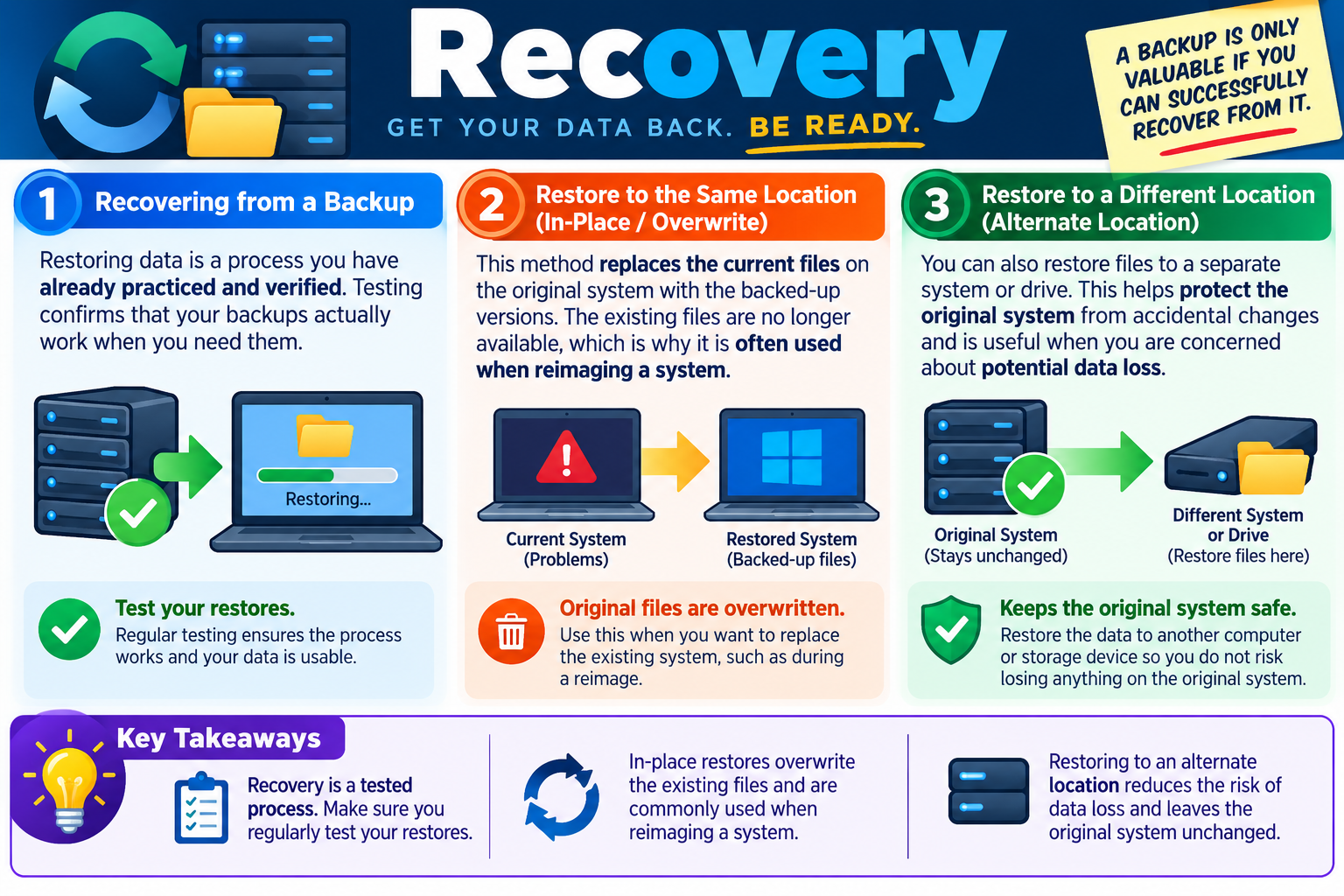
Recovering from a backup means selecting the correct restore point, choosing the restore destination, running the restore, and verifying the result. The restore point might be the most recent backup, a previous version from before a file was deleted, or a known-good copy from before malware, corruption, or unwanted changes occurred. The correct choice depends on what happened and what the user needs recovered.

Verification is essential. After the restore finishes, the technician should confirm that the expected files are present, permissions are correct, applications can open the data, and the user can work. For a system recovery, verification may include confirming the operating system boots, applications launch, network connectivity works, user data is present, and security controls are still active.

Select the right restore point Choose a backup from the correct date and time, especially if recent data was corrupted or encrypted.
Know what is being restored Restore a file, folder, user profile, application data, configuration, or full system image as needed.
Choose the destination carefully Decide whether the data should overwrite the original location or be restored somewhere else.
Verify the result Confirm that restored data is complete, readable, usable, and acceptable to the user or business owner.

Restore to the Same Location

An in-place restore puts the backed-up files back into the original location. This method replaces the current files with the backed-up versions. It is useful when the current system is being rebuilt, reimaged, repaired, or returned to a known-good state. For example, after a workstation is reimaged, the technician may restore the user's data back to the same folders so the user can resume work on that device.

The risk is that current files can be overwritten. If the existing files contain newer work, partial recovery attempts, or evidence needed for troubleshooting, an in-place restore may destroy that information. Before restoring to the same location, the technician should understand what will be replaced, confirm the correct restore point, and communicate the impact to the user or owner.

  1. Use when replacing current data is intended. In-place recovery is appropriate when the current files are damaged, missing, unwanted, or part of a reimage workflow.
  2. Confirm the overwrite behavior. Know whether the restore tool replaces files, merges folders, skips newer files, or asks for confirmation.
  3. Protect anything still needed. Copy current data elsewhere first if there is any chance it may be needed later.
  4. Verify after restoration. Confirm that the restored system or file set works as expected after overwrite recovery.
Exam tip: In-place restore means the backed-up version replaces the current version. Use it carefully because original files at that location may no longer be available afterward.

Restore to a Different Location

Restoring to a different location sends the backed-up data to a separate folder, drive, computer, or storage location instead of overwriting the original system. This is useful when the technician wants to inspect recovered files before replacing anything, compare versions, preserve the current system, or avoid accidental data loss.

Alternate-location recovery is often safer during troubleshooting. If a user asks for a missing document, the technician can restore the file to a temporary folder and let the user confirm it is the correct version before moving it into place. If a system may be infected, unstable, or under investigation, restoring to a separate device can protect both the original data and the recovered copy.

Separate folder Restore data to a temporary folder so it can be reviewed before replacing current files.
External drive Recover files to removable or attached storage when the original system should remain unchanged.
Different workstation Restore user data to another computer so work can continue while the original device is repaired.
Network or cloud location Place recovered data in a controlled location where it can be validated and shared appropriately.

Choosing the Right Recovery Method

The right recovery method depends on the scenario. If the original system is being reimaged and the user needs their data returned, an in-place restore may be the most direct option. If the technician is unsure whether the backup contains the correct version, an alternate-location restore is safer. If malware is involved, restoring directly over the original system may reintroduce risk or destroy evidence, so isolation and validation become more important.

Technicians should also consider permissions, ownership, encryption, and application dependencies. Restored files may need correct access control lists, user profile paths, application configuration, or database consistency. A file that exists but cannot be opened by the right user is not a complete recovery. A restored application folder without related settings or database files may still leave the user unable to work.

  • Use in-place recovery when the goal is to replace the current system state with a known-good backed-up version.
  • Use alternate-location recovery when you need to preserve the original system, review files first, or reduce overwrite risk.
  • Validate permissions and usability so recovered files are accessible and useful, not merely present.
  • Document what was restored including date, restore point, destination, verification result, and user acceptance.

Test Your Restores

Regular restore testing proves that the backup process can support real recovery. Testing should include more than checking whether the backup job completed. A successful test confirms that data can be selected, restored, opened, and used. It may also reveal missing data, expired retention, damaged media, failed credentials, unsupported file paths, or recovery steps that take longer than expected.

Restore tests also help technicians practice the workflow under low-pressure conditions. During an outage, ransomware incident, failed drive, or reimage deadline, it is much easier to recover quickly when the team already knows the tool, the storage location, the permissions, and the expected timing.

  1. Test on a regular schedule. Verify restores periodically instead of waiting for an emergency.
  2. Test both file and system recovery. Confirm the organization can restore individual items and larger system images when required.
  3. Record restore results. Document what was restored, how long it took, and whether the restored data worked.
  4. Fix problems immediately. If a restore test fails, treat it as a backup failure until the issue is corrected.

Key Takeaways

Recovery is a tested process, not just a button in backup software. In-place restores overwrite current files and are commonly used when reimaging or replacing a damaged system state. Restoring to an alternate location reduces the risk of data loss because the original system stays unchanged while recovered data is reviewed.

Bottom line: Backups protect data, but recovery proves the protection works. Always know where the restore will go, what it will overwrite, and how you will confirm that the recovered data is usable.

Recovery infographic explaining tested restores, in-place overwrite recovery, alternate-location recovery, and key takeaways about restoring data safely.
Recovery focuses on restoring data safely, testing the restore process, and choosing between overwriting the original location or restoring to an alternate destination.
TEST
Module 07

Module 7 - Backup Testing Frequency

Backups are only useful if they can be restored. Backup testing frequency defines how often an organization verifies that backed-up data, applications, and recovery procedures actually work before a real outage or data-loss event occurs.

A completed backup job is not the same thing as a successful recovery. The backup software may report success, but the data could still be incomplete, corrupted, inaccessible, missing permissions, outside the retention window, or unusable by the application that needs it. Testing turns backup confidence into proof. It confirms that the organization can restore the right data, from the right point in time, to the right place, and use it afterward.

For workstation support, testing may be as simple as restoring a sample file and opening it. In a larger environment, testing may include restoring user profiles, application data, system images, encrypted files, or an entire recovery workflow. The goal is to find problems before users are depending on the restore to save their work.

Verify Your Backups Work

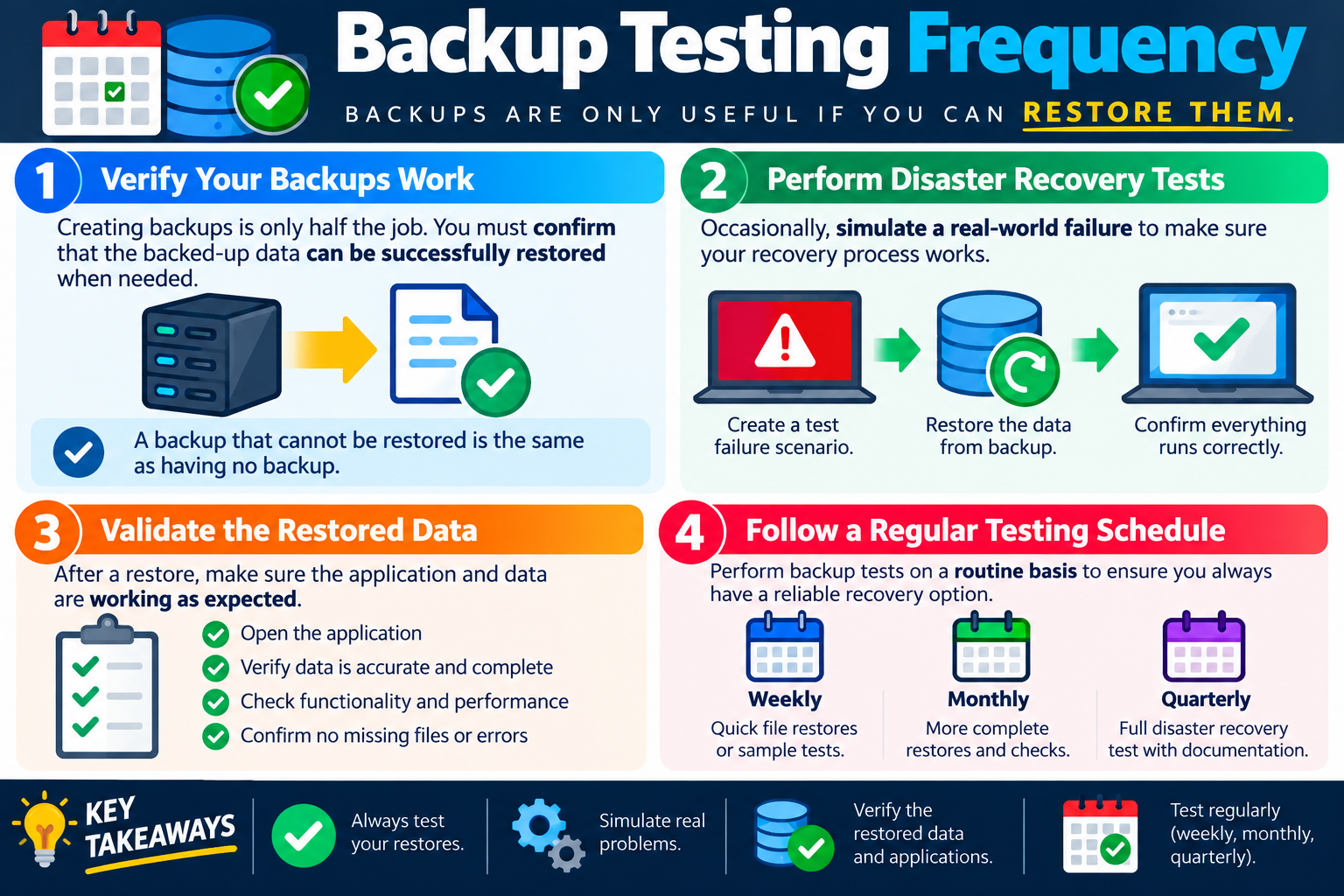
Creating backups is only half the job. A technician must confirm that backed-up data can be successfully restored when needed. A backup that cannot be restored is functionally the same as having no backup at all, because it does not protect the user, the device, or the organization during a real incident.

Verification should answer practical questions. Can the backup be found? Can the technician authenticate to the backup system? Is the restore point available? Does the file restore without errors? Does the restored data open correctly? Are permissions intact? Does the recovered application data still work inside the application? If the answer to any of these is no, the backup process needs attention.

Confirm the restore point exists Make sure the expected backup date, time, device, and data set are available.
Restore sample data Recover a representative file, folder, profile, or system component to prove the workflow works.
Open and inspect the result Verify that restored data is readable, complete, and usable by the user or application.
Document the outcome Record what was tested, who tested it, where it was restored, and whether the test succeeded.

Perform Disaster Recovery Tests

Routine file restore tests are important, but organizations also need occasional disaster recovery testing. A disaster recovery test simulates a real-world failure so the team can validate the larger recovery process. This might include pretending a workstation failed, restoring a system image to replacement hardware, recovering data after a simulated drive loss, or confirming that a critical application can run after restoration.

The point is not to create unnecessary drama. The point is to discover gaps while there is time to fix them. A test may reveal that recovery media is missing, documentation is outdated, a required password is unknown, a backup is too old, a restore takes longer than expected, or a dependency was not included in the backup plan.

  1. Create a test failure scenario. Choose a realistic event such as accidental deletion, failed storage, ransomware recovery, or system reimage.
  2. Restore from backup. Follow the documented process instead of improvising from memory.
  3. Confirm the system runs correctly. Validate files, applications, logins, network access, and business workflow as appropriate.
  4. Record lessons learned. Update documentation, schedules, permissions, or backup scope based on what the test reveals.

Validate the Restored Data

A restore test is not complete when files appear in a folder. The technician must validate the restored data. For documents, that may mean opening the file and confirming the contents are accurate. For application data, it may mean launching the application and confirming the restored data appears correctly. For a system image, it may mean booting the restored system and checking login, drivers, updates, applications, security tools, and user data.

Validation also helps catch partial restores. A folder might restore, but some files may be missing. A database might restore, but the application may not connect. A user profile might restore, but permissions may prevent access. A backup might contain the data, but from the wrong date. Testing should prove that the restore meets the actual recovery need, not merely that the restore button completed.

  • Open the application. Confirm the restored data works inside the tool or workflow that uses it.
  • Verify accuracy and completeness. Check that expected files, records, settings, or folders are present.
  • Check functionality and performance. Confirm the restored system or application behaves normally.
  • Confirm no missing files or errors. Review restore logs and user-facing results for warnings or gaps.

Follow a Regular Testing Schedule

Backup tests should happen on a routine basis. The exact frequency depends on how important the data is, how often it changes, how complex the recovery process is, and how much downtime the organization can tolerate. High-value or frequently changing data should be tested more often than low-risk data that rarely changes.

Different test frequencies can serve different purposes. Weekly checks may focus on quick file restores or sample data. Monthly checks may include more complete restores and application validation. Quarterly tests may simulate larger disaster recovery scenarios and include documentation review. The important part is consistency: testing should be scheduled, performed, recorded, and reviewed.

Weekly Run quick file restores, sample tests, or spot checks to catch obvious backup problems early.
Monthly Perform more complete restores and verify applications, permissions, and data usability.
Quarterly Run full disaster recovery tests with documentation, timing, dependencies, and sign-off.
After major changes Retest backups after migrations, new applications, encryption changes, or backup configuration updates.

What to Document

Testing creates operational evidence. Documentation should show that restores are being performed, not just that backup jobs are scheduled. This helps during audits, troubleshooting, compliance reviews, and disaster recovery planning. It also helps the next technician understand what was tested and what still needs attention.

A useful test record includes the data source, backup date, restore destination, restore method, test type, validation steps, results, errors, and follow-up actions. If a restore test fails, the failure should be treated seriously. The team should correct the backup job, backup scope, credentials, storage target, retention policy, or documentation before trusting the backup again.

  1. What was tested: Identify the file, folder, system image, profile, application, or backup set.
  2. Where it was restored: Record whether the restore was in-place, alternate-location, test system, or recovery environment.
  3. How it was validated: Note the exact checks used to prove the restored data worked.
  4. What changed afterward: Document fixes, process updates, schedule changes, or scope adjustments.

Key Takeaways

Always test your restores. Simulate real problems when appropriate. Verify restored data and applications, not just the backup job status. Test regularly using a schedule such as weekly, monthly, or quarterly, depending on business risk and recovery requirements.

Bottom line: Backup testing is the proof that recovery will work. A reliable schedule of restore tests turns backups from hopeful copies into trusted recovery options.

Backup Testing Frequency infographic explaining how to verify backups, perform disaster recovery tests, validate restored data, and follow weekly, monthly, or quarterly testing schedules.
Backup testing frequency defines how often restore tests should confirm that backup data, applications, and disaster recovery procedures actually work.
GFS
Module 08

Module 8 - Backup Rotation Schemes

Backup rotation schemes keep multiple backup copies in different places on a defined schedule, so an organization has more than one recovery option when data is deleted, corrupted, encrypted, damaged, or lost.

A single backup copy is fragile. If that copy is overwritten, damaged, stolen, corrupted, encrypted by ransomware, or stored in the same place as the failed system, recovery may not be possible. Backup rotation solves that problem by keeping multiple generations of backups instead of only the most recent copy. The organization can then choose from recent daily backups, longer-term weekly backups, monthly archives, and off-site copies depending on what happened.

Rotation is also about discipline. Backups should be created on a schedule, stored in planned locations, retained for the right amount of time, and periodically tested. A technician should understand not only whether a backup exists, but which backup set contains the needed restore point and where that backup is stored.

On-Site vs. Off-Site Backups

On-site backups are stored at the same physical location as the systems they protect. They may live on a local backup server, network attached storage, external drive, tape library, or other local storage device. The main advantage is speed and convenience. Local backups are often faster to create and restore because they do not depend on internet bandwidth or a remote connection.

Off-site backups are stored somewhere away from the primary location. They may be sent across the internet, copied over a WAN link, stored with a cloud provider, rotated to a remote office, or moved to another secure facility. The main advantage is resilience. If a fire, flood, theft, power event, ransomware outbreak, or building-wide failure affects the primary site, off-site backups may still be available.

On-site backup Stored locally, does not require internet access for restore, and is usually best for fast recovery of common issues.
Off-site backup Stored away from the primary location and useful when the local site, hardware, or storage is unavailable.
Local access On-site copies can reduce restore time for accidental deletion, failed drives, or workstation rebuilds.
Disaster protection Off-site copies provide another recovery path when the unexpected affects the whole location.

Most Organizations Use Both

A strong backup plan often combines on-site and off-site storage. On-site backups support quick day-to-day restores, while off-site backups protect against larger events. This gives the support team more options. If a user deletes a file, a local restore may be the fastest fix. If a server room is damaged, an off-site or cloud copy may be the only usable restore source.

Using both locations also reduces the risk of a single point of failure. If every backup is local, a site disaster can destroy all copies. If every backup is remote, recovery may depend on internet bandwidth and take longer than expected. Combining local and remote storage balances speed, cost, and resilience.

  1. Use local backups for speed. They are often best for fast restores and local access.
  2. Use off-site backups for resilience. They protect data if the local environment is damaged or inaccessible.
  3. Keep copies separated. A backup should not be vulnerable to the same event that destroys the original data.
  4. Test both paths. Verify that local and off-site restores actually work before a crisis.

Grandfather-Father-Son Rotation

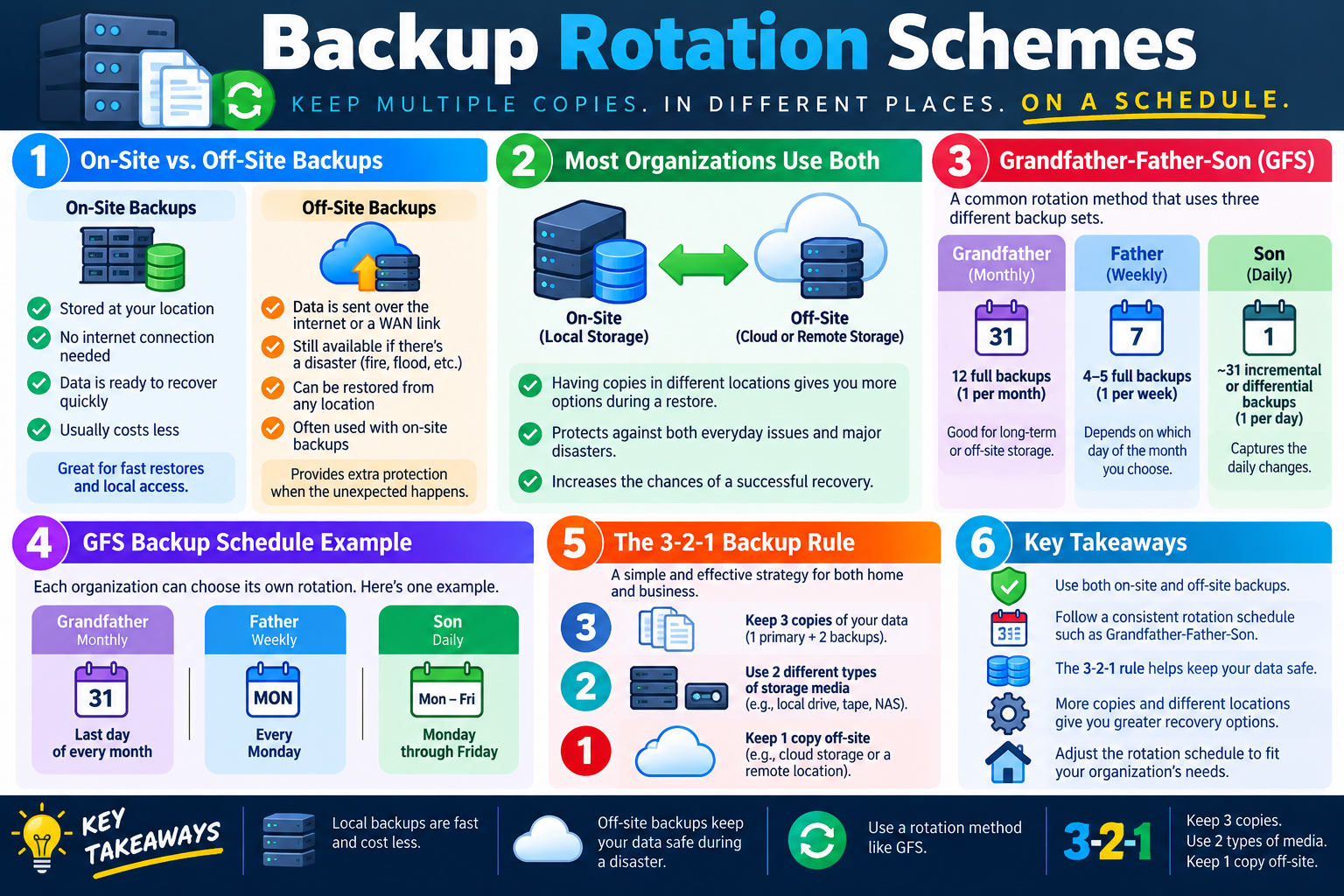
Grandfather-Father-Son, often called GFS, is a common rotation method that uses different backup sets for different time periods. The son backups are the most frequent, usually daily. The father backups are less frequent, usually weekly. The grandfather backups are the longest retained, usually monthly. This creates a layered recovery strategy with short-term and longer-term restore options.

GFS is useful because not every problem is discovered immediately. A user may notice a missing file the same day, but data corruption, accidental changes, or malware damage may not be discovered until days or weeks later. Daily backups help with recent changes. Weekly and monthly backups provide older restore points if the newest backups already contain the problem.

Grandfather Monthly backup set, commonly used for longer-term retention or off-site storage.
Father Weekly backup set, often a full backup retained longer than daily backups.
Son Daily backup set, often incremental or differential, used to capture frequent changes.
Flexible schedule Organizations can adjust days, retention, and backup types to match business needs.

GFS Schedule Example

One common GFS schedule uses the last day of the month as the grandfather backup, every Monday as the father backup, and Monday through Friday as the son backups. In this model, the organization has daily restore points for recent work, weekly restore points for broader recovery, and monthly restore points for long-term needs.

The exact schedule can vary. Some organizations use Friday as the weekly full backup. Others keep more monthly backups for compliance or fewer if storage is limited. The important point is that the schedule should be intentional, documented, and consistently followed. A rotation scheme only helps if the organization knows which copy is kept, where it is stored, and how long it remains available.

  1. Daily backups capture short-term changes. These are helpful when recent files are deleted or changed incorrectly.
  2. Weekly backups provide broader restore points. They help when a problem is discovered after several daily backups have already run.
  3. Monthly backups support long-term retention. They are useful for archives, audits, compliance, or older recovery needs.
  4. Retention must match requirements. Storage capacity, legal needs, business rules, and recovery objectives shape how long backups are kept.

The 3-2-1 Backup Rule

The 3-2-1 rule is a simple backup strategy for both home and business environments. Keep three copies of your data, use two different types of storage media, and keep one copy off-site. The idea is to avoid depending on one device, one storage type, or one location.

For example, the organization may keep the primary production data, a local backup on network storage, and an off-site cloud backup. Another environment might use workstation data, a local external drive, and a tape or cloud copy stored elsewhere. The exact technologies can vary, but the principle stays the same: multiple copies, different media, and physical or logical separation.

3 copies of data Keep one primary copy plus at least two backup copies.
2 media types Use different storage types such as local disk, NAS, external drive, tape, or cloud storage.
1 off-site copy Keep at least one copy away from the primary location to protect against local disasters.
Better recovery options Multiple locations and media types improve the chance that at least one usable copy survives.

Choosing a Rotation Scheme

The right rotation schedule depends on the organization's needs. A small environment may use daily cloud backups and weekly local image backups. A larger organization may use a GFS rotation with local disk for fast restores, cloud replication for off-site protection, and monthly archive copies for long-term retention. The schedule should reflect how often data changes, how much data loss is acceptable, how quickly systems must be restored, and how much storage is available.

Technicians should also think about security. Backup copies should be protected from unauthorized access, accidental deletion, and ransomware. Off-site does not automatically mean safe if the same compromised account can delete every cloud copy. Rotation schemes should include access control, encryption, monitoring, retention controls, and restore testing.

  • Match the schedule to the data. Frequently changing data usually needs more frequent backups.
  • Match retention to risk. Keep older copies long enough to recover from delayed discovery of corruption or attack.
  • Protect backup media. Store copies securely and separate them from the systems they protect.
  • Review and adjust. Update the rotation schedule as business needs, storage costs, compliance rules, and recovery goals change.

Key Takeaways

Use both on-site and off-site backups when possible. Follow a consistent rotation schedule such as Grandfather-Father-Son. Use the 3-2-1 rule to keep multiple copies across different media and at least one off-site location. More copies and different locations provide more recovery options.

Bottom line: Backup rotation schemes prevent the organization from relying on a single fragile backup. A smart mix of local copies, off-site copies, scheduled rotation, and restore testing gives the best chance of successful recovery.

Backup Rotation Schemes infographic explaining on-site and off-site backups, Grandfather-Father-Son rotation, an example GFS schedule, the 3-2-1 backup rule, and key takeaways.
Backup rotation schemes keep multiple backup copies in different locations and on a schedule, using methods such as GFS and the 3-2-1 rule to improve recovery options.
KEY
Module 09

Module 9 - Key Takeaways

Objective 4.3 is about choosing backup and recovery methods that match the scenario: what data must be protected, how often it changes, how quickly it must be restored, where backup copies should live, and how the organization proves recovery actually works.

Backup and recovery questions are rarely asking for a memorized definition only. They usually describe a situation: a user needs a deleted file, a workstation is being reimaged, ransomware has encrypted local data, a backup window is too long, storage is limited, or the organization needs better disaster recovery coverage. The best answer depends on the recovery goal, not just the backup type name.

A strong technician thinks about the full life cycle: identify the data, choose the backup method, schedule the job, store copies safely, rotate backup sets, test restores, recover to the right location, validate the result, and document what happened. A backup is not successful until it can support a successful restore.

Know What Each Backup Type Is For

Full, incremental, differential, and synthetic backups all protect data, but they solve different problems. A full backup is simple and complete, but it takes the most time and storage. Incremental backups are smaller and faster because they capture only changes since the previous backup, but recovery depends on the full backup and the needed incremental chain. Differential backups capture all changes since the last full backup, so they usually restore more simply than incrementals but grow larger over time. Synthetic backups create a new full backup from existing backup data so the source system does not have to perform another full backup.

Full backup Complete copy of selected data; easiest restore concept, but usually the largest and slowest backup.
Incremental backup Backs up only changes since the last backup; efficient for storage and time, but needs the full chain for restore.
Differential backup Backs up all changes since the last full backup; grows over time but usually needs only the full plus latest differential.
Synthetic backup Builds a new full backup from existing backup sets; reduces source workload and bandwidth use.

Recovery Is the Real Goal

Backups exist so data can be recovered. The recovery method should fit the risk in the scenario. If the original system is being rebuilt and current files should be replaced, an in-place restore may be appropriate. If the technician needs to protect the original system, compare versions, avoid overwriting current files, or inspect data before replacing anything, restore to an alternate location.

Always consider what will happen to existing data. In-place recovery can overwrite files. Alternate-location recovery keeps the original system unchanged while the restored data is reviewed. After recovery, verify the result with the user or application. A restore is incomplete if the file exists but will not open, the application cannot read it, permissions are wrong, or the restored version is not the one needed.

  • Choose the correct restore point based on when the data was still valid.
  • Decide whether the restore should overwrite the original location or go somewhere separate.
  • Validate restored files, applications, permissions, settings, and user workflow.
  • Document the restore source, destination, result, and user acceptance.

Test Backups Before You Need Them

Backup testing is the difference between hope and proof. A backup job status may say successful, but that does not guarantee the data is complete, readable, accessible, or usable. Restore tests confirm that the organization can recover what it needs when something breaks.

Testing should happen on a regular schedule. Quick file restore tests may happen weekly. More complete application or system restore checks may happen monthly. Full disaster recovery tests may happen quarterly or on another schedule based on business risk. The key is to test enough to catch problems before an actual outage, deletion, corruption, or ransomware event forces the organization to rely on the backup.

Exam tip: If a scenario says the backup has never been restored or tested, the best next step is usually to perform a restore test and verify the recovered data.

Use Rotation and Location Strategy

One backup copy is not enough for a resilient recovery plan. Backup rotation schemes preserve multiple points in time so the organization can recover from recent mistakes, delayed corruption, or older incidents. Grandfather-Father-Son rotation is a common model that uses daily, weekly, and monthly backup sets to balance short-term recovery and longer-term retention.

Location matters too. On-site backups are useful for fast local restores, but they may be lost if the site is damaged or compromised. Off-site backups protect against local disasters but may take longer to restore depending on bandwidth and provider access. Many organizations use both so they can recover quickly from everyday issues and still survive major events.

  1. Use on-site backups for speed. Local copies are useful for quick file restores, workstation rebuilds, and common support needs.
  2. Use off-site backups for disaster protection. Remote or cloud copies help when the local site or local storage is unavailable.
  3. Use GFS for multiple restore points. Daily, weekly, and monthly sets help recover from both recent and older problems.
  4. Use the 3-2-1 rule as a memory anchor. Keep three copies, on two media types, with one copy off-site.

Common Exam Traps

  • Choosing a full backup every time without considering backup window, storage limits, bandwidth, or source-system impact.
  • Choosing incremental backup for efficiency but forgetting that recovery requires the full backup and every required incremental backup in the chain.
  • Confusing differential and incremental backups; differential backups include all changes since the last full backup, while incremental backups include changes since the last backup.
  • Assuming a completed backup job means recovery will work without testing a restore.
  • Restoring in place when the scenario says the original system or current files must be preserved.
  • Keeping every backup on-site and then expecting protection from fire, flood, theft, or site-wide ransomware.
  • Ignoring backup security, retention, encryption, access control, documentation, and restore validation.

Technician Mindset

Be recovery-focused Start with what must be restored, how quickly, from what point in time, and with how much acceptable data loss.
Be realistic Balance backup speed, storage use, restore complexity, network bandwidth, retention needs, and business impact.
Be careful Know whether the restore will overwrite data, preserve the original system, or place recovered files somewhere else.
Be consistent Schedule backups, rotate copies, test restores, document results, and adjust the plan when systems or risk change.

Bottom Line

For Objective 4.3, the right answer usually protects the data first, then restores it in the safest and most useful way. Match the backup type to the scenario, keep copies in more than one place, rotate backup sets, test recovery regularly, and verify that restored data actually works.

Bottom line: Backups are not the finish line. A good 4.3 answer proves that data can be recovered, validated, and returned to service with the least practical risk.

SN
Module 10

Module 10 - Section Notes

BROtocol Joe Core 2 220-1202Objective 4.3

4.3 Workstation Backup and Recovery Methods

Core idea: Objective 4.3 is about selecting, protecting, testing, and using backups so workstation data can be recovered safely when files, systems, or storage fail.

Why Backups Matter

  • Backups protect user files, application data, profiles, configurations, system images, and other information that may be difficult or impossible to recreate.
  • They reduce downtime after hardware failure, accidental deletion, malware, ransomware, corruption, theft, power events, or natural disasters.
  • A backup plan should identify what data matters, where it is stored, how often it changes, and how quickly it must be restored.
  • A backup is only useful if it is current, protected, accessible, and recoverable.

Full Backups

  • A full backup creates a complete copy of selected data.
  • It may include operating system files, applications, settings, and user data.
  • Full backups are the simplest restore concept because the backup set is complete.
  • They usually take the most time and require the most storage space.

Backup Scope

  • Choose the scope based on the recovery need, not habit.
  • File-level backups help recover specific documents or folders.
  • Image or system backups help recover an entire workstation state.
  • Application data, encryption keys, permissions, and configuration files may also need protection.

Storage Locations

  • On-site backups are fast and convenient for local restores.
  • Off-site backups protect against site-level problems such as fire, flood, theft, or local ransomware.
  • Cloud backups can provide remote access and off-site protection.
  • Local backups should be secured so they are not lost, stolen, or encrypted with the original data.
Memory hook: Backups answer what is protected, where it is stored, when it runs, and how it will be restored.
Notes:
Backup Types and Restore ChainsObjective 4.3

Choose the Right Backup Method

Incremental Backups

  • Start with a full backup.
  • Each incremental backup captures only data that changed since the last backup.
  • Incrementals are usually smaller and faster than full or differential backups.
  • To restore completely, you need the full backup and every required incremental backup in the chain.

Differential Backups

  • Start with a full backup.
  • Each differential backup captures all changes since the last full backup.
  • Differential backups grow larger over time until the next full backup.
  • Restore usually requires the full backup plus the latest differential backup.

Synthetic Backups

  • A synthetic backup creates a new full backup from existing backup data.
  • It combines the original full backup with later incremental or differential backups.
  • The source system does not have to perform another full backup.
  • It depends on valid previous backups and backup software that supports synthetic full creation.

Compare the Tradeoffs

  • Full: simplest restore, highest storage and time cost.
  • Incremental: efficient backup, more complex restore chain.
  • Differential: larger over time, simpler restore than long incremental chains.
  • Synthetic: efficient for the source system, relies on backup repository integrity.
Memory hook: Incremental means changes since the last backup; differential means changes since the last full backup.
Notes:
Recovery, Testing, and RotationObjective 4.3

Prove the Backup Works

Recovery Choices

  • Recovery starts by selecting the correct restore point.
  • In-place restores overwrite or replace data at the original location.
  • Alternate-location restores place recovered data somewhere separate to preserve the original system.
  • After restoring, verify that files open, applications work, permissions are correct, and the user can continue working.

Testing Frequency

  • Test restores regularly; a backup that cannot be restored is not useful.
  • Weekly tests may restore sample files or folders.
  • Monthly tests may validate larger restores, applications, profiles, or system images.
  • Quarterly tests may simulate disaster recovery and include documentation review.

Rotation Schemes

  • Backup rotation keeps multiple restore points instead of only the newest copy.
  • Grandfather-Father-Son uses monthly, weekly, and daily backup sets.
  • Rotation helps recover from problems discovered days or weeks after they begin.
  • Retention should match business, legal, storage, and recovery requirements.

3-2-1 Rule

  • Keep three copies of important data.
  • Use two different types of storage media.
  • Keep one copy off-site.
  • Test restore paths so each copy is more than just a theoretical safety net.
Memory hook: The goal is not to have backups; the goal is to recover usable data with the least practical risk.
Notes:
TEST
Module 11

Module 11 - Final Test

Complete 20 difficult scenario-based multiple-choice questions for Objective 4.3. The test covers backup purpose, full backups, incremental backups, differential backups, synthetic backups, recovery choices, in-place and alternate-location restores, backup testing frequency, on-site and off-site backups, Grandfather-Father-Son rotation, the 3-2-1 rule, validation, documentation, and technician decision-making. Each correct answer is worth 1 point.

Score pending0 / 20
WB
Workbook

Student Workbook

BrotocolJoeStudent Workbook

BrotocolJoe

CompTIA A+ Core 2 (220-1202)

Student Workbook

4.0 Operational Procedures

Objective 4.3 - Given a scenario, implement workstation backup and recovery methods.

How to use this workbook: Print this packet once, complete it by hand as you finish each online module, and keep it as evidence that you read, processed, and practiced the Objective 4.3 workstation backup and recovery material.
Student Name:
Backups 101Objective 4.3

Module 1 - Backups 101

Key Information: Backup planning defines what must be protected, how much recent work could be lost, and how quickly service must return. A separate recoverable copy protects against failures that ordinary working storage cannot.

Check Your Understanding

Which events could make the original data unavailable or untrustworthy?

Why should recovery needs determine backup scope and frequency?

Why is a synchronized copy not automatically an adequate backup?

Backup Requirements Record

  • Use a workstation holding daily customer orders. Write one or two sentences per field.
  • Scope: Identify the files, settings, and application dependencies needed for recovery.
  • Data loss: State how much recent work the business could accept losing and what must confirm that requirement.
  • Downtime: State the required recovery time and resources that would affect it.
  • Protection: Describe how backup access and copies should be separated from the original system.
Explain why a backup stored only on the same physical drive does not protect against that drive’s failure.
Technician Scenario: A small office saves important files on one PC and assumes its second folder is a backup. Identify the failure risks and propose requirements for a recoverable copy and a verification process.
Full BackupObjective 4.3

Module 2 - Full Backup

Key Information: A full backup captures all data within the selected backup scope at that point in time. File backups and system images have different scopes; the word full alone does not guarantee that an entire workstation can be rebuilt.

Check Your Understanding

What should be checked to determine what a full backup actually includes?

Why can repeated full backups require substantial time and storage?

What additional resources might be needed to restore an entire workstation?

Comparison Record: File Backup vs. System Image

  • Write one or two sentences per prompt.
  • File backup: Describe the selected content it protects and what may still need reinstallation.
  • System image: Describe its broader recovery purpose and dependencies that still need checking.
  • Decision: Explain which scope fits recovery after a failed system drive and what evidence you would verify.
Explain why a successful full-backup job does not prove that every business-required folder was selected.
Technician Scenario: A workstation’s full backup contains its Documents folder but excludes application data stored elsewhere. Plan a scope review and explain what could and could not be recovered after a drive failure.
Incremental BackupObjective 4.3

Module 3 - Incremental Backup

Key Information: In a conventional incremental chain, each backup captures changes since the preceding backup. Recovery to a chosen point requires the base full backup and the necessary subsequent increments in order.

Check Your Understanding

Why is an initial full backup needed for a conventional incremental chain?

How do incremental backups reduce routine backup volume?

What can happen if a required increment is missing or corrupt?

Incremental Restore Record

  • Assume a Sunday full backup followed by Monday, Tuesday, and Wednesday incrementals. Write one or two sentences per field.
  • Selection: List the backup sets needed to recover through Wednesday.
  • Order: Explain the sequence and why each required set matters.
  • Failure: Describe how a missing Tuesday increment affects the planned recovery and what alternatives must be investigated.
Explain the tradeoff between shorter backup jobs and a longer or more complex recovery process.
Technician Scenario: An employee deletes a folder on Thursday morning. The last completed backup is Wednesday night. Describe the conventional incremental restore chain, a safe destination, and checks before replacing any current files.
Differential BackupObjective 4.3

Module 4 - Differential Backup

Key Information: A differential backup captures changes since the last full backup. In a conventional differential scheme, recovery uses the base full backup and the differential for the desired recovery point.

Check Your Understanding

Why do differential backups commonly grow between full backups?

Which sets are required to restore the latest differential recovery point?

How does this restore requirement differ from an incremental chain?

Comparison Record: Incremental vs. Differential

  • Assume a Sunday full backup and daily backups through Wednesday. Write one or two sentences per prompt.
  • Incremental: List the sets needed for Wednesday recovery and explain the chain.
  • Differential: List the sets needed for Wednesday recovery and explain what the latest set contains.
  • Decision: Compare routine backup volume and recovery complexity for this schedule.
Explain why backup type and recovery point should both be confirmed before selecting sets to restore.
Technician Scenario: A technician proposes restoring Sunday’s full backup and only Wednesday’s backup, but the job type is undocumented. Identify what must be verified before deciding whether that plan can recover all required changes.
Synthetic BackupObjective 4.3

Module 5 - Synthetic Backup

Key Information: Supported backup software can construct a new full backup from an existing full backup and recorded changes already in the backup repository. This reduces source-system rereading but still depends on valid backup data and supported processing.

Check Your Understanding

How does a synthetic full differ from reading a new full backup from the workstation?

Why must existing backup data be trustworthy?

Why should software documentation govern which backup sets can be combined?

Comparison Record: Active Full vs. Synthetic Full

  • Write one or two sentences per prompt.
  • Active full: Describe where the data is read and the effect on the source system.
  • Synthetic full: Describe where the data is assembled and the repository work involved.
  • Decision: Identify the integrity, capacity, and product-support checks needed before using a synthetic schedule.
Explain why a synthetic full cannot recreate changes that were never captured by a successful backup.
Technician Scenario: A workstation’s backup window is short, but its repository contains a valid full backup and supported change sets. Evaluate a synthetic full, including repository resources, integrity checks, and a restore test.
RecoveryObjective 4.3

Module 6 - Recovery

Key Information: Recovery requires choosing an appropriate restore point, understanding overwrite risk, and validating the result. Preserve current data where needed and confirm that the selected backup predates corruption or unwanted changes.

Check Your Understanding

Why might the newest backup contain the same problem as the original data?

When would an alternate restore location be useful?

What evidence shows that restored data and applications are usable?

Recovery Decision Record

  • Use a document accidentally overwritten yesterday. Write one or two sentences per field.
  • Restore point: Explain how to identify a version containing the needed content.
  • Destination: Choose an initial restore location and explain how it protects current work.
  • Validation: Describe the content and access checks to perform.
  • Completion: State how the approved recovered version and the recovery outcome will be documented.
Explain why restoring files after a security incident does not by itself remove the cause of the incident.
Technician Scenario: A user requests last week’s project folder, but the current folder contains newer work that must be retained. Plan a restore, comparison, and user-approved reconciliation that avoids overwriting useful files.
Backup Testing FrequencyObjective 4.3

Module 7 - Backup Testing Frequency

Key Information: Test frequency should reflect business criticality, policy, change rate, and recovery requirements. Combine routine job monitoring with scheduled restore tests and broader recovery exercises.

Check Your Understanding

How does checking a success log differ from restoring data?

Why should major configuration changes prompt review of the recovery test plan?

What should be recorded when a restore test misses the required recovery time?

Backup Test Plan Record

  • Use a business-critical workstation. Write one or two sentences per field.
  • Schedule: Propose a justified routine restore-test interval and an event that warrants extra testing.
  • Coverage: Specify the files, application behavior, permissions, and recovery timing to check.
  • Evidence: Identify results and defects to record.
  • Follow-up: Explain who owns corrections and when a failed test must be repeated.
Explain why restoring one small file may not prove that the whole workstation can be recovered within the required time.
Technician Scenario: Backups report success every night, but no one has tested application recovery since an upgrade. Plan a safe restore exercise with measurable acceptance criteria and follow-up for any failures.
Backup Rotation SchemesObjective 4.3

Module 8 - Backup Rotation Schemes

Key Information: Rotation and retention preserve multiple recovery points. Grandfather-Father-Son commonly uses daily, weekly, and monthly sets; the 3-2-1 principle calls for three copies, on two media types, with one off-site.

Check Your Understanding

How do on-site and off-site copies address different recovery risks?

Why should retention periods reflect business recovery requirements?

Why must a rotation schedule avoid overwriting the only needed recovery point?

Rotation Planning Record

  • Use a small office with daily work and monthly reporting. Write one or two sentences per field.
  • Generations: Describe the purpose of daily, weekly, and monthly sets.
  • Locations: Explain which copy supports quick recovery and which protects against site loss.
  • 3-2-1: Identify the original plus two backup copies, their media types, and the off-site copy.
  • Retention: State how overwrite timing and secure access will be controlled.
Explain why an off-site copy that remains continuously writable from a compromised account may still be at risk.
Technician Scenario: An office rotates two backup drives but leaves both beside the workstation. Evaluate coverage for accidental deletion, drive failure, and site loss, then propose a revised copy, location, retention, and restore-test plan.
Objective 4.3 Final CheckCumulative Review

Objective 4.3 - Final Check

Purpose: Connect backup scope, backup chains, recovery-point selection, retention, and tested restoration to business needs.

Scenario Sorting

For each case, identify the recovery risk, information needed, and one justified next action.

  • A full file backup excludes required application data.
  • A conventional incremental chain is missing a required set.
  • A current folder contains newer work alongside files needing recovery.
  • Successful backup jobs have never been restore-tested.
  • All rotated backup copies remain at the same office.

Explain What You Know

  • How does backup scope affect workstation recovery?
  • How do incremental and differential restore requirements differ?
  • How can alternate-location recovery protect current work?
  • What evidence demonstrates that backups meet recovery needs?
For each case above, record the recovery risk, required information, and next action in order.
Design a backup and recovery plan for a workstation containing business documents and application data. Include scope, acceptable data loss and downtime, backup type and schedule, required restore sets, copy locations, retention, access protection, a safe restore procedure, testing, and documented verification.

4.3 Completion

Student signature:
Date completed:
Instructor signature:
Module 01 of 11