Home
Certification Prep // 220-1202

4.0 Operational Procedures

4.1 ~ Given a scenario, implement best practices associated with documentation and support systems information management.

core2-lab.exe
> load objective 4.1
> map scenario clues
> verify and document

Learning Goals

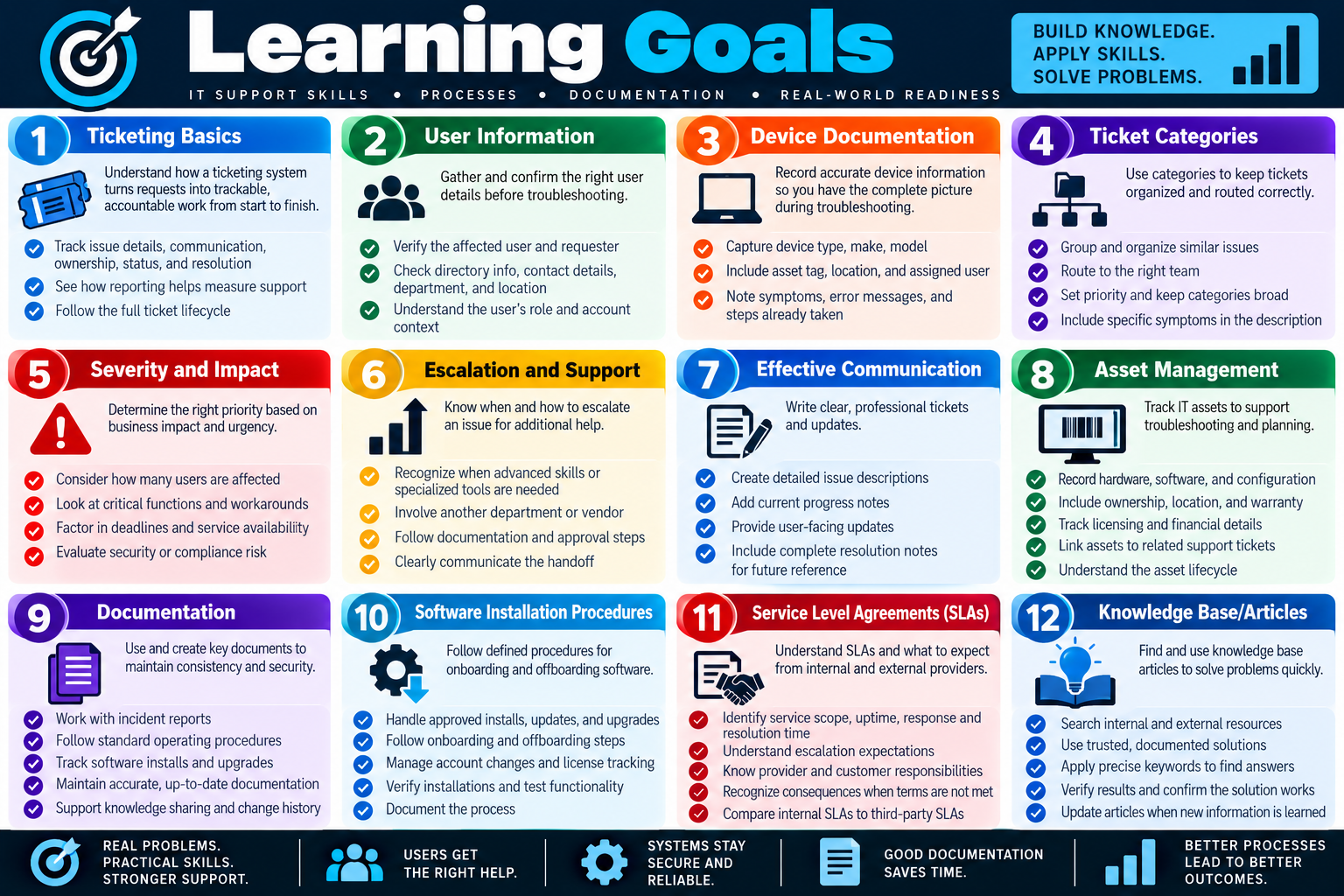
Learning Goals infographic for Objective 4.1 covering ticketing basics, user information, device documentation, categories, severity, escalation, communication, asset management, documentation, software installation procedures, SLAs, and knowledge base articles.
Learning Goals for Objective 4.1 focus on documentation, support systems, ticket handling, asset tracking, service expectations, and knowledge sharing.
  • Module 1: Explain how ticketing systems create an accountable record for support requests by tracking issue details, communication, ownership, status, assignment, resolution, and reporting from start to finish.
  • Module 2: Identify and verify user information by confirming the affected user, requester, directory-provided details, contact information, department, location, and account context before troubleshooting.
  • Module 3: Document device information accurately by recording device type, make, model, asset tag, location, assigned user, symptoms, error messages, and steps already attempted.
  • Module 4: Use ticket categories to group, organize, route, prioritize, and report support requests while keeping categories broad and placing specific symptoms in the ticket description.
  • Module 5: Assign severity based on business impact and urgency by evaluating users affected, critical functions, workarounds, deadlines, service availability, and security or compliance risk.
  • Module 6: Apply escalation levels by recognizing when an issue requires advanced skills, additional permissions, specialized tools, another department, or vendor support, and documenting the handoff clearly.
  • Module 7: Write effective ticket communication by creating clear issue descriptions, current progress notes, professional user-facing updates, and complete resolution notes that support future troubleshooting.
  • Module 8: Explain asset management by tracking hardware, software, configuration, ownership, location, warranty, licensing, financial information, lifecycle state, and related support tickets.
  • Module 9: Use documentation such as incident reports, standard operating procedures, and software installation or upgrade records to preserve consistency, security, change history, and operational knowledge.
  • Module 10: Follow software installation procedures for onboarding, offboarding, approved installs, updates, upgrades, account changes, license tracking, verification, and documentation.
  • Module 11: Interpret service level agreements by identifying service scope, uptime, response time, resolution time, escalation expectations, provider responsibilities, customer responsibilities, and consequences when terms are missed.
  • Module 12: Use knowledge base articles effectively by searching internal and external resources, applying trusted documented solutions, using precise keywords, verifying results, and updating articles when new information is learned.
Lesson ModuleModule 1 / 15
ticket
Module 01

Module 1 - Ticketing Systems

A ticketing system is the central record used to manage, track, assign, communicate, and close support requests from start to finish.

In a professional support environment, work should not live only in memory, hallway conversations, text messages, or sticky notes. A ticket creates a formal record of the issue, who reported it, who owns it, what has been tried, what still needs to happen, and how the issue was resolved. This keeps support work organized and helps prevent requests from being forgotten when a shift changes, a technician gets busy, or an issue needs to be escalated.

Ticketing systems are used by help desks, internal IT departments, managed service providers, schools, businesses, and enterprise support teams. Common platforms include ServiceNow, Jira Service Management, Freshdesk, Zendesk, Spiceworks, and many others. The screens and labels may differ, but the purpose is the same: create a record, track progress, communicate clearly, assign ownership, resolve the problem, and document the outcome.

What a Ticketing System Does

A ticketing system turns a support request into a structured workflow. Instead of simply saying, "the printer is broken" or "my password does not work," the ticket should capture useful details that help a technician understand the scope and next step. That information may include the user's name, contact method, location, device name, asset tag, operating system, application, network, error message, time of occurrence, business impact, and any troubleshooting already performed.

Create a record Every issue receives a ticket number or case ID so it can be searched, referenced, audited, and followed up later.
Keep communication together User updates, technician notes, screenshots, logs, approvals, vendor responses, and resolution steps stay attached to the same request.
Track status Tickets can move through states such as open, in progress, waiting on user, waiting on vendor, escalated, resolved, and closed.
Prevent missed work Queues, ownership, due dates, priorities, and escalation rules help make sure support requests do not disappear.

Common Help Desk Responsibilities

The help desk is often the first team to receive a request. Their job is not only to fix easy issues; it is also to collect accurate information, communicate professionally, triage the request, assign the ticket correctly, and keep the user informed. A well-written ticket saves time for everyone who touches it later.

When a request comes in, the technician should document what the user reported in clear language, ask enough questions to define the problem, and avoid jumping straight to a fix before the issue is understood. The ticket should make it clear whether the problem affects one user, one device, one department, one application, one network, or the entire organization. Scope changes the next step.

  1. Receive and document the request. Capture the user's issue, contact information, affected device or service, and when the problem started.
  2. Communicate with the user. Ask clarifying questions, explain next steps, set expectations, and provide updates when the status changes.
  3. Troubleshoot and gather evidence. Record symptoms, error messages, logs, screenshots, device details, recent changes, and steps already attempted.
  4. Assign or escalate correctly. Route the ticket to the technician, team, department, vendor, or service owner best equipped to resolve it.
  5. Follow up until resolved. Monitor progress, confirm the fix with the user, and close the ticket only after the issue is resolved or properly documented.

Determining the Next Step

A ticket is more than a note. It should help the support team decide what happens next. Once the issue is identified, the technician can choose an action plan: troubleshoot directly, request more information, assign the ticket to a specialist, escalate based on severity, contact a vendor, schedule service, or document the resolution.

Good ticket handling follows a simple pattern: identify, plan, assign, monitor, and close. First, identify the issue and gather the necessary details. Next, choose the best course of action based on scope, impact, urgency, policy, and available evidence. Then assign the work to the right person or team. While the ticket is active, monitor progress and update the user. Finally, close the ticket when the issue is resolved and the resolution has been documented.

Exam tip: If a scenario asks what to do with a support request, choose the answer that documents the issue, assigns ownership, communicates status, and verifies resolution.

Different Systems, Same Purpose

The exam may mention a specific ticketing platform, but the brand is usually less important than the process. ServiceNow may be used in large enterprises, Jira may appear in development or technical teams, Freshdesk and Zendesk are common in customer support environments, and Spiceworks may appear in smaller IT shops. Regardless of the tool, the core workflow stays similar.

Do not get distracted by the platform name. Look for the support function being described. Is the issue being recorded? Is ownership clear? Is the ticket assigned to the correct team? Is the status being updated? Is the user being informed? Is the resolution documented? Those are the behaviors that matter for Objective 4.1.

Common ticketing-system scenario clues:

  • A user reports an issue and the technician needs to create a record for tracking and follow-up.
  • A recurring problem needs history, resolution notes, or a searchable knowledge base entry.
  • A ticket must be assigned to a technician, department, escalation queue, vendor, or support team.
  • A support request is waiting on a user, waiting on parts, waiting on approval, or waiting on a third party.
  • A manager needs reporting data, such as how many tickets are open, resolved, overdue, escalated, or tied to a repeated issue.

What Good Ticket Notes Look Like

Good notes are clear, factual, and useful to the next person. They should include what the user reported, what the technician observed, what changed, what was tested, what the result was, and what remains unresolved. Avoid vague updates such as "fixed it" or "worked on computer." A better note explains the action and outcome: "Restarted print spooler, cleared stuck job, printed test page successfully, user confirmed printing works."

Ticket notes should also separate internal technical notes from user-facing updates when the system supports that distinction. Internal notes may include diagnostic details, escalation notes, sensitive configuration details, or next-step analysis. User-facing notes should be professional, concise, and understandable without unnecessary jargon.

Status Shows where the ticket is in the workflow, such as open, in progress, pending, resolved, or closed.
Priority Reflects urgency and business impact. A single user's minor issue is usually lower priority than an outage affecting a department.
Assignment Identifies who owns the next action so the request does not sit unattended.
Resolution Documents the final fix, verification result, and any follow-up or prevention steps.

Bottom line: Ticketing systems turn support requests into accountable work. Create the record, gather useful details, communicate clearly, assign the ticket correctly, monitor progress, verify the fix, and document the resolution.
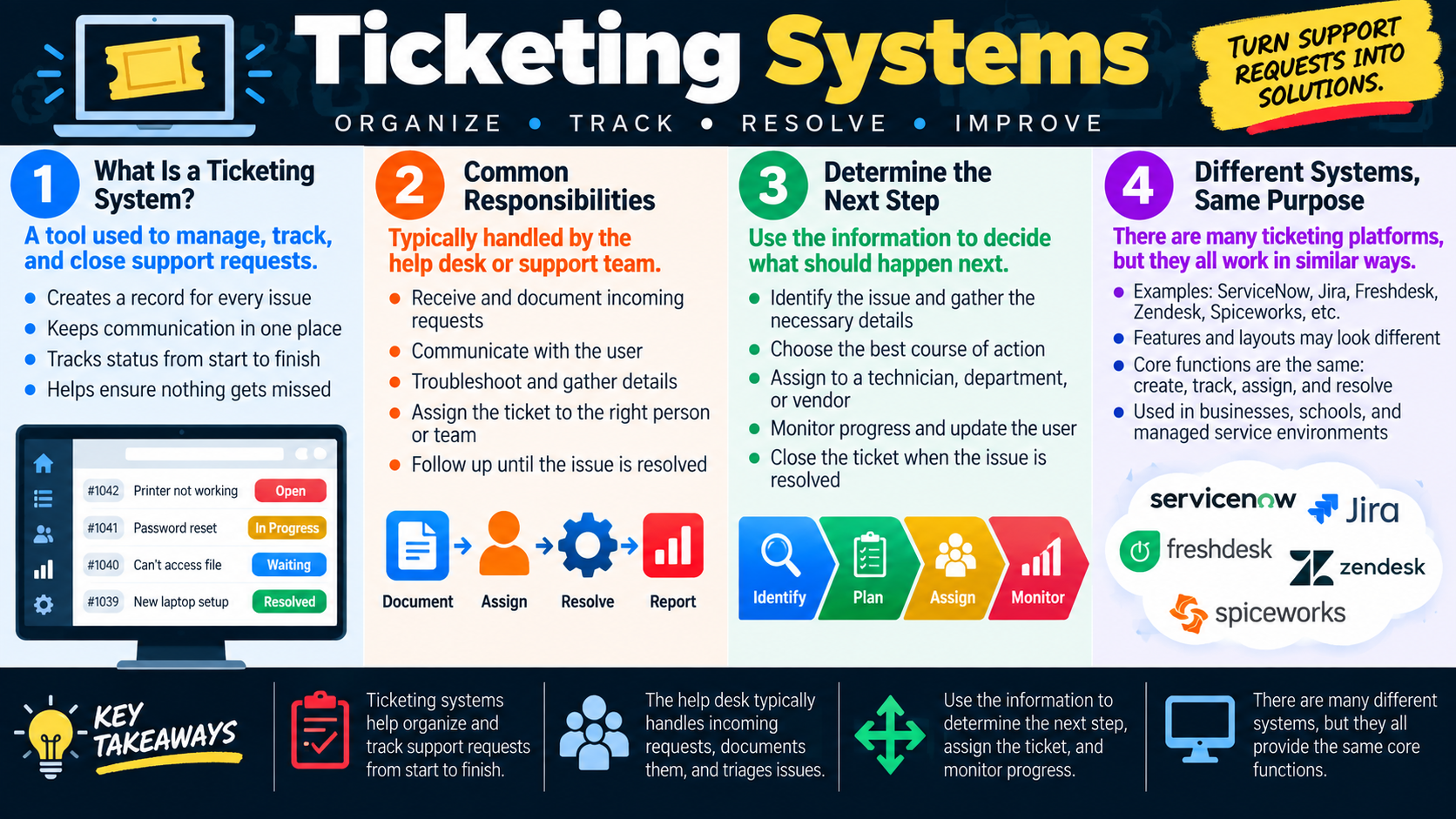
Ticketing systems infographic explaining how support requests are organized, tracked, assigned, monitored, resolved, and reported across common help desk platforms.
Ticketing systems help support teams organize requests, document communication, assign ownership, monitor progress, and close issues with a clear record of the final resolution.
user
Module 02

Module 2 - User Information

Before troubleshooting a support request, identify the correct user and verify the contact details tied to the ticket.

User information sounds basic, but it is one of the most important parts of a support ticket. A technician cannot troubleshoot effectively without knowing who is experiencing the issue, how to reach them, what account or device is affected, and whether the information in the ticket is current. The right user details make the support process faster, cleaner, and easier to document.

In many environments, a ticket is connected to a directory service such as Active Directory, Microsoft Entra ID, LDAP, Google Workspace, or another identity management platform. That directory may automatically fill in the user's username, email address, phone number, department, office location, manager, device assignment, and group membership. Automation helps, but it does not remove the technician's responsibility to confirm the details before taking action.

Identify the User First

Start by confirming who is actually affected. Sometimes a ticket is submitted by the user experiencing the problem. Other times, a manager, coworker, teacher, parent, dispatcher, or automated monitoring tool submits the request on someone else's behalf. That distinction matters. If the technician troubleshoots with the wrong person, they may collect inaccurate symptoms, reset the wrong account, contact the wrong number, or close the ticket without fixing the real issue.

The ticket should clearly identify the reporting user and the affected user when they are different people. For example, a manager might submit a request for a new employee, a teacher might report a classroom device issue, or a department assistant might report that another user's account is locked. In those cases, the technician should record who opened the ticket and who needs the resolution.

  • Get the name of the person reporting the issue.
  • Confirm whether that person is the affected user or is reporting on behalf of someone else.
  • Attach the user's information to the ticket from the beginning so the request has clear ownership.
  • Confirm the user's account, device, location, and department when those details affect troubleshooting.

Directory Services and Ticket Data

Many ticketing systems integrate with a central directory. This lets the ticketing system pull user details from one authoritative source instead of requiring the technician to type every field manually. Directory integration reduces errors, improves consistency, and helps support teams see useful context quickly.

Username Helps identify the account being used for sign-in, email, file access, application access, and permission checks.
Department Helps determine business impact, support queue, approval path, software needs, and whether the issue affects a team.
Email and phone Provide the communication path for updates, remote-session coordination, password resets, and follow-up.
Location Helps isolate issues tied to a building, classroom, office, wireless network, printer, switch, or local service.

Directory data is powerful, but it can be outdated. A user may have moved departments, changed phone numbers, switched buildings, received a replacement laptop, or taken on a new role before the directory was updated. Treat automatically populated information as a starting point, not a guarantee.

Automatic Ticket Creation

Tickets may be created in several ways. A user might open a request through a self-service portal, send an email to the support address, call the help desk, use a chat system, or trigger an automated alert from an integrated monitoring tool. When the ticket is created through a portal or email gateway, the system may automatically fill in user information based on the sign-in account or sender address.

Automatic creation saves time, but the details still need review. A shared mailbox, forwarded message, alias, or group email can cause the ticket to show the wrong requester. A portal submission may contain incomplete information. An automated alert may identify a device but not the user currently affected. The technician should check the ticket fields before assuming they are complete.

  1. Review auto-filled fields. Confirm the user's name, account, email, phone, department, and location are populated correctly.
  2. Check whether the ticket came from a portal, email gateway, integration, monitoring alert, or manual entry.
  3. Look for mismatches. The requester, affected user, assigned device, and contact details should make sense together.
  4. Update missing or stale information. Correct the ticket when the user confirms a better contact method or location.

Verify Contact Details

Before making changes, verify how to reach the user. This matters for scheduling, remote support, outage updates, password resets, follow-up questions, and final confirmation. If the user cannot be reached, a ticket may sit idle or be closed incorrectly. If the wrong user receives an update, the support team may expose private information or create confusion.

Contact details should be appropriate for the situation. Email may be enough for a routine request. A phone number may be needed for urgent problems, remote sessions, account lockouts, or issues where the user cannot access email. Department and location can matter when the issue involves printers, network drops, shared workstations, conference rooms, classrooms, or other physical resources.

Exam tip: If a ticket includes user information, verify that the requester, affected user, contact method, department, and location are accurate before troubleshooting or closing the request.

Why It Matters for Troubleshooting

User information helps define scope. If only one user is affected, the likely cause may be account permissions, profile data, app settings, group membership, assigned license, or a user-specific device. If multiple users in one department are affected, the issue may involve a shared application, printer, network segment, policy, or server. If users in one location are affected, the technician may need to check local network infrastructure or site services.

Accurate user data also protects security. A technician should not reset an account, disclose ticket details, approve access, or start a remote session without confirming they are working with the correct person and following organizational identity-verification procedures. This is especially important for password resets, MFA resets, access requests, data recovery, and any ticket involving confidential information.

Common user-information scenario clues:

  • The ticket was submitted by a manager or coworker, but another user is affected.
  • The phone number or department in the ticket is outdated.
  • A self-service portal or email gateway automatically created the request.
  • The technician needs to know which user account, device, location, or department is tied to the problem.
  • The issue may require identity verification before resetting credentials or changing access.

Bottom line: Know who has the issue before troubleshooting. Confirm the affected user, review directory-populated data, verify contact details, update stale information, and keep the ticket tied to the right person from the start.

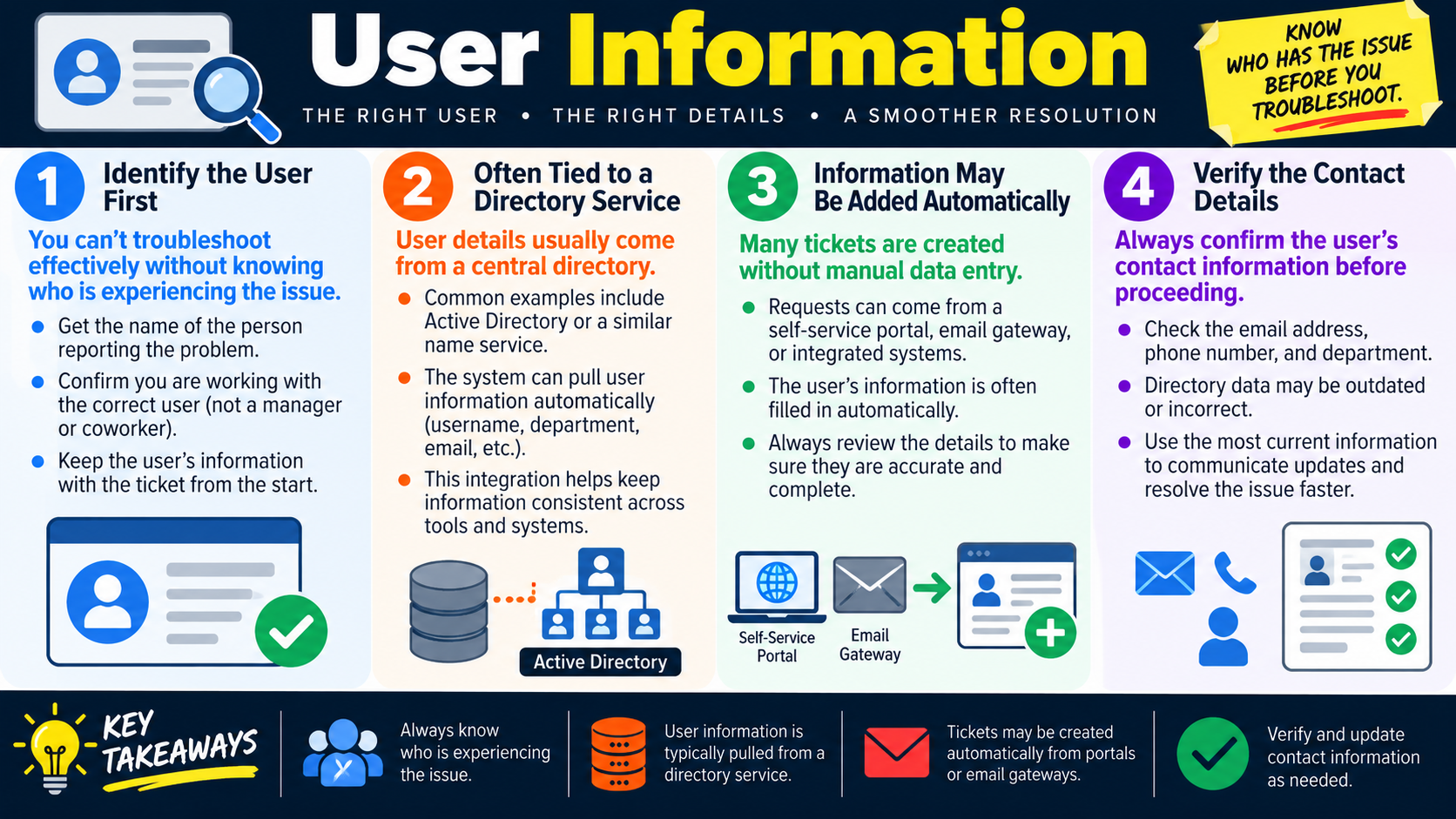
User information infographic explaining why technicians should identify the user, use directory service details, review automatically added ticket information, and verify contact details.
User information helps technicians work with the right person, use accurate directory details, communicate effectively, and resolve support requests faster.
device
Module 03

Module 3 - Device Information

Device information connects the support request to the exact hardware, location, and symptom that need attention.

A good ticket identifies the specific device involved in the issue. Without that detail, the support team may waste time contacting the user again, checking the wrong asset, or assigning the ticket to the wrong group. The ticket should say whether the problem involves a laptop, desktop, printer, conference room projector, phone, monitor, scanner, shared workstation, or another device.

Useful device details include make, model, serial number, asset tag, assigned user, location, operating system, network connection, accessories, and any error messages. For shared equipment, location can be just as important as ownership. A conference room projector, hallway printer, lab workstation, or front-desk phone should be tied to a room, building, department, or site.

Write a Clear Description

The description should explain what is happening, not just say that something is broken. A vague ticket such as "printer not working" slows everyone down. A useful description might say, "Main office printer shows offline after a Windows update. User restarted the laptop and verified Wi-Fi is connected. Other users can print." That gives the next technician a starting point.

  • Include the device type and identifying details, such as make, model, or asset tag.
  • Record the location for shared devices, rooms, printers, projectors, and phones.
  • Capture the exact symptom, error message, and when the issue started.
  • Document what has already been tried so work is not repeated.

How Device Details Drive Action

Device information helps determine whether the ticket should stay with frontline support, go to desktop support, be routed to print services, be linked to a known incident, or be escalated to a vendor. Complete information also helps identify patterns, such as repeated tickets for the same printer, model, site, or accessory.

Exam tip: A good ticket identifies the device, describes the issue clearly, includes useful evidence, and helps route the work to the right person.

Why Device Details Matter

The device record can change the entire troubleshooting path. A laptop issue may require warranty lookup, driver checks, assigned-user history, encryption status, or replacement planning. A shared printer issue may require checking the print queue, network reachability, location, consumables, and whether multiple users are affected. A conference room device may involve audiovisual support, facilities, or vendor maintenance instead of desktop support.

Device information also helps prevent repeated work. If a ticket is linked to the correct asset, the next technician can review previous repairs, recurring symptoms, model-specific problems, and recent configuration changes.

Support history Previous tickets can show recurring failures, repeated parts replacement, user training issues, or known model problems.
Warranty and repair Make, model, serial number, and purchase date help determine whether the device is eligible for vendor repair.
Routing The device type can determine whether the ticket belongs to desktop, print, network, AV, telecom, facilities, or vendor support.
Scope Device and location details help determine whether the issue affects one endpoint, one room, one department, or a larger service.

Bottom line: Identify the device, describe the problem clearly, include key details, and document what has already been tried.

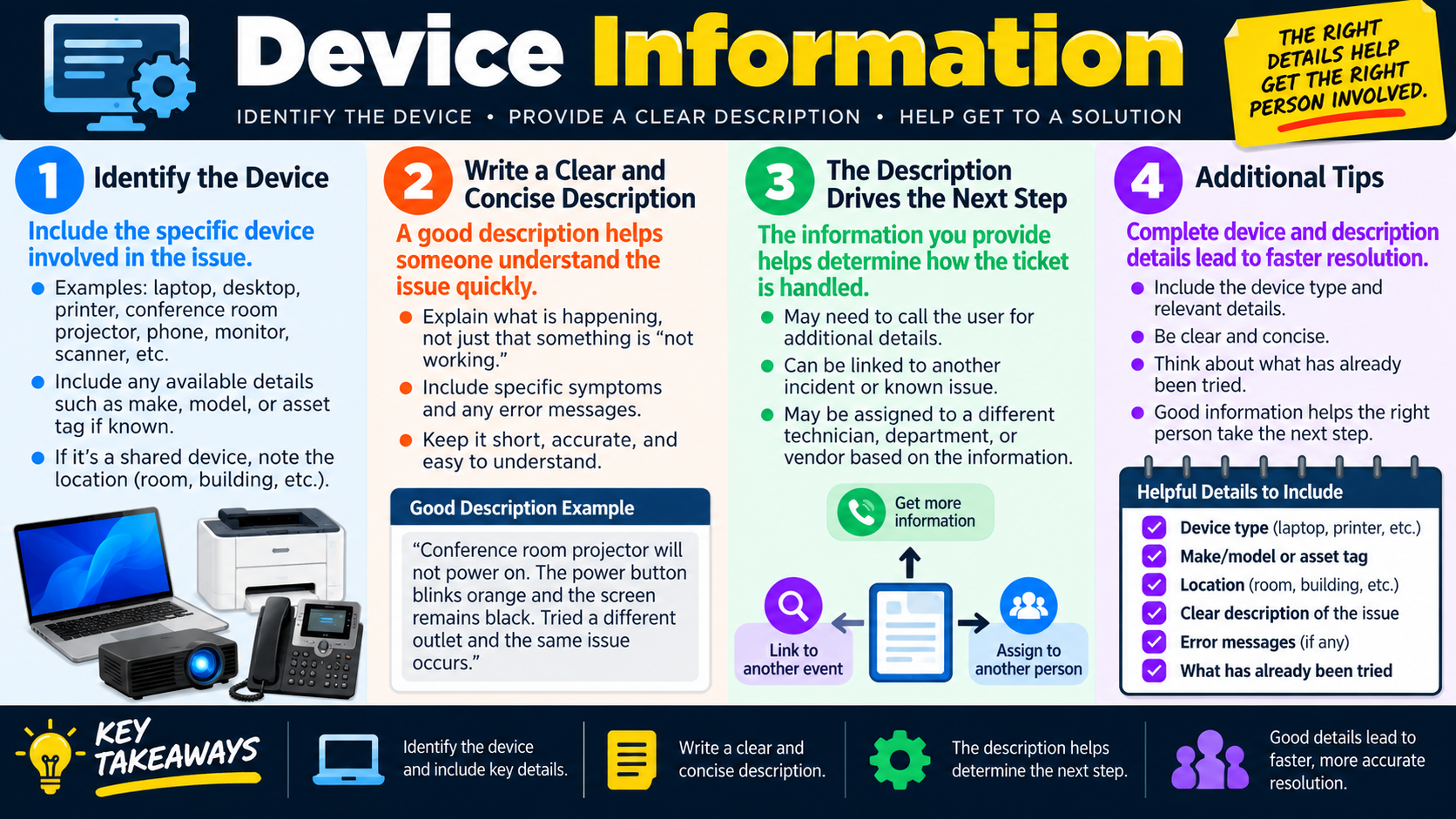
Device information infographic showing how tickets should include device type, make, model, asset tag, location, issue description, error messages, and previous troubleshooting.
Device information gives the support team the right starting point and helps route the ticket accurately.
category
Module 04

Module 4 - Categories

Categories are broad labels that describe the general type of support request so tickets can be organized, routed, prioritized, and reported correctly.

Ticket categories keep support work from becoming a pile of unrelated requests. A category tells the help desk what kind of request is being handled: a change request, hardware request, problem investigation, hardware failure, onboarding task, offboarding task, access request, software issue, network issue, or another broad type.

The category should describe the main nature of the request, not every small detail inside the ticket. For example, a laptop replacement for a new hire may fit onboarding or hardware request depending on the organization's process. A failed monitor may be hardware failure. A recurring unexplained application error may be problem investigation.

Common Category Examples

Change request A request to modify something that already works, such as a configuration change, software install, or system update.
Hardware request A request for equipment such as a laptop, desktop, accessory, printer, phone, or replacement device.
Problem investigation An issue that requires troubleshooting to identify the root cause of errors, instability, or unusual behavior.
Onboarding / offboarding Requests related to new hires, role changes, employee departures, accounts, access, and equipment.

Correct categorization helps the ticket reach the right queue and improves reporting. Managers can see which types of requests consume the most support time, which services fail most often, and where documentation or automation could reduce repeated work.

Exam tip: Use categories as broad routing labels. Keep the detailed symptom in the description, not in the category name.

Choosing the Right Category

When choosing a category, focus on the main reason the request exists. If a user needs a new laptop, that is usually a hardware request. If a working application needs a configuration change, that is usually a change request. If something is failing and the cause is unknown, it may be a problem investigation. If an employee is joining, leaving, or changing roles, onboarding or offboarding may be the stronger category.

Category quality affects reporting quality. If technicians choose random categories, management reports become unreliable. If categories are too narrow, technicians spend too much time deciding between nearly identical labels. If categories are too broad, the reports no longer help the organization understand demand.

Technician mindset: Category is the broad bucket. Description is the evidence. Assignment is the owner. Severity is the urgency.

Bottom line: Categories organize tickets, help route work to the right team, and make support trends easier to analyze.

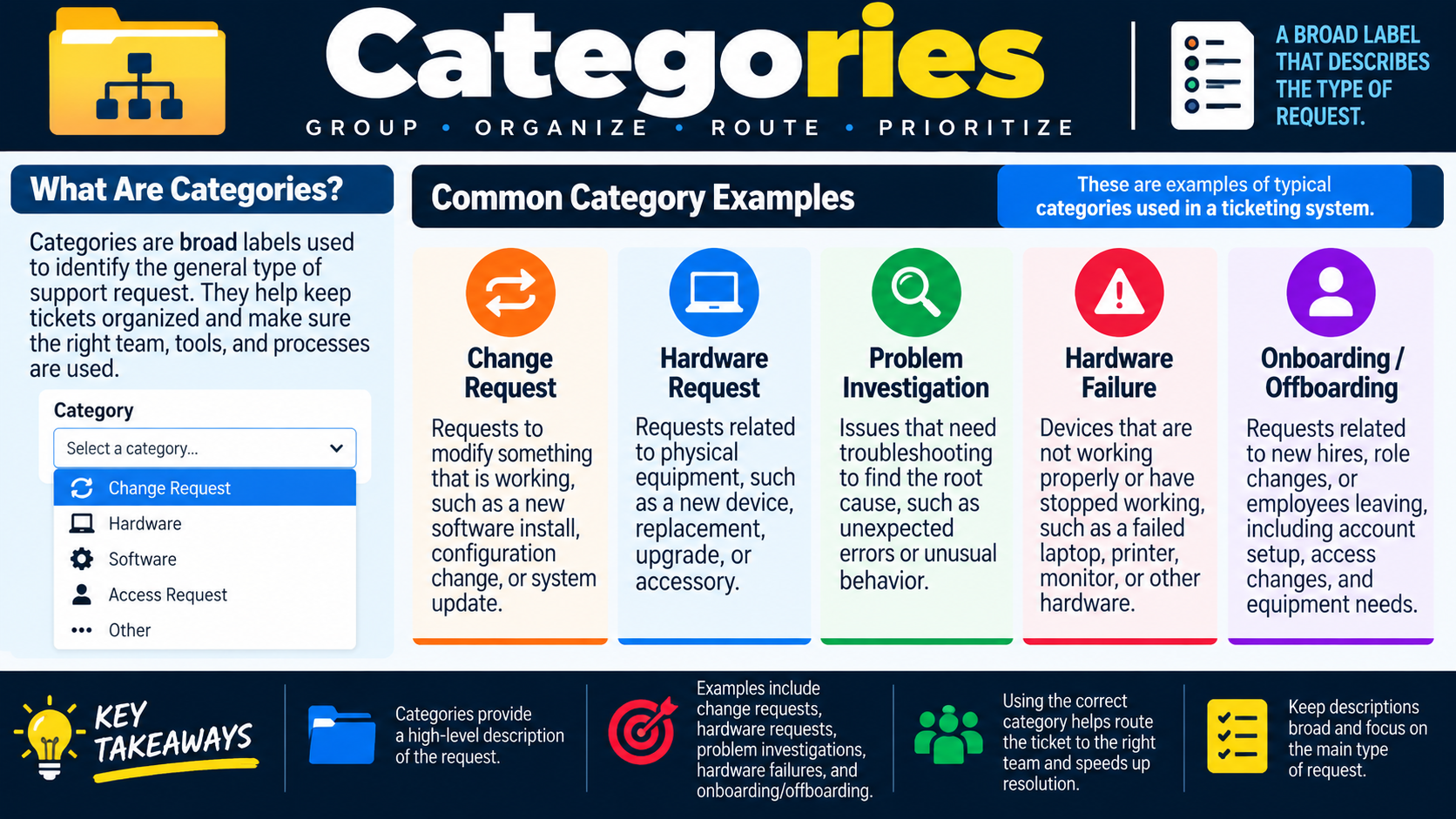
Categories infographic explaining common ticket categories such as change request, hardware request, problem investigation, hardware failure, and onboarding or offboarding.
Categories provide a high-level description of the request and help the support process move faster.
sev
Module 05

Module 5 - Severity

Severity describes the impact and urgency of an issue so the support team can prioritize work and meet response expectations.

Severity is not just about how frustrated the user is. It is based on business impact: how many users are affected, whether a critical service is unavailable, whether there is a workaround, whether security or compliance is involved, and whether time-sensitive work is blocked. Most organizations define severity levels so technicians make consistent prioritization decisions.

Severity labels vary, but the concept is usually similar. Low severity issues have minimal impact. Medium issues affect productivity but work can continue. High severity issues affect many users, a location, or an important function. Critical issues stop major business operations, involve security incidents, or require immediate response.

Common Severity Levels

Low Single user, minimal impact, non-urgent request, question, cosmetic issue, or available workaround.
Medium Multiple users or a department affected, productivity reduced, but work can usually continue.
High Many users, a location, important application, or major workflow affected with limited workaround.
Critical Mission-critical service unavailable, no workaround, major outage, security incident, or business cannot function.

Factors That Influence Severity

  • Number of users affected and whether executives, departments, or locations are impacted.
  • Effect on business-critical functions, deadlines, patient/customer service, or revenue.
  • Availability of a workaround or alternate process.
  • Security, privacy, compliance, or safety implications.
  • Whether the service is degraded, partially unavailable, or completely down.

Severity Is Not the Same as Priority

Severity describes impact and urgency; priority describes the order in which work is handled. They are related, but they are not always identical. A critical security incident is both severe and high priority. A high-impact outage with an available workaround may still be severe, but its immediate priority may depend on business timing and established policy.

Severity should be reviewed as new information arrives. A ticket may start as medium when one user reports an issue, then become high if several departments report the same symptom. It may also decrease if a workaround is confirmed or if the problem is isolated to a noncritical workflow.

Escalate faster High and critical severity tickets often require faster escalation, broader communication, and tighter tracking.
Set expectations Severity helps users understand when support will respond and when updates are expected.
Protect resources Consistent severity prevents minor requests from crowding out business-critical incidents.
Document rationale The ticket should explain why a severity level was chosen, especially for high-risk issues.

Bottom line: Severity helps set urgency, priority, escalation path, and response time expectations.

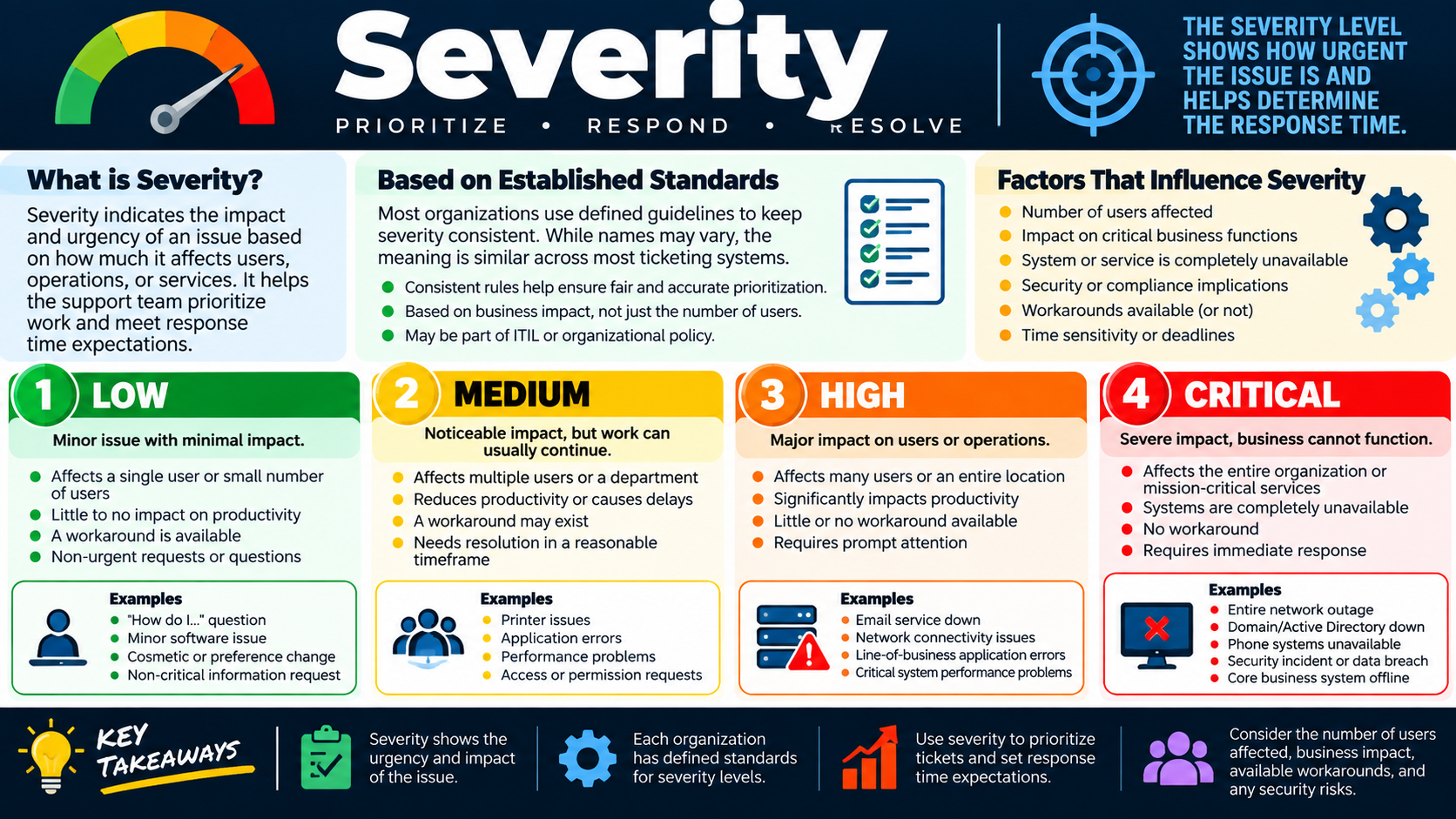
Severity infographic describing low, medium, high, and critical support issue levels with impact, urgency, examples, and factors that influence severity.
Severity levels help the support team prioritize tickets based on impact, urgency, and business risk.
level
Module 06

Module 6 - Escalation Levels

Escalation levels move a ticket to the people with the right skills, permissions, tools, or vendor access when the current support level cannot resolve it.

Escalation is not failure. It is part of a healthy support process. Frontline technicians handle common, routine issues and gather details. More complex problems may require advanced tools, deeper system knowledge, elevated permissions, or specialized teams such as networking, security, cloud, database, server, application, or vendor support.

Before escalating, the technician should update the ticket with what was tried, what was found, what changed, and what still needs attention. A good escalation lets the next team continue instead of starting over. Poor escalations waste time because the receiving team has to rediscover basic facts.

Typical Escalation Path

  1. Level 1 frontline support: Handles common issues, FAQs, password resets, basic software issues, and initial triage.
  2. Level 2 advanced support: Handles deeper troubleshooting for systems, networks, applications, and permissions.
  3. Level 3 specialist support: Handles difficult, uncommon, infrastructure, security, server, or application-specific issues.
  4. Specialized team or vendor: Handles unique systems, vendor-owned platforms, advanced access, warranty support, or contract-based service.

Escalation should be based on scope, severity, technical complexity, permissions, and organizational process. If the issue is outside the current technician's authority, requires restricted tools, or affects a critical service, escalating quickly can reduce downtime.

Exam tip: Escalate when the issue requires specialized skills, additional permissions, a different team, or vendor involvement, and document what has already been done.

What a Good Escalation Includes

An escalation should help the receiving technician continue from the current point, not restart from zero. Include the symptom, affected users, device or service, category, severity, contact details, steps already tried, screenshots or logs collected, recent changes, and why escalation is needed.

Escalation can be functional or hierarchical. Functional escalation sends the issue to a team with different skills, such as networking, security, database, or vendor support. Hierarchical escalation raises visibility to leadership or management when impact, delay, or policy requires attention.

Good escalation note: User cannot access payroll app. Affects three users in Accounting. Cleared browser cache, tested alternate browser, confirmed network access, and verified app is reachable for IT test account. Escalating to App Support for permission and application log review.

Bottom line: Know when to escalate, document clearly, and get the ticket to the team that can resolve it.

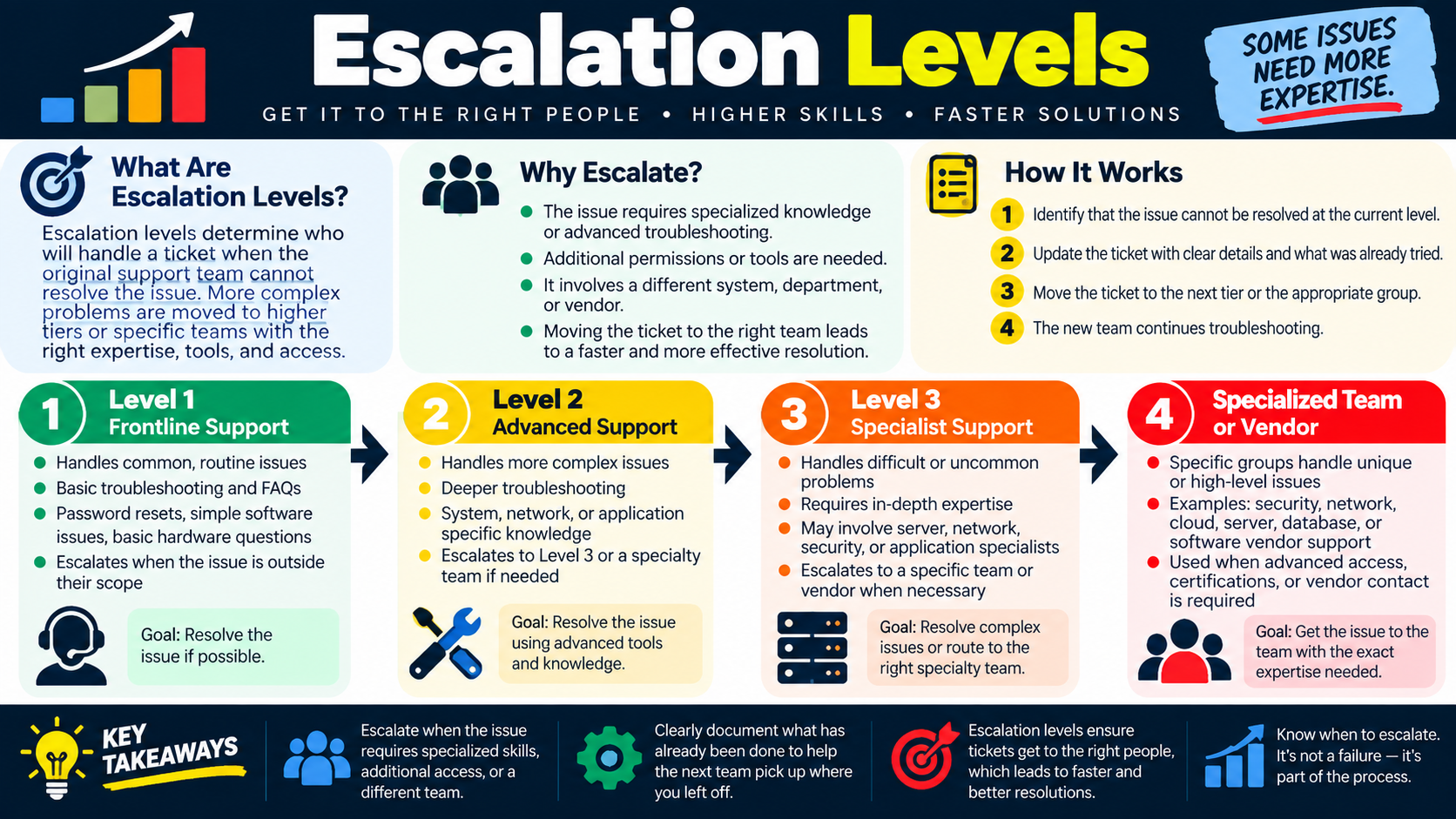
Escalation levels infographic explaining Level 1 frontline support, Level 2 advanced support, Level 3 specialist support, and specialized team or vendor escalation.
Escalation levels help route complex issues to the right expertise without losing the troubleshooting history.
write
Module 07

Module 7 - Written Communication

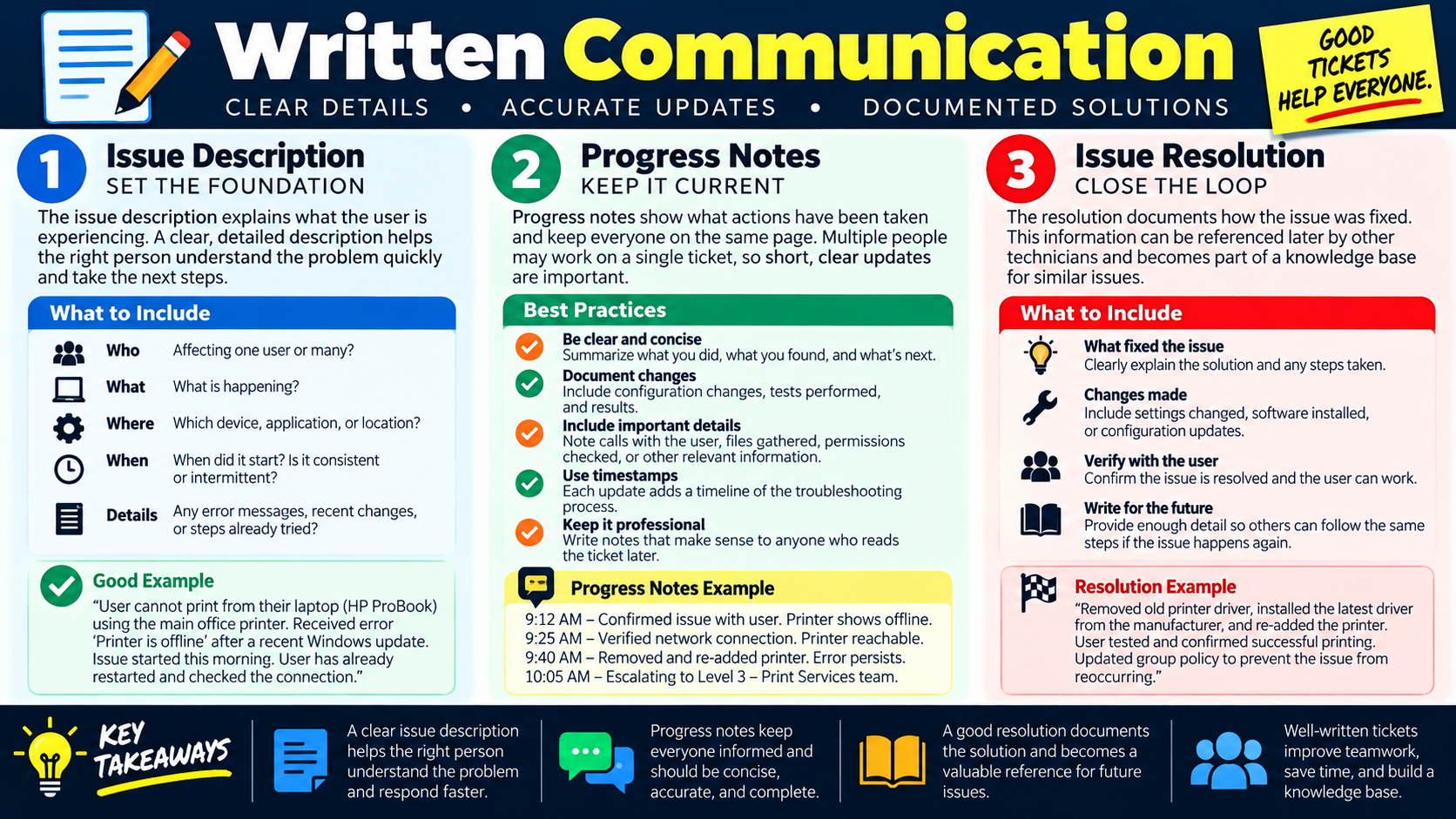
Written communication in tickets should clearly describe the issue, record progress, and document the final resolution.

Good ticket writing helps everyone: the user, the next technician, the escalation team, managers, auditors, and future technicians searching for a similar issue. Written communication should be accurate, concise, professional, and complete enough that another person can understand what happened without interviewing everyone again.

Issue Description

The issue description sets the foundation. It should explain who is affected, what is happening, where it is happening, when it started, and what details matter. Include error messages, recent changes, affected devices, applications, locations, and steps already tried.

Progress Notes

Progress notes show what actions have been taken over time. Use timestamps when helpful. Note tests performed, settings checked, changes made, user contact attempts, files gathered, escalation decisions, and results. Progress notes should be clear enough that another technician can pick up the ticket without repeating work.

Issue Resolution

The resolution closes the loop. It should explain what fixed the issue, what was changed, how the fix was verified, and whether follow-up is required. A good resolution can later become a knowledge base article or help identify recurring problems.

Exam tip: Good written communication answers who, what, where, when, what changed, what was tried, what fixed it, and how it was verified.

Internal Notes vs. User-Facing Updates

Some ticketing systems separate private internal notes from public user-facing updates. Internal notes can include troubleshooting detail, escalation reasoning, diagnostic data, and technical context for other technicians. User-facing updates should be clear, respectful, and understandable without exposing unnecessary internal details.

Good written communication also protects continuity. If a technician leaves for the day, the ticket should tell the next person what happened and what should happen next. This is especially important for escalations, multi-day issues, vendor cases, and tickets involving security or business impact.

Issue description Defines the problem clearly enough for the right person to understand it quickly.
Progress notes Record actions, tests, findings, changes, communications, and next steps while work is ongoing.
Resolution notes Explain what fixed the issue, what changed, how it was verified, and what to do if it returns.
Knowledge reuse Well-written tickets can become knowledge base articles, training examples, or trend evidence.

Bottom line: Clear descriptions, current progress notes, and complete resolutions make support work faster, safer, and easier to repeat.

Written communication infographic showing issue descriptions, progress notes, issue resolutions, best practices, and examples of good ticket notes.
Well-written tickets preserve context, keep teams aligned, and create a useful record for future issues.
asset
Module 08

Module 8 - Asset Management

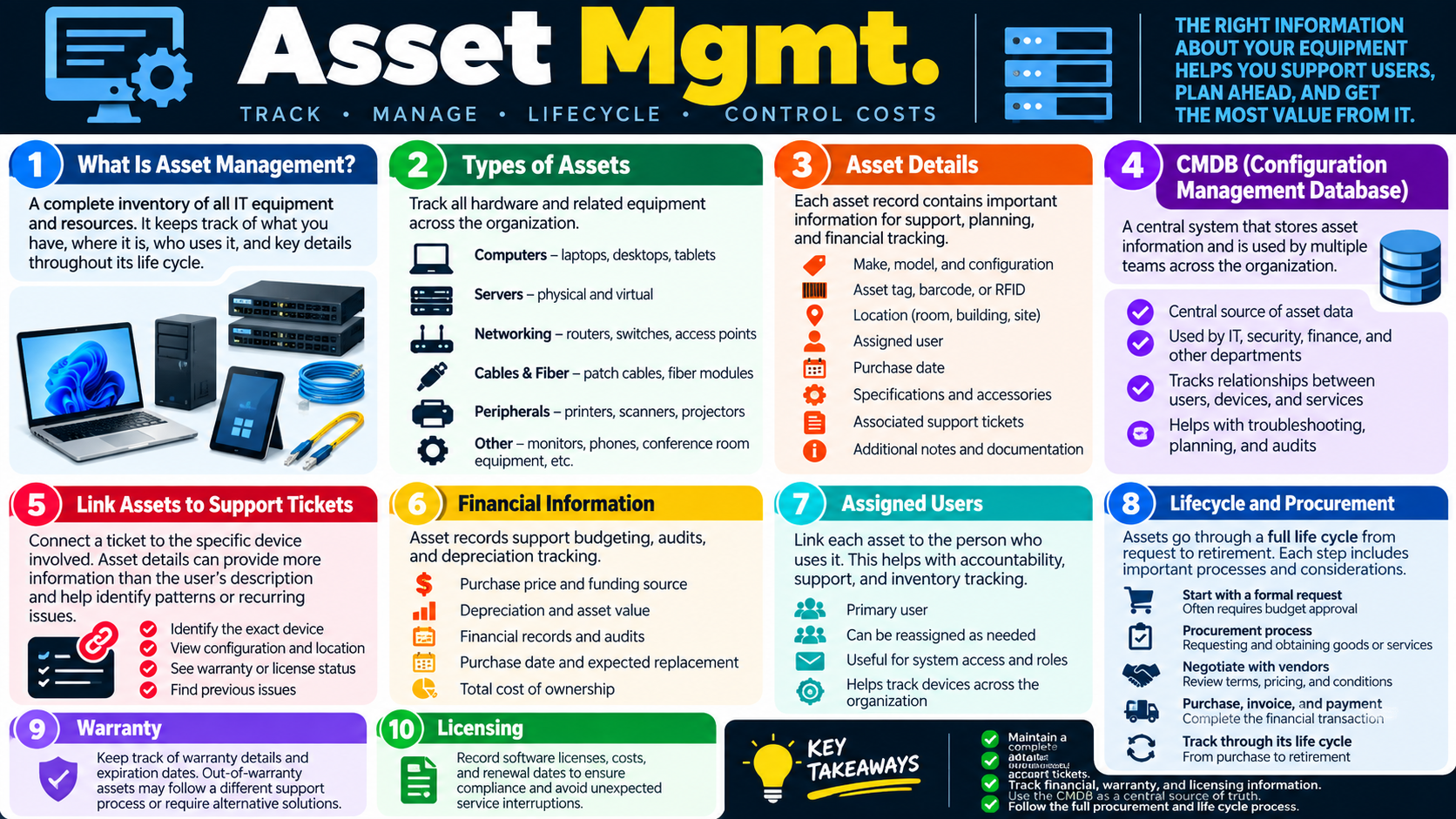
Asset management tracks the equipment, ownership, configuration, cost, warranty, licensing, and life cycle of technology resources.

Asset management is a complete inventory of the organization's equipment and related resources. It helps IT know what exists, where it is, who uses it, how it is configured, what it costs, when it was purchased, whether it is under warranty, and when it should be replaced. Good asset records make support faster and planning more accurate.

Assets can include laptops, desktops, tablets, servers, virtual machines, routers, switches, access points, cables, fiber modules, printers, scanners, projectors, monitors, phones, conference room devices, software licenses, and accessories. Each asset should have enough detail to support troubleshooting, procurement, budgeting, audits, and security decisions.

Important Asset Details

  • Make, model, serial number, configuration, asset tag, barcode, or RFID identifier.
  • Assigned user, department, location, room, building, site, and related support tickets.
  • Purchase date, vendor, warranty status, expected replacement date, and total cost of ownership.
  • Software licenses, renewal dates, support agreements, accessories, and documentation.

CMDB and Life Cycle

A configuration management database, or CMDB, stores asset and configuration information that multiple teams can use. It can show relationships between users, devices, services, applications, and business functions. Assets should also be tracked through their life cycle: request, approval, procurement, purchase, deployment, support, reassignment, repair, retirement, and disposal.

Exam tip: Link support tickets to exact assets. This helps find device history, warranty status, configuration, assigned user, and recurring problems.

Using Assets During Troubleshooting

Asset records are not only for inventory audits. They help technicians make better support decisions. If a laptop is out of warranty and has repeated hardware failures, replacement may be more appropriate than repair. If several tickets are tied to the same printer model, the team may identify a driver, firmware, or supply issue. If a device is assigned to the wrong user, access, billing, and accountability records may be wrong too.

Asset management also supports security. Lost or stolen equipment, unassigned devices, unsupported operating systems, unmanaged software, and unknown network hardware can all create risk. Accurate asset records help the organization know what must be patched, replaced, recovered, encrypted, retired, or investigated.

Support Find device history, configuration, user assignment, warranty, and previous incidents.
Finance Track purchase cost, depreciation, replacement timing, and total cost of ownership.
Security Identify unsupported, missing, unmanaged, or high-risk equipment.
Procurement Plan refresh cycles, negotiate with vendors, and avoid emergency purchases.

Bottom line: Asset management helps IT support users, control costs, plan replacements, manage licenses, and understand the equipment environment.

Asset management infographic covering equipment inventory, asset details, CMDB, support ticket links, financial information, assigned users, lifecycle, warranty, and licensing.
Asset records provide the equipment context needed for support, planning, budgeting, audits, and lifecycle management.
docs
Module 09

Module 9 - Documents

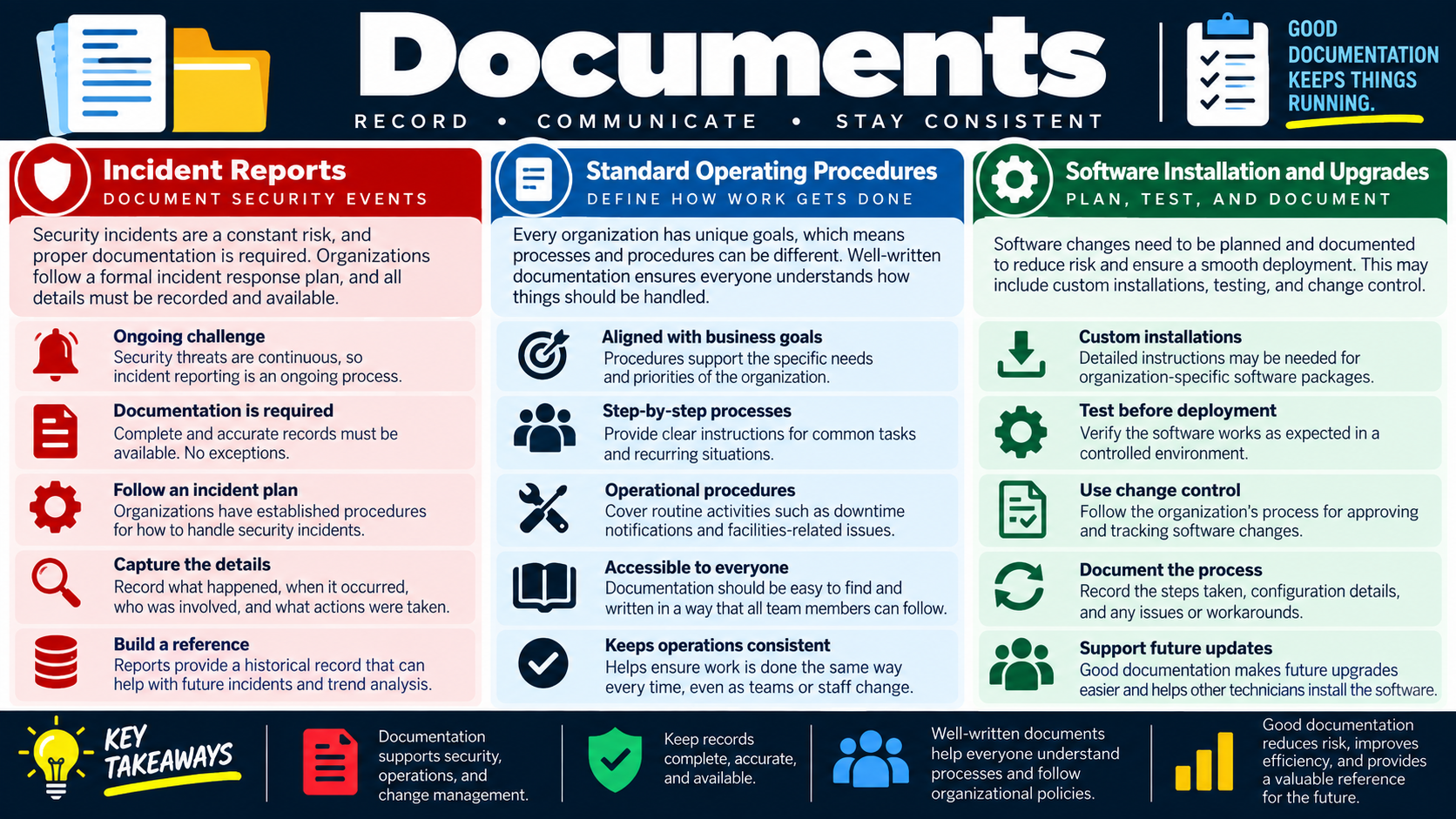
Documentation keeps security events, procedures, installations, upgrades, and operational processes consistent and repeatable.

Documentation is more than a record after the fact. It is how an organization communicates expectations, preserves institutional knowledge, supports audits, and keeps work consistent as teams and staff change. Strong documentation reduces confusion and makes support work safer.

Incident Reports

Security incidents require formal documentation. Incident reports record what happened, when it occurred, who was involved, what systems were affected, what actions were taken, and what the outcome was. Reports also create a historical record for trend analysis, future prevention, legal review, and compliance requirements.

Standard Operating Procedures

Standard operating procedures, or SOPs, define how work gets done. They provide step-by-step instructions for recurring tasks, operational processes, downtime notifications, facilities-related issues, common support procedures, and business-specific workflows. SOPs should be easy to find and written so team members can follow them consistently.

Software Installation and Upgrades

Software changes need planning and documentation. Installation and upgrade documents may include custom install steps, prerequisites, testing requirements, approved sources, change-control approvals, configuration settings, rollback plans, and post-install verification. This reduces risk and helps future technicians repeat successful deployments.

Keeping Documentation Useful

Documentation must be maintained. An outdated procedure can be worse than no procedure because it gives technicians false confidence. Documents should have an owner, a review cycle, version history, and a clear location where technicians know to find the current copy.

Good documentation is written for its audience. A technician-facing SOP can include precise configuration steps, command output, screenshots, and escalation notes. A user-facing guide should use plain language and focus on what the user needs to do. Incident reports should be factual, complete, and suitable for later review.

Documentation rule: If the process is repeated, risky, security-related, audit-related, or easy to forget, it should be documented and kept current.

Bottom line: Good documentation supports security, operations, consistency, change management, training, and future troubleshooting.

Documents infographic covering incident reports, standard operating procedures, and software installation and upgrade documentation.
Documentation helps teams record events, communicate procedures, and perform work consistently.
install
Module 10

Module 10 - Software Installation Procedures

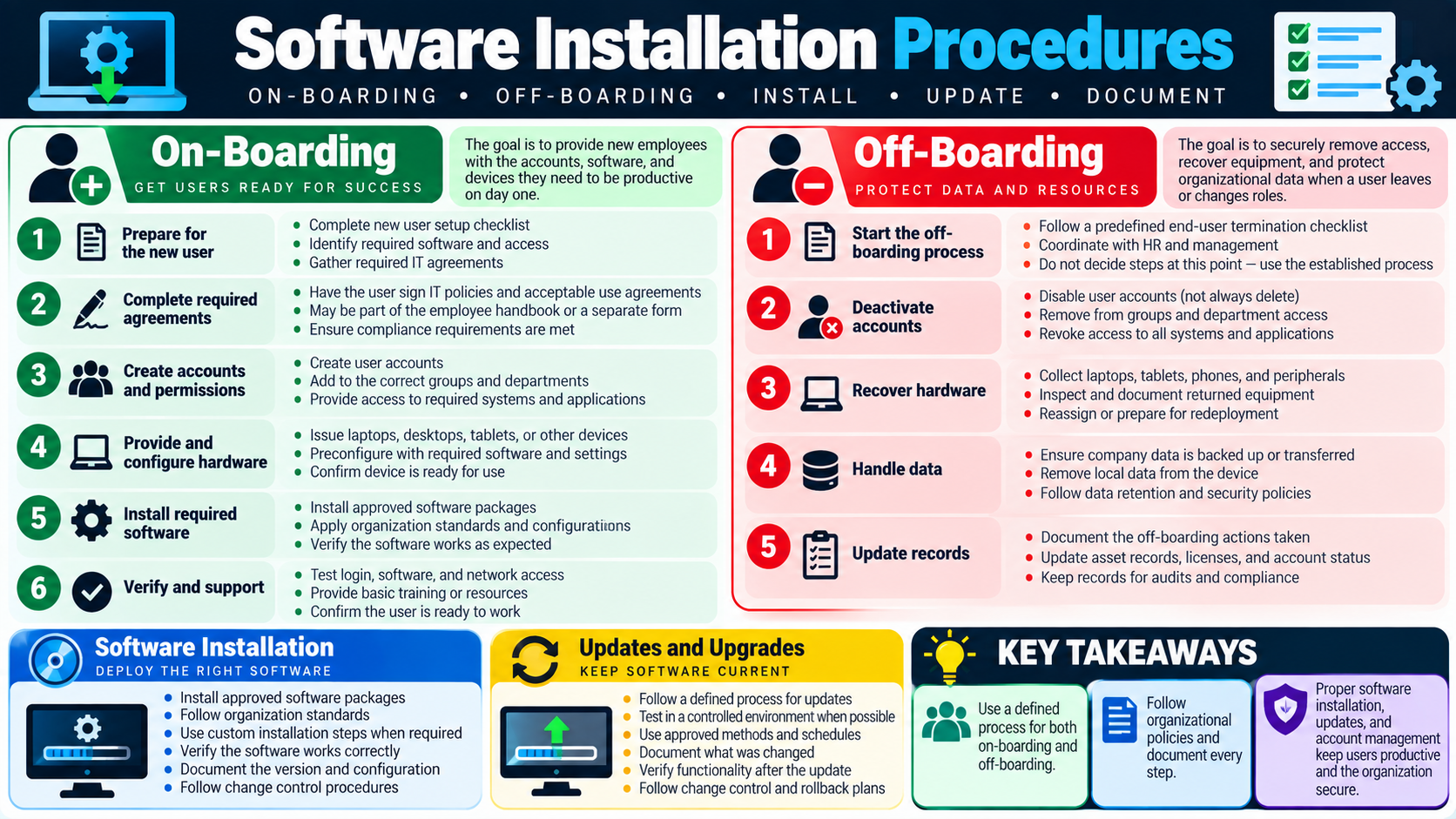
Software installation procedures define how users receive accounts, devices, access, applications, updates, and support through onboarding and offboarding.

Installation procedures keep software deployment consistent, secure, and supportable. They apply when onboarding new users, changing roles, installing approved software, updating applications, upgrading systems, and removing access during offboarding. The goal is to give users what they need while protecting organizational data and systems.

Onboarding

Onboarding prepares a new user for success. It includes completing setup checklists, gathering agreements, creating accounts, assigning groups and permissions, issuing hardware, applying standard configurations, installing required software, verifying login, testing network access, and confirming the user can work on day one.

Offboarding

Offboarding protects data and resources when a user leaves or changes roles. Follow the established process: disable accounts when appropriate, remove group membership, revoke application access, recover hardware, back up or transfer company data, remove local data if required, update asset and license records, and document every action.

Install, Update, and Document

Software should come from approved sources and be installed using organizational standards. Updates and upgrades should be tested when possible, scheduled appropriately, documented, verified, and tied to change-control or rollback plans when risk is higher.

Exam tip: Use defined processes for onboarding, offboarding, installation, updates, access changes, documentation, and verification.

Why Procedures Reduce Risk

Software procedures prevent inconsistent installs, unapproved applications, missed license requirements, unsupported versions, and security gaps. They also help technicians avoid improvising when a user needs quick access or when an employee leaves the organization.

For onboarding, the risk is missed access or an unproductive user. For offboarding, the risk is unauthorized access, unrecovered hardware, exposed data, or unused licenses. For updates and upgrades, the risk is downtime, broken workflows, unsupported configurations, and lack of rollback.

Approved sources Use trusted portals, deployment systems, vendor sites, repositories, or managed catalogs.
Standard configuration Apply the organization baseline so systems are supportable and secure.
Verification Test sign-in, application launch, network access, permissions, and key workflows.
Records Update tickets, asset records, licensing, account status, and change documentation.

Bottom line: Proper software procedures keep users productive, accounts secure, software consistent, and records audit-ready.

Software installation procedures infographic covering onboarding, offboarding, software installation, updates, upgrades, documentation, and key takeaways.
Installation procedures provide repeatable steps for deploying software, managing access, and documenting changes.
SLA
Module 11

Module 11 - Service Level Agreements

A service level agreement defines the agreed level of service, performance expectations, responsibilities, and consequences when targets are not met.

An SLA sets expectations between a customer and a service provider. The customer may be internal, such as a department relying on IT support, or external, such as an organization relying on an internet service provider, cloud provider, or managed service vendor. SLAs clarify what is covered, how quickly support should respond, how quickly issues should be resolved, and how service performance is measured.

Internal SLAs

Internal SLAs are used between departments, IT teams, and employees. They define support hours, response targets, resolution targets, service availability, escalation paths, and what services are included. They improve communication by making expectations visible before there is a problem.

External and Third-Party SLAs

External SLAs are used with vendors such as ISPs, cloud providers, telecom carriers, managed service providers, and hardware support companies. They may include uptime guarantees, response times, technician dispatch, credits, penalties, spare equipment requirements, maintenance windows, and customer responsibilities.

Common SLA Elements

  • Service availability or uptime target.
  • Response time and resolution time.
  • Scope of services, exclusions, support hours, and reporting.
  • Escalation process and consequences if terms are not met.

Reading an SLA Scenario

When an exam scenario mentions uptime, response time, resolution time, technician dispatch, service credits, penalties, or spare equipment, think SLA. The correct answer usually depends on the agreement, not on what the technician personally thinks is reasonable. SLAs define the promise that the provider is expected to meet and the responsibilities the customer must satisfy.

Internal SLAs help support teams prioritize fairly. External SLAs help organizations hold vendors accountable. In both cases, the SLA should be documented, measurable, and realistic. If the support team cannot measure uptime, response time, or resolution time, it cannot reliably prove whether the SLA is being met.

Response time How quickly support acknowledges or begins working the issue.
Resolution time How quickly the service is expected to be restored or the issue completed.
Availability Expected uptime, support hours, maintenance windows, and allowed downtime.
Consequences Escalation, credits, penalties, reporting, or other actions when terms are missed.

Bottom line: SLAs define expectations, measure service performance, and help users and providers understand responsibilities.

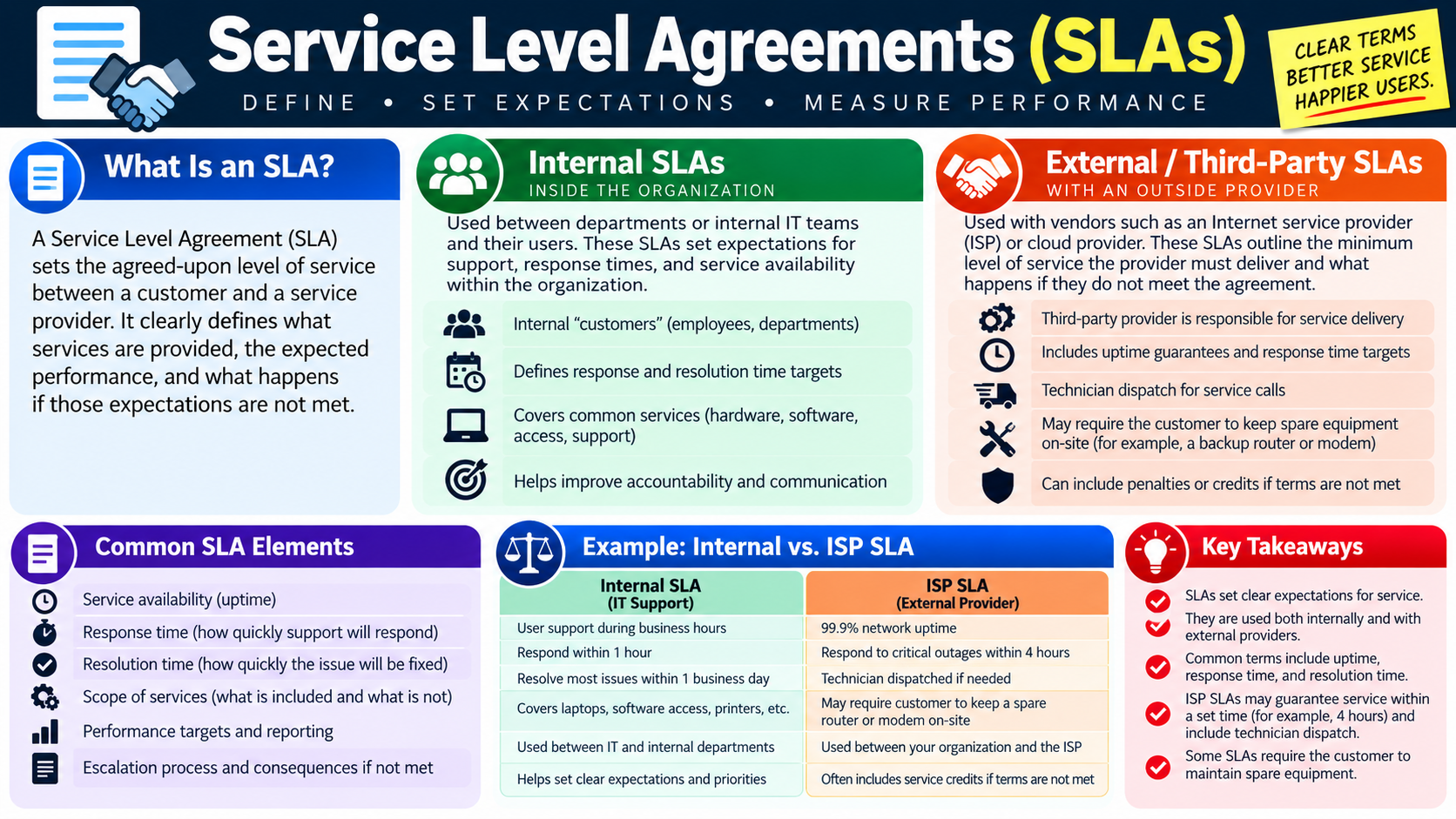
Service level agreements infographic describing internal SLAs, external provider SLAs, common elements, examples, and key takeaways.
SLAs make support expectations measurable, including response times, resolution targets, uptime, scope, and escalation rules.
KB
Module 12

Module 12 - Knowledge Base / Articles

A knowledge base helps technicians find answers, share proven solutions, and resolve problems faster using trusted internal and external resources.

A knowledge base is most useful when the right information is available at the right time. Support teams should use both external sources and internal documentation. External sources include vendor knowledge bases, manufacturer manuals, official support sites, trusted technical articles, and reputable communities. Internal sources include organization-specific procedures, known fixes, FAQs, approved workarounds, and lessons learned from previous tickets.

External Sources

External resources are helpful when troubleshooting vendor products, hardware, applications, cloud services, or operating system issues. Manufacturer documentation and official support pages are usually the safest starting point. Online communities can also be valuable, but technicians should validate the solution before applying it in a production environment.

Internal Documentation

Internal articles capture knowledge that is specific to the organization. They may explain local printer setup, VPN instructions, approved software deployment steps, classroom technology fixes, account request procedures, or known issues with a business application. Internal documentation keeps support consistent and helps new technicians follow approved processes.

Searching Effectively

Use specific keywords from the ticket: exact error messages, device names, application names, symptoms, model numbers, and service names. If one search fails, try different terms. A good knowledge base should return relevant articles quickly and reduce the need to reinvent solutions that already exist.

  • Search internal and external sources before guessing.
  • Use terms from the ticket, error message, asset record, or affected service.
  • Prefer step-by-step instructions and organization-approved solutions.
  • Update the ticket and improve the article when you discover missing or outdated information.
Exam tip: A strong knowledge base improves consistency, speeds resolution, reduces downtime, and preserves institutional knowledge.

When to Create or Update an Article

A technician should consider creating or updating a knowledge base article when an issue is recurring, the fix required research, the steps are easy to forget, the solution is organization-specific, or multiple technicians are likely to need the same answer later. The article should include the symptom, environment, prerequisites, step-by-step solution, verification steps, owner, date, and any warnings or rollback notes.

Knowledge articles should be searchable and trusted. Use clear titles, relevant keywords, exact error text, product names, device models, and service names. A vague title like "Printer fix" is less useful than "Printer offline after Windows update - re-add network printer and verify print queue." The title and keywords should match the way technicians actually search.

Use external sources carefully Manufacturer docs and official support sites are preferred; forums require validation before production use.
Capture local knowledge Internal articles should include organization-specific settings, contacts, screenshots, and escalation paths.
Verify the result Follow the article, test the workflow, and document whether the fix resolved the issue.
Improve the article If steps are missing, outdated, or unclear, update the documentation so the next technician benefits.

Bottom line: Use trusted sources, search with specific keywords, follow documented solutions, and update knowledge when the fix teaches the team something useful.

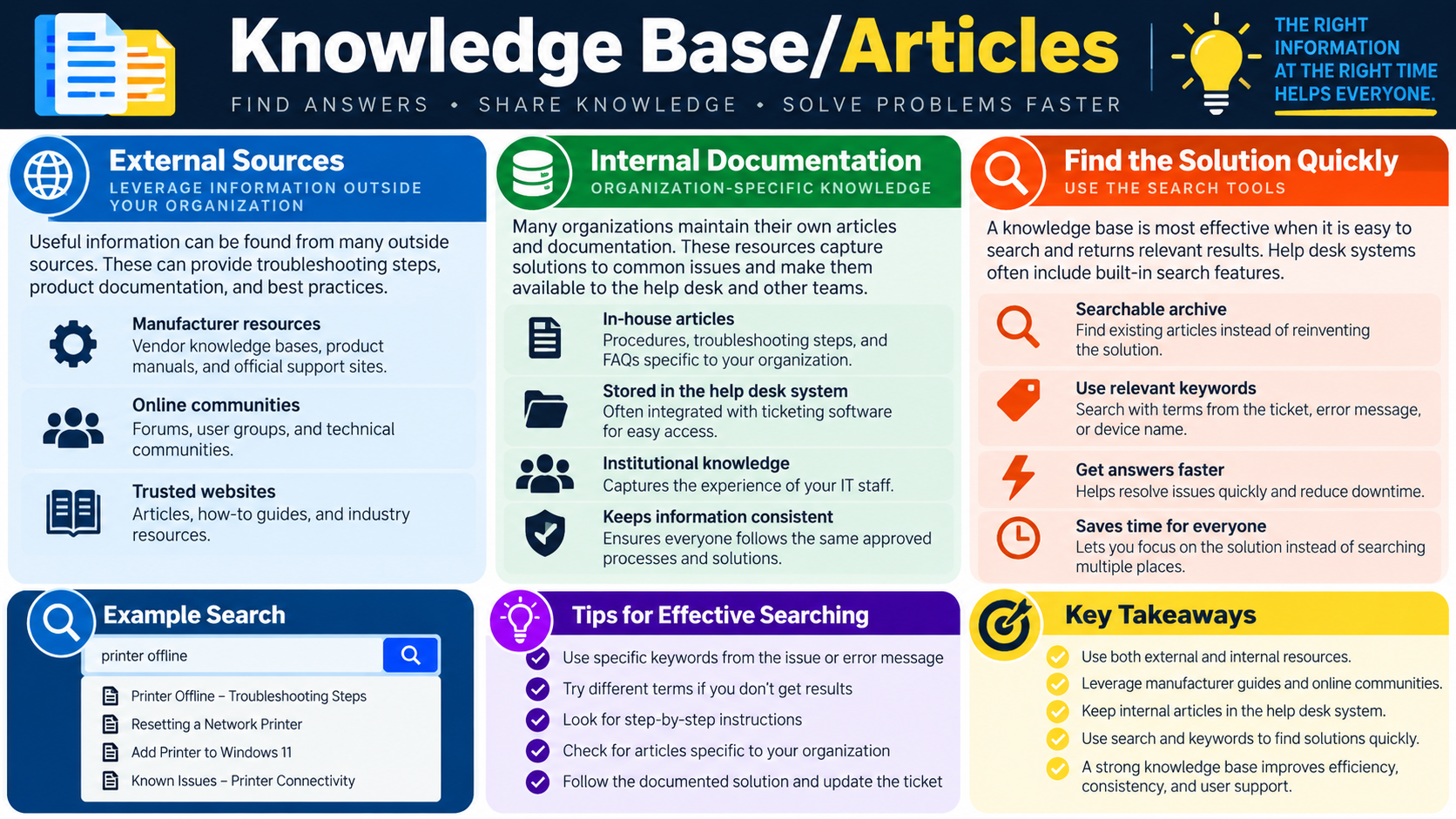
Knowledge base and articles infographic explaining external sources, internal documentation, search tools, example searches, effective searching tips, and key takeaways.
Knowledge base articles help technicians find trusted answers quickly and keep support processes consistent.
review
Module 13

Module 13 - Key Takeaways

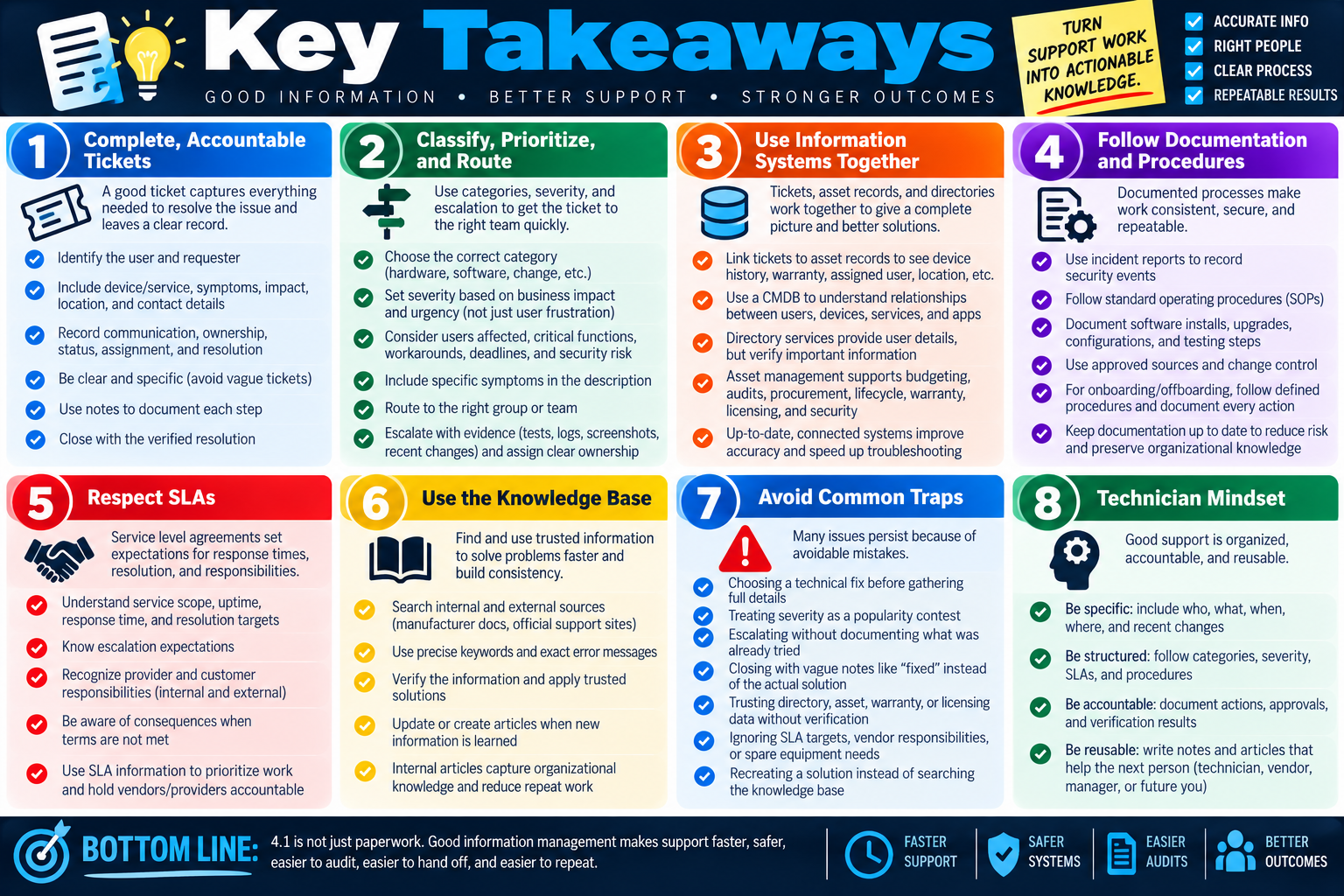
Key Takeaways infographic for Objective 4.1 summarizing complete accountable tickets, classification, routing, information systems, documentation procedures, SLAs, knowledge base use, common traps, and technician mindset.
Key Takeaways for Objective 4.1 summarize how accurate information, clear process, and reusable documentation lead to better support outcomes.

Objective 4.1 is about turning support work into accountable, searchable, repeatable information so issues can be routed, resolved, documented, audited, and improved over time.

Documentation and support systems are not just administrative extras. They are how a support team proves what happened, keeps users informed, hands work to the right people, meets service expectations, and builds a history that makes future troubleshooting faster. A strong technician does not only solve the immediate problem; they leave behind a clear record that another technician, manager, auditor, vendor, or future version of themselves can understand.

Across this section, the same pattern appears again and again: collect accurate information, organize it in the correct system, use it to decide the next step, communicate clearly, verify the outcome, and preserve what was learned. Whether the scenario involves a ticket, user record, asset tag, severity level, escalation path, SLA, installation procedure, or knowledge base article, the best answer is usually the one that improves clarity, accountability, and consistency.

Start With a Complete Ticket

The ticket is the central record for the support request. It should identify the affected user, the reporting user if different, the device or service involved, the symptoms, the business impact, the location, the contact details, the timeline, and any troubleshooting already attempted. Vague tickets slow everyone down. Clear tickets help the right person understand the issue quickly and choose the correct next step.

User information Confirm the affected user, requester, contact method, department, location, and account context before taking action.
Device information Record the device type, make, model, asset tag, location, assigned user, error messages, and relevant configuration details.
Issue description Describe what is happening, where it happens, when it started, who is affected, and whether the issue is consistent or intermittent.
Progress and resolution Document actions taken, results found, changes made, verification steps, and the final fix.

Classify, Prioritize, and Route

Categories, severity, and escalation levels help move tickets through the support process. A category broadly describes the type of request, such as hardware, software, change request, problem investigation, hardware failure, or onboarding/offboarding. Severity reflects impact and urgency, not simply how frustrated the user sounds. Escalation moves the work to a team with the right skills, permissions, tools, or vendor relationship.

When choosing severity, consider how many users are affected, whether a critical business function is unavailable, whether a workaround exists, whether there are security or compliance implications, and whether time-sensitive work is blocked. When escalating, document what was already tried so the next technician does not repeat the same steps.

  1. Categorize broadly. Use the category to route the request, but keep specific symptoms and context in the description.
  2. Set severity by impact. Evaluate users affected, business disruption, critical services, workarounds, risk, and deadlines.
  3. Escalate with evidence. Include symptoms, tests, logs, screenshots, errors, recent changes, and results from troubleshooting.
  4. Assign clear ownership. The ticket should show who owns the next action and what the expected next step is.

Communicate and Close the Loop

Written communication keeps support work coordinated. A good issue description sets the foundation. Progress notes keep technicians, users, and managers aligned as work continues. Resolution notes explain what fixed the issue, what changed, how the fix was verified, and what should be done if the issue returns.

Ticket notes should be concise, factual, and professional. Internal notes may include technical details, investigation history, or escalation context. User-facing updates should be clear and respectful. A closure note should never say only "fixed." It should preserve enough detail for future troubleshooting and reporting.

Good ticket habit: Write notes for the next person. That next person might be another technician, a vendor, an auditor, a manager, or you six months later.

Use Information Systems Together

Support systems work best when they connect. A ticket linked to an asset record can reveal the device history, warranty status, assigned user, location, configuration, licensing, and previous issues. A CMDB can show relationships between users, devices, services, applications, and business processes. Directory services can fill in user details, but those details still need to be verified.

Asset management supports troubleshooting, budgeting, audits, procurement, lifecycle planning, warranty tracking, licensing, and security. A device that repeatedly fails, is out of warranty, lacks an assigned owner, or has outdated software may need a different response than a one-time user issue.

Follow Documentation and Procedures

Procedures make work repeatable. Incident reports document security events. Standard operating procedures define how recurring tasks should be performed. Software installation and upgrade records reduce risk by preserving approved sources, testing steps, change-control approvals, configuration details, rollback plans, and verification results.

Onboarding and offboarding are especially important because they affect accounts, permissions, hardware, software, licensing, and data. Onboarding should provide the access and equipment a user needs to work. Offboarding should remove access, recover hardware, protect organizational data, update records, and document every action.

Respect SLAs and Reuse Knowledge

Service level agreements define expectations for response time, resolution time, uptime, service scope, escalation, provider responsibilities, customer responsibilities, and consequences when terms are not met. Internal SLAs help support teams prioritize work. External SLAs help organizations hold vendors and providers accountable.

Knowledge bases help teams avoid solving the same problem from scratch. Use trusted external sources such as manufacturer documentation and official support sites, along with internal articles that capture organization-specific fixes. Search with exact error messages, device names, application names, service names, and symptoms. When a fix teaches something new, update the article or create one.

Common Exam Traps

  • Choosing a technical fix before documenting the user, device, scope, symptoms, and impact.
  • Treating severity as a popularity contest instead of a measure of business impact and urgency.
  • Escalating a ticket without recording what was already tried and what evidence was collected.
  • Closing a ticket with vague resolution notes such as "done" or "fixed" instead of documenting the actual solution.
  • Trusting stale directory, contact, asset, warranty, or licensing data without verification.
  • Ignoring SLA targets, vendor responsibilities, support scope, or spare-equipment requirements.
  • Recreating a solution instead of searching the knowledge base and using trusted documented guidance.

Technician Mindset

Be specific Identify who is affected, what device or service is involved, where it happens, when it started, and what changed recently.
Be structured Use categories, severity, escalation levels, SLAs, and procedures to guide the workflow instead of guessing.
Be accountable Document actions, ownership, user communication, approvals, changes, and verification results.
Be reusable Preserve useful fixes in tickets, SOPs, installation records, asset history, and knowledge base articles.

Bottom line: 4.1 is not just paperwork. Good information management makes support faster, safer, easier to audit, easier to hand off, and easier to repeat.

SN
Module 14

Module 14 - Section Notes

BROtocol Joe Core 2 220-1202Objective 4.1

4.1 Documentation and Support Systems

Core idea: Objective 4.1 is about using documentation and support systems to turn support work into clear, accountable, repeatable information.

Ticketing Systems

  • Create a record for every support request.
  • Track status, ownership, communication, assignment, and resolution.
  • Keep user updates, technician notes, evidence, approvals, and final fixes together.
  • Close tickets only after the issue is resolved and documented.

User Information

  • Identify the affected user and the requester if they are different.
  • Verify directory-provided data such as username, department, location, email, and phone.
  • Confirm contact details before scheduling support, resetting accounts, or changing access.
  • Update stale information in the ticket when better details are confirmed.

Device Information

  • Record the exact device or service involved in the request.
  • Include device type, make, model, asset tag, location, assigned user, and configuration details.
  • Capture symptoms, error messages, recent changes, and steps already attempted.
  • For shared devices, note the room, building, site, or other physical location.

Clear Descriptions

  • Explain what is happening, not just that something is broken.
  • Include who is affected, where it occurs, when it started, and whether it is intermittent.
  • Good descriptions help determine whether to troubleshoot, assign, escalate, or contact a vendor.
  • Avoid vague notes such as "fixed" or "not working."
Memory hook: A good ticket answers who, what, where, when, impact, evidence, ownership, and resolution.
Notes:
Routing, Priority, and CommunicationObjective 4.1

Classify and Route the Work

Categories

  • Categories are broad labels that describe the type of support request.
  • Examples include change request, hardware request, problem investigation, hardware failure, and onboarding/offboarding.
  • Use categories to organize, route, prioritize, and report tickets.
  • Keep categories broad; put specific symptoms in the description.

Severity

  • Severity shows impact and urgency.
  • Consider users affected, critical business functions, service availability, workarounds, deadlines, and security or compliance risk.
  • Low impact usually affects one user with a workaround.
  • Critical impact affects mission-critical services, has no workaround, or stops the business from functioning.

Escalation Levels

  • Escalate when the current support level lacks the skill, access, tools, permissions, or vendor relationship needed.
  • Document what was already tried before handoff.
  • Move the ticket to the correct tier, specialty group, department, or vendor.
  • Escalation is part of the process, not a failure.

Written Communication

  • Issue descriptions set the foundation for troubleshooting.
  • Progress notes document actions taken, results found, and next steps.
  • Resolution notes explain what fixed the issue, what changed, and how it was verified.
  • Write notes clearly enough for the next technician to continue without starting over.
Memory hook: Categories route the work, severity sets urgency, escalation finds the right expertise, and notes preserve the path.
Notes:
Assets, Procedures, SLAs, and KnowledgeObjective 4.1

Use Support Information as a System

Asset Management

  • Track hardware, software, configuration, ownership, location, warranty, licensing, and lifecycle state.
  • Link tickets to exact assets to view history, assigned user, warranty status, and recurring issues.
  • A CMDB stores asset and configuration information used by multiple teams.
  • Asset records support support, finance, security, audits, procurement, and planning.

Documents and Procedures

  • Incident reports document security events and response actions.
  • Standard operating procedures define how recurring work should be performed.
  • Software installation and upgrade records should include approved sources, testing, configuration, change control, rollback plans, and verification.
  • Onboarding provides accounts, devices, software, and access; offboarding removes access and protects data.

Service Level Agreements

  • SLAs define service scope, availability, response time, resolution time, escalation, and responsibilities.
  • Internal SLAs set expectations between IT and users or departments.
  • External SLAs set expectations with vendors, ISPs, cloud providers, or managed service providers.
  • Look for uptime guarantees, dispatch times, service credits, penalties, and spare-equipment requirements.

Knowledge Base / Articles

  • Use internal articles for organization-specific procedures, known fixes, FAQs, and approved workarounds.
  • Use external sources such as vendor documentation, manufacturer guides, official support sites, and trusted communities.
  • Search with exact error messages, device names, symptoms, model numbers, and service names.
  • Create or update articles when a fix is recurring, hard to remember, or useful to the team.
Memory hook: Support information should be accurate, searchable, connected, verified, and reusable.
Notes:
TEST
Module 15

Module 15 - Final Test

Complete 20 difficult scenario-based multiple-choice questions for Objective 4.1. The test covers ticketing systems, user information, device documentation, categories, severity, escalation levels, written communication, asset management, documentation, software installation procedures, service level agreements, knowledge base articles, verification, and technician decision-making. Each correct answer is worth 1 point.

Score pending0 / 20
WB
Workbook

Student Workbook

BrotocolJoeStudent Workbook

BrotocolJoe

CompTIA A+ Core 2 (220-1202)

Student Workbook

4.0 Operational Procedures

Objective 4.1 - Given a scenario, implement best practices associated with documentation and support systems information management.

How to use this workbook: Print this packet once, complete it by hand as you finish each online module, and keep it as evidence that you read, processed, and practiced the Objective 4.1 documentation and support systems material.
Student Name:
Ticketing SystemsObjective 4.1

Module 1 - Ticketing Systems

Key Information: A ticket preserves issue details, ownership, status, actions, communication, and resolution. Keep a usable record throughout the support process rather than reconstructing it at closure.

Check Your Understanding

Why should a ticket have a clear owner?

How does a status update differ from a description of troubleshooting performed?

What evidence should support closing a ticket?

Ticket Lifecycle Record

  • Use a printer outage affecting a department. Write one or two sentences per field.
  • Intake: State the symptom, affected group, and information still needed.
  • Work in progress: Describe ownership, current status, and the next action.
  • Closure: Record what was corrected and how normal printing was verified.
Explain how an accurate ticket history helps another technician continue the work.
Technician Scenario: A user calls twice about the same outage because no progress is visible. Describe how to maintain one accountable support record, communicate progress, and avoid duplicated investigation.
User InformationObjective 4.1

Module 2 - User Information

Key Information: Distinguish the person reporting a problem from the person affected. Verify contact and account context through approved processes and collect only information needed for support.

Check Your Understanding

Why might the requester and affected user be different people?

Which contact and location details help a technician coordinate support?

Why should passwords never be recorded in a ticket?

User Intake Record

  • Use a manager reporting a sign-in issue for a new employee. Write one or two sentences per field.
  • People: Identify which requester and affected-user details need confirmation.
  • Context: Describe department, location, account, and availability information to obtain.
  • Verification: Explain how to confirm identity and authority before account-related changes.
Explain why a directory entry should be checked rather than assumed to reflect a user’s current location or contact details.
Technician Scenario: A manager requests an account change on behalf of a remote employee. Plan user-information checks and an approved verification process before routing the request.
Device InformationObjective 4.1

Module 3 - Device Information

Key Information: Device identifiers connect symptoms to the correct asset, configuration, and support history. Record observable errors and previous attempts instead of vague descriptions.

Check Your Understanding

How does an asset tag differ from a model name?

Why should exact error messages be recorded?

How do previous troubleshooting steps prevent duplicated work?

Device Intake Record

  • Use a laptop that cannot connect to a dock. Write one or two sentences per field.
  • Identity: List the identifiers and device details you would collect.
  • Environment: Describe location, assigned user, and relevant connected equipment.
  • Symptom: Record the behavior, error, and conditions to ask about.
  • History: State which changes and attempted fixes should be documented.
Explain how to record a screenshot or diagnostic detail without exposing unrelated sensitive information.
Technician Scenario: Two identical laptops belong to the same department. A ticket says only that the laptop is broken. Describe what you need to identify the correct device and create a reproducible issue description.
CategoriesObjective 4.1

Module 4 - Categories

Key Information: Categories group support work for routing and reporting. Use the organization’s taxonomy consistently and keep detailed symptoms in the description.

Check Your Understanding

Why is a consistent category useful for trend reporting?

How can an incorrect category delay assignment?

Why should category names not contain the entire symptom description?

Comparison Record: Category vs. Description

  • Write one or two sentences per prompt.
  • Category: Propose a broad category for an employee who cannot print and explain your choice.
  • Description: Write the specific symptom, scope, and error details that belong in the ticket text.
  • Revision: Explain when new findings would justify changing the category.
Explain why category and severity answer different questions about the same ticket.
Technician Scenario: A request categorized as hardware turns out to be an account-permission issue. Describe how to update and route the ticket while preserving the investigation history.
SeverityObjective 4.1

Module 5 - Severity

Key Information: Severity and priority schemes vary by organization. Use the defined matrix and business evidence, including affected users, essential functions, urgency, and available workarounds.

Check Your Understanding

Why does the number of affected users not always determine severity by itself?

How does a working alternative change the impact assessment?

Why should urgency be supported by a deadline or business consequence?

Comparison Record: Impact vs. Urgency

  • Write one or two sentences per prompt.
  • Impact: Explain what business work is blocked and who is affected.
  • Urgency: Describe the deadline or time-dependent consequence.
  • Decision: State what additional facts and organizational criteria are needed before assigning priority.
Explain why a forceful request from a senior employee does not replace the organization’s priority criteria.
Technician Scenario: One employee cannot run payroll before today’s deadline, while several users have a cosmetic display issue. Compare impact, urgency, and workarounds, then explain how you would apply the organization’s priority matrix.
Escalation LevelsObjective 4.1

Module 6 - Escalation Levels

Key Information: Escalation transfers or adds appropriate expertise, authority, or resources. Preserve ownership expectations and provide a useful handoff with evidence and a clear request.

Check Your Understanding

What signs indicate that an issue exceeds your permissions or expertise?

Why should attempted actions and their results accompany a handoff?

How can approaching service targets affect escalation timing?

Escalation Handoff Record

  • Use a failed business application requiring database-team access. Write one or two sentences per field.
  • Summary: Describe impact, scope, and the current symptom.
  • Evidence: Specify errors, timestamps, and completed tests to include.
  • Request: State the expertise or action needed and the responsible destination.
  • Coordination: Explain who tracks progress and when the user receives an update.
Explain why escalating a ticket does not remove the need for clear communication and follow-through.
Technician Scenario: Repeated local tests have not restored an application, and the next check requires permissions you do not hold. Prepare a handoff that allows the specialist to continue without repeating your work.
Written CommunicationObjective 4.1

Module 7 - Written Communication

Key Information: Ticket notes should be factual, readable, and useful to their intended audience. Separate observed symptoms, actions, results, and next steps; avoid unsupported claims and sensitive secrets.

Check Your Understanding

What makes a progress note useful to another technician?

How should a user update differ from an internal diagnostic note?

What should resolution notes say beyond fixed?

Comparison Record: Internal Note vs. User Update

  • Write two or three sentences for each prompt.
  • Internal note: Record a test, its result, and the next diagnostic action for a failed print job.
  • User update: Explain the current status and next update expectation in plain language.
  • Resolution: Describe the correction and the user workflow verified before closure.
Explain how timestamps and precise results support an accurate troubleshooting history.
Technician Scenario: A ticket contains only tried some things, still broken. Rewrite the progress record using clearly labeled fictional facts, then draft a brief user update that avoids promising an unconfirmed completion time.
Asset ManagementObjective 4.1

Module 8 - Asset Management

Key Information: Asset records connect equipment and software to ownership, location, support, licensing, and lifecycle state. Reconcile changes with the authoritative inventory and related tickets.

Check Your Understanding

Why should a device move trigger an inventory update?

How can warranty information affect a support decision?

Why should software entitlement be tracked separately from installation?

Asset Change Record

  • Use a laptop transferred between employees. Write one or two sentences per field.
  • Identity: State the stable identifiers that link the device to its inventory record.
  • Assignment: Describe ownership, location, and lifecycle fields requiring review.
  • Software: Explain which installed software and license assignments need verification.
  • Traceability: Identify the related ticket or approval to reference.
Explain why an inventory record marked retired is insufficient proof that data sanitization occurred.
Technician Scenario: A department replaces several laptops and reassigns the old devices. Plan inventory, software entitlement, data-handling, and lifecycle-record updates before the devices are issued again.
DocumentsObjective 4.1

Module 9 - Documents

Key Information: Incident reports, standard operating procedures, and installation records serve different purposes. Maintain accurate versions, appropriate access, and enough context for repeatable work.

Check Your Understanding

How does an incident report differ from a standard procedure?

Why should a procedure identify its version or review status?

What belongs in a software installation or upgrade record?

Document Comparison Record

  • Write one or two sentences per prompt.
  • Incident report: Explain what happened and which evidence or response details it should preserve.
  • Procedure: Explain the repeatable task, prerequisites, and checks it should define.
  • Installation record: Explain which actual device, version, approval, and outcome details it should capture.
Explain why documenting a completed change and updating the procedure for future changes are separate tasks.
Technician Scenario: An application upgrade fails on several PCs. Describe which records should capture the incident, the attempted installations, and any approved improvements to the installation procedure.
Software Installation ProceduresObjective 4.1

Module 10 - Software Installation Procedures

Key Information: Approved installation and lifecycle procedures coordinate authorization, compatibility, licensing, user data, configuration, and verification. Record the actual result and any exceptions.

Check Your Understanding

What should be verified before installing software for a new employee?

Why should user data and recovery needs be considered before an upgrade?

How can offboarding affect software assignments and access?

Installation Planning Record

  • Use an approved business application upgrade. Write one or two sentences per field.
  • Readiness: Identify authorization, compatibility, licensing, and prerequisite checks.
  • Protection: Describe data preservation and a supported recovery approach.
  • Validation: Specify the version and business workflow to verify.
  • Documentation: State which ticket, asset, and software records must reflect the outcome.
Explain why successful installation alone does not prove that the user can perform required work.
Technician Scenario: A new employee needs a licensed application, but the available license is assigned to a departing employee. Plan the approved assignment, access, installation, and verification process without assuming reuse is automatically permitted.
Service Level AgreementsObjective 4.1

Module 11 - Service Level Agreements

Key Information: An SLA defines agreed service scope and measurable commitments. Interpret response, restoration or resolution, coverage hours, responsibilities, and escalation using the actual agreement.

Check Your Understanding

How does a response target differ from a resolution target?

Why must coverage hours and measurement rules be checked?

What information helps determine whether a ticket is at risk of missing its target?

Comparison Record: Response vs. Resolution

  • Use a fictional agreement requiring a response within one covered hour and resolution within eight covered hours. Write one or two sentences per prompt.
  • Response: Describe what evidence would show that the response commitment was met.
  • Resolution: Describe the outcome and timing evidence needed to assess resolution.
  • Interpretation: Identify coverage, pause, and escalation rules that must be checked before calculating a deadline.
Explain why a service target should not be presented as a guaranteed repair time without checking the agreement and circumstances.
Technician Scenario: A ticket arrives shortly before the support window closes and needs vendor help. Describe how to determine the applicable targets, escalate appropriately, and communicate expectations without inventing contract terms.
Knowledge Base / ArticlesObjective 4.1

Module 12 - Knowledge Base / Articles

Key Information: Knowledge articles preserve reusable solutions. Check applicability, source, currency, prerequisites, and expected results before applying a documented procedure.

Check Your Understanding

Which search terms help narrow results for a specific error?

Why should version and environment details be checked before following an article?

What evidence should support a proposed article correction?

Knowledge Article Review Record

  • Use a published solution for an application error. Write one or two sentences per field.
  • Search: Specify the error, product, and version terms you would use.
  • Applicability: Identify conditions and prerequisites that must match the affected system.
  • Verification: Describe how to check the outcome and record deviations.
  • Improvement: Explain what reusable correction or missing detail to submit for review.
Explain how to remove user-specific or sensitive details before turning a ticket resolution into shared knowledge.
Technician Scenario: An internal article resolves an error on an older app version, but one step differs on the current release. Plan verification, an approved adaptation or escalation, and an evidence-based article update.
Objective 4.1 Final CheckCumulative Review

Objective 4.1 - Final Check

Purpose: Connect accurate support records, business impact, escalation, asset tracking, and verified resolution.

Scenario Sorting

For each case, identify the record to create or update and the information it must contain.

  • A manager reports an account problem for another employee.
  • Payroll is blocked shortly before a deadline.
  • The next diagnostic action requires specialist permissions.
  • A laptop moves to a different employee and department.
  • A knowledge article omits a prerequisite for the current app version.

Explain What You Know

  • How do categories and severity serve different purposes?
  • How do impact and urgency guide priority?
  • What makes an escalation handoff complete?
  • What evidence supports closure and a reusable knowledge article?
For each case above, name the record and list its essential information, in order.
Draft a support plan for a department unable to use a licensed business application. Include user and device details, category, impact and urgency, ownership, progress communication, escalation criteria, SLA interpretation, asset or software records, verification, and closure documentation.

4.1 Completion

Student signature:
Date completed:
Instructor signature:
Module 01 of 15