Module 1 - PC Security: Cannot Access Network
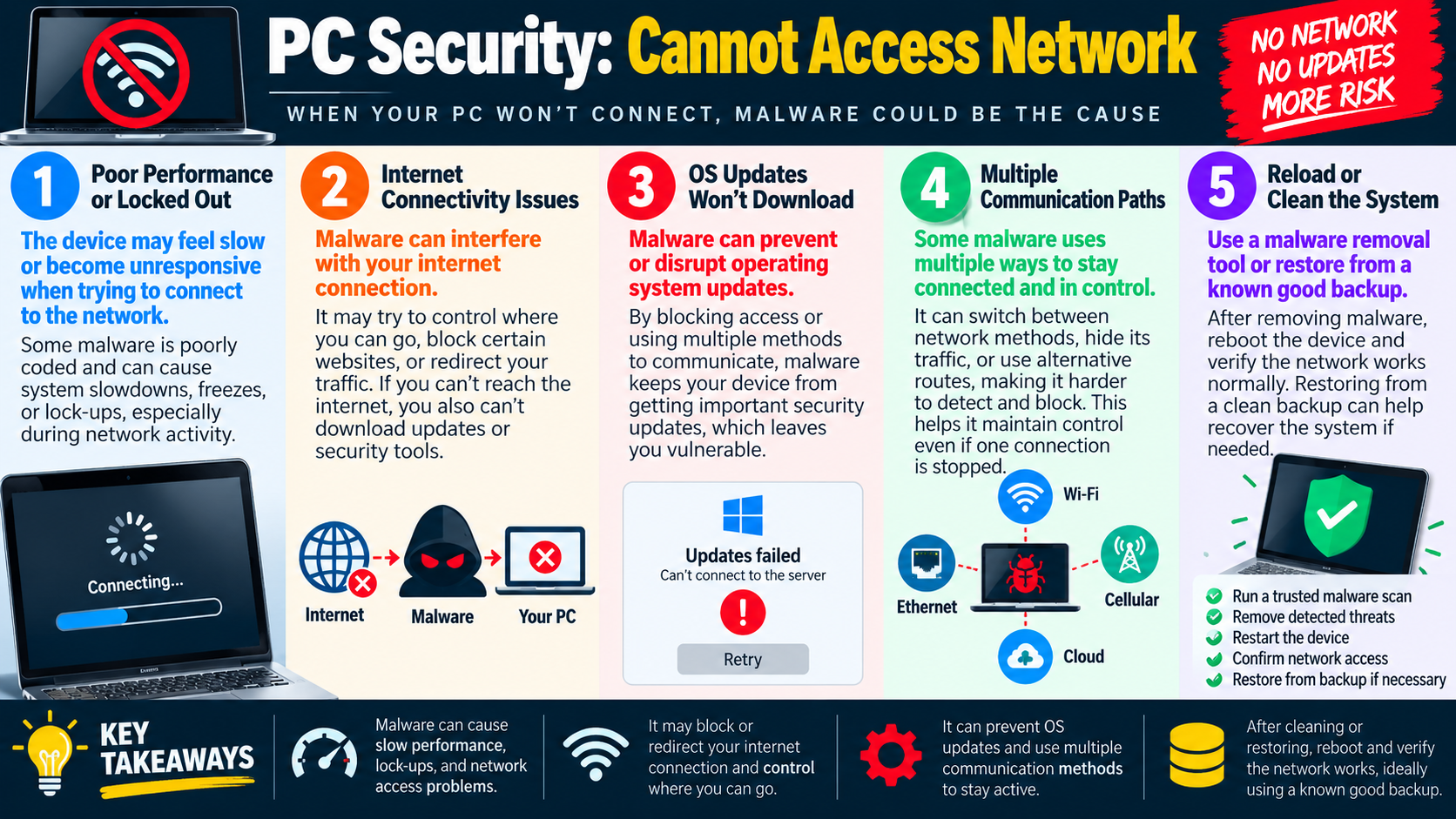
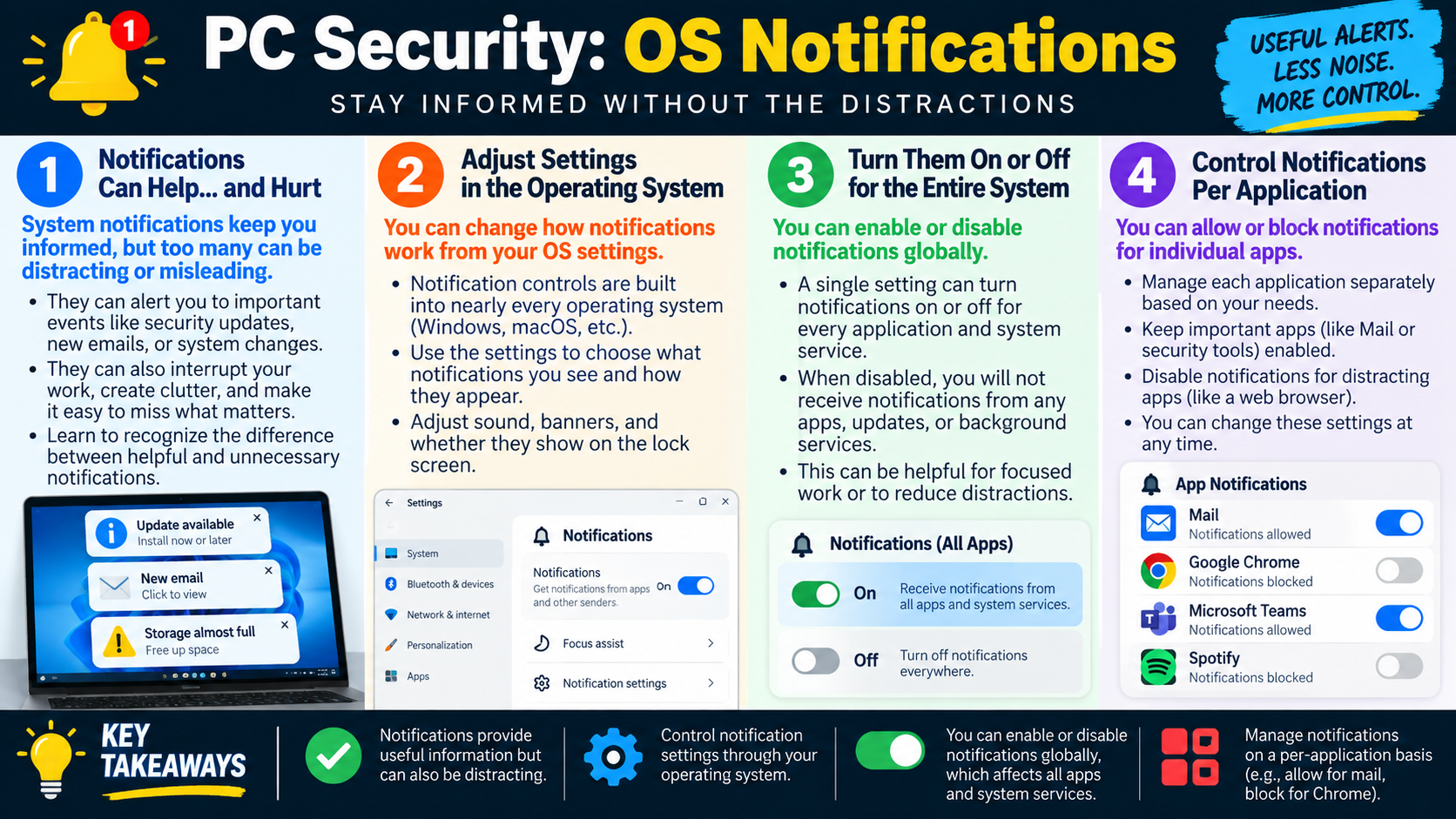
When a PC cannot reach the network, do not assume the problem is only Wi-Fi, Ethernet, or the router. Malware can slow the system, block network access, redirect traffic, prevent updates, and keep the device from downloading the very tools needed to clean it.
A loss of network access is a high-impact symptom because it affects both productivity and security. The user may not be able to reach websites, shared resources, email, cloud services, update servers, security tools, or remote support. In a normal troubleshooting workflow, you would check physical connectivity, Wi-Fi status, IP configuration, DNS, gateway access, and network equipment. In a security scenario, you also need to consider whether malicious software is interfering with the connection on purpose.
Malware may damage or manipulate networking in several ways. It can change proxy settings, alter DNS, install a malicious browser extension, modify firewall rules, tamper with update services, redirect traffic through an attacker-controlled service, or run background processes that consume enough resources to make the device appear frozen. The result may look like a basic connectivity issue, but the cause may be a compromised system.
Poor Performance or Lockouts
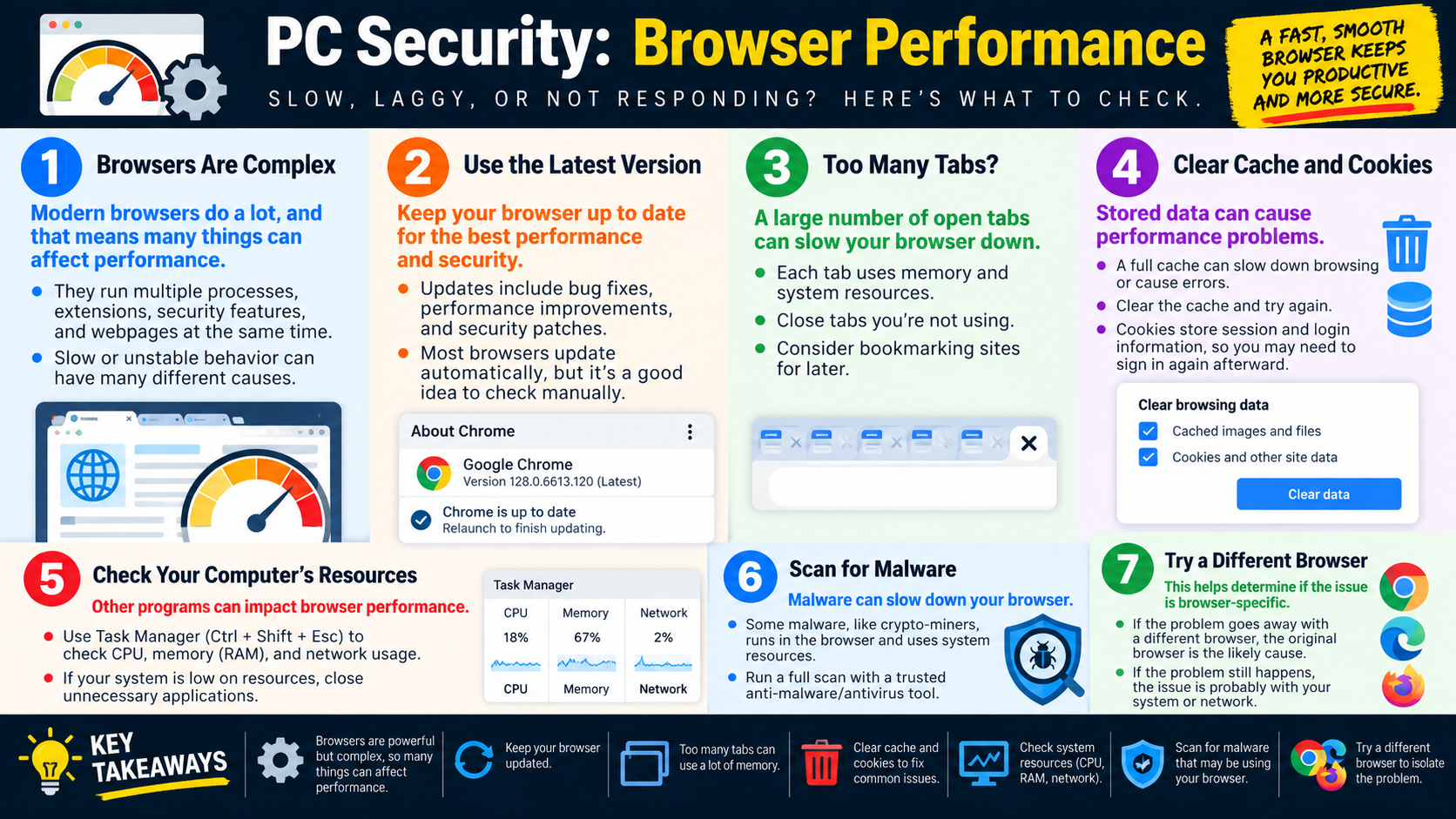
The first clue may be performance. A PC that becomes slow, unresponsive, or locked up when trying to connect to the network may be struggling with a malicious process in the background. Some malware is poorly written and creates instability simply by running. Other malware intentionally consumes CPU, memory, disk, or network resources while it communicates, downloads payloads, encrypts files, displays fake alerts, or tries to hide from security tools.
Users may describe the symptom as "it just keeps connecting," "everything freezes when Wi-Fi is on," "the browser will not load," or "the computer locks up when I try to go online." Those descriptions should prompt the technician to separate three possibilities: a normal network failure, a system performance problem, or malware affecting network behavior. Check Task Manager, startup items, security alerts, recent installs, browser behavior, and Event Viewer logs before making major changes.
Internet Connectivity Issues
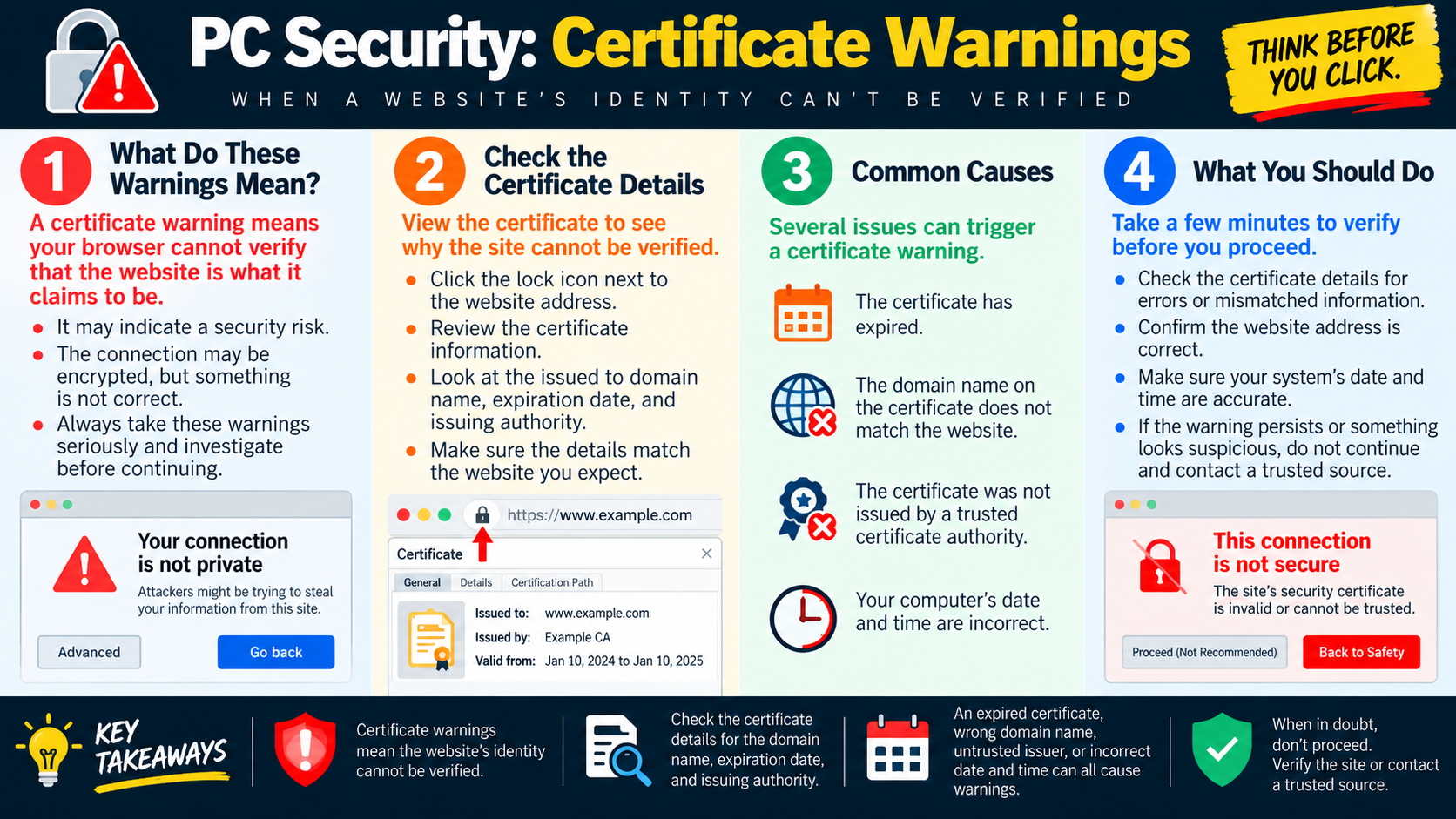
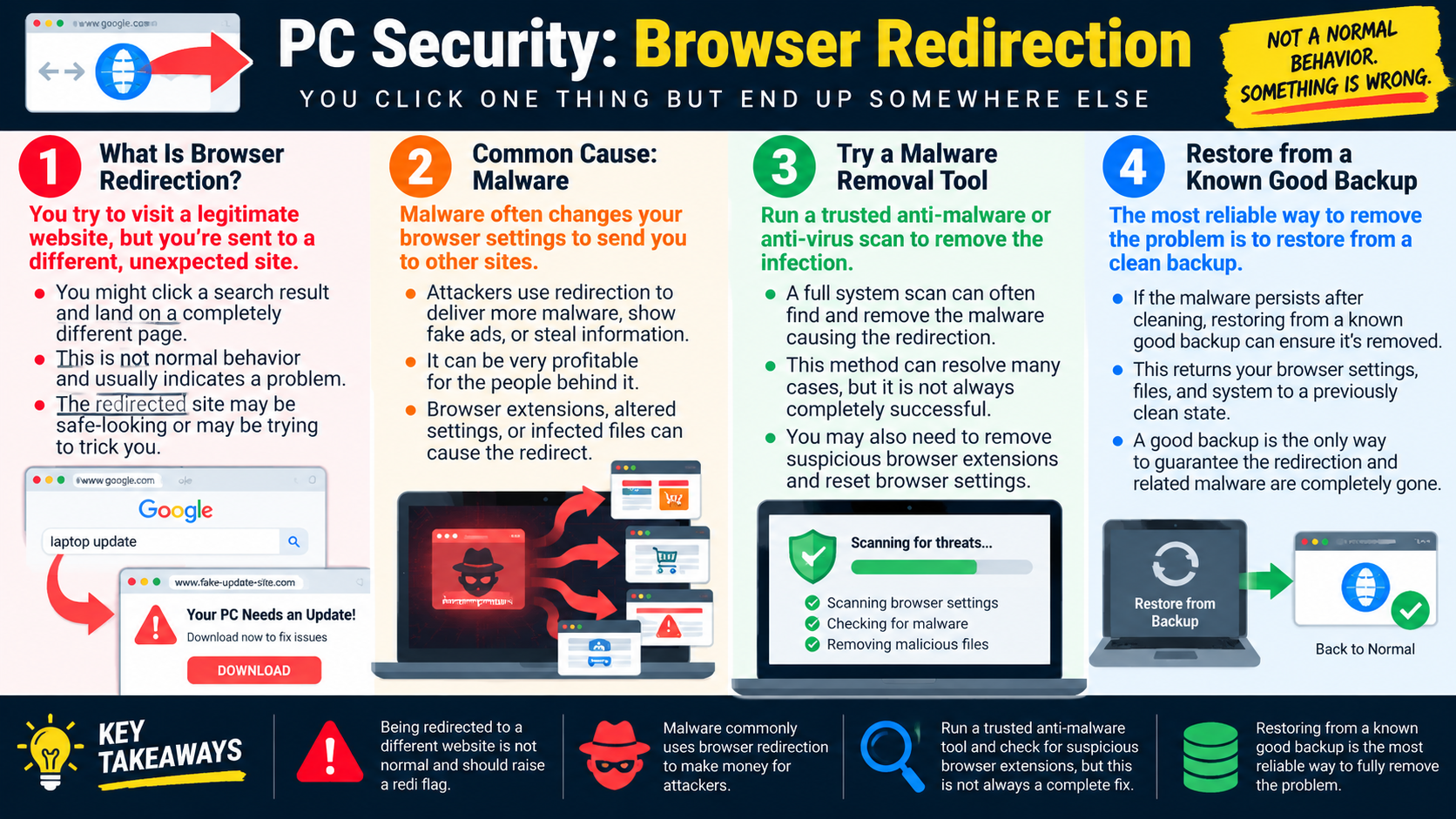
Malware can interfere with where the computer is allowed to go online. It may block security vendor websites, Microsoft update servers, company portals, or download pages for antimalware tools. It may redirect searches, force traffic through a proxy, change DNS results, or inject itself into browser sessions. The user may still appear "connected" to Wi-Fi or Ethernet, but important destinations fail or open the wrong pages.
That distinction matters. If the PC has a valid IP address and can reach some sites but cannot reach update servers or security tools, the issue may not be the access point or switch. Check DNS configuration, proxy settings, VPN settings, browser extensions, firewall rules, hosts file entries, and whether other devices on the same network can reach the same resources. If only the affected PC is blocked or redirected, focus on the endpoint.
Operating System Updates Will Not Download
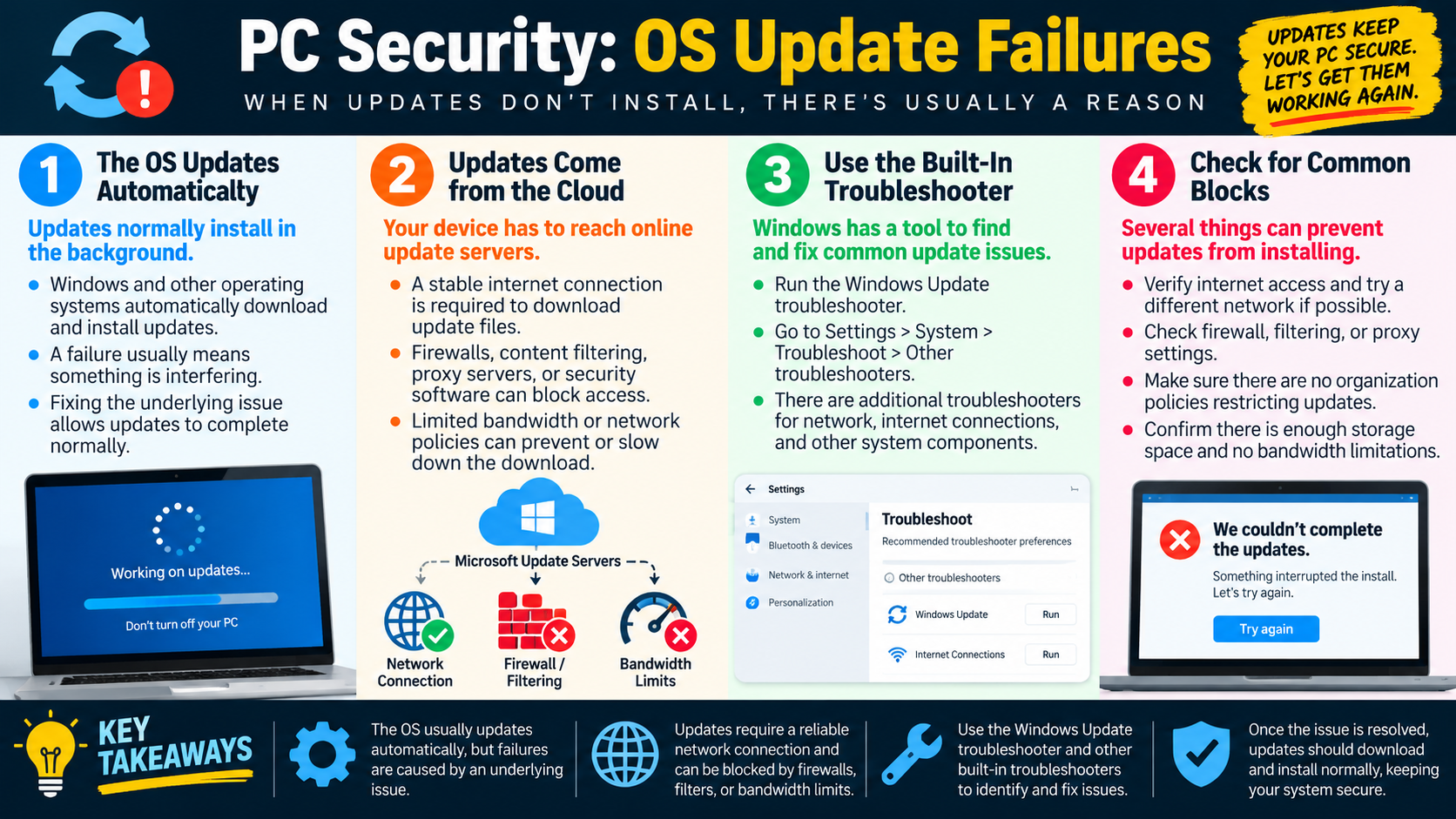
Blocked operating system updates are a major warning sign. Updates close security vulnerabilities, fix bugs, and improve reliability. If malware can prevent updates from downloading or installing, the device stays vulnerable longer and the attacker has more time to maintain control. A user may see messages such as "updates failed," "cannot connect to the server," or repeated retry prompts.
Update failures do not automatically mean malware. Storage shortages, corrupted update components, service failures, policy restrictions, metered connections, or temporary server problems can also cause them. The security clue is the combination of symptoms. If updates fail along with browser redirects, fake warnings, blocked security sites, unexplained processes, high network usage, or recent suspicious downloads, malware becomes a stronger possibility.
Multiple Communication Paths
Some malware uses more than one communication path to remain active. If one route is blocked, it may try another. It may use Wi-Fi, Ethernet, cellular adapters, cloud services, alternate ports, scheduled tasks, command-and-control servers, proxy settings, or compromised browser components. This makes the threat harder to detect and harder to stop with a single network change.
For example, disconnecting from Wi-Fi may not help if the system switches to Ethernet. Blocking one domain may not help if the malware uses multiple hosts or cloud services. Removing one browser extension may not solve the problem if a separate startup process restores it. The technician should think in layers: network path, operating system settings, installed applications, startup persistence, browser configuration, security tools, and backups.
Reload or Clean the System
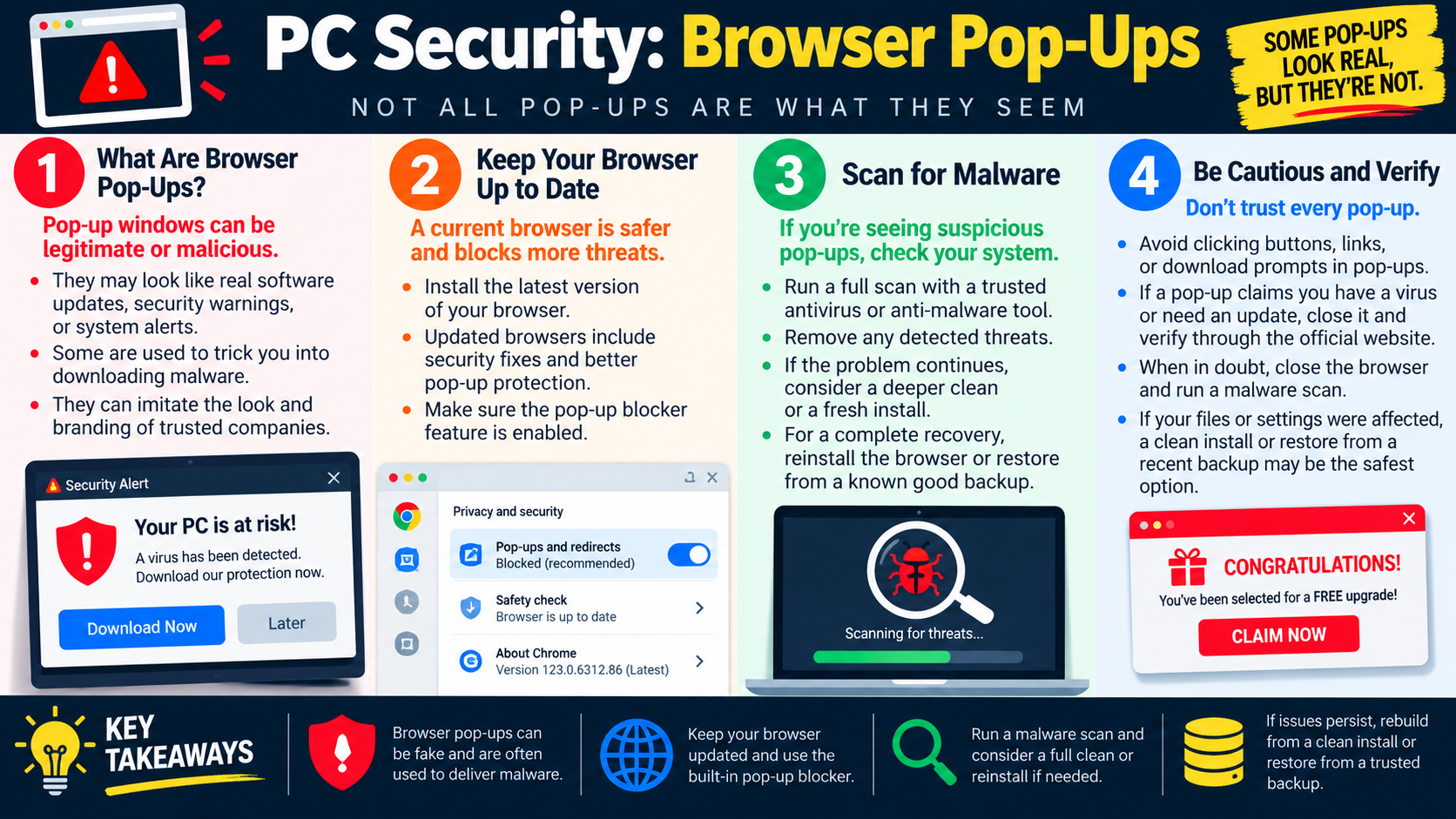
Once malware is suspected, use a trusted malware removal tool from a known source. If the infected PC cannot download the tool, download it from a trusted clean device and transfer it using approved procedures. In a business environment, use the organization's endpoint security tools and follow incident response policy. Do not install random "PC cleaner" or "driver updater" tools advertised by pop-ups; those may make the problem worse.
After removing threats, reboot the device and verify that normal network access returns. Confirm that the PC can reach trusted websites, update servers, security tools, internal resources, and any services the user needs for work. Then run operating system updates and security updates. If the system remains unstable, reinfection is suspected, or the device cannot be trusted, restore from a known good backup or reload the operating system according to policy.
Troubleshooting Workflow
- Confirm the symptom: Determine whether the PC has no network, limited network, blocked websites, redirects, failed updates, or performance problems during network use.
- Check basics first: Verify Wi-Fi or Ethernet status, IP address, gateway, DNS, proxy, VPN, and whether other devices are affected.
- Look for security clues: Review recent installs, browser extensions, startup apps, unusual processes, fake alerts, high network usage, disabled security tools, or blocked update sites.
- Use trusted tools: Run approved antimalware scans and system integrity checks. Use offline or external tools when the PC cannot safely reach the internet.
- Remove and repair: Remove detected threats, repair altered settings, re-enable updates, and reboot.
- Verify and document: Confirm network access, updates, and security tools work again. Document what was found, what was removed, and whether restore or reload was required.
Exam Cues
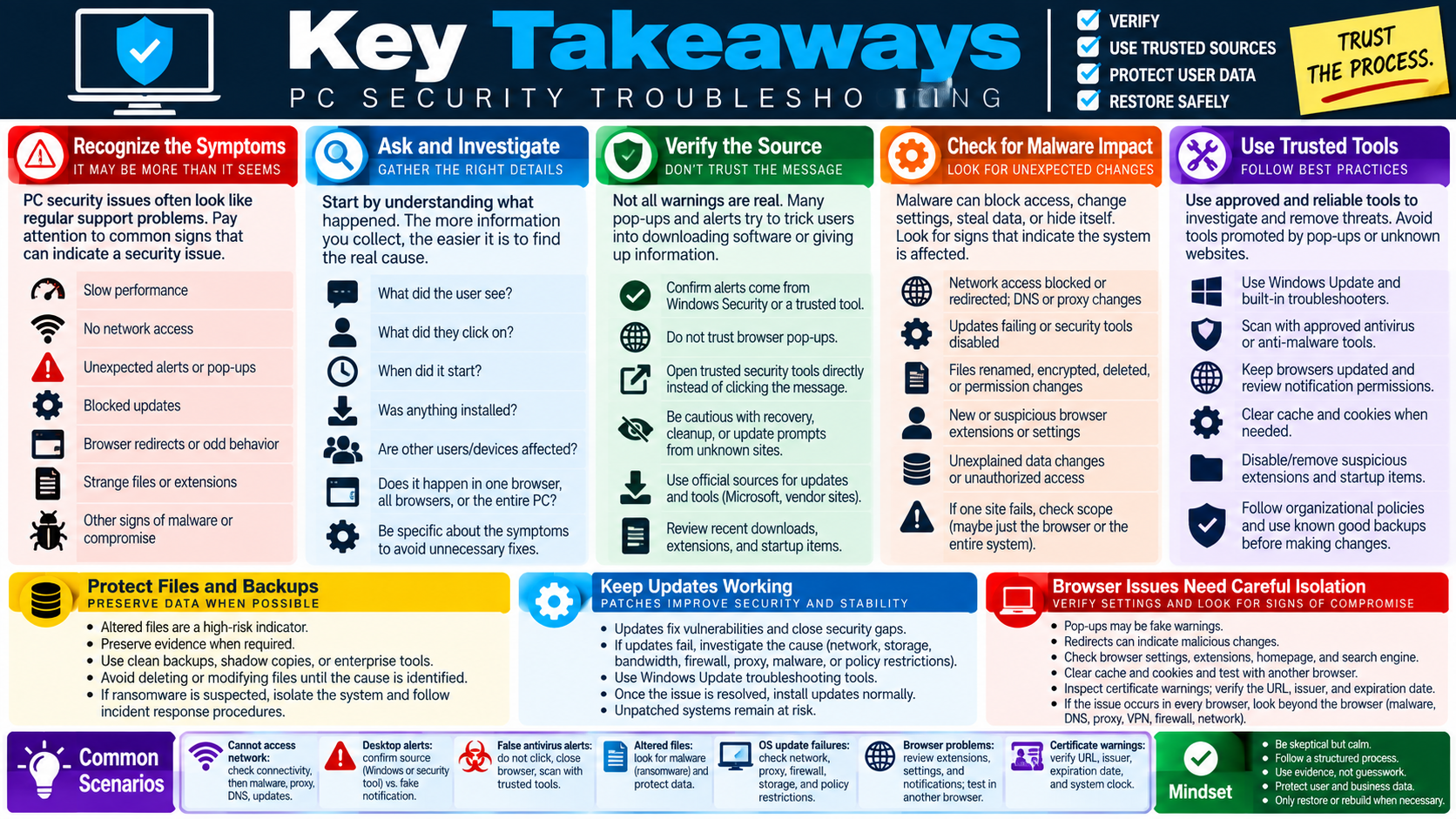
On the exam, phrases such as cannot access security websites, updates will not download, internet redirects, PC freezes when connecting, security tools will not run, unexpected proxy, modified DNS, or malware removal tool needed point toward a security-focused network investigation. Do not jump straight to replacing the router if the evidence points to one compromised PC.