Home
Certification Prep // 220-1202

3.0 Software Troubleshooting

3.2 ~ Given a scenario, troubleshoot mobile OS and application issues.

core2-lab.exe
> load objective 3.2
> map scenario clues
> verify and document

Learning Goals

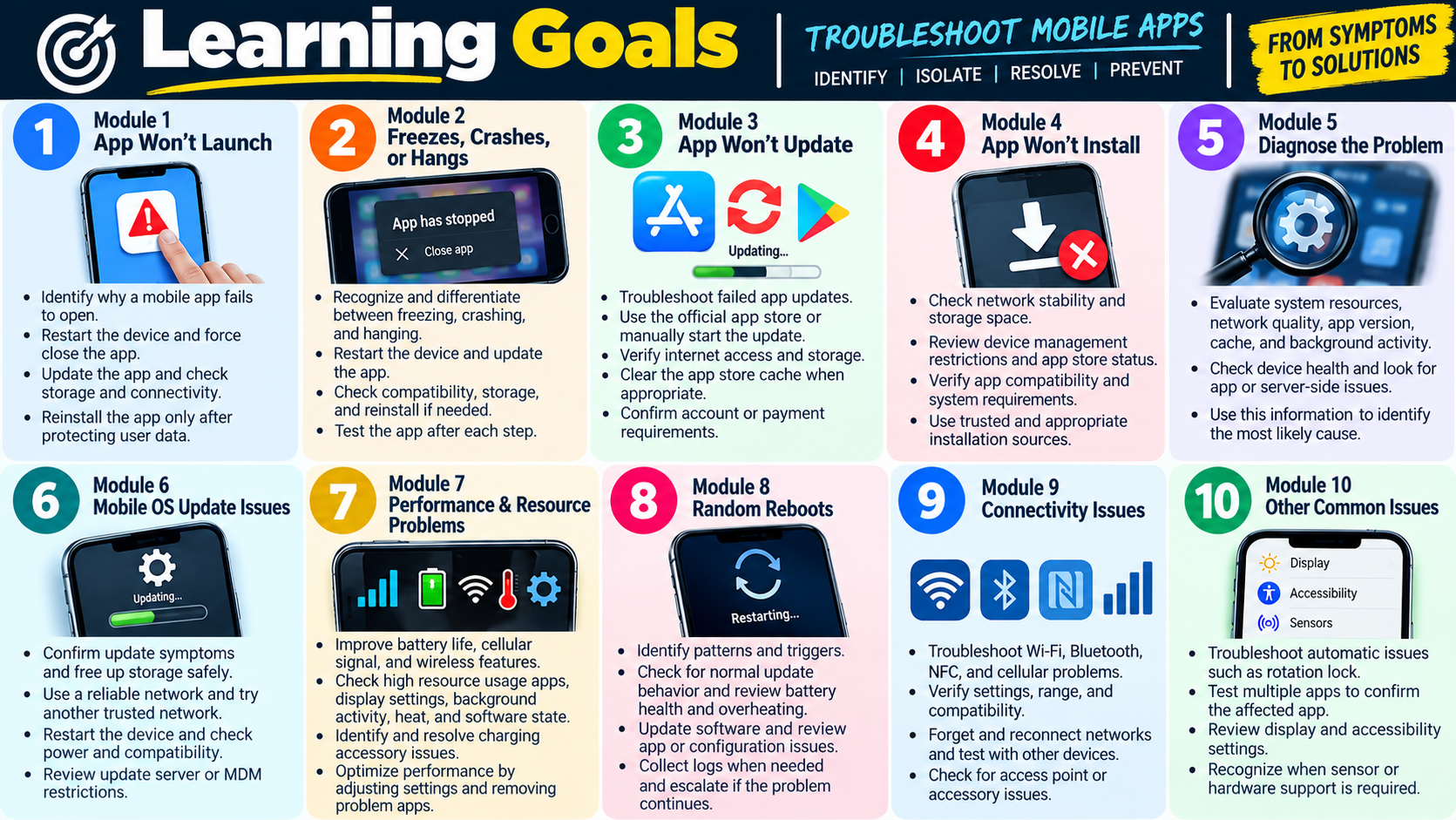
Learning goals infographic for mobile OS and application troubleshooting, covering app launch failures, crashes, update and install problems, slow performance, OS updates, battery life, random reboots, connectivity, and autorotate issues.
  • Module 1: Troubleshoot mobile apps that fail to launch by identifying the symptom, restarting the phone, force-closing the app, updating the app, checking storage and connectivity, and reinstalling only after protecting user data.
  • Module 2: Resolve apps that fail to close or crash by distinguishing hangs from crashes, restarting the device, updating the app, checking compatibility and storage, reinstalling carefully, and testing after each step.
  • Module 3: Fix apps that fail to update by using the official app store, manually starting the update, restarting the device, checking internet access and storage, clearing store cache when appropriate, and confirming account or payment requirements.
  • Module 4: Troubleshoot apps that fail to install by checking network stability, available storage, mobile device management restrictions, app store service status, account state, compatibility, and approved installation sources.
  • Module 5: Diagnose slow app response by evaluating system resources, network quality, app version, cached data, background activity, large data sets, device health, and possible app or server-side problems.
  • Module 6: Resolve mobile OS update failures by confirming the update symptom, freeing storage safely, using a reliable network, trying another trusted network, restarting the device, checking power and compatibility, and reviewing update server or MDM restrictions.
  • Module 7: Improve battery life by identifying weak cellular signal, battery wear, wireless features, high-use apps, display settings, background activity, heat, software state, and charging accessory problems.
  • Module 8: Troubleshoot random reboots by gathering patterns, checking for normal update behavior, updating software, reviewing battery health and overheating, identifying app or configuration triggers, protecting data, and escalating with logs when needed.
  • Module 9: Resolve connectivity issues by scoping Wi-Fi, Bluetooth, NFC, and cellular symptoms; verifying settings; checking range and compatibility; forgetting and reconnecting saved profiles; restarting devices; and testing alternate networks or accessories.
  • Module 10: Troubleshoot autorotate issues by checking rotation lock, testing multiple apps, restarting the affected app, restarting the device, reviewing display and accessibility settings, and recognizing when sensor or hardware support is required.
Lesson ModuleModule 1 / 13
APP
Module 01

Module 1 - App Fails to Launch

When a mobile app fails to launch, opens slowly, becomes unresponsive, or closes right away, start with the least disruptive fixes: identify the symptom, restart the phone, force-close the app, update the app, check connectivity and storage, and only then move toward cache clearing, reinstalling, or escalation.

Mobile applications depend on the app code, the operating system, available memory, storage space, network access, background services, permissions, and account state. A launch problem does not automatically mean the app is broken. It may be a temporary process issue, an outdated version, corrupted local data, a weak connection, a compatibility problem, or a device resource problem.

Begin by clarifying the exact behavior. Does the app fail to open at all? Does it show a loading spinner forever? Does it open and immediately close? Does it run slowly after opening? Does the problem affect one app or several apps? Does it happen on Wi-Fi, cellular data, or both? These details tell you whether to focus on the app, the phone, the network, the account, or the operating system.

Check for App Problems

An app that will not start or keeps closing may have a stuck process, corrupted cache, damaged local data, missing permissions, account sign-in issue, storage shortage, or version conflict. An app that opens but is very slow or unresponsive may be waiting on network access, processing old cached data, struggling with insufficient memory, or running an outdated build.

Ask what changed. Recent app updates, OS updates, password changes, storage warnings, permission changes, VPN settings, or network changes can all affect launch behavior. If the app worked yesterday and fails today, the timeline is one of your best clues.

If multiple apps are failing, widen the scope. Check the phone's storage, OS version, memory pressure, internet connection, VPN, date and time, mobile device management policy, and whether the device recently restarted or updated. If only one app fails, focus first on that app's process, cache, update status, permissions, and account state.

Restart the Phone

A phone restart is simple but powerful. It clears temporary memory, stops stuck background processes, reloads system services, refreshes network connections, and gives the operating system a clean start. For many mobile app issues, especially after long uptime or recent updates, a restart can restore normal behavior without deleting data.

On most phones, press and hold the power button or the required side-button combination, power the phone off, wait a few seconds, and turn it back on. After restart, open the app again and test the same workflow that failed before.

Do not treat a restart as the final answer if the problem returns repeatedly. A restart can fix a temporary symptom, but repeated launch failures mean you still need to investigate updates, storage, cache, compatibility, permissions, or service status.

Close the App and Restart It

If the phone itself is working, close the app completely and reopen it. This clears a stuck app process without restarting the entire device. On an iPhone, open the app switcher, find the affected app, swipe up to close it, and open it again. On Android, open the app's information page and use Force stop, then launch the app again.

Force-closing is useful when the app is frozen, stuck on a loading screen, not responding to taps, or behaving as if it is still in a bad previous state. It is less disruptive than reinstalling and does not normally remove user data.

After closing and reopening, verify the original symptom. If the app launches but becomes slow again during a specific action, document that action. The problem may be tied to a network request, account sync, local data, server-side service, or a specific feature inside the app.

Update the App

App updates often include bug fixes, performance improvements, security fixes, and compatibility updates for current mobile operating systems. An outdated app may fail after an OS update, server-side change, account change, or API update from the vendor.

On iPhone, open the App Store, search for the app, and tap Update if available. On Android, open Google Play, search for the app, and update it if an update is offered. After updating, open the app and test the exact task again.

If the device is managed by an organization, app updates may be controlled by mobile device management or a corporate app catalog. In that case, follow the approved update path rather than installing from an unapproved source.

Still Not Working?

If the app still will not launch, check the internet connection. Many apps require network access even to open. Test Wi-Fi and cellular data when available, confirm Airplane Mode is off, check VPN behavior, and try a known-good network if the app depends on cloud services.

Check available storage. Mobile apps may fail to open, update, sync, or cache data if the device is nearly full. Free space by removing unnecessary downloads, old media, unused apps, or cached content according to user and organizational policy.

On Android, clearing the app cache can help when cached data is corrupted. Clearing cache is different from clearing app data; cache removal is usually less disruptive, while clearing data may remove sign-in state, settings, or local content. On iPhone, app cache controls are more limited, so offloading or reinstalling may be the practical equivalent depending on the app and data model.

Other Things to Check

Verify device and OS updates. Some app versions require a minimum iOS or Android release, and some app problems are fixed through OS-level updates. Confirm the phone supports the app version and that the operating system is compatible.

Review permissions. An app may fail or appear broken if it cannot access required services such as network, storage, camera, microphone, location, Bluetooth, notifications, or background refresh. Grant only the permissions required for the app's legitimate function.

Reinstall the app if needed. Uninstalling and reinstalling can replace damaged app files and refresh local configuration, but it may remove local data. Before reinstalling, confirm that important data is synced, backed up, or recoverable through the user's account.

Technician Workflow

  1. Confirm the symptom. Determine whether the app will not open, closes immediately, loads slowly, freezes, or fails during a specific action.
  2. Check scope. Verify whether one app, multiple apps, one network, one account, or the whole phone is affected.
  3. Restart the app. Force-close the app and open it again.
  4. Restart the phone. Clear temporary memory and reload mobile OS services.
  5. Update the app. Use the App Store, Google Play, or an approved enterprise app source.
  6. Check basics. Verify network connectivity, storage space, OS updates, app compatibility, and required permissions.
  7. Use app-specific fixes. Clear cache where appropriate, sign out and back in if account state is suspect, or reinstall after protecting data.
  8. Verify and document. Open the app, repeat the failed task, confirm stability, and record what fixed it.

Common Exam Traps

Do not reinstall the app as the first step when a restart, force-close, or update is a better low-risk test.

Do not clear app data without understanding the impact. Cache clearing is usually safer than data clearing, especially if the app stores unsynced local content.

Do not assume the app is broken if the device has no connectivity or storage is full. Many launch problems are resource or network problems.

Do not ignore compatibility. An old OS version, unsupported device, or outdated app can cause launch failures even when the phone otherwise works.

Do not forget verification. The goal is not just opening the app once; the app should run smoothly and reliably through the user's actual workflow.
Key takeaway: Troubleshoot app launch failures from least disruptive to more invasive: force-close, restart, update, check network and storage, verify compatibility and permissions, clear cache or reinstall only when needed, and always test the original task.
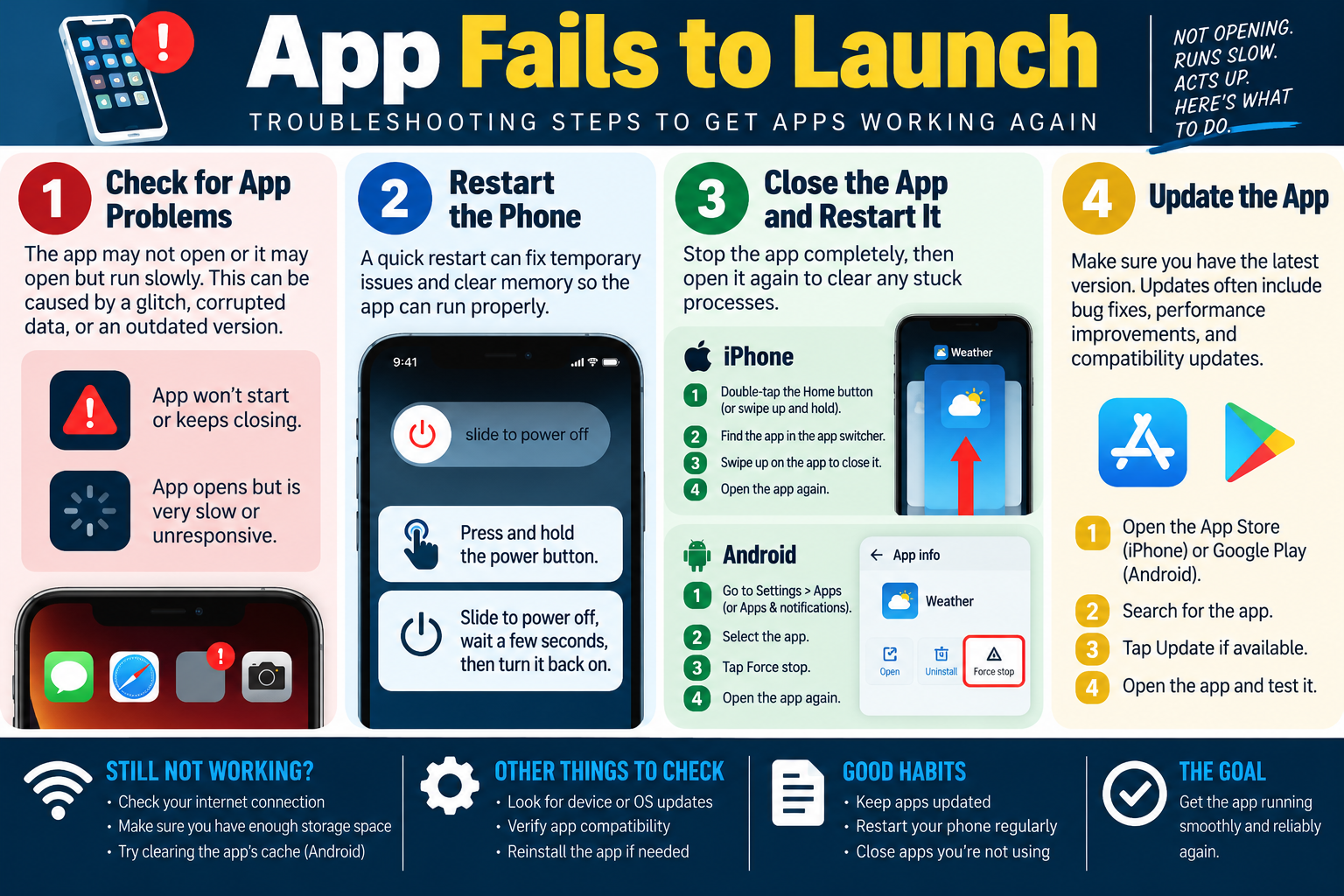
App fails to launch infographic explaining mobile app troubleshooting steps including checking symptoms, restarting the phone, force-closing the app, updating the app, checking connectivity and storage, and reinstalling when needed.
Module 01 infographic: app launch problems are usually fixed by checking the symptom, restarting the phone or app, updating the app, checking connectivity and storage, and using cache clearing or reinstall only when needed.
CRASH
Module 02

Module 2 - App Fails to Close/Crashes

When a mobile app freezes, refuses to close, or crashes unexpectedly, treat it as an app stability problem first. Restart the device, update the app, check storage and connectivity, confirm OS compatibility, and reinstall only after protecting important app data.

An app that fails to close is usually stuck in a process state. The screen may stop responding, a spinner may continue forever, or the operating system may display a message such as App Not Responding. An app crash is different: the app may suddenly close, return to the home screen, or show a message that it stopped working. In both cases, other apps may continue to work normally, which helps narrow the issue to one application instead of the entire phone.

Start by identifying the pattern. Does the app hang every time it opens? Does it crash only when the user performs one task? Did the issue begin after an app update, OS update, account change, or network change? Does the app fail on Wi-Fi, cellular, or both? Does it affect one user or many users? The more specific the pattern, the easier it is to choose the correct fix.

Understand What's Happening

A frozen app may be waiting on a network response, stuck on a background task, overloaded by cached data, unable to access required storage, or blocked by a permission problem. The operating system may offer to wait or close the app. If the app is only temporarily busy, waiting may work; if it is truly stuck, closing and restarting the app is usually better.

A crashing app may have a software bug, corrupted app data, outdated code, incompatible OS version, missing update, low storage condition, or problem with a specific feature. The app may show an error message, close with no message, or crash only when opening a file, camera, map, payment screen, or other feature.

Determine whether the issue is isolated. If one app fails while everything else works, focus on the app. If several apps freeze or crash, check device resources, OS updates, storage, memory pressure, overheating, network state, or mobile device management restrictions.

Restart the Device

A device restart gives the mobile OS a clean state. It clears temporary memory, stops stuck processes, reloads system services, resets network connections, and allows pending updates or background changes to finish. This is especially useful when an app refuses to close, multiple apps feel sluggish, or the device has not restarted in a long time.

Have the user power the phone off, wait a few seconds, and turn it back on. Then open the problem app and repeat the exact task that failed. If the app works after the restart and the issue does not return, the cause was likely temporary. If it crashes again, continue with app-specific troubleshooting.

Update the App

Outdated apps can contain bugs that cause freezing, hanging, or crashing. Updates often include stability improvements, bug fixes, security patches, performance tuning, and compatibility changes for newer iOS or Android versions.

Use the App Store on iPhone or Google Play on Android to search for the app and install any available update. In a managed environment, use the approved enterprise app catalog or mobile device management process. Avoid downloading app packages from untrusted websites because that introduces security and support risk.

After updating, test the app again. If the crash started immediately after the newest update, document the version and check vendor support notes, known issues, or whether an approved rollback or hotfix path exists.

Uninstall and Reinstall

If the app continues to crash after a restart and update, uninstalling and reinstalling can replace corrupted app files with a clean copy. This can fix damaged installations, missing files, broken local configuration, or corruption caused by a failed update.

Before uninstalling, protect user data. Some apps store data in the cloud and restore it after sign-in. Others store local files, saved settings, downloads, offline work, authentication tokens, or user-created content on the device. Removing the app may delete that data. Confirm backups, account sync, or export options before proceeding.

After reinstalling, open the app, sign in if required, restore necessary data, and test the original workflow. If the app still crashes after reinstalling, check vendor support, device compatibility, OS updates, and whether the issue is service-side.

Check the Basics

Many apps require internet access. Verify Wi-Fi, cellular data, VPN behavior, captive portals, and whether other network-dependent apps work. If the app depends on a cloud service, check whether the service is reachable and whether the user's account is valid.

Check storage space. A phone that is nearly full may prevent an app from updating, caching data, saving temporary files, or opening large content. Free enough storage for the app, the OS, and normal app cache activity.

On Android, clearing the app cache can help when cached data is corrupted. Be careful with Clear data or storage reset options because those may remove sign-in state, settings, downloads, or locally stored content. On iPhone, reinstalling or offloading the app may be the practical method for replacing local app files.

Stay Compatible

Confirm that the app supports the device model and OS version. Some apps stop supporting older iOS or Android releases, older hardware, jailbroken or rooted devices, unsupported regions, or devices that do not meet required security settings.

Install available device or system updates when appropriate. OS updates can fix system libraries, security frameworks, notification behavior, network components, and app compatibility issues. In managed environments, confirm that updates are approved before applying them.

Technician Workflow

  1. Identify the behavior. Determine whether the app hangs, will not close, crashes, or fails during one specific action.
  2. Check scope. Confirm whether one app, many apps, one account, one device, or one network is affected.
  3. Restart the device. Clear temporary memory and reload OS services.
  4. Update the app. Install vendor-provided stability and compatibility fixes.
  5. Check basics. Verify internet access, storage space, account state, and required permissions.
  6. Confirm compatibility. Check device model, OS version, app version, and any vendor requirements.
  7. Reinstall carefully. Protect saved files, settings, offline work, and logins before uninstalling.
  8. Test again. Open the app and repeat the original task after each step.

Common Exam Traps

Do not assume a crash means the whole device is failing. If other apps work normally, start with the affected app.

Do not uninstall before considering saved data. Reinstalling may be useful, but it can remove local files, settings, or login state.

Do not skip updates. App updates and OS updates often fix known crashes and compatibility issues.

Do not overlook storage and connectivity. Apps may crash or hang when they cannot cache data, sync, contact a service, or load required content.

Do not stop after one successful launch. Repeat the user's original workflow to prove the app is stable.

Key takeaway: For a frozen or crashing app, restart the device, update the app, check connection and storage, confirm compatibility, reinstall carefully if needed, and test after every step.
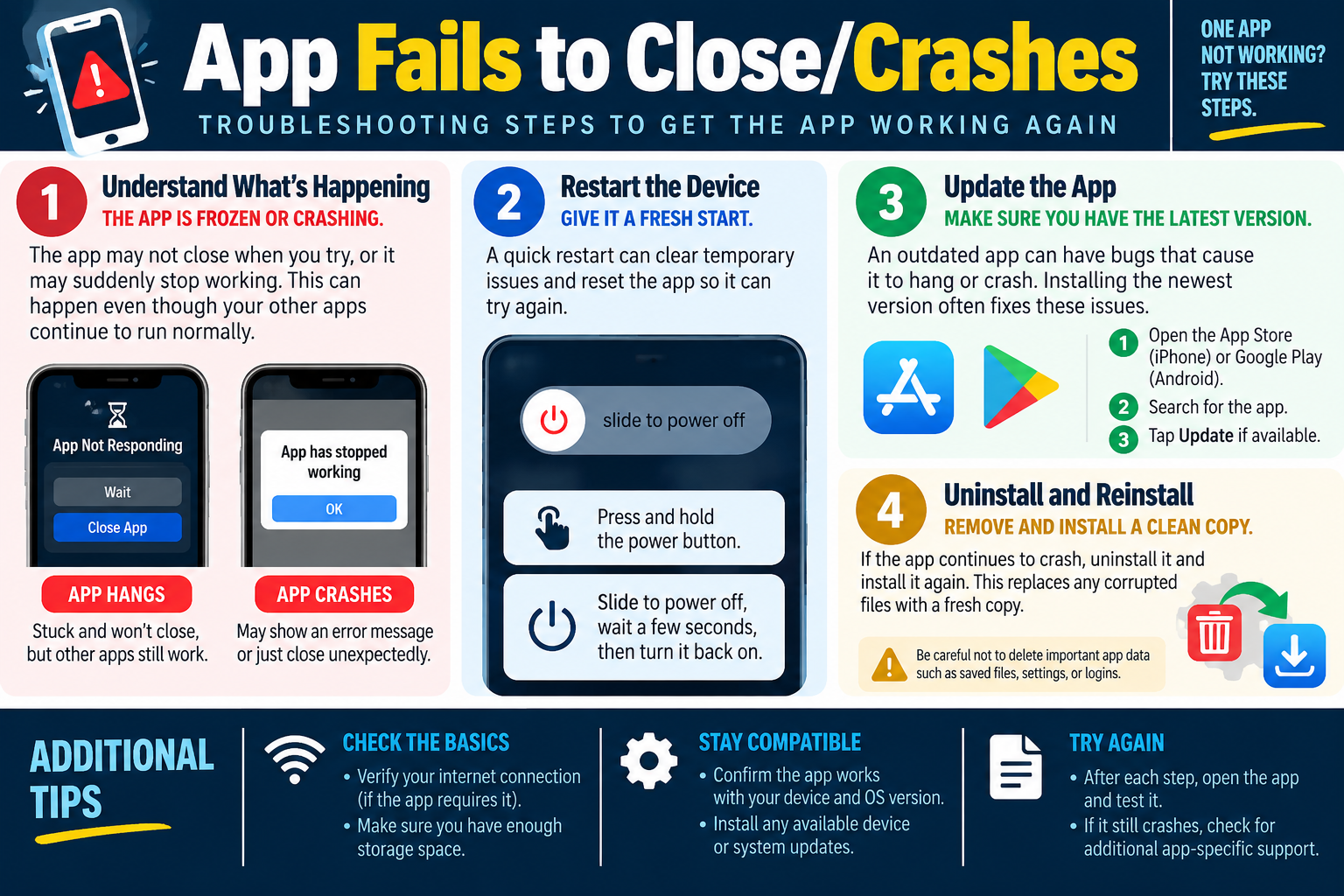
App fails to close or crashes infographic explaining mobile app freeze and crash troubleshooting, including restarting the device, updating the app, reinstalling, checking internet connection, storage, compatibility, and testing again.
Module 02 infographic: frozen or crashing mobile apps should be handled with restart, update, basic checks, compatibility review, careful reinstall, and verification.
UPD
Module 03

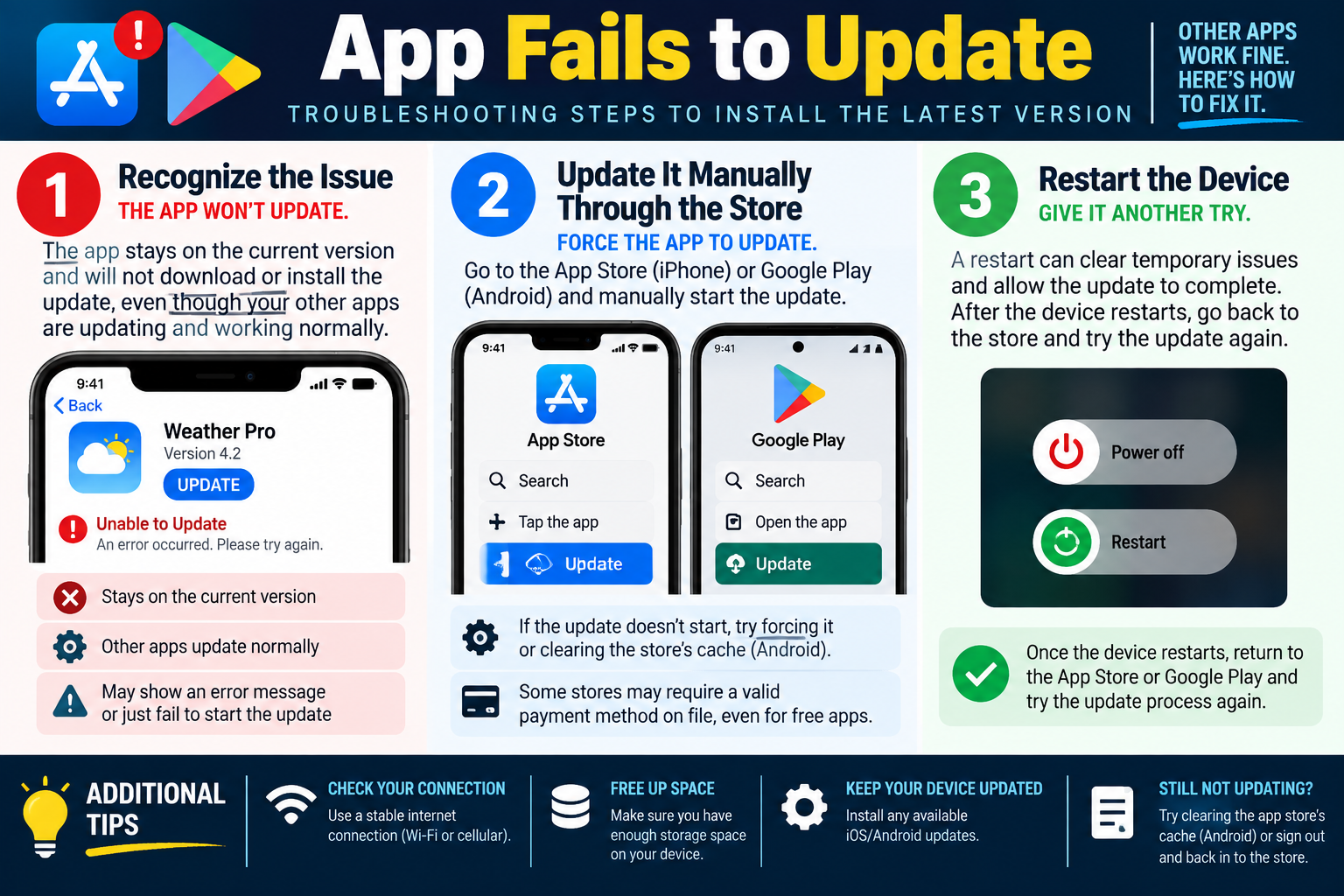
Module 3 - App Fails to Update

When a mobile app fails to update, separate the app problem from the device, store, account, storage, network, and operating system. Manually start the update through the official store, restart the device, verify connectivity and storage, and check account or store requirements before reinstalling.

An app update failure means the app stays on the current version even though a newer version is available. The user may see an error message, the update button may do nothing, the download may never start, or the update may begin and then fail. If other apps update normally, the issue may be specific to that app, store listing, account, payment requirement, compatibility, or local app data.

Begin by identifying the update path. Apps should be updated through the App Store on iPhone, Google Play on Android, or an approved enterprise app catalog. Avoid sideloaded or untrusted update sources unless the organization specifically supports them. The official store provides version control, publisher validation, and compatibility checks.

Recognize the Issue

The first clue is that the app remains on the current version after the user tries to update. The app store may show Unable to Update, An error occurred, a spinning download indicator, or no visible progress. The update may fail repeatedly even after the user taps Update again.

Check whether other apps update normally. If only one app fails, focus on that app's listing, account status, local app data, compatibility, or vendor issue. If all apps fail, widen the scope to network connectivity, storage space, App Store or Google Play account issues, payment method requirements, device date and time, OS update status, or store service availability.

Also ask whether the app came from the public store, a company portal, or a sideloaded package. Managed apps may require a corporate account, device compliance, MDM enrollment, or a specific update channel.

Update It Manually Through the Store

Do not rely only on automatic updates. Open the App Store on iPhone or Google Play on Android, search for the app, open the app's store page, and tap Update if available. This confirms whether the store recognizes the app, whether the update is available to that account, and whether the update fails with a useful error.

If the update does not start, try forcing the update from the store page rather than from a notification or home-screen prompt. Store prompts can become stale, especially after network changes, account changes, or interrupted downloads.

On Android, clearing the Google Play Store cache may help if the store itself is stuck or showing outdated update information. Be careful to distinguish clearing the store cache from clearing app data for the user's application. Cache clearing is less disruptive; data clearing may remove settings or account state.

Some stores may require a valid payment method on file even for free apps. This does not always mean the app costs money; it may be an account validation requirement. If the store reports an account or billing issue, resolve that store requirement before assuming the app is corrupted.

Restart the Device

A restart can clear temporary issues that block an update. Mobile operating systems may hold partial downloads, stuck store processes, interrupted installation tasks, or background services that need to reload. Restarting gives the app store and package manager a clean attempt.

After the device restarts, return to the App Store or Google Play and try the update again. Do not assume the update completed during restart; confirm the installed app version or check that the store no longer offers the update.

If the app update succeeds after a restart, the issue may have been a temporary process or installation state. If it fails again, continue checking storage, network, compatibility, account, and OS status.

Check Your Connection

App updates require a stable internet connection. A weak Wi-Fi signal, captive portal, VPN problem, cellular restriction, data saver mode, blocked store traffic, or filtered network can prevent downloads. Test both Wi-Fi and cellular when available, and try a known-good network if the store repeatedly fails.

Some devices are configured to update apps only on Wi-Fi. If the user is on cellular data, check app store settings and organizational policy. If the user is on public Wi-Fi, make sure the captive portal is completed before starting the update.

Free Up Space

Updates need working room. A device may require enough storage for the downloaded package, temporary installation files, and the final installed app. If storage is nearly full, the update may fail even if the update file appears small.

Check available device storage and remove unnecessary downloads, videos, offline maps, unused apps, or cached media. In a managed setting, follow policy before deleting user data. After freeing space, restart the store or device and try the update again.

Keep the Device Updated

An app update may require a newer iOS or Android version. If the device OS is too old, the store may fail the update, hide the newest version, or report incompatibility. Install available device or system updates when appropriate and approved.

OS updates can also fix store, package installer, certificate, security, networking, and compatibility components. If multiple app updates fail after an OS issue, device updates may be part of the solution.

Still Not Updating?

If the app still will not update, check app-store account state. Sign out and back in to the store if the account appears stuck, confirm the correct account is being used, and resolve any billing or terms-of-service prompts. In a company environment, confirm the device is compliant and assigned the correct app license.

For Android, clearing the app store's cache can help. For either platform, uninstalling and reinstalling the app may install the latest available version, but only do this after protecting app data, saved files, offline content, settings, and login information.

If the issue persists after store, network, storage, restart, OS, and account checks, escalate with details: app name, version, OS version, device model, store account, error message, network used, available storage, and steps already attempted.

Technician Workflow

  1. Confirm the failure. Note the app version, available update, error message, and whether the download starts.
  2. Check scope. Determine whether one app or all apps fail to update.
  3. Use the official store. Open the App Store, Google Play, or approved enterprise catalog and manually start the update.
  4. Restart the device. Clear stuck store or package-manager processes and try again.
  5. Verify basics. Check internet connection, Wi-Fi/cellular restrictions, storage space, account state, and payment requirements.
  6. Check compatibility. Confirm the app supports the device model and OS version.
  7. Use store-specific fixes. Clear Google Play cache on Android or sign out and back in to the store when account state is suspect.
  8. Reinstall carefully if needed. Protect app data before removing the app.

Common Exam Traps

Do not reinstall immediately when a manual store update, restart, storage cleanup, or account fix may solve the issue with less risk.

Do not ignore storage. Updates often need more temporary space than users expect.

Do not assume the app is broken if all apps fail to update. That pattern points more toward network, store, account, OS, or device storage issues.

Do not bypass the official store with an unknown download. Mobile app updates should come from trusted sources.

Do not clear app data or uninstall without checking for local files, saved settings, offline work, or login requirements.

Key takeaway: App update failures are usually solved by using the official store, restarting the device, checking connectivity and storage, confirming account and compatibility requirements, and protecting data before reinstalling.
App fails to update infographic explaining manual App Store or Google Play updates, restarting the device, checking internet connection, freeing storage, installing device updates, clearing store cache, and signing back in.
Module 03 infographic: app update problems can come from store state, network issues, low storage, device compatibility, OS update needs, account requirements, or cached store problems.
INST
Module 04

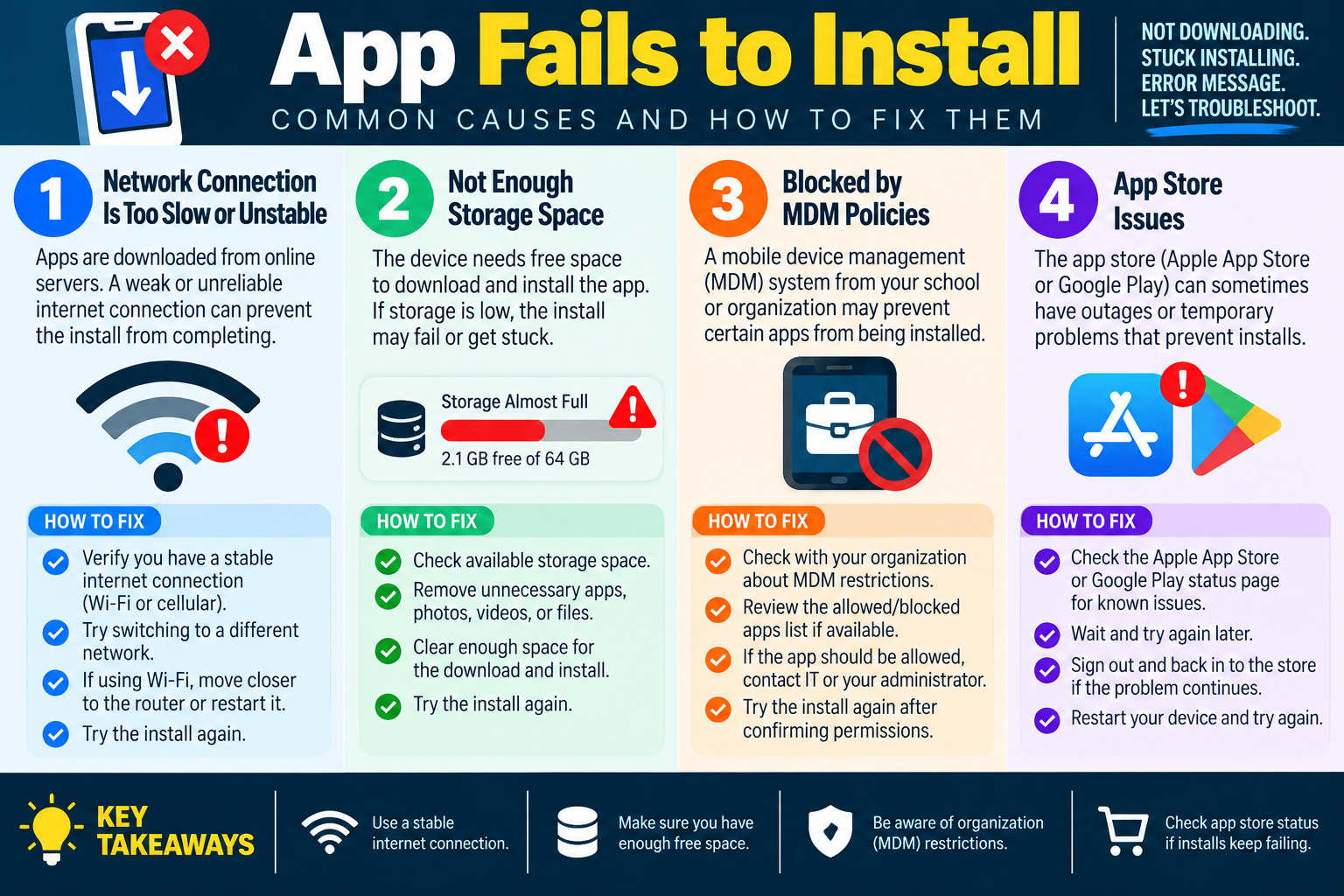
Module 4 - App Fails to Install

When a mobile app fails to install, look beyond the app itself. Installation depends on a stable network connection, enough available storage, app store availability, account status, OS compatibility, and any mobile device management policies that control what the device is allowed to install.

An install failure can appear in several ways. The app may never begin downloading, the download may stop partway through, the installation may remain stuck on Installing, or the store may show an error message. The correct response is to identify which part of the process is failing: download, verification, installation, permission approval, or post-install launch.

Start with scope. If no apps will install, the issue may involve network connectivity, store service status, storage, account settings, device restrictions, date and time, operating system updates, or MDM policy. If only one app will not install, check that app's compatibility, availability, publisher status, regional restrictions, license assignment, and organization approval status.

Network Connection Is Too Slow or Unstable

Mobile apps are downloaded from online servers. A weak or unreliable internet connection can interrupt the download before the app package reaches the device. This is especially common on weak Wi-Fi, congested public networks, unstable cellular data, filtered networks, captive portals, or networks that block app store traffic.

Verify that the device has a stable connection. Test another website or network-dependent app, confirm Airplane Mode is off, and check whether the device is using Wi-Fi, cellular, VPN, or a managed network. If the device is on Wi-Fi, move closer to the router, reconnect to the wireless network, or restart the router if appropriate. If cellular data is available and permitted, test the install over cellular or switch to a known-good Wi-Fi network.

Watch for policy and setting limits. Some devices allow app downloads only over Wi-Fi, and some managed devices block installation on untrusted networks. If the install repeatedly fails at the download stage, connectivity is one of the first areas to prove or eliminate.

Not Enough Storage Space

A device needs free space to download the app package, unpack temporary installation files, install the application, and maintain normal operating system workspace. A user may see free space listed, but the device may still not have enough working room for the full install process.

Check available storage before retrying. Remove unnecessary apps, old photos, videos, downloads, offline media, temporary files, or cached content according to user needs and organizational policy. In a support setting, do not delete user data casually. Ask what can be removed, check whether data is backed up, and preserve business or personal files before freeing space.

After storage is cleared, close and reopen the store or restart the device, then try the installation again. If storage was the cause, the app should download and install normally once there is enough free space.

Blocked by MDM Policies

Mobile device management can restrict app installation on school, business, or organization-owned devices. MDM policies may block certain apps, allow only approved apps, require installation through a company portal, enforce device compliance, or prevent users from installing apps from the public store.

If the device is managed, check whether the app is allowed. Review the approved or blocked apps list if available, confirm that the user or device is assigned the correct license, and verify that the device is compliant with organization requirements. A blocked install is not fixed by repeatedly tapping the install button.

If the app should be allowed, contact IT or the MDM administrator with the app name, store link, device name, user account, error message, and the business reason for the app. After permissions or policy assignments are corrected, retry the install through the approved source.

App Store Issues

The Apple App Store and Google Play can have temporary outages, regional availability issues, account prompts, licensing problems, cache problems, or store-side errors. If the app store is having problems, the device may be healthy and the app may still fail to install.

Check the App Store or Google Play status page when installs fail repeatedly, especially if multiple users are affected. If a service issue is confirmed, wait and try again later rather than making unnecessary changes to the device.

If the store appears available, sign out and back in to the store account if account state seems stuck, resolve any terms-of-service or payment prompts, and restart the device before retrying. On Android, clearing the Google Play Store cache can help when the store is showing stale or broken install information.

Other Checks Before Reinstalling or Escalating

Confirm compatibility. Some apps require a minimum iOS or Android version, specific hardware features, enough RAM, a supported processor architecture, or a device that has not reached end of support. If the store says the app is not compatible, the fix may require an OS update or a different device.

Check the operating system update status. Mobile OS updates can repair package installation components, certificates, store services, and compatibility features. If the device is behind on updates and policy allows it, update the OS and try the install again.

Check date and time settings. Incorrect time can interfere with certificates, store authentication, and secure connections. Use automatic date and time when possible, especially on managed or enterprise-connected devices.

Technician Workflow

  1. Identify the install stage. Determine whether the failure occurs before download, during download, during installation, or after installation.
  2. Check scope. Test whether one app, multiple apps, one account, one device, or many devices are affected.
  3. Verify connectivity. Use a stable Wi-Fi or cellular connection and confirm the store can be reached.
  4. Check storage. Make sure the device has enough free space for the download and temporary installation files.
  5. Review management restrictions. Confirm MDM policy, app approval, licensing, and device compliance.
  6. Check store health. Look for App Store or Google Play outages, account prompts, or cached store problems.
  7. Confirm compatibility. Verify OS version, device support, region, and app requirements.
  8. Retry and document. Try the install again, confirm the app opens, and record the cause and fix.

Common Exam Traps

Do not assume an install failure means the app is bad. Network, storage, MDM policy, account state, compatibility, or store service status may be the real cause.

Do not bypass organizational controls by downloading from an unapproved source. Managed devices should use approved stores or company portals.

Do not delete user data just to free space without confirming what can safely be removed.

Do not overlook MDM. If policy blocks installation, local troubleshooting will not fix the problem until the policy or assignment is corrected.

Do not keep retrying during a store outage. Confirm service status and wait if the provider is experiencing problems.

Key takeaway: App install failures are usually caused by unstable connectivity, low storage, mobile device management restrictions, app store issues, account problems, or compatibility requirements. Start with the least disruptive checks, use trusted app sources, and escalate with clear evidence when policy or store-side issues are involved.
App fails to install infographic explaining common causes including unstable network connection, not enough storage space, MDM policy blocks, app store issues, and key takeaways for troubleshooting mobile app installation failures.
Module 04 infographic: failed mobile app installs often come from connection problems, low storage, MDM restrictions, or app store issues. Confirm the cause before making disruptive changes.
SLOW
Module 05

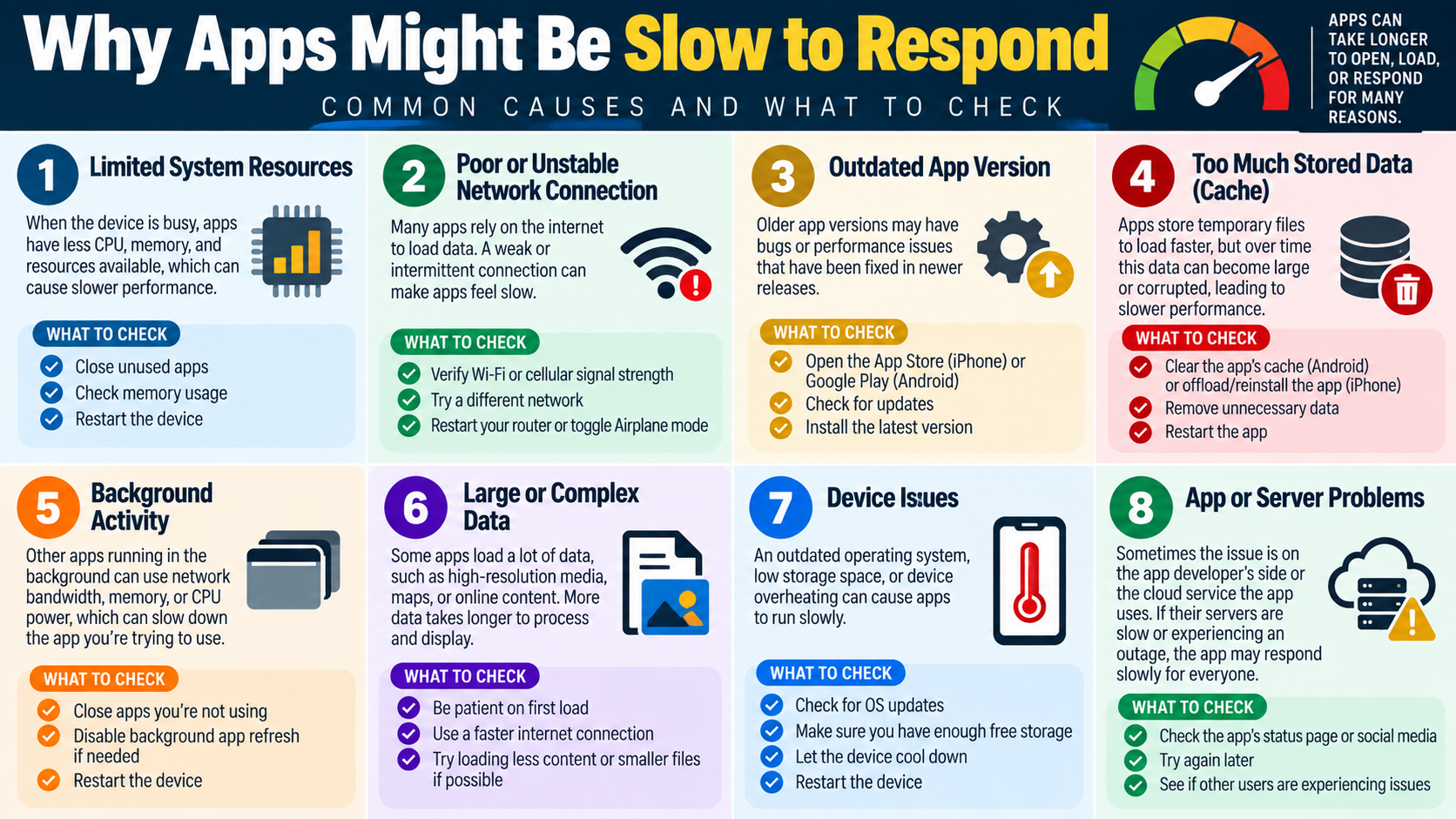
Module 5 - Why Apps Might Be Slow to Respond

When a mobile app takes too long to open, load, scroll, search, sync, or respond to taps, troubleshoot the device resources, network connection, app version, cached data, background activity, app workload, device health, and the app or server service behind it.

A slow app is not always a broken app. Mobile apps depend on CPU, memory, storage, battery and thermal conditions, network quality, cached data, background services, app code, cloud servers, and operating system compatibility. A single weak link can make the app feel delayed even when the phone still appears usable.

Start by defining the slowness. Does the app open slowly, respond slowly after it opens, freeze only during a specific task, take a long time to load images or maps, or feel delayed only on one network? Does the problem affect one app or every app? Does it happen after the phone has been running for days, when storage is nearly full, or after an app or OS update? These clues determine where to look first.

Limited System Resources

When the device is busy, apps have fewer resources available. Low memory, high CPU use, heavy disk or storage activity, background sync, and many open apps can all slow down the app the user is trying to use. The app may appear to lag, freeze briefly, take longer to open, or respond late to taps.

Close unused apps and check whether performance improves. On many devices, the operating system manages memory automatically, but a problem app, large background sync, malware-like behavior, or overloaded device can still create pressure. Restarting the device can clear temporary memory, stop stuck processes, and restore responsiveness.

If slowness affects multiple apps, treat it as a device performance problem rather than a single app problem. Check available memory, storage space, OS updates, overheating, and whether the device model has enough resources for the apps being used.

Poor or Unstable Network Connection

Many apps depend on the internet to load dashboards, messages, media, maps, account data, ads, files, or cloud content. A weak Wi-Fi signal, unstable cellular connection, VPN issue, captive portal, DNS problem, or congested network can make the app feel slow even if the device itself is healthy.

Verify Wi-Fi or cellular signal strength. Test another network if possible, toggle Airplane Mode to reset the radio connection, or restart the router if the issue is tied to one Wi-Fi network. If the app works well on cellular but slowly on Wi-Fi, focus on the wireless network. If it is slow on every network, continue checking the app, device, and service.

Be careful with assumptions. A slow network-dependent app may not show a network error; it may simply spin, delay, or partially load. Testing on a known-good connection helps separate app performance from connectivity problems.

Outdated App Version

Older app versions may contain bugs, inefficient code, outdated server calls, or compatibility problems that were fixed in newer releases. The app may still open, but it can load slowly, crash under certain conditions, or struggle after the vendor changes a cloud service.

Open the App Store on iPhone or Google Play on Android and check for updates. Install the latest approved version, then test the same workflow again. In managed environments, use the approved app catalog or MDM deployment process.

If slowness began immediately after an app update, document the version and symptoms. The newest version can sometimes introduce a bug. In that case, check vendor support information, known issue reports, and whether the organization has an approved workaround.

Too Much Stored Data or Cache

Apps store temporary files, thumbnails, web content, session data, offline content, logs, and cached media to load faster. Over time, cache can become large or corrupted, causing slower loading, search delays, sync problems, or unusual behavior.

On Android, clear the app cache when cached data is suspected. Clearing cache is usually safer than clearing app data because it removes temporary files without fully resetting the app. On iPhone, cache controls vary by app; offloading, reinstalling, or using in-app storage cleanup may be the practical option.

Remove unnecessary downloads and offline content when the app stores large files. Restart the app after cleanup and retest. If the app becomes faster, the issue was likely caused by stored data volume or corrupted cache.

Background Activity

Other apps running in the background can use network bandwidth, memory, CPU, location services, Bluetooth, or storage. Cloud backups, photo uploads, software updates, email sync, messaging apps, maps, and streaming apps can all slow the foreground app.

Close apps that are not being used and check whether performance improves. If appropriate, disable background app refresh or background data for apps that do not need constant updates. Be careful not to disable required business apps, security tools, messaging tools, or management agents.

Restarting the device can also stop excessive background activity. If the issue returns, look for the recurring background process instead of relying on repeated restarts.

Large or Complex Data

Some apps are slow because they are doing a lot of legitimate work. High-resolution photos, large PDFs, maps, long message histories, big spreadsheets, video files, offline media libraries, or complex dashboards take more time to process and display.

Be patient on the first load, especially after reinstalling an app or signing in on a new device. The app may be rebuilding indexes, downloading offline data, syncing account content, or generating thumbnails. A first-load delay is different from ongoing poor performance.

When possible, use a faster network connection, load smaller files, reduce the amount of content being displayed, archive old data, or split large files. If only one huge file or data set is slow, the root cause may be workload size rather than a device fault.

Device Issues

The device itself can slow apps down. An outdated operating system, low storage, battery saver mode, overheating, damaged storage, insufficient RAM, or older hardware can reduce app performance. A hot device may throttle CPU speed to protect itself, making apps feel sluggish.

Check for iOS or Android updates, confirm there is enough free storage, and let the device cool down if it is hot. Restart the device and test again. If slowness continues across many apps, consider a broader device health investigation.

Storage matters even when the app is not installing or updating. Apps need free space for cache, temporary files, database updates, and logs. A nearly full phone can cause sluggish behavior across the whole system.

App or Server Problems

Sometimes the issue is not on the user's phone. The app developer's service, API, content delivery network, authentication provider, or cloud backend may be slow or unavailable. When the server is slow, many users may experience the same delay at the same time.

Check the app's status page, support page, vendor announcements, or social media feed if appropriate. Ask whether other users are seeing the same issue. If the app is cloud-based and multiple users are affected, document the evidence and wait for the provider or internal service team to resolve it.

Do not make unnecessary device changes when the real issue is service-side. If the app is slow for everyone, replacing the app, deleting data, or resetting the phone will not fix the backend.

Technician Workflow

  1. Define the symptom. Identify whether the app opens slowly, loads content slowly, delays after taps, freezes during one action, or is slow only on one network.
  2. Check scope. Determine whether one app, many apps, one device, one user, one network, or many users are affected.
  3. Check resources. Close unused apps, check storage, restart the device, and watch for overheating or memory pressure.
  4. Check connectivity. Test Wi-Fi, cellular, VPN, DNS, and a known-good network.
  5. Update the app. Install the latest approved version and verify OS compatibility.
  6. Clean app data carefully. Clear cache or remove unnecessary offline content without deleting important user data.
  7. Consider workload and backend issues. Large data and slow servers can mimic app problems.
  8. Verify the result. Repeat the exact workflow that was slow and confirm performance improved.

Common Exam Traps

Do not assume slow response means the app must be reinstalled. Resource pressure, weak network, cache, background activity, or backend performance may be the cause.

Do not clear app data when clearing cache is the safer first step. Clearing data may remove settings, login state, downloaded files, or unsynced work.

Do not overlook the network. Cloud-based apps can feel slow because data is loading slowly, not because the app is damaged.

Do not ignore thermal throttling or low storage. A hot or nearly full device can make otherwise healthy apps respond slowly.

Do not troubleshoot one phone forever if the app service is down for everyone. Check status pages and compare with other users.

Key takeaway: Slow mobile apps usually trace back to limited device resources, weak connectivity, outdated software, excessive cache, background activity, large data, device health, or service-side problems. Identify the pattern first, then apply the least disruptive fix that matches the cause.
Why apps might be slow to respond infographic explaining limited system resources, poor network connection, outdated app version, too much cache, background activity, large data, device issues, and app or server problems.
Module 05 infographic: slow app response can come from device resources, connectivity, app version, cache, background activity, large data, device health, or server-side conditions.
OS
Module 06

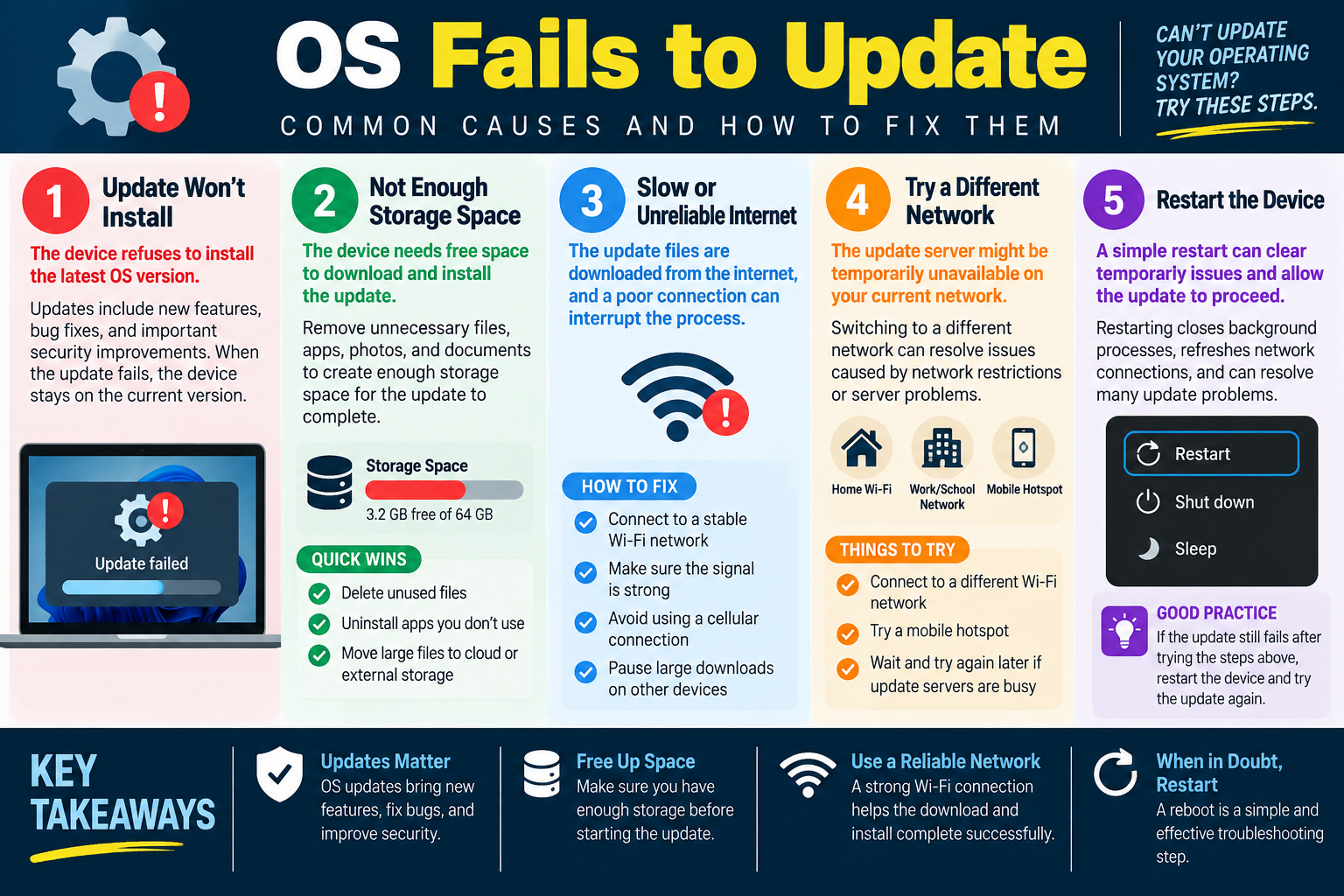
Module 6 - OS Fails to Update

When a mobile operating system refuses to update, isolate whether the failure is caused by storage, network reliability, update server availability, a stuck process, battery or power requirements, device compatibility, or management restrictions before attempting more disruptive fixes.

Operating system updates matter because they deliver new features, bug fixes, security patches, stability improvements, and compatibility updates. When an iOS or Android update fails, the device remains on the current version and may continue to have known bugs, app compatibility problems, or unpatched security weaknesses.

An OS update failure may appear as Update failed, Unable to verify update, a download that never completes, an installation that stops partway through, or an update that disappears after a restart. Start by identifying whether the device cannot download the update, cannot verify it, cannot install it, or cannot restart into the updated OS.

Update Won't Install

The most direct symptom is that the device refuses to install the latest OS version. The user may tap Update or Install Now and see an error, progress bar failure, or repeated return to the same current version. This does not automatically mean the operating system is corrupted. It may be blocked by storage, network conditions, battery level, device compatibility, server status, or policy.

Ask what happened before the failure. Did the device recently lose Wi-Fi, run out of storage, drain its battery, restart unexpectedly, or receive a management policy change? Did the update download fully but fail during installation? Did it fail before the download started? Those details point to different causes.

Also confirm that the update is intended for the device. Older devices eventually stop receiving major OS upgrades. In that case, the device may still receive some security updates, but it may not support the newest OS release.

Not Enough Storage Space

OS updates require significant free space. The device needs room for the update download, temporary installation files, unpacking, verification, logs, and normal operating system operation. A device with only a small amount of free storage may fail the update even if the visible update package appears smaller than the available space.

Check available storage before retrying. Remove unnecessary files, old downloads, unused apps, duplicate photos, videos, offline media, and large documents. When appropriate, move large files to cloud storage, a computer, or external storage before deleting local copies.

Be deliberate with user data. Do not remove photos, documents, messages, or business data without confirmation and backup. If storage cleanup is needed, start with low-risk items such as unused apps, downloaded media that can be restored, cache, and files the user confirms are no longer needed.

Slow or Unreliable Internet

Update files are downloaded from the internet, and a poor connection can interrupt the process. Weak Wi-Fi, network congestion, captive portals, VPN problems, cellular restrictions, or filtered networks can all cause downloads to stall or fail verification.

Connect to a stable Wi-Fi network with a strong signal. Avoid starting large OS downloads on an unreliable cellular connection unless the platform and plan support it. Pause large downloads or streaming on other devices if the network is congested.

If the update repeatedly fails during download, test another network. A successful update on a different network confirms that the original network was likely the problem. If it fails on every network, continue checking storage, device state, update servers, and compatibility.

Try a Different Network

Sometimes the update server is temporarily unavailable from the current network, or the network blocks required update traffic. Switching from home Wi-Fi to a work or school network, or from Wi-Fi to a mobile hotspot, can bypass a local restriction or routing problem.

Use a trusted network when changing connections. Avoid public Wi-Fi for sensitive system updates when possible, especially if the network is unstable or requires a captive portal. A mobile hotspot can be useful for testing, but update files can be large, so consider data limits before using it for the full download.

If several devices fail to update on the same network but work elsewhere, investigate the local network, firewall, DNS, content filter, or proxy. If many users fail across multiple networks, check the OS vendor's update service status.

Restart the Device

A simple restart can clear temporary issues that block updates. Restarting closes background processes, refreshes network connections, reloads update services, clears stuck installer state, and can resolve many update problems without deleting data.

After restarting, connect to power, join a stable network, and try the update again. If the update had partially downloaded, the device may either continue, redownload, or verify the existing package depending on the platform.

If a restart fixes the issue once, the failure may have been temporary. If the update fails repeatedly, continue with storage cleanup, different network testing, update server checks, OS compatibility review, and management policy checks.

Power, Battery, and Readiness Checks

Many mobile devices require sufficient battery charge before installing an OS update. Some updates will not install unless the device is plugged in, above a required battery percentage, or both. A device that loses power during an update can become unstable, so these safeguards matter.

Plug the device into a reliable charger before beginning. Make sure the device is not overheating, because thermal conditions can pause downloads or delay installation. Keep the screen locked or idle during the update when possible, and avoid using the device heavily while the update is preparing.

Compatibility and Management Restrictions

OS updates depend on device model, region, carrier support, storage, hardware capability, and sometimes organizational policy. A managed phone may be prevented from installing an update until IT approves it, tests it, or assigns the update through mobile device management.

Check whether the device is eligible for the target OS version. Review MDM restrictions if the device belongs to a school or organization. If policy controls updates, follow the organization's update process rather than attempting unsupported workarounds.

If the update is required for security or app compatibility but is blocked by policy, escalate with the device name, user, current OS version, target version, error message, available storage, network tested, and the exact time of failure.

Technician Workflow

  1. Confirm the symptom. Determine whether the update will not download, will not verify, will not install, or fails after restart.
  2. Check the basics. Confirm power, battery level, available storage, stable Wi-Fi, and device compatibility.
  3. Free space safely. Remove unnecessary files or apps only after protecting user data.
  4. Change the network. Try a stronger Wi-Fi network or trusted hotspot when download or verification fails.
  5. Restart and retry. Clear temporary installer and network state before escalating.
  6. Check external factors. Look for update server outages, regional release delays, carrier delays, or MDM restrictions.
  7. Escalate with evidence. Document current OS version, target version, error messages, storage, network, and steps attempted.
  8. Verify completion. Confirm the installed OS version after the update finishes.

Common Exam Traps

Do not assume the device is defective just because an update fails. Storage, Wi-Fi, power, server availability, compatibility, or policy is often the real cause.

Do not start with a factory reset. OS update problems usually have safer fixes first.

Do not ignore storage. Updates frequently need more free space than users expect because temporary files are created during installation.

Do not use an unreliable or untrusted network for a large OS update. A stable connection prevents failed downloads and verification errors.

Do not forget to verify the final OS version. The update is not complete until the device reports the expected version and operates normally.

Key takeaway: OS update failures are usually resolved by freeing storage, using a reliable network, trying a different trusted network, restarting the device, confirming power and compatibility, and checking update server or MDM restrictions before escalating.
OS fails to update infographic explaining update failure causes including not enough storage space, slow or unreliable internet, trying a different network, restarting the device, and key update troubleshooting takeaways.
Module 06 infographic: failed OS updates often come from low storage, unreliable internet, current-network problems, temporary device state, or update readiness requirements.
BATT
Module 07

Module 7 - Battery Life Issues

When a mobile device drains faster than expected, troubleshoot signal quality, battery age, wireless features, high-use apps, background activity, screen settings, operating system updates, and user behavior before assuming the battery must be replaced.

Battery life is affected by both hardware condition and daily usage. A phone with a healthy battery can drain quickly if it is constantly searching for signal, running power-hungry apps, using GPS, syncing in the background, streaming video, or keeping the display bright for long periods. A phone with an aging battery may drain quickly even under normal use because its total capacity has declined.

Start by identifying the pattern. Does the battery drain only in certain locations, only when using one app, only after an update, only when traveling, or all the time? Does the device get hot? Does it shut down before reaching zero percent? Does it charge normally? The answers help distinguish weak signal, app behavior, configuration, OS issues, charging problems, and normal battery wear.

Weak or No Cellular Signal

A weak cellular signal can drain a battery quickly because the phone works harder to maintain a connection. When reception is poor, the device may repeatedly search for towers, increase radio power, switch between cellular bands, or retry network communication. This can happen in basements, large buildings, rural areas, vehicles, elevators, or areas with poor carrier coverage.

Move to an area with better reception and watch whether battery drain improves. If calls and texts are not needed, enable Airplane Mode in low-signal areas to stop the constant search for service. If Wi-Fi is available, use Wi-Fi calling where supported so the device can communicate without relying as heavily on cellular signal.

Do not overlook location-based patterns. If battery life is good at home but poor at work, the issue may be signal strength, building construction, carrier coverage, or network handoff behavior rather than a bad battery.

Battery Wear Over Time

Rechargeable batteries naturally lose capacity as they age. Each charge cycle slightly reduces the total amount of energy the battery can store. Over time, the user may notice shorter runtime, faster percentage drops, unexpected shutdowns, or a device that no longer lasts through normal use.

This is normal battery aging, not necessarily a software fault. Check battery health if the operating system provides that information. If the maximum capacity is significantly lower than expected or the device reports service recommended, battery replacement may be appropriate.

To slow additional wear, avoid extreme heat, keep software updated, use reliable chargers, and avoid leaving the device in hot cars or direct sunlight. Heat is especially damaging to lithium-ion batteries and can reduce long-term capacity.

Features and Connections

Wireless features can use power even when the user is not actively using them. Wi-Fi, Bluetooth, GPS/location services, NFC, hotspot, background scanning, and always-on display features can all contribute to battery drain depending on how they are configured.

Turn off Wi-Fi, Bluetooth, GPS, NFC, hotspot, or other radios when they are not needed. This is especially useful during travel, in low-signal areas, or when the device is repeatedly scanning for networks or accessories. Use Airplane Mode when connectivity is not required.

Use judgment, though. Wi-Fi can sometimes save battery compared with weak cellular data because the phone does not need to work as hard. The best setting depends on the environment. The goal is to disable unnecessary features, not to break useful connectivity.

High Battery Use by Apps

Some apps consume far more power than others. Navigation apps, streaming apps, games, video calls, social media, camera apps, background sync tools, and apps that constantly use location can drain the battery quickly. A single misbehaving app can also keep the device awake or use network and CPU resources in the background.

Check battery usage in the device settings. Look for apps using an unusually high percentage of battery, especially apps that were not actively used. Limit background activity, adjust notification and location permissions, close apps that are no longer needed, or uninstall apps the user does not use.

If one app began draining battery after an update, update it again if a fix is available, clear cache where appropriate, reinstall after protecting data, or check vendor support. If an app is required for work, avoid disabling it without confirming business impact.

Screen, Display, and Usage Habits

The display is one of the largest battery consumers on a mobile device. High brightness, long screen timeout, always-on display, frequent wake-ups, animated backgrounds, and heavy video use can shorten runtime. Users may describe this as battery failure even when the device is simply being used heavily.

Lower screen brightness, use adaptive brightness when appropriate, shorten the auto-lock timer, and disable always-on display if runtime is more important than convenience. Encourage users to lock the screen when not actively using the device.

Battery troubleshooting should include real usage. A phone used for navigation, hotspot, video recording, or streaming will drain much faster than a phone sitting idle. Compare battery life against workload, not against an unrealistic standby expectation.

Operating System and Device Conditions

Operating system updates can improve power management, fix battery-draining bugs, and improve app compatibility. However, immediately after an OS update, the device may temporarily use more power while reindexing files, updating apps, syncing photos, or rebuilding caches.

Keep the device updated, but evaluate timing. If battery drain began right after an update, give the device time to finish background optimization, then check for follow-up updates. If drain continues, review battery usage, app updates, location permissions, and background activity.

Temperature also matters. A hot device may drain faster and may throttle performance. Remove the device from direct heat, stop heavy workloads, take it out of a heat-trapping case if appropriate, and let it cool before testing again.

Charging and Power Accessories

Battery complaints are sometimes charging problems. A damaged cable, weak charger, dirty port, loose connector, failing wireless charger, or incompatible power adapter can make the user think the battery is draining when it is actually not charging correctly.

Verify that the device charges normally with a known-good cable and charger. Check the port for debris or damage. Confirm whether the device charges slowly, stops charging intermittently, or only charges at certain angles. Do not clean ports aggressively; use approved methods and avoid damaging the connector.

Technician Workflow

  1. Confirm the symptom. Determine whether the battery drains quickly, charges slowly, shuts down early, overheats, or drains only in certain situations.
  2. Check battery usage. Use device settings to identify high-power apps and background activity.
  3. Check signal and radios. Look for weak cellular signal, constant scanning, GPS use, Bluetooth, hotspot, NFC, and Wi-Fi behavior.
  4. Review battery health. Determine whether the battery has aged enough to justify replacement.
  5. Reduce unnecessary load. Close unused apps, limit background activity, adjust location permissions, and tune display settings.
  6. Update software. Install approved OS and app updates that may improve power management.
  7. Verify charging. Test with known-good power accessories and inspect for port or cable issues.
  8. Retest over time. Battery fixes should be judged across realistic use, not just a few minutes after changing a setting.

Common Exam Traps

Do not replace the battery before checking signal, apps, radios, screen settings, and battery usage data.

Do not assume Wi-Fi, Bluetooth, or GPS are always the problem. They matter most when unused, constantly scanning, or being used heavily by apps.

Do not ignore weak cellular reception. Poor signal is one of the easiest causes of fast battery drain to miss.

Do not disable required work apps or management tools without approval. Limit unnecessary activity while preserving required function.

Do not judge battery life without considering workload. Navigation, hotspot, games, streaming, and video calls naturally consume power quickly.

Key takeaway: Battery life issues usually come from weak signal, battery wear, wireless features, high-use apps, display settings, background activity, heat, software state, or charging accessories. Use battery usage data and real-world patterns to apply the least disruptive fix.
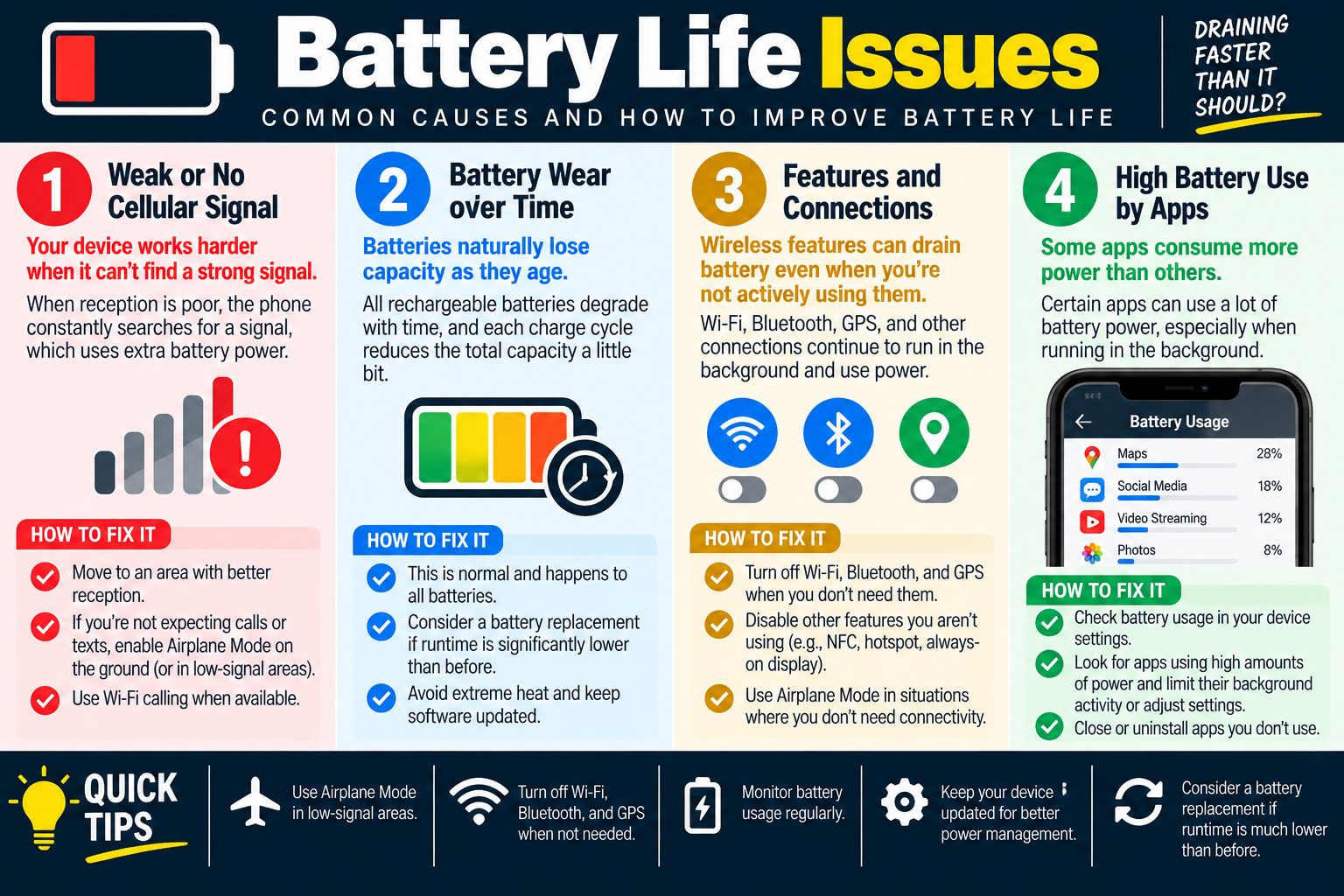
Battery life issues infographic explaining common causes including weak cellular signal, battery wear over time, wireless features and connections, and high battery use by apps.
Module 07 infographic: fast battery drain can come from poor signal, aging batteries, unused wireless features, high-use apps, display behavior, heat, software state, or charging problems.
BOOT
Module 08

Module 8 - Random Reboots

When a mobile device restarts on its own, treat it as an instability symptom. Random reboots can be caused by temporary normal operation, outdated software, failing batteries, overheating, hardware damage, corrupted app behavior, OS problems, or issues that require manufacturer or organizational support.

A random reboot is different from a user-initiated restart. The device may suddenly go black, show the boot logo, return to the lock screen, or restart while the user is actively using an app. Sometimes it happens once and never returns. Other times it follows a pattern, such as during charging, while using the camera, in a certain location, after an update, when the battery is low, or when a specific app is open.

Start by collecting details instead of guessing. Ask when the restart happens, what the user was doing, whether the device was hot, what the battery level was, whether it was plugged in, what apps were open, and whether the issue began after an app, OS, or policy change. A clean timeline often points to the cause.

Normal Operation Reboots

Occasional reboots can happen as part of normal device behavior. A phone may restart after an operating system update, after an update is scheduled overnight, after a carrier or security update, or after certain configuration changes. If the reboot happens once and the device works normally afterward, it may not indicate a fault.

Still, document the event. Note when it happened, the battery level, whether the device was charging, the network being used, and what the user was doing. If it never happens again, no deeper repair may be needed. If it repeats, those notes become useful troubleshooting evidence.

Look for patterns. Reboots tied to one app, one location, one charger, one battery level, or one update are more meaningful than a single isolated restart. The pattern tells you whether to investigate software, hardware, power, signal, or environmental conditions.

Outdated Software

An older operating system or app version can cause instability and unexpected restarts. Updates often include fixes for kernel issues, driver problems, modem firmware, battery management, memory handling, and app compatibility. A device that has not been updated may continue to experience bugs that were already resolved.

Check for operating system updates and install approved updates when appropriate. Also update apps to the latest trusted version through the App Store, Google Play, or an approved enterprise app source. Keep automatic updates enabled where policy allows so important stability fixes are not missed.

If reboots began immediately after an update, record the version and timing. The correct next step may be checking for a follow-up patch, reviewing vendor known issues, removing a recently updated app, or escalating to support with crash logs.

Possible Hardware Problems

Hardware problems can cause a device to restart without warning. A weak or failing battery may not deliver stable power under load. A damaged logic board, failing storage, loose internal connection, overheating component, or physical damage from drops or liquid exposure can also cause reboots.

Check battery health if the device provides that information. Look for a swollen battery, cracked screen, bent frame, water exposure indicators, damaged charging port, or signs of overheating. A device that restarts when the battery is low, when opening the camera, during gaming, or when unplugged may be experiencing power delivery problems.

Most mobile devices have limited user-accessible diagnostics. If hardware is suspected, avoid repeated invasive troubleshooting. Back up important data if possible, document the symptoms, and escalate to the manufacturer, repair provider, or internal support team.

Overheating and Environmental Conditions

Mobile devices may restart or shut down to protect themselves when they overheat. Heat can come from direct sunlight, hot vehicles, heavy gaming, video recording, navigation, charging under load, thick cases, poor ventilation, or malfunctioning apps consuming CPU in the background.

If the device feels hot, stop heavy use, unplug it if safe, remove it from heat, and let it cool before retesting. Do not place the device in a freezer or expose it to moisture. Once it is cool, check battery usage and app activity to see what was driving the heat.

If overheating is frequent, investigate apps, chargers, battery health, case fit, and environmental use. Recurring overheating can damage battery health and may point to hardware or software problems that need escalation.

App, OS, and Configuration Triggers

A specific app can trigger instability if it has a severe bug, uses too many resources, conflicts with the OS, or interacts poorly with device hardware such as camera, Bluetooth, GPS, or cellular modem. Reboots may also follow configuration changes, VPN changes, MDM policy changes, beta software, or recently installed apps.

Ask what changed recently. If reboots began after installing a new app, updating an app, applying an OS update, changing security settings, or enrolling in MDM, that change becomes a key suspect. Update the app, clear cache where appropriate, remove the app if it is not required, or check with IT if the device is managed.

If the device reboots while performing a specific action, repeat the test carefully only if it is safe and data is protected. Do not intentionally stress a device that shows battery swelling, overheating, or physical damage.

Get Additional Help

If random reboots continue after basic checks, contact the organization's tech support team or the device manufacturer. Crash logs, diagnostic logs, panic logs, battery health reports, and device analytics can provide clues that are not visible from normal settings screens.

Provide useful details when escalating: device model, OS version, app versions, battery health, storage level, whether the device is managed, whether it overheats, when reboots occur, recent updates, charger used, and whether the issue happens on battery or while plugged in.

If the device is still under warranty, repeated reboots may qualify for repair or replacement. If the device belongs to an organization, follow the organization's support process and avoid unsupported repair attempts.

Technician Workflow

  1. Capture the pattern. Record when the reboot happens, what the user was doing, battery level, charger state, temperature, and recent changes.
  2. Check for normal causes. Determine whether the reboot followed an OS update, app update, carrier update, or scheduled restart.
  3. Update software. Install approved OS and app updates that may fix instability.
  4. Check battery and heat. Review battery health, overheating, physical damage, and charging behavior.
  5. Review apps and changes. Look for recently installed or updated apps, MDM changes, VPN changes, and app-specific triggers.
  6. Protect data. Back up important information before performing resets, repairs, or replacement.
  7. Escalate with logs. Provide crash logs or diagnostic information when requested by IT or the manufacturer.
  8. Verify stability. After a fix, monitor the device under the same conditions that previously triggered reboots.

Common Exam Traps

Do not assume every random reboot is a hardware failure. Software updates, app bugs, heat, weak signal, or normal update behavior can also explain it.

Do not ignore battery health. A weak battery can cause restarts when the device is under load even if the battery percentage looks acceptable.

Do not factory reset before checking updates, patterns, battery health, overheating, recent changes, and backups.

Do not keep testing a device with a swollen battery, liquid damage, or severe overheating. Escalate safely.

Do not escalate with vague information. Support teams need timestamps, patterns, OS versions, app versions, battery state, and logs to diagnose intermittent reboots.

Key takeaway: Random reboots can come from normal update behavior, outdated software, unstable apps, weak batteries, overheating, hardware damage, or deeper OS issues. Gather patterns, update software, check battery and heat, protect data, and escalate with logs if the problem continues.
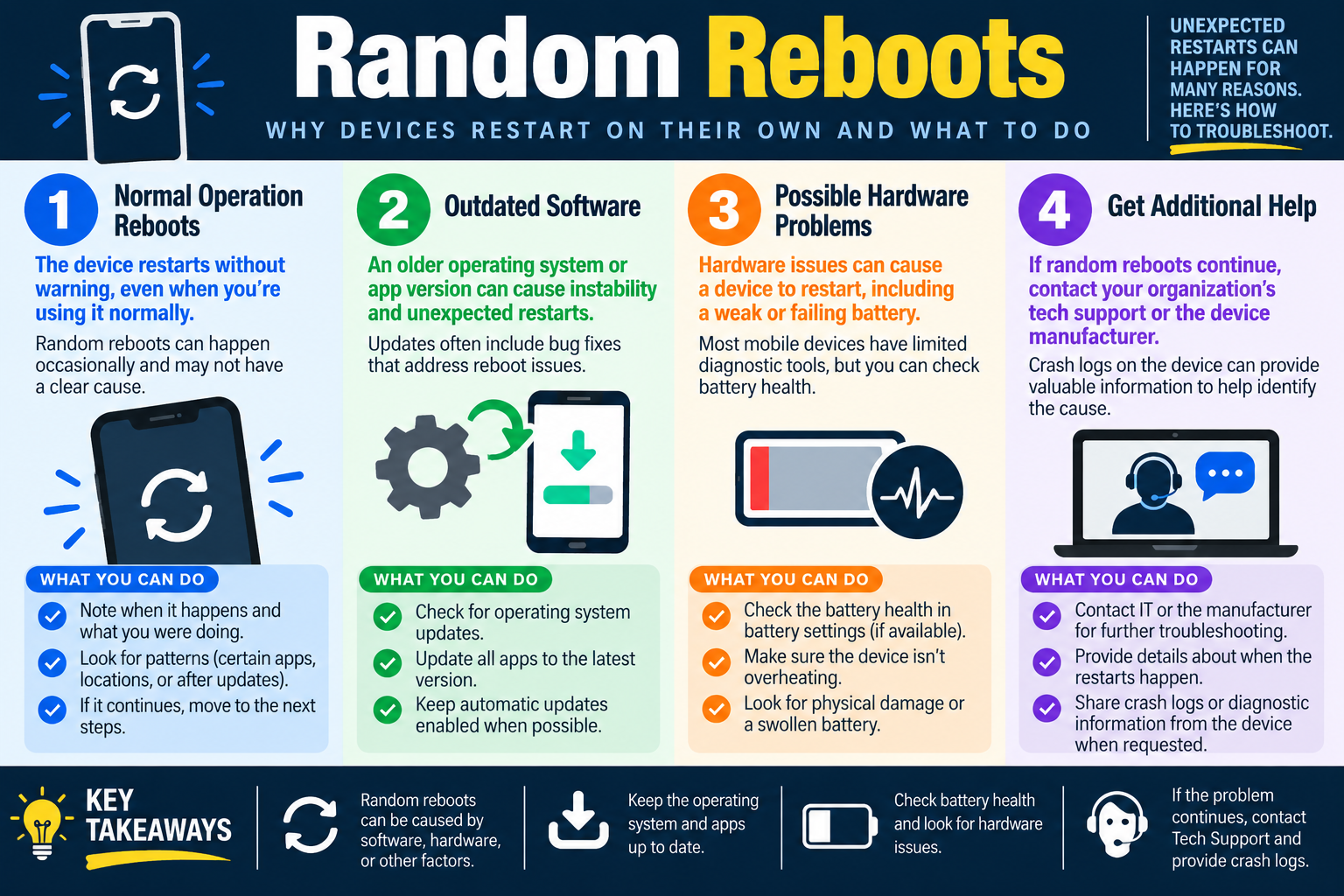
Random reboots infographic explaining normal operation reboots, outdated software, possible hardware problems, and when to get additional help for mobile devices that restart on their own.
Module 08 infographic: unexpected restarts require pattern gathering, software updates, battery and hardware checks, and escalation with diagnostic details when the issue persists.
NET
Module 09

Module 9 - Connectivity Issues

When a mobile device cannot stay connected, cannot join Wi-Fi, cannot pair with Bluetooth, or cannot use NFC, start with range, settings, compatibility, interference, saved connection data, and a restart before moving to deeper hardware or account troubleshooting.

Connectivity problems can look similar even when the underlying causes are different. A dropped Wi-Fi connection may be caused by distance or interference. A complete failure to join Wi-Fi may be caused by the wrong password, disabled Wi-Fi, security mismatch, or a stuck wireless subsystem. Bluetooth may fail because the other device is not in pairing mode. NFC may fail because the feature is disabled, the tag is incompatible, or the device is not positioned correctly.

Begin by identifying which connection type is failing: Wi-Fi, Bluetooth, NFC, cellular, or a combination. Then determine whether the problem affects one network or all networks, one accessory or all accessories, one NFC tag or every tag, one location or every location. Scope prevents wasted effort.

Intermittent Connection

An intermittent connection drops in and out or feels unstable. The device may connect briefly, lose signal, reconnect, or load slowly because the connection is constantly changing. This commonly happens when the user is too far from the wireless access point, moving between coverage areas, near interference, or connected to a crowded network.

Move closer to the Wi-Fi access point or router and test again. If the connection stabilizes, range or signal strength is likely the issue. Walls, metal objects, microwaves, neighboring wireless networks, Bluetooth devices, and crowded channels can all reduce reliability.

Try connecting to a different access point or network when possible. If the device works well elsewhere, troubleshoot the original network. If the device drops every network, focus on the device settings, OS updates, wireless radio, case or accessory interference, or hardware.

No Wi-Fi Connection

If the device will not connect to any Wi-Fi network, verify that Wi-Fi is turned on in device settings. Airplane Mode, battery saver behavior, managed restrictions, VPN profiles, or a temporary wireless glitch can prevent normal connection.

Confirm the correct network name and security key. A wrong password, changed Wi-Fi passphrase, captive portal, unsupported security type, or saved stale profile can make the device appear broken. Forget the network and reconnect if the saved profile may be corrupted or outdated.

Restart the device to refresh the wireless components. Also restart the router or access point when the issue affects several users. If only one device fails while others connect normally, focus on that device. If many devices fail, the access point, DHCP service, authentication server, internet service, or wireless configuration may be the cause.

No Bluetooth Connection

Bluetooth problems often come from pairing state, range, battery level, device compatibility, or stale pairings. The phone may not find the accessory, may refuse to pair, may connect and disconnect, or may connect but not pass audio or data correctly.

Make sure Bluetooth is enabled on the mobile device and that the other device is powered on, charged, nearby, and in pairing mode. Many accessories only remain in pairing mode for a short time, so timing matters. Check whether the accessory is already paired to another phone, computer, vehicle, or headset source.

Remove or forget the Bluetooth device and pair it again. This clears stale pairing keys and profile data. If the problem persists, restart both devices. If one accessory fails with every phone, the accessory may be the problem. If the phone fails with every accessory, focus on the phone's Bluetooth settings, OS updates, and hardware.

NFC Not Working

NFC allows close-range communication with tags, payment terminals, badges, and some pairing devices. NFC troubleshooting is more limited than Wi-Fi or Bluetooth because the feature is short-range and often handled by secure payment or access-control systems.

Check whether NFC is enabled in device settings if the device allows it to be toggled. Some devices keep NFC always available for payments; others allow it to be disabled. Also check whether the wallet, payment app, access badge app, or required service is configured correctly.

Make sure the NFC tag, card, or payment device is compatible and positioned correctly. NFC antennas are small, and the user may need to hold the phone near a specific area of the terminal or tag. Remove thick cases, metal plates, magnetic mounts, or accessories that may interfere with near-field communication.

Restart and Reset Connection State

A restart can resolve temporary connectivity issues because it reloads wireless services, clears stuck radio state, refreshes IP configuration, and resets background services. Restarting is especially useful when multiple connection types behave strangely or when the problem started after a long uptime period.

For Wi-Fi, forgetting and reconnecting to the network can clear stale passwords, old security settings, or bad DHCP information. For Bluetooth, forgetting and re-pairing the device can clear old pairing keys. For NFC, restarting the device can reload payment, wallet, and secure element services.

Use network reset options carefully. Resetting network settings may remove saved Wi-Fi networks, Bluetooth pairings, VPN settings, and cellular preferences. It can be effective, but it is more disruptive than forgetting one network or one accessory.

Compatibility, Policy, and Environment

Connectivity may fail because the device, network, or accessory is not compatible. A Wi-Fi network may require a security mode the phone does not support, a Bluetooth accessory may use a profile the phone cannot use, or an NFC tag may not match the app or service expected.

Managed devices may also have restrictions. MDM policies can disable Bluetooth sharing, block unknown Wi-Fi networks, require VPN, restrict NFC payments, or enforce certificates. If the device is owned by an organization, check policy before assuming the hardware is defective.

Environment matters too. Crowded wireless areas, weak access points, thick walls, radio interference, vehicle Bluetooth systems, and incompatible payment terminals can all create connection problems that are not solved by replacing the phone.

Technician Workflow

  1. Identify the connection type. Determine whether the issue is Wi-Fi, Bluetooth, NFC, cellular, or multiple radios.
  2. Check scope. Test one network versus all networks, one accessory versus all accessories, and one location versus every location.
  3. Verify settings. Confirm Wi-Fi, Bluetooth, NFC, Airplane Mode, VPN, battery saver, and managed restrictions.
  4. Check range and compatibility. Move closer, confirm the correct network or accessory, and verify compatible security or pairing requirements.
  5. Forget and reconnect. Remove stale Wi-Fi or Bluetooth profiles and connect again with current settings.
  6. Restart devices. Restart the phone and, when appropriate, the router, access point, or Bluetooth accessory.
  7. Escalate carefully. If the issue persists, gather device model, OS version, network/accessory details, error messages, and steps attempted.
  8. Verify stability. Confirm the connection stays up under the user's normal conditions.

Common Exam Traps

Do not treat all connectivity problems the same. Wi-Fi, Bluetooth, and NFC have different ranges, settings, pairing methods, and failure modes.

Do not skip range and interference checks. Moving closer or testing another network can quickly separate device issues from environmental issues.

Do not keep retyping a Wi-Fi password into a stale saved profile. Forget the network and reconnect when security settings may have changed.

Do not forget pairing mode for Bluetooth. Many accessories cannot be discovered unless they are deliberately placed into pairing mode.

Do not assume NFC works like Bluetooth. NFC requires very close placement, compatible tags or terminals, enabled settings, and often a configured wallet or app.

Key takeaway: Connectivity troubleshooting starts with scope and settings: stay in range, verify Wi-Fi/Bluetooth/NFC are enabled, confirm passwords and pairing state, forget and reconnect when needed, restart to clear temporary radio issues, and test another network or device when possible.
Connectivity issues infographic explaining intermittent connection, no Wi-Fi connection, no Bluetooth connection, NFC not working, and key troubleshooting steps for mobile connectivity.
Module 09 infographic: mobile connectivity issues are usually narrowed by checking range, settings, saved profiles, pairing mode, compatibility, restarts, and alternate networks or devices.
ROT
Module 10

Module 10 - Autorotate Issues

When a mobile screen stays in the wrong orientation, troubleshoot rotation lock, app support, stuck app state, temporary operating system glitches, device settings, cases or mounts, and possible orientation sensor or hardware problems.

Autorotate depends on both software settings and device sensors. The phone or tablet uses orientation sensors such as the accelerometer and gyroscope to detect how the device is being held, then the operating system and app decide whether the screen should rotate. If any part of that chain fails, the view may stay in portrait or landscape even when the user turns the device.

Start by defining the symptom. Does the screen never rotate, rotate only in some apps, rotate in the wrong direction, get stuck after using one app, or stop rotating after a recent update or drop? Does the issue happen on the home screen, in system apps, and in third-party apps? These details separate a normal app limitation from a device-wide setting or hardware problem.

Screen Stays in One Orientation

The most visible symptom is that the view does not change when the user turns the device. The screen may stay locked in portrait, stay locked in landscape, or rotate only after a long delay. This can be frustrating, but it is often caused by a simple setting or app behavior rather than a broken sensor.

Test rotation in more than one place. Some apps intentionally support only portrait mode or only landscape mode. A banking app, launcher, camera screen, game, video app, or login screen may have its own orientation rules. If rotation works in one app but not another, the app may be the limitation.

Also consider how the device is positioned. If the device is lying flat on a desk, sensors may not clearly detect the intended orientation. Hold the device upright, rotate it slowly, and give the system a moment to respond.

Check the Rotation Lock

The simplest cause is often rotation lock. When rotation lock is enabled, the screen will not change orientation even if the user physically turns the device. On iPhone and iPad, this is commonly controlled from Control Center. On Android, it is usually controlled from Quick Settings as Auto-rotate, Portrait, or Rotate.

Turn off rotation lock or enable Auto-rotate, then test the screen again. Be aware that wording varies by device. Some Android devices show Auto-rotate when rotation is enabled and Portrait when it is locked. The same toggle can appear different depending on the current state.

If the device is managed by an organization or configured for kiosk use, rotation may be restricted by policy. In that case, the setting may be unavailable or forced to a specific orientation.

Restart the App

The app being used might be the issue. Some apps do not support rotation, while others can get stuck in one orientation after a video, camera view, web view, game, or interrupted background state. Closing and reopening the app can reset the app's orientation behavior without restarting the whole device.

Close the app completely, not just return to the home screen. On iPhone, open the app switcher and swipe the app away. On Android, open recent apps or app settings and close or force stop the affected app. Then reopen it and rotate the device again.

If one app continues to ignore orientation while other apps rotate normally, update that app, check its in-app settings, clear cache where appropriate, or contact the app vendor. The device itself may be working correctly.

Restart the Device

If autorotate still is not working, restart the device. A reboot refreshes system processes, reloads sensor services, clears stuck UI state, and can restore normal behavior after temporary glitches. This is especially useful if rotation fails across several apps or began after the device had been running for a long time.

Power off the device, wait a few seconds, turn it back on, and test rotation again after it finishes starting. Use a built-in app that normally supports rotation, such as a browser, photos app, map app, or video app, depending on the platform.

If rotation works after restart but later fails again, look for a trigger. The cause may be a specific app, accessibility setting, launcher, device management profile, or OS bug.

Still Not Working?

If the screen never rotates after checking lock settings, testing multiple apps, closing apps, and restarting the device, the issue may involve the orientation sensor, operating system, physical damage, or device hardware. A recent drop, liquid exposure, swollen battery, or bent frame can all affect internal components.

Check for operating system updates, because sensor and display behavior can be affected by software bugs. Also remove thick cases, magnetic accessories, mounts, or stands that may interfere with how the device is held or detected. If available, use built-in diagnostics or a trusted diagnostic app approved by the organization.

If the issue persists, contact the device manufacturer, repair provider, or technical support. Provide the model, OS version, when the issue began, apps tested, settings checked, restart results, and any drop or liquid exposure history.

Sensor and Accessibility Considerations

Autorotate may be affected by accessibility features, display zoom, assisted access modes, kiosk mode, launcher settings, or tablet stand modes. Some devices also behave differently when connected to keyboards, docks, external displays, or vehicle mounts.

Review display and accessibility settings if the basic rotation setting does not explain the issue. In an organization, check whether MDM or kiosk configuration intentionally forces one orientation for training, point-of-sale, testing, or security reasons.

Sensor issues are harder to repair through settings alone. If the device cannot detect motion correctly in multiple apps, diagnostics or service may be required.

Technician Workflow

  1. Confirm the symptom. Determine whether rotation fails everywhere, only in one app, only after a specific action, or only in one direction.
  2. Check rotation lock. Disable rotation lock or enable Auto-rotate in Control Center or Quick Settings.
  3. Test multiple apps. Use apps that normally support both portrait and landscape.
  4. Restart the app. Fully close and reopen the affected app to clear stuck orientation state.
  5. Restart the device. Reload sensor and display services when the issue affects multiple apps.
  6. Check software and settings. Review OS updates, app updates, display settings, accessibility settings, and managed restrictions.
  7. Inspect for physical factors. Consider cases, mounts, drops, liquid exposure, overheating, and hardware damage.
  8. Escalate with evidence. If nothing works, contact support with device details, tests performed, and diagnostic results.

Common Exam Traps

Do not assume a sensor is bad before checking rotation lock. Rotation lock is the simplest and most common cause.

Do not test only one app. Some apps intentionally do not support rotation.

Do not confuse closing the app with returning to the home screen. The app may still be running in the background until it is fully closed.

Do not factory reset before trying settings, app restart, device restart, updates, and multiple-app testing.

Do not ignore physical damage. If the device was dropped or exposed to liquid, hardware service may be needed.

Key takeaway: Autorotate issues are usually resolved by disabling rotation lock, testing an app that supports rotation, restarting the app, restarting the device, and checking for software, policy, accessory, or sensor problems if the screen still will not turn.
Autorotate issues infographic explaining screen orientation problems, rotation lock, restarting the app, restarting the device, and next steps for possible sensor or hardware issues.
Module 10 infographic: autorotate troubleshooting starts with rotation lock and app behavior, then moves to restart, settings, updates, accessories, and sensor or hardware support if needed.
KT
Module 11

Module 11 - Key Takeaways

Key takeaways infographic for troubleshooting mobile OS and app issues, covering symptoms, scope, least disruptive fixes, causes, verification, user data protection, trusted sources, common scenarios, exam traps, and technician mindset.

Objective 3.2 is about troubleshooting mobile OS and application issues from a scenario. The strongest answer starts by identifying the exact symptom, checking scope, protecting user data, using the least disruptive fix first, and verifying that the app or device works normally again.

Mobile troubleshooting is different from desktop troubleshooting because many causes are hidden behind simplified settings, app stores, mobile operating system controls, wireless radios, cloud services, and device management policies. A user may describe the issue as the app is broken, but the real cause may be storage, connectivity, account state, app cache, OS compatibility, battery health, signal strength, MDM policy, or the vendor's server.

The central habit is to avoid guessing. Define the symptom, determine whether one app or the whole device is affected, check recent changes, use reversible fixes first, and only move to reinstalling, resetting, replacing hardware, or escalating after the evidence supports it.

Start with the Symptom

Different mobile issues point to different troubleshooting paths. An app that fails to launch may need a force-close, device restart, update, storage check, permission review, cache cleanup, or reinstall. An app that crashes or refuses to close may require crash-pattern review, app updates, compatibility checks, and careful data protection before removal.

Update and install failures often point to app store state, network access, account requirements, payment prompts, storage space, OS compatibility, or mobile device management restrictions. A slow app may not be broken at all; it may be waiting on a weak network, processing a large data set, using corrupted cache, competing with background activity, or depending on a slow cloud service.

Battery drain, random reboots, connectivity failures, and autorotate problems broaden the investigation beyond the app. Those symptoms may involve cellular signal, battery wear, wireless features, high-use apps, overheating, hardware damage, stale wireless profiles, Bluetooth pairing state, NFC compatibility, rotation lock, app limitations, or sensor failure.

Scope Before You Fix

Scope is one of the fastest ways to narrow the cause. Ask whether the issue affects one app or every app, one network or every network, one accessory or all accessories, one user or many users, one location or all locations, and one device or a group of managed devices. The answer changes the best next step.

If only one app fails, focus on that app: update it, force-close it, check cache, review permissions, verify account state, and confirm vendor service status. If many apps fail, shift attention to the device: storage, OS updates, connectivity, battery, memory pressure, date and time, MDM policy, or hardware.

If many users or many devices experience the same symptom, do not keep troubleshooting one phone in isolation. Check service status, app backend availability, Wi-Fi infrastructure, MDM deployment, app licensing, and organizational policy.

Use the Least Disruptive Fix First

Many mobile problems are fixed with low-risk steps: close the app, restart the device, reconnect to Wi-Fi, forget and rejoin a network, re-pair Bluetooth, check rotation lock, free storage, update the app, or update the OS. These steps preserve user data and often solve temporary process or configuration problems.

More disruptive fixes require more caution. Clearing app cache is usually safer than clearing app data. Reinstalling an app can remove local files, saved settings, offline content, or login state. Resetting network settings can remove Wi-Fi profiles, Bluetooth pairings, VPN settings, and cellular preferences. Factory reset should be a late step, not a reflex.

Before any step that could remove data or settings, confirm what is backed up, what is synced, what is stored locally, and what the user needs to keep.

Trust Official Sources and Managed Paths

Mobile apps and updates should come from trusted sources: the Apple App Store, Google Play, or an approved enterprise app catalog. If a managed device uses MDM, the correct fix may involve app assignment, compliance state, approved app lists, update deferrals, or policy changes rather than local workarounds.

Do not bypass app store or organizational controls with untrusted downloads. That can create malware risk, licensing problems, support issues, and policy violations. In a business or school environment, verify whether the app is allowed, whether the user has the correct license, and whether the device meets compliance requirements.

Common Scenario Matches

  • App will not open: force-close the app, restart the phone, update the app, check storage and network, then clear cache or reinstall if needed.
  • App hangs or crashes: restart the device, update the app, check compatibility, review storage and connectivity, then reinstall carefully if the issue continues.
  • App will not update: manually update through the official store, verify network and storage, restart, check account/payment prompts, and clear store cache where appropriate.
  • App will not install: check connection quality, available storage, MDM restrictions, app store status, compatibility, and approved install sources.
  • App is slow: review resources, network strength, app version, cache, background activity, large files, device health, and app server status.
  • OS will not update: free storage, use stable Wi-Fi, try a trusted different network, restart, check power, confirm compatibility, and review server or MDM restrictions.
  • Battery drains quickly: check cellular signal, battery health, radios, screen settings, high-use apps, background activity, heat, and charging accessories.
  • Device randomly reboots: gather timing patterns, update software, check battery and heat, review recent apps or configuration changes, back up data, and escalate with logs if needed.
  • Connectivity fails: verify Wi-Fi, Bluetooth, NFC, and cellular settings; check range and compatibility; forget and reconnect; restart devices; and test alternate networks or accessories.
  • Autorotate fails: check rotation lock, test another app, restart the app, restart the device, review display or accessibility settings, and consider sensor or hardware support if it never rotates.

Common Exam Traps

Do not choose the most dramatic fix when the scenario points to a simple setting. Rotation lock, disabled Wi-Fi, pairing mode, low storage, weak signal, or a stuck app process may be the real answer.

Do not erase user data without a reason. Clearing app data, uninstalling an app, resetting network settings, or factory resetting a device may be valid later, but only after safer checks and backups are considered.

Do not ignore app store, server, and account state. A local device may be healthy while the app store, cloud service, account license, payment prompt, or backend API is the real cause.

Do not overlook MDM. Managed mobile devices can have app, update, network, Bluetooth, NFC, VPN, security, and installation restrictions that local troubleshooting cannot override.

Do not skip verification. The issue is not fixed until the original app workflow, update, install, connection, battery behavior, reboot pattern, or rotation behavior has been retested.

Technician Mindset

A strong mobile technician is methodical and careful. Ask what changed. Check whether the symptom is app-specific, device-wide, network-specific, account-specific, or policy-driven. Make one controlled change at a time. Preserve data. Use trusted sources. Escalate with useful evidence when the problem points beyond local settings.

Mobile devices hide much of their complexity, but the troubleshooting process is still structured: identify the symptom, determine scope, check the basics, apply the least disruptive fix, verify the result, and document what changed.

Key takeaway: Troubleshooting mobile OS and application issues is a structured loop: define the symptom, scope the problem, check settings and resources, use trusted update and install paths, protect data before disruptive fixes, verify the original workflow, and document the result.
SN
Module 12

Module 12 - Section Notes

BROtocol Joe Core 2 220-1202Objective 3.2

3.2 Mobile OS and Application Troubleshooting

Core idea: Mobile troubleshooting is scenario-based. Identify the exact symptom, determine the scope, check simple settings and resources, use trusted app and OS update paths, protect user data, apply the least disruptive fix, verify the original workflow, and document the result.

App Launch and Crashes

  • App launch failures may involve stuck processes, outdated versions, storage, permissions, network access, account state, or corrupted cache.
  • Force-close the app, restart the device, update the app, and test again before reinstalling.
  • App freezes, hangs, and crashes should be distinguished because each points to a different failure pattern.
  • Before uninstalling, confirm whether app data is synced, backed up, or stored locally.

Updates and Installs

  • App updates should come from the official store or approved enterprise catalog.
  • Failed app updates often involve network access, storage, account or payment prompts, store cache, compatibility, or app-store service problems.
  • Failed app installs may be caused by weak connectivity, low storage, MDM policy, app store outages, app compatibility, or license assignment.
  • Do not bypass MDM or trusted app-store paths with unapproved downloads.

Slow Apps

  • Slow app response can be caused by limited CPU, memory, storage, network quality, background activity, cache, or large data sets.
  • Check whether the slowness affects one app, many apps, one network, or many users.
  • Cloud and server-side problems can make a healthy device appear slow.
  • Clear cache carefully; clearing app data or reinstalling can remove local content.

OS Update Issues

  • OS update failures commonly involve low storage, weak internet, battery or power requirements, device compatibility, server availability, or MDM deferrals.
  • Use stable Wi-Fi, free storage safely, restart, and try another trusted network if downloads or verification fail.
  • Confirm the device model supports the target OS version.
  • Verify the installed OS version after the update completes.
Memory hook: App issue or device issue? Scope first, then use the least disruptive fix.
Notes:
Battery, Reboots, and Device StabilityObjective 3.2

Look for Patterns and Recent Changes

Battery Life

  • Fast battery drain may come from weak cellular signal, battery wear, wireless radios, high-use apps, screen settings, background activity, heat, or charging accessories.
  • Use battery usage settings to identify apps consuming unusual power.
  • Weak signal can drain power because the phone works harder to stay connected.
  • Check battery health before recommending replacement.

Random Reboots

  • Unexpected restarts may be normal after updates or may indicate software, battery, heat, app, hardware, or OS instability.
  • Record timing, battery level, charger state, temperature, apps in use, and recent changes.
  • Update OS and apps before more invasive actions.
  • Escalate with crash logs or diagnostic details if reboots continue.

Heat and Hardware

  • Overheating can cause shutdowns, reboots, throttling, slow apps, and faster battery drain.
  • Look for hot environments, heavy workloads, thick cases, charging under load, damaged batteries, and physical damage.
  • Swollen batteries, liquid damage, or severe overheating should be escalated safely.
  • Protect data before repair, replacement, or reset.

Recent Changes

  • Recent app updates, OS updates, MDM changes, VPN changes, new accessories, or account changes can explain new symptoms.
  • If the issue began after a change, investigate that change before replacing hardware.
  • One user, one device, one location, or many users point to different causes.
  • Document the timeline and retest under the same conditions.
Memory hook: Battery, heat, reboot, and performance problems often share the same clues: workload, signal, apps, updates, and device health.
Notes:
Connectivity, Sensors, and Exam CuesObjective 3.2

Settings, Scope, and Verification

Connectivity Issues

  • Intermittent connections often involve range, interference, crowded networks, weak signal, or roaming between access points.
  • No Wi-Fi may involve disabled Wi-Fi, wrong password, stale saved profile, security mismatch, captive portal, DHCP, or router problems.
  • No Bluetooth may involve pairing mode, range, battery level, stale pairings, compatibility, or the accessory being paired elsewhere.
  • NFC requires enabled settings, compatible tags or terminals, close placement, and often a configured wallet or app.

Autorotate

  • Check rotation lock first; it is the simplest and most common cause.
  • Test multiple apps because some apps intentionally do not support rotation.
  • Restart the app, then restart the device if rotation is stuck across several apps.
  • If rotation never works, check updates, accessibility/display settings, cases or mounts, physical damage, and sensor support.

Managed Devices

  • MDM can restrict app installs, updates, Wi-Fi, Bluetooth, NFC, VPN, security settings, and OS update timing.
  • Use company portals or approved app catalogs when required.
  • Confirm app assignment, device compliance, licenses, and policy before assuming the phone is defective.
  • Escalate policy-controlled issues with device, user, app, OS, and error details.

Scenario Cues

  • Only one app fails: focus on that app, cache, permissions, updates, account state, and vendor service.
  • All apps fail: check device storage, OS, network, battery, resources, and policy.
  • One network fails: check credentials, range, access point, DHCP, captive portal, VPN, or filtering.
  • Before disruptive fixes: confirm backups, sync state, and local data.
Memory hook: Identify, scope, check basics, protect data, apply the least disruptive fix, verify, document.
Notes:
TEST
Module 13

Module 13 - Final Test

Complete 20 difficult scenario-based multiple-choice questions for Objective 3.2. The test covers mobile app launch failures, frozen or crashing apps, failed updates and installs, slow app response, mobile OS update issues, battery drain, random reboots, wireless connectivity, NFC, autorotate problems, managed device restrictions, data protection, verification, and technician decision-making. Each correct answer is worth 1 point.

Score pending0 / 20
WB
Workbook

Student Workbook

BrotocolJoeStudent Workbook

BrotocolJoe

CompTIA A+ Core 2 (220-1202)

Student Workbook

3.0 Software Troubleshooting

Objective 3.2 - Given a scenario, troubleshoot mobile OS and application issues.

How to use this workbook: Print this packet once, complete it by hand as you finish each online module, and keep it as evidence that you read, processed, and practiced the Objective 3.2 mobile OS and application troubleshooting material.
Student Name:
App Fails to LaunchObjective 3.2

Module 1 - App Fails to Launch

Key Information: A launch failure can involve the app, account, permissions, storage, connectivity, or OS compatibility. Establish the scope and protect local data before disruptive repairs.

Check Your Understanding

What details distinguish an app that never opens from one that closes immediately?

How does testing other apps help narrow the scope?

What must be confirmed before reinstalling an app with locally stored work?

Launch Failure Record

  • Use the technician scenario below. Write one or two sentences for each field.
  • Evidence: List the symptom details and recent changes you would ask about.
  • Scope: Describe a test that separates an app problem from a device or network problem.
  • Action: Choose a low-disruption first test and state what result would guide your next step.
Explain why clearing app data has different consequences from force-closing an app.
Technician Scenario: A field app stops opening after an update. The employee has unsynced inspection reports on the phone. Plan the initial investigation, data-protection checks, and verification without assuming reinstallation is safe.
App Fails to Close/CrashesObjective 3.2

Module 2 - App Fails to Close/Crashes

Key Information: A hang leaves an app unresponsive; a crash terminates it unexpectedly. Reproduction conditions, versions, storage, and recent changes help distinguish app faults from broader instability.

Check Your Understanding

What observable behavior separates a hang from a crash?

Why should the exact action preceding failure be recorded?

How would you verify a repair beyond simply opening the app?

Comparison Record: Hang vs. Crash

  • Write one or two sentences per prompt.
  • Hang: Describe what the user sees and the first evidence to collect.
  • Crash: Describe what the user sees and which timing or error details matter.
  • Decision: Explain how you would investigate a failure limited to one document compared with failures in every app.
Explain why repeated force-closing may restore access without resolving the underlying cause.
Technician Scenario: A mobile presentation app freezes only when opening a large shared file. Other files and apps work. Describe a controlled investigation that preserves the original file and tests the failing workflow.
App Fails to UpdateObjective 3.2

Module 3 - App Fails to Update

Key Information: App updates depend on a trusted distribution source, connectivity, storage, compatibility, and account or management state. Capture the update error before changing settings.

Check Your Understanding

How can an account requirement prevent an otherwise valid update?

Why should available storage be checked when a download repeatedly fails?

How can you confirm that an update actually installed?

Update Investigation Record

  • Use an app update that remains pending. Write one or two sentences per field.
  • Evidence: Identify the message, installed version, and update stage to record.
  • Checks: Describe how to test connectivity, storage, and store or account state.
  • Management: Explain what to check if updates come from a company catalog.
  • Verification: Specify the version and user workflow you would verify.
Explain why an unapproved download is not an appropriate shortcut around an app-store update failure.
Technician Scenario: An employee can browse websites, but several official-store updates remain pending. Plan checks that distinguish device resources, account state, store availability, and organizational policy.
App Fails to InstallObjective 3.2

Module 4 - App Fails to Install

Key Information: Installation failures may reflect insufficient resources, unsupported hardware or OS, licensing, store service problems, or management restrictions. Use approved sources and respect device policy.

Check Your Understanding

Why does finding an app in a catalog not prove it is compatible with every device?

What evidence would help identify an installation restriction?

Why should app assignment or licensing be checked on a managed device?

Comparison Record: Compatibility vs. Policy

  • Write one or two sentences per prompt.
  • Compatibility: Name the device and app requirements you would compare.
  • Policy: Describe the message or management information that would indicate a restriction.
  • Decision: Explain when you would troubleshoot locally and when you would contact the management team.
Describe the device, OS, app, and error details to include in an installation escalation without exposing account secrets.
Technician Scenario: A new employee cannot install an approved business app on a managed phone. Coworkers can install it. Identify the evidence needed to compare compatibility, assignment, licensing, and device compliance.
Why Apps Might Be Slow to RespondObjective 3.2

Module 5 - Why Apps Might Be Slow to Respond

Key Information: Slow response can originate in device resources, background activity, local data, network quality, or a remote service. Compare the same task under controlled conditions before choosing a repair.

Check Your Understanding

How does a slow cloud request differ from an app that is slow even while offline?

Why should storage and background activity be reviewed?

How can reports from other users help identify a service-side issue?

Comparison Record: Device vs. Network/Service

  • Use an app that is slow while retrieving records. Write one or two sentences per prompt.
  • Device: Describe evidence that would support a local resource or app problem.
  • Network/service: Describe evidence that would support a connection or backend problem.
  • Decision: Propose a controlled comparison and explain what each possible result would suggest.
Explain why deleting app data before checking synchronization can turn a performance issue into data loss.
Technician Scenario: A sales app opens quickly but takes a long time to load customer records on office Wi-Fi. Plan comparisons using approved connections and another device, then define a measurable verification task.
OS Fails to UpdateObjective 3.2

Module 6 - OS Fails to Update

Key Information: OS updates require supported hardware, sufficient storage, appropriate power, reliable connectivity, and an allowed update path. Managed devices may have approved deferrals or restrictions.

Check Your Understanding

Why should download, verification, and installation failures be distinguished?

What should be checked before removing files to free update space?

Why might an available OS release not yet be offered on a company device?

OS Update Readiness Record

  • Use a failed mobile OS update. Write one or two sentences per field.
  • Failure stage: Describe the message and point of failure to record.
  • Readiness: Identify power, storage, network, and model-support checks.
  • Protection: Describe the backup and management-policy checks required before retrying.
  • Verification: State what you would inspect and test after completion.
Explain why repeated retries without addressing the reported condition may not advance the update.
Technician Scenario: A managed tablet downloads an OS update but cannot complete it. Storage is nearly full and several business files exist only locally. Plan safe preparation, policy review, a supported retry, and post-update testing.
Battery Life IssuesObjective 3.2

Module 7 - Battery Life Issues

Key Information: Battery drain can reflect workload, display use, weak signal, background activity, heat, or battery wear. Compare usage and health evidence before recommending replacement.

Check Your Understanding

How can weak cellular reception increase battery use?

Why should an app’s battery usage be interpreted alongside how long it was used?

What comparison would help distinguish a changed workload from declining battery health?

Comparison Record: Usage vs. Battery Wear

  • Write one or two sentences per prompt.
  • Usage: Describe the activity, signal, display, and background evidence you would inspect.
  • Wear: Describe the health and runtime evidence you would seek.
  • Decision: Propose a controlled runtime comparison and state how it would guide your recommendation.
Explain how you would improve runtime while preserving the employee’s required communication and accessibility needs.
Technician Scenario: A phone lasts all day at headquarters but drains quickly at a remote work site. Identify likely environmental and usage factors, a low-disruption test, and evidence needed before recommending a battery replacement.
Random RebootsObjective 3.2

Module 8 - Random Reboots

Key Information: Unexpected restarts require a timeline of workload, battery level, temperature, updates, accessories, and recent changes. Preserve data and use diagnostic evidence to guide repair or escalation.

Check Your Understanding

How would you distinguish an expected update restart from recurring instability?

Why should charger state and battery level be included in the incident record?

What evidence should accompany an escalation for repeated reboots?

Reboot Investigation Record

  • Use the technician scenario below. Write one or two sentences per field.
  • Pattern: Specify the timing, workload, power, and temperature details to record.
  • Changes: Identify recent software or accessory changes to investigate.
  • Test: Describe one safe controlled comparison and what it can establish.
  • Escalation: State when to stop local testing and what evidence to provide.
Explain why a factory reset should not precede backup checks and a justified investigation.
Technician Scenario: A phone restarts during video calls while charging but behaves normally during light use. Plan checks of software, charging accessories, heat, and battery condition, with data protection and verification under safe conditions.
Connectivity IssuesObjective 3.2

Module 9 - Connectivity Issues

Key Information: Wi-Fi, Bluetooth, NFC, and cellular connections have different requirements. Identify the affected technology and scope before changing shared settings or resetting all network configuration.

Check Your Understanding

Why does a Wi-Fi connection indicator not prove internet access works?

What should be checked when a Bluetooth accessory is visible but will not connect?

Why can an NFC transaction fail even when other wireless features work?

Connection Comparison Record

  • For each technology, name one relevant setting or requirement and one test that isolates the problem.
  • Wi-Fi: Describe a check that separates local association from internet access.
  • Bluetooth: Describe a pairing or accessory comparison.
  • NFC: Describe a compatibility or placement check.
  • Cellular: Describe a coverage, account, or device-setting comparison.
Explain what saved settings and user access could be affected by a network-settings reset.
Technician Scenario: A phone reaches the internet on cellular data but cannot load sites on guest Wi-Fi. Other guests report the same issue. Plan checks of connection state, guest access requirements, and shared network availability before resetting the phone.
Autorotate IssuesObjective 3.2

Module 10 - Autorotate Issues

Key Information: Rotation behavior depends on orientation settings, app support, device state, and sensors. Test an app known to support rotation before inferring a hardware fault.

Check Your Understanding

Why might one app stay in portrait while others rotate?

How can a known-supported app help isolate the issue?

What evidence would justify escalating a possible sensor problem?

Comparison Record: App Behavior vs. Device Problem

  • Write one or two sentences per prompt.
  • App behavior: Describe evidence that rotation is intentionally unsupported or limited in one app.
  • Device problem: Describe evidence that settings or a wider device issue deserve investigation.
  • Decision: Specify your comparison test, expected observations, and next action for each outcome.
Explain why a single nonrotating screen does not prove that an orientation sensor has failed.
Technician Scenario: An employee reports that a phone no longer rotates in a business app. Plan checks of orientation settings and supported apps, then describe when to update, restart, or escalate and how to verify the result.
Objective 3.2 Final CheckCumulative Review

Objective 3.2 - Final Check

Purpose: Use mobile symptoms and evidence to choose a focused investigation, preserve user data, and verify the original workflow.

Scenario Sorting

For each case, identify the scope, first evidence to collect, and one justified next test.

  • One app closes immediately and contains unsynced work.
  • An approved app will not install on one managed phone.
  • A phone drains rapidly only at a remote work site.
  • Several users cannot browse on the same guest Wi-Fi.
  • One app stays in portrait while other apps rotate.

Explain What You Know

  • How do app, device, account, network, and policy comparisons narrow the cause?
  • How does clearing cache differ from removing app data?
  • What must be protected before a reinstall or reset?
  • What evidence shows that the original problem is resolved?
For each case above, write the scope, initial evidence, and next test in order.
Plan support for a managed phone with a slow business app and a failed OS update. Include scope comparisons, storage and connectivity checks, policy review, protection of unsynced work, a justified correction or escalation, and verification of both symptoms.

3.2 Completion

Student signature:
Date completed:
Instructor signature:
Module 01 of 13