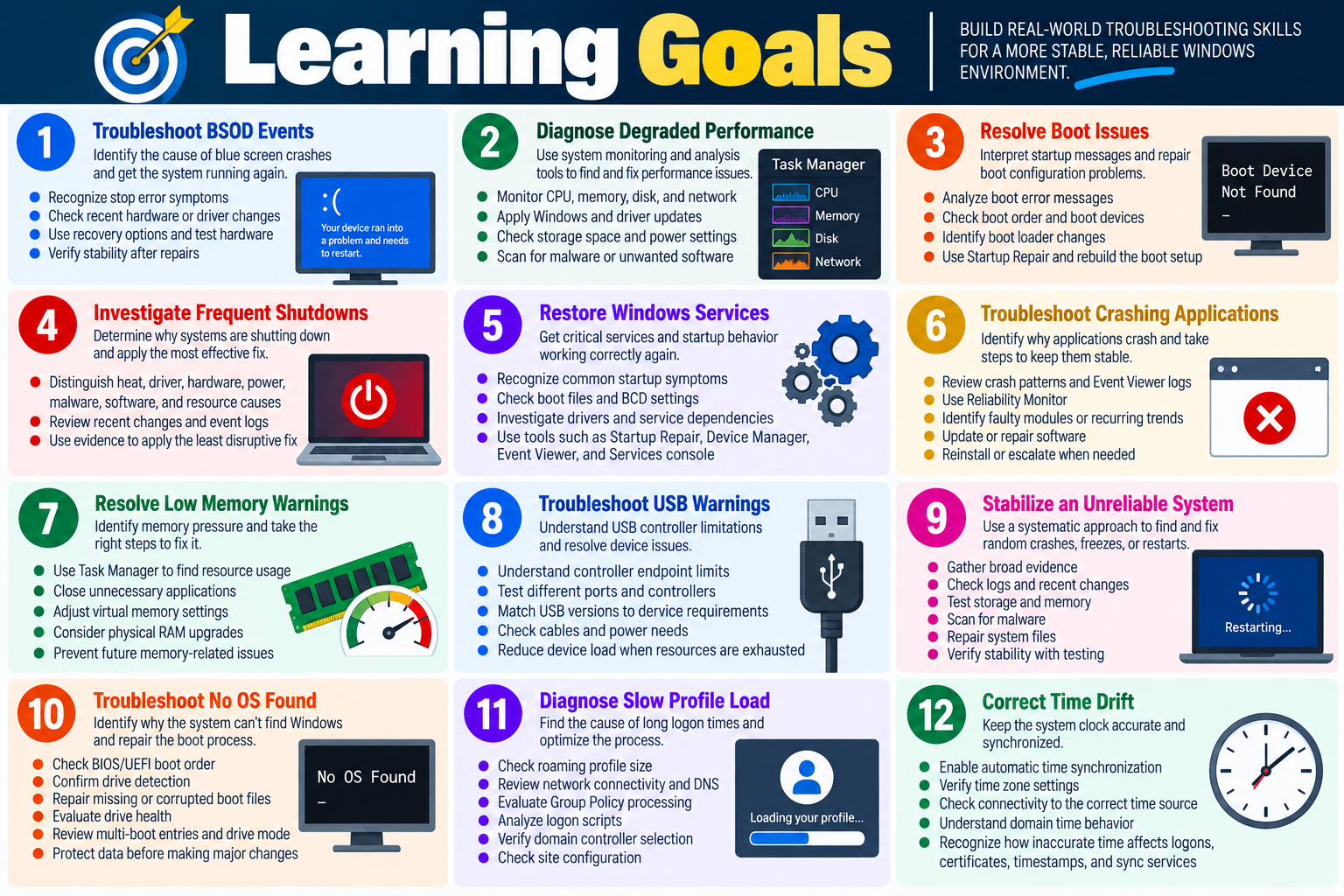
Module 1: Troubleshoot Blue Screen of Death (BSOD) events by identifying stop symptoms, checking recent hardware or driver changes, using recovery options, testing hardware, and verifying the system returns to stable operation.
Module 2: Diagnose degraded performance by monitoring CPU, memory, disk, and network usage; applying Windows and driver updates; checking storage space; reviewing power settings; and scanning for malware or unwanted software.
Module 3: Resolve boot issues by interpreting startup messages, checking boot order and boot devices, identifying boot loader changes, using Startup Repair, and rebuilding Windows boot configuration when appropriate.
Module 4: Investigate frequent shutdowns by distinguishing heat, driver, hardware, power, malware, software, resource, and recent-change causes, then applying the least disruptive fix that matches the evidence.
Module 5: Restore Windows services and startup behavior by recognizing common startup symptoms, checking boot files and BCD settings, investigating drivers, reviewing service dependencies, and using tools such as Startup Repair, Device Manager, Event Viewer, and Services console.
Module 6: Troubleshoot applications that crash by recognizing crash patterns, reviewing Event Viewer and Reliability Monitor, identifying faulting modules or recurring trends, updating or repairing software, and reinstalling or escalating with useful evidence when needed.
Module 7: Respond to low memory warnings by identifying memory pressure in Task Manager, closing unnecessary applications, adjusting virtual memory settings when appropriate, considering physical RAM needs, and preventing repeated memory-related instability.
Module 8: Resolve USB warnings by understanding controller endpoint limits, testing different ports and controllers, matching USB versions to device requirements, checking cables and power needs, and reducing attached-device load when resources are exhausted.
Module 9: Stabilize an unreliable Windows system by gathering broad evidence, checking logs and recent changes, testing storage and memory, scanning for malware, repairing system files, and verifying that crashes, freezes, and random restarts stop.
Module 10: Troubleshoot No OS Found errors by checking BIOS/UEFI boot order, confirming drive detection, repairing missing or corrupted boot files, evaluating drive health, reviewing multi-boot entries, checking drive mode, and protecting data before destructive repair steps.
Module 11: Diagnose slow profile load by checking roaming profile size, network connectivity, DNS, Group Policy processing, logon scripts, domain controller selection, and site configuration so users can reach the desktop faster.
Module 12: Correct time drift by enabling automatic time synchronization, verifying time zone settings, checking connectivity to the proper time source, understanding domain time behavior, and recognizing how inaccurate time affects logons, certificates, timestamps, and sync services.
Lesson ModuleModule 1 / 15
BSOD
Module 01
Module 1 - Blue Screen of Death (BSOD)
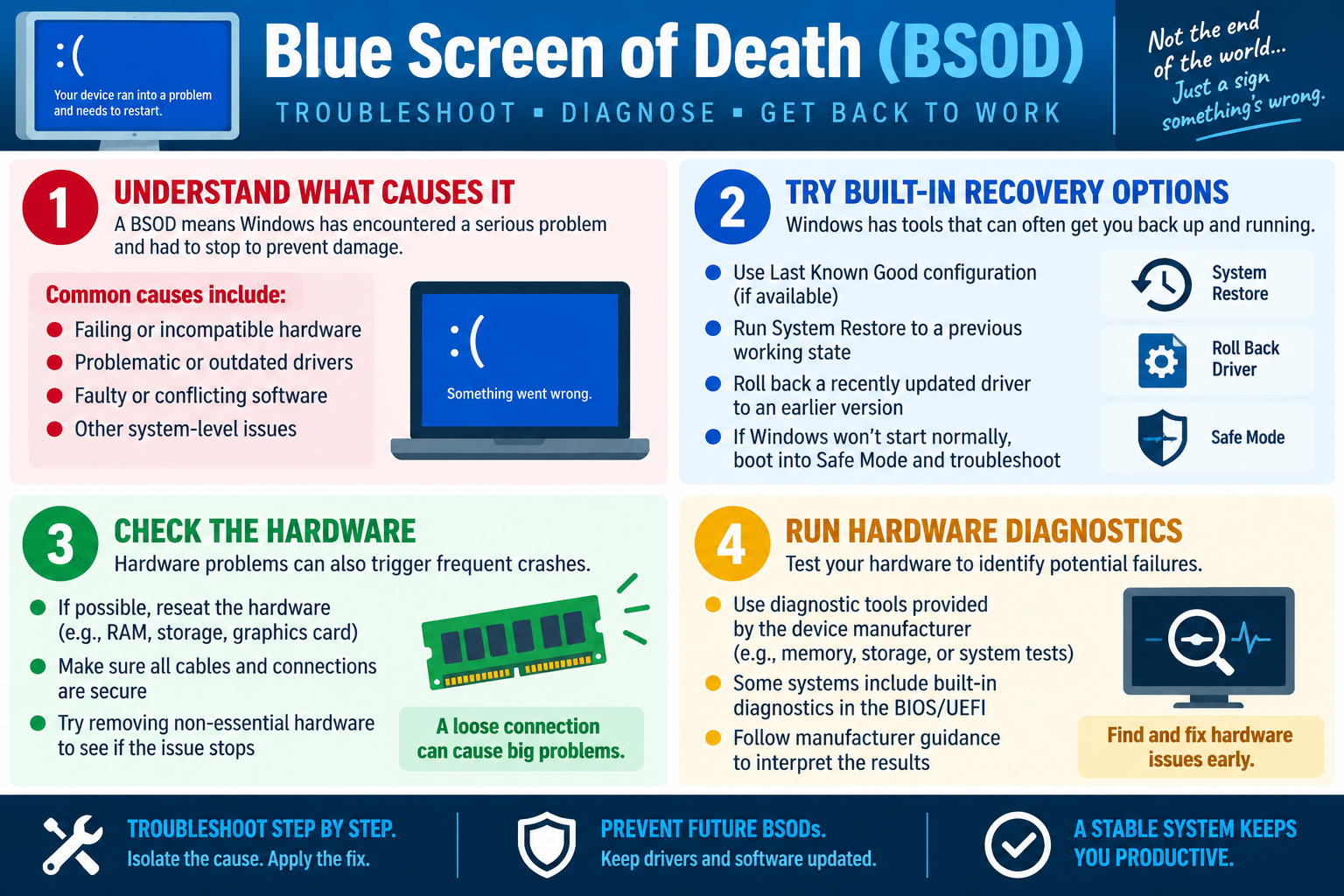
A Blue Screen of Death means Windows encountered a serious system-level problem and stopped to prevent further damage. Treat it as a diagnostic clue: identify what changed, preserve the error details, isolate hardware and driver causes, and recover one controlled step at a time.
A BSOD can be caused by failing or incompatible hardware, outdated or faulty drivers, conflicting software, storage problems, bad memory, overheating, or other low-level operating system issues. Ask what happened immediately before the crash, whether new hardware or software was added, and whether the same stop code repeats.
Use built-in recovery options before disruptive repairs. System Restore can return the system to a previous working state, driver rollback can undo a bad driver update, and Safe Mode can help isolate third-party drivers or services. If the device will not boot normally, use Windows Recovery Environment to access repair tools.
Check hardware when crashes are frequent or happen under load. Reseat RAM, storage, graphics cards, and cables when appropriate. Remove nonessential hardware to test stability. Run manufacturer diagnostics for memory, storage, and system components, and document any error codes for warranty or escalation.
Technician Workflow
Record the stop code, driver name, timing, and user activity.
Identify recent updates, drivers, hardware, software, firmware, or attached devices.
Use System Restore, driver rollback, Safe Mode, or WinRE as appropriate.
Reseat and test hardware if instability continues.
Verify stability by reproducing the original workload and checking logs.
Key takeaway: Troubleshoot BSODs with evidence. Use the error details, recent changes, recovery tools, hardware checks, and diagnostics to isolate the cause.
Module 01 infographic: BSOD troubleshooting focuses on causes, recovery options, hardware checks, and diagnostics.
SLOW
Module 02
Module 2 - Degraded Performance
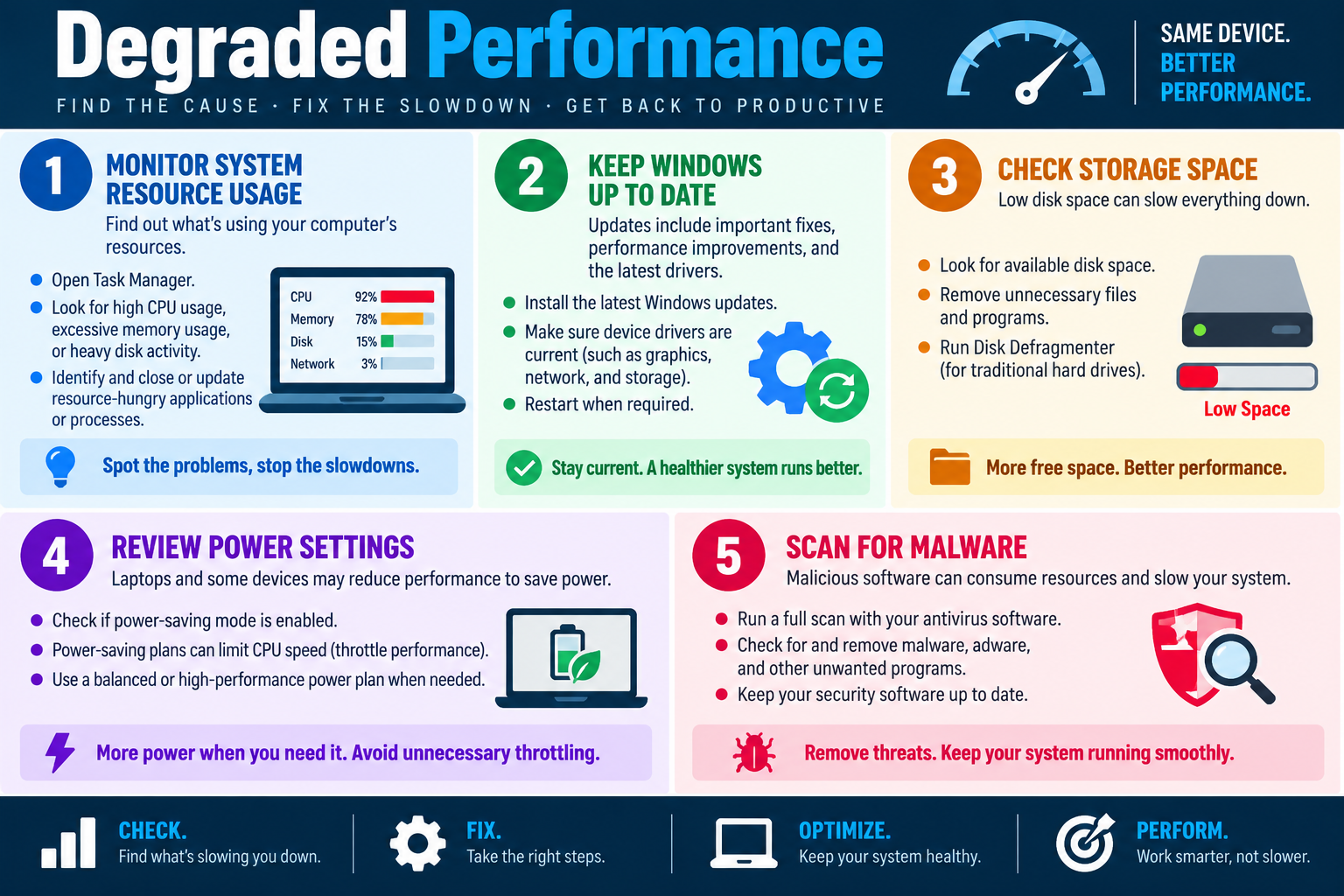
Degraded performance means the computer still works, but it is no longer working efficiently. Start by measuring resource usage, checking recent changes, confirming updates, reviewing storage and power settings, scanning for malware, and verifying the system is responsive again.
Slow performance can appear as long boot times, frozen windows, delayed typing, loud fans, constant disk activity, poor browser response, or sluggish applications. Determine whether the issue affects one user, one app, one workload, or the whole device.
Task Manager is the first stop. Review CPU, memory, disk, and network usage, and sort columns to identify heavy processes. Use Resource Monitor, Event Viewer, startup settings, and application logs when Task Manager points to a suspicious service, app, or background job.
Keep Windows and drivers current. Updates can fix performance bugs, compatibility problems, and driver instability. Pay close attention to graphics, storage, chipset, wireless, wired network, and peripheral drivers. If performance dropped right after a driver update, rollback may be better than adding more changes.
Check storage and power settings. Low disk space can break updates, paging, caches, and temporary files. Traditional hard drives may benefit from optimization, while SSDs should not be treated like old HDDs. Laptops may throttle performance in battery saver or thermal conditions, so review power plans, charger status, airflow, and temperature.
Scan for malware and unwanted software. Adware, cryptominers, suspicious extensions, and startup programs can consume CPU, memory, disk, and network resources.
Technician Workflow
Confirm what feels slow and when it started.
Check Task Manager for CPU, memory, disk, and network bottlenecks.
Review updates, drivers, startup apps, storage space, and power settings.
Run a full malware scan and remove unwanted software.
Reproduce the original workload and document the fix.
Key takeaway: Measure first and fix second. Degraded performance is best solved by finding the bottleneck, not guessing.
Module 02 infographic: troubleshoot slow Windows systems by checking resources, updates, storage, power, and malware.
BOOT
Module 03
Module 3 - Boot Issues
Boot issues occur when the computer cannot successfully find, load, or start the operating system. Determine whether the failure is caused by boot device selection, boot order, boot loader changes, missing system files, damaged boot configuration, or hardware.
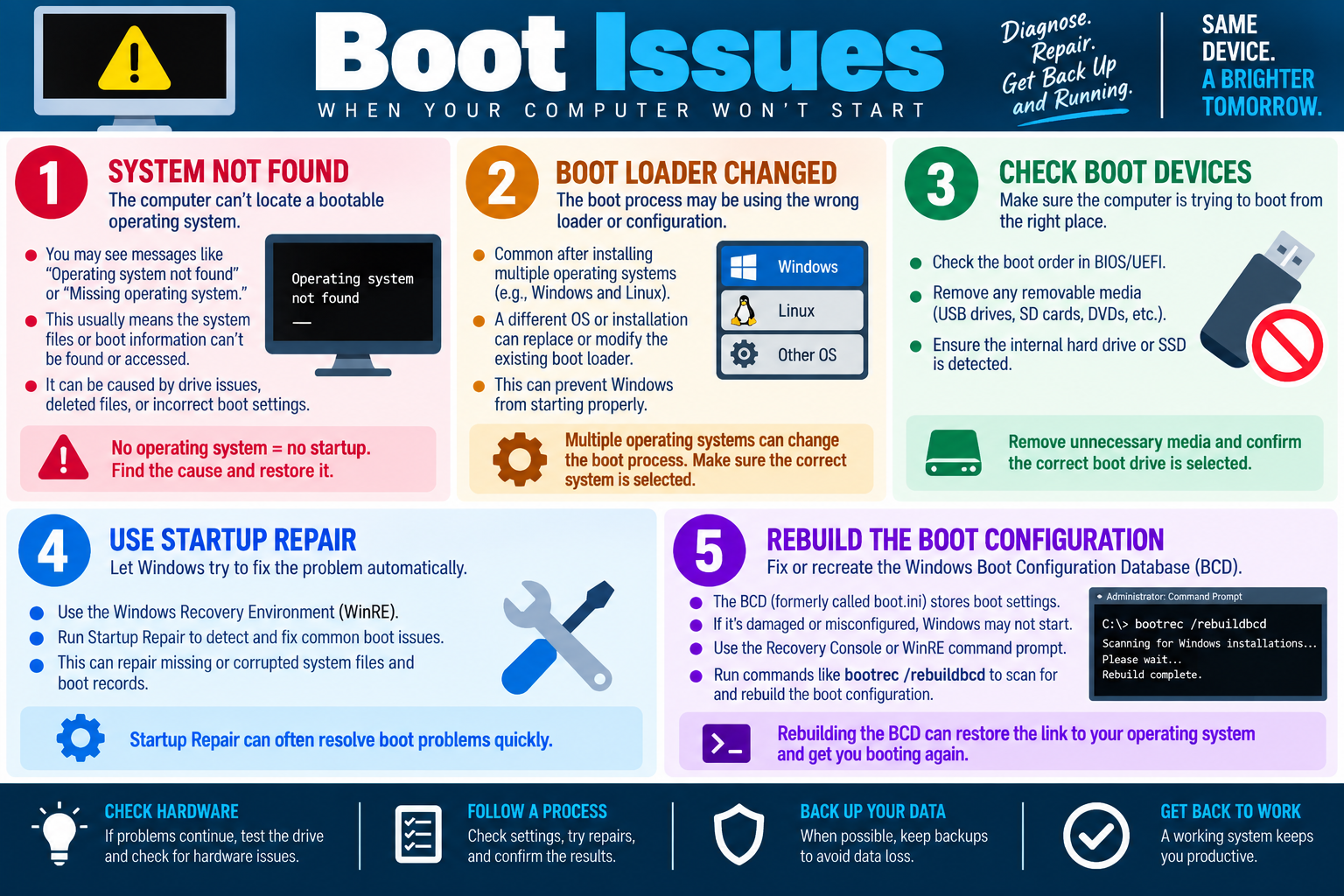
Messages such as Operating system not found or Missing operating system do not always mean Windows is erased. The system may be trying to boot from the wrong device, the drive may not be detected, boot files may be damaged, or the boot configuration may point to the wrong Windows installation.
Remove unnecessary boot media first. USB drives, SD cards, DVDs, and external drives can change the boot path. Then check BIOS/UEFI to confirm the internal drive or Windows Boot Manager is detected and selected.
Boot loaders can change after installing multiple operating systems, cloning drives, restoring images, modifying partitions, or changing firmware settings. If Windows and Linux or another OS are involved, confirm the correct boot entry and default system.
Use Startup Repair from WinRE when the drive is present but Windows will not start. If automatic repair fails and evidence points to BCD damage, use recovery commands such as bootrec /rebuildbcd carefully. Test hardware if the drive is missing or boot failures continue.
Technician Workflow
Record the exact boot message or screen behavior.
Remove removable media and verify boot order.
Confirm the internal drive is detected in BIOS/UEFI.
Use Startup Repair, then targeted BCD repair if needed.
Run storage diagnostics when hardware is suspect.
Key takeaway: Follow the startup chain: device, firmware, boot loader, BCD, Windows files, and hardware.
Module 03 infographic: diagnose the boot path from device detection through Startup Repair and BCD repair.
PWR
Module 04
Module 4 - Frequent Shutdowns
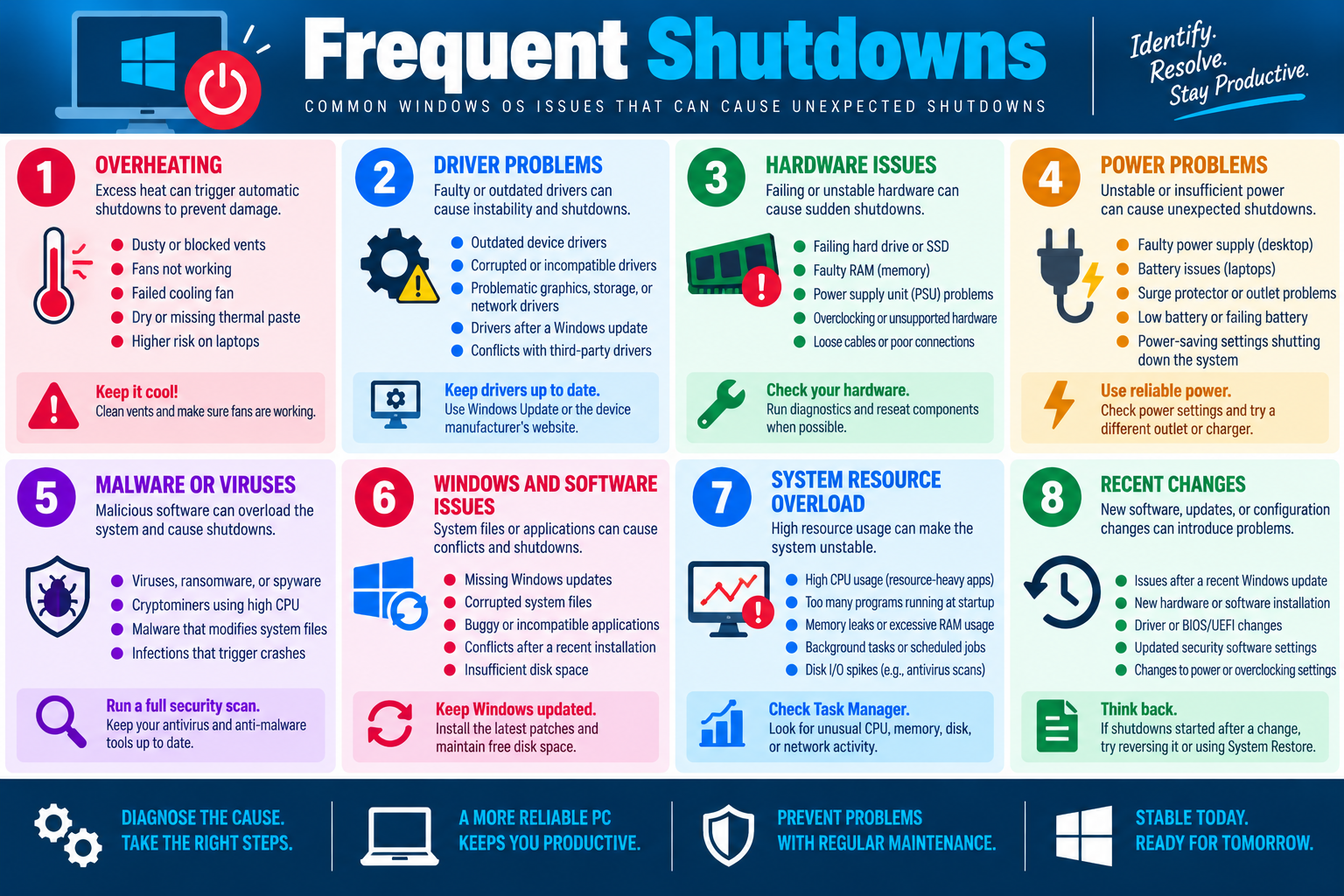
Frequent shutdowns are a reliability warning. A Windows device that powers off unexpectedly may be protecting itself from heat, reacting to unstable power, crashing because of drivers or software, or failing because of hardware.
Separate sudden power loss from operating system crashes. Instant power loss points toward heat, battery, charger, PSU, outlet, surge protector, loose cables, or failing hardware. Restarts with Windows errors may point toward drivers, malware, system files, resource overload, or recent changes.
Overheating can trigger automatic shutdowns to prevent damage. Check vents, fans, dust, thermal paste, workload, airflow, and laptop placement. Driver problems can also cause instability, especially graphics, storage, chipset, network, and peripheral drivers.
Hardware issues include failing drives, bad RAM, PSU problems, overclocking, unsupported hardware, loose cables, and poor connections. Power issues include failing batteries, incorrect chargers, bad outlets, weak surge protectors, and aggressive power settings.
Malware, buggy software, missing updates, corrupted files, insufficient disk space, too many startup programs, memory leaks, background jobs, and recent configuration changes can all contribute. Use Event Viewer, Reliability Monitor, Task Manager, update history, and diagnostics to build the timeline.
Technician Workflow
Clarify whether the device powers off, restarts, sleeps, hibernates, crashes, or blue screens.
Build a timeline of recent updates, installs, hardware changes, or power changes.
Check heat, airflow, power source, battery, charger, and PSU.
Review logs, resources, malware scans, and drivers.
Run hardware diagnostics and verify stability under the original workload.
Key takeaway: Frequent shutdowns require cause-based troubleshooting across heat, drivers, hardware, power, malware, software, resources, and recent changes.
Module 04 infographic: unexpected shutdowns can come from heat, drivers, hardware, power, malware, software, resources, or recent changes.
SVC
Module 05
Module 5 - Services Not Starting
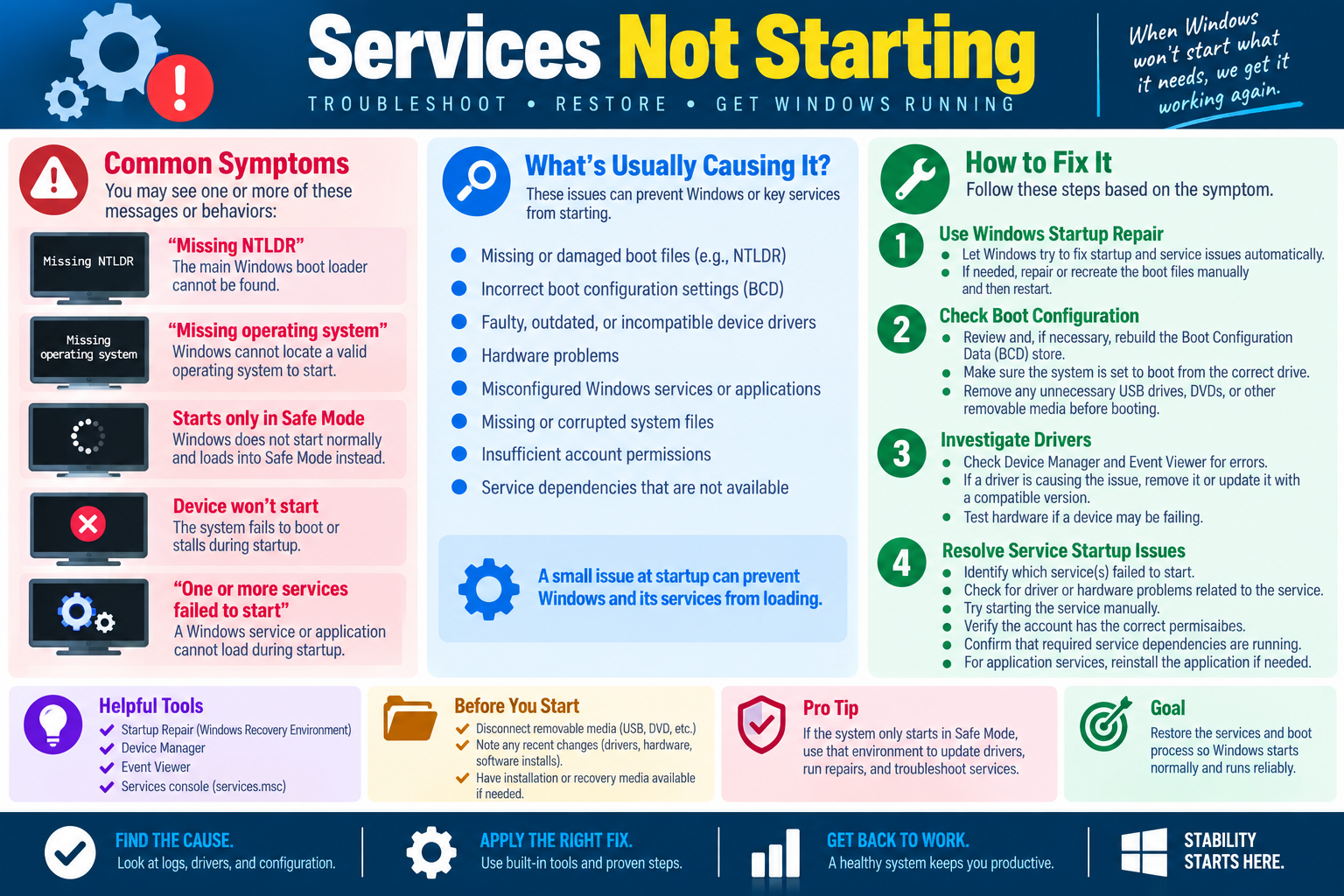
When Windows or a required service will not start, the problem is usually somewhere in the startup chain: boot files, boot configuration, drivers, hardware, service settings, permissions, dependencies, or corrupted system files.
Symptoms include Missing NTLDR, Missing operating system, Windows starting only in Safe Mode, a device failing during startup, or a message that one or more services failed to start. Each symptom points to a different layer of the boot or service process.
Use Startup Repair for boot problems when Windows cannot start normally. Check boot configuration when the system cannot find Windows, starts the wrong OS, or fails after a drive change, image restore, firmware reset, or multi-boot install.
Investigate drivers when Windows starts only in Safe Mode or fails after a driver or hardware change. Use Device Manager and Event Viewer for driver, storage, service control manager, and hardware errors.
For service startup issues, identify the exact service. Use Event Viewer, Services console (services.msc), application logs, startup type, dependencies, logon account, permissions, and manual start errors. Repair or reinstall the related application service when files are missing or corrupted.
Technician Workflow
Capture the exact startup or service message.
Remove removable boot media and check recent changes.
Use Startup Repair, Device Manager, Event Viewer, and Services console as appropriate.
Check dependencies, service accounts, permissions, drivers, and system files.
Verify normal startup and document the failed service, cause, and fix.
Key takeaway: Identify whether the failure is boot files, BCD, drivers, hardware, system files, permissions, dependencies, or service configuration.
Module 05 infographic: restore startup with repair tools, boot checks, driver investigation, service tools, and logs.
APP
Module 06
Module 6 - Apps Crashing
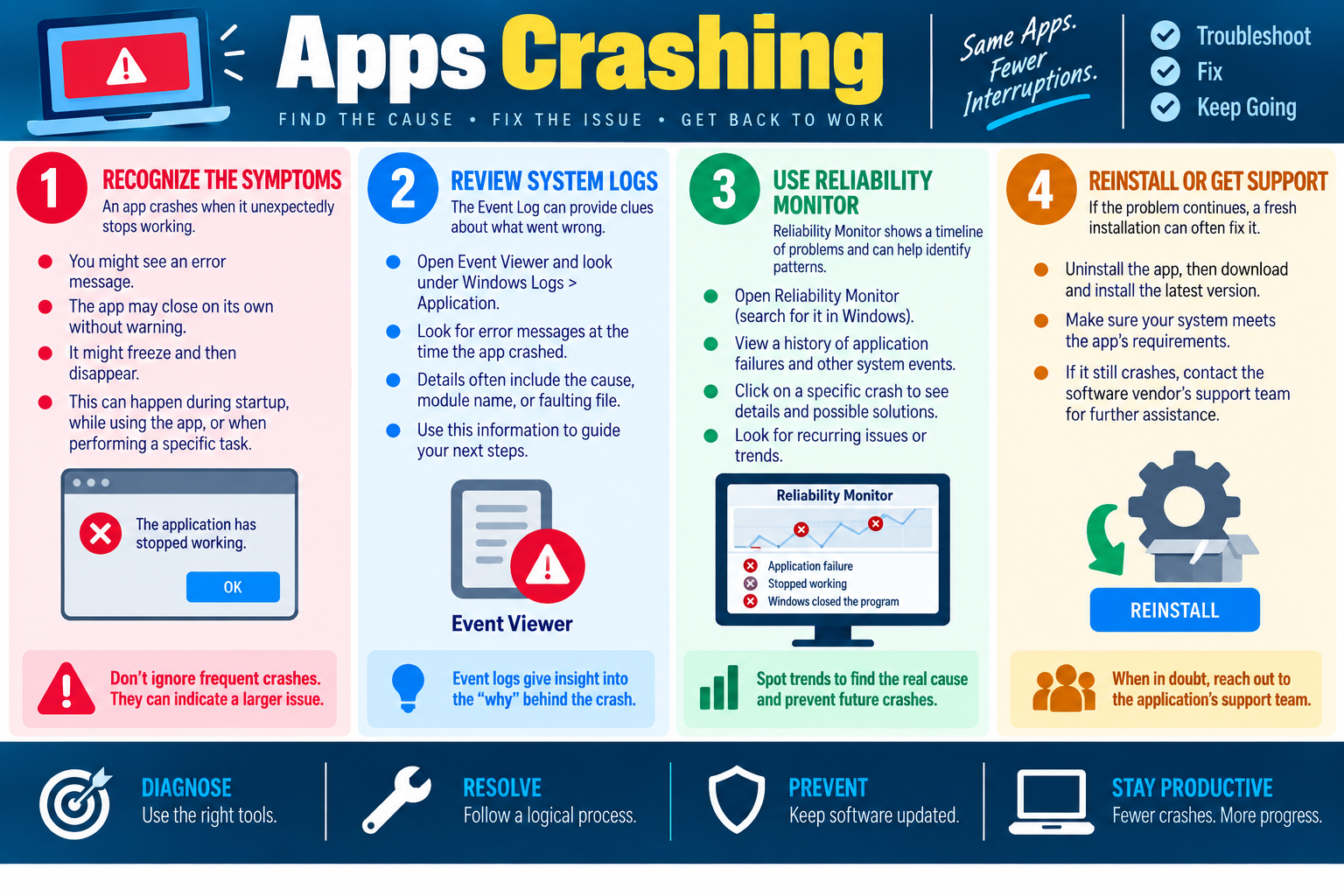
An application crash means the program unexpectedly stops responding, closes, or fails during a task. Troubleshoot by recognizing the crash pattern, checking Windows logs, using Reliability Monitor, applying targeted fixes, and reinstalling or escalating only when needed.
App crashes may show an error message, close with no warning, freeze and disappear, fail at startup, or crash only during a specific task. Determine whether the crash affects one user, one file, one workflow, one device, or multiple applications.
Event Viewer provides the technical clues. Open Windows Logs > Application and look near the crash time for application errors, .NET Runtime errors, Windows Error Reporting, side-by-side errors, service failures, or dependency issues. Details may include the application name, faulting module, exception code, and faulting file.
Reliability Monitor gives a timeline of application failures, Windows failures, updates, installs, and other events. It can reveal whether crashes began after an update, plug-in, driver change, or software install. Click a crash to see details and possible solutions.
Apply targeted fixes before reinstalling. Update or repair the app, install Windows updates, restart, clear app cache when appropriate, disable add-ins, update related drivers, check permissions, and confirm system resources. If crashes continue, uninstall and reinstall the latest trusted version while preserving user data and settings.
If the application still crashes after reinstalling and the system meets requirements, contact vendor or internal support with logs, crash details, versions, screenshots, and steps already attempted.
Technician Workflow
Capture the error message, app version, Windows version, time, and user task.
Determine whether the problem is one user, one file, one workflow, or multiple apps.
Review Event Viewer and Reliability Monitor for faulting modules and timing.
Reinstall or escalate with evidence when targeted fixes fail.
Repeat the original task and document the result.
Common Exam Traps
Do not reinstall before checking logs if the question asks for the best diagnostic step. Do not assume the app is the root cause; a driver, add-in, permissions issue, malware infection, or failing storage device can make the app look guilty. Do not delete user data while reinstalling.
Key takeaway: App crashes are solved by finding the pattern. Use Event Viewer and Reliability Monitor to identify the cause, then apply the least disruptive fix that proves the issue is resolved.
Module 06 infographic: diagnose app crashes with symptoms, Event Viewer, Reliability Monitor, targeted fixes, reinstall, or support escalation.
RAM
Module 07
Module 7 - Low Memory Warnings
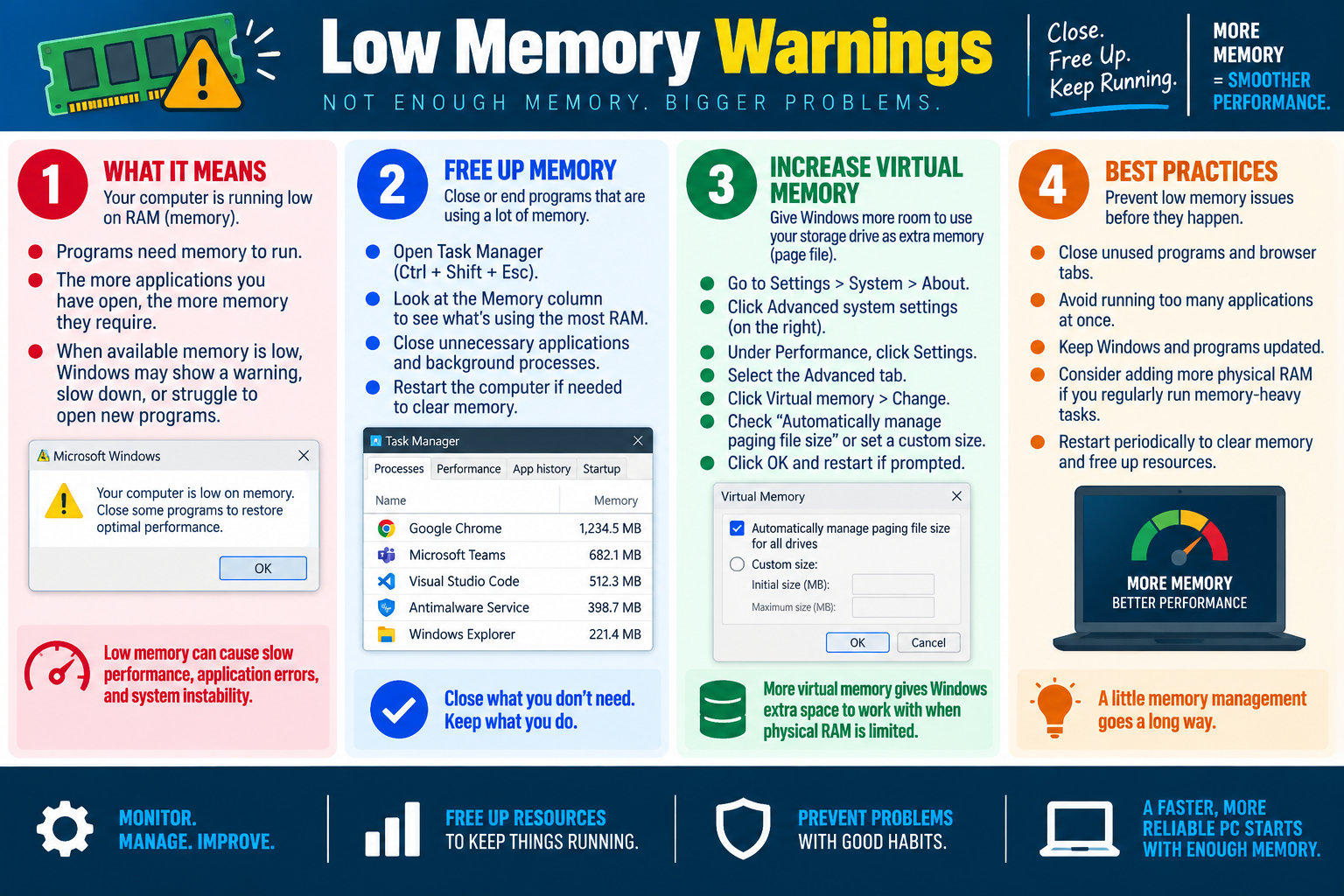
A low memory warning means Windows does not have enough available RAM to comfortably run the current workload. The system may slow down, applications may fail to open, programs may crash, or Windows may rely heavily on virtual memory. Troubleshoot by finding what is consuming memory, closing what is not needed, checking virtual memory, and improving habits or hardware when the warning keeps returning.
Memory problems often feel like general slowness, but the cause is more specific. Programs need RAM to store active code, open files, browser tabs, cached data, and running processes. The more applications the user opens at once, the more memory Windows must manage. When available memory becomes too low, Windows may display a warning, pause while it pages data to disk, struggle to launch new programs, or become unstable.
Low memory is not always fixed by adding RAM immediately. A technician should first identify whether the issue is temporary workload pressure, too many browser tabs, a memory leak, excessive startup apps, malware, an application bug, insufficient virtual memory, or a device that truly does not have enough physical RAM for the user’s workload.
What Low Memory Means
A low memory warning means the system is running low on RAM, not necessarily storage space. RAM is the fast working memory used by active programs. Storage is where files are saved. Users often confuse the two, so clarify whether the warning says memory, disk space, or storage.
When RAM is low, Windows may move some inactive data to the paging file on the storage drive. This helps keep the system running, but storage is much slower than RAM. Heavy paging can make the computer feel sluggish, especially on older hard drives or systems with limited free disk space.
Low memory can cause slow performance, application errors, browser tab reloads, freezing, failed application launches, or system instability. If the warning appears repeatedly during normal work, the system needs a closer look.
Free Up Memory
Task Manager is the first tool to use. Press Ctrl + Shift + Esc, open the Processes tab, and sort by the Memory column to see which applications or background processes are using the most RAM. Browser sessions, collaboration tools, development tools, virtual machines, games, design applications, and security scans can consume large amounts of memory.
Close unnecessary programs, browser tabs, and background processes. Be careful with unfamiliar processes because some are Windows services or security tools. If a specific application is using far more memory than expected, update it, restart it, check for plug-ins, or investigate whether it has a memory leak.
Restarting can clear memory and end runaway processes, but it should not be the only answer if the warning returns quickly. If the system runs well after a restart but degrades over time, look for memory leaks, startup apps, background sync tools, or applications left open for long periods.
Increase Virtual Memory
Virtual memory gives Windows extra room by using part of the storage drive as a paging file. This is not as fast as physical RAM, but it can help prevent failures when physical memory is limited. Windows can usually manage the paging file automatically, which is the best option for most users.
If virtual memory settings were changed or disabled, low memory errors may appear sooner. In Windows, virtual memory settings can be accessed through advanced system settings, Performance settings, the Advanced tab, and Virtual memory. In most cases, select Automatically manage paging file size for all drives, apply the change, and restart if prompted.
A custom paging file may be used in special environments, but it should be configured carefully. Too small a paging file can create warnings and crashes. A paging file on a nearly full or failing drive can also cause performance and stability problems. Virtual memory is a support mechanism, not a replacement for enough physical RAM.
Best Practices
Close unused programs and browser tabs. Browser tabs can consume significant memory, especially pages with video, collaboration tools, dashboards, web apps, ads, or extensions. Encourage users to keep what they need and close what they do not.
Avoid running too many heavy applications at once. Video conferencing, many browser tabs, virtual machines, design software, games, database tools, and development environments can overwhelm systems with limited RAM.
Keep Windows and applications updated. Updates can fix memory leaks, reduce resource usage, and improve compatibility. Also review startup applications so the system does not load unnecessary programs every time the user signs in.
Consider adding physical RAM if the user regularly runs memory-heavy tasks and the device supports upgrades. If the device cannot be upgraded, adjust the workload, reduce startup items, use lighter applications, or consider replacement when requirements exceed the hardware.
Restart periodically when appropriate. A restart can clear memory, apply updates, close stuck processes, and return the system to a cleaner state. It is especially useful for shared machines or systems that stay powered on for long periods.
Technician Workflow
Confirm the warning. Verify whether the issue is low RAM, low storage, or another resource warning.
Check Task Manager. Sort by Memory and identify the applications or processes using the most RAM.
Reduce the load. Close unnecessary apps, browser tabs, background tools, and startup items.
Look for abnormal usage. Check for memory leaks, malware, excessive extensions, sync tools, or applications consuming more memory than expected.
Review virtual memory. Confirm Windows is managing the paging file or that custom settings are appropriate.
Update and restart. Apply updates, restart, and verify whether memory pressure returns.
Plan hardware or workflow changes. Add RAM if supported and justified, or adjust the workload if the system cannot be upgraded.
Common Exam Traps
Do not confuse RAM with storage. A low memory warning is not the same as a low disk space warning, even though the paging file uses storage.
Do not immediately replace the computer. First check Task Manager, close unnecessary applications, review startup items, and confirm virtual memory settings.
Do not disable the paging file as a performance trick. Removing virtual memory can make low-memory conditions worse and cause applications to crash.
Do not close unknown system or security processes blindly. Identify what the process is before ending it.
Do not ignore repeated warnings. If memory pressure keeps returning during normal use, investigate the workload, software behavior, malware risk, and whether the system needs more physical RAM.
Key takeaway: Low memory warnings are solved by reducing unnecessary demand, identifying memory-heavy processes, keeping virtual memory available, and adding physical RAM when the workload truly requires it.
Module 07 infographic: manage low memory by closing unused apps, checking Task Manager, using virtual memory appropriately, and adding RAM when needed.
USB
Module 08
Module 8 - USB Warnings
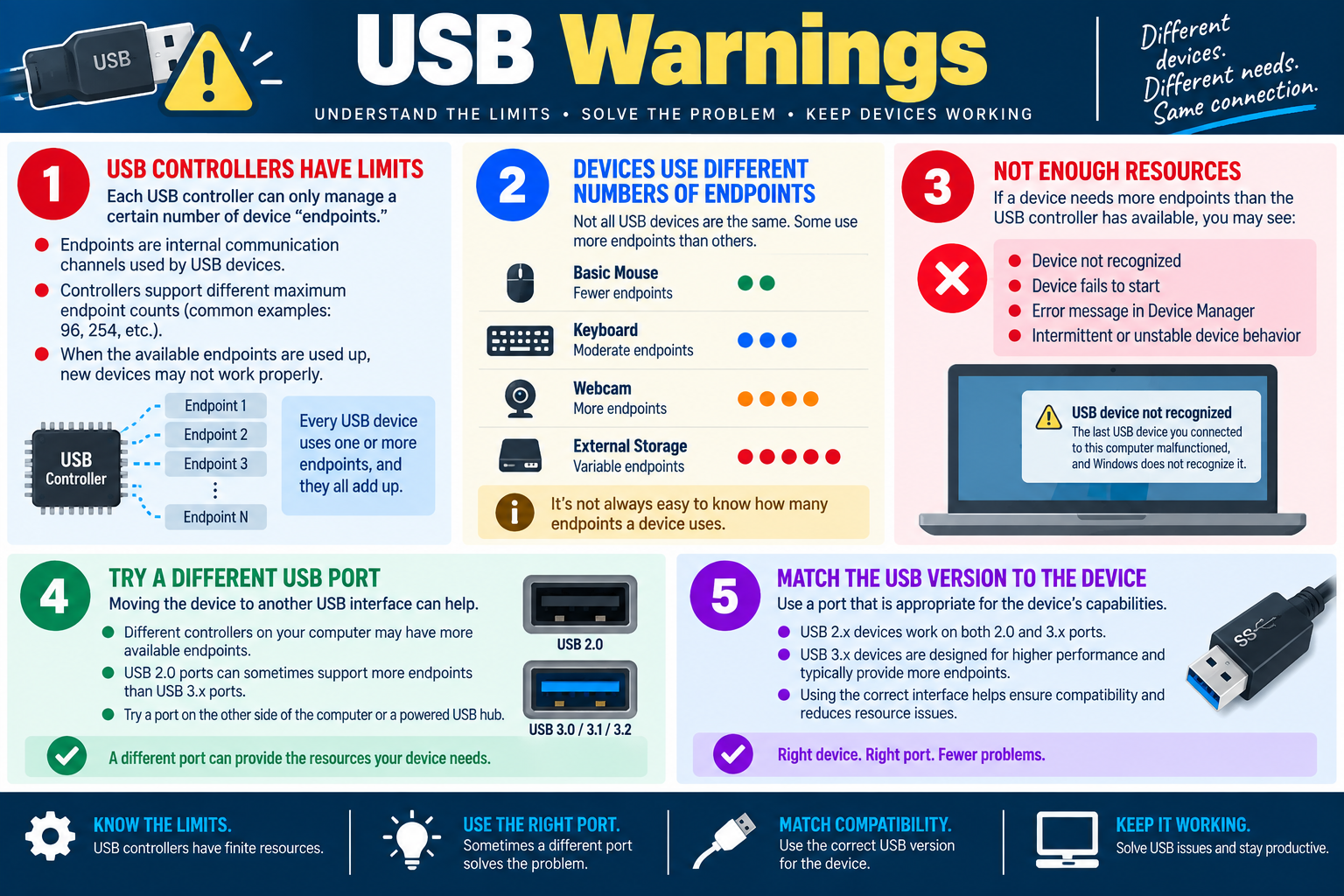
USB warnings often mean the device, port, controller, or available USB resources do not match what the connected hardware needs. Troubleshoot by understanding controller limits, endpoint usage, resource exhaustion, USB version compatibility, and whether a different port or powered hub gives the device the resources it needs.
USB feels simple because the connector is familiar, but the communication behind it is more structured. A USB controller manages a limited number of device communication channels called endpoints. Every connected USB device uses one or more endpoints so it can send and receive data. When the available endpoints are used up, a new device may fail even though the physical port still works.
A USB warning may appear as USB device not recognized, a device failing to start, an error message in Device Manager, intermittent disconnects, unstable device behavior, or a peripheral that works in one port but not another. These symptoms can be caused by endpoint limits, insufficient power, incompatible USB versions, damaged cables, bad hubs, outdated drivers, firmware issues, or a failing device.
USB Controllers Have Limits
Each USB controller can manage only a certain number of device endpoints. The maximum endpoint count depends on the controller and chipset. Common endpoint limits may be 96, 254, or another value depending on hardware design. The important troubleshooting idea is that the limit exists and all connected devices contribute to it.
Endpoints are internal communication channels, not the same thing as visible USB ports. A computer can have several physical ports that share the same controller. If that controller is out of endpoint resources, moving a device to another port on the same controller may not help. Moving it to a different controller, another side of the laptop, a dock, an add-in card, or a powered USB hub may change the resource situation.
Endpoint exhaustion is more likely on systems with many connected peripherals, docks, hubs, webcams, microphones, capture cards, external drives, VR equipment, security keys, keyboards, mice, printers, and other USB accessories. The ports may look available, but the controller may not have enough internal resources left.
Devices Use Different Numbers of Endpoints
Not all USB devices consume the same number of endpoints. A basic mouse may use only a few. A keyboard may use a moderate number, especially if it includes media keys, lighting, or a built-in hub. A webcam can use more endpoints because it may carry video, microphone audio, controls, and status communication. External storage can vary depending on the enclosure, controller, and supported features.
This explains why one device may work while another fails on the same system. A simple flash drive might connect successfully, while a webcam, dock, audio interface, or external storage device may fail because it needs more endpoints or more power. The user may think the port is broken, but the issue may be the total resource demand on the controller.
It is not always easy to know how many endpoints a device uses. Use the symptom pattern: if several devices work individually but fail when connected together, suspect controller resource limits, hub limitations, power limits, or driver conflicts.
Not Enough Resources
When a device needs more endpoints than the USB controller has available, Windows may report that the device is not recognized, fails to start, or behaves intermittently. Device Manager may show an error under Universal Serial Bus controllers or the device category. The device may appear, disappear, reconnect repeatedly, or work only until other USB devices are attached.
Do not assume the device is defective right away. Test it in another port, another controller, and another computer if possible. Disconnect nonessential USB devices and try again. If the device works after other peripherals are removed, the root cause may be resource exhaustion rather than device failure.
Also consider USB power. Bus-powered devices draw power from the USB port. A device that needs more current than the port or unpowered hub can provide may fail, disconnect, or behave unpredictably. A powered USB hub can help with power-related issues, and sometimes with port placement, but it does not magically remove all controller limits.
Try a Different USB Port
Moving the device to a different USB port is a simple and useful test. Different ports may connect to different controllers, especially on desktops, docking stations, add-in cards, and some laptops. Ports on opposite sides of a laptop may not share the same internal controller. Front-panel ports, rear-panel ports, dock ports, and hub ports can also behave differently.
USB 2.0 ports can sometimes support devices that have trouble on USB 3.x ports, especially older peripherals or devices with compatibility quirks. USB 3.x ports are designed for higher performance and may provide more endpoints or different controller behavior depending on the system. Testing both port types can reveal a compatibility or resource issue.
Try a known-good cable as well. A damaged or charge-only cable can cause recognition errors. For external storage, webcams, and high-bandwidth devices, use a cable rated for the required USB version and power needs.
Match the USB Version to the Device
USB 2.x devices generally work in both USB 2.0 and USB 3.x ports. USB 3.x devices are designed for higher performance and are best used with USB 3.x ports when speed, bandwidth, and stability matter. A USB 3.x storage device may work in a USB 2.0 port, but performance will be limited.
Using the correct interface helps ensure compatibility and reduces resource issues. If a high-performance device is connected through an older hub, a low-quality cable, or a lower-speed port, it may underperform or behave unpredictably. Match the device, cable, port, and hub to the device’s requirements.
For docks, capture devices, external GPUs, high-resolution webcams, audio interfaces, and external storage, read the vendor requirements carefully. Some devices require specific USB standards, power delivery support, or direct connection instead of a hub.
Technician Workflow
Capture the warning. Record the exact Windows message and Device Manager error if one appears.
Test the basics. Reseat the device, try a known-good cable, and restart if the device was stuck in a failed state.
Reduce USB load. Disconnect nonessential USB devices and test whether the problem device works by itself.
Move ports. Try a different port, a port on the other side of the computer, a rear motherboard port, or a different controller.
Match the USB version. Use a port, hub, and cable appropriate for the device’s USB 2.x or 3.x requirements.
Check power needs. Use a powered hub or direct connection for devices that need more current.
Review Device Manager. Check USB controller errors, device status codes, driver updates, and disabled devices.
Verify stability. Confirm the device remains recognized and works under normal use with the rest of the user’s peripherals connected.
Common Exam Traps
Do not assume every USB warning means the peripheral is dead. The issue may be endpoint limits, power, a bad cable, hub limits, driver state, or the wrong USB version.
Do not confuse endpoints with physical ports. A system can have open-looking ports while the controller behind them has limited resources available.
Do not keep testing only ports that share the same controller. Try a different side of the laptop, rear desktop ports, an add-in controller, or a powered hub when appropriate.
Do not overlook simple compatibility. A high-speed USB 3.x device may work poorly through a USB 2.0 hub or a cable that does not support the required performance.
Do not ignore intermittent behavior. Repeated connect/disconnect behavior often points to power, cable, hub, controller, or resource problems.
Key takeaway: USB troubleshooting is about matching device needs to available controller resources, power, port type, cable quality, and USB version. A different port, fewer attached devices, or a powered hub can often restore stable operation.
Module 08 infographic: USB warnings can be caused by endpoint limits, resource exhaustion, port selection, power needs, or USB version mismatch.
STAB
Module 09
Module 9 - System Instability
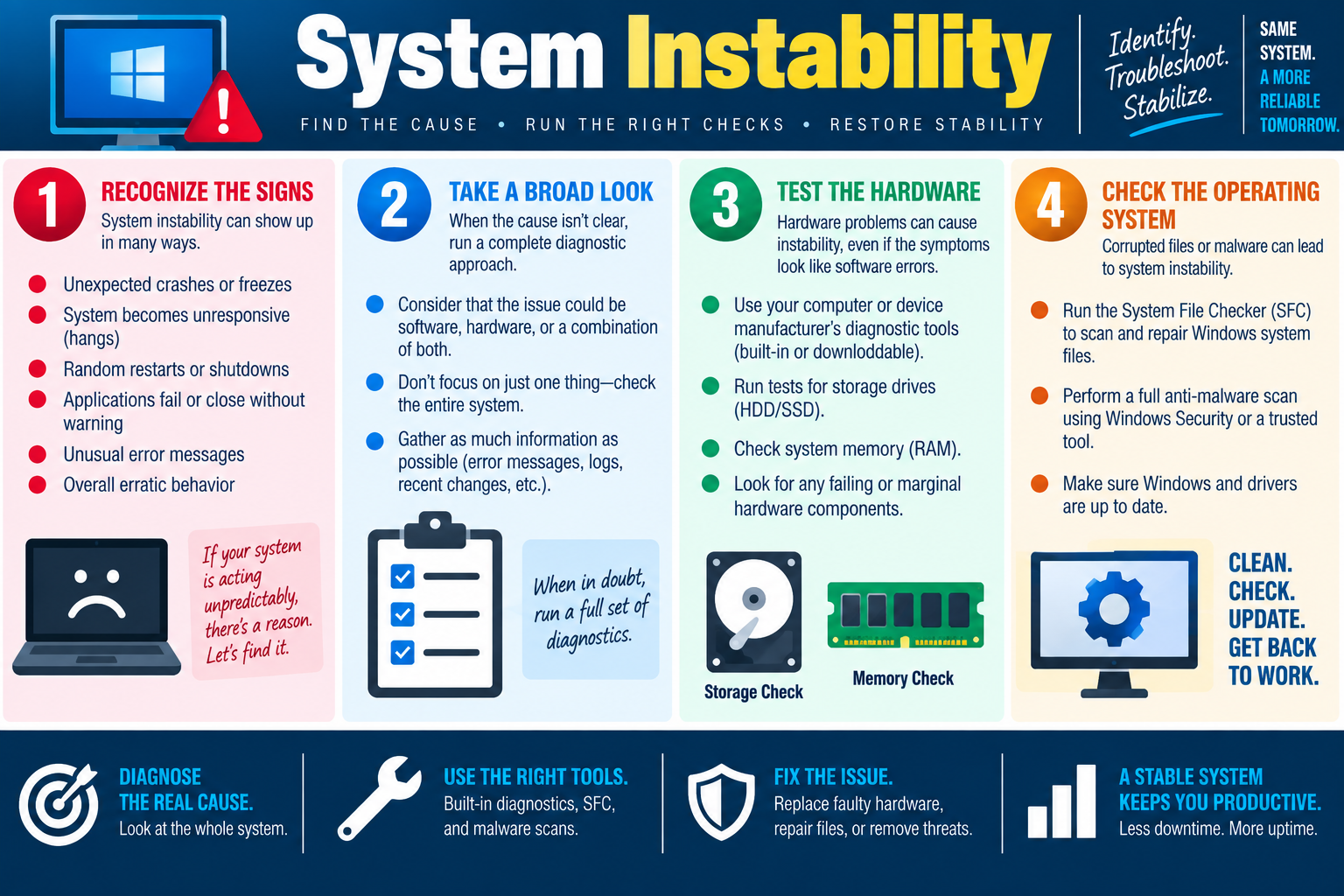
System instability means Windows is behaving unpredictably, and the root cause may not be obvious from one symptom alone. Treat instability as a whole-system investigation: recognize the signs, gather broad evidence, test hardware, check the operating system, remove threats, update components, and verify the machine becomes stable again.
Instability can appear as unexpected crashes or freezes, a system that becomes unresponsive, random restarts or shutdowns, applications closing without warning, unusual error messages, or generally erratic behavior. These symptoms can overlap with BSODs, degraded performance, service failures, app crashes, memory pressure, USB problems, power issues, and malware. That overlap is exactly why a broad diagnostic approach matters.
Do not lock onto the first theory too early. A freezing application may be an app problem, but it may also be caused by bad RAM, a failing SSD, corrupted Windows files, overheating, malware, a buggy driver, or insufficient resources. The technician’s job is to use evidence to narrow the scope instead of guessing.
Recognize the Signs
Unexpected crashes or freezes indicate that Windows or an application reached a condition it could not recover from cleanly. A freeze may leave the display visible but unresponsive, while a crash may close the program or restart the system. Record when it happens, what the user was doing, and whether it affects one app or the whole computer.
Random restarts or shutdowns can point toward drivers, power, overheating, hardware failure, Windows updates, malware, or system file corruption. If the computer instantly powers off, think about power and heat. If Windows logs errors before restarting, check Event Viewer, Reliability Monitor, and crash data.
Applications failing or closing without warning may be an app issue, but multiple unrelated applications failing suggests a deeper system problem. Unusual error messages and erratic behavior should be captured exactly, including screenshots, timestamps, and any recent changes.
Take a Broad Look
When the cause is unclear, run a complete diagnostic approach. Consider software, hardware, drivers, recent updates, power, storage, memory, malware, and configuration together. A single symptom rarely tells the whole story.
Gather as much information as possible before changing settings. Ask when the problem started, how often it happens, what changed recently, whether the system was moved or serviced, whether new hardware or software was installed, and whether the issue is tied to a workload. Review Event Viewer, Reliability Monitor, Device Manager, update history, Task Manager, startup apps, and security history.
Look for patterns. Instability under heavy load may suggest heat, power, RAM, GPU, or storage. Instability after a driver update suggests rollback or driver replacement. Instability after new hardware suggests compatibility, seating, firmware, or power. Instability after suspicious downloads or browser behavior suggests malware or unwanted software.
Test the Hardware
Hardware problems can cause instability even when symptoms look like software errors. Use manufacturer diagnostics when available. Many systems include built-in BIOS/UEFI diagnostics, and vendors often provide downloadable tools for storage, memory, battery, thermal, and full-system testing.
Run storage checks for HDDs and SSDs when you see freezes, boot problems, file corruption, slow disk response, application errors, or repeated crashes. A failing drive can make Windows appear corrupted because files cannot be read reliably.
Check system memory when crashes are random, applications fail unpredictably, or BSODs appear with different stop codes. Bad RAM can create scattered symptoms because the system may corrupt data in active memory.
Look for failing or marginal components: overheating CPUs or GPUs, weak power supplies, failing batteries, loose cables, poorly seated RAM, storage connection issues, unsupported upgrades, or overclocking. If hardware is recently installed or the system was opened, reseat and inspect before assuming Windows is broken.
Check the Operating System
Corrupted Windows files, missing updates, malware, and damaged drivers can lead to system instability. Run System File Checker with sfc /scannow when evidence suggests corrupted Windows system files. SFC scans protected system files and attempts to repair them using known-good copies.
If SFC cannot repair files or Windows component corruption is suspected, DISM may be needed in real-world repair workflows. For this module, the key concept is that Windows has built-in tools to check and repair system file integrity before resorting to reinstallation.
Perform a full anti-malware scan using Windows Security or a trusted security tool. Malware can modify system files, overload resources, tamper with services, install drivers, or destabilize applications. Also make sure Windows and drivers are up to date, because stability fixes often arrive through updates.
Use the Right Tools
Event Viewer shows system, application, driver, service, disk, and hardware-related errors around the time instability occurred.
Reliability Monitor gives a timeline of crashes, app failures, Windows failures, installs, and updates. It is excellent for connecting instability to a recent change.
Task Manager reveals resource spikes, runaway processes, memory pressure, disk activity, and startup impact.
Device Manager identifies driver issues, disabled devices, unknown devices, and hardware status problems.
Manufacturer diagnostics can test memory, storage, battery, thermal behavior, and system boards more directly than Windows logs alone.
SFC and malware scans help verify the operating system and security state when hardware does not explain the issue.
Technician Workflow
Capture the symptoms. Record crashes, freezes, restarts, shutdowns, app failures, error messages, timing, and affected users.
Build a timeline. Identify recent changes such as updates, installs, drivers, hardware, firmware, security tools, or configuration changes.
Check logs and reliability history. Use Event Viewer and Reliability Monitor to locate repeated errors and failure patterns.
Review resources. Use Task Manager to check CPU, memory, disk, network, startup apps, and background processes.
Test hardware. Run storage, memory, thermal, battery, and manufacturer diagnostics when symptoms are broad or recurring.
Repair Windows and remove threats. Run SFC when system file corruption is possible and run a full malware scan.
Update or roll back. Update Windows and drivers, or roll back a recent driver/update when timing points to it.
Verify stability. Reproduce the original workload, monitor the system, confirm errors stop, and document the cause and fix.
Common Exam Traps
Do not focus on only one symptom when the system is broadly unstable. A crashing app, freezing desktop, and random restart may all come from the same failing memory, storage, driver, or malware problem.
Do not reinstall Windows before running appropriate checks. Hardware diagnostics, SFC, malware scans, logs, update review, and recent-change analysis should come first in many scenarios.
Do not assume a software-looking problem cannot be hardware. Storage and memory failures frequently appear as application crashes, freezes, file corruption, or boot problems.
Do not run every fix at once. Make controlled changes so you can identify the real cause.
Do not skip documentation. Instability issues often require escalation, warranty support, or future comparison, so record symptoms, tools used, results, and verification.
Key takeaway: System instability requires broad, evidence-based troubleshooting. Look at the whole system, test hardware, check Windows integrity, scan for malware, update or roll back carefully, and confirm the device stays stable.
Module 09 infographic: stabilize Windows by recognizing broad symptoms, running diagnostics, testing hardware, and checking system files, malware, updates, and drivers.
BOOT
Module 10
Module 10 - No OS Found
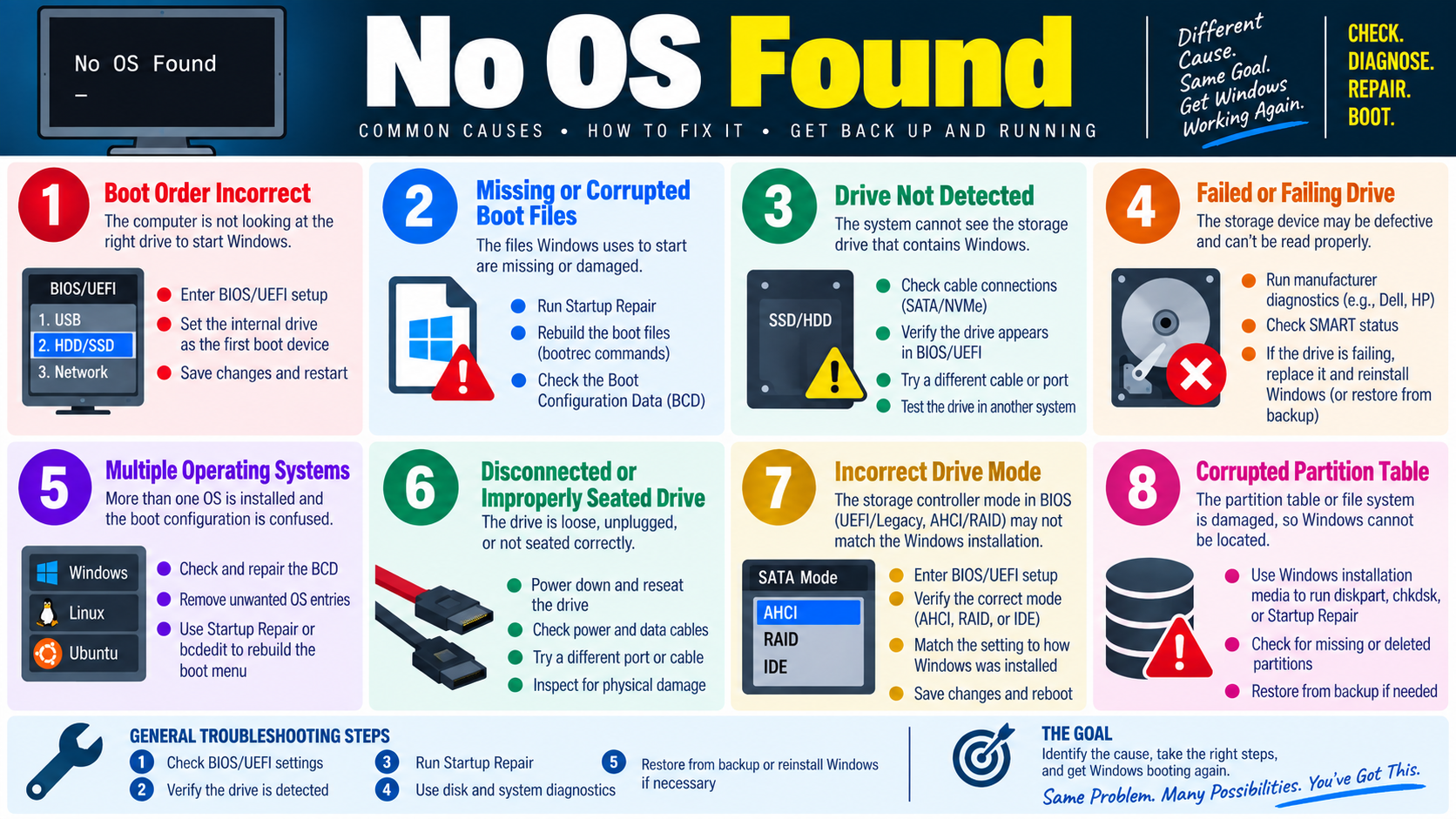
A No OS Found message means the computer cannot locate a bootable operating system. The operating system may still be present, but the system is looking in the wrong place, the boot files may be missing, the storage drive may not be detected, the drive mode may be wrong, the partition table may be damaged, or the drive may be failing.
This symptom is more specific than a generic boot problem. The firmware completed enough of the startup process to look for an operating system, but it could not find a valid boot path. A good technician checks simple boot settings first, confirms the storage device is visible, repairs boot files when appropriate, and protects user data when drive failure is possible.
Do not immediately reinstall Windows. A reinstall may destroy recoverable data or hide the real cause. Start by identifying where the boot process failed: boot order, boot files, drive detection, drive health, multi-boot configuration, cabling, storage controller mode, or partition information.
Boot Order Incorrect
If the boot order is incorrect, the computer may be looking at a USB drive, network boot option, optical drive, empty disk, or secondary drive instead of the internal Windows drive. This can happen after a BIOS/UEFI reset, firmware update, battery replacement, drive replacement, imaging task, or user change.
Enter BIOS/UEFI setup and confirm the internal Windows drive or Windows Boot Manager is the first boot option. Remove unnecessary USB drives, SD cards, DVDs, and external drives before testing again. Save changes and restart.
Scenario clue: if the device worked yesterday and now shows No OS Found after a USB installer, external drive, or BIOS change, boot order should be near the top of the troubleshooting list.
Missing or Corrupted Boot Files
Windows depends on boot files and boot configuration data to start. If those files are missing or damaged, the storage drive may be healthy but Windows still cannot load. Boot files can be damaged by failed updates, interrupted repairs, disk errors, malware, accidental deletion, partition changes, or drive cloning problems.
Use Windows Recovery Environment and Startup Repair to attempt automatic repair first. Startup Repair can detect and fix many common startup issues without requiring manual commands. If automatic repair fails, recovery commands may be needed to rebuild boot files or repair the Boot Configuration Data.
Commands such as bootrec tools may be relevant in recovery scenarios, but use them carefully and match the repair to the system type. UEFI/GPT and legacy BIOS/MBR boot paths are different, so avoid applying commands blindly.
Drive Not Detected
If BIOS/UEFI cannot see the storage drive that contains Windows, the system cannot boot from it. This may be caused by a loose SATA cable, disconnected power cable, improperly seated NVMe drive, failed port, firmware setting issue, or dead drive.
Check whether the drive appears in BIOS/UEFI. For desktops, inspect SATA and power cable connections. For laptops, check whether the drive is seated correctly if service access is appropriate. Try a different cable or port when possible. Test the drive in another system or external enclosure if data recovery or hardware confirmation is needed.
If the drive appears intermittently, treat it as a warning sign. Intermittent detection can indicate a failing drive, loose connector, bad cable, overheating controller, or power issue.
Failed or Failing Drive
A failed or failing storage device may be defective and unable to read Windows properly. The drive may still appear in BIOS/UEFI but fail during boot, disappear under load, report SMART warnings, or produce read errors.
Run manufacturer diagnostics when available, such as vendor tools from Dell, HP, Lenovo, Seagate, Western Digital, Samsung, or the storage manufacturer. Check SMART status and look for reallocated sectors, pending sectors, media errors, health warnings, or rapid degradation.
If the drive is failing, protect data first. Replace the drive and reinstall Windows or restore from backup only after considering recovery needs. If the data is critical, avoid repeated repair attempts that write to a failing disk and escalate to data recovery procedures.
Multiple Operating Systems
When more than one operating system is installed, boot configuration can become confused. A Linux installation, Windows reinstall, cloned drive, or removed OS can leave behind boot menu entries that point to the wrong place.
Check and repair the BCD when Windows boot entries are missing or incorrect. Remove unwanted OS entries if they no longer exist. Use Startup Repair or tools such as bcdedit carefully to rebuild or correct the boot menu.
The goal is not just to make any operating system start. The goal is to point the system to the correct Windows installation and confirm it boots consistently.
Disconnected or Improperly Seated Drive
A drive that is loose, unplugged, or not seated correctly can cause No OS Found even though the data is still intact. This is common after a device is dropped, moved, opened, upgraded, or serviced.
Power down before reseating internal drives. Check power and data cables, inspect the connector, try a different port or cable, and look for physical damage. With NVMe drives, confirm the module is fully seated and secured.
If reseating restores detection, verify the boot order and then boot Windows. Also check drive health, because a drive that disconnects repeatedly may have connector, board, cable, or physical damage.
Incorrect Drive Mode
The storage controller mode in BIOS/UEFI must match how Windows was installed. Modes such as AHCI, RAID, and legacy IDE change how Windows communicates with the storage controller. If the mode changes after installation, Windows may fail to boot or the drive may appear inaccessible.
Enter BIOS/UEFI setup and verify the storage controller mode. Match the setting to how Windows was originally installed. Save changes and reboot. Be careful when changing this setting because the wrong mode can create boot failures or blue screens.
Scenario clue: if No OS Found or boot failures started after BIOS defaults were loaded or storage settings were changed, drive mode is a strong suspect.
Corrupted Partition Table
The partition table or file system tells Windows where partitions and boot structures are located. If this information is damaged, Windows may not locate the boot partition even if the drive itself is detected.
Use Windows installation or recovery media to access repair tools. Depending on the situation, tools such as Startup Repair, chkdsk, diskpart, backup restore, or partition recovery may be relevant. Be careful: disk and partition commands can be destructive if used incorrectly.
If partitions are missing or deleted, stop and consider backup or recovery options. Restoring from backup may be the best path if the partition structure cannot be repaired safely.
General Troubleshooting Steps
Check BIOS/UEFI settings. Confirm the system is booting from the correct internal drive or Windows Boot Manager.
Verify the drive is detected. If the drive is missing, check cables, seating, ports, firmware settings, and hardware health.
Run Startup Repair. Use WinRE to repair common Windows boot file and configuration problems.
Use disk and system diagnostics. Check SMART status, run manufacturer tests, and test memory or related hardware if needed.
Restore or reinstall only when necessary. If the drive failed or the OS cannot be repaired, restore from backup or reinstall Windows after protecting data.
Common Exam Traps
Do not assume No OS Found means Windows is deleted. It may be a boot order, boot configuration, cable, controller mode, or detection issue.
Do not reinstall Windows before checking BIOS/UEFI boot order and drive detection.
Do not run destructive disk commands before considering data recovery, backups, and whether the drive is failing.
Do not ignore recent changes. BIOS resets, drive replacements, new operating systems, partition edits, imaging, cloning, or dropped laptops are powerful clues.
Do not overlook storage controller mode. AHCI, RAID, or IDE mismatches can make a previously working Windows installation fail to boot.
Key takeaway: No OS Found has many possible causes, but the goal is the same: identify why the system cannot find Windows, repair the correct boot path, protect data, and get the device booting reliably again.
Module 10 infographic: No OS Found can come from boot order, missing boot files, drive detection, drive health, OS entries, cable seating, drive mode, or partition damage.
LOGON
Module 11
Module 11 - Slow Profile Load
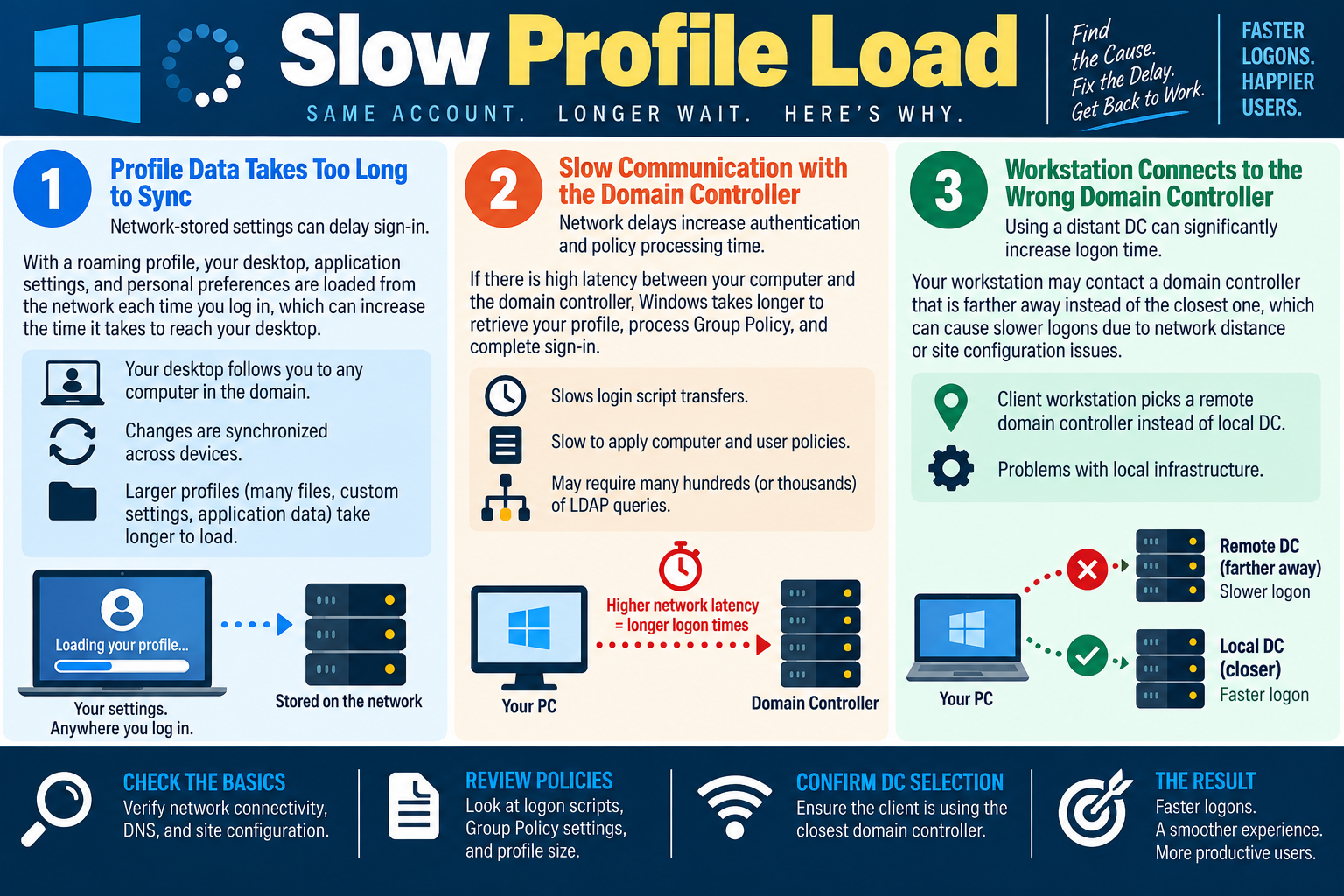
A slow profile load means the user can usually sign in, but Windows takes too long to build the desktop and apply the user environment. Focus on profile size, network communication, domain controller selection, DNS, Group Policy, logon scripts, and recent infrastructure changes.
This symptom is different from a failed boot or a wrong password. The operating system starts, authentication may succeed, and the account may eventually load, but the user waits longer than expected before the desktop, applications, mapped resources, and personal settings are ready. In a domain environment, that delay often comes from the network path between the workstation, the profile location, and the domain controller.
Start by identifying the scope. Ask whether the issue affects one user, one workstation, one location, one subnet, one department, or everyone. A single user points toward profile size, profile corruption, redirected folders, or user-specific Group Policy. Many users in one location point toward network latency, DNS, site configuration, local domain controller availability, or a WAN problem. One workstation points toward local network settings, cached credentials, wireless issues, driver problems, or a bad local profile cache.
Profile Data Takes Too Long to Sync
With roaming profiles or network-stored profile data, Windows loads desktop settings, application settings, preferences, and user-specific data from the network during sign-in. This allows a user’s familiar desktop to follow them to different domain computers, but it also means the sign-in process depends on the amount of data being synchronized and the quality of the connection to the storage location.
Large profiles take longer to load. A profile with many files, large desktop items, heavy application data, cached browser data, offline files, or custom settings can create a long wait before the user reaches a usable desktop. The problem may be worse after the user has worked on multiple computers because changes must synchronize across devices.
Check profile size, redirected folders, synchronization errors, offline file behavior, and whether the delay happens before or after the desktop appears. If the user’s profile is unusually large, clean up unnecessary profile data, move user documents to the correct redirected or synced location, and verify profile policies are configured intentionally.
Slow Communication with the Domain Controller
During domain sign-in, the workstation communicates with a domain controller to authenticate the user, process computer and user policies, locate directory information, and complete sign-in tasks. High latency, packet loss, DNS problems, VPN issues, weak wireless connections, or a slow WAN link can stretch a normal logon into a long delay.
Group Policy can add time because Windows may need to process multiple user and computer policies, security settings, drive mappings, printer connections, software deployment rules, scripts, and preferences. Some environments require many LDAP queries to the directory, so latency can multiply quickly. A script that works well near the domain controller may feel painfully slow across a distant link.
Review the Group Policy operational logs, Event Viewer, Reliability Monitor, and logon timing clues. If the delay appears while applying computer settings, applying user settings, running scripts, or connecting network resources, focus on policy processing and network reachability instead of replacing hardware.
Workstation Connects to the Wrong Domain Controller
A workstation should normally use a nearby domain controller for faster authentication and policy processing. If DNS, Active Directory sites, subnet mappings, or local infrastructure are misconfigured, the client may contact a remote domain controller instead of the closest one. That can significantly increase logon time because authentication, policy processing, and profile access may travel across a slower network path.
Confirm which domain controller handled the logon. In real troubleshooting, technicians may check the LOGONSERVER environment variable, use tools such as nltest, review Group Policy results, and compare the selected domain controller with the user’s physical site or subnet. The exact tool matters less than the troubleshooting principle: verify the client is talking to the expected local domain services.
If the wrong domain controller is selected, investigate DNS records, AD site and subnet configuration, local domain controller health, replication status, network routing, and whether the local domain controller is reachable. If the local infrastructure is unavailable, clients may fall back to a remote server and users will feel the delay at sign-in.
Check the Basics
Before making major changes, verify the fundamentals. Confirm network connectivity, DNS configuration, IP addressing, gateway settings, time synchronization, and whether the workstation is on the expected network. Test with a wired connection when wireless quality is questionable. If the user is remote, confirm VPN performance and whether the profile or policy design supports remote sign-ins.
DNS is especially important in Windows domain environments. Clients use DNS to locate domain controllers and other directory services. Incorrect DNS servers, stale records, bad search suffixes, or unreachable DNS can cause long delays before Windows finds the services it needs.
Review Policies and Profile Design
Review logon scripts, Group Policy settings, drive mappings, printer mappings, folder redirection, software deployment, and security filtering. A slow profile load may not be caused by the profile alone; it may be caused by everything Windows is required to do during logon.
Use tools such as gpresult, Resultant Set of Policy, Event Viewer, and Group Policy logs to identify policies that take a long time to process. Look for old drive mappings, unavailable printer paths, scripts pointing to retired servers, complex security filtering, and policies that apply broadly when they should be targeted.
Technician Workflow
Define the scope. Determine whether the issue affects one user, one device, one location, or many users.
Time the delay. Identify whether the wait occurs during authentication, profile loading, policy processing, scripts, mapped drives, printers, or desktop initialization.
Check profile size. Look for large profile data, synchronization problems, redirected folder issues, and unnecessary cached data.
Verify network and DNS. Confirm connectivity, DNS servers, latency, packet loss, VPN behavior, and site configuration.
Confirm domain controller selection. Make sure the workstation is using the closest healthy domain controller for its site.
Review policies and scripts. Check Group Policy processing, login scripts, mapped resources, printer paths, and unavailable servers.
Apply a targeted fix. Clean up the profile, correct DNS or site mappings, repair network access, optimize policies, or restore local domain controller availability.
Verify and document. Restart, sign in again, compare logon time, confirm resources load, and record the cause and fix.
Common Exam Traps
Do not assume a slow profile load is a hardware problem just because the computer feels slow. If the delay happens mostly during domain sign-in, profile sync, policy processing, DNS, or domain controller selection may be the real cause.
Do not delete the user profile as the first step unless the scenario clearly points to corruption and data is protected. A large or slow profile should be measured and cleaned up carefully.
Do not ignore DNS. In a domain, DNS problems can look like authentication problems, policy problems, and slow logons.
Do not assume any domain controller is good enough. A reachable but distant domain controller can still create poor logon performance.
Do not troubleshoot only the workstation if many users at the same site are affected. That pattern points toward network, DNS, site, or domain controller infrastructure.
Key takeaway: Slow profile load is usually a sign-in path problem. Check profile size, network speed, DNS, Group Policy, logon scripts, and domain controller selection so users can reach the desktop faster and work with fewer delays.
Module 11 infographic: slow profile load can be caused by large roaming profiles, network latency, Group Policy processing, logon scripts, DNS, or connecting to a distant domain controller.
TIME
Module 12
Module 12 - Time Drift
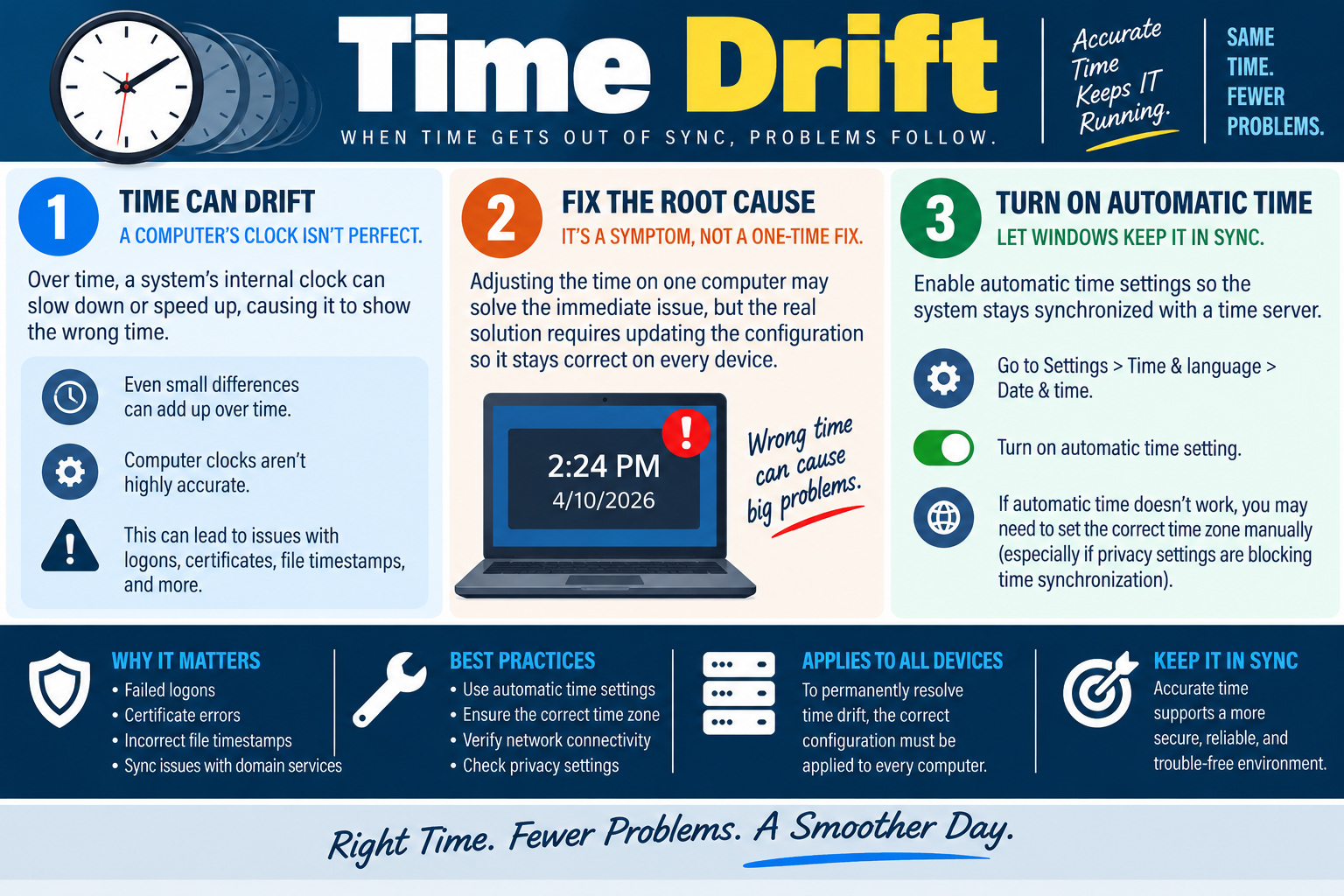
Time drift happens when a computer’s clock is no longer accurate. A few minutes may seem harmless, but incorrect time can break logons, certificates, file timestamps, synchronization, scheduled tasks, and domain services. Treat wrong time as a symptom: fix the configuration that keeps time correct across the device or environment.
Every computer has an internal clock, and that clock is not perfect. Over time, it can run slightly fast or slow. If Windows is not synchronizing correctly with a reliable time source, small differences can add up until the clock is noticeably wrong. Users may first notice the wrong time in the taskbar, but technicians should look for the technical impact behind it.
Time drift can appear as failed domain logons, authentication errors, certificate warnings in browsers, incorrect file timestamps, sync problems with domain services, failed scheduled tasks, update problems, cloud sync conflicts, and confusing log entries. When event logs show times that do not match reality, troubleshooting becomes harder because the timeline is no longer trustworthy.
Time Can Drift
A system’s internal clock depends on hardware, firmware, the CMOS/RTC battery, operating system settings, time zone configuration, and network time synchronization. If any of those pieces are wrong, Windows may show inaccurate time or repeatedly drift after correction.
Small differences matter because many systems compare timestamps during authentication and encrypted communication. Domain services, Kerberos authentication, certificates, file synchronization, backups, and security logs all assume that device time is reasonably accurate. If one computer is far enough out of sync, otherwise valid credentials or certificates may be rejected.
When you see the wrong time, check whether the date, time, time zone, and daylight saving settings are correct. A device can show the wrong local time even when the underlying clock is synchronized if the time zone is incorrect. Also ask whether the issue returns after restart, after sleep, when disconnected from the network, or only when the user is on VPN.
Fix the Root Cause
Manually adjusting the clock may solve the immediate user complaint, but it does not prove the problem is fixed. If the device cannot synchronize or is pointed at the wrong source, the time may drift again. The real solution is to identify why the computer is not staying in sync.
On a standalone Windows computer, the fix may be as simple as enabling automatic time, choosing the correct time zone, and confirming internet connectivity to a time server. In a domain environment, time is usually controlled by domain hierarchy. Workstations normally synchronize with domain controllers, and the domain should have a reliable authoritative time source. If many domain computers have wrong time, investigate the domain time configuration instead of changing each clock one by one.
Wrong time can also point to hardware. If a computer loses time while powered off, repeatedly resets to an old date, or shows time problems before Windows starts, the CMOS/RTC battery or firmware settings may be involved. If time changes only when Windows is running, focus on time service configuration, network connectivity, privacy settings, time zone, domain policy, or third-party software.
Turn On Automatic Time
For most Windows systems, automatic time settings should be enabled. In Windows, go to Settings > Time & language > Date & time, then turn on automatic time setting. Verify the correct time zone, especially on laptops, remote systems, virtual machines, and devices that travel between locations.
If automatic time does not work, check whether network connectivity, firewall rules, VPN behavior, privacy settings, or organizational policy is blocking time synchronization. Some privacy or hardening settings can prevent Windows from setting the time zone automatically or contacting external services. In managed environments, Group Policy or MDM may control these settings.
After changing settings, force or wait for synchronization, then verify the time remains correct after a restart. If a single device refuses to stay synchronized, review the Windows Time service, event logs, domain membership, time source, and local clock behavior.
Why It Matters
Failed logons: Domain authentication can fail when the workstation and domain controller disagree about time beyond the allowed tolerance. In many Windows domain environments, Kerberos is time-sensitive by design.
Certificate errors: Certificates are valid only during a specific date range. If the computer thinks it is before the certificate starts or after it expires, the browser or application may warn that the connection is not trusted even when the website is legitimate.
Incorrect file timestamps: Wrong timestamps can confuse users, backups, file sync tools, software installers, scripts, and forensic troubleshooting. Files may appear newer or older than they really are.
Sync issues with domain services: Group Policy, scripts, logging, update services, cloud identity, and directory-related services can all become harder to troubleshoot when device time is inaccurate.
Best Practices
Use automatic time settings whenever possible. Ensure the time zone is correct. Verify network connectivity to the required time source. Check privacy settings or management policies if automatic time zone or synchronization options are unavailable. In domain environments, fix time synchronization centrally so every computer follows the same reliable configuration.
Apply the correct configuration to every affected computer. If only one computer is wrong, troubleshoot that device. If many computers are wrong, troubleshoot the shared source: domain controller time, DNS, NTP reachability, Group Policy, firewall rules, VPN routing, or management settings.
Technician Workflow
Confirm the symptom. Check the system date, time, time zone, and whether the issue returns after restart or sleep.
Identify the scope. Determine whether one device, one site, remote users, or many domain computers are affected.
Enable automatic time. Use Windows Date & time settings and verify the device can reach its configured time source.
Verify the time zone. Correct time zone mistakes before assuming synchronization is broken.
Check domain behavior. In a domain, confirm the workstation is using the expected domain time hierarchy.
Review blocking factors. Check network connectivity, firewall rules, VPN paths, privacy settings, Group Policy, and MDM controls.
Consider hardware. If the clock loses time while powered off or resets in firmware, check the CMOS/RTC battery or system board guidance.
Verify impact is resolved. Retest logon, certificate access, file timestamps, sync, updates, and event log timing.
Common Exam Traps
Do not treat manually setting the clock as the complete fix if the question asks for a permanent solution. The device must stay synchronized.
Do not overlook the time zone. A computer can be synchronized to the correct universal time but still display the wrong local time because the time zone is wrong.
Do not ignore certificates and authentication. Wrong time can create browser certificate warnings and domain logon failures even when the network and password are otherwise correct.
Do not fix domain-wide time drift one workstation at a time. If multiple domain devices are affected, look at domain time configuration, domain controllers, NTP, DNS, and policy.
Do not forget hardware clues. A clock that resets after shutdown may point to the CMOS/RTC battery rather than Windows settings.
Key takeaway: Accurate time keeps Windows authentication, certificates, logs, file timestamps, and sync services reliable. Enable automatic time, verify the time zone, confirm connectivity to the right time source, and fix the root cause so the clock stays correct.
Module 12 infographic: time drift can cause failed logons, certificate errors, incorrect timestamps, and domain sync issues, so Windows should use automatic time with the correct time zone and reliable synchronization.
KT
Module 13
Module 13 - Key Takeaways
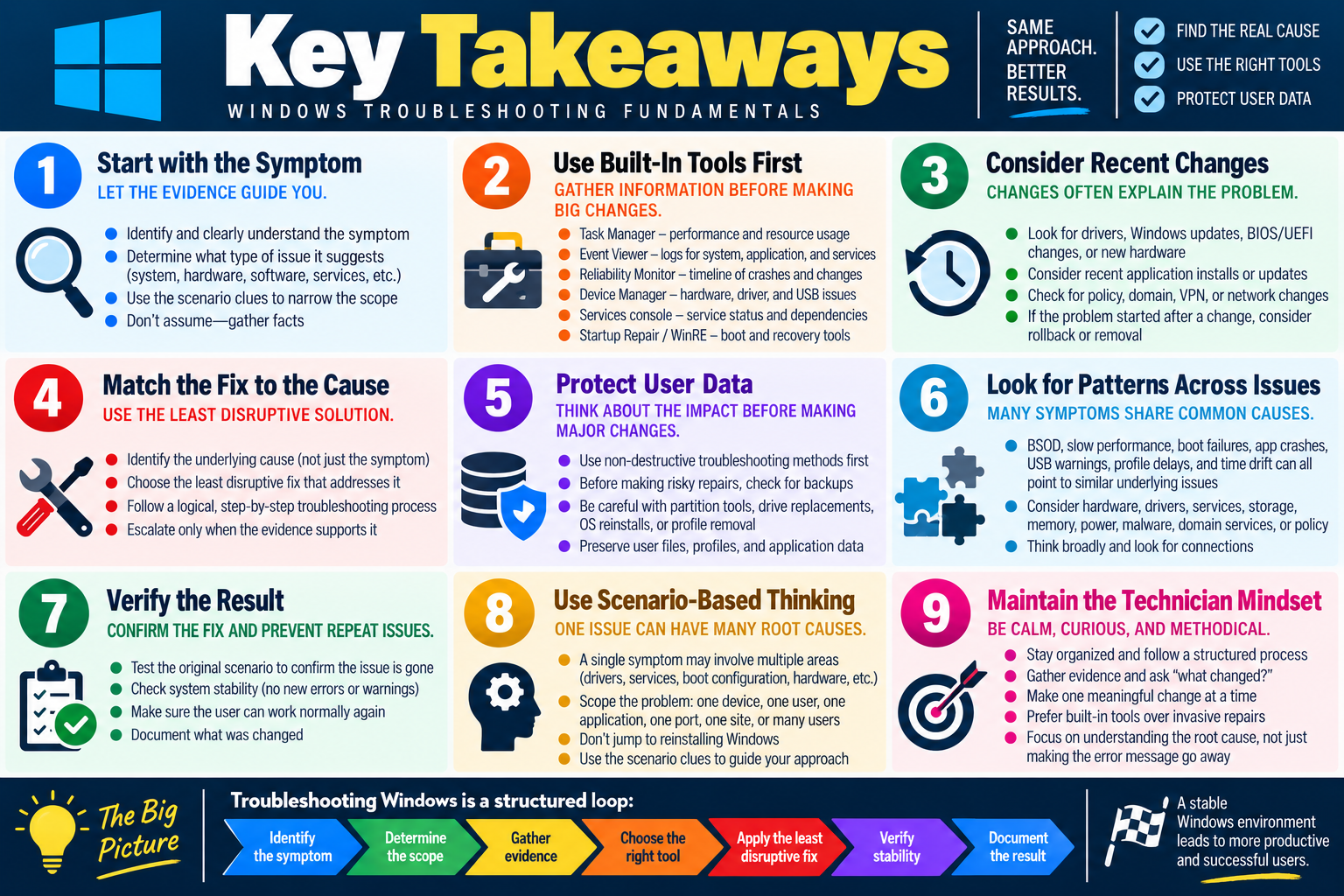
Objective 3.1 is about troubleshooting common Windows OS issues from a scenario. The strongest answer starts with the symptom, gathers evidence, chooses the least disruptive tool that fits the cause, protects user data, verifies the result, and documents what changed.
Windows troubleshooting is pattern recognition plus disciplined process. A BSOD, slow computer, boot failure, crashing app, USB warning, profile delay, or wrong system time may look like a single problem, but the real cause can sit in hardware, drivers, services, boot configuration, malware, storage, memory, power, networking, domain services, or policy. Your job is to avoid guessing and follow the evidence.
The main thread across this section is controlled troubleshooting. Record the symptom. Ask what changed. Check logs and built-in tools. Start with reversible fixes. Escalate only when the evidence supports it. After the repair, reproduce the original workflow and make sure the user can work normally again.
Start with the Symptom
Different Windows problems leave different clues. A Blue Screen of Death points toward a serious system-level failure, often involving drivers, hardware, or low-level software. Degraded performance points toward resource usage, storage, power settings, malware, or background activity. Boot issues and No OS Found messages point toward firmware settings, boot order, storage detection, boot files, BCD, partition problems, or drive health.
Frequent shutdowns require you to separate power loss, heat protection, restarts, crashes, and sleep or hibernation behavior. Services not starting may involve dependencies, permissions, startup type, service accounts, corrupted files, or missing boot components. Apps crashing may point to application logs, faulting modules, add-ins, app updates, permissions, or system instability underneath.
Low memory warnings, USB warnings, slow profile loading, system instability, and time drift all show why a technician must read the whole scenario. The best answer changes depending on whether the issue affects one device, one user, one application, one port, one site, or many users.
Use Built-In Tools First
Windows includes many tools that help you gather evidence before making major changes. Task Manager helps identify CPU, memory, disk, network, startup, and process bottlenecks. Event Viewer shows application, system, service, driver, disk, and authentication-related events. Reliability Monitor gives a timeline of crashes, failures, updates, installs, and recurring problems.
Device Manager helps identify failed devices, driver errors, disabled hardware, and USB issues. Services console helps review startup type, dependencies, status, and service accounts. Startup Repair and Windows Recovery Environment help with boot problems. System Restore, driver rollback, Safe Mode, SFC, malware scans, manufacturer diagnostics, BIOS/UEFI settings, and recovery media all have a place when the scenario calls for them.
The exam often rewards the tool that best matches the symptom. Do not jump straight to reinstalling Windows when Startup Repair, boot order, driver rollback, service checks, or diagnostics are more appropriate.
Respect Recent Changes
Recent changes are powerful clues. A new driver, Windows update, BIOS/UEFI change, application install, hardware upgrade, dock, USB device, policy change, VPN change, profile migration, or domain configuration update can explain why a previously stable system changed behavior.
If a problem started after a driver update, consider rollback or replacement. If a boot issue started after firmware settings changed, check boot order, storage mode, and drive detection. If logon suddenly became slow after a site or domain change, check DNS, Group Policy, domain controller selection, and network latency. If time drift affects many domain systems, check the shared time source instead of adjusting each workstation manually.
Protect Data Before Risky Repairs
Some troubleshooting steps are safe and reversible. Others can damage data if used incorrectly. Disk partition tools, boot repair commands, drive replacement, reinstalling Windows, deleting profiles, resetting applications, clearing saved browser or app data, and destructive recovery options should be used carefully.
When storage failure, partition corruption, profile damage, or OS reinstall is possible, think about data protection first. Check whether backups exist, whether user data needs to be copied, whether the drive is failing, and whether repeated repair attempts could make recovery harder.
Common Scenario Matches
BSOD after a driver update: use Safe Mode or recovery options, then roll back or replace the driver.
Computer is slow: check Task Manager, updates, storage space, power settings, startup items, and malware.
Operating system not found: remove removable media, check BIOS/UEFI boot order, confirm drive detection, then repair boot files if needed.
Service failed to start: identify the service, review Event Viewer, dependencies, permissions, startup type, and related application files.
Application crashes repeatedly: review Event Viewer and Reliability Monitor, update or repair the app, disable add-ins, and reinstall only when targeted fixes fail.
Low memory warning: identify memory-heavy processes, close unnecessary apps, restart if needed, review virtual memory, and consider physical RAM.
USB device not recognized: try a different port or controller, check cable and power, reduce attached devices, and match USB version requirements.
System instability: use a broad diagnostic approach across logs, hardware, malware, system files, drivers, updates, and recent changes.
No OS Found: verify boot order, drive detection, boot files, storage mode, drive health, partitions, and data protection.
Slow profile load: check profile size, DNS, Group Policy, logon scripts, network latency, and domain controller selection.
Time drift: enable automatic time, verify time zone, confirm the correct time source, and check domain time behavior when multiple systems are affected.
Common Exam Traps
Do not assume the most dramatic fix is the best fix. Reinstalling Windows, replacing the drive, deleting a profile, or rebuilding boot records may be correct in some scenarios, but only after the evidence points there.
Do not confuse symptoms with causes. A crashing app may be caused by bad RAM, a failing SSD, malware, permissions, or a bad add-in. A slow logon may be caused by Group Policy or domain controller selection rather than workstation hardware. A certificate warning may be caused by time drift rather than a bad website.
Do not ignore scope. One user, one workstation, one application, one location, and all users are different troubleshooting paths. Scope tells you whether to focus on a local device, user profile, application, peripheral, network segment, server, policy, or domain service.
Do not skip verification. A fix is not complete until the symptom is gone, the user can complete the task, logs stop showing the error, and the result is documented.
Technician Mindset
A good Windows technician stays calm, curious, and methodical. Gather the facts. Make one meaningful change at a time. Prefer built-in tools before invasive repairs. Protect user data. Use scenario clues. Verify the outcome.
The goal is not just to make an error message disappear. The goal is to understand why Windows failed, repair the right layer, prevent repeat issues where possible, and leave the user with a stable, productive system.
Key takeaway: Troubleshooting Windows is a structured loop: identify the symptom, determine scope, gather evidence, choose the right tool, apply the least disruptive fix, verify stability, and document the result.
SN
Module 14
Module 14 - Section Notes
BROtocol Joe Core 2 220-1202Objective 3.1
3.1 Windows OS Troubleshooting
Core idea: Troubleshooting Windows is scenario-based. Identify the symptom, determine the scope, gather evidence, choose the right built-in tool, protect user data, apply the least disruptive fix, verify stability, and document the result.
Complete 20 difficult scenario-based multiple-choice questions for Objective 3.1. The test covers BSODs, degraded performance, boot failures, shutdowns, services, application crashes, low memory warnings, USB warnings, system instability, No OS Found errors, slow profile loading, time drift, Windows tools, data protection, verification, and technician decision-making. Each correct answer is worth 1 point.
WB
Workbook
Student Workbook
BrotocolJoeStudent Workbook
BrotocolJoe
CompTIA A+ Core 2 (220-1202)
Student Workbook
3.0 Software Troubleshooting
Objective 3.1 - Given a scenario, troubleshoot common Windows OS problems.
How to use this workbook: Print this packet once, complete it by hand as you finish each online module, and keep it as evidence that you read, processed, and practiced the Objective 3.1 Windows OS troubleshooting material.
Student Name:
Blue Screen of Death (BSOD)Objective 3.1
Module 1 - Blue Screen of Death (BSOD)
Key Information: A Windows stop error requires evidence about the failure, timing, recent changes, and system state. A stop code helps guide investigation but does not by itself prove a single cause.
Check Your Understanding
What details should be recorded from a stop error?
Why should recent driver and hardware changes be reviewed?
How can repeated testing demonstrate that a fix restored stability?
Crash Evidence Record
Use a fictional incident. Record observations rather than guessing the failed component.
Failure: Describe the stop message, time, and activity at the crash.
Changes: Identify recent updates, drivers, or hardware to investigate.
Next test: Name a targeted diagnostic or supported rollback and explain the evidence supporting it.
Explain why crash dumps may contain sensitive information and should be handled through approved support channels.
Technician Scenario: A workstation begins crashing after a graphics-driver update. Plan evidence collection, an appropriate recovery or rollback path, and testing under the user’s normal workload.
Degraded PerformanceObjective 3.1
Module 2 - Degraded Performance
Key Information: Measure resource use during the slowdown and compare it with the user’s expected workload. CPU, memory, disk, network, storage capacity, and power settings can contribute different bottlenecks.
Check Your Understanding
Why is a single idle resource snapshot insufficient to diagnose intermittent slowness?
How can low free disk space affect normal operation?
Why should updates or malware scanning be chosen based on evidence rather than applied as random fixes?
Comparison Record: CPU vs. Disk Bottleneck
Use a PC that slows down while opening large files. Write one or two sentences per prompt.
CPU: Describe the process and utilization evidence that would support a processor bottleneck.
Disk: Describe activity and response evidence that would support storage contention.
Decision: Explain the measurement you would collect during the actual slowdown before recommending a fix.
Describe how to establish a before-and-after performance test using a representative user task.
Technician Scenario: A laptop works normally on external power but becomes slow on battery. Investigate workload and power settings, then test an approved adjustment without assuming a hardware upgrade is required.
Boot IssuesObjective 3.1
Module 3 - Boot Issues
Key Information: Identify the startup stage and exact message before attempting repair. Firmware selection, device detection, boot files, drivers, and OS startup are distinct layers.
Check Your Understanding
How does failure before an OS loads differ from failure during Windows startup?
Why should recent boot configuration changes be reviewed?
What recovery information should be available before startup repairs?
Startup Investigation Record
For each field, describe a specific observation or check.
Stage: Record the last successful startup screen and the error.
Configuration: Identify the intended boot device and any recent changes.
Recovery: State which supported recovery option fits the evidence and how user data will be protected.
Explain why blindly rebuilding boot configuration is not the right first action for every startup failure.
Technician Scenario: Windows fails to start after an update but the system drive is detected. Plan inspection of the failure stage, recovery access, a supported repair option, and normal-startup verification.
Frequent ShutdownsObjective 3.1
Module 4 - Frequent Shutdowns
Key Information: Unexpected shutdowns can result from power, heat, hardware, software, or a crash followed by restart. Establish the pattern and distinguish the symptom before changing settings.
Check Your Understanding
How does abrupt power loss differ from an orderly Windows shutdown?
Why should temperature, power connections, and workload timing be considered?
Why does a log recording an unexpected shutdown not necessarily identify its cause?
Comparison Record: Shutdown vs. Crash/Restart
Write one or two sentences per prompt for a device that turns off during work.
Power loss: Describe the observations that would suggest abrupt loss of power.
Crash/restart: Describe the error, dump, or restart evidence to seek.
Decision: Explain how the observed pattern determines the next test.
Describe how to correlate event times with user reports without treating correlation as proof.
Technician Scenario: A workstation shuts down during demanding tasks. Plan safe checks of cooling, power, logs, recent changes, and hardware diagnostics before choosing a repair.
Services Not StartingObjective 3.1
Module 5 - Services Not Starting
Key Information: Service failures can involve dependencies, configuration, credentials, startup type, or application faults. Read the reported error and investigate the required service rather than enabling every service.
Check Your Understanding
Why should dependencies be checked when a service will not start?
How can a changed service-account credential cause a failure?
Why might a disabled or manual service be intentional?
Service Failure Record
Use a fictional required service. Describe the evidence for each field.
State: Record startup type, current status, and the exact failure message.
Dependencies: Identify prerequisite services and relevant logs.
Access: Describe the service identity and permission checks without recording credentials.
Verification: State the application workflow that proves the service is functioning.
Explain why repeated manual restarts without investigating the failure may conceal an unresolved problem.
Technician Scenario: A business service stops starting after an account change. Plan credential and authorization review with the owner, dependency checks, a limited approved correction, and application testing.
Apps CrashingObjective 3.1
Module 6 - Apps Crashing
Key Information: Application failures require patterns, error details, logs, and context. Distinguish a single application or file problem from broader OS instability.
Check Your Understanding
How do Event Viewer and Reliability Monitor help identify patterns?
Why is a faulting module a clue rather than automatic proof of the root cause?
What user settings and data should be protected before repair or reinstallation?
Comparison Record: App-Specific vs. System-Wide Failure
Write one or two sentences per prompt.
App-specific: Describe evidence that confines the issue to one app, plugin, document, or profile.
System-wide: Describe evidence that suggests multiple unrelated programs or the OS are affected.
Decision: Explain how the scope changes the next diagnostic action.
Describe the version, error, reproduction conditions, and attempted fixes to include in an escalation.
Technician Scenario: An app crashes only when opening one document while other files work. Plan a safe test using preserved copies, application logs, compatibility checks, and owner-supported recovery.
Low Memory WarningsObjective 3.1
Module 7 - Low Memory Warnings
Key Information: Memory pressure depends on applications, background processes, physical RAM, and virtual memory. Determine what consumes memory before changing the page file or buying hardware.
Check Your Understanding
How does installed RAM differ from available memory during work?
Why can excessive paging cause poor responsiveness?
Why should a growing process be investigated before assuming every warning requires more RAM?
Comparison Record: RAM vs. Virtual Memory
Write one or two sentences per prompt for a system displaying low-memory warnings.
RAM: Explain its role and what Task Manager can show about pressure.
Virtual memory: Explain its supporting role and dependence on storage and configuration.
Decision: Describe the workload and measurements needed before changing settings or recommending an upgrade.
Explain why disabling the page file is not a universal performance improvement.
Technician Scenario: Warnings appear after an application has run for several hours. Plan monitoring over time, application-version and workload checks, and a verified correction or escalation.
USB WarningsObjective 3.1
Module 8 - USB Warnings
Key Information: USB failures can involve data connections, drivers, power, bandwidth, or controller resources. A hub adds connection points but does not guarantee more controller capacity.
Check Your Understanding
How can an unsuitable cable affect device operation?
Why should device power needs be checked separately from data requirements?
Why can several ports share the same controller resources?
Comparison Record: Power vs. Controller Resources
Use several devices connected through a dock. Write one or two sentences per prompt.
Power: Describe symptoms and evidence of inadequate power delivery.
Resources: Explain why endpoint or bandwidth limits can occur even when the devices have power.
Decision: Describe a controlled test using fewer devices or a different controller path.
Explain why adding another hub may not resolve a USB controller-resource warning.
Technician Scenario: A webcam stops working when multiple devices are attached. Plan cable, power, driver, port, and controller tests, changing one variable at a time and verifying the full required device combination.
System InstabilityObjective 3.1
Module 9 - System Instability
Key Information: Repeated freezes, crashes, and restarts require a broad evidence-based investigation. Protect data and narrow the cause through controlled tests rather than simultaneous unrelated changes.
Check Your Understanding
Why should user data be protected before intensive repair or failing-drive diagnostics?
How can memory or storage faults resemble software problems?
What does a system-file repair verify, and what is outside its scope?
Stability Investigation Record
For each field, name a concrete source of evidence or test.
Pattern: Describe frequency, workload, and affected applications.
History: Review recent changes and event timelines.
Diagnostics: Choose a justified memory, storage, security, or OS check.
Validation: Define a representative observation period and workload after repair.
Explain how a change log helps identify which intervention actually improved stability.
Technician Scenario: A PC has random application errors and occasional restarts without one obvious trigger. Plan a prioritized investigation with data protection, logs, targeted diagnostics, escalation criteria, and verification.
No OS FoundObjective 3.1
Module 10 - No OS Found
Key Information: A missing-OS message can reflect boot selection, undetected storage, damaged boot structures, or an unsupported configuration change. Confirm the device and data state before destructive repair.
Check Your Understanding
Why should external media and boot order be checked first?
How does an undetected system drive differ from a detected drive with damaged boot files?
Why should storage-controller mode not be changed experimentally?
Comparison Record: Missing Drive vs. Missing Boot Files
Write one or two sentences per prompt.
Missing drive: Identify firmware-detection and hardware evidence to collect.
Boot-file problem: Identify evidence that storage is present but startup information is unavailable or damaged.
Decision: Describe how the distinction changes recovery, hardware escalation, and data-protection priorities.
Explain why reinstalling Windows immediately can destroy recoverable data or hide the actual cause.
Technician Scenario: A computer reports No OS Found after a storage change. Plan device detection, intended boot-entry and configuration checks, data preservation, and a supported repair based on findings.
Slow Profile LoadObjective 3.1
Module 11 - Slow Profile Load
Key Information: Logon delays can involve profile size, storage, network paths, DNS, policy processing, scripts, or directory infrastructure. Compare users and devices to isolate the scope.
Check Your Understanding
How can a roaming profile or logon script delay reaching the desktop?
Why should DNS and domain connectivity be investigated for managed users?
Why must profile data be preserved before resetting or rebuilding a profile?
Comparison Record: User-Specific vs. Device-Specific Delay
Use one employee whose sign-in is unusually slow. Write one or two sentences per prompt.
User comparison: Describe an authorized test with another user on the same device.
Device comparison: Describe an authorized test of the affected account on another suitable device.
Decision: Explain how the results guide profile, endpoint, or network investigation.
Describe the logon timings and policy or script evidence to include when escalating to the directory team.
Technician Scenario: Several users in one office have slow domain sign-in, while other offices do not. Plan shared network, DNS, domain-controller/site, and policy-processing checks rather than deleting individual profiles.
Time DriftObjective 3.1
Module 12 - Time Drift
Key Information: Accurate time supports authentication, certificates, logs, and synchronization. Distinguish time-zone display from clock drift and use the organization’s approved time source.
Check Your Understanding
How can the correct clock with the wrong time zone display an incorrect local time?
Why can clock errors affect authentication or certificate checks?
Why should domain-managed clients follow the intended time hierarchy?
Comparison Record: Time Zone vs. Synchronization
Write one or two sentences per prompt for a workstation showing the wrong time.
Time zone: Explain the local display setting and what to check after travel.
Synchronization: Explain how clock time is maintained and what source or connectivity evidence to inspect.
Decision: Describe how repeated drift differs from a fixed time-zone offset.
Explain when recurring clock loss after power-off may justify hardware investigation rather than repeated manual adjustment.
Technician Scenario: A domain workstation shows authentication failures and incorrect timestamps. Plan verification of time zone, clock offset, approved source, synchronization status, and authentication after correction.
Objective 3.1 Final CheckCumulative Review
Objective 3.1 - Final Check
Purpose: Use symptoms and evidence to select a targeted Windows investigation, protect user data, and verify a lasting repair.
Scenario Sorting
For each case, name the first evidence to collect and a justified next test.
Stop errors begin after a driver update.
A required service fails after an account change.
A USB device fails only when several devices are attached.
A startup message says no OS is found.
Domain sign-in is slow for everyone at one site.
Explain What You Know
Why does a symptom not prove a single cause?
How do scope and timing guide the investigation?
When should data protection precede repair?
What user task and observation period demonstrate success?
Write the initial evidence and next test for each case above, in order.
Plan support for a workstation with intermittent crashes and slow startup. Include user questions, logs, recent changes, resource measurements, targeted tests, data protection, an approved repair or escalation, rollback, and verification.