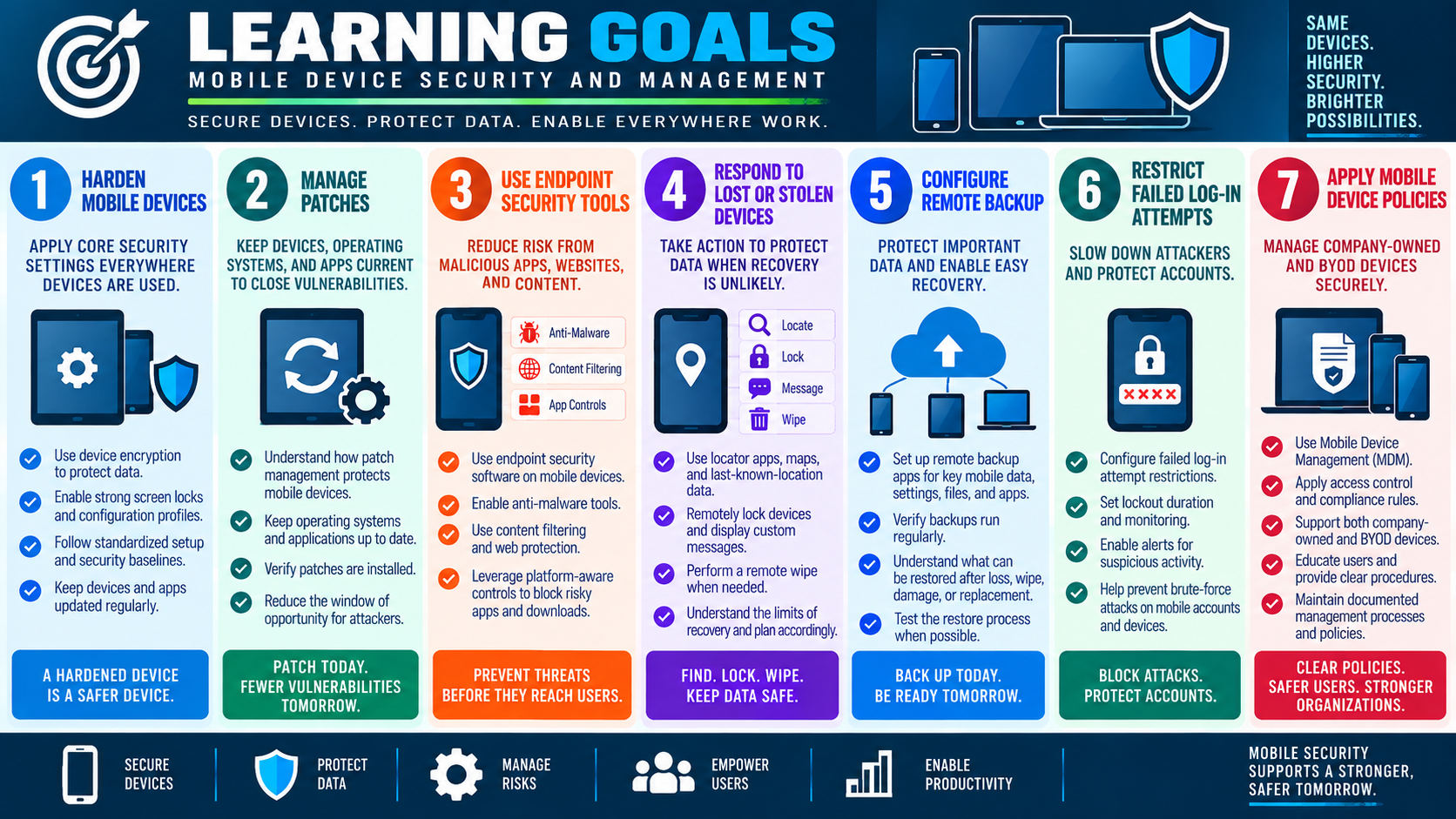
Module 1 - Hardening Techniques
Mobile device hardening means configuring phones and tablets so they protect data by default, even when the device is lost, stolen, shared, or used away from the office.
Mobile devices carry email, files, authentication apps, contacts, photos, browser sessions, and cloud access everywhere the user goes. Because they are small, portable, and often used on public networks, the goal is to make the device secure before something goes wrong. A properly hardened device protects stored data, limits unauthorized access, enforces consistent settings, and stays current against known vulnerabilities.
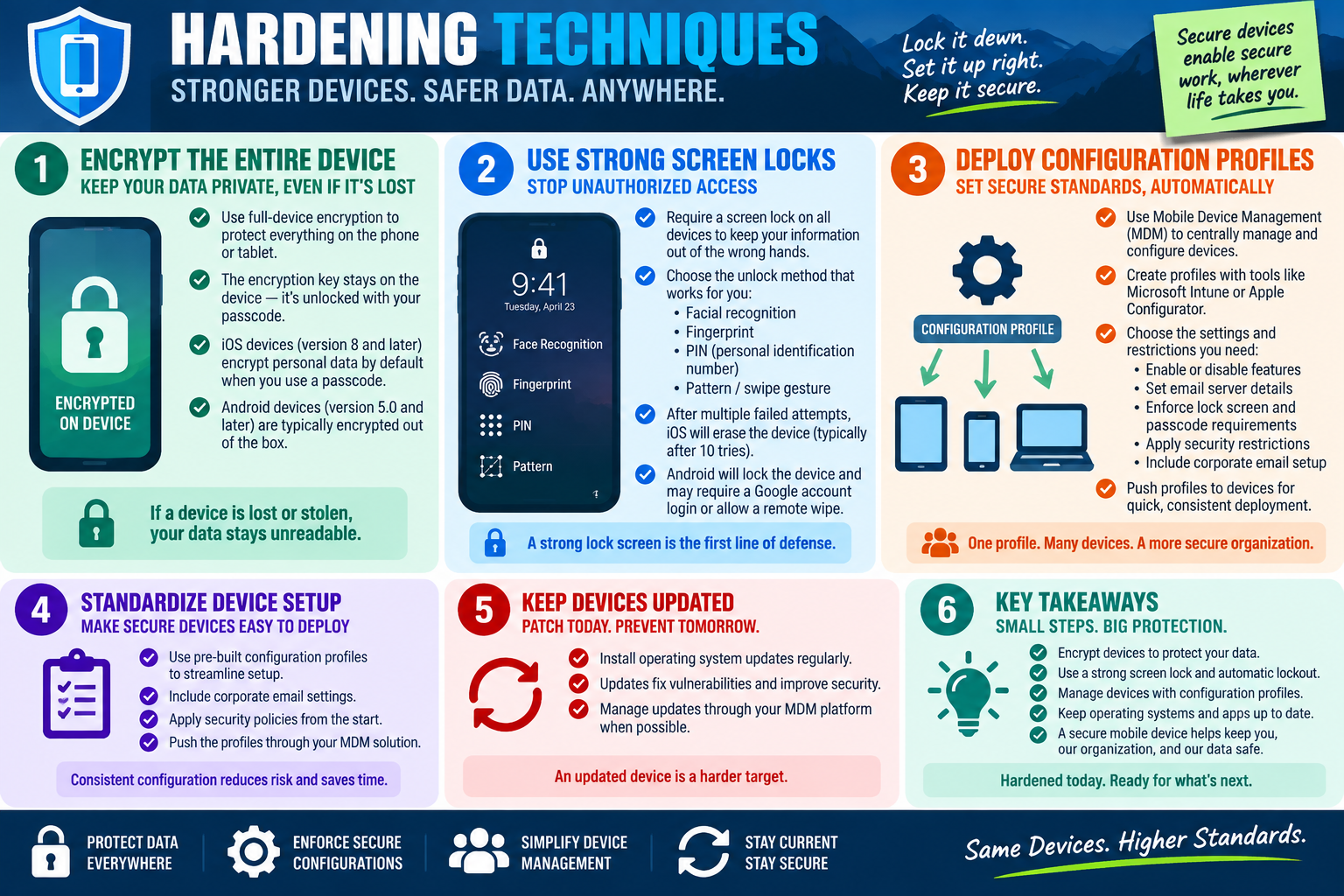
Encrypt the Entire Device
Full-device encryption protects data at rest. That means the information stored on the phone or tablet remains unreadable when the device is locked, powered off, misplaced, or in someone else's hands. Encryption does not stop a device from being stolen, but it greatly reduces the chance that the data on that device can be recovered by an unauthorized person.
On modern mobile platforms, encryption is usually tied to the user's passcode or unlock method. The encryption key stays on the device, and the device unlocks protected data only after successful authentication. iOS devices running iOS 8 or later encrypt personal data by default when a passcode is used. Android devices running Android 5.0 or later are typically encrypted out of the box, though technicians should still verify encryption status in managed or older environments.
Use Strong Screen Locks
A strong screen lock is the first visible barrier between a lost device and sensitive information. Every work device should require a lock method before access is allowed. Common mobile unlock methods include facial recognition, fingerprint authentication, PINs, patterns, and swipe gestures. From a security perspective, a swipe gesture alone is not enough because it only unlocks the screen without proving identity.
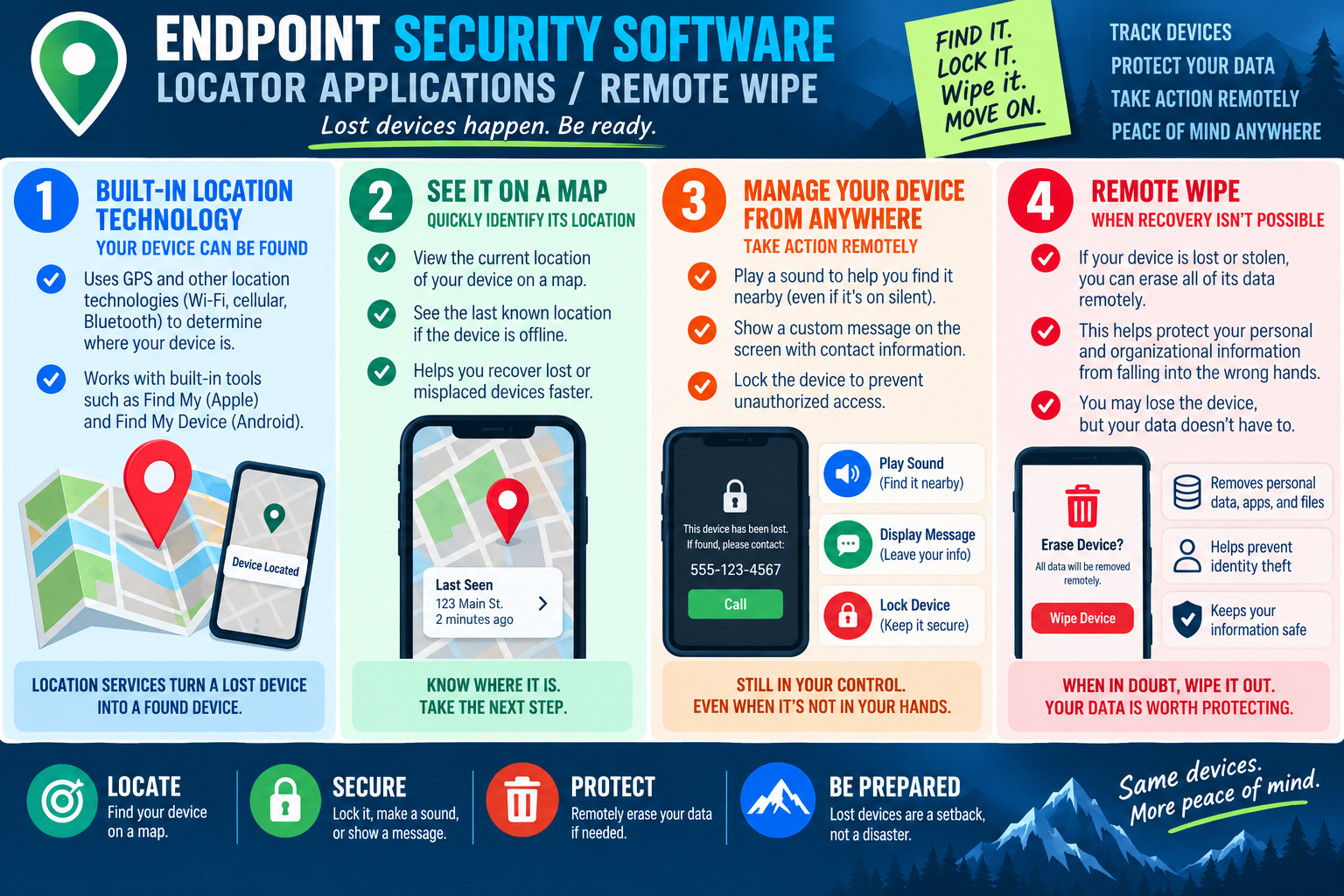
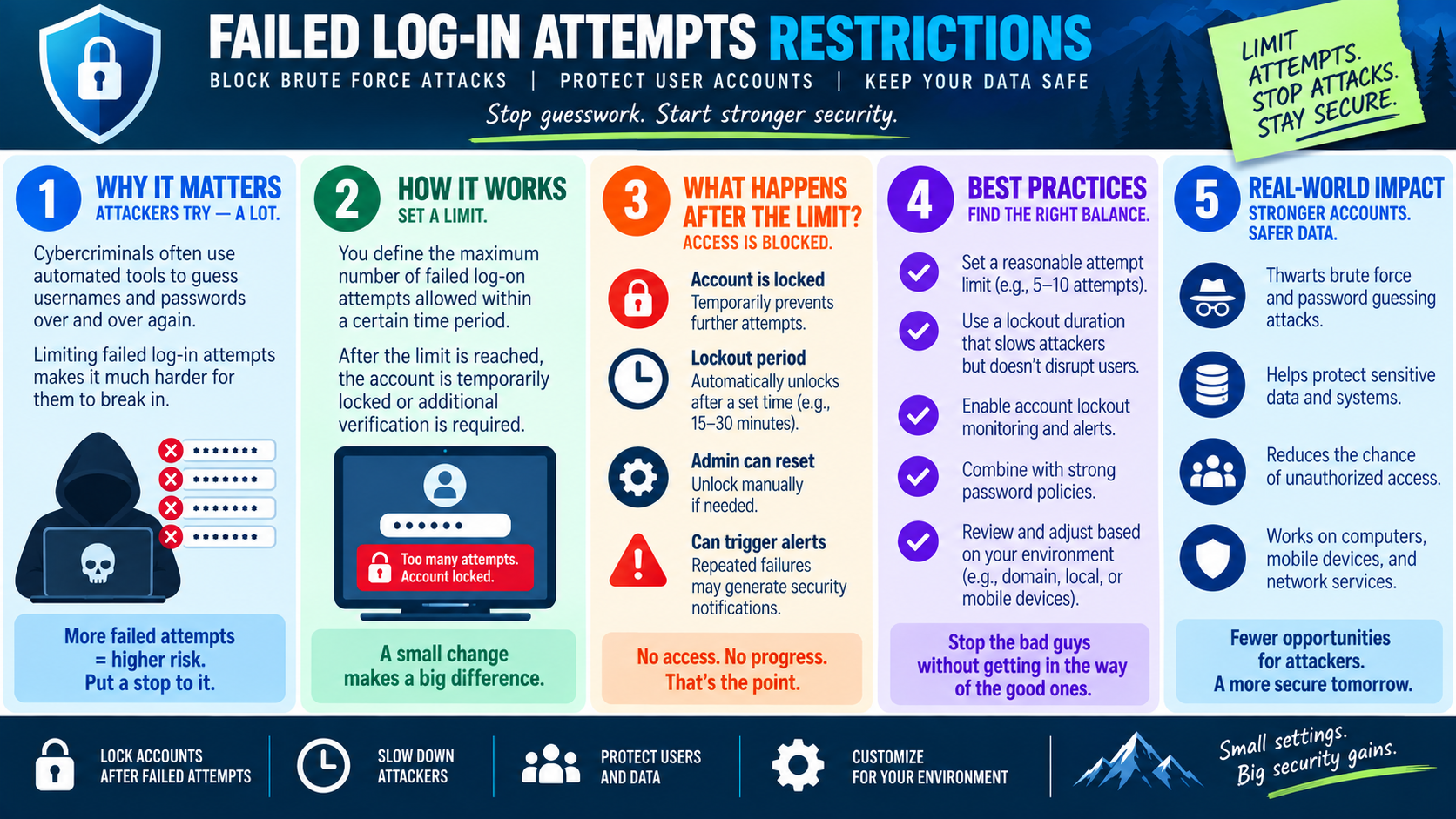
Screen-lock policy should balance usability with risk. A long, unique PIN or strong biometric plus passcode fallback is stronger than a short, predictable PIN. Many environments also enforce automatic lock after inactivity and device erase or lockout after repeated failed attempts. For example, iOS can erase the device after multiple failed unlock attempts, while Android can lock the device, require account verification, or support remote wipe depending on configuration and management policy.
Deploy Configuration Profiles
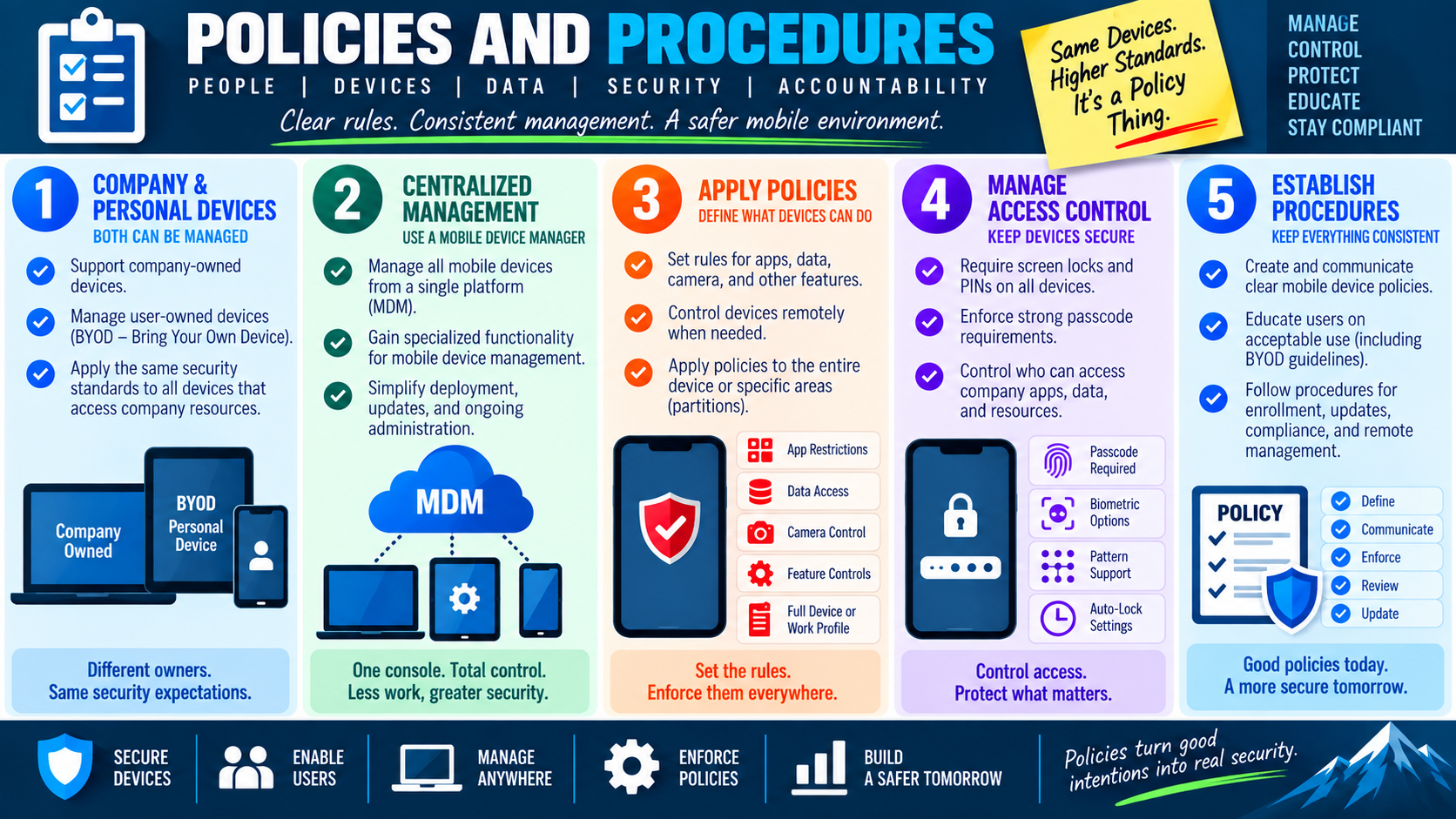
Configuration profiles let an organization apply mobile security settings consistently instead of relying on every user to configure each device manually. Mobile Device Management, or MDM, platforms such as Microsoft Intune or Apple Configurator can push approved settings to phones, tablets, and sometimes laptops from a central console.
Profiles can enable or disable features, configure corporate email, set Wi-Fi or VPN details, enforce passcode and lock-screen requirements, restrict risky device functions, install certificates, and apply organization-specific controls. This is especially important when many devices must meet the same baseline. One profile can set the standard, and many devices can receive it quickly and consistently.
Standardize Device Setup
Standardized setup reduces mistakes and speeds deployment. Instead of manually touching every setting on every device, technicians can use prebuilt profiles that include corporate email settings, security rules, app restrictions, wireless settings, and management requirements. That makes new-device setup more predictable and makes troubleshooting easier because devices start from the same known baseline.
Standardization also helps with audits and support. If devices are supposed to require encryption, automatic locking, approved apps, and managed email, configuration profiles give IT a way to confirm and enforce those expectations. Consistent configuration reduces the number of weak devices that attackers can target.
Keep Devices Updated
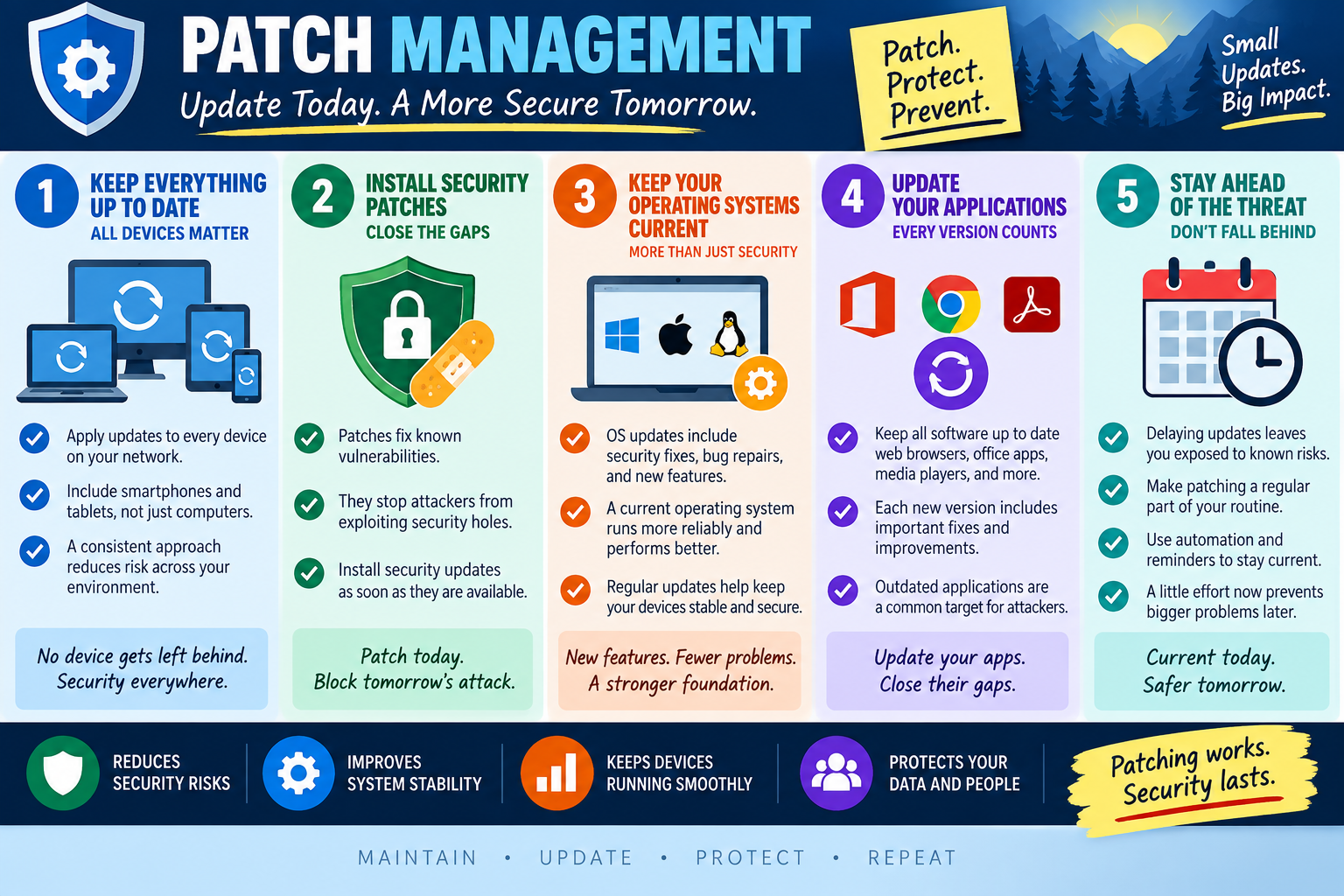
Mobile operating system and app updates are part of hardening. Updates fix vulnerabilities, improve security features, and close weaknesses that malware, malicious apps, or attackers may use. A mobile device that is encrypted and locked can still be risky if it runs outdated software with known flaws.
Whenever possible, updates should be managed through the MDM platform so devices receive patches on a regular schedule. Technicians should verify that the operating system and critical apps are current, especially on devices used for email, cloud storage, authentication, or business communication. An updated device is a harder target because attackers have fewer known weaknesses to exploit.
Scenario Cues
- Lost or stolen mobile device: encryption keeps stored data unreadable, and screen locks reduce immediate access.
- Many devices need the same settings: deploy an MDM configuration profile instead of configuring each one by hand.
- Corporate email must be set up consistently: include mail, Wi-Fi, VPN, certificate, and passcode settings in a managed profile.
- User wants convenience over a lock screen: require a secure lock method because the device contains work data.
- Device is behind on OS or app patches: update it before known vulnerabilities become easy targets.
Key Takeaways
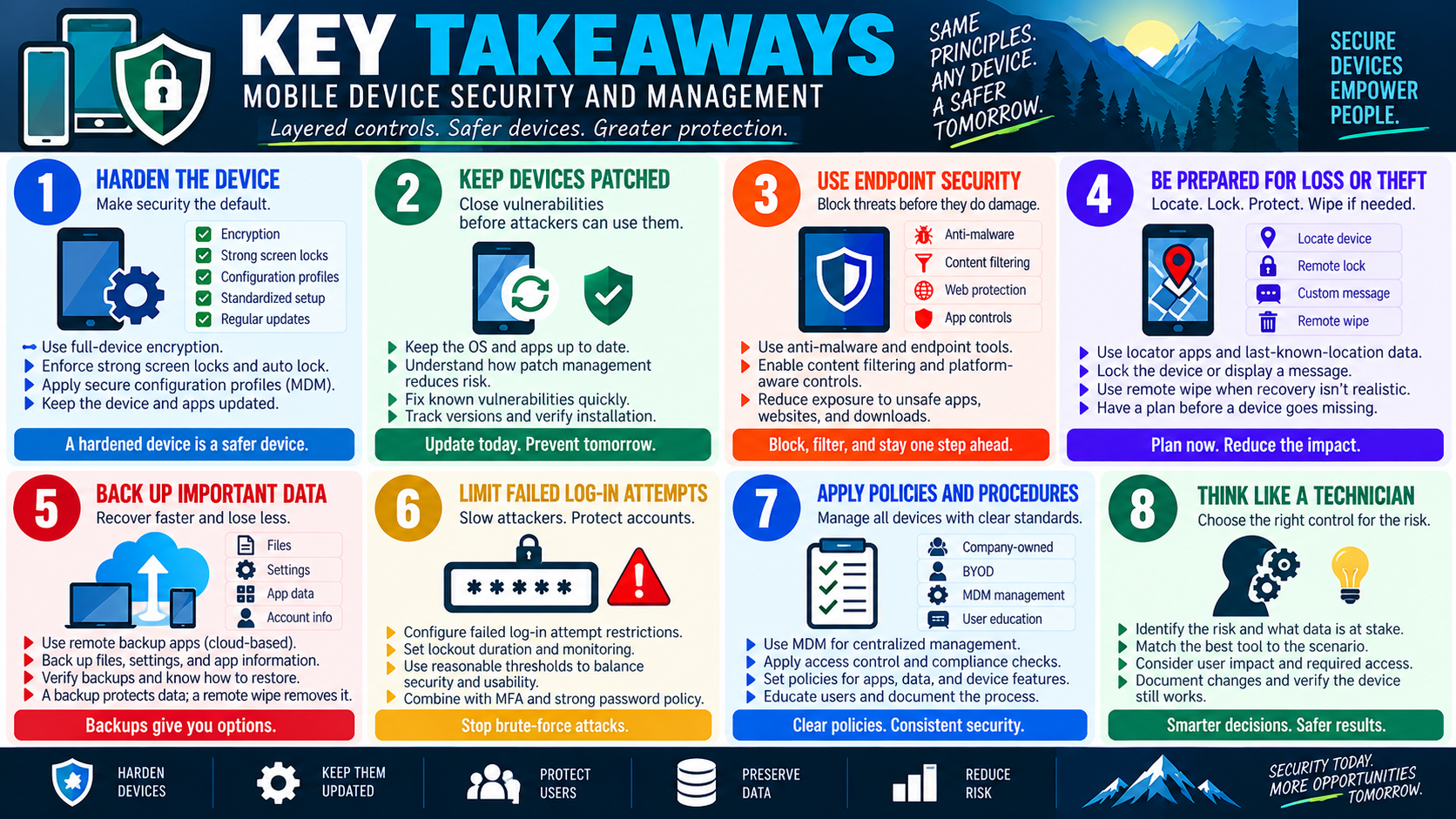
- Encrypt mobile devices so stored data remains protected if the device is lost or stolen.
- Require strong screen locks and automatic lockout to reduce unauthorized access.
- Use configuration profiles and MDM to enforce secure standards consistently.
- Standardize setup so devices are easier to deploy, audit, troubleshoot, and support.
- Keep mobile operating systems and apps updated so known vulnerabilities are patched.
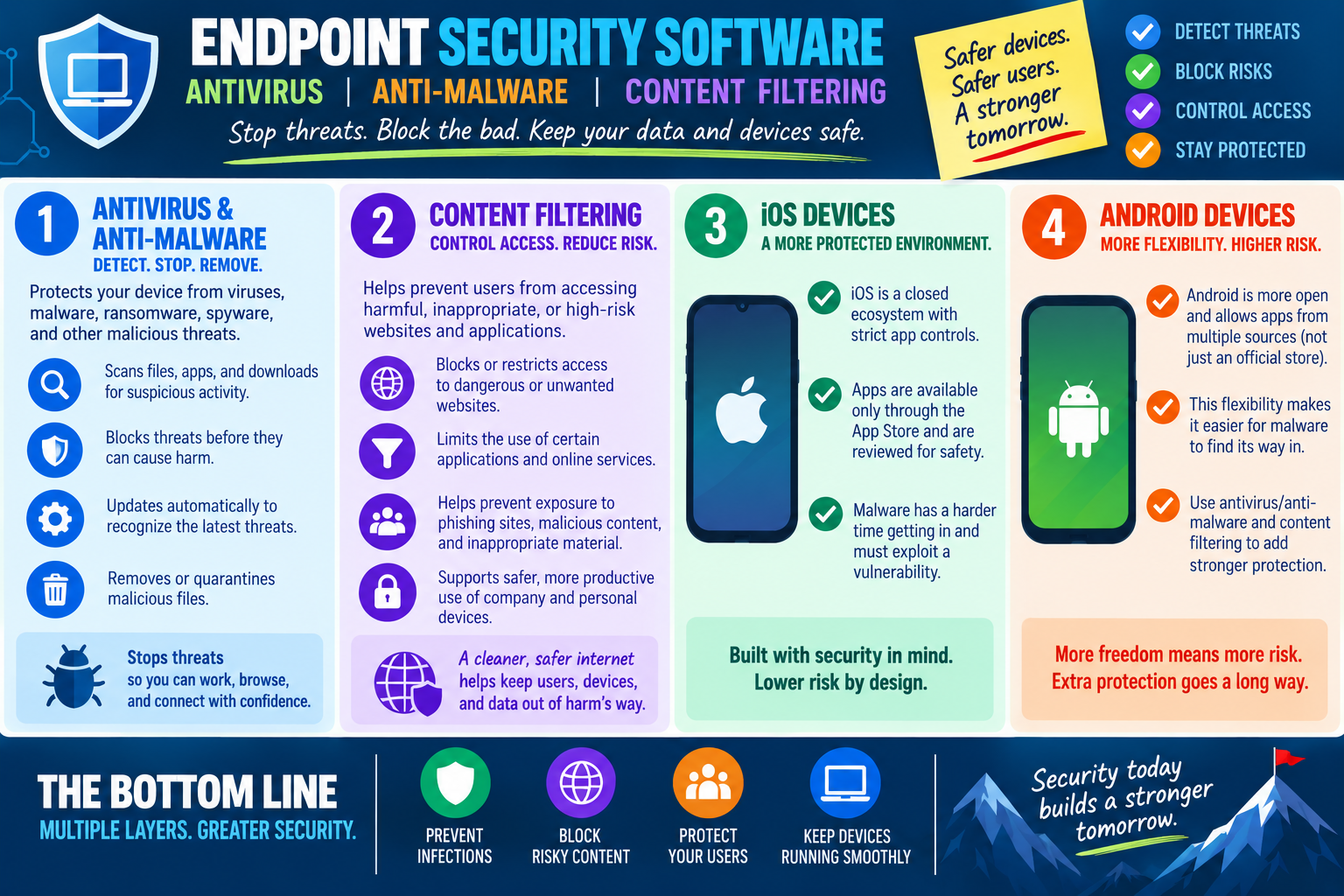
Exam focus: if the scenario involves protecting a lost or stolen mobile device, think encryption, screen lock, locator tools, remote wipe, and MDM policy.