Module 1 - Malware Removal
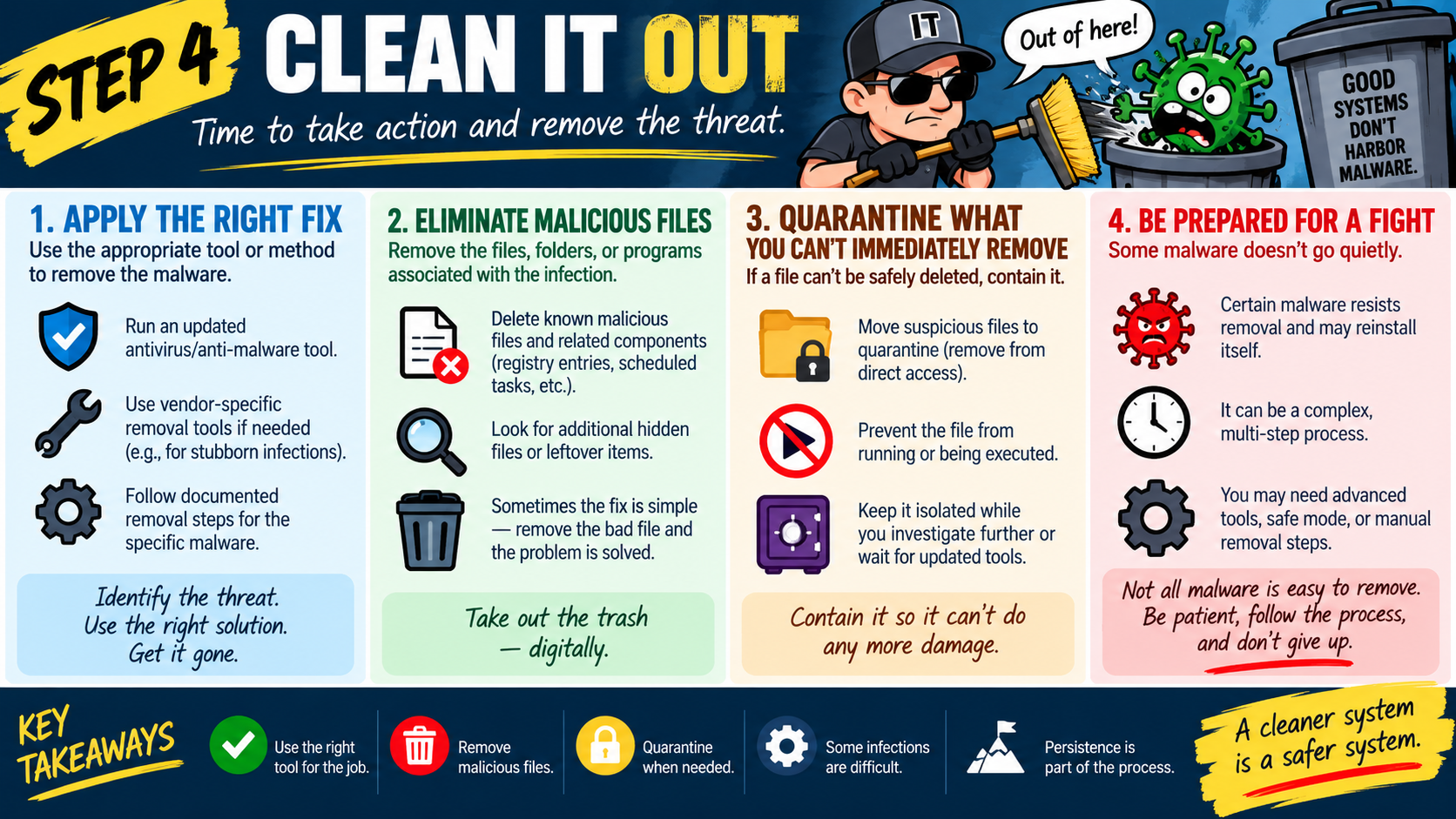
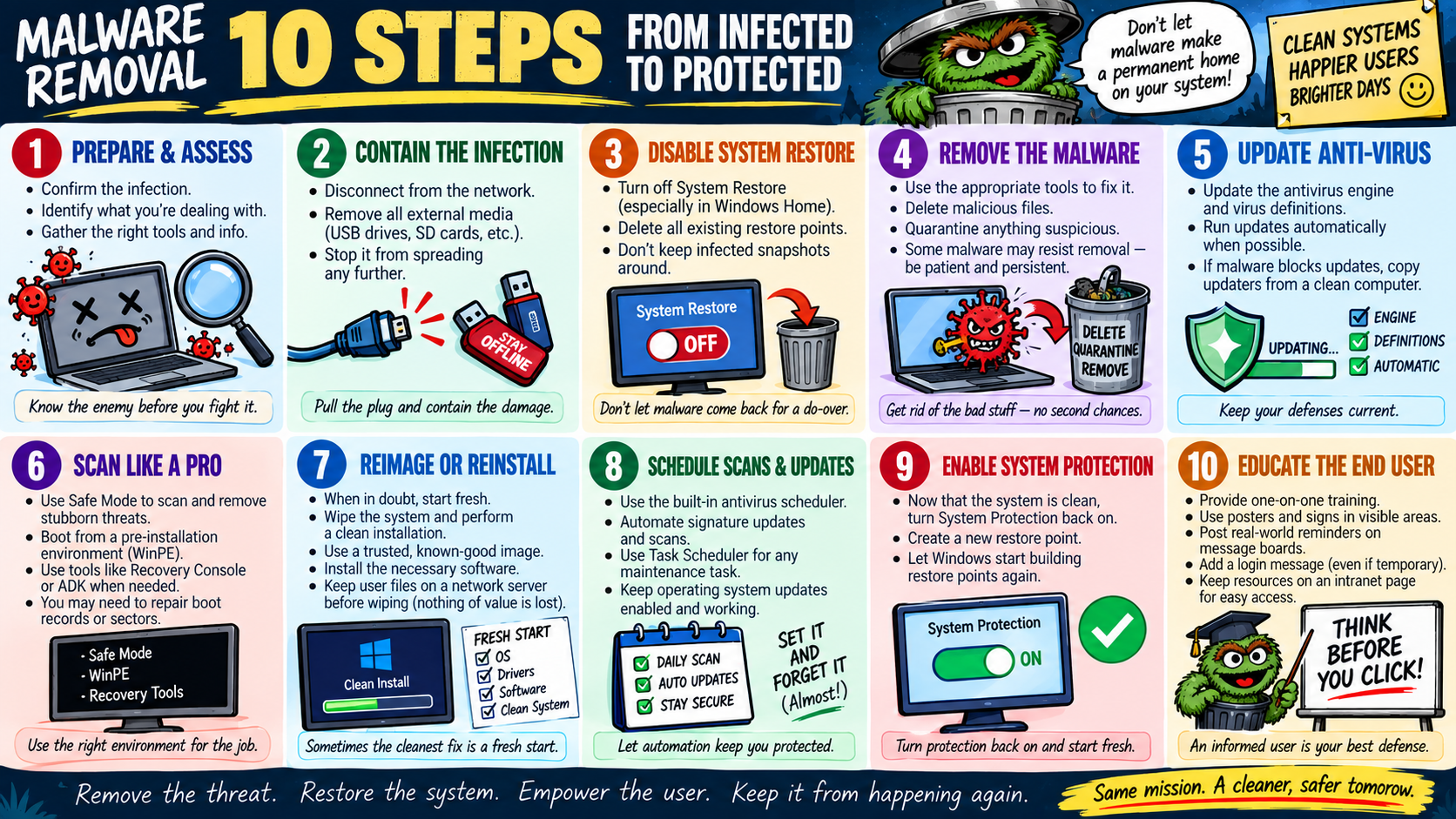
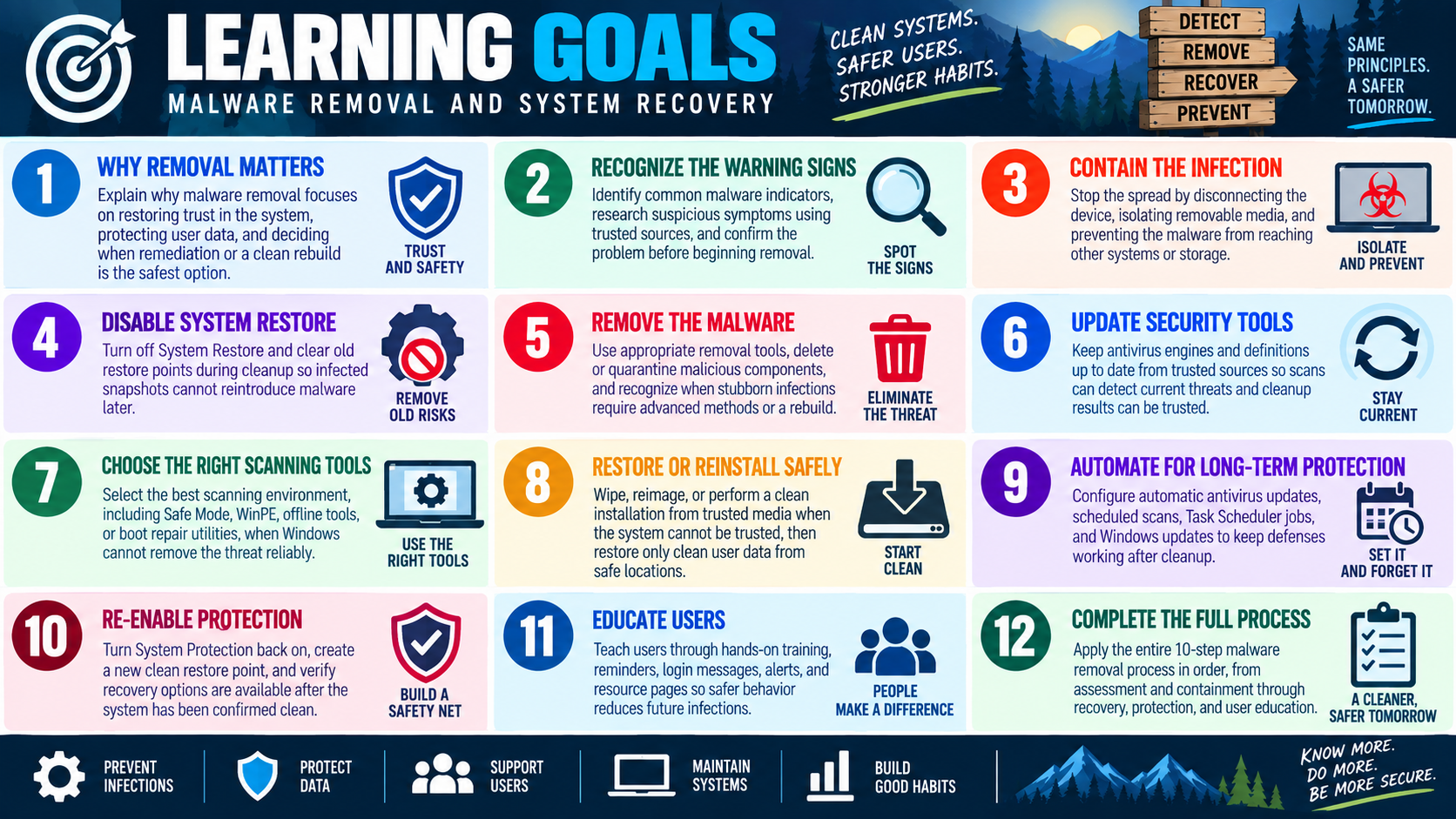
Malware removal is not just about making symptoms disappear. The real goal is to return the system to a trustworthy state, protect the user's data, and reduce the chance that the infection comes back.
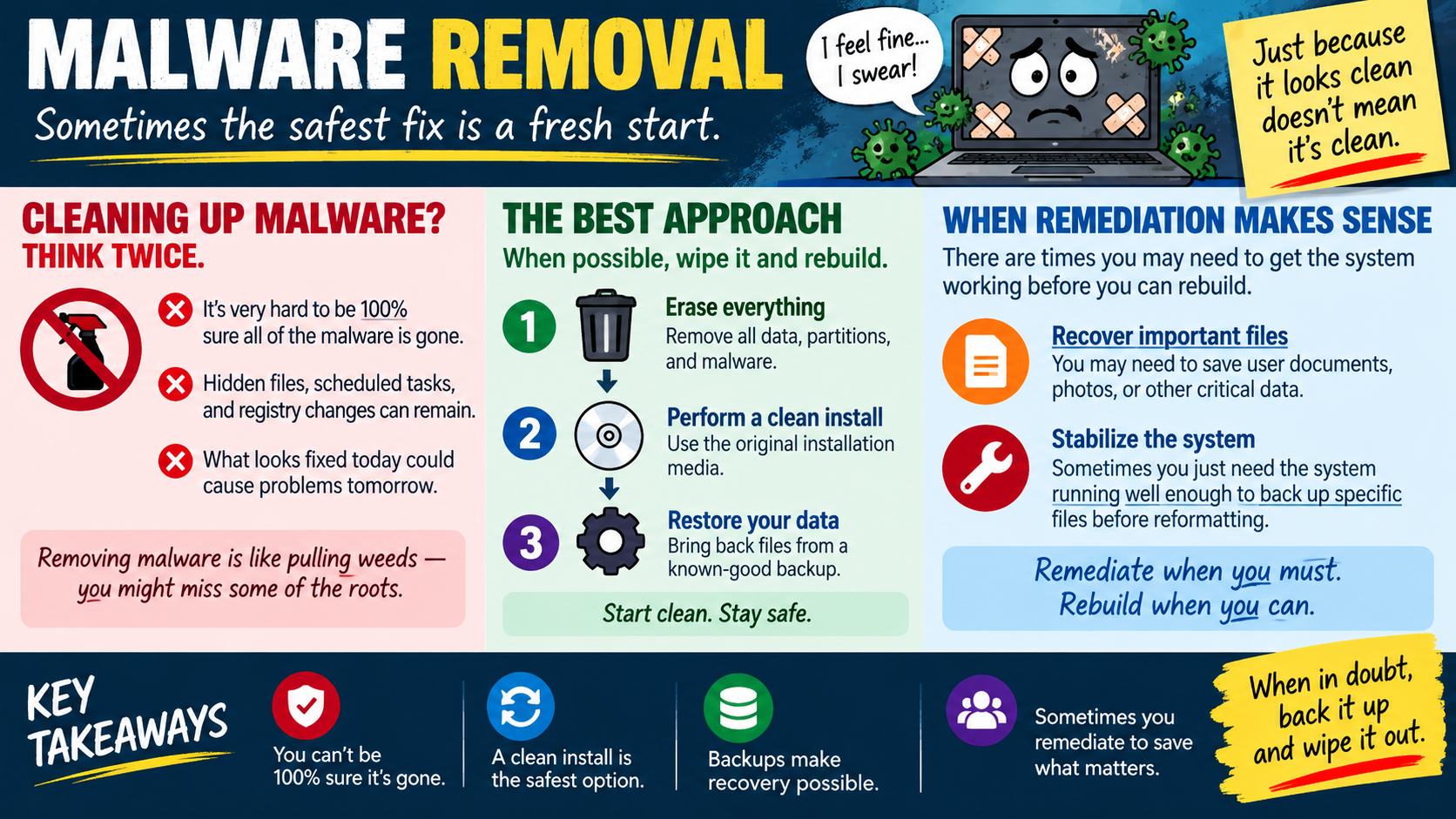
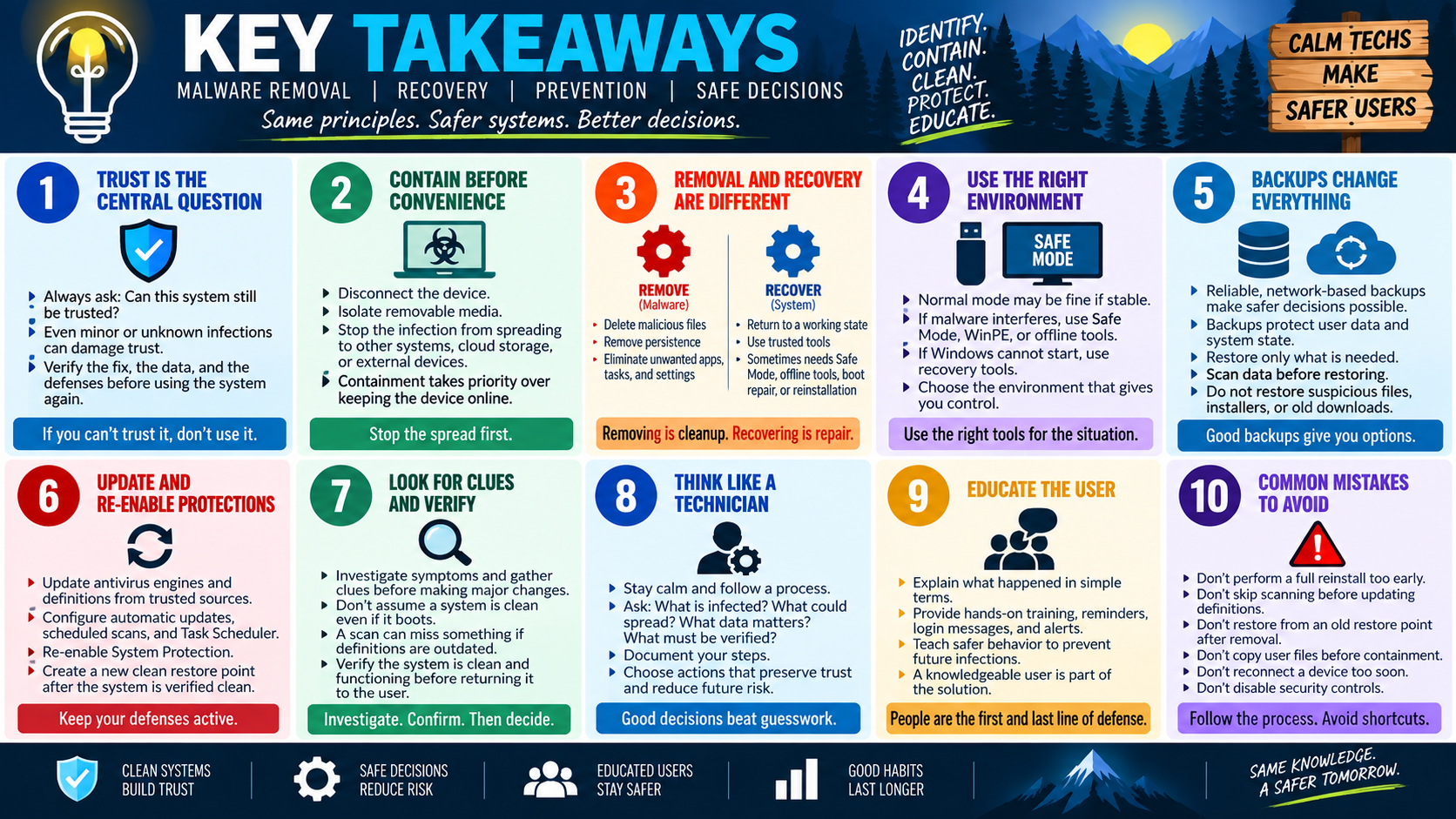
The infographic opens with an important warning: just because a computer looks clean does not mean it is clean. Malware can leave behind hidden files, scheduled tasks, registry changes, browser extensions, altered services, stolen credentials, modified startup entries, or persistence mechanisms that are not obvious during a normal cleanup. A pop-up may disappear, performance may improve, and scans may look better, but that does not automatically prove the system is safe.
For a technician, this creates a judgment call. Remediation can be useful, but it is difficult to be 100 percent certain that every piece of malware has been removed. Some infections are simple and can be cleaned with updated tools. Others are deeper, more persistent, or more damaging. When the integrity of the system is in doubt, the safest fix may be a fresh start.
Why Cleaning Malware Requires Caution
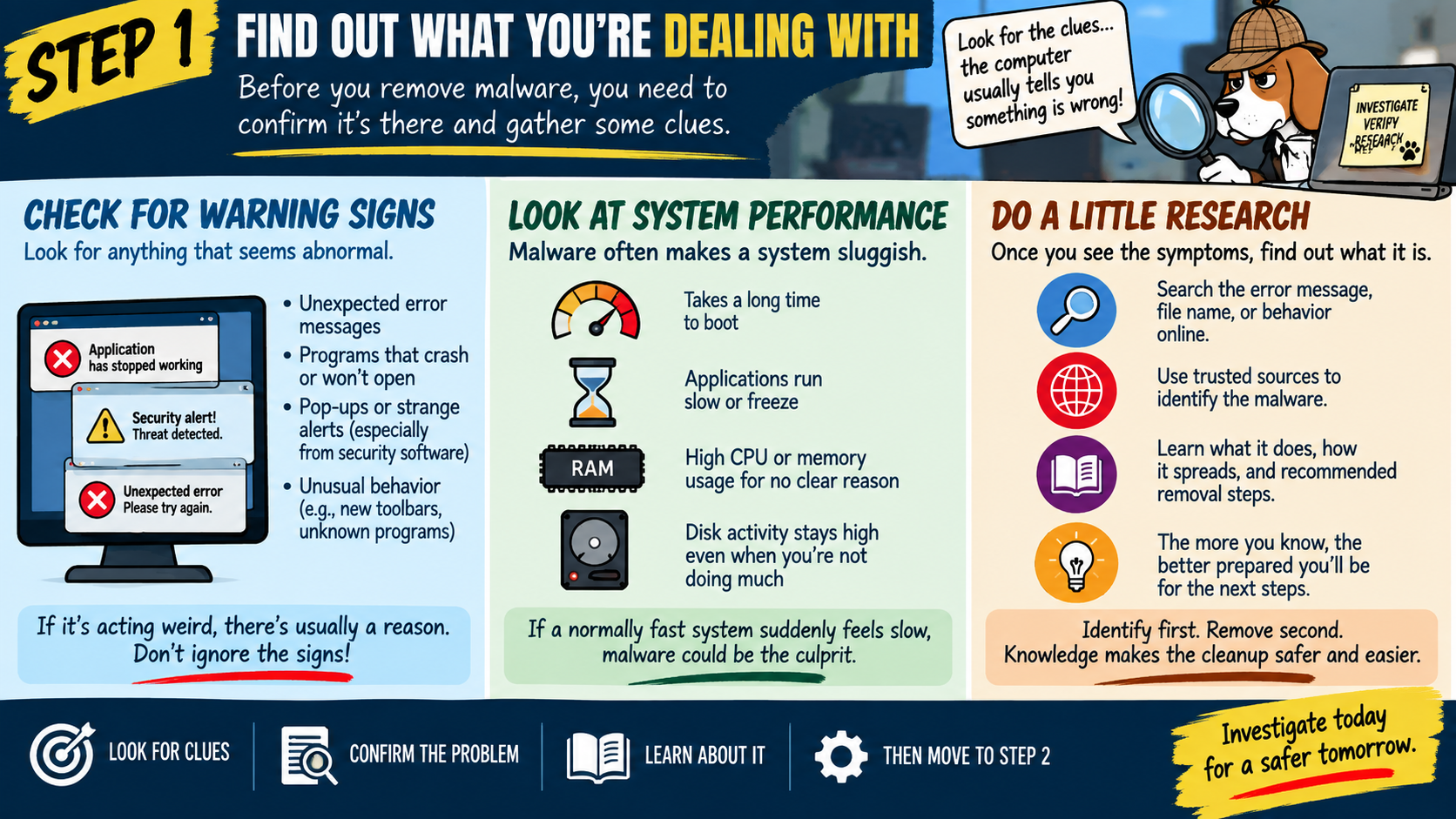
Malware cleanup is risky because the visible symptom is often only part of the problem. A fake antivirus alert, browser hijack, or strange process might be the symptom that gets noticed, while the real damage may include credential theft, remote access, system changes, or hidden persistence. If a technician removes only the obvious component, the attacker may still have a way back in.
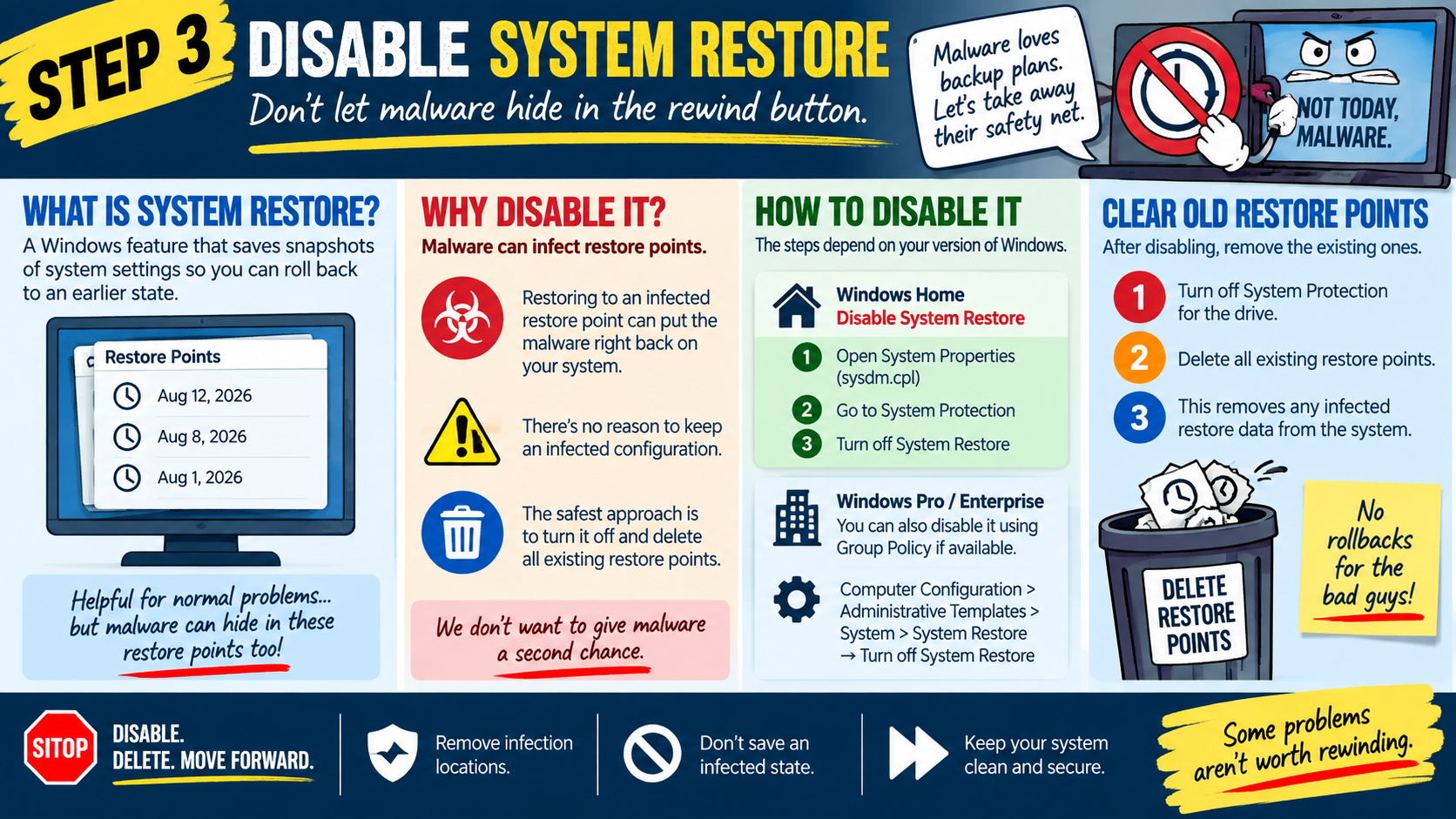
This is why the lesson compares malware removal to pulling weeds. If roots remain, the problem can return. In computer terms, those roots may be startup entries, scheduled tasks, malicious services, altered browser settings, modified registry keys, infected restore points, hidden user accounts, or files placed in unusual locations. What looks fixed today can become tomorrow's reinfection.
The technician should also consider the sensitivity of the device. A home computer used only for casual browsing is not the same as a computer used for banking, business records, customer data, health information, or administrative access. The more sensitive the device or data, the less comfortable you should be with an uncertain cleanup.
The Best Approach: Wipe and Rebuild When Possible
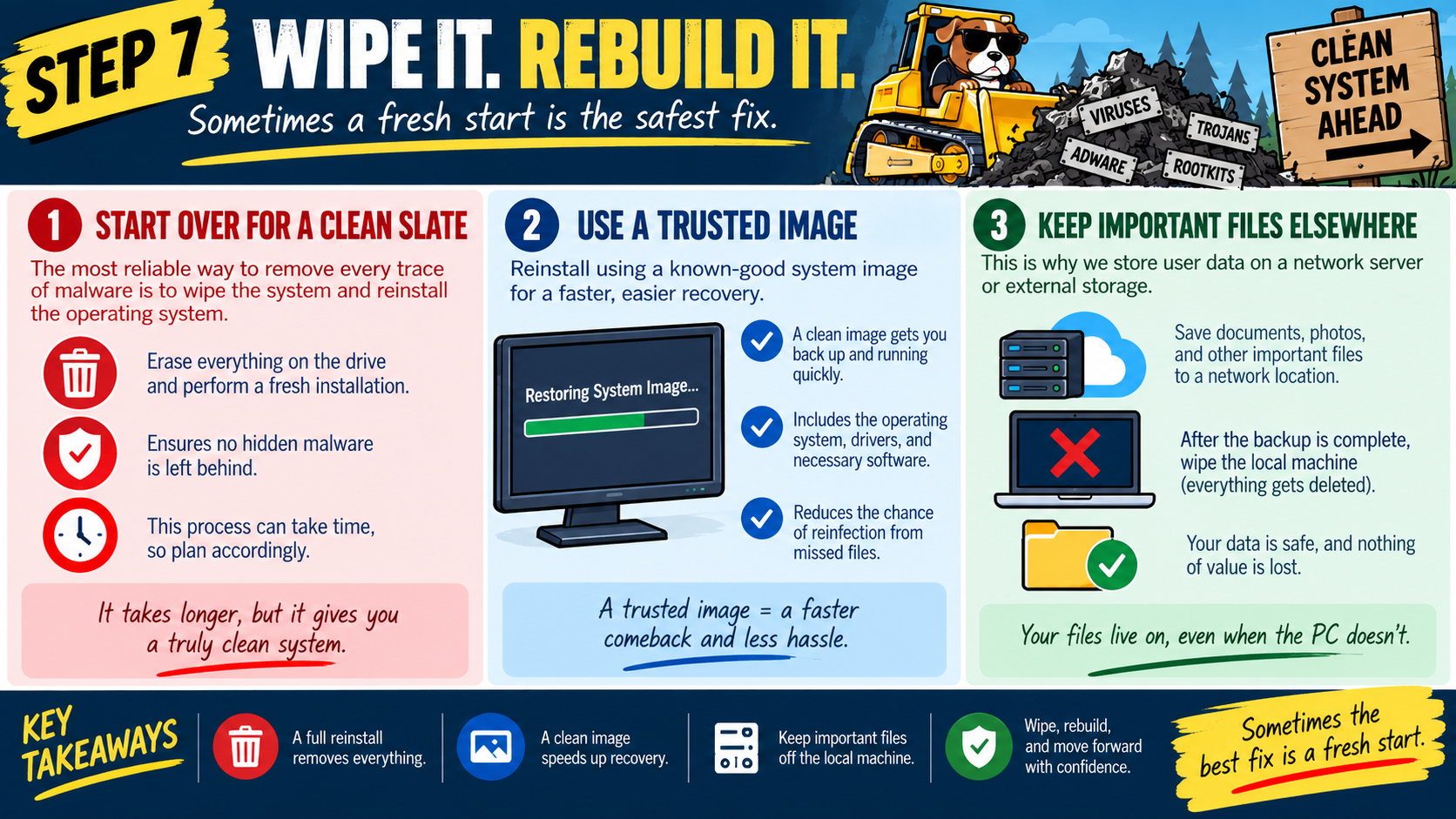
The infographic identifies the best approach as wiping the system and rebuilding it when possible. This means removing the infected operating system and starting from trusted installation media or a known-good recovery image. A clean rebuild gives the technician far more confidence because it removes the existing operating system, applications, partitions, malware, and hidden changes that may have been left behind.
The first step is to erase everything that cannot be trusted. This may include the existing operating system, installed applications, malicious files, and affected partitions. The purpose is not to punish the user or take the most dramatic option. The purpose is to remove uncertainty. If the old environment cannot be trusted, keeping pieces of it may keep pieces of the compromise.
The second step is to perform a clean installation using original, trusted installation media or a verified recovery image. Technicians should avoid reinstalling from questionable downloads, unverified USB drives, or backups that may have been created after the infection occurred. The reinstall source matters because recovery is only as trustworthy as the media used to perform it.
The third step is to restore user data from a known-good backup. This is where backups become essential. A clean installation removes the threat, but users still need their documents, photos, business records, and settings when possible. Restoring data should be done carefully, using backups that are clean, recent, and not likely to contain the same malware.
When Remediation Makes Sense
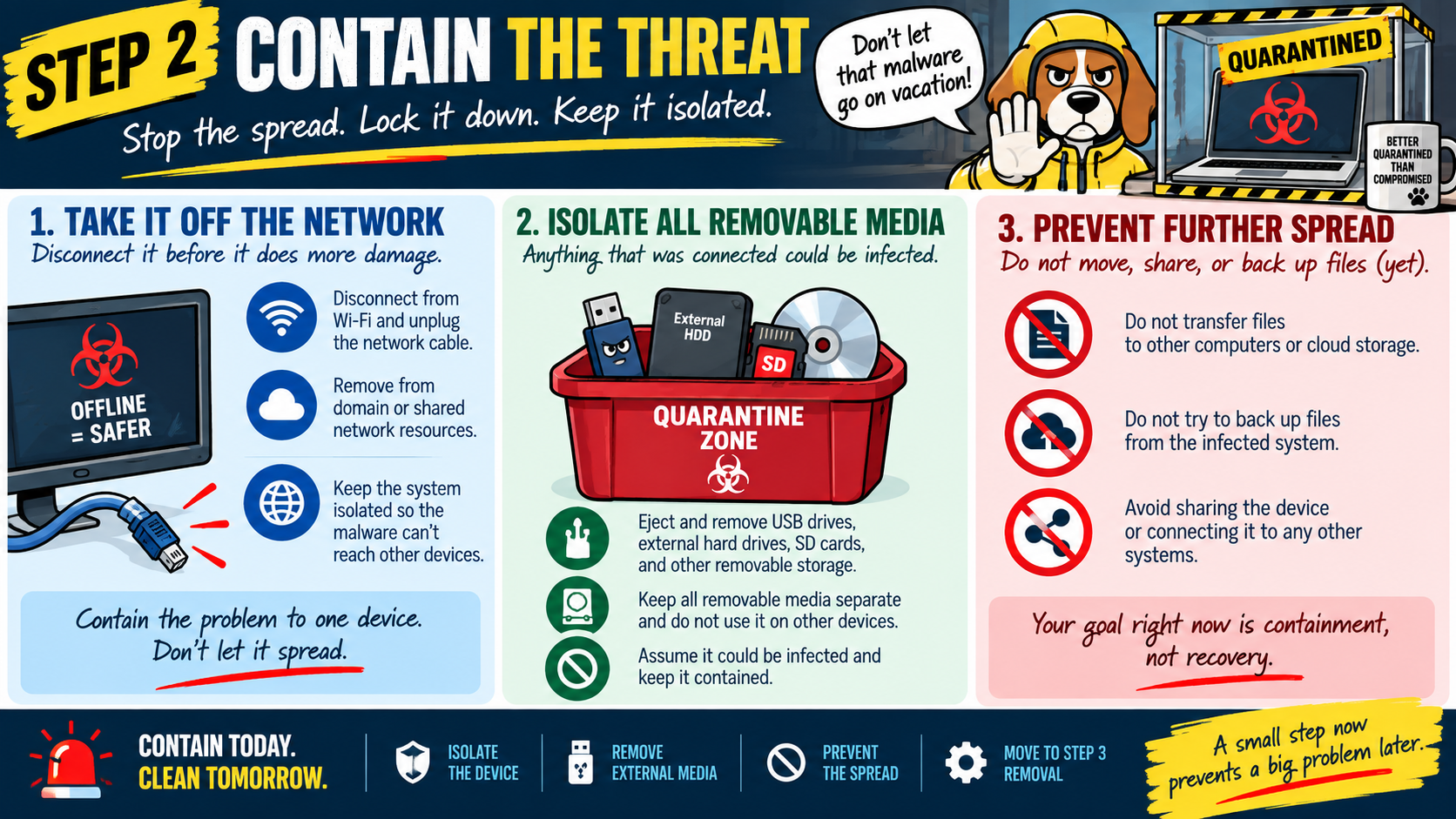
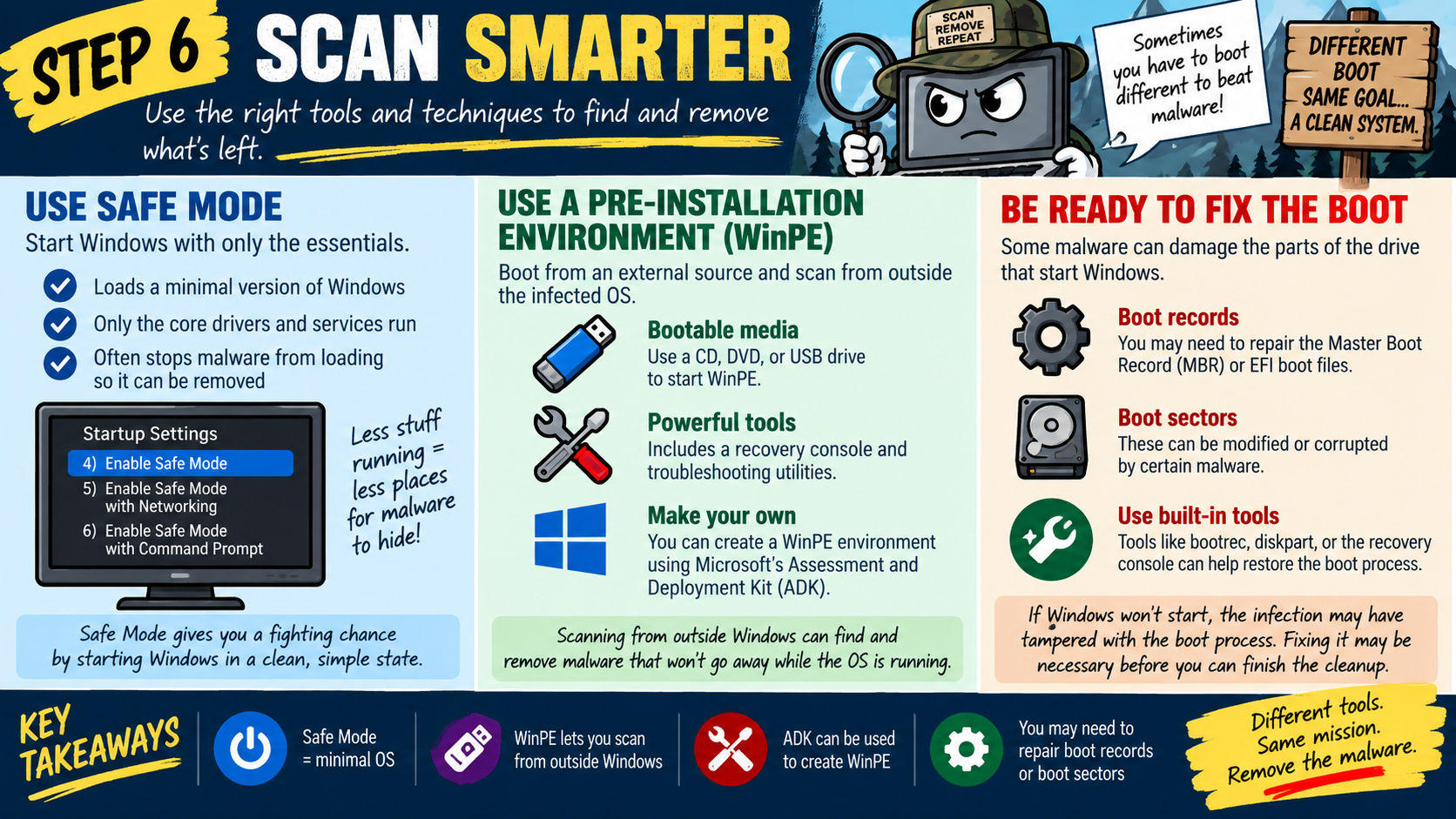
Even though a clean rebuild is often the safest option, there are times when remediation is necessary. A technician may need to stabilize the system long enough to recover important files, export user data, collect evidence, or perform a proper backup before reformatting. In those cases, the goal is not to pretend the system is fully trusted. The goal is to get enough control to preserve what matters.
For example, a user may have critical documents, photos, tax records, or business files that were not backed up. If the system still boots, the technician may need to recover those files before wiping the drive. This should be done carefully, because copied data can also carry malicious files. Recovered files should be scanned, handled cautiously, and restored only after the clean system is protected.
Remediation may also be appropriate when the infection is low risk, well understood, and fully removable with trusted tools. Examples might include a known adware program, a browser extension, or a potentially unwanted program that has not shown signs of deeper compromise. Even then, the technician should verify removal, update the system, run scans, check startup items, review browser settings, and educate the user on how the infection likely happened.
In short, remediate when you must, but rebuild when you can. That phrase captures the practical balance. Sometimes business needs, user data, or time pressure require temporary cleanup. But if trust is lost, rebuilding is the cleaner, safer, and more defensible answer.
The Role of Backups
Backups make safe recovery possible. Without backups, users may feel forced to keep an infected system running because their only copy of important data is on that device. With clean backups, the technician can wipe the system with confidence, reinstall the operating system, and restore the files that matter.
A good backup should be recent, accessible, and trustworthy. It should not be assumed clean simply because it exists. If the backup was created after the system was infected, it may include malicious files or unwanted changes. If ransomware, spyware, or persistent malware is involved, the technician should be especially careful about what data is restored and when the backup was created.
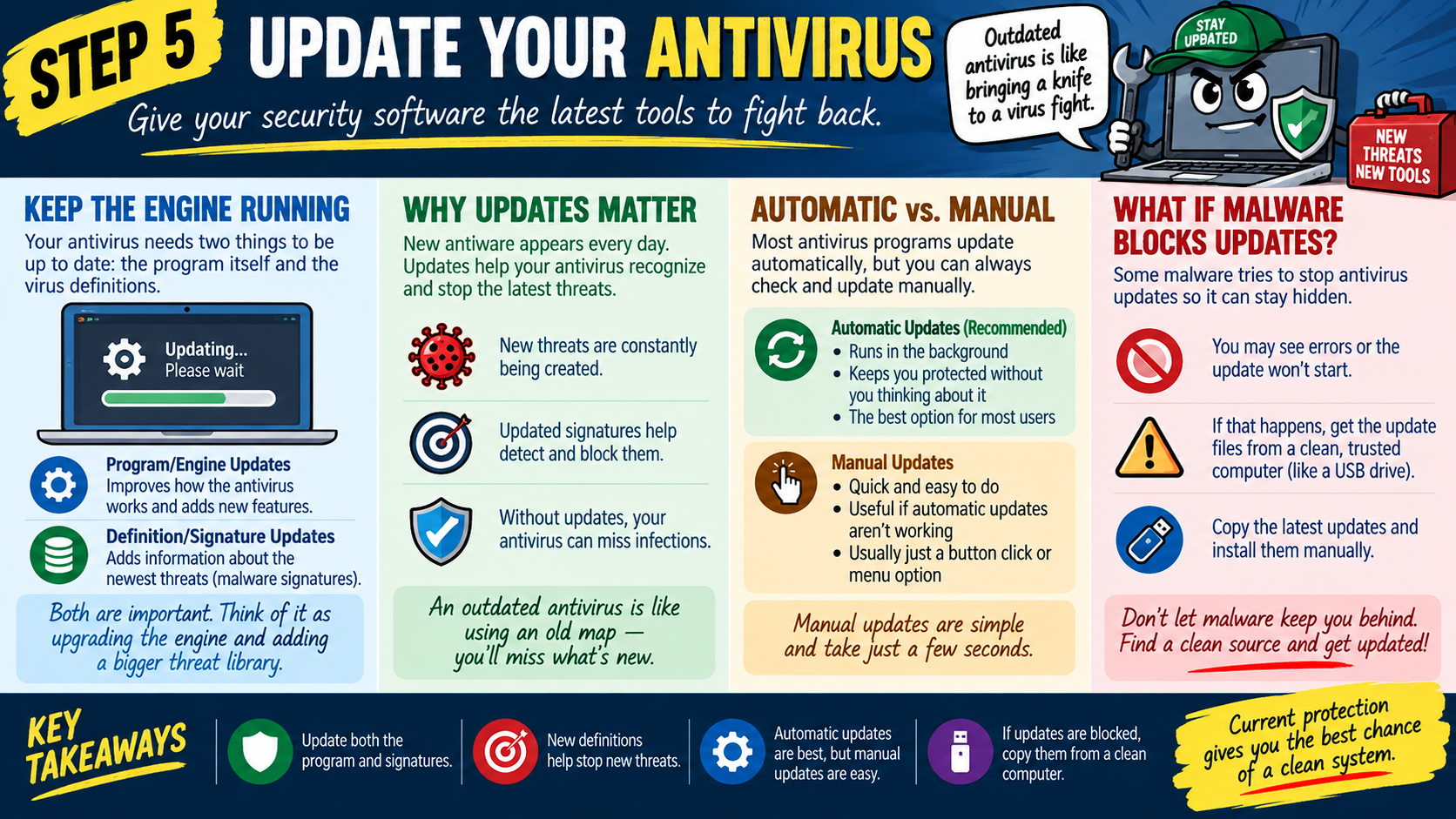
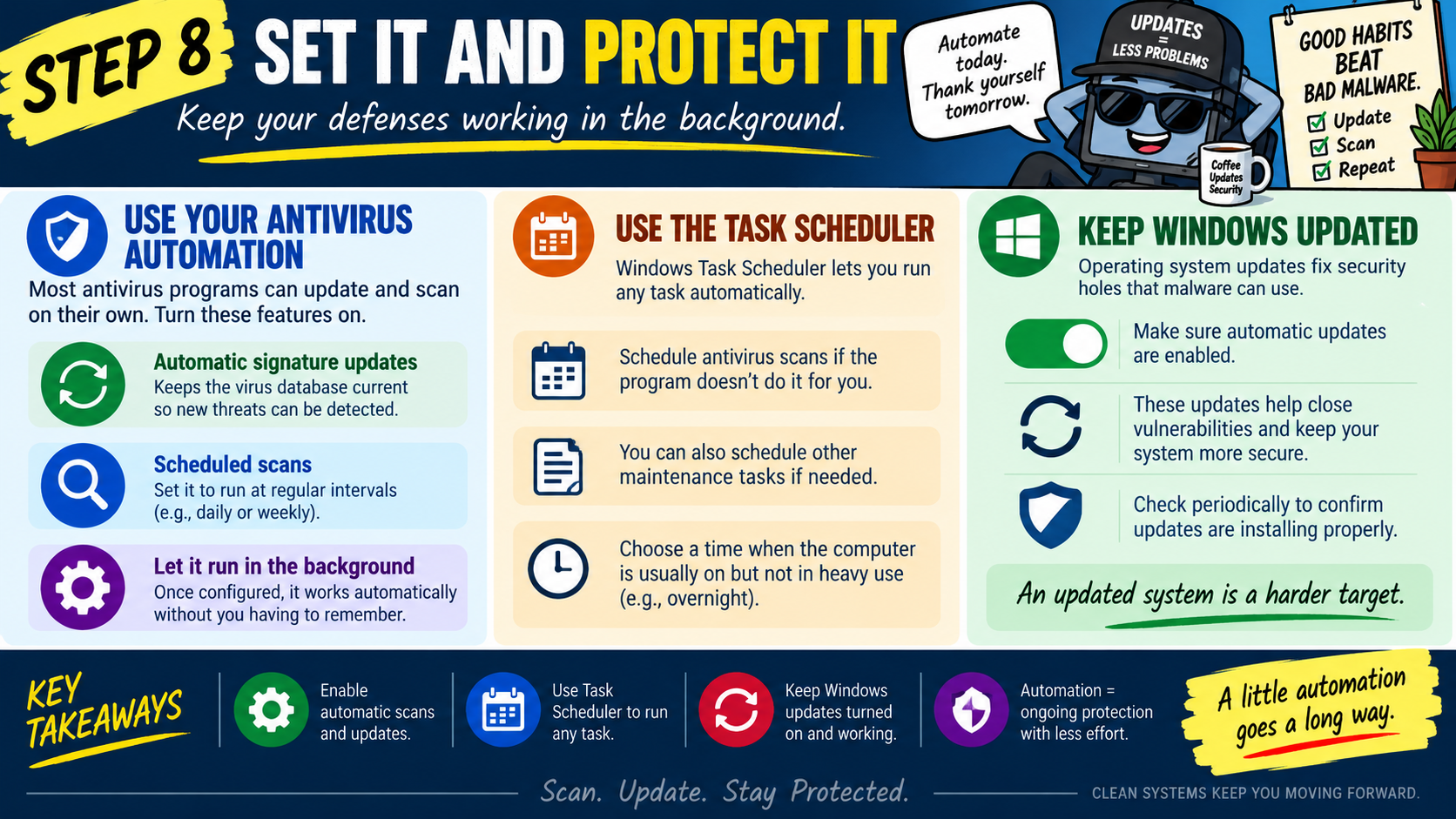
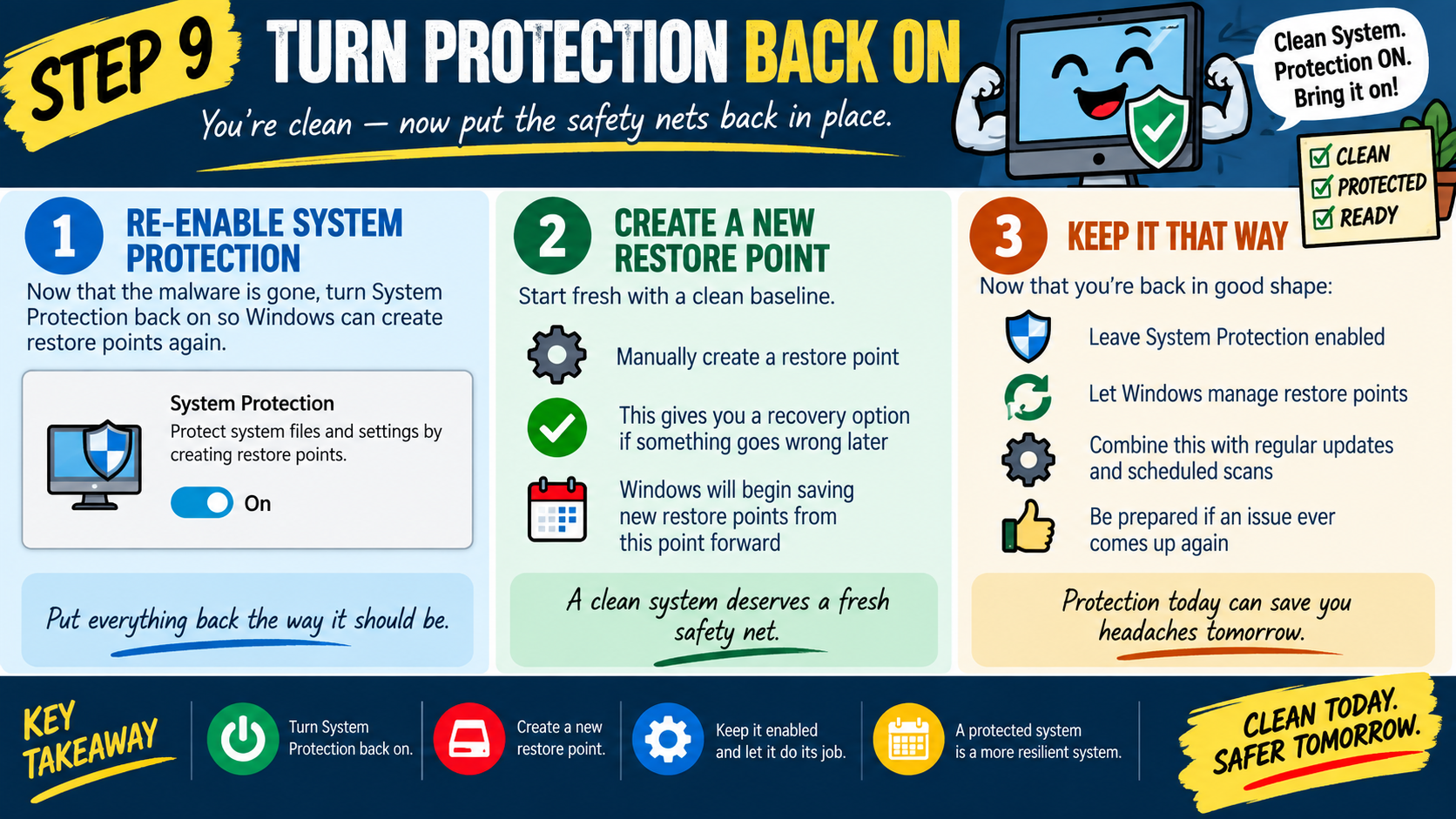
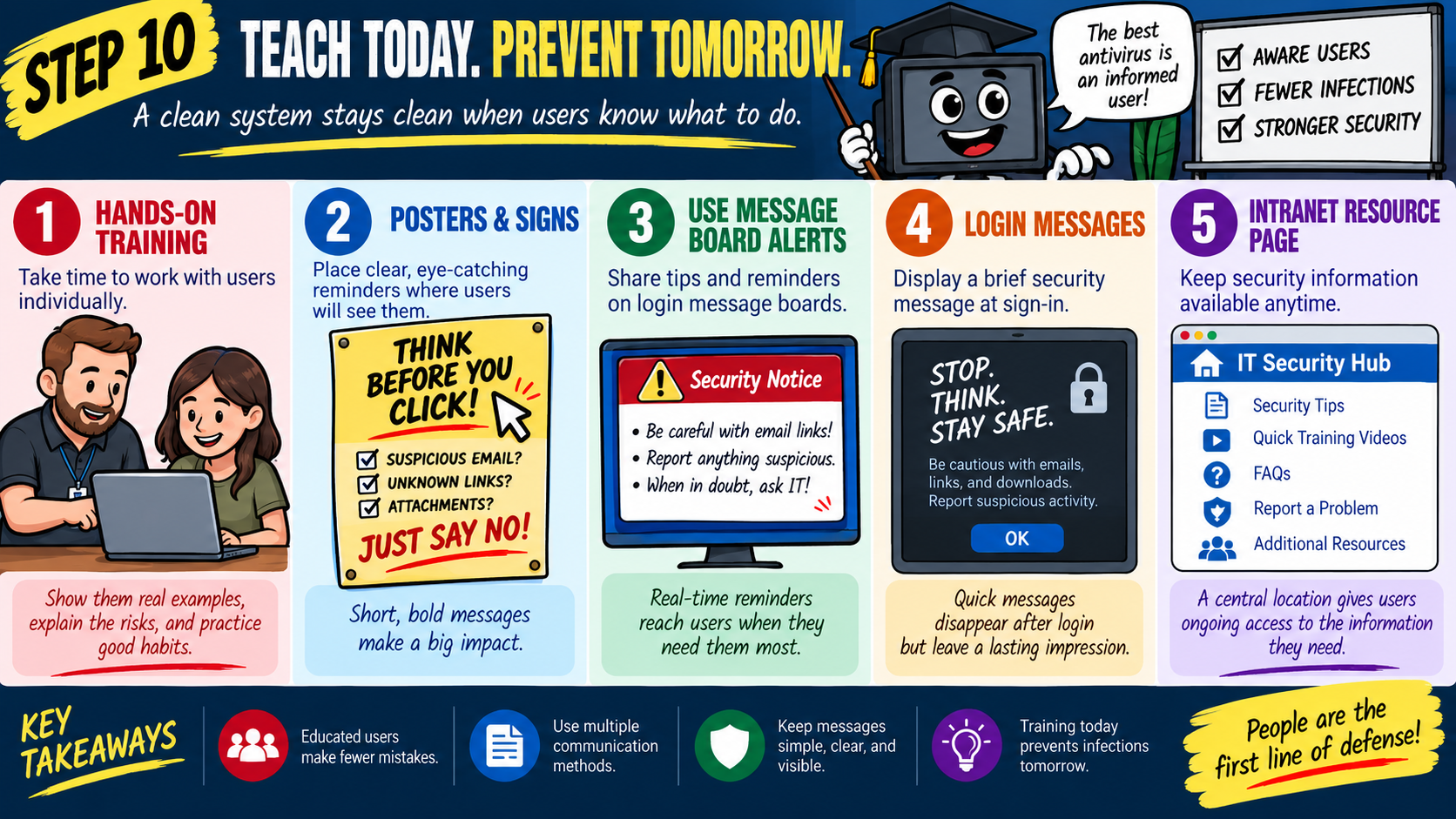
After the system is rebuilt, the technician should apply operating system updates, install trusted security software, update malware definitions, restore only necessary data, and verify that the system behaves normally. This includes checking performance, browser settings, startup items, network behavior, and user accounts. Recovery is not complete until the system is both functional and protected.
Technician Mindset
Malware removal requires disciplined decision-making. The technician should ask: Can I trust this system? Do I understand how the malware got in? Could persistence remain? Are credentials exposed? Is there a clean backup? Is the device used for sensitive work? What does policy require? The answers determine whether remediation is acceptable or whether a rebuild is the safer path.
For exam scenarios, look for wording that signals uncertainty. If the question says the infection keeps coming back, system files may be modified, malware may be hidden, or the system cannot be trusted, think rebuild, reimage, or clean install. If the question says important files must be saved before formatting, think temporary remediation or stabilization so data can be recovered safely.