Home
Certification Prep // 220-1202

2.0 Security

2.4 ~ Summarize types of malware and tools/methods for detection, removal, and prevention.

core2-lab.exe
> load objective 2.4
> map scenario clues
> verify and document

Learning Goals

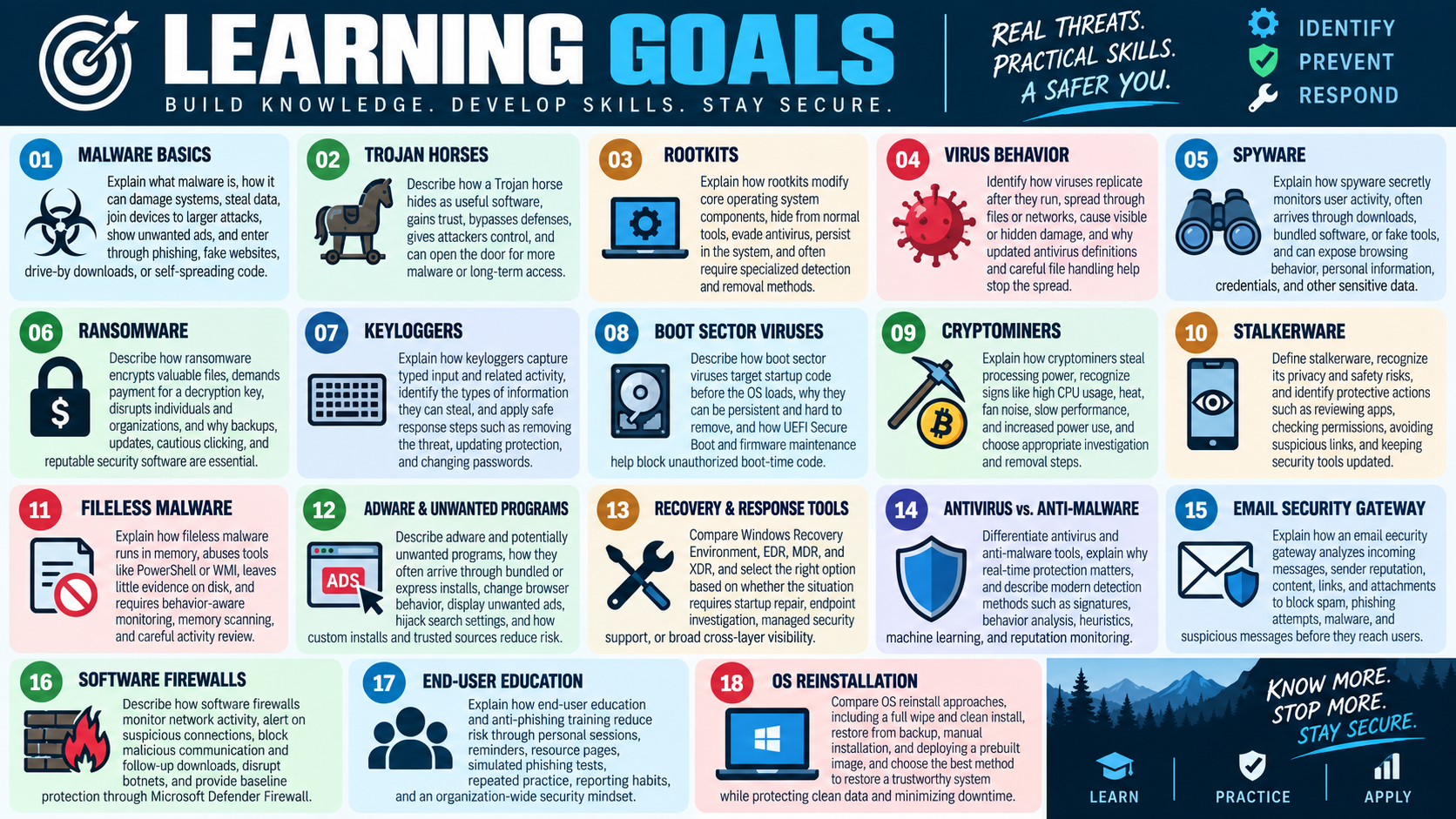
Learning goals for Objective 2.4 covering malware basics, Trojans, rootkits, viruses, spyware, ransomware, keyloggers, boot sector viruses, cryptominers, stalkerware, fileless malware, adware, recovery and response tools, antivirus and anti-malware, email security gateways, software firewalls, end-user education, and OS reinstallation.
  • Module 01: Explain what malware is, how it can damage systems, steal information, join devices to larger attacks, display unwanted advertisements, and enter through suspicious emails, deceptive websites, drive-by downloads, or self-spreading code.
  • Module 02: Describe how a Trojan horse disguises itself as useful or legitimate software, gains entry through user trust, bypasses defenses, gives attackers control, and can open the door for additional malware or long-term unauthorized access.
  • Module 03: Explain how rootkits modify core operating system components, hide from normal tools, evade traditional antivirus detection, persist deeply in the system, and often require specialized detection and removal methods.
  • Module 04: Identify how computer viruses replicate after they are run, spread through files or networks, cause visible or hidden damage, and why updated antivirus definitions and careful file-handling habits help stop the spread.
  • Module 05: Explain how spyware secretly monitors user activity, how it commonly arrives through downloads, bundled software, or fake security tools, and how it can expose browsing behavior, personal information, credentials, and other sensitive data.
  • Module 06: Describe how ransomware encrypts valuable files, demands payment for a decryption key, disrupts individuals and organizations, and why backups, updates, cautious clicking, and reputable security software are essential defenses.
  • Module 07: Explain how keyloggers capture typed input and related activity, identify the types of information they can steal, and apply safe response steps such as removing the threat, updating protection, and changing passwords from a trusted device.
  • Module 08: Describe how boot sector viruses target startup code before the operating system fully loads, why they can be persistent and difficult to remove, and how UEFI Secure Boot and firmware maintenance help block unauthorized boot-time code.
  • Module 09: Explain how cryptominers steal processing power to mine cryptocurrency, recognize warning signs such as high CPU usage, heat, fan noise, slow performance, and increased power consumption, and choose appropriate investigation and removal steps.
  • Module 10: Define stalkerware as monitoring software that can be installed intentionally to track another person, recognize its privacy and safety risks, and identify protective actions such as reviewing apps, checking permissions, avoiding suspicious links, and keeping security tools updated.
  • Module 11: Explain how fileless malware runs in memory instead of installing a traditional file, abuses legitimate tools such as PowerShell or WMI, leaves little evidence on disk, and requires behavior-aware monitoring, memory scanning, and careful activity review.
  • Module 12: Describe adware and potentially unwanted programs, how they commonly arrive through bundled or express installations, how they change browser behavior, display unwanted ads, hijack search settings, and how custom installs and trusted sources reduce risk.
  • Module 13: Compare recovery, detection, and response tools, including Windows Recovery Environment, EDR, MDR, and XDR, and select the right option based on whether the situation requires startup repair, endpoint investigation, managed security support, or broad cross-layer visibility.
  • Module 14: Differentiate antivirus and anti-malware tools, explain why real-time protection matters, and describe modern detection methods such as signatures, behavior analysis, heuristics, machine learning, and reputation monitoring.
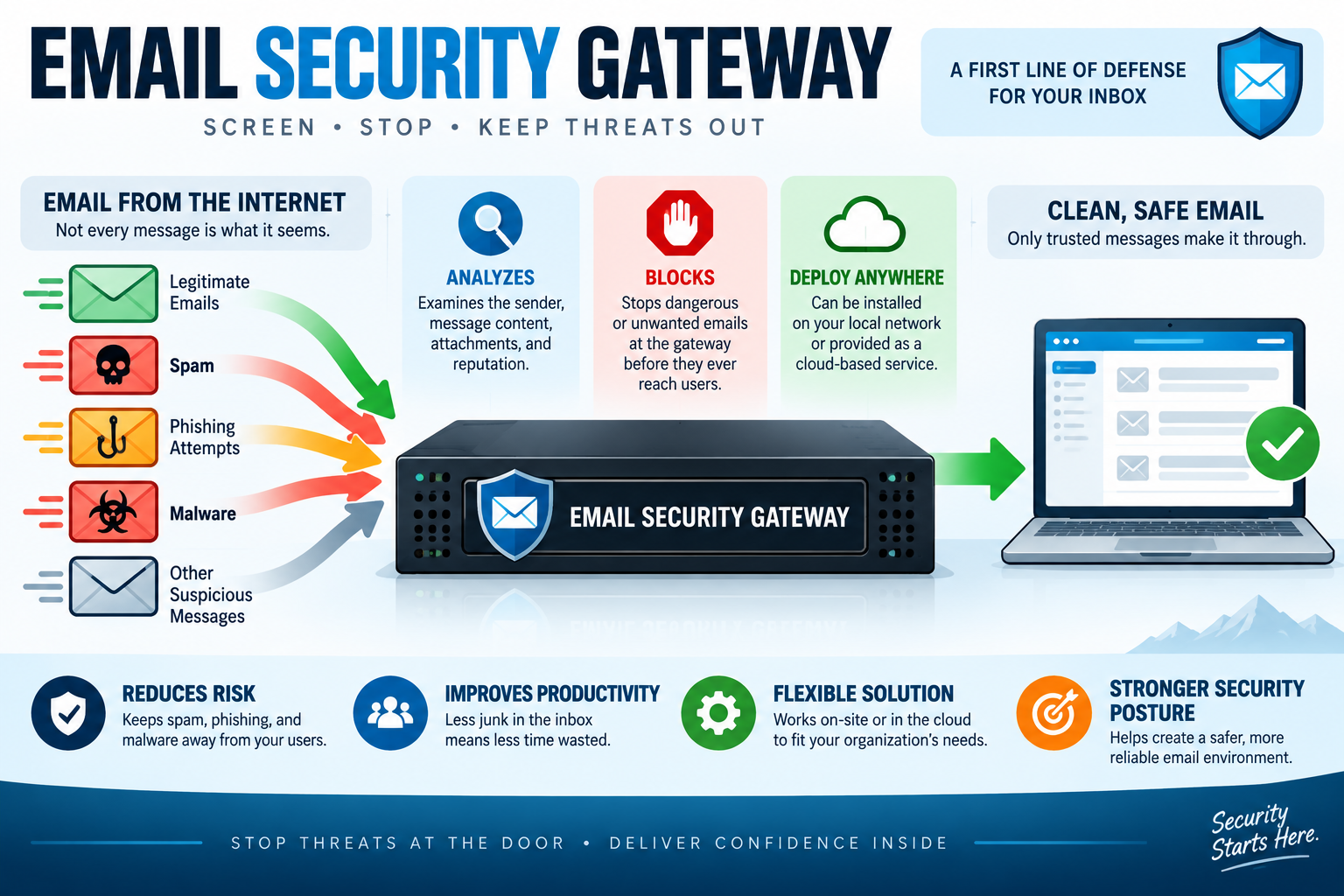
  • Module 15: Explain how an email security gateway analyzes incoming messages, sender reputation, content, links, and attachments to block spam, phishing attempts, malware, and suspicious messages before they reach users.
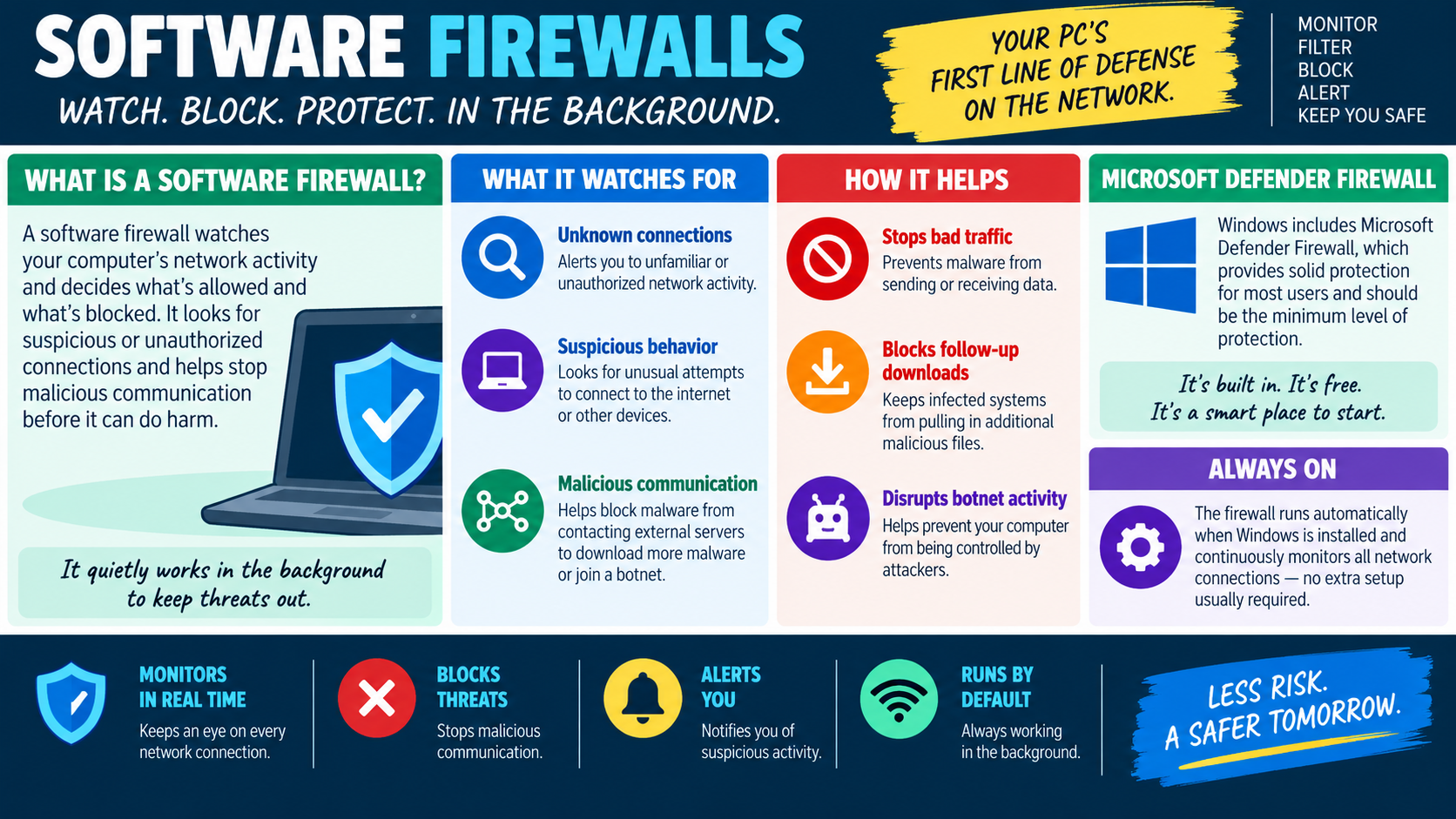
  • Module 16: Describe how software firewalls monitor network activity, alert on unknown or suspicious connections, block malicious communication and follow-up downloads, disrupt botnet activity, and provide baseline protection through Microsoft Defender Firewall.
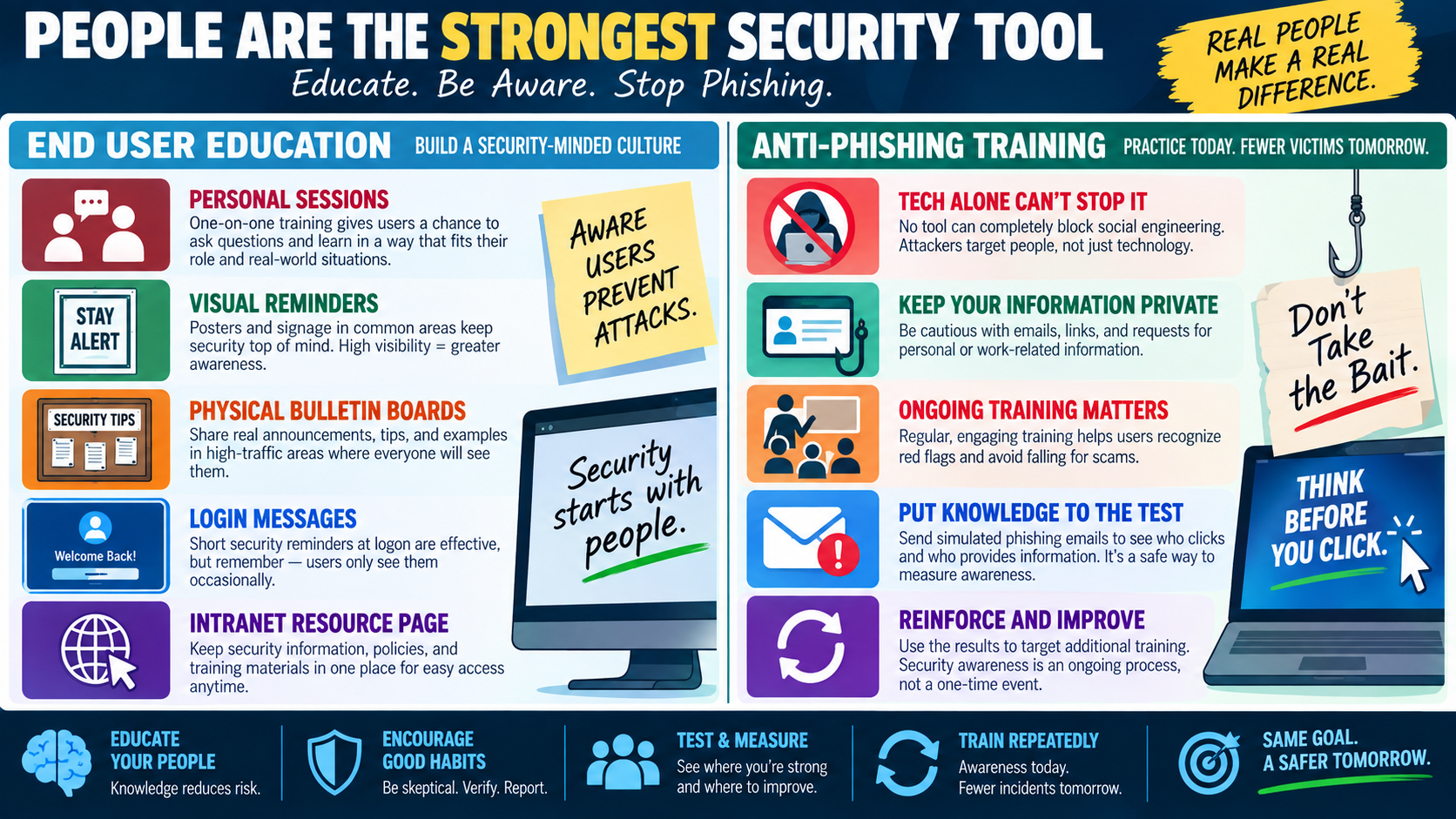
  • Module 17: Explain how end-user education and anti-phishing training reduce risk through personal sessions, reminders, resource pages, simulated phishing tests, repeated practice, reporting habits, and an organization-wide security-minded culture.
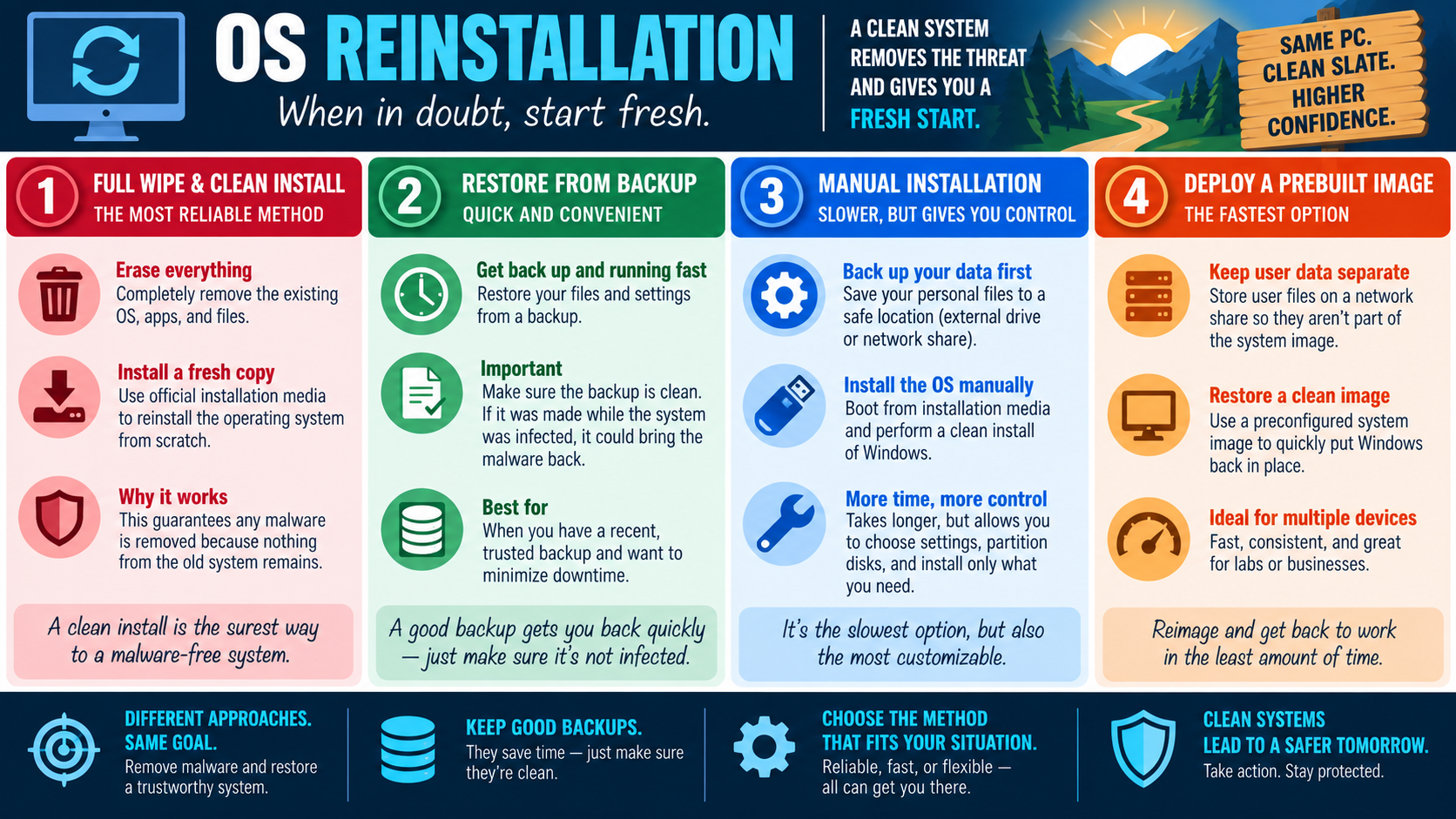
  • Module 18: Compare OS reinstallation approaches, including a full wipe and clean install, restore from backup, manual installation, and deploying a prebuilt image, and choose the method that best restores a trustworthy system while protecting clean data and minimizing downtime.
Lesson ModuleModule 1 / 7
A+
Module 01

Module 1 - Malware

Malware is unwanted software designed to harm a system, spy on activity, steal information, interrupt normal work, or give an attacker control over a device.

Malware can look small at first: one suspicious email, one fake download button, one unexpected pop-up, or one compromised website. The impact can be much larger. A successful infection may damage Windows, slow the computer, steal personal or business data, encrypt files, display unwanted advertisements, capture keystrokes, or connect the device to a larger attack controlled over the internet.

What Malware Can Do

Malware is not one single behavior. Some malware is built for disruption, some for theft, some for persistence, and some for profit. A Trojan may pretend to be useful software while hiding malicious actions. Spyware and keyloggers collect sensitive information. Ransomware encrypts files and demands payment. Adware floods the user with unwanted advertisements. Worms and other self-spreading code move from one system to another without the user intentionally installing them.

For a technician, the first job is to recognize that different symptoms can point to different risks. A slow device, strange browser behavior, unexpected pop-ups, missing files, disabled security tools, unusual network activity, and unexplained account lockouts should all be treated as clues. The goal is not just to make the annoyance go away; the goal is to determine whether the device, the user's data, or other systems may be at risk.

Common Ways Malware Gets In

Malware often depends on user action, weak configuration, or outdated software. Suspicious emails are one of the most common delivery paths. A malicious attachment or link may install malware, send the user to a fake login page, or start a download that looks legitimate. Deceptive websites can use fake warnings, fake updates, misleading ads, or imitation download buttons to trick users into running unwanted software.

Drive-by downloads are especially dangerous because the user may only visit a compromised page before code attempts to download or exploit the browser, extension, or operating system. Worms and self-spreading malware can move through networks by abusing vulnerable services, weak passwords, shared folders, or unpatched systems. This is why prevention includes both safe user habits and strong technical maintenance.

How Malware Attacks Work

Many attacks follow a pattern. First, the malware finds a weak spot, such as an unpatched operating system, outdated application, unsafe browser extension, weak configuration, or user who trusts a fake message. Next, malicious code is installed or executed. After that, the attacker may try to gain ongoing control by adding persistence, installing additional malware, creating a hidden backdoor, changing settings, or contacting a command-and-control service.

Once control is established, the device may be used for more than the original infection. It might send spam, participate in a botnet, attack other systems, steal saved credentials, scan the local network, or collect sensitive files. This is why containment matters. If malware is suspected, disconnecting from the network, preserving evidence, scanning with trusted tools, and escalating according to policy may be more appropriate than immediately clicking around and changing settings.

Real-World Impact

The real-world cost of malware is usually more than a broken computer. Encrypted files can stop a person or department from working. Stolen personal or business information can create privacy, financial, legal, and reputational damage. Unwanted advertisements and redirects can lead users into additional scams. A slow or unstable device reduces productivity and may hide deeper compromise.

In business environments, one infected workstation can become a doorway into shared files, cloud accounts, email systems, and network resources. A technician should think beyond the single device and ask: what data did this user access, what credentials may be exposed, what network connections were active, and could other systems be affected?

Keep Devices Hardened

An up-to-date system is harder for malware to exploit. Install operating system security updates as soon as they are approved and available. Keep browsers, productivity software, PDF tools, media players, collaboration apps, and other common targets current. Application updates matter because malware often attacks outdated software rather than the operating system itself.

Security software also needs to stay current. Antivirus, anti-malware, endpoint detection and response, email filtering, browser protection, and software firewalls can all reduce risk when configured correctly. These tools work best when paired with least privilege, careful downloads, regular backups, and users who know how to recognize suspicious prompts.

Simple Protection Habits

Good malware defense is built from daily habits. Think before clicking unexpected links or attachments. Watch for suspicious pop-ups, fake update notices, and urgent messages that pressure the user to act quickly. Download software only from trusted sources, preferably the vendor's official site or an approved company portal. Keep Windows and applications updated. Use reputable security software and avoid disabling it unless there is a specific troubleshooting reason and a safe plan to turn it back on.

Most importantly, stay alert. Malware changes over time, and attackers reuse the same basic ideas in new packaging. When something feels unusual, slow down, gather details, protect the data, and use the right detection and removal process before returning the system to normal use.

Exam rhythm: prevent with updates and safe habits, detect suspicious behavior, contain the risk, remove the malware, verify the system, and document what changed.
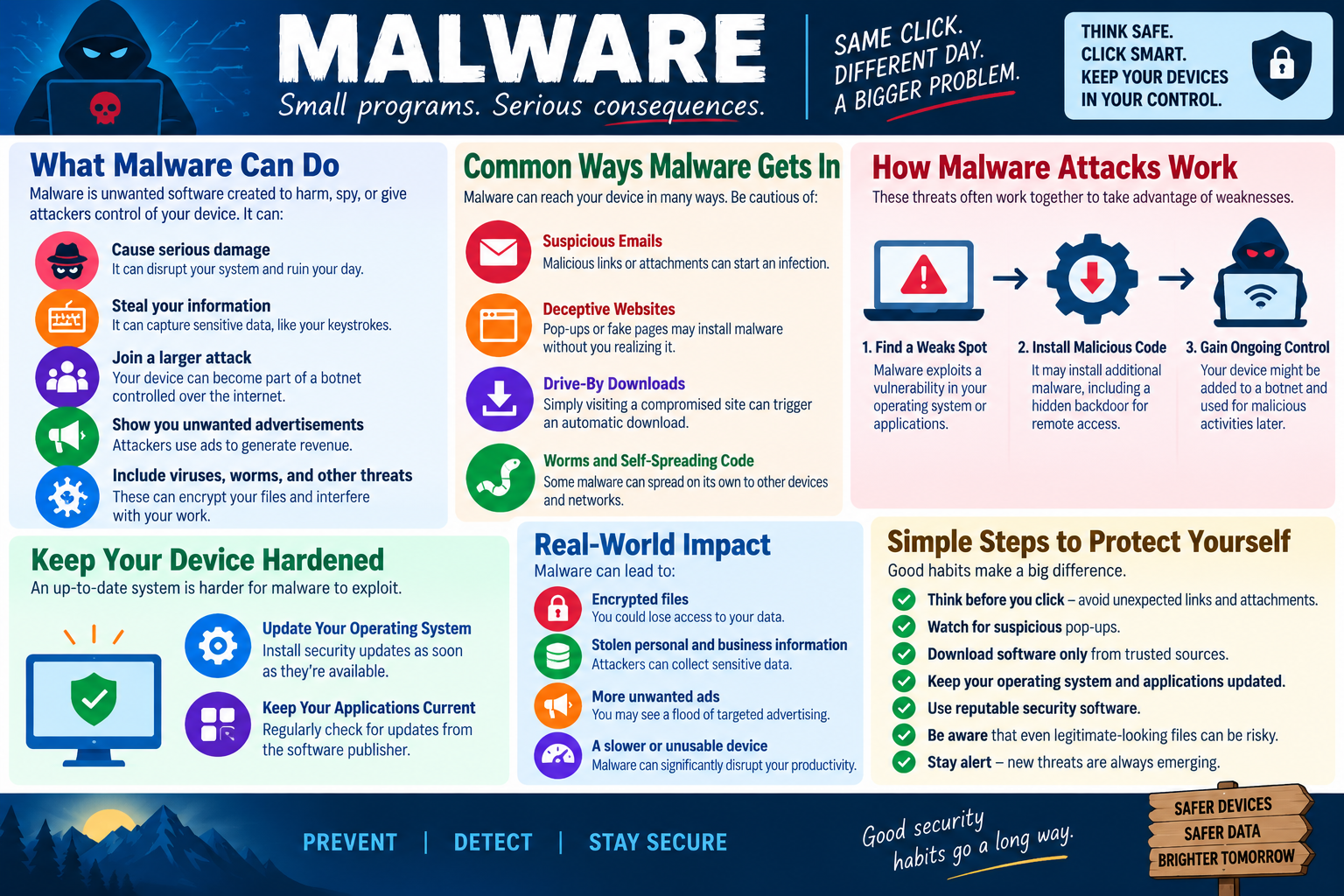
Malware infographic explaining what malware can do, common infection paths, attack flow, real-world impact, device hardening, and simple protection habits.
A+
Module 02

Module 2 - Trojan Horse

A Trojan horse is malicious software that disguises itself as something useful, trusted, or harmless so a user will allow it onto the system.

The name comes from the ancient story of the wooden horse used to sneak attackers into Troy. In computing, the same idea applies: the threat does not always break in loudly. It may arrive as a program, installer, attachment, game, utility, driver update, browser tool, or cracked application that looks legitimate enough for the user to trust it.

Disguised as Something Else

A Trojan depends on deception. Unlike a worm, its main goal is usually not to spread copies of itself automatically. Instead, it tries to convince someone to run it, approve it, download it, or install it. Once the user gives it that first opportunity, the Trojan can begin doing work that has nothing to do with what it appeared to promise.

Common disguises include fake security tools, fake software updates, pirated software, invoice attachments, shipping notices, free utilities, browser extensions, and installers from untrusted download sites. A user may think they are getting a helpful program, but the real payload may be credential theft, remote access, spyware, ransomware staging, or additional malware installation.

Slipping Past Defenses

Trojans are built to avoid suspicion. Some use names, icons, and installation screens that look normal. Others hide in the background after installation so the user does not notice anything obvious. More advanced Trojans may attempt to disable security tools, change firewall rules, alter startup settings, or interfere with antivirus scans.

This is why a technician should be cautious when a user reports that security software is disabled, updates fail, unfamiliar programs appear, browser behavior changes, or the device starts contacting unusual network destinations. A Trojan may not announce itself with a dramatic error. It may quietly create access for the attacker while the computer still appears usable.

Once Inside, It Calls the Shots

After a Trojan is installed, the attacker may gain broad control over the system. Depending on the Trojan, it may steal saved passwords, capture keystrokes, view files, install other malicious programs, monitor browsing, take screenshots, modify settings, or create a remote access channel. Some Trojans are used to prepare the device for a larger attack instead of causing immediate visible damage.

That ongoing control is the serious part. The first infection may only be the doorway. If the Trojan creates a backdoor, additional malware can enter later, and the device may become part of a much larger compromise. In a business environment, that can put shared folders, cloud accounts, email, VPN access, and other network resources at risk.

Opens the Door for More Threats

A Trojan often acts as a delivery mechanism. It may install ransomware after collecting information, download spyware after bypassing defenses, or allow an attacker to manually explore the system. This turns a single bad download into a chain of problems. The longer the Trojan remains active, the more opportunity it has to collect data, expand access, and hide evidence.

Because of that, removal should be careful and methodical. Disconnect the device from the network if policy requires containment. Preserve useful evidence such as suspicious file names, download sources, alerts, timestamps, and user reports. Run trusted security tools, review installed applications and startup items, check browser extensions, and escalate if credentials or business data may be exposed.

How to Reduce Trojan Risk

The best defense is skepticism before installation. Be careful what you download. Check the source of software before running it. Prefer vendor websites, company portals, trusted app stores, and approved deployment tools. Avoid pirated software, unknown utilities, unexpected attachments, and links that pressure the user to act quickly.

Keep security software updated, keep Windows and applications patched, and avoid running unknown programs with administrator rights. When in doubt, verify before you run it. A quick check with the software publisher, IT support process, digital signature, download reputation, or endpoint security tool can prevent a disguised threat from getting the access it wants.

Exam rhythm: Trojans look legitimate, hide their intent, rely on the user to allow entry, and often open the door for more malware or attacker control.
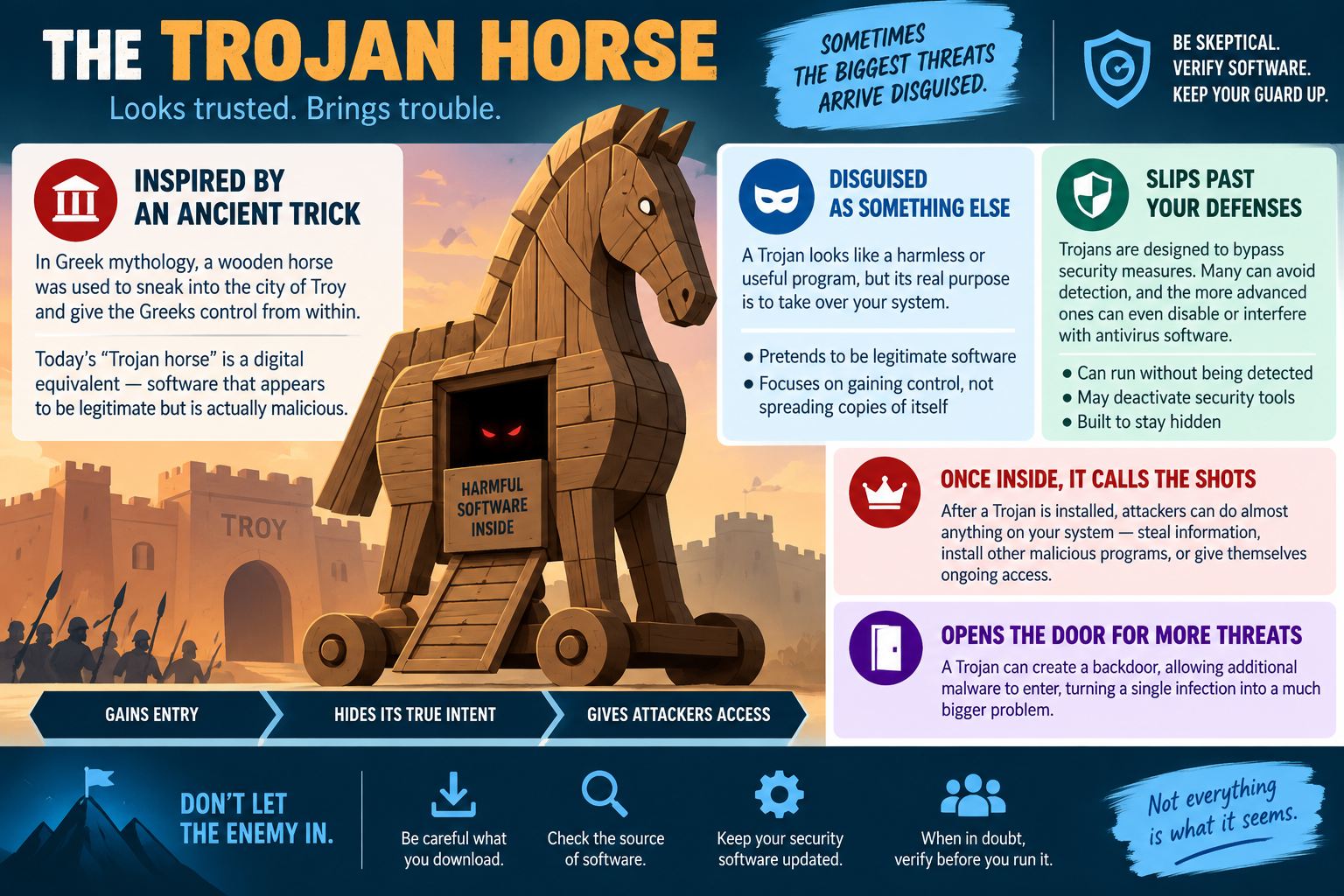
Trojan Horse infographic showing how malicious software disguises itself as trusted software, slips past defenses, gives attackers access, and opens the door to more threats.
A+
Module 03

Module 3 - Rootkits

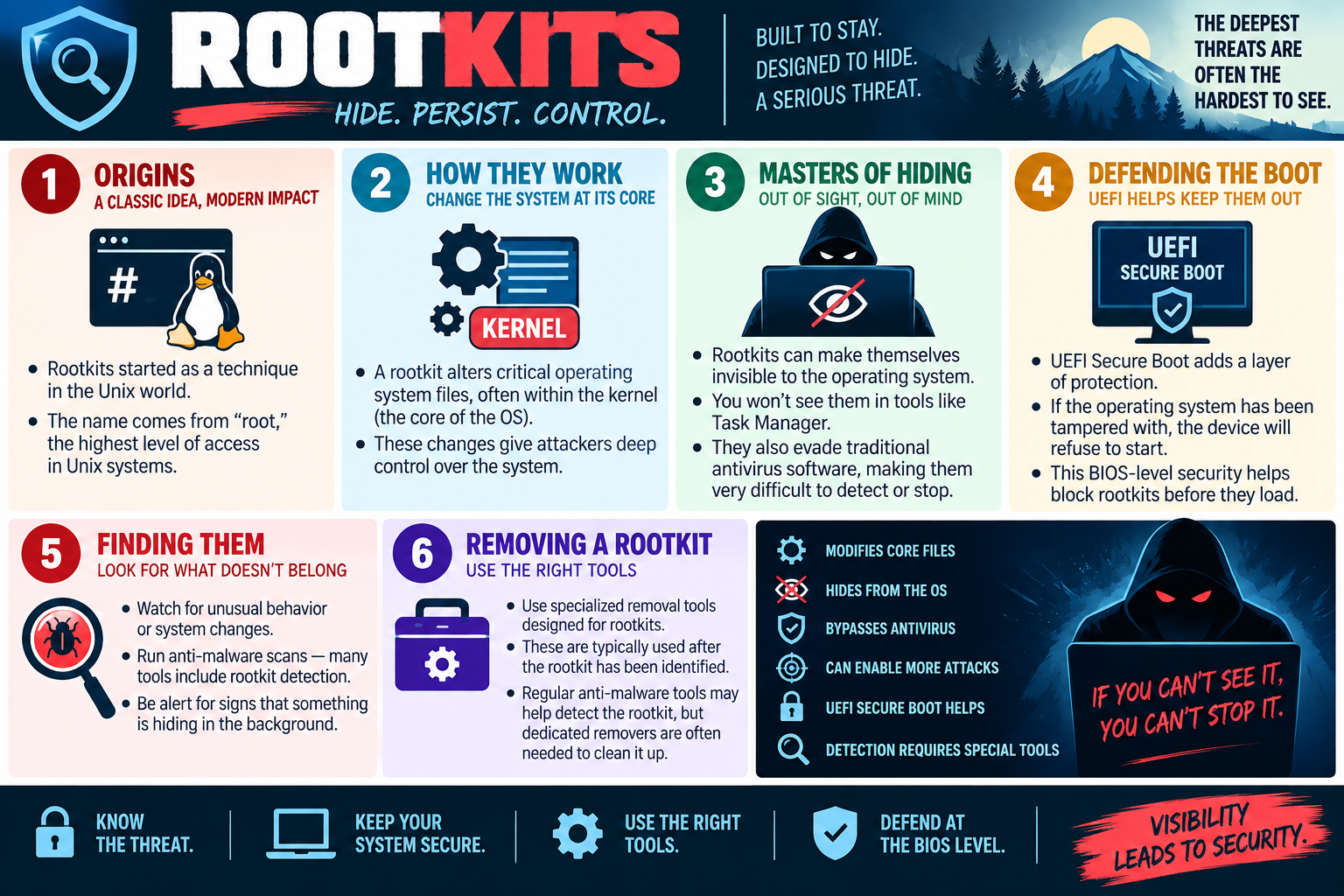
A rootkit is malware designed to hide deeply inside a system, maintain persistence, and give an attacker privileged control while avoiding normal detection.

Rootkits are dangerous because they focus on invisibility. Many types of malware try to steal, damage, or disrupt. A rootkit tries to stay hidden long enough to make those actions easier. It may change how the operating system reports files, processes, drivers, services, network connections, or security alerts, which means the system itself may no longer be a reliable witness.

Origins and Meaning

The term rootkit comes from the Unix and Linux world. Root refers to the highest level of administrative access on Unix-like systems, and kit refers to a collection of tools. Originally, a rootkit was a set of tools used after gaining root-level access so an attacker could keep control and hide evidence of the compromise.

Modern rootkits are not limited to Unix or Linux. The same idea applies across operating systems: change the system at a deep enough level that normal tools cannot easily see what is happening. On Windows, that may involve drivers, kernel-level behavior, boot components, system files, services, or security-related settings.

How Rootkits Work

A rootkit commonly alters critical operating system files or components. Some operate near the kernel, which is the core of the operating system responsible for managing hardware, memory, processes, and security boundaries. If malware can interfere with the kernel or low-level system behavior, it can gain powerful control over what the user and security tools are allowed to see.

This level of access can allow a rootkit to hide malicious files, conceal running processes, intercept system calls, mask network activity, or keep attacker access alive after reboot. Because the rootkit may load early and operate deeply, standard cleanup steps may not be enough. The system may appear normal while the rootkit quietly protects itself.

Masters of Hiding

Rootkits may not show up in familiar tools such as Task Manager, normal file browsing, or basic startup lists. They can be designed to evade traditional antivirus software by hiding the evidence those tools would normally inspect. If a security product asks the operating system for a list of files or processes, a rootkit may manipulate the response.

That is what makes rootkits so serious: if you cannot see the threat, you cannot confidently stop it with ordinary methods. A technician should watch for indirect signs, such as unusual system behavior, security tools that will not run, updates that fail, unexplained network traffic, boot problems, corrupted system files, or alerts from specialized scanning tools.

Defending the Boot Process

Some rootkits try to load before or during the operating system startup process. UEFI Secure Boot helps defend against that by checking whether boot components are trusted before allowing the operating system to start. If boot files have been tampered with, the device may refuse to boot or warn that the startup process cannot be trusted.

Secure Boot does not replace antivirus or good patching, but it adds protection at a lower level. BIOS- or firmware-level security matters because malware that starts before Windows can be especially difficult to detect after Windows is already running. Keeping firmware settings protected and Secure Boot enabled where supported helps block rootkits before they load.

Finding Rootkits

Because rootkits are built to hide, detection often requires more than a quick check. Start by looking for behavior that does not belong: unexplained slowness, disabled security tools, missing logs, hidden files, strange drivers, unexpected services, unusual network traffic, or inconsistent results between different tools.

Run trusted anti-malware scans, but understand that many general-purpose tools include rootkit detection while still needing help from specialized scanners. Offline scans, rescue environments, endpoint detection tools, integrity checks, and vendor-specific rootkit removers can provide a better view because they may inspect the disk or system from outside the compromised operating system.

Removing a Rootkit

Rootkit removal should be handled carefully. Regular anti-malware tools may detect signs of the rootkit, but dedicated removal tools are often needed to clean it fully. If the system is heavily compromised, the safest path may be to back up verified clean data, wipe the drive, reinstall the operating system, apply updates, restore only trusted files, and reset exposed credentials.

Before cleanup, follow policy. Preserve evidence when needed, disconnect the device if it could spread or communicate with attackers, and document alerts, file names, timestamps, user reports, and actions taken. After removal, verify the boot configuration, security tools, updates, logs, and network behavior. A rootkit is not considered resolved just because the first scan comes back clean.

Exam rhythm: rootkits hide deep, may modify core files, can bypass normal tools, often require specialized detection or removal, and Secure Boot helps defend before they load.
Rootkits infographic explaining how rootkits hide, persist, modify core operating system files, bypass antivirus, defend against boot-level compromise, and require specialized removal tools.
A+
Module 04

Module 4 - Computer Viruses

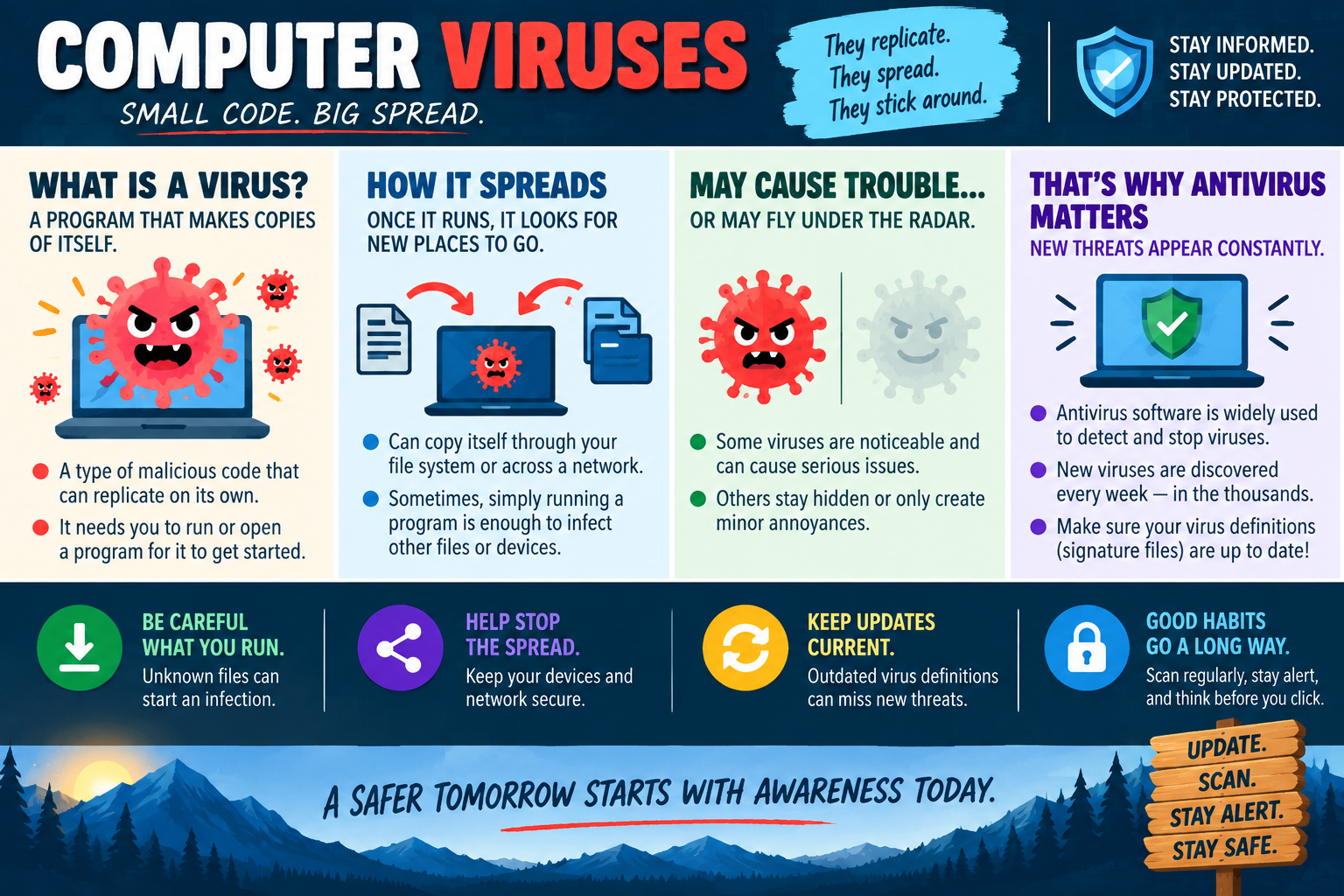
A computer virus is malicious code that attaches to files, programs, or parts of a system and replicates when the infected item is opened or run.

Viruses are one of the classic malware categories because they are built around copying themselves. The user may not immediately notice the infection, but once the virus runs, it looks for new places to go. That can include other files on the same device, removable media, shared folders, or reachable systems on a network.

What Makes a Virus Different

A virus normally needs a host and a trigger. The host may be an executable file, script, document macro, boot sector, or another item the operating system can run or open. The trigger is the user or system action that starts it. That action might be opening an infected attachment, running a downloaded program, enabling a macro, launching an infected installer, or booting from compromised media.

This is different from a worm, which is known for spreading independently across networks. A virus can replicate on its own after it starts, but it commonly depends on someone running or opening something first. That distinction matters on exams and in troubleshooting because the prevention strategy focuses heavily on safe file handling, scanning, updates, and stopping infected files from moving elsewhere.

How Viruses Spread

Once a virus is active, it searches for a way to copy itself. It may infect other files in the same folder, modify programs so they carry the virus, place infected copies in shared locations, or use removable drives to move between computers. In older environments, viruses often spread through floppy disks or removable media. In modern environments, email attachments, shared drives, cloud-synced folders, downloads, and scripts are common paths.

Network shares are especially important in business environments. If an infected device can write to a shared folder, the virus may place infected files where other users can access them. If those users run or open the infected content, the infection can continue spreading. This is why access control, least privilege, scanning, and quick containment matter when a virus is suspected.

Possible Damage

Some viruses are loud and obvious. They may corrupt files, crash applications, slow the system, change file names, display messages, disable tools, or make the computer unstable. Others are quieter and may only create minor annoyances while still spreading in the background. A virus does not have to destroy data to be dangerous. Replication alone can consume resources, spread risk, and create a larger cleanup problem.

A virus may also carry or download additional payloads. The replication behavior gets it from place to place, while the payload performs the harmful action. That payload might delete files, modify settings, open a backdoor, install spyware, or prepare the device for ransomware. When investigating, look for both the spread pattern and the actual impact.

Why Antivirus Matters

Antivirus software is widely used because it is designed to detect, block, quarantine, and remove known malicious code. It may use signatures, heuristics, behavior monitoring, cloud reputation, and real-time scanning. Signature files, often called virus definitions, help the tool recognize known threats. If those definitions are outdated, newer viruses may be missed.

New threats appear constantly, so antivirus protection is only useful when it stays current. Keep the security engine, definitions, and operating system updated. Schedule scans where appropriate, use real-time protection, and confirm that users are not disabling protection to speed up downloads or avoid prompts. If a scan finds a virus, follow the recommended action, then verify that the system is clean and that no shared locations or removable drives were also affected.

Prevention Habits

Good virus defense begins before the file runs. Be careful with unknown files, unexpected attachments, macro-enabled documents, pirated software, and downloads from unfamiliar sites. Scan files before opening them when the source is uncertain. Keep email filtering, browser protection, and endpoint protection enabled.

Updates reduce the number of weaknesses a virus can abuse. Patch Windows, browsers, productivity applications, compression tools, PDF readers, and any software that regularly handles files from outside sources. Keep backups protected and separate from everyday file access so a virus cannot easily damage the recovery path.

Responding to a Suspected Virus

If a virus is suspected, slow down and contain the risk. Disconnect from the network if policy calls for it, especially if shared folders or other systems could be affected. Identify the suspicious file, alert, or behavior. Run trusted scans, quarantine infected items, clean or restore affected files, and check removable media or shared folders that may have been exposed.

After cleanup, update antivirus definitions, rescan the device, review how the infection started, educate the user if needed, and document what was found. The goal is not only to remove the current infection, but also to stop the same path from creating the next one.

Exam rhythm: viruses replicate after infected files or programs run, can spread through files or networks, and require current antivirus definitions, safe habits, scanning, containment, and verification.
Computer Viruses infographic explaining what viruses are, how they replicate, how they spread, why antivirus matters, and habits that help prevent infection.
A+
Module 05

Module 5 - Spyware

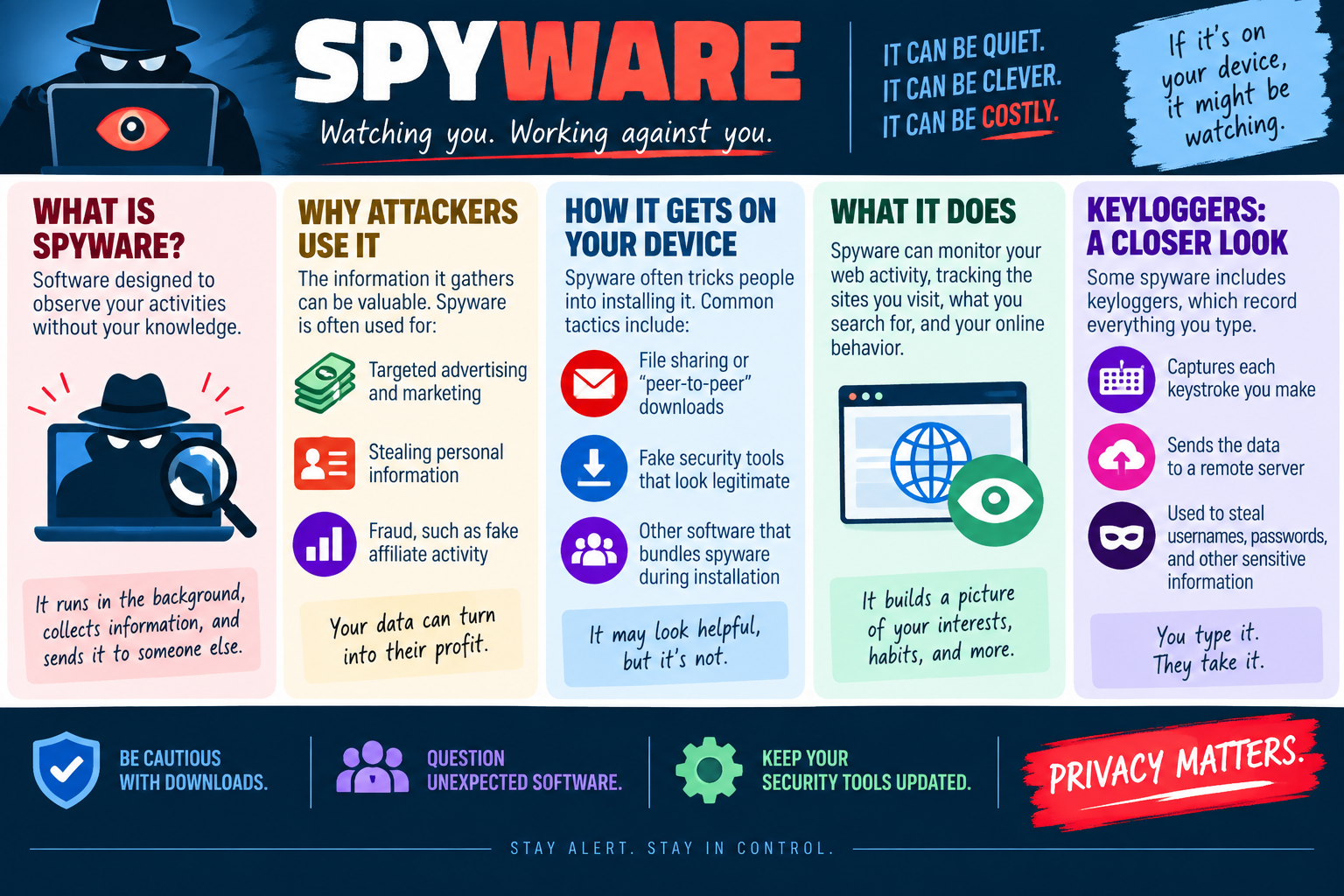
Spyware is software designed to observe a user, collect information, and send that information to someone else without the user clearly knowing or approving what is happening.

Spyware can be quiet, clever, and expensive for the victim. It may not immediately break the computer or display obvious warnings. Instead, it often runs in the background while the user continues working, browsing, signing in, shopping, emailing, or using business applications. The danger is that normal activity becomes a source of private data for an attacker or unauthorized third party.

What Spyware Is

Spyware is built around monitoring. It may track web activity, record search history, collect browser data, watch which sites a user visits, inspect application usage, or gather details about the device and account. Some spyware is bundled with other software and framed as marketing, analytics, or tracking behavior. Other spyware is clearly malicious and focused on theft.

From a technician perspective, spyware matters because the user may not notice it until privacy, account security, or system performance is already affected. Symptoms may include browser redirects, new toolbars, changed search settings, unusual pop-ups, slow performance, unknown programs, unexpected network traffic, or security alerts about potentially unwanted applications.

Why Attackers Use It

The information spyware gathers can be valuable. Attackers may use it for targeted advertising, marketing profiles, fraud, identity theft, credential theft, or fake affiliate activity. Even information that seems minor can become useful when combined with browsing habits, account names, location clues, device details, and saved form data.

In a business environment, spyware can expose much more than one user's preferences. It may reveal internal web portals, customer data, vendor systems, document names, project details, email behavior, or cloud application usage. If spyware captures authentication information, it can become the first step toward account takeover or broader network compromise.

How Spyware Gets on a Device

Spyware often tricks people into installing it. It may arrive through file sharing or peer-to-peer downloads, fake security tools, free utilities, browser extensions, misleading pop-ups, bundled installers, or software from untrusted sites. The user may believe they are installing something helpful, while the spyware is included as the hidden cost.

Bundling is a common tactic. A legitimate-looking installer may include additional software, preselected offers, browser changes, or vague consent language. Users who click through quickly may approve spyware without realizing it. That is why technicians should encourage users to slow down during installs, choose custom installation options when appropriate, and reject unnecessary bundled components.

What Spyware Does

Spyware can build a picture of the user's interests, habits, accounts, and online behavior. It may monitor websites visited, searches performed, ads clicked, documents opened, or software used. Some spyware focuses on browser behavior and advertising. More harmful spyware can collect personal information, session data, saved credentials, screenshots, clipboard contents, or form entries.

Because spyware may communicate with remote servers, unusual outbound connections can be a clue. Endpoint protection tools, browser security warnings, DNS logs, firewall logs, and proxy logs may help reveal activity that the user cannot see. When investigating, consider both the local device and the online accounts that may have been exposed.

Keyloggers: A Closer Look

A keylogger is a spyware technique that records what the user types. That can include usernames, passwords, email content, chat messages, search terms, credit card numbers, and other sensitive information. The captured data may then be sent to a remote server where an attacker can review it later.

Keyloggers are especially dangerous because they can defeat weak security habits. If a user types a password into an infected device, the attacker may receive it even if the password itself is complex. Multi-factor authentication, password managers, endpoint protection, and quick credential resets after cleanup can reduce the damage, but the device must be treated as untrusted until the spyware is removed.

Reducing Spyware Risk

Good spyware prevention starts with download discipline. Be cautious with free tools, browser add-ons, unknown installers, peer-to-peer files, fake security alerts, and software that arrives from pop-ups. Download software from approved sources, verify the publisher, and avoid granting permissions that do not match the application's purpose.

Keep browsers, extensions, operating systems, and security tools updated. Remove software the user does not recognize or no longer needs. Review browser extensions and startup items. In managed environments, application allow lists, least privilege, endpoint detection, DNS filtering, and software deployment tools can reduce the chance that unwanted software gets installed in the first place.

Responding to Spyware

If spyware is suspected, identify what was installed, when it appeared, and what information may have been exposed. Run reputable anti-malware tools, remove unwanted programs and browser extensions, reset changed browser settings, clear suspicious startup entries, and check for recurring processes. If credentials may have been captured, reset passwords from a known-clean device and review sign-in activity.

After removal, verify that the symptoms are gone, security tools are current, and no suspicious network activity remains. Document the source if known, because spyware cleanup is only half the job. The other half is closing the path that allowed it onto the device.

Exam rhythm: spyware watches quietly, gathers valuable information, may include keyloggers, often arrives through bundled or deceptive software, and requires cleanup plus credential protection.
Spyware infographic explaining what spyware is, why attackers use it, how it gets installed, what it monitors, how keyloggers work, and how to reduce spyware risk.
A+
Module 06

Module 6 - Ransomware

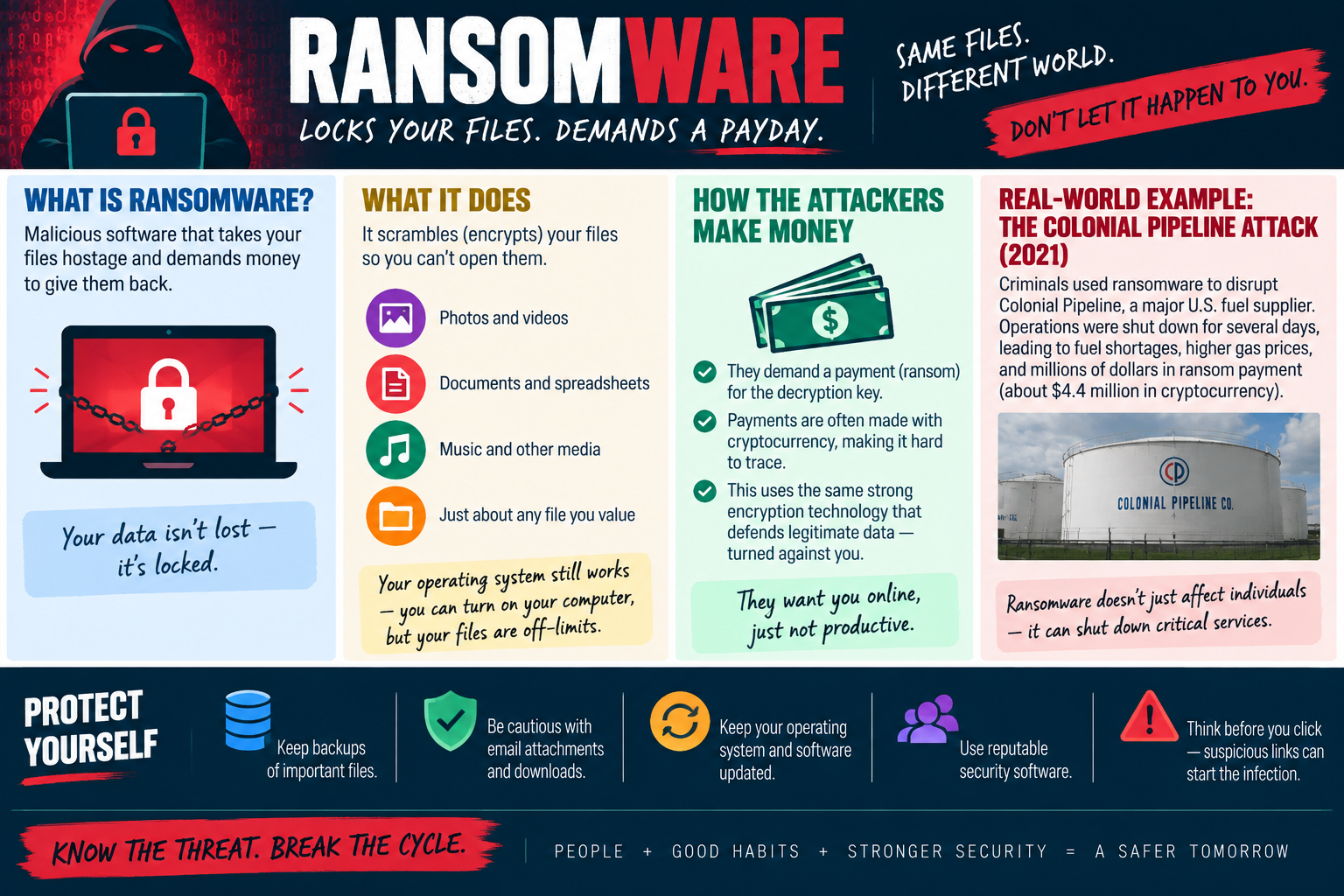
Ransomware is malicious software that takes files hostage by encrypting them, then demands payment for a key or tool that supposedly restores access.

Ransomware is one of the most disruptive malware threats because it can leave the computer powered on while making the user's most important files unusable. The operating system may still start, the desktop may still appear, and the user may still be able to click around, but documents, spreadsheets, photos, databases, shared files, and other valuable data may be locked behind encryption.

What Ransomware Does

Ransomware scrambles files so the user cannot open them normally. This often includes office documents, spreadsheets, PDFs, images, videos, music, project files, databases, and just about any file the user or organization values. The malware may rename files, add strange extensions, display a ransom note, change the desktop background, or provide payment instructions.

The important concept is that the data usually is not simply deleted. It is encrypted. Encryption is normally a protective technology, but ransomware turns it against the victim. Without the correct decryption key, the files may remain unreadable even though they are still physically present on the drive.

How Attackers Make Money

Attackers demand a ransom payment in exchange for the decryption key. Payments are often requested in cryptocurrency because it can be harder to trace than traditional payment methods. Some attackers also use pressure tactics, such as countdown timers, threats to raise the price, or warnings that files will be permanently lost.

Modern ransomware may include double extortion. In that model, attackers do not only encrypt files; they may also steal copies of sensitive data and threaten to publish it if the victim does not pay. This means ransomware is both a data availability problem and a data confidentiality problem.

How Ransomware Gets In

Ransomware often starts the same way other malware starts: phishing emails, malicious attachments, unsafe links, compromised websites, fake downloads, exposed remote access services, weak credentials, unpatched systems, or earlier malware that opens a backdoor. One careless click or one vulnerable system can become the entry point for a much larger incident.

Business environments are especially vulnerable when users have broad write access to shared folders. If ransomware runs under an account that can reach shared drives, cloud-synced folders, or network storage, it may encrypt files beyond the local device. Least privilege, segmentation, strong authentication, monitoring, and protected backups all help reduce the blast radius.

Real-World Impact

Ransomware does not only affect individuals. It can interrupt hospitals, schools, city governments, small businesses, manufacturers, and critical services. The 2021 Colonial Pipeline attack is a well-known example: ransomware disrupted operations at a major U.S. fuel supplier, leading to shutdowns, fuel shortages, price increases, and a multimillion-dollar ransom payment reported at about $4.4 million in cryptocurrency.

The lesson from incidents like that is simple: ransomware can stop operations. Even when systems are eventually restored, the organization may face downtime, recovery costs, lost trust, legal review, notification requirements, and a long investigation into how the attack began.

Protecting Yourself

The strongest protection is preparation before the attack. Keep backups of important files, and make sure at least one backup is protected from everyday user access so ransomware cannot encrypt it too. Test restores regularly. A backup that has never been tested is a hope, not a recovery plan.

Be cautious with email attachments and downloads. Keep operating systems and applications patched. Use reputable security software. Think before clicking suspicious links, especially messages that create urgency or ask for credentials. Use multi-factor authentication for remote access and cloud services, and avoid exposing remote desktop or management tools directly to the internet.

Responding to Ransomware

If ransomware is suspected, containment comes first. Disconnect the affected device from the network, stop syncing if cloud storage is involved, preserve the ransom note and alerts, and escalate according to policy. Do not rush to delete files or reinstall before evidence and scope are understood. The response team needs to know what was affected, what account was used, what systems were reachable, and whether data may have been stolen.

Recovery should prioritize trusted backups, clean systems, patched software, credential resets, and verification. Paying the ransom is risky because payment does not guarantee recovery, may encourage more attacks, and may create legal or policy concerns. The best outcome is to break the cycle by preventing infection, limiting spread, maintaining recoverable backups, and restoring from a known-good state.

Exam rhythm: ransomware encrypts valuable files, demands payment, may spread to shared data, requires containment first, and is best defeated with tested backups, updates, careful clicking, and trusted security tools.
Ransomware infographic explaining how ransomware locks files, demands payment, uses encryption against victims, affects real organizations, and can be reduced with backups, updates, caution, and security software.
A+
Module 07

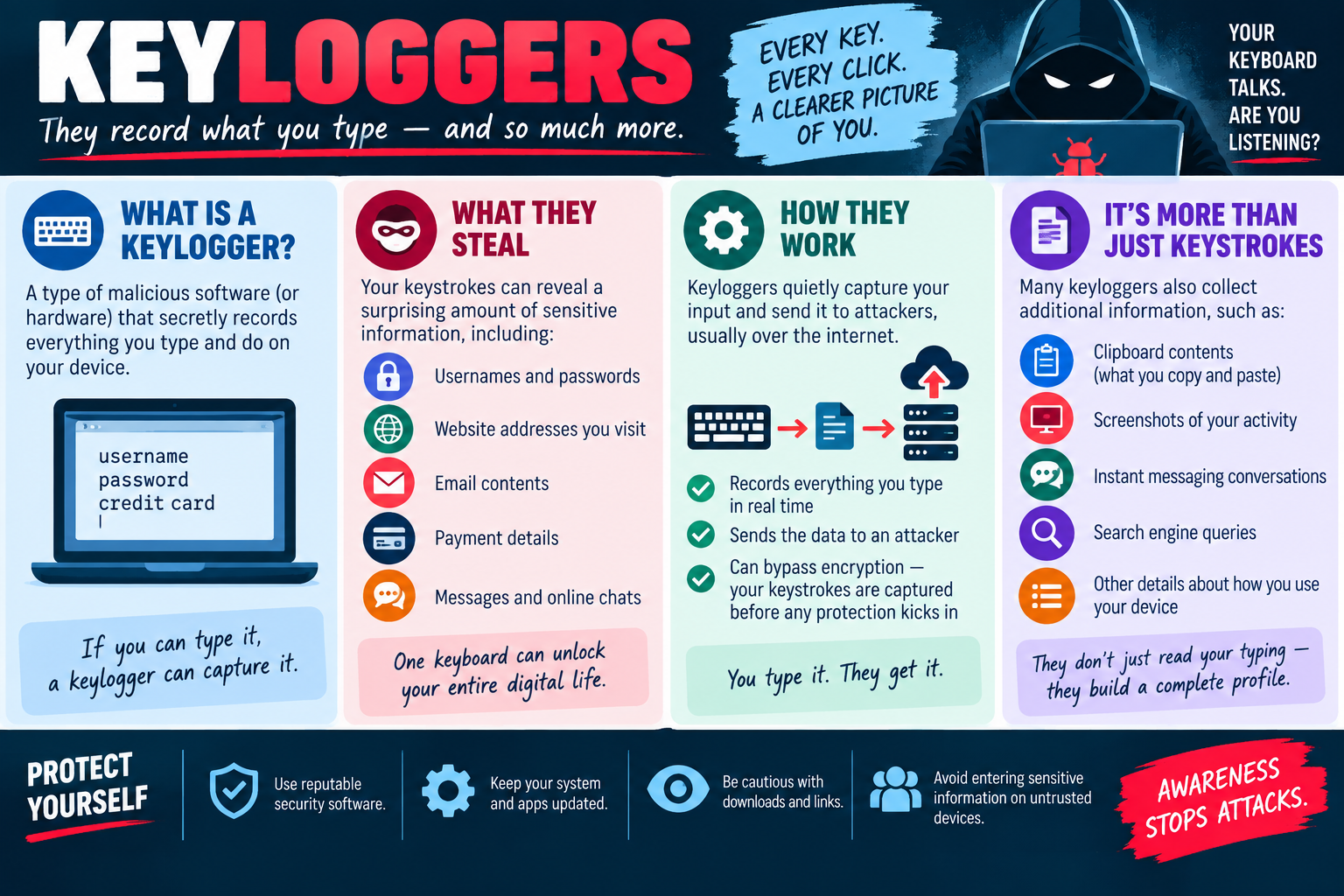
Module 7 - Keyloggers

A keylogger is malicious software or hardware that secretly records what a user types and may collect other activity to build a detailed picture of the victim.

Keyloggers are dangerous because the keyboard is where users reveal some of their most sensitive information. Usernames, passwords, payment details, messages, search terms, addresses, and private work notes may all pass through the keyboard. If a keylogger is active, every typed character can become useful data for an attacker.

What a Keylogger Records

At the simplest level, a keylogger records keystrokes. That means it can capture passwords as they are typed, even when the password field shows dots or asterisks on the screen. It can also capture website addresses, email content, chat messages, credit card numbers, authentication answers, and commands entered into administrative tools.

Some keyloggers are software that runs in the operating system. Others can be hardware devices placed between a keyboard and a computer, or hidden inside a compromised keyboard. Software keyloggers are often delivered with spyware, Trojans, malicious browser extensions, fake utilities, or bundled downloads. Hardware keyloggers require physical access, which makes physical security and device inspection part of the defense.

What They Steal

Keystrokes can reveal a surprising amount of sensitive information. A single login session may expose usernames, passwords, account numbers, customer information, internal URLs, email conversations, payment details, and private messages. If the user has administrative rights, the keylogger may capture credentials that give the attacker far more access than one normal account.

The risk grows when users reuse passwords. A stolen password from one site may work on email, cloud storage, banking, social media, business apps, or remote access systems. That is why keylogger response often includes password resets, MFA review, sign-in log checks, and account monitoring after the device is cleaned.

How Keyloggers Work

Keyloggers quietly capture input and store it locally or send it to an attacker, usually over the internet. Some record in real time. Others collect data in a file and upload it later. Because the capture can happen before encryption protects the traffic, the attacker may see what the user typed even if the website uses HTTPS.

This does not mean encryption is useless. Encryption still protects data while it travels across the network. The key point is that a keylogger steals the information at the endpoint before it becomes protected in transit. If the device itself is compromised, the attacker may not need to break network encryption at all.

More Than Just Keystrokes

Many keyloggers collect more than typed characters. They may capture clipboard contents, screenshots, active window names, website addresses, instant messaging conversations, search engine queries, and details about how the user uses the device. That extra context helps attackers understand where the credentials belong and how to use them.

For example, a keylogger might capture a password, then capture the URL of the banking or business portal where it was typed. It might record a copied one-time code from the clipboard, take a screenshot of a login prompt, or track a chat conversation that reveals company process details. This turns raw typing into a usable profile.

Warning Signs and Investigation

Keyloggers are often quiet, so symptoms may be limited. Watch for spyware detections, unusual processes, strange startup entries, browser extensions the user did not install, unexpected outbound network traffic, accounts signing in from unfamiliar locations, or passwords being changed without the user's knowledge. A hardware keylogger may be discovered only by inspecting the keyboard connection and workstation area.

When investigating, treat the device as untrusted. Avoid typing sensitive credentials into a suspected system. Use trusted anti-malware tools, endpoint detection logs, browser extension reviews, startup checks, and network logs. If sensitive accounts may be exposed, reset passwords from a known-clean device and review MFA methods, active sessions, and account recovery settings.

Protecting Against Keyloggers

Use reputable security software and keep it updated. Patch the operating system, browsers, applications, and extensions. Be cautious with downloads, links, attachments, cracked software, unknown utilities, and fake security prompts. Avoid entering sensitive information on untrusted computers or public devices.

Multi-factor authentication helps reduce damage because a stolen password alone may not be enough to sign in. Password managers can also help by reducing typing and warning users when a site does not match the saved login. In shared or business spaces, inspect hardware connections, control physical access, and report suspicious devices attached to keyboards or USB ports.

Exam rhythm: keyloggers capture typed input, can steal credentials before encryption protects traffic, may collect screenshots or clipboard data, and require cleanup plus credential resets from a trusted device.
Keyloggers infographic explaining how keyloggers record typed input, steal credentials and sensitive data, send information to attackers, collect more than keystrokes, and can be reduced with awareness and security tools.
A+
Module 08

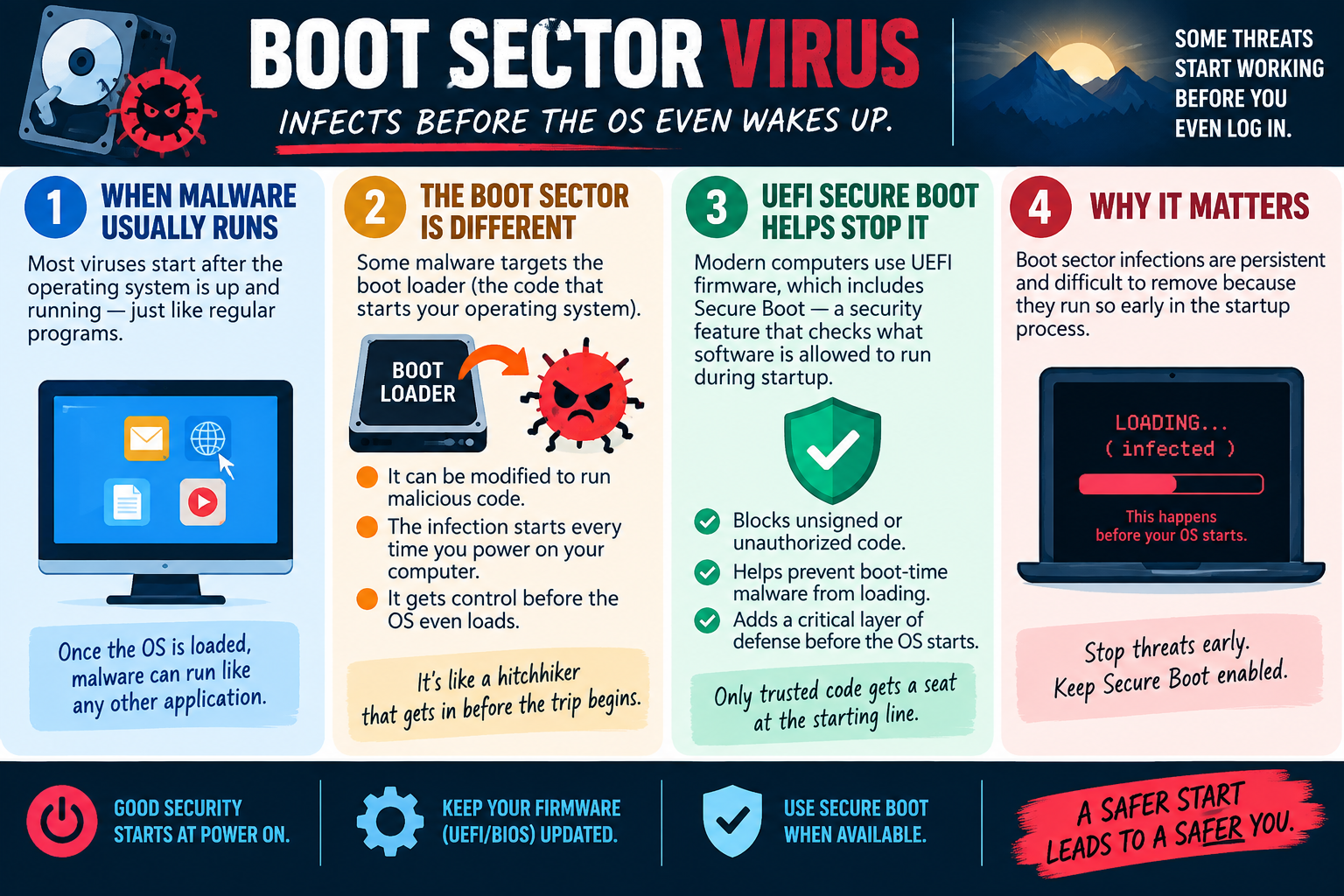
Module 8 - Boot Sector Virus

A boot sector virus targets the startup area of a drive or the boot loader so malicious code can run before the operating system fully starts.

Most malware begins working after Windows, macOS, or Linux has already loaded. At that point, it behaves like a normal program or service running inside the operating system. A boot sector virus is different because it tries to get control earlier, during the startup process, before the user logs in and before many regular security tools are fully active.

When Malware Usually Runs

Common malware often starts after the operating system is running. A user opens an attachment, launches a program, visits a compromised site, or signs in to a system where a malicious process is already waiting. Once the operating system is loaded, malware can run like other applications, interact with files, use the network, and attempt to hide among normal processes.

That timing matters because operating system security, antivirus services, logging, and user controls usually depend on the OS being awake. If malware starts after those protections are active, those protections have a better chance to detect, block, or record what happened.

Why the Boot Sector Is Different

The boot sector and boot loader are part of the startup path. They help the computer locate and start the operating system. If malware modifies that area, the infection can run every time the computer powers on. That can give the attacker a head start before the normal desktop, login screen, or security tools appear.

Older boot sector viruses often spread through infected removable media. Modern startup threats may target boot loaders, firmware settings, unsigned boot code, or low-level startup components. The exact technology has changed over time, but the core idea is the same: compromise the beginning of the boot process so the threat starts before the system is fully protected.

Why Boot-Level Malware Is Persistent

A boot sector virus can be difficult to remove because it may sit outside the places users normally inspect. Deleting a suspicious desktop file or uninstalling a strange program may not remove malware that loads from the startup area. If the malicious code runs early enough, it may also interfere with scans, hide later activity, or reinstall components after partial cleanup.

This is why boot-level infections should be treated seriously. A technician should look for startup errors, repeated reinfection after cleanup, security tools that fail to load, unusual boot messages, unexpected drive behavior, or alerts mentioning boot records, boot loaders, firmware, or Secure Boot. The goal is to identify whether the problem lives deeper than a normal application.

How UEFI Secure Boot Helps

Modern computers commonly use UEFI firmware. UEFI Secure Boot adds protection by checking whether boot software is trusted before allowing it to run during startup. If boot code is unsigned, unauthorized, or tampered with, Secure Boot can block it and help prevent boot-time malware from loading.

Secure Boot does not solve every malware problem, and it does not replace antivirus. It protects a specific phase: the earliest part of startup. That makes it valuable because some threats try to run before the operating system can defend itself. Keeping Secure Boot enabled when available gives the device a stronger starting point.

Why It Matters

Boot sector infections matter because they can be persistent, early, and hard to see. Malware that starts before the operating system may survive normal reboots, hide from common tools, and make cleanup more complicated. In some cases, a device may refuse to start normally if boot components are damaged or blocked by firmware protections.

For support technicians, this changes the response. Do not assume every infection can be fixed from inside the running OS. Sometimes the safer approach is to use offline scanning, trusted recovery media, boot repair tools, firmware checks, Secure Boot review, drive replacement, or a full wipe and reinstall from known-good media.

Protection and Response

Good security starts at power on. Keep UEFI or BIOS firmware updated. Use Secure Boot when available. Avoid booting from unknown USB drives or external media. Keep operating systems, endpoint protection, and recovery tools current. Control physical access so an attacker cannot easily attach a malicious boot device or change firmware settings.

If a boot sector virus is suspected, isolate the device and follow policy. Use trusted recovery media or offline tools rather than relying only on the infected operating system. Preserve important evidence, verify backups before restoring, repair or rebuild the boot environment, and rescan after recovery. If the integrity of the device cannot be trusted, reinstalling from known-good media may be the cleanest path.

Exam rhythm: boot sector viruses target startup, may run before the OS loads, can persist through normal cleanup, and are reduced by firmware updates, Secure Boot, trusted recovery media, and careful boot-device control.
Boot Sector Virus infographic explaining how boot-level malware targets the boot loader, runs before the operating system starts, persists during startup, and can be reduced with UEFI Secure Boot and firmware hygiene.
A+
Module 09

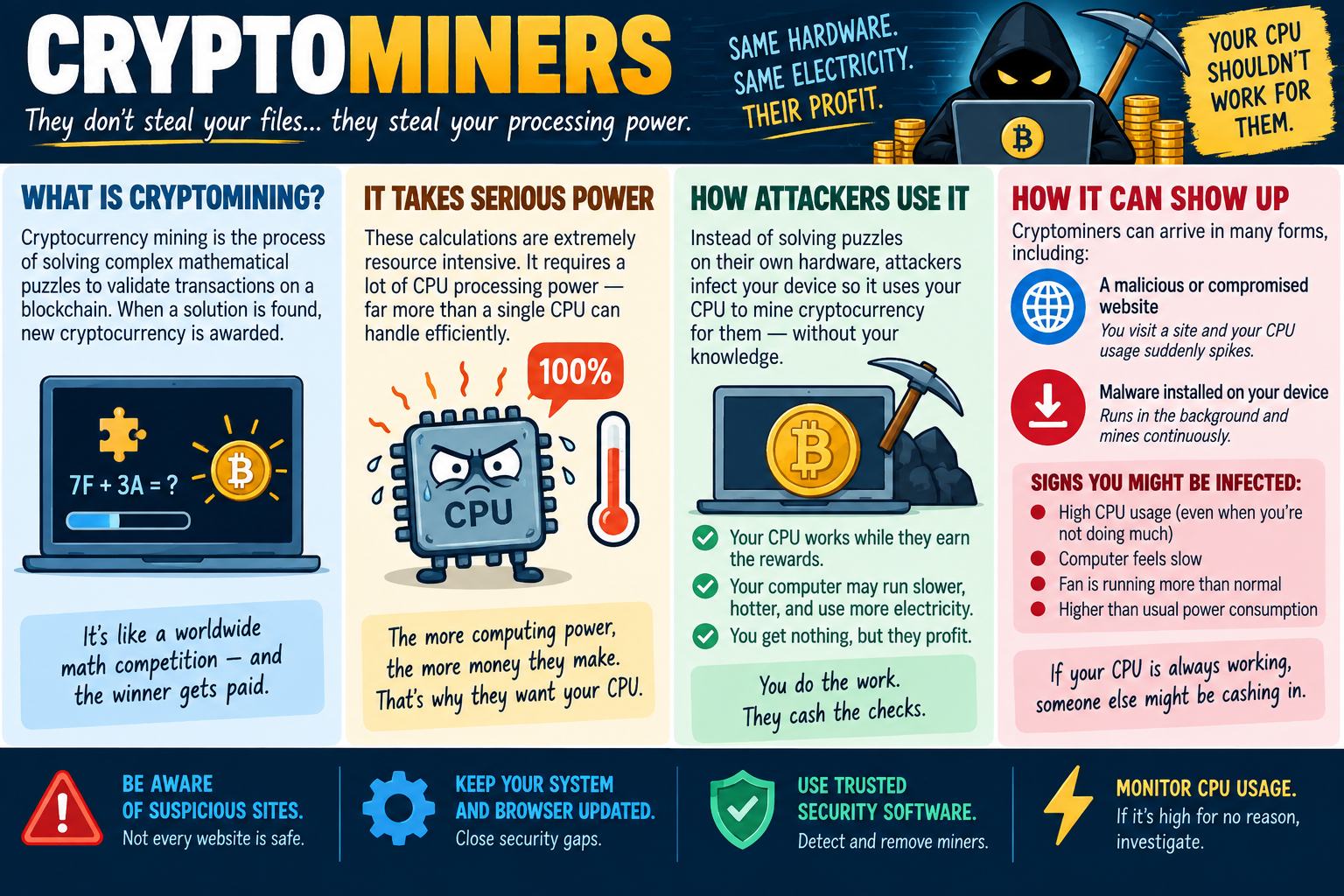
Module 9 - Cryptominers

A cryptominer is malware that uses a victim's CPU, GPU, electricity, and device resources to mine cryptocurrency for an attacker.

Cryptominers are different from malware that steals files or locks data. The attacker wants processing power. The device may still work, but it may run hotter, slower, louder, and less efficiently because its hardware is doing calculations for someone else. The victim pays the performance cost and electricity cost while the attacker keeps the reward.

What Cryptomining Is

Cryptocurrency mining is the process of using computing power to solve complex mathematical puzzles that help validate transactions on a blockchain. When a solution is found, cryptocurrency may be awarded. Legitimate mining uses hardware that the owner has intentionally dedicated to the task.

Malicious cryptomining turns that idea into abuse. Instead of buying their own hardware and paying their own power bill, attackers infect other people's systems and force those systems to perform the mining work. The user may not notice immediately because the goal is not always to destroy the device. The goal is to stay active long enough to generate profit.

Why It Takes Serious Power

Mining calculations are resource intensive. A single consumer CPU may not mine much cryptocurrency on its own, but attackers make money by spreading the workload across many infected systems. Each device contributes a small amount of processing power, and the total can become profitable at scale.

That is why cryptominers often push hardware hard. The CPU or GPU may sit at high usage even when the user is not running demanding applications. Fans may spin faster, laptops may get hot, batteries may drain quickly, and performance may feel sluggish. Over time, the extra heat and constant load can reduce hardware reliability.

How Attackers Use Cryptominers

Attackers may install cryptomining malware on a device, or they may use a malicious or compromised website that runs mining code while the browser is open. In both cases, the victim's hardware performs calculations for the attacker. The user gets no benefit, but the attacker may receive cryptocurrency rewards.

Some cryptominers try to hide by lowering activity when Task Manager or security tools open. Others run only when the device is idle, when the screen is locked, or during certain hours. In managed environments, cryptominers may target servers, virtual machines, or cloud resources because those systems often have more processing power and may be left running continuously.

How It Can Show Up

Cryptominers can arrive through malicious websites, compromised websites, infected downloads, Trojans, browser extensions, fake utilities, or other malware that installs the miner as a secondary payload. A user may visit a website and suddenly see CPU usage spike, or malware may run quietly in the background and mine continuously.

Common signs include high CPU or GPU usage when little is happening, a computer that feels slow, fans running more than normal, higher power consumption, battery drain, heat, browser tabs that become unusually heavy, or endpoint alerts for mining tools. If the device is always working hard for no clear reason, investigate instead of assuming it is just old hardware.

Business Impact

In an organization, cryptominers create more than a performance problem. They can increase cloud costs, shorten hardware life, reduce productivity, trigger overheating, and hide the presence of a larger compromise. If an attacker installed a cryptominer, they may have used the same access to install other malware, steal credentials, or move through the environment.

Cloud and server environments deserve special attention. A compromised cloud account can create expensive compute resources for mining. A compromised server can mine continuously because it is rarely turned off. Monitoring CPU trends, billing anomalies, process behavior, and outbound connections helps catch mining activity before it becomes costly.

Prevention and Response

Prevention starts with basic security habits. Be aware of suspicious sites, avoid untrusted downloads, keep browsers and operating systems updated, and use trusted security software. Browser protections, extension control, application allow lists, DNS filtering, endpoint detection, and least privilege can all reduce the chance of a miner getting installed.

When investigating, review CPU and GPU usage, running processes, browser tabs, extensions, scheduled tasks, startup entries, recent downloads, endpoint alerts, and network connections. Remove the miner with trusted tools, close the infection path, patch the system, and verify that resource usage returns to normal. If the miner arrived through a Trojan or compromised account, treat it as a broader security incident, not just a performance complaint.

Exam rhythm: cryptominers steal processing power, often show up as high CPU usage, heat, fan noise, slowness, or power drain, and are reduced with updates, trusted security tools, careful browsing, and resource monitoring.
Cryptominers infographic explaining how malicious cryptomining steals processing power, causes high CPU usage, slows devices, raises power use, and can be reduced with updates, trusted security tools, and monitoring.
A+
Module 10

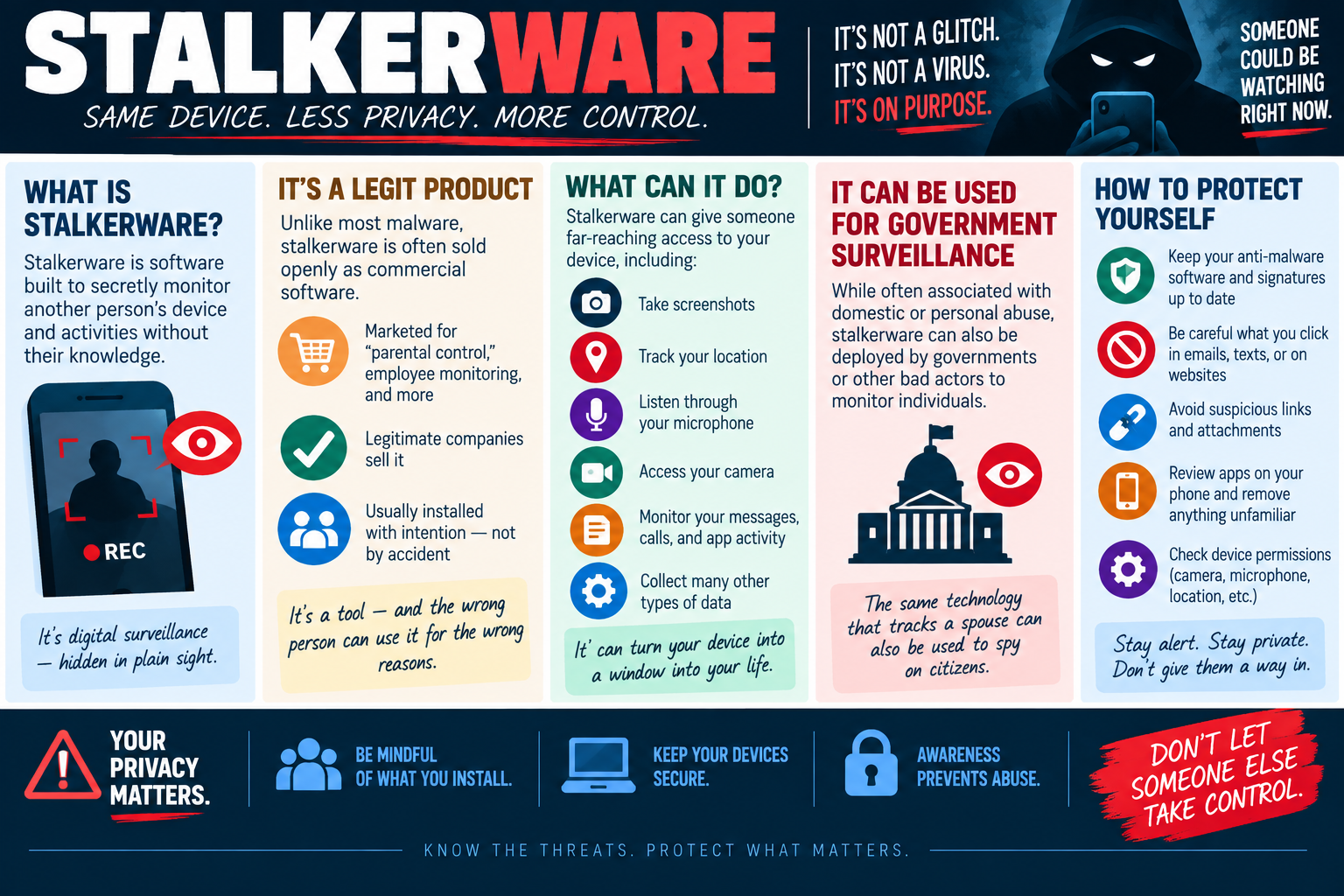
Module 10 - Stalkerware

Stalkerware is software used to secretly monitor another person's device, activity, location, messages, or private data without their knowledge or meaningful consent.

Stalkerware is especially concerning because it may not look like traditional malware. It can be sold openly as commercial software, advertised for parental control, employee monitoring, lost-device tracking, or family safety. The problem is how it is used: the same kind of monitoring technology can become invasive and abusive when installed on someone's device without their awareness.

What Stalkerware Is

Stalkerware is digital surveillance hidden in plain sight. It is designed to watch what someone does on a phone, tablet, or computer while remaining difficult for the user to notice. It may not immediately break the device, slow it down dramatically, or trigger an obvious virus warning. Instead, it quietly collects information and sends it to the person controlling the monitoring tool.

Because it often appears as a legitimate product, stalkerware can blur the line between administration, monitoring, and abuse. A tool used transparently on company-owned devices under a clear policy is very different from secret monitoring on a personal device. Consent, ownership, policy, and intent matter.

A Legitimate Product Used the Wrong Way

Unlike many malware types, stalkerware is often sold by real companies. It may be marketed for parental control, employee monitoring, device tracking, or productivity oversight. Those use cases can be legal and appropriate only when they follow policy, law, consent requirements, and clear disclosure.

In abusive situations, stalkerware is usually installed intentionally by someone who wants control. That person may have physical access to the device, know the unlock code, share an account, or pressure the victim into installing something. This makes user awareness, physical security, account security, and permission review just as important as anti-malware scanning.

What It Can Do

Stalkerware can provide far-reaching access. Depending on the tool and device permissions, it may take screenshots, track location, listen through the microphone, access the camera, monitor text messages, read call logs, view app activity, collect contacts, inspect browsing history, or gather other private data.

The danger is not just one captured message. Over time, stalkerware can turn a device into a window into a person's life. Location patterns, conversations, photos, searches, app usage, and contact lists can reveal routines, relationships, plans, finances, health information, and safety decisions.

Surveillance and Abuse

Stalkerware is often associated with domestic or personal abuse, but surveillance tools can also be misused by governments, organizations, or other actors to monitor individuals. The technical issue is privacy and control: someone who should not have access is using the device to collect information and influence another person's choices.

A technician should handle suspected stalkerware carefully. Removing it immediately may alert the person monitoring the device. In situations involving personal safety, the user may need support from trusted people, organizational security, legal resources, or local safety services before changes are made. The technical fix should not create more risk for the person being monitored.

How to Protect Yourself

Keep anti-malware tools and signatures up to date. Be careful what you click in emails, texts, and websites. Avoid suspicious links and attachments. Review installed apps regularly and remove anything unfamiliar, unnecessary, or outside policy. Check device permissions for camera, microphone, location, accessibility, notifications, screen recording, device administration, and background access.

Also protect the basics: use a strong device lock, keep the operating system updated, review account recovery options, check for unknown signed-in devices, avoid sharing passwords, and enable multi-factor authentication. If someone else had access to the device or accounts, change passwords from a known-safe device and review cloud syncing, backups, family sharing, and location sharing settings.

Technician Response

When stalkerware is suspected, document symptoms and preserve context before making major changes. Look for unfamiliar apps, hidden profiles, mobile device management enrollment, suspicious accessibility permissions, unusual battery drain, unexpected data usage, unknown VPNs, unfamiliar browser extensions, and accounts connected to monitoring or location sharing.

Use trusted tools to scan and review the device, but remember that safety and consent matter. In a workplace, follow policy and escalate to security or management. For a personal device, explain findings calmly, avoid exposing the user to retaliation, and recommend using a trusted device for sensitive communication until the situation is understood.

Exam rhythm: stalkerware is intentional monitoring software, often sold as legitimate software, can collect location, messages, camera, microphone, screenshots, and app activity, and requires privacy-aware investigation and careful removal.
Stalkerware infographic explaining secret device monitoring, commercial monitoring tools, screenshots, location tracking, microphone and camera access, messages, government surveillance, privacy risks, and protection steps.
A+
Module 11

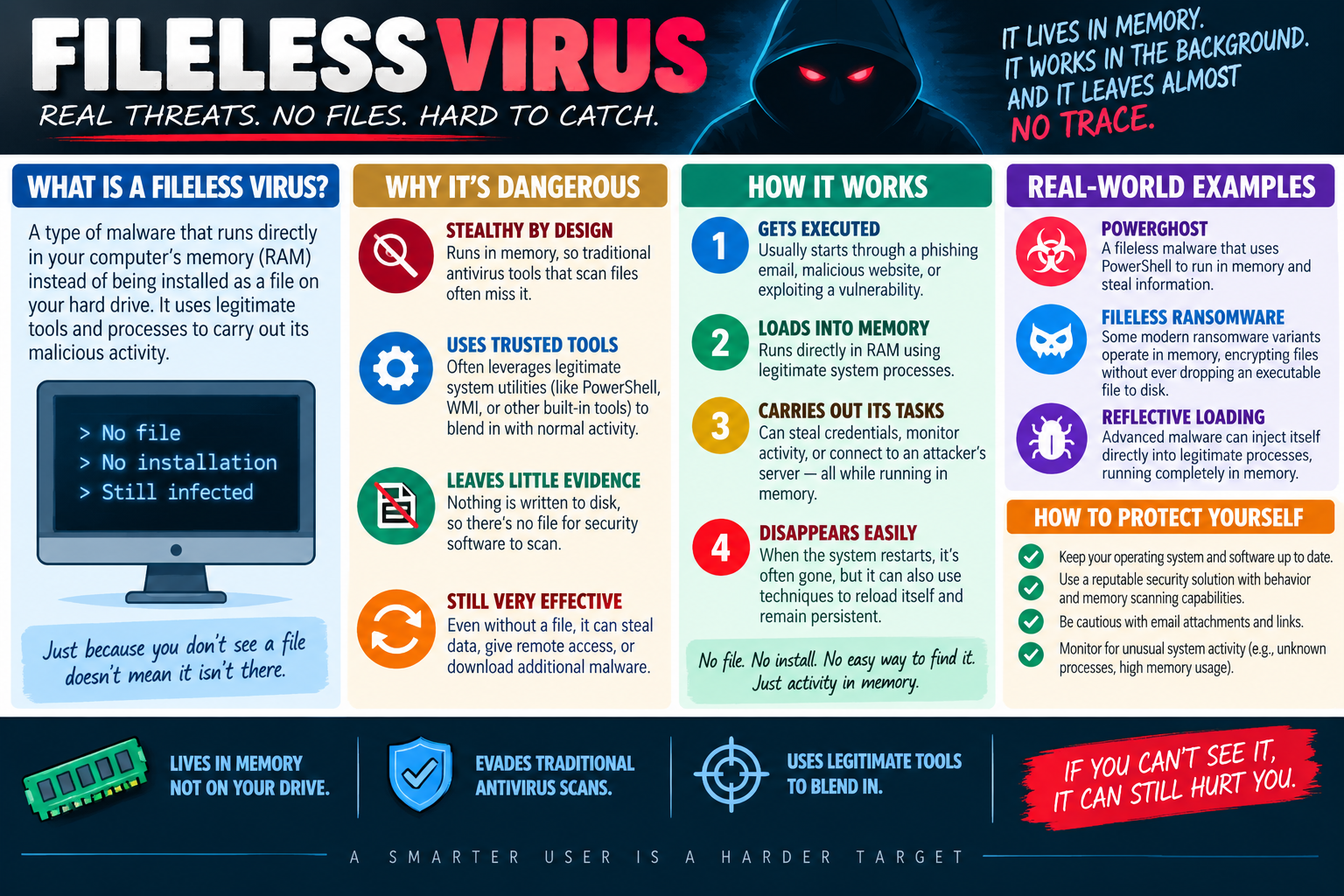
Module 11 - Fileless Virus

A fileless virus is malware that runs primarily in memory instead of installing itself as a normal file on the hard drive, making it harder for traditional file-based scanning tools to catch.

Fileless malware is dangerous because it does not always leave the obvious evidence technicians expect. There may be no suspicious executable sitting in Downloads, no strange installer in Programs and Features, and no simple malicious file to delete. Instead, the attack uses legitimate Windows tools, trusted processes, scripts, or memory-based activity to perform malicious actions while blending in with normal system behavior.

What a Fileless Virus Is

A fileless virus runs directly in the computer's memory, also called RAM. It may use built-in tools such as PowerShell, Windows Management Instrumentation, command-line utilities, scripts, macros, or other trusted system components to execute commands. Because these tools are already part of the operating system, the activity can look less suspicious than a brand-new unknown program.

The phrase fileless does not always mean there are absolutely no files involved anywhere in the attack chain. A phishing document, shortcut, script, registry change, scheduled task, or malicious website may still be used to start the process. The key idea is that the main malicious payload may live and run in memory, leaving little or no traditional malware file for a scanner to inspect.

Why It Is Dangerous

Traditional antivirus tools have historically looked for known malicious files, signatures, and executable patterns on disk. Fileless malware is built to avoid that kind of detection. If the harmful code runs in memory and abuses trusted tools, a basic scan that only checks files may miss the active threat.

Fileless malware also creates very little evidence. Nothing obvious may be written to disk, which means there may be fewer files, timestamps, or installation folders to investigate. Even without a normal file, the malware can still steal data, capture credentials, download additional payloads, change settings, connect to an attacker, or prepare the system for a larger compromise.

How It Works

A common fileless attack begins when something gets executed. The trigger might be a phishing email attachment, a malicious link, a compromised website, an unsafe macro, or an exploit against a vulnerable application. The first step does not need to install a normal program; it only needs to cause trusted tools or processes to run attacker-controlled commands.

After execution, the malicious code loads into memory. From there it may use legitimate processes to carry out tasks. It can harvest credentials, monitor user activity, query system information, contact a command-and-control server, run scripts, or download additional malware. Because the activity is happening through tools administrators also use, context is important when deciding what is normal and what is suspicious.

When the system restarts, memory is cleared, so some fileless malware disappears. However, attackers can use persistence techniques to reload the attack, such as registry entries, scheduled tasks, startup scripts, malicious macros, WMI event subscriptions, compromised credentials, or remote management tools. That is why a reboot alone is not a reliable cleanup plan.

Real-World Examples

PowerGhost is an example of fileless malware that has used PowerShell to run in memory and steal information. It demonstrates why PowerShell monitoring matters: PowerShell is a legitimate administration tool, but it can also be abused when attackers gain a foothold.

Some modern ransomware variants also use fileless techniques. They may operate in memory, encrypt files, or stage commands without dropping a traditional executable file to disk. Reflective loading is another technique where malware injects itself directly into legitimate processes and runs from memory instead of being loaded in the normal way from a file.

What Technicians Should Look For

Because fileless malware can be hard to see, technicians should look for behavior instead of only looking for files. Warning signs may include unusual PowerShell activity, suspicious command-line arguments, unknown processes, high memory usage, unexpected child processes, strange scheduled tasks, abnormal registry entries, unauthorized remote connections, endpoint alerts, or network traffic to unfamiliar destinations.

Logs are especially important. Review PowerShell logs, Windows event logs, endpoint detection alerts, browser activity, email security logs, account sign-in logs, and network telemetry. A fileless attack may not leave a simple file trail, but it often leaves behavioral clues: what process launched, what command ran, what account was used, what network connection was made, and what changed afterward.

How to Protect Yourself

Keep the operating system and applications up to date so attackers have fewer vulnerabilities to exploit. Be cautious with email attachments, links, macro-enabled documents, and unexpected prompts. Use reputable security tools that include behavior detection, script monitoring, memory scanning, exploit protection, and endpoint detection features rather than relying only on static file signatures.

Restrict script and administrative tool abuse where possible. Use least privilege, application control, PowerShell logging, controlled folder access, macro restrictions, attack surface reduction rules, and strong account monitoring. In business environments, central logging and endpoint detection are valuable because one device's behavior can reveal a threat before it spreads.

Response and Cleanup

If fileless malware is suspected, isolate the device if policy requires it and avoid entering sensitive credentials on the affected system. Capture volatile evidence when possible because memory-based activity may disappear after restart. Review processes, command history, scheduled tasks, registry persistence points, scripts, remote access tools, and recent authentication activity.

Cleanup should focus on both the active behavior and the persistence mechanism. Terminating a process may stop the momentary activity, but the attack can return if the trigger remains. Remove persistence, patch the exploited weakness, reset exposed credentials from a trusted device, scan with tools that can inspect memory and behavior, verify that suspicious activity has stopped, and document the findings.

Exam rhythm: fileless malware lives in memory, abuses trusted tools like PowerShell or WMI, leaves little file evidence, may disappear after restart, and is best detected through behavior, logs, memory-aware tools, and unusual system activity.
Fileless Virus infographic explaining memory-based malware, trusted tool abuse, limited evidence, PowerShell examples, reflective loading, fileless ransomware, and protection steps.
A+
Module 12

Module 12 - Adware and PUPs

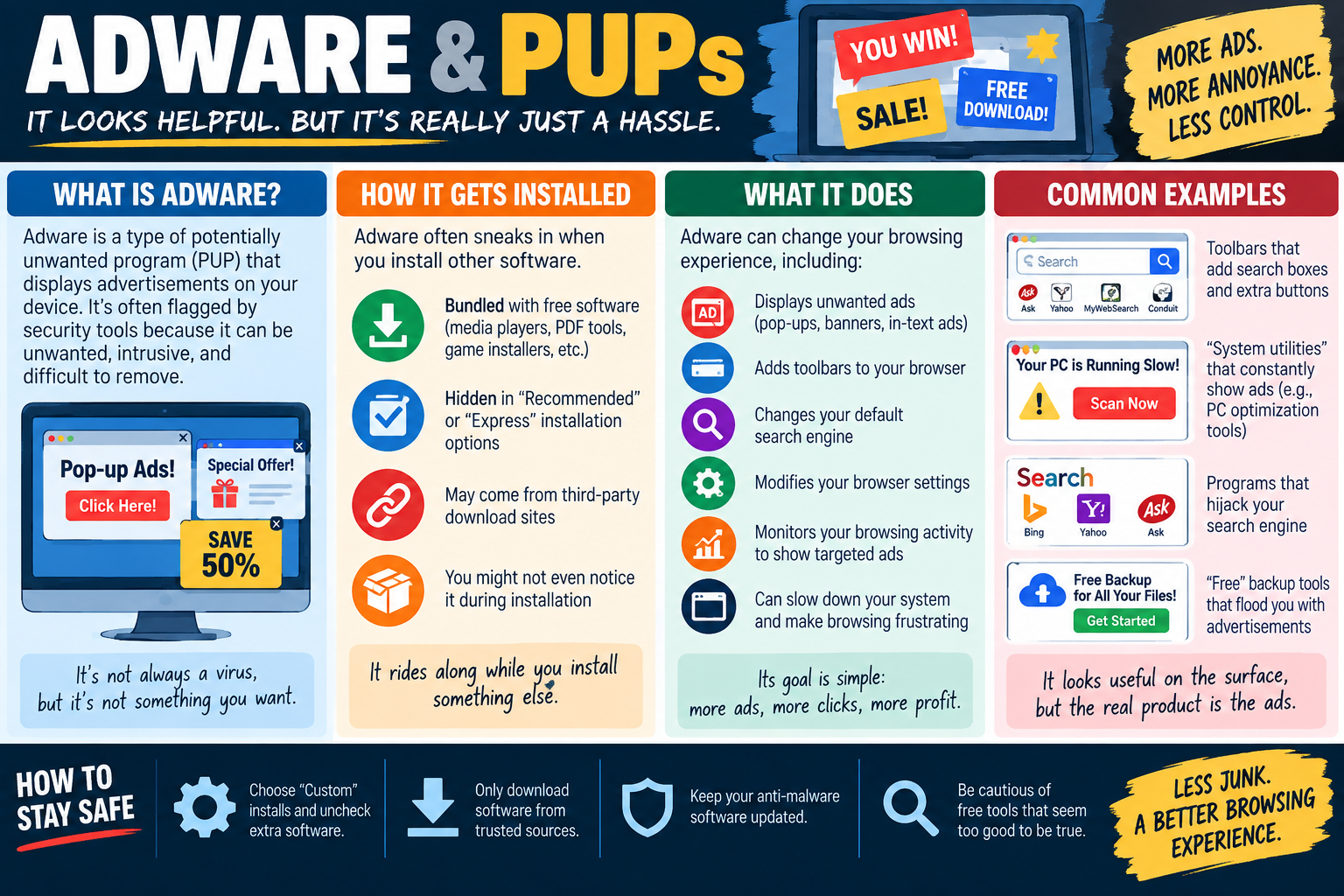
Adware is a potentially unwanted program, or PUP, that displays advertisements, changes the browsing experience, tracks activity, or pushes users toward unwanted services.

Adware is not always classified as a traditional virus, but that does not make it harmless. It can interrupt work, slow the system, clutter the browser, weaken user trust, redirect searches, and expose users to more questionable links or downloads. In many cases, the user did not intentionally ask for adware; it arrived attached to something else.

What Adware Is

Adware is software designed to show ads on a device. The ads may appear as pop-ups, banners, in-text ads, browser notifications, fake coupons, search boxes, toolbars, or warning messages that claim the PC is slow or infected. Some adware is simply annoying. Other adware becomes more serious because it modifies settings, tracks browsing behavior, or sends users to risky sites.

The phrase PUP stands for potentially unwanted program. This label is important because the software may have been installed through a process that technically asked for permission, but the user may not have understood what they were accepting. A PUP may be legal software, yet still unwanted, intrusive, difficult to remove, or outside company policy.

How It Gets Installed

Adware often sneaks in during the installation of other software. Free media players, PDF utilities, game installers, file converters, browser add-ons, download managers, and third-party software bundles may include extra offers. Those offers may be hidden inside Recommended, Express, or Typical installation options.

Users may click through setup screens quickly and accidentally approve toolbars, search changes, browser extensions, notification permissions, or additional utilities. Third-party download sites make this worse because they may wrap legitimate software in their own installer. The user thinks they are installing one useful tool, but the installer brings along advertising components or tracking features.

What It Does

Adware changes the browsing experience. It may display unwanted ads, add toolbars, inject ads into pages, change the default search engine, alter the home page, install browser extensions, modify notification permissions, redirect searches, or monitor web activity to show targeted advertising. The goal is usually simple: more ads, more clicks, more traffic, and more profit for the people behind it.

These changes can make troubleshooting confusing. A user may describe the problem as the internet being broken, the browser being slow, the computer being infected, or search results looking strange. A technician should connect those symptoms to browser settings, extensions, installed programs, notification permissions, proxy settings, DNS settings, and startup items.

Common Examples

Common adware examples include browser toolbars that add search boxes and extra buttons, fake system utilities that constantly show warnings, programs that hijack the search engine, and free backup or optimization tools that flood the user with advertisements. The software may look useful on the surface, but the real product is often the advertising pipeline.

Some adware uses scare tactics. It may claim that the PC has hundreds of errors, that storage is unsafe, or that performance is terrible unless the user clicks a button or buys a cleanup tool. Those messages can pressure users into installing more unwanted software, entering payment information, or calling fake support numbers.

Security and Privacy Concerns

Adware can become a privacy issue when it monitors browsing activity, search terms, clicked ads, visited websites, location data, or device information. Even if it is not stealing passwords directly, it may collect enough behavior data to profile the user. In business environments, that can also create compliance concerns if browsing data, user activity, or customer-related information is exposed to an unapproved vendor.

Adware can also increase security risk by sending users to misleading pages, fake downloads, malicious ads, and scam sites. The more pop-ups and redirects a user sees, the easier it is for them to click the wrong prompt. Annoyance becomes risk when the adware trains users to ignore warnings or accept strange browser behavior as normal.

How to Stay Safe

Choose Custom or Advanced installation when installing approved software, and uncheck extra offers that are not required. Download software only from trusted sources, such as the vendor's official website, Microsoft Store, company software portal, or approved deployment system. Be cautious with free tools that seem too good to be true, especially PC cleaners, coupon tools, search enhancers, media converters, and browser add-ons.

Keep anti-malware software updated so it can flag known adware and PUP behavior. Keep browsers current, limit extensions, review notification permissions, and avoid granting browser prompts without reading them. In managed environments, application allow lists, browser extension policies, least privilege, and software restriction policies can reduce unwanted installations.

Technician Cleanup Steps

When cleaning up adware, remove the visible program and then check the surrounding settings. Review installed apps, browser extensions, search engine settings, home page settings, notification permissions, startup items, scheduled tasks, proxy settings, DNS settings, and recently installed software. Resetting the browser may help, but it should be done after identifying what changed so the same unwanted component does not return.

After cleanup, verify that pop-ups, redirects, toolbars, and search hijacking are gone. Run a trusted anti-malware scan, update the browser, educate the user about bundled installers, and document what was removed. If the device belongs to an organization, confirm that the installed software source aligns with policy and that no additional malware arrived through the same installation path.

Exam rhythm: adware and PUPs may not be full viruses, but they are unwanted; look for bundled installs, toolbars, search hijacking, pop-ups, browser setting changes, targeted ads, and cleanup by removing the program plus browser changes.
Adware and PUPs infographic explaining unwanted ads, bundled installs, browser toolbars, search hijacking, fake utilities, targeted ads, and safe installation habits.
A+
Module 13

Module 13 - Recover, Detect, and Respond

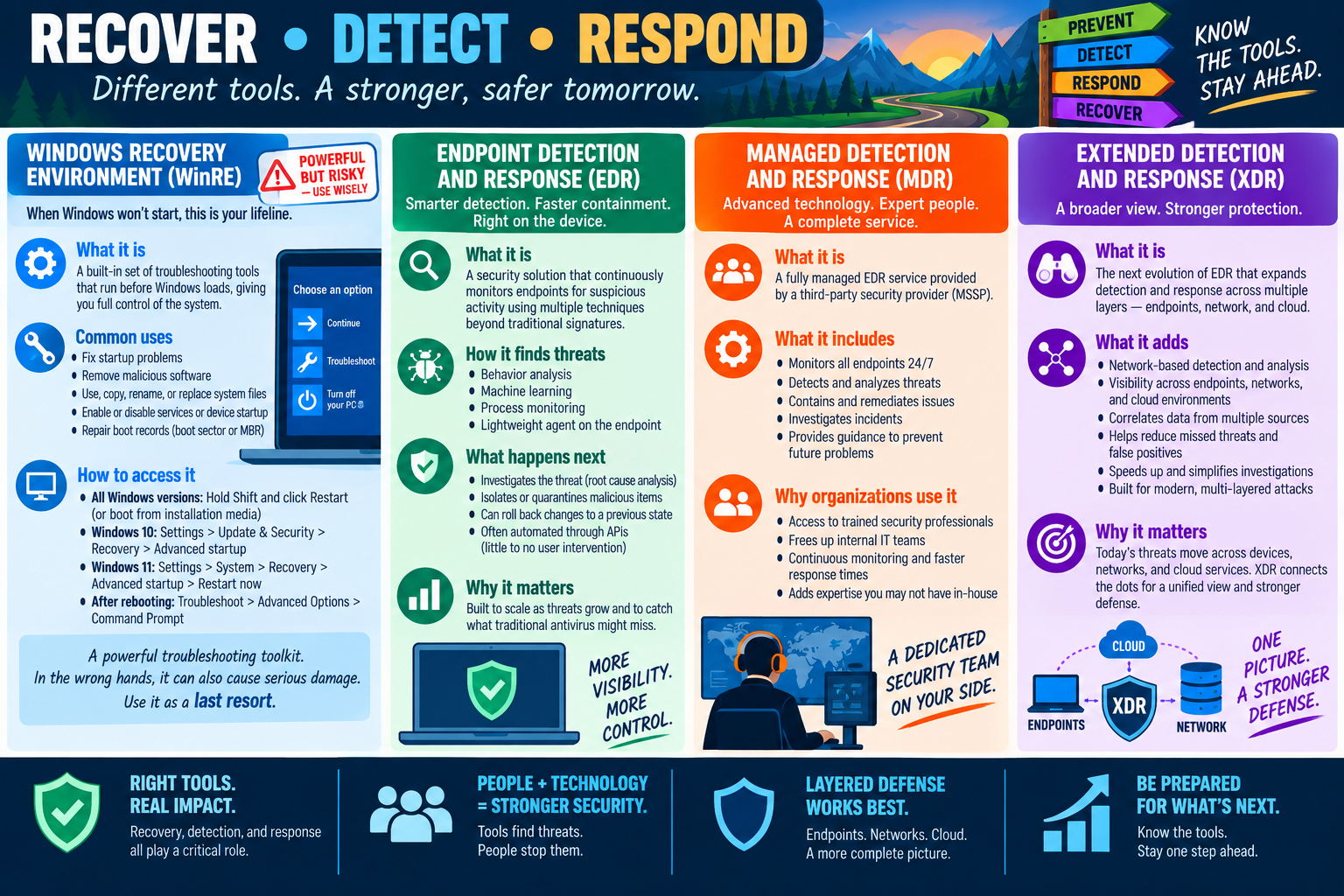
Malware defense is not only about preventing infections. Technicians also need the right tools to recover damaged systems, detect active threats, respond quickly, and understand attacks across endpoints, networks, and cloud services.

Different security tools solve different parts of the problem. Windows Recovery Environment helps when Windows will not start or when the system needs repair from outside the normal desktop. Endpoint Detection and Response watches individual devices for suspicious behavior. Managed Detection and Response adds an outside security team that monitors, investigates, and responds. Extended Detection and Response connects signals from many layers so defenders can see the bigger picture.

Windows Recovery Environment

Windows Recovery Environment, often called WinRE, is a built-in set of troubleshooting tools that can run before Windows fully loads. It is useful when a normal startup fails, when malware prevents the desktop from loading, when boot records need repair, or when system files must be restored, renamed, copied, or replaced outside the active operating system.

WinRE is powerful because it gives deeper control over the system. That also makes it risky in the wrong hands. A technician may use it to fix startup problems, remove malicious software, enable or disable services, access a command prompt, repair boot records such as the boot sector or MBR, or work with offline system files. Because mistakes can cause serious damage, WinRE should be treated as an advanced troubleshooting option rather than a first casual step.

Accessing WinRE

There are several common paths into WinRE. In modern Windows versions, holding Shift while selecting Restart can open the recovery options. Windows 10 commonly reaches recovery through Settings, Update and Security, Recovery, and Advanced startup. Windows 11 commonly uses Settings, System, Recovery, Advanced startup, and Restart now. Installation media can also boot into recovery tools when the installed system cannot start.

After rebooting into recovery, the technician can choose Troubleshoot, Advanced options, and then the specific tool needed, such as Startup Repair, System Restore, Command Prompt, Startup Settings, or recovery from an image. The key is to choose the tool that matches the symptom. Use the least disruptive recovery option that can safely restore control and protect user data.

Endpoint Detection and Response

Endpoint Detection and Response, or EDR, is a security solution that continuously monitors endpoints such as laptops, desktops, and servers for suspicious activity. It goes beyond basic antivirus signatures by looking at behavior, process relationships, command-line activity, file changes, memory activity, registry changes, persistence methods, and network connections.

EDR helps answer questions that antivirus alone may not answer: what process started the attack, what files changed, what account was used, what network destination was contacted, and whether the threat tried to persist. EDR tools may use behavior analysis, machine learning, process monitoring, lightweight endpoint agents, automated investigation, containment, quarantine, rollback, and response playbooks.

Why EDR Matters

EDR matters because modern threats often avoid simple detection. Fileless malware, credential theft tools, ransomware staging, suspicious PowerShell activity, and living-off-the-land attacks may not look like one obvious malicious file. EDR focuses on what the device is doing and how events connect over time.

For technicians, EDR can speed up containment. A tool may isolate a device from the network, stop a process, quarantine a file, roll back malicious changes, or collect evidence for investigation. Some actions are automated through APIs, while others require security team review. The goal is faster visibility and faster response when a device behaves in a way that does not fit normal use.

Managed Detection and Response

Managed Detection and Response, or MDR, is a fully managed security service usually provided by a third-party managed security service provider. MDR often uses EDR-like technology, but adds trained security professionals who monitor alerts, investigate suspicious activity, contain threats, remediate issues, and provide recommendations to prevent future incidents.

Organizations use MDR when they need stronger monitoring but do not have enough internal staff, time, or specialized security expertise to watch alerts around the clock. MDR can provide 24/7 visibility, faster response times, threat hunting, incident analysis, and practical guidance. This is especially useful for smaller organizations or teams that need enterprise-level detection without building a full security operations center from scratch.

Extended Detection and Response

Extended Detection and Response, or XDR, expands detection beyond a single endpoint. It connects data from endpoints, networks, email, identity systems, cloud services, servers, and security tools so analysts can see how an attack moves across the environment. Instead of looking at one device in isolation, XDR helps correlate signals across multiple sources.

XDR adds network-based detection and analysis, visibility across endpoints and cloud systems, correlation from multiple data sources, reduced false positives, faster investigation, and a more unified view of risk. This matters because current attacks rarely stay in one place. A phishing email, stolen password, suspicious endpoint process, cloud sign-in, and network connection may all be parts of the same incident.

Choosing the Right Tool

Pick the tool based on the problem. If Windows will not start or boot files may be damaged, think WinRE. If one device is acting suspiciously and you need behavior-level visibility, think EDR. If the organization needs trained people monitoring and responding on its behalf, think MDR. If the attack may span endpoints, networks, identity, email, and cloud services, think XDR.

These tools are not replacements for one another. They form layers. WinRE helps recover systems when normal startup is unavailable. EDR improves endpoint visibility and containment. MDR adds people and process. XDR connects the broader story across the environment. Good security combines tools, trained judgment, and a clear response plan.

Technician Workflow

When responding to suspected malware, start by protecting the environment. Contain the affected device if needed, preserve useful evidence, identify the scope, and avoid changes that destroy important clues. Then use the right tool for the phase of the incident: recovery tools for startup and repair, endpoint tools for device investigation, managed services for expert response, and extended detection for cross-environment correlation.

After the immediate threat is handled, verify that the system is clean, confirm that affected accounts are secured, restore data from trusted backups if needed, patch the weakness, and document what happened. The lesson is simple: recovery, detection, and response all play a critical role. Prevention is ideal, but preparation is what keeps a bad day from becoming a much larger outage.

Exam rhythm: WinRE helps recover and repair Windows outside normal startup, EDR watches endpoints for suspicious behavior, MDR adds a managed security team, and XDR connects endpoint, network, cloud, and identity signals into one broader investigation view.
Recover, Detect, Respond infographic explaining Windows Recovery Environment, EDR, MDR, XDR, response tools, layered defense, and malware recovery and detection concepts.
A+
Module 14

Module 14 - Antivirus and Anti-Malware

Antivirus and anti-malware tools work together to detect, block, quarantine, and remove malicious software before it can damage systems, steal data, or interrupt normal work.

The terms antivirus and anti-malware are often used together because modern protection needs to cover both traditional viruses and newer threat types. A classic antivirus focus is known viruses and familiar malicious files. Anti-malware is broader, covering ransomware, spyware, Trojans, adware, rootkits, fileless attacks, and other suspicious behavior. In many products, both capabilities are bundled into one security solution.

Two Layers, One Team

Antivirus and anti-malware are complementary defenses. Antivirus traditionally focuses on known viruses, signature matches, and familiar malicious code patterns. Anti-malware expands the scope by looking for a wider range of unwanted or harmful software, including threats that may not behave like older viruses.

A technician should understand the distinction without treating the tools as enemies or duplicates. The best endpoint protection usually combines both ideas. It checks known bad files, watches behavior, blocks suspicious downloads, scans memory and running processes, and responds when activity indicates that something is wrong.

Always on Guard

Strong protection runs in the background all the time. Real-time scanning checks files as they are opened, created, downloaded, copied, or executed. It may also inspect web traffic, email attachments, scripts, browser downloads, removable media, compressed files, and running processes for suspicious activity.

This matters because on-demand scans only help when someone remembers to run them. Real-time protection reduces the window of exposure by responding as activity happens. If a user downloads a malicious attachment, opens an infected file, or launches a suspicious installer, the security tool can block or quarantine it before the threat has time to spread or make system changes.

Smarter Than Signatures

Modern anti-malware does more than compare files against a list of known bad signatures. Signatures are still useful for identifying known threats quickly, but attackers constantly change files to avoid simple matching. Current tools also use behavior analysis, heuristics, machine learning, reputation monitoring, cloud intelligence, and exploit protection.

Behavior analysis looks for suspicious actions, such as a process encrypting many files, disabling security tools, injecting into another process, changing startup locations, or contacting unusual network destinations. Heuristics look for patterns that suggest malicious intent even if the exact file is new. Machine learning can help identify new or evolving threats by comparing features and behavior against large sets of known activity.

Reputation and Threat Intelligence

Reputation monitoring checks files, websites, downloads, and publishers against broader threat data. A newly downloaded program from an unknown source may be treated differently than a signed application from a trusted vendor with a long clean history. Web and email protection may block known phishing links, malicious attachments, unsafe downloads, and compromised sites.

Cloud-based threat intelligence lets protection improve quickly when new attacks are discovered. If one system sees a new threat, updated detection information can help protect other systems. This is why security software needs current definitions, current engines, and an active connection to vendor intelligence when policy allows it.

Real Protection, Real Benefits

Antivirus and anti-malware tools help block viruses, worms, Trojans, ransomware, spyware, adware, keyloggers, cryptominers, and other malicious or unwanted software. They run in real time, not just on demand. They can alert the user or administrator, quarantine suspicious files, prevent execution, remove known threats, and provide logs for troubleshooting.

Good protection helps keep data, identity, and devices safe. In a business environment, endpoint security can also reduce downtime, protect shared resources, support compliance, and give IT teams better visibility into what happened during an incident. Protection is strongest when the tools are enabled, updated, centrally managed, and paired with good user habits.

Limits of Security Software

Security tools are important, but they are not magic. A user can still be tricked into giving away credentials on a phishing site. An administrator can still approve a malicious action. A brand-new attack may avoid detection for a short time. A device can still be vulnerable if the operating system, browser, or applications are badly outdated.

That is why layered security matters. Use antivirus and anti-malware alongside patching, least privilege, firewalls, backups, safe browsing habits, application control, email filtering, DNS protection, user training, and incident response procedures. The software does heavy lifting, but people and process still matter.

Technician Best Practices

Keep real-time protection enabled unless there is a specific troubleshooting need and a clear plan to turn it back on. Verify that definitions and engines update successfully. Schedule regular scans when appropriate, but rely on real-time protection for day-to-day defense. Review alerts carefully and avoid dismissing repeated warnings without investigating the root cause.

When a threat is detected, document the name, location, time, affected user, action taken, and whether the tool blocked, quarantined, removed, or only reported the threat. If malware reached the system, consider credential exposure, lateral movement, persistence, and backup integrity. After cleanup, verify that protection is running, updates are current, and the system behaves normally.

Exam rhythm: antivirus focuses on known viruses and traditional threats, anti-malware covers a broader range of malicious software, real-time protection should stay enabled, and modern tools use signatures plus behavior analysis, heuristics, machine learning, and reputation monitoring.
Antivirus and Anti-Malware infographic explaining complementary protection layers, real-time scanning, behavior analysis, heuristics, machine learning, reputation monitoring, and security benefits.
A+
Module 15

Module 15 - Email Security Gateway

An email security gateway is a filtering service or appliance that screens inbound and outbound email to stop spam, phishing, malware, and suspicious messages before they reach users.

Email is one of the most common paths attackers use because it reaches people directly. A malicious message can look like an invoice, shipping notice, password warning, shared document, job application, voicemail, or urgent request from leadership. An email security gateway acts as a first line of defense by inspecting messages before they land in the inbox.

Email From the Internet

Not every email is what it seems. Legitimate email should be delivered reliably, but spam, phishing attempts, malware attachments, malicious links, impersonation attempts, and other suspicious messages should be filtered before users have to make a decision. The gateway sits between outside senders and the organization, evaluating messages as they arrive.

This is important because users should not be the only security control. Training helps, but attackers count on mistakes, urgency, curiosity, and routine. A gateway reduces risk by stopping many dangerous or unwanted messages at the door, before a user can open an attachment, click a link, enter credentials, or forward the message to someone else.

What It Analyzes

An email security gateway examines multiple parts of a message. It can review the sender, sending domain, source reputation, message headers, subject line, message body, attachments, embedded links, file types, macros, URLs, and indicators of spoofing or impersonation. It may compare the message against threat intelligence, spam patterns, malware signatures, phishing indicators, and organization-specific rules.

Good gateways do more than look for one suspicious word. They evaluate context. A message claiming to come from a trusted vendor may be suspicious if it comes from a newly created domain. A file attachment may be blocked because of its extension, embedded script, macro behavior, or known malicious hash. A link may be rewritten, scanned, detonated in a sandbox, or blocked based on reputation.

What It Blocks

The gateway can block dangerous or unwanted messages before they reach the mailbox. Common blocked content includes spam, phishing emails, credential-harvesting links, malware attachments, ransomware payloads, suspicious compressed files, spoofed senders, business email compromise attempts, malicious macros, and messages that violate company policy.

Blocking can happen in several ways. The gateway may reject the message, quarantine it for review, tag it with a warning banner, strip unsafe attachments, rewrite links for later inspection, or route the message to administrators. The correct action depends on risk level, business need, and policy. Some messages are obviously malicious; others need review because they might be legitimate but risky.

Clean, Safe Email

The goal is not to stop all communication. The goal is to let trusted messages through while reducing the number of dangerous or distracting messages users see. When the gateway works well, users spend less time sorting junk, fewer phishing attempts reach the inbox, and malware has fewer chances to start an infection.

This improves productivity as well as security. A cleaner inbox means fewer interruptions, fewer scam reports, fewer accidental clicks, and less time wasted on unwanted messages. For support teams, fewer malicious messages reaching users can mean fewer password resets, fewer infected devices, and fewer emergency incident-response situations.

Deployment Options

Email security gateways can be deployed in different ways. Some are installed on the local network as physical or virtual appliances. Others are cloud-based services that process mail before delivering it to Microsoft 365, Google Workspace, or another email platform. Some organizations use a gateway built into their email provider, while others add a separate service for stronger filtering and reporting.

The right deployment depends on the organization. A small company may prefer a cloud service with simple administration. A larger organization may need advanced policy control, reporting, encryption, data loss prevention, sandboxing, archiving, or integration with identity and security tools. The key is that the gateway fits the mail flow and is configured to enforce the organization's security requirements.

Security Benefits

An email security gateway reduces risk by keeping spam, phishing, malware, and suspicious messages away from users. It helps create a safer and more reliable email environment by enforcing consistent filtering rules, using reputation data, checking attachments and links, and giving administrators visibility into message threats.

It also strengthens the broader security posture. Email threats often lead to account compromise, ransomware, data theft, or fraud. Filtering email early helps prevent those downstream incidents. A gateway can also support reporting, quarantine review, policy enforcement, and investigation when a user receives or reports a suspicious message.

Technician Best Practices

Technicians should understand where the gateway sits in the mail flow and how to verify that it is working. Check MX records, mail routing, connector settings, quarantine logs, allow and block lists, spam scores, attachment policies, URL filtering, sender authentication results, and alert history. If users report missing mail, determine whether the message was rejected, quarantined, filtered, delayed, or delivered to junk.

Avoid solving every delivery problem by blindly adding senders to allow lists. Overly broad allow rules can bypass protection and create new risk. When a message is suspicious, inspect the sender, headers, links, attachments, and authentication results. When a message is legitimate, create the smallest safe exception needed and document the reason.

User Awareness Still Matters

An email security gateway is powerful, but no filter catches everything. Users should still be cautious with unexpected links, attachments, password prompts, payment requests, QR codes, and urgent messages that ask them to bypass normal procedures. Reporting suspicious messages helps the security team tune filters and respond faster.

The best email defense combines gateway filtering, user training, strong authentication, endpoint protection, patching, and clear reporting procedures. Stop threats at the door when possible, but keep people prepared for the few messages that get through.

Exam rhythm: an email security gateway screens messages before the inbox, analyzes senders, content, attachments, links, and reputation, blocks spam, phishing, malware, and suspicious messages, and may run on-site or as a cloud service.
Email Security Gateway infographic explaining email filtering, spam, phishing, malware blocking, message analysis, cloud or local deployment, clean email, productivity benefits, and stronger security posture.
A+
Module 16

Module 16 - Software Firewalls

A software firewall is a host-based security tool that monitors a computer's network activity and decides which connections are allowed, blocked, or flagged for attention.

A firewall is one of the most practical protections on a Windows device because it watches the network conversations that programs try to start or accept. If malware attempts to contact an attacker, download more malicious files, join a botnet, or listen for unauthorized inbound traffic, the firewall can help stop that communication before it turns into a larger compromise.

What a Software Firewall Is

A software firewall runs on the device itself. Unlike a network firewall that protects traffic at the edge of a network, a software firewall protects the individual computer wherever it connects. That matters for laptops, remote users, public Wi-Fi, home networks, and devices that move between trusted and untrusted environments.

The firewall watches inbound and outbound network activity. Inbound traffic is traffic trying to reach the computer from somewhere else. Outbound traffic is traffic the computer or an application tries to send out. By filtering both directions, the firewall helps control what the device can receive and what installed software is allowed to send.

What It Watches For

A software firewall looks for unknown connections, unauthorized network activity, suspicious behavior, and malicious communication. It may alert when a program tries to connect to the internet for the first time, when a service listens for inbound connections, or when traffic does not match an approved rule.

Suspicious behavior can include unusual attempts to connect to external servers, unexpected local network scanning, unapproved remote access attempts, strange ports, or applications trying to communicate when they have no business reason to do so. A firewall does not need to understand every piece of malware to help; it can reduce risk by limiting suspicious communication paths.

How It Helps

A software firewall helps stop bad traffic. If malicious software is installed, it may need to contact a command-and-control server, download a second-stage payload, exfiltrate data, or receive instructions. Blocking that traffic can limit what the malware can do and may give the technician time to detect and remove the infection.

It can also block follow-up downloads. Many attacks begin with a small initial foothold, then pull in larger tools after the first code runs. If the firewall blocks the connection, the attacker may not be able to retrieve ransomware, spyware, credential-stealing tools, or remote access components. This is one reason a firewall is part of layered defense rather than a standalone cure.

Disrupting Botnet Activity

Botnets rely on communication. Infected devices often need to contact attacker-controlled infrastructure to receive commands, report status, send stolen data, or participate in attacks. A software firewall can help prevent the computer from being controlled by attackers by blocking suspicious outbound connections or unauthorized inbound access.

For technicians, botnet clues may include repeated connection attempts, strange destination addresses, traffic on unusual ports, high outbound activity, security alerts, or a device communicating even when the user is not actively working. Firewall logs can become useful evidence because they show what was allowed, blocked, and attempted.

Microsoft Defender Firewall

Windows includes Microsoft Defender Firewall, a built-in software firewall that provides a solid baseline for most users. It is included with Windows, runs automatically, and continuously monitors network connections. For many home and small business users, leaving Microsoft Defender Firewall enabled is the minimum level of host-based network protection.

Because it is built in, there is usually no extra setup required for basic protection. Windows can apply different firewall behavior depending on the network profile, such as domain, private, or public. Public networks should usually be treated more cautiously because the device is around less-trusted systems.

Rules, Alerts, and Exceptions

Firewalls work through rules. A rule can allow or block traffic based on the application, port, protocol, direction, service, network profile, or remote address. Some rules are created by Windows, some by installed applications, some by administrators, and some through centralized management tools.

Exceptions should be specific. Opening a port broadly, allowing an unknown program, or disabling the firewall entirely can create unnecessary risk. If an application needs network access, allow only what it needs, for the profiles where it is appropriate, and document why the change was made. A narrow rule is usually safer than turning protection off.

Troubleshooting With Firewalls

When an application cannot connect, the firewall may be one possible cause, but it should not be blamed automatically. Check the network connection, DNS, IP settings, service status, application configuration, port requirements, and logs. If the firewall is involved, identify whether inbound or outbound traffic is blocked and which rule is responsible.

A good troubleshooting approach is temporary and controlled. Test with a specific rule or profile, verify the result, and restore secure settings when finished. Avoid leaving broad allow rules in place after troubleshooting. The goal is to make the required application work while keeping unnecessary network exposure closed.

Best Practices

Keep the software firewall enabled by default. Monitor alerts, review logs when investigating suspicious activity, and keep rules aligned with the device's actual role. A normal workstation usually needs fewer inbound allowances than a server. A laptop on public Wi-Fi should be more restricted than a domain workstation on a managed internal network.

Pair the firewall with antivirus, anti-malware, endpoint detection, patching, least privilege, secure configuration, and user awareness. Firewalls reduce the paths threats can use, but they work best when the rest of the system is also hardened. Less unnecessary traffic means less risk and a safer device.

Exam rhythm: software firewalls monitor network connections in real time, block suspicious inbound and outbound traffic, alert on unusual activity, stop follow-up downloads, disrupt botnet communication, and should remain enabled with narrow exceptions.
Software Firewalls infographic explaining host-based firewall monitoring, unknown connections, suspicious behavior, malicious communication, Microsoft Defender Firewall, default protection, alerts, and blocking threats.
A+
Module 17

Module 17 - End User Education and Anti-Phishing Training

End user education and anti-phishing training turn people into an active security layer by helping them recognize threats, make safer decisions, and report suspicious activity before damage spreads.

Security tools matter, but people still make daily choices that affect risk. A user decides whether to open an attachment, trust a login prompt, scan a QR code, approve an MFA request, report a suspicious email, or install a browser extension. Training gives users the context to slow down, question unusual requests, and choose safer actions.

People Are a Security Tool

People are often described as the weakest link, but that misses the point. Trained users can become one of the strongest security controls in an organization. They see messages, prompts, phone calls, websites, and workflow requests before many technical teams do. When they know what to look for, they can stop phishing, social engineering, and risky behavior early.

The goal is not to turn every employee into a security analyst. The goal is to build practical awareness. Users should understand common warning signs, know how to report concerns, and feel comfortable asking questions before taking an action that could expose data, credentials, or devices.

End User Education

End user education is the broader security awareness program. It can include personal training sessions, visual reminders, physical bulletin boards, login messages, intranet resource pages, newsletters, short videos, team discussions, and quick reference guides. Different formats help because people learn and remember in different ways.

Personal sessions are useful because users can ask questions and connect security concepts to their actual work. A finance user may need examples about invoice fraud. A help desk user may need examples about caller verification. A remote employee may need reminders about VPN, public Wi-Fi, and device security. Good training feels relevant instead of generic.

Visible Reminders and Resources

Visual reminders keep security top of mind. Posters, signs, bulletin boards, login banners, and quick reminders in common areas can reinforce simple habits such as verifying links, reporting suspicious messages, locking screens, protecting passwords, and thinking before clicking. Repetition helps users remember the habit when pressure or routine takes over.

An intranet resource page gives users one trusted place to find security policies, reporting steps, phishing examples, training materials, and current alerts. This is especially helpful when a new scam is circulating. Instead of hunting through old emails or guessing what to do, users can go to one approved resource and follow the current process.

Anti-Phishing Training

Anti-phishing training focuses on recognizing messages that try to steal credentials, money, data, or access. Phishing can arrive through email, text messages, QR codes, social media, collaboration tools, phone calls, or fake websites. Attackers often imitate vendors, coworkers, executives, delivery companies, cloud services, banks, schools, or IT support.

Training should teach users to inspect sender addresses, domains, links, attachments, tone, urgency, unexpected requests, payment changes, login prompts, and requests for personal or work-related information. Users should also know that phishing is not always full of spelling errors. Modern phishing can look polished, targeted, and believable.

Technology Alone Cannot Stop It

No tool can completely block social engineering because social engineering targets people, not just systems. A gateway may block many phishing emails, but one convincing message may still get through. A browser may warn about a site, but a user may ignore the warning. MFA may stop a stolen password, but an attacker may trick a user into approving a push notification.

That is why people and technology must work together. Email gateways, antivirus, anti-malware, firewalls, MFA, endpoint detection, and browser protection reduce risk. Training helps users handle the situations that slip past tools or involve judgment, such as unusual requests, emotional pressure, or business process abuse.

Put Knowledge to the Test

Simulated phishing campaigns let organizations measure awareness safely. A training team can send realistic test messages and track who clicks, who reports, and who enters information. The point is not to shame users. The point is to learn where the organization is strong and where more training is needed.

Good simulations are realistic, fair, and tied to follow-up education. If users click a simulated phish, they should receive immediate guidance that explains the warning signs they missed. If many users fall for the same pattern, the organization can adjust training, improve filters, update procedures, or communicate a specific warning.

Reinforce and Improve

Security awareness is an ongoing process, not a one-time event. Attackers change tactics, organizations adopt new tools, and users move into new roles. Regular training keeps habits fresh and gives users a chance to practice recognizing current threats. Short, repeated lessons are often more effective than one long annual session that people quickly forget.

Use results to improve. Training metrics, reported phishing messages, help desk tickets, incident trends, and user feedback can show which topics need more attention. If users struggle with fake invoices, train on payment verification. If users click fake cloud-storage links, train on URL inspection and document-sharing warnings. Awareness programs should adapt to real risk.

Healthy Security Culture

A strong security culture encourages good habits: be skeptical, verify requests, protect private information, and report suspicious activity quickly. Users should not fear punishment for asking a question or reporting a mistake. Fast reporting can help contain an incident before it spreads.

Managers and technical teams set the tone. If leadership bypasses policy, users learn that shortcuts are acceptable. If IT communicates clearly and responds respectfully, users are more likely to report suspicious activity. A culture of awareness makes security part of daily work rather than a box to check once a year.

Technician Best Practices

Technicians support education by giving clear, practical guidance. Avoid vague warnings like be careful online. Give specific examples: do not enter passwords from email links, verify payment changes through a separate channel, report suspicious messages with the approved button, do not approve unexpected MFA prompts, and contact support before installing unapproved software.

When users report phishing, respond quickly and reinforce the behavior. Preserve message headers, inspect links and attachments safely, search for other recipients, update gateway rules if needed, and communicate known campaigns. The more useful the response, the more likely users are to keep reporting.

Exam rhythm: end user education builds security awareness, anti-phishing training teaches users to recognize and report scams, simulations test readiness, and repeated reinforcement helps reduce social engineering risk.
People are the strongest security tool infographic explaining end user education, personal sessions, visual reminders, bulletin boards, login messages, intranet resources, anti-phishing training, simulations, and ongoing reinforcement.
A+
Module 18

Module 18 - OS Reinstallation

OS reinstallation is a recovery method used to return a system to a trusted state when malware damage, persistence, or uncertainty makes normal cleanup unreliable.

Sometimes the safest answer is a clean start. Malware can damage system files, hide persistence mechanisms, change security settings, create unauthorized accounts, install backdoors, or leave the technician unsure whether every threat has been removed. Reinstalling the operating system can remove the infected environment and rebuild the device from a known-good source.

When Reinstallation Makes Sense

OS reinstallation is appropriate when the system cannot be trusted, when malware keeps returning after removal, when rootkits or boot-level infections are suspected, when security tools cannot clean the device, or when the cost of continued troubleshooting is greater than rebuilding. It may also be used after severe ransomware, widespread system corruption, unknown attacker access, or policy-driven incident response.

The goal is not simply to make the computer turn on again. The goal is to restore confidence. A clean operating system, patched applications, verified backups, secured accounts, and updated protection tools give the user a better chance of returning to work without carrying the old compromise forward.

Full Wipe and Clean Install

A full wipe and clean install is the most reliable method when malware removal is uncertain. This approach erases the existing operating system, applications, settings, and files, then installs a fresh copy of the OS from official installation media or an approved deployment source. Because nothing from the old system remains in place, malware persistence has fewer places to survive.

This method is powerful, but it must be planned carefully. User data should be backed up before wiping the device, but only after considering whether that data might contain infected files, malicious scripts, or unsafe installers. The technician should verify licenses, drivers, recovery keys, device ownership, encryption status, and application requirements before starting.

Why a Clean Install Works

A clean install works because it removes the environment the malware was using. Malicious startup entries, altered system files, unwanted services, hidden processes, suspicious scheduled tasks, browser hijacks, and many persistence mechanisms are removed when the old installation is wiped. If the reinstall uses trusted media, the device gets a clean operating system foundation.

However, a clean install is only clean if the source is trustworthy. Use official operating system installation media, approved corporate images, known-good recovery media, or deployment systems controlled by the organization. Reinstalling from an infected recovery partition, untrusted USB drive, or compromised image can recreate the same problem.

Restore From Backup

Restoring from backup is often faster and more convenient than manually reinstalling everything. If a recent, trusted backup exists, the technician may be able to restore user files, system settings, or even the full system image with less downtime. This is valuable when the organization needs users back to work quickly.

The key word is trusted. A backup made while the system was infected may bring malware back. Before restoring, confirm when the infection likely began, choose a backup from before that point, and scan restored files when possible. Backups should be protected from ransomware, tested regularly, and stored so malware cannot easily encrypt or delete them.

Manual Installation

Manual installation gives the technician the most control. The technician can boot from installation media, partition or format disks, install Windows, apply drivers, join the device to the domain or management platform, install only required applications, restore user data selectively, and configure security settings from scratch.

This option takes longer, but it is useful when the device needs special settings, when an image is unavailable, when storage needs to be repartitioned, or when the technician wants to avoid restoring unnecessary software. Manual installation is also useful for learning and troubleshooting because it exposes the steps hidden by automated deployment tools.

Deploying a Prebuilt Image

Deploying a prebuilt image is often the fastest option for organizations that support many similar devices. A system image contains a preconfigured operating system, settings, updates, drivers, tools, and approved applications. Instead of building each device by hand, IT can apply a clean standard image and return the device to a known baseline quickly.

Prebuilt images are ideal for labs, classrooms, businesses, kiosks, and standardized fleets. They provide consistency, reduce technician time, and make recovery repeatable. The image must be maintained, patched, scanned, and updated over time so it does not deploy old vulnerabilities or outdated software.

Keeping User Data Separate

Reimaging is easier and safer when user data is stored separately from the system image. In business environments, user files may live in OneDrive, a network share, a redirected folder, roaming profile system, cloud storage platform, or another managed location. That separation means the device can be wiped without destroying the only copy of user data.

Keeping data separate also reduces image size and avoids mixing personal files with the standard operating system build. When malware recovery is needed, technicians can rebuild the OS and then restore only the files that are required and safe. This supports both speed and caution.

Choosing the Right Method

Choose the method that fits the situation. A full wipe and clean install is the most reliable when trust is gone. A backup restore is best when there is a recent clean backup and downtime must be minimized. A manual installation is slower but flexible and controlled. A prebuilt image is fastest and most consistent when the organization has a maintained image ready.

All of these methods share the same goal: remove malware and restore a trustworthy system. The tradeoffs are reliability, speed, control, and convenience. A technician should consider the severity of infection, availability of backups, business impact, data sensitivity, user downtime, and organizational policy before choosing.

Post-Reinstallation Steps

Reinstallation is not finished when the desktop appears. Apply operating system updates, install approved applications, update drivers, enable security tools, confirm firewall settings, restore user data carefully, validate backups, check encryption, rejoin management systems, and verify that monitoring tools are reporting correctly.

Credential safety also matters. If malware may have captured passwords, tokens, browser sessions, or authentication data, reset affected credentials from a trusted device. Review MFA methods, active sessions, account recovery settings, and suspicious sign-ins. A clean OS does not protect an account that was already stolen.

Technician Best Practices

Before wiping, document the issue, preserve evidence if required, confirm backups, identify required applications, record device details, and communicate expected downtime. During the rebuild, use trusted media and follow the approved build process. Afterward, verify that the device is patched, protected, functional, and free of obvious reinfection signs.

OS reinstallation should be decisive, not careless. It is a strong recovery option when doubt remains, but it works best when paired with clean backups, maintained images, secure accounts, and clear documentation. A clean system leads to a safer tomorrow only when the infection path is also understood and closed.

Exam rhythm: a full wipe and clean install is the most reliable malware recovery method, backups are fast only if clean, manual installation gives control, prebuilt images are fastest for many devices, and user data should be kept separate when possible.
OS Reinstallation infographic explaining full wipe and clean install, restore from backup, manual installation, prebuilt images, separate user data, clean backups, and choosing the right malware recovery method.
A+
Module 19

Module 19 - Key Takeaways

Key takeaways for Objective 2.4 covering malware behaviors, detection and removal tools, reinfection prevention, recovery decisions, analyst thinking, and the bottom line for identifying threats, containing damage, using the right tools, protecting accounts and data, documenting fixes, and strengthening prevention.

Objective 2.4 is about recognizing malware behaviors, choosing the right detection and removal tools, preventing reinfection, and knowing when recovery requires a clean rebuild instead of another quick fix.

The modules in this section all point to the same technician mindset: identify what the threat is trying to do, determine how deeply it may be embedded, protect the user data and accounts at risk, then choose the response that actually restores trust. Malware can damage systems, steal information, spy on users, lock files, consume resources, hijack browsers, or hide so well that ordinary tools barely notice it.

Not every infection looks dramatic. Some malware announces itself with pop-ups, ransom notes, slow performance, browser changes, or missing files. Other threats are quiet by design. Rootkits hide from the operating system, fileless malware lives in memory, spyware collects behavior in the background, and keyloggers capture sensitive data before encryption or secure websites can protect it. A good support response starts with symptoms, but it does not end there.

Malware Type Takeaways

Trojans rely on disguise. Viruses replicate after they run. Rootkits modify core system components to stay hidden. Boot sector viruses target startup code before the operating system fully loads. Spyware, stalkerware, and keyloggers focus on observation and data theft. Ransomware encrypts valuable files and demands payment. Cryptominers steal processing power for someone else's profit. Adware and PUPs may be less destructive, but they still reduce privacy, performance, and user control.

When identifying malware, match the behavior to the category. If the clue is a useful-looking program that grants control, think Trojan. If it spreads by copying itself, think virus. If the system is slow with unexplained high CPU usage, think cryptominer. If files are locked and payment is demanded, think ransomware. If the question mentions no file on disk, PowerShell, WMI, memory, or trusted tools being abused, think fileless malware.

Detection and Response Takeaways

Detection tools must match the depth of the problem. Antivirus and anti-malware provide baseline protection through real-time scanning, signatures, behavior analysis, heuristics, machine learning, and reputation checks. Software firewalls watch network activity and can block suspicious communication, follow-up downloads, and botnet traffic. Email security gateways filter threats before they reach users, reducing spam, phishing, malware, and malicious attachments.

For larger environments, EDR, MDR, and XDR expand visibility. EDR focuses on endpoint behavior and response. MDR adds a managed security provider and expert monitoring. XDR connects signals across endpoints, networks, cloud services, and other layers to build a broader picture of an attack. WinRE is different: it is a recovery environment used when Windows will not start or when repair tools must run outside the normal operating system.

Prevention Takeaways

Prevention is built from layers. Keep operating systems, firmware, browsers, applications, antivirus definitions, and security tools updated. Use reputable security software. Keep software firewalls enabled. Use UEFI Secure Boot when available. Download software only from trusted sources, avoid suspicious links and attachments, choose custom installs when needed, and reject bundled extras that do not belong.

User education matters because many infections begin with a decision: opening an attachment, clicking a link, downloading a fake tool, accepting an express install, or trusting a message that looks urgent. Training, reminders, phishing simulations, reporting habits, and repeated awareness help turn users into an active defense layer instead of the easiest target.

Recovery Takeaways

Recovery should restore confidence, not merely remove the most visible symptom. A backup can be fast, but only if it is clean. A manual installation gives more control, but takes more time. A prebuilt image is efficient for labs and businesses when user data is stored separately. A full wipe and clean install is often the most reliable malware recovery method because nothing from the infected operating system remains.

After cleanup or reinstall, verify the system is updated, protected, monitored, and functioning correctly. Also consider whether credentials were exposed. If malware may have captured passwords, session tokens, browser data, email contents, or authentication details, reset passwords from a trusted device and review MFA, recovery options, and suspicious sign-ins.

Scenario Decision Cues

  • Fake software that gives an attacker control: think Trojan horse.
  • Copies itself through files or across a network: think computer virus.
  • Deep system hiding, kernel changes, or normal tools cannot see it: think rootkit and specialized removal tools.
  • Runs before Windows starts or targets the boot loader: think boot sector virus, UEFI Secure Boot, and trusted recovery media.
  • Encrypted files and a ransom demand: think ransomware, backups, containment, and careful recovery.
  • Every keystroke, clipboard item, screenshot, or message may be captured: think keylogger and credential resets from a clean device.
  • Background monitoring of browsing, location, messages, camera, or microphone: think spyware or stalkerware and take privacy risks seriously.
  • High CPU usage, heat, fan noise, slow performance, or power drain: think cryptominer.
  • No obvious file, memory-only behavior, PowerShell, WMI, or legitimate tools abused: think fileless malware.
  • Pop-ups, toolbars, search hijacking, bundled installers, or browser changes: think adware and PUPs.
  • Email spam, phishing, attachments, and malicious links should be blocked before delivery: think email security gateway.
  • Unknown connections, botnet traffic, or suspicious outbound communication: think software firewall and endpoint protection.
  • Windows will not start or repairs must happen outside the installed OS: think Windows Recovery Environment.
  • Need endpoint investigation and automated response: think EDR; need managed experts, think MDR; need cross-layer visibility, think XDR.
  • Infection cannot be trusted or removal is uncertain: think full wipe and clean install.

Exam Mindset

Read malware questions for the action word and the symptom. The question may ask you to identify the malware type, choose the best prevention method, select a detection tool, remove the infection, recover the system, or reduce future risk. The best answer usually fits the exact behavior in the scenario and avoids weakening security for convenience.

Do not treat every problem as a simple antivirus scan. Some threats require specialized tools, offline recovery, account remediation, restored backups, or a clean reinstall. Also do not ignore the human side: phishing, unsafe downloads, bundled installers, and weak habits are often the path malware uses to get in.

Bottom line: identify the threat, contain the damage, use the right detection and recovery tool, protect exposed accounts and data, document the fix, and strengthen prevention so the same infection path does not reopen.
A+
Module 20

Module 20 - Section Notes

BROtocol Joe Core 2 220-1202Objective 2.4

2.4 Malware Types, Detection, Removal, and Prevention

Core idea: Malware questions are about behavior, impact, depth, and response. Identify what the threat is doing, choose the right tool, recover safely, and strengthen prevention so the same path does not reopen.

Malware Basics

  • Malware is unwanted software designed to harm systems, spy on users, steal data, disrupt work, or give attackers control.
  • Common entry paths include phishing emails, malicious links, deceptive websites, drive-by downloads, bundled installers, and fake tools.
  • Good first steps include disconnecting from the network when needed, preserving evidence when required, scanning with trusted tools, and documenting symptoms.
  • Prevention relies on updates, reputable security software, careful downloads, user awareness, and layered defenses.

Trojans, Viruses, and Worm-Like Spread

  • A Trojan looks legitimate or useful, but its real purpose is malicious control or access.
  • A computer virus replicates after it runs and can spread through files or across a network.
  • Trojans focus on disguise and control; viruses focus on replication and spread.
  • If a user installed a trusted-looking program and the attacker gained access, think Trojan.
  • If malicious code copies itself into other files or systems after execution, think virus.

Hidden and Persistent Threats

  • Rootkits alter core operating system components and hide from normal tools.
  • Boot sector viruses modify startup code and can run before the operating system fully loads.
  • Fileless malware runs in memory and abuses legitimate tools such as PowerShell or WMI.
  • These threats may require specialized tools, offline scanning, memory-aware detection, WinRE, or a clean reinstall.

Privacy and Data-Theft Malware

  • Spyware monitors web activity, searches, behavior, and personal information without the user knowing.
  • Keyloggers capture keystrokes and may also capture clipboard data, screenshots, messages, and website activity.
  • Stalkerware can track location, messages, calls, camera, microphone, app activity, and other private data.
  • If credentials may be exposed, reset passwords from a trusted device and review MFA, sessions, recovery options, and suspicious sign-ins.
Memory hook: Identify the behavior first. Disguise suggests Trojan, replication suggests virus, hidden deep changes suggest rootkit, locked files suggest ransomware, and high CPU usage suggests cryptomining.
Notes:
Detection, Removal, and Protection ToolsObjective 2.4

Choose the Right Tool for the Threat

Ransomware and Recovery

  • Ransomware encrypts valuable files and demands payment for a decryption key.
  • Protect against ransomware with reliable backups, patching, email caution, user education, and reputable security tools.
  • A restore is useful only when the backup is clean and recent.
  • If trust cannot be restored, a full wipe and clean install is often the most reliable recovery method.

Adware, PUPs, and Browser Changes

  • Adware and potentially unwanted programs display ads, add toolbars, change search settings, and modify the browsing experience.
  • They often arrive through bundled free software, express installation options, or third-party download sites.
  • Use custom installation options, uncheck extras, download from trusted sources, and review browser extensions and settings.
  • Removal may require uninstalling the program and reversing browser changes.

Antivirus and Anti-Malware

  • Antivirus focuses on known viruses and traditional threats.
  • Anti-malware targets a wider range of modern malicious software, including ransomware, spyware, Trojans, and more.
  • Modern tools use signatures, behavior analysis, heuristics, machine learning, and reputation monitoring.
  • Real-time protection monitors files, downloads, web activity, processes, and suspicious behavior as it happens.

Gateways, Firewalls, EDR, MDR, and XDR

  • Email security gateways analyze senders, content, attachments, links, and reputation before messages reach users.
  • Software firewalls monitor network connections and block suspicious communication or botnet traffic.
  • EDR detects and responds on endpoints; MDR adds a managed provider and expert monitoring.
  • XDR correlates signals across endpoints, networks, cloud, and other layers for broader visibility.
Scenario ClueThinkBest Technician Move
Useful-looking software secretly gives an attacker access.Trojan horseRemove the malicious application, scan the system, check persistence, and review what access may have been exposed.
Files are encrypted and a payment is demanded.RansomwareContain the device, avoid trusting the infected OS, verify backups, restore clean data, and consider clean reinstall.
High CPU usage, heat, fan noise, and slow performance appear for no clear reason.CryptominerCheck processes, browser extensions, startup items, websites, and security scan results.
No obvious file exists, but suspicious PowerShell or WMI activity appears.Fileless malwareUse behavior-aware tools, memory scanning, logs, and endpoint detection instead of relying only on file scans.
Spam, phishing, malicious attachments, and bad links need to be filtered before delivery.Email security gatewayUse gateway filtering, reputation checks, attachment analysis, and link inspection.
The device cannot boot or repairs must run outside Windows.WinREUse recovery tools carefully, repair startup issues, remove malware if possible, or prepare for reinstall.
Notes:
Objective 2.4 Rapid ReviewMalware Response

Technician Decision Rhythm

1. Recognize the Behavior
  • Look for the main symptom: disguise, replication, hidden persistence, locked files, surveillance, ads, high CPU usage, or memory-only activity.
  • Use the behavior to identify the malware category before choosing a tool.
2. Contain the Damage
  • Disconnect from networks when continued communication may spread malware or leak data.
  • Preserve evidence if policy, legal, or business requirements apply.
3. Use the Right Tool
  • Use antivirus and anti-malware for baseline detection and removal.
  • Use specialized tools, offline scans, EDR, MDR, XDR, WinRE, or reinstall when the threat is deeper or broader.
4. Protect Accounts and Data
  • Assume credentials may be exposed when spyware, keyloggers, stalkerware, Trojans, or fileless malware are involved.
  • Reset passwords from a trusted device and review MFA, sessions, recovery methods, and account activity.
5. Recover Safely
  • Restore only from clean backups, verify the system is patched and protected, and confirm monitoring tools report correctly.
  • Use a full wipe and clean install when confidence in removal is low.
6. Prevent Reinfection
  • Patch the OS, apps, browsers, firmware, and security tools.
  • Enable firewall protection, use Secure Boot when available, avoid suspicious downloads, and invest in user education.
7. Document and Improve
  • Record symptoms, suspected malware type, tools used, files or accounts affected, recovery steps, and final verification.
  • Close the infection path so the same issue does not return.

Exam Mindset

  • Do not choose a generic scan when the scenario clearly points to a specialized threat or recovery path.
  • For hidden low-level compromise, think rootkits, boot sector infection, specialized tools, Secure Boot, WinRE, or clean reinstall.
  • For memory-only activity and legitimate tools being abused, think fileless malware and behavior-based detection.
  • For stolen keystrokes or surveillance, include account cleanup and privacy protection, not only malware removal.
  • For email-based threats, prevention may happen at the gateway before users ever see the message.
  • For uncertain recovery, the safest answer is often a full wipe and clean install from trusted media.
Bottom line: Objective 2.4 rewards precise matching. Identify the malware behavior, choose the right detection or recovery tool, protect exposed accounts and data, document the work, and strengthen prevention.
Notes:
21

Module 21 - Final Test

Complete 20 difficult scenario-based multiple-choice questions for Objective 2.4. The test includes one question from each module, covering malware behaviors, detection and removal tools, prevention, recovery, section notes, and exam decision-making. Each correct answer is worth 1 point.

Score pending0 / 20
WB
Workbook

Student Workbook

BrotocolJoeStudent Workbook

BrotocolJoe

CompTIA A+ Core 2 (220-1202)

Student Workbook

2.0 Security

Objective 2.4 - Given a scenario, detect, remove, and prevent malware using appropriate tools and methods.

How to use this workbook: Print this packet once, complete it by hand as you finish each online module, and keep it as evidence that you read, processed, and practiced the Objective 2.4 malware detection, response, and prevention material.
Student Name:
MalwareObjective 2.4

Module 1 - Malware

Key Information: Malware is software or code used for harmful or unauthorized activity. Symptoms guide investigation but are not sufficient by themselves to establish infection.

Check Your Understanding

What kinds of harm can malware cause besides deleting files?

How can malicious code reach a device through apparently routine user activity?

Why does a slow computer not automatically prove malware is present?

Incident Observation Record

  • Use a fictional report. Record observations rather than declaring a malware family without evidence.
  • Symptoms: Name two observable changes and when they began.
  • Context: Identify recent downloads, messages, or system changes to investigate.
  • Response: State the approved reporting and containment path.
Explain how you would distinguish a user’s report, your observations, and a confirmed security finding in a ticket.
Technician Scenario: A user reports unexpected pop-ups and poor performance after a download. Plan evidence collection and escalation without opening the suspicious installer again.
Trojan HorseObjective 2.4

Module 2 - Trojan Horse

Key Information: A Trojan presents itself as legitimate or useful software while carrying out unauthorized activity. Its disguise describes how it gains trust, not every possible payload.

Check Your Understanding

How does a Trojan exploit a user’s trust?

Why does a familiar icon not prove a download is legitimate?

Why might one Trojan infection lead to additional threats?

Comparison Record: Claimed Purpose vs. Observed Behavior

  • Use a supposed document viewer that unexpectedly requests powerful permissions.
  • Claim: Describe what the user expected the program to do.
  • Evidence: Name source, signature, and behavior evidence to inspect without executing it again.
  • Decision: Explain when to stop installation and report the discrepancy.
Describe two checks to perform before installing an application received through an unsolicited link.
Technician Scenario: A user installs a fake update and later sees unfamiliar remote-access activity. Describe containment, reporting, evidence preservation, and investigation of potentially exposed accounts.
RootkitsObjective 2.4

Module 3 - Rootkits

Key Information: Rootkits conceal unauthorized activity or access, sometimes at deeply privileged layers. Tools running inside a compromised environment may not provide trustworthy results.

Check Your Understanding

Why can an infected system hide activity from ordinary utilities?

Why does a clean scan not always settle a suspected rootkit incident?

When should a technician escalate beyond routine cleanup?

Comparison Record: Local Scan vs. Trusted Investigation

  • Write one or two sentences per prompt for a suspected deeply persistent infection.
  • Local scan: Explain a limitation of relying only on the running OS.
  • Trusted investigation: Describe why approved offline or specialist tools may be needed.
  • Decision: State what evidence would support rebuilding rather than claiming the device is clean.
Explain why preserving incident evidence should be considered before erasing or reinstalling a compromised device.
Technician Scenario: Security alerts return after repeated cleanup attempts. Plan escalation and a trustworthy recovery decision without assuming that deleting one visible file removes hidden persistence.
Computer VirusesObjective 2.4

Module 4 - Computer Viruses

Key Information: A virus replicates by infecting host files or code and executing through that host. Transmission and activation conditions matter when determining exposure.

Check Your Understanding

How does a virus depend on a host file or code?

Why can shared files or removable media expand the scope of an incident?

Why should definitions and detection tools stay updated?

Exposure Record

  • For a suspicious document shared internally, describe what you would establish.
  • Distribution: Identify recipients and storage locations to assess.
  • Execution: Distinguish receiving a file from opening or executing relevant content.
  • Verification: Describe how approved tools and response staff would check affected endpoints.
Explain why staff should report a suspicious attachment instead of forwarding it casually to coworkers.
Technician Scenario: A malicious file is found in a shared folder. Describe how you would report it, limit further access through approved procedures, and help establish which devices need investigation.
SpywareObjective 2.4

Module 5 - Spyware

Key Information: Spyware gathers information without appropriate authorization. Data exposure may continue even when the device appears to operate normally.

Check Your Understanding

What information might spyware collect?

How can bundled installers conceal unwanted monitoring?

Why is deleting the visible app not a complete assessment of data exposure?

Privacy Impact Record

  • Describe evidence categories, not real private data.
  • Collection: Identify types of information potentially exposed.
  • Access: Name accounts or sessions that may need review.
  • Response: Explain how investigation and account recovery should use trusted systems.
Explain how permissions, application source, and observed behavior help assess a suspected monitoring tool.
Technician Scenario: An unauthorized application appears to collect browsing activity. Plan reporting, approved containment, exposure assessment, and verification after remediation.
RansomwareObjective 2.4

Module 6 - Ransomware

Key Information: Ransomware can deny access to data or systems and may involve data theft and extortion. Containment, reporting, and validated recovery are separate response needs.

Check Your Understanding

Why should connected storage and other endpoints be considered during containment?

Why does a payment demand not guarantee a working recovery method?

Why must a backup be checked for integrity and infection before restoration?

Comparison Record: Containment vs. Recovery

  • Use a workstation displaying a ransom note and inaccessible files.
  • Containment: Explain the purpose of stopping further spread through the approved response process.
  • Recovery: Explain how clean backups or a trusted rebuild restore operations after assessment.
  • Decision: State why restoring immediately without investigating scope may lead to reinfection or missed exposure.
Describe how offline or otherwise protected backups can reduce the impact of a ransomware incident.
Technician Scenario: A user discovers encrypted project files and a ransom demand. Outline immediate reporting and isolation under the incident plan, evidence handling, scope assessment, and verified recovery without contacting the attacker independently.
KeyloggersObjective 2.4

Module 7 - Keyloggers

Key Information: Keyloggers capture input and may expose passwords, messages, or other sensitive information. Credential recovery must avoid the suspected device until it is trusted.

Check Your Understanding

What sensitive information can typed input reveal?

Why should passwords not be changed on a suspected compromised endpoint?

Why might account-session review be needed in addition to a password change?

Account Recovery Record

  • Use a fictional affected user. Do not list actual passwords or codes.
  • Scope: Identify accounts used during the suspected exposure period.
  • Trusted access: Describe the clean device or approved channel for account recovery.
  • Verification: Name credential, session, and authentication-factor checks to coordinate with responders.
Explain why MFA improves protection but does not eliminate the need to respond to a compromised endpoint.
Technician Scenario: A keylogger detection appears on a shared workstation used for cloud email. Plan device response and authorized account recovery, including exposed users and session review.
Boot Sector VirusObjective 2.4

Module 8 - Boot Sector Virus

Key Information: Boot-time malware targets startup-related code. The affected layer and device configuration determine the appropriate investigation and recovery approach.

Check Your Understanding

Why can malware that runs early in startup be difficult to assess from the running OS?

How does Secure Boot help check startup code?

Why should firmware and boot protections not be treated as proof that every threat is absent?

Startup Evidence Record

  • For a suspected boot-time infection, describe what to verify before changing startup settings.
  • Configuration: Identify firmware mode and boot-protection status.
  • Evidence: Record relevant alerts or startup symptoms.
  • Recovery: Explain why trusted media and specialist guidance may be needed.
Explain why disabling Secure Boot to suppress an unexplained boot warning may conceal a problem.
Technician Scenario: A system repeatedly reports unexpected startup-code changes. Plan escalation, evidence preservation, and trusted recovery rather than repeatedly bypassing the warning.
CryptominersObjective 2.4

Module 9 - Cryptominers

Key Information: Unauthorized cryptomining consumes resources for someone else’s benefit. High CPU or GPU usage is an investigation clue, not a diagnosis by itself.

Check Your Understanding

What performance or power symptoms might unauthorized mining cause?

Why should a legitimate rendering task be distinguished from malicious activity?

What source and process evidence helps assess sustained resource use?

Comparison Record: Heavy Workload vs. Unauthorized Mining

  • Write one or two sentences per prompt for a computer with sustained high CPU usage.
  • Legitimate workload: Describe evidence of an expected user or scheduled task.
  • Suspicious workload: Describe unexplained process, persistence, or communication evidence to investigate.
  • Decision: Explain why you would collect evidence before terminating an unfamiliar process.
Describe how you would verify that resource use returns to an expected baseline after remediation.
Technician Scenario: A laptop’s fans run constantly when it should be idle. Outline process and security checks, approved response, and performance verification without labeling the symptom as malware prematurely.
StalkerwareObjective 2.4

Module 10 - Stalkerware

Key Information: Stalkerware enables unauthorized monitoring and can create personal safety risks. Investigation and removal should account for the possibility that changes alert the person monitoring the device.

Check Your Understanding

How does consent distinguish legitimate management from abusive monitoring?

Why can immediate removal create a safety concern in some cases?

Why should sensitive planning use a separate trusted communication channel?

Safety-Aware Support Record

  • Describe support steps without recording the affected person’s private details.
  • Communication: Explain how to establish a trusted way to discuss the concern.
  • Consent and evidence: Describe how to agree on documentation and next steps with the person affected.
  • Response: Identify appropriate specialist or organizational support before changes that may alert a monitor.
Explain why a technician should not confront the suspected monitor or promise that one scan proves the device is safe.
Technician Scenario: A user privately reports that another person knows information from their phone. Describe a respectful, consent-based support response that considers immediate safety, trusted-device communication, evidence, and planned remediation.
Fileless VirusObjective 2.4

Module 11 - Fileless Virus

Key Information: Fileless malware can abuse legitimate interpreters, memory, and system facilities. The absence of an obvious executable file does not prove the absence of compromise.

Check Your Understanding

Why can legitimate tools appear in a malicious execution chain?

How do behavior and process relationships help an investigation?

Why can rebooting too early lose useful volatile evidence?

Comparison Record: File Scan vs. Behavior Evidence

  • Use an alert involving unexpected scripting activity.
  • File scan: Explain what it examines and one limitation for memory-based activity.
  • Behavior evidence: Name process, script, or endpoint telemetry that responders may need.
  • Decision: Explain why an unexpected script warrants investigation but is not automatically malicious.
Describe why approved responders should guide memory capture and evidence collection.
Technician Scenario: An endpoint tool alerts on unusual PowerShell activity with no obvious downloaded executable. Plan escalation and evidence preservation while avoiding unnecessary commands that alter the system.
Adware and PUPsObjective 2.4

Module 12 - Adware and PUPs

Key Information: Adware and potentially unwanted programs can change browser behavior, display advertising, or add unwanted components. Review consent, source, and impact rather than assuming every case is identical.

Check Your Understanding

How can bundled installation choices lead to unwanted software?

Why should browser extensions and search settings be included in review?

How can notification permissions cause pop-ups without proving a full system infection?

Browser Investigation Record

  • For each symptom, name a setting or component to inspect and a verification check.
  • Unexpected search provider: __________________
  • Persistent advertising notifications: __________________
  • Unknown browser extension: __________________
  • Bundled application installed without clear user intent: __________________
Explain how approved sources and deliberate installer choices reduce unwanted additions.
Technician Scenario: A user reports ads and changed search behavior after a free-tool installation. Plan a review of installed apps, extensions, notification permissions, and security findings before an approved cleanup.
Recover, Detect, and RespondObjective 2.4

Module 13 - Recover, Detect, and Respond

Key Information: Recovery environments and detection/response services serve different purposes. WinRE supports recovery tasks; EDR, MDR, and XDR describe different endpoint, managed-service, or cross-layer capabilities.

Check Your Understanding

How does startup repair differ from investigating a security incident?

What does managed response add beyond merely installing a tool?

Why can information from multiple security layers improve incident scope assessment?

Comparison Record: EDR vs. MDR vs. XDR

  • Write one or two sentences per prompt; these categories may overlap in a deployment.
  • EDR: Describe endpoint visibility and response capabilities.
  • MDR: Describe the managed monitoring and response service aspect.
  • XDR: Describe the benefit of correlating evidence across multiple security sources.
State one appropriate WinRE use and explain why it is not a substitute for full incident investigation.
Technician Scenario: A small business has endpoint alerts but no dedicated monitoring staff. Explain the capabilities and service responsibilities it should evaluate, including escalation and recovery ownership.
Antivirus and Anti-MalwareObjective 2.4

Module 14 - Antivirus and Anti-Malware

Key Information: Modern protection may combine signatures, reputation, heuristics, and behavior analysis. Product labels overlap; verify actual capabilities, update health, and policy.

Check Your Understanding

How does signature detection differ from behavior analysis?

Why can false positives and false negatives occur?

Why should protection remain active and current under the approved configuration?

Comparison Record: Signature vs. Behavior Detection

  • Use a newly suspicious program.
  • Signature: Explain how known-pattern recognition helps and what it may miss.
  • Behavior: Explain how actions can raise suspicion and why context matters.
  • Decision: Describe how detection history and source validation inform the next response step.
Explain why multiple conflicting real-time products can create support problems rather than automatically improving protection.
Technician Scenario: A scan reports no threats, but suspicious activity continues. Plan review of protection health, logs, behavior evidence, and escalation rather than declaring the system clean solely from one result.
Email Security GatewayObjective 2.4

Module 15 - Email Security Gateway

Key Information: Email security controls inspect messages, links, attachments, and reputation. Filtering reduces risk but does not guarantee that every delivered message is trustworthy.

Check Your Understanding

What message characteristics may help identify suspicious content?

Why should a quarantined attachment not be released solely because the sender name looks familiar?

How should users report a suspicious message that passed filtering?

Message Review Record

  • Use fictional message details and do not open suspicious links or attachments.
  • Source: Identify sender and context evidence to review.
  • Content: Identify unusual requests, links, or attachments.
  • Decision: State the approved reporting or quarantine-review process.
Explain how independent verification of an unusual request complements automated filtering.
Technician Scenario: An apparent supplier sends an unexpected invoice attachment that is quarantined. Describe how to verify the business context through a trusted channel and request authorized security review.
Software FirewallsObjective 2.4

Module 16 - Software Firewalls

Key Information: Host firewalls control network traffic and can support containment. They do not by themselves identify or remove every malicious process.

Check Your Understanding

How can a limited rule block unwanted communications?

Why should an unfamiliar connection be investigated before approval?

How does blocking traffic differ from eradicating the underlying malware?

Comparison Record: Blocking vs. Remediation

  • Use an endpoint with a suspicious outbound connection.
  • Blocking: Explain how an approved containment action can limit communication.
  • Remediation: Explain what further investigation and cleanup may be required.
  • Verification: Describe how to confirm protection and required business connectivity afterward.
Explain why permanently disabling the firewall is not a suitable response to repeated connection alerts.
Technician Scenario: A program repeatedly requests access to an unfamiliar destination. Plan collection of process and connection evidence, reporting, and approved restrictions without allowing the traffic simply to stop the alerts.
End User Education and Anti-Phishing TrainingObjective 2.4

Module 17 - End User Education and Anti-Phishing Training

Key Information: Training builds recognition, independent verification, and prompt reporting. Useful programs support users without blame and reinforce habits over time.

Check Your Understanding

Why should training include a clear reporting path?

How can urgency and impersonation influence unsafe decisions?

Why should reporting be encouraged even after a user has clicked?

Training Plan Record

  • For each prompt, write a concrete action or learning outcome.
  • Recognition: Name a suspicious-request clue to teach.
  • Verification: Describe a trusted alternative channel to confirm the request.
  • Reporting: State the steps users should follow after a suspicious interaction.
  • Follow-up: Describe how reminders or authorized simulations reinforce learning.
Explain why click counts alone do not measure the complete effectiveness of a training program.
Technician Scenario: An employee reports entering credentials into a suspicious page. Describe a supportive response, trusted-device account recovery coordination, evidence collection, and a useful follow-up lesson.
OS ReinstallationObjective 2.4

Module 18 - OS Reinstallation

Key Information: A trusted rebuild can restore confidence in an OS, but recovery also requires clean data, updates, identity protection, application validation, and correction of the original entry path.

Check Your Understanding

Why should incident evidence be considered before wiping a system?

Why must backup contents and recovery points be assessed before restoration?

Why does reinstalling the OS not automatically resolve compromised cloud accounts?

Comparison Record: Clean Install vs. Image Deployment

  • Use a compromised workstation approved for rebuilding after investigation.
  • Clean install: Describe the trusted source, configuration, and application work needed.
  • Image deployment: Describe the approved image and hardware, licensing, and freshness checks needed.
  • Decision: Explain how either approach must include data validation, updates, security configuration, and acceptance tests.
List the user-data, account, application, network, and security checks required before returning the rebuilt device to service.
Technician Scenario: A persistent infection leads responders to authorize a rebuild. Plan trusted media, clean data restoration, credential-response coordination, patching, security configuration, and user-focused verification before reconnection and handoff.
Objective 2.4 Final CheckCumulative Review

Objective 2.4 - Final Check

Purpose: Separate symptoms from confirmed findings and match evidence, containment, recovery, and prevention to the situation.

Scenario Sorting

For each case, name a suspected threat or investigation area, one confirming observation, and an appropriate next action.

  • A useful-looking installer produces unauthorized remote access.
  • Files become inaccessible and a ransom note appears.
  • Unexplained scripting triggers endpoint alerts.
  • A user reports possible monitoring by someone they know.
  • A threat returns after repeated cleanup attempts.

Explain What You Know

  • Why can symptoms alone be misleading?
  • How do containment and eradication differ?
  • Why must recovery protect both data and identities?
  • What evidence supports returning a device to service?
Write the suspected area, confirming observation, and next action for each case above, in order.
Plan a response to a suspected infected workstation used for cloud email and shared project files. Include reporting, containment, evidence handling, scope, trusted-device account actions, recovery choice, verification, and prevention education.

2.4 Completion

Student signature:
Date completed:
Instructor signature:
Module 01 of 21