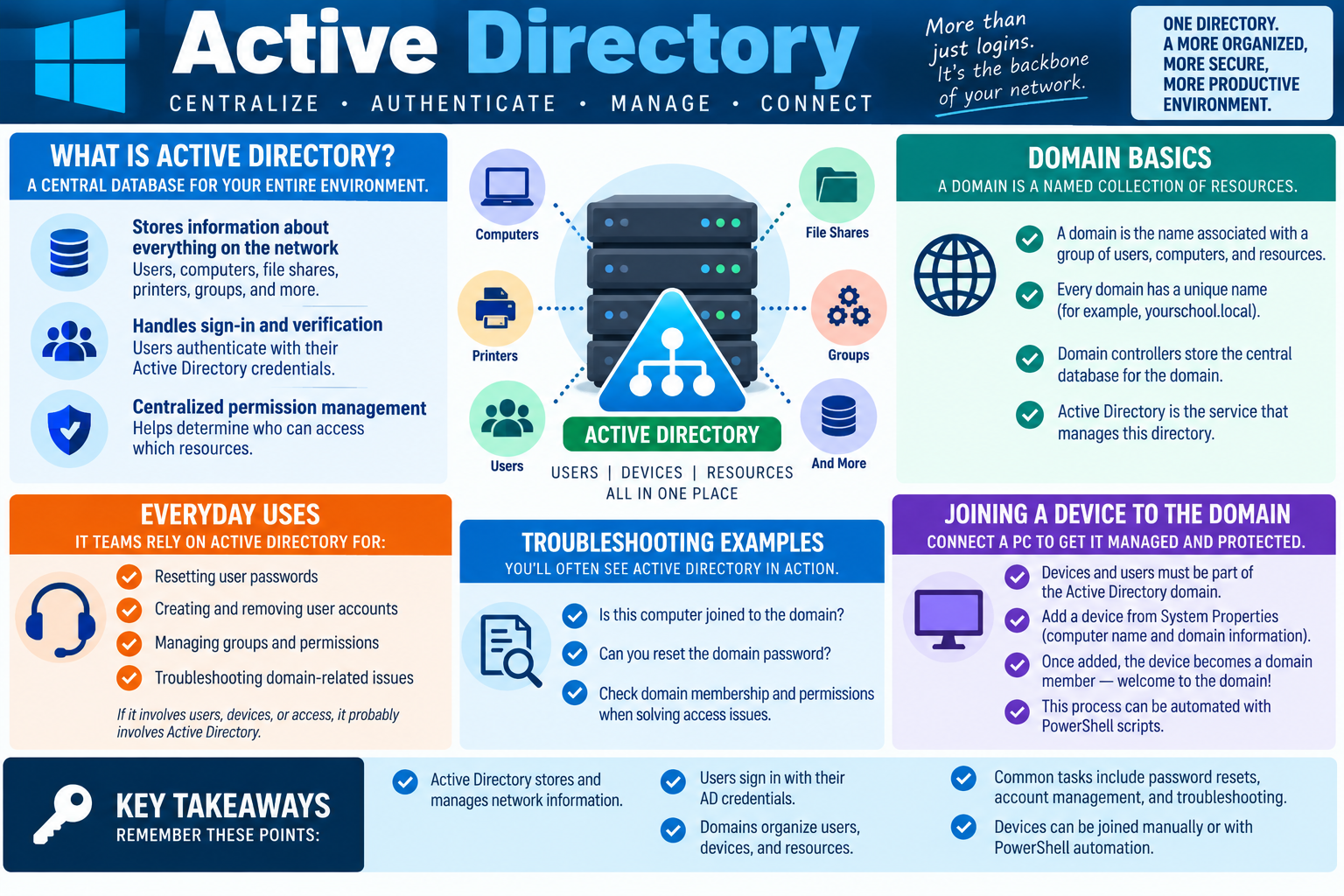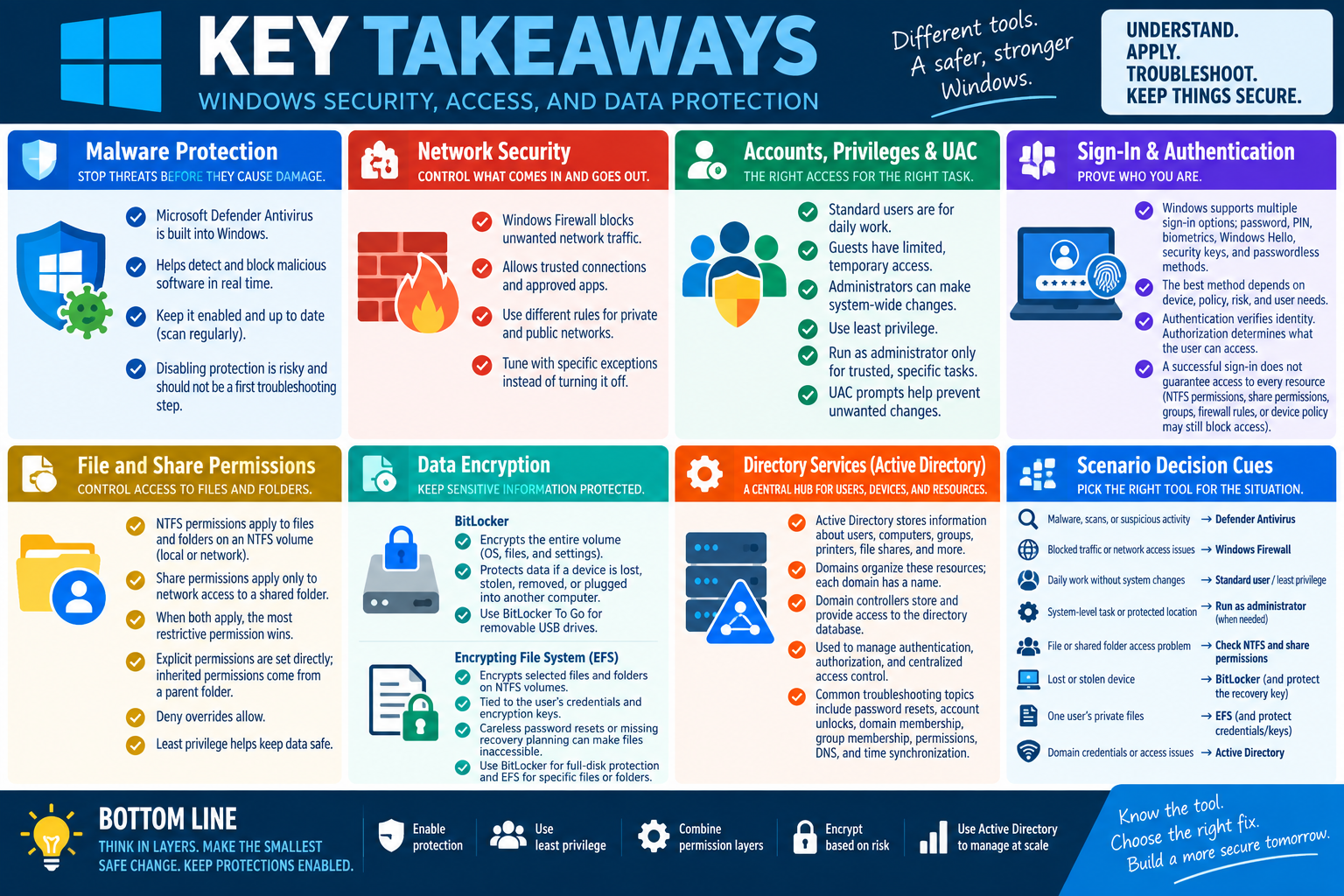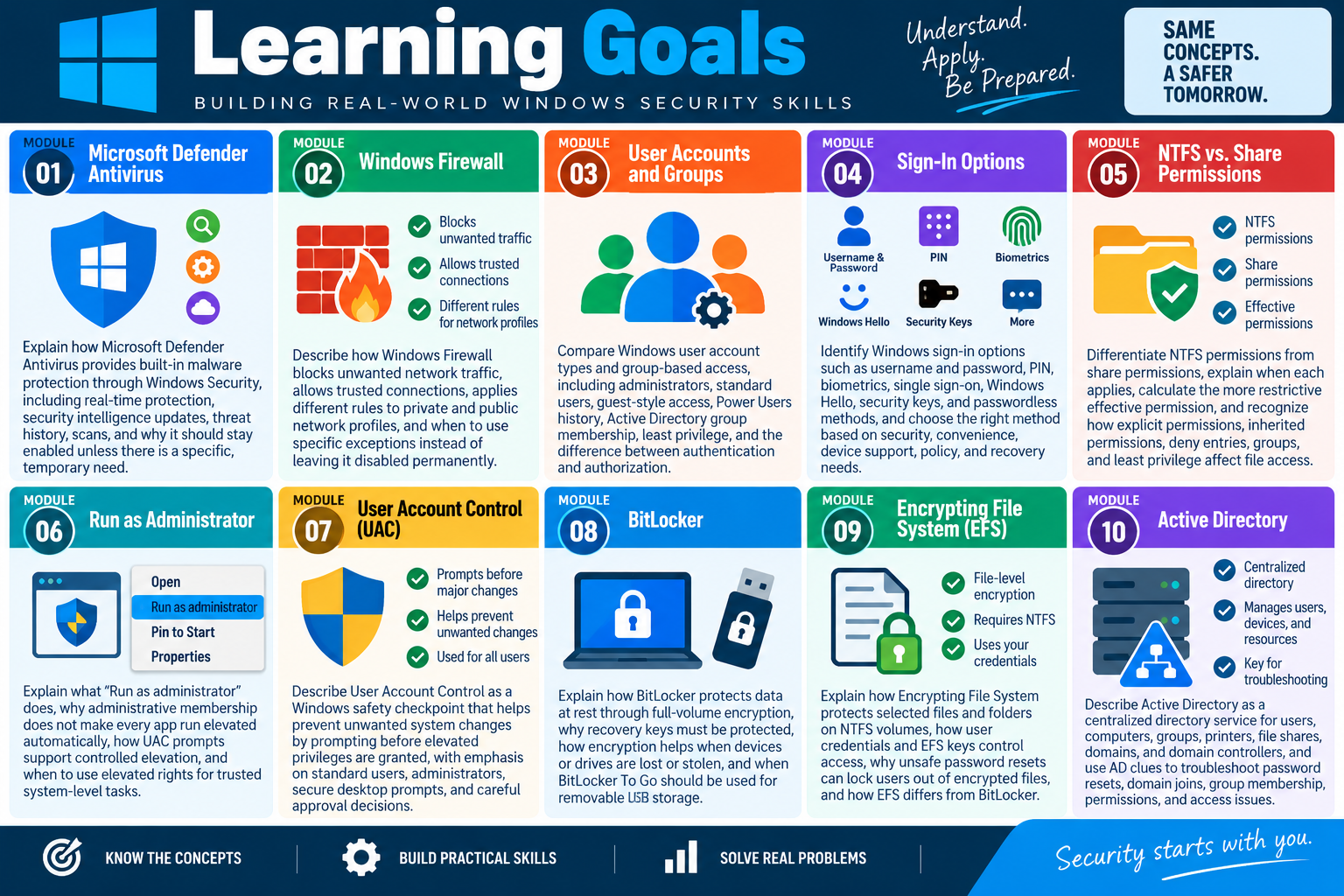
Module 1 - Microsoft Defender Antivirus
Microsoft Defender Antivirus is the built-in Windows malware protection layer that runs through Windows Security, watches the system in real time, and stays effective by receiving current threat definitions.
For Objective 2.2, treat Defender Antivirus as a normal part of Windows security, not as a separate add-on a technician must hunt down and install. A supported Windows device normally includes this protection out of the box. That matters in troubleshooting because the first question is not usually, "Which antivirus should I buy?" The first question is, "Is the built-in protection enabled, updated, healthy, and configured correctly for this device?"
Defender Antivirus helps block viruses, malware, and other threats before they can run, spread, modify files, or abuse the user's account. It works alongside the Windows Security app, Windows Update, reputation-based protection, firewall settings, account controls, browser protections, and organization-managed endpoint policies. On a home computer, the user may see the controls directly. On a business device, some settings may be managed by policy, endpoint management, or a security operations team.
Built-In Protection
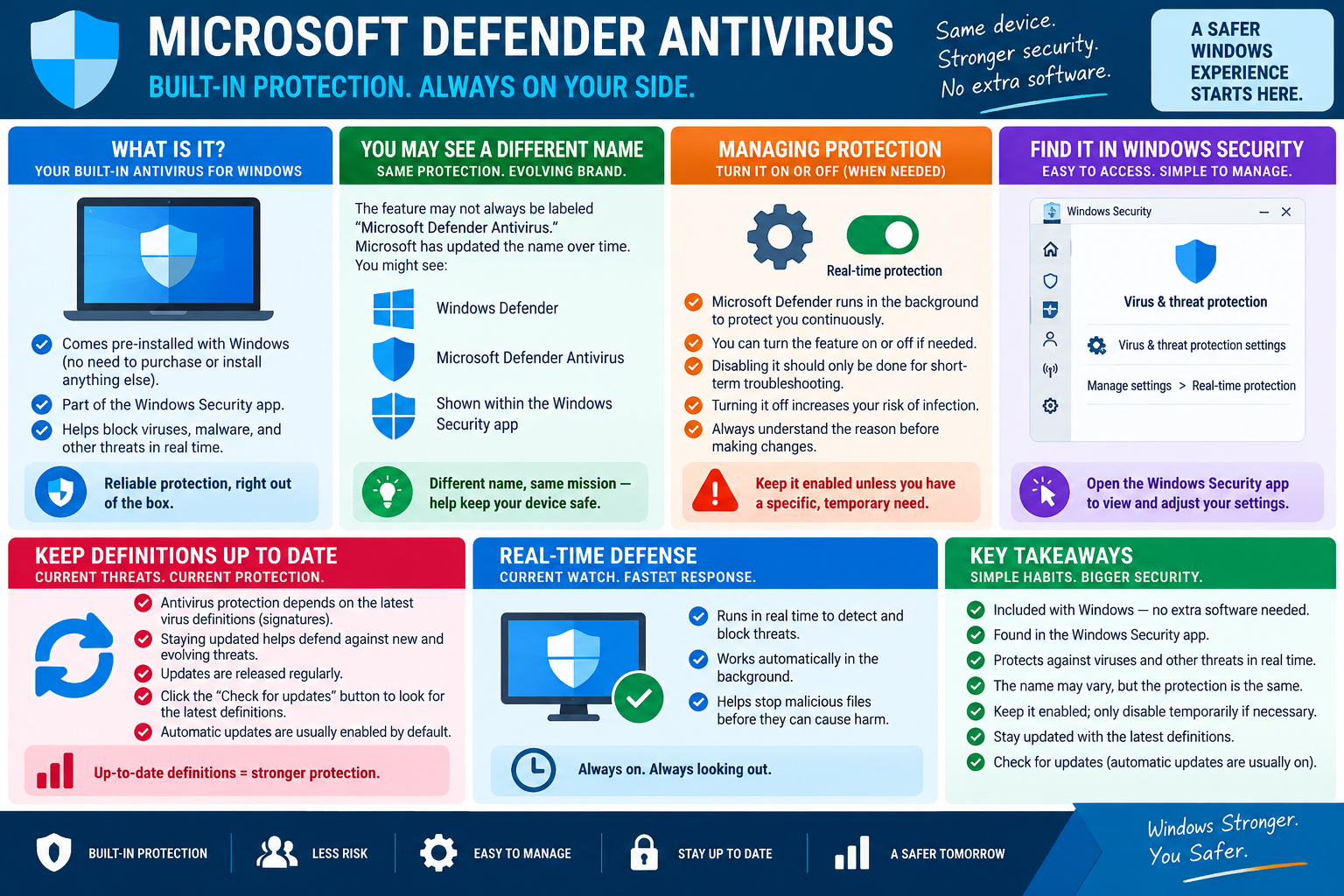
The key idea from the infographic is simple: Windows includes a baseline antivirus layer. A technician should expect to find it in the Windows Security app under Virus & threat protection. The exact layout can vary by Windows version, update level, edition, and management state, but the purpose stays the same. It protects the device continuously without requiring a separate third-party antivirus product.
That built-in status is important for support conversations. If a user says they never installed antivirus, that does not automatically mean the system is unprotected. Verify Windows Security first. Check whether Virus & threat protection is present, whether real-time protection is enabled, whether definitions are current, whether a scan is needed, and whether another security product has taken over protection duties.
Name Changes and Where to Look
Microsoft's security branding has changed over time, so users and exam scenarios may use more than one name for the same general protection area. You may hear Windows Defender, Microsoft Defender Antivirus, Microsoft Defender, Windows Security, or Virus & threat protection. Do not let the naming distract you. For Core 2, connect all of those clues back to built-in Windows endpoint protection and its management console.
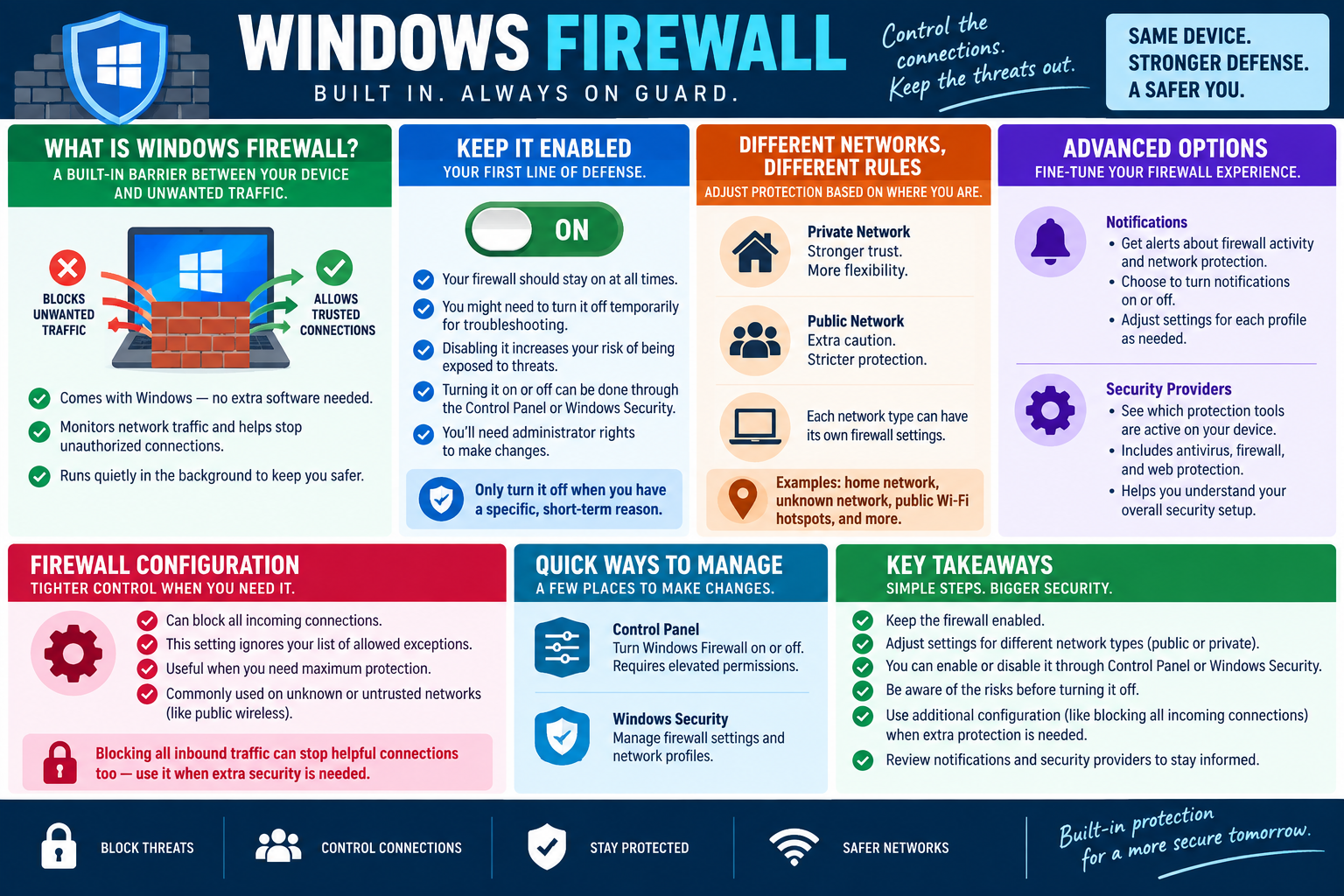
Windows Security is the app students should remember. It centralizes security categories such as Virus & threat protection, account protection, firewall and network protection, app and browser control, device security, device performance and health, and family options. If the scenario asks where to view or adjust antivirus protection, Windows Security is the practical answer.
Real-Time Protection
Real-time protection is the active watch layer. Instead of waiting for a user to manually start a scan, Defender monitors files, downloads, scripts, attachments, processes, and activity as they happen. When suspicious behavior or known malware appears, the protection engine can block, quarantine, alert, or require action depending on policy and threat severity.
The infographic emphasizes that this setting can be turned on or off, but disabling it should be rare and temporary. Turning off real-time protection increases infection risk because the device loses a major layer of immediate detection. If a technician must disable it for troubleshooting, software installation, or a controlled test, the reason should be specific, the time window should be short, and the setting should be restored as soon as the task is complete.
Definition Updates
Antivirus protection depends on current security intelligence, often called definitions or signatures. These updates teach Defender about newly discovered threats, behavior patterns, indicators, and detection logic. A system with old definitions may still have the Defender feature installed, but it may not recognize newer malware effectively.
Definitions are usually updated automatically through Windows Update or the security intelligence update process. In a support scenario, however, "usually automatic" is not the same as "verified." If malware protection looks stale, check for updates in Windows Security, confirm the device has network access, review Windows Update health, and look for policies or errors that might block updates.
Technician Workflow
- Start in Windows Security: open Virus & threat protection and check the protection status before installing anything else.
- Verify real-time protection: confirm it is on unless there is a documented, temporary reason for disabling it.
- Check definitions: review the last security intelligence update and use Check for updates when protection may be out of date.
- Review alerts and history: look for quarantined items, blocked threats, incomplete remediation, or actions still required.
- Run the right scan: use quick, full, custom, or offline scans based on the symptom, risk, and time available.
- Respect managed settings: if controls are locked by an organization, follow policy and escalate instead of bypassing protections.
- Document the change: record update status, scan results, disabled settings, restored settings, and any user education provided.
Scenario Cues
- User asks where antivirus lives: open Windows Security and go to Virus & threat protection.
- Protection name looks different: recognize Windows Defender, Microsoft Defender Antivirus, and Virus & threat protection as related Windows security clues.
- Malware risk is active: keep real-time protection enabled and run an appropriate scan.
- Installer says antivirus must be disabled: verify the source, avoid unnecessary disabling, and re-enable protection immediately if a temporary exception is approved.
- Definitions are stale: check for security intelligence updates and confirm Windows Update or network connectivity is working.
- Settings are unavailable: check whether another antivirus product or organizational policy is managing protection.
Why It Matters
Defender Antivirus is one of the first Windows security controls a technician should verify because it is present on the device, easy to access, and directly tied to malware prevention. Keeping it enabled reduces the chance that a user mistake, malicious download, infected attachment, or compromised website turns into a full system cleanup.
For the exam, watch for wording that points to built-in protection, Windows Security, real-time scanning, disabled antivirus, stale definitions, or the need to check for updates. The best answer usually keeps protection active, updates the detection data, uses the appropriate scan, and avoids weakening the system unless there is a controlled, temporary, documented need.