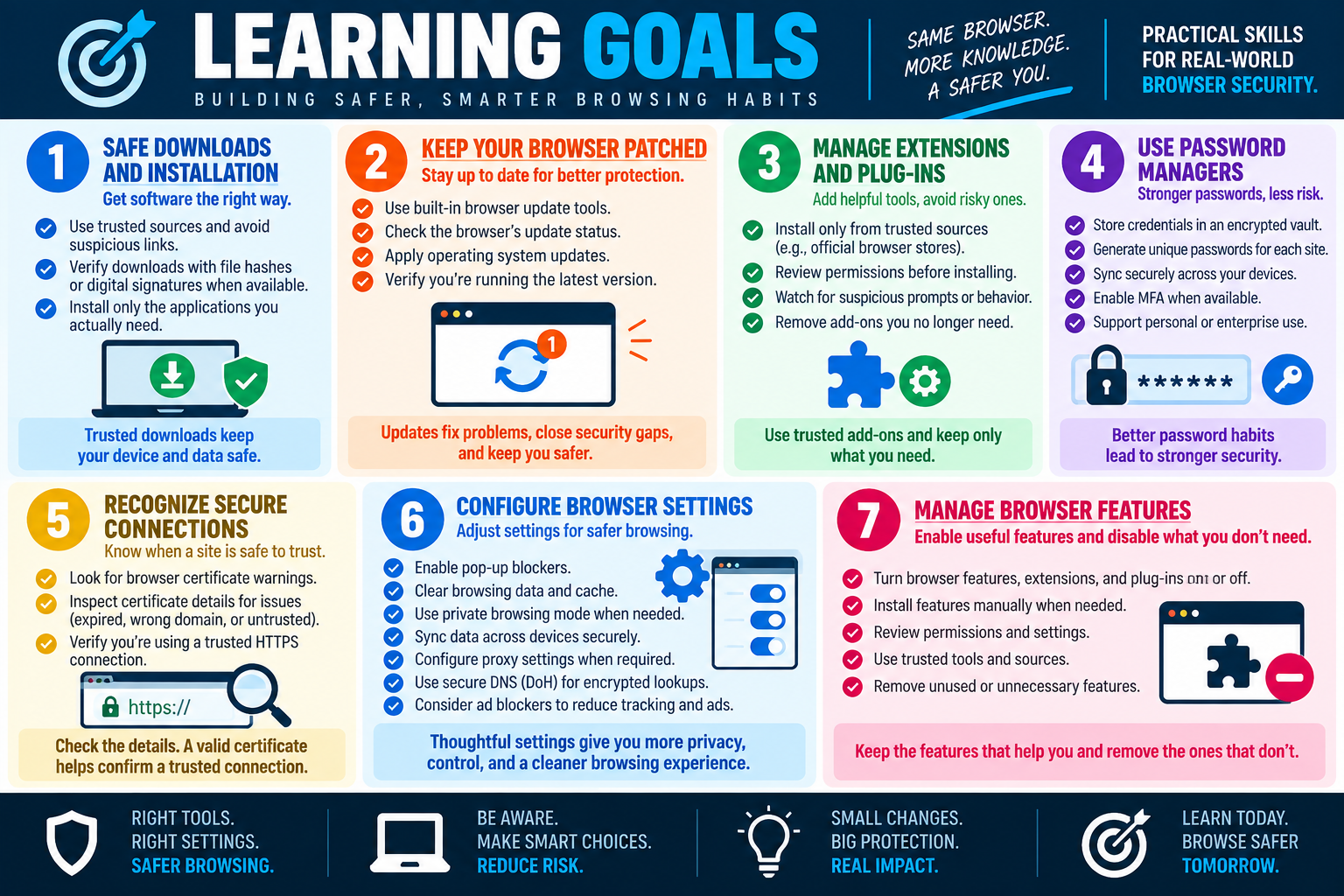
Module 1 - Browser Download / Install
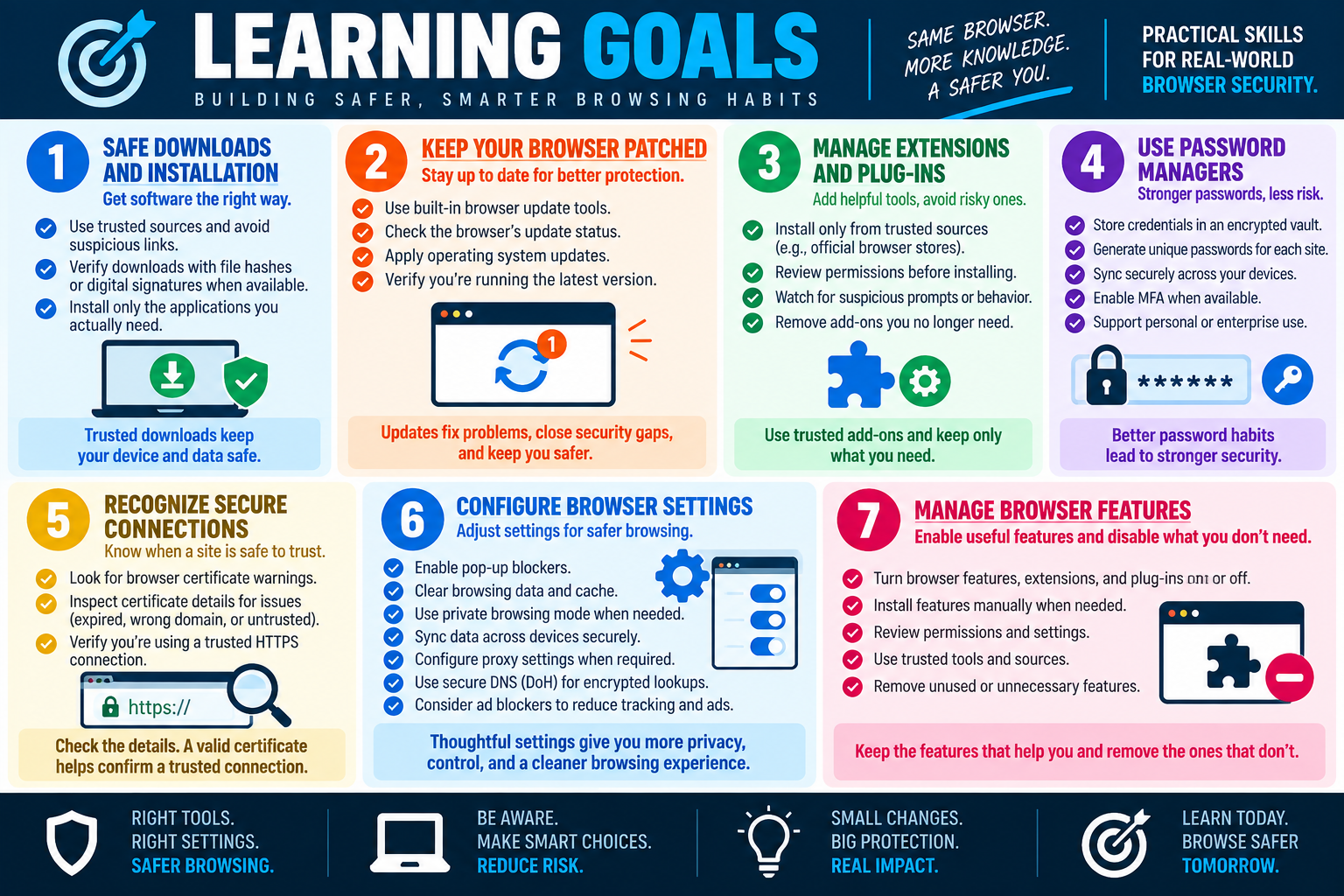
Safe software installation starts before the installer runs. Use trusted sources, avoid random links, verify downloads when possible, and install only software that is needed and known to be legitimate.
Browsers make downloading software easy, and that convenience is exactly why attackers target the process. A user may think they are installing a browser, driver, PDF tool, update, utility, or media player, but the file may actually be malware, adware, a fake installer, or a modified copy of a legitimate program. In many attacks, the attacker does not need to break into the computer first; they only need the user to download and run the wrong file.
A technician should treat browser downloads as a security decision. Before installing, ask where the software came from, whether the publisher is trusted, whether the file matches what the vendor provides, and whether the system actually needs the application. The safest installation process is deliberate: download from a trusted source, verify the file, install with care, and keep the system protected afterward.
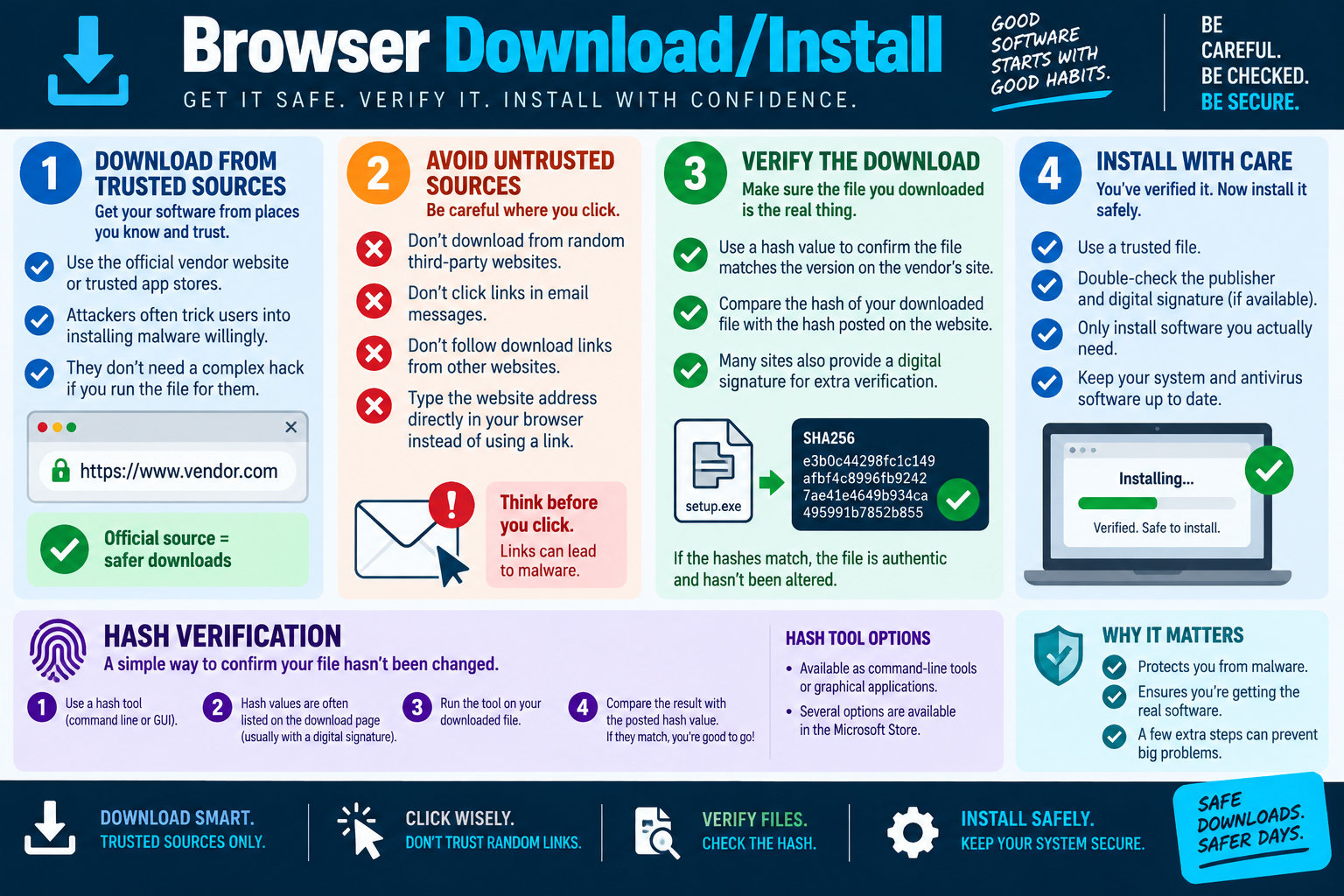
Download from Trusted Sources
The best place to download software is the official vendor website or a trusted app store. Official sources reduce the chance that the installer has been repackaged, modified, bundled with unwanted software, or replaced with a fake copy. For business systems, an approved software portal, managed deployment tool, or internal package repository may be even better than a public download site.
Users should be careful with search results. Attackers often buy ads or use search-engine tricks to make fake download pages appear near the top of results. A page may look official, use a similar logo, or include words such as download, update, free, support, or secure. The safer habit is to type the vendor's address directly or use a known trusted bookmark instead of clicking the first result.
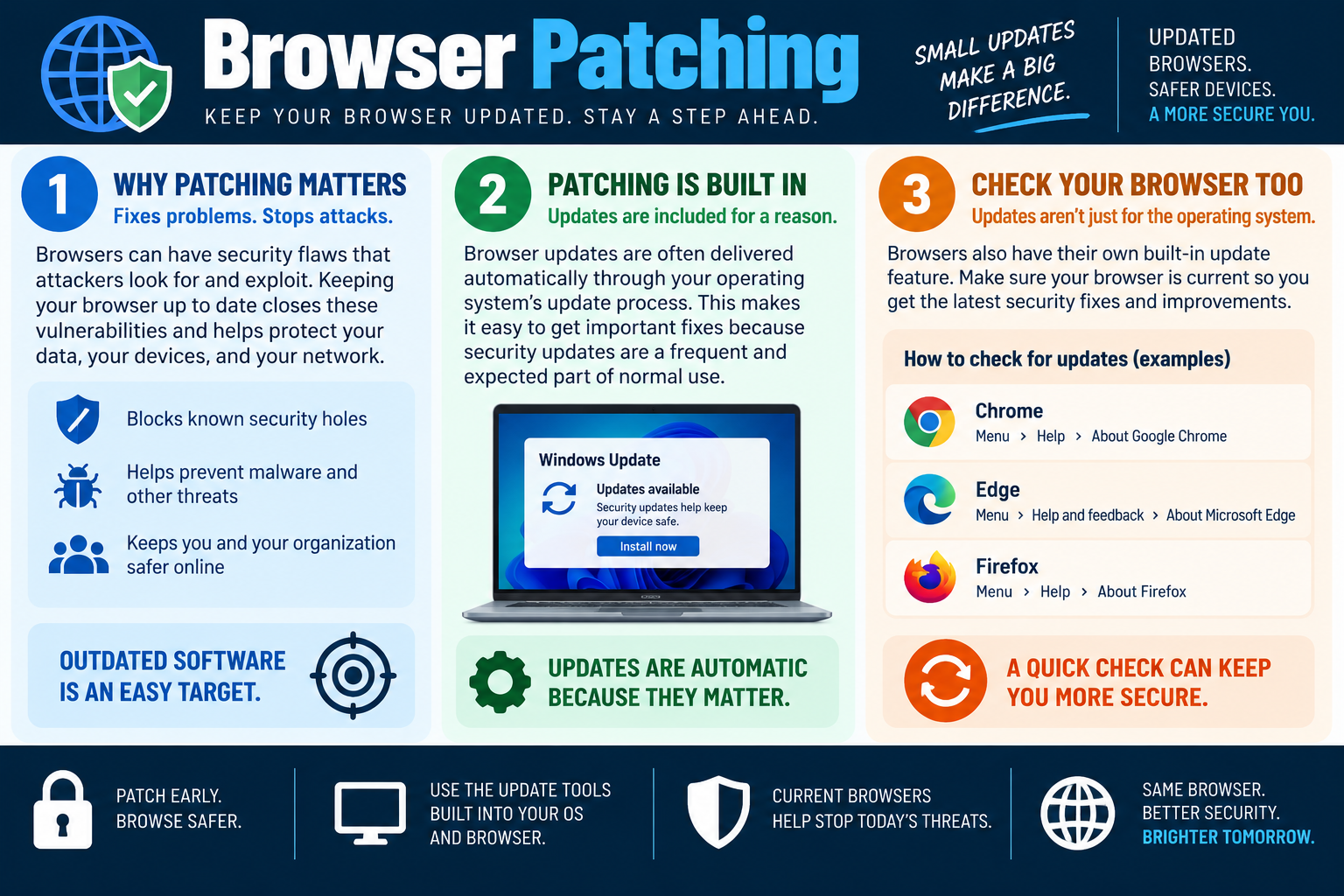
Trusted sources also matter for updates. A pop-up that says a browser, driver, Flash-style component, media player, or security tool is outdated should not be trusted automatically. Use the application's built-in update feature, the operating system's update mechanism, the vendor site, or an approved management platform.
Avoid Untrusted Links
Do not download installers from random third-party websites, email links, chat messages, social media posts, or unrelated websites. These links may lead to fake installers, compromised downloads, credential-stealing pages, or malware disguised as legitimate software. Even if the file name looks convincing, the source matters.
Email is a common delivery path. An attacker may send a message claiming that a document viewer, VPN client, meeting app, invoice tool, or browser update is required. If the user clicks the link and runs the installer, the system may be compromised by the user's own action. Technicians should coach users to stop and verify before clicking.
When there is any doubt, navigate to the official site directly. Do not follow a link from the suspicious message. If the software is business-related, check the organization's software catalog or ask IT before installing. The extra step is much cheaper than cleaning up malware after the fact.
Verify the Download
Verification confirms that the downloaded file is the real file the publisher intended to provide. Many vendors publish a hash value for installers. A hash is a unique fingerprint generated from the file contents. If the downloaded file changes even slightly, the hash value changes too.
A common verification process is to download the installer, run a hash tool such as a command-line utility or graphical hash checker, and compare the result to the hash posted by the vendor. SHA-256 is commonly used for this purpose. If the hashes match, the file is much more likely to be authentic and unchanged. If the hashes do not match, do not install the file.
Hash verification is especially important for software downloaded outside a managed app store, security tools, system utilities, firmware tools, drivers, or anything installed with administrative privileges. A mismatched hash can mean the download is incomplete, corrupted, from the wrong version, or maliciously modified.
Digital Signatures
Some installers include a digital signature from the publisher. A valid signature helps confirm that the file came from the stated publisher and has not been altered since it was signed. It does not prove the software is appropriate for the environment, but it adds another verification layer.
When available, check the publisher name and signature status before installing. If Windows, the browser, or endpoint security warns that the publisher is unknown or the signature is invalid, stop and investigate. Do not simply click through warnings to finish the installation faster.
A signature and a hash answer slightly different questions. A signature helps identify and validate the publisher. A hash helps confirm that the file matches the published file. Together, they provide stronger confidence than either one alone.
Install with Care
After the file is trusted, install carefully. Use the correct installer for the operating system and version. Close unnecessary applications when appropriate. Read prompts instead of clicking Next automatically. Watch for optional bundled software, browser extensions, search-provider changes, homepage changes, background services, or permissions that are not needed.
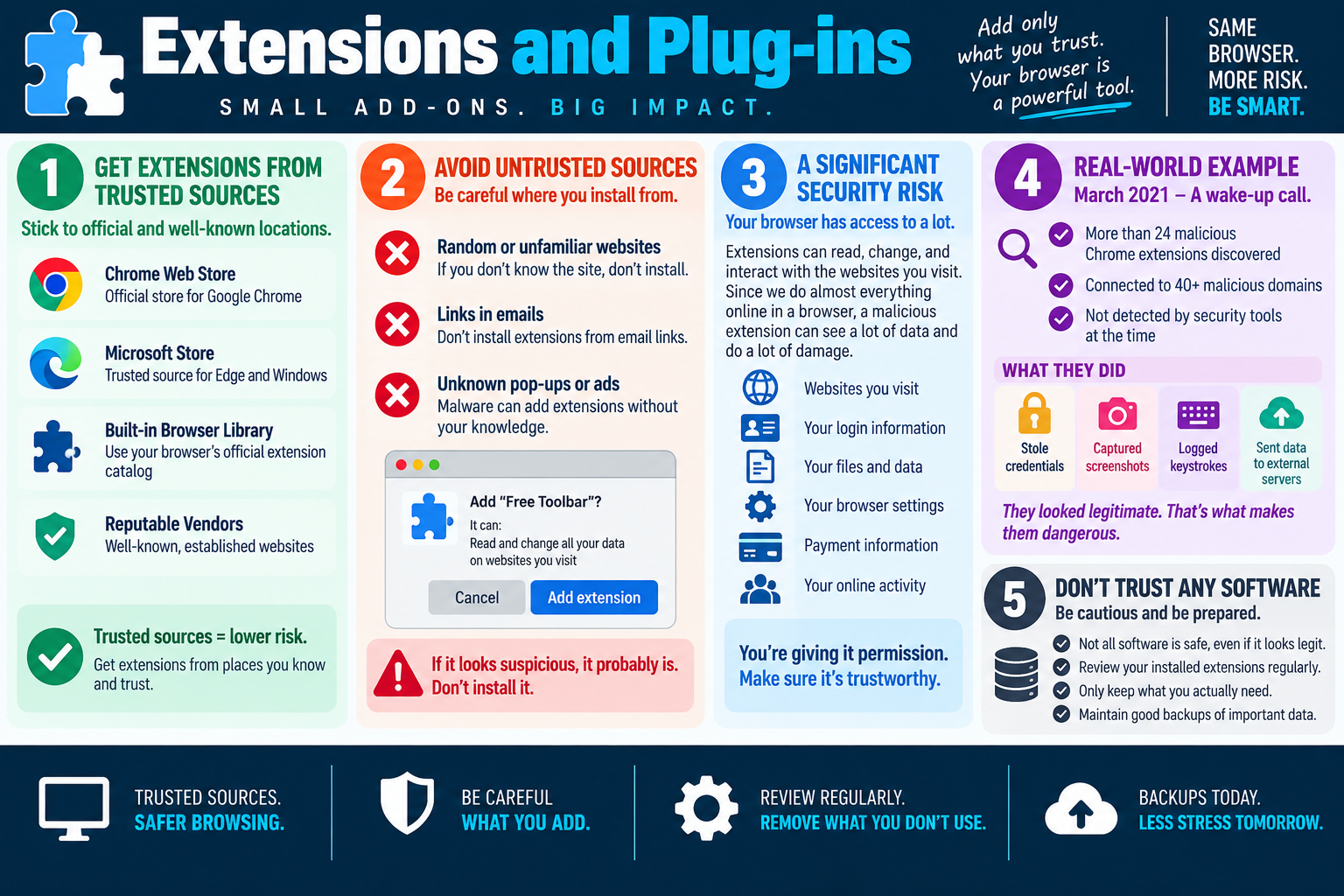
Only install software that is actually required. Every application can add attack surface, update responsibilities, plug-ins, background processes, file associations, or browser integrations. If a user only needs to view a file once, the better answer may be a trusted built-in viewer or approved web app instead of installing a random utility.
Keep the system and antivirus or endpoint security tools current. Updated protection can help detect malicious installers, suspicious behavior, and known threats. However, antivirus is not a substitute for safe download habits. The user should still start from a trusted source and verify when possible.
Hash Verification Workflow
- Get the file from a trusted location. Use the vendor site, official app store, approved repository, or managed deployment tool.
- Find the vendor's published hash. Use the hash listed on the official download page or documentation, and make sure it matches the version being installed.
- Run a hash tool locally. Use a command-line tool or trusted graphical tool to calculate the downloaded file's hash.
- Compare the values exactly. If the hashes match, the file has not changed from the published version. If they do not match, do not install it.
- Check signature details when available. Confirm the publisher and signature status before approving the install.
Why It Matters
Download safety protects users from malware, fake updates, trojans, adware, ransomware, unwanted browser extensions, and credential theft. It also helps ensure the organization gets the real software, not a repackaged installer from a download farm or malicious page.
A few extra steps can prevent large problems. Verifying a file may take less than a minute, while cleaning an infected machine, restoring data, rotating credentials, and explaining an incident can take hours or days. Good download habits are a simple but powerful security control.
Scenario Cues
- User downloaded from a random third-party site: stop the install and obtain the software from the vendor or approved source.
- Email link says an update is required: do not click the link; navigate directly to the vendor or use the built-in updater.
- Hash value does not match: do not install the file; redownload from a trusted source and investigate.
- Publisher is unknown or signature is invalid: pause and verify legitimacy before installing.
- Installer offers bundled add-ons or browser changes: decline unnecessary extras or use an approved package.
- Software is not needed: do not install it just because it is available.
- User reports pop-ups after installing a utility: review the source, installed apps, extensions, startup items, and endpoint security alerts.
Common Exam Traps
Do not assume a familiar file name means the file is safe. Malware can use convincing names such as setup.exe, update.exe, browser-installer.exe, or driver-update.exe.
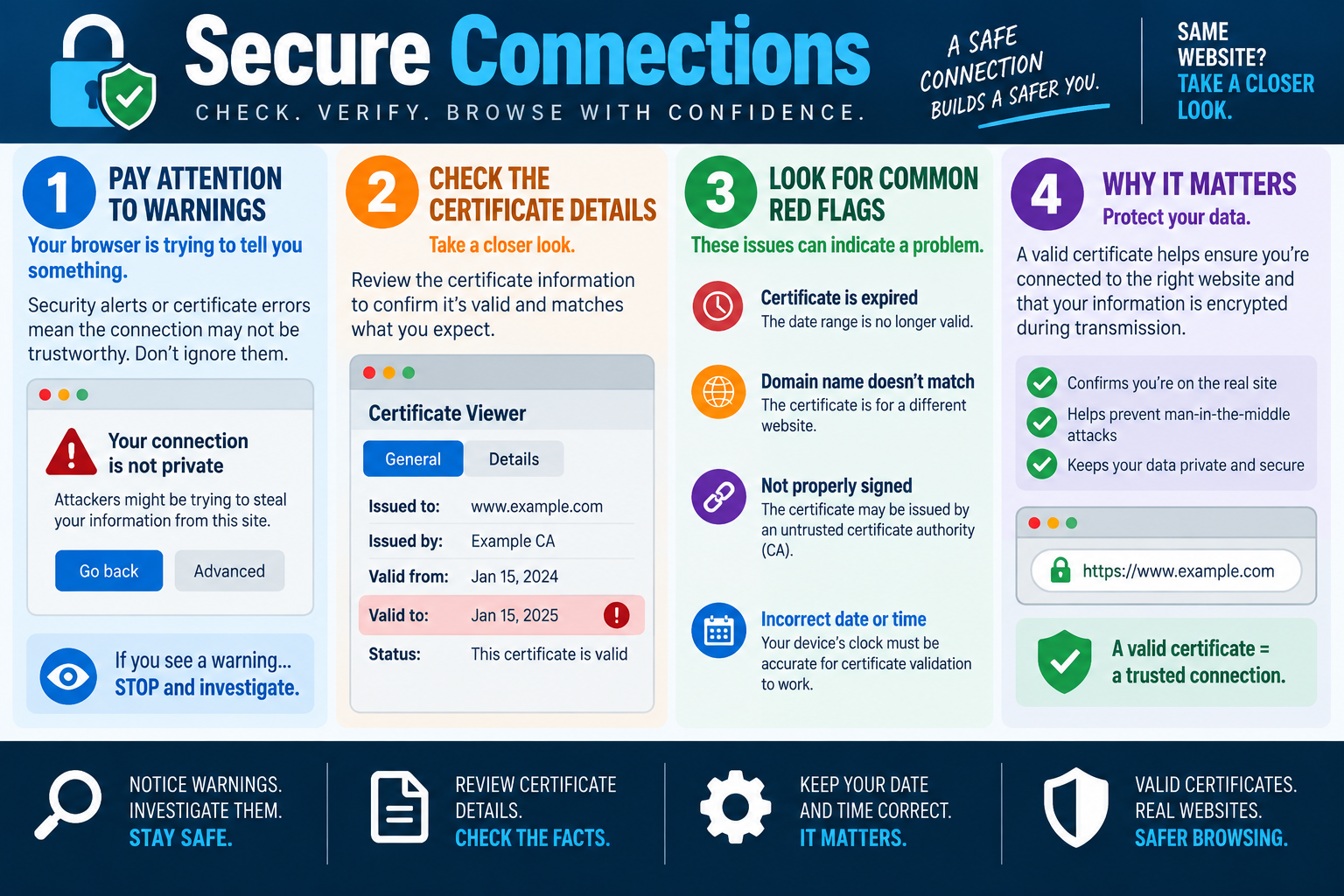
Do not treat HTTPS alone as proof that the software is legitimate. HTTPS protects the connection to the site, but it does not guarantee that the site itself is the real vendor or that the file is appropriate.
Do not install first and verify later. Verification is useful because it happens before the file runs. Once a malicious installer executes, the system may already be compromised.
Do not ignore version details when comparing hashes. A hash for version 3.2 will not match version 3.3, even if both files are legitimate. Make sure the published hash belongs to the exact file being installed.