Module 1 - Router Settings
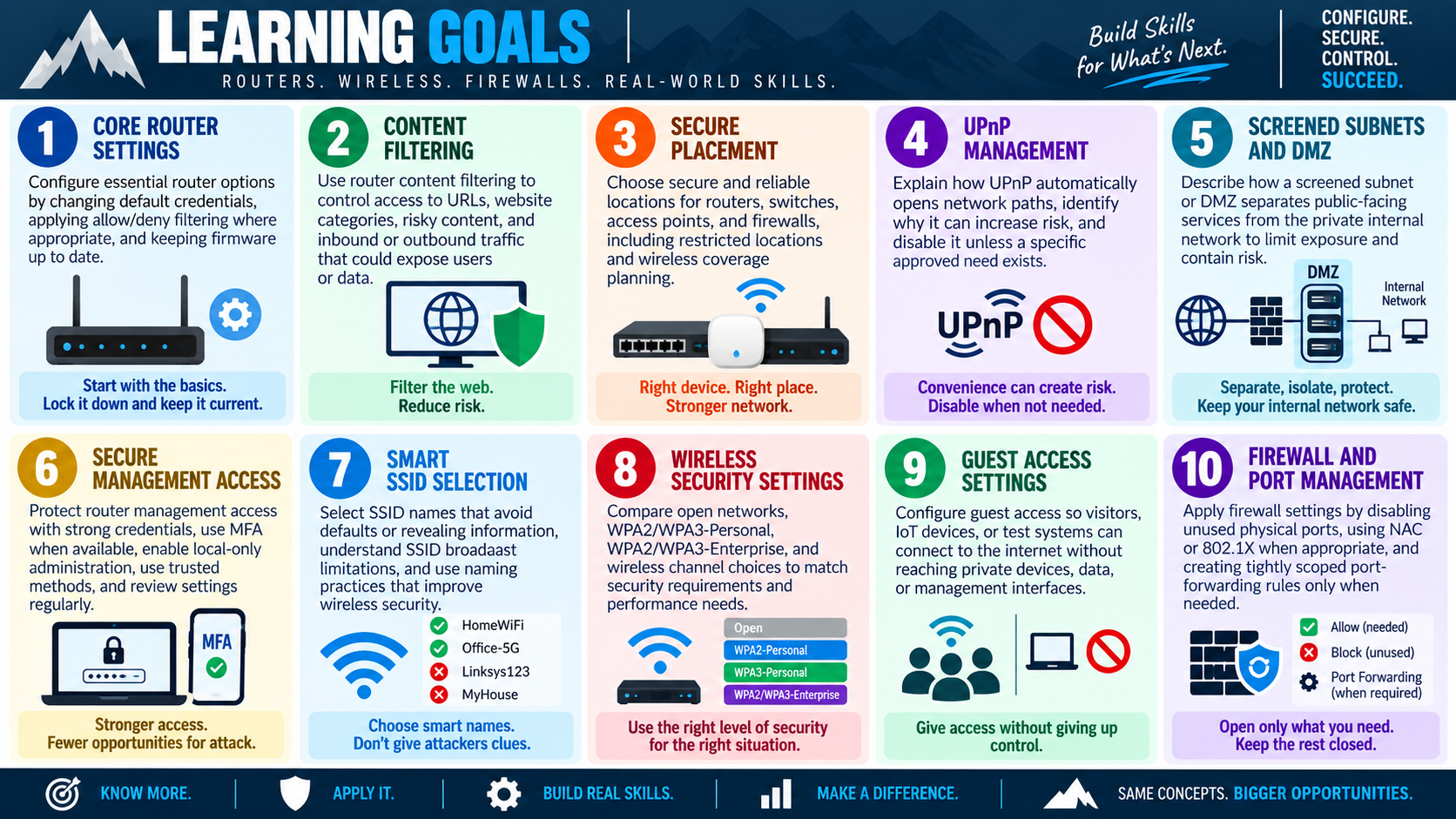
Router settings control the edge of a SOHO network. Changing default credentials, using filtering rules, and keeping firmware current help prevent unwanted access while keeping the network stable and usable.
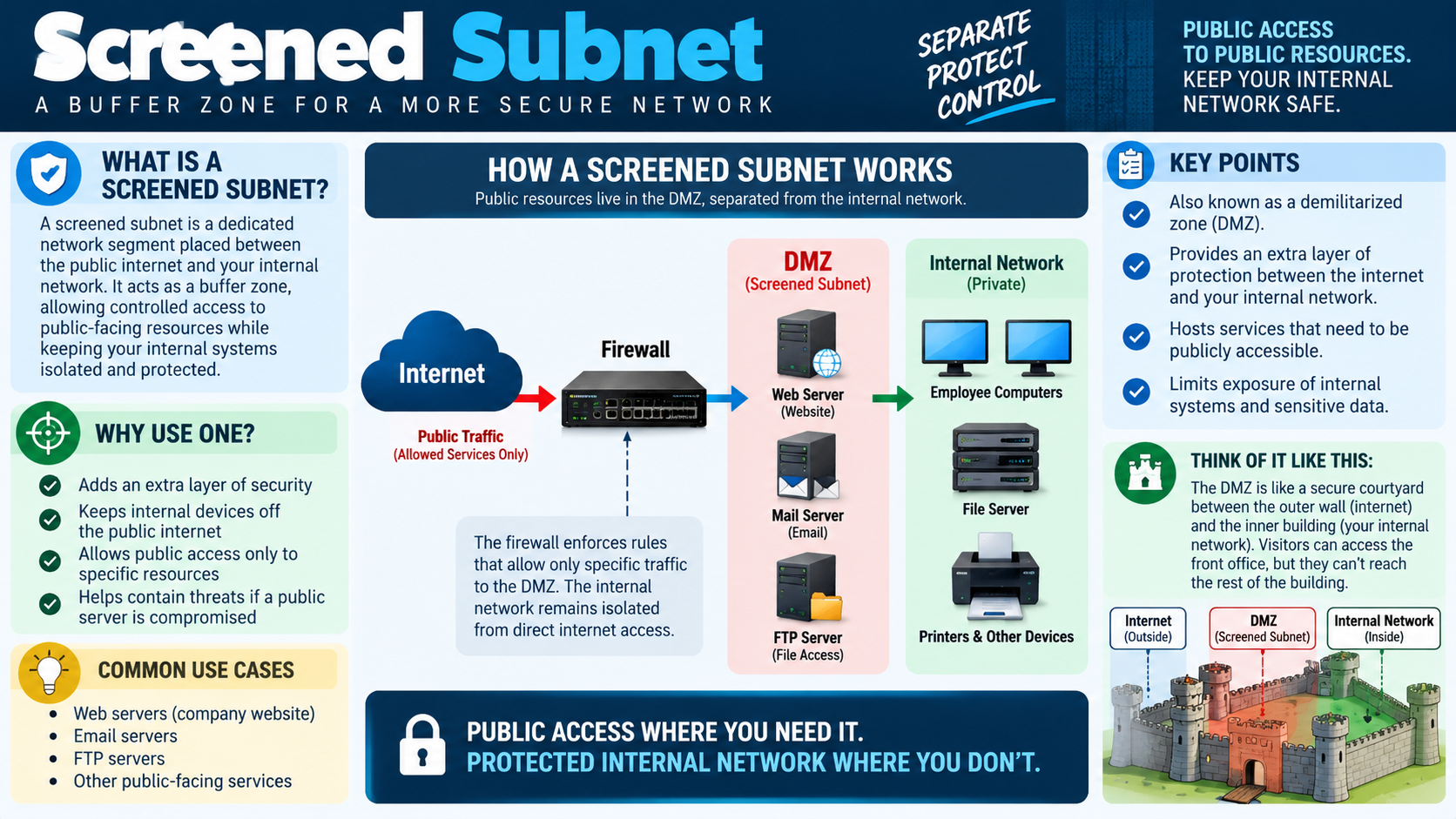
A small office/home office router is often the first device between local users and the outside network. It may provide wireless access, DHCP, DNS forwarding, firewall rules, NAT, guest networking, content filtering, and administrative management from one small appliance. Because it sits at such an important point, weak router settings can expose every connected device behind it.
Securing a router is not about making every possible setting as restrictive as possible. It is about choosing controls that fit the environment, the users, and the risk. A family network, a small medical office, a home-based business, and a managed branch office may all use similar router features, but the right configuration choices can be different.
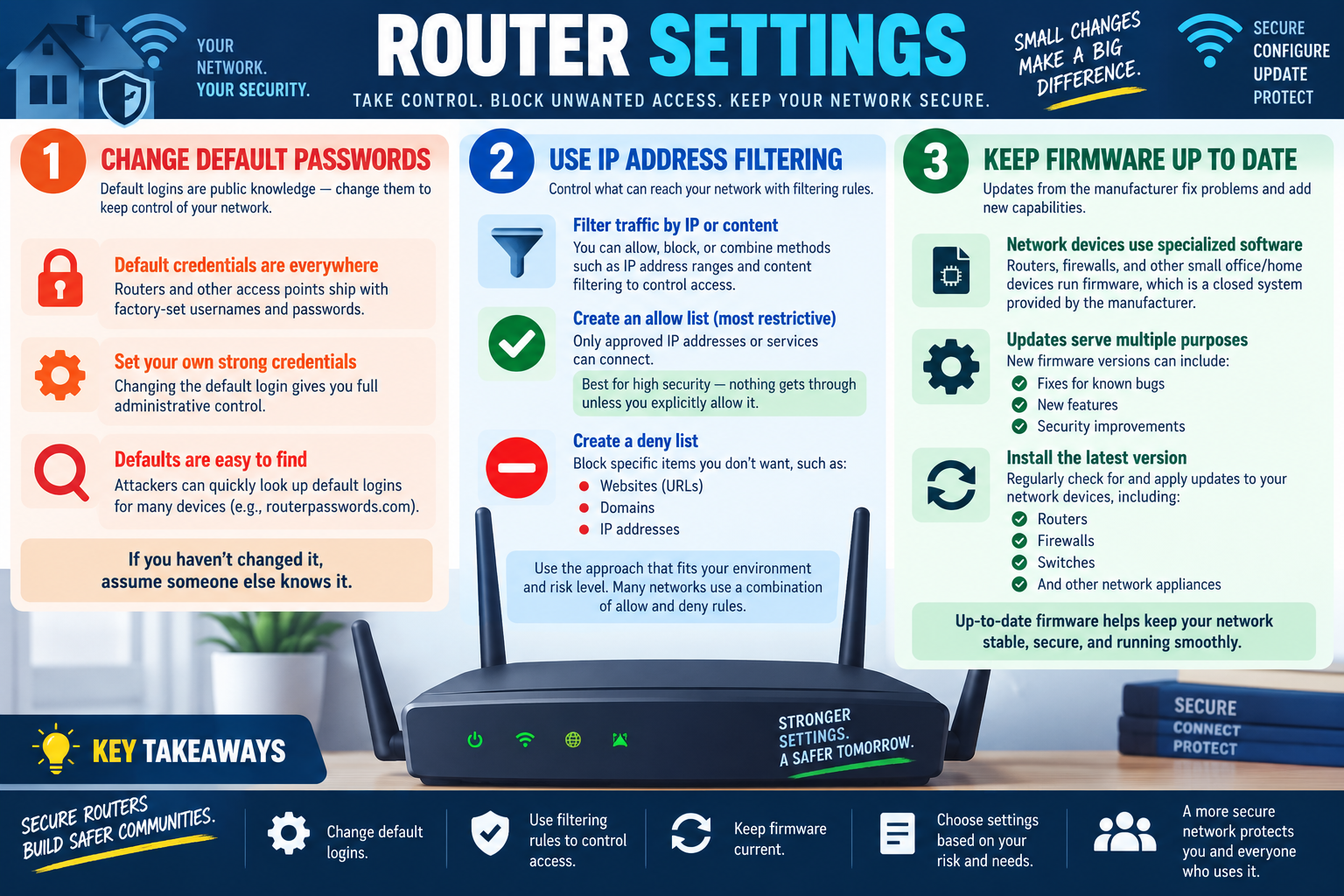
Change Default Passwords
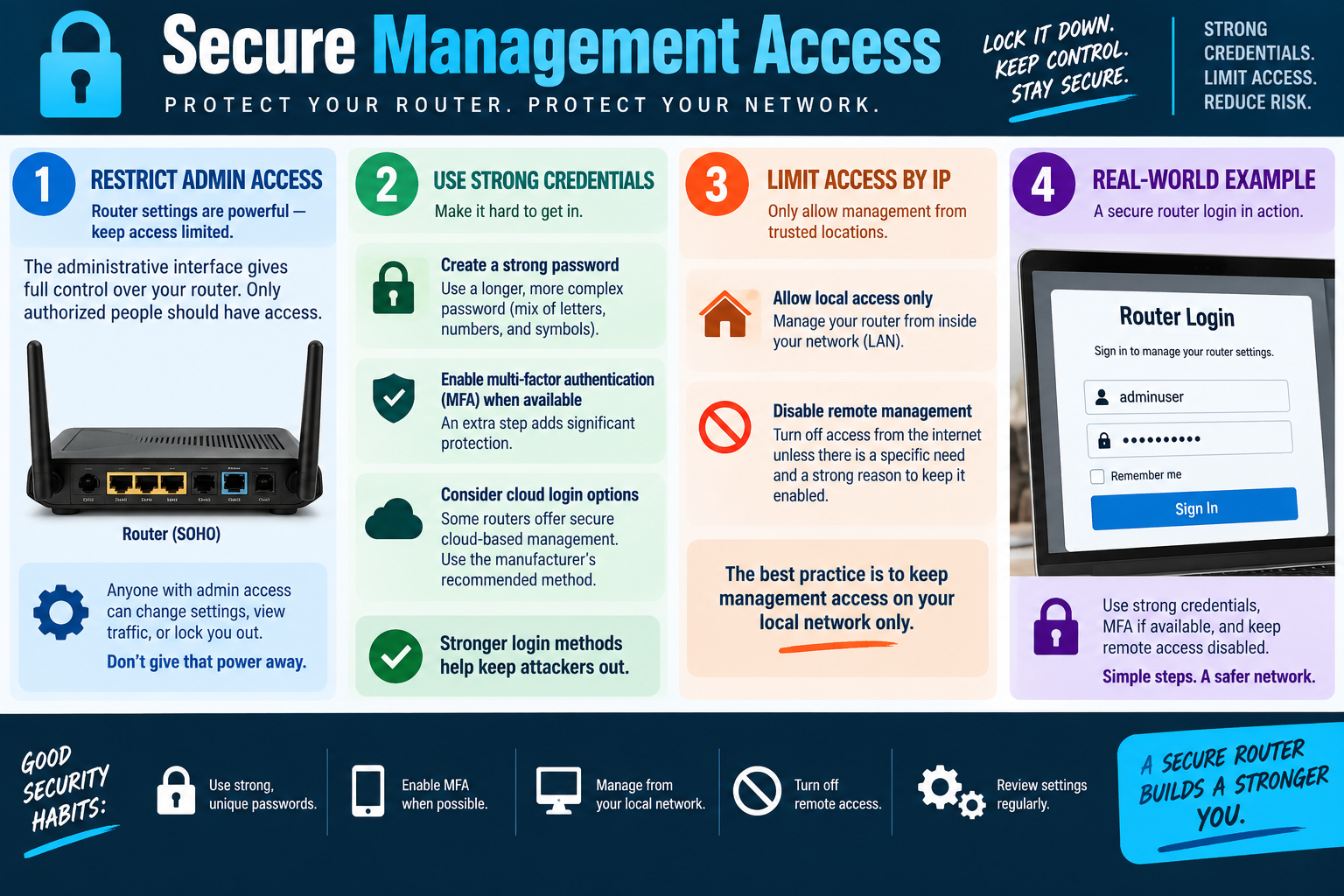
Default router credentials are public knowledge. Many routers and access points ship with factory-set usernames and passwords, and those values are often printed in manuals, listed on vendor sites, shared in online databases, or reused across entire product lines. If the administrator password is still the default, an attacker, neighbor, guest, malware infection, or curious user may be able to take control of the device.
The first hardening step is to change the default administrative login. Use a strong, unique password that is not shared with Wi-Fi access, user accounts, email accounts, or other devices. If the router supports changing the default administrator username, that can reduce automated attacks that try common names such as admin, administrator, or root.
Changing the admin credentials gives the owner control over the router configuration. Without that control, other security settings can be changed, disabled, or bypassed. An attacker with router admin access can alter DNS settings, change Wi-Fi keys, open ports, disable firewall features, install malicious firmware where supported, or lock the real owner out of the device.
Default Credentials Are Easy to Find
Attackers do not have to guess very hard when a device still uses factory credentials. Default logins for many routers are searchable online, and older devices may use well-known combinations that have been published for years. Some automated attacks try common router usernames and passwords at scale because so many devices are never changed after installation.
For exam scenarios, clues such as "new router," "factory settings," "admin/admin," "default login," or "user never changed the password" point directly to changing default credentials. Do this before fine-tuning advanced settings because a router that anyone can administer cannot be trusted.
Use IP Address Filtering
IP address filtering controls which traffic is allowed or blocked based on IP addresses, address ranges, services, or sometimes content categories. In a SOHO setting, filtering can help limit what reaches the network, what leaves the network, or what specific users and devices can access. The exact features depend on the router or firewall, but the security goal is the same: reduce unwanted access.
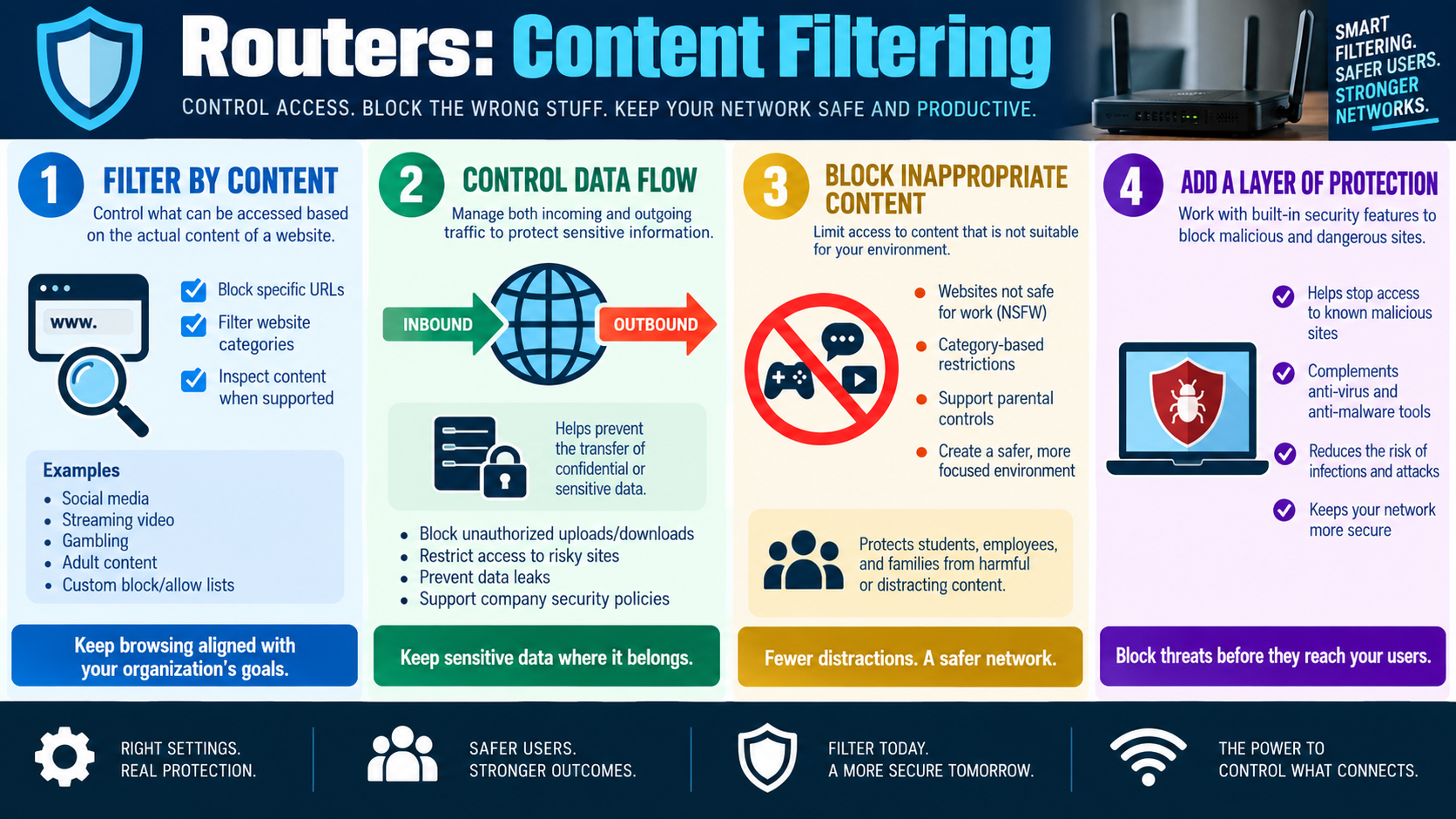
Filtering is useful when the organization needs a predictable rule. For example, a business may allow remote administration only from a known management IP address, block traffic to a known malicious address range, limit access to a service to a trusted subnet, or prevent specific internal devices from reaching risky destinations. Some SOHO routers combine IP filtering with URL filtering, domain filtering, parental controls, or content filtering.
Filtering rules should be planned carefully. A rule that is too broad can break legitimate connectivity, while a rule that is too loose may not reduce much risk. A good technician documents the current configuration, applies a focused rule, tests the expected access, and confirms that unrelated network services still work.
Allow Lists and Deny Lists
An allow list is the more restrictive approach. Only explicitly approved IP addresses, address ranges, devices, or services are permitted. Everything else is blocked by default. This works well for high-security scenarios where the network owner knows exactly what should be allowed, such as permitting management access only from a trusted address or allowing a small set of devices to reach a sensitive service.
A deny list blocks specific items that are known to be unwanted, such as certain websites, domains, IP addresses, services, or destinations. Deny lists are easier to start with because normal access continues unless something is specifically blocked. The tradeoff is that anything not listed may still be allowed. This can be useful for reducing known risks, but it is not as strict as an allow-list model.
Many real networks use both. An allow list may protect administrative access, while deny rules block known bad destinations or unwanted content. The right answer depends on the risk level and the scenario. If the question says "only approved systems should connect," think allow list. If it says "block these known unwanted destinations," think deny list.
Keep Firmware Up to Date
Routers, firewalls, switches, and small network appliances run specialized software called firmware. Firmware controls the device features, security behavior, web interface, wireless functions, routing functions, and management capabilities. Like any software, firmware can contain bugs, vulnerabilities, and compatibility issues.
Firmware updates from the manufacturer may fix known bugs, add features, improve device stability, and close security vulnerabilities. A router that has never been updated may be exposed to issues that the vendor has already corrected. This is especially important for internet-facing devices because attackers often target routers with outdated firmware.
Technicians should check for updates through trusted sources: the router's official update feature, the vendor support site, or an approved management platform. Avoid random firmware files from unknown forums or third-party download sites unless the organization has specifically approved that firmware path. A bad firmware update can break the router, remove support, or introduce security risk.
Apply Updates Carefully
Firmware updates should be planned. Before updating, confirm the exact router model and hardware revision, read release notes when available, back up the current configuration if the device supports it, and schedule the change for a time when a reboot will not disrupt important work. After the update, verify that internet access, Wi-Fi, filtering rules, firewall rules, DHCP, DNS, VPN, and management access still work.
Small networks often depend on one router for everything. If the update fails or the configuration changes unexpectedly, users may lose internet access. That does not mean firmware should be ignored; it means the update should be handled like a real change with a rollback plan and verification.
Choose Settings Based on Risk
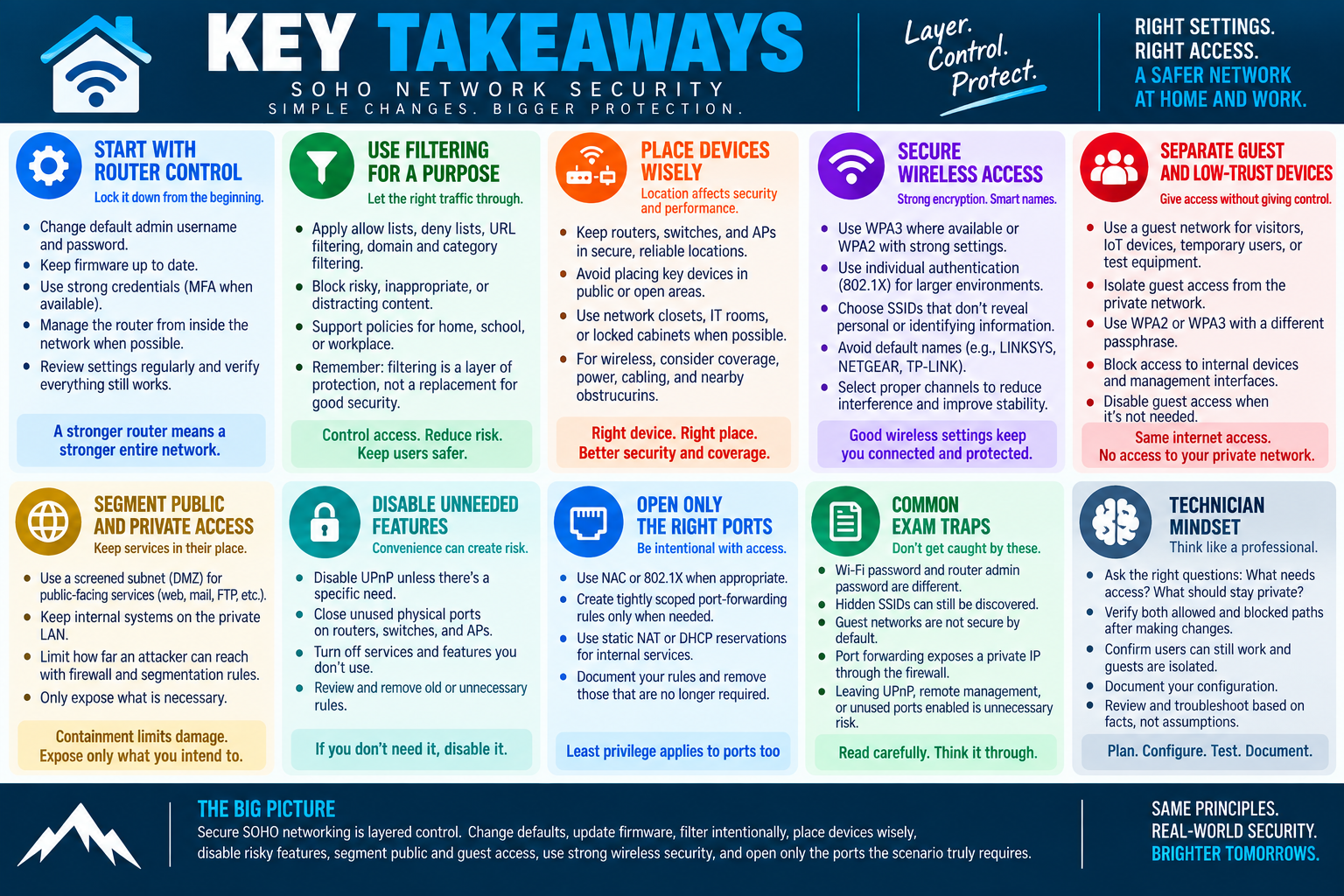
The infographic's core message is that small changes can make a big difference. Changing default logins stops easy administrative compromise. Filtering rules reduce unwanted access. Firmware updates close known weaknesses and improve stability. Together, these actions make the router harder to misuse without requiring a complicated enterprise firewall deployment.
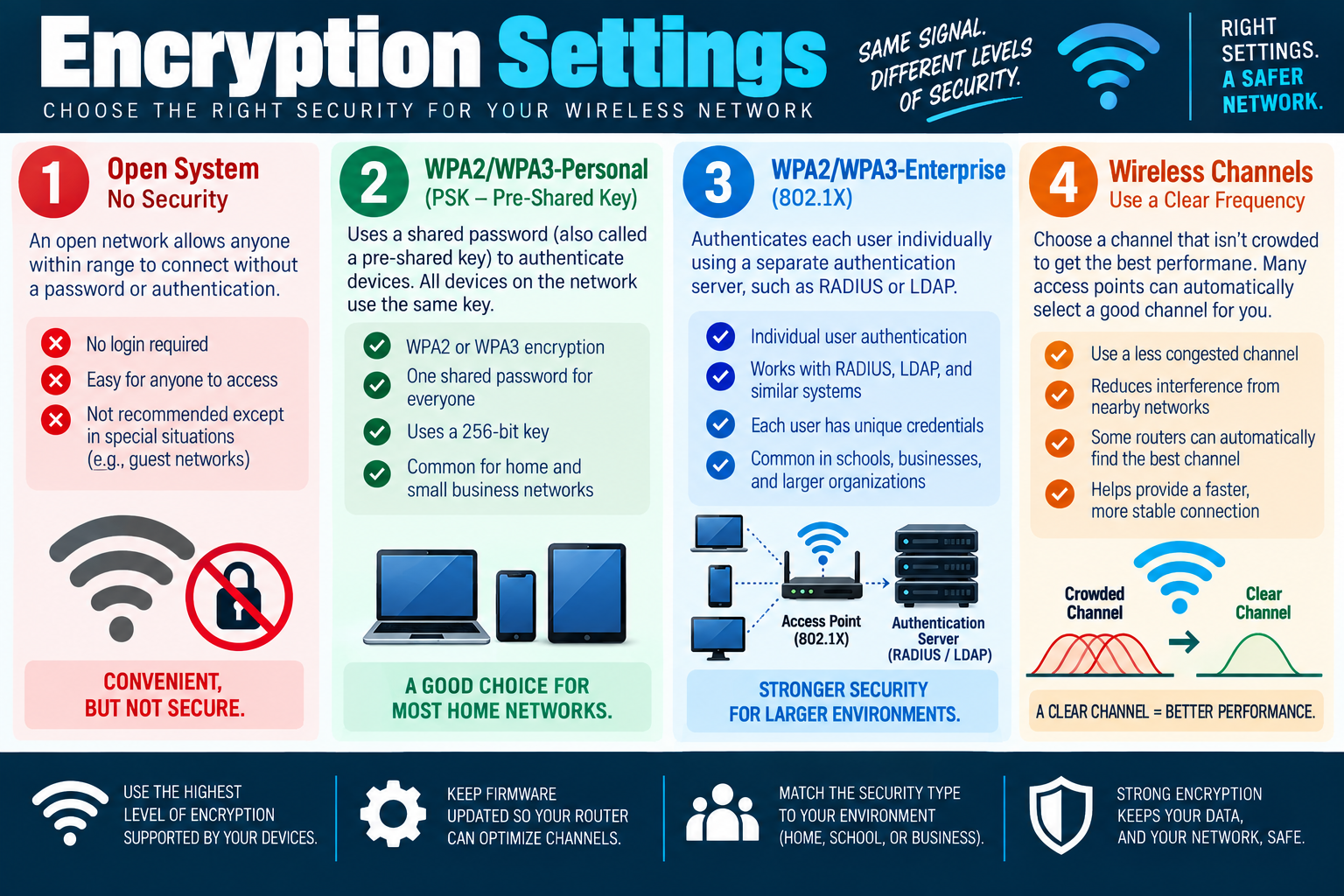
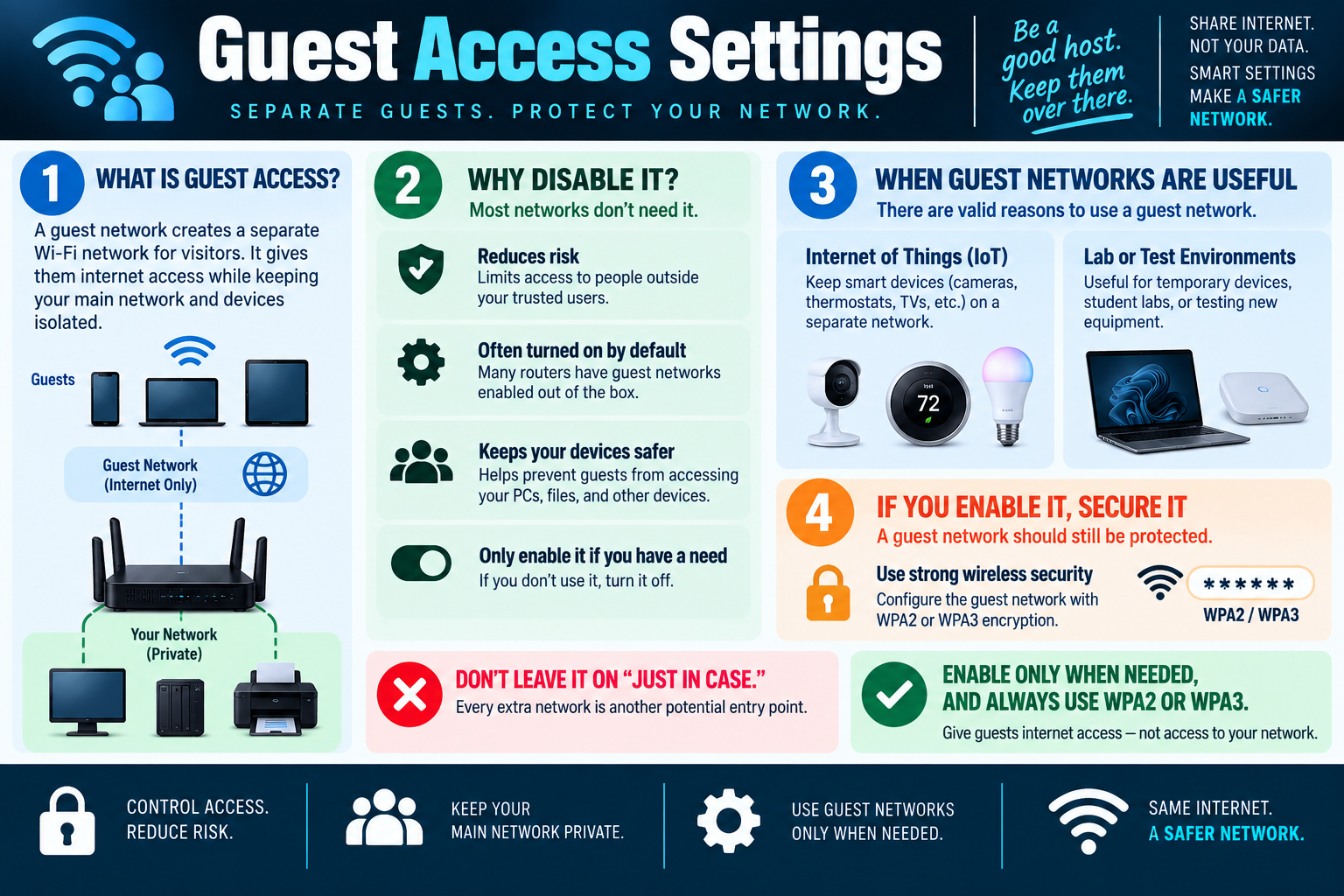
The best router configuration is risk-based. A home network may need strong admin credentials, current firmware, WPA3 or WPA2 encryption, and a guest network. A small business may also need content filtering, IP filtering, restricted management access, firmware maintenance records, and careful control over port forwarding. A network that handles sensitive data may need stricter allow lists and more formal documentation.
Scenario Cues
- Router uses factory credentials: change the default administrator username and password immediately.
- Only approved devices or addresses should connect: use an allow list or tightly scoped filtering rule.
- Known sites, domains, or IPs should be blocked: use deny-list filtering or content filtering.
- Router has known bugs or security advisories: update firmware from the manufacturer or approved management source.
- Users lose access after a filtering change: review rule order, scope, address ranges, and whether the rule is too broad.
- Firmware update is planned: back up configuration, schedule downtime, apply the update, and verify network functions afterward.
Technician Workflow
- Identify the router and current configuration. Confirm model, firmware version, admin access method, WAN settings, LAN addressing, wireless settings, and existing rules.
- Secure administrative access. Change default credentials, use a strong unique password, and restrict management access when possible.
- Choose filtering rules intentionally. Decide whether the scenario calls for allow-list control, deny-list blocking, content filtering, or a combination.
- Update firmware safely. Use trusted vendor sources, review release notes, back up settings, and apply updates during an acceptable change window.
- Verify the result. Test internet access, local connectivity, Wi-Fi, DNS, DHCP, filtering behavior, and router login after changes.
- Document what changed. Record firmware version, credential rotation date, filtering rule purpose, and any follow-up maintenance needed.
Common Exam Traps
Do not leave default credentials in place just because the Wi-Fi password was changed. The Wi-Fi passphrase controls wireless access; the router administrator password controls the device itself. They are different controls.
Do not assume filtering means only blocking. Allow lists and deny lists are different approaches. Allow lists are usually stricter because only approved traffic is permitted. Deny lists are useful for known unwanted destinations, but they do not block everything unknown.
Do not ignore firmware updates on routers and small network appliances. These devices run software too, and outdated firmware can leave known vulnerabilities open. At the same time, do not install firmware casually from untrusted sources or without verifying the model.