Home
Certification Prep // 220-1202

1.0 Operating Systems

1.9 ~ Identify common features and tools of the Linux client/desktop operation system.

core2-lab.exe
> load objective 1.9
> map scenario clues
> verify and document

Learning Goals

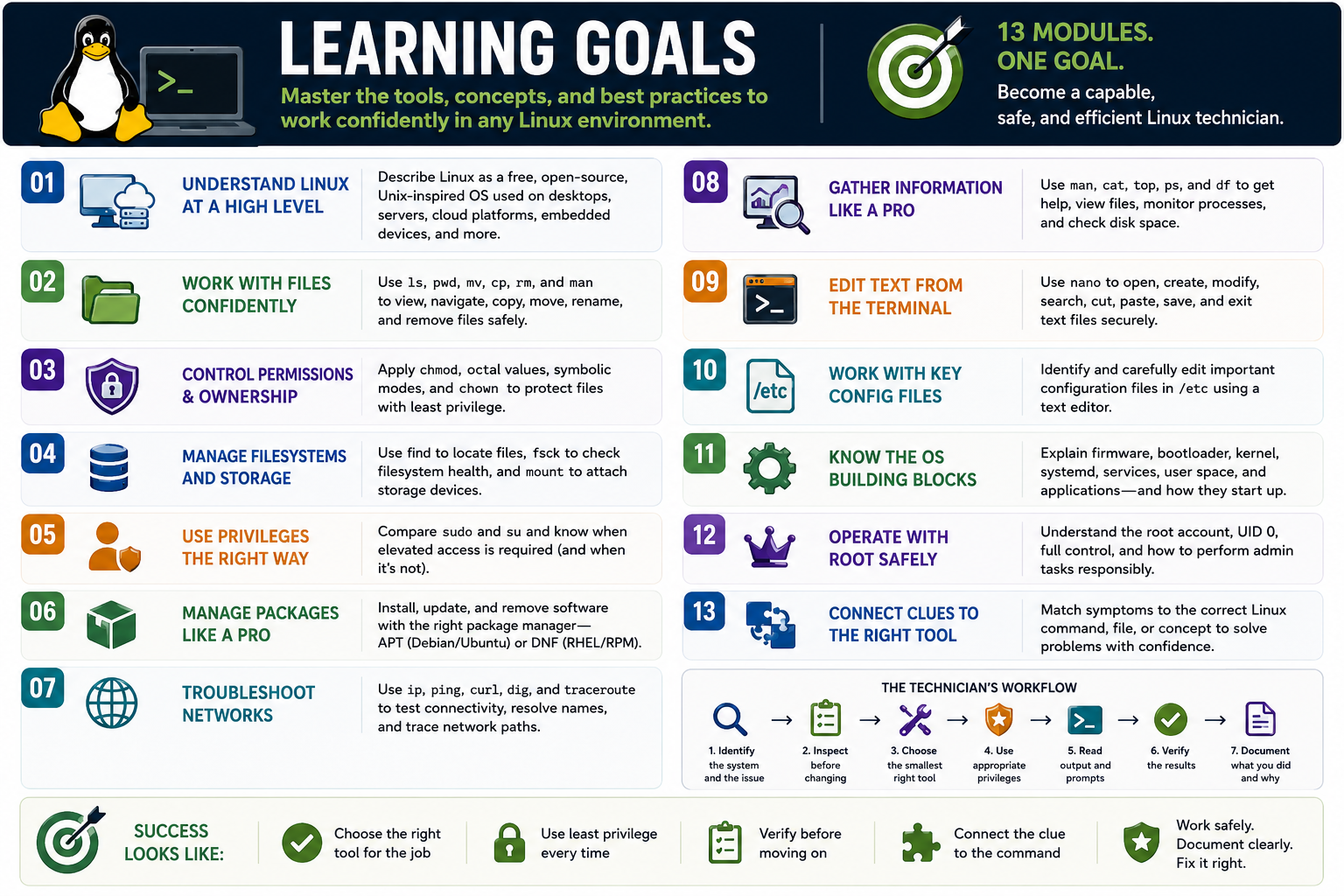
Linux Objective 1.9 learning goals infographic covering thirteen Linux modules, command selection, privilege use, verification, documentation, and technician workflow
Use this Learning Goals reference to preview the Linux Objective 1.9 modules and the technician workflow that connects them.
  • Module 01: Explain Linux as a free, open-source, Unix-inspired operating system family used across desktops, servers, cloud systems, embedded devices, and troubleshooting environments.
  • Module 02: Use Linux file-management commands such as ls, pwd, mv, cp, rm, and man to inspect and manage files safely.
  • Module 03: Change Linux permissions and ownership with chmod, octal values, symbolic mode, and chown while applying least privilege.
  • Module 04: Manage Linux filesystems by locating files with find, checking file system health with fsck, and attaching storage with mount.
  • Module 05: Compare sudo and su so administrative privileges are used only when the task requires elevated access.
  • Module 06: Install, update, and remove software with the correct Linux package manager, including APT for Debian-based systems and DNF for RPM-based systems.
  • Module 07: Use Linux network commands such as ip, ping, curl, dig, and traceroute to inspect interfaces, test reachability, retrieve data, resolve names, and trace paths.
  • Module 08: Use informational commands such as man, cat, top, ps, and df to view help, inspect files, monitor processes, and check disk space.
  • Module 09: Edit text files from the terminal with nano, including opening files, writing changes, searching, cutting, pasting, reading files into a buffer, and exiting safely.
  • Module 10: Identify common Linux configuration files in /etc, including /etc/passwd, /etc/shadow, /etc/hosts, /etc/resolv.conf, and /etc/fstab, and edit them with caution.
  • Module 11: Explain major Linux OS components including firmware, bootloader, kernel, systemd, services, user space, and applications, then trace the startup path from power-on to login.
  • Module 12: Explain the Linux root account, UID 0, full system control, root-risk scenarios, command-line administration, and safe privilege practices.
  • Module 13: Summarize Objective 1.9 by matching Linux command, package manager, permission, filesystem, configuration, service, boot, and root-account clues to safe technician actions.
  • Module 14: Review and print section notes that summarize Linux commands, package tools, filesystem locations, service clues, and exam reminders.
  • Module 15: Complete a final test that checks Linux command selection, permissions, package management, network workflow, informational commands, text editing, configuration files, OS components, root account safety, storage workflow, and technician decision-making.
Lesson ModuleModule 1 / 15
1.9
Module 01

Module 1 - What is Linux?

Linux is a free, open-source, Unix-inspired operating system family known for flexibility, strong community support, and use across everything from older desktops to modern servers and cloud platforms.

When CompTIA refers to Linux, it usually means a Linux-based operating system distribution. The Linux kernel handles the core communication between hardware and software, while the distribution adds system tools, package management, desktop environments, default applications, documentation, and update repositories.

Linux is open source, which means its source code can be reviewed, modified, shared, and improved under open-source licensing. That does not always mean every Linux deployment is free to support. Many organizations choose paid enterprise support for predictable updates, vendor assistance, compliance needs, and long-term lifecycle planning.

The Basics

Linux follows many Unix design ideas: a hierarchical file system, strong file permissions, multiuser operation, text-based configuration, small tools that work together, and a powerful shell. It is Unix-like, but it is not proprietary Unix. That distinction matters because Linux behaves like Unix in many ways while remaining its own operating system ecosystem.

A Linux system can use a graphical desktop, a command-line shell, or both. Technicians often use Terminal because it provides fast access to files, processes, services, packages, logs, network settings, and system state. A GUI may be easier for everyday use, but the command line is a major Linux support skill.

A World Of Choice

Linux comes in many distributions, often called distros. Ubuntu is common for desktop use, labs, training, and cloud workloads. Debian is known for stability and a massive software repository. Red Hat Enterprise Linux and related enterprise distributions are common in business environments where paid support, lifecycle predictability, and certified software stacks matter.

Each distribution can differ in package manager, release cycle, default desktop, security tooling, repository policy, and support community. A technician should not stop at the word Linux. Always identify the distro, version, kernel, package manager, architecture, support status, and update source before making changes.

Why Technicians Like Linux

Budget-friendly Linux can be installed without per-device OS licensing costs, making it useful for labs, older computers, servers, and cost-sensitive environments.
Flexible It can be customized for desktops, servers, development systems, security tools, embedded devices, appliances, and cloud workloads.
Efficient Many Linux distributions run well on modest hardware, which can extend the useful life of systems that struggle with heavier operating systems.
Community-driven Documentation, forums, package maintainers, open-source developers, and distribution communities help improve and support the platform.

Where Linux Needs Planning

Linux is powerful, but it is not automatically the right answer for every user. Newer laptops, specialty peripherals, fingerprint readers, gaming hardware, and proprietary business applications may require extra driver or compatibility research. Some hardware works immediately, some works after installing drivers or firmware, and some may not be fully supported.

Support expectations also matter. A home user might rely on community documentation. A business may need vendor-backed support, predictable patching, tested repositories, and a distribution with a clear lifecycle. The best Linux choice is the one that fits the hardware, applications, user skill level, security needs, and support model.

Technician Workflow

  1. Identify the use case. Decide whether the system is for desktop productivity, development, servers, recovery, security tools, cloud work, or older hardware reuse.
  2. Choose the distribution. Match distro features, package manager, support lifecycle, and community or vendor backing to the scenario.
  3. Verify hardware support. Check CPU architecture, storage, wireless, graphics, printers, peripherals, firmware, and any specialty drivers.
  4. Plan software needs. Confirm required applications, package sources, repositories, licensing, update method, and compatibility with existing workflows.
  5. Secure and update. Apply updates, use least privilege, understand sudo/admin access, and keep software from trusted repositories when possible.
  6. Document the system. Record the distribution, version, kernel, desktop environment, package manager, support path, and any driver or configuration changes.

Exam Mindset

If the clue says open source, shell scripting, servers, package managers, older hardware, strong customization, or community support, think Linux. If the clue mentions new hardware with weak driver support, limited official support, or user unfamiliarity, think compatibility check before recommending it.

Bottom line: Linux is free, flexible, and community-powered, but great support still depends on choosing the right distribution, verifying hardware and software compatibility, and documenting the support plan.
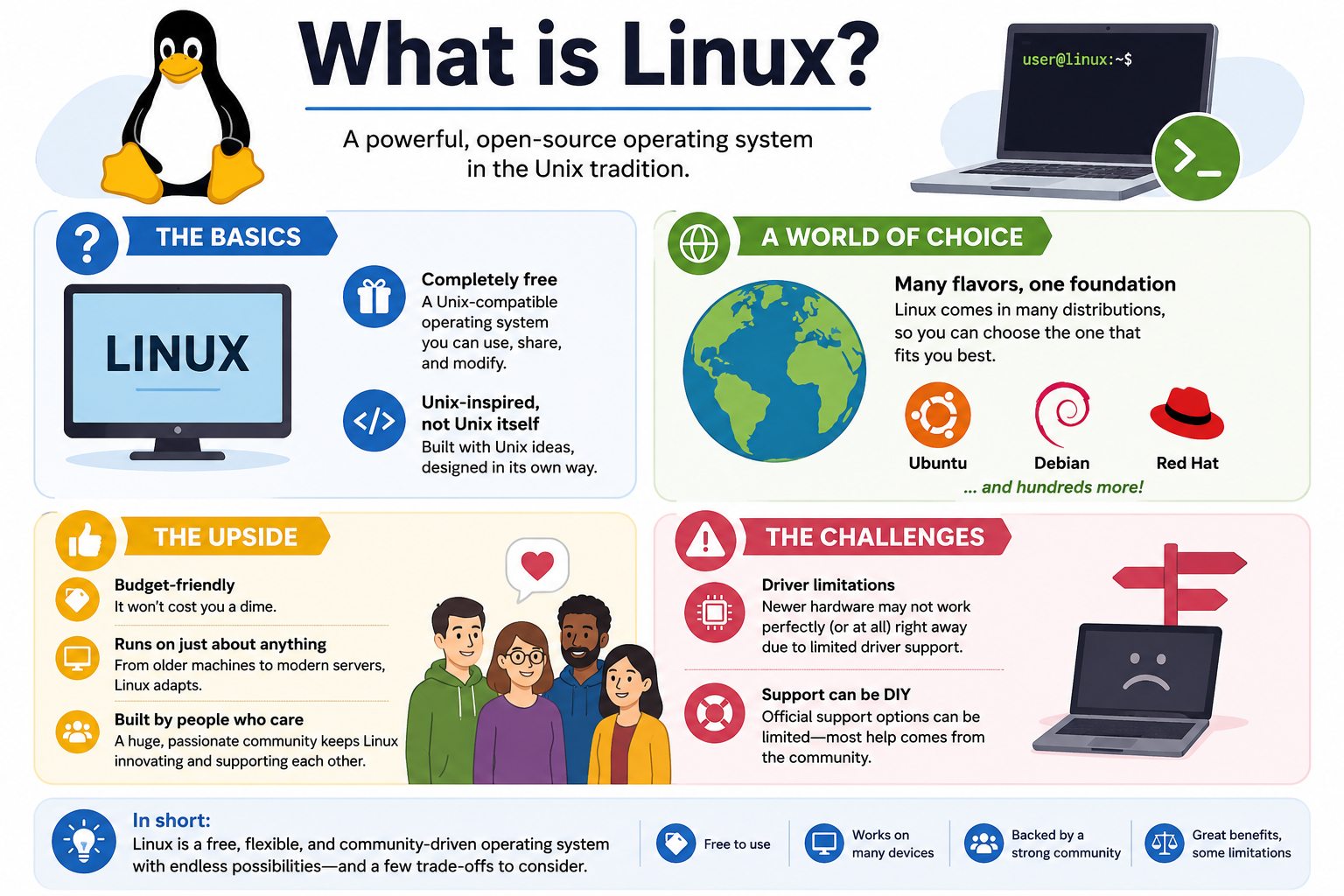
What is Linux infographic covering open source basics, distributions, advantages, challenges, and community support
Use this Linux overview as a quick reference for open-source concepts, distributions, benefits, limitations, and technician decision clues.
CLI
Module 02

Module 2 - Linux File Management Features

Linux file management starts in the terminal: use commands such as ls, pwd, mv, cp, and rm to inspect folders, confirm your location, move data, copy data, and remove files safely.

Linux and macOS share many command-line ideas because both are Unix-like systems, but this section focuses on Linux behavior. The command line is especially important for servers, recovery environments, remote administration, low-resource systems, and situations where a graphical file manager is unavailable.

Before changing files, know where you are and what you are targeting. Linux commands can be direct and powerful, which is useful for technicians, but it also means a wrong path, wildcard, or delete command can remove the wrong data quickly.

Work In A Terminal

Most Linux distributions include a terminal application. In a shell prompt, commands are entered as text, and the system returns output immediately. You can use the terminal to navigate directories, list files, copy data, rename items, remove files, view manuals, and combine commands with pipes or redirection.

If you are practicing, use a lab system, a virtual machine, or a live USB environment. That gives you a safe place to learn command behavior before working on a user system or a production server.

List And Locate

ls Lists files and folders in the current directory. It is similar in purpose to Windows dir.
ls -l Shows a long listing with permissions, owner, group, size, and modified time.
ls -a Shows hidden files, which usually begin with a dot, such as .bashrc.
pwd Prints the current working directory so you can verify your location before making changes.

Colorized output can help identify item types. Many distributions show directories in one color, compressed archives in another, and executable scripts in another. Do not rely on color alone, though. Use long listings and file names to confirm what you are handling.

Move, Copy, And Remove

The mv command moves files or renames them. For example, mv report.txt old-report.txt renames a file in the current directory, while mv report.txt Documents/ moves it into the Documents folder. If the destination exists, mv may overwrite data, so confirm the target before pressing Enter.

The cp command copies files. Use it when you need a duplicate while preserving the original. To copy directories, Linux commonly requires a recursive option such as cp -r source-folder backup-folder. When preserving ownership, timestamps, and permissions matters, technicians may choose more advanced options or tools after confirming the scenario.

The rm command removes files. It does not use the Windows Recycle Bin, and deleted files are often gone immediately. By default, rm removes files, not non-empty directories. To remove a directory tree, rm -r foldername is used, but that recursive option is high risk and should be handled with care.

Read The Manual

The man command opens built-in manual pages. Use man ls, man cp, or man rm when you need syntax, options, examples, and warnings. Manual pages are a technician habit: they reduce guessing and help you choose the least risky command.

Command Safety Habits

  1. Confirm your location. Run pwd before copying, moving, or removing anything important.
  2. List before changing. Use ls or ls -l to verify exact names, permissions, and targets.
  3. Use tab completion. Let the shell complete paths and names to reduce typing errors.
  4. Be careful with wildcards. Commands such as rm *.log can affect many files at once.
  5. Treat rm -r as high risk. Recursive deletes can remove entire folder trees.
  6. Practice safely. Learn command behavior in a lab, VM, or test directory before making production changes.

Exam Mindset

If the clue asks how to list directory contents, think ls. If it asks for the current directory, think pwd. If it asks to move or rename, think mv. If it asks to duplicate, think cp. If it asks to delete, think rm, then check whether the target is a file or directory.

Bottom line: Linux file commands are fast, precise, and powerful. Verify the path, choose the right command, understand the options, and protect user data before making changes.

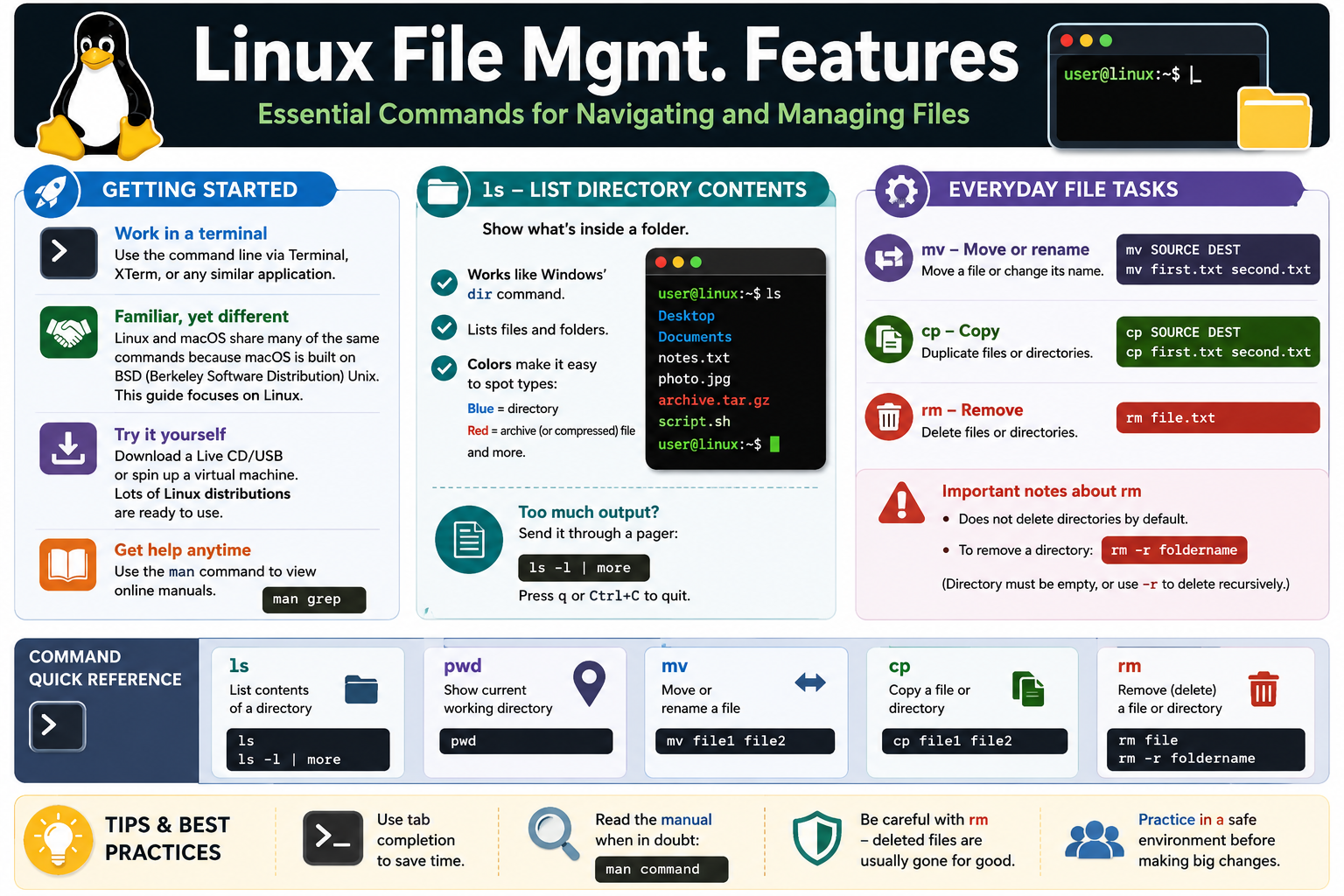
Linux file management features infographic covering ls, pwd, mv, cp, rm, man, terminal practice, and file command safety
Use this Linux file-management reference to match common command-line file tasks to the safest command and option.
rwx
Module 03

Module 3 - Changing Linux Permissions

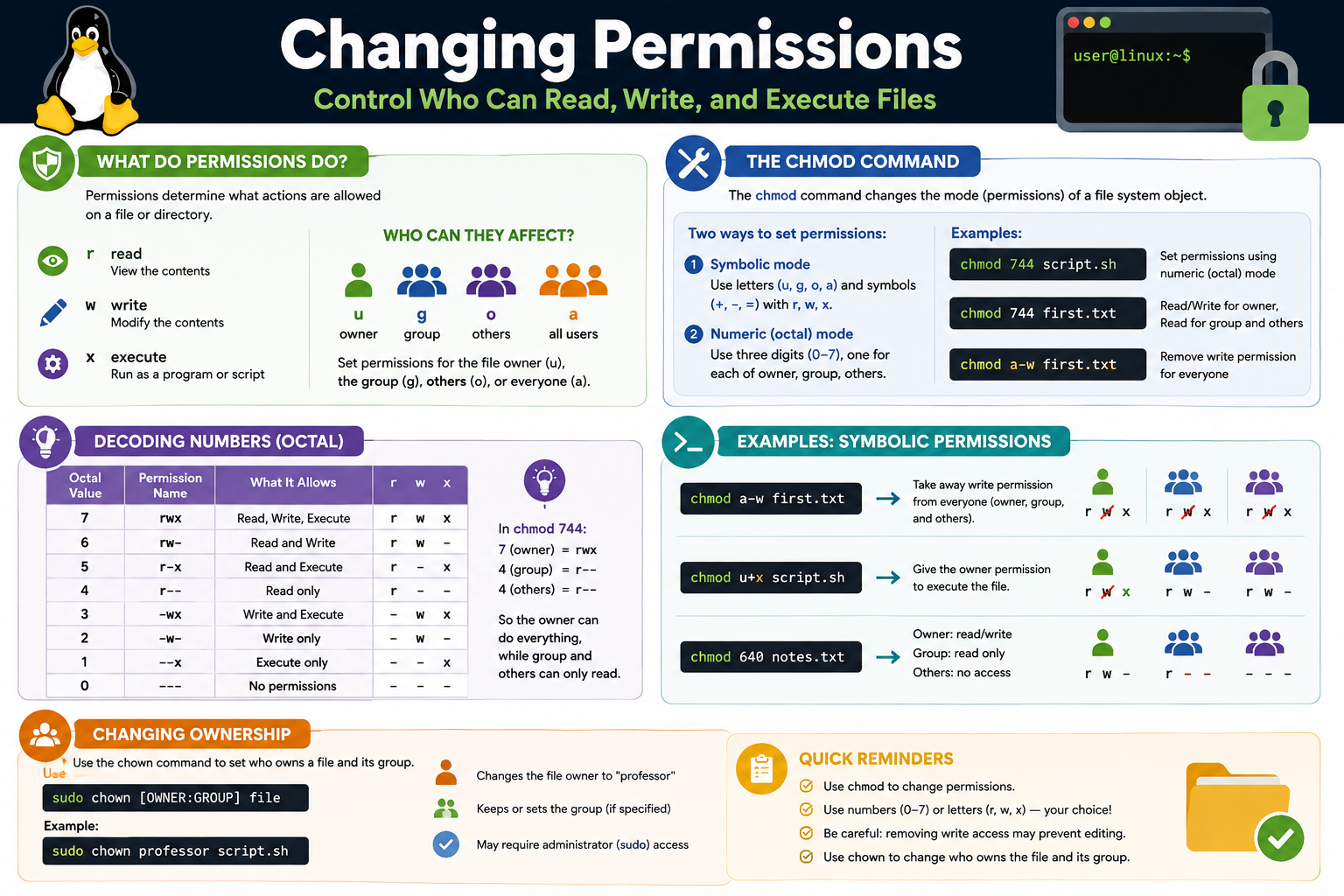
Linux permissions control who can read, modify, and execute files or directories. A technician must understand r, w, x, ownership, groups, chmod, and chown before changing access.

Permissions are one of the core security controls in Linux. They decide whether a user can view a file, edit a file, run a script, enter a directory, or manage content inside a directory. When permissions are wrong, users may be locked out, scripts may fail, services may not start, or sensitive data may be exposed.

The safest approach is to inspect first, change only what is required, and then verify the result. Use ls -l to view permission strings, owners, and groups before using commands such as chmod or chown.

Permission Basics

r read Allows a file to be viewed or a directory listing to be read.
w write Allows a file to be modified or directory contents to be created, renamed, or removed.
x execute Allows a file to run as a program or script. On a directory, it allows traversal into that path.
Targets Permissions can apply to the owner, the group, others, or all users.

Linux separates access into three main identity categories: user or owner (u), group (g), and others (o). Some commands also use all users (a) when applying a permission change broadly. This layered model lets administrators grant access without giving everyone full control.

Reading Permission Strings

A long listing might show something like -rwxr--r--. The first character identifies the object type, such as regular file or directory. The next three characters show owner permissions, the next three show group permissions, and the final three show permissions for others.

For example, rwxr--r-- means the owner can read, write, and execute, while the group and others can only read. That pattern is common for files that should be usable by the owner but only viewable by everyone else.

Using chmod

The chmod command changes permissions. It can use symbolic mode, such as chmod u+x script.sh, or numeric octal mode, such as chmod 744 script.sh. Symbolic mode is readable when adding or removing one permission. Numeric mode is efficient when setting a complete permission pattern.

In octal permissions, read is worth 4, write is worth 2, and execute is worth 1. Add the values together for each identity category. A value of 7 means read, write, and execute. A value of 6 means read and write. A value of 5 means read and execute. A value of 4 means read only. A value of 0 means no permissions.

Common examples include chmod 744 script.sh to let the owner do everything while group and others can only read, chmod a-w first.txt to remove write access from everyone, and chmod 640 notes.txt to give the owner read/write, the group read-only, and others no access.

Changing Ownership

The chown command changes file ownership. It can set the owner, the group, or both. For example, sudo chown brotocoljoe script.sh changes the file owner to brotocoljoe. A format such as sudo chown brotocoljoe:admins script.sh can set both owner and group when the group exists.

Ownership changes often require elevated privileges because changing who controls a file can affect security, service behavior, and user access. Use sudo only when the task requires administrator-level access, and verify the result afterward with ls -l.

Technician Workflow

  1. Identify the symptom. Decide whether the issue is read access, write access, script execution, directory traversal, or ownership.
  2. Inspect the current state. Use ls -l to view permissions, owner, and group before changing anything.
  3. Choose the narrowest fix. Add or remove only the permission needed for the correct user or group.
  4. Use the right command. Use chmod for permission bits and chown for ownership.
  5. Be careful with broad changes. Avoid granting write or execute access to everyone unless the scenario truly requires it.
  6. Verify and document. Recheck permissions, test the workflow, and record what changed and why.

Exam Mindset

If the clue asks who can read, write, or execute, think permissions and chmod. If the clue asks who owns the file or which group controls access, think chown. If a script will not run, look for execute permission. If a user cannot save changes, look for write permission.

Bottom line: Linux permissions are powerful because they are precise. Match access to the user, group, and task, use least privilege, and verify every permission or ownership change.

Linux changing permissions infographic covering read write execute permissions, chmod, octal values, symbolic mode, and chown ownership changes
Use this Linux permissions reference to connect read, write, execute, chmod, octal values, symbolic permissions, and ownership changes to real support scenarios.
fs
Module 04

Module 4 - Linux Filesystem Management

Linux filesystem management is about finding files quickly, checking file system health, and connecting storage devices into the directory tree with commands such as find, fsck, and mount.

Linux treats storage differently from Windows. Instead of assigning every volume a drive letter, Linux attaches storage to directories called mount points. A USB drive, extra disk, network share, or recovery volume becomes available somewhere in the existing file system, such as /mnt/usb, /media/user/drive, or another administrator-defined location.

For technicians, this means storage troubleshooting usually starts with three questions: Where is the file? Is the file system healthy? Is the storage device mounted where users and services expect it to be?

Find Files Fast

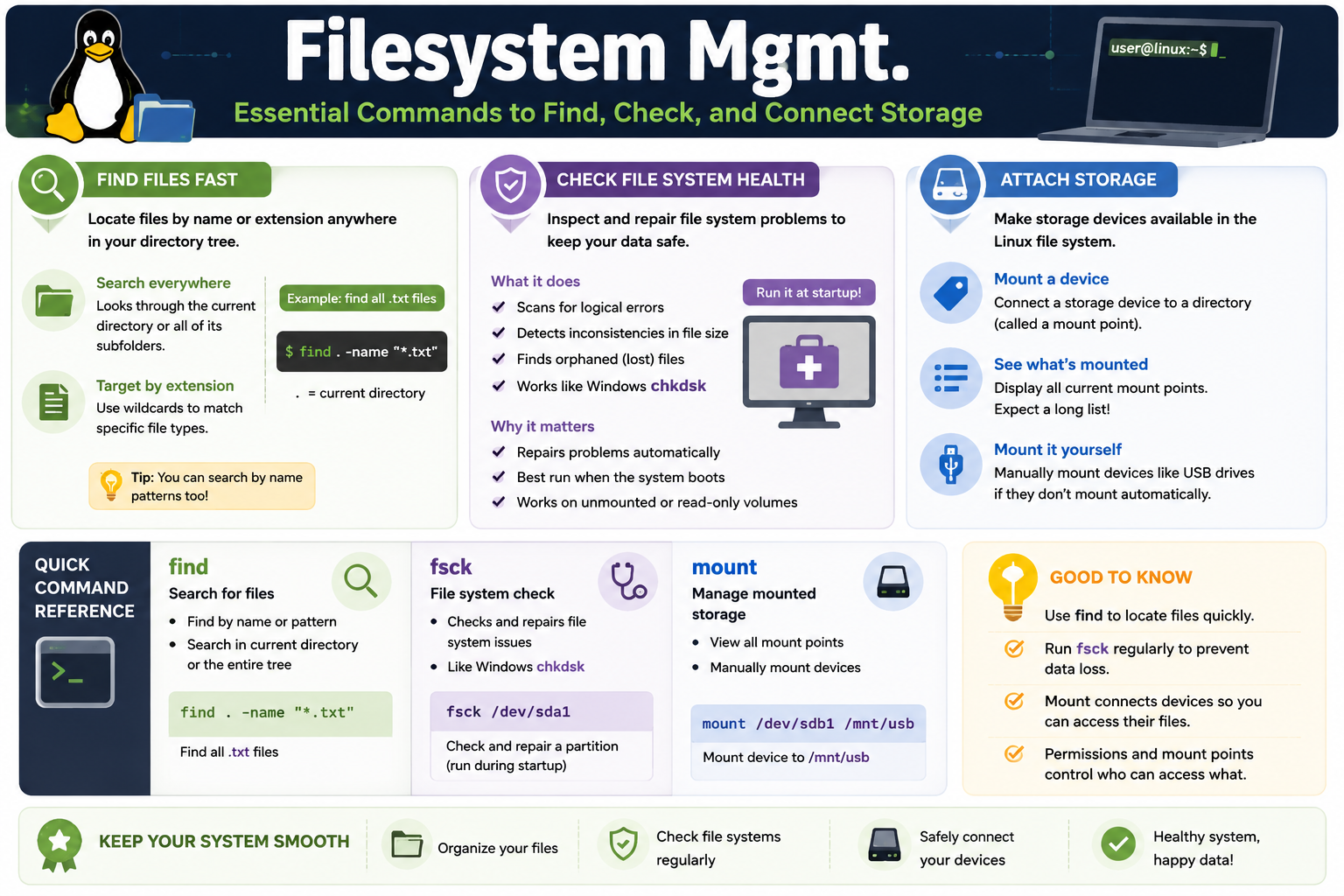
The find command searches through directories for files and folders that match a name, extension, size, owner, time, permission, or other property. It is useful when a user does not know where a file was saved, when logs are spread across multiple folders, or when you need to locate files by pattern.

A common example is find . -name "*.txt". The dot means start in the current directory, and -name "*.txt" matches text files. The command can search deeply through subfolders, so choose the starting point carefully. Searching from / scans the whole file system and can take longer or produce many permission warnings.

Check File System Health

The fsck command checks and repairs Linux file systems. It looks for logical errors, orphaned files, metadata inconsistencies, and other file system problems. It is similar in purpose to Windows chkdsk, but the Linux workflow depends heavily on whether the volume is mounted, in use, read-only, or scheduled for checking during startup.

Use fsck carefully. Running repair operations against a mounted, active file system can risk data corruption. Many checks are best performed from recovery media, single-user mode, or during boot before the file system is actively being used. Always back up important data when possible before repairing storage.

Attach Storage With mount

The mount command makes a storage device available at a directory location. That directory is the mount point. For example, mount /dev/sdb1 /mnt/usb attaches the partition /dev/sdb1 to the folder /mnt/usb, allowing users or administrators to browse the files there.

Running mount by itself displays currently mounted file systems, but the list can be long because Linux mounts many system, virtual, temporary, and device-related file systems. Technicians often combine mount information with other commands to confirm device names, file system type, available space, and whether a volume is mounted read-only or read/write.

Command Quick Reference

find Searches for files or directories by name, pattern, type, size, ownership, permissions, or other criteria.
fsck Checks and repairs file system problems. Best used when the target volume is not actively mounted for normal use.
mount Connects a storage device or file system to a directory mount point.
Mount point The directory where a storage device becomes accessible inside the Linux file system tree.

Technician Workflow

  1. Identify the storage goal. Decide whether you need to locate data, repair a file system, attach a device, or confirm what is already mounted.
  2. Verify the target. Confirm the correct file path, partition, device name, and mount point before running commands.
  3. Protect the data. Back up important files when possible, especially before repairs, formatting, partitioning, or forced mounts.
  4. Use the least risky command. Search with find, inspect mounted file systems with mount, and reserve fsck repairs for appropriate recovery conditions.
  5. Check permissions. File permissions and mount options can control who can read, write, or execute content on attached storage.
  6. Verify and document. Confirm the files are accessible, the file system is healthy, and the mount point works as expected.

Exam Mindset

If the clue asks to locate a file by name or extension, think find. If the clue asks to check or repair a Linux file system, think fsck. If the clue asks to make a device available through the Linux directory tree, think mount and mount points.

Bottom line: Linux storage support is about precision. Find the right file, check the right file system, mount the right device, and verify access before declaring the system healthy.

Linux filesystem management infographic covering find, fsck, mount, mount points, file system health, and storage access
Use this filesystem management reference to connect file search, file system repair, mounted storage, and safe technician workflow.
sudo
Module 05

Module 5 - Linux Administrative Privileges

Linux protects the system by separating everyday user access from elevated administrative access. Use sudo for one controlled command and su when you intentionally need to switch into another user session.

Administrative privileges are required for tasks that can affect the operating system, services, packages, security settings, storage, users, ownership, and protected configuration files. This separation helps prevent accidental damage and limits what malware or a compromised user account can change.

Linux administrators should follow least privilege: use normal user access for normal work, elevate only when the task requires it, verify the result, and return to standard permissions as soon as possible.

Using sudo

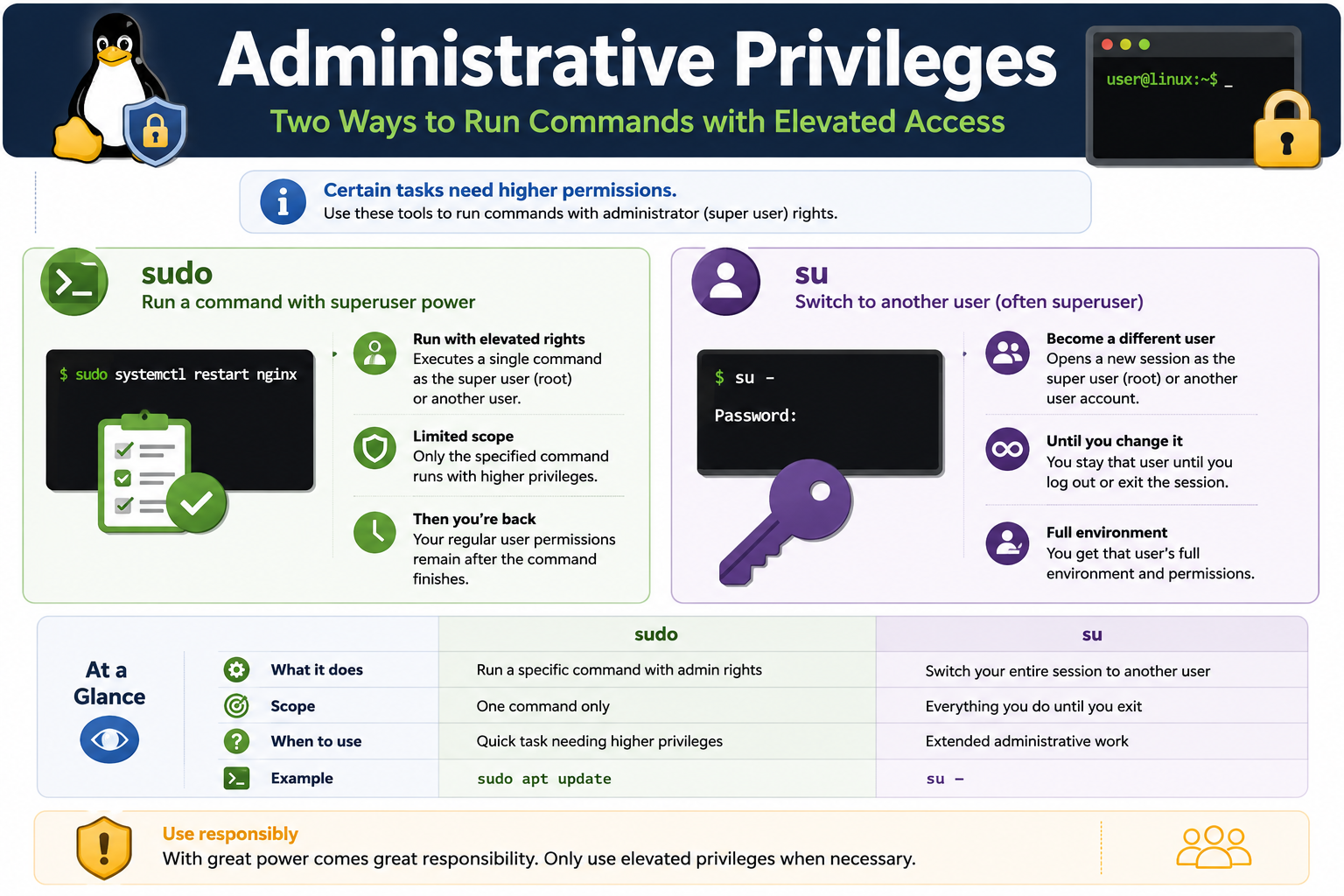
The sudo command runs a specific command with elevated privileges, usually as the root user. For example, sudo systemctl restart nginx restarts a service with administrative rights while keeping the rest of the session under the current user account.

This is the preferred approach for most administrative tasks because the scope is limited. The elevated access applies to the command being run, then the user returns to regular permissions. On many systems, sudo also logs what command was run and by whom, which helps with accountability and troubleshooting.

Using su

The su command switches to another user account. When used as su -, it commonly starts a login shell for the root user or another specified account, loading that user environment. This is useful for extended administrative work, but it also increases risk because every command runs as that user until the session is exited.

Because su changes the working session, technicians should be deliberate when using it. Confirm who you are with commands such as whoami, keep the session short, and type exit when elevated work is finished.

sudo vs. su

sudo Runs one specific command with elevated privileges. Best for quick, controlled administrative tasks.
su Switches the current session to another user, often root. Best for longer work only when justified.
Scope sudo limits elevation to one command. su keeps elevation active until you exit.
Risk The longer elevated access remains active, the more important it is to verify commands, paths, and targets.

Common Administrative Tasks

Elevated access may be needed to install or update packages, restart services, edit protected files under /etc, mount storage, change file ownership, manage users, review security configuration, or repair system components. The need for elevated access is a clue that the command can affect more than the current user.

Examples include sudo apt update to refresh package information, sudo chown brotocoljoe script.sh to change ownership, and sudo systemctl restart ssh to restart a service. Each command should be chosen for a specific purpose, not run elevated out of habit.

Technician Workflow

  1. Start as a standard user. Confirm the task cannot be completed safely without elevated access.
  2. Choose the narrowest elevation. Prefer sudo for one command when possible.
  3. Verify the command. Check spelling, paths, package names, service names, and target files before pressing Enter.
  4. Use su carefully. Switch sessions only when extended administrative work is truly needed.
  5. Exit elevated sessions. Type exit when finished so future commands do not run with unnecessary power.
  6. Document the change. Record what command was run, why it was needed, and how the result was verified.

Exam Mindset

If the clue asks for one command with administrator or superuser rights, think sudo. If the clue asks to become another user or open an extended superuser session, think su. If the question emphasizes safety, choose the answer that uses elevated privileges only when necessary.

Bottom line: Elevated access is powerful. Use sudo for focused administrative commands, reserve su for intentional user-session changes, and always protect the system by using the least privilege needed.

Linux administrative privileges infographic comparing sudo and su for elevated command access
Use this administrative privileges reference to compare sudo, su, command scope, elevated access, and responsible technician behavior.
pkg
Module 06

Module 6 - Linux Package Management

Linux package managers install, update, remove, and track software from trusted repositories while handling the supporting dependencies that applications need to run.

Package management is one of the biggest differences between Linux and a typical click-next desktop installer workflow. Instead of hunting for random installers on the web, a technician usually asks the distribution package manager to pull known software from configured repositories, verify package information, install the required files, and record what changed on the system.

This matters for security and support. Packages delivered through trusted repositories are maintained for that distribution, updated through a central process, and easier to inventory or remove later. When software comes from unknown sources, the technician inherits extra risk: untrusted code, missing updates, broken dependencies, architecture mismatches, and weak rollback documentation.

What Package Managers Do

Install software Retrieve the selected package and place its files, commands, libraries, shortcuts, services, and metadata where the distribution expects them.
Update software Refresh package metadata, compare installed versions to repository versions, and apply available security or feature updates.
Remove software Uninstall packages cleanly while preserving or removing configuration depending on the command and distribution behavior.
Resolve dependencies Identify additional libraries, tools, runtimes, or related packages that must be installed so the requested software works correctly.

APT And .deb Systems

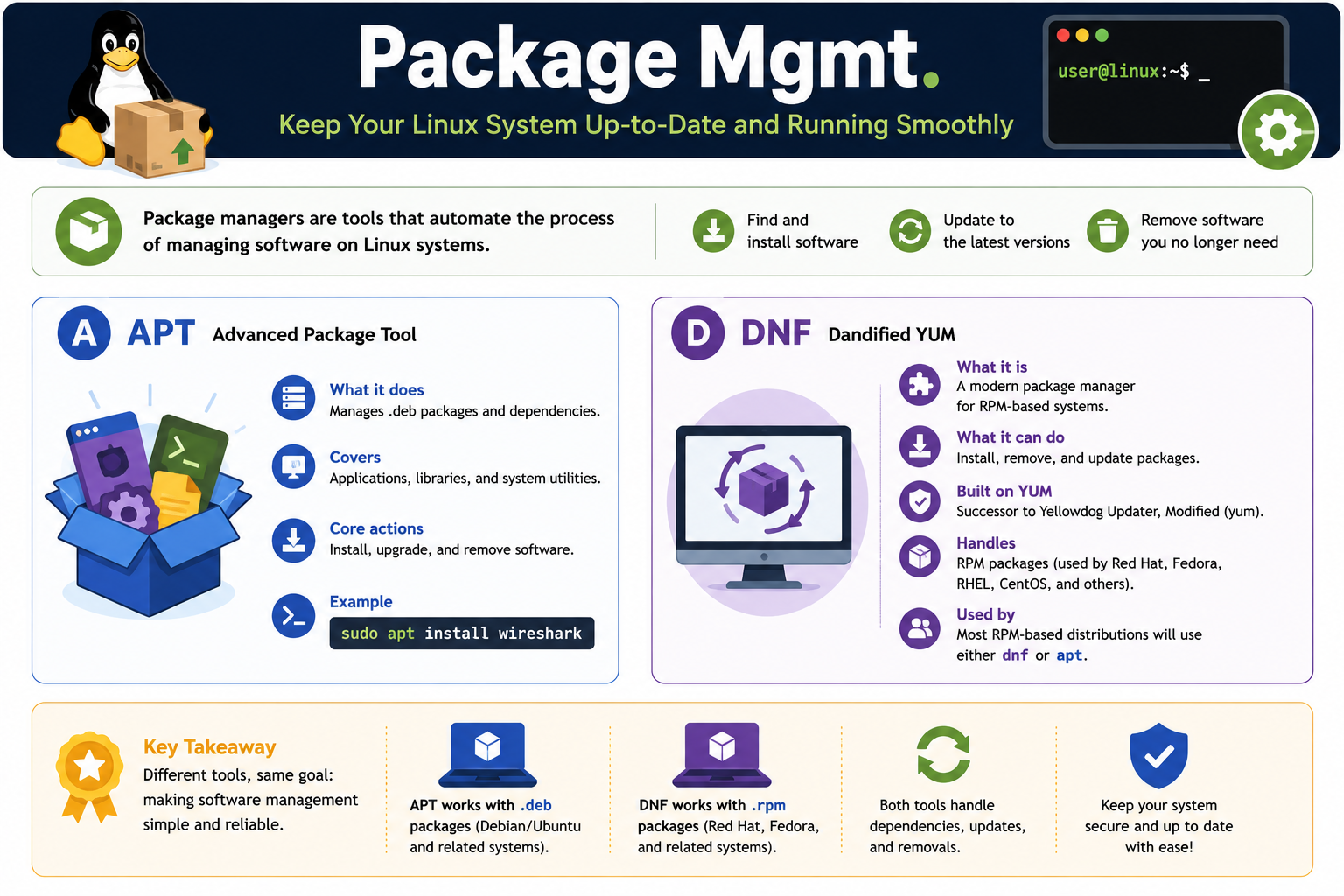
APT, commonly run with the apt command, is used on Debian-based distributions such as Debian, Ubuntu, and Linux Mint. These systems commonly use .deb packages and repository metadata designed for the Debian package ecosystem.

The normal APT workflow starts by refreshing package information with sudo apt update. That command does not install every update by itself; it updates the local list of what versions are available from configured repositories. After metadata is current, sudo apt upgrade installs available upgrades for packages already on the system.

To install software, use sudo apt install <package>. To remove software, use sudo apt remove <package>. APT will show what it plans to install, upgrade, or remove, including dependencies. Read that prompt carefully before approving it, especially on a production system or a user computer.

DNF And .rpm Systems

DNF is common on Fedora and Red Hat-family systems, including Red Hat Enterprise Linux, CentOS Stream, Rocky Linux, and AlmaLinux. These distributions commonly use .rpm packages and repository metadata built for the RPM ecosystem.

A technician can check available updates with sudo dnf check-update. To apply updates, use sudo dnf upgrade. To install software, use sudo dnf install <package>. To remove software, use sudo dnf remove <package>.

DNF and APT have a similar goal even though the commands, package formats, repositories, and distribution families differ. The exam clue is usually the distribution family: Debian, Ubuntu, or Linux Mint points toward APT and .deb; Fedora, RHEL, CentOS Stream, Rocky, or AlmaLinux points toward DNF and .rpm.

Common Commands

sudo apt update Refreshes Debian-family package metadata from configured repositories.
sudo apt upgrade Installs available updates for currently installed Debian-family packages.
sudo apt install <package> Installs a named package on Debian, Ubuntu, Linux Mint, and related systems.
sudo apt remove <package> Removes a named package from a Debian-family system.
sudo dnf check-update Checks Fedora or Red Hat-family repositories for available updates.
sudo dnf upgrade Installs available updates on Fedora, RHEL, CentOS Stream, Rocky, AlmaLinux, and related systems.
sudo dnf install <package> Installs a named package from configured RPM-family repositories.
sudo dnf remove <package> Removes a named package from an RPM-family system.

Why sudo Is Common

Installing, updating, or removing packages changes protected parts of the operating system. Package managers may write under system directories, modify services, add commands, install libraries, update security-sensitive files, or remove software used by other users. That is why package commands are commonly run with sudo.

Do not treat sudo as decoration. It means the command can affect the whole system. Verify the distribution, package name, repository source, prompt details, and business impact before approving the change.

Repositories And Trust

Trusted repositories are configured software sources maintained by the distribution, organization, or approved vendor. They help keep Linux secure and up to date because the package manager can check repository metadata, receive security fixes, and keep package versions aligned with the distribution.

Third-party repositories can be legitimate, but they should be approved and documented. Adding an unknown repository just to make one app install faster can create long-term update, support, and security problems.

Technician Workflow

  1. Identify the distribution. Confirm whether the system is Debian/Ubuntu-based, Fedora/RHEL-based, or something else before choosing a command.
  2. Choose the right package manager. Use APT for Debian, Ubuntu, Linux Mint, and .deb clues; use DNF for Fedora, RHEL, CentOS Stream, Rocky, AlmaLinux, and .rpm clues.
  3. Refresh metadata. Run sudo apt update or check updates with the appropriate DNF workflow before installing or upgrading.
  4. Read the prompt. Check package names, dependencies, removals, download size, disk impact, and whether services may restart.
  5. Verify the result. Launch the app, check the command version, confirm the service state, or verify the package list after the install, update, or removal.
  6. Document the change. Record the distro, package manager, package name, command used, repository source, result, and any follow-up required.

Exam Mindset

Debian, Ubuntu, Linux Mint, and .deb clues point to apt. Fedora, Red Hat, RHEL, CentOS Stream, Rocky, AlmaLinux, and .rpm clues point to dnf. Both ecosystems install, update, remove, and resolve dependencies, but the correct command depends on the distribution.

Bottom line: Package managers keep Linux software controlled, updated, and supportable. Identify the distro, use the right package manager, trust the repository source, read the prompt, verify the result, and document the change.

Linux package management infographic covering APT, DNF, deb packages, rpm packages, installing, updating, removing software, dependencies, and trusted repositories
Use this Linux package-management reference to match distribution clues to APT or DNF, choose safe install/update/remove commands, and keep systems secure through trusted repositories.
net
Module 07

Module 7 - Linux Network Commands

Linux network commands help technicians inspect interfaces, test reachability, retrieve web data, query DNS, and trace the path packets take through a network.

Network troubleshooting is about proving where communication succeeds and where it breaks. A user may report that the internet is down, a server is unreachable, a name will not resolve, or an application cannot connect. Linux gives technicians command-line tools that can separate local interface problems, IP addressing problems, routing problems, DNS problems, firewall filtering, and remote service issues.

The best workflow is layered. Check the local interface first, then test basic reachability, then verify name resolution, then inspect the route or application protocol. Jumping straight to a complex fix wastes time when the real issue may be an address, route, DNS record, or blocked path.

Manage Interfaces With ip

The ip command is the modern all-in-one Linux tool for network interface and routing information. It can show interfaces, IP addresses, link state, routes, and other network configuration details. Older tools such as ifconfig may still appear in some references, but ip is the command technicians should expect on current Linux systems.

ip Displays and manages network interfaces, addressing, routes, neighbor information, and other network state.
ip address Shows IP addresses assigned to interfaces so you can confirm IPv4, IPv6, link state, and interface names.
ip route Displays the routing table, including the default route used to reach networks outside the local subnet.
sudo ip address add 192.168.121.241/24 dev eth0 Assigns an IP address to an interface. Because it changes system networking, elevated access is commonly required.

When troubleshooting, look for the expected interface, the correct address, the correct subnet prefix, and a valid default route. If the interface has no address, the wrong address, or no route off the local network, higher-level tests such as web access or DNS lookups may fail even though the cable or Wi-Fi signal appears connected.

Test Reachability With ping

The ping command sends ICMP echo requests to test whether a host is reachable and how long the round trip takes. It is a fast first test for basic connectivity, but it is not a complete application test. Some systems block ICMP, some firewalls rate-limit it, and a server can respond to ping while a specific web, file, or database service is still down.

Use ping 8.8.8.8 to test reachability to a known IP address. Use ping example.com when you also want DNS resolution to be part of the test. On many Linux systems, ping continues until stopped with Ctrl+C, while ping -c 5 8.8.8.8 sends a specific number of echo requests.

Retrieve Data With curl

The curl command transfers data to or from a server using URLs. Technicians use it to test web servers, APIs, downloads, redirects, headers, authentication behavior, and basic application-layer reachability. It is especially useful on servers where a full browser may not be available.

For example, curl https://example.com retrieves web content from that URL. If ping works but curl fails, the path may exist while the web service, TLS configuration, proxy, firewall rule, or application endpoint still has a problem. That distinction is excellent technician evidence.

Ask DNS Questions With dig

The dig command queries DNS servers and returns detailed name-resolution information. Use it when a hostname points to the wrong address, resolves slowly, fails for one client, or behaves differently inside and outside the organization.

A basic query such as dig example.com can show the resolved address, responding DNS server, query status, and TTL information. TTL, or Time To Live, tells DNS clients how long they may cache a record. When records have recently changed, TTL can explain why one system still sees old information while another sees the new result.

Trace The Path With traceroute

The traceroute command maps the routers, or hops, between the Linux system and a destination. It uses TTL behavior to reveal each step along the path. This helps identify whether traffic leaves the local network, where latency increases, and where the path appears to stop.

A command such as traceroute 8.8.8.8 can show the journey toward a destination. Some devices block or deprioritize traceroute responses, so missing hops do not always prove a device is down. Use traceroute as path evidence, then compare it with IP settings, routes, DNS, firewall rules, VPN state, and known network diagrams.

Technician Workflow

  1. Confirm local network state. Use ip address to verify the interface, address, subnet, and link status.
  2. Check the route. Use ip route to confirm the default gateway and route selection.
  3. Test a known IP. Use ping against an IP address to test basic reachability without depending on DNS.
  4. Test DNS. Use dig or ping a hostname to determine whether name resolution is working.
  5. Test the application path. Use curl for web or API checks when you need more than ICMP reachability.
  6. Trace the journey. Use traceroute to see where packets travel and where the path may break.
  7. Document evidence. Record commands, targets, results, timestamps, interface names, IP addresses, DNS servers, and any change made with sudo.

Exam Mindset

If the clue asks for interface settings, routes, or IP addresses, think ip, ip address, and ip route. If it asks whether a host is reachable, think ping. If it asks to fetch data from a URL or test a web endpoint, think curl. If it asks detailed DNS questions, think dig. If it asks where traffic travels, think traceroute.

Bottom line: Linux network commands turn vague connectivity complaints into evidence. Start local, test reachability, verify DNS, check application access, trace the route, and document what each command proved.

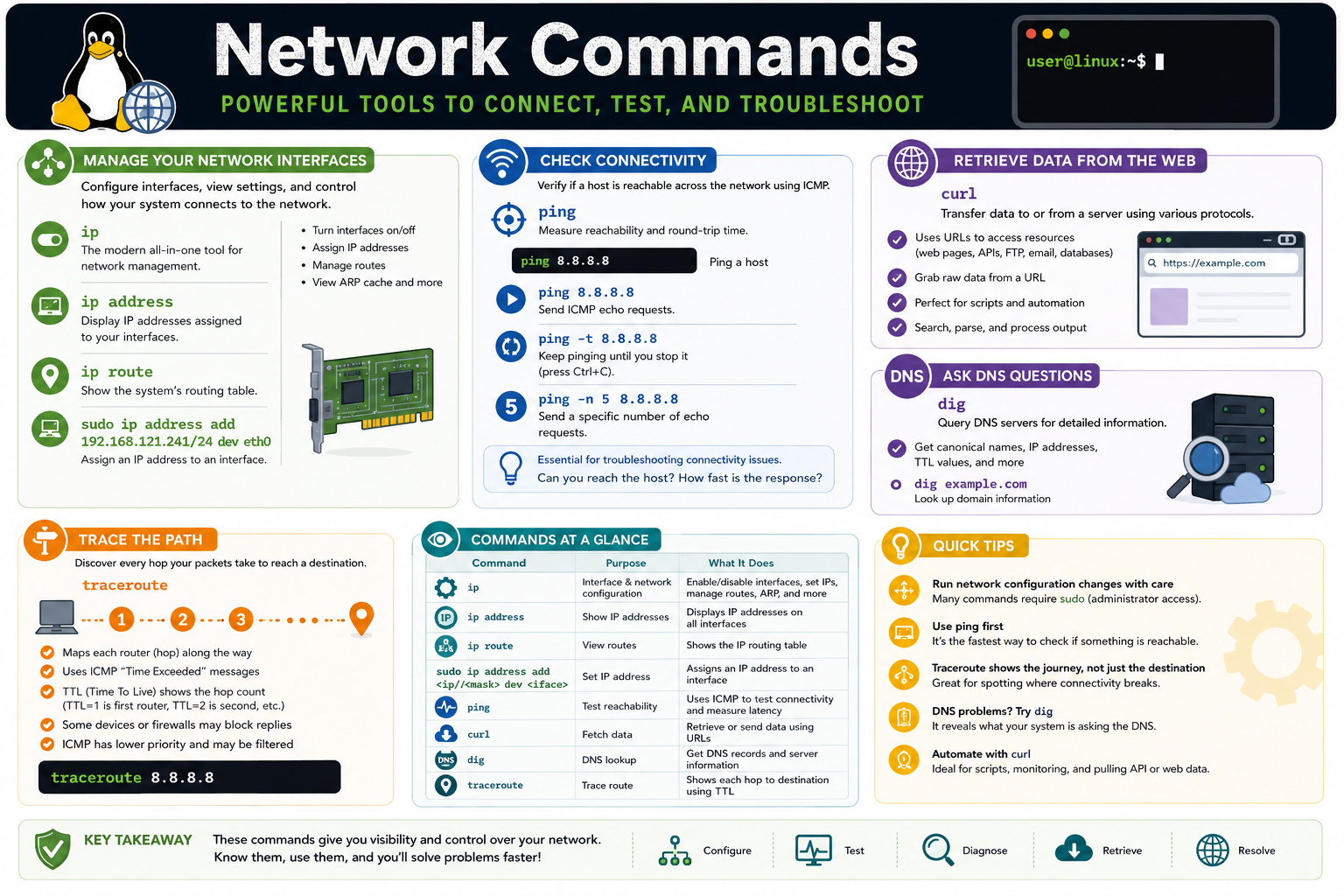
Linux network commands infographic covering ip, ip address, ip route, ping, curl, dig, traceroute, interface management, connectivity testing, DNS lookup, and path tracing
Use this network-command reference to connect interface checks, reachability tests, DNS queries, URL retrieval, route tracing, and safe technician workflow.
info
Module 08

Module 8 - Linux Informational Commands

Linux informational commands help technicians discover what is happening on a system before making changes: read help, display file contents, monitor processes, and check disk usage.

A strong Linux technician does not guess first. Informational commands provide evidence. They show what a command does, what a file contains, which processes are running, how busy the system is, and whether storage is under pressure. That visibility turns a vague symptom into something you can test, explain, and document.

These commands are usually safe compared with commands that modify files, packages, permissions, storage, or network settings. They still require care because output may include sensitive paths, usernames, configuration values, tokens, or security-related information. Read only what you need, protect user data, and document relevant findings without exposing private details.

Use man For Command Help

The man command opens manual pages for Linux commands, configuration files, library calls, and system concepts. If you do not remember an option or you need to confirm syntax before touching a production system, man is a technician-friendly first stop.

man ls Opens the manual page for ls, including description, syntax, options, and related commands.
Manual pages Usually include NAME, SYNOPSIS, DESCRIPTION, OPTIONS, EXAMPLES, FILES, SEE ALSO, and author or history sections.
Navigation Manual pages normally open in a pager. Use arrow keys or Page Up/Page Down to move, search with slash, and press q to quit.
Exam clue If the question asks for built-in command reference or full-screen command help, think man.

Display And Combine Files With cat

The cat command displays file contents and can concatenate multiple files. It is useful for quickly viewing short text files, combining files, checking simple configuration values, or sending file content into another command through a pipe.

For example, cat file1.txt file2.txt > both.txt combines the contents of two files into a new output file. Use redirection carefully: > overwrites the destination if it already exists, while >> appends to the destination. When user data matters, verify the file names before pressing Enter.

cat is not ideal for huge logs or binary files. For long output, pair it with tools such as less, grep, head, or tail when appropriate. The exam-level idea is simple: cat displays or combines file contents.

Monitor The System With top

The top command shows a real-time view of system activity. It displays running processes, CPU usage, memory usage, load averages, process IDs, users, and other resource details. Technicians use it when a Linux system feels slow, fans are loud, CPU usage is high, memory pressure is suspected, or a process appears to be consuming too many resources.

Load average is especially useful on Linux systems because it gives a quick view of system demand over time. A single snapshot is not always enough, so watch the pattern for a moment and compare it with the number of CPU cores, active services, recent updates, and user workload.

Inspect Processes With ps

The ps command displays process status. Unlike top, which refreshes interactively, ps gives a point-in-time process listing. It is useful for scripts, documentation, troubleshooting service behavior, and identifying a process ID before taking another action.

ps Shows processes associated with the current shell or user context.
ps -e Shows all processes on many Linux systems, which is useful when the process may not belong to the current user.
ps -e | more Pipes a long process list through more so output can be viewed one screen at a time.
PID The process ID uniquely identifies a running process and is often needed when checking, stopping, or documenting service behavior.

Process output can answer practical questions: Is the application running? Which user launched it? What process ID should be investigated? Is a script still active? Is the same service spawning repeated processes?

Check Disk Space With df

The df command reports file system disk space. Use it when updates fail, applications cannot write files, logs stop growing, users cannot save data, or a system behaves unpredictably because a volume is full.

By default, df may show block counts that are not friendly for quick reading. df -h displays human-readable sizes such as KB, MB, GB, or TB. That makes it faster to explain storage pressure to a user or document the amount of free space before and after cleanup.

Disk-space troubleshooting should identify both the full file system and the cause. df tells you whether a file system is full. A follow-up tool such as du can help locate which directory is consuming space.

Technician Workflow

  1. Start with the question. Decide whether you need help syntax, file contents, process status, resource usage, or disk capacity.
  2. Choose the least disruptive command. Use read-only informational commands before changing files, services, packages, permissions, or storage.
  3. Protect sensitive output. Avoid exposing private data from configuration files, logs, process arguments, paths, or usernames.
  4. Use readable formats. Prefer df -h when communicating disk capacity and use pagers or filters for long output.
  5. Verify patterns. For performance issues, compare top, ps, disk space, recent changes, and user symptoms instead of relying on one clue.
  6. Document evidence. Record the command, target, important output, timestamp, and any next step taken.

Exam Mindset

If the clue asks for command help, think man. If it asks to display or combine file contents, think cat. If it asks for a real-time system monitor, think top. If it asks for process status or PIDs, think ps. If it asks for file system free space, think df, and choose df -h when human-readable sizes matter.

Bottom line: Informational commands help you see what is happening before you touch the system. Use them to gather evidence, explain symptoms, choose the right fix, and document with confidence.

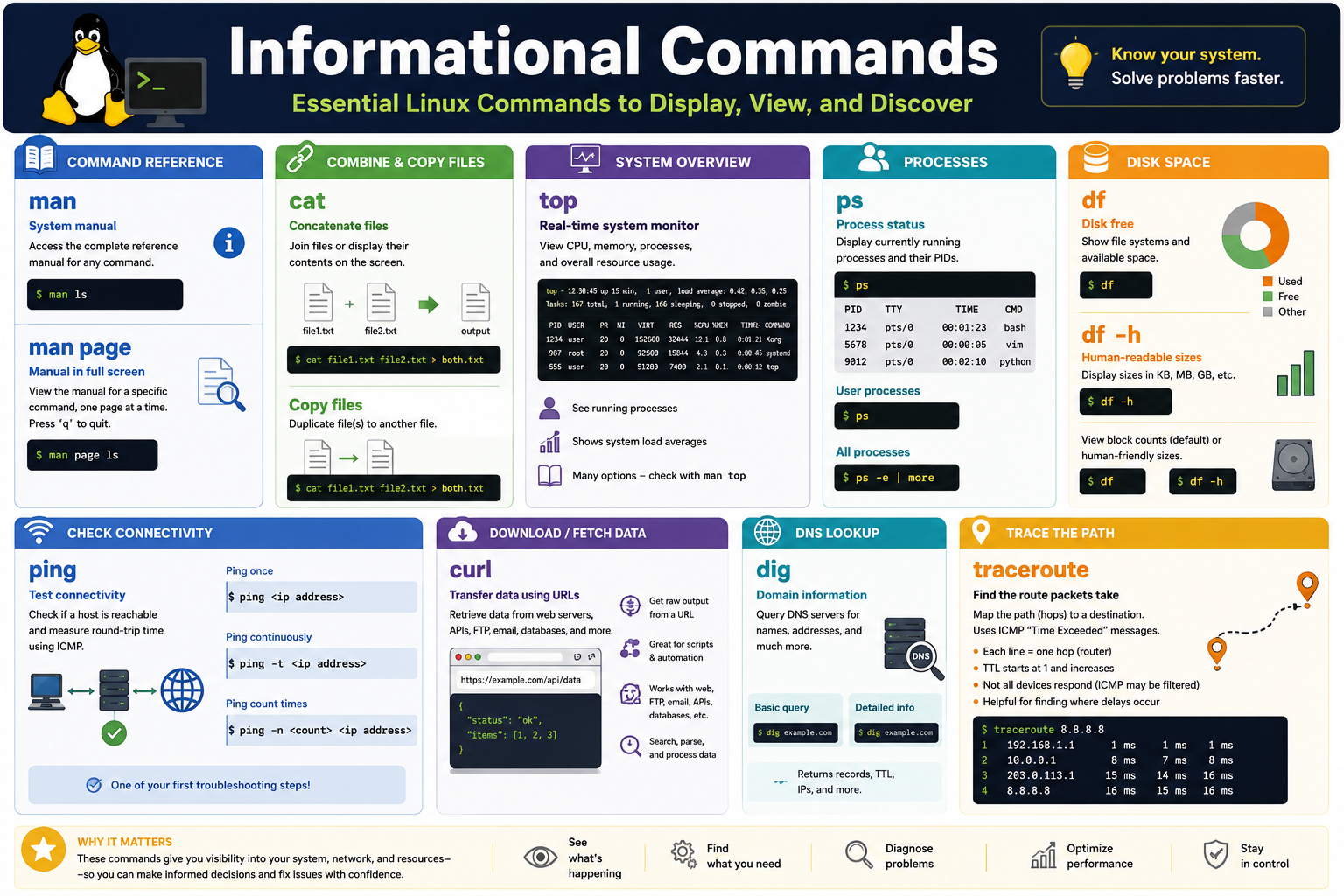
Linux informational commands infographic covering man, cat, top, ps, df, ping, curl, dig, traceroute, command reference, file viewing, process status, system monitoring, disk space, and troubleshooting evidence
Use this informational-command reference to match Linux visibility tasks to the right command: help with man, files with cat, live system activity with top, processes with ps, and disk space with df.
nano
Module 09

Module 9 - Linux Text Editors

Linux technicians often edit configuration files, scripts, notes, and logs directly from the terminal. nano is a friendly full-screen text editor that makes basic edits approachable even when no graphical editor is available.

Text editing matters because many Linux support tasks involve plain-text files. Network settings, service configuration, scheduled jobs, shell scripts, documentation, hosts-file entries, package-source lists, and troubleshooting notes may all live in text files. A technician who can safely open, edit, save, and exit a terminal editor can work on servers, recovery shells, SSH sessions, virtual machines, and lightweight systems without needing a desktop environment.

nano is popular because it is simple, visible, and forgiving. It shows common shortcuts on the screen, uses familiar text-editing concepts, and is often installed by default or available quickly through the distribution package manager. It is not the only Linux editor, but it is a practical CompTIA-level answer when the goal is easy terminal editing.

Why Terminal Editors Matter

No GUI required Terminal editors work over SSH, recovery consoles, server shells, and minimal installations where a graphical editor is unavailable.
Plain-text control Linux configuration and scripts are commonly stored as text, so careful editing is a core support skill.
Fast documentation Technicians can create notes, capture commands, or update local documentation without leaving the shell.
Low resource use Tools such as nano are lightweight and practical on older hardware, lab systems, and servers.

Open And Edit With nano

To open a file, run a command such as nano file.txt. If the file exists, nano opens it for editing. If the file does not exist, nano starts a new buffer using that file name, and the file is created when you save it.

Inside nano, you type normally, move with the arrow keys, and use keyboard shortcuts for editor actions. The caret symbol shown in nano shortcuts means Ctrl. For example, ^O means press Ctrl+O, and ^X means press Ctrl+X. This on-screen shortcut reminder is one reason nano feels more approachable than editors that require memorized modes.

Common nano Shortcuts

Ctrl+O Write Out Saves the current buffer to a file. Nano may ask you to confirm the file name before writing.
Ctrl+X Exit Closes nano. If unsaved changes exist, nano asks whether to save, discard, or cancel.
Ctrl+W Where Is Searches for text inside the current file, which is useful for long configuration files and logs.
Ctrl+K Cut Cuts the current line or selected text into nano's cut buffer.
Ctrl+U Paste Pastes text from the cut buffer at the cursor location.
Ctrl+R Read File Inserts another file into the current buffer, useful when merging notes or configuration snippets.

Edit Protected Files Carefully

Many important Linux files are protected. If you need to edit a system file under locations such as /etc, you may need elevated privileges, such as sudo nano /etc/hosts. That command opens the file with administrator rights, so mistakes can affect name resolution, services, boot behavior, authentication, or application function.

Before editing a protected file, confirm the file path, understand the change, and consider making a backup copy. A command such as sudo cp /etc/hosts /etc/hosts.bak preserves a rollback point before opening the file. After editing, verify the related service or workflow and document what changed.

Safe Editing Habits

  1. Inspect before editing. Use commands such as cat, less, or grep to understand the current file before changing it.
  2. Back up important files. Copy critical configuration files before editing so you can restore the previous version if needed.
  3. Use the right privilege level. Open user files as a normal user and use sudo only when the file is protected and the task requires it.
  4. Make focused changes. Change the smallest amount needed, especially in configuration files where syntax matters.
  5. Save deliberately. Use Ctrl+O to write changes, confirm the filename, then use Ctrl+X to exit.
  6. Verify the result. Reopen or display the file, test the service or command affected by the edit, and document the outcome.

When nano Is The Right Choice

nano is a good choice when the technician needs a quick, simple terminal editor. It is especially useful for beginner-friendly labs, remote support, small configuration edits, quick scripts, and recovery tasks. It offers enough power for routine work without requiring a steep learning curve.

Other editors may be preferred in some environments, but exam scenarios usually care about matching the tool to the task. If the clue says simple terminal text editor, easy to use, available in a shell, or editing a text file without a GUI, think nano.

Exam Mindset

If the clue asks for an easy terminal text editor, choose nano. If the clue mentions saving in nano, think Ctrl+O. If it asks how to exit, think Ctrl+X. If it asks to search, think Ctrl+W. If the file is protected, expect sudo and a careful backup-and-verify workflow.

Bottom line: Nano gives Linux technicians a practical way to edit text from any terminal. Open the correct file, protect important data, make focused edits, save intentionally, exit cleanly, verify the result, and document the change.

Linux text editors infographic covering nano as a terminal text editor, opening files, saving with Ctrl O, exiting with Ctrl X, searching with Ctrl W, cutting with Ctrl K, pasting with Ctrl U, and reading files with Ctrl R
Use this nano text-editor reference to remember why terminal editing matters, when nano is useful, and which shortcuts support safe file changes.
/etc
Module 10

Module 10 - Linux Common Config Files

Linux stores many important system configuration files as plain text, especially under /etc. These files can control users, authentication, hostname resolution, DNS settings, mounted file systems, and startup behavior.

Configuration files are powerful because a small text change can alter how the operating system behaves. That is useful for technicians, but it also means careless edits can lock out users, break name resolution, prevent storage from mounting, disrupt services, or create security problems. Treat these files as system controls, not casual notes.

Many common configuration files can be viewed by standard users, but editing them usually requires administrator privileges. The safe pattern is to inspect first, understand the file format, make a backup, edit with a terminal editor such as sudo nano /etc/filename, verify the related function, and document the change.

Why /etc Matters

The /etc directory holds host-specific system configuration. Package managers install default files there, administrators customize settings there, and services often read their behavior from files or directories below /etc. If a question mentions Linux configuration, system behavior, local users, DNS resolver settings, host mappings, or file systems mounted at boot, /etc should be on your radar.

/etc/passwd Lists local user account records and basic login information such as username, UID, GID, home directory, and default shell.
/etc/shadow Stores protected password hashes and password-aging fields. Access is restricted because it contains sensitive authentication data.
/etc/hosts Maps hostnames to IP addresses locally before DNS is queried, useful for local overrides, labs, and troubleshooting name resolution.
/etc/resolv.conf Identifies DNS resolver settings such as nameserver IP addresses and search domains, depending on how the distribution manages DNS.
/etc/fstab Defines file systems and storage devices that should be mounted, where they mount, and which options are used.

/etc/passwd: Local User Directory

The /etc/passwd file contains one line per local account. Historically it included password data, but modern systems usually store password hashes in /etc/shadow instead. The name remains for compatibility, but technicians should remember that /etc/passwd is mainly a user account directory.

A typical line includes colon-separated fields: username, password placeholder, user ID or UID, group ID or GID, user details, home directory, and login shell. For example, the shell field may point to /bin/bash, /bin/zsh, or another login program.

Do not manually edit account records unless there is a clear reason and a rollback plan. User-management commands are safer for routine changes because they validate syntax and update related files consistently.

/etc/shadow: Protected Password Data

The /etc/shadow file contains password hashes and password aging information. It is protected because password hashes are sensitive even though they are not plain-text passwords. If attackers can read hashes, they may attempt offline cracking.

Fields in /etc/shadow can track the user, password hash, last password change, minimum days before change, maximum days before change, warning period, inactive days, and account expiration. These settings support password policy enforcement.

Because this file affects authentication, use account and password-management tools whenever possible. If recovery work requires direct inspection, use the least access needed and document carefully.

/etc/hosts: Local Name Resolution

The /etc/hosts file maps hostnames to IP addresses on the local system. It is checked before DNS in many normal resolver workflows, which means it can override external DNS answers. That can be helpful or hazardous.

Common uses include internal servers, development environments, temporary testing, lab systems, and blocking or redirecting names. A stale or incorrect entry can make one workstation reach the wrong server while other systems work normally, so /etc/hosts is a prime troubleshooting target for hostname issues.

/etc/resolv.conf: DNS Resolver Settings

The /etc/resolv.conf file tells the system which DNS resolvers or search domains to use. Entries such as nameserver 1.1.1.1, nameserver 8.8.8.8, or search localdomain influence how names are translated to IP addresses.

Modern distributions may generate or manage this file through NetworkManager, systemd-resolved, DHCP, VPN software, or other network services. If your edit disappears after a reboot or network reconnect, the file may be managed automatically. In that case, change the controlling network configuration instead of repeatedly editing the generated file.

/etc/fstab: Filesystem Roadmap

The /etc/fstab file defines file systems that should be mounted, where they mount, and which options apply. Entries commonly include a device or UUID, mount point, file system type, mount options, dump setting, and pass value for file system checks.

This file is read during boot and by mount tools. A bad entry can slow boot, drop the system into emergency mode, mount a file system read-only, or leave expected storage unavailable. Always verify device identifiers, mount points, file system type, and options before editing.

Safe Technician Workflow

  1. Identify the symptom. Decide whether the issue involves users, passwords, local hostname mapping, DNS resolver behavior, or mounted storage.
  2. Inspect before editing. Use read-only tools such as cat, less, grep, getent, dig, mount, or findmnt before changing files.
  3. Back up the file. Copy the original, such as sudo cp /etc/fstab /etc/fstab.bak, before editing critical configuration.
  4. Edit with privilege only when needed. Use sudo nano /etc/filename for protected files and confirm the path before saving.
  5. Preserve syntax. Keep field separators, spacing, comments, and required columns correct. One missing colon, bad hostname, or wrong UUID can break behavior.
  6. Verify the result. Test login behavior, DNS resolution, hostname lookup, mount status, or boot-related commands after the change.
  7. Document and communicate. Record the file, exact change, backup location, reason, verification result, and rollback plan.

Exam Mindset

If the clue asks who can log in and which shell or home directory they use, think /etc/passwd. If it asks about password hashes or password aging, think /etc/shadow. If hostname resolution works differently on one machine, check /etc/hosts. If DNS server settings are wrong, inspect /etc/resolv.conf. If storage should mount at boot, think /etc/fstab.

Bottom line: Common config files are small, readable, and powerful. Know what each file controls, back it up before changing it, edit with care, verify the outcome, and document every system-impacting change.

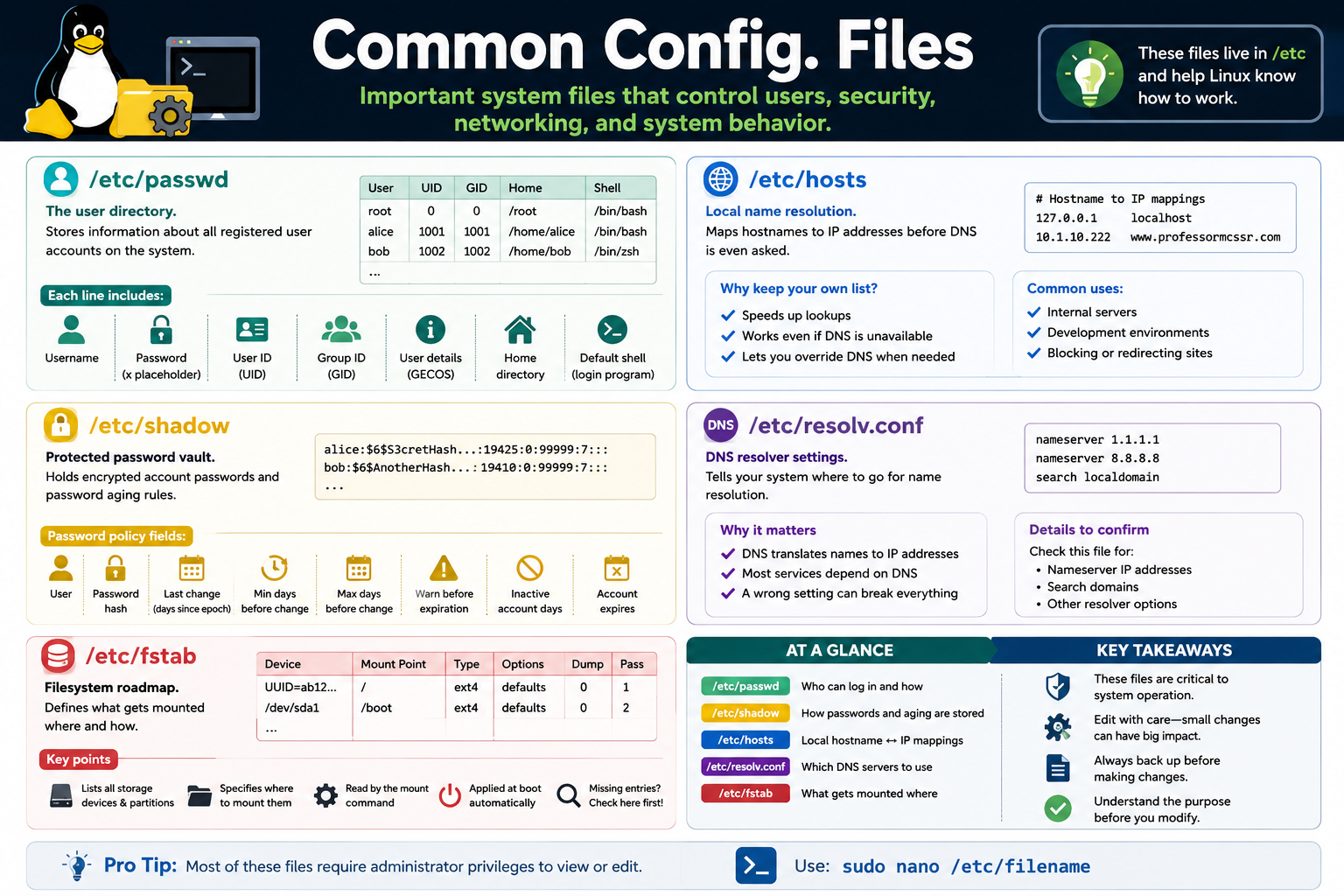
Linux common configuration files infographic covering /etc/passwd, /etc/shadow, /etc/hosts, /etc/resolv.conf, /etc/fstab, users, password hashes, local name resolution, DNS resolver settings, filesystem mounts, and sudo nano editing
Use this common configuration files reference to remember what each key /etc file controls and why careful backup, editing, verification, and documentation matter.
boot
Module 11

Module 11 - Linux OS Components

A Linux system works because hardware, firmware, a bootloader, the kernel, systemd, services, user space, and applications all hand work to each other in the correct order.

When a technician understands the major operating system components, troubleshooting becomes more organized. A system that will not power on is different from a system that cannot find a boot device. A bootloader problem is different from a kernel panic. A service that fails after boot is different from a hardware device that was never detected. The component layer tells you where to look first.

Core 2 exam questions may use words such as kernel, bootloader, systemd, service, daemon, BIOS, UEFI, boot order, or startup. The key is to match the symptom to the layer of the startup process and choose a tool or file that can confirm what is happening.

The Big Picture

Hardware Physical components such as CPU, memory, storage, network adapters, and peripherals that the operating system uses.
Firmware BIOS or UEFI initializes hardware, applies firmware settings, and chooses a boot device based on boot order.
Bootloader A small program loaded early in startup that locates and starts the operating system kernel.
Kernel The core of the OS that manages CPU, memory, devices, filesystems, processes, and hardware communication.
systemd The init system and service manager that starts system services and brings the machine into a usable state.
Applications User-facing programs that run after the OS has initialized hardware, services, sessions, and user space.

Firmware And The Bootloader

Startup begins before Linux itself runs. When power is applied, firmware initializes hardware and chooses a boot device. On modern systems this is usually UEFI, though BIOS remains an important exam term. Firmware settings can control boot order, secure boot behavior, enabled devices, storage mode, and other platform-level options.

The bootloader bridges firmware and the operating system. It knows where to find the kernel and related boot files, then starts the kernel with the correct options. If a system powers on but cannot find an operating system, inspect boot order, boot device detection, bootloader entries, and files under locations such as /boot.

A useful quick check is ls /boot to view boot-related files. In real support work, bootloader repair can be sensitive, so gather details before changing boot entries or reinstalling boot components.

The Kernel

The kernel is the heart of Linux. It controls access to hardware, schedules processes, manages memory, handles device drivers, exposes filesystems, and coordinates communication between software and physical devices. Applications do not talk directly to hardware in normal operation; they ask the kernel to perform controlled work.

Kernel space is protected so user applications cannot freely overwrite critical OS memory or directly disrupt hardware control. This boundary improves stability and security. When the kernel or a driver fails, the whole system may freeze, panic, lose hardware access, or show boot-time errors.

Technicians can check the running kernel version with uname -r. Kernel updates can deliver bug fixes, security patches, hardware support, and driver improvements, but they should still be tested and documented like other system-impacting updates.

systemd And Services

After the kernel initializes the system, the init process starts the rest of the user-space environment. On many modern Linux distributions, that init system is systemd. It becomes an early parent process and coordinates services, targets, timers, sockets, mounts, logging integration, and more.

Services are background programs, sometimes called daemons, that provide functions such as networking, logging, printing, SSH, scheduled jobs, authentication support, time synchronization, and login sessions. If Linux boots but a feature is unavailable, the service layer is a natural place to investigate.

systemctl status sshd Checks the status of the SSH service on systems where the service is named sshd.
systemctl status NetworkManager Checks a common network-management service on many desktop and server distributions.
Targets Systemd targets group units into operating states, similar in purpose to startup modes or runlevel concepts.
Logs Service troubleshooting often pairs systemctl status with journal or log review for evidence.

User Space And Applications

User space is where normal applications, shells, desktop environments, utilities, and user sessions run. It is intentionally separated from kernel space. This separation helps one crashed application fail without automatically crashing the whole operating system.

Applications depend on lower layers. If firmware cannot find storage, the bootloader cannot start. If the kernel cannot initialize a device, services may fail. If systemd cannot start networking or login services, user applications may not function. Troubleshooting works best when you ask which layer must succeed before the symptom could appear.

Startup Flow

  1. Power on. The user presses the power button and hardware receives power.
  2. BIOS or UEFI runs. Firmware initializes hardware and selects a boot device based on settings.
  3. Bootloader starts. The bootloader is loaded from the boot device and locates the Linux kernel.
  4. Kernel initializes. The kernel takes control, initializes hardware support, mounts early filesystems, and starts the first user-space process.
  5. systemd starts services. Systemd brings up services, targets, login support, networking, and other background components.
  6. User logs in. Shells, desktop sessions, and applications run after the OS is ready.

Technician Workflow

  1. Identify the stage. Decide whether the symptom occurs before boot, during bootloader selection, during kernel startup, while services start, or after login.
  2. Gather evidence. Check firmware messages, boot entries, /boot, kernel version, service status, logs, and user symptoms.
  3. Use the right command. Use uname -r for kernel version, ls /boot for boot files, and systemctl status <service> for service state.
  4. Avoid blind changes. Bootloader, kernel, and service changes can prevent startup or remote access if handled carelessly.
  5. Verify and document. Confirm the system boots, services run, devices appear, users can log in, and applications work.

Exam Mindset

If the clue says firmware chooses the boot device, think BIOS or UEFI. If it says the OS is located and started, think bootloader. If it says core hardware control, drivers, memory, or process scheduling, think kernel. If it says services, daemons, targets, or systemctl, think systemd. If it says the app runs after login, think user space and applications.

Bottom line: Linux startup is a chain. Power on, firmware, bootloader, kernel, systemd, services, login, and applications each depend on the layer before them. Find the failed layer, verify with the right command, and document the result.

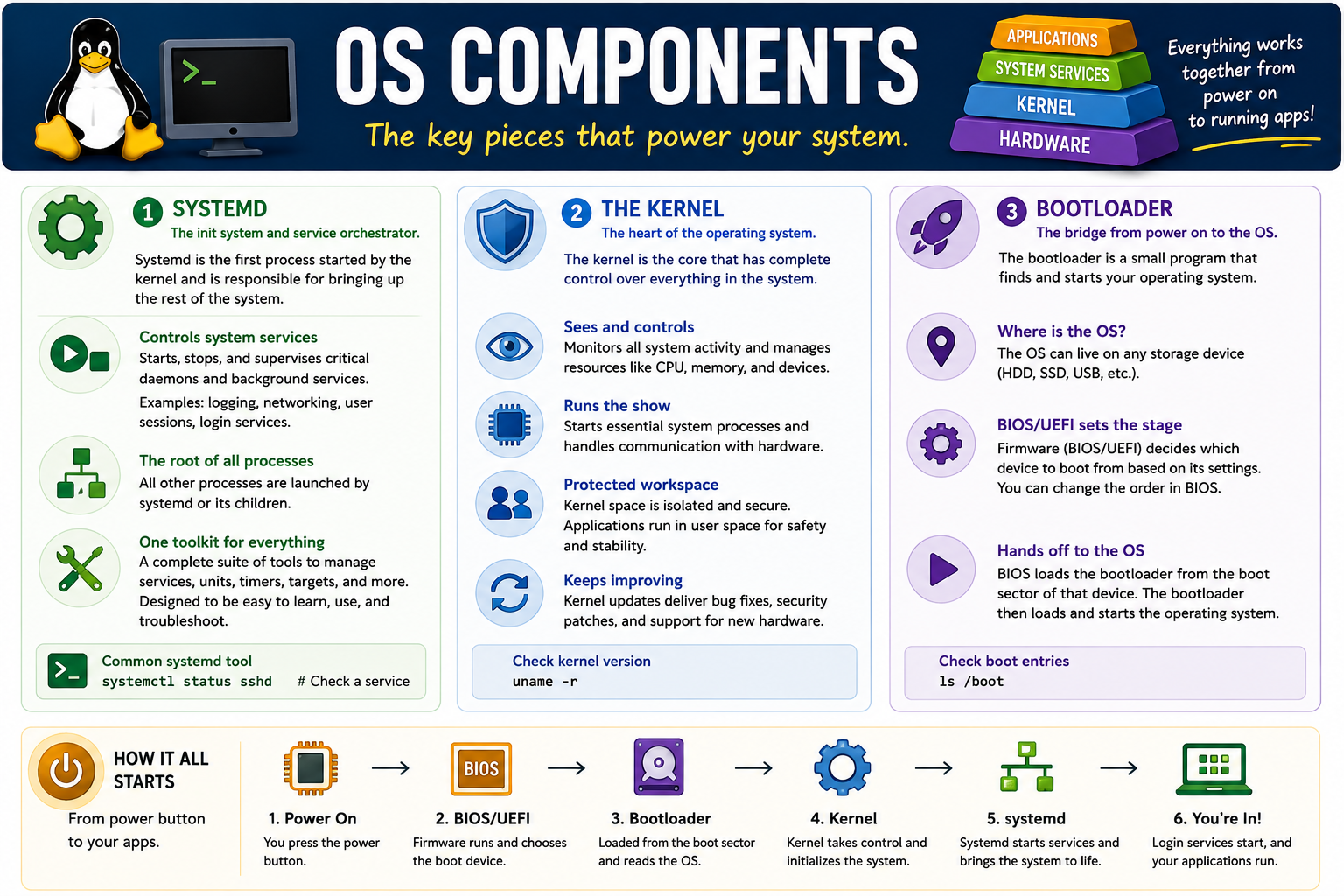
Linux OS components infographic covering systemd, kernel, bootloader, BIOS UEFI, services, hardware, applications, startup flow, uname -r, ls /boot, and systemctl status sshd
Use this OS components reference to connect boot order, firmware, bootloader, kernel control, systemd services, and user applications into one troubleshooting flow.
root
Module 12

Module 12 - Linux Root Account

The root account is the Linux superuser. It has UID 0, unrestricted administrative authority, and the power to install software, change ownership, edit protected files, manage services, and alter the entire system.

Root exists because an operating system needs a trusted administrative identity that can perform work normal users should not be able to do. Installing packages, patching the OS, editing protected configuration, managing users, changing file ownership, mounting storage, and controlling services all require authority beyond a standard account.

That power is useful, but it is also dangerous. A root command can overwrite critical files, remove entire directory trees, expose sensitive data, change security controls, or break remote access. A technician should treat root access like a controlled procedure: know why it is needed, run the smallest necessary command, verify the result, and leave elevated access when finished.

What Root Is

UID 0 Root is identified by user ID 0. Commands such as id can show uid=0(root) when a root shell is active.
Full control Root can read, write, execute, modify ownership, change permissions, install packages, and manage system files.
System-wide impact Root changes can affect every user, service, application, file system, and security setting on the machine.
Not for daily work Normal browsing, editing, downloads, email, and routine user tasks should not run as root.

Root Versus sudo

On many Linux distributions, technicians do not log in as root for routine work. Instead, they use sudo to run one command with elevated privileges. This is safer because the elevated scope is limited, the command may be logged, and the technician returns to normal permissions afterward.

A full root shell, such as one started with sudo -i or sudo su -, changes the session context. Every command runs with root authority until the technician exits. That may be useful for extended recovery work, but it is riskier because one typo or wrong path can have system-wide consequences.

Common Root-Level Tasks

Install software Package commands such as sudo apt install <package> or sudo dnf install <package> modify protected system locations.
Update the OS Operating system updates change packages, services, libraries, kernel components, and security fixes.
Change ownership Commands such as sudo chown user:group file can change who controls a file or directory.
Edit configuration Protected text files under /etc often require commands such as sudo nano /etc/filename.
Manage services Starting, stopping, enabling, disabling, or restarting system services commonly requires elevated authority.
Maintain storage Mounting volumes, editing /etc/fstab, repairing file systems, and changing disk configuration can require root.

Text-Based Administration

Linux administration is heavily text-based. Servers may run headless with no graphical desktop, SSH sessions are command-line driven, and many settings live in human-readable configuration files. This is why root access and terminal editing often appear together in support tasks.

For example, a technician might inspect a configuration file, back it up, edit it with sudo nano, restart a related service, and verify the outcome. That workflow is efficient, but it must be careful because text files may control authentication, DNS, storage, services, or boot behavior.

Root Safety Habits

  1. Start as a standard user. Use normal permissions until the task clearly requires administrative authority.
  2. Prefer one elevated command. Use sudo for a specific command instead of opening a long root session when possible.
  3. Confirm identity. If you are unsure whether you are root, run id or whoami and look for root or UID 0.
  4. Verify paths. Check filenames, directories, package names, service names, and device names before pressing Enter.
  5. Back up before editing. Copy important configuration files before changing them, especially under /etc.
  6. Avoid reckless wildcards. Commands run as root with wildcards, recursion, or force options can damage large parts of the system quickly.
  7. Exit elevated sessions. Type exit when root work is complete so later commands do not run with unnecessary power.
  8. Document the action. Record what was changed, why root was required, how it was verified, and how to roll back if needed.

Technician Workflow

  1. Identify the admin task. Decide whether the work is package management, configuration, permissions, services, storage, or user management.
  2. Choose the privilege method. Prefer sudo command for focused work and reserve root shells for justified recovery or extended maintenance.
  3. Prepare a rollback. Back up files, capture current settings, and understand the impact before making changes.
  4. Run the command carefully. Read prompts, confirm paths, avoid unnecessary force options, and change only what is required.
  5. Verify and leave root. Test the result, check logs or service status if needed, then exit elevated context.

Exam Mindset

If the clue says UID 0, superuser, unrestricted access, or ultimate administrator, think root. If the clue asks for safer temporary elevation, think sudo. If it asks to become root for an interactive shell, think sudo -i or sudo su -. If the question emphasizes safety, choose least privilege, backup, verify, document, and exit root when finished.

Bottom line: Root can do almost anything on Linux. Use that power only when needed, prefer scoped sudo commands, protect text configuration files, verify every change, and leave elevated access as soon as the job is done.

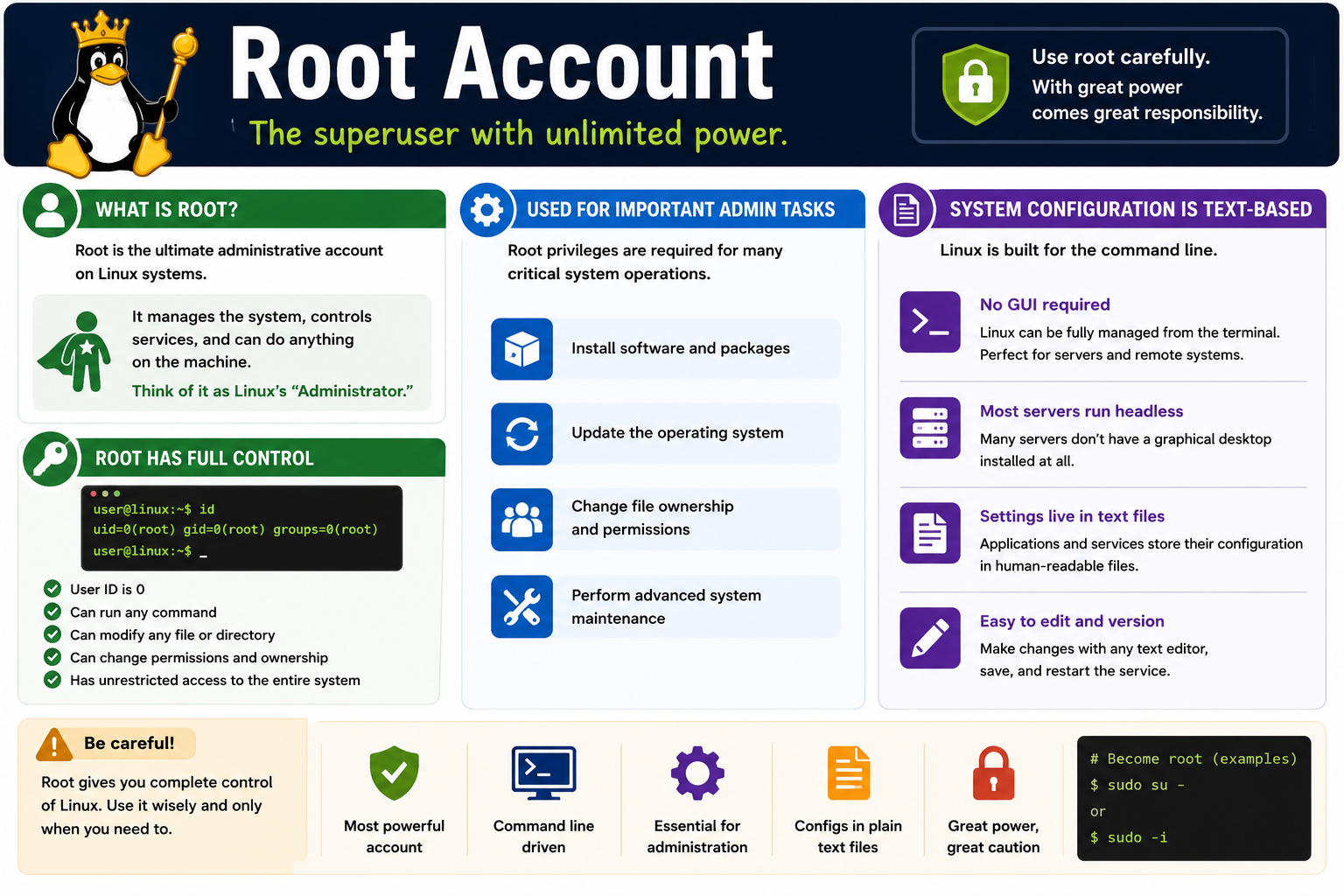
Linux root account infographic covering root as the superuser, UID 0, full control, administrator tasks, text-based configuration, sudo su, sudo -i, and safe root usage
Use this root account reference to remember why root is powerful, when elevated access is required, and how to work safely with administrative authority.
key
Module 13

Module 13 - Linux Key Takeaways

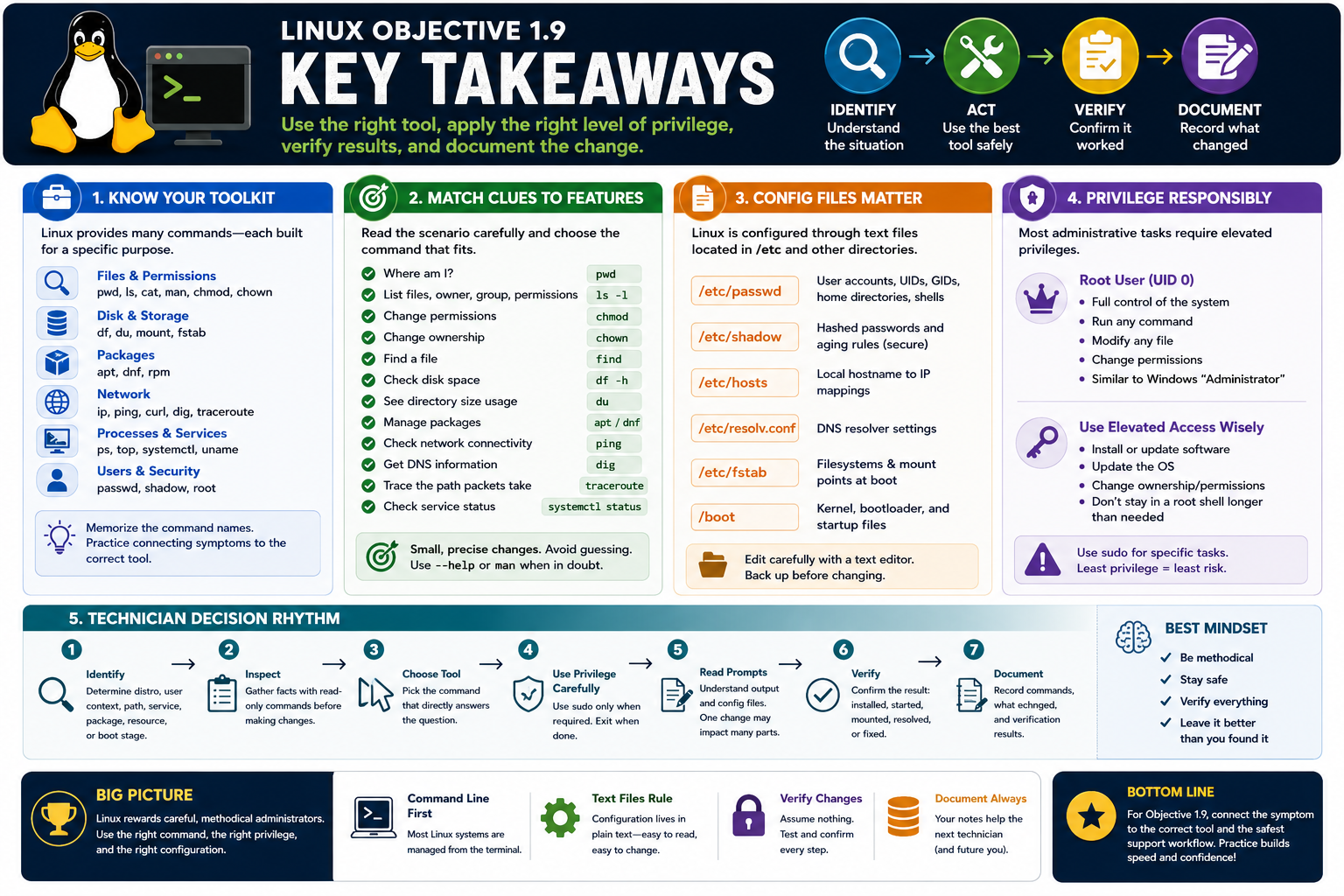
Linux Objective 1.9 key takeaways infographic covering toolkit categories, matching clues to features, configuration files, responsible privilege use, technician workflow, and exam mindset
Use this Linux Objective 1.9 key takeaways reference to connect symptoms to commands, apply the right privilege level, verify results, and document the change.

Linux Objective 1.9 is about choosing the right tool for the clue, using elevated privileges only when needed, and verifying the result before you document the change.

At this point in the Linux section, the exam is less about memorizing one isolated command and more about recognizing a scenario. A technician may need to inspect files, change permissions, locate storage, install software, test network connectivity, edit text configuration, check services, identify OS startup components, or use root-level authority safely. The best answer is usually the command or concept that solves the immediate problem with the least unnecessary risk.

Think of Linux support as a layered workflow. First identify the distribution, user context, path, service, package manager, network target, or boot stage. Then gather evidence with read-only commands where possible. After that, make the smallest appropriate change, verify that it worked, and record what changed.

Know The Linux Tool Family

File inspection Use pwd to confirm location, ls to list contents, cat to display text, and man to read command help.
File changes Use cp to copy, mv to move or rename, rm to remove, and nano to edit text files when a terminal editor is needed.
Permissions Use chmod to change access bits and chown to change file ownership. Inspect with ls -l before changing anything.
Filesystem work Use find to locate files, df to check free space, du to estimate directory usage, mount to attach filesystems, and fsck for filesystem checks when appropriate.
Packages Use apt on Debian, Ubuntu, and Linux Mint systems that use .deb packages. Use dnf on Fedora, Red Hat, Rocky, AlmaLinux, and other RPM-family systems.
Network testing Use ip for interface and route information, ping for reachability, curl for web or API retrieval, dig for DNS, and traceroute for path visibility.
Processes and services Use ps for process listings, top for live resource monitoring, and systemctl when the clue points to systemd services.
Startup and root Use uname -r for kernel version, ls /boot for boot files, and sudo when a focused administrative command is required.

Match Scenario Clues To The Right Feature

  • Need current directory? Use pwd.
  • Need to list files, permissions, owner, or group? Use ls -l.
  • Need to change who can read, write, or execute a file? Use chmod.
  • Need to change who owns a file? Use chown.
  • Need to find a file by name, type, or location? Use find.
  • Need to check available disk space? Use df -h.
  • Need to identify what folder is consuming space? Use du.
  • Need Debian or Ubuntu software management? Use apt and think .deb.
  • Need Fedora, RHEL, Rocky, or AlmaLinux software management? Use dnf and think .rpm.
  • Need to test if a host responds? Start with ping, then investigate routing, DNS, or firewall clues.
  • Need to query DNS records directly? Use dig.
  • Need to trace packet hops? Use traceroute.
  • Need to edit a protected text config file? Back it up, then use a command such as sudo nano /etc/filename.
  • Need service state? Use systemctl status <service> on systemd-based systems.
  • Need full administrative authority? Think root, UID 0, and least privilege.

High-Value Configuration Reminders

/etc/passwd Stores account identity information such as usernames, UIDs, GIDs, home directories, and login shells.
/etc/shadow Stores protected password hashes and password aging fields. It requires elevated privileges and must be handled carefully.
/etc/hosts Maps hostnames to IP addresses locally before normal DNS resolution is used.
/etc/resolv.conf Contains DNS resolver information, including nameserver and search-domain settings on many systems.
/etc/fstab Defines filesystems that should be mounted, where they mount, and which options apply.
/boot Contains boot-related files. It is useful when investigating bootloader, kernel, and startup clues.

Technician Decision Rhythm

  1. Identify the system. Determine the Linux distribution, package family, user privilege level, boot stage, service name, path, and target resource.
  2. Inspect before changing. Prefer commands such as pwd, ls -l, df -h, ps, top, ip, dig, and systemctl status before making changes.
  3. Choose the smallest tool. Use the command that directly matches the clue instead of applying broad fixes.
  4. Use privilege carefully. Use sudo only when the command needs protected access. Avoid staying in a root shell longer than necessary.
  5. Read prompts. Package managers, removals, permission changes, mount operations, and service changes can affect more than one component.
  6. Verify the outcome. Confirm the package installed, file changed, service started, DNS resolved, route worked, disk mounted, or permission problem cleared.
  7. Document the change. Record commands used, files edited, packages added or removed, services restarted, and validation results.

Exam Mindset

Debian, Ubuntu, Linux Mint, or .deb clues point to apt. Fedora, Red Hat, RHEL, CentOS Stream, Rocky, AlmaLinux, RPM, or .rpm clues point to dnf. Permission clues usually point to chmod or chown. DNS clues point to dig, /etc/hosts, or /etc/resolv.conf. Service clues point to systemd and systemctl. Superuser, UID 0, unrestricted access, or protected files point to root and sudo.

Key Takeaway

Linux rewards careful technicians. Confirm the environment, gather evidence, choose the right command, use trusted repositories and least privilege, verify results, and leave a clear record for the next person.

Bottom line: For Objective 1.9, memorize the command names, but practice the scenarios. The exam wants you to connect the symptom to the correct Linux tool and the safest support workflow.

A+
Module 14

Module 14 - Section Notes

CompTIA A+ Core 2 220-1202Objective 1.9 Section Notes

1.9 - Identify Linux Features and Tools

Objective: Given a scenario, use Linux features and tools to inspect files, manage permissions, install packages, troubleshoot networks, edit configuration, understand startup, and apply administrative privileges safely.

Objective 1.9 is a command-selection objective. The exam expects you to recognize the clue, choose the Linux tool that directly fits the task, use the right privilege level, and verify the result. A good technician starts with read-only evidence, makes the smallest necessary change, and documents what was done.

Core idea: Linux is text-friendly, command-line friendly, and permission-driven. Know the command, know the file path, know whether sudo is required, and know how to confirm the outcome.
Technician mindset
Identify the distro, command family, path, service, package manager, user context, and symptom before changing the system.
Exam mindset
Debian and Ubuntu clues point to apt. Fedora, RHEL, Rocky, AlmaLinux, RPM, and .rpm clues point to dnf. Root, UID 0, and protected paths point to privilege control.

Safe Linux Workflow

  • Identify the distribution, user, path, package manager, network target, service name, or boot stage.
  • Inspect first with commands such as pwd, ls -l, df -h, ps, top, ip, dig, and systemctl status.
  • Use the smallest command that directly answers the scenario.
  • Use sudo only when protected system access is required.
  • Read package, removal, mount, permission, and service prompts before accepting changes.
  • Verify the result and document commands, files edited, services restarted, and final status.
Notes:
Linux Command ToolkitObjective 1.9

Files, Permissions, Storage, and Text Editing

File Navigation and Inspection

  • pwd prints the current working directory.
  • ls lists files and directories.
  • ls -l shows permissions, owner, group, size, and timestamps.
  • ls -a shows hidden files that begin with a dot.
  • cat file displays text file contents.
  • man command opens built-in command help.

File Changes

  • cp source target copies files.
  • cp -r folder target copies directories recursively.
  • mv old new renames or moves files.
  • rm file removes a file without using a recycle bin.
  • rm -r folder removes a directory tree and should be treated as high risk.
  • Use tab completion and verify paths before changing data.

Permissions and Ownership

  • chmod changes read, write, and execute permissions.
  • Octal values use read=4, write=2, execute=1.
  • chmod 744 file gives owner full access and others read-only access.
  • chmod a-w file removes write permission from all users.
  • chown user:group file changes file ownership and group.
  • Use least privilege instead of broad permissions.

Storage and Filesystems

  • find locates files by name, type, path, user, size, or time.
  • df -h shows filesystem free space in human-readable units.
  • du estimates directory or file usage.
  • mount attaches a filesystem to a directory.
  • fsck checks and repairs filesystem problems when used correctly.
  • Unmount or work from recovery media when filesystem repair requires it.

Text Editing With nano

  • nano file.txt opens a file in a terminal editor.
  • Ctrl+O writes or saves the file.
  • Ctrl+X exits nano.
  • Ctrl+W searches text.
  • Ctrl+K cuts and Ctrl+U pastes.
  • Use sudo nano /etc/filename only when editing protected files.
ScenarioBest MatchTechnician Caution
Need to know where you arepwdConfirm before using relative paths.
Need permissions and ownershipls -lInspect before chmod or chown.
Need to locate a filefindSearch from the right starting directory.
Disk is fulldf -h and duFind the pressure point before deleting data.
Notes:
Packages, Networks, Processes, and ServicesObjective 1.9

Software, Connectivity, and System Visibility

APT Package Management

  • APT is common on Debian, Ubuntu, Linux Mint, and other Debian-family systems.
  • sudo apt update refreshes package metadata.
  • sudo apt upgrade installs available package updates.
  • sudo apt install <package> installs software.
  • sudo apt remove <package> removes software.
  • APT works with trusted repositories and .deb packages.

DNF Package Management

  • DNF is common on Fedora, Red Hat, RHEL, CentOS Stream, Rocky, and AlmaLinux systems.
  • sudo dnf check-update checks available updates.
  • sudo dnf upgrade installs updates.
  • sudo dnf install <package> installs software.
  • sudo dnf remove <package> removes software.
  • DNF works with RPM-family repositories and .rpm packages.

Package Safety

  • Identify the distribution before choosing a package manager.
  • Refresh metadata before installing or upgrading software.
  • Read dependency, removal, replacement, and restart prompts.
  • Use trusted repositories when possible.
  • Verify the package installed, updated, or removed correctly.
  • Document package changes and business reason.

Network Commands

  • ip manages and displays interface, address, route, and ARP information.
  • ping tests reachability and round-trip time.
  • curl retrieves data from URLs and is useful for web, API, and script checks.
  • dig queries DNS records and resolver behavior.
  • traceroute shows hops toward a destination.
  • Start simple: local interface, gateway, DNS, remote host, then path.

Processes and Services

  • ps lists running processes and process IDs.
  • ps -e shows all processes.
  • top shows live CPU, memory, load average, and process activity.
  • systemctl status <service> checks systemd service status.
  • Service clues include daemon, background service, failed after boot, enable, disable, start, stop, and restart.
Scenario clue: Debian, Ubuntu, Mint, and .deb point to apt. Fedora, RHEL, Rocky, AlmaLinux, RPM, and .rpm point to dnf. DNS questions point to dig, /etc/hosts, or resolver settings.
Notes:
Configuration, Startup, and PrivilegeObjective 1.9

Key Linux Files, OS Components, and Root

Common Configuration Files

  • /etc/passwd stores usernames, UIDs, GIDs, home directories, and login shells.
  • /etc/shadow stores protected password hashes and password aging fields.
  • /etc/hosts maps hostnames to IP addresses locally before DNS.
  • /etc/resolv.conf stores resolver settings such as nameservers and search domains on many systems.
  • /etc/fstab defines filesystems, mount points, types, and mount options.
  • Back up configuration files before editing them.

Startup Components

  • Hardware provides the physical CPU, memory, storage, and devices.
  • BIOS or UEFI initializes hardware and selects a boot device.
  • The bootloader locates and starts the Linux kernel.
  • The kernel manages hardware, drivers, memory, processes, and filesystems.
  • Systemd starts services, targets, timers, sessions, and the usable system state.
  • Applications run in user space after the system is ready.

Useful Startup Commands

  • uname -r checks the running kernel version.
  • ls /boot shows boot-related files.
  • systemctl status sshd checks a common SSH service name.
  • Boot-order clues point to firmware.
  • Kernel, driver, and hardware-control clues point to the kernel.
  • Daemon and service-state clues point to systemd.

Root Account

  • Root is the Linux superuser.
  • Root has UID 0.
  • Root can read, modify, execute, own, install, remove, mount, and configure almost anything.
  • sudo runs a specific command with elevated privileges.
  • sudo -i or sudo su - opens a root shell.
  • Exit elevated shells when finished.

Privilege Safety

  • Start as a standard user.
  • Use sudo only when the task requires it.
  • Confirm paths, package names, device names, and service names.
  • Avoid reckless recursion, force options, and wildcards.
  • Use trusted repositories for software.
  • Verify and document every administrative change.
ClueThinkExample
Hostname resolves incorrectlyLocal hosts or DNS resolver/etc/hosts, /etc/resolv.conf, dig
Filesystem mounts at bootFilesystem table/etc/fstab
Service failed after startupsystemdsystemctl status <service>
Superuser, UID 0, unrestricted controlRootsudo, sudo -i
Notes:
1.9 Rapid ReviewObjective 1.9

Rapid Review Checklist

Command Matching
  • pwd - where am I?
  • ls -l - files, permissions, owner, group.
  • cat - display text file contents.
  • man - read command help.
  • find - locate files.
  • nano - edit text files in the terminal.
Security and Storage
  • chmod - change permissions.
  • chown - change ownership.
  • df -h - free disk space.
  • du - directory usage.
  • mount - attach filesystems.
  • fsck - check or repair filesystems carefully.
Packages and Network
  • apt - Debian, Ubuntu, Mint, .deb.
  • dnf - Fedora, RHEL, Rocky, AlmaLinux, .rpm.
  • ip - interfaces, addresses, routes.
  • ping - reachability.
  • curl - retrieve URL data.
  • dig and traceroute - DNS and path checks.
System and Root
  • ps - process listing.
  • top - live process and resource view.
  • systemctl - systemd service status and control.
  • uname -r - kernel version.
  • /etc - key text configuration files.
  • Root is UID 0; use least privilege.

Final Technician Flow

  • Identify the system, distro, user privilege level, symptom, target file, package manager, or service.
  • Inspect with read-only commands first.
  • Choose the smallest command that solves the actual clue.
  • Use appropriate privileges and avoid staying root.
  • Read prompts carefully before accepting changes.
  • Verify the result with an independent check.
  • Document the command, change, reason, and verification result.
Memory hook: Identify, inspect, choose, privilege, read prompts, verify, document. That rhythm is the Linux technician habit Objective 1.9 is testing.
Notes:
A+
Module 15

Module 15 - Final Test

Complete 20 multiple-choice questions covering Objective 1.9. The test includes 15 realistic Linux support scenarios and 5 command or fact checks. Each question has one best answer, plausible distractors, and is worth 1 point.

Score pending0 / 20
WB
Workbook

Student Workbook

BrotocolJoeStudent Workbook

BrotocolJoe

CompTIA A+ Core 2 (220-1202)

Student Workbook

1.0 Operating Systems

Objective 1.9 - Identify common features and tools of the Linux client/desktop operating system.

How to use this workbook: Print this packet once, complete it by hand as you finish each online module, and keep it as evidence that you read, processed, and practiced the Objective 1.9 Linux features and tools material.
Student Name:
What is Linux?Objective 1.9

Module 1 - What is Linux?

Key Information: A Linux distribution combines the Linux kernel with tools, software, and a package-management ecosystem. Open-source licensing does not mean every support or deployment cost disappears.

Check Your Understanding

How does a kernel differ from a complete distribution?

Why might an organization pay for support for an open-source OS?

What application and hardware checks should precede deployment?

Comparison Record: Kernel vs. Distribution

  • Write one or two sentences per prompt; explain responsibilities rather than listing product names.
  • Kernel: Describe its role in managing hardware and system resources.
  • Distribution: Describe what it supplies in addition to the kernel.
  • Decision: Explain why knowing only that a computer runs Linux is insufficient for choosing installation instructions.
Describe one desktop and one server use case, including a compatibility requirement for each.
Technician Scenario: A team wants to reuse older PCs for browser-based work, but one workstation needs a vendor-specific application. Explain how you would assess Linux suitability separately for the two workloads.
Linux File Management FeaturesObjective 1.9

Module 2 - Linux File Management Features

Key Information: Inspect the current location and exact targets before copying, moving, or removing files. Relative paths, case, spaces, and wildcards can change what a command affects.

Check Your Understanding

How do pwd and ls answer different questions?

How does cp differ from mv?

Why should you consult man before using an unfamiliar option?

Written Command Record

  • Write commands only; do not perform deletion. Assume /home/student/lab exists.
  • Display the current directory: __________________
  • List the contents of /home/student/lab: __________________
  • Copy /home/student/lab/notes.txt to /home/student/lab/notes-backup.txt: __________________
  • Explain what you would inspect before using rm on an old file: __________________
Explain why a relative path can target different files when run from a different directory.
Technician Scenario: A user wants to reorganize project files while keeping an untouched original. Choose copy or move, identify source and destination checks, and describe how you would verify the resulting files.
Changing Linux PermissionsObjective 1.9

Module 3 - Changing Linux Permissions

Key Information: Linux permissions distinguish owner, group, and others. chmod changes permission bits; chown changes ownership. Grant the access required for the task and verify the result.

Check Your Understanding

What do read, write, and execute mean for a regular file?

How does execute permission on a directory relate to traversal?

Why is granting everyone full access a poor default solution?

Permission Interpretation Record

  • Use the regular-file permission string rw-r-----. Write answers for this exact string.
  • Owner: List the allowed operations and the corresponding octal digit.
  • Group: List the allowed operations and the corresponding octal digit.
  • Others: List the allowed operations and the corresponding octal digit.
  • Complete mode: Write the three-digit octal value and explain whether the file is executable.
Compare chmod and chown: state what each changes and one item to inspect with ls -l first.
Technician Scenario: A team member cannot read a shared project file. Explain how you would investigate ownership, group membership, file permissions, and parent-directory access before making a limited correction.
Linux Filesystem ManagementObjective 1.9

Module 4 - Linux Filesystem Management

Key Information: Mounted filesystems become accessible through directories in the Linux directory tree. Identify the device, filesystem, and mount point before repair or configuration changes.

Check Your Understanding

How does a mount point differ from a Windows drive letter?

What does find help locate?

Why must filesystem state and tool-specific requirements be checked before running fsck?

Comparison Record: find vs. mount vs. fsck

  • For each tool, write its purpose and one precaution or prerequisite.
  • find: Explain what it searches and how the starting path limits the search.
  • mount: Explain what it makes accessible and which device/directory details must be verified.
  • fsck: Explain what it checks and why repair must not be attempted casually on an actively mounted filesystem.
Describe how you would verify that a required volume is mounted at the expected location.
Technician Scenario: A user reports that an external drive’s files disappeared after a restart. Plan checks for device detection and mount location before assuming deletion, then explain how you would protect data if errors are found.
Linux Administrative PrivilegesObjective 1.9

Module 5 - Linux Administrative Privileges

Key Information: sudo runs permitted commands under another security context, commonly root; su switches user identity. Authorization and configuration determine what is allowed.

Check Your Understanding

Why should ordinary inspection begin without elevation?

How can a persistent privileged shell increase the impact of a mistake?

Why should an authorization failure be investigated rather than bypassed?

Comparison Record: sudo vs. su

  • Write one or two sentences for each prompt. Do not record passwords.
  • sudo: Describe how it supports a specific authorized administrative command.
  • su: Describe the effect of switching to another user session.
  • Decision: For one approved package-management operation, explain which approach you would choose and how you would return to normal access.
List the command, target, permission, and recovery checks required before an elevated operation.
Technician Scenario: A technician proposes staying in a root shell for an entire support session. Explain how you would separate read-only investigation from privileged changes and verify each change before continuing.
Linux Package ManagementObjective 1.9

Module 6 - Linux Package Management

Key Information: Use the package manager and repositories appropriate to the installed distribution. Review dependencies and the planned transaction before installing, updating, or removing software.

Check Your Understanding

How do repositories support consistent software management?

Why must the distribution be identified before choosing APT or DNF?

Why should dependencies and removal lists be reviewed before approval?

Comparison Record: APT vs. DNF

  • For each prompt, state the platform context and the evidence you would check.
  • APT: Identify the distribution family commonly associated with it and one repository check.
  • DNF: Identify the package ecosystem commonly associated with it and one transaction check.
  • Decision: Explain why commands copied from another distribution’s guide may not apply unchanged.
Explain the difference between refreshing package metadata and actually upgrading installed packages.
Technician Scenario: A user requests a tool found on an unfamiliar download site. Describe how you would check approved repositories, compatibility, dependencies, and organizational approval before installation, then verify the installed version and operation.
Linux Network CommandsObjective 1.9

Module 7 - Linux Network Commands

Key Information: Network tools separate interface and route configuration, reachability, DNS resolution, and application-level responses. A single successful test does not prove every layer works.

Check Your Understanding

What configuration can ip help inspect?

Why does a failed ping not prove a host is powered off?

How does curl provide different evidence from a basic reachability test?

Comparison Record: ping vs. dig

  • Use this scenario: a service is reachable by IP but not by hostname. Write one or two sentences per prompt.
  • ping: Explain what an IP response supports and what it does not prove about the service.
  • dig: State which name you would query and what DNS response you would inspect.
  • Decision: Explain the next layer you would investigate and how traceroute might help if a route problem is suspected.
Create a short investigation sequence covering local interface, route, DNS, and application response evidence.
Technician Scenario: A Linux client cannot retrieve an internal web page. Select commands for the configuration, name-resolution, path, and web-response checks, and explain why you would collect evidence before changing network settings.
Linux Informational CommandsObjective 1.9

Module 8 - Linux Informational Commands

Key Information: man, cat, top, ps, and df provide help, file contents, process information, and filesystem capacity evidence. Review output carefully before choosing a change.

Check Your Understanding

How does top differ from a one-time ps listing?

What does df report, and why is it different from an individual folder’s size?

Why should configuration output be checked for secrets before sharing it?

Evidence Selection Record

  • For each report, write a command and the specific output you would inspect.
  • A process may be consuming excessive CPU: __________________
  • You need to confirm that a process exists: __________________
  • A filesystem may be nearly full: __________________
  • You need help interpreting an unfamiliar command option: __________________
Explain why a process name alone is insufficient reason to terminate it.
Technician Scenario: A service cannot write a log file and the system feels slow. Plan read-only checks of filesystem capacity and process activity, then explain what evidence would justify further action.
Linux Text EditorsObjective 1.9

Module 9 - Linux Text Editors

Key Information: nano provides terminal-based editing. Confirm the file path, backup, permissions, and intended change before saving a configuration file.

Check Your Understanding

Why should a configuration backup be made before editing?

How do saving changes and exiting without saving differ?

Why does a successful save not prove the configuration is valid?

Editor Action Record

  • Using nano’s displayed help, write the shortcut or action and its result. Use a practice file rather than a live configuration.
  • Search for a word: __________________
  • Write the buffer to a file and confirm the filename: __________________
  • Exit and handle a save prompt: __________________
  • Describe how you would cancel an unintended edit without overwriting the original: __________________
Describe how you would preserve formatting and confirm that only the intended lines changed.
Technician Scenario: A technician notices an accidental extra character while editing a service configuration. Explain how to correct or discard the edit, validate the final file, and verify service behavior after an authorized change.
Linux Common Config FilesObjective 1.9

Module 10 - Linux Common Config Files

Key Information: Files under /etc control important system behavior. Some are generated or managed by services, so identify the source of configuration before editing directly.

Check Your Understanding

How do /etc/passwd and /etc/shadow differ in content and access sensitivity?

Why might a manual /etc/resolv.conf change be overwritten?

How can an incorrect /etc/fstab entry affect startup or storage availability?

Configuration Selection Record

  • For each need, identify the relevant file and one precaution. Do not write real password hashes or other secrets.
  • Inspect local account metadata: __________________
  • Review a local hostname-to-address mapping: __________________
  • Inspect resolver configuration: __________________
  • Review persistent filesystem mount definitions: __________________
Explain why account-management tools are generally preferable to casual direct edits of authentication files.
Technician Scenario: A hostname resolves differently on one client, and an old local mapping is suspected. Describe how you would inspect the relevant file, confirm the intended address, preserve a backup, and verify resolution after an approved correction.
Linux OS ComponentsObjective 1.9

Module 11 - Linux OS Components

Key Information: Firmware, bootloader, kernel, initialization/service management, and applications play distinct roles. Startup troubleshooting begins by identifying the stage that failed.

Check Your Understanding

How does firmware differ from a bootloader?

What responsibilities does the kernel have after it is loaded?

What role does systemd commonly play on distributions that use it?

Startup Sequence Record

  • Write the stages in order and describe the handoff at each stage. Assume a Linux installation that uses systemd.
  • Firmware: State what it selects or starts next.
  • Bootloader: State what it loads.
  • Kernel: State what it initializes and hands control to.
  • systemd and services: Explain how users reach a usable login and application environment.
Explain why an application failure after login should not automatically be diagnosed as a bootloader fault.
Technician Scenario: A Linux computer reaches the login screen but one service fails. Identify the likely troubleshooting layer, the service evidence to collect, and why reinstalling the bootloader would be premature.
Linux Root AccountObjective 1.9

Module 12 - Linux Root Account

Key Information: The root account has UID 0 and broad administrative authority. Use individual identities, controlled elevation, and a verified target to reduce risk and preserve accountability.

Check Your Understanding

What is the significance of UID 0?

Why are recursive or wildcard operations especially risky with root authority?

How do individual accounts and authorized elevation support accountability?

Privilege Decision Record

  • For each task, state whether ordinary access is sufficient or elevation may be required, and explain why.
  • Read a permitted file in your own home directory: __________________
  • Install an approved system package: __________________
  • Change ownership of a protected system file: __________________
  • Review command documentation: __________________
Describe how you would verify your current identity and privilege context before a system-wide change.
Technician Scenario: A privileged command is about to target a directory tree, but its path is uncertain. Explain why you would stop, how you would verify the target and scope, and what backup, authorization, and rollback evidence would be needed before proceeding.
Objective 1.9 Final CheckCumulative Review

Objective 1.9 - Final Check

Purpose: Select Linux commands and tools using evidence, accurate paths, appropriate privilege, and a verification plan.

Scenario Sorting

For each case, name a command, tool, or configuration area and one observation you would collect.

  • A user cannot read a shared file.
  • An external filesystem is not accessible at its expected location.
  • A hostname fails while an IP connection succeeds.
  • A service cannot write because storage may be full.
  • A package installation guide targets a different distribution.

Explain What You Know

  • How do permissions and ownership differ?
  • Why does filesystem state matter before repair?
  • How do metadata refresh and package upgrades differ?
  • What protects the system during elevated configuration changes?
Write the command, tool, or configuration area and expected evidence for each case above, in order.
Plan support for a Linux workstation with a failed service and inaccessible project data. Separate the symptoms, inspect processes, storage and permissions, identify the necessary privilege, and describe change control, rollback and verification.

1.9 Completion

Student signature:
Date completed:
Instructor signature:
Module 01 of 15