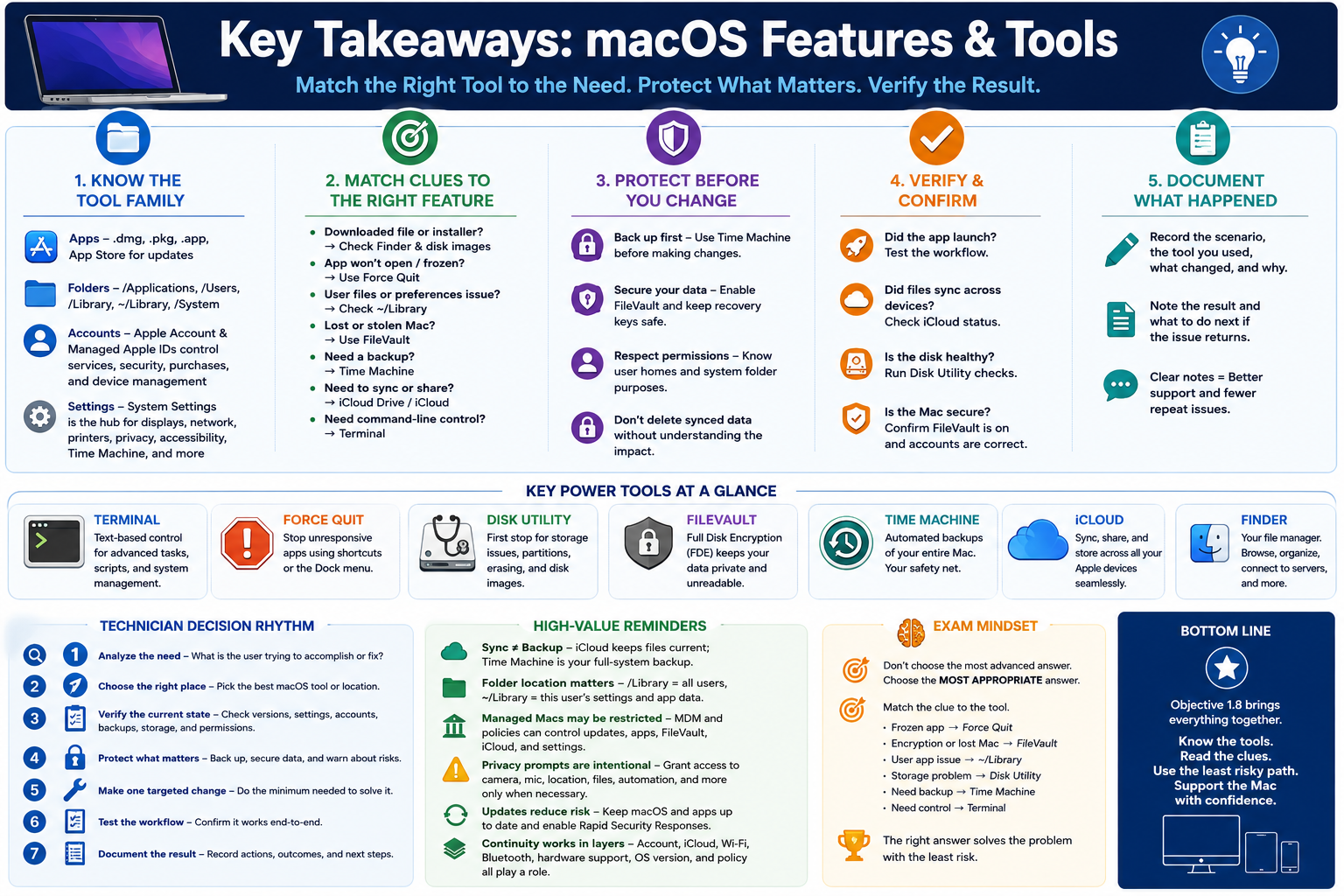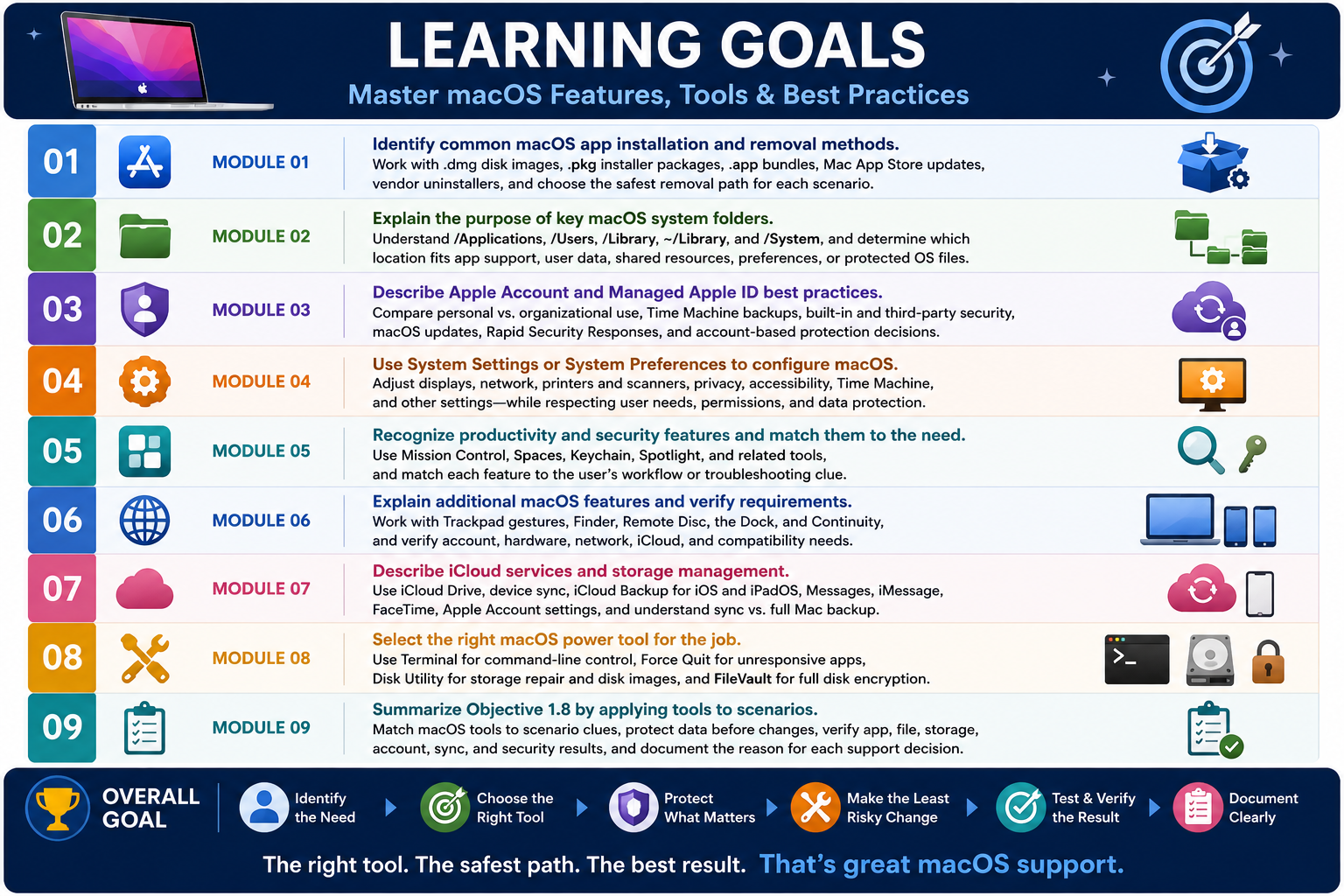
Module 1 - macOS Install/Uninstall Apps
macOS app support starts with knowing the package type. A technician should be able to tell whether an app is mounted from a disk image, installed by a package installer, launched as an application bundle, updated through the App Store, or removed by deleting the app or using a vendor uninstaller.
Objective 1.8 introduces macOS features and tools from a support perspective. On Windows, many applications use traditional setup programs and uninstallers. On macOS, application handling often feels simpler, but the technician still needs to understand what is happening underneath. Apps may arrive as .dmg disk images, .pkg installer packages, .app application bundles, or through the Mac App Store. Each format has a different purpose and a different support path.
The key is not memorizing file extensions in isolation. The key is reading the scenario. If the user says they downloaded a file that opened like a removable drive, think .dmg. If setup asks for administrator credentials and runs an installer, think .pkg. If the app is already a self-contained icon in Applications, think .app bundle. If updates are centralized and tied to an Apple ID or managed Apple ecosystem, think Mac App Store.
Mac App File Types
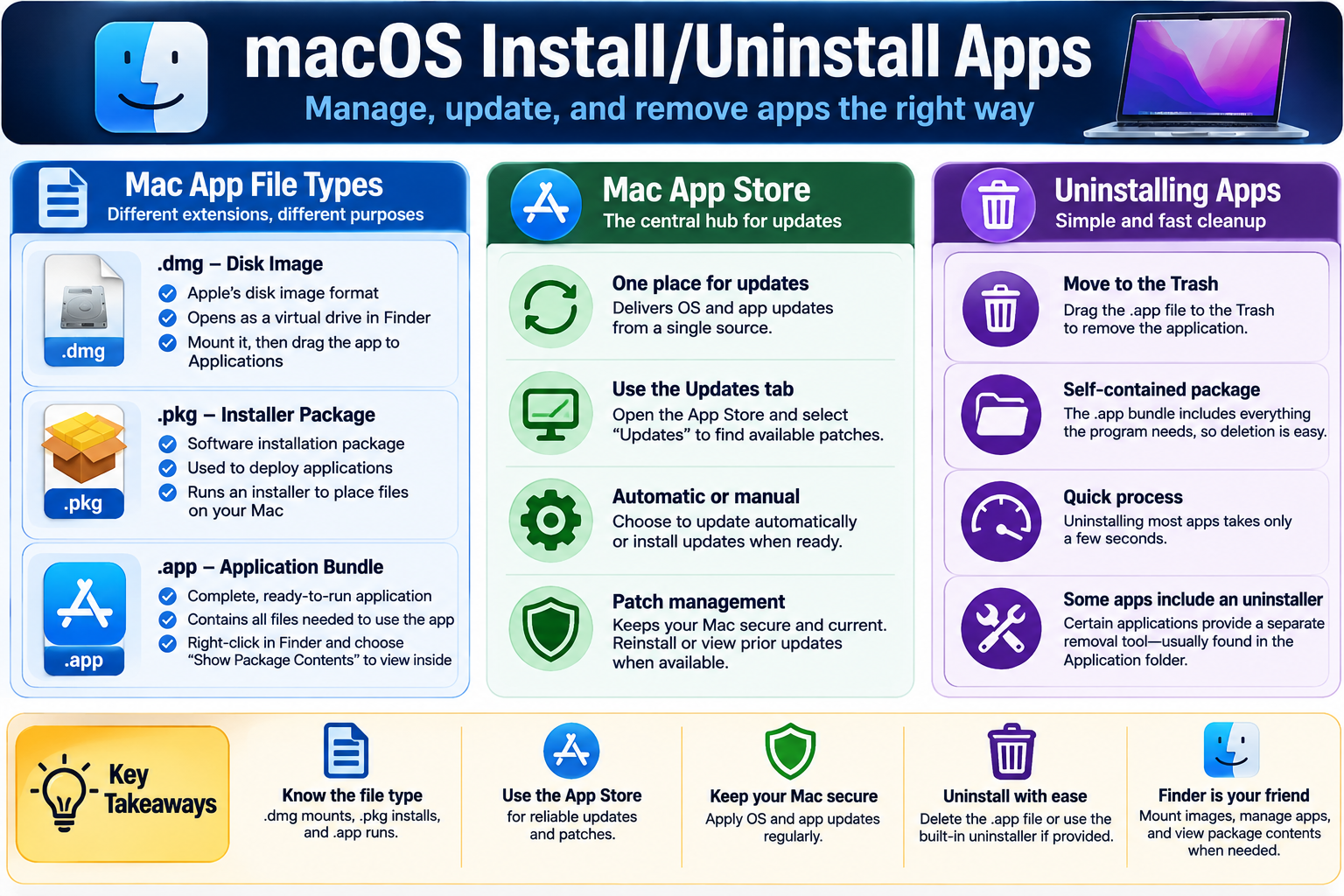
A .dmg file is a disk image. When opened, it mounts in Finder like a virtual drive. Many macOS apps are distributed this way because the vendor can place the application bundle, license information, shortcuts, and instructions inside one neat container. The common workflow is to open the DMG, drag the app into the Applications folder, then eject the mounted image.
A .pkg file is an installer package. Unlike a simple drag-and-drop app bundle, a package runs an installer that can place files into multiple locations. It may install services, drivers, system components, launch agents, support files, or shared resources. Because a package can modify protected areas of macOS, it may require administrator approval and should come from a trusted source.
A .app file is an application bundle. It looks like a single app icon, but it is actually a structured folder containing the app executable, resources, libraries, icons, settings, and supporting files. In Finder, users normally treat it like one file. Technicians can right-click the app and choose Show Package Contents when they need to inspect the bundle, but users should not casually modify files inside it.
.dmg
Mounts as a virtual drive. Common workflow: open, drag the app to Applications, then eject the image.
.pkg
Runs an installer. Best clue: setup wizard, admin prompt, system files, drivers, or deployment package.
.app
Ready-to-run application bundle. Usually stored in Applications and can often be removed by deleting the app.
App Store
Central location for many app installs, updates, and patches, often tied to Apple ID or organizational management.
Mac App Store Updates
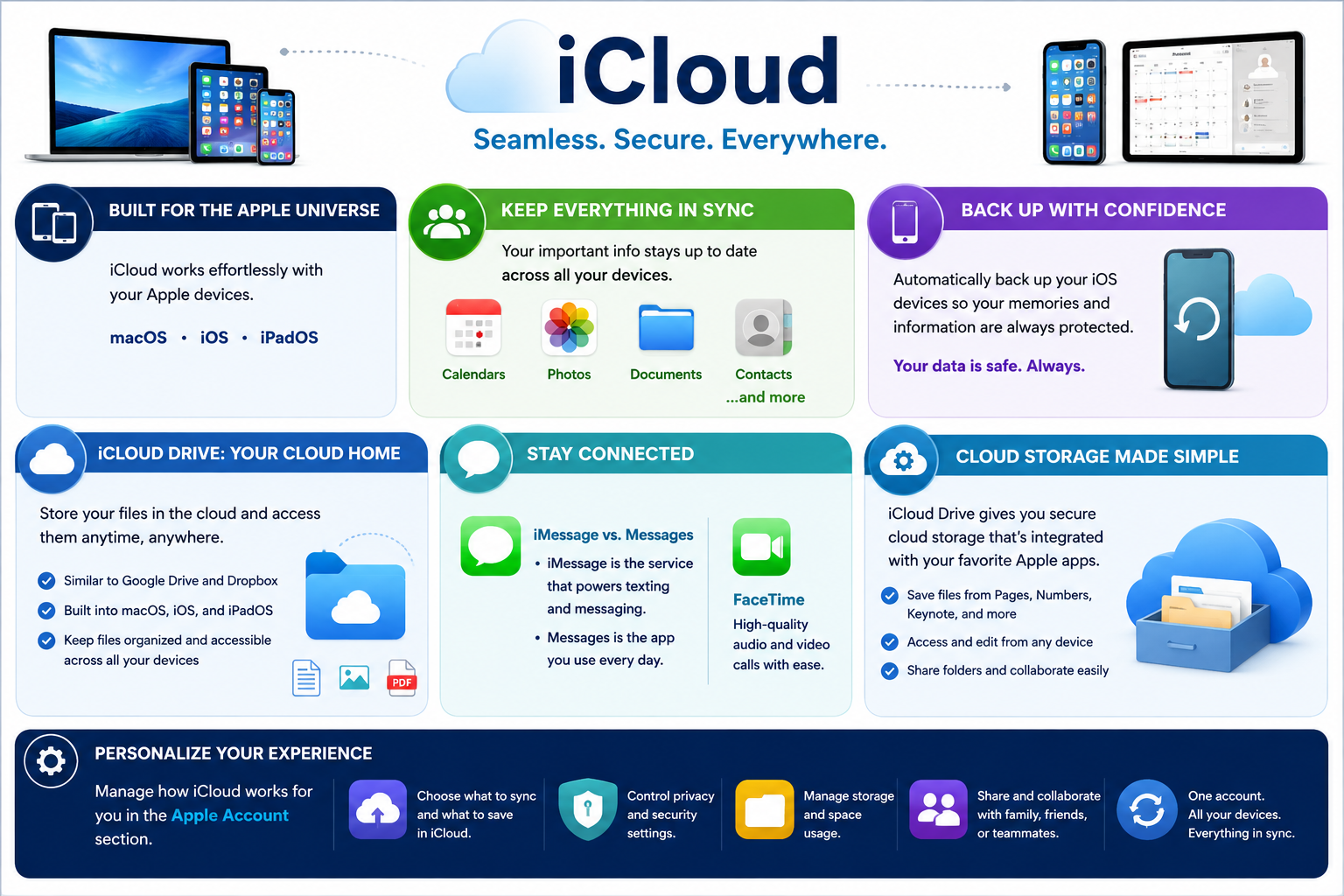
The Mac App Store is the central hub for many macOS app updates, and it can also deliver macOS updates depending on the version and update path. For user-owned Macs, App Store updates may be managed by the user. In business or school environments, update behavior may be controlled by mobile device management, organizational policy, or a managed software portal.
Users can open the App Store and check the Updates section to see available patches. Some updates can be installed manually, while others may be configured to install automatically. The support goal is to keep the Mac current without surprising the user, interrupting work, or applying updates without considering compatibility and backups.
- One place for updates: App Store apps can be patched from a familiar central location.
- Manual or automatic: update timing may be user controlled, policy controlled, or automatic.
- Patch management: updates improve security, reliability, and application compatibility.
- Reinstall option: purchased or previously installed App Store apps may be reinstallable from the account history when available.
Uninstalling Apps
Many macOS applications are self-contained bundles. For those apps, uninstalling may be as simple as dragging the .app file from Applications to the Trash. This removes the main application, but it may not remove every preference file, cache, helper, login item, or support file created while the app was used.
Some apps include a separate uninstaller, especially apps that installed system extensions, drivers, background services, security tools, virtualization components, VPN clients, management agents, or other deeper system pieces. When an app provides an uninstaller, use it. Dragging only the app bundle to Trash may leave behind services or configuration files that continue affecting the system.
- Simple app bundle: move the app to Trash, then empty Trash if appropriate.
- Vendor uninstaller: use it when provided, especially for security, VPN, driver, or system-level software.
- App Store app: remove from Launchpad or Applications, then reinstall from the App Store if needed.
- Managed app: verify MDM, school, or business policy before removing software.
- User data: confirm whether app removal affects local projects, cloud sync, settings, or license activation.
Technician Workflow
- Identify the source: determine whether the app came from the App Store, vendor website, managed software portal, or external media.
- Identify the file type: check whether the user has a .dmg, .pkg, .app bundle, or App Store install.
- Verify trust: confirm the publisher, download source, macOS security prompt, and organizational policy.
- Install correctly: mount DMGs and drag apps to Applications, run PKG installers when trusted, or use the App Store when available.
- Update safely: apply patches through the App Store, vendor updater, or management tool after considering compatibility.
- Remove carefully: drag simple .app bundles to Trash or run the vendor uninstaller when the app installed deeper components.
- Verify and document: launch the app, confirm version, check login items or background components, and record what changed.
Exam Clues To Remember
- Mounts like a drive: think .dmg disk image.
- Runs an installer wizard: think .pkg installer package.
- Single app icon in Applications: think .app application bundle.
- Right-click and inspect internal files: Show Package Contents.
- Central app updates: Mac App Store or managed update system.
- Simple uninstall: move the .app file to Trash.
- Security, VPN, drivers, or system extensions: look for a vendor uninstaller.
Bottom line: Know the app type, use trusted sources, update through the right channel, uninstall with the least risky method, and verify the Mac is clean, secure, and ready for the user.