Home
Certification Prep // 220-1202

1.0 Operating Systems

1.7 ~ Given a scenario, configure Microsoft Windows networking features on a client/desktop.

core2-lab.exe
> load objective 1.7
> map scenario clues
> verify and document

Learning Goals

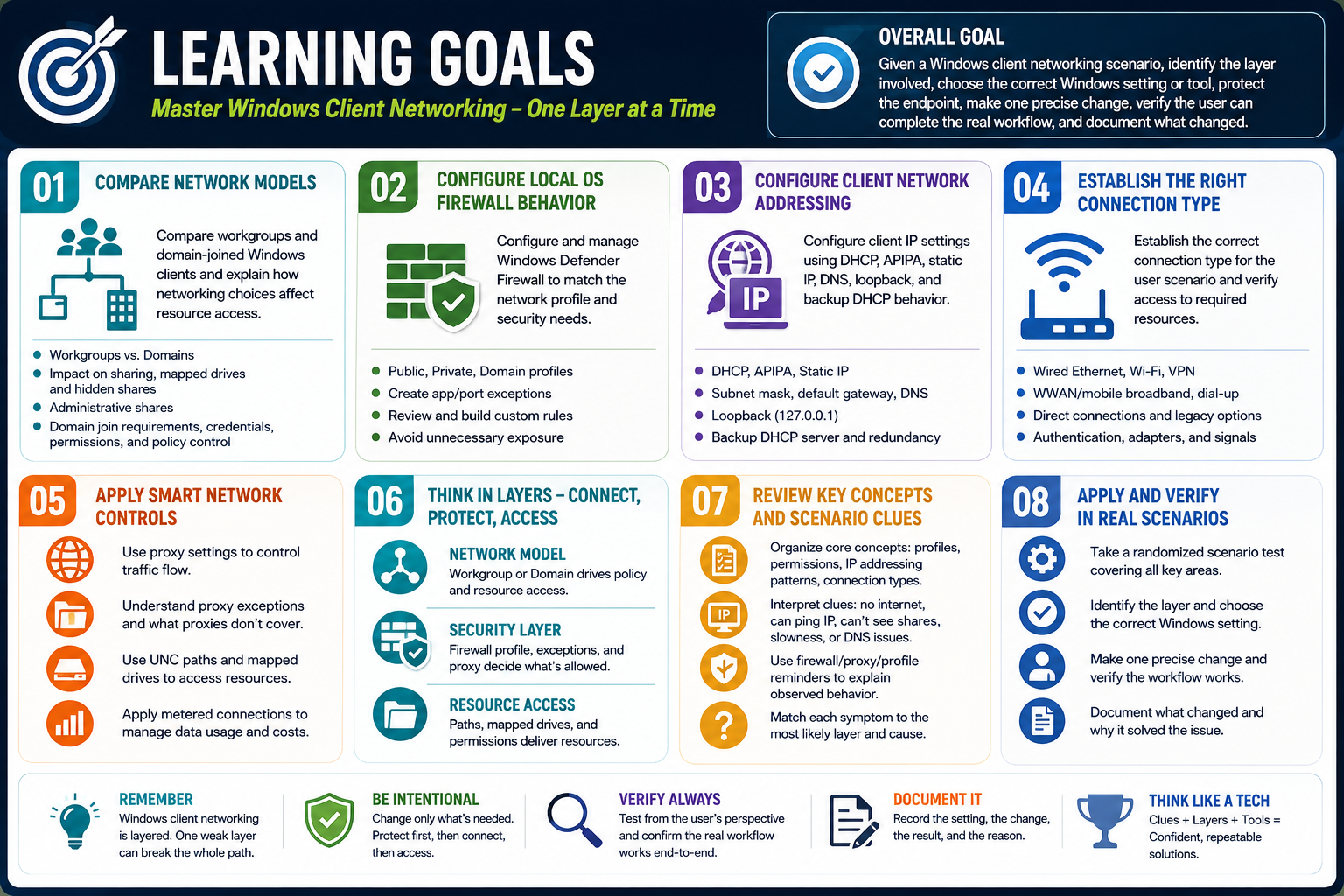
Learning goals infographic for Objective 1.7 covering Windows client networking modules
Master Windows client networking one layer at a time: compare network models, configure firewall behavior, verify IP settings, choose connection types, control access, test the workflow, and document the result.
  • Module 01: Compare workgroups and domain-joined Windows clients, then explain how shared folders, printer sharing, mapped network drives, hidden shares, administrative shares, domain join requirements, credentials, permissions, and centralized policy affect resource access.
  • Module 02: Configure local OS firewall behavior by keeping Windows Defender Firewall enabled, matching Public, Private, and Domain profiles to the network type, creating safe app or port exceptions, reviewing custom rules, and avoiding unnecessary exposure.
  • Module 03: Configure client network addressing by interpreting DHCP, APIPA, static IP addressing, subnet mask, default gateway, DNS, loopback, and backup DHCP behavior so you can determine why a Windows client can or cannot communicate.
  • Module 04: Establish the correct connection type for the user scenario, including wired Ethernet, Wi-Fi, VPN, WWAN/mobile broadband, dial-up, and direct connections, while verifying authentication, adapter status, signal, security type, and access to required resources.
  • Module 05: Apply smarter network controls such as proxy settings, proxy exceptions, Public and Private network locations, UNC paths, mapped drives, disconnected mappings, and metered connections to shape how Windows reaches web, file, and network resources.
  • Module 06: Summarize Objective 1.7 by thinking in layers: choose the network model, verify IP settings, pick the right connection type, control access behavior, secure the correct profile, keep the firewall active, read scenario clues, test the workflow, and document the result.
  • Module 07: Review printable section notes that organize Windows client networking concepts, scenario clues, firewall/profile reminders, IP addressing patterns, connection types, proxy and mapped-drive settings, and technician troubleshooting workflow.
  • Module 08: Complete a randomized final test that checks domain versus workgroup decisions, local firewall configuration, DHCP/APIPA/static/DNS clues, wired and wireless connection scenarios, VPN/WWAN use cases, proxy settings, network paths, mapped drives, metered connections, and verification habits.
  • Overall Goal: Given a Windows client networking scenario, identify the layer involved, choose the correct Windows setting or tool, protect the endpoint, make one precise change, verify the user can complete the real workflow, and document what changed.
Lesson ModuleModule 1 / 8
A+
Module 01

Module 1 - Domain Joined vs. Workgroup

Windows clients can share resources in small peer-to-peer workgroups or operate under centralized domain control. The technician's job is to know which model is in use before changing sharing, printer, drive mapping, or access settings.

Objective 1.7 begins with a practical networking idea: Windows computers do not all participate in networks the same way. A home or small office computer may be in a workgroup, where each computer is mostly independent and sharing is handled peer to peer. A business computer may be domain joined, where authentication, policy, resources, and permissions are centrally managed by domain controllers.

This distinction affects nearly every support decision. If a user cannot open a shared folder, map a network drive, print to a shared printer, or access a file server, the technician must first determine whether the computer is standalone, workgroup-based, or domain joined. The same symptom can have a very different cause depending on the network model.

Shared Resources: Folders, Printers, And Mapped Drives

A shared resource is a folder, printer, drive, or service made available across the network. In Windows, users may access shares through File Explorer, a Universal Naming Convention path such as \\server\share, a mapped drive letter, or a printer connection. Sharing makes resources easier to reach, but it also requires permissions, network discovery, firewall rules, and the correct user context.

Shared folders make files available to other users. The technician must think about both share permissions and NTFS permissions. Share permissions control access over the network, while NTFS permissions control access to the files and folders on disk. The most restrictive effective permission usually wins, so a user may see a share but still be unable to open or modify a file.

Mapped network drives assign a drive letter, such as Z:, to a network share. This lets users access a shared location like a normal drive in File Explorer. Mapping is common for file servers, department shares, home folders, and legacy line-of-business apps. Technicians should verify the share path, credentials, reconnect setting, drive letter conflict, network availability, and whether policy maps the drive automatically.

Shared printers work much like shared folders, except the resource is a printer instead of a file location. Users may add shared printers through File Explorer, Settings, Control Panel, printer properties, or organizational deployment tools. Printer access may depend on driver availability, permissions, network profile, firewall rules, and whether the printer is shared from a workstation or managed through a print server.

Hidden Shares And Administrative Shares

A Windows share ending with a dollar sign, such as C$ or Admin$, is a hidden share. Hidden shares do not appear in normal browse lists, but they are not secret and they are not a security feature by themselves. Anyone who knows the path and has the required permissions can still attempt to connect.

Administrative shares are commonly used by administrators and management tools for remote support, file access, and system administration. Because they can expose sensitive areas of a computer, access must be controlled with proper credentials, firewall settings, and organizational policy. Do not treat the dollar sign as protection; treat permissions as protection.

Workgroups: Simple, Peer-To-Peer Networking

A workgroup is a logical grouping of Windows computers in a small or simple network. Workgroups are common in homes, very small offices, labs, and simple peer-to-peer setups. Each device manages its own users, passwords, sharing settings, and local permissions. There is no central domain controller making decisions for every computer.

Workgroups are easy to set up, but they do not scale well. If five computers all need access to one another, accounts and passwords may need to be managed on each computer. If a user changes a password on one system, that does not automatically update every other system. Policies, software settings, mapped drives, and printer access are usually managed manually unless another management tool is present.

  • Best for: small departments, home networks, simple offices, and temporary peer-to-peer sharing.
  • Authentication: usually local accounts on each computer.
  • Management: decentralized; each computer maintains its own settings and user information.
  • Support clue: verify local user accounts, matching credentials, network discovery, firewall profile, and share permissions.

Domains: Centralized Business Control

A domain is a centrally managed Windows network environment. Domain controllers authenticate users and computers, enforce policies, and help control access to shared resources. Domains are common in business, enterprise, school, and government environments because they scale to many users, computers, printers, file servers, applications, and locations.

Domain environments allow administrators to manage identities and resources from a central point. A user can sign in with a domain account, receive policy settings, access file shares, map network drives, use shared printers, and receive restrictions or security settings based on group membership. This makes support more consistent, but it also means a local change may be overridden by Group Policy or another management system.

  • Best for: organizations that need centralized authentication, security, policies, and resource management.
  • Authentication: handled by domain controllers and directory services.
  • Management: centralized through domain policies, groups, permissions, and administrative tools.
  • Support clue: check domain membership, account status, group membership, policy, DNS, time sync, and access permissions.

Joining A Domain

Not every Windows edition can join a domain. Windows Home editions are not designed for traditional domain join. A device typically needs Windows Pro, Enterprise, Education, or another business-capable edition. The computer also needs network connectivity to the domain, working DNS, correct time, and credentials with permission to add the computer to the domain.

Domain join settings may be found through Control Panel/System paths or modern Windows Settings paths depending on the Windows version. The key point for the exam is the requirement chain: correct Windows edition, reachable domain services, valid credentials, and proper rights. If any one of those is missing, the join can fail.

Edition

Windows Home cannot join a traditional domain. Use Pro or better for domain join scenarios.

Location

Domain join options are commonly reached through System settings in Control Panel or the Settings app.

Permissions

The user or technician needs proper rights to add the computer to the domain.

Network

DNS, time, connectivity, and access to domain controllers must work before joining succeeds.

Printer Sharing And Printer Properties

Printer sharing follows the same basic logic as folder sharing: make the resource available, decide who can access it, test from the client, and document the configuration. A printer can be shared from a local computer, added through Settings, accessed through File Explorer, or deployed by an organization. In larger environments, a print server is usually more reliable and manageable than sharing from a user's workstation.

Printer properties are important because they expose configuration options such as sharing, ports, drivers, security, defaults, and device-specific settings. If a printer is visible but does not print, the issue may be driver-related, permission-related, queue-related, offline, blocked by firewall/profile settings, or caused by network connectivity.

Scenario Clues: How To Choose The Right Path

When a Windows networking question mentions shares, drives, printers, domains, workgroups, or permissions, slow down and identify the environment. A workgroup answer often focuses on local accounts, peer-to-peer sharing, network discovery, firewall profile, and local permissions. A domain answer often focuses on domain credentials, groups, policy, DNS, domain controllers, and centralized resources.

  • Small network, no central server, each PC has its own users: think workgroup.
  • Business network, centralized logon, domain controllers, policies, and shared resources: think domain.
  • Drive letter points to a server share: think mapped network drive.
  • Share name ends in $: hidden share, not automatic security.
  • User can see a share but cannot open files: check share and NTFS permissions.
  • Printer can be found but cannot print: check printer properties, driver, permissions, queue, firewall, and network profile.
  • Domain join fails: verify edition, DNS, connectivity, time, credentials, and rights.

Technician Workflow

  1. Identify the network model: determine whether the client is standalone, in a workgroup, or domain joined.
  2. Locate the resource: confirm the share path, mapped drive letter, printer name, file server, or device hosting the resource.
  3. Check access requirements: verify account type, credentials, permissions, group membership, and whether policy is involved.
  4. Review the network profile: confirm public/private profile, discovery, firewall rules, and sharing settings.
  5. Make one controlled change: adjust sharing, printer properties, credentials, mapping, or permissions only after verifying the current state.
  6. Test from the user's perspective: open the share, reconnect the mapped drive, print a test page, or confirm domain access.
  7. Document the result: record the resource path, account used, setting changed, permissions verified, and any follow-up needed.
Exam mindset: do not stop at the word "network." Decide whether the clue points to sharing, mapped drives, hidden shares, workgroup behavior, domain control, printer sharing, or domain join requirements.

Bottom line: Workgroups are simple and decentralized; domains provide centralized authentication, policy, permissions, and scale. Choose the right setting path, check permissions before changing access, test the resource, and document the outcome.
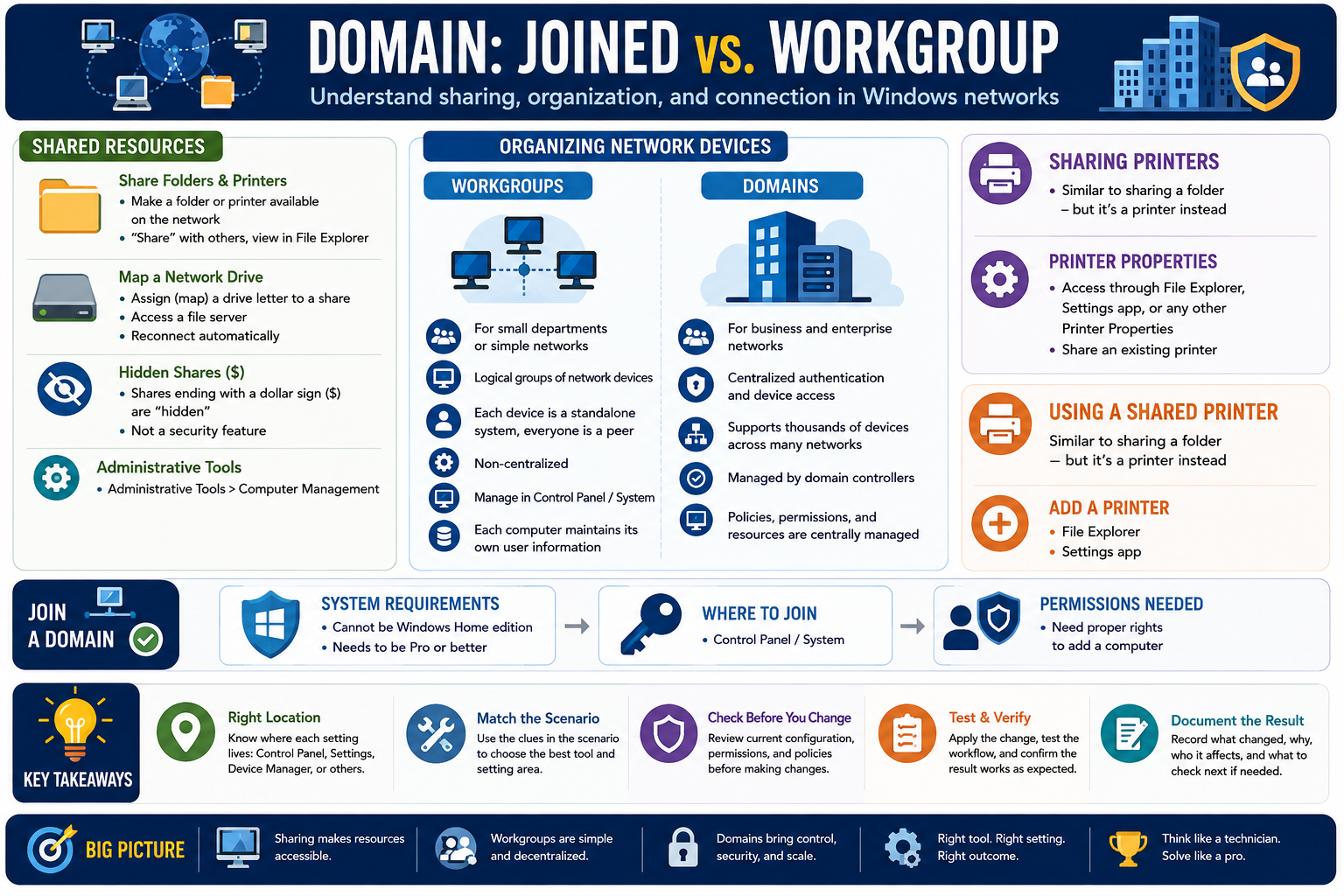
Domain joined versus workgroup infographic covering shared resources, mapped drives, hidden shares, printer sharing, workgroups, domains, and domain join requirements
Domain joined and workgroup clients handle sharing, organization, authentication, and printer access differently. Match the support path to the network model.
A+
Module 02

Module 2 - Local OS Firewall Settings

A local OS firewall protects the Windows client by controlling which inbound and outbound connections are allowed. The technician's job is to keep protection enabled, open access only when there is a valid reason, and document every exception.

Windows Firewall is a host-based firewall. That means it runs on the local computer and helps protect that specific device, even if the network already has a perimeter firewall. A network firewall protects traffic at the edge of a network; the local firewall protects the endpoint itself. This matters because laptops move between trusted and untrusted networks, users connect to VPNs, and malicious traffic can originate from inside the network.

For Objective 1.7, firewall questions are usually scenario based. A user may be able to browse the web but fail to access a shared folder. A printer may not appear. A remote support tool may be blocked. A game or line-of-business app may need a port opened. The answer is rarely "turn off the firewall forever." The better answer is to identify the blocked traffic and create the least permissive rule or exception that allows the needed workflow.

Firewall Basics: Keep It On

The firewall should be enabled on Windows clients at all times. Turning it off removes a major layer of defense and can expose file sharing, remote access, discovery services, and application ports to networks that should not see them. If disabling the firewall is used during troubleshooting, it should be temporary, controlled, and followed by a safer permanent fix.

Windows Firewall evaluates traffic against rules. Rules may allow or block traffic based on the program, service, port, protocol, direction, profile, and network scope. In many everyday scenarios, Windows prompts the user or technician when an app first needs network access. That prompt should be handled carefully because allowing an app on all profiles can expose it more broadly than intended.

  • Keep it enabled: the firewall should stay on for normal use.
  • Troubleshoot carefully: if you test by disabling it, re-enable it immediately after the test.
  • Use targeted rules: allow the specific app, feature, port, or service needed.
  • Review exceptions: old exceptions can become unnecessary risk.

Network Profiles: Public, Private, And Domain

Windows uses network profiles to apply different firewall behavior depending on where the computer is connected. A Public profile is intended for untrusted networks such as coffee shops, hotels, airports, or guest Wi-Fi. A Private profile is intended for trusted home or small office networks. A Domain profile applies when the computer can authenticate to a domain environment.

The same firewall rule can behave differently across profiles. For example, file and printer sharing may be allowed on a private or domain network but blocked on a public network. This is why a user can say, "it worked yesterday," after moving from an office network to public Wi-Fi. The network did not simply break; Windows may have changed to a more restrictive profile.

Public Profile

Most restrictive. Best for untrusted networks where discovery and sharing should usually be blocked.

Private Profile

Used on trusted networks where local discovery, printer access, or sharing may be appropriate.

Domain Profile

Used when a domain-joined computer can contact domain services and apply organization policy.

Technician Check

Always verify the active profile before changing sharing, discovery, or firewall exceptions.

Firewall Configuration Options

The basic Windows Firewall interface lets you turn firewall protection on or off, adjust notifications, allow apps or features, and restore default settings. More advanced configuration is available through Windows Defender Firewall with Advanced Security, where technicians can create inbound rules, outbound rules, connection security rules, and profile-specific policies.

A key exam distinction is the difference between blocking all incoming connections and allowing specific exceptions. Blocking all incoming connections is a high-protection setting that ignores existing allowed-app exceptions. It may be useful on untrusted networks, but it can also prevent legitimate remote access, file sharing, printer discovery, and support tools from working.

  • Turn firewall on/off: available from the main firewall controls, but changing this may require administrator privileges.
  • Block all incoming connections: maximizes protection by ignoring allowed exceptions for that profile.
  • Notifications: control how Windows alerts the user when a new app is blocked.
  • Restore defaults: useful when rules are messy, but it may break apps that rely on existing exceptions.
  • Advanced rules: used when you need precise control over ports, protocols, programs, profiles, or scopes.

Creating Firewall Exceptions

A firewall exception is a deliberate opening that allows traffic that would otherwise be blocked. Exceptions should be created only for a real business, support, application, or user need. The safest exception is the narrowest one that still solves the problem.

The easiest and safest method is often Allow an app or feature through Windows Defender Firewall. This ties the exception to a known application or Windows feature instead of opening a broad port. When a port-based rule is required, define the exact port number, protocol, direction, and profile. Avoid broad "any port, any profile, any remote address" rules unless there is a very specific and approved reason.

  • Allow an app or feature: safest common option for approved programs and Windows features.
  • Use port numbers: needed when the application requires a specific TCP or UDP port.
  • Use built-in exceptions: common services such as file/printer sharing may already have predefined rules.
  • Create custom rules: use when profile, direction, program path, port, or remote scope must be controlled exactly.
  • Limit scope: allow only trusted networks or known remote addresses when possible.

Common Scenario Clues

If the Internet works but file sharing or printer discovery does not, check network profile, discovery, and firewall rules. If a specific app cannot communicate, check whether it has an allowed-app exception. If a service needs a known port, create a targeted inbound rule for that port and profile. If a domain computer behaves differently away from the office, verify whether the active profile changed from Domain to Public or Private.

  • File sharing blocked: check File and Printer Sharing rules, active profile, and network discovery.
  • Remote Desktop blocked: confirm Remote Desktop is enabled and allowed through the firewall on the correct profile.
  • App works locally but not across the network: check application exception, inbound rule, port, protocol, and scope.
  • Printer not discoverable: check sharing, discovery, firewall profile, printer properties, and driver availability.
  • Works on office network but not public Wi-Fi: the public profile is likely blocking local access by design.
  • Security policy keeps reverting changes: Group Policy, MDM, or endpoint security may control firewall settings.

Technician Workflow

  1. Confirm the symptom: identify the app, service, share, printer, port, or remote connection that is failing.
  2. Check the active profile: determine whether Windows is using Public, Private, or Domain firewall behavior.
  3. Review existing rules: look for allowed apps, built-in rules, custom rules, and security policy restrictions.
  4. Choose the narrowest fix: allow the specific app, feature, port, or service instead of disabling the firewall.
  5. Limit exposure: apply the exception only to the required profile and remote scope when possible.
  6. Test the workflow: verify the user can connect, print, share, sync, or access the service as expected.
  7. Document the exception: record what was allowed, why it was needed, which profile it applies to, and who approved it.

Exam Clues To Remember

  • Do not disable the firewall as a permanent fix.
  • Public profile means stricter protection and less sharing.
  • Allow an app or feature is usually safer than opening a broad port.
  • Port rules should specify direction, protocol, profile, and scope.
  • Block all incoming connections ignores normal allowed-app exceptions.
  • Firewall changes may require administrator privileges.
  • Domain environments may enforce firewall rules with Group Policy or MDM.
Exam mindset: the firewall is not the enemy. It is a control. Your job is to keep protection on while allowing only the traffic the scenario actually requires.

Bottom line: Keep the firewall enabled, verify the active network profile, use targeted exceptions, review rules regularly, and document exactly what was opened and why.

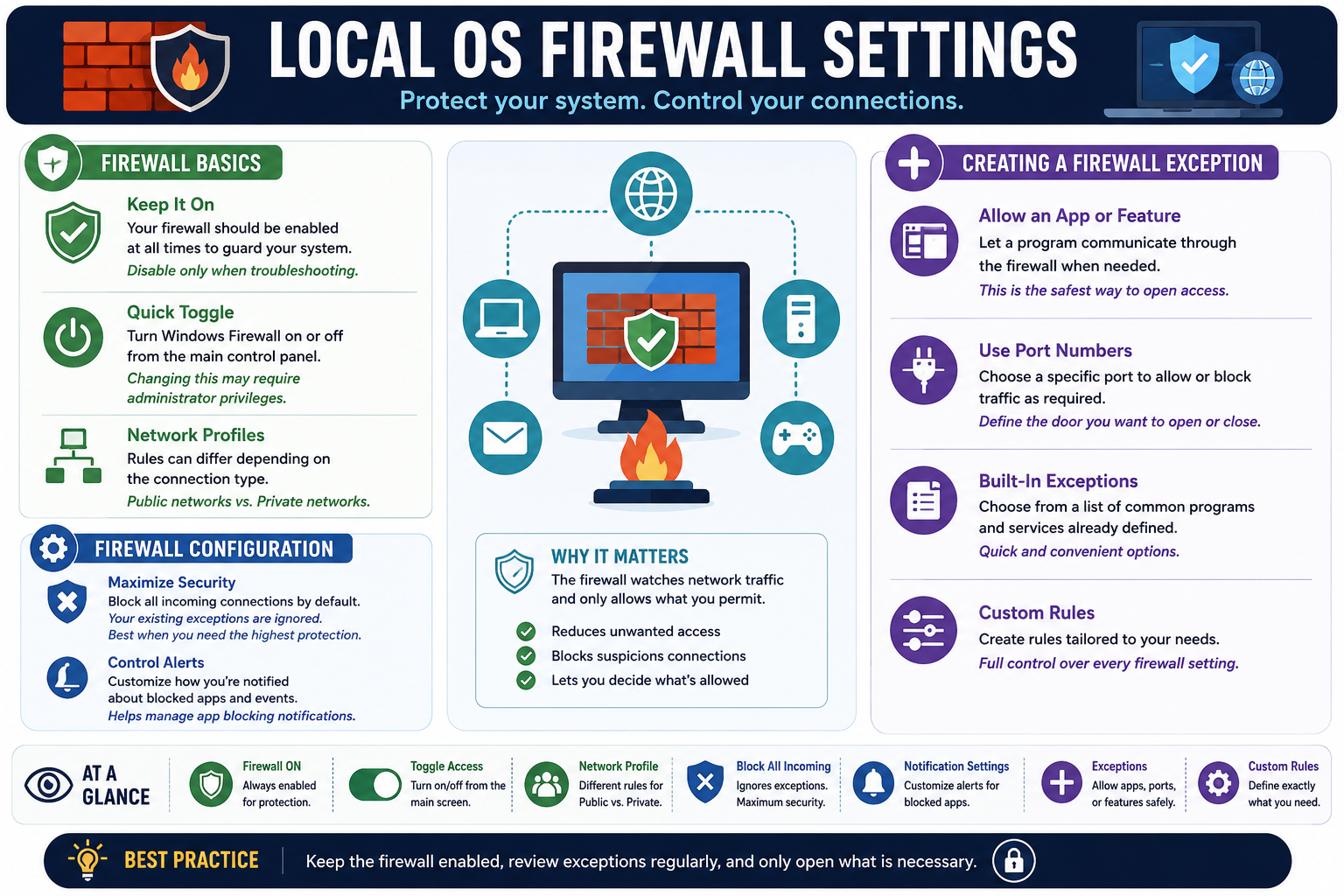
Local OS firewall settings infographic covering firewall basics, network profiles, blocked connections, exceptions, ports, notifications, and custom rules
Local OS firewall settings protect the endpoint while allowing approved apps, services, ports, and features to communicate through the correct profile.
A+
Module 03

Module 3 - Client Network Configuration

Client network configuration is how a Windows device gets connected, receives an IP address, finds other systems, resolves names, and reaches local or remote resources. A technician must know where settings live, what each address value means, and when to use automatic versus manual configuration.

Windows can connect to networks through wired Ethernet, Wi-Fi, VPN, dial-up, cellular/WWAN, and direct connections. The connection type changes the support path, but the core questions stay the same: does the client have a valid address, does it have the right gateway, can it resolve names through DNS, and can it reach the resource the user needs?

Most client systems are designed to use automatic configuration. DHCP supplies the IP address, subnet mask, default gateway, DNS servers, and other options so the user does not need to type network values manually. Static configuration is still important, but it should be used deliberately for devices or scenarios that require a consistent address.

Where To Configure Network Connections

Windows networking can be managed from multiple places, including the Settings app, Control Panel, Network and Sharing Center, adapter properties, and command-line tools. The exam may reference the classic Control Panel path because many enterprise and troubleshooting workflows still use it.

Network and Sharing Center gives you a central place to view active networks, create a new connection, change adapter settings, and troubleshoot connectivity. If a scenario says to create a connection or network, configure a VPN, set up dial-up, or review adapter properties, this is a strong clue that you are working with client network configuration rather than server-side infrastructure.

  • Open Network and Sharing Center: use it to review active networks and reach adapter settings.
  • Create a connection or network: use Windows wizards for new connection types such as VPN, broadband, dial-up, or manual wireless setup.
  • Change adapter options: configure IPv4/IPv6 settings, DNS, gateway, and adapter status.
  • Use guided setup: wizards help avoid missed steps and confirm the connection type.

TCP/IP Host Address Basics

Every TCP/IP client needs address information to communicate. The IP address identifies the device on the network. The subnet mask tells Windows which portion of the address identifies the local network and which portion identifies the host. The default gateway is the router Windows uses to reach other networks. DNS translates human-friendly names into IP addresses.

If any one of those values is wrong, the symptoms can look different. A wrong IP address may prevent local communication. A wrong subnet mask may make local devices appear remote or unreachable. A missing gateway may allow local communication but block Internet access. A wrong DNS server may allow pings by IP address while names fail.

IP Address

The unique address assigned to the client on the network, such as 192.168.1.10.

Subnet Mask

Defines which part of the IP address is the local network and which part identifies the device.

Default Gateway

The router address used when traffic must leave the local subnet.

DNS Server

Translates names like example.com or internal server names into IP addresses.

DHCP: Automatic IP Configuration

DHCP, or Dynamic Host Configuration Protocol, automatically provides IP settings to clients. In most environments, DHCP is the default and preferred method because it reduces typing mistakes, prevents many address conflicts, and makes network changes easier to manage.

When DHCP works, the client receives a lease with address information. When DHCP fails, Windows may fall back to APIPA. A technician should recognize that DHCP is not just an address assignment tool; it also commonly provides DNS server information, gateway information, and other options that help the client work correctly on that network.

  • Best for most clients: laptops, desktops, tablets, and devices that move between networks.
  • Reduces manual errors: users do not need to know subnet masks, gateways, or DNS values.
  • Supports centralized changes: administrators can update DHCP options instead of touching every client.
  • Requires DHCP availability: if the DHCP server, scope, relay, VLAN, or network path fails, clients may not get valid settings.

APIPA: When DHCP Is Unavailable

APIPA, or Automatic Private IP Addressing, is Windows' fallback when the client is configured for DHCP but cannot reach a DHCP server. APIPA addresses use the 169.254.x.x range. The client may communicate with other APIPA devices on the same local link, but it normally cannot reach the Internet, domain controllers, routers, or normal network resources.

APIPA is a clue, not a fix. If you see a 169.254.x.x address, investigate the path to DHCP. Check the cable, Wi-Fi connection, adapter status, switch port, VLAN, DHCP scope, DHCP relay, or whether the DHCP server is online. Do not manually assign a random IP address until you understand the network's addressing plan.

  • 169.254.x.x: Windows did not receive a DHCP lease.
  • Local-only communication: APIPA usually cannot route beyond the local segment.
  • No Internet: APIPA does not provide a usable gateway for Internet access.
  • Technician clue: troubleshoot DHCP, physical connection, Wi-Fi association, VLAN, or adapter state.

Static IP Addresses

A static IP address is manually configured and does not change unless someone changes it. Static addressing is useful when a device needs to be found consistently at the same address, such as a server, printer, network appliance, camera system, management interface, or specialized workstation.

Static configuration gives control, but it also creates responsibility. You must know the correct IP address, subnet mask, gateway, DNS servers, and whether that address is reserved or excluded from DHCP. A poorly planned static address can conflict with another device, point to the wrong gateway, or break name resolution.

  • Use static addressing for: servers, printers, specialized devices, appliances, or systems that require a predictable address.
  • Verify the plan: confirm the address is available and fits the correct subnet.
  • Document it: record the address, device, purpose, gateway, DNS, and owner.
  • Avoid conflicts: do not assign an address that DHCP may hand to another client.

DNS And Loopback

DNS turns names into numbers. Without DNS, users would need to remember IP addresses for websites, servers, printers, and services. DNS is especially important for domain-joined Windows clients because Active Directory relies heavily on DNS to locate domain controllers and services.

The loopback address 127.0.0.1 points back to the local computer. It is always available for local testing and communication. If a service listens on the local system, loopback can help test whether the local software stack responds without involving the physical network.

  • Name fails but IP works: suspect DNS.
  • Domain resources fail: verify the client uses the correct internal DNS server.
  • 127.0.0.1: local loopback address for testing the local TCP/IP stack or local services.
  • Wrong DNS settings: can break websites, internal shares, domain logon, Group Policy, and app connectivity.

Choosing The Right Connection Type

Windows supports many connection types, and each has its own use case. Wired Ethernet is often stable and fast. Wi-Fi is flexible but depends on signal strength and wireless security. VPN allows secure remote access to private resources. Dial-up is legacy but still appears in older exam objectives and specialized environments. Direct connections and other specialized links may be used for specific devices or support workflows.

  • Wired: best when reliability, speed, and low latency matter.
  • Wireless: best for mobility, shared workspaces, and portable devices.
  • VPN: best for secure remote access to internal resources.
  • Dial-up: legacy connection type, but still relevant for recognizing older configuration options.
  • Direct or specialized connections: used when two systems or devices need a specific link for setup or support.

Technician Workflow

  1. Identify the connection type: determine whether the client is using wired, wireless, VPN, dial-up, WWAN, or another connection.
  2. Check IP configuration: verify IP address, subnet mask, gateway, DNS, DHCP/static mode, and adapter status.
  3. Look for APIPA: if the address starts with 169.254, investigate DHCP or local connectivity.
  4. Test local and remote reachability: confirm the client can reach the gateway, DNS, Internet, or internal resource as needed.
  5. Validate DNS: compare name-based access with IP-based access when name resolution is suspected.
  6. Use static settings carefully: only enter manual IP details when you know the correct values and the reason for using them.
  7. Document the configuration: record connection type, IP settings, static assignments, DNS values, and any change made.

Exam Clues To Remember

  • DHCP: automatically assigns IP configuration and is the default for most clients.
  • APIPA: 169.254.x.x means DHCP was unavailable.
  • Static IP: used when a device needs a consistent address, but it must be planned and documented.
  • Default gateway: required to reach outside the local subnet.
  • DNS: required for name resolution and critical for domain environments.
  • Loopback: 127.0.0.1 points to the local computer.
  • Network and Sharing Center: classic location for creating and managing connections.
Exam mindset: read the address first. A valid IP, gateway, and DNS configuration tells you the client has the basic ingredients to communicate. A missing or wrong value tells you where to look next.

Bottom line: Client network configuration is about matching the connection type to the job, using DHCP when possible, recognizing APIPA when DHCP fails, applying static addresses only when needed, and verifying DNS, gateway, and reachability before changing settings.

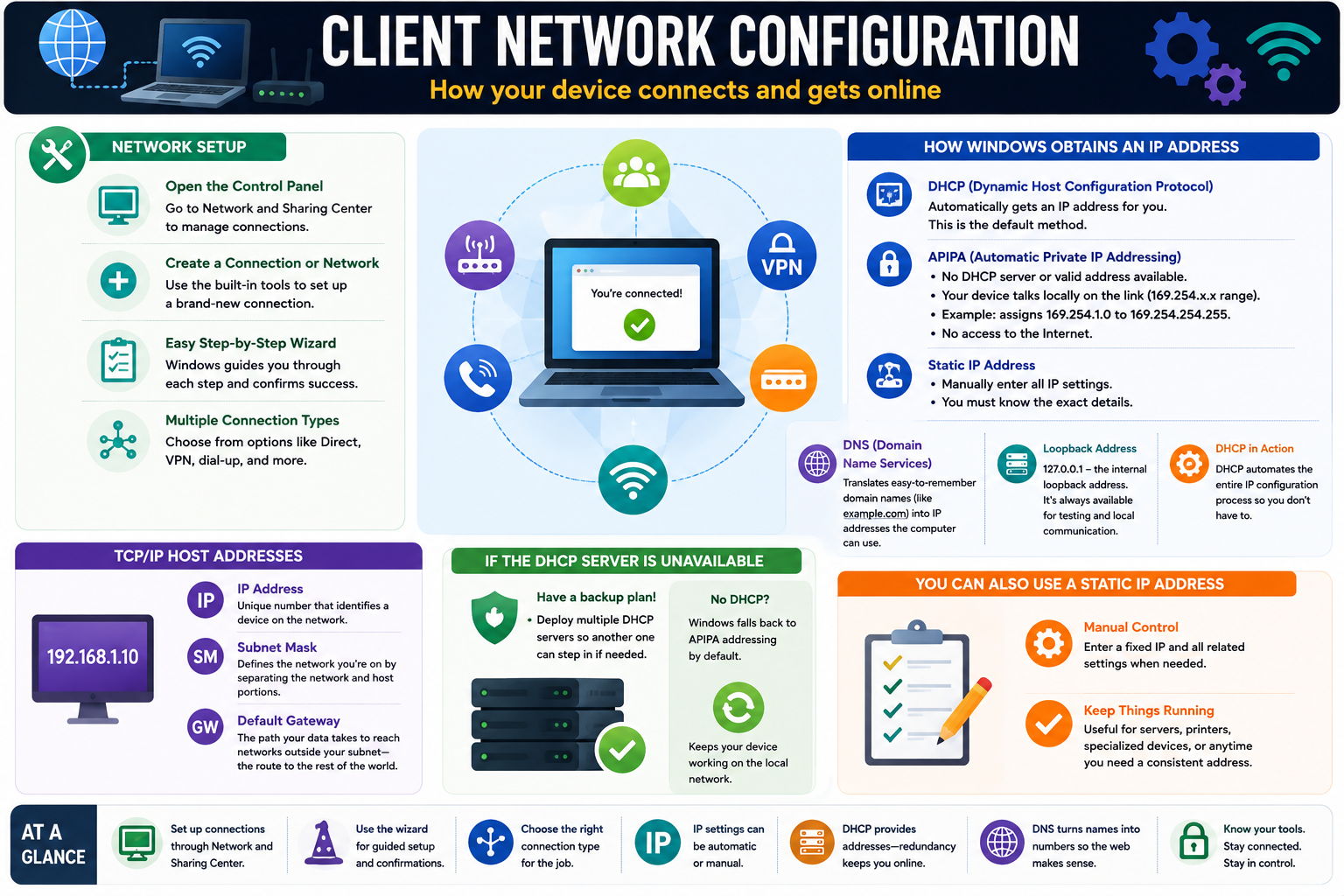
Client network configuration infographic covering Network and Sharing Center, DHCP, APIPA, static IP addresses, DNS, loopback, TCP/IP host addresses, and connection setup
Client network configuration connects the device to the right network, assigns usable address information, and gives Windows the DNS and gateway details it needs to reach resources.
A+
Module 04

Module 4 - Establish Network Connections

Establishing a network connection means choosing the right connection type, using the correct Windows setup path, applying the right security settings, and verifying that the client can reach the resources the user needs.

Windows gives technicians several ways to connect a client system: wired Ethernet, wireless Wi-Fi, VPN, dial-up, direct connections, and WWAN cellular connections. Each option solves a different problem. A desktop in an office may need stable wired Ethernet. A laptop may need Wi-Fi for mobility. A remote employee may need VPN access to internal resources. A field worker may need WWAN cellular access when Wi-Fi is not available.

The exam expects you to match the connection method to the scenario. Do not choose a connection just because it is familiar. Choose it because it fits the user's location, security requirement, speed need, device capability, and management environment. Then test the result and document the configuration.

Set Up Your Connection

The classic Windows path for many connection tasks is Control Panel > Network and Sharing Center. From there, technicians can create a new connection or network, connect to a workplace, configure adapter settings, and use guided setup wizards. Modern Windows versions also expose many of these settings through the Settings app, but the Control Panel path remains important for A+ scenarios and enterprise support.

The setup wizard is useful because it walks through the connection type, required information, credentials, and final confirmation. This reduces missed steps, especially for VPN, dial-up, and specialized connection types. A technician should still understand what the wizard is asking for instead of blindly clicking through.

  • Use Network and Sharing Center: manage connections, adapters, and classic setup paths.
  • Create a new connection or network: start guided setup for supported connection types.
  • Follow the wizard: provide the requested network name, credentials, server address, or connection details.
  • Verify success: confirm the client is connected and can reach the intended resource.

VPN Connections

A VPN, or virtual private network, creates an encrypted tunnel between a client and a private network or service. VPNs are commonly used by remote workers who need access to internal file shares, business applications, intranet sites, remote management tools, or domain resources. Windows includes a built-in VPN client, so many common VPN profiles can be configured without installing extra software.

VPN setup may require a server name or address, VPN type, sign-in method, username, password, certificate, pre-shared key, or multifactor authentication. The exact requirements depend on the organization's VPN platform. Some environments also require a vendor VPN client or endpoint security checks before the connection is allowed.

  • Built-in VPN client: Windows can create and store VPN profiles for common connection types.
  • Workplace access: VPN is used to reach private resources from outside the organization.
  • Extra security: MFA, certificates, or device compliance may be required.
  • Connection path: users can often connect from the network status area after the profile is configured.
  • Support clues: verify credentials, MFA, server address, DNS, routes, firewall, and whether split tunneling is used.

Wireless Connections

Wireless connections use a network name, or SSID, to identify the Wi-Fi network. The user selects the SSID, provides a security key or credentials, and Windows stores the profile if requested. Wireless is convenient, but it depends on signal strength, radio compatibility, encryption settings, and correct authentication.

The security type matters. Consumer and small-office networks often use WPA2-Personal or WPA3-Personal with a pre-shared key. Enterprise networks may use WPA2-Enterprise or WPA3-Enterprise with 802.1X authentication, certificates, usernames, passwords, or device-based authentication. Older encryption options such as TKIP are weaker and may appear in compatibility scenarios, while AES is the stronger modern choice.

SSID

The visible wireless network name the user selects when connecting.

Security Type

Defines how the wireless client authenticates and protects traffic.

Encryption

AES is preferred for modern Wi-Fi security; TKIP is older and less desirable.

Security Key

Personal networks use a pre-shared password; enterprise networks may use 802.1X authentication.

Wired Connections

Wired Ethernet is usually the simplest and most reliable connection type. Plug in the Ethernet cable, confirm link status, and let DHCP provide the IP settings. Wired connections are often prioritized because they provide consistent speed, lower latency, and less interference than Wi-Fi or cellular connections.

If DHCP is unavailable, a wired connection may require manual IP configuration. That means the technician must know the correct IP address, subnet mask, default gateway, and DNS server values. Manual configuration should be planned and documented to prevent duplicate addresses or incorrect routing.

  • Ethernet cable: provides a direct physical connection to a switch, router, dock, or wall jack.
  • Fastest by default: wired Ethernet is usually preferred for stability, speed, and low latency.
  • DHCP first: most wired clients should receive IP settings automatically.
  • Manual fallback: static configuration may be needed when DHCP is unavailable or a device requires a fixed address.
  • Support checks: inspect link lights, adapter status, cable, port, VLAN, DHCP, and IP configuration.

WWAN Connections

WWAN, or Wireless Wide Area Network, uses cellular networks to provide mobile Internet access. Some laptops and tablets include built-in WWAN hardware. Other systems use USB modems, mobile hotspots, tethering, or provider-specific devices. WWAN is valuable when users need connectivity away from trusted Wi-Fi or wired networks.

WWAN support may depend on carrier coverage, signal strength, SIM or eSIM activation, data plan status, metered connection settings, and provider software. Because WWAN often uses cellular data, technicians should consider cost, bandwidth limits, signal quality, and security before treating it like normal office Wi-Fi.

  • Stay connected: useful for travel, field work, temporary locations, and backup Internet access.
  • Built-in or external: devices may use internal cellular radios, USB modems, hotspots, or tethering.
  • Provider tools: carrier software or device management tools may be required.
  • Metered usage: cellular plans may have limits, throttling, or cost considerations.
  • Security reminder: use VPN when accessing private resources over public or cellular networks.

Dial-Up And Direct Connections

Dial-up is a legacy connection type, but it still appears in objectives and older environments. It uses a modem and telephone line to establish network access. You are unlikely to choose it for a modern office client, but you should recognize it as a supported connection type in Windows setup paths.

Direct connections are specialized links between devices or systems. They may appear in troubleshooting, device setup, lab environments, or legacy workflows. The support mindset is the same: know the purpose of the connection, configure only what is needed, and verify the intended communication path.

Choosing The Best Connection For The Job

Each connection option has strengths. Direct and wired connections are simple and reliable. Wireless connections are flexible and user-friendly. VPN connections protect remote access to private resources. WWAN keeps mobile users online when normal networks are unavailable. The best choice depends on the scenario, not personal preference.

  • Need maximum reliability at a desk: choose wired Ethernet.
  • Need mobility inside a building: choose Wi-Fi with the correct SSID and security type.
  • Need private company resources from outside the network: choose VPN.
  • Need connectivity while traveling or away from Wi-Fi: choose WWAN or hotspot/tethering.
  • Need a guided setup path: use Create a new connection or network.

Technician Workflow

  1. Identify the user's need: determine whether they need local network access, Internet, company resources, mobility, speed, or backup connectivity.
  2. Choose the connection type: match the scenario to wired, wireless, VPN, WWAN, dial-up, or direct connection.
  3. Gather required details: collect SSID, security key, VPN server, credentials, MFA method, static IP values, or provider information.
  4. Configure through the right path: use Settings, Network and Sharing Center, adapter properties, or vendor tools as appropriate.
  5. Secure the connection: use strong Wi-Fi security, VPN for private resources, and least-privilege access.
  6. Test the result: verify connection status, IP configuration, DNS, gateway, and access to the target resource.
  7. Document the setup: record the connection type, profile name, settings used, security method, and final verification.

Exam Clues To Remember

  • Network and Sharing Center: classic path for creating and managing connections.
  • VPN: secure remote tunnel to private resources.
  • SSID: wireless network name.
  • WPA2/WPA3-Personal: pre-shared key wireless authentication.
  • WPA2/WPA3-Enterprise: 802.1X enterprise authentication.
  • Ethernet: direct, stable wired connection and often fastest by default.
  • WWAN: cellular-based network access for mobile connectivity.
  • Provider software: may be required for cellular modems, hotspots, or specialized network devices.
Exam mindset: do not just ask, "Can it connect?" Ask, "What kind of connection best fits this user's location, security need, speed requirement, and support environment?"

Bottom line: Establishing a network connection is a matching exercise. Pick the right connection type, use the correct setup path, secure it properly, verify connectivity, and document the result.

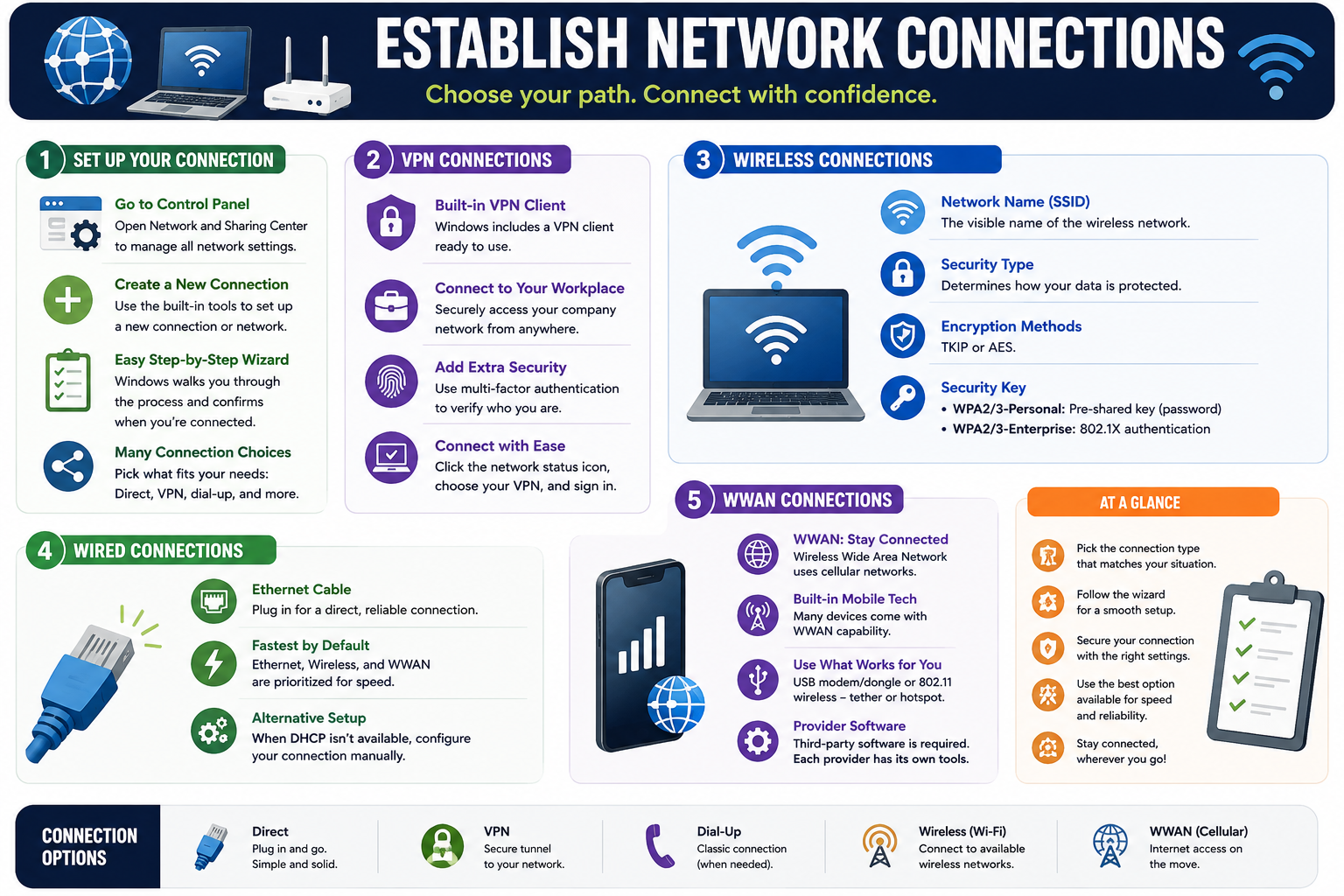
Establish network connections infographic covering Control Panel setup, VPN, wireless, wired Ethernet, WWAN, dial-up, direct connections, and connection option selection
Connection setup starts with the user scenario: direct, VPN, dial-up, wireless, wired, or WWAN. Choose the path that provides the right balance of access, security, speed, and reliability.
A+
Module 05

Module 5 - Smarter Network Control

Smarter network control means knowing how Windows routes web traffic, chooses a network profile, exposes shared resources, maps network drives, and limits data usage on costly or constrained connections.

After a client is connected, the technician still has to manage how that connection behaves. A Windows system may need a proxy to reach the web, a private profile to allow local discovery, a public profile to stay hidden, a mapped drive for fast access to a file share, or a metered connection to prevent unnecessary data usage. These settings do not replace IP configuration; they refine how the client uses the network it already has.

Objective 1.7 often tests these controls through small scenario clues. A user can browse the Internet but a business web app fails because the proxy is wrong. A laptop can get online at a cafe but should not be discoverable. A user needs a drive letter for a shared folder. A mobile hotspot works, but Windows Update or OneDrive is consuming too much data. Each clue points to a different Windows setting.

Proxy Settings

A proxy server acts as an intermediary for web traffic. Instead of the browser or app connecting directly to a website, the request is sent through the proxy. Organizations may use proxies for filtering, monitoring, caching, access control, logging, or routing traffic through a security service.

Proxy settings can be configured in the Settings app under Network & Internet > Proxy. The classic path may also appear in exam scenarios: Control Panel > Internet Options > Connections > LAN Settings. A proxy can be configured manually, automatically through a script, or controlled by organizational policy.

  • What it does: redirects selected web requests through an intermediary service.
  • Where to configure: Settings app proxy page or classic Internet Options LAN settings.
  • Common use: filtering, logging, access control, caching, or organizational routing.
  • Exception list: defines addresses that bypass the proxy and connect directly.
  • Support clue: websites fail only on one network, internal sites bypass the proxy, or business apps require specific proxy settings.

Proxy problems can mimic DNS or Internet problems. If a user can ping an address or use some apps but web browsing fails, check the proxy configuration. If only internal web resources fail, check proxy exceptions and whether local addresses are set to bypass the proxy.

Network Locations And Profiles

Windows uses network profiles to decide how visible and open the device should be. A Private profile is intended for trusted networks, such as home or office networks. It can allow file sharing, printer sharing, and device discovery when those features are enabled. A Public profile is intended for untrusted networks, such as airports, hotels, cafes, and guest Wi-Fi. It keeps the device more hidden and restricts discovery and sharing.

Windows may choose a profile automatically when a network is first joined, but the technician should verify the active profile when troubleshooting sharing or discovery. A common support story is simple: the computer is connected, the IP settings are valid, but shared folders or printers do not appear because the network is marked Public.

Private

Trusted network. Better fit for home, office, and managed networks where sharing or discovery may be needed.

Public

Untrusted network. Better fit for open Wi-Fi, travel, guest networks, and places where the device should stay hidden.

Custom Security

Windows applies firewall and discovery behavior based on the active profile and policy.

Technician Check

Before changing sharing or firewall rules, verify whether the profile is Public, Private, or Domain.

Network Paths And Shared Resources

Network paths let users access shared resources by name. A typical UNC path looks like \\server\folder. The first part identifies the server or device hosting the share. The second part identifies the shared folder, printer, or resource. Network paths are useful for direct access, troubleshooting, scripts, shortcuts, and mapped drives.

File Explorer can browse visible network locations, but browsing is not the same as access. A share may be hidden, discovery may be blocked, the firewall profile may prevent browsing, or the user may lack permissions. A technician should test the direct path when browsing fails, then verify DNS/name resolution, connectivity, credentials, share permissions, and NTFS permissions.

  • Browse network locations: use File Explorer to view available servers and shared folders when discovery is enabled.
  • Use direct paths: type a UNC path such as \\server\finance to reach a known share.
  • Check server and share names: display paths usually include both the host and the shared resource.
  • Verify access: seeing a share does not guarantee the user has permission to open it.

Mapped Network Drives

A mapped network drive assigns a local drive letter to a network share. For example, Z: might point to \\fileserver\team. This makes the shared location feel like a local drive to the user and to older applications that expect a drive letter.

Mapped drives are convenient, but they depend on network reachability, DNS, credentials, permissions, and sometimes VPN or Group Policy. If a mapped drive shows disconnected, do not assume the drive letter itself is the problem. Check whether the server is reachable, whether the user is connected to the correct network or VPN, and whether credentials or permissions changed.

  • Map a drive: assign a drive letter for quick access to a shared folder.
  • Reconnect option: allows Windows to attempt the mapping at sign-in.
  • Disconnect a mapped drive: remove the mapping from File Explorer when it is no longer needed.
  • Policy-based mapping: domain environments may create mapped drives automatically through Group Policy.
  • Support clue: drive appears but fails to open: check path, DNS, VPN, credentials, share permissions, and NTFS permissions.

Metered Connections

A metered connection tells Windows that the connection has limited, costly, or constrained data. This is common with mobile hotspots, WWAN, pay-per-use plans, low-bandwidth links, and temporary connections. When a network is marked metered, Windows and some apps may reduce background traffic.

Metered mode can affect Windows Update, OneDrive sync, Microsoft Store downloads, app updates, and background data use. This can be helpful when conserving data, but it can also delay updates or synchronization. The technician should understand both sides: metered mode protects limited bandwidth, but it may also explain why updates or cloud files are not arriving immediately.

  • Use metered mode for: mobile hotspots, WWAN, limited bandwidth, slow links, or pay-per-use data plans.
  • Conserves data: reduces unnecessary background downloads and sync.
  • Changes app behavior: Windows Update, OneDrive, Store apps, and other services may pause or reduce activity.
  • Support clue: updates or cloud sync are delayed on a connection that is marked metered.

Technician Workflow

  1. Identify the user goal: web access, internal site access, file share access, printer discovery, mapped drive use, or data conservation.
  2. Check the connection profile: verify whether Windows is using Public, Private, or Domain behavior.
  3. Review proxy settings: confirm manual proxy, auto-config script, bypass list, and whether policy controls the setting.
  4. Test the network path: use File Explorer or a direct UNC path to verify the server and share.
  5. Validate mapped drives: confirm drive letter, UNC path, credentials, VPN, permissions, and reconnect behavior.
  6. Check metered status: determine whether Windows or apps are limiting data usage by design.
  7. Document the change: record profile, proxy, share path, drive mapping, metered setting, and final user verification.

Exam Clues To Remember

  • Proxy: routes web traffic through an intermediary; configure in Settings or Internet Options LAN settings.
  • Proxy exceptions: define addresses that bypass the proxy.
  • Private profile: trusted network where sharing and discovery may be appropriate.
  • Public profile: untrusted network where the device should stay hidden.
  • UNC path: \server esource points directly to a shared network resource.
  • Mapped drive: assigns a drive letter to a network share.
  • Metered connection: limits background data usage and can affect updates or sync.
Exam mindset: if the client is connected but behavior is wrong, look at network controls: proxy, profile, path, mapped drive, permissions, and metered status.

Bottom line: Smarter network control is about using the right Windows setting for the situation: route web traffic correctly, choose the right network profile, map shared resources cleanly, conserve data when needed, and verify the user can actually work.

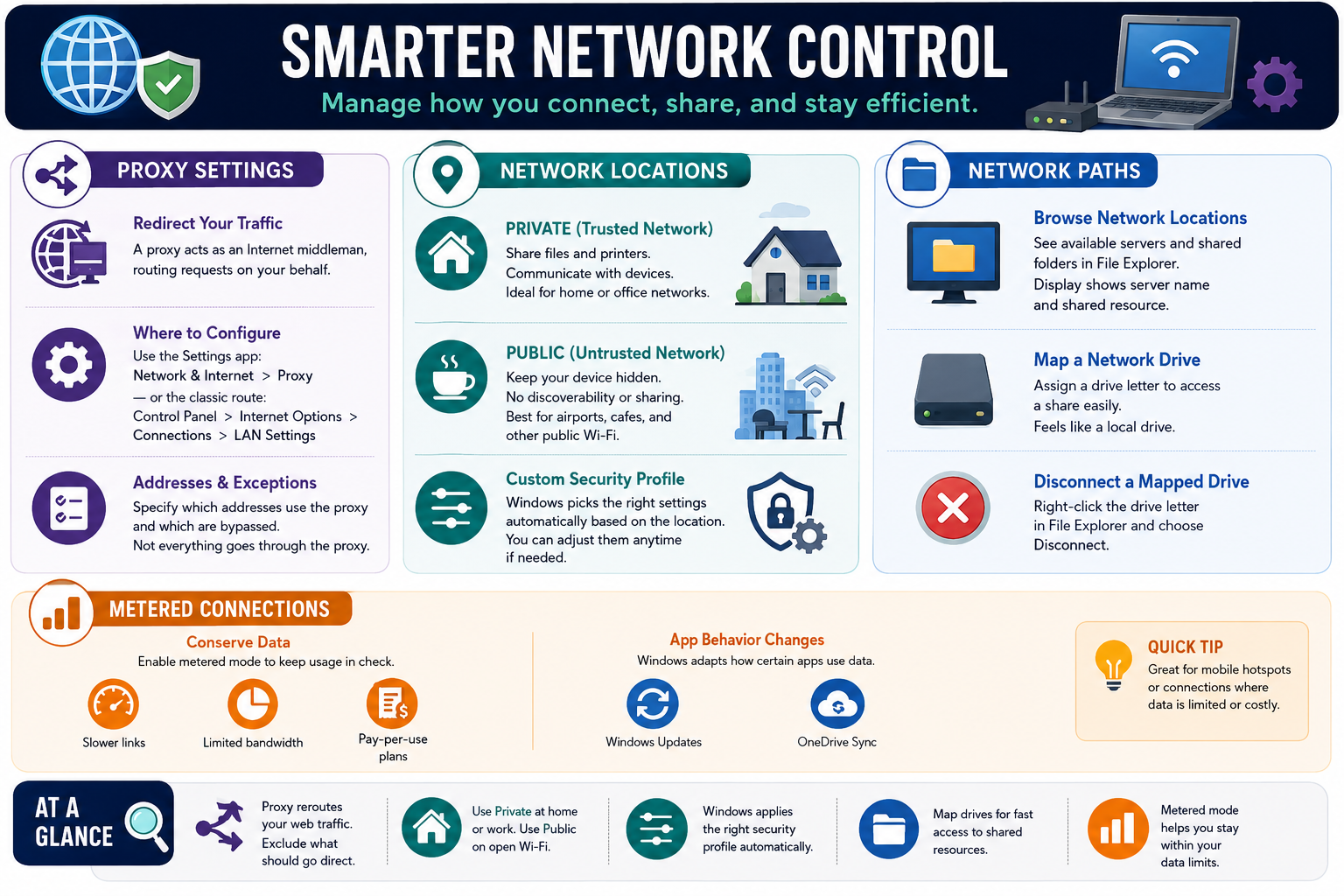
Smarter network control infographic covering proxy settings, private and public network locations, network paths, mapped drives, disconnected mapped drives, and metered connections
Network control settings shape how Windows routes web traffic, handles trusted versus untrusted networks, accesses shared paths, maps drives, and conserves data on limited connections.
A+
Module 06

Module 6 - Key Takeaways

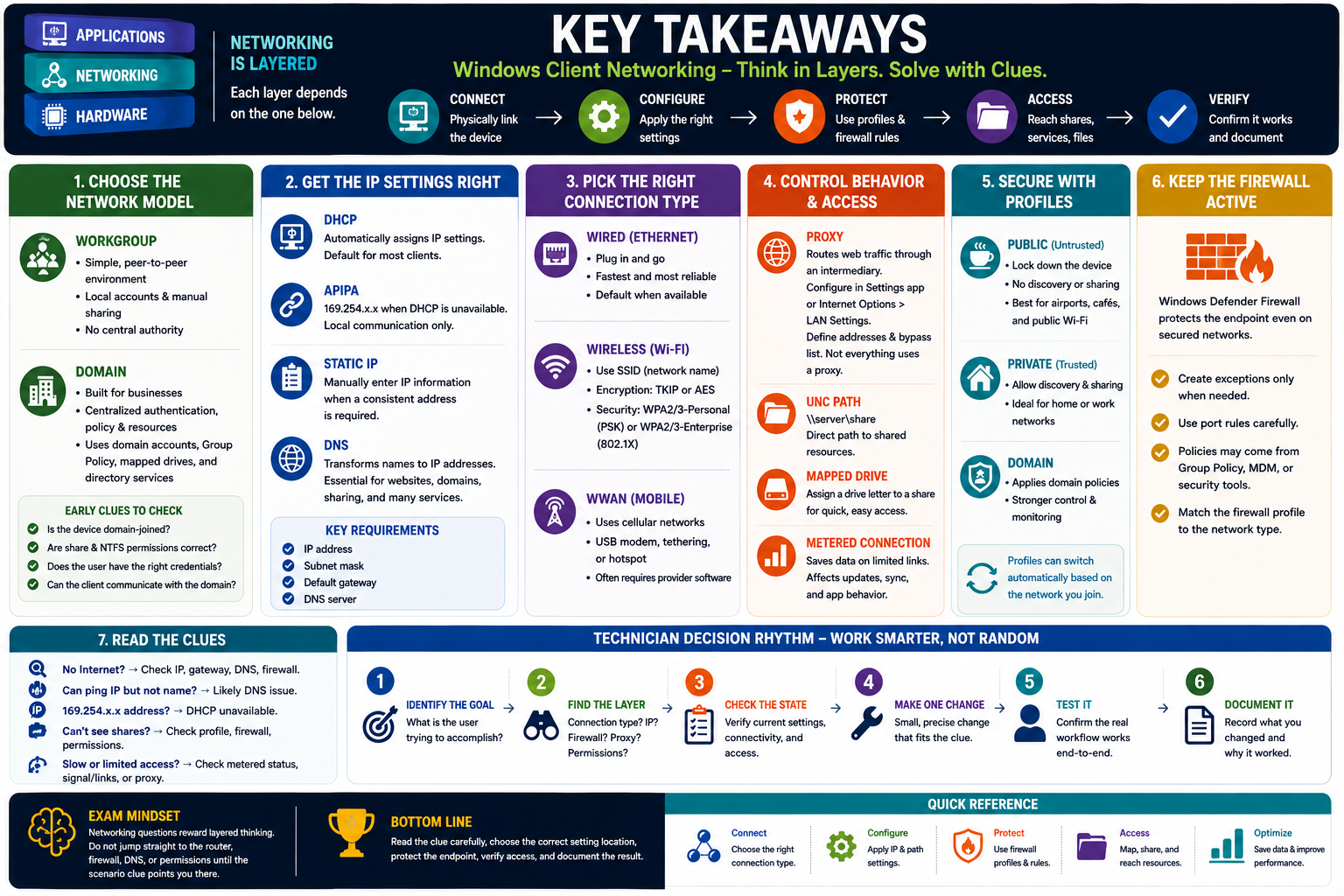
Key takeaways infographic for Windows client networking showing layered networking, network model, IP settings, connection types, proxy, profiles, firewall, scenario clues, technician workflow, and quick reference
Key takeaways for Objective 1.7: think in layers, match the scenario clue to the right setting, protect the endpoint, verify access, and document the result.

Objective 1.7 is about matching the Windows networking clue to the right configuration area: sharing model, firewall profile, IP settings, connection type, proxy behavior, network path, mapped drive, or metered connection.

Do not treat Windows client networking as one giant setting. A working network connection is built in layers. The device must be connected, addressed, routed, able to resolve names, protected by the right firewall profile, and authorized to access the resource. When one layer fails, the symptom tells you where to look next.

Know The Network Model First

Start by deciding whether the device is in a workgroup or joined to a domain. Workgroups are simple and decentralized; each computer manages its own users, shares, and permissions. Domains provide centralized authentication, policy, resources, and management through domain controllers and directory services.

  • Workgroup clue: small peer-to-peer network, local accounts, manual sharing, and no central domain controller.
  • Domain clue: business logon, domain accounts, Group Policy, shared resources, mapped drives, and centralized control.
  • Domain join clue: Windows Home is not enough; use Pro or better, valid credentials, DNS, time sync, and network access to domain services.
  • Sharing clue: check both share permissions and NTFS permissions before assuming the network is broken.

Keep The Firewall Working For You

The local OS firewall should stay enabled. It protects the endpoint even when the network has other security devices. If an app, feature, service, or port is blocked, create the narrowest exception that solves the problem instead of disabling protection permanently.

  • Public profile: more restrictive; best for untrusted networks where discovery and sharing should usually be blocked.
  • Private profile: trusted network; sharing and discovery may be appropriate when configured.
  • Domain profile: applied when a domain-joined device can authenticate to the domain environment.
  • Exception clue: allow an app or feature when possible; use port rules only when the scenario requires them.
  • Policy clue: firewall settings may be controlled by Group Policy, MDM, or endpoint security tools.

Read The IP Configuration

IP settings tell you whether the client has the basic ingredients to communicate. A normal client needs an IP address, subnet mask, default gateway, and DNS server. DHCP usually provides these automatically. Static settings are useful only when the device must keep a predictable address.

DHCP

Automatically assigns IP settings. Default for most client devices.

APIPA

169.254.x.x means DHCP was unavailable and the client is usually local-only.

Static IP

Manual settings for servers, printers, appliances, or devices requiring a consistent address.

DNS

Turns names into IP addresses; critical for websites, domain resources, shares, and policy.

Match The Connection Type To The Scenario

Windows supports multiple connection types because users work in different places. Wired Ethernet is reliable and fast. Wi-Fi supports mobility. VPN provides secure remote access. WWAN keeps mobile users connected through cellular networks. Dial-up and direct connections are legacy or specialized options that still appear in support scenarios.

  • Need stable desk connectivity: wired Ethernet.
  • Need mobility in a building: Wi-Fi with the correct SSID, security type, encryption, and key.
  • Need company resources offsite: VPN with correct server, credentials, MFA, DNS, and routes.
  • Need Internet while traveling: WWAN, hotspot, tethering, or provider tools.
  • Need guided setup: use Network and Sharing Center or the Settings app connection workflow.

Control How The Connected Client Behaves

Once the connection works, Windows still needs the right behavior settings. Proxy settings control how web traffic is routed. Network profiles control visibility and sharing. UNC paths and mapped drives provide access to shared resources. Metered connections limit background data usage on costly or slow links.

  • Proxy: routes web traffic through an intermediary; check Settings or Internet Options > LAN Settings.
  • Proxy exceptions: specify addresses that bypass the proxy.
  • UNC path: \\server\resource points directly to a shared resource.
  • Mapped drive: assigns a drive letter to a network share for easier user access.
  • Metered connection: conserves data and may delay updates, sync, or app downloads.

Scenario Clues That Matter

  • User can reach IP addresses but not names: check DNS.
  • Address starts with 169.254: check DHCP, cable, Wi-Fi, VLAN, adapter, or DHCP server availability.
  • Can reach local network but not Internet: check default gateway or upstream routing.
  • File sharing fails only on public Wi-Fi: check network profile, firewall, discovery, and sharing rules.
  • Mapped drive fails when remote: check VPN, DNS, path, credentials, and permissions.
  • Updates or OneDrive are delayed on hotspot: check metered connection status.
  • Proxy-required app fails: check proxy address, bypass list, auto-config, and policy.

Technician Decision Rhythm

  1. Identify the goal: Internet, local sharing, printer access, remote work, file share, VPN, or data conservation.
  2. Find the layer: connection type, IP configuration, DNS, gateway, firewall profile, proxy, path, credentials, or permissions.
  3. Check the current state: verify settings before changing them.
  4. Make one precise change: choose the least disruptive fix that matches the evidence.
  5. Test as the user: confirm the real workflow works, not just that a setting changed.
  6. Document the result: record the setting, path, profile, address, rule, or mapping changed and why.
Exam mindset: networking questions reward layered thinking. Do not jump straight to the router, firewall, DNS, or permissions until the scenario clue points there.

Bottom line: Configure Windows client networking by reading the clue, choosing the correct setting location, protecting the endpoint, verifying access, and documenting the result.

A+
Module 07

Module 7 - Section Notes

Use these printable notes to review Objective 1.7: Windows client networking, domains and workgroups, shared resources, local firewall profiles, IP configuration, connection types, proxy behavior, mapped drives, metered connections, and scenario-based troubleshooting.

Section Notes are built for fast review before labs, quizzes, and the final test. Read them like a technician workflow: identify the user goal, locate the networking layer, verify the current state, make one precise change, test the real workflow, and document the result.

Objective 1.7Windows Client Networking Section Notes

Big Picture

Objective 1.7 is about configuring Windows client networking by matching the symptom to the correct layer. A client may be physically connected but still fail because of DHCP, DNS, gateway, firewall profile, proxy, VPN, permissions, mapped drives, or domain policy.

Core workflow: Identify the goal, find the layer, check the current state, make one careful change, test the workflow, and document the result.

Connect

Confirm the client is using the correct connection type: wired, wireless, VPN, WWAN, dial-up, or direct connection.

Configure

Verify IP address, subnet mask, default gateway, DNS server, proxy, adapter settings, and connection profile.

Protect

Use firewall profiles, exceptions, and rules carefully. Keep the firewall enabled and open only what is needed.

Access

Confirm credentials, share permissions, NTFS permissions, UNC paths, mapped drives, printer sharing, and domain resources.

Technician Rhythm

  1. Ask what the user is trying to reach: Internet, file share, printer, domain resource, VPN, or internal app.
  2. Identify whether the clue points to connection, addressing, name resolution, firewall, profile, proxy, path, permission, or policy.
  3. Verify the current configuration before changing settings.
  4. Change the smallest setting that matches the evidence.
  5. Test the same workflow the user reported.
  6. Document what changed, why it changed, and what should be checked next.
Network ModelWorkgroups, Domains, Shares, And Printers

Workgroup vs. Domain

ModelWhat It MeansSupport Clues
WorkgroupSimple peer-to-peer grouping. Each computer maintains its own local accounts, sharing settings, passwords, and permissions.Small office, home network, no central controller, local credentials, manual sharing.
DomainCentralized environment where domain controllers manage authentication, policy, resources, and access.Business logon, domain account, Group Policy, mapped drives, central file servers, shared printers.
Domain JoinAdds a compatible Windows client to a domain so it can use centralized identity and resources.Requires Pro or better, correct DNS, time sync, domain reachability, and credentials with rights.

Shared Resources

  • Shared folders: Make network data available, but check both share permissions and NTFS permissions.
  • Mapped drives: Assign a drive letter such as Z: to a UNC path like \\server\share.
  • Hidden shares: Share names ending in $ are hidden from browsing, but the dollar sign is not a security control.
  • Administrative shares: Used by admins and tools for remote management. Control with credentials, policy, and firewall rules.
  • Shared printers: Similar logic to folder sharing. Check properties, driver, queue, permissions, and network profile.
  • Printer properties: Review ports, sharing, security, defaults, drivers, and device-specific settings.
Exam clue: A user can see a share but cannot open a file. Check effective permissions, not just connectivity.
Review Note:Workgroup = local and decentralized. Domain = centralized and policy driven.
FirewallProfiles, Exceptions, And Rules

Local OS Firewall

Windows Defender Firewall is a host-based firewall. It protects the endpoint by controlling network communication for that computer. It should remain enabled during normal operation, even when the network has other security controls.

ProfileBest UseTypical Behavior
PublicUntrusted networks such as hotels, airports, coffee shops, and guest Wi-Fi.More restrictive. Discovery and sharing are usually limited or blocked.
PrivateTrusted home or work networks.Discovery and sharing may be allowed when the user or admin configures them.
DomainDomain-joined systems connected to the organization domain.Often controlled by Group Policy, MDM, endpoint security, or enterprise baselines.

Exceptions And Rules

  • Allow an app or feature: safest normal method when a known program needs access.
  • Port rule: allow or block a specific TCP or UDP port when the scenario requires it.
  • Custom rule: define program, port, protocol, profile, scope, and direction more precisely.
  • Block all incoming: high-protection option that can ignore existing exceptions.
  • Notifications: control alerts when Windows blocks apps or events.
Best practice: Do not disable the firewall as the fix. Create the least permissive exception that solves the problem, then document it.
Exam clue: File sharing works on private networks but not public networks. Check the firewall profile and discovery/sharing rules.
IP SettingsDHCP, APIPA, Static IP, Gateway, And DNS

TCP/IP Client Settings

SettingPurposeScenario Clue
IP AddressIdentifies the device on the network.Wrong range means the client may be on the wrong network.
Subnet MaskSeparates network and host portions of the address.Incorrect mask can block local communication.
Default GatewayRoute used to reach other networks and the Internet.Local access works, Internet does not.
DNS ServerResolves names to IP addresses.Can ping IP but not website or server name.
Loopback127.0.0.1 tests the local TCP/IP stack.Used for local testing and internal communication.

Address Assignment

DHCP

Automatically provides IP address, subnet mask, gateway, DNS, and related settings. Default for most clients.

APIPA

A 169.254.x.x address means DHCP was unavailable. The device usually has local-link communication only.

Static IP

Manually configured address. Useful for printers, servers, appliances, and devices needing a consistent address.

Backup DHCP

Multiple DHCP servers or redundancy can keep clients online if one DHCP source fails.

Quick Diagnosis

  • No Internet but local access works: check default gateway.
  • Can ping IP but not name: check DNS.
  • 169.254.x.x: check DHCP, cable, Wi-Fi, VLAN, adapter, or DHCP server.
  • Static device unreachable: verify address, subnet mask, gateway, DNS, and duplicate IP risk.
ConnectionsWired, Wireless, VPN, WWAN, Dial-Up, And Direct

Connection Types

TypeUse It ForCheck First
Wired EthernetFast, stable desk or office connections.Cable, switch port, adapter, link lights, IP settings.
Wi-FiMobility across homes, offices, schools, and public spaces.SSID, signal, security type, password, encryption, profile.
VPNSecure remote access to organizational resources.Server address, credentials, MFA, DNS, routes, firewall, split tunnel policy.
WWAN / MobileCellular connectivity, hotspots, tethering, and provider-based mobile access.Signal, SIM/eSIM, plan status, provider software, metered status.
Dial-UpLegacy or specialized modem-based access.Phone line, modem, credentials, number, legacy support.
Direct ConnectionSpecial device-to-device or simple guided connection scenarios.Correct adapter, cable, IP settings, and purpose.

Wireless Security Reminders

  • SSID is the network name.
  • Use modern encryption such as WPA2 or WPA3 when supported.
  • Personal networks use PSK/passphrase; enterprise networks often use 802.1X authentication.
  • Wrong profile or saved credentials can cause repeated connection failures.
Exam clue: Remote user can browse the Internet but cannot reach company shares. Check VPN status, DNS, routes, credentials, and permissions.
Technician Notes:
Behavior And AccessProxy, Profiles, UNC Paths, Mapped Drives, And Metered Links

Connected Does Not Always Mean Working

Once the client has a connection and IP settings, Windows behavior still matters. Proxy settings control web routing. Network profiles control discovery and sharing. UNC paths and mapped drives control resource access. Metered connections control data usage.

FeaturePurposeScenario Clue
ProxyRoutes web traffic through an intermediary.Browser or business app cannot reach sites; LAN Settings or Settings proxy clue.
Proxy ExceptionsBypass proxy for specified addresses.Internal site should not go through proxy.
Public / Private ProfileControls visibility, discovery, sharing, and firewall behavior.Sharing works at home but fails on public Wi-Fi.
UNC PathDirect path to a network resource, such as \\server\resource.User needs a known share without browsing.
Mapped DriveAssigns a drive letter to a network share.Legacy app needs drive letter or user wants quick access.
Metered ConnectionLimits background data usage.Hotspot, cellular, slow link, delayed updates, paused sync.

High-Value Scenario Clues

  • No Internet: check IP, gateway, DNS, firewall, proxy, and upstream connection.
  • No name resolution: DNS is a strong suspect.
  • Cannot browse shares: check network profile, discovery, firewall, credentials, permissions, and path.
  • Mapped drive disconnected: check VPN, DNS, server availability, path, credentials, reconnect behavior, and policy.
  • Updates delayed: check metered connection and update policies.
  • Setting reverts: check domain policy, MDM, security tools, or organizational management.
Final review: Choose the setting location that matches the clue, verify before changing, protect access, test end to end, and document the result.
My Notes:

Bottom line: These notes organize Objective 1.7 into a technician path: understand the network model, confirm addressing, choose the right connection, keep the firewall active, control access behavior, verify the workflow, and document the fix.

A+
Module 08

Module 8 - Final Test

Complete 20 multiple-choice questions covering Objective 1.7. The test includes 15 realistic Windows client networking scenarios and 5 command or fact checks. Each question has one best answer, plausible distractors, and is worth 1 point.

Score pending0 / 20
WB
Workbook

Student Workbook

BrotocolJoeStudent Workbook

BrotocolJoe

CompTIA A+ Core 2 (220-1202)

Student Workbook

1.0 Operating Systems

Objective 1.7 - Given a scenario, configure Microsoft Windows networking features on a client or desktop.

How to use this workbook: Print this packet once, complete it by hand as you finish each online module, and keep it as evidence that you read, processed, and practiced the Objective 1.7 Windows client networking material.
Student Name:
Domain Joined vs. WorkgroupObjective 1.7

Module 1 - Domain Joined vs. Workgroup

Key Information: Workgroups use decentralized administration; traditional Windows domains provide centralized identity and policy. Resource access still depends on credentials, permissions, connectivity, and the requested share.

Check Your Understanding

What should you verify before joining a client to a traditional Windows domain?

Why does successful sign-in not guarantee access to every shared folder?

How does a hidden share differ from an administrative share, and why is hiding a share not an access-control measure?

Comparison Record: Domain vs. Workgroup

  • Compare the two models for an office with several PCs. Write one or two sentences for each prompt.
  • Workgroup: Explain where accounts and resource permissions are managed and describe one administration challenge.
  • Domain: Explain how centralized identity and policy change administration and name one dependency.
  • Decision: The office needs consistent user access and policies across PCs. Recommend a model and justify the choice.
Describe what you would inspect when a user can open a shared printer but cannot open a shared folder on the same server.
Technician Scenario: An employee can sign in to a domain-joined laptop but receives Access denied on a departmental share. Identify the account, path, and permission evidence to gather before requesting an access change. Explain why granting administrator rights is not a suitable default fix.
Local OS Firewall SettingsObjective 1.7

Module 2 - Local OS Firewall Settings

Key Information: The local firewall controls endpoint traffic using rules and network profiles. Keep protection active and limit approved exceptions to the application, direction, protocol, port, and scope required.

Check Your Understanding

Why does a client still need a local firewall behind a network firewall?

How do Public, Private, and Domain profiles relate to the network environment?

Why must you distinguish inbound traffic from outbound traffic when reviewing a rule?

Firewall Rule Record

  • Use a fictional approved application that accepts connections from a support server. Describe requirements; do not invent a port number.
  • Application and direction: State the program receiving connections and the required traffic direction.
  • Protocol and port: State where you would obtain the documented requirements before configuring the rule.
  • Profile and scope: Identify the intended network profile and how you would restrict allowed source systems.
  • Verification: Describe an allowed-connection test and a check that unrelated access remains restricted.
Explain why changing a public network to Private solely to make an application work can create unnecessary exposure.
Technician Scenario: An approved support application works when the firewall is disabled. Explain how you would restore protection, inspect the active profile and existing rules, and propose a limited exception that meets organizational policy.
Client Network ConfigurationObjective 1.7

Module 3 - Client Network Configuration

Key Information: Client addressing includes an IP address, subnet mask, gateway, and DNS configuration. DHCP supplies settings automatically; static configuration and alternate configurations require a deliberate plan.

Check Your Understanding

What does an automatically assigned IPv4 address in the 169.254.x.x range suggest about DHCP communication?

How do the default gateway and DNS server serve different purposes?

What can a successful loopback test establish, and what does it not prove about the external network?

Comparison Record: DHCP vs. Static Addressing

  • For each prompt, explain how settings are assigned and what you must verify. Use fictional details, not your own network configuration.
  • DHCP: State which addressing values can be supplied and how you would check the received configuration.
  • Static: State which values must be planned and how you would avoid an address conflict.
  • Decision: A mobile client moves between managed networks. Choose an addressing approach and explain why it fits.
Distinguish an alternate client configuration used when DHCP is unavailable from a redundant DHCP server providing service to many clients.
Technician Scenario: A DHCP-configured workstation shows 169.254.20.15 and cannot reach the office gateway. Describe the adapter, link, and DHCP checks you would perform before assigning an arbitrary static address.
Establish Network ConnectionsObjective 1.7

Module 4 - Establish Network Connections

Key Information: Choose a connection type for the location, hardware, mobility, and resource requirements. A working transport connection does not by itself establish authorization to an internal resource.

Check Your Understanding

What adapter, link, and addressing checks apply to a wired Ethernet connection?

Which Wi-Fi details should be verified beyond seeing a network name?

Why does a VPN normally require an underlying network connection first?

Connection Selection Record

  • For each case, name the connection type, one prerequisite, and a test of the required workflow.
  • An office desktop needs a stable connection at its desk: __________________
  • A roaming laptop needs access through an approved wireless network: __________________
  • A field worker has no Wi-Fi but has supported cellular coverage: __________________
  • A remote worker has Internet access and needs authorized internal resources: __________________
Describe a situation involving a legacy dial-up or direct connection and identify the hardware or service requirements you would verify.
Technician Scenario: A remote employee is connected to hotel Wi-Fi and can browse public sites but cannot access an internal file server. Explain how you would distinguish Internet connectivity, VPN establishment, name resolution, and resource permissions.
Smarter Network ControlObjective 1.7

Module 5 - Smarter Network Control

Key Information: Proxy settings, network profiles, UNC paths, mapped drives, and metered connections influence how an already-connected client reaches resources and uses data.

Check Your Understanding

How does a proxy exception affect access to a specified destination?

Why can a mapped drive appear disconnected even when the mapping still exists?

Why is a metered connection not a guarantee that all traffic or updates will stop?

Comparison Record: UNC Path vs. Mapped Drive

  • Use the fictional share \\fileserver\Projects, mapped as P:. Write one or two sentences per prompt.
  • UNC path: Identify the server and share portions and explain how the user accesses the share without a drive letter.
  • Mapped drive: Explain what P: represents and which permissions still apply.
  • Decision: P: fails to open. Describe how testing the UNC path helps separate mapping issues from server, network, or access issues.
Explain why a public hotspot should not be treated as a trusted private network simply to enable discovery.
Technician Scenario: A laptop uses a limited mobile hotspot, a corporate web proxy, and a mapped project drive that requires VPN access. Plan the metered setting, proxy checks, and drive-access verification without disabling security controls or assuming all failures have one cause.
Objective 1.7 Final CheckCumulative Review

Objective 1.7 - Final Check

Purpose: Identify the networking layer involved, choose the appropriate configuration or diagnostic check, and verify the user’s actual workflow.

Scenario Sorting

For each case, name the likely layer to investigate and one observation that would help test your hypothesis.

  • A DHCP client has an APIPA address.
  • A resource responds by IP address but not by name.
  • A share returns Access denied after successful sign-in.
  • An approved app works only with the firewall disabled.
  • A mapped drive fails while its UNC path works.

Explain What You Know

  • How do connectivity, name resolution, and authorization differ?
  • Why must you preserve the original configuration?
  • How do location and trust affect firewall profiles?
  • What evidence proves the required resource is usable?
Write the investigation layer and confirming observation for each case above, in order.
Plan support for a traveling employee who needs an internal project share over a mobile connection. Include addressing, VPN, name resolution, credentials, firewall profile, data usage, rollback details, and verification.

1.7 Completion

Student signature:
Date completed:
Instructor signature:
Module 01 of 08