Home
Certification Prep // 220-1202

1.0 Operating Systems

1.6 ~ Given a scenario, configure Microsoft Windows settings.

core2-lab.exe
> load objective 1.6
> map scenario clues
> verify and document

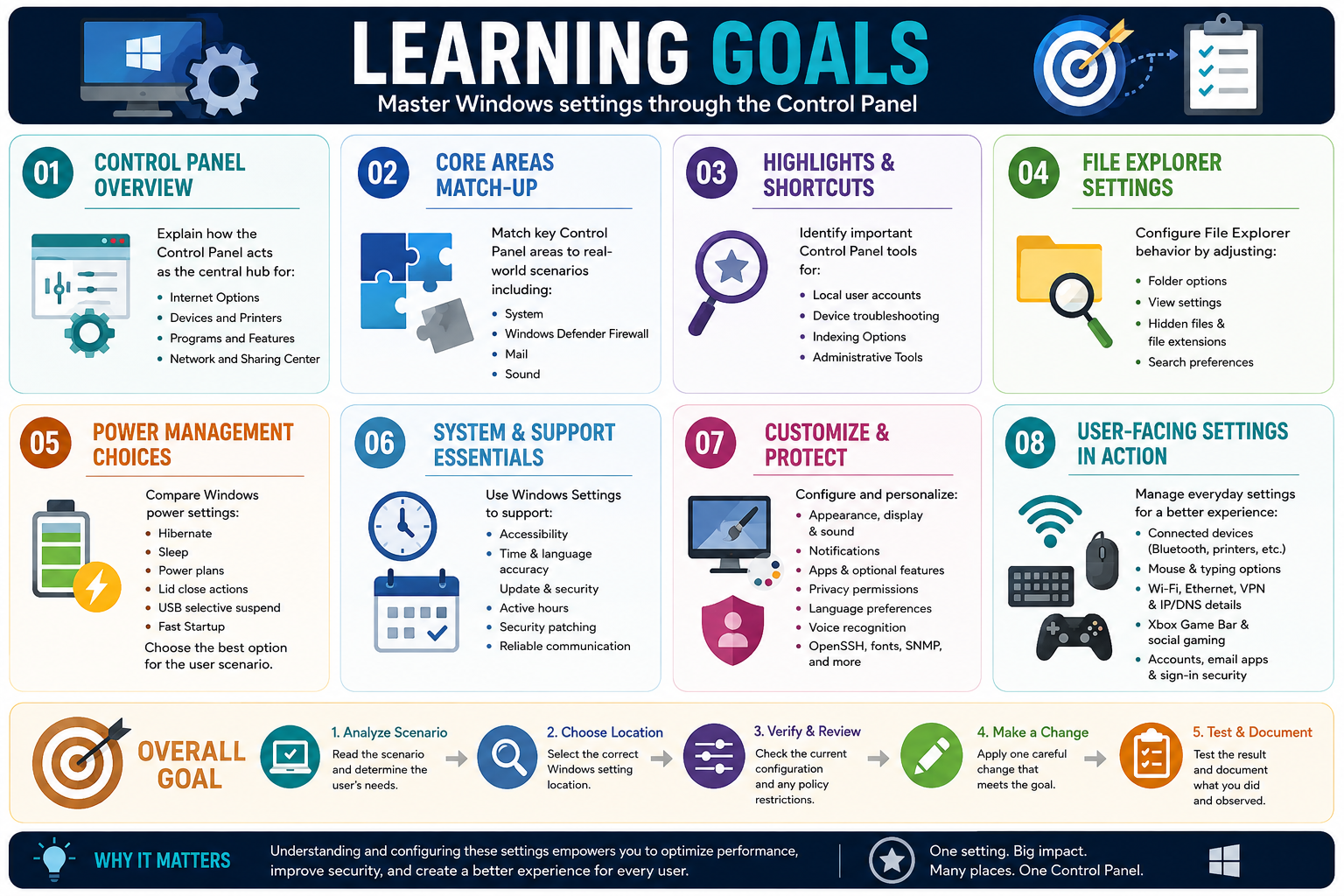
Learning Goals

Learning goals infographic for Objective 1.6 covering Windows Control Panel and Windows Settings modules
Master Windows settings through Control Panel, File Explorer, power management, system support, personalization, privacy, devices, networking, gaming, and account settings.
  • Module 01: Explain how Control Panel functions as a central Windows configuration hub for Internet Options, Devices and Printers, Programs and Features, and Network and Sharing Center.
  • Module 02: Match common Control Panel key areas to support scenarios, including System, Windows Defender Firewall, Mail, and Sound settings.
  • Module 03: Identify Control Panel highlights for managing local user accounts, troubleshooting devices, configuring Indexing Options, and launching Administrative Tools.
  • Module 04: Configure File Explorer behavior, including folder options, view settings, hidden files, file extensions, preview/details panes, search behavior, privacy history, and reset/apply-to-folder options.
  • Module 05: Compare Windows power settings such as Hibernate, Sleep, power plans, lid close actions, USB selective suspend, and Fast Startup, then choose the best option for the user scenario.
  • Module 06: Use Windows Settings to support accessibility, time and language accuracy, update behavior, active hours, security patching, and reliable user communication.
  • Module 07: Configure personalization, display and sound preferences, notifications, apps and optional features, privacy permissions, language preferences, voice recognition, OpenSSH, fonts, and SNMP-related options.
  • Module 08: Manage user-facing Settings areas for connected devices, mouse and typing input, Wi-Fi, Ethernet, VPN, IP/DNS details, Xbox Game Bar, captures, accounts, email app preferences, and sign-in options.
  • Module 09: Summarize the high-value Objective 1.6 takeaways for Control Panel, Settings, File Explorer, power management, accounts, devices, networking, privacy, updates, and scenario-based technician decisions.
  • Module 10: Review printable section notes that organize Objective 1.6 setting locations, scenario clues, Control Panel applets, Settings categories, security reminders, and technician workflow steps.
  • Module 11: Complete a randomized final test that checks Control Panel applets, Settings categories, File Explorer options, power choices, privacy and security decisions, network/device/account scenarios, and technician workflow habits.
  • Overall Goal: Given a scenario, choose the correct Windows setting location, verify the current configuration, account for policy restrictions, make one careful change, test the result, and document what changed.
Lesson ModuleModule 1 / 11
A+
Module 01

Module 1 - Windows Control Panel at a Glance

Control Panel is a classic Windows hub for changing system settings, managing devices, adjusting apps, and configuring network-related options from one organized location.

Objective 1.6 expects you to recognize where common Windows settings live and which tool best matches a scenario. Even though modern Windows versions continue moving many settings into the Settings app, Control Panel remains important for certification and real support work because many familiar administrative and troubleshooting areas are still available there.

Think of Control Panel as a technician-friendly index of configuration categories. It brings together settings for browsers, devices, printers, installed programs, Windows features, network adapters, sharing options, sound, user accounts, power behavior, accessibility, indexing, administrative tools, and other system controls. A technician does not need to memorize every checkbox, but they do need to know which category is the right starting point.

Internet Options

Internet Options controls legacy browser and web connection behavior. It is commonly associated with settings that affect browsing preferences, security zones, privacy behavior, certificates, proxy configuration, add-ons, and advanced browser-related options. On the exam, this area matters when the scenario points to web settings, certificate handling, proxy behavior, pop-up or cookie controls, or browser defaults tied to older Windows management interfaces.

  • General: configure homepage, tabs, browsing history, and basic web preferences.
  • Security: adjust website zones and protection levels.
  • Privacy: manage cookies, pop-ups, tracking behavior, and InPrivate-related settings.
  • Content: work with certificates, AutoComplete, and web content controls.
  • Connections: configure VPN, proxy, dial-up, or LAN settings.
  • Programs: manage default browser-related programs and add-ons.
  • Advanced: reset or tune detailed browser and web behavior.

Devices And Printers

Devices and Printers gives technicians a friendly view of connected hardware such as printers, laptops, desktops, phones, storage devices, and multimedia devices. It is more user-focused than Device Manager. Device Manager is better for drivers and low-level hardware status, while Devices and Printers is better for viewing installed devices, accessing device properties, managing printers, and reaching common configuration tasks quickly.

Use this area when the clue is about a printer not appearing, a default printer, a device connected to the computer, or a user needing an easy interface to manage attached hardware. It can also provide shortcuts into deeper properties when basic device access is not enough.

Programs And Features

Programs and Features is the classic location for managing installed desktop applications and optional Windows components. It lets technicians uninstall programs, review installed application details, and turn Windows features on or off. This is important when a scenario involves removing unwanted software, checking whether a program is installed, enabling a Windows component, or reviewing version and publisher information.

Do not confuse uninstalling an application with disabling a startup app or stopping a service. Programs and Features is for installed software and Windows features. Startup behavior belongs in Task Manager or System Configuration. Services are managed through Services or related administrative tools.

Network And Sharing Center

Network and Sharing Center helps technicians monitor and configure network connections. It provides access to network status, adapter settings, sharing settings, and IP-related configuration paths. If a scenario asks where to view network adapters, change adapter options, inspect connection status, or manage network and sharing behavior, this is a strong Control Panel clue.

This area is especially useful when troubleshooting connectivity because it bridges user-friendly status information with deeper adapter configuration. From there, a technician can view wired, wireless, VPN, and other adapter types; inspect status; and reach IP configuration options.

Why Control Panel Still Matters

Modern Windows support often requires moving between Control Panel, Settings, Device Manager, Task Manager, MMC tools, and command-line utilities. Control Panel remains valuable because it groups many common configuration surfaces into predictable categories. For CompTIA A+, the point is not to prefer Control Panel over Settings every time. The point is to recognize the best location for the task and avoid wasting time in the wrong tool.

Secure

Use Internet Options, certificates, user accounts, firewall paths, and related tools to support safer configuration.

Efficient

Reach common device, program, network, and system settings without searching through unrelated menus.

Customizable

Adjust defaults, installed features, browser behavior, power settings, accessibility, and user preferences.

Connected

Manage network adapters, sharing options, printers, and connected devices from familiar interfaces.

Technician Workflow

  1. Identify the category: decide whether the issue is web behavior, device access, installed software, Windows features, or network configuration.
  2. Open the matching Control Panel area: use the category that aligns with the symptom instead of randomly browsing settings.
  3. Check current state first: review existing settings, installed items, devices, or adapter status before changing anything.
  4. Make one controlled change: adjust only the setting that supports the diagnosis or documented request.
  5. Verify the result: test the browser, printer, application, Windows feature, or network connection after the change.
  6. Document what changed: record the setting, reason, user impact, and any rollback step.

Exam Clues To Remember

  • Proxy, certificates, cookies, pop-ups, security zones, or browser behavior: think Internet Options.
  • Printers or user-friendly device access: think Devices and Printers.
  • Uninstall software or turn Windows features on/off: think Programs and Features.
  • View adapters, connection status, sharing, or IP configuration paths: think Network and Sharing Center.
  • Driver-level hardware troubleshooting: Device Manager may be the better tool than Devices and Printers.
  • Startup apps or services: Task Manager, Services, or System Configuration may be better than Programs and Features.
Technician workflow: match the symptom to the Control Panel category, inspect the current setting, make one careful change, test the result, and document the fix.

Bottom line: Control Panel is still a major Windows configuration hub. Use it to reach the right settings faster, manage common devices and apps, adjust network paths, and keep the system secure, efficient, customizable, and connected.
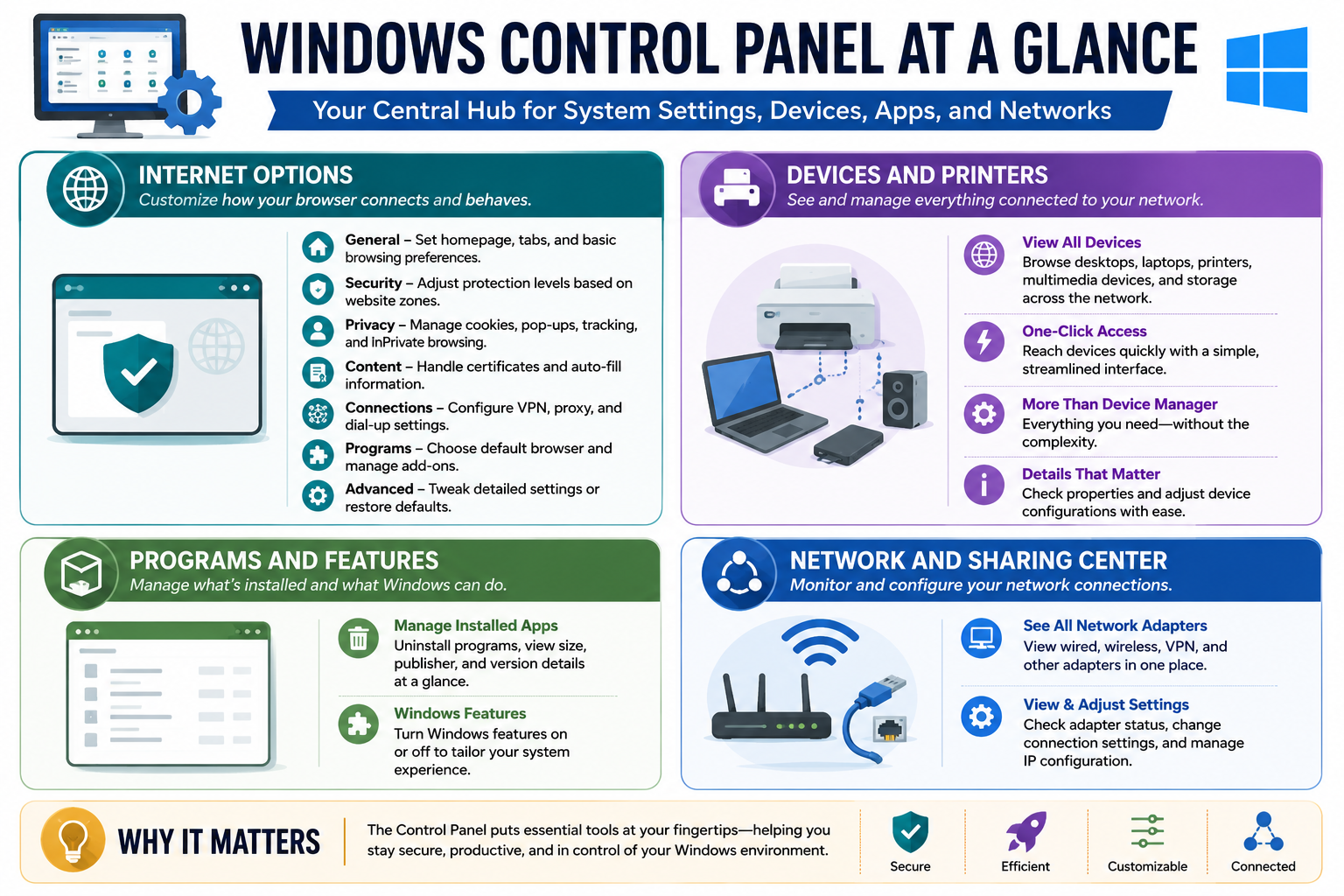
Windows Control Panel at a glance infographic covering Internet Options, Devices and Printers, Programs and Features, and Network and Sharing Center
Control Panel groups common Windows settings for browser behavior, connected devices, installed apps, Windows features, and network configuration.
A+
Module 02

Module 2 - Control Panel Key Areas

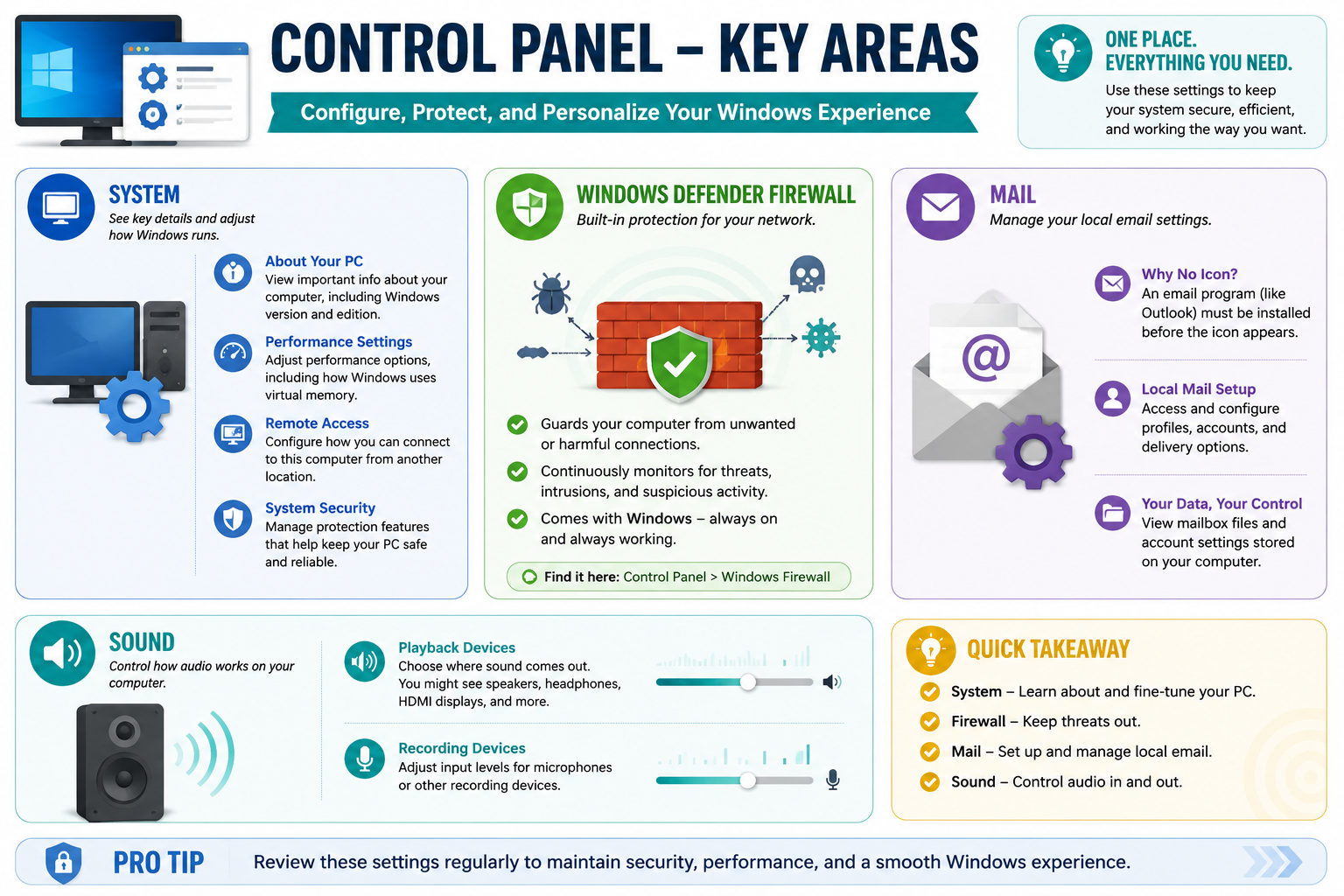
Control Panel organizes important Windows configuration areas so technicians can tune system behavior, protect the computer, manage local mail profiles, and troubleshoot sound problems from familiar interfaces.

After understanding Control Panel as a central hub, the next step is knowing which specific areas match common support scenarios. Objective 1.6 includes many Windows setting locations, and exam questions often describe a symptom instead of naming the tool directly. If you can connect the clue to the right Control Panel category, you can move faster and avoid changing unrelated settings.

This module focuses on four high-value Control Panel areas: System, Windows Defender Firewall, Mail, and Sound. Each one controls a different layer of the Windows experience. System provides device and OS details plus access to performance, remote access, and protection settings. Windows Defender Firewall controls allowed and blocked network traffic. Mail manages local email profile settings when a supported mail client is installed. Sound controls playback and recording devices.

System: Know And Tune The PC

The System area helps technicians view important details about the computer and reach settings that affect how Windows runs. It can show device information, Windows version or edition clues, computer name details, and links to related configuration areas. In real troubleshooting, this is often one of the first places to confirm whether you are working on the correct machine and whether the installed Windows edition supports the feature the user expects.

System-related settings also provide paths into performance options, remote access, and system protection. Performance settings may affect visual effects, processor scheduling, and virtual memory behavior. Remote access settings matter when a user or administrator needs to connect to the computer from another location. System protection settings matter when restore points, recovery, or rollback options are part of the support plan.

  • About your PC: confirm device details, Windows version, edition, and basic system identity.
  • Performance settings: adjust options that affect responsiveness, visual effects, and virtual memory.
  • Remote access: configure whether supported remote connections are allowed.
  • System security/protection: manage protection features that support reliability and recovery.

Windows Defender Firewall: Control Network Protection

Windows Defender Firewall is Windows built-in network protection layer. It helps guard the system from unwanted or harmful connections by controlling inbound and outbound network traffic according to firewall rules and network profile behavior. For A+ scenarios, firewall clues often involve blocked applications, network services that cannot be reached, remote access issues, or a need to allow an app through the firewall safely.

A firewall is not the same thing as antivirus. Antivirus and antimalware tools focus on detecting malicious software and suspicious files. A firewall focuses on network communication. When a legitimate app cannot communicate, the technician should verify the firewall state, network profile, and allowed app or port rules before disabling protection. Turning off the firewall may appear to make testing easier, but it creates security risk and is usually not the best answer unless the scenario explicitly requires a controlled test in a safe environment.

  • Protection role: helps block unwanted or suspicious network connections.
  • Monitoring role: supports ongoing protection against intrusions and unauthorized traffic.
  • Built-in role: included with Windows and designed to run continuously.
  • Best practice: allow only the needed app, service, or port instead of broadly disabling the firewall.

Mail: Manage Local Email Profiles

The Mail Control Panel applet appears when a compatible email program such as Microsoft Outlook is installed. This is a common exam detail: if the required mail client is not installed, the Mail icon may not appear. When it is available, Mail lets technicians configure local email profiles, accounts, data files, and delivery options stored on the computer.

Mail is not where you read messages. It is a configuration area for the local mail environment. Use it when the issue points to Outlook profiles, mailbox configuration, account setup, offline data files, or mail delivery behavior. If the user cannot open Outlook because a profile is damaged or the wrong profile loads, this area can be part of the fix.

  • Why no icon? a supported email client must be installed before the Mail applet appears.
  • Profiles: create, choose, or adjust local mail profiles.
  • Accounts: configure email account settings used by the local client.
  • Data files: view mailbox files and stored account data locations.

Sound: Control Audio Input And Output

The Sound area controls audio playback and recording behavior. Use it when the user cannot hear sound, audio comes from the wrong device, a headset is not selected, HDMI audio is taking over, microphone input is too low, or recording devices need adjustment. Sound problems are often simple configuration issues, but technicians still need to verify the exact device and direction of audio flow.

Playback devices control where sound comes out: speakers, headphones, monitors, docking stations, HDMI displays, USB headsets, or Bluetooth audio devices. Recording devices control where sound goes in: microphones, headset mics, webcams, audio interfaces, and other input hardware. A device can be installed correctly but still not selected as the default device, muted, disabled, or set to an unsuitable level.

  • Playback devices: choose speakers, headphones, HDMI displays, or other output devices.
  • Recording devices: adjust microphones and other input sources.
  • Levels: verify volume and input gain before replacing hardware.
  • Default devices: confirm the correct device is selected for the user's workflow.

Choosing The Right Area

The trick is matching the symptom to the category. If the scenario mentions Windows edition, PC details, virtual memory, or remote access, think System. If the clue mentions blocked network traffic or allowing an app through protection, think Windows Defender Firewall. If the clue mentions Outlook profiles or local email configuration, think Mail. If the clue mentions speakers, headphones, microphones, or input/output levels, think Sound.

System

Best for PC details, Windows edition clues, performance options, remote access, and protection settings.

Firewall

Best for network protection, allowed apps, blocked connections, and secure communication rules.

Mail

Best for local Outlook-style profiles, accounts, delivery behavior, and mailbox data settings.

Sound

Best for playback devices, recording devices, default audio selection, and levels.

Technician Workflow

  1. Clarify the symptom: identify whether the issue is system identity, security, email profile behavior, or audio.
  2. Open the matching applet: choose System, Windows Defender Firewall, Mail, or Sound based on the clue.
  3. Check the current setting: inspect before changing, especially with firewall rules and mail profiles.
  4. Make a focused adjustment: change only the setting that matches the issue or documented request.
  5. Test the result: verify remote access, application communication, mail profile loading, playback, or recording.
  6. Document the change: record the original setting, new setting, reason, and result.

Exam Clues To Remember

  • Windows version, edition, computer name, virtual memory, or remote settings: choose System.
  • Application blocked on the network or needs permission through protection: choose Windows Defender Firewall.
  • Outlook profile, account, delivery, or local mailbox data settings: choose Mail.
  • No sound, wrong output, microphone too quiet, or recording device issue: choose Sound.
  • Missing Mail icon: verify a supported email client is installed.
  • Firewall troubleshooting: prefer precise allow rules over disabling protection.
Technician workflow: use the symptom to choose the Control Panel area, check the current setting first, make one precise change, verify the result, and document what changed.

Bottom line: Control Panel key areas give technicians fast access to the settings that keep Windows secure, efficient, and usable. Match the clue to the applet: System for PC behavior, Firewall for network protection, Mail for local email profiles, and Sound for audio input and output.

Control Panel key areas infographic covering System, Windows Defender Firewall, Mail, and Sound
Use Control Panel key areas to configure, protect, and personalize Windows through System, Firewall, Mail, and Sound settings.
A+
Module 03

Module 3 - Windows Control Panel Highlights

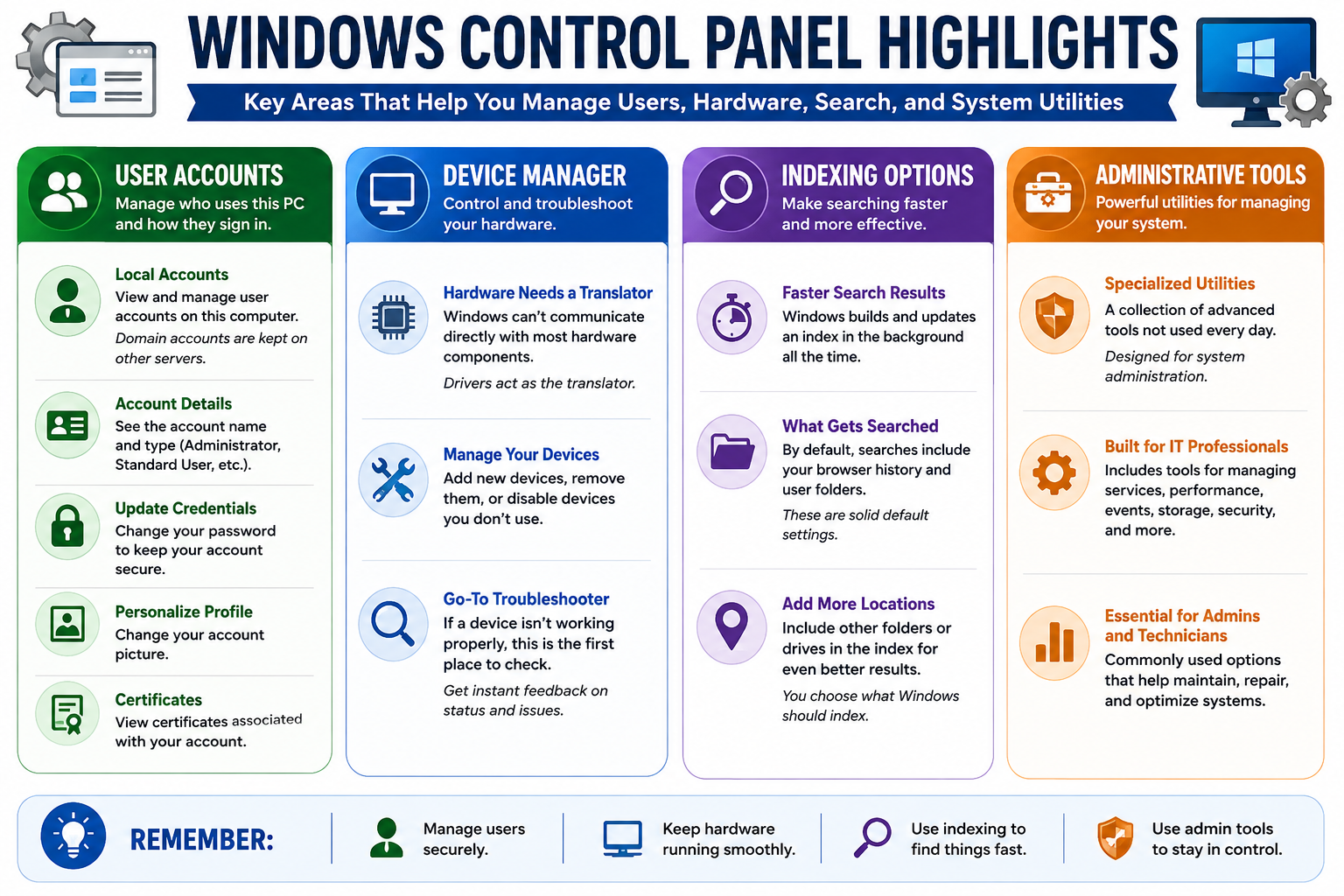
Several Control Panel areas give technicians direct access to user management, hardware troubleshooting, Windows search behavior, and advanced system utilities.

Objective 1.6 is not only about knowing that Control Panel exists. You also need to recognize the specific applet or category that fits a support scenario. Module 03 focuses on four areas that show up often in real troubleshooting and certification questions: User Accounts, Device Manager, Indexing Options, and Administrative Tools.

These tools sit at different layers of Windows. User Accounts controls who can sign in and what type of local account they use. Device Manager focuses on installed hardware and drivers. Indexing Options controls how Windows builds its search database. Administrative Tools provides access to more advanced utilities for managing services, events, storage, performance, security, and system maintenance.

User Accounts: Manage Local Sign-In And Account Settings

User Accounts is the Control Panel area for managing local users and account-related settings on the computer. A technician may use it to view account types, manage local account details, change passwords, adjust profile-related options, or access certificate-related settings tied to the user account.

This area is most useful when the scenario involves a local Windows account, a user needing a password change, a profile picture adjustment, or basic account-type verification. It is important to separate local accounts from domain accounts. Domain accounts are managed on domain infrastructure such as Active Directory, not fully controlled from the local User Accounts applet.

  • Local accounts: view and manage users that exist on the local PC.
  • Account details: identify account names and account types such as Standard User or Administrator.
  • Credential updates: change passwords or related sign-in settings when allowed.
  • Profile personalization: adjust user-facing profile options such as account picture.
  • Certificates: view certificates associated with the user account when certificate tasks are required.

Device Manager: Hardware And Driver Troubleshooting

Device Manager is the primary Windows tool for viewing installed hardware and managing device drivers. Windows does not communicate directly with most hardware components in a simple one-size-fits-all way. Drivers act as translators between Windows and the device. If the driver is missing, corrupted, disabled, outdated, or incompatible, the hardware may not work correctly even if the device is physically connected.

Use Device Manager when the clue mentions a device that is not working, a driver issue, disabled hardware, a device status warning, or hardware that needs to be updated, removed, or reinstalled. It provides feedback through device categories, status messages, warning icons, properties, and driver controls.

  • Check device status: confirm whether Windows detects the device and reports a problem.
  • Manage drivers: update, roll back, disable, enable, uninstall, or reinstall device drivers.
  • Add or remove devices: support hardware changes and clean up devices no longer used.
  • First troubleshooting stop: use it when hardware is installed but not functioning correctly.

Indexing Options: Make Windows Search Faster

Indexing Options controls what Windows includes in its search index. The index is a background database that helps Windows return search results faster. Instead of scanning every location from scratch each time, Windows builds and updates an index of selected locations and content.

By default, Windows indexes common user-focused locations such as user folders and browser-related history. A technician can add more locations when users need faster search results for specific folders or drives. However, indexing too much can increase background activity, so the best configuration balances search needs with performance.

  • Faster results: Windows builds and updates the search index in the background.
  • Default scope: common user folders and browser-related search locations are typically included.
  • Additional locations: add folders or drives when users frequently search them.
  • Troubleshooting clue: slow or incomplete search results may point to indexing configuration or rebuild options.

Administrative Tools: Advanced Utilities For Technicians

Administrative Tools, also known in newer Windows versions as Windows Tools, collects advanced utilities used for system management. These tools are not usually needed for casual daily use, but they are essential for technicians and administrators who maintain, repair, secure, and optimize Windows systems.

Administrative Tools can include utilities related to services, event logs, task scheduling, storage, performance monitoring, local security policy, computer management, memory diagnostics, and more. The exact list can vary by Windows version and edition, but the role is consistent: it gives experienced users access to deeper management utilities.

  • Specialized utilities: tools designed for system administration and troubleshooting.
  • IT professional focus: common access point for services, events, storage, performance, security, and maintenance tools.
  • Use with care: many tools can change system behavior, so inspect first and document changes.
  • Best clue: the scenario asks for an advanced Windows utility rather than a basic Settings page.

How These Areas Work Together

These Control Panel highlights often connect during real troubleshooting. For example, a user may report that a scanner is not working. Device Manager can confirm whether Windows sees the hardware and whether the driver is healthy. User Accounts can confirm whether the user has the correct access level. Administrative Tools may help review services or event logs. If the user cannot find scanned files quickly, Indexing Options may affect search behavior.

User Accounts

Use when the clue involves local users, account types, credentials, profile options, or user certificates.

Device Manager

Use when the clue involves hardware, drivers, disabled devices, warning icons, or device status.

Indexing Options

Use when the clue involves Windows Search speed, searchable locations, or missing search results.

Administrative Tools

Use when the clue points to advanced utilities for services, logs, storage, performance, security, or maintenance.

Technician Workflow

  1. Identify the layer: determine whether the issue is user access, hardware, search, or advanced administration.
  2. Open the right Control Panel area: avoid using a powerful tool when a simpler applet directly matches the issue.
  3. Inspect before changing: check account type, device status, indexing scope, or utility output first.
  4. Make a targeted change: adjust only the account, driver, search location, or admin setting that matches the evidence.
  5. Verify the result: sign in, test the device, search again, or review system behavior after the change.
  6. Document the work: record what tool was used, what changed, and any follow-up needed.

Exam Clues To Remember

  • Local account, password, account type, or profile picture: think User Accounts.
  • Domain account management: remember that domain accounts are managed on domain services, not only on the local PC.
  • Hardware not working, warning icon, missing driver, or disabled device: think Device Manager.
  • Search is slow, incomplete, or needs more folders included: think Indexing Options.
  • Services, logs, storage, scheduled tasks, performance, security tools, or advanced utilities: think Administrative Tools.
  • Risk reminder: advanced tools can affect the system broadly, so verify backups and document changes.
Technician workflow: match the problem layer to the Control Panel area: users in User Accounts, hardware in Device Manager, search behavior in Indexing Options, and advanced maintenance in Administrative Tools.

Bottom line: Control Panel highlights help technicians manage users securely, keep hardware running smoothly, make Windows Search useful, and reach the administrative utilities needed to stay in control.

Windows Control Panel highlights infographic covering User Accounts, Device Manager, Indexing Options, and Administrative Tools
Use these Control Panel areas to manage users, troubleshoot hardware, tune search, and access advanced administrative utilities.
A+
Module 04

Module 4 - Master Your File Explorer

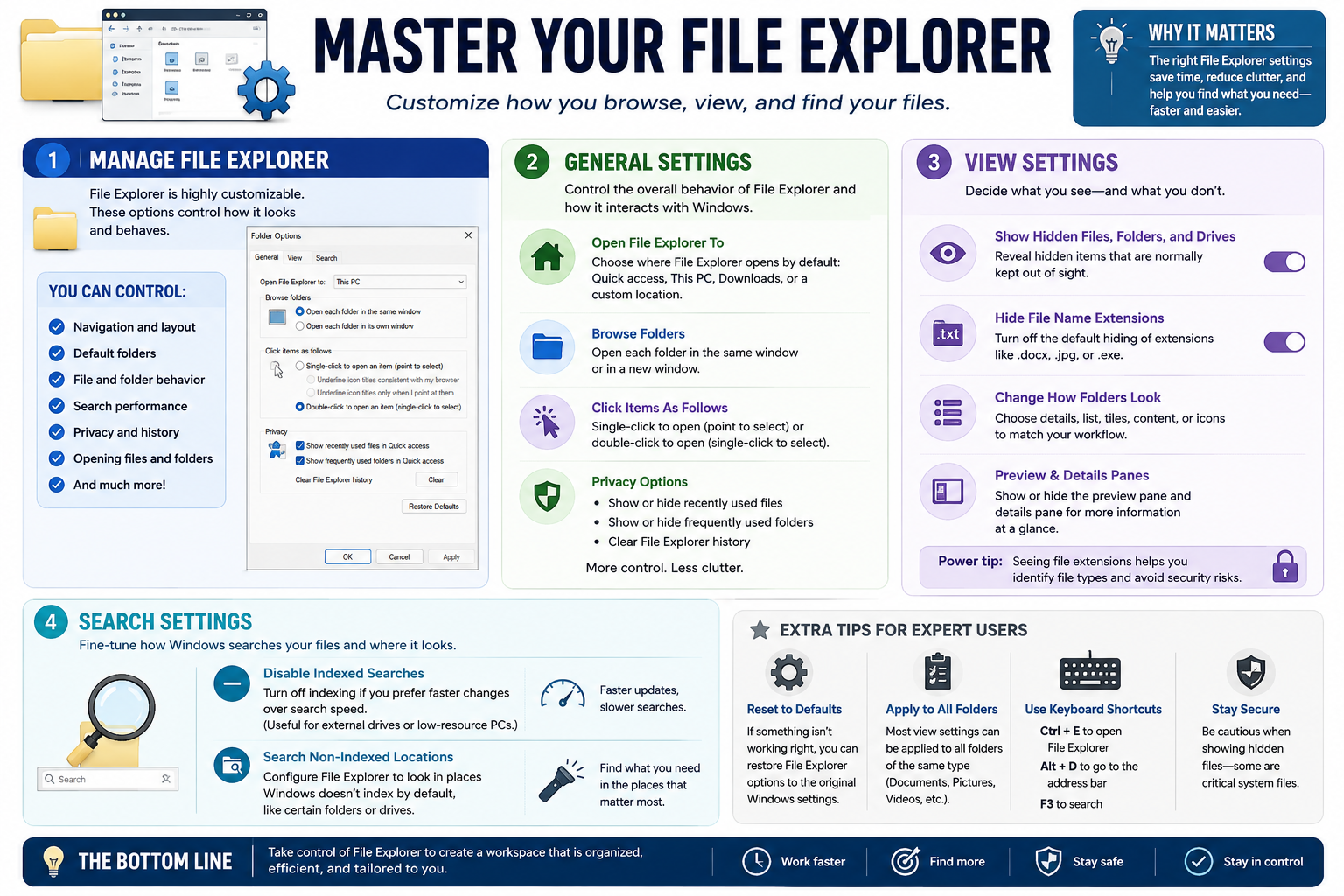
File Explorer Options let technicians control how users browse folders, view file details, search for data, and reduce clutter while still keeping important security cues visible.

File Explorer is the everyday Windows interface for finding, opening, moving, copying, renaming, and organizing files. Because users spend so much time there, small configuration choices can have a big impact on productivity and troubleshooting. Objective 1.6 expects you to know that File Explorer behavior can be customized and to recognize when those settings are the right answer for a user scenario.

The Control Panel applet historically called File Explorer Options, and previously Folder Options, controls the way File Explorer opens, displays folders, remembers history, shows hidden items, handles extensions, and searches file locations. These settings are especially useful when a user cannot find a file, sees too much clutter, cannot identify file types, needs hidden folders visible for troubleshooting, or wants File Explorer to open to a specific starting location.

Manage File Explorer Behavior

File Explorer Options provide centralized control over navigation, layout, default folders, file and folder behavior, search performance, privacy, history, and how items open. In a support scenario, this is the right place when the problem is not that a file is damaged, but that the user cannot browse, view, or search files in the way they need.

For example, a user may expect File Explorer to open directly to This PC instead of Quick access. Another user may want frequently used folders hidden for privacy. A technician troubleshooting a suspicious file may need file extensions visible so that invoice.pdf.exe is not mistaken for a normal document. These are File Explorer Options scenarios.

General Settings: Control The Starting Experience

The General tab controls broad File Explorer behavior. It includes where File Explorer opens by default, whether folders open in the same window or a new window, whether items open with a single-click or double-click, and whether recent files and frequent folders appear in Quick access.

  • Open File Explorer to: choose a starting point such as Quick access, This PC, Downloads, or another available location depending on Windows version.
  • Browse folders: open each folder in the same window for a cleaner workflow or in a new window for side-by-side browsing.
  • Click items as follows: choose single-click to open or double-click to open based on user preference or accessibility need.
  • Privacy options: show or hide recently used files and frequently used folders, and clear File Explorer history when needed.

Privacy settings matter on shared systems, classroom devices, labs, front-desk PCs, and any computer where users do not want recent file activity displayed in Quick access. Clearing File Explorer history can reduce clutter and remove recently used items from view, but it does not delete the original files.

View Settings: Decide What Users Can See

The View tab controls the visibility and presentation of files and folders. This is one of the most important File Explorer areas for technicians because it affects security awareness and troubleshooting visibility. When hidden files or file extensions are not shown, users may miss important clues.

Showing hidden files, folders, and drives is useful when troubleshooting application data, profile folders, system support files, malware cleanup locations, or other items Windows normally keeps out of sight. However, hidden files are often hidden for a reason. Users should not randomly edit or delete them unless they know exactly what the item does.

File name extensions are especially important. Windows may hide extensions for known file types by default, which can make files look less suspicious than they are. Showing extensions helps technicians and users distinguish .docx, .jpg, .zip, .bat, .ps1, and .exe files. This matters for security, software installation, malware awareness, and file compatibility.

  • Show hidden files, folders, and drives: reveal items normally hidden from casual users.
  • Hide file name extensions: disabling this option helps users see true file types.
  • Folder views: choose details, list, tiles, content, or icons to match the workflow.
  • Preview and details panes: display file previews or metadata without opening the file.
  • Apply to folders: reuse the current view style across folders of the same type.

Search Settings: Tune How Windows Finds Files

The Search tab controls how File Explorer searches. Windows normally uses indexed locations to return fast results. The index works well for common user folders, but some files may live in folders or drives that are not indexed. Search settings help decide whether File Explorer uses the index, searches non-indexed locations, or searches more deeply when needed.

Disabling indexed searches can make search behavior more current in some cases because Windows searches directly instead of relying on the index, but it can also make searches slower. Searching non-indexed locations is useful for external drives, uncommon storage paths, or folders Windows does not index by default. The technician must balance speed, accuracy, and resource impact.

  • Indexed search: faster because Windows searches its prepared database.
  • Non-indexed locations: useful when data is stored outside common indexed folders.
  • External or low-resource systems: may need careful search settings to avoid performance problems.
  • Missing results clue: check whether the target location is indexed or included in the search scope.

Security And Troubleshooting Value

File Explorer Options are not just cosmetic. They help technicians see what is really happening on the system. Hidden files can reveal application data, profile folders, configuration files, and suspicious locations. File extensions can reveal risky executable files disguised with friendly names. Details view can show file size, date modified, type, and location clues. Search settings can help locate missing files or confirm whether Windows is searching the right places.

Work Faster

Choose default views, starting locations, and search behavior that match the user's workflow.

Find More

Add locations, search non-indexed folders, and use details to locate the correct file faster.

Stay Safe

Show extensions and be careful with hidden files so users can recognize risky file types.

Stay In Control

Reset defaults, clear history, apply folder views, and document preference changes.

Helpful Shortcuts And Expert Tips

Technicians should know a few fast ways to work with File Explorer. Windows key + E opens File Explorer quickly. Alt + D moves focus to the address bar so you can type or copy a path. F3 focuses search. Resetting File Explorer Options can restore original behavior if a user's browsing experience becomes confusing.

Use Apply to Folders when a user wants the same layout across many similar folders, such as Documents, Pictures, or Videos. Use Reset to Defaults when custom view or browsing changes have created confusion and the user wants the standard Windows behavior back.

Technician Workflow

  1. Identify the complaint: determine whether the issue is browsing, visibility, privacy, file type recognition, folder layout, or search.
  2. Open File Explorer Options: use Control Panel or File Explorer settings to reach General, View, and Search options.
  3. Inspect the current settings: check hidden items, file extensions, recent files, default open location, and search scope.
  4. Make one targeted change: adjust the option that directly addresses the user's issue.
  5. Test with the user: open File Explorer, browse folders, search for the target file, or verify extensions are visible.
  6. Document preference changes: note settings that affect privacy, security visibility, or shared-device behavior.

Exam Clues To Remember

  • File Explorer opens to the wrong starting location: check General settings.
  • Recent files or frequent folders should not appear: check privacy options or clear File Explorer history.
  • Need to see hidden files or folders: check View settings.
  • Need to identify true file types: show file name extensions.
  • Search does not find files in an uncommon location: check Search settings and indexing behavior.
  • Need the same layout across many folders: use Apply to Folders.
  • File Explorer behavior is messy or confusing: consider Reset to Defaults.
Technician workflow: choose the File Explorer option that matches the user problem, show extensions when security matters, reveal hidden files only when needed, tune search thoughtfully, and verify the user can find what they need.

Bottom line: File Explorer Options help users browse, view, search, and protect files more effectively. Good settings reduce clutter, improve visibility, speed up searching, and make risky file types easier to spot.

Master your File Explorer infographic showing General settings, View settings, Search settings, and expert tips
Customize File Explorer behavior through General, View, and Search settings to improve browsing, visibility, privacy, and file search.
A+
Module 05

Module 5 - Power Options Explained

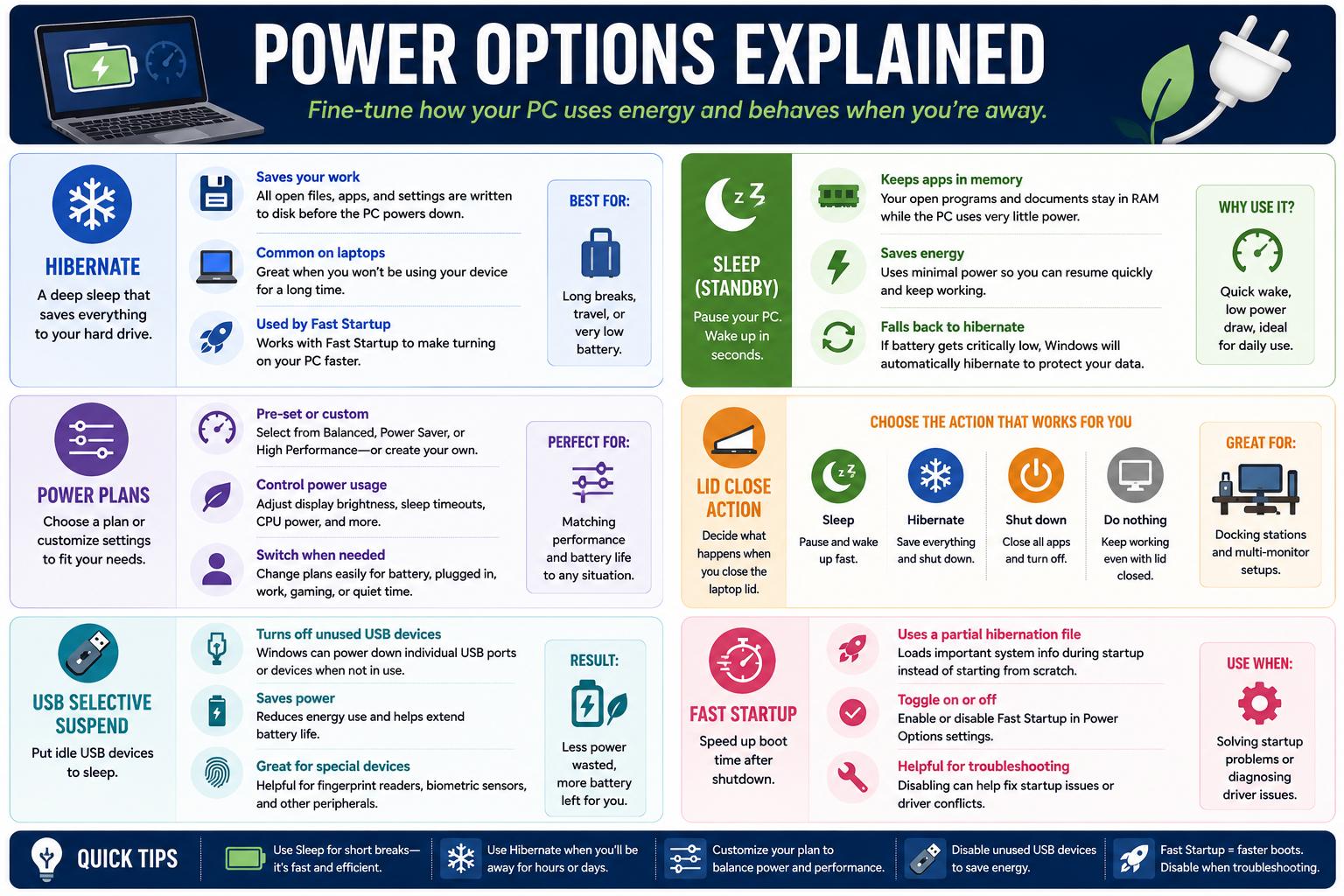
Power Options control how Windows balances performance, battery life, startup speed, device behavior, and what happens when a user walks away from the computer.

Power management is more than saving battery. In Windows support, power settings affect user productivity, laptop behavior, USB devices, startup troubleshooting, docking stations, display timeouts, sleep states, and data protection. Objective 1.6 expects technicians to recognize where power-related settings live and choose the option that matches the user's scenario.

The most important power concepts in this module are Hibernate, Sleep, Power Plans, Lid Close Action, USB Selective Suspend, and Fast Startup. Each one changes a different part of the user experience. Some settings help users resume faster, some preserve battery, some protect open work, and some should be disabled temporarily during troubleshooting.

Hibernate: Save The Session To Disk

Hibernate is a deep power-saving state that saves the current session to storage before the computer powers down. Open files, applications, and system state are written to disk, allowing the user to resume later without keeping everything active in RAM. This is especially useful for laptops that will not be used for a long time.

Hibernate uses less power than Sleep because the system is effectively powered off after saving the session. The tradeoff is that resuming from Hibernate is usually slower than waking from Sleep. It is a strong option for long breaks, travel, very low battery situations, or when the user wants open work preserved without draining power.

  • Saves open work: writes open files, apps, and settings to disk before powering down.
  • Common on laptops: useful when the device will be unused for hours or days.
  • Fast Startup connection: Windows can use hibernation technology to speed up startup after shutdown.
  • Best for: long breaks, travel, or low-battery protection.

Sleep: Fast Resume With Low Power Use

Sleep, also called standby, pauses the computer while keeping open apps and documents in memory. The system uses a small amount of power so the user can wake the device quickly and continue working. Sleep is ideal for short breaks during the day.

The benefit of Sleep is speed. The drawback is that it still requires power. If a laptop battery becomes critically low, Windows may automatically fall back to Hibernate to protect the user's open data. This is why technicians should understand both states instead of treating them as the same thing.

  • Keeps apps in memory: open programs and files stay in RAM.
  • Saves energy: uses much less power than leaving the system fully awake.
  • Fast wake: lets users resume in seconds.
  • Fallback behavior: Windows may hibernate when battery level becomes critically low.

Power Plans: Match Energy Use To The Situation

Power Plans are collections of settings that control how Windows uses power. They can affect display brightness, sleep timeouts, processor behavior, USB power behavior, wireless adapter settings, and other hardware-related choices. Common plan types include Balanced, Power Saver, and High Performance, though exact names and availability can vary by hardware and Windows version.

Use a balanced plan for general work, a power-saving plan when battery life matters, and a high-performance plan when performance is more important than power consumption. Technicians can also customize plans for specific business needs, such as presentation systems, kiosks, shared lab computers, docking stations, or mobile users.

  • Pre-set or custom: choose an existing plan or adjust advanced settings.
  • Control power usage: tune display brightness, sleep timers, CPU behavior, and more.
  • Switch when needed: use different plans for battery, plugged-in work, gaming, presentations, or quiet operation.
  • Best fit: match performance and battery life to the user's scenario.

Lid Close Action: Choose What The Laptop Does

Lid close action determines what happens when a laptop lid is closed. Windows can sleep, hibernate, shut down, or do nothing. This setting matters for mobile users, docking stations, multi-monitor setups, and office workstations where the laptop may remain closed while external displays, keyboards, and mice are used.

The right answer depends on the scenario. Sleep is useful when the user wants quick resume. Hibernate is useful when the device may be stored or transported. Shut down is useful when the user wants all apps closed and the computer fully powered off. Do nothing is useful for docking stations and external monitor setups, but it can waste power or create heat if used carelessly.

  • Sleep: pauses the system and wakes quickly.
  • Hibernate: saves the session and powers down.
  • Shut down: closes apps and turns the computer off.
  • Do nothing: keeps the computer running even when the lid is closed.

USB Selective Suspend: Put Idle USB Devices To Sleep

USB Selective Suspend allows Windows to power down individual USB ports or devices when they are idle. This reduces energy use and can extend battery life, especially on laptops with multiple connected peripherals.

This setting is helpful for saving power, but it can sometimes cause problems with special devices that do not wake correctly. Fingerprint readers, biometric sensors, docking peripherals, external storage, adapters, and other USB devices may behave unpredictably if they are suspended at the wrong time. When a USB device randomly disconnects, fails to wake, or stops responding after idle time, USB Selective Suspend is a setting to check.

  • Turns off unused USB devices: allows idle USB ports or devices to sleep.
  • Saves power: reduces energy use and helps battery life.
  • Special-device clue: check this setting for biometric devices, external peripherals, or devices that fail after idle time.
  • Troubleshooting option: disable temporarily if USB power management appears to cause the issue.

Fast Startup: Faster Boot After Shutdown

Fast Startup is a Windows feature that speeds up startup after shutdown by using a partial hibernation process. Instead of starting every system component from scratch, Windows saves important system state information and reloads it during the next boot.

Fast Startup is useful for users who want quicker boots, but it can complicate troubleshooting. Some driver, firmware, update, dual-boot, or hardware detection issues may persist because the system is not performing a completely fresh startup. Disabling Fast Startup can help when troubleshooting startup problems, driver conflicts, hardware detection issues, or situations where a true cold boot is needed.

  • Uses a partial hibernation file: saves system startup information for faster boot.
  • Can be toggled: enable or disable it in Power Options settings.
  • Helpful for speed: reduces boot time after shutdown.
  • Helpful to disable: when diagnosing startup, driver, update, or hardware detection issues.

Choosing The Right Power Setting

Power settings should match how the device is used. A mobile laptop user who travels frequently may need Hibernate, battery-conscious power plans, and lid close behavior that protects work. A desktop user may focus more on performance, display timeout, and USB device stability. A docked laptop user may need the lid close action set to Do nothing while external monitors are connected.

Sleep

Best for short breaks when the user wants fast resume and low power draw.

Hibernate

Best for long breaks, travel, or low battery when open work must be preserved.

Power Plans

Best for balancing performance, battery life, display behavior, and CPU power use.

Fast Startup

Best for faster boots, but disable when troubleshooting startup or driver issues.

Technician Workflow

  1. Identify the device type: laptop, desktop, tablet, docked laptop, shared PC, or mobile workstation.
  2. Clarify the symptom: battery drain, slow startup, USB disconnects, sleep issues, lid behavior, or performance complaints.
  3. Check the current power plan: compare settings for plugged-in and battery operation.
  4. Adjust the specific setting: change sleep, hibernate, lid action, USB suspend, display timeout, or Fast Startup as needed.
  5. Test the behavior: close the lid, sleep and wake, reboot, reconnect USB devices, or monitor battery life.
  6. Document the change: record the original setting, new setting, reason, and user impact.

Exam Clues To Remember

  • Short break and quick wake: use Sleep.
  • Long break, travel, or low battery: use Hibernate.
  • Need to balance performance and battery life: use Power Plans.
  • Laptop should keep working while closed on a dock: adjust lid close action to Do nothing when appropriate.
  • USB device stops responding after idle time: check USB Selective Suspend.
  • Startup or driver issue persists after shutdown: consider disabling Fast Startup for troubleshooting.
Technician workflow: match the power setting to the user's device and workflow, protect open work, test both battery and plugged-in behavior, and disable power-saving features temporarily when they interfere with troubleshooting.

Bottom line: Power Options help Windows save energy, protect open work, wake quickly, control laptop lid behavior, manage USB power, and troubleshoot startup issues. Choose the setting that fits the user's work style and the support scenario.

Power Options Explained infographic covering Hibernate, Sleep, Power Plans, Lid Close Action, USB Selective Suspend, and Fast Startup
Use Power Options to tune sleep, hibernate, lid behavior, USB power saving, startup speed, performance, and battery life.
A+
Module 06

Module 6 - Windows Settings Made Simple

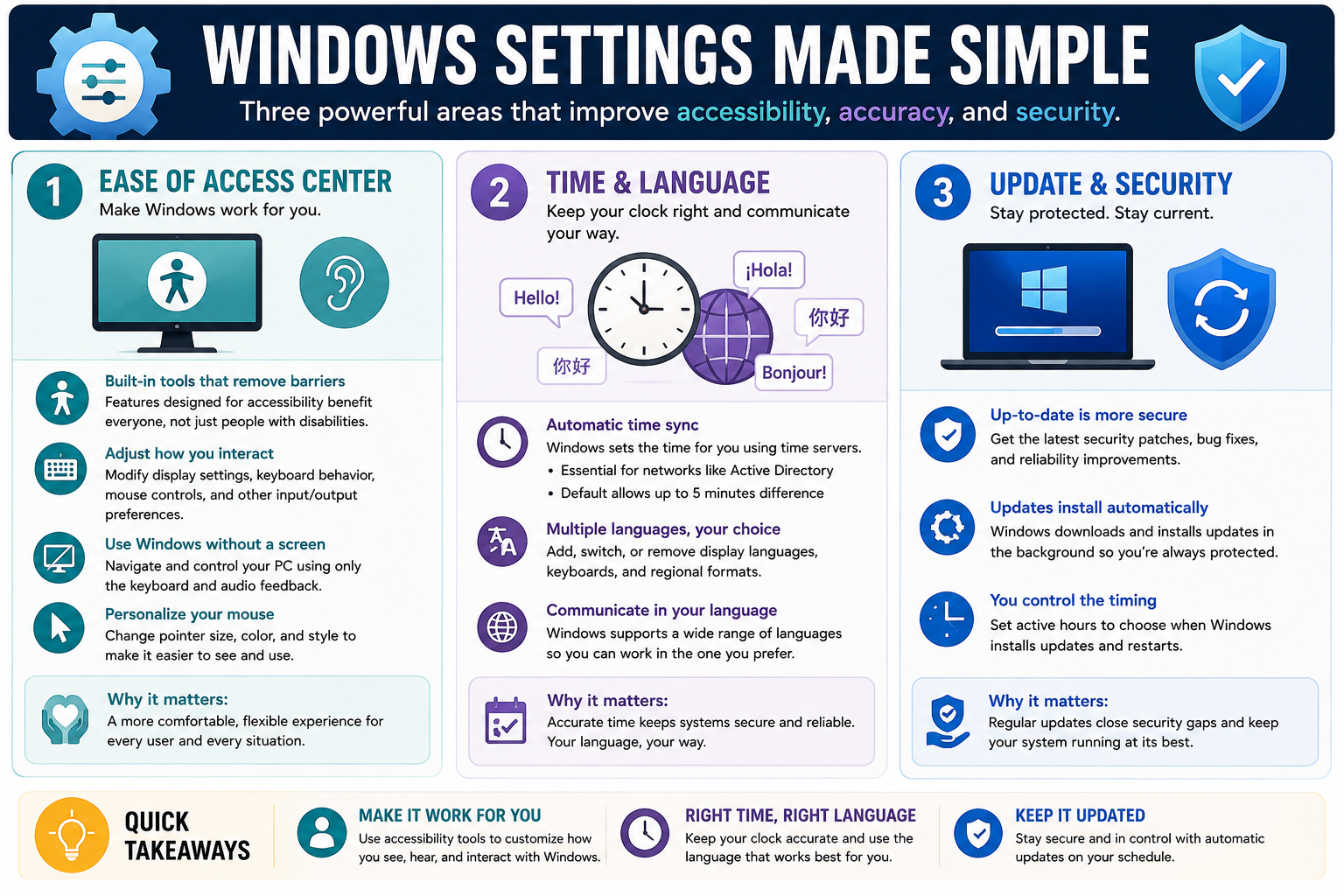
Windows Settings includes modern configuration areas that help technicians improve accessibility, correct time and language behavior, and keep systems secure through updates.

Objective 1.6 includes both classic Control Panel tools and modern Settings categories. A strong technician knows how to move between both interfaces. Some settings still appear in Control Panel, some have moved into Settings, and some overlap between the two. The exam may describe the task, not the menu name, so you need to recognize the clue and choose the best location.

This module focuses on three high-value Settings areas: Ease of Access, Time & Language, and Update & Security. These categories affect how users interact with Windows, how accurately the system tracks time and regional settings, and how Windows receives security patches and reliability updates.

Ease Of Access Center: Make Windows Work For The User

Ease of Access, called Accessibility in newer Windows versions, contains tools that make Windows easier to see, hear, control, and navigate. These features are designed for accessibility, but they benefit many users, not only users with documented disabilities. A technician may use them for temporary injuries, vision needs, hearing needs, motor control limitations, classroom accommodations, shared systems, or user preference.

Accessibility settings can change display behavior, keyboard behavior, mouse behavior, pointer size, color contrast, captions, audio feedback, magnification, narrator tools, and other input/output preferences. These settings matter because the goal is not just to make the computer technically functional. The goal is to make the computer usable for the person sitting in front of it.

  • Built-in tools: Windows includes accessibility features without requiring third-party software for many common needs.
  • Interaction settings: adjust keyboard, mouse, display, audio, speech, and input behavior.
  • Use without a screen: support keyboard navigation and audio feedback with tools such as Narrator.
  • Visual personalization: change pointer size, color, contrast, text size, and other visibility options.
  • Support mindset: ask what the user needs to accomplish before changing settings.

Time & Language: Accuracy, Region, And Communication

Time & Language controls clock settings, time zone behavior, language packs, keyboard layouts, speech options, and regional formats. These settings are easy to underestimate, but incorrect time or language settings can cause real support problems. Authentication, certificates, domain logons, file timestamps, scheduled tasks, calendar entries, update behavior, and application logs can all depend on accurate time.

In domain environments, time accuracy is especially important. Active Directory and Kerberos authentication rely on time synchronization. If the system clock is too far off, sign-in and resource access can fail. Windows normally synchronizes time with time servers, but a technician may need to verify the time zone, sync status, or domain time behavior when troubleshooting authentication or scheduling issues.

Language settings matter when a user needs a different display language, keyboard layout, regional date and number format, or input method. A user may report that the keyboard types the wrong characters, dates appear in an unfamiliar format, or applications use the wrong language. These are Time & Language clues.

  • Automatic time sync: Windows can set time using network time servers.
  • Domain importance: accurate time is essential for Active Directory and secure authentication.
  • Time drift clue: Windows defaults commonly allow only a small time difference for secure domain authentication.
  • Multiple languages: add, switch, remove, or prioritize display languages and keyboards.
  • Regional formats: adjust date, time, currency, number, and keyboard behavior to fit the user or location.

Update & Security: Stay Protected And Current

Update & Security is the Settings area that helps keep Windows patched, reliable, and protected. Windows updates deliver security fixes, bug fixes, driver updates in some cases, reliability improvements, and feature improvements depending on Windows version, edition, and policy. Keeping Windows updated is one of the most important baseline security practices a technician can support.

Updates often download and install automatically, but technicians and users still control parts of the timing. Active hours help prevent restarts during expected working time. Restart options, update history, optional updates, delivery behavior, and recovery options may also matter depending on the scenario. In managed environments, update behavior may be controlled by Group Policy, Microsoft Intune, WSUS, or another management platform.

Update troubleshooting should be careful and evidence-based. A failed update may point to storage space, network issues, update service problems, restart requirements, policy restrictions, incompatible drivers, or corrupted update components. The best answer is usually to check status and error information before forcing major repairs.

  • More secure: current systems receive security patches and reliability fixes.
  • Automatic updates: Windows can download and install updates in the background.
  • User timing: active hours and restart settings help reduce work disruption.
  • Managed environments: organization policies may control when and how updates install.
  • Support value: update history and status help technicians prove whether a system is current.

How These Settings Work Together

Accessibility, time, language, and updates may seem unrelated, but they all affect whether Windows is usable and trustworthy. Accessibility helps the user interact with the system. Time and language help the system communicate correctly with users, networks, and services. Updates protect the system against known problems and security risks.

Make It Work For You

Use accessibility options to adjust how the user sees, hears, navigates, types, points, and interacts with Windows.

Right Time

Keep the clock and time zone accurate so authentication, logs, updates, and scheduled tasks behave correctly.

Right Language

Configure display language, keyboard layout, speech, and regional formats for the user and location.

Keep It Updated

Use Windows Update settings to apply patches, manage restart timing, and verify update status.

Technician Workflow

  1. Identify the user impact: decide whether the problem affects accessibility, clock accuracy, language input, regional format, or update status.
  2. Open the matching Settings area: choose Ease of Access/Accessibility, Time & Language, or Update & Security.
  3. Check current state: verify active accessibility settings, time zone, sync status, installed languages, keyboard layout, update history, and pending restarts.
  4. Make one focused change: adjust only the setting that matches the user's need or the troubleshooting evidence.
  5. Test the result: confirm the user can interact with Windows, type correctly, authenticate, read dates/times correctly, or install updates successfully.
  6. Document the change: record settings changed, user preference, policy limitations, restart requirements, and next steps.

Exam Clues To Remember

  • User needs larger text, high contrast, pointer changes, narrator, keyboard assistance, or audio feedback: choose Ease of Access/Accessibility.
  • Keyboard types wrong symbols or user needs another language: choose Time & Language.
  • Wrong time zone, certificate/authentication issues, scheduled task timing, or bad log timestamps: verify Date & Time settings.
  • System needs patches, update history, active hours, restart timing, or recovery/update options: choose Update & Security.
  • Domain sign-in problems with incorrect clock: remember time synchronization matters for Active Directory authentication.
  • Managed PC update settings are unavailable: check whether organization policy controls updates.
Technician workflow: match the setting to the user need, verify the current configuration, make one careful change, test the user experience or security result, and document anything controlled by policy.

Bottom line: Windows Settings helps technicians make systems accessible, accurate, localized, secure, and current. Use Ease of Access for interaction needs, Time & Language for clock and communication settings, and Update & Security to keep Windows protected.

Windows Settings Made Simple infographic covering Ease of Access Center, Time and Language, and Update and Security
Use Windows Settings to improve accessibility, maintain accurate time and language settings, and keep systems updated and secure.
A+
Module 07

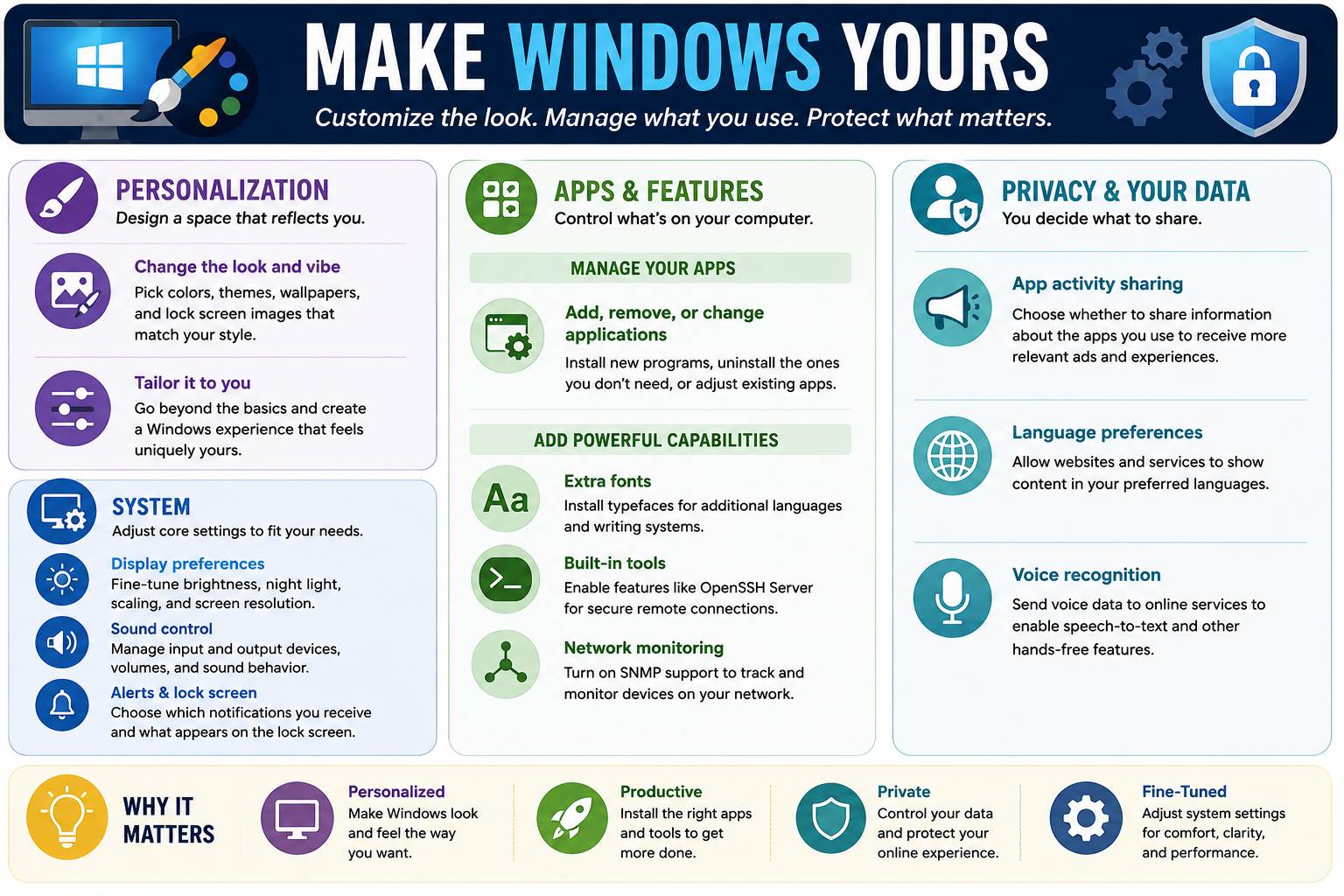
Module 7 - Make Windows Yours

Windows settings let users personalize the desktop, manage installed apps and optional features, adjust core system behavior, and control what data is shared.

Objective 1.6 includes many Windows configuration surfaces, and this module pulls together several modern Settings areas that affect the day-to-day user experience: Personalization, System, Apps & Features, and Privacy. These settings are not just cosmetic. They influence usability, productivity, security, application availability, notifications, display behavior, audio behavior, and how much information Windows and apps can access.

A good technician does not change these settings randomly. The goal is to match the setting to the user need, the business policy, and the support scenario. Some changes are preference-based, such as wallpaper or accent color. Others affect troubleshooting, security, compliance, or application functionality, such as app permissions, optional features, SNMP support, OpenSSH Server, display scaling, sound devices, and privacy choices.

Personalization: Customize The Look And Feel

Personalization controls the visual experience of Windows. Users can change backgrounds, themes, colors, lock screen images, Start menu behavior, taskbar behavior, and related appearance settings depending on the Windows version. These settings help users feel comfortable and productive, but they can also be important in shared environments, kiosks, labs, and managed business systems where a consistent interface is required.

Personalization settings are often user-specific. That means the change may apply to the signed-in user's profile rather than every account on the device. In managed environments, some personalization options may be restricted by policy. If a setting is unavailable or reverts after sign-in, check whether Group Policy, mobile device management, or organizational configuration is controlling it.

  • Background and themes: choose wallpapers, color themes, and overall visual style.
  • Lock screen: configure what appears before sign-in.
  • Taskbar and Start behavior: adjust how users launch apps and navigate Windows.
  • User experience: tailor Windows so the workspace feels familiar and efficient.

System Settings: Tune Core User Experience

System settings include many core options that affect how the computer behaves. These settings can include display preferences, sound control, notifications, focus options, storage, clipboard, remote desktop availability, multitasking, and power-related links depending on the Windows version.

Display preferences are common troubleshooting targets. A user may report that text is too small, the screen is blurry, an external monitor is arranged incorrectly, night light is unwanted, or scaling is wrong. Sound settings are also common: users may need the correct output device, input device, volume level, or app-specific sound behavior. Alerts and lock screen choices control what notifications users see and what information appears when the device is locked.

  • Display preferences: adjust brightness, night light, scaling, resolution, and monitor arrangement.
  • Sound control: manage input devices, output devices, volume, and audio behavior.
  • Alerts and notifications: choose which notifications appear and when.
  • Lock screen information: control what appears before the user signs in.

Apps & Features: Control What Is Installed

Apps & Features is a modern Settings area for managing installed applications and optional Windows capabilities. It is commonly used to install, uninstall, modify, repair, reset, or review apps. It can also provide access to optional features that add capabilities to Windows.

Optional features matter for support scenarios because Windows does not always install every component by default. A technician may need to add fonts for additional languages, enable tools such as OpenSSH Client or OpenSSH Server, install RSAT tools on supported editions, or turn on SNMP support for monitoring network devices. The exam may describe a missing Windows capability rather than saying "go to Optional Features."

  • Manage apps: install, uninstall, repair, reset, or modify applications where supported.
  • Remove clutter: uninstall apps the user or organization no longer needs.
  • Extra fonts: install typefaces for additional languages and writing systems.
  • Built-in tools: add optional Windows capabilities such as OpenSSH components when needed.
  • Network monitoring: enable SNMP support when devices need to be tracked and monitored.

Privacy & Your Data: Decide What Apps Can Access

Privacy settings control what information Windows and apps can access or share. These settings can affect app functionality, advertising personalization, diagnostics, speech recognition, location, camera, microphone, contacts, calendar, background apps, and other permissions depending on Windows version and policy.

Privacy is a balance between functionality and data protection. If an app cannot use the microphone, camera, location, or speech services, the issue may be a privacy permission rather than a driver problem. If a user wants fewer personalized experiences or less data sharing, privacy settings are the right place to review. In organizations, privacy settings may also be governed by compliance requirements or management policy.

  • App activity sharing: choose whether app usage information can support ads or personalized experiences.
  • Language preferences: allow websites and services to provide content in preferred languages.
  • Voice recognition: control speech-to-text and online voice service behavior.
  • Permission troubleshooting: check camera, microphone, location, and background app permissions when apps cannot access expected features.

How These Settings Support Users

Personalization, system behavior, app management, and privacy settings all shape the user's daily experience. A workstation that looks right, runs the correct apps, shows the correct notifications, uses the correct display and sound settings, and protects personal data is easier to support and easier to trust.

Personalized

Make Windows look and feel the way the user or organization expects.

Productive

Install the right apps, enable needed features, and remove software that no longer belongs.

Private

Control app permissions and data sharing so users understand what information is used.

Fine-Tuned

Adjust display, sound, notifications, lock screen, and core settings for comfort and clarity.

Technician Workflow

  1. Identify the user need: determine whether the request involves appearance, system behavior, apps, optional features, or privacy permissions.
  2. Check for policy control: verify whether the device is managed before assuming the user can change every setting.
  3. Open the matching Settings area: use Personalization, System, Apps, Optional Features, or Privacy based on the clue.
  4. Inspect before changing: review current app state, display settings, audio device, notification behavior, or permission status.
  5. Make one focused change: adjust only the setting that solves the problem or supports the documented request.
  6. Verify with the user: confirm the app works, the display is readable, audio uses the correct device, notifications behave correctly, or privacy access is set as intended.
  7. Document the outcome: record the setting changed, any policy limitation, user impact, and follow-up steps.

Exam Clues To Remember

  • Wallpaper, theme, colors, lock screen, Start, or taskbar: choose Personalization.
  • Brightness, scaling, screen resolution, sound device, notifications, or lock screen behavior: choose System settings.
  • Install, remove, repair, reset, or modify an app: choose Apps & Features.
  • Add OpenSSH, extra fonts, SNMP, or other Windows capabilities: choose Optional Features or Windows features as appropriate.
  • Camera, microphone, location, voice recognition, language preference, app activity, or data sharing: choose Privacy.
  • Setting unavailable or keeps reverting: check organizational policy or management controls.
Technician workflow: match the setting to the user's goal, check whether policy controls it, make one deliberate change, test the experience, and document the reason.

Bottom line: Windows can be customized without losing control. Use Personalization for look and feel, System for core behavior, Apps & Features for installed software and optional capabilities, and Privacy for app permissions and data sharing.

Make Windows Yours infographic covering Personalization, System, Apps and Features, and Privacy settings
Use Windows settings to customize appearance, manage apps and optional features, adjust core system behavior, and protect user data.
A+
Module 08

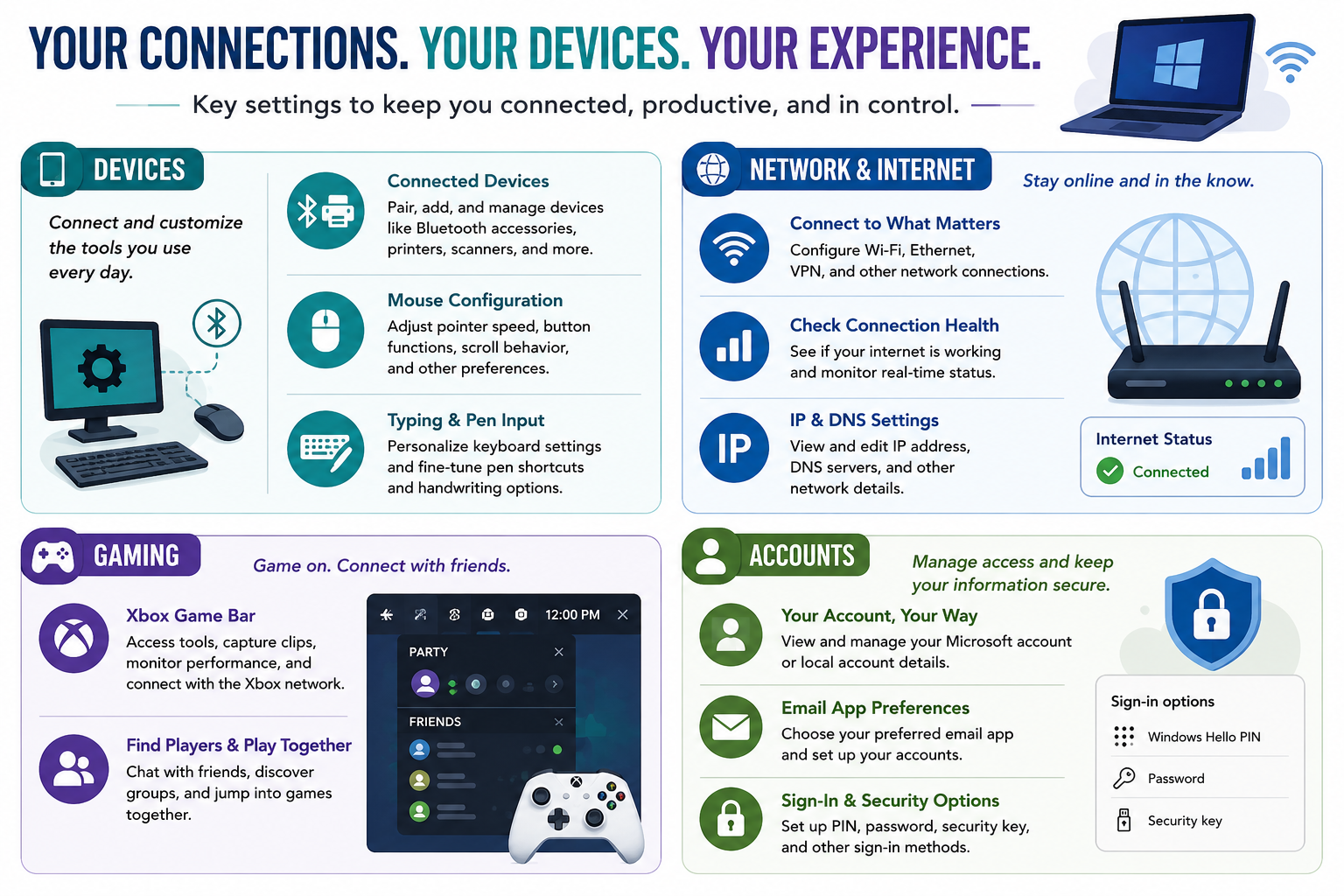
Module 8 - Your Connections, Your Devices, Your Experience

Windows settings help users stay connected, manage devices, customize input, control accounts, and tune experience-focused features without jumping straight into advanced administrative tools.

Objective 1.6 includes several Windows Settings areas that technicians should recognize quickly: Devices, Network & Internet, Gaming, and Accounts. These categories are practical because they touch the things users notice first: whether the mouse works correctly, whether Wi-Fi or VPN connects, whether a printer or Bluetooth device is paired, whether the right account is signed in, and whether Windows is sharing or securing the right information.

These settings are not replacements for every advanced tool. Device Manager is still better for driver status, Network Connections and command-line tools are better for deeper network troubleshooting, and Local Users and Groups or Active Directory tools may be better for business account administration. But for many end-user support calls, Settings is the cleanest first stop because it gives the technician a user-friendly view of the configuration that affects day-to-day productivity.

Devices: Connect And Customize Hardware

Devices settings focus on the tools people physically use with the computer. This includes Bluetooth accessories, printers, scanners, mice, keyboards, pens, touchpads, and other connected devices. A user may describe the problem as "my mouse feels weird," "my keyboard shortcut changed," "my printer disappeared," or "my Bluetooth headset will not connect." Those are strong Devices clues.

Use Devices settings when the issue is about adding, pairing, removing, or customizing a peripheral. For driver errors, missing hardware, disabled devices, or hardware resource problems, move into Device Manager. For printer queue issues, default printer behavior, or device properties, Devices and Printers or Printers & Scanners may also be part of the path.

  • Connected devices: add, pair, remove, and manage Bluetooth accessories, printers, scanners, and other peripherals.
  • Mouse configuration: adjust pointer speed, button behavior, scroll settings, and related preferences.
  • Typing and pen input: tune keyboard behavior, text suggestions, pen shortcuts, handwriting, and touch input options where supported.
  • Support clue: if the device is present but uncomfortable or misconfigured, start in Settings; if Windows cannot see it correctly, check drivers and Device Manager.

Network & Internet: Stay Connected

Network & Internet settings help technicians configure and verify connectivity. This area covers Wi-Fi, Ethernet, VPN, proxy, airplane mode, mobile hotspot, advanced adapter settings, data usage, and status information depending on the Windows version. A user may simply say "the internet is down," but a technician has to separate wireless connection problems, IP addressing problems, DNS problems, VPN problems, and adapter-level issues.

Network & Internet is useful because it provides a quick view of connection health before deeper troubleshooting begins. If the status shows disconnected, start with the physical or wireless connection. If the status shows connected but websites fail, check DNS, proxy, VPN, firewall, or browser settings. If the device has the wrong IP address or no default gateway, use adapter details and command-line tools such as ipconfig, ping, nslookup, and tracert to keep narrowing the problem.

  • Connect to what matters: configure Wi-Fi, Ethernet, VPN, proxy, and other network connections.
  • Check connection health: review whether Windows believes the device is online and which network is active.
  • IP and DNS settings: view or edit addressing, DNS, gateway, and adapter-related details when needed.
  • Troubleshooting clue: connected does not always mean working; verify IP configuration, name resolution, and reachability.

Gaming: Experience And Capture Features

Gaming settings are not only for entertainment systems. They control Xbox Game Bar, captures, game-related overlays, performance preferences, and social features tied to the Xbox network. On a personal PC, these settings may help users record clips, capture screenshots, monitor performance, or connect with friends. In a business or classroom environment, a technician may need to disable or restrict these features if they distract users, consume resources, or conflict with policy.

For A+ purposes, know that Gaming settings can affect overlays, screen recording, background capture, and game-related performance behavior. If a user reports unexpected capture shortcuts, performance overlays appearing, or game features interfering with work, this is a Gaming settings clue.

  • Xbox Game Bar: access capture tools, performance widgets, social tools, and Xbox network features.
  • Captures: control screenshots, recordings, storage locations, and background recording behavior.
  • Performance awareness: monitor system behavior during games or graphics-heavy workloads.
  • Policy clue: in managed environments, gaming features may be restricted to reduce distraction or data risk.

Accounts: Manage Identity And Sign-In

Accounts settings control who is signed in, how the user signs in, and what identity is connected to Windows. This area can show Microsoft account or local account details, work or school account connections, email and app account preferences, family settings, sync options, and sign-in options such as password, PIN, Windows Hello, and security keys depending on hardware and policy.

Account settings matter because identity affects access, synchronization, app licensing, cloud services, BitLocker recovery information, email setup, and user data. A sign-in problem may involve the local password, Microsoft account authentication, domain or work account policy, Windows Hello configuration, or a security key. Before changing account settings, verify whether the device is personally owned, domain joined, Entra ID joined, or managed by an organization.

  • Your account: view and manage Microsoft account, local account, work account, or school account details.
  • Email app preferences: choose preferred email apps and configure accounts used by Windows apps.
  • Sign-in and security options: configure PIN, password, Windows Hello, security key, and related sign-in methods.
  • Management clue: if account settings are unavailable, check domain, work/school account, or mobile device management policy.

How These Settings Work Together

Devices, networks, accounts, and experience settings often overlap. A Bluetooth headset may require device pairing, sound output selection, privacy permissions for the microphone, and a communication app account. A VPN issue may involve Network & Internet settings, account credentials, firewall rules, DNS, and organization policy. A printer problem may involve Devices settings, drivers, network connectivity, and user permissions.

Connected

Use Network & Internet to verify Wi-Fi, Ethernet, VPN, adapter status, IP addressing, and DNS configuration.

Productive

Use Devices settings to pair peripherals, tune mouse and keyboard behavior, and keep user tools working smoothly.

Secure

Use Accounts settings to review sign-in methods, account type, identity connections, and authentication options.

Experience-Focused

Use Gaming and personalization-related controls to manage capture, overlays, performance widgets, and user-facing features.

Technician Workflow

  1. Start with the symptom: determine whether the issue is device pairing, input behavior, connectivity, gaming/capture behavior, or account access.
  2. Open the matching Settings category: choose Devices, Network & Internet, Gaming, or Accounts based on the clue.
  3. Verify the current state: check connection status, paired devices, selected input options, account type, and sign-in configuration before changing anything.
  4. Check for management limits: identify whether policy, domain membership, work/school enrollment, or hardware support controls the available options.
  5. Make one focused change: pair the device, adjust the input setting, correct IP/DNS details, configure the sign-in option, or tune the gaming/capture feature.
  6. Test the real workflow: confirm the user can connect, print, type, point, sign in, access the app, or use the network service.
  7. Document the result: record the setting changed, the account or device affected, policy limits, and any follow-up action.

Exam Clues To Remember

  • Bluetooth, printer, scanner, mouse, keyboard, pen, touchpad, or typing behavior: think Devices.
  • Wi-Fi, Ethernet, VPN, proxy, adapter status, IP address, DNS, gateway, or connection health: think Network & Internet.
  • Xbox Game Bar, screen captures, recordings, gaming overlay, or game performance options: think Gaming.
  • Microsoft account, local account, work/school account, email app account, PIN, password, Windows Hello, or security key: think Accounts.
  • Setting unavailable or controlled by the organization: check policy, domain membership, or device management.
  • Device detected but not working correctly: Settings may tune behavior, but Device Manager may be required for driver-level troubleshooting.
Technician workflow: match the user-facing symptom to the right Settings category, verify the current configuration, check policy limits, make one careful change, test the workflow, and document the result.

Bottom line: Windows Settings gives technicians a practical path for everyday support. Use Devices for connected tools, Network & Internet for connectivity, Gaming for capture and overlay features, and Accounts for identity, sign-in, and security options.

Your Connections Your Devices Your Experience infographic covering Devices, Network and Internet, Gaming, and Accounts settings
Use Windows Settings to manage connected devices, network access, gaming and capture features, and account sign-in options.
A+
Module 09

Module 9 - Key Takeaways

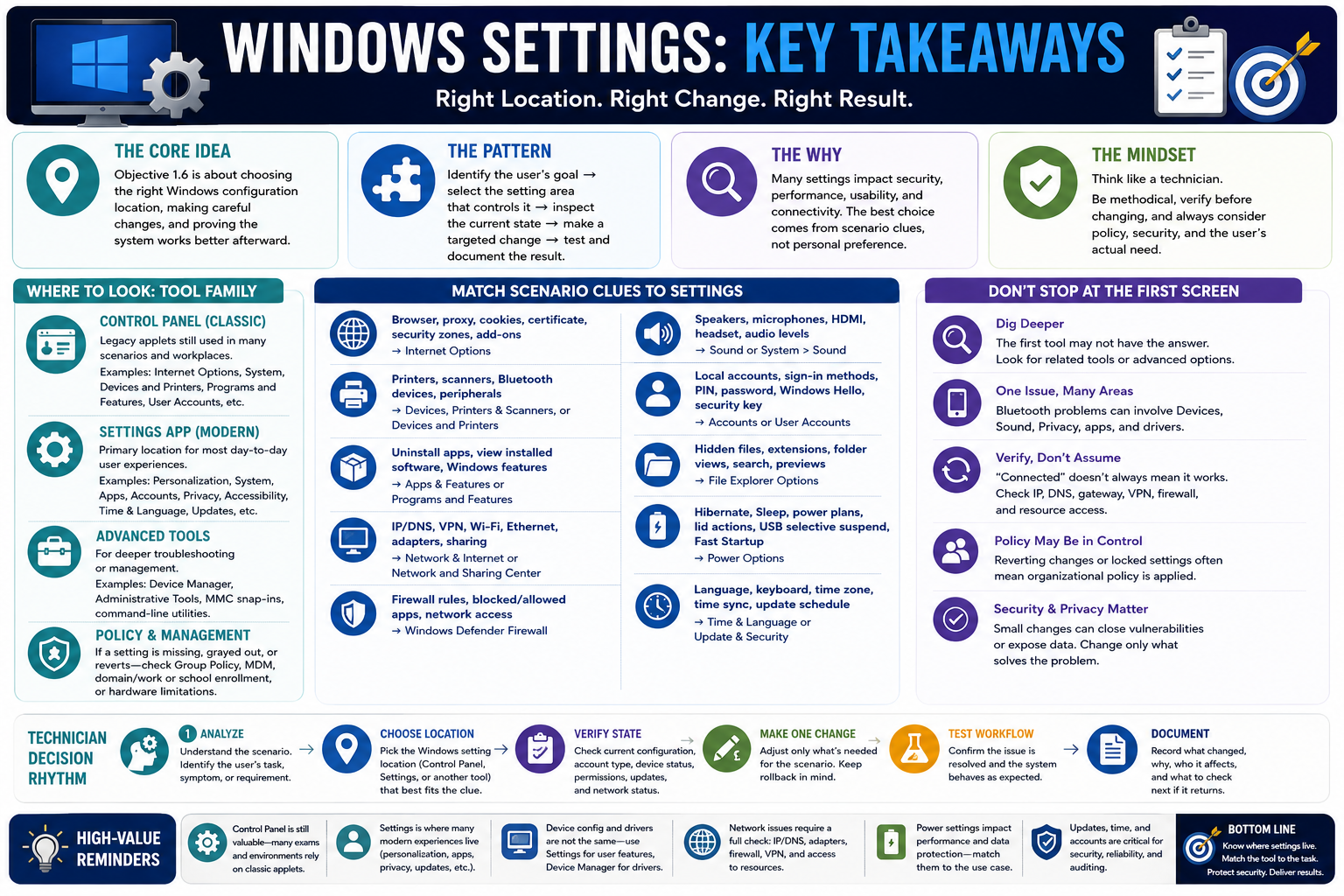
Windows Settings key takeaways infographic for Objective 1.6
Objective 1.6 key takeaways: choose the right Windows configuration location, verify the current state, make one careful change, test the workflow, and document the result.

Objective 1.6 is about choosing the right Windows configuration location, making careful changes, and proving the system works better afterward.

Windows has many places to configure settings, and that is exactly why this objective matters. A technician must know when to use Control Panel, when to use the modern Settings app, and when a deeper tool such as Device Manager, Administrative Tools, command-line utilities, or policy management is the better next step. The right answer is usually based on the scenario clue, not personal preference.

The big pattern is simple: identify what the user is trying to accomplish, choose the setting area that controls that behavior, inspect the current configuration, make one deliberate change, test the real workflow, and document the result. That rhythm applies whether the issue involves a printer, browser setting, firewall rule, audio device, power behavior, accessibility need, update schedule, account sign-in option, or network connection.

Know The Tool Family

Objective 1.6 spans both classic Control Panel applets and modern Settings categories. Control Panel remains important because many exam and workplace clues still point to classic applets such as Internet Options, Devices and Printers, Programs and Features, Network and Sharing Center, System, Windows Defender Firewall, Mail, Sound, User Accounts, Device Manager, Indexing Options, and Administrative Tools.

The Settings app is equally important because it controls many current user-facing experiences: personalization, display, sound, notifications, apps, optional features, privacy, accessibility, time, language, updates, devices, network settings, gaming features, and accounts. A strong technician can move between both worlds without getting stuck in the wrong interface.

Control Panel

Best for classic applets, installed programs, Windows features, network sharing, sound, firewall paths, devices, and administrative entry points.

Settings

Best for modern user experience, personalization, apps, privacy, accessibility, updates, accounts, devices, and network configuration.

Advanced Tools

Use Device Manager, Administrative Tools, MMC snap-ins, or command-line utilities when the scenario requires deeper troubleshooting or management.

Policy Awareness

If a setting is unavailable, grayed out, or keeps reverting, check domain, work or school enrollment, Group Policy, MDM, or organizational controls.

Match Scenario Clues To Settings

Exam questions often describe symptoms instead of naming the exact applet. Read for the noun and the desired action. If the clue is about a printer, device, network adapter, firewall exception, app uninstall, optional Windows feature, default sound device, or mail profile, there is usually a specific Windows setting location that fits best.

  • Browser proxy, cookies, certificates, security zones, add-ons, or advanced web behavior: think Internet Options.
  • Printers, scanners, Bluetooth accessories, connected peripherals, or user-friendly device access: think Devices, Printers & Scanners, or Devices and Printers.
  • Uninstall apps, view installed software, or turn Windows features on or off: think Programs and Features or Apps & Features.
  • View adapters, sharing settings, IP/DNS details, VPN, Wi-Fi, Ethernet, or network status: think Network and Sharing Center or Network & Internet.
  • Blocked app, allowed app, inbound/outbound traffic, or unwanted network connections: think Windows Defender Firewall.
  • Speakers, microphones, HDMI audio, headset selection, or input/output levels: think Sound or System sound settings.
  • Local user account settings, sign-in methods, PIN, password, Windows Hello, or security key: think User Accounts or Accounts.
  • Hidden files, file extensions, folder behavior, search preferences, preview/details panes: think File Explorer Options.
  • Hibernate, Sleep, power plans, lid close action, USB selective suspend, or Fast Startup: think Power Options.
  • Language, keyboard layout, time zone, time sync, active hours, update history, or restart timing: think Time & Language or Update & Security.

Do Not Stop At The First Screen

Many Windows settings overlap. A Bluetooth headset problem may involve Devices, Sound, Privacy microphone permissions, app settings, and drivers. A printer problem may involve Devices and Printers, printer queue settings, network connectivity, drivers, and permissions. A VPN issue may involve Network & Internet, credentials, DNS, firewall rules, and organizational policy. The first tool gives you a starting point, not always the final answer.

When the first setting does not solve the issue, use the evidence to move deeper. A device that is paired but not selected may need a default setting change. A device that is missing or has an error may need Device Manager. A setting that reverts may be controlled by policy. A connection that says connected but cannot reach resources may require IP, DNS, gateway, firewall, or VPN troubleshooting.

Protect Security And Privacy

Windows settings can affect security as much as convenience. Firewall rules, app permissions, account sign-in methods, privacy controls, update timing, BitLocker-related account recovery information, browser security zones, and optional features all change the risk profile of a computer. A technician should make the smallest change that solves the problem and avoid broad changes that weaken protection.

  • Firewall: allow the specific app, service, or port when appropriate instead of disabling protection broadly.
  • Privacy: grant camera, microphone, location, voice recognition, and app data permissions only when needed.
  • Accounts: verify whether the user is local, Microsoft, domain, work, or school connected before changing sign-in options.
  • Updates: keep systems current, but schedule restarts around business needs when possible.
  • Optional features: enable only the capabilities required for the role, such as OpenSSH, fonts, or SNMP support.

Use The Technician Decision Rhythm

  1. Analyze the scenario: identify the user's actual task, symptom, device, account, app, or security requirement.
  2. Choose the right location: select Control Panel, Settings, Device Manager, Administrative Tools, or another tool based on the clue.
  3. Verify the current state: inspect settings, account type, network status, device pairing, permissions, update state, and policy messages before changing anything.
  4. Check for policy or hardware limits: confirm whether the device is managed, the edition supports the feature, or the hardware supports the setting.
  5. Make one careful change: adjust only what maps to the scenario and keep a rollback path in mind.
  6. Test the real workflow: confirm the browser, printer, network, app, audio, sign-in method, update, or device behavior works for the user.
  7. Document the result: record what changed, why it changed, who it affected, and what should be checked next if the issue returns.

High-Value Exam Reminders

  • Control Panel is still testable: do not ignore classic applets just because Settings exists.
  • Settings is where many current user experiences live: personalization, apps, privacy, accounts, devices, updates, and network settings are common clues.
  • Device settings and driver troubleshooting are not the same thing: use Settings for user-facing configuration and Device Manager for driver-level issues.
  • Connected does not always mean working: verify IP, DNS, gateway, VPN, firewall, and resource access.
  • Power settings affect data and productivity: Sleep, Hibernate, Fast Startup, lid actions, and USB selective suspend should match the use case.
  • File Explorer settings can expose risk: showing file extensions helps identify file types; showing hidden files should be handled carefully.
  • Accessibility settings support real productivity: configure Windows around the user's needs, not just default settings.
  • Updates and time matter for security: patch status, restart timing, and accurate time can affect reliability, authentication, logs, and protection.
Exam mindset: read the scenario clue, choose the most specific Windows setting location, verify before changing, account for policy, test the actual user workflow, and document the outcome.

Bottom line: Objective 1.6 is not about memorizing every checkbox. It is about knowing where Windows settings live, matching the tool to the task, protecting security and privacy, and leaving the user with a system that works better than when you found it.

A+
Module 10

Module 10 - Section Notes

Use these printable notes to review Objective 1.6: Windows Control Panel, Windows Settings, File Explorer options, power management, user-facing settings, and the technician workflow for making safe configuration changes.

Section Notes are designed for fast review before labs, quizzes, and the final test. Read them like a technician checklist: identify the user's need, choose the correct Windows setting location, verify the current state, make one careful change, test the workflow, and document the result.

Objective 1.6Windows Settings Section Notes

Big Picture

Objective 1.6 is about choosing the correct Windows configuration location and using it safely. The exam may name a tool directly, but many questions describe a scenario: a printer needs attention, an app must be removed, a firewall setting blocks traffic, a user needs accessibility changes, or a laptop power behavior needs adjustment.

Core workflow: Analyze the scenario, choose the setting location, verify the current state, make one targeted change, test the real user workflow, and document the result.

Control Panel

Classic applets for system details, firewall, programs, devices, network sharing, sound, mail profiles, user accounts, indexing, and administrative tools.

Settings App

Modern location for accessibility, personalization, apps, privacy, updates, accounts, devices, gaming, time, language, and network configuration.

Advanced Tools

Device Manager, Administrative Tools, MMC snap-ins, command-line utilities, and policy tools provide deeper troubleshooting and management.

Policy Limits

If an option is missing, grayed out, or reverts after restart, check Group Policy, MDM, domain enrollment, work/school accounts, and edition support.

Technician Rhythm

  1. Read the scenario and identify the user's actual need.
  2. Pick the most specific tool or settings area.
  3. Check the current configuration before changing anything.
  4. Back up or document current settings when the change has risk.
  5. Make one controlled change that matches the issue.
  6. Test the same workflow the user reported.
  7. Record what changed, why it changed, and what to check next.
Control PanelClassic Applets And Scenario Clues

High-Value Control Panel Areas

AreaUse It ForExam Clues
Internet OptionsBrowser-related legacy settings, security zones, privacy, certificates, proxy, add-ons, and advanced web behavior.Cookies, pop-ups, proxy, certificate, security zone, browser behavior.
Devices and PrintersUser-friendly view of printers, scanners, Bluetooth devices, storage, and connected hardware.Printer, connected device, default printer, device properties.
Programs and FeaturesUninstall desktop apps, view installed software, and turn Windows features on or off.Remove program, installed app, optional Windows feature.
Network and Sharing CenterView network status, adapters, sharing settings, and paths to IP configuration.Adapter status, sharing, IP settings, Ethernet, Wi-Fi, VPN.
SystemPC details, Windows edition, performance options, remote access, and protection paths.Windows edition, virtual memory, system info, remote access.
Windows Defender FirewallControl allowed and blocked network traffic.Blocked app, allowed app, inbound rule, firewall exception.
MailLocal mail profiles, accounts, data files, and delivery settings when Outlook or a supported client is installed.Outlook profile, mailbox data, email account setup.
SoundPlayback and recording devices, default audio, levels, microphones, headsets, and HDMI audio.No sound, wrong speaker, microphone too quiet, headset issue.
Remember: Control Panel is still testable. Do not ignore classic applets just because modern Windows also has Settings.
Review Note:Use the scenario clue to choose the applet before you start changing settings.
HighlightsUsers, Devices, Indexing, And Admin Tools

Common Support Targets

User Accounts

Manage local accounts, account type, passwords, profile pictures, and certificates associated with the account. Domain accounts are usually managed elsewhere.

Device Manager

Use for driver-level troubleshooting. If Windows cannot communicate correctly with hardware, check device status, driver state, disabled devices, or hardware errors.

Indexing Options

Controls what Windows indexes for faster search. Add important locations, rebuild the index when search is broken, or reduce indexing when performance is affected.

Administrative Tools

Provides access to advanced utilities for events, services, performance, storage, security, scheduled tasks, certificates, and management consoles.

System Information

Use msinfo32.exe to collect hardware, BIOS/UEFI, component, driver, and software environment details.

Resource Monitor

Use resmon.exe to inspect real-time CPU, memory, disk, and network usage in more detail than Task Manager.

System Configuration

msconfig.exe helps troubleshoot startup behavior, boot options, service loading, and diagnostic startup scenarios. It is useful when Windows starts incorrectly, a service may be causing trouble, or a technician needs to isolate startup behavior.

Exam clue: Drivers and device status point to Device Manager. Search speed points to Indexing Options. Startup and boot behavior can point to System Configuration.
Files And PowerFile Explorer And Power Options

File Explorer Options

File Explorer settings control how users browse, view, and search files. These settings can improve productivity, but they can also affect security awareness.

  • Open File Explorer to: choose Quick access, This PC, Downloads, or another starting location.
  • Browse folders: open each folder in the same window or a new window.
  • Click behavior: choose single-click or double-click opening behavior.
  • Privacy: show, hide, or clear recently used files and frequent folders.
  • Hidden files: reveal normally hidden files and folders when troubleshooting requires it.
  • File extensions: show extensions such as .docx, .jpg, .exe, and .ps1 to identify file types and reduce risk.
  • Preview and details panes: show extra information before opening files.
  • Search settings: adjust indexed and non-indexed search behavior.

Power Options

SleepLow-power standby that keeps apps in memory and resumes quickly.
HibernateSaves open work to disk and powers down. Useful for long breaks or low battery.
Power PlansBalance performance, battery life, sleep timers, CPU power, and display behavior.
Lid Close ActionChoose Sleep, Hibernate, Shut down, or Do nothing for laptop lid behavior.
USB Selective SuspendPowers down idle USB devices to save energy, but may affect special peripherals.
Fast StartupUses partial hibernation for faster boot. Disable when troubleshooting startup or driver issues.
Safety note: Showing hidden files and extensions can help troubleshooting. Formatting, deleting, or changing system files still requires caution and backups.
Settings AppAccessibility, Updates, Apps, And Privacy

Windows Settings Areas

Accessibility / Ease of Access

Adjust display, keyboard, mouse, narrator, magnifier, audio, captions, pointer, and input behavior so Windows works for the user.

Time & Language

Configure time sync, time zone, display language, keyboard layout, regional formats, and communication preferences.

Update & Security

Manage Windows Update, security patching, restart timing, active hours, update history, recovery, and protection-related paths.

Personalization

Adjust themes, colors, backgrounds, lock screen, taskbar, and the look of Windows.

Apps & Features

Install, remove, modify, or review apps. Optional features can add tools such as OpenSSH, fonts, SNMP, and other capabilities.

Privacy

Control camera, microphone, location, voice recognition, language preferences, app activity sharing, and other data permissions.

Update And Security Reminders

  • Current systems are safer because updates close security gaps and fix reliability problems.
  • Active hours help control when restarts happen.
  • Time accuracy matters for authentication, logs, certificates, and domain-related services.
  • Accessibility changes are not optional extras. They can be the difference between a usable and unusable system.
Exam clue: If the question mentions security patches, active hours, restart timing, or update history, think Windows Update or Update & Security.
Everyday SettingsDevices, Network, Gaming, And Accounts

User-Facing Configuration

CategoryWhat It ControlsWatch For
DevicesBluetooth, printers, scanners, mouse, touchpad, typing, pen, and connected peripherals.Pairing, default device, input behavior, printer access, device comfort.
Network & InternetWi-Fi, Ethernet, VPN, proxy, adapter status, IP address, DNS, gateway, and connection health.Connected does not always mean working. Verify IP, DNS, gateway, firewall, and VPN.
GamingXbox Game Bar, captures, recording, overlays, social gaming tools, and performance widgets.Unexpected captures, overlays, background recording, or policy restrictions.
AccountsLocal accounts, Microsoft accounts, work/school accounts, email app preferences, PIN, password, Windows Hello, and security keys.Account type, sign-in method, cloud sync, managed device limits.

Scenario Reminders

  • A Bluetooth headset issue may involve Devices, Sound, app permissions, and drivers.
  • A VPN issue may involve Network & Internet, credentials, DNS, firewall rules, and policy.
  • A printer issue may involve Devices, Printers & Scanners, drivers, network access, and permissions.
  • A sign-in issue may involve Accounts, password, PIN, Windows Hello, security key, Microsoft account, or work/school policy.
Final review: Choose the location that matches the clue, verify first, change carefully, test the user's workflow, and document the result.
Technician Notes:

Bottom line: These notes pull Objective 1.6 into a quick review path: know the setting families, match clues to tools, protect the system, verify the result, and document the work.

A+
Module 11

Module 11 - Final Test

Complete 20 multiple-choice questions covering Objective 1.6. The test includes 15 realistic Windows settings scenarios and 5 command or fact checks. Each question has one best answer, plausible distractors, and is worth 1 point.

Score pending0 / 20
WB
Workbook

Student Workbook

BrotocolJoeStudent Workbook

BrotocolJoe

CompTIA A+ Core 2 (220-1202)

Student Workbook

1.0 Operating Systems

Objective 1.6 - Given a scenario, configure settings in Microsoft Windows.

How to use this workbook: Print this packet once, complete it by hand as you finish each online module, and keep it as evidence that you read, processed, and practiced the Objective 1.6 Windows settings material.
Student Name:
Windows Control Panel at a GlanceObjective 1.6

Module 1 - Windows Control Panel at a Glance

Key Information: Control Panel groups configuration tools for programs, devices, networking, and other Windows features. Choose the area that controls the reported behavior; locations can vary by Windows version.

Check Your Understanding

How does configuring a device differ from removing an application?

Why should you check the installed Windows version when following a settings guide?

Why should Internet Options not be assumed to control every modern browser setting?

Setting Selection Record

  • For each situation, name the relevant Control Panel area and one setting or item you would inspect.
  • An installed desktop program needs repair or removal: __________________
  • A printer needs its configuration reviewed: __________________
  • The user needs information about network connections and sharing: __________________
Explain how you would locate a setting when an older guide names a Control Panel applet that redirects to Settings.
Technician Scenario: An office application is malfunctioning, but printing and network access still work. Select an appropriate configuration area to investigate the installed application, describe what you would check, and explain how you would verify any approved repair.
Control Panel Key AreasObjective 1.6

Module 2 - Control Panel Key Areas

Key Information: System, Windows Defender Firewall, Mail, and Sound address different support needs. Inspect the relevant configuration without weakening unrelated protections.

Check Your Understanding

What system details help confirm which computer and Windows installation you are supporting?

Why is disabling the entire firewall a poor substitute for investigating a blocked application?

What must be installed for the Mail applet to be relevant to a mail-profile issue?

Comparison Record: Playback vs. Recording

  • Use this scenario: the user hears a meeting but other participants cannot hear the user. Write one or two sentences per prompt.
  • Playback: State what this setting controls and what the symptom suggests is already working.
  • Recording: Identify the input-device setting and level you would inspect.
  • Verification: Describe how you would confirm the microphone works in the affected meeting application.
Describe the application, network profile, and rule details you would gather before requesting a firewall change.
Technician Scenario: A user docks a laptop and audio switches to the monitor instead of the headset. Identify the configuration area, inspect the active output device, and explain how you would verify the user’s preferred audio path.
Windows Control Panel HighlightsObjective 1.6

Module 3 - Windows Control Panel Highlights

Key Information: User Accounts, Device Manager, Indexing Options, and administrative utilities operate at different layers. Match the symptom to identity, hardware, search, or system administration.

Check Your Understanding

How does a standard account differ from an administrator account?

What can a hardware warning in Device Manager tell you?

Why might a file exist but not appear in an indexed search?

Investigation Record

  • For each report, name the tool and one observation you would collect before making a change.
  • A local account has unnecessary administrator rights: __________________
  • A scanner is connected but shows a driver warning: __________________
  • Search omits documents from a particular folder: __________________
Explain why changing account type is not the appropriate first response to every access problem.
Technician Scenario: A user can browse to a folder and open its documents, but searching does not find them. Explain how you would inspect indexing scope and search behavior before rebuilding the index or changing permissions.
Master Your File ExplorerObjective 1.6

Module 4 - Master Your File Explorer

Key Information: File Explorer options affect visibility, navigation, search, and history. Showing a file does not change its permissions or prove that its contents are safe.

Check Your Understanding

Why are visible filename extensions useful when identifying file types?

How does showing hidden items differ from granting access to them?

What is the difference between clearing Explorer history and deleting the actual files?

Comparison Record: Extensions vs. Hidden Items

  • Write one or two sentences for each prompt. Compare the purpose of the settings, not the number of files in a folder.
  • File extensions: State what extra information becomes visible and give one security benefit.
  • Hidden items: State which items become visible and give one troubleshooting use.
  • Decision: A file appears to be an invoice but may be an executable. Choose the visibility setting that helps identify its actual filename and explain why.
Describe when the Details or Preview pane would help a user, and what you would verify after changing the folder view.
Technician Scenario: A support guide references a hidden application-data folder. Explain how you would make the needed location visible, verify the exact path, and avoid modifying unrelated or protected files.
Power Options ExplainedObjective 1.6

Module 5 - Power Options Explained

Key Information: Power settings affect battery use, session recovery, startup, lid behavior, and peripherals. Select a setting for the user’s actual workflow and supported hardware.

Check Your Understanding

How does hibernation preserve a session differently from sleep?

Why should lid-close behavior be checked for both battery and external power?

How can USB selective suspend relate to a peripheral that disconnects after inactivity?

Comparison Record: Sleep vs. Hibernate

  • Use this scenario: a laptop user takes a short desk break and later travels for several hours without charging. Write one or two sentences per prompt.
  • Sleep: State how session state is retained and why it can suit a short break.
  • Hibernate: State where session state is saved and why it can suit a longer period without power.
  • Decision: Recommend a state for each part of the scenario and identify one device or policy setting to verify.
Explain why Fast Startup matters when comparing shutdown/startup behavior with a Windows restart during troubleshooting.
Technician Scenario: A docked laptop goes to sleep when its lid closes, interrupting work on external displays. Describe the power and lid settings to inspect, the user’s desired behavior, and how you would test docked and battery operation.
Windows Settings Made SimpleObjective 1.6

Module 6 - Windows Settings Made Simple

Key Information: Accessibility, time and language, and update settings affect usability and reliability. Confirm user needs and organization policy before making changes.

Check Your Understanding

Why should an accessibility adjustment be tested with the user?

How can the time zone differ from the actual system clock setting?

How do active hours help schedule restarts without permanently stopping updates?

User Support Record

  • For each situation, identify the Settings area, one possible adjustment, and a test of success.
  • A user needs larger, more readable text: __________________
  • The keyboard produces characters from the wrong layout: __________________
  • Update restarts interrupt scheduled work: __________________
Describe how you would communicate a required restart and confirm the user’s work is saved.
Technician Scenario: A user’s meeting times are incorrect after travel. Explain how you would inspect the time zone, clock synchronization, and application behavior before changing unrelated regional or account settings.
Make Windows YoursObjective 1.6

Module 7 - Make Windows Yours

Key Information: Personalization, system preferences, app management, optional features, and privacy permissions affect the user experience. Limit changes to the function the user needs.

Check Your Understanding

How does personalization differ from changing application permissions?

Why should an optional feature be enabled only when there is a supported need?

How can display scaling improve readability without simply changing resolution?

Comparison Record: App Permission vs. Device Selection

  • Use this scenario: a working microphone is unavailable in one application. Write one or two sentences per prompt.
  • Privacy permission: Explain what access it controls and which app-specific setting you would inspect.
  • Device selection: Explain how choosing the wrong input within the application could cause a similar symptom.
  • Decision: Describe a test that distinguishes these two causes while leaving unrelated app permissions unchanged.
State what you would verify before enabling an optional service such as OpenSSH Server, including authorization and exposure.
Technician Scenario: A user requests fewer notifications during presentations and camera access for one approved meeting app. Identify the relevant settings, describe the limited changes needed, and explain how you would confirm both requirements.
Your Connections, Your Devices, Your ExperienceObjective 1.6

Module 8 - Your Connections, Your Devices, Your Experience

Key Information: Devices, Network & Internet, Gaming, and Accounts expose common user-facing controls. More advanced tools may be needed for driver, policy, or network-service faults.

Check Your Understanding

How does pairing a Bluetooth device differ from diagnosing its driver?

Why should IP and DNS settings be recorded before modification?

How can account sign-in settings differ from preferences inside an email application?

Settings Decision Record

  • For each report, write the Settings category, the first item to inspect, and a test that shows improvement.
  • A Bluetooth mouse no longer connects: __________________
  • A saved VPN connection will not connect: __________________
  • Background game capture consumes unwanted resources: __________________
  • A user needs to review supported sign-in options: __________________
Explain when a user-facing Settings page is sufficient and when you would move to a specialized troubleshooting tool.
Technician Scenario: A user has Wi-Fi connectivity but cannot reach a resource that requires the company VPN. Describe how you would inspect connection status and VPN configuration, preserve existing settings, and verify access after an approved correction.
Objective 1.6 Final CheckCumulative Review

Objective 1.6 - Final Check

Purpose: Choose the Windows configuration area that matches the user’s need, inspect the current state, and verify a limited change.

Scenario Sorting

For each case, name the settings area and one specific item you would inspect.

  • A user cannot identify a downloaded file’s actual type.
  • A laptop sleeps when docked with the lid closed.
  • One app cannot access an otherwise working camera.
  • A user hears meetings through the wrong output device.
  • A folder’s documents are missing from search results.

Explain What You Know

  • How can Windows version and policy affect available settings?
  • Why should the original value be recorded?
  • How does a limited change reduce troubleshooting uncertainty?
  • What test demonstrates the user’s workflow is restored?
Write the settings area and inspection target for each case above, in order.
A laptop user needs readable text, reliable meeting audio, and updates that fit working hours. Plan the settings checks, user consultation, individual changes, rollback details, and verification for each requirement.

1.6 Completion

Student signature:
Date completed:
Instructor signature:
Module 01 of 11