Module 1 - Understanding Privileges
Command-line tools are powerful, but Windows controls what each user can do based on their privilege level.
Before a technician runs commands, changes settings, repairs system files, manages disks, or modifies protected folders, they must understand whether the current session is running with standard user permissions or elevated administrator permissions. Objective 1.5 focuses on Microsoft command-line tools, but those tools do not all run with the same level of access. Some commands are safe for everyday users, while others require administrative approval because they can affect the operating system, security settings, storage, network configuration, or other users.
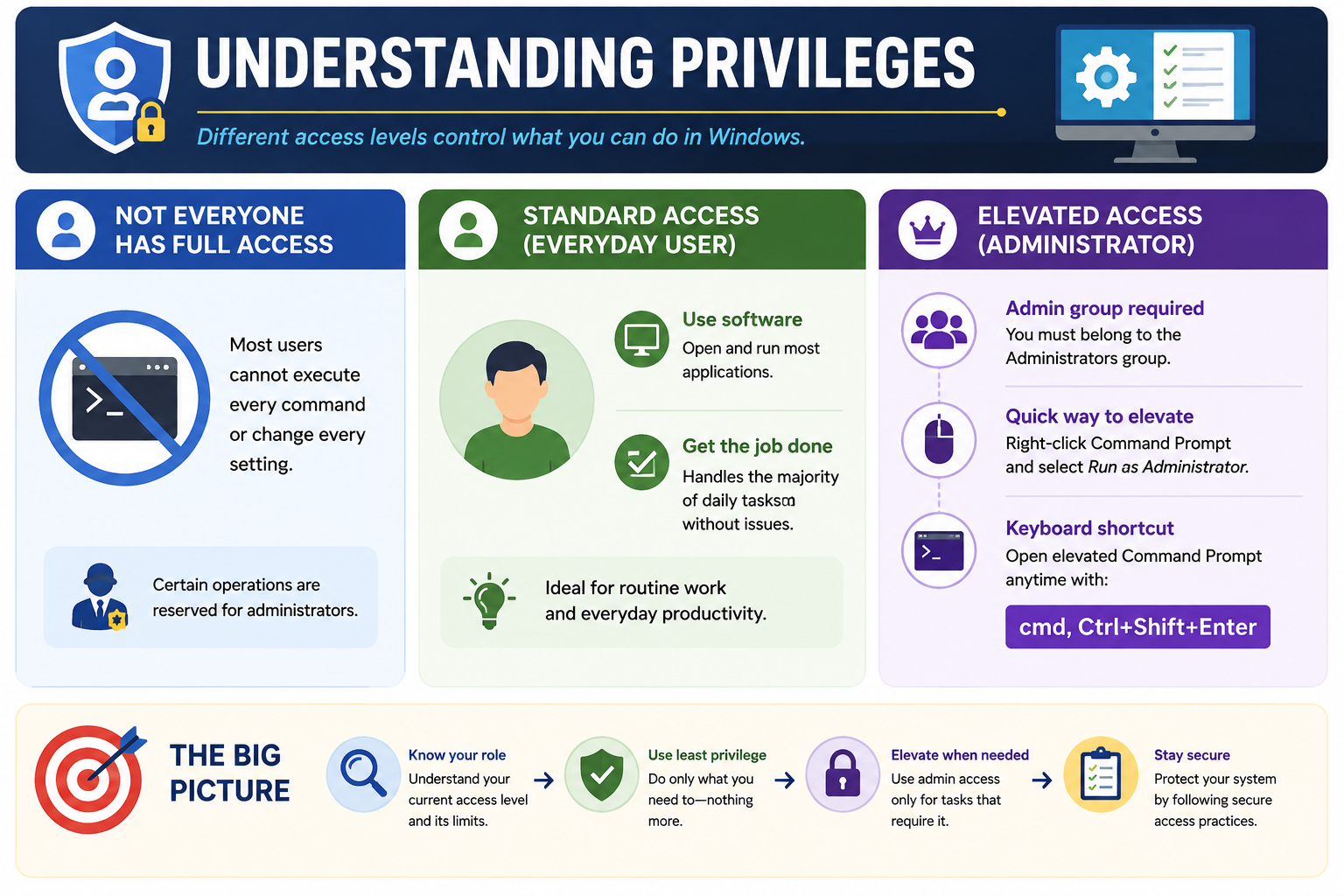
Privileges are Windows access rights that determine what a user, process, script, or command can do. A standard user can perform routine tasks such as opening applications, browsing folders they have permission to access, running many user-level commands, and completing daily productivity work. An administrator has broader authority and can change protected system areas, install or remove software, manage services, modify network settings, run repair commands, change local accounts, and work with disks or security settings.
Standard Access: Everyday User Work
Standard access is the default, safest level for normal work. A standard user can open and run most applications, browse permitted folders, use many diagnostic commands, and complete day-to-day tasks without touching protected system areas. This follows the principle of least privilege: use only the access needed to complete the task, nothing more.
Least privilege matters because malware, mistakes, and accidental commands are limited by the permissions of the current session. If a user is browsing the web, reading email, or running regular applications with administrator-level access, anything that compromises that session may inherit more power than it should have. For support work, start with standard access when you only need to observe, collect information, or run non-invasive commands.
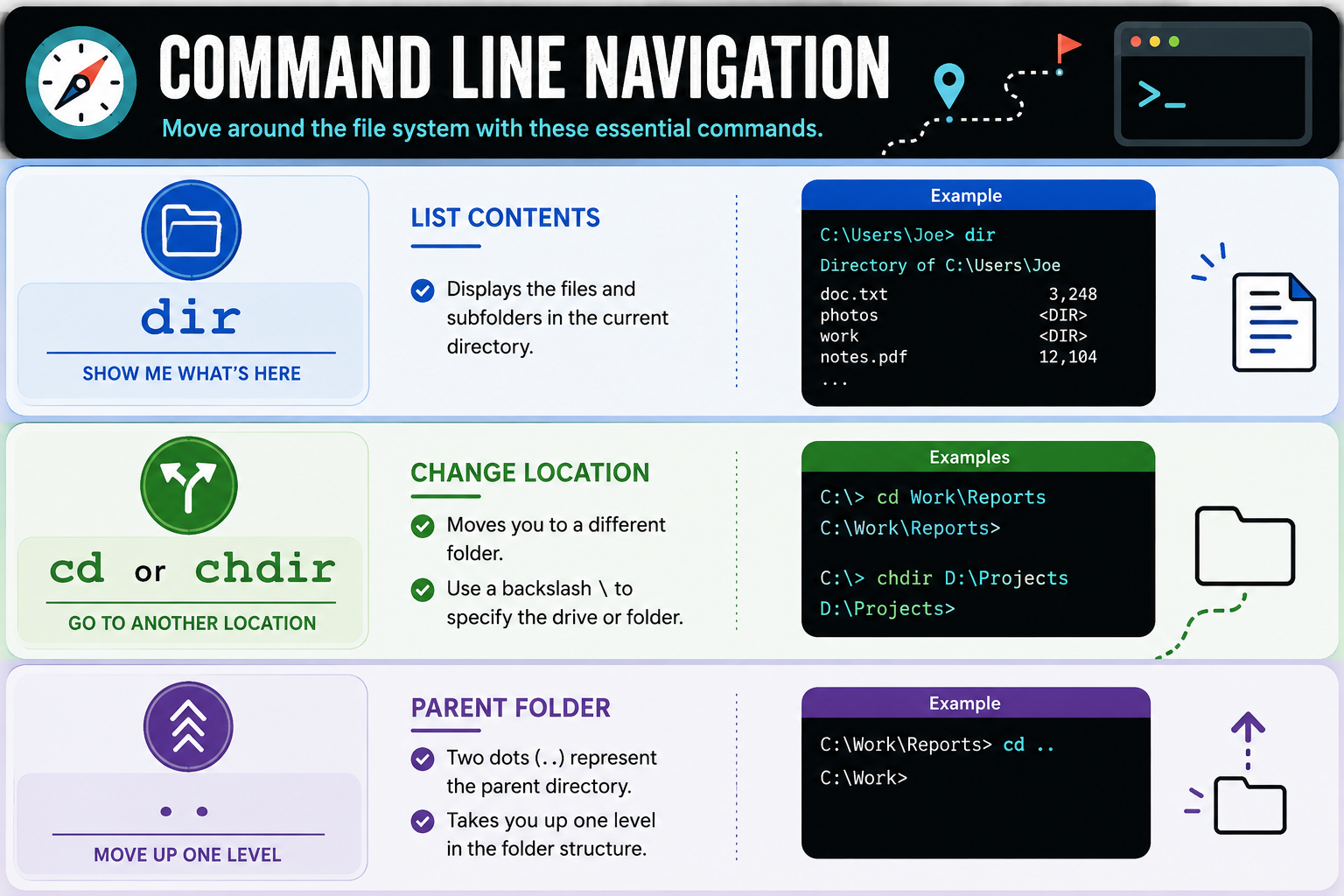
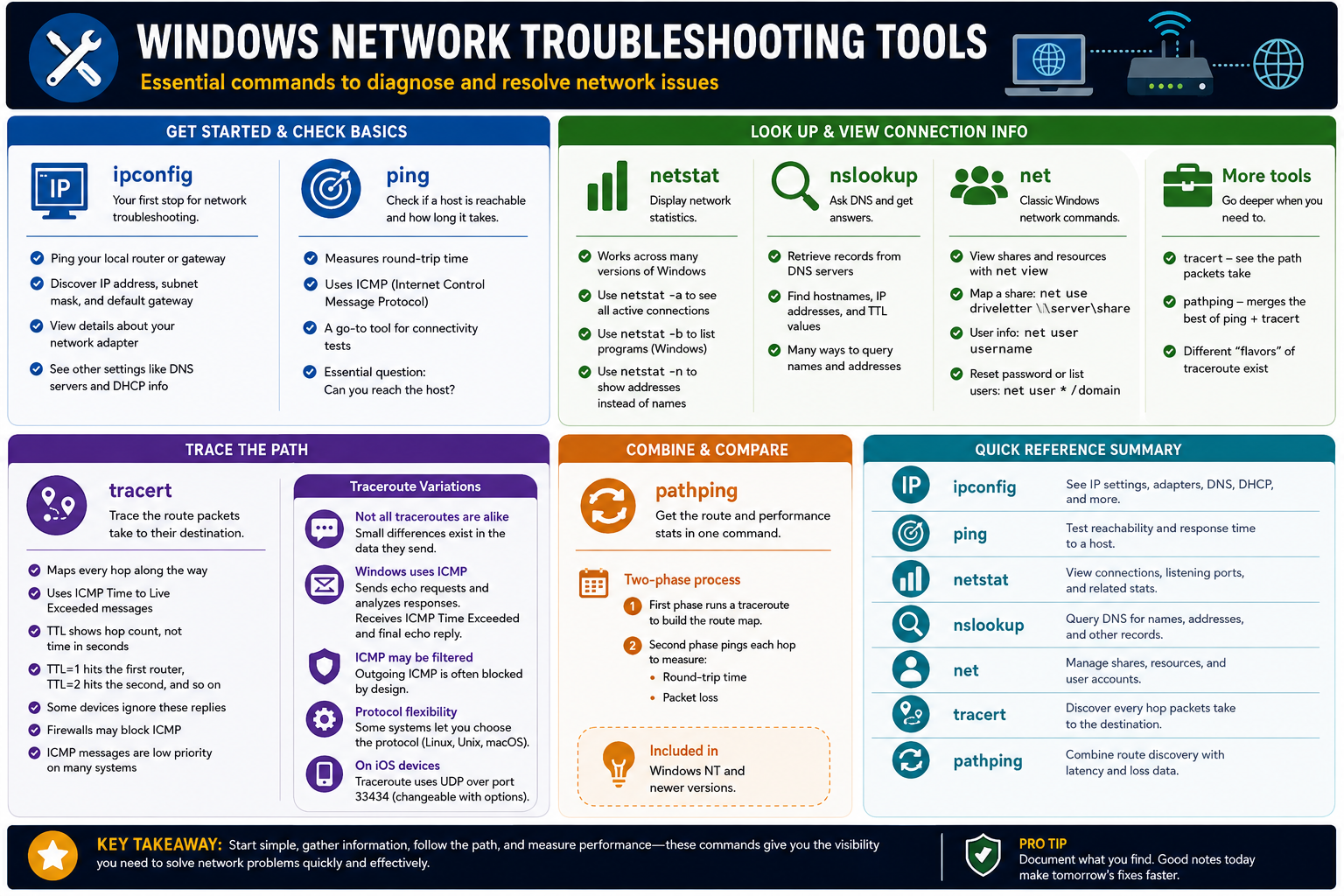
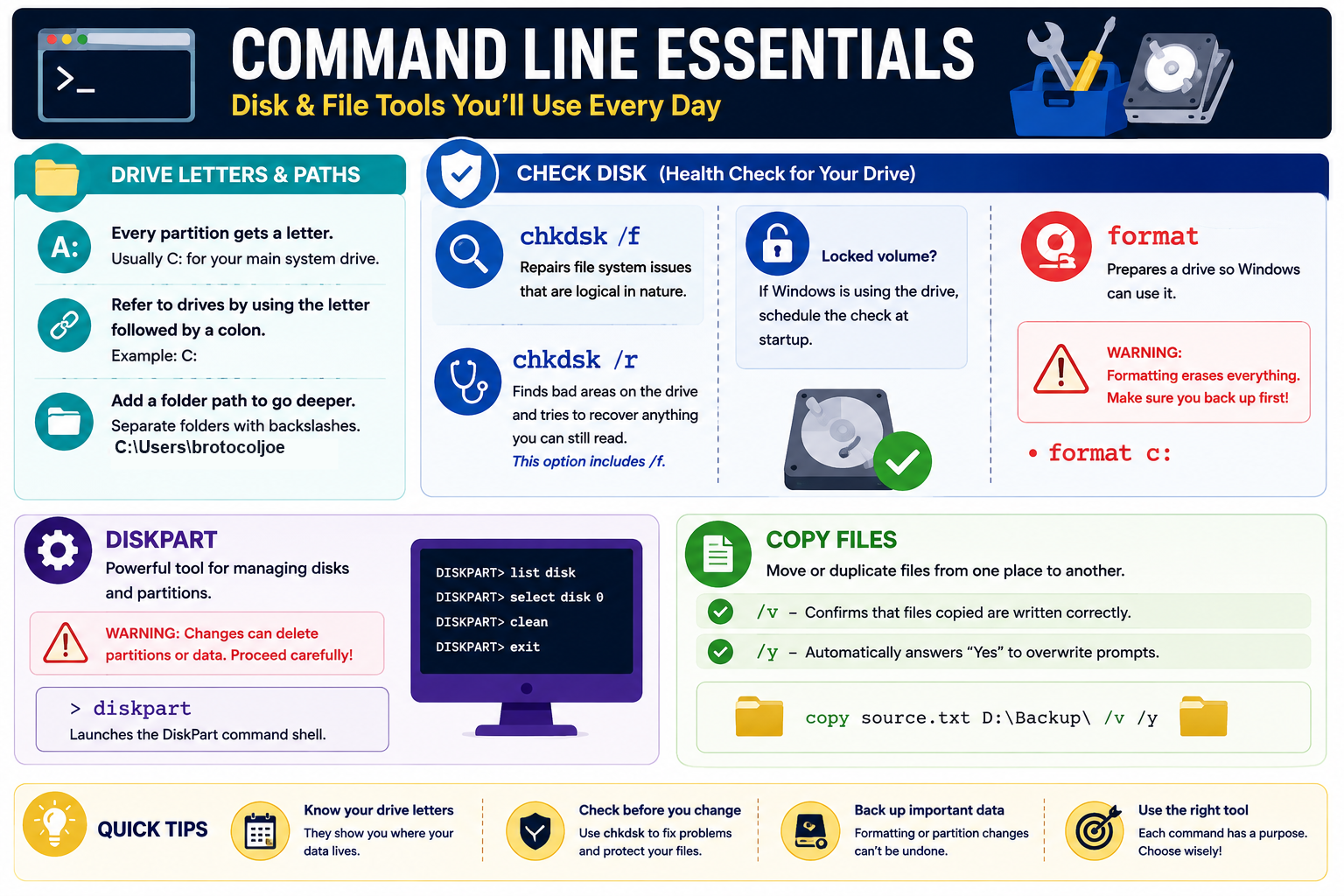
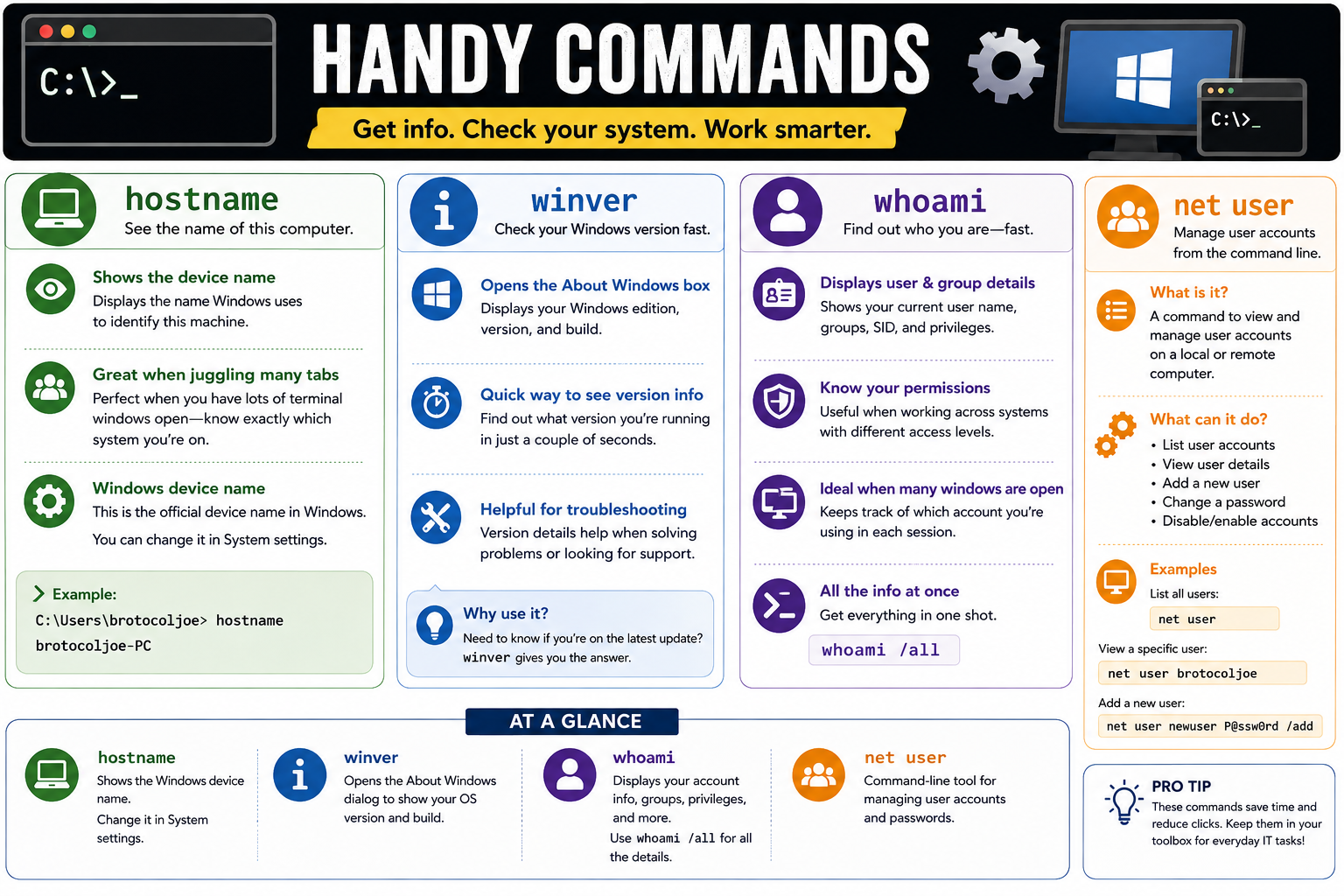
Examples of commands that often work without elevation include dir, cd, hostname, whoami, ipconfig, ping, tracert, pathping, nslookup, and many uses of netstat. These commands help collect information, navigate folders, confirm the current user, or test connectivity without making major system changes.
Elevated Access: Administrator-Level Control
Elevated access means the command shell, terminal, tool, or process is running with administrator privileges. In Windows, this commonly happens when you right-click Command Prompt, PowerShell, Windows Terminal, or another tool and choose Run as administrator. You can also open an elevated command prompt by typing cmd and pressing Ctrl + Shift + Enter.
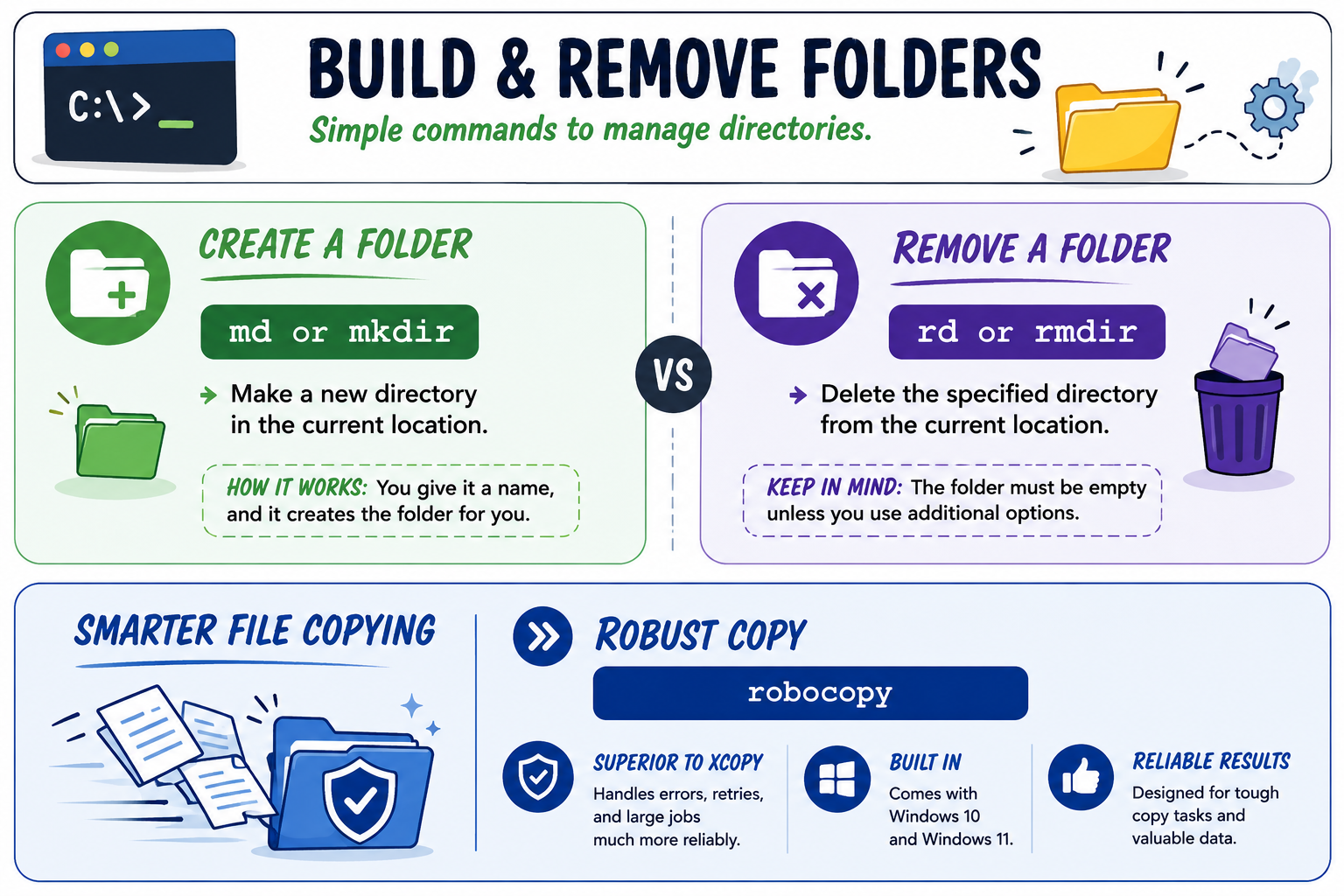
Elevation is required when the task affects protected parts of Windows. Examples include changing system files, writing to protected directories, modifying services, applying system-wide settings, repairing Windows components, managing disks, changing firewall settings, creating system folders, or running commands that need administrator rights. If a command fails with an access denied message, privilege level is one of the first things to check.
Examples of commands that commonly require elevation include sfc /scannow, many chkdsk repair operations, diskpart, format, some net use changes, gpupdate in certain contexts, service-management commands, and commands that modify protected system locations. These commands are useful, but they can also alter the system in ways that affect boot, storage, data, network access, or security.
User Account Control And Admin Group Membership
Being signed in with an administrator account does not mean every command automatically runs elevated. Windows uses User Account Control, or UAC, to separate normal use from administrator-level actions. An administrator may still need to approve elevation before a tool receives full administrative permissions.
The image highlights a key exam idea: the user must belong to the Administrators group or have administrator credentials available before elevation can be approved. If a standard user attempts to run a protected command, Windows may prompt for administrator credentials. If those credentials are not available, the command should not be forced or bypassed. The correct technician response is to follow the organization's access policy.
How To Decide Whether To Elevate
Do not elevate just because you can. Elevate when the task actually requires system-level control. If you are only checking the current IP configuration, viewing the hostname, listing files, or testing DNS, standard access is usually enough. If you are repairing Windows files, formatting storage, changing protected settings, or applying system-wide configuration, elevated access may be required.
- Use standard access for observation, navigation, basic diagnostics, and user-level work.
- Elevate when needed for system repair, disk changes, protected configuration, service control, and administrative tasks.
- Confirm the role before assuming the user has permission to run the command.
- Watch for access denied messages, UAC prompts, and commands that fail because the shell is not elevated.
- Document elevated work because privileged changes can affect the whole system.
Security Mindset For Command-Line Work
Privilege control protects the system from unnecessary risk. Running every command as administrator can turn a simple typo into a serious outage. A mistaken format, diskpart, delete, permission, or system-repair command can damage data or change the system far beyond the original problem. That is why professional technicians verify the command, understand the target, back up important data, and make sure the access level matches the task.
When you see a command-line scenario on the exam, ask three questions: What is the command supposed to do? Does it only collect information, or does it change the system? Does the user have the correct privilege level to perform that action? Those questions help you choose the right tool and avoid unsafe recommendations.
Bottom line: Privileges decide how much power a command has. Standard access is right for routine work and many diagnostics; elevated access is reserved for administrator tasks that truly require it.