Home
Certification Prep // 220-1202

1.0 Operating Systems

1.4 ~ Given a scenario, use Microsoft Windows operating system features and tools.

core2-lab.exe
> load objective 1.4
> map scenario clues
> verify and document

Learning Goals

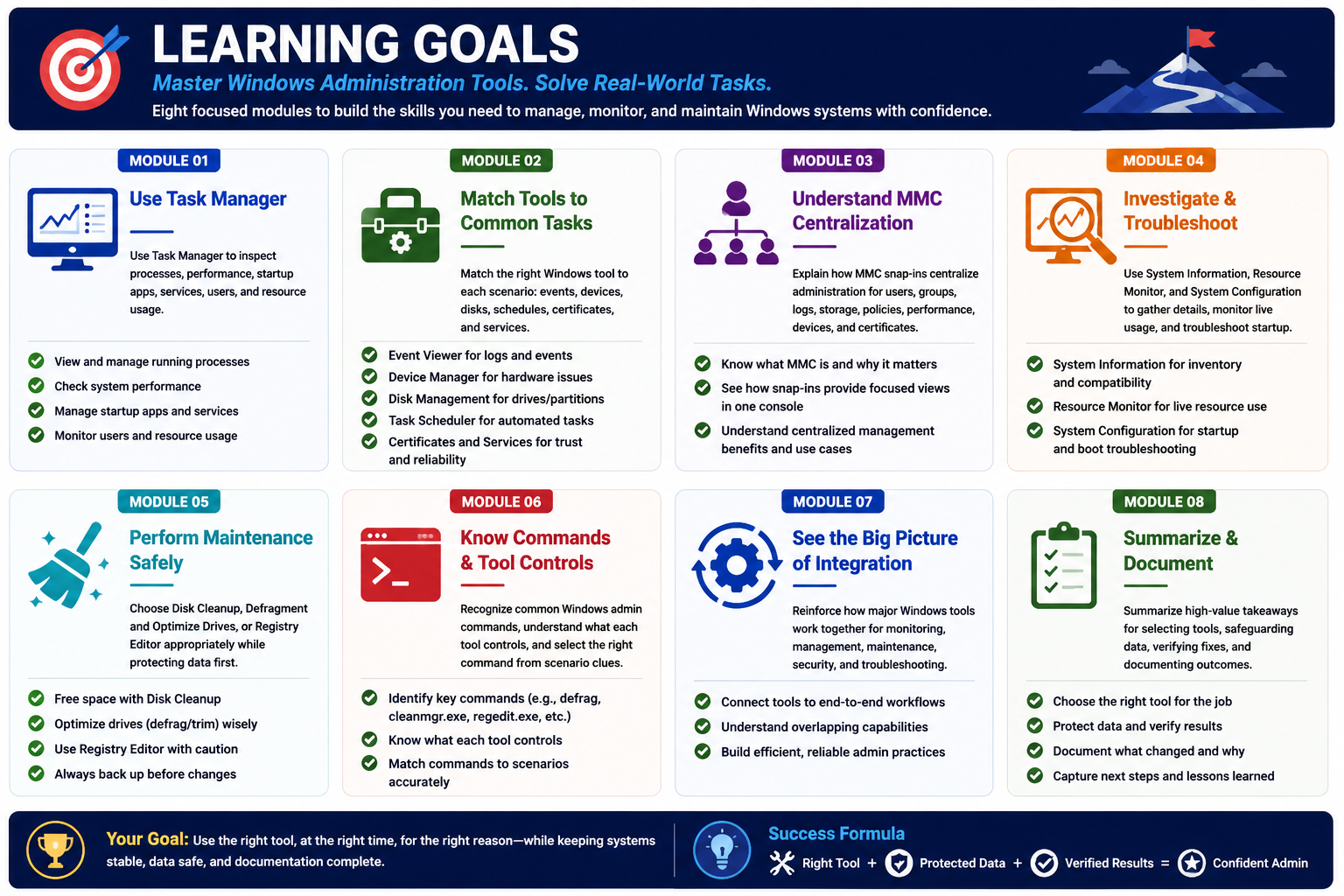
Learning goals infographic for Objective 1.4 Windows administration tools with eight focused modules and success formula
Objective 1.4 learning goals: use the right Windows administration tool, protect data, verify results, and document the work.
  • Module 01: Use Task Manager to inspect processes, performance, startup apps, services, users, and resource usage.
  • Module 02: Match essential Windows management tools to common support tasks such as events, devices, disks, schedules, certificates, and services.
  • Module 03: Explain how MMC snap-ins centralize administration for users, groups, logs, storage, policies, performance, devices, and certificates.
  • Module 04: Use System Information, Resource Monitor, and System Configuration to document system details, watch live resource usage, and troubleshoot startup behavior.
  • Module 05: Choose Disk Cleanup, Defragment and Optimize Drives, or Registry Editor appropriately while protecting data before maintenance.
  • Module 06: Recognize common Windows admin commands, know what each tool controls, and select the right command from scenario clues.
  • Module 07: Reinforce how the major Windows tools work together for monitoring, management, maintenance, security, and troubleshooting.
  • Module 08: Summarize the high-value takeaways for choosing the right tool, protecting data, verifying fixes, and documenting work.
  • Module 09: Review printable notes that summarize Windows features, admin tools, command names, safety reminders, and troubleshooting workflow.
  • Module 10: Complete a final test that checks tool selection, command recognition, safe change control, and technician decision-making.
Lesson ModuleModule 1 / 10
A+
Module 01

Module 1 - Windows Task Manager

Task Manager is the built-in Windows command center for quickly seeing what is running, how system resources are being used, which apps launch at startup, which users are active, and which services may need attention.

When a Windows computer feels slow, an app is frozen, startup takes too long, a fan is running constantly, memory usage is high, disk activity is pinned, or the network seems busy, Task Manager is often the first tool to open. It provides a real-time view of apps, background processes, CPU, memory, disk, network, users, startup items, details, and services without requiring a separate download.

Know how to open Task Manager quickly.

  • Ctrl + Alt + Del: Opens the Windows security screen, where you can choose Task Manager. This is useful when the desktop is still responsive enough to accept secure attention keys.
  • Taskbar shortcut: Right-click the taskbar and select Task Manager. This is a fast graphical method when the user interface is responding normally.
  • Ctrl + Shift + Esc: Opens Task Manager directly. For technicians, this is the fastest keyboard shortcut and a high-value exam clue.

Use the tabs to answer different support questions.

  • Processes: Shows running apps and background processes. Use it to sort by CPU, memory, disk, network, or other columns so the heaviest resource consumers rise to the top. This is where you can identify frozen apps, runaway processes, browser overload, and background tasks using too many resources.
  • Performance: Shows live graphs and historical resource data for CPU, memory, disk, Ethernet, Wi-Fi, Bluetooth, GPU, and other resources depending on the system. Use it when the question is not just what is running, but how the whole system is behaving right now.
  • App history: Shows resource usage by apps over time. This can help identify apps that quietly consume CPU time or network activity across sessions.
  • Startup apps: Allows you to enable or disable programs that launch when Windows starts. This is a common place to improve slow sign-in or reduce background load, but some changes may require a restart before the user sees the full effect.
  • Users: Shows signed-in users, active sessions, and resource usage by user. Use it to disconnect users, switch users, or identify a session consuming resources on shared systems.
  • Details: Shows advanced process information such as process IDs (PIDs), status, priority, architecture, and more. Use it when a troubleshooting step requires a PID or more precise process-level evidence.
  • Services: Shows Windows services and lets you start, stop, or restart certain services from one convenient place. This is useful for background components that run without direct user interaction.

What Task Manager can help you do:

  • See what is running: View apps, background processes, Windows processes, and services so you can separate visible user activity from hidden background activity.
  • Manage with care: End a hung task, start or stop services, restart some processes, and change startup behavior when you have evidence and a reason.
  • Control startup apps: Disable unnecessary startup apps to improve boot or sign-in performance. Avoid disabling security tools, drivers, management agents, or business-required apps without confirming impact.
  • Monitor performance: Watch real-time CPU, memory, disk, network, and GPU activity to determine whether the bottleneck is processing, RAM pressure, storage, network throughput, or something else.
  • Check who is connected: Review users and sessions on shared devices, Remote Desktop hosts, or systems where another signed-in user may be consuming resources.

Use Task Manager as evidence, not guesswork.

  • High CPU: Look for a process consuming excessive processor time. Common causes include browser tabs, stuck apps, malware, indexing, updates, scripts, or resource-heavy workloads.
  • High memory: Identify apps consuming large amounts of RAM. If memory is exhausted, Windows may use more paging, making the system feel slow.
  • High disk usage: Check for updates, antivirus scans, indexing, failing storage symptoms, heavy file copies, or apps constantly reading/writing.
  • High network usage: Identify cloud sync, downloads, updates, streaming apps, backups, or unknown processes using bandwidth.
  • Slow startup: Review startup apps and disable only what is unnecessary and safe to disable.
  • Service issues: Confirm whether a related service is running before jumping to reinstalling software or replacing hardware.

Security and data-protection reminders:

  • Do not end random processes: Ending the wrong process can crash apps, interrupt updates, stop security tools, disconnect users, or cause data loss.
  • Be careful with services: Services may support networking, authentication, printing, updates, encryption, management agents, endpoint security, or business apps.
  • Watch for suspicious names: Unknown processes, strange publishers, unusual startup entries, or high network use may require malware investigation, but Task Manager alone is not a full security investigation.
  • Protect user work: Before ending an app, ask whether unsaved files are open when possible. Force-closing an application can discard unsaved changes.
  • Document changes: If you disable startup apps, stop services, or end processes as part of troubleshooting, record what changed and why.
Exam tip: If the scenario says the system is slow, an app is frozen, startup is overloaded, CPU/RAM/disk/network usage is high, or a service needs quick attention, Task Manager is a strong first tool.
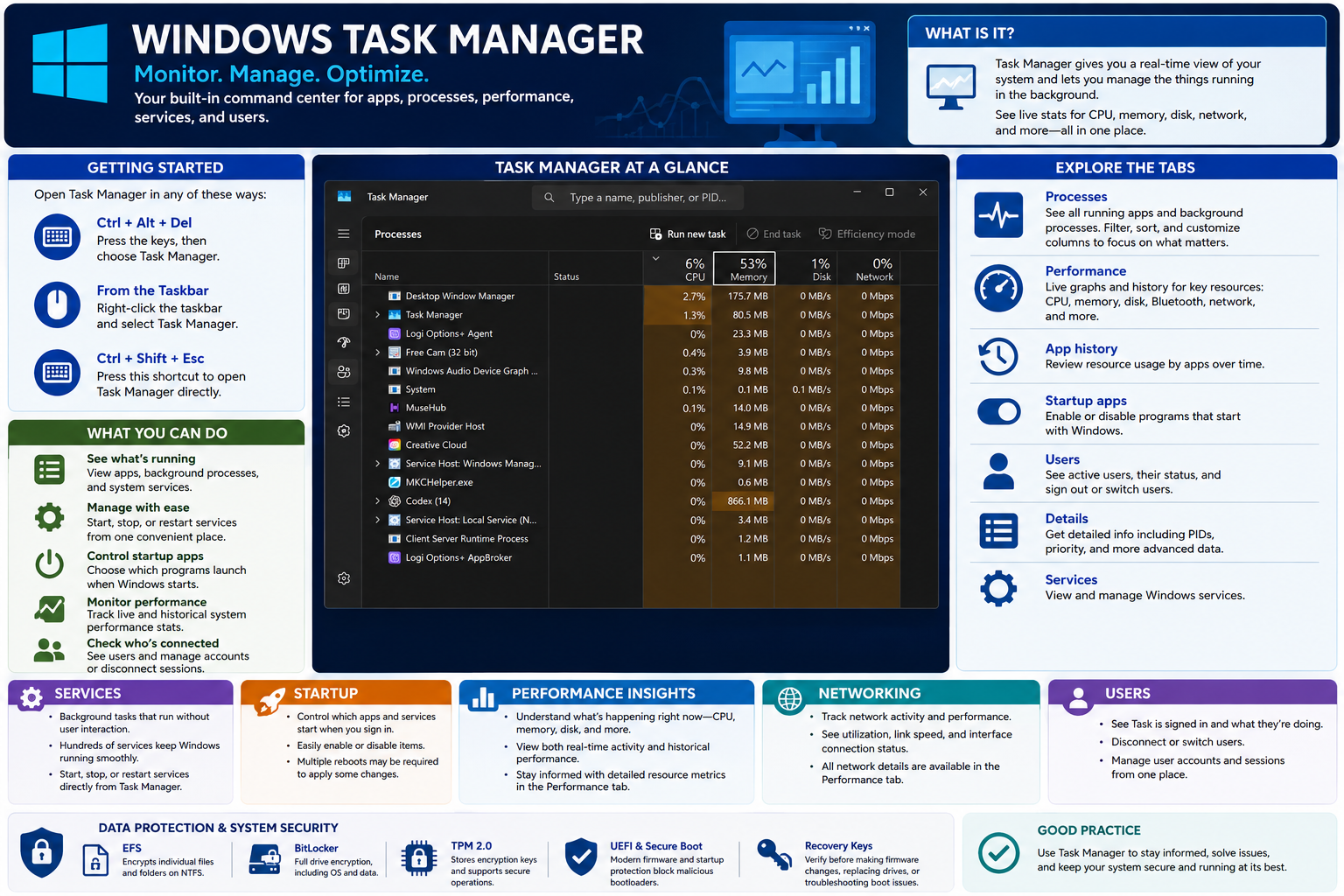
Windows Task Manager infographic showing how to open Task Manager, what it monitors, major tabs, services, startup apps, performance insights, networking, users, and related data-protection reminders.
Task Manager gives technicians a fast, real-time view of running apps, processes, performance, startup behavior, users, details, and services so problems can be investigated with evidence.

Technician workflow:

  • Identify the symptom: Confirm whether the issue is slow performance, a frozen app, high resource usage, slow startup, network activity, user-session activity, or a service problem.
  • Open Task Manager: Use Ctrl + Shift + Esc for the fastest direct access, or use Ctrl + Alt + Del or the taskbar shortcut if appropriate.
  • Pick the right tab: Use Processes for what is running, Performance for system-wide graphs, Startup apps for sign-in load, Users for sessions, Details for PIDs, and Services for service state.
  • Sort and compare: Sort by CPU, memory, disk, network, or startup impact. Compare the evidence to the user symptom instead of changing settings blindly.
  • Make one controlled change: End a hung app, disable an unnecessary startup item, restart a known service, or gather the PID for deeper troubleshooting. Avoid broad, random changes.
  • Verify and document: Confirm performance improved, the app works, the service is stable, startup is cleaner, or network usage is understood. Record the action and the result.
Bottom line: Use Task Manager to see what Windows is doing right now, identify resource problems, manage startup apps and services carefully, protect user data, and document every meaningful change.
A+
Module 02

Module 2 - Essential Windows Management Tools

Windows includes powerful built-in management tools that help technicians monitor, configure, maintain, troubleshoot, automate, and secure systems without installing extra software.

Objective 1.4 expects you to know which Windows tool fits the symptom. Task Manager gives fast real-time visibility, but the broader Windows toolset goes deeper. Microsoft Management Console snap-ins and administrative utilities let you inspect events, manage hardware, partition disks, schedule tasks, control services, review certificates, check users, monitor performance, and document the system state.

Microsoft Management Console is the launchpad.

  • MMC: Microsoft Management Console, launched with mmc.exe, is a framework that hosts administrative snap-ins. It is not just one tool; it is a container for many focused management tools.
  • Snap-ins: Common snap-ins include Event Viewer, Local Users and Groups, Disk Management, Task Scheduler, Device Manager, Certificates, Performance Monitor, and Group Policy tools where available.
  • Custom consoles: Administrators can build a console that includes the snap-ins they use most often, which is helpful for repeatable support work.
  • Tool mindset: MMC tools give control, visibility, and automation from one place, but changes can affect stability, data, security, and user access.

Know the core tools and what each one answers.

  • Event Viewer - eventvwr.msc: Central hub for system and application events. Use it to answer what happened and when. It includes logs such as Application, Security, Setup, and System. Event levels include Information, Warning, Error, Critical, Successful Audit, and Failure Audit.
  • Device Manager - devmgmt.msc: View and manage hardware connected to the computer. Use it to check missing drivers, disabled devices, warning icons, device categories, driver versions, and hardware recognition. Windows communicates with hardware through device drivers, so driver status matters.
  • Disk Management - diskmgmt.msc: Create, delete, format, assign drive letters, and manage disk volumes on local computers or file servers. This is a high-risk tool because deleting, formatting, or modifying volumes can erase data. Always confirm backups first.
  • Task Scheduler - taskschd.msc: Automate tasks by scheduling programs, scripts, maintenance jobs, and recurring actions. Use it when a task must run once, at startup, at sign-in, on a trigger, or on a recurring schedule.
  • Services - services.msc: View and manage background services that run with or without user interaction. Use it to start, stop, restart, disable, or change startup behavior for Windows and application services.
  • Certificate Manager - certmgr.msc: View and manage certificates for users and trusted entities. Use it to inspect, add, export, or remove certificates when troubleshooting trust, encryption, authentication, VPN, Wi-Fi, web, or application certificate issues.

Task Manager still connects to several management areas.

  • Startup apps: Task Manager can enable or disable programs that start when a user signs in. This is useful for slow startup and background-resource issues.
  • Performance: Task Manager provides live and historical graphs for CPU, memory, disk, network, Wi-Fi, Bluetooth, GPU, and other metrics. Use this view to spot bottlenecks quickly.
  • Networking: Task Manager shows network utilization, link speed, and adapter details. It helps identify whether an app, update, backup, cloud sync, or unknown process is using bandwidth.
  • Users: Task Manager shows signed-in users, what they are doing, and resource consumption by session. It can help with shared systems, Remote Desktop hosts, and user-session management.

Scenario clues that point to the right tool:

  • What happened? Open Event Viewer.
  • Which hardware or driver is failing? Open Device Manager.
  • Why is this disk not usable, missing a drive letter, or unallocated? Open Disk Management.
  • How do I run a script or maintenance job automatically? Open Task Scheduler.
  • Which background service is stopped, stuck, or misconfigured? Open Services.
  • Which app is slowing startup? Use Task Manager Startup apps.
  • Which resource is bottlenecked? Use Task Manager Performance, then deeper tools if needed.
  • Why is certificate trust, VPN, Wi-Fi, encryption, or authentication failing? Check Certificate Manager.

Best practices for IT pros:

  • Know your tools: Each management tool solves a specific problem. Use the tool that matches the evidence.
  • Check before you change: Verify settings, create backups, understand impact, and confirm the user or business requirement before modifying disks, services, certificates, startup behavior, or policies.
  • Monitor and maintain: Use performance data and event logs to keep systems healthy instead of waiting for outages.
  • Keep drivers and systems updated: Current drivers, Windows updates, firmware, and application updates improve compatibility, security, and reliability.
  • Automate and document: Schedule routine tasks carefully and keep documentation for consistency, audits, troubleshooting, and handoff.
Data warning: Disk Management can erase data. Before deleting, formatting, shrinking, extending, or changing partitions or volumes, verify the target disk and confirm a backup exists.
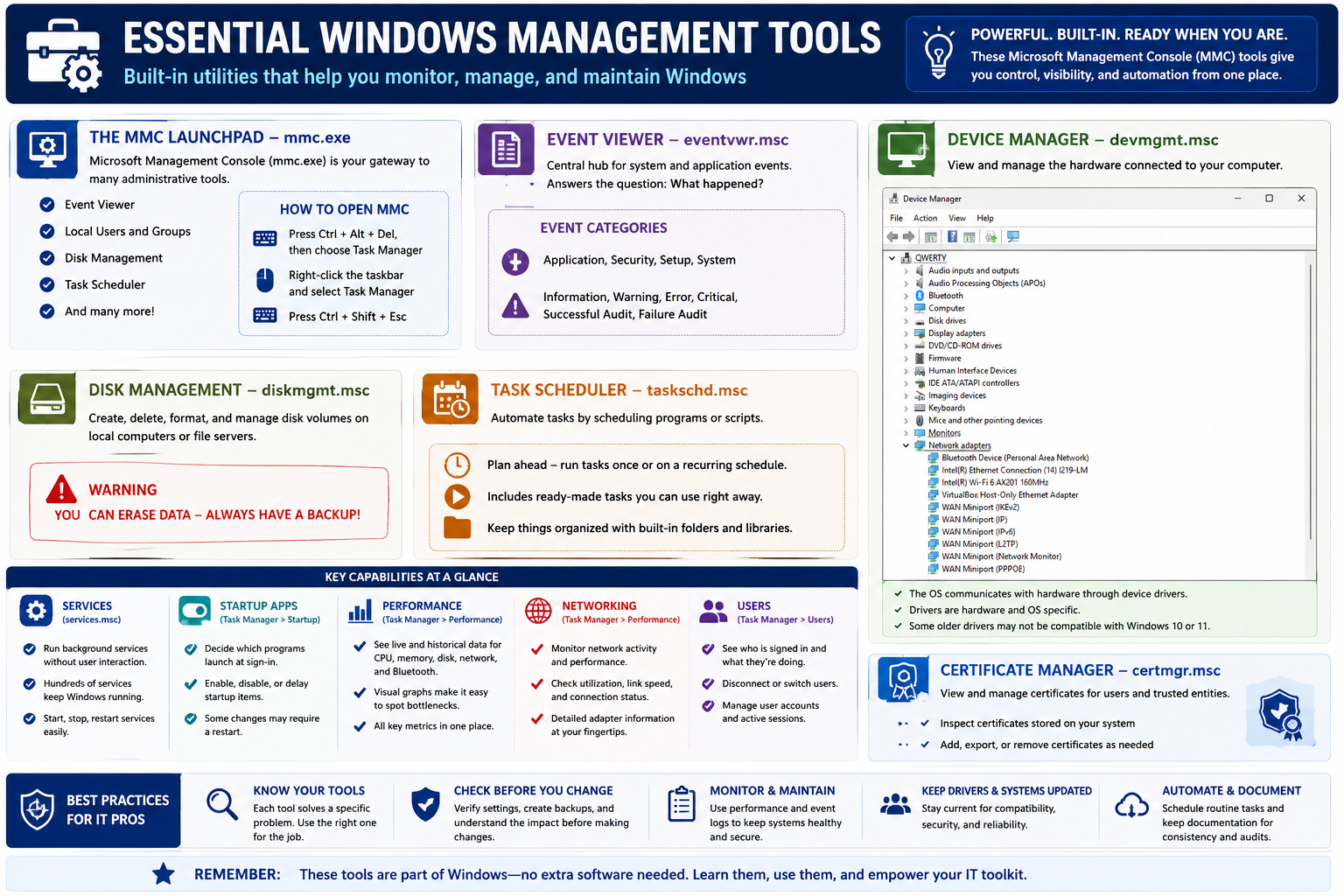
Essential Windows Management Tools infographic covering MMC, Event Viewer, Device Manager, Disk Management, Task Scheduler, Services, Startup Apps, Performance, Networking, Users, Certificate Manager, and best practices.
Windows management tools help technicians choose the right administrative view for the job: events, hardware, disks, scheduled tasks, services, certificates, startup behavior, performance, networking, and user sessions.

Technician workflow:

  • Define the symptom: Is the problem about events, hardware, storage, automation, services, certificates, startup, performance, network activity, or users?
  • Open the matching tool: Use eventvwr.msc, devmgmt.msc, diskmgmt.msc, taskschd.msc, services.msc, certmgr.msc, Task Manager, or MMC based on the clue.
  • Collect evidence first: Review logs, device state, disk layout, task triggers, service status, certificate details, startup impact, resource usage, and user sessions before changing anything.
  • Protect the system: Back up data, avoid unnecessary service changes, preserve certificate exports when needed, and do not modify disks or startup items without a reason.
  • Make one controlled change: Apply the smallest change that tests the likely cause, then retest.
  • Document and maintain: Record the tool used, evidence found, change made, and verification result.
Bottom line: Windows management tools are built in, powerful, and ready when needed. Choose the tool that matches the symptom, verify before changing, protect data, and document the outcome.
A+
Module 03

Module 3 - Windows MMC Tools

Microsoft Management Console tools give technicians focused control over Windows users, hardware, storage, logs, scheduled tasks, certificates, performance data, and policy settings from one central management framework.

MMC tools are built for administrative visibility. Instead of guessing, a technician can open the correct console, inspect the system state, make a controlled change, and verify the result. Objective 1.4 often tests whether you know which tool matches the symptom: user permissions, event logs, disk volumes, scheduled automation, device drivers, performance history, certificates, or policy enforcement.

Local Users and Groups - lusrmgr.msc

  • Purpose: Manage local accounts and organize users and groups to control access on a standalone Windows system.
  • Users: Local user types can include Administrator accounts with full control, Guest accounts with limited temporary access, and standard users with everyday non-administrative privileges.
  • Groups: Common local groups include Administrators, Users, Backup Operators, Power Users, and other built-in groups. Group membership determines what a user can do.
  • Scenario clue: If the question asks who can access a local resource, who has local admin rights, or how to organize local permissions, think Local Users and Groups.

Event Viewer - eventvwr.msc

  • Purpose: Collects and displays events from Windows and applications to answer what happened, when it happened, and how serious it was.
  • Log categories: Application, Security, Setup, and System are common categories to review.
  • Event levels: Information, Warning, Error, Critical, Success Audit, and Failure Audit help prioritize investigation.
  • Scenario clue: If an app crashes, a service fails, a driver logs errors, a security audit is needed, or a system problem must be traced over time, start with Event Viewer.

Disk Management - diskmgmt.msc

  • Purpose: Create, delete, format, shrink, extend, and manage disk volumes on local PCs and servers.
  • Capabilities: Assign drive letters and paths, shrink or expand partitions, convert disk types where supported, and view disk/volume health and layout.
  • Risk: Disk Management can erase data. Deleting or formatting the wrong volume is a serious mistake.
  • Scenario clue: If a disk is offline, unallocated, missing a drive letter, incorrectly partitioned, or needs formatting, use Disk Management after confirming backup status.

Task Scheduler - taskschd.msc

  • Purpose: Run programs or scripts automatically based on a schedule, event, logon, startup, or other trigger.
  • Benefits: Schedule tasks once or repeatedly, use ready-made Windows tasks, organize tasks in folders and libraries, and automate routine maintenance.
  • Important note: Some scheduled-task changes may require rebooting, waiting for the next trigger, or checking task history before you see results.
  • Scenario clue: If the question mentions automation, recurring maintenance, scripts, triggers, or a task running at logon/startup, think Task Scheduler.

Device Manager - devmgmt.msc

  • Purpose: View and control hardware connected to the computer.
  • Drivers: Drivers translate between Windows and hardware. They are both hardware-specific and OS-specific, which means older drivers may not work correctly with Windows 10 or Windows 11.
  • What to check: Device categories, warning symbols, disabled devices, missing drivers, driver versions, hardware IDs, and whether Windows recognizes the device at all.
  • Scenario clue: If hardware is missing, malfunctioning, unknown, disabled, or has a driver problem, use Device Manager before replacing the device.

Performance Monitor - perfmon.msc

  • Purpose: Track system performance over time and plan for capacity, not just real-time troubleshooting.
  • What you get: Long-term performance counters, data collector sets, reports, trend analysis, alerts, and automated actions.
  • Resources: Monitor CPU, memory, disk, network, Bluetooth, and other counters depending on available hardware and services.
  • Scenario clue: If the question asks about long-term trends, baselines, capacity planning, reports, or performance alerts, think Performance Monitor.

Group Policy Editor and GPMC

  • Local Group Policy Editor - gpedit.msc: Configure and enforce settings for users and computers on a standalone system. It is ideal when the policy applies only to the local PC.
  • Group Policy Management Console - gpmc.msc: Enterprise-grade tool integrated with Active Directory for managing domain-wide Group Policy Objects.
  • Policy areas: Computer Configuration and User Configuration contain policy settings that can control security, scripts, desktop behavior, Windows components, and administrative templates.
  • Scenario clue: If one standalone computer needs local policy, use gpedit.msc. If a domain or organizational unit needs centralized policy, use gpmc.msc.

Certificate Manager - certmgr.msc

  • Purpose: View and manage certificates for users and computers.
  • What you can do: Inspect personal and trusted certificates, add/import/export/remove certificates, and manage certificate stores locally.
  • Why it matters: Certificates support security, encryption, authentication, VPN, Wi-Fi, secure web connections, and application trust.
  • Scenario clue: If the issue involves trust, certificate expiration, encrypted communication, secure authentication, or certificate export/import, check Certificate Manager.

At-a-glance tool matching:

  • Users and Groups: Control who can access what and what they can do.
  • Event Viewer: Track events and identify issues fast.
  • Disk Management: Manage disks and partitions safely.
  • Task Scheduler: Automate tasks and save time.
  • Performance Monitor: Monitor system health and plan ahead.
  • Device Manager: Keep hardware and drivers running smoothly.
  • Group Policy Editor: Enforce settings and secure the environment.
  • Certificate Manager: Manage digital certificates with confidence.
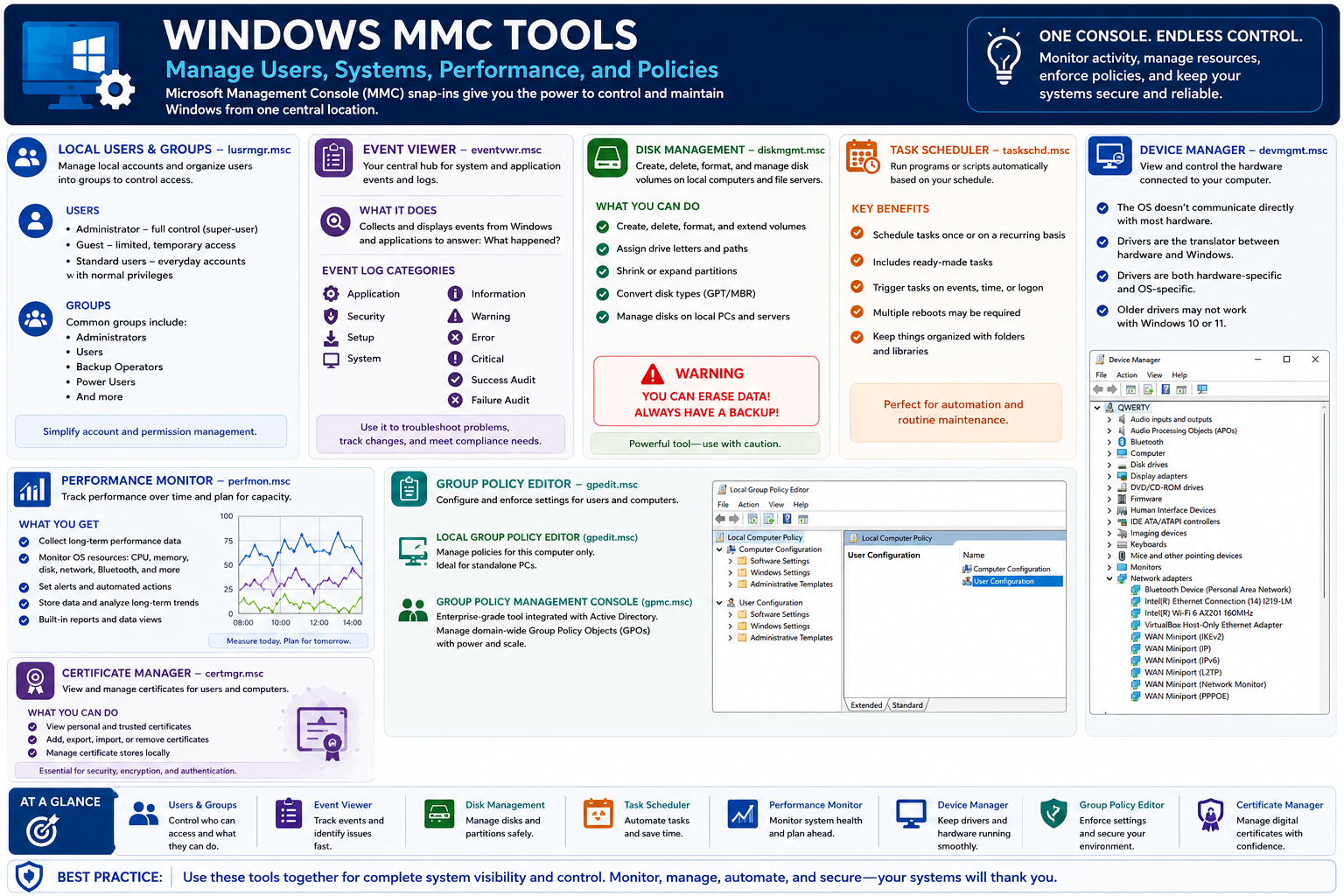
Windows MMC Tools infographic showing Local Users and Groups, Event Viewer, Disk Management, Task Scheduler, Device Manager, Performance Monitor, Group Policy Editor, Certificate Manager, and best-practice reminders.
MMC snap-ins give technicians focused administrative control for users, events, storage, automation, drivers, performance, policy, and certificates.

Technician workflow:

  • Match the symptom to the console: User permissions, logs, disks, tasks, devices, performance, policy, and certificates each have a better first tool.
  • Open the tool directly: Use commands such as lusrmgr.msc, eventvwr.msc, diskmgmt.msc, taskschd.msc, devmgmt.msc, perfmon.msc, gpedit.msc, gpmc.msc, and certmgr.msc.
  • Collect evidence: Review account membership, log entries, disk state, scheduled triggers, device status, performance counters, policy settings, or certificate details.
  • Protect the system: Back up data before disk changes, export certificates when needed, avoid unnecessary service or policy changes, and preserve user access.
  • Make one controlled change: Adjust the specific setting, driver, task, user, group, certificate, volume, or policy that matches the evidence.
  • Verify and document: Retest the symptom, confirm the result, and document the console used, finding, change, and outcome.
Bottom line: MMC tools give complete system visibility and control. Use the right console for the clue, monitor before changing, manage carefully, automate wisely, and secure the system with documentation.
A+
Module 04

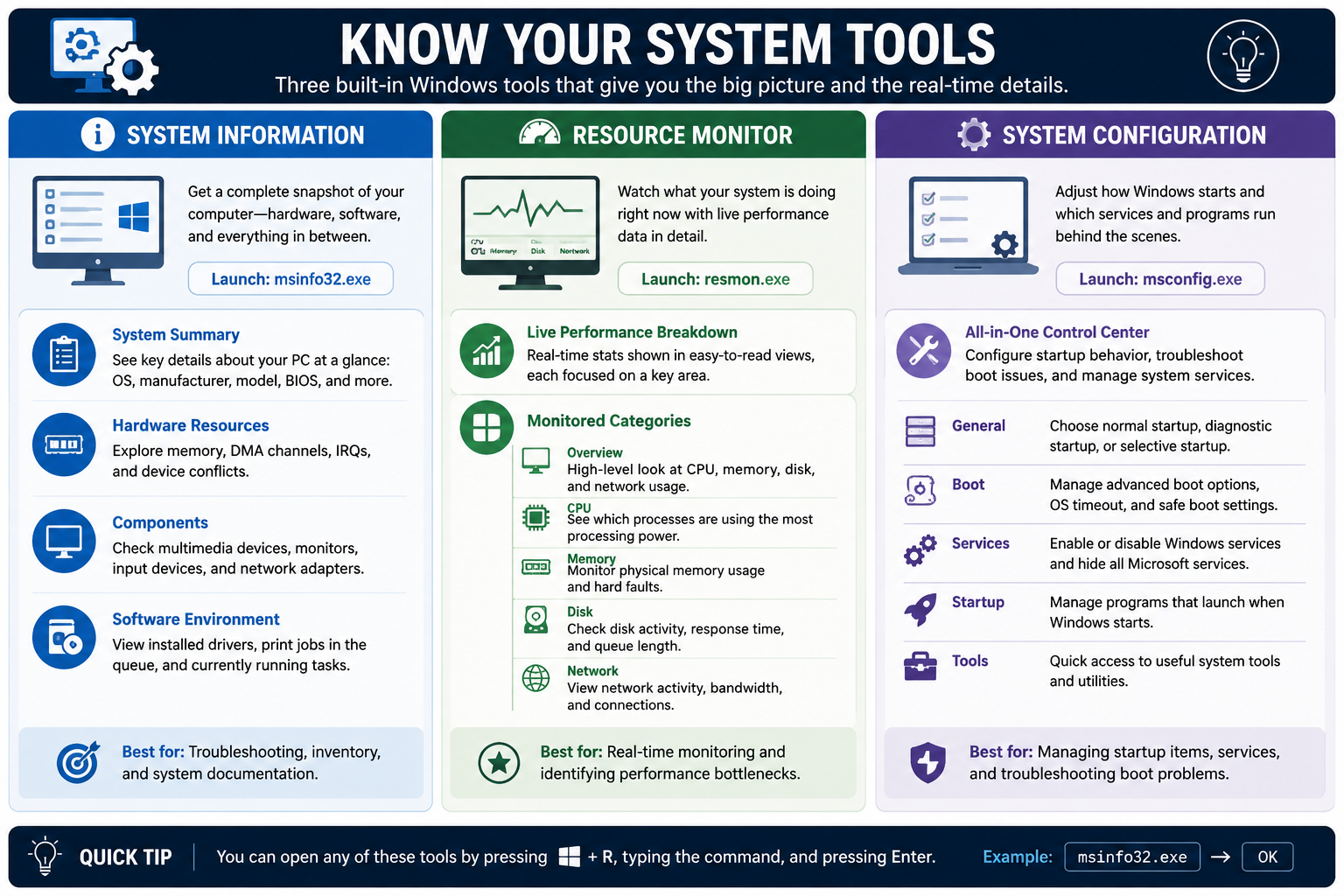
Module 4 - Know Your System Tools

System Information, Resource Monitor, and System Configuration give technicians three different views of Windows: the complete system snapshot, the real-time performance story, and the startup/boot configuration path.

Task Manager and MMC tools help with many support tasks, but some scenarios need a broader system inventory, deeper live resource analysis, or startup troubleshooting controls. These three tools help answer different questions: what is installed, what is happening right now, and what runs when Windows starts.

System Information - msinfo32.exe

  • Purpose: Provides a complete snapshot of the computer, including hardware, software, firmware, drivers, and configuration details.
  • System Summary: Shows key system details at a glance, such as operating system name/version, manufacturer, model, BIOS/UEFI information, processor, memory, and other baseline inventory data.
  • Hardware Resources: Helps explore memory resources, DMA channels, IRQs, I/O resources, and device conflicts. This is useful when older hardware, add-on cards, or driver/resource conflicts are suspected.
  • Components: Lists hardware categories such as multimedia devices, display, input devices, storage, network adapters, and other installed components.
  • Software Environment: Shows installed drivers, print jobs, loaded modules, services, startup items, and running tasks depending on the category.
  • Best fit: Troubleshooting, inventory, documentation, warranty support, upgrade planning, and confirming what the system actually contains.

Resource Monitor - resmon.exe

  • Purpose: Shows detailed live performance data so you can watch what the system is doing right now.
  • Overview: Provides a high-level view of CPU, memory, disk, and network usage together.
  • CPU: Shows which processes are using the most processing power and can help identify runaway apps, stuck services, background tasks, or suspicious activity.
  • Memory: Displays physical memory usage, hard faults, standby memory, and pressure that may explain slow performance or excessive paging.
  • Disk: Shows disk activity, response time, queue length, file activity, and processes reading/writing heavily.
  • Network: Shows network activity, bandwidth usage, connections, and processes communicating over the network.
  • Best fit: Real-time monitoring, performance bottleneck identification, and proving whether the constraint is CPU, memory, disk, or network.

System Configuration - msconfig.exe

  • Purpose: Adjusts how Windows starts and which services or programs run behind the scenes.
  • General tab: Choose normal startup, diagnostic startup, or selective startup. This helps isolate whether startup items or services are contributing to a problem.
  • Boot tab: Manage advanced boot options, operating system timeout, and Safe Boot settings for troubleshooting startup and boot issues.
  • Services tab: Enable or disable Windows services and hide Microsoft services before troubleshooting third-party service issues. Use caution because disabling the wrong service can break networking, security, updates, printing, management, or applications.
  • Startup tab: Directs modern Windows users to Task Manager for startup app management.
  • Tools tab: Provides quick access to useful Windows system tools and utilities.
  • Best fit: Managing startup items, troubleshooting boot problems, isolating service conflicts, and launching related system tools.

Pick the tool based on the question being asked.

  • What computer is this? Use System Information to confirm OS, model, BIOS/UEFI, processor, memory, drivers, components, and software environment.
  • What is happening right now? Use Resource Monitor to watch live CPU, memory, disk, and network behavior at a detailed level.
  • What is causing startup or boot trouble? Use System Configuration to choose diagnostic/selective startup, Safe Boot, and service troubleshooting options.
  • What should I document? Use System Information for inventory details, Resource Monitor for live bottleneck evidence, and System Configuration for startup/boot settings changed during troubleshooting.

Scenario clues:

  • Need OS version, BIOS, model, installed RAM, driver inventory, or system documentation: Launch msinfo32.exe.
  • Need detailed live CPU, memory, disk, or network activity: Launch resmon.exe.
  • Need Safe Boot, selective startup, diagnostic startup, or service isolation: Launch msconfig.exe.
  • Need to disable startup apps: Use Task Manager Startup apps from the System Configuration startup path.
  • Need to determine whether a third-party service causes boot problems: Use System Configuration carefully, hide Microsoft services where appropriate, disable only what is needed, then retest.

Safety reminders:

  • System Information is mostly read-only: It is excellent for discovery and documentation before making changes.
  • Resource Monitor is evidence-focused: Use it to confirm which resource is under pressure before blaming hardware, users, or applications.
  • System Configuration can change startup behavior: Record the original state before switching to diagnostic startup, selective startup, Safe Boot, or service changes.
  • Restart effects matter: Startup, boot, and service changes may require a reboot to take effect. Plan around user work and maintenance windows.
  • Undo the test state: After troubleshooting with Safe Boot or selective startup, return the computer to the appropriate normal configuration when finished.
Quick launch tip: Press Windows + R, type msinfo32.exe, resmon.exe, or msconfig.exe, then press Enter.
Know Your System Tools infographic covering System Information msinfo32.exe, Resource Monitor resmon.exe, and System Configuration msconfig.exe with monitored categories, boot options, services, startup, and troubleshooting guidance.
System Information gives the big picture, Resource Monitor shows real-time performance details, and System Configuration helps troubleshoot startup, boot, and service behavior.

Technician workflow:

  • Start with the support question: Decide whether you need inventory, live performance evidence, or startup/boot configuration.
  • Launch the correct tool: Use msinfo32.exe for system inventory, resmon.exe for detailed live resource usage, and msconfig.exe for startup and boot troubleshooting.
  • Collect evidence: Record system details, resource pressure, service state, boot options, startup mode, and any visible bottleneck.
  • Protect the user: Avoid rebooting, changing services, or enabling Safe Boot without warning the user and saving work.
  • Make a controlled change: Change one startup, boot, or service setting at a time, then restart or retest only when needed.
  • Restore and document: Return temporary troubleshooting settings to normal, confirm the issue is resolved, and document findings and changes.
Bottom line: Use System Information for the complete snapshot, Resource Monitor for live performance detail, and System Configuration for startup, boot, and service troubleshooting.
A+
Module 05

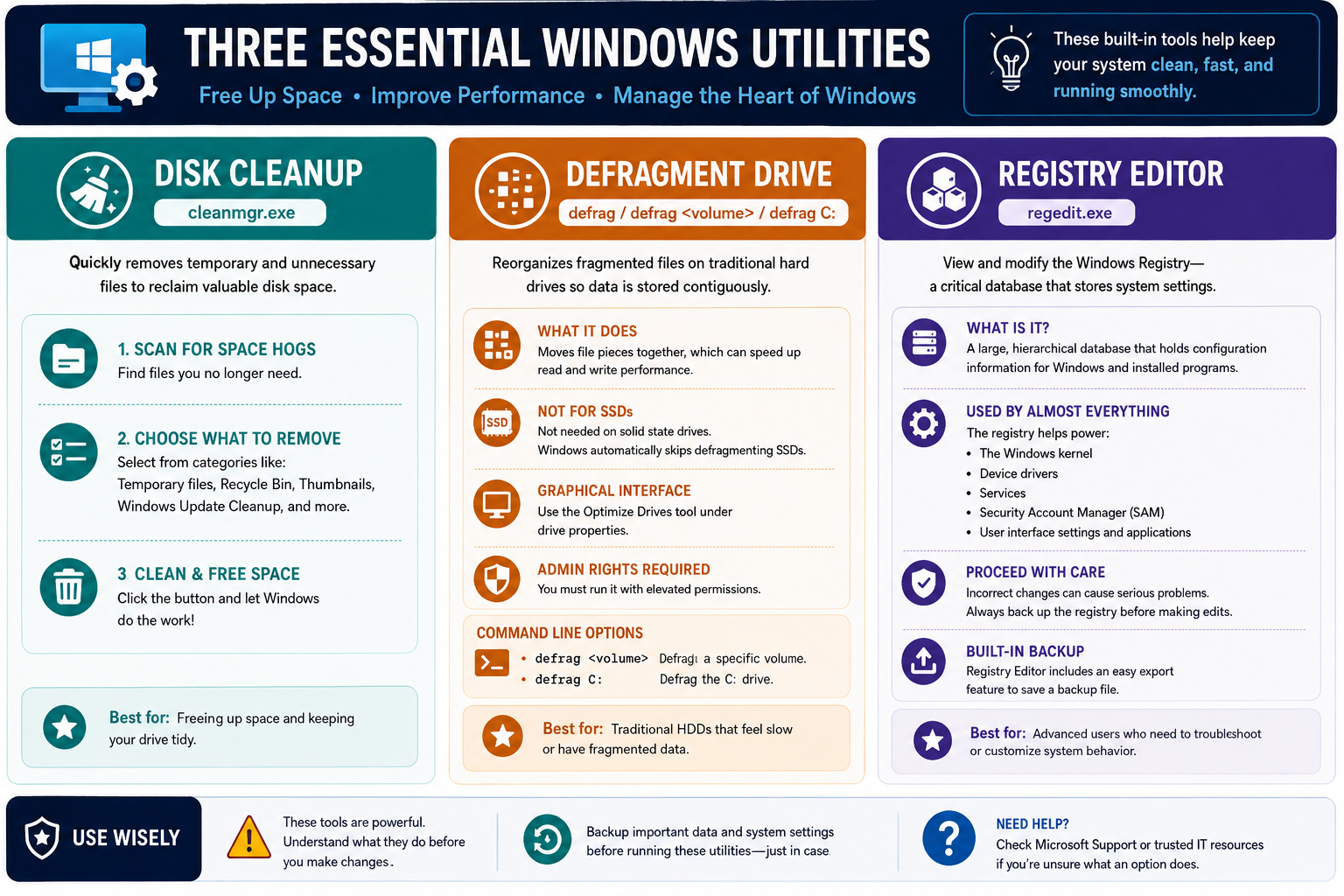
Module 5 - Three Essential Windows Utilities

Disk Cleanup, Defragment and Optimize Drives, and Registry Editor are built-in Windows utilities that help free storage, maintain drive performance, and manage critical system configuration.

These tools are powerful because they touch important parts of the operating system. Disk Cleanup removes unnecessary files, Defragment and Optimize Drives improves storage layout or optimization behavior, and Registry Editor exposes the database Windows and applications depend on for configuration. A technician should know when to use each tool, what risk comes with it, and what to verify before making changes.

Disk Cleanup - cleanmgr.exe

  • Purpose: Removes temporary and unnecessary files to reclaim disk space and keep the drive tidier.
  • Scan for space hogs: Disk Cleanup identifies categories of files that may no longer be needed, such as temporary files, Recycle Bin contents, thumbnails, Windows Update cleanup files, temporary internet files, and other cleanup categories depending on the system.
  • Choose what to remove: The technician should review categories before deleting. Some items are low risk, while others may remove rollback files, cached data, logs, or items the user may still expect to recover.
  • Clean and free space: After selecting the categories, Windows removes the chosen files and frees storage. This can help low-space systems install updates, run more smoothly, or avoid application errors caused by insufficient disk space.
  • Best fit: Freeing up space, clearing temporary files, helping a system with low available storage, and routine maintenance before updates or troubleshooting.

Defragment and Optimize Drives - defrag

  • Purpose: Reorganizes fragmented files on traditional hard disk drives so related file pieces are stored more contiguously, which can improve read/write performance.
  • Traditional HDDs: Defragmentation matters most for spinning hard drives because the mechanical read/write head has to move across the disk to access scattered file fragments.
  • Not for SSD defragging: Solid-state drives do not need traditional defragmentation. Windows recognizes SSDs and performs appropriate optimization instead of treating them like mechanical disks.
  • Graphical path: Use the Optimize Drives tool from drive properties or Windows search when you need the GUI.
  • Command line: Use defrag <volume> to defragment a specific volume, such as defrag C: for the C: drive. Administrative rights may be required.
  • Best fit: Traditional hard drives that feel slow, systems with fragmented data, and scheduled storage maintenance for HDD-based devices.

Registry Editor - regedit.exe

  • Purpose: Views and modifies the Windows Registry, a large hierarchical database that stores configuration information for Windows, installed programs, services, drivers, user interface settings, and security-related components.
  • Used by almost everything: The registry helps power the Windows kernel, device drivers, services, Security Account Manager components, application settings, and user interface behavior.
  • Proceed with care: Incorrect registry edits can cause serious problems, including broken apps, startup failures, user-profile problems, disabled services, security issues, or an unbootable system.
  • Built-in backup: Registry Editor can export keys before making changes. Exporting the relevant key creates a backup file that can help restore the previous setting if the edit causes problems.
  • Best fit: Advanced troubleshooting, vendor-documented fixes, configuration repair, and specialized changes that cannot be made safely through normal settings or management tools.

Use these tools wisely.

  • Understand before changing: Know what the cleanup category, optimization action, or registry key does before making the change.
  • Back up first: Back up important user data and system settings before running cleanup, optimization, or registry edits that could affect recoverability.
  • Confirm the target: Make sure you are cleaning the correct drive, optimizing the correct volume, or editing the correct registry path.
  • Use the least risky path: Prefer normal Settings, Control Panel, MMC tools, vendor instructions, or documented utilities before editing the registry manually.
  • Ask for help when uncertain: If a cleanup category, optimization option, or registry setting is unclear, consult Microsoft documentation, vendor support, or trusted IT resources before proceeding.

Scenario clues:

  • Low disk space or temporary file buildup: Launch cleanmgr.exe or use the modern storage cleanup path.
  • Traditional hard drive feels slow because files are fragmented: Use Defragment and Optimize Drives or defrag C:.
  • SSD maintenance: Do not manually defrag like an HDD. Let Windows perform the correct optimization for the drive type.
  • Vendor documentation instructs a specific registry change: Use regedit.exe carefully and export the affected key first.
  • Unknown registry change from an untrusted source: Do not apply it. Registry changes require trust, purpose, backup, and documentation.
Safety rule: These utilities can improve a system, but they can also remove files, alter performance behavior, or change critical configuration. Verify backups and understand the impact before using them.
Three Essential Windows Utilities infographic covering Disk Cleanup cleanmgr.exe, Defragment Drive commands, Registry Editor regedit.exe, use wisely reminders, backups, and support guidance.
Disk Cleanup frees space, Defragment and Optimize Drives maintains storage performance, and Registry Editor modifies the critical configuration database behind Windows behavior.

Technician workflow:

  • Identify the goal: Decide whether the issue is low disk space, slow HDD performance, or a configuration setting that requires registry-level troubleshooting.
  • Choose the safest tool: Use Disk Cleanup for unnecessary files, Optimize Drives for storage optimization, and Registry Editor only for documented advanced changes.
  • Protect the system: Back up user data, confirm restore or recovery options, and export registry keys before making registry edits.
  • Verify the target: Confirm the correct drive, volume, cleanup category, or registry path before clicking apply, delete, optimize, or modify.
  • Make one controlled change: Remove selected cleanup categories, optimize the correct drive, or change only the documented registry value.
  • Retest and document: Confirm disk space improved, performance changed, or the configuration issue is resolved. Record what was changed and why.
Bottom line: Use Disk Cleanup to free space, Optimize Drives for drive maintenance, and Registry Editor only with care, backups, documentation, and a clear reason.
A+
Module 06

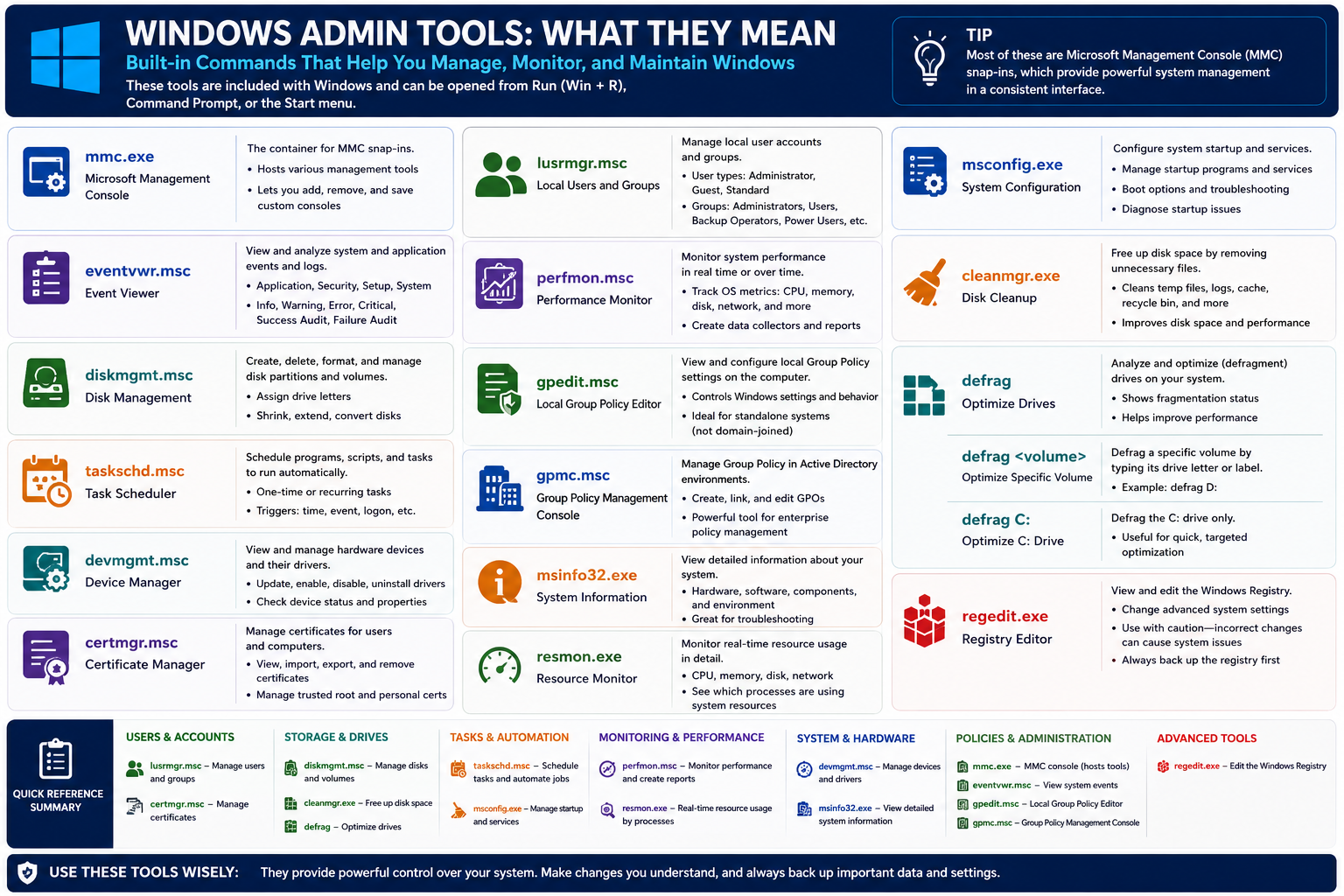
Module 6 - Windows Admin Tools Quick Reference

Windows administration is easier when you know the exact built-in tool for the job. CompTIA A+ does not expect you to memorize every button inside every console, but it does expect you to recognize command names, understand what each utility controls, and choose the best tool when a troubleshooting scenario gives you clues.

Most of these utilities can be opened from the Start menu, Command Prompt, PowerShell, or the Run dialog with Windows + R. Many are Microsoft Management Console snap-ins, which means they share a consistent administrative framework and can often be combined into custom consoles for faster support work.

Management Console And Identity Tools

mmc.exe opens Microsoft Management Console, the container used by many Windows administrative snap-ins. MMC can host tools such as Event Viewer, Disk Management, Certificates, Local Users and Groups, Device Manager, and Group Policy. A technician can add or remove snap-ins and save a custom console for repeat tasks.

lusrmgr.msc opens Local Users and Groups. Use it to manage local accounts and group membership on supported Windows editions. This is where you may review users such as Administrator, Guest, and Standard users, or groups such as Administrators, Users, Backup Operators, and Power Users. If the scenario is about local account permissions, local group membership, or who can administer a standalone PC, this is a strong clue.

certmgr.msc opens Certificate Manager for user certificates. Certificates help Windows validate trust for users, computers, websites, VPNs, encrypted email, and other secure connections. Use this tool to view, import, export, or remove certificates. Be careful with trusted root and personal certificates because removing the wrong certificate can break authentication or encrypted communication.

Logs, Policies, And Enterprise Control

eventvwr.msc opens Event Viewer, the central place to review Windows logs. The major log categories include Application, Security, Setup, and System. Event levels include Information, Warning, Error, Critical, Successful Audit, and Failure Audit. If a problem happened recently, Event Viewer helps answer what happened, when it happened, and which component reported it.

gpedit.msc opens Local Group Policy Editor. It is used to configure policy settings on a single computer, especially standalone systems that are not joined to a domain. Policies can control startup behavior, security options, scripts, Windows components, and user or computer restrictions.

gpmc.msc opens Group Policy Management Console in Active Directory environments. Use it to create, link, edit, and manage Group Policy Objects across domains and organizational units. If the scenario involves enterprise-wide policy, centralized configuration, domain users, or consistent settings across many computers, think GPMC instead of local policy alone.

Storage, Cleanup, And Maintenance

diskmgmt.msc opens Disk Management. This is the graphical tool for creating, deleting, formatting, extending, shrinking, and assigning drive letters to partitions and volumes. It can also help identify missing drives, unallocated space, offline disks, and volume layout. Because storage changes can erase data, always confirm backups before modifying partitions or formatting volumes.

cleanmgr.exe opens Disk Cleanup. It removes unnecessary files such as temporary files, logs, cached content, Recycle Bin contents, and Windows Update cleanup data. Use it when the symptom is low disk space or when a system needs routine cleanup before deeper troubleshooting.

defrag and commands such as defrag C: analyze or optimize drives. Traditional hard drives may benefit from defragmentation because fragmented files can slow mechanical reads. Solid-state drives do not need traditional defragging; Windows typically performs SSD-aware optimization instead. Match the command to the drive type before running maintenance.

Automation, Monitoring, Hardware, And Startup

taskschd.msc opens Task Scheduler. Use it to run programs, scripts, and maintenance tasks one time or on a recurring schedule. Tasks can be triggered by time, events, logon, or system conditions. If a process runs automatically and you need to identify, disable, or modify it, Task Scheduler is a key place to check.

perfmon.msc opens Performance Monitor. It tracks performance counters over time, creates data collector sets, and generates reports. Use it when you need historical performance evidence or capacity planning details for CPU, memory, disk, network, and other system metrics.

resmon.exe opens Resource Monitor. It shows real-time CPU, memory, disk, and network usage by process. If the system is slow right now and you need to see which process is consuming resources, Resource Monitor provides a more detailed live view than the basic Task Manager summary.

devmgmt.msc opens Device Manager. Use it to view hardware, check device status, update drivers, disable or enable devices, uninstall devices, and inspect properties. If the problem involves a missing device, failed driver, yellow warning icon, unknown hardware, or device conflict, Device Manager belongs near the top of your checklist.

msinfo32.exe opens System Information. It provides a detailed system inventory, including hardware resources, components, BIOS/UEFI details, installed drivers, and software environment information. Use it for documentation, escalation, compatibility checks, and confirming what is actually installed.

msconfig.exe opens System Configuration. It helps troubleshoot startup and boot behavior, manage startup modes, review boot options, and control services during diagnostic work. It is useful when isolating startup problems, but changes should be tracked so the system can be returned to normal startup afterward.

regedit.exe opens Registry Editor. The Windows Registry stores critical configuration for Windows, services, drivers, applications, user profiles, and security components. Registry edits can fix advanced problems, but incorrect changes can damage the operating system. Export a backup of the relevant key before editing and change only what you understand.

Scenario Clues That Point To The Right Tool

  • Local users or groups: use lusrmgr.msc.
  • Certificates or trust stores: use certmgr.msc.
  • System or application errors: use eventvwr.msc.
  • Partitions, volumes, or drive letters: use diskmgmt.msc.
  • Scheduled scripts or recurring tasks: use taskschd.msc.
  • Slow system over time: use perfmon.msc.
  • Slow system right now: use resmon.exe or Task Manager.
  • Driver or hardware problem: use devmgmt.msc.
  • System inventory or BIOS details: use msinfo32.exe.
  • Startup, boot, or service isolation: use msconfig.exe.
  • Advanced configuration database change: use regedit.exe, with a backup first.
Technician workflow: identify the symptom, choose the command or console that matches the clue, collect evidence, protect data and settings before changing anything, make one controlled change, then verify and document the result.

Bottom line: Windows admin tools are built in for a reason. Know the command names, understand the risk level of each tool, and choose the smallest effective tool that solves the problem without creating a new one.

Windows admin tools quick reference infographic covering MMC snap-ins, event logs, users, disks, policies, performance, hardware, cleanup, defrag, system information, resource monitor, system configuration, and Registry Editor
Windows admin tools are built in, powerful, and scenario-driven. Use the command that matches the symptom.
A+
Module 07

Module 7 - Review Core Windows Tools

Before you move into the section summary, pause and connect the major Windows tools into one support mindset. A technician does not need to open every utility for every problem. The goal is to read the scenario, identify the kind of evidence or control needed, and choose the tool that gets you there with the least disruption.

Start With Visibility

When a user reports slowness, freezing, failed applications, unknown background activity, or startup problems, begin with tools that let you observe before changing anything. Task Manager gives the fast overview. Resource Monitor shows live detail by process. Performance Monitor helps when you need longer-term counters or reports. Event Viewer provides the timeline of warnings, errors, critical events, and audit activity.

Then Move To Control

After you understand the symptom, move to the tool that controls that layer of Windows. Use Device Manager for hardware and drivers, Disk Management for disks and volumes, Task Scheduler for automated tasks, Services or Task Manager for background services, System Configuration for startup and boot troubleshooting, and Group Policy tools for policy-driven settings.

Use Inventory To Confirm The Facts

System Information is one of the best documentation tools because it confirms what the system actually has: manufacturer, model, BIOS or UEFI information, hardware resources, components, drivers, and software environment details. Use it before upgrades, escalations, compatibility checks, driver work, and vendor support calls.

Respect High-Risk Utilities

Some tools can quickly affect data, boot behavior, security, or user access. Disk Management can erase or alter volumes. Registry Editor can break Windows or applications if the wrong key is changed. Certificate Manager can affect trust and authentication. Group Policy can lock down users or devices. System Configuration can change startup behavior. These tools are useful, but they require backups, notes, and a rollback plan.

Command Recognition Matters

For the exam and for real support work, connect the command to the tool: eventvwr.msc for Event Viewer, devmgmt.msc for Device Manager, diskmgmt.msc for Disk Management, taskschd.msc for Task Scheduler, perfmon.msc for Performance Monitor, resmon.exe for Resource Monitor, msinfo32.exe for System Information, msconfig.exe for System Configuration, cleanmgr.exe for Disk Cleanup, and regedit.exe for Registry Editor.

Review rhythm: observe first, confirm the system facts, choose the focused tool, protect data before changes, change one thing at a time, retest, and document the result.

Bottom line: Windows tools work best when you treat them as a workflow, not a pile of shortcuts. Match the tool to the layer of the problem and keep your troubleshooting controlled.

A+
Module 08

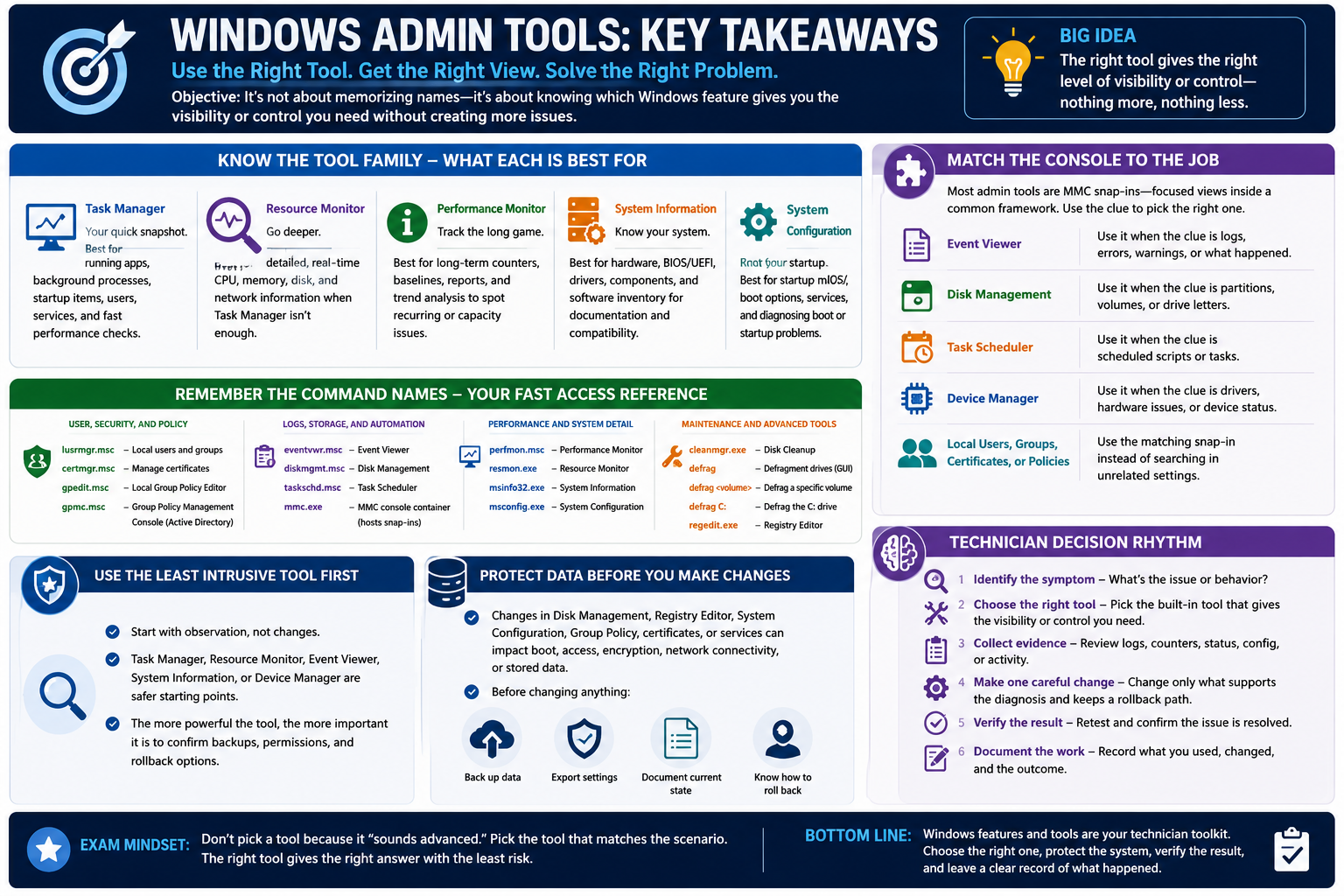
Module 8 - Key Takeaways

Windows admin tools key takeaways infographic summarizing tool families, command names, console matching, least intrusive troubleshooting, data protection, and technician decision rhythm
Use the right Windows admin tool to get the right view, make the safest change, and document the result.

Objective 1.4 is about more than recognizing tool names. The real skill is knowing which Windows feature gives you the right kind of visibility or control for the situation, then using it carefully enough that the fix does not create a bigger problem.

Know The Tool Family

  • Task Manager: best first stop for running apps, background processes, startup apps, users, services, and quick performance checks.
  • Resource Monitor: deeper real-time CPU, memory, disk, and network detail when Task Manager does not show enough.
  • Performance Monitor: long-term counters, baselines, reports, and trend analysis for recurring or capacity-related problems.
  • System Information: hardware, BIOS/UEFI, driver, component, and software inventory for documentation and compatibility checks.
  • System Configuration: startup mode, boot options, services, and diagnostic startup troubleshooting.

Match The Console To The Job

Many administration tools are MMC snap-ins, which means they provide focused management views inside a common framework. If the clue is logs, use Event Viewer. If the clue is partitions or drive letters, use Disk Management. If the clue is a scheduled script, use Task Scheduler. If the clue is a driver or hardware warning, use Device Manager. If the clue is local users, groups, certificates, or policies, use the matching snap-in instead of hunting through unrelated settings.

Remember The Command Names

User, Security, And Policy

lusrmgr.msc manages local users and groups. certmgr.msc manages user certificates. gpedit.msc manages local policy. gpmc.msc manages Group Policy in Active Directory environments.

Logs, Storage, And Automation

eventvwr.msc opens Event Viewer. diskmgmt.msc opens Disk Management. taskschd.msc opens Task Scheduler. mmc.exe opens the console container for snap-ins.

Performance And System Detail

perfmon.msc tracks performance counters. resmon.exe shows live resource usage. msinfo32.exe displays system inventory. msconfig.exe supports startup and boot troubleshooting.

Maintenance And Advanced Tools

cleanmgr.exe frees disk space. defrag optimizes traditional hard drives. regedit.exe edits the Registry and should be used only with a backup and a clear reason.

Use The Least Intrusive Tool First

Start with observation before modification. Checking Task Manager, Resource Monitor, Event Viewer, System Information, or Device Manager is usually safer than changing services, boot settings, disk partitions, policies, or registry values. The more powerful the tool, the more important it is to confirm backups, permissions, and rollback options.

Protect Data Before Maintenance

Disk Management, Registry Editor, System Configuration, Group Policy, certificate changes, and service changes can affect boot behavior, application access, encryption, network connectivity, or stored data. Before making changes, identify what could be lost, confirm whether the user has a backup, export settings when possible, and document the current state.

Technician Decision Rhythm

  1. Identify the symptom: performance, storage, startup, driver, login, policy, certificate, service, or application issue.
  2. Choose the right tool: match the clue to the built-in utility that gives the needed view or control.
  3. Collect evidence: review logs, counters, resource usage, hardware status, configuration, or scheduled activity.
  4. Make one careful change: change only what supports the diagnosis and preserve a rollback path.
  5. Verify the result: restart apps or services if needed, retest the symptom, and confirm no new issue appeared.
  6. Document the work: record the tool used, what changed, why it changed, and what the user should watch next.
Exam mindset: do not choose a tool because it sounds advanced. Choose it because the scenario tells you what needs to be viewed, managed, repaired, cleaned, secured, or documented.

Bottom line: Windows features and tools are a technician toolkit. Pick the tool that fits the clue, protect the system before changing it, verify the result, and leave a clear record of what happened.

A+
Module 09

Module 9 - Section Notes

CompTIA A+ Core 2 220-1202Objective 1.4 Section Notes

1.4 - Use Windows Features and Tools

Objective: Given a scenario, use the appropriate Windows feature or built-in tool to monitor, manage, maintain, troubleshoot, or document a Windows system.

Goal: Choose the Windows tool that gives the right visibility or control for the symptom while protecting user data, system stability, and documentation quality.
Technician mindset
Observe first. Confirm what is happening, choose the smallest useful tool, protect data before changes, make one controlled adjustment, retest, and document the result.
Exam mindset
Read for command and scenario clues: Task Manager, Event Viewer, Device Manager, Disk Management, Task Scheduler, MMC, Resource Monitor, Performance Monitor, System Information, System Configuration, Disk Cleanup, Defrag, Registry Editor, Local Users and Groups, Certificates, and Group Policy.

Core questions

  • Do you need to observe performance, manage hardware, review logs, change startup behavior, clean storage, or edit a policy?
  • Is this a local-only issue, a domain/enterprise issue, or a user/account issue?
  • Could the tool erase data, break boot, change security, or affect user access?
  • What evidence proves the fix worked?

Bottom-line rule

The best tool is not always the most powerful one. The best tool is the one that matches the symptom, gives the needed view or control, and creates the least risk.

Notes:
Monitoring and Investigation ToolsObjective 1.4

Task Manager, Resource Monitor, Performance Monitor, and Event Viewer

ToolBest FitExam Clue
Task ManagerQuick view of apps, background processes, services, startup apps, users, and basic CPU, memory, disk, and network usage.System is slow, app is frozen, startup app is causing delay, user/session needs review.
Resource Monitor
resmon.exe
Detailed live usage by process for CPU, memory, disk, and network activity.Need to identify exactly which process is consuming a resource right now.
Performance Monitor
perfmon.msc
Performance counters, baselines, data collector sets, reports, and longer-term trend analysis.Recurring performance issue, capacity planning, historical counters, reports.
Event Viewer
eventvwr.msc
System, application, setup, and security logs with Information, Warning, Error, Critical, and audit events.Need to know what happened, when it happened, and which component reported it.
Task Manager tabs
  • Processes: running apps and background processes.
  • Performance: CPU, memory, disk, network, GPU, and related graphs.
  • Startup apps: enable, disable, and review startup impact.
  • Users: active users, sessions, and resource use.
  • Details and Services: advanced process and service views.
Evidence-first workflow
  • Check symptoms while the problem is happening.
  • Record process names, event IDs, timestamps, and affected resources.
  • Compare current behavior to normal behavior.
  • Retest after one change.
Notes:
MMC and Administration ToolsObjective 1.4

Microsoft Management Console Snap-ins

Core idea: Microsoft Management Console, opened with mmc.exe, is a container for focused administration tools called snap-ins. These tools provide consistent views for managing specific parts of Windows.

CommandToolUse When
devmgmt.mscDevice ManagerDrivers, hardware status, disabled devices, unknown devices, device properties.
diskmgmt.mscDisk ManagementPartitions, volumes, drive letters, formatting, unallocated space, disk state.
taskschd.mscTask SchedulerAutomated scripts, recurring tasks, event/logon/time triggers.
lusrmgr.mscLocal Users and GroupsLocal accounts, local groups, administrator membership, standalone PC access.
certmgr.mscCertificate ManagerUser certificates, trusted roots, personal certificates, import/export/remove certs.
gpedit.mscLocal Group Policy EditorPolicy settings on one standalone or local computer.
gpmc.mscGroup Policy Management ConsoleDomain-based Group Policy Objects in Active Directory environments.
Exam trigger: If the clue is local-only policy, think gpedit.msc. If the clue is domain-wide policy or Active Directory, think gpmc.msc. If the clue is hardware, think devmgmt.msc. If the clue is storage layout, think diskmgmt.msc.
Notes:
System and Maintenance UtilitiesObjective 1.4

Inventory, Startup, Cleanup, Optimization, and Registry

CommandToolRemember
msinfo32.exeSystem InformationFull system snapshot: hardware, BIOS/UEFI, components, drivers, and software environment.
msconfig.exeSystem ConfigurationStartup mode, boot options, services, diagnostic startup, and boot troubleshooting.
cleanmgr.exeDisk CleanupTemporary files, Recycle Bin, thumbnails, logs, cache, and Windows Update cleanup.
defragOptimize DrivesTraditional HDDs may benefit from defragmentation; SSDs use SSD-aware optimization.
regedit.exeRegistry EditorAdvanced system configuration database. Export a backup before editing.
Use these tools when
  • Documentation or escalation needs exact system details: System Information.
  • Boot/startup behavior needs isolation: System Configuration.
  • Disk space is low: Disk Cleanup.
  • A mechanical HDD is fragmented or slow: Defrag / Optimize Drives.
  • An advanced setting must be changed directly: Registry Editor.
Use caution when
  • Changing boot options, services, startup mode, or registry values.
  • Formatting, deleting, shrinking, or extending volumes.
  • Removing certificates, policies, or drivers.
  • Cleaning files before confirming what should be preserved.
Safety rule: Back up data, export settings when possible, record the current state, and understand rollback before using high-risk tools.
Notes:
1.4 Rapid ReviewObjective 1.4

Scenario Clues and Technician Workflow

Scenario clues
  • Frozen app or heavy process: Task Manager.
  • Live CPU, memory, disk, or network detail: Resource Monitor.
  • Long-term performance counters: Performance Monitor.
  • Error timeline or audit clue: Event Viewer.
  • Driver or hardware warning: Device Manager.
  • Drive letter, partition, or volume issue: Disk Management.
  • Recurring script or automated task: Task Scheduler.
  • Local accounts or groups: Local Users and Groups.
  • Certificates or trust: Certificate Manager.
  • Local policy: Local Group Policy Editor.
  • Domain policy: Group Policy Management Console.
  • Inventory and BIOS/UEFI details: System Information.
  • Startup or boot isolation: System Configuration.
  • Low disk space: Disk Cleanup.
  • Advanced configuration database: Registry Editor.
Technician rhythm
  • Identify the symptom and affected layer.
  • Choose the focused built-in Windows tool.
  • Collect evidence before changing settings.
  • Protect data, permissions, recovery keys, and rollback options.
  • Make one careful change at a time.
  • Verify apps, services, logs, devices, performance, and user workflow.
  • Document the command, tool, change, reason, result, and next step.
Exam mindset: Do not pick a tool because it sounds advanced. Pick the tool that matches the scenario clue and solves the problem with the least risk.
Bottom line: Windows features and tools are your technician toolkit. Choose the right one, protect the system, verify the result, and leave a clear record of what happened.
Personal review notes:
A+
Module 10

Module 10 - Final Test

Complete 20 multiple-choice questions covering Objective 1.4. The test includes 15 realistic support scenarios and 5 command or fact checks. Each question has one best answer, plausible distractors, and is worth 1 point.

Score pending0 / 20
WB
Workbook

Student Workbook

BrotocolJoeStudent Workbook

BrotocolJoe

CompTIA A+ Core 2 (220-1202)

Student Workbook

1.0 Operating Systems

Objective 1.4 - Given a scenario, use appropriate Microsoft Windows features and tools.

How to use this workbook: Print this packet once, complete it by hand as you finish each online module, and keep it as evidence that you read, processed, and practiced the Objective 1.4 Windows features and tools material.
Student Name:
Windows Task ManagerObjective 1.4

Module 1 - Windows Task Manager

Key Information: Task Manager provides a quick view of running processes, resource use, startup apps, users, and services. Observe the evidence before ending a task or changing startup behavior.

Check Your Understanding

Which Task Manager view would help identify the process consuming the most CPU?

How does disabling a startup app differ from uninstalling it?

What could a user lose if you end an unresponsive application?

Comparison Record: Processes vs. Performance

  • Compare these two Task Manager views; do not enter your computer specifications.
  • Processes: Write one question this view helps answer and the column you would inspect.
  • Performance: Write one question this view helps answer and the resource graph you would inspect.
  • Choice: For one slow application, state which view you would open first and explain why.
Write the keyboard shortcut that opens Task Manager directly, then explain what you would record before making a change.
Technician Scenario: A user reports a frozen spreadsheet while other applications respond normally. Describe how you would inspect the application, protect unsaved work where possible, and verify the result after an approved intervention.
Essential Windows Management ToolsObjective 1.4

Module 2 - Essential Windows Management Tools

Key Information: Windows management tools address different evidence and configuration needs, including logs, drivers, volumes, scheduled work, services, and certificates.

Check Your Understanding

Which tool helps connect a reported failure with a time-stamped event?

How does checking a device driver differ from checking a background service?

Why should you inspect disk contents before modifying a volume?

Tool Selection Record

  • For each situation, write the tool name and one item you would inspect.
  • Printer hardware shows a driver warning: __________________
  • An application failed at a known time: __________________
  • A recurring maintenance task did not run: __________________
  • A required background service is stopped: __________________
Explain why knowing the symptom is more useful than opening every available console.
Technician Scenario: A workstation stopped recognizing a USB device after a driver change. Select the first management tool you would use, identify the evidence to collect, and describe a controlled recovery and verification plan.
Windows MMC ToolsObjective 1.4

Module 3 - Windows MMC Tools

Key Information: Microsoft Management Console hosts administrative snap-ins. Each snap-in has a purpose and a scope, such as local accounts, event logs, devices, certificates, or policy.

Check Your Understanding

How does MMC differ from a snap-in loaded inside it?

Why must you know whether you are managing a local or remote computer?

What should you verify before changing local group membership or certificates?

Match the Snap-in

  • Write the matching letter beside each command.
  • ____ lusrmgr.msc ____ certmgr.msc
  • ____ diskmgmt.msc ____ eventvwr.msc
  • A. Inspect the current user’s certificate store.
  • B. Review recorded Windows events.
  • C. Manage local users and groups on a supported edition.
  • D. Inspect disks, partitions, and volumes.
Choose two snap-ins for a repeat support task. Explain why you would include each in a custom console.
Technician Scenario: A technician must investigate local administrator membership and a failed sign-in on a standalone PC. Identify the relevant snap-ins, the evidence each provides, and why reviewing a log does not itself change account access.
Know Your System ToolsObjective 1.4

Module 4 - Know Your System Tools

Key Information: System Information inventories configuration, Resource Monitor shows detailed live resource activity, and System Configuration controls startup and boot troubleshooting settings.

Check Your Understanding

What system details would you collect for a hardware support case?

How can live process activity help explain disk or network usage?

Why should startup troubleshooting changes be documented and reversible?

Comparison Record: Three System Tools

  • For each tool, write its purpose and one specific item you would inspect. Use a different example for each.
  • System Information (msinfo32.exe): Name an inventory detail and explain why you need it.
  • Resource Monitor (resmon.exe): Name a live resource measurement and the symptom it could explain.
  • System Configuration (msconfig.exe): Name a startup or boot setting you might investigate and a precaution before changing it.
For a system that is slow only during file transfers, select the best first tool from this comparison and justify your choice.
Technician Scenario: A vendor requests the firmware version and system model, while a user reports intermittent disk activity. Select a tool for each request and explain what evidence you would capture without changing the system.
Three Essential Windows UtilitiesObjective 1.4

Module 5 - Three Essential Windows Utilities

Key Information: Disk Cleanup reclaims space, Optimize Drives performs media-appropriate maintenance, and Registry Editor changes configuration data. Each requires careful scope and verification.

Check Your Understanding

Why should cleanup categories be reviewed before deletion?

Why should storage maintenance account for whether a drive is an HDD or SSD?

What recovery preparation should precede an approved Registry change?

Comparison Record: Cleanup vs. Optimization

  • Compare Disk Cleanup with Optimize Drives. Write one or two sentences for each prompt.
  • Disk Cleanup: State what it changes and give a symptom it can address.
  • Optimize Drives: State what it maintains and why the drive’s media type matters.
  • Decision: A nearly full drive blocks an update. Choose which tool to investigate first and explain what you must review before running it.
Explain why deleting an unfamiliar Registry key is not an appropriate first response to a slow PC.
Technician Scenario: A user needs storage space but also expects to recover a file from the Recycle Bin. Explain how you would evaluate cleanup choices, protect that file, and measure the result. Identify why drive optimization would not solve the same space problem.
Windows Admin Tools Quick ReferenceObjective 1.4

Module 6 - Windows Admin Tools Quick Reference

Key Information: Recognizing a tool’s command helps you open the correct console. The command alone does not establish the correct scope, permissions, or change plan.

Check Your Understanding

Why should a technician distinguish user certificates from computer certificates?

How does local policy administration differ from domain policy management?

Why is opening an administrative console different from authorizing a change?

Command Record

  • Write the launch command and one thing you would inspect for each tool. Do not describe every menu.
  • Task Scheduler: command __________; inspect __________
  • Device Manager: command __________; inspect __________
  • Services: command __________; inspect __________
  • Performance Monitor: command __________; inspect __________
Write the commands for MMC, Registry Editor, and System Information. Add one appropriate use for each.
Technician Scenario: A scheduled maintenance job did not run overnight. Identify the console and launch command, then name the trigger, account, conditions, and run-history evidence you would check before changing the task.
Review Core Windows ToolsObjective 1.4

Module 7 - Review Core Windows Tools

Key Information: Effective troubleshooting connects observation, evidence, controlled changes, verification, and documentation. Select tools according to the question you need to answer.

Check Your Understanding

When would recorded events be more useful than a live resource snapshot?

When would performance counters collected over time help?

How should you verify a fix beyond confirming that a console opens?

Comparison Record: Live vs. Historical Evidence

  • Use this scenario: a PC was slow yesterday afternoon but is working normally now.
  • Task Manager or Resource Monitor: Write what you can observe now and one limitation for investigating yesterday.
  • Event Viewer: Write which time range and type of event you would inspect.
  • Performance Monitor: Describe what you would collect during the next occurrence to test a performance hypothesis.
  • Decision: State which evidence you would collect first and why.
Describe one example where inspecting first prevents an unnecessary or risky change.
Technician Scenario: Several staff report intermittent slowdowns, but no single cause is established. Create a brief investigation plan naming the tools, evidence, change criteria, and checks that would demonstrate improvement.
Objective 1.4 Final CheckCumulative Review

Objective 1.4 - Final Check

Purpose: Match Windows tools to the evidence, configuration, and verification needed for a support task.

Scenario Sorting

For each situation, name the tool and one specific item you would inspect.

  • An application stopped responding.
  • A device displays a driver warning.
  • A background service fails to start.
  • A user needs a complete system inventory.
  • A volume is missing its expected drive letter.

Explain What You Know

  • How do observation tools differ from configuration tools?
  • Why must you verify scope and permissions?
  • What evidence justifies a change?
  • What should be recorded for rollback and verification?
Write a tool name and inspection target for each scenario above, in order.
A PC has slow startup and intermittent application failures. Write a support plan: initial evidence, tools and launch commands, one justified change, rollback preparation, and user-focused verification.

1.4 Completion

Student signature:
Date completed:
Instructor signature:
Module 01 of 10