Home
Certification Prep // 220-1202

1.0 Operating Systems

1.11 ~ Given a scenario, install and configure cloud-based productivity tools.

core2-lab.exe
> load objective 1.11
> map scenario clues
> verify and document

Learning Goals

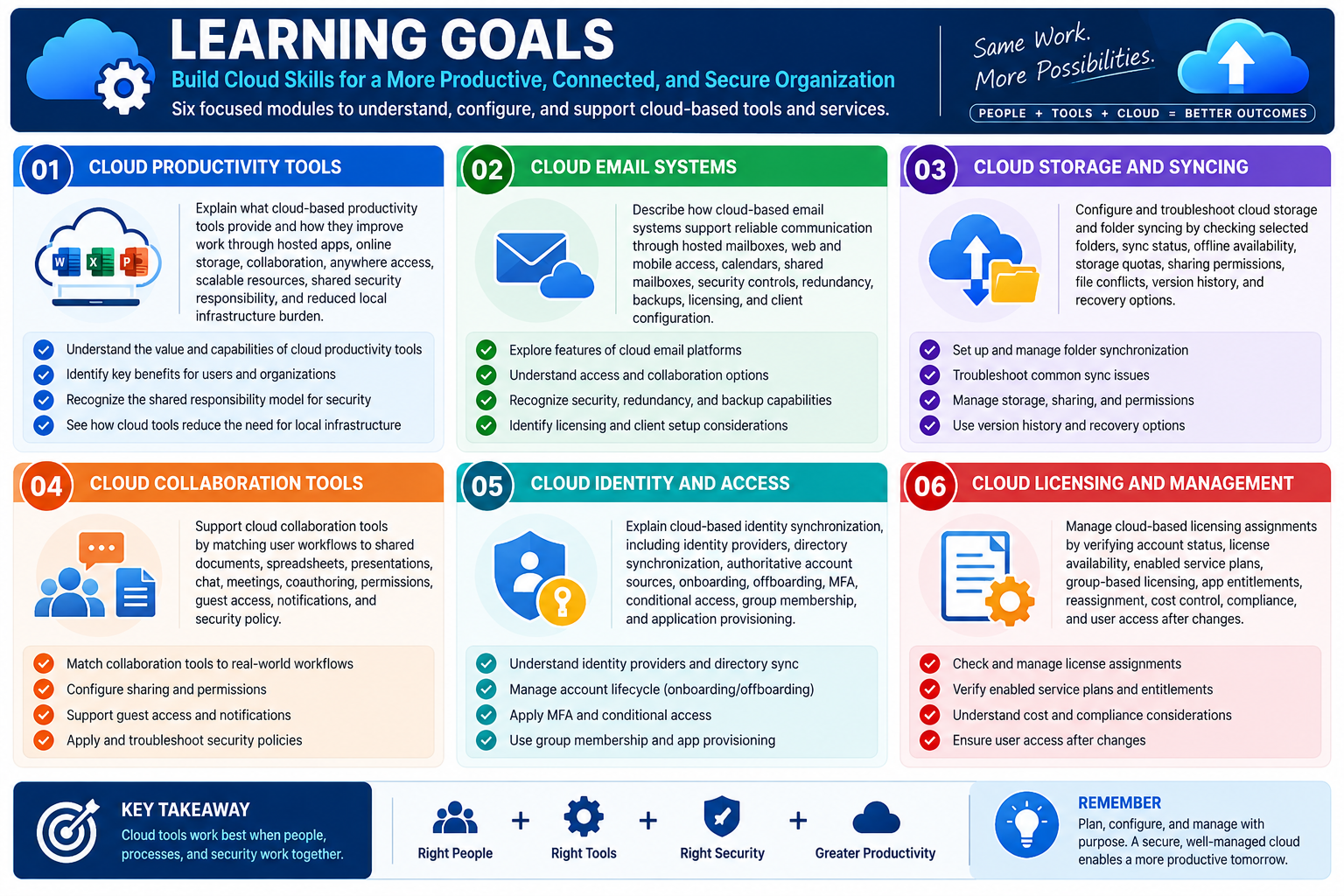
Learning goals for Objective 1.11 covering cloud productivity tools, cloud email systems, cloud storage and syncing, collaboration tools, cloud identity and access, and cloud licensing management.
  • Module 01: Explain what cloud-based productivity tools provide, including hosted apps, online storage, collaboration, anywhere access, scalable resources, shared security responsibility, and reduced local infrastructure burden.
  • Module 02: Describe how cloud-based email systems support reliable communication through hosted mailboxes, web and mobile access, calendars, shared mailboxes, security controls, redundancy, backups, licensing, and client configuration.
  • Module 03: Configure and troubleshoot cloud storage and folder syncing by checking selected folders, sync status, offline availability, storage quotas, sharing permissions, file conflicts, version history, and recovery options.
  • Module 04: Support cloud collaboration tools by matching user workflows to shared documents, spreadsheets, presentations, chat, meetings, coauthoring, permissions, guest access, notifications, and security policy.
  • Module 05: Explain cloud-based identity synchronization, including identity providers, directory synchronization, authoritative account sources, onboarding, offboarding, MFA, conditional access, group membership, and application provisioning.
  • Module 06: Manage cloud-based licensing assignments by verifying account status, license availability, enabled service plans, group-based licensing, app entitlements, reassignment, cost control, compliance, and user access after changes.
Lesson ModuleModule 1 / 9
A+
Module 01

Module 1 - What Are Cloud-Based Productivity Tools?

Cloud-based productivity tools are online services that deliver work apps, storage, communication, collaboration, and management features without requiring the organization to host every server or maintain every platform locally.

In a traditional environment, many productivity services depend on local servers, on-site storage, manually maintained applications, and internal infrastructure. Cloud productivity shifts much of that responsibility to a service provider. The provider maintains the platform, delivers updates, scales the service, protects the underlying infrastructure, and makes the tools available through the internet. The technician still has important work to do, but the focus changes from maintaining the server room to configuring access, security, sync, licensing, user settings, and support workflows.

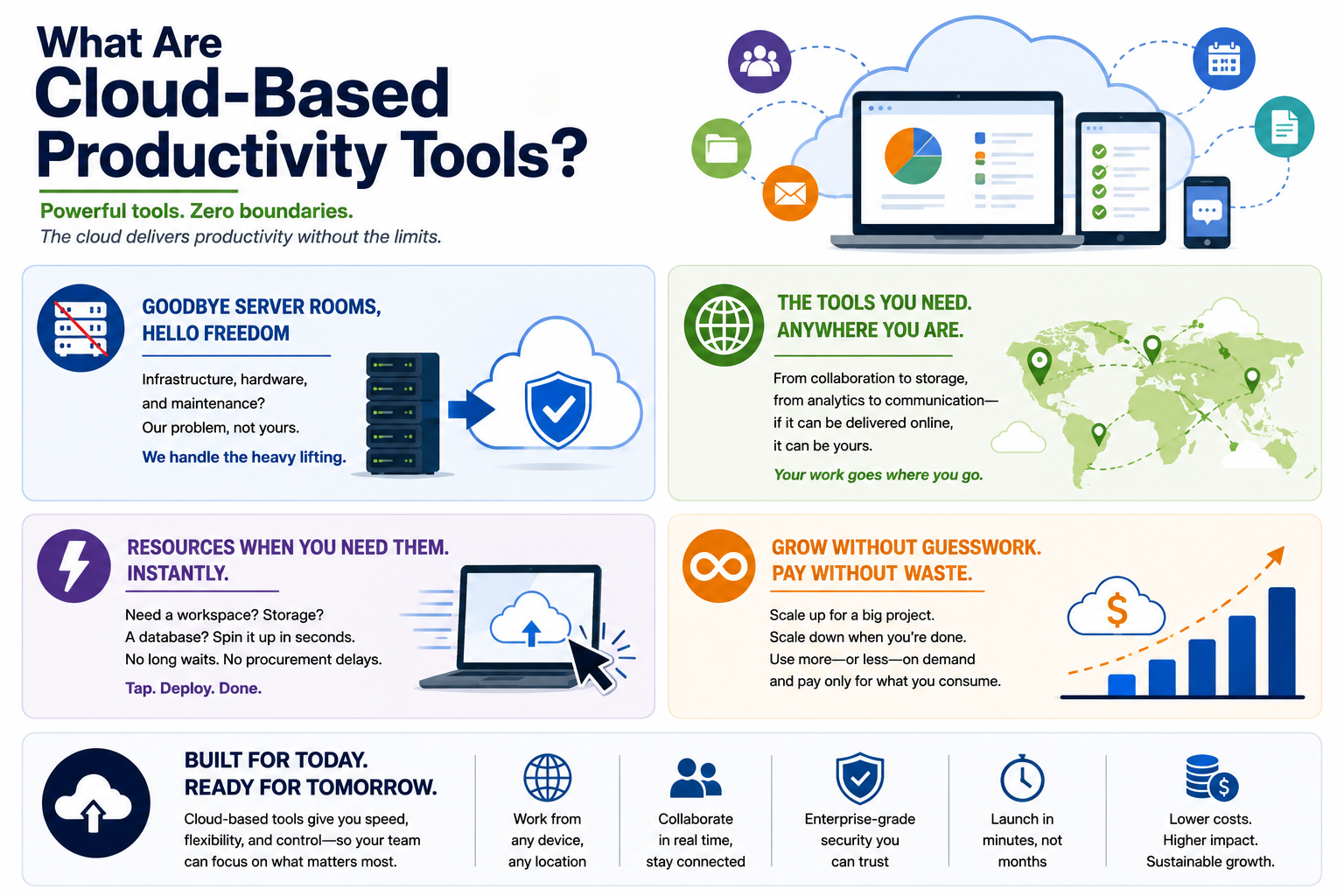
Goodbye Server Rooms, Hello Hosted Services

Cloud tools reduce the amount of infrastructure an organization must own and maintain. Instead of building and supporting every mail server, file server, collaboration server, and update pipeline locally, the organization can subscribe to hosted services. This can lower maintenance overhead, reduce hardware refresh planning, and give users access to enterprise-grade services that would be expensive or complex to build from scratch.

That does not mean there is nothing to manage. A technician may still need to configure accounts, assign licenses, set permissions, connect devices, troubleshoot sync clients, verify network access, and protect data. The difference is that the heavy lifting moves away from physical servers and toward careful cloud administration.

The Tools Follow the User

Cloud productivity is built around access from almost anywhere. Users may work from an office desktop, a home laptop, a tablet, a phone, or a browser on a managed device. If the service is configured correctly, documents, calendars, messages, meetings, and shared resources can follow the user across devices and locations.

This flexibility is powerful, but it depends on the right configuration. The technician must think about account identity, multifactor authentication, device trust, browser support, app installation, synchronization settings, data access policies, and network reliability. If one of those pieces is wrong, the user may be able to sign in but still be unable to open files, join meetings, sync data, or collaborate with the team.

Resources on Demand

Cloud tools can provide services quickly. A team may need shared storage, a project workspace, a communication channel, a mailbox, or a collaboration site. In many cloud platforms, those resources can be created in minutes instead of waiting for hardware purchases, server provisioning, and long deployment windows.

For support technicians, this means speed must be balanced with control. Fast deployment is useful only when the resource is configured correctly. Before creating or changing a cloud workspace, verify who needs access, what data will be stored there, whether external sharing is allowed, how long the resource should exist, and whether the organization has naming, retention, or compliance requirements.

Scale Up, Scale Down, Pay for What You Use

Cloud productivity services are designed to grow or shrink with business needs. A company can add users for a large project, increase storage, enable more features, or reduce services when demand drops. This helps organizations avoid buying more capacity than they need up front.

The trade-off is that licensing and consumption must be monitored. Unused licenses, oversized storage plans, unnecessary add-ons, and poorly controlled guest access can waste money or create risk. A strong technician understands that cloud configuration is not just about whether the service works today; it also affects cost, security, and long-term manageability.

Security and Trust Still Matter

Cloud platforms can provide enterprise-grade security, but cloud security is a shared responsibility. The provider protects the platform, while the organization controls many user-facing decisions: who can sign in, what devices are trusted, what data can sync, which users can share externally, how recovery works, and how suspicious activity is handled.

When supporting cloud productivity tools, do not treat convenience as the only goal. Verify authentication, permissions, sharing rules, device policies, backup or retention options, and user roles. The best configuration lets people work efficiently while still protecting company data.

Common Cloud Productivity Features

  • Email and calendars: hosted mailboxes, scheduling, shared calendars, and mobile access.
  • Cloud storage: synced files, shared folders, version history, and web-based document access.
  • Office apps: word processing, spreadsheets, presentations, forms, and notes delivered through desktop apps, web apps, or mobile apps.
  • Collaboration spaces: team sites, channels, project workspaces, file sharing, comments, and coauthoring.
  • Communication tools: chat, video meetings, voice features, notifications, and presence status.
  • Identity and licensing: account sign-in, group membership, license assignment, role-based access, and multifactor authentication.

Technician Mindset

When a cloud productivity issue appears, avoid assuming the cloud service itself is broken. Start with the user's exact symptom and trace the path: account, license, device, app, browser, network, sync status, permissions, and service health. A user who cannot open a shared file may have a permissions issue, a sync issue, a conditional access issue, or a license issue. A user who cannot join a meeting may have an app update issue, browser permission issue, microphone permission issue, or network filtering issue.
Exam rhythm: identify the user's goal, confirm the account and license, check access and sync settings, protect data, make one controlled change, test from the user's workflow, and document what changed.
Cloud-based productivity tools overview with hosted infrastructure, anywhere access, instant resources, scalability, security, collaboration, and cost control.

Why It Matters

Cloud productivity tools help organizations work faster, collaborate in real time, support remote users, reduce local infrastructure needs, and scale services as demand changes. The technician's job is to make that flexibility reliable. The right cloud setup gives users access from any device, supports teamwork, protects business data, and keeps costs under control.
A+
Module 02

Module 2 - Cloud-Based Email Systems

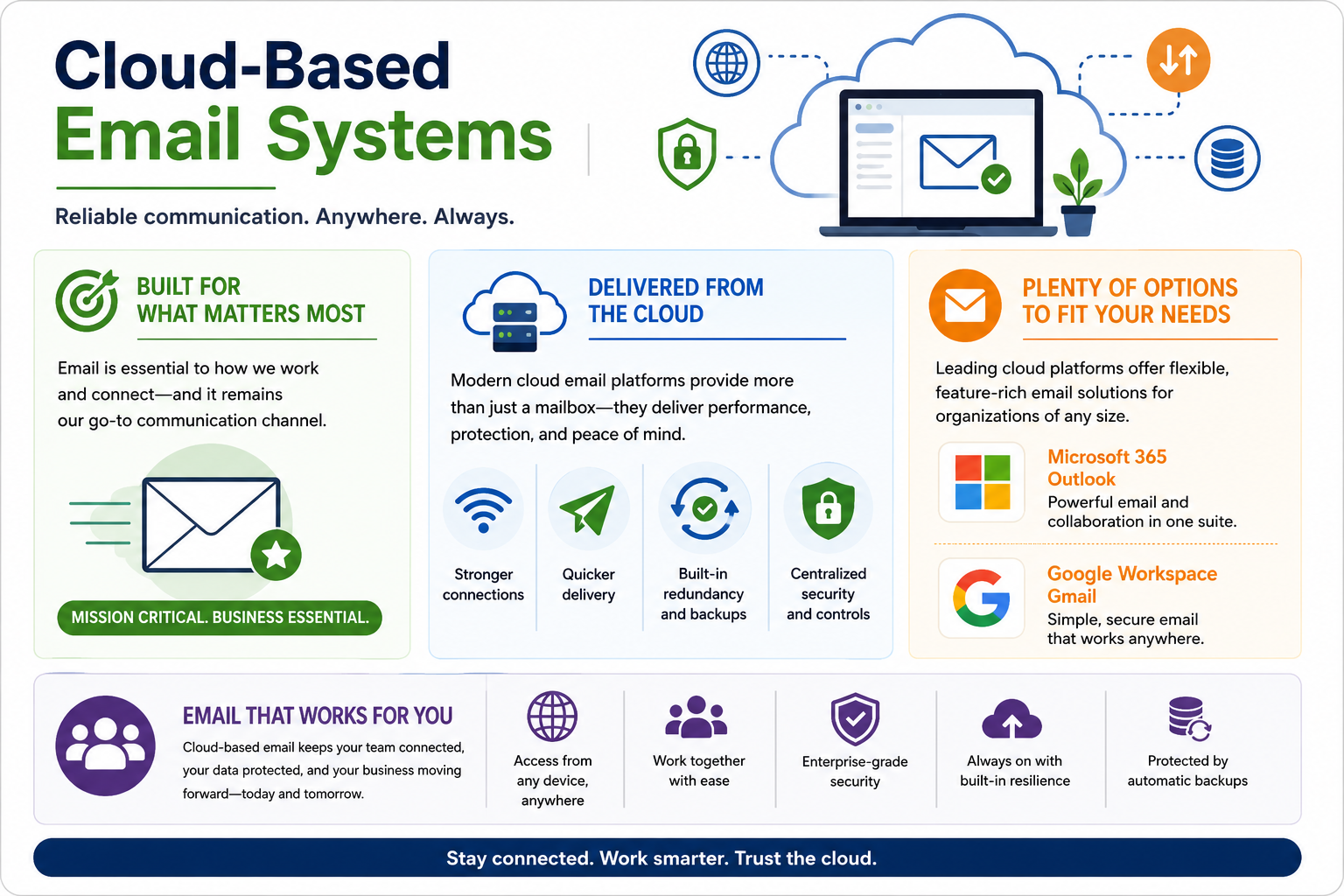
Cloud-based email systems provide reliable business communication through hosted mailboxes, centralized security controls, synchronized access, and collaboration features that work across locations and devices.

Email remains one of the most important productivity services in an organization. Users depend on it for customer communication, internal coordination, file sharing, calendar scheduling, approvals, alerts, and workflow updates. In a cloud-based email system, the mailbox and supporting services are hosted by a cloud provider instead of being maintained entirely on local mail servers.

This hosted model gives organizations a practical way to deliver email without building and maintaining every piece of mail infrastructure themselves. The provider handles much of the platform availability, storage backend, redundancy, performance tuning, and service updates. The technician still manages the user-facing side: accounts, licensing, client configuration, mobile access, mailbox permissions, security settings, synchronization, and troubleshooting.

Why Cloud Email Matters

Cloud email is mission critical because it supports daily communication. When email is unavailable, users may lose access to messages, calendars, meeting invitations, shared mailboxes, customer requests, approval chains, and time-sensitive alerts. A technician should treat email issues as productivity-impacting problems, especially when they affect multiple users, executives, customer-facing teams, or business-critical departments.

Cloud email also supports modern work patterns. Users may check mail from Outlook, Gmail, a browser, a phone, a tablet, or a managed desktop app. The goal is not just to deliver messages; the goal is to give users consistent, secure access to communication wherever they are authorized to work.

Delivered From the Cloud

Modern cloud email platforms provide more than a basic inbox. They commonly include webmail, desktop client integration, mobile synchronization, calendars, contacts, shared mailboxes, groups, retention controls, spam filtering, malware scanning, data loss prevention, and administrative reporting. Many platforms also connect email to collaboration tools such as chat, meetings, cloud storage, and shared documents.

Because the service is hosted, organizations can benefit from built-in redundancy and backup options. If one backend system fails, the provider's architecture is designed to keep mail flowing or restore service quickly. That resilience does not remove the need for good configuration. Deleted item recovery, retention policies, litigation hold, archive mailboxes, and backup expectations should be understood before an incident happens.

Major Cloud Email Platforms

Two common cloud productivity ecosystems are Microsoft 365 with Outlook/Exchange Online and Google Workspace with Gmail. Both can provide hosted email, calendars, contacts, web access, mobile access, administrative controls, security options, and collaboration features. The best choice depends on the organization's existing accounts, licensing, compliance needs, device mix, workflow, support model, and application ecosystem.

Technicians should avoid thinking only in terms of the app name. Outlook may refer to the desktop client, web app, mobile app, or the user's experience connecting to Exchange Online. Gmail may refer to the web interface, mobile app, or the hosted mail service inside Google Workspace. When troubleshooting, identify the service, the client, the account, and the device involved.

Access From Anywhere

Cloud email allows authorized users to reach their mailbox from many devices and locations. This is useful for remote work, field work, mobile users, shared workstations, and hybrid offices. However, access should be controlled. A user being able to sign in from anywhere is not the same as every device being safe to use.

Good cloud email configuration may include multifactor authentication, conditional access, device compliance rules, mobile device management, approved client apps, session controls, and password or recovery settings. If a user reports that email works on one device but not another, check account state, license assignment, client configuration, network access, authentication prompts, device policy, and whether the device is trusted or blocked.

Collaboration and Shared Work

Cloud email often connects directly to collaboration workflows. Users may share calendars, delegate mailbox access, send from shared mailboxes, schedule meetings, attach cloud links, join video calls, and coordinate with distribution lists or groups. These features depend on permissions and account settings.

When collaboration fails, do not assume the mailbox itself is broken. Check whether the user has the correct group membership, mailbox delegation, send-as or send-on-behalf permission, calendar sharing level, external sharing permission, and license. A new hire who can sign in but cannot access a shared mailbox may simply be missing the correct group membership or license assignment.

Security and Protection

Cloud email is a major security target because attackers use email for phishing, malware, credential theft, invoice fraud, and social engineering. Strong configuration should include spam and phishing protection, attachment scanning, link protection, mailbox auditing, multifactor authentication, retention controls, and user education.

Technicians should also recognize signs of compromise. Unexpected forwarding rules, suspicious sign-in locations, unusual mailbox activity, repeated MFA prompts, strange sent messages, or reports from contacts may indicate account abuse. The right response is to preserve evidence, secure the account, review sign-in logs and mailbox rules, reset credentials if appropriate, revoke sessions, and escalate according to policy.

Common Support Scenarios

  • User can sign in but cannot open mail: verify license assignment, mailbox provisioning, service health, and client access policy.
  • Email works in the browser but not the desktop app: check account profile, cached credentials, app updates, autodiscover, and modern authentication.
  • Mail syncs on one device but not another: review device compliance, mobile access rules, account settings, and sync status.
  • Shared mailbox is missing: confirm delegation, group membership, mailbox permissions, and whether the client needs to refresh.
  • Messages are delayed or missing: check junk/quarantine, mail flow rules, mailbox storage, service health, and message trace tools.
  • External sharing or sending fails: inspect domain restrictions, anti-spam policy, transport rules, recipient limits, and security settings.

Technician Mindset

Cloud email support is about narrowing the layer. Start with the user's goal and scope: one user or many, one device or all devices, one client or every client, internal mail or external mail, sending or receiving, mailbox access or calendar access. Then verify account status, licensing, authentication, service health, device policy, client configuration, and permissions before changing settings.

Exam rhythm: identify the exact email symptom, confirm account and license status, check client/device/network scope, verify security and permissions, make one controlled change, test mail flow or access, and document the result.
Cloud-based email systems overview covering hosted email, anywhere access, collaboration, security, redundancy, backups, and platform options.

Why It Matters

A well-configured cloud email system keeps users connected, protects business communication, supports remote work, and reduces the burden of maintaining local mail infrastructure. The best support approach is calm and layered: verify identity, licensing, access, device state, mail flow, and security controls before making changes.

A+
Module 03

Module 3 - Cloud Storage and Folder Syncing

Cloud storage and folder syncing let users store files online, keep selected folders synchronized across devices, and access current versions from almost anywhere while still controlling what stays local.

Cloud storage is one of the most visible parts of a cloud productivity platform. It gives users a place to save documents, photos, spreadsheets, presentations, project files, backups, and shared work without depending only on one local hard drive. Instead of a file living on a single device, it can live in a cloud account and be reached from a desktop app, browser, mobile app, or synchronized folder.

Folder syncing connects local file work to cloud storage. A user saves or updates a file on one device, and the sync client uploads the change to the cloud. Other signed-in devices can then download, stream, or display the updated version. This creates a smoother workflow for users, but it also creates support responsibilities around sync status, folder selection, offline availability, sharing, permissions, and storage limits.

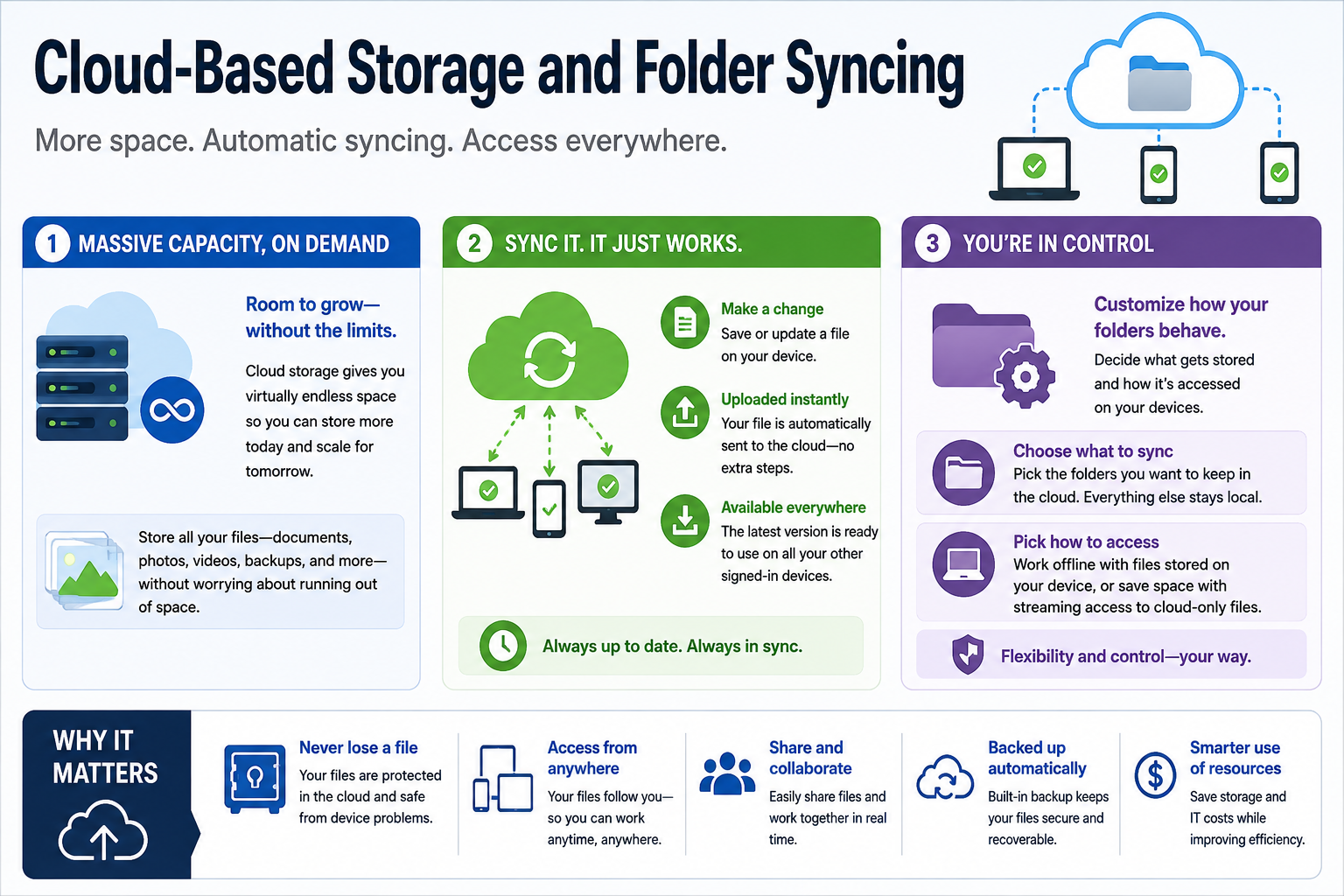
Storage Capacity on Demand

Cloud storage gives organizations a flexible way to expand file capacity without immediately adding local disks, file servers, or new storage hardware. A user or team can receive more storage by changing a plan, assigning a license, increasing a quota, or moving data into the right cloud location. This supports growth when project files, photos, videos, archived documents, and collaboration spaces become too large for local storage alone.

Capacity planning still matters. More cloud space does not mean every file should be synced to every device. A laptop with a small solid-state drive may run out of local space if the user syncs every shared folder. The technician must understand both sides of storage: how much space exists in the cloud and how much space is available on the endpoint.

How Folder Sync Works

In a typical sync workflow, the user creates, edits, moves, or deletes a file inside a managed folder. The sync client detects the change, uploads it to the cloud service, and then makes the current version available to other authorized devices. If another user has permission to the file or folder, they may also see the update through a shared workspace.

This process feels automatic when everything is healthy, but several conditions must be correct. The user must be signed in, the sync client must be running, the device must have network access, the file path and name must be supported, the account must have storage available, and the user must have permission to the target folder. If any of those pieces fail, the file may appear stuck, outdated, conflicted, or missing.

Local Files, Cloud Files, and Offline Access

Many cloud storage clients allow users to choose whether files are kept fully local or available only when opened. Cloud-only or online-only files save disk space because the file listing appears on the device without storing the full file contents locally. Locally available files consume disk space but can be opened when the user is offline.

This distinction is important in support scenarios. A user may see a file in File Explorer or Finder but be unable to open it on an airplane, in a warehouse, or anywhere with weak connectivity because the file was not downloaded for offline use. Another user may wonder why a laptop is low on disk space because too many shared folders were set to remain available offline.

Choosing What to Sync

Folder selection controls what cloud data is synchronized to the device. Users may sync only personal documents, specific project folders, department shares, or selected team libraries. The best choice depends on the user's job role, device storage, network quality, data sensitivity, and whether offline work is required.

Technicians should avoid syncing everything by default. Syncing too many folders can slow the device, consume bandwidth, increase conflict risk, and fill local storage. Syncing too few folders can prevent users from accessing the files they need. The right balance gives users the data they need for their workflow without overloading the device.

Sharing and Collaboration

Cloud storage is not just a backup location; it is also a collaboration tool. Users can share folders, coauthor documents, send links instead of attachments, control whether recipients can edit or only view, and collaborate with internal or external users. These features reduce duplicate files and make teamwork faster, but they depend on permissions and policy.

When a sharing problem occurs, check the permission layer carefully. The issue may involve the file owner, shared link settings, group membership, external sharing policy, expiration dates, blocked domains, conditional access, or whether the recipient is using the correct account. A file that syncs correctly for one user can still be inaccessible to another if sharing is misconfigured.

Sync Conflicts and Version Control

Sync conflicts happen when multiple changes cannot be merged cleanly. For example, two users might edit a file while offline, or the same user might change a file on two devices before either device finishes syncing. Many platforms create conflict copies, preserve version history, or ask the user which version to keep.

Before deleting conflict files, verify which version contains the needed data. Check timestamps, version history, recent activity, and the user's workflow. If the file is business critical, preserve both copies until the owner confirms what should remain. The goal is to resolve the sync problem without losing work.

Protection and Recovery

Cloud storage can help protect files from device failure. If a laptop is lost, damaged, or replaced, synchronized files can often be restored by signing into the cloud account and resyncing the selected folders. Many services also provide deleted file recovery, recycle bins, version history, retention policies, and administrative recovery tools.

Cloud sync is not the same as a complete backup strategy. Sync can also replicate mistakes. If a user deletes a folder or overwrites a file, that change may synchronize quickly. Technicians should understand recovery options, retention periods, and whether the organization uses additional backup or archiving tools.

Common Support Scenarios

  • File appears on one device but not another: check sign-in status, sync client health, selected folders, network access, and storage quota.
  • User can see a file but cannot open it offline: verify whether the file is cloud-only or marked for offline availability.
  • Device is running out of local disk space: review synced folders, offline files, cache size, and whether files can be moved to online-only access.
  • Shared folder is missing: confirm the user has permission, accepted the share, and is signed into the correct account.
  • Upload is stuck: check file size, file name restrictions, path length, blocked file types, network connection, and available cloud storage.
  • Two versions of a file exist: inspect conflict copies, version history, timestamps, and user activity before removing anything.

Technician Mindset

Cloud storage troubleshooting should follow the data path. Start with the file, then check the folder, user account, permission, sync client, device storage, network path, and cloud service status. Be especially careful with deletes, conflict resolution, and broad sync changes because a local action can affect cloud data and other users.

Exam rhythm: identify the file or folder problem, confirm the signed-in account, inspect sync status and selected folders, verify permissions and storage capacity, make one careful change, test from the user's device, and document the result.
Cloud storage and folder syncing overview covering capacity, automatic sync, folder controls, offline access, sharing, backup, and resource use.

Why It Matters

Well-managed cloud storage gives users more space, current files across devices, easier collaboration, automatic protection from device failure, and better control over local resources. Poorly managed sync can cause missing files, storage problems, duplicate versions, permission issues, and accidental data loss. The technician's job is to keep cloud storage useful, controlled, and recoverable.

A+
Module 04

Module 4 - Cloud-Based Collaboration Tools

Cloud-based collaboration tools help users communicate, coauthor, share, meet, and manage work together in real time, even when the team is spread across different devices, networks, and locations.

Collaboration is one of the biggest reasons organizations move productivity tools to the cloud. A cloud workspace can bring documents, chat, meetings, shared folders, calendars, comments, tasks, and project updates into a connected environment. Instead of passing files back and forth as attachments or waiting for one person to finish before another person can work, users can often edit, review, discuss, and publish together.

For a technician, collaboration tools are not just "apps users like." They are business workflow tools. If a shared document will not open, a meeting link fails, a chat channel is missing, or a user cannot edit a project file, the issue can slow an entire team. Good support means understanding the collaboration layer: identity, permissions, sharing settings, client apps, browser access, sync status, notifications, and security policy.

Collaborate in the Moment

Modern collaboration tools are designed to reduce waiting. Multiple users can edit a spreadsheet, update a document, comment on a presentation, chat in a project space, or join a video meeting with changes appearing quickly for everyone else. This real-time model helps teams move faster because the work and the conversation stay close together.

Real-time collaboration depends on stable access. Users must be signed in with the correct account, licensed for the service, connected to the network, allowed by policy, and granted the right permissions. If updates are delayed or missing, check whether the issue affects one user, one file, one device, one app, or the entire service. Scope tells you where to look first.

More Ways to Create Together

Cloud collaboration platforms often include several connected tool families. Common examples include shared documents, spreadsheets, presentation software, video meetings, instant messaging, file comments, shared notebooks, team channels, task lists, and project spaces. These tools work best when users understand which tool fits the job.

A spreadsheet may be best for tracking structured data. A shared document may be best for policies, drafts, and procedures. A presentation tool may be best for briefings. Chat may be best for quick coordination. Video meetings may be best for discussion that needs voice, screen sharing, or live decision-making. The technician does not need to choose the team's workflow, but they do need to support the tools that make the workflow reliable.

Connected From Anywhere

Cloud collaboration allows authorized users to work from different places without losing access to shared content. A user may join a meeting from a phone, edit a document from a laptop, review comments in a browser, or access a shared folder from a managed desktop. This flexibility is useful for remote work, hybrid teams, field work, travel, and multi-site organizations.

Anywhere access must still be controlled. Organizations may restrict external sharing, require multifactor authentication, block unmanaged devices, limit downloads, enforce data loss prevention rules, or require compliant devices. A user may be able to view a file in the browser but not download it, or join a meeting but not record it, because policy is doing exactly what it was designed to do.

Permissions Drive Collaboration

Most collaboration problems are really access problems. A user might have a link but not permission. They might belong to the wrong group. They might be signed into a personal account instead of the work account. They might have view access when they need edit access. They might be blocked because external collaboration is disabled for the organization or domain.

When troubleshooting, identify the resource and the role the user should have. Check owner, editor, viewer, guest, group membership, sharing link type, expiration date, domain restrictions, and whether inheritance is being used. Avoid granting broad access just to make the error disappear. The best fix gives the user the access needed for the workflow and no more.

Communication Tools

Instant messaging, channels, and team spaces keep communication close to the work. They can reduce long email chains and make quick decisions easier. These tools may include file sharing, mentions, pinned posts, meeting integration, search, reactions, and persistent conversation history.

Support issues often involve notification settings, membership, presence, app updates, blocked attachments, missing channels, or access from mobile devices. If a user says they are "not getting messages," check whether they are in the correct team or group, whether notifications are muted, whether the app is signed into the right account, and whether policy restricts the device.

Meetings and Video Collaboration

Cloud meeting tools allow users to meet through audio, video, chat, screen sharing, captions, recordings, and meeting notes. These features depend on more than the meeting service. Microphone permissions, camera permissions, browser settings, network quality, bandwidth, headset selection, and organization policy can all affect the experience.

When meeting issues happen, separate access problems from quality problems. A user who cannot join may have an identity, license, browser, calendar, or guest-access issue. A user who joins but has poor audio or video may have a device, driver, bandwidth, Wi-Fi, VPN, or peripheral issue. The best first check depends on the symptom.

Shared Files and Coauthoring

Coauthoring lets multiple users work on the same file without creating a chain of separate versions. This reduces confusion, but only when sync and permissions are healthy. If users download copies, edit offline, or work from unsupported clients, conflicts can still occur.

Before resolving a file conflict, protect the user's work. Check version history, last modified time, owner, recent activity, and whether multiple users edited the file at the same time. Do not delete conflict copies until the needed content is confirmed.

Security and Reliability

Cloud collaboration tools can improve reliability and protection by keeping content in managed services with built-in redundancy, auditing, retention, and access controls. However, collaboration also increases the number of people, devices, links, and locations that may touch the data. That makes configuration important.

Strong collaboration support includes reviewing sharing policies, guest access, retention settings, meeting recording permissions, link defaults, device controls, and audit logs. The technician should help users collaborate without accidentally exposing sensitive files or granting access too broadly.

Common Support Scenarios

  • User cannot edit a shared document: verify account, license, file permission, link type, and whether the file is locked or checked out.
  • Team channel is missing: confirm team membership, group synchronization, guest status, and whether the channel is private or archived.
  • Meeting link fails: check calendar invite, sign-in account, browser compatibility, client app updates, guest access, and service status.
  • Screen sharing is blocked: inspect meeting policy, browser permissions, OS privacy settings, and whether the user is a presenter.
  • Comments or updates are delayed: check network connectivity, sync status, offline mode, browser cache, and whether the service is healthy.
  • External user cannot access a file: review external sharing policy, domain restrictions, link expiration, recipient identity, and multifactor requirements.

Technician Mindset

Collaboration troubleshooting is about finding the missing link in a shared workflow. Start with the user's goal: edit, view, join, present, chat, upload, share, or collaborate externally. Then identify the resource, the account, the device, the app, the permission, and the policy. Make the smallest change that restores the intended workflow while preserving security.

Exam rhythm: identify the collaboration task, confirm the user's account and license, verify membership and permissions, check app/device/network scope, respect sharing policy, test with the actual workflow, and document the access change.
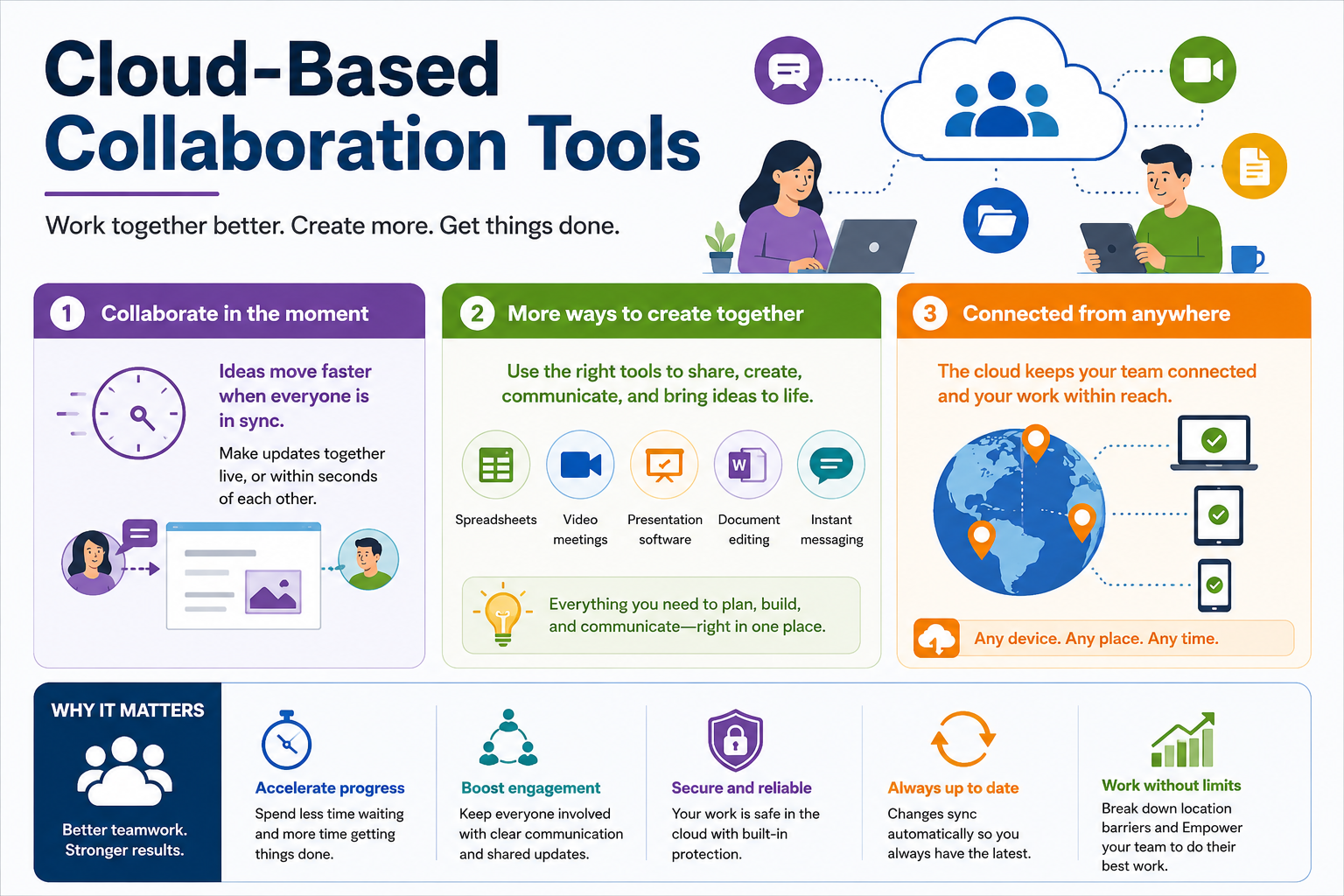
Cloud collaboration tools overview covering real-time teamwork, shared creation tools, anywhere access, security, syncing, communication, and productivity.

Why It Matters

Well-configured collaboration tools help teams move faster, stay engaged, protect shared work, keep content current, and work across locations without losing control. Poorly configured collaboration causes missing access, duplicated files, meeting problems, oversharing, and confusion. The technician's job is to keep teamwork smooth, secure, and repeatable.

A+
Module 05

Module 5 - Cloud-Based Identity Synchronization

Cloud-based identity synchronization keeps user accounts, authentication, access, and directory information consistent across cloud services, applications, and connected environments.

Identity is the foundation of cloud productivity. Before a user can open email, sync files, join a collaboration space, access a licensed app, or share a document, the platform must know who the user is and what they are allowed to do. Cloud-based identity synchronization connects that user identity across systems so the organization can manage access from a central place instead of manually creating separate accounts everywhere.

In older environments, user accounts often lived in one local directory on company servers. That worked well when most applications were local and users worked primarily on the internal network. Modern environments are different. Users access cloud email, cloud storage, collaboration platforms, web apps, mobile apps, VPN resources, SaaS tools, and line-of-business systems. Identity must follow the user across those services while remaining secure and manageable.

From One Place to Many Services

The core value of identity synchronization is consistency. A user account can be created, updated, disabled, or assigned to a group in a central identity system, and those changes can flow to connected services. This reduces duplicate work and helps prevent mismatched accounts, stale permissions, and forgotten access.

For support technicians, this means account changes may not be instant everywhere. A new user may exist in the primary directory but not yet appear in a cloud app. A password change may take time to synchronize. A group membership update may need a sync cycle before access changes. When troubleshooting identity issues, always consider where the identity is mastered, where it is being used, and whether synchronization has completed.

Identity Providers

Common identity providers include Microsoft Entra ID, Google Identity, Okta, and other directory or single sign-on platforms. These services help users authenticate to cloud applications and help organizations enforce access policies. Depending on the environment, an identity provider may integrate with local directories, cloud-only accounts, mobile device management, multifactor authentication, conditional access, and application licensing.

The best identity solution depends on the organization's ecosystem. A company using Microsoft 365 may rely heavily on Microsoft Entra ID. A company centered on Google Workspace may use Google Identity. A mixed environment may use Okta or another provider to connect many applications. The technician should not assume the provider based only on the app name; confirm the sign-in path, domain, account type, and source of authority.

Directory Synchronization

Directory synchronization keeps identities aligned across systems. In a hybrid organization, a local directory may synchronize users and groups to a cloud identity provider. In a cloud-first organization, the cloud identity provider may be the primary source for users, groups, and access assignments. In either model, synchronization allows account data to appear in multiple connected systems without rebuilding the same identity manually.

Synchronization can include usernames, display names, email addresses, group membership, password hashes or authentication references, device associations, and account status. It may also support provisioning and deprovisioning, which means users can be added to or removed from applications based on role, group, department, or policy.

New Users and Changed Users

When a new employee joins, identity synchronization can make the onboarding process much faster. The administrator creates or updates the user in the correct place, assigns groups and licenses, and the user becomes available in connected services. The same idea applies when a user changes departments, receives a new role, or leaves the organization.

Offboarding is just as important as onboarding. If a user leaves, the account should be disabled or removed according to policy, active sessions may need to be revoked, licenses may need to be recovered, mailbox or file ownership may need to be transferred, and shared access should be reviewed. Identity synchronization can help apply those changes consistently, but only if the process is well designed.

One Source of Truth

A strong identity environment has a clear source of truth. That means technicians know where account information should be changed. If a user name, group membership, password, or account status is managed in a local directory, changing it only in the cloud may not persist. If the cloud directory is authoritative, changing a local copy may do nothing. Knowing the authoritative source prevents wasted troubleshooting and accidental configuration drift.

Scenario questions often test this idea indirectly. If a user can sign in to one cloud service but not another, the cause may be licensing, group membership, synchronization delay, conditional access, or application assignment. The best answer usually verifies account status and identity source before making broad changes.

Security Benefits

Central identity management improves security because policies can be applied consistently. Organizations can require multifactor authentication, block risky sign-ins, enforce password rules, limit access by location or device compliance, and review audit logs from a central platform. A single disabled account can remove access across many services when synchronization and provisioning are configured correctly.

Centralized identity also supports least privilege. Users can be placed into groups that match job roles, and those groups can control access to email, storage, collaboration spaces, applications, and administrative tools. This reduces the need to grant one-off permissions everywhere and makes access easier to review.

Anywhere Access With Control

Cloud identity lets users sign in from different locations and devices, but access should be based on trust. A sign-in from a managed laptop on the corporate network may be treated differently than a sign-in from an unmanaged device in an unfamiliar location. Conditional access, MFA, device compliance, and session controls help balance productivity with protection.

When a user reports sign-in trouble, collect the exact error and context. Ask which app, device, browser, network, account, and location are involved. Then check account status, password state, MFA registration, conditional access policies, license assignment, group membership, service health, and recent sign-in logs.

Common Support Scenarios

  • New user cannot access cloud apps: confirm the account exists, synchronization completed, license is assigned, and required group membership is present.
  • User can sign in but app is missing: check application assignment, license plan, role membership, and whether provisioning has completed.
  • Password works locally but not in the cloud: verify password sync, federation status, account lockout, and authentication method.
  • Former employee still has access: disable the authoritative account, revoke sessions, remove group memberships, transfer ownership, and review audit logs.
  • MFA prompts keep repeating: inspect trusted device status, browser/session settings, conditional access policy, and user registration.
  • Group-based access is delayed: check sync cycle timing, dynamic group rules, nested group support, and application provisioning status.

Technician Mindset

Identity troubleshooting should start with the account and follow the access path. Confirm who the user is, where the account is managed, what groups and licenses they have, which application they are trying to reach, what policy applies, and whether synchronization has completed. Avoid creating duplicate accounts as a shortcut. Duplicate identities can break licensing, access, email delivery, file ownership, and audit trails.

Exam rhythm: identify the account and app, confirm the authoritative identity source, verify sync status, check license and group assignment, review authentication policy, make one controlled change, test sign-in or access, and document the result.
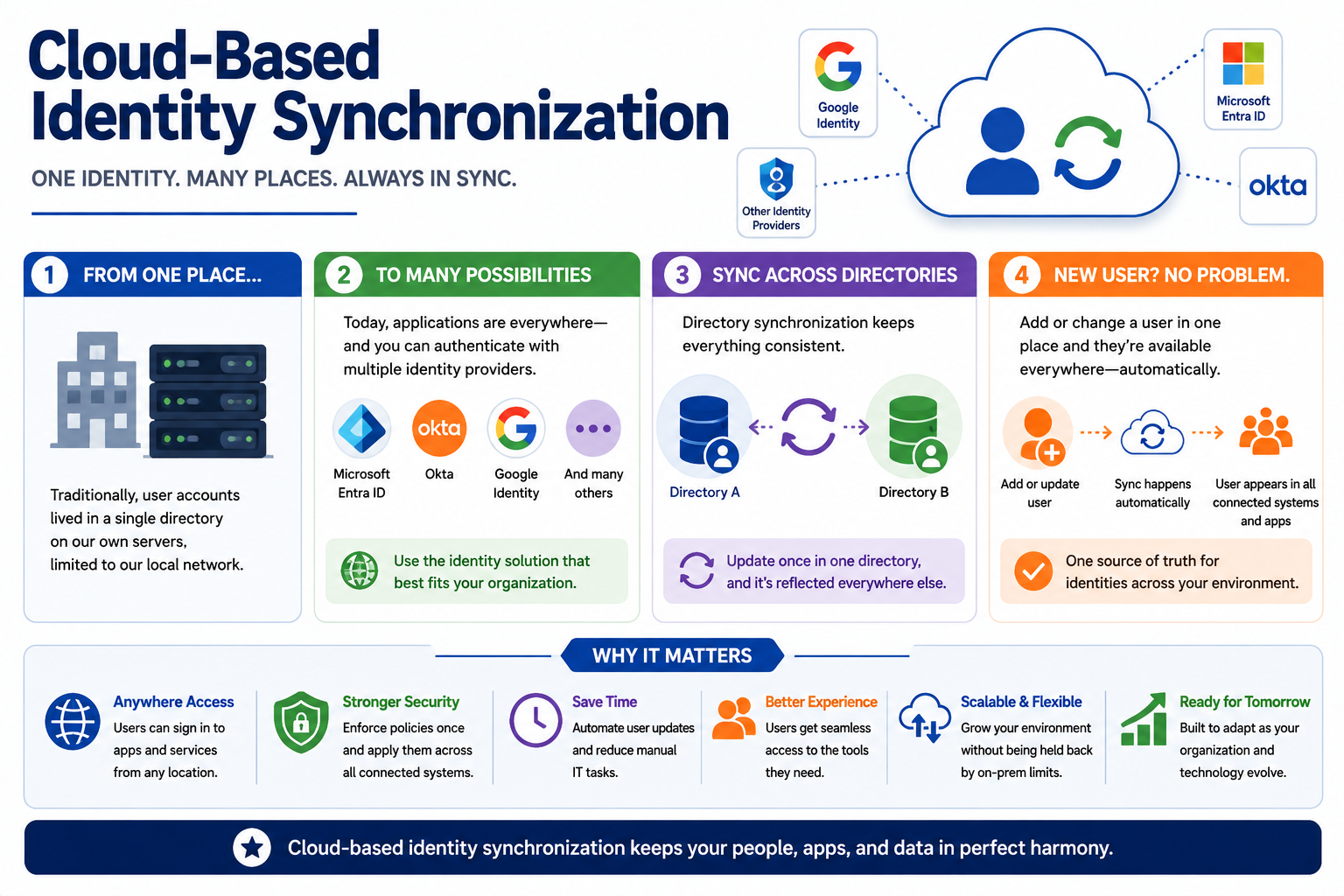
Cloud identity synchronization overview covering identity providers, directory sync, automatic user updates, access consistency, security, scalability, and user experience.

Why It Matters

Well-managed identity synchronization gives users seamless access, reduces manual account work, strengthens security, improves onboarding and offboarding, and keeps cloud applications aligned with business roles. Poor identity management creates duplicate accounts, missing access, orphaned permissions, licensing problems, and security gaps. The technician's job is to keep identity consistent, controlled, and traceable.

A+
Module 06

Module 6 - Cloud-Based Licensing Assignments

Cloud-based licensing assignments connect users to the services they are allowed to use, giving administrators centralized control over access, cost, compliance, and feature availability.

Licensing is a major part of cloud productivity support. A user may have a valid account and still be unable to open email, install desktop apps, use cloud storage, join premium meetings, or access advanced security features if the correct license is not assigned. In a cloud environment, the license often determines which services appear, which features activate, and what limits apply to storage, apps, security, and collaboration.

Older software licensing was often tied to a specific computer, a physical product key, or a hardware dongle. That model could be difficult to track, especially when users changed devices, worked remotely, or needed temporary access. Cloud licensing shifts the focus toward people and roles. A license is usually assigned to a user account or group, and the user can access licensed services from approved devices and locations.

The Old Way: Device-Locked Access

Traditional licensing often depended on one device, one installed copy, or one physical key. This could make support harder because a user might lose access when a computer failed, a key was misplaced, or software had to be moved to a replacement system. Inventory was also harder because administrators had to track which device had which software, which key was in use, and whether the installation matched the license agreement.

This still matters because some specialized applications continue to use device-based licenses or hardware tokens. However, most cloud productivity suites use account-based licensing. The technician should understand which model applies before troubleshooting access. A cloud email issue may be a license assignment problem, while a specialized engineering tool may still depend on a dongle, local activation, or device-bound entitlement.

The Cloud Way: People First

Cloud licensing is usually centered on the user. When the correct license is assigned, the user can access the included services from supported clients, browsers, and devices. This makes it easier to replace hardware, support remote users, and keep productivity tools available across a changing work environment.

People-first licensing also supports role-based management. A standard employee may need email, cloud storage, office apps, and meetings. A manager may need additional reporting or compliance features. An administrator may need management tools, security dashboards, or privileged access. Assigning the right license level helps users get the tools they need without paying for features they do not use.

Centralized Visibility

Cloud licensing consoles allow administrators to see which licenses are owned, assigned, available, expired, or underused. This visibility helps organizations reduce waste and avoid service interruptions. If licenses are not monitored, companies may pay for unused seats, run out of available licenses during onboarding, or leave former users assigned to paid services after they leave.

For support technicians, license visibility is a troubleshooting tool. If a user can sign in but an app is missing, check the license assignment. If a mailbox will not provision, verify the user has the correct plan. If cloud storage is limited, confirm the license includes the expected storage capacity. If a security or compliance feature is missing, verify whether that feature is included in the assigned license.

Fast Reassignment

Cloud licenses can often be reassigned quickly when roles change, projects end, or employees leave. This helps reduce downtime and cost. A license that is no longer needed by one user can often be removed and assigned to another user, assuming the organization follows vendor rules and internal policy.

Reassignment should still be handled carefully. Removing a license can affect email access, stored data, desktop app activation, meeting features, retention, or compliance settings. Before removing or changing a license, understand what services depend on it and whether data must be preserved, transferred, archived, or retained.

Avoiding Waste

One benefit of cloud licensing is the ability to right-size access. Organizations can compare purchased licenses to active use, adjust license levels, remove unused seats, and assign higher-tier features only where they are needed. This keeps costs under control while still supporting the workflow.

Waste can appear in several ways: inactive users with assigned licenses, users with higher-tier plans than their role requires, duplicate accounts consuming multiple licenses, trial licenses that expired unnoticed, or services enabled for users who do not need them. A technician may not own budgeting, but accurate documentation and careful license checks help the organization avoid unnecessary cost.

Staying Current and Compliant

Cloud licensing helps keep entitlements current because the provider tracks subscriptions, service plans, expiration dates, and feature availability. However, compliance still depends on proper assignment and use. Users should not share accounts, bypass licensing, or use services outside policy. Administrators should know who has access, why they have it, and whether it matches the organization’s agreements.

License changes can also affect security. Some security controls, auditing features, retention tools, device management capabilities, and compliance features are tied to specific license levels. If a license is downgraded or removed, the organization may lose protections it expected to have. Always consider security and compliance before changing license assignments.

Common Support Scenarios

  • User can sign in but cannot open a cloud app: verify the correct license is assigned and the service plan is enabled.
  • New hire does not have email: check account creation, license availability, mailbox provisioning, and group-based license assignment.
  • Desktop apps enter reduced functionality mode: confirm the user is signed in with the licensed account and that app activation is included.
  • Storage quota is lower than expected: compare the assigned license plan against the expected storage entitlement.
  • Former employee still consumes a license: follow offboarding policy, preserve required data, then remove or reassign the license.
  • Feature is missing from the admin portal: verify whether the tenant owns the required license level and whether the admin role can manage it.

Technician Mindset

When troubleshooting cloud productivity access, do not stop at “the account exists.” Confirm the account is active, the license is assigned, the needed service plan is enabled, the user is in the correct group, and the application has finished provisioning. A missing license can look like an app problem, a mailbox problem, a storage problem, or a permissions problem.

Exam rhythm: identify the service the user needs, confirm the account and license, verify the enabled service plan, check group-based assignment or provisioning status, make one controlled license change, test access, and document the result.
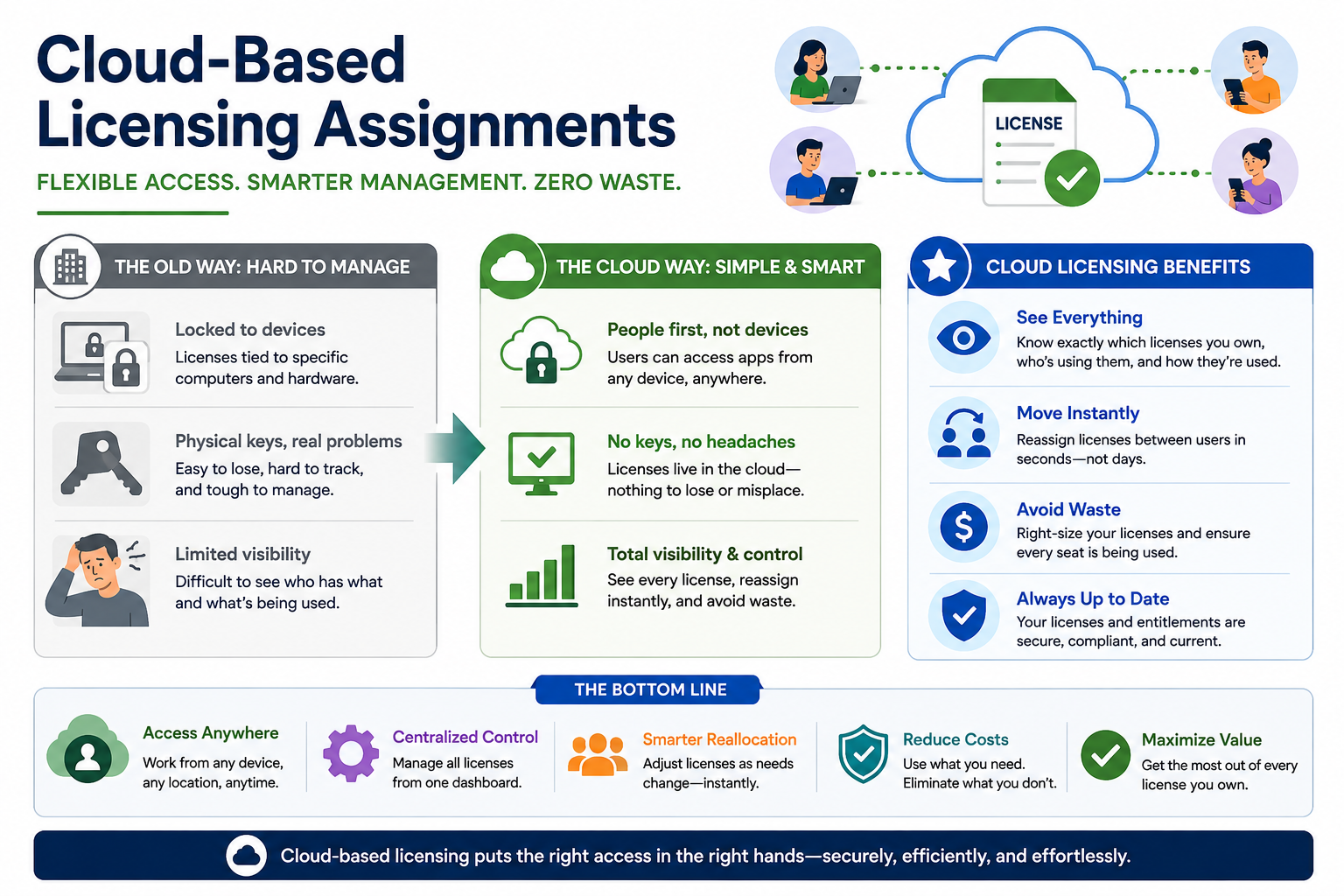
Cloud licensing assignments overview covering account-based access, centralized license control, reassignment, cost reduction, compliance, and value management.

Why It Matters

Well-managed cloud licensing puts the right access in the right hands. It helps users work from approved devices, gives administrators visibility, supports quick reassignment, reduces wasted spend, and keeps services current and compliant. Poor licensing management causes missing apps, failed provisioning, unnecessary costs, security gaps, and frustrating support tickets.

KT
Module 07

Module 7 - Key Takeaways

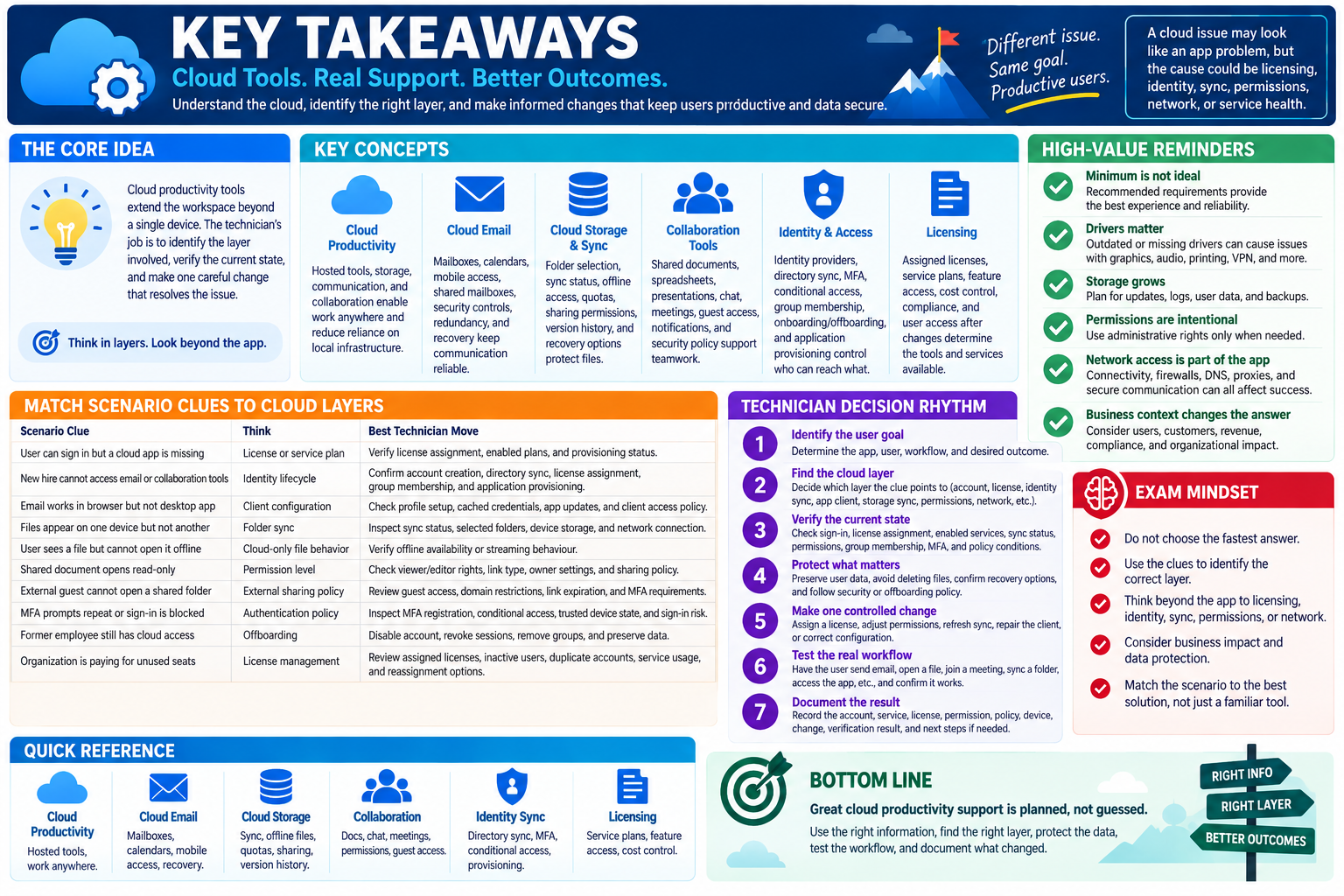
Key takeaways for Objective 1.11 covering cloud productivity, email, storage sync, collaboration, identity access, licensing, scenario clues, technician workflow, and exam mindset.

Objective 1.11 is about helping users work through cloud-based productivity tools while keeping access, data, licensing, syncing, and collaboration controlled. The best technician reads the symptom, identifies the cloud layer involved, verifies account and service state, makes one careful change, tests the real workflow, and documents the result.

Cloud productivity support is layered. A problem that looks like an app issue may actually be a license issue, identity issue, sync issue, permissions issue, network issue, device policy issue, or service health issue. The technician's job is to narrow the layer before changing settings. That means checking the user, account, license, application, device, folder, permission, policy, and cloud service status in a deliberate order.

The Core Idea

Cloud productivity tools extend the workspace Hosted apps, storage, communication, collaboration, and management tools let users work across devices and locations without relying only on local infrastructure.
Email is a critical cloud service Hosted mailboxes, calendars, mobile access, shared mailboxes, spam protection, redundancy, and recovery features keep communication available and manageable.
Storage sync must be controlled Selected folders, offline availability, sync status, sharing permissions, storage quotas, conflicts, and version history determine whether cloud files stay useful and safe.
Collaboration depends on access Shared documents, chats, meetings, coauthoring, guest access, notifications, and file sharing work only when identity, permissions, and policy line up.
Identity is the foundation Identity providers, directory sync, authoritative account sources, MFA, conditional access, group membership, and provisioning decide who can reach what.
Licensing unlocks capability Assigned licenses and enabled service plans determine which apps, storage limits, security features, and cloud services a user can actually use.

Match Scenario Clues to Cloud Layers

Scenario ClueThinkBest Technician Move
User can sign in but a cloud app is missingLicense or service planVerify license assignment, enabled service plans, group-based licensing, and provisioning status.
New hire cannot access email or collaboration toolsIdentity lifecycleConfirm account creation, directory sync, license assignment, group membership, and application provisioning.
Email works in the browser but not the desktop appClient configurationCheck profile setup, cached credentials, app updates, modern authentication, and client access policy.
Files appear on one device but not anotherFolder syncInspect sync client status, selected folders, account sign-in, device storage, network connection, and sync errors.
User sees a file but cannot open it offlineCloud-only file behaviorVerify whether the file is available offline or only streams from the cloud when connected.
Shared document opens read-onlyPermission levelCheck viewer/editor rights, link type, owner settings, group membership, and sharing policy.
External guest cannot open a shared folderExternal sharing policyReview guest access, domain restrictions, link expiration, recipient identity, and MFA requirements.
MFA prompts repeat or sign-in is blockedAuthentication policyInspect MFA registration, conditional access, trusted device state, sign-in risk, location, and session controls.
Former employee still has cloud accessOffboardingDisable the authoritative account, revoke sessions, remove groups, preserve data, recover licenses, and audit access.
Organization is paying for unused seatsLicense managementReview assigned licenses, inactive users, duplicate accounts, role needs, service usage, and reassignment options.

High-Value Reminders

Sign-in does not prove access A user may authenticate successfully but still lack the license, group membership, app assignment, mailbox, or folder permission needed for the task.
Sync is not backup by itself Cloud sync can protect files from device failure, but it can also replicate deletes and overwrites. Know retention, recycle bin, version history, and recovery options.
Use the correct account Many cloud issues happen because the user is signed into a personal account, old account, guest account, or wrong tenant.
Policies may be working as designed Blocked downloads, guest restrictions, recording limits, unmanaged device blocks, and repeated MFA prompts may reflect security policy, not a broken app.
Licenses affect features Missing desktop apps, smaller storage quotas, disabled security tools, or unavailable admin features may come from license level or disabled service plans.
Scope before changing settings Determine whether the issue affects one user, one device, one app, one folder, one network, or the whole service before making changes.

Technician Decision Rhythm

  1. Identify the user goal. Determine whether the user needs email, files, meetings, chat, shared access, app activation, identity access, or licensing.
  2. Find the cloud layer. Decide whether the clue points to account, license, identity sync, app client, storage sync, permissions, sharing policy, device policy, network, or service health.
  3. Verify the current state. Check sign-in account, license assignment, enabled services, sync status, folder selection, permissions, group membership, MFA, and policy conditions.
  4. Protect what matters. Preserve user data, avoid deleting conflict copies too quickly, confirm recovery options, and follow security or offboarding policy.
  5. Make one controlled change. Assign the needed license, update group membership, adjust sharing, refresh sync, repair the client, or correct the account configuration.
  6. Test the real workflow. Have the user send mail, open the shared file, sync the folder, join the meeting, access the app, or confirm the licensed feature works.
  7. Document the result. Record the account, service, license, permission, policy, device, symptom, change, verification result, and next step if it returns.

Exam Mindset

Do not jump straight to reinstalling an app. Objective 1.11 questions reward layered thinking. If the clue mentions a missing app, check licensing. If a new user cannot access tools, check account provisioning and identity sync. If files differ between devices, check sync status and selected folders. If a user cannot edit a shared file, check permissions. If external collaboration fails, check guest and sharing policy. If the same cloud service fails for many users, check service health and network scope.

Quick Reference

Cloud productivity Hosted tools reduce local infrastructure and support work from many devices and locations.
Cloud email Mailboxes, calendars, shared mailboxes, mobile access, security filtering, redundancy, and recovery.
Cloud storage Folder selection, sync status, offline files, quotas, sharing, conflicts, version history, and recovery.
Collaboration tools Documents, spreadsheets, presentations, meetings, chat, coauthoring, guest access, and notifications.
Identity sync Authoritative account source, directory sync, identity provider, MFA, conditional access, groups, and provisioning.
Licensing Assigned licenses, enabled service plans, entitlements, app activation, feature access, cost control, and compliance.

Bottom line: Great cloud productivity support connects the right person to the right tool with the right license, permission, policy, and sync state. Verify the layer, protect the data, test the workflow, and document what changed.

A+
Module 08

Module 8 - Section Notes

CompTIA A+ Core 2 220-1202Objective 1.11 Section Notes

1.11 - Install and Configure Cloud Productivity Tools

Objective: Given a scenario, support cloud productivity tools by configuring access, email, storage sync, collaboration, identity synchronization, licensing, security controls, and verification steps.

Objective 1.11 is about helping users work through hosted services instead of only local applications and local servers. A technician should understand how cloud tools are delivered, how users authenticate, how services are licensed, how files sync, how collaboration permissions work, and how to test the user's actual workflow.

Core idea: Cloud productivity support is layered. The issue may look like an app problem, but the real cause may be account identity, license assignment, sync status, permissions, device policy, network access, or service health.
Technician mindset
Start with the user's goal, identify the cloud layer involved, verify account and license state, check the app or sync client, confirm permissions, and test from the user's device.
Exam mindset
Do not jump straight to reinstalling. Match the clue to the layer: license, identity, email client, storage sync, shared permissions, external access, policy, network, or service health.

Cloud Support Workflow

  • Identify the exact user, app, device, location, and workflow.
  • Confirm the user is signed in with the correct work or school account.
  • Verify license assignment and enabled service plans.
  • Check identity sync, group membership, MFA, and conditional access.
  • Inspect app configuration, browser behavior, sync status, permissions, and sharing policy.
  • Make one controlled change that targets the likely layer.
  • Test the real workflow and document the service, setting, change, and result.
Notes:
Cloud Productivity and EmailObjective 1.11

Hosted Tools and Cloud Email Systems

Cloud Productivity Tools

  • Hosted apps and services reduce the need for local servers and local-only workflows.
  • Common tools include email, cloud storage, office apps, meetings, chat, shared documents, and management portals.
  • Users can work from supported browsers, desktop apps, mobile apps, and managed devices.
  • Support focuses on account access, licenses, permissions, data protection, sync, and service health.

Benefits

  • Access from many locations and devices.
  • Faster deployment of workspaces and services.
  • Centralized updates, security settings, and management.
  • Scalable storage and feature assignment.
  • Reduced local infrastructure maintenance.

Cloud Email

  • Hosted mailboxes provide email, calendars, contacts, shared mailboxes, and mobile access.
  • Platforms may include spam filtering, phishing protection, malware scanning, retention, and recovery.
  • Desktop clients, webmail, and mobile apps can fail for different reasons.
  • Mailbox access depends on account state, license, service health, authentication, and client configuration.

Email Troubleshooting

  • Browser works but desktop app fails: check profile, cached credentials, app updates, autodiscover, and modern authentication.
  • User can sign in but no mailbox: check license assignment, mailbox provisioning, and service plan status.
  • Shared mailbox missing: verify delegation, group membership, and send-as or send-on-behalf rights.
  • Messages delayed or missing: check junk/quarantine, mail flow rules, mailbox storage, and message trace.
Scenario ClueLikely LayerTechnician Check
User can sign in but mail is unavailableLicense or mailbox provisioningConfirm license, enabled mail service, and mailbox creation.
Email works on phone but not desktop clientClient configurationCheck profile, credentials, updates, and authentication method.
User cannot send from shared mailboxMailbox permissionVerify delegation and send permissions.
Many users cannot access webmailService or network scopeCheck service health, DNS, proxy, firewall, and identity provider status.
Notes:
Storage Sync and CollaborationObjective 1.11

Cloud Files, Sharing, Meetings, and Teamwork

Cloud Storage and Folder Syncing

  • Cloud storage gives users online file access across approved devices.
  • Folder sync uploads local changes and brings cloud changes back to signed-in devices.
  • Users may choose which folders sync and whether files are local, online-only, or available offline.
  • Sync depends on account sign-in, sync client health, network access, storage quota, file path rules, and permissions.

Storage Support Clues

  • File appears on one device but not another: check selected folders and sync status.
  • User cannot open a file offline: verify offline availability.
  • Device is low on storage: review locally synced folders and online-only settings.
  • Upload is stuck: check file size, name restrictions, path length, blocked file types, network, and quota.

Cloud Collaboration Tools

  • Collaboration tools include shared documents, spreadsheets, presentations, chat, channels, meetings, comments, and coauthoring.
  • Teamwork depends on identity, license, membership, file permission, sharing link, and organization policy.
  • Meeting issues can involve app updates, browser permissions, camera/microphone access, presenter role, or network quality.
  • External collaboration depends on guest access, allowed domains, link expiration, and MFA requirements.

Conflict and Recovery

  • Version history can recover older document versions.
  • Recycle bins and retention policies may restore deleted files.
  • Sync conflicts should be preserved until the correct version is confirmed.
  • Cloud sync is not the same as a complete backup because deletes and overwrites may sync too.
Scenario ClueThinkBest Support Habit
Shared document opens read-onlyPermission levelCheck viewer/editor rights, owner settings, link type, and group membership.
Guest cannot open a fileExternal sharingReview guest policy, domain restrictions, link expiration, account identity, and MFA.
Meeting audio or video failsDevice/client/networkCheck permissions, device selection, app updates, bandwidth, and policy.
Two versions of a file existSync conflictReview timestamps, version history, recent activity, and preserve data before deleting.
Notes:
Identity and LicensingObjective 1.11

Accounts, Access, Entitlements, and Cost Control

Cloud Identity Synchronization

  • Identity synchronization keeps accounts and groups consistent across directories and connected apps.
  • Common identity providers include Microsoft Entra ID, Google Identity, Okta, and other SSO platforms.
  • Know the authoritative account source before changing usernames, passwords, groups, or account status.
  • New users may need account creation, sync completion, license assignment, group membership, and app provisioning.

Identity Security

  • MFA, conditional access, device compliance, sign-in risk, and session controls protect cloud access.
  • Blocked sign-ins may be policy working correctly, not a broken app.
  • Offboarding should disable the authoritative account, revoke sessions, remove groups, preserve data, and recover licenses.
  • Duplicate accounts can break mail, file ownership, licensing, audit trails, and access.

Cloud Licensing Assignments

  • Licenses unlock services such as email, desktop apps, storage quotas, meetings, security features, and admin tools.
  • A user may sign in successfully but still lack the license or enabled service plan for the needed app.
  • Licenses can be assigned directly or through groups.
  • Unused, duplicate, expired, or oversized licenses create cost and compliance issues.

License Support Clues

  • App missing after sign-in: check license and enabled service plan.
  • Desktop apps in reduced functionality mode: confirm signed-in licensed account and activation entitlement.
  • Storage quota lower than expected: compare assigned plan to expected storage.
  • Admin feature missing: verify tenant license level and admin role.
Scenario clue: If the user exists but the service is missing, think license. If the user is new or changed departments, think identity sync and group membership. If sign-in is blocked, think MFA, conditional access, device compliance, and account status.
Notes:
1.11 Rapid ReviewObjective 1.11

Rapid Review Checklist

Cloud Productivity
  • Hosted apps, cloud storage, communication, meetings, collaboration, and management.
  • Anywhere access must still be controlled by identity, device, policy, and security settings.
  • Cloud provider handles the platform; the organization manages accounts, access, data, and configuration.
Email and Collaboration
  • Email: mailbox, calendar, client app, webmail, mobile sync, shared mailbox, protection, retention, and recovery.
  • Collaboration: documents, chat, meetings, coauthoring, guests, links, comments, and notifications.
  • Permissions and policy often explain why one user can access a resource and another cannot.
Storage and Sync
  • Selected folders, offline availability, quota, sync health, file conflicts, version history, and recovery options.
  • Cloud-only files save local space but may require network access.
  • Protect user data before deleting conflict copies or changing large sync settings.
Identity and Licensing
  • Identity provider, authoritative source, directory sync, MFA, conditional access, group membership, and provisioning.
  • License assignment, enabled service plan, app entitlement, storage limit, security feature, and reassignment.
  • Offboarding includes account disablement, session revocation, group removal, data handling, and license recovery.

Final Technician Flow

  • Identify the cloud tool, user, account, device, location, and workflow.
  • Decide whether the clue points to identity, licensing, email, storage sync, collaboration, permissions, policy, network, or service health.
  • Verify the current state before changing anything.
  • Protect user files, mailbox data, access records, and business workflows.
  • Make the least risky targeted change.
  • Test the actual cloud workflow from the user's perspective.
  • Document the symptom, service, account, setting, change, verification result, and next step.
Memory hook: Right account, right license, right permission, right sync state, right policy, right test. That is the cloud productivity support rhythm.
Notes:
A+
Module 09

Module 9 - Final Test

Complete 20 multiple-choice questions covering Objective 1.11. The test includes 15 realistic cloud productivity support scenarios and 5 identity, licensing, sync, security, or best-practice checks. Each question has one best answer, plausible distractors, and is worth 1 point.

Score pending0 / 20
WB
Workbook

Student Workbook

BrotocolJoeStudent Workbook

BrotocolJoe

CompTIA A+ Core 2 (220-1202)

Student Workbook

1.0 Operating Systems

Objective 1.11 - Given a scenario, install and configure cloud-based productivity tools.

How to use this workbook: Print this packet once, complete it by hand as you finish each online module, and keep it as evidence that you read, processed, and practiced the Objective 1.11 cloud productivity material.
Student Name:
What Are Cloud-Based Productivity Tools?Objective 1.11

Module 1 - What Are Cloud-Based Productivity Tools?

Key Information: Cloud productivity services provide hosted applications, communication, storage, and collaboration. Organizations still manage their users, access, endpoints, data practices, and service configuration.

Check Your Understanding

How does a hosted productivity service differ from running the service on local servers?

Why does moving a service to the cloud not eliminate support responsibilities?

How can browser access help distinguish a local client problem from a broader service problem?

Comparison Record: Provider vs. Organization

  • Write one or two sentences for each prompt. Describe responsibilities rather than naming products.
  • Provider: Identify two platform responsibilities commonly handled by the service provider.
  • Organization: Identify two account, access, endpoint, or data responsibilities that remain with the customer.
  • Decision: A user cannot access one service. Explain which account, service-health, and client evidence you would collect before deciding who should investigate.
Describe how connectivity, account status, licensing, and policy can each affect access to a cloud app.
Technician Scenario: Several users cannot open a hosted app, but other cloud services work. Plan checks for scope, service health, identity, licensing, and client behavior before reinstalling software or changing security settings.
Cloud-Based Email SystemsObjective 1.11

Module 2 - Cloud-Based Email Systems

Key Information: Hosted email combines mailbox services with client access, calendars, delegated access, and security controls. Delivery, sign-in, client synchronization, and mailbox permission issues require different checks.

Check Your Understanding

Why does a working web mailbox not prove a desktop mail client is configured correctly?

How does access to a shared mailbox differ from sharing its password?

Why should retention and recovery capabilities be verified instead of assuming provider redundancy is a complete backup?

Email Investigation Record

  • For each report, write one check and the evidence that would guide your next step.
  • Webmail works but a desktop client does not: __________________
  • A user can open personal mail but not an approved shared mailbox: __________________
  • Messages appear on one device but not another: __________________
  • Multiple users report delivery failures: __________________
Describe how you would verify email and calendar operation after an approved client configuration change.
Technician Scenario: A new employee can sign in to the organization’s portal but has no working mailbox. Explain how you would check the intended account, mailbox provisioning, license and service status, and client access without assuming the account password is the cause.
Cloud Storage and Folder SyncingObjective 1.11

Module 3 - Cloud Storage and Folder Syncing

Key Information: Sync keeps selected content aligned across locations. Local availability, quota, permissions, conflicts, version history, and separate recovery arrangements all affect safe use.

Check Your Understanding

How does an online-only file differ from one available offline?

Why can a deletion propagate to other synchronized devices?

How can a full quota or paused client interrupt synchronization?

Comparison Record: Sync vs. Backup

  • Use this scenario: a document was deleted locally and disappears from the cloud folder too. Write one or two sentences per prompt.
  • Sync: Explain why the change can appear in both locations.
  • Recovery: Identify version history, deleted-item recovery, or separate backup evidence you would check without assuming unlimited retention.
  • Decision: Explain how you would preserve remaining copies and investigate recovery before making further changes.
Describe how you would confirm selected folders, sync status, and offline availability before a user travels without reliable Internet.
Technician Scenario: Two devices contain conflicting project files, and the sync client reports a storage limit. Plan how to preserve both versions, verify the account and quota, resolve the conflict with the owner, and confirm synchronization afterward.
Cloud-Based Collaboration ToolsObjective 1.11

Module 4 - Cloud-Based Collaboration Tools

Key Information: Shared workspaces combine documents, coauthoring, chat, meetings, and permissions. Match access to the intended participants and verify the actual collaboration workflow.

Check Your Understanding

How does sharing a link differ from granting the recipient access?

Why should view and edit access be assigned deliberately?

What policy checks are needed before inviting an external guest?

Comparison Record: View vs. Edit Access

  • Use a project document that an external reviewer must read but not alter. Write one or two sentences per prompt.
  • View: Explain what the reviewer needs to do and why this access may fit.
  • Edit: Explain what additional capability it provides and why it may be unnecessary.
  • Decision: Describe the recipient, sharing scope, and access test you would verify before sending an approved invitation.
Explain why replacing an access error with a broadly public link may create a new security problem.
Technician Scenario: An invited collaborator can join a meeting but cannot open the project document. Identify the account, document permissions, guest policy, and link-scope evidence to inspect, then describe a limited correction and recipient-side verification.
Cloud-Based Identity SynchronizationObjective 1.11

Module 5 - Cloud-Based Identity Synchronization

Key Information: Identity synchronization can connect account data across directories. Authentication, MFA, access policy, group membership, and application provisioning are related but distinct controls.

Check Your Understanding

Why should changes be made at the authoritative source for a synchronized attribute?

How does successful authentication differ from authorization to an application?

Why should offboarding address active sessions and connected services as well as the account record?

Comparison Record: Directory Sync vs. Application Provisioning

  • Use a new employee whose directory account exists but who cannot use one assigned app. Write one or two sentences per prompt.
  • Directory sync: Explain what account or group information should flow and how you would check its status.
  • Application provisioning: Explain what app-specific account or access setup may still be needed.
  • Decision: Identify the evidence needed to separate sync delay, assignment, policy, and provisioning failures.
Describe how you would investigate an MFA or conditional-access denial without disabling the protection as a routine fix.
Technician Scenario: A user’s department change appears locally but cloud access still reflects the old group. Plan checks for the authoritative directory, synchronization status, group membership, application assignments, and authorized removal of obsolete access.
Cloud-Based Licensing AssignmentsObjective 1.11

Module 6 - Cloud-Based Licensing Assignments

Key Information: A valid identity does not guarantee entitlement to every cloud service. Verify available licenses, assignment method, enabled service plans, provisioning, and preservation requirements before changes.

Check Your Understanding

Why can a user sign in but still lack a particular app feature?

How does assigning a suite license differ from enabling each required service plan?

Why should data retention and ownership be checked before removing or reassigning a license?

Comparison Record: Direct vs. Group-Based Licensing

  • Write one or two sentences per prompt for an organization onboarding users by department.
  • Direct assignment: Explain how a license is associated with an individual and one administration consideration.
  • Group-based assignment: Explain how membership drives licensing and one source of assignment errors to inspect.
  • Decision: State how you would identify the actual assignment source before correcting a missing entitlement.
List the account, available-license, service-plan, and provisioning evidence you would check before purchasing another license.
Technician Scenario: A user has a suite license but cannot use its required service. Explain how you would inspect the assigned plan, enabled components, group rules, and provisioning status. Define a user-level test after the approved correction and document the result.
Objective 1.11 Final CheckCumulative Review

Objective 1.11 - Final Check

Purpose: Separate cloud service, identity, licensing, permission, client, and synchronization issues before making an authorized change.

Scenario Sorting

For each case, name the layer to investigate and one item of evidence to collect.

  • A web mailbox works but its desktop client fails.
  • Files are available online but unavailable offline.
  • A guest can join a meeting but cannot open its document.
  • A directory change has not reached a cloud service.
  • A licensed user lacks one required service feature.

Explain What You Know

  • How do identity, entitlement, and resource permission differ?
  • Why is sync not equivalent to independent backup?
  • Why should assignment sources and policy be checked?
  • What test confirms the user can complete the intended workflow?
Write the investigation layer and evidence for each case above, in order.
Plan onboarding for an employee who needs cloud email, offline project files, and collaboration with an approved external reviewer. Include identity, licensing, service provisioning, permissions, sync, security, verification, and documentation.

1.11 Completion

Student signature:
Date completed:
Instructor signature:
Module 01 of 09