Module 1 - OS Requirements for Applications
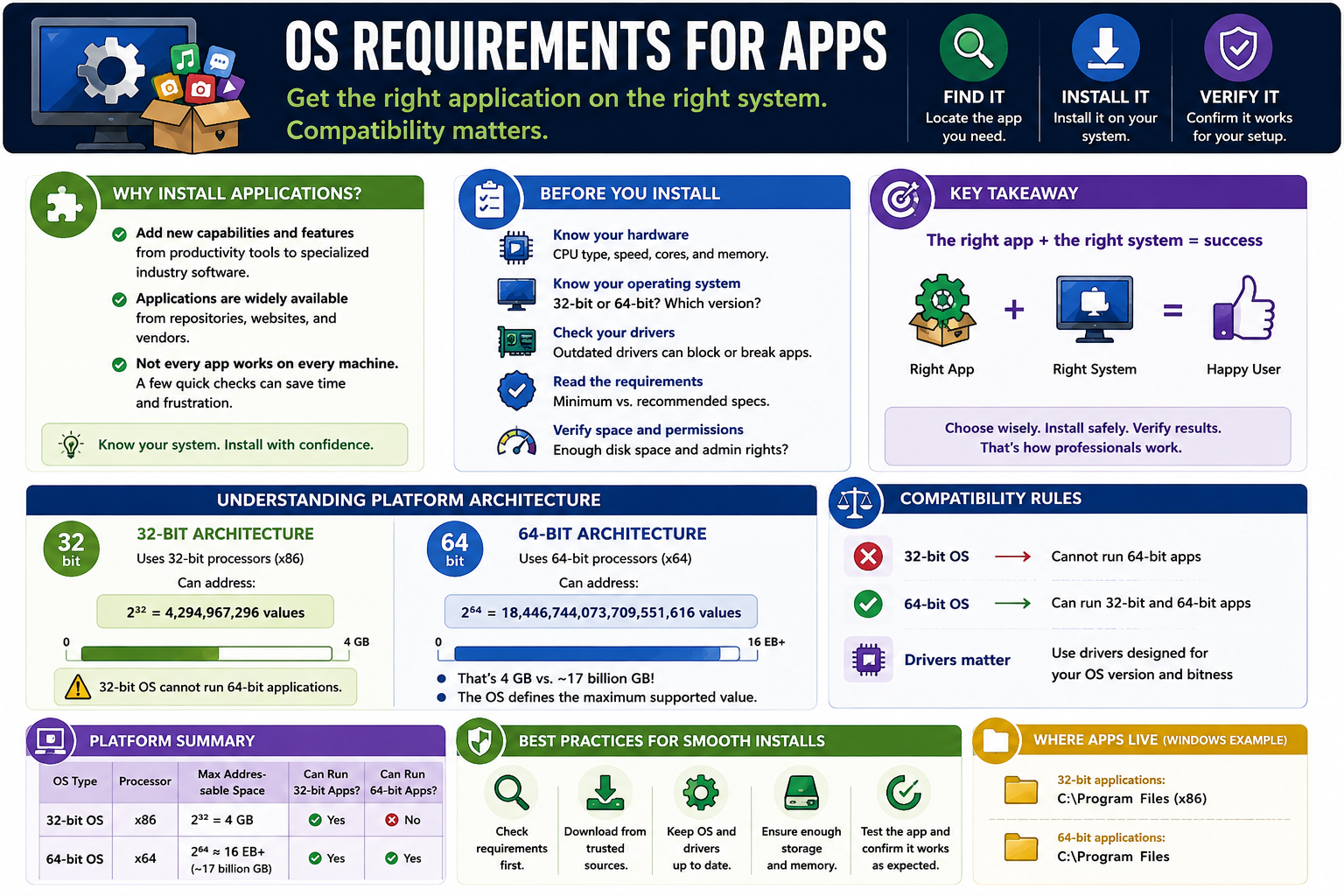
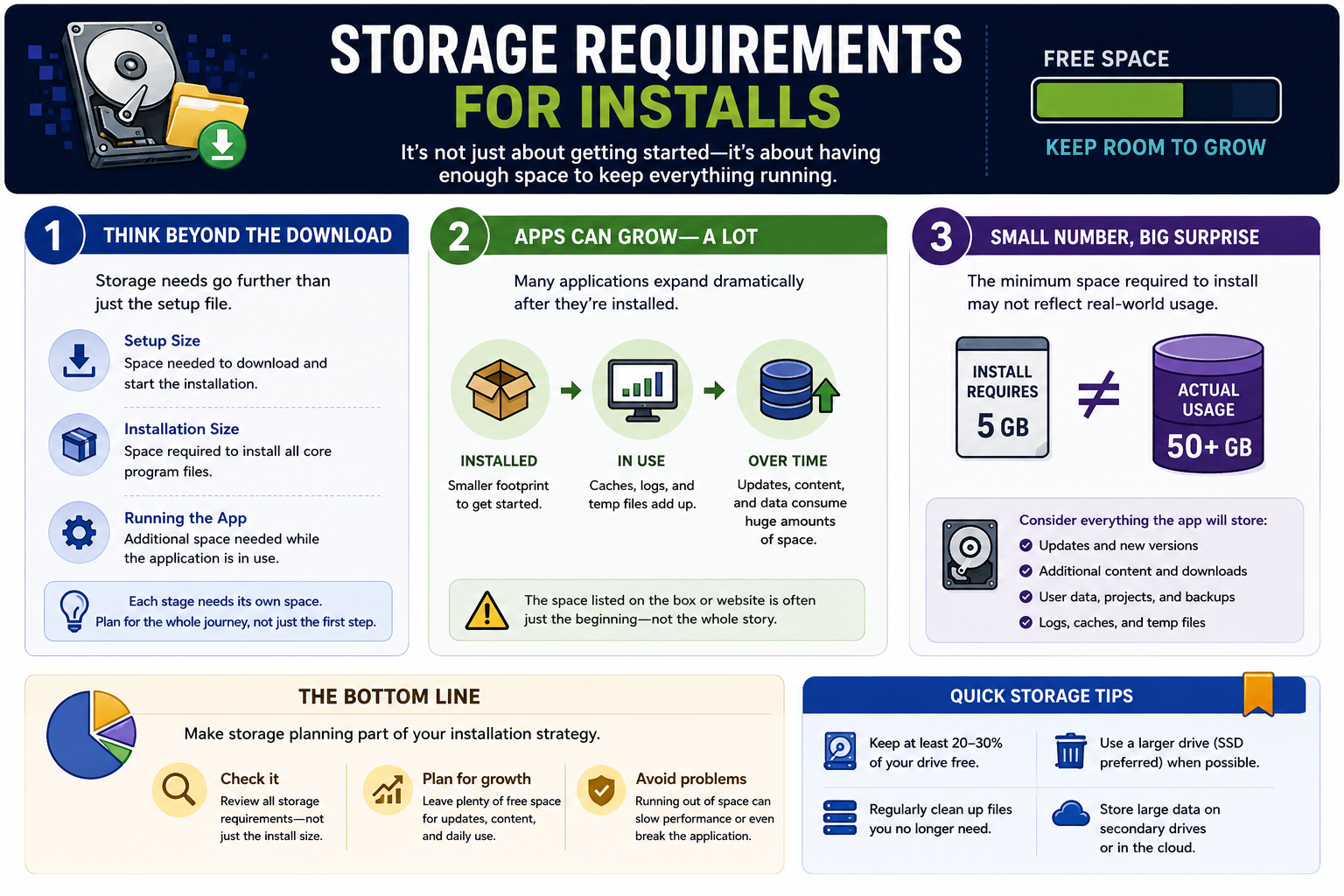
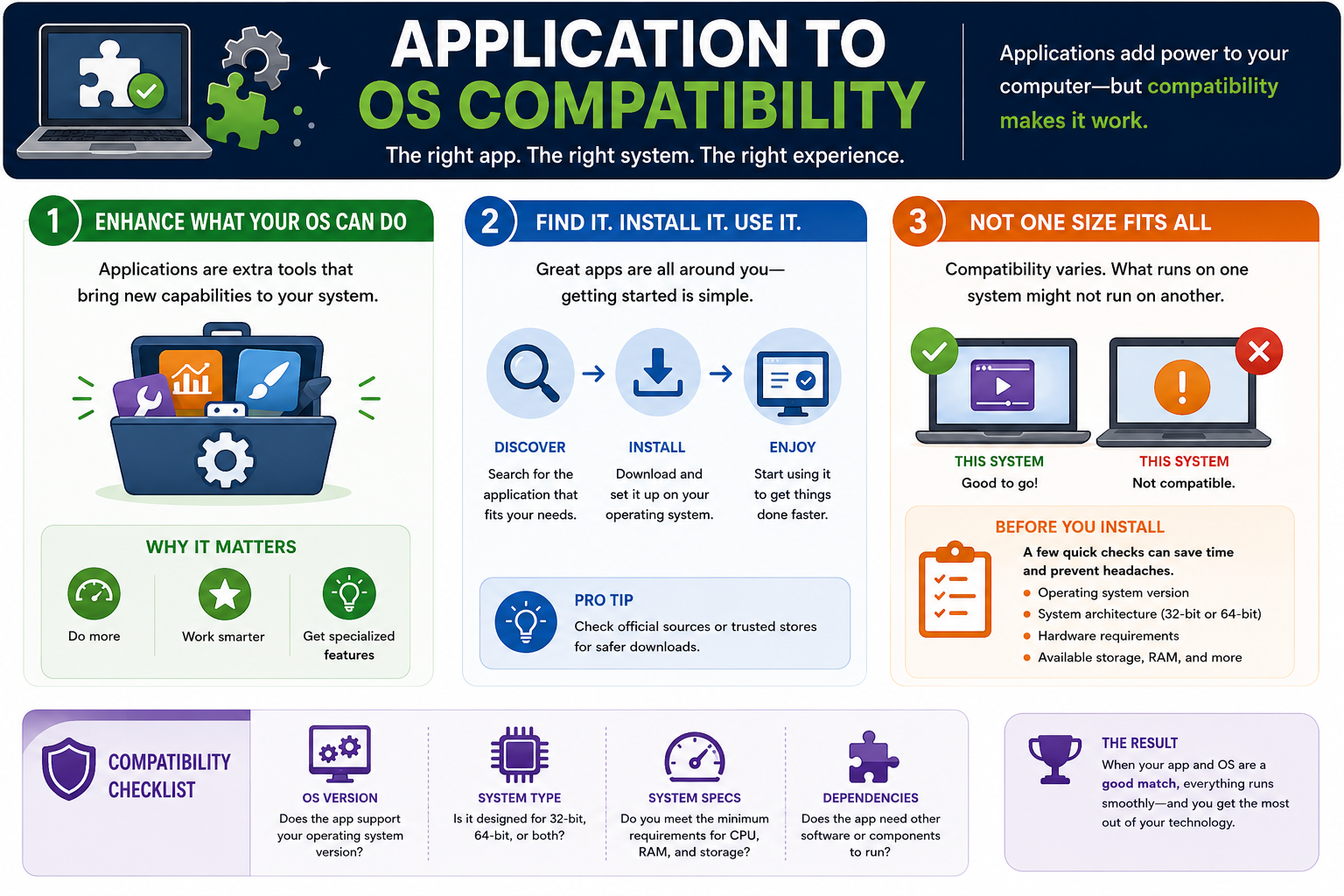
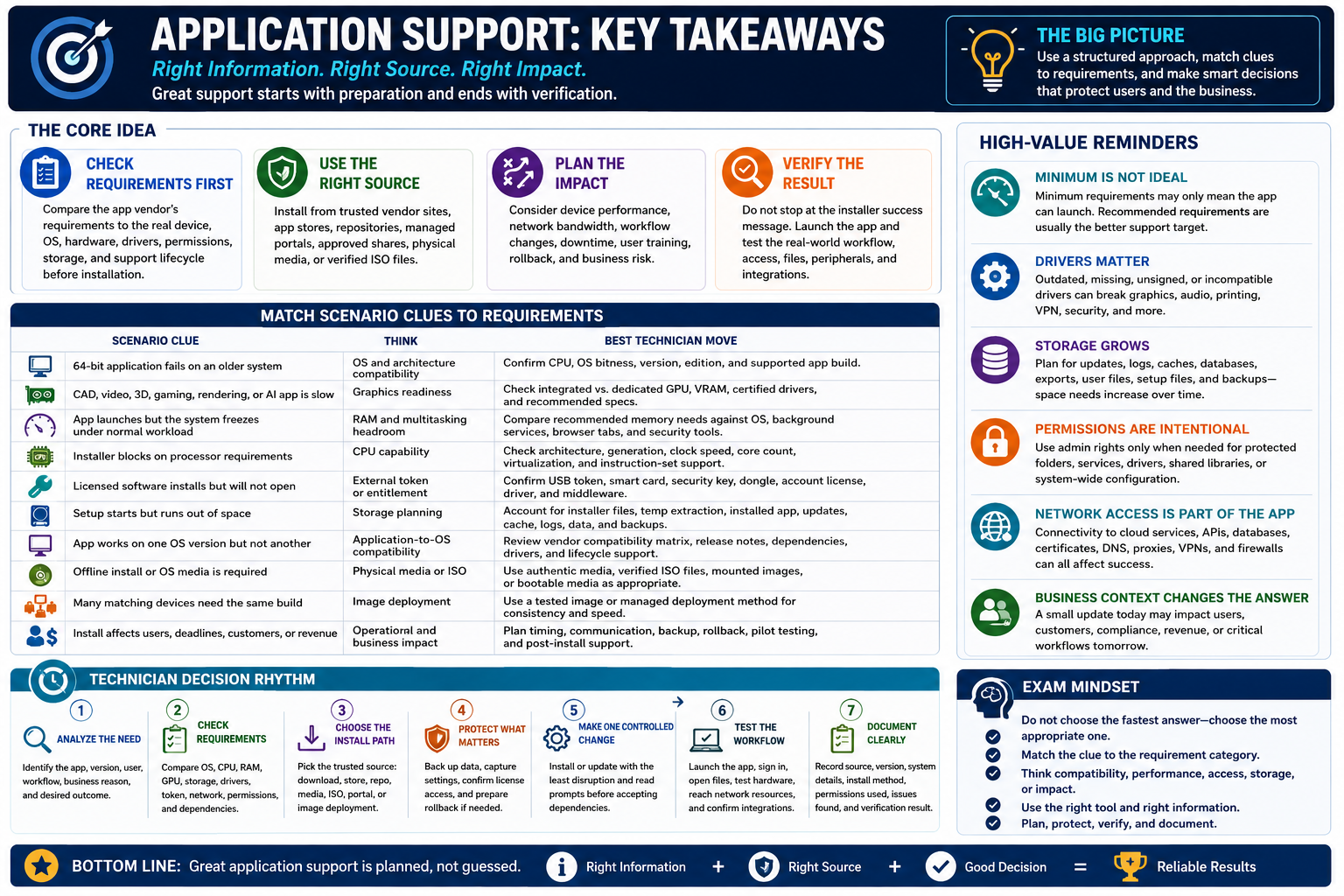
Before installing an application, match the application requirements to the system: operating system version, 32-bit or 64-bit architecture, hardware resources, drivers, storage, permissions, and source trust all matter.
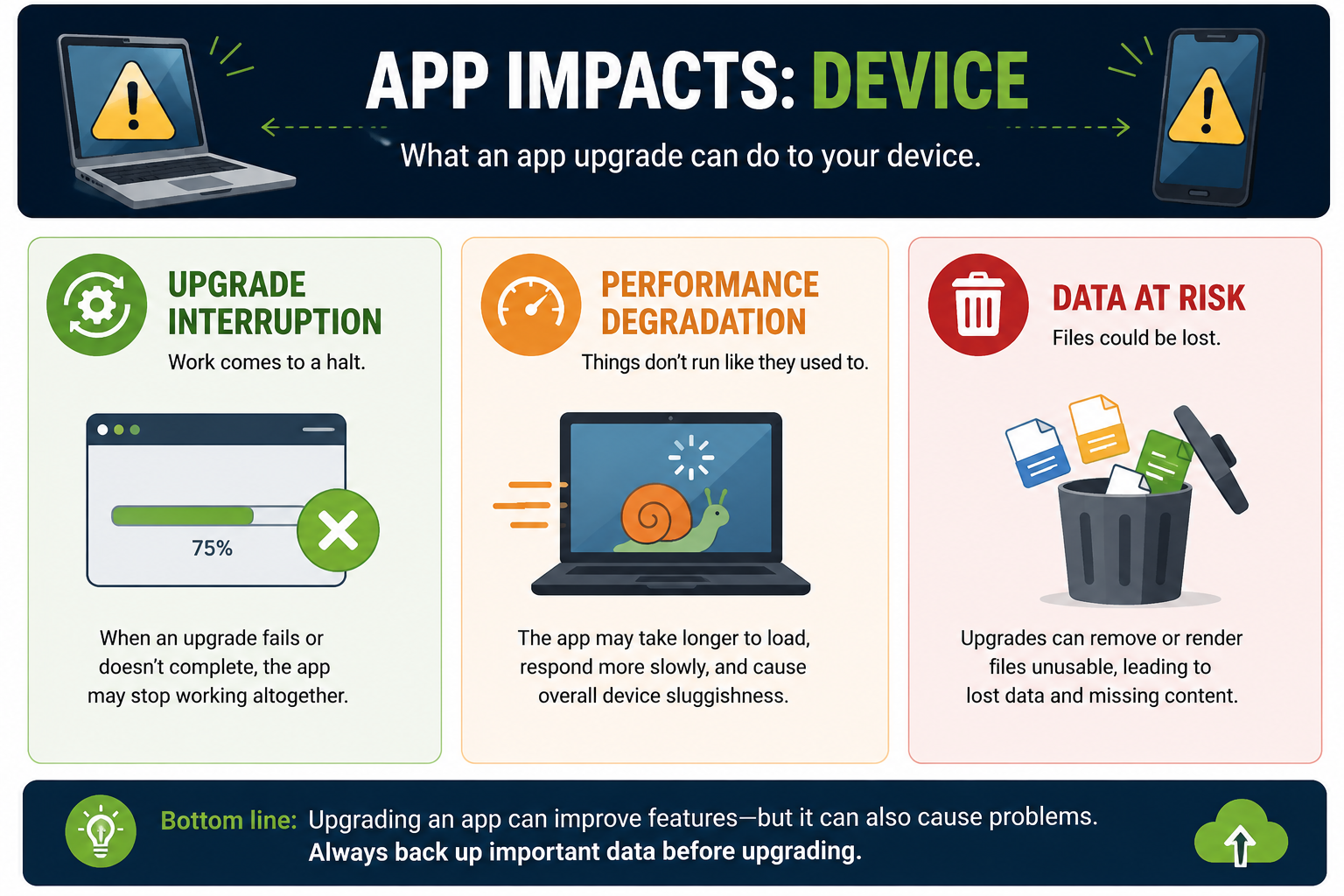
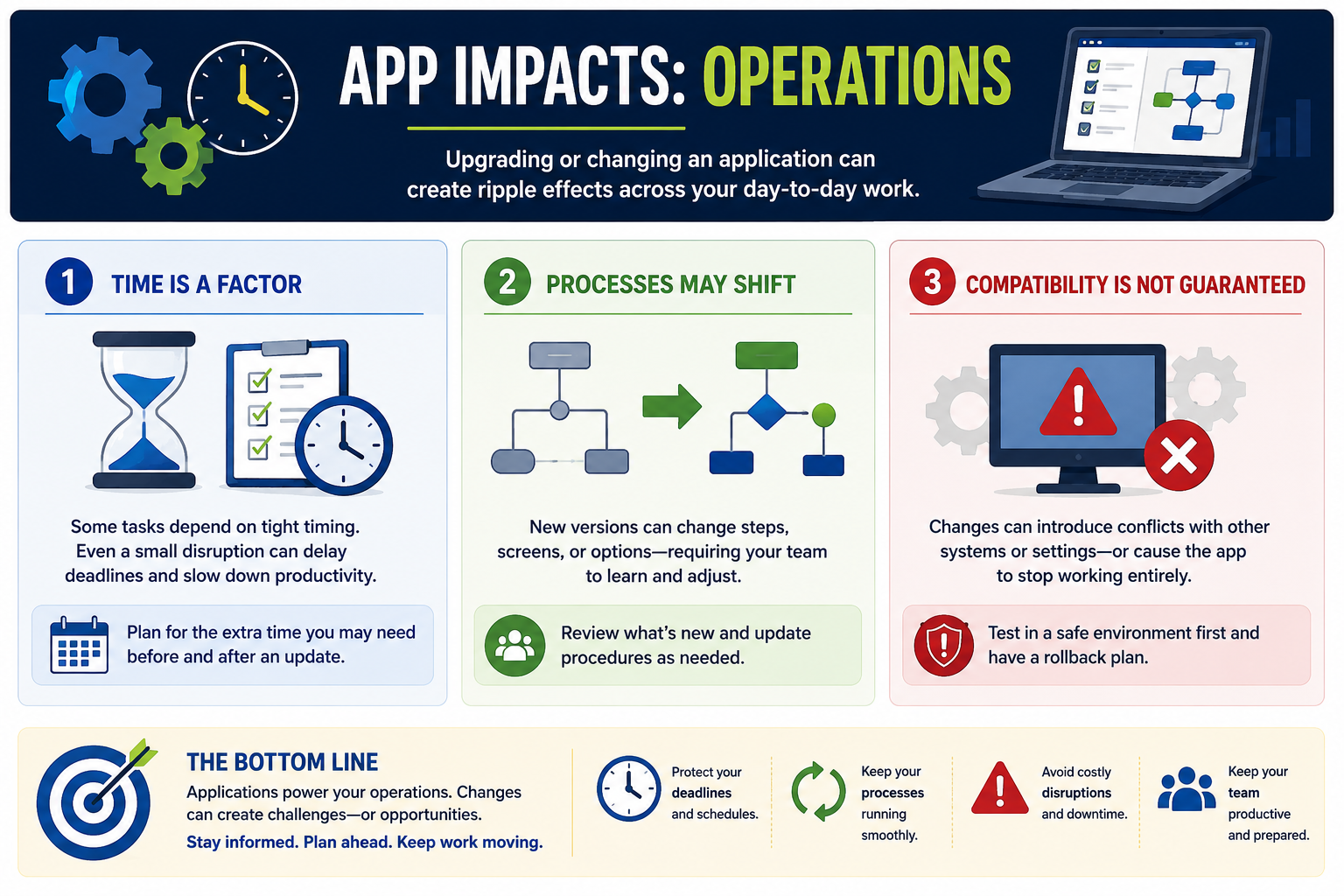
Installing software is not just clicking an installer. A technician has to confirm that the application can run on the target device, that the user is allowed to install it, that the installation source is trustworthy, and that the app works after installation. This prevents wasted time, failed installs, unstable systems, licensing issues, security exposure, and unhappy users.
For CompTIA A+ Core 2, this objective is scenario-driven. The exam may describe a user who downloaded the wrong version, a 64-bit app that will not install on a 32-bit OS, an app that requires more RAM or storage, a driver that is too old, or a business application that needs administrative rights. The right answer usually starts with checking requirements before making changes.
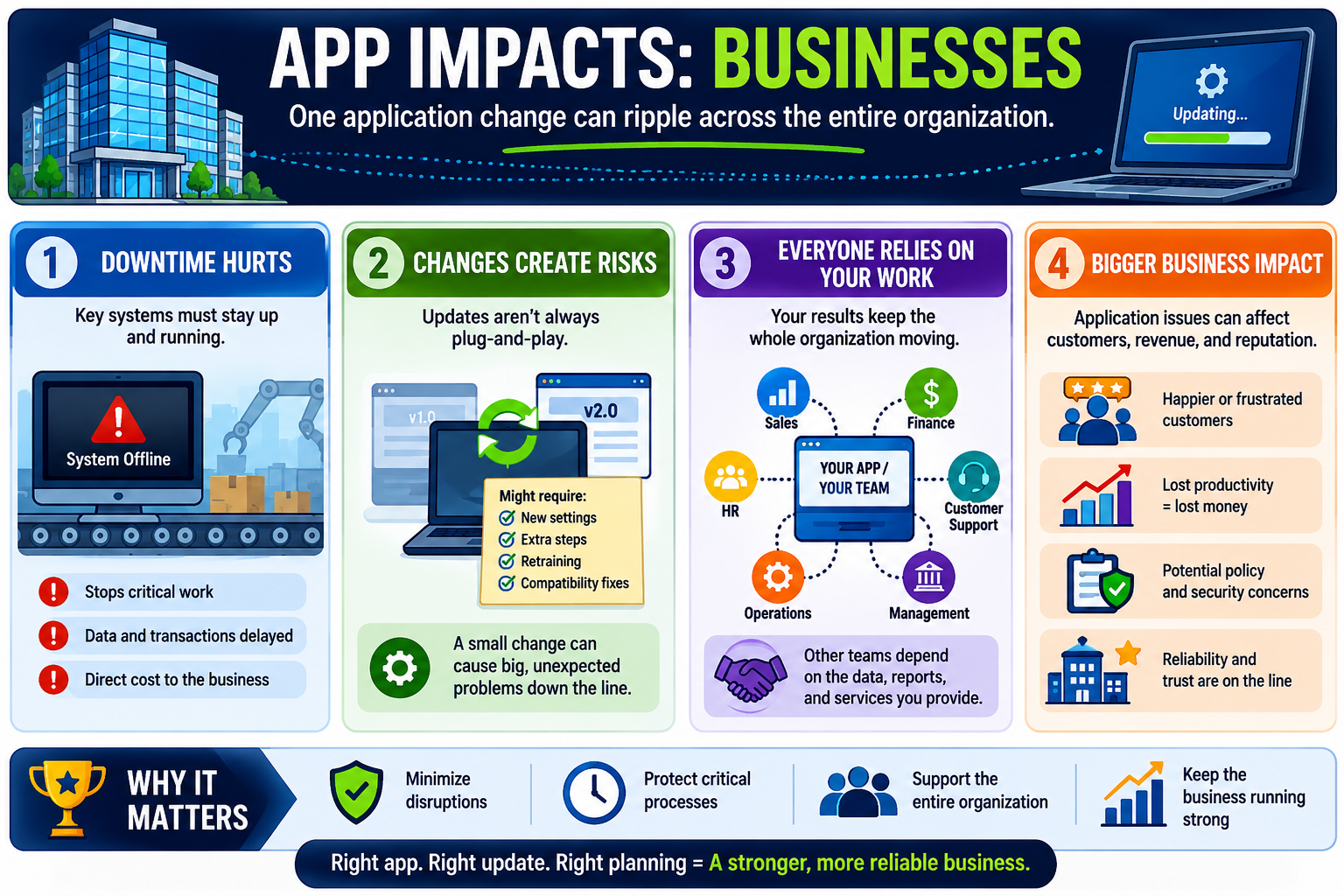
Why Requirements Matter
Before You Install
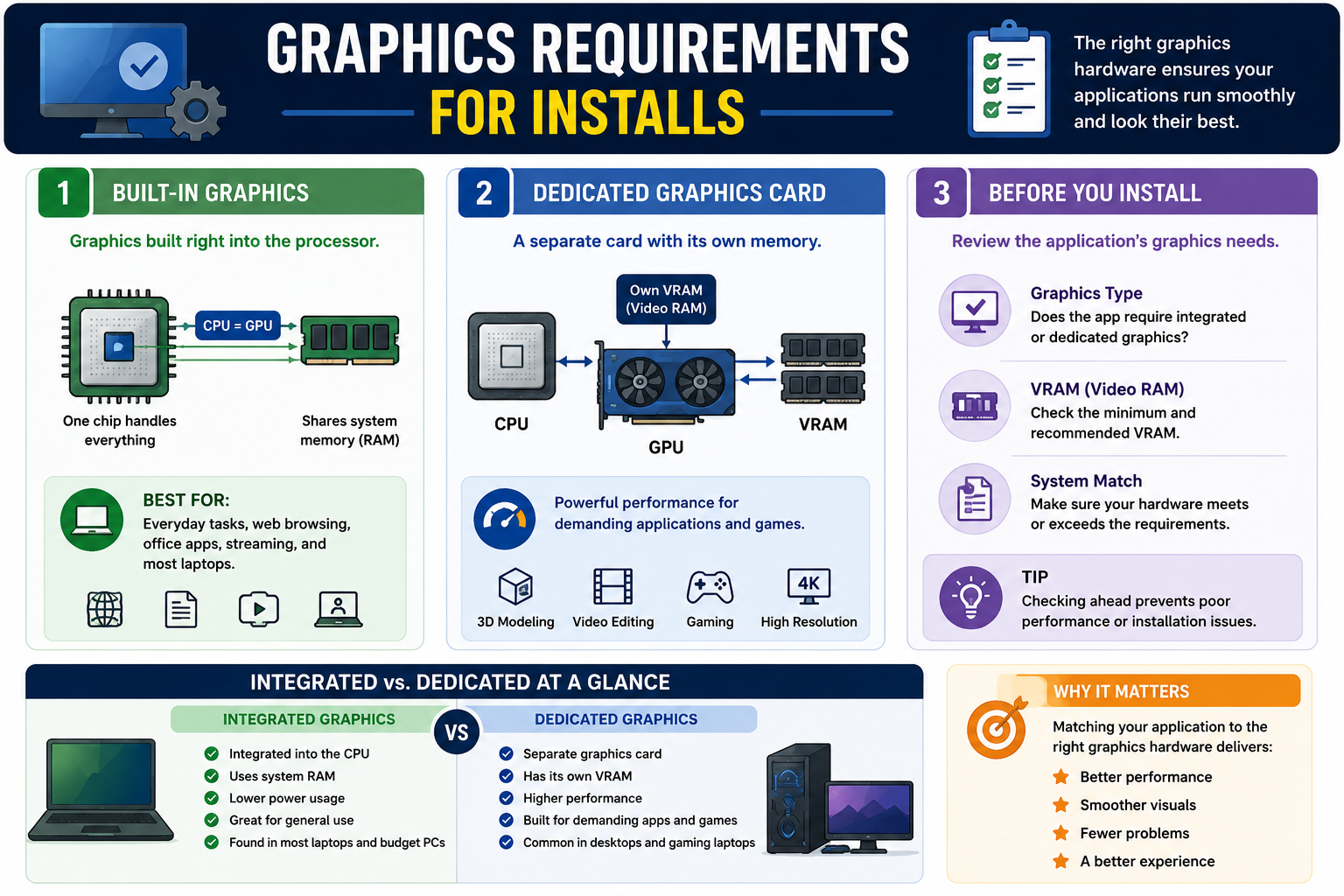
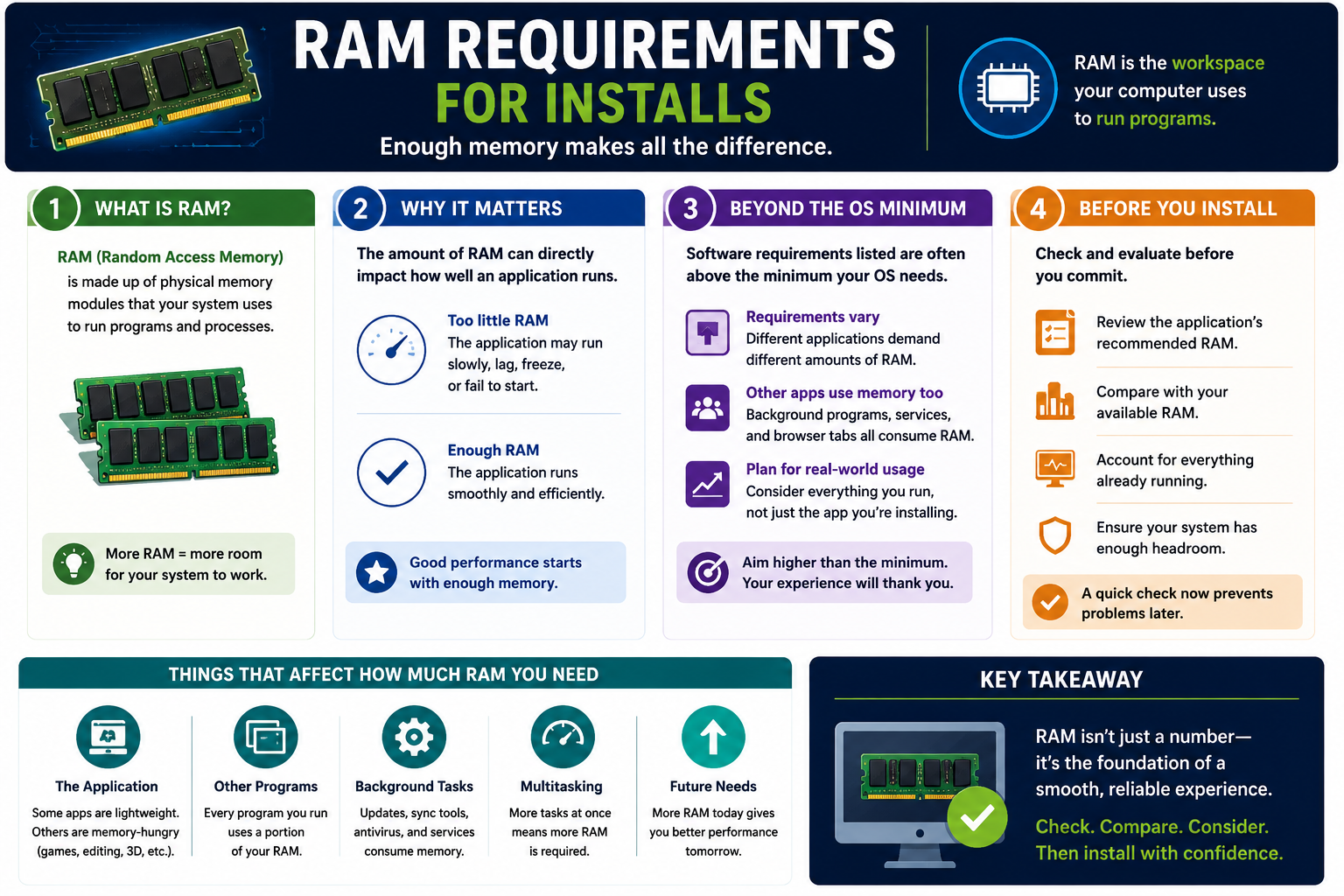
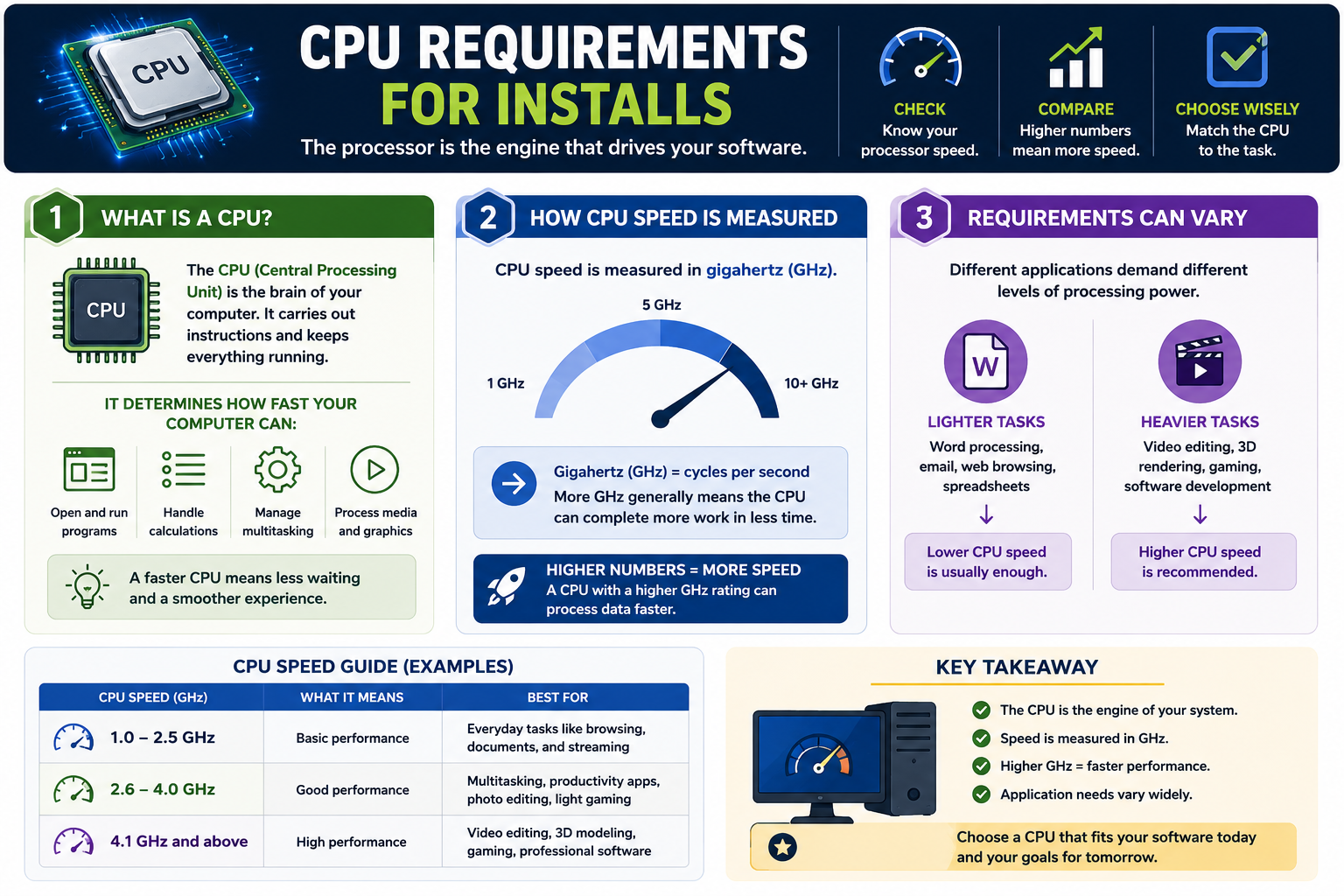
Start by identifying the system. Check the operating system name, edition, version, build, and whether it is 32-bit or 64-bit. Then check the hardware: CPU type, CPU speed, number of cores, RAM, free disk space, GPU, VRAM, network access, external security tokens, peripherals, and any required drivers.
Read the vendor requirements carefully. Minimum requirements mean the application might install and run, but performance may be poor. Recommended requirements describe the safer support target. In business environments, also check licensing, support lifecycle, compatibility with existing applications, change windows, and whether the install needs approval.
32-Bit and 64-Bit Architecture
Platform architecture is a major compatibility clue. A 32-bit operating system uses 32-bit addressing and is commonly limited to about 4 GB of addressable memory. It cannot run 64-bit applications. A 64-bit operating system uses 64-bit addressing, supports much larger memory ranges, and can usually run both 64-bit and many 32-bit applications when compatibility support is available.
The exam shortcut is simple: a 32-bit OS cannot run 64-bit apps, but a 64-bit OS can usually run 32-bit apps and 64-bit apps. The app, OS, and processor must still be compatible, and drivers must match the operating system version and bitness.
C:\Program Files (x86).C:\Program Files.Drivers and Compatibility
Drivers are part of application readiness when software depends on hardware. A graphics application may need a supported GPU and current graphics driver. Audio, printing, scanning, smart card, camera, biometric, VPN, virtualization, and security tools may require specific drivers or kernel-level components.
Drivers should match the operating system version and architecture. A 64-bit application on a 64-bit OS may still fail if the required hardware driver is missing, outdated, blocked, unsigned, or written for a different OS release.
Installation Source and Permissions
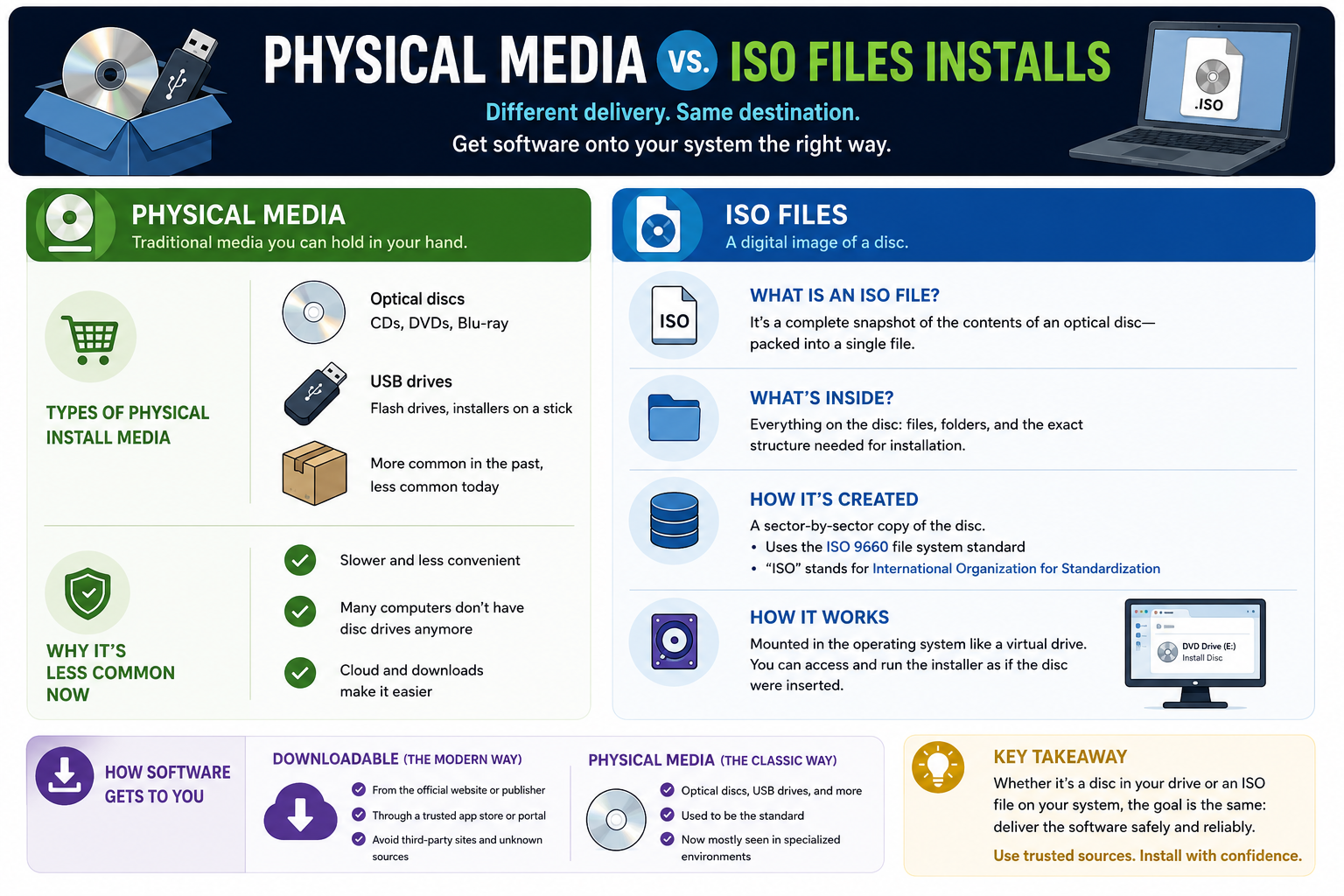
Use trusted installation sources. That may be an official vendor website, operating system app store, managed software portal, enterprise deployment tool, Linux repository, signed package, or approved internal file share. Avoid unknown download mirrors, repackaged installers, and user-supplied executables unless your organization has a validation process.
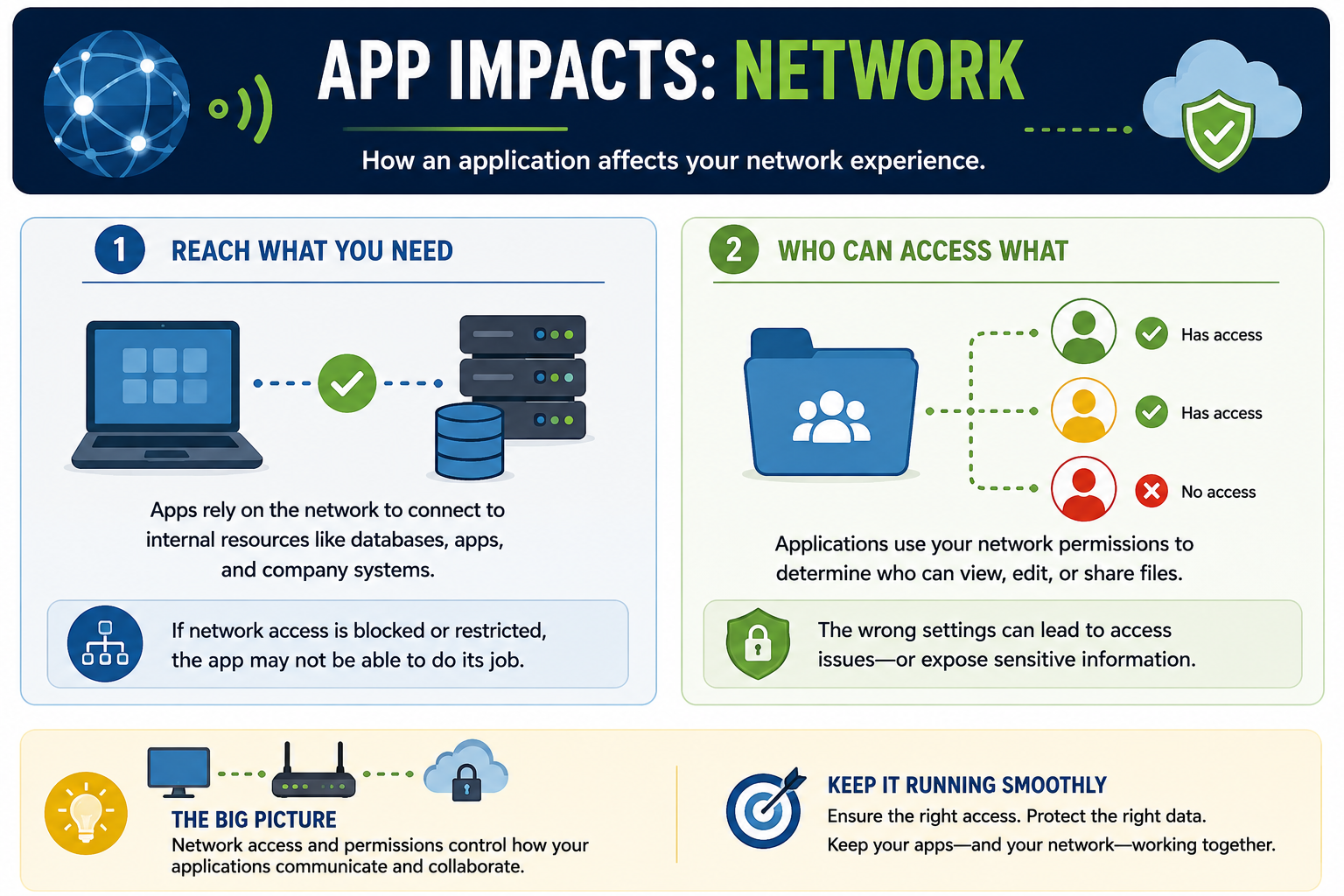
Permissions matter too. Standard users may not be allowed to install system-wide software. Administrative rights may be needed to write into protected folders, install services, add drivers, update shared libraries, or change system configuration. Use elevated access only when required and document why it was used.
Technician Workflow
- Find the right application. Confirm the exact application name, vendor, version, edition, licensing model, and business need.
- Check OS compatibility. Verify supported operating system, version, build, architecture, and support lifecycle.
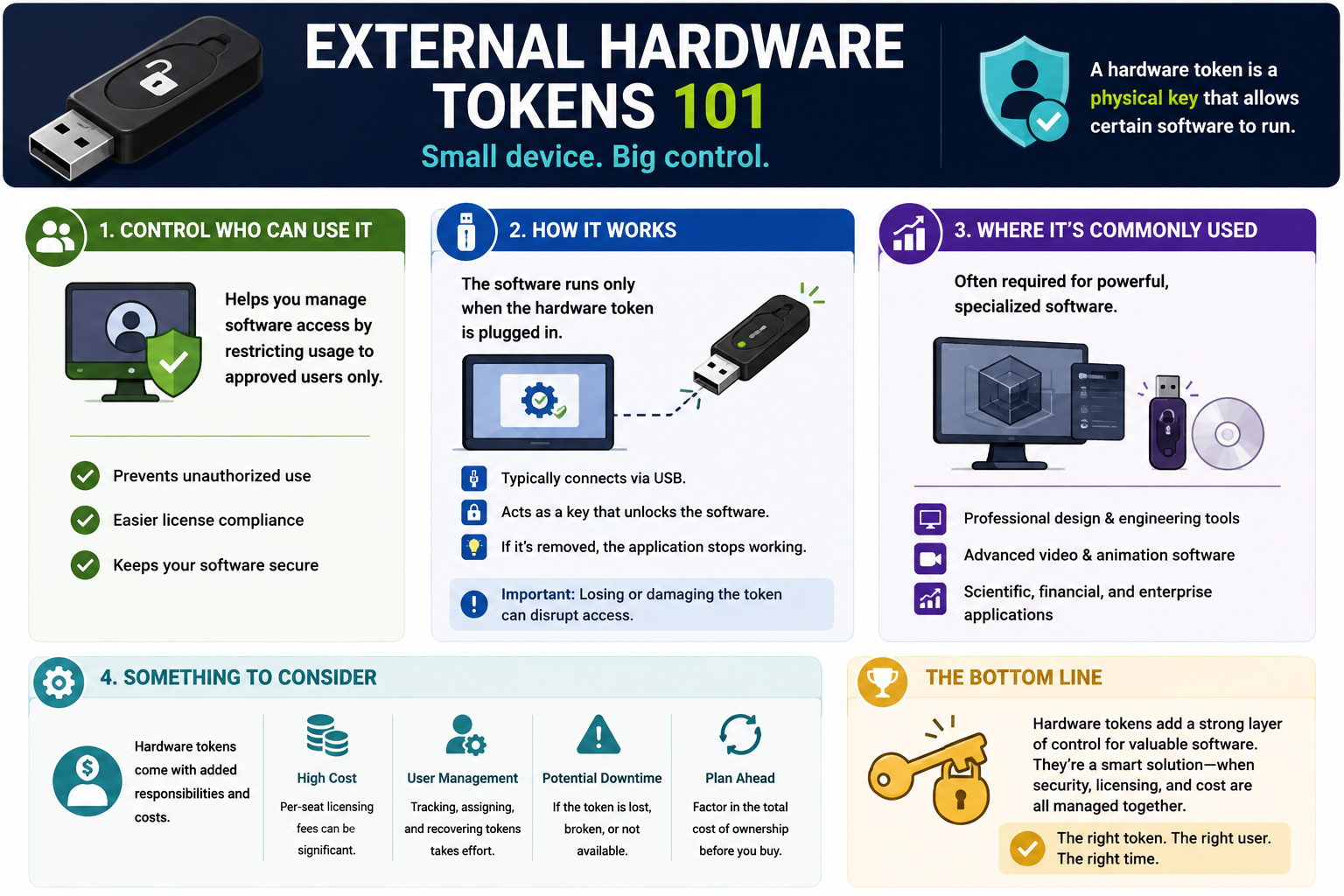
- Check hardware requirements. Confirm CPU, RAM, storage, GPU, VRAM, peripherals, network connectivity, and any external token requirements.
- Check drivers and dependencies. Update or install required drivers, runtimes, frameworks, libraries, or package dependencies from trusted sources.
- Confirm permissions. Determine whether user-level installation is enough or whether administrative rights are required.
- Install safely. Use trusted sources, read prompts, avoid bundled unwanted software, and schedule downtime if the install affects operations.
- Verify the install. Launch the app, sign in if needed, open a known workflow, confirm hardware features, and check for update or activation errors.
- Document the change. Record application name, version, source, license, install date, system requirements, account used, and verification results.
Exam Mindset
If the clue says 32-bit OS and 64-bit app, the answer is compatibility failure. If the clue says old drivers, check or update drivers. If it says insufficient disk space, free storage before installing. If it says unknown website or random installer, choose a trusted source. If it says protected system folders, services, or drivers, administrative rights may be required.
Bottom line: The right app plus the right system equals a successful install. Check requirements first, install from trusted sources, use privileges carefully, verify the application works, and document the result.