Module 1 - The Role of an Operating System
The operating system is the bridge between the user, applications, and the physical computer.
An operating system, or OS, is the core software layer that makes hardware usable. Without it, the CPU, memory, storage, keyboard, mouse, display, printer, network adapter, firmware, and connected peripherals are just individual parts waiting for organized instructions. The OS coordinates those parts so a user can sign in, launch apps, store data, change settings, connect devices, print, browse, communicate, and get work done.
Think of the OS as the traffic controller, translator, and workspace manager for the whole computer.
- Resource management: The OS schedules CPU time, allocates RAM, manages storage access, handles virtual memory, and prioritizes processes so programs can run without constantly fighting each other.
- Hardware communication: The OS uses built-in services, drivers, kernel components, and device management tools to communicate with keyboards, mice, printers, cameras, storage, USB devices, displays, network adapters, Bluetooth radios, and other hardware.
- Application platform: The OS gives applications common services such as windows, menus, file access, networking, printing, security prompts, update channels, and APIs instead of forcing every app to control hardware directly.
- User interface: The OS provides graphical desktops, touch interfaces, command-line shells, accessibility tools, search, notifications, settings apps, and account sign-in methods.
- Security boundary: The OS enforces user permissions, file permissions, authentication, encryption, firewall rules, malware protection, updates, audit logs, and separation between standard users and administrators.
The OS also handles the everyday work users expect but rarely think about. It organizes files and folders, launches and closes applications, tracks user profiles, mounts file systems, controls input and output, stores system settings, loads services at startup, manages power states, connects to wired and wireless networks, and provides troubleshooting and management tools.
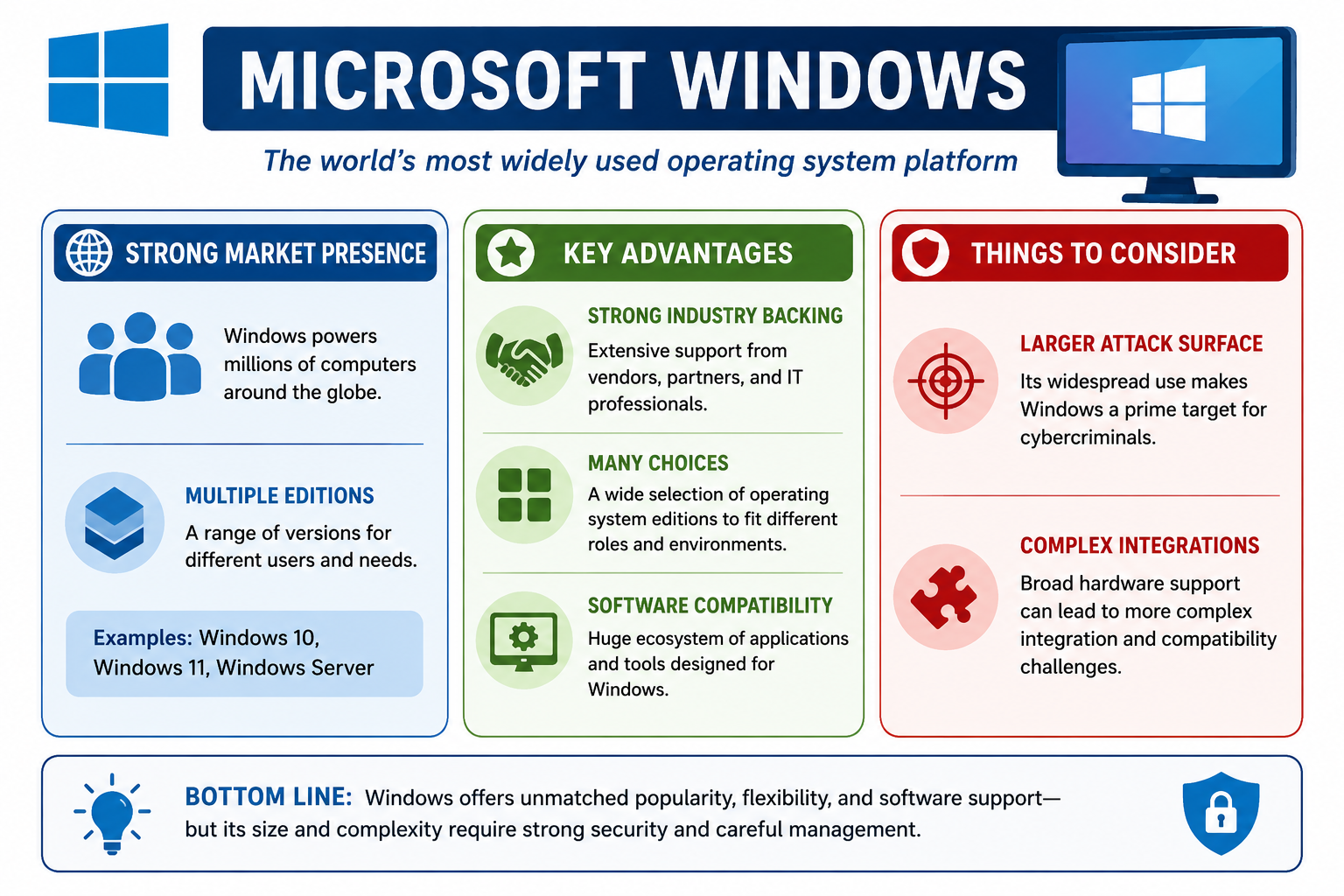
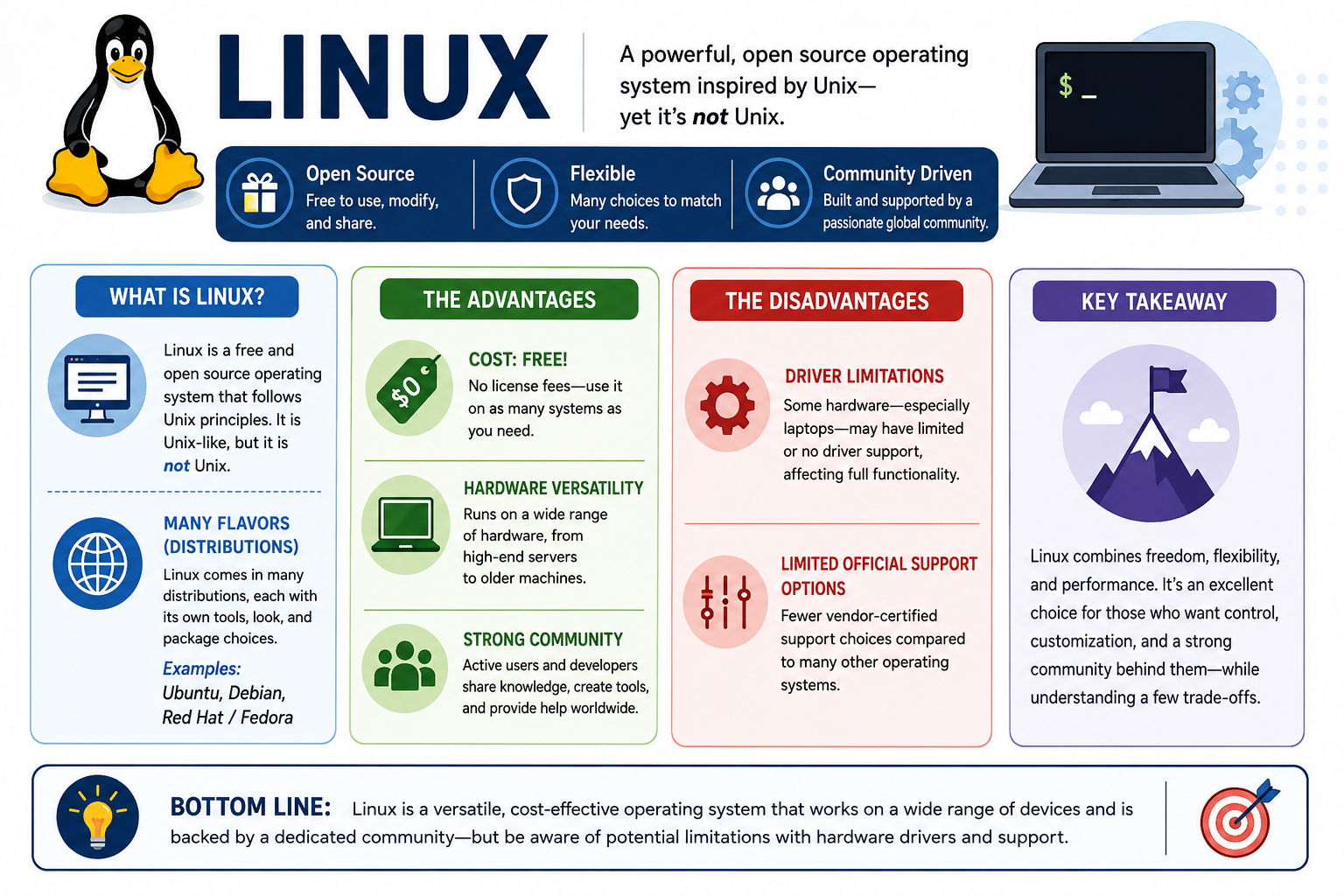
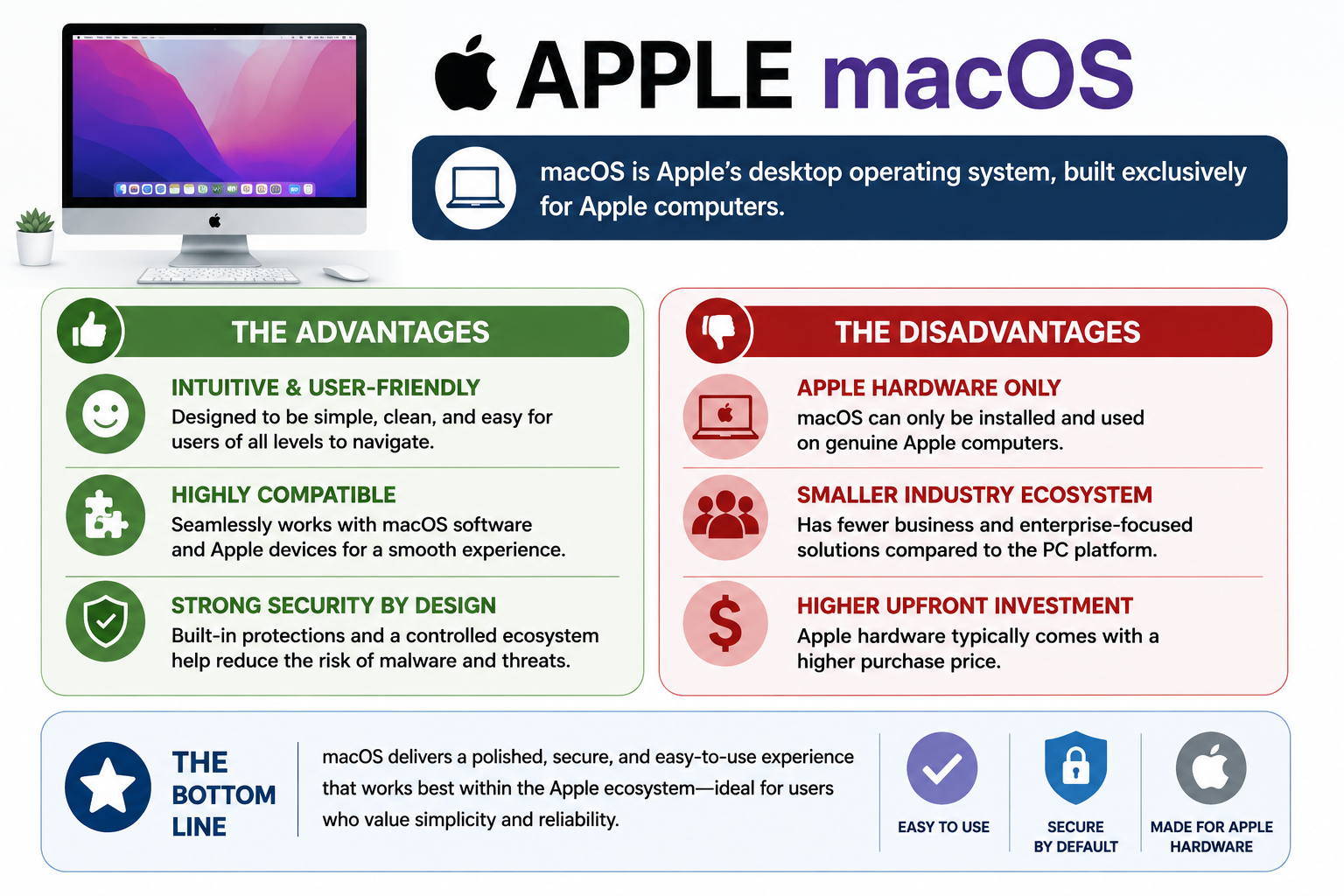
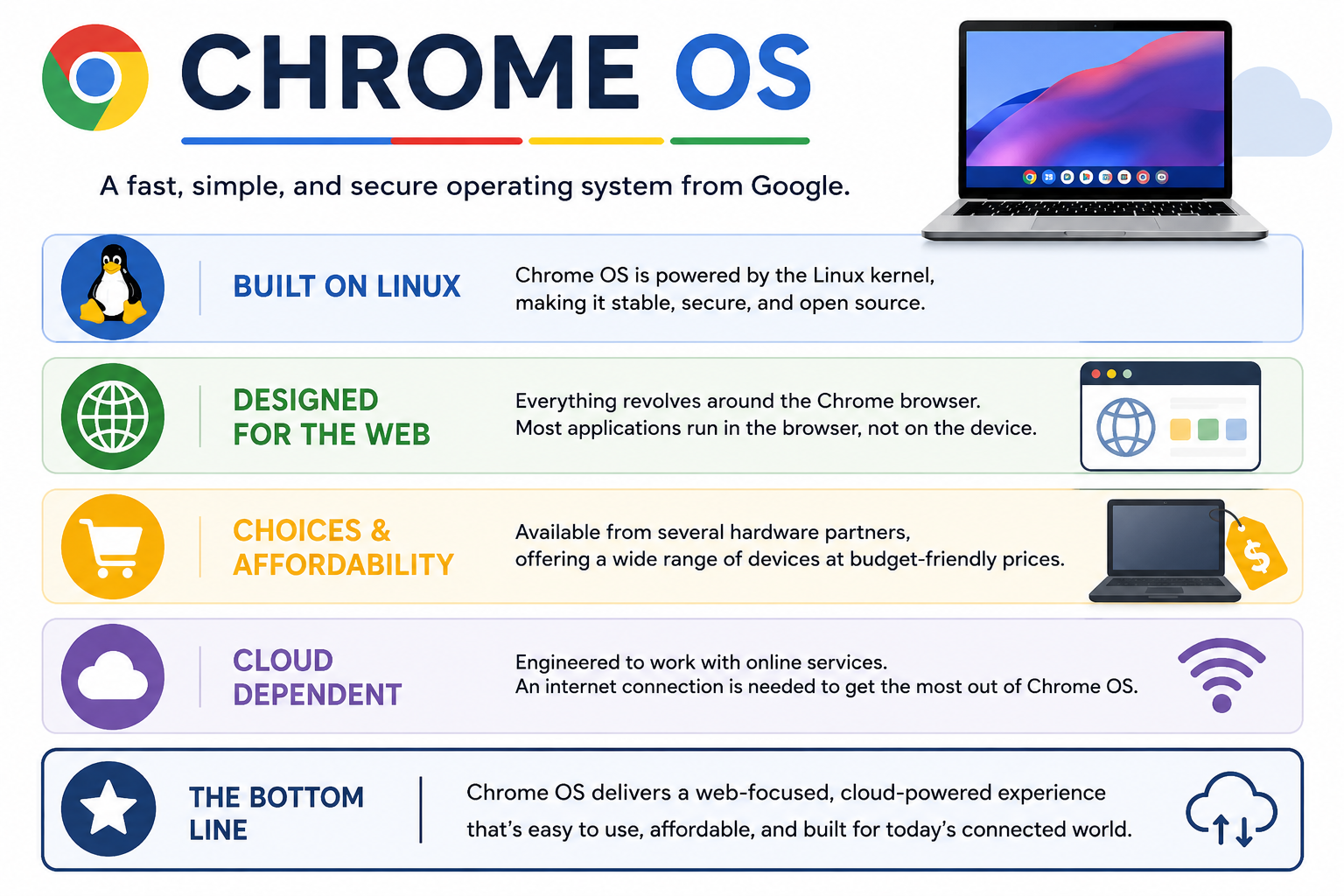
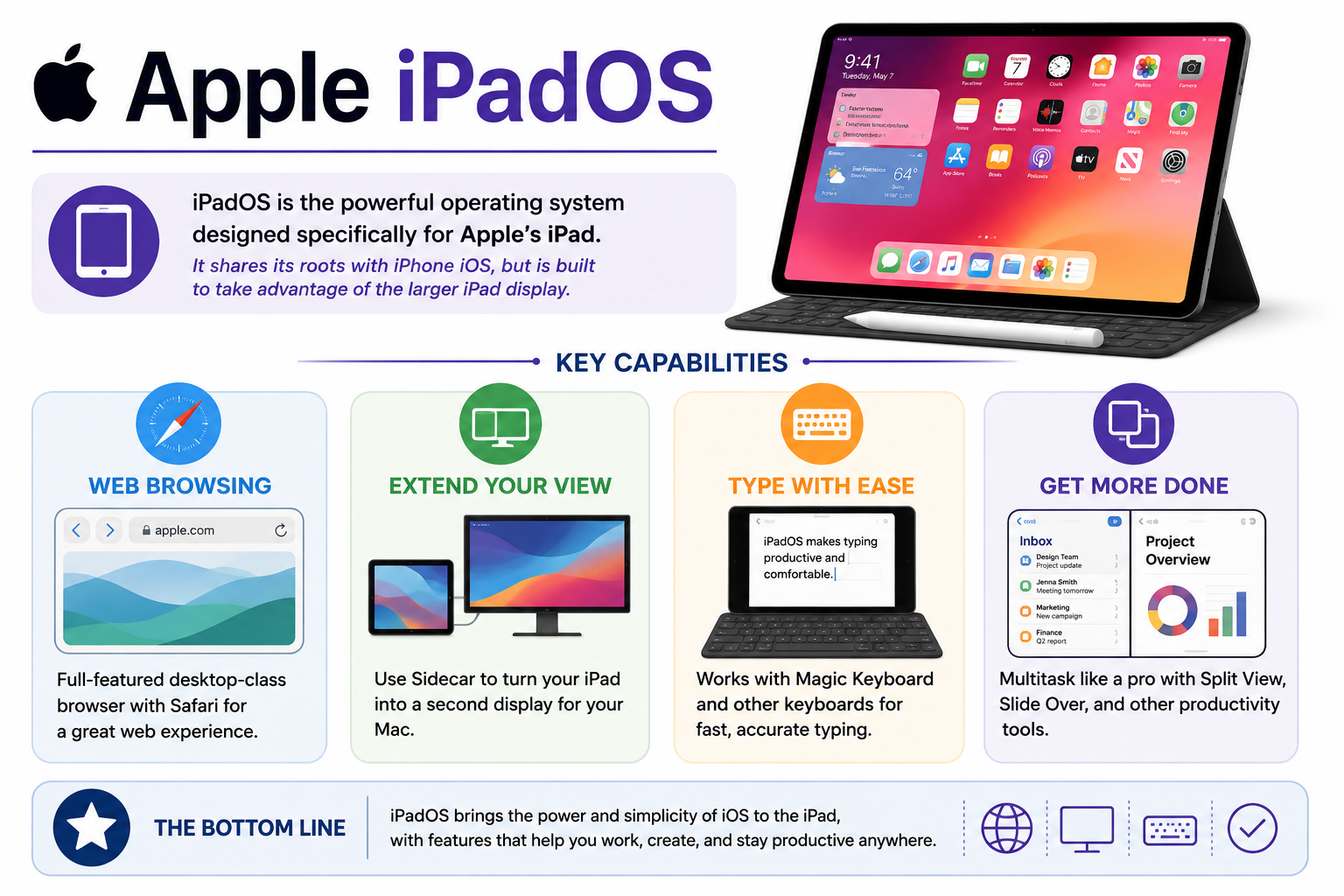
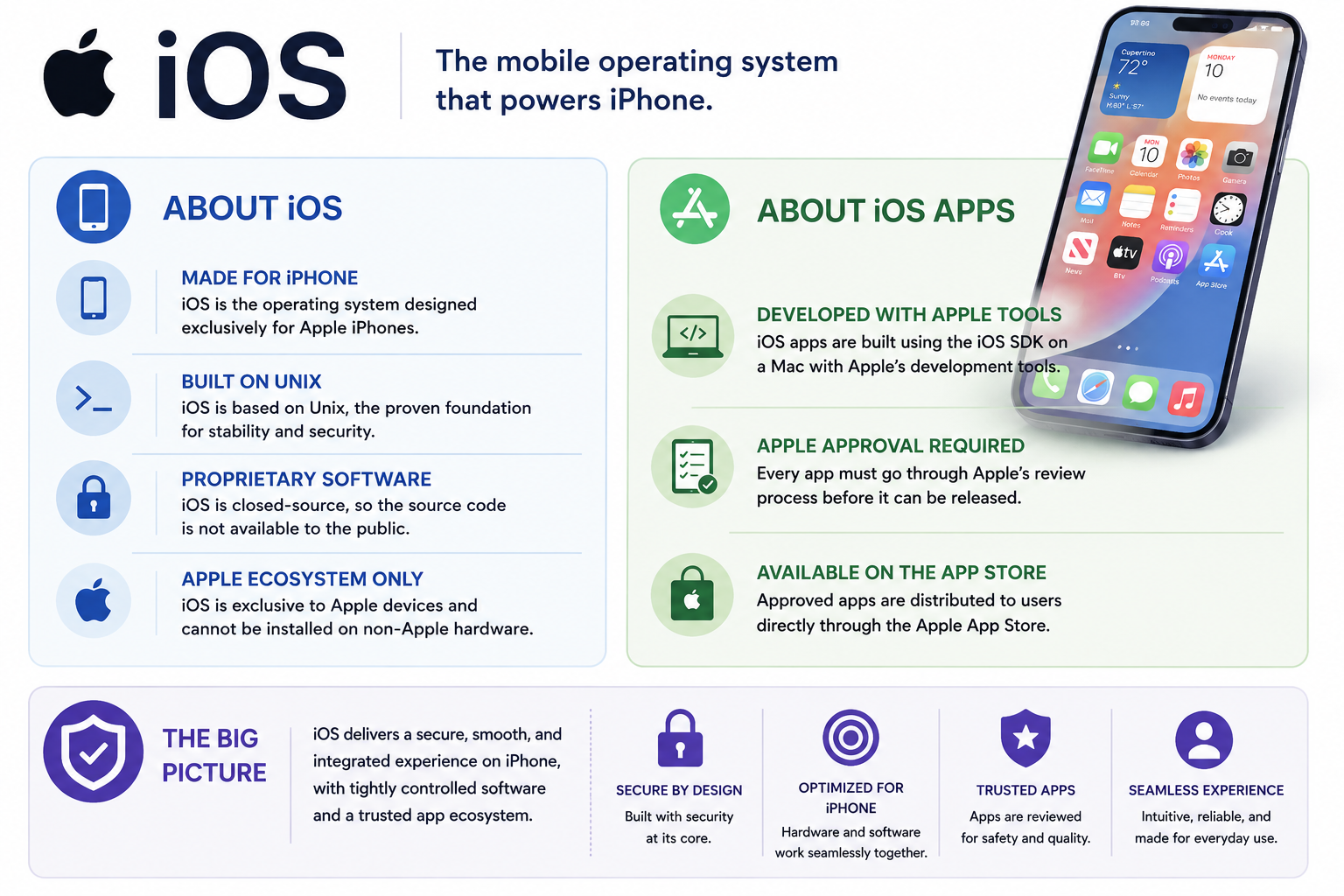
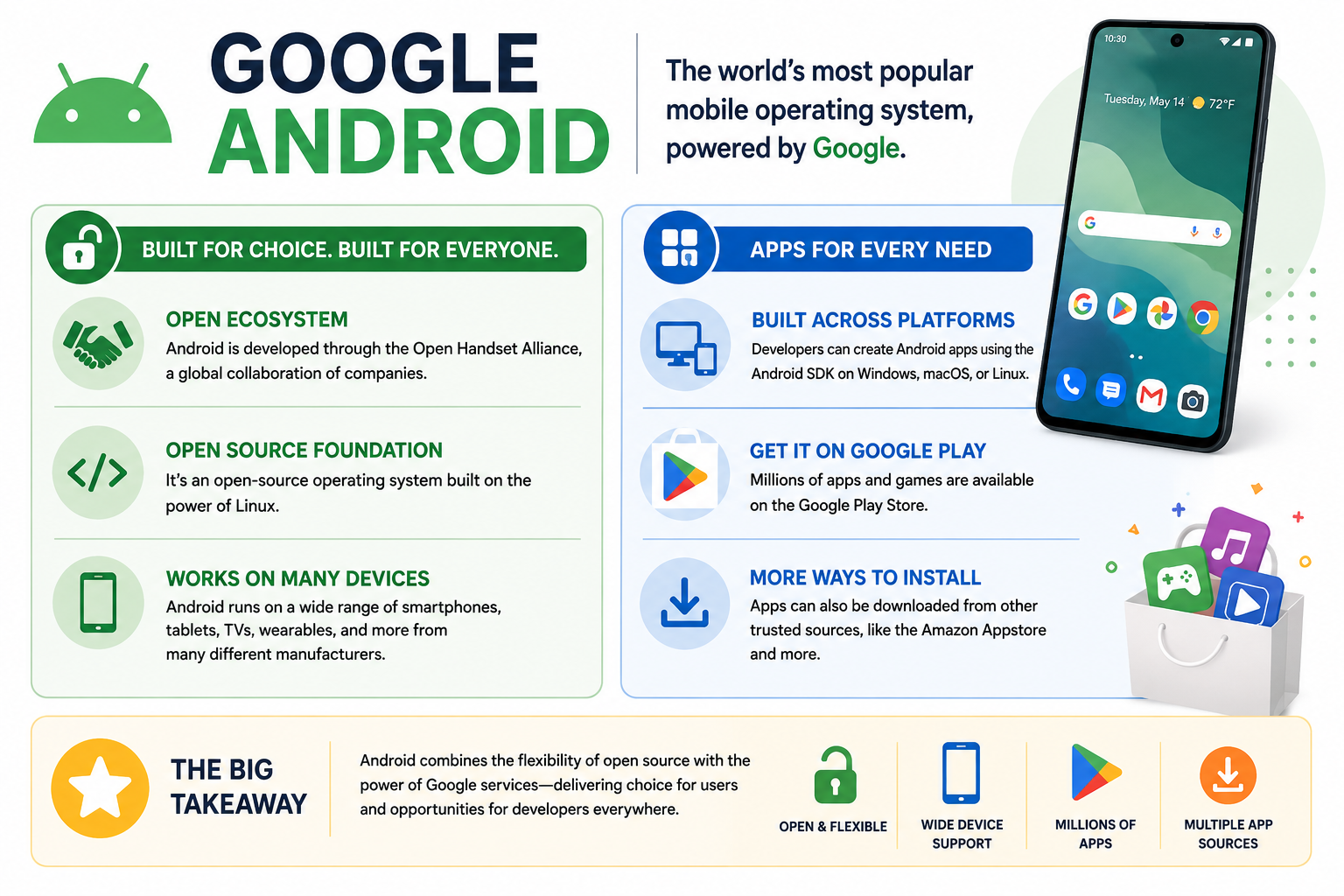
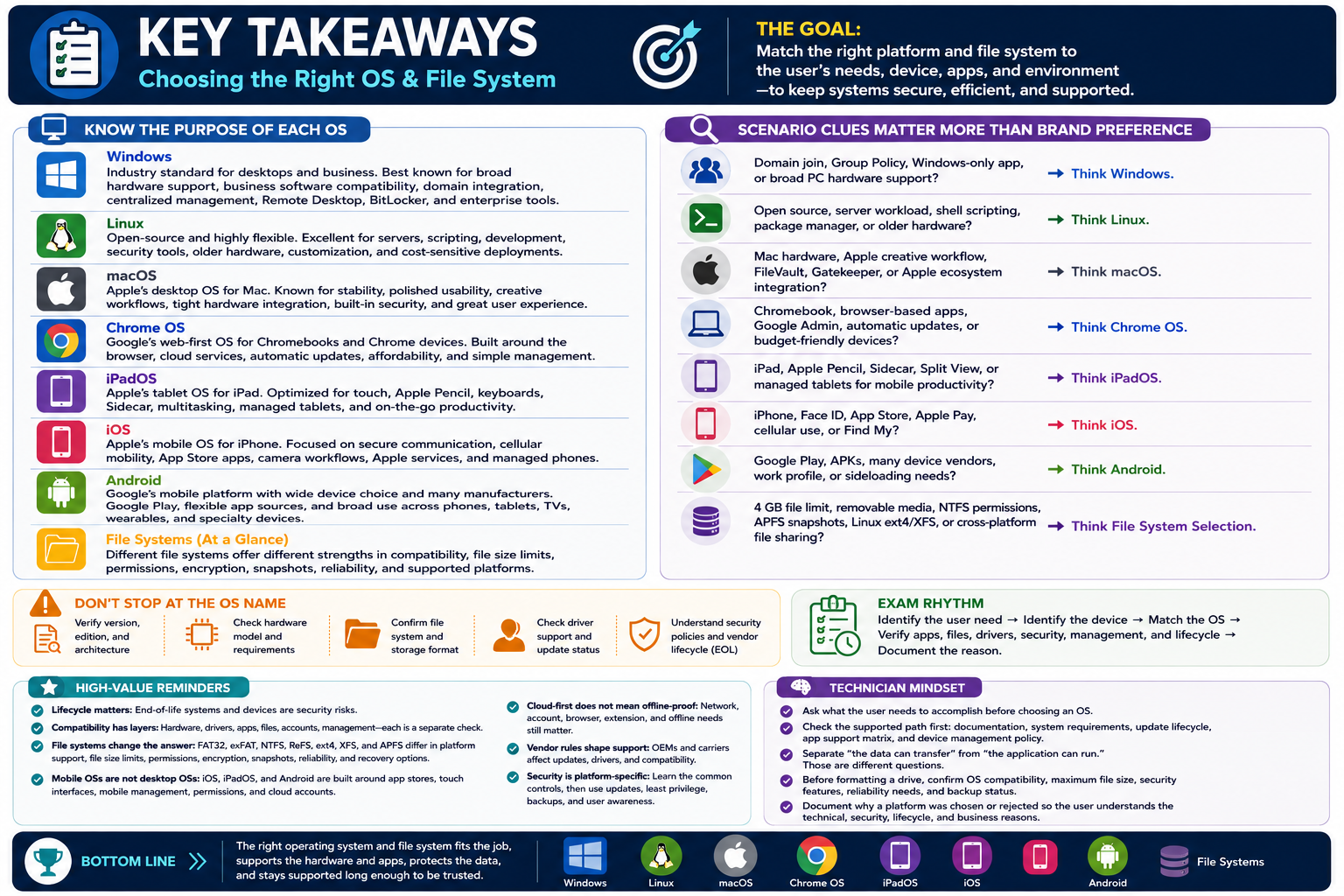
For the A+ exam, do not treat an operating system as only "Windows versus macOS." Objective 1.1 is about understanding why different OS types exist and what each one is best suited to do. A technician must match the OS to the device, the user, the application requirements, the hardware, the file system, the security model, and the vendor lifecycle.
Common OS-selection clues:
- Device type: Desktop, laptop, tablet, smartphone, server, kiosk, thin client, embedded device, or cloud instance.
- User role: Home user, student, technician, developer, power user, frontline worker, administrator, or enterprise employee.
- Application need: Windows-only software, mobile apps, browser-based work, creative tools, server services, development tools, or line-of-business applications.
- Management need: Local settings only, mobile device management, Group Policy, domain join, directory integration, remote wipe, update control, or endpoint monitoring.
- Lifecycle risk: Supported systems receive updates and security patches; end-of-life systems become compatibility and security liabilities.
Exam rhythm: identify the device and user need -> match the OS type -> confirm application, hardware, file system, lifecycle, security, and management requirements.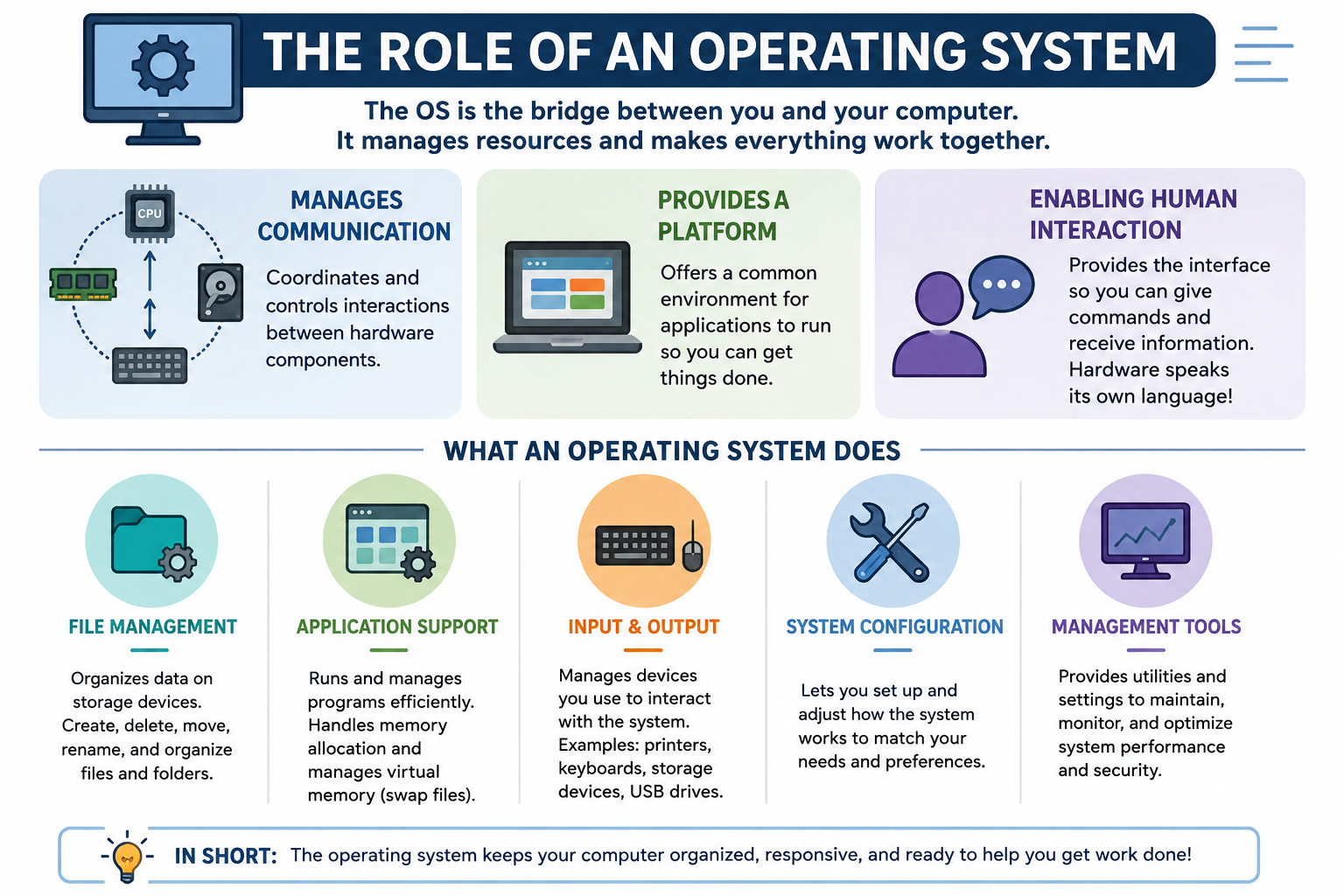
Technician mindset:
- If the user cannot launch an app, check whether the OS edition, version, architecture, update level, and application dependencies support it.
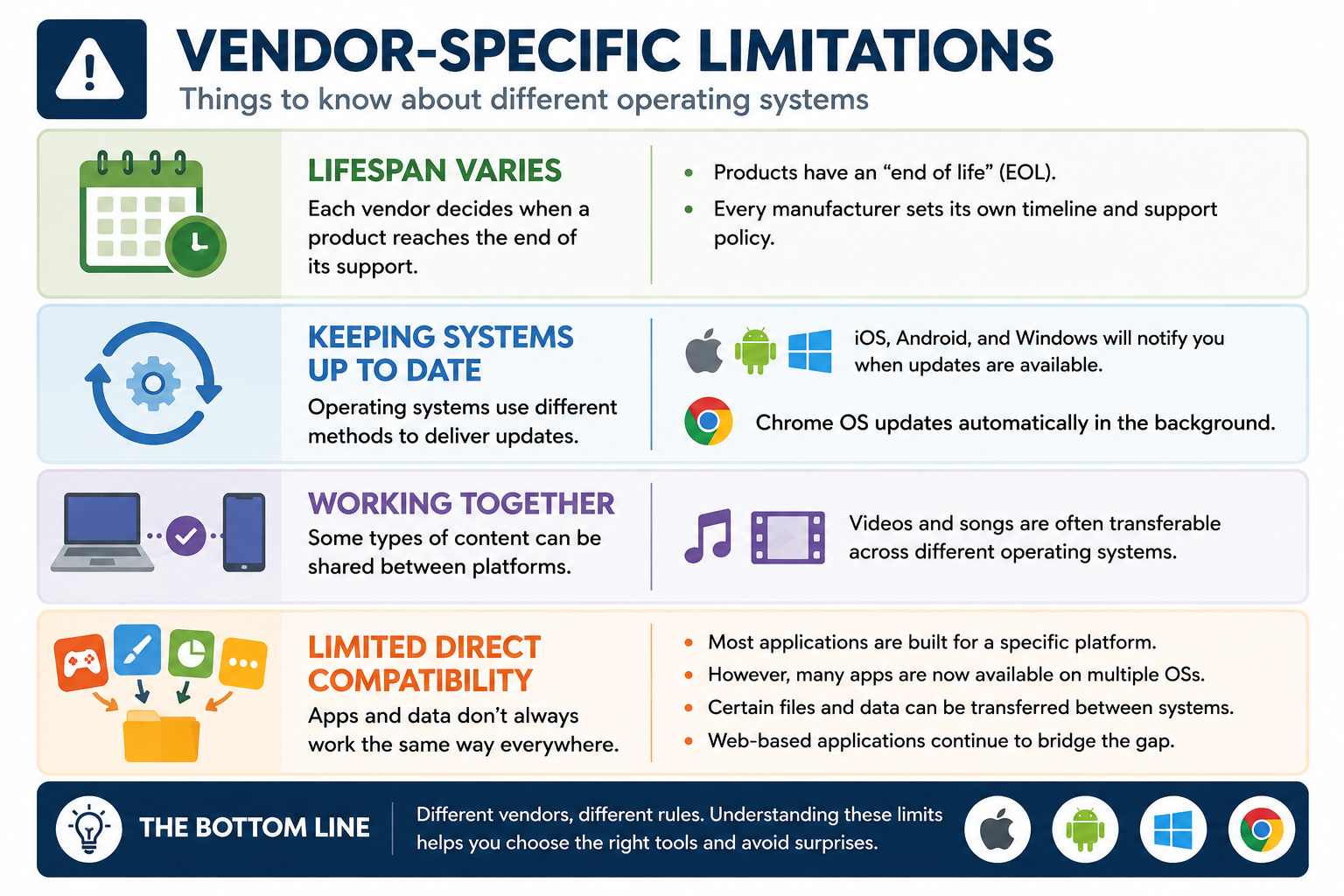
- If a device is not working, verify the OS can communicate with the hardware through the correct driver, firmware setting, service, or built-in support.
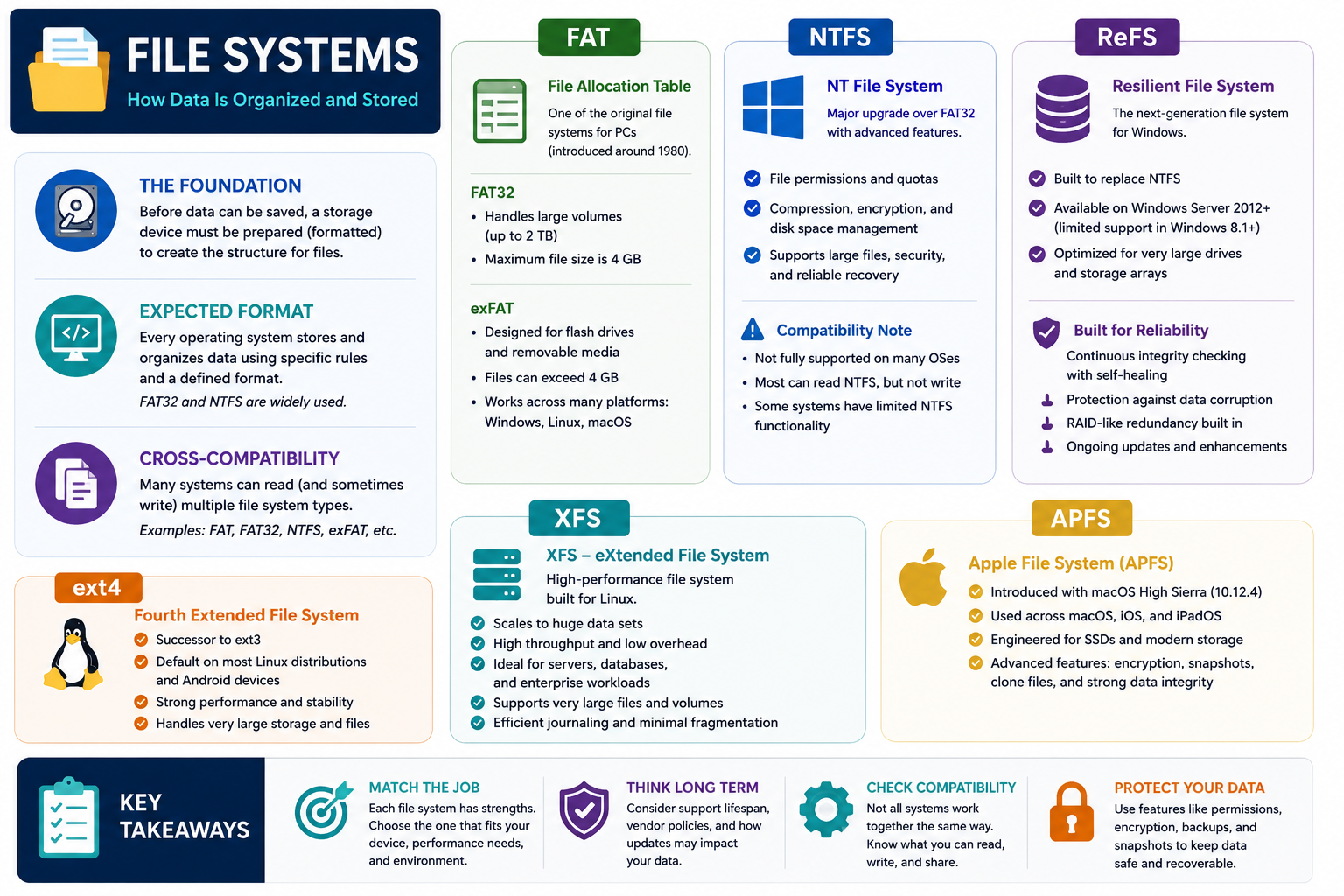
- If a file cannot be copied, opened, encrypted, shared, or secured correctly, consider the file system, permissions model, path length, ownership, and compatibility with the destination system.
- If a system feels slow, check OS-managed resources such as startup apps, background services, storage health, memory pressure, updates, and power settings.
- If the system is no longer receiving updates, treat it as a lifecycle and security risk, not just an old computer.
Memory hook: The OS manages hardware, runs applications, organizes files, secures access, and gives the user a way to control the machine.